·reference~manual
Title: EDITOR Ref erence Manual:~· [j l ' Document No. 88A00779AOl
Date Issue ! .., .~ ...
March 1984 Original Issue
NOTICE
The information contained in this document is subject to change without notice.
General Automation makes no warranty or representation with regard to this material, including, but not limited to, the implied warranties of merchanta-bility and fitness for a particular purpose. General Automation shall not be liable for errors contained herein.
·referenc,~manul.
88AOO179Ao1
Copyri~t~ bV Ge~"Otq~.i¢f:'.' Inc,
1045 Soutl\;ea$t Street P.O,·B'o-~ 4883 Anif\eim. California 92803
(7141718-4800 (a00l8!4~t5234
Title: EDITOR Reference Manual:(' .'. [1 J.. I
Document No. 88A00779AOl
Date Issue
Marc.h 1984 Original Issue
NOTICE
The information contained in this document is subject to change without notice.
General Automation makes no warranty or representation with regard to this material, including, but not limited to, the implied warranties of merchanta-bility and fitness for a particular purpose. General Automation shall not be liable for errors contained herein.
FORE\lORD
This document is one of a family of ZEBRA reference manuals devoted to PICK processors that are on call within the PICK operating system. Before read.ifng OJ
this document and using the processor described, it is recommended that you
first become familiar with the PICK terminal c.ontrol l·al).guage and fi~le jt:::JT,:]L~ ," .'''~'.'
structure. These subjects are thoroughly covered in 88A00732A, listed below with other documents covering o~!!:~.J'.Eoo~~o!~.?-':.~':_._o
.. ___ o
.. __
0.._Document No.
88A00757A 88A00758A 88A00759A 88A00760A 88A00774A 88A00776A 8 8A00777 A 88A00778A 88A00780A 88A0078lA 88A00782A 88A00783A
Title
PICK Operator Guide
ACCU-PLOT Operator Guide ~
COMPU-SHEET Operator Guide
Quick Guide for the PICK Operating System PICK Utilities Guide
PICK ACCESS Reference Manual PICK SPOOLER Reference Manual PICK BASIC Reference Manual PICK PROC Reference Manual PICK RUNOFF Reference Hanual
Introduction to PICK TCL and FILE STRUCTURE PICK JET Word Processor Guide
~-.': .. ' .
- . . " , ..
,'~:~tl 'r::. .'.·~·~,~~Cl ... ~jj:-rf: .. ~.~':'.~' -' . -~' .', '. ~ .. '". u· . ~ 1 of, \I .:; .... :-. ~ i .. :'" ~::
TMACCU-PLOT is a trademark of ACCOSOFT. EnteriJt:tses· ,'. :.:' ...
TMCOMPU-SHEET is a trademark of Raytilond;-Wa:y-ne Corpotatiort
TMpICK is a trademark of PICK Systems
TMZEBRA is a trademark of General Automation, 'Inc! 1',. iii/iv
Section
1
TABLE OF CONTENTS
Title
EDITOR • • • • • • • • • . . • . . . 1 • 1 INTRODUCTION... . • . . . . • . • . 1.2 OPERATION OF THE EDITOR. • • • . • • . . • . • 1.3 ENTERING THE EDITOR: THE EDIT AND EDIT-LIST VERBS.
1 .4 ED ITOR COlon-lANDS SYNTAX • • . • • • • • • • • . . 1.5 CONTROLLING THE LINE POINTER: B,[CR], G, L, N, T,
1.6 1.7 1.8 1.9
AND U COMMANDS • • • • • . • • . EDITOR COt-IMANDS: LOCATE (L) AND AGAIN (A) •
INPUT (I) COt-1l-lAND. • • • • • • • • INSERT (I) COt-ft.lAND • • • • • • • UERGE (ME) COMMAND • • • • • • • • 1.9.1 MERGING FROM OTHER FILES.
1.10 DELETE (DE) COMMAND • • • . • • • • • • • • • • 1.11 REPLACE (R) COMMAND • • • • • • •
1.11.1 MULTIPLE REPLACEMENTS WITHIN A LINE.
1.11.2 REPLACEMENT AFTER MULTIPLE-LINE REPLACEMENT. 1.11.3 CORRECTING INPUT • • • • • . • • • • . 1.11.4 A NOTE ON COLU~lN SPECI FICATION • • • 1.11.5 COLUMN SPECIFICATION AND THE REPLACE
UNIVERSAL COMMAND. • • • • • • . . • . •• 1.12 F, FILE ITEM (FI), FILE SAVE (FS), FILE DELETE (FD)
AND EXIT (EX) COMMANDS • • • • • • • • • • • • . • • • 1.12.1 FILING ITEMS IN OTHER ITEMS AND OTHER FILES. 1.13 TAB (TB), ZONE (Z), AND SUPPRESS (S) COt-~~S • • • . 1 • 14 AS COMMAND • • • • . • • • • • • • • • . • . • .
1 • 14. 1 M COMl1AND. • . • • • • • • • • • • • . • . • 1.15 C (COLUMN), S?, X, XF, ? (CURRENT LINE) AND 1\ COMMANDS
1.15.1 PRINTING UNPRINTABLE CHARACTERS.
1.16 PRESTORE CO~1AND (Pn). . • • • • • • • . . . • 1.16.1 PRESTORE COt-~1AND DEFINITION. • • • . •
1.16.1.1 Prestore Command Defaults 1.16.2 REPEATING PRESTORE COMMANDS • • • • • • 1.16.3 DISPLAYING CURRENT PRESTORE COMMANDS.
1.16.3.1 Using Prestores in PROCs . 1.17 RECOVER-FD. • • • • • • • 1.18 EDITOR MESSAGES. • • • • • • • • • • • • • •
EDITOR
1
1.1 INTRODUCTION
The EDITOR is a processor which permits on-line interactive modification of any item in the data base. The EDITOR may be used to create and/or modify BASIC programs, PROCs, assembly ·programs, data files, and file dictionaries. The EDITOR uses the current line concept (i.e., at any given time, there is a current line that can be listed, altered, deleted, etc.). The EDITOR includes the following features:
Two variable length temporary buffers
Absolute and relative current line positioning Line number prompting on input
Herging of lines from the same or other items Character string location and replacement Conditional and unconditional line deletion Input/Output (I/O) formatting
Prestoring of commands
Conventions used in EDITOR command formats are as follows:
Convention
UPPER CASE Characters
Lower case Characters
{ }
"string"
Meaning
Characters printed in upper case are required and must appear exactly as shown.
Characters or words printed in lower case are parameters to be supplied by the user (i.e., line number, data, etc.).
Braces surrounding a parameter indicate that the parameter is optional and may be included or omitted at the user's option.
A "string" is a sequence of characters delimited by any non-numeric character (except a blank or a minus sign) that does not appear within the body of the "string" itself. (A further description of "string" is presented in Section 1.4.)
1.2 OPERATION OF THE EDITOR
The EDITOR uses two data areas (buffers) to edit an item. The item is copied into one buffer and updates are assembled in the other. An F command merges the updates with the item and then toggles the function of the buffers.
The EDITOR uses two variable length temporary buffers (Buffer 1 and Buffer 2) to create or update an item. When the EDITOR is entered, the item to be edited is copied from the file to Buffer 1 (the current buffer). Each line (attri-bute) of the item is associated with a line number. A current line pointer . points to the current line of the item, and an End-of-Item (EOI) pointer points to the last line of the item. EDITOR operations are performed on one line at a time (the current line) in an ascending line number sequence from TOP (line 0 to EOI. As an EDITOR operation is performed on a line, the modified line and all previous lines are copied to Buffer 2 (the update buffer).
The editing process continues working on Buffer 1. As lines in the item are changed (or lines are inserted or deleted), the EDITOR builds a new updated version of the item in Buffer 2. Updating must thus continue in an ascending line number sequence until an F command is entered. The F command merges the updates with the previously existing item and an automatic resequencing of the item takes place. Functionally,the EDITOR stores the updates and only applies them to the item when the F command is entered. The F command does not
permanently file an item; it completes the copy to the update buffer, causing all lines to be resequenced and the EOI pointer to be repositioned. It then switches (toggles) the function· of the buffers, so that Buffer 1 becomes the update buffer and Buffer 2 becomes the current buffer. Editing then occurs in Buffer 2 with new modifications assembled in Buffer 1. This toggling of
buffers can go on indefinitely until the item is permanently filed away via a File Item (FI) or File Save (FS) command.
1
2
3
4
Buffer 1 Buffer 2
(Current Buffer) (Update Buffer)
Top Top
AAAAA 1 AA.AAA
current
BBBB
<----
line 2 BBBBpointer
CCCC 3 1234
DDDD
<----
EOl 4 567pointer
5 CCCC
last
--->
6 NEW LINE 6 updated lineFigure 1-1. Editing Example Before F Command
Buffer 1 Buffer 2
(Update Buffer) (Current Buffer)
Top
<--I I I
current line -->
pointer
I last
l--- updated line
EOI
--->
pointer 1-2 3 4 5 6 Top AAAA BBBB 1234 567 CCCC
NEW LINE
Figure 1-2. Editing Example After F Command
1-3
[image:11.618.93.480.72.670.2]1.3 ENTERING THE EDITOR: THE EDIT AND EDIT-LIST VERBS
The verb used to enter the EDITOR has the following general forms:
EDIT {DICT} file-name {item-list} {(options)}
ED {DICT} file-name {item-list} {(options)}
EDIT-LIST list-name(s) {(F)}
The "item-list" parameter consists of one or more item-ids separated by blanks or an asterisk character (*) specifying all items in the specified file. If multiple item-ids are specified, then the first item specified will be edited first; when the EDITOR then is terminated via a File Item (FI), File Delete (FD), or Exit (EX) command, the EDITOR will automatically be re-entered and the next item will be edited, and so on.
If the DICT option is used, the specified item(s) in the dictionary section of the specified file will be edited. If DICT is omitted, the specified item(s) in the data section of the specified file will be edited.
If a select-list is in effect (by using a SELECT, SSELECT, QSELECT, or GET-LIST), the item-list is omitted; the item-ids are obtained from the
select-list in this case.
The EDIT-LIST form is used to edit a select-list that has been previously saved by the SAVE-LIST command (see the ACCESS Manual for further details). If F is specified, the user will be prompted to enter the name of the file where the list is to be found (Default • POINTER-FILE).
Editor options are specified as a single character; multiple options may be separated by commas. For example:
(A,M,S)
Valid editor options are:
A Turns on the assembly-code formatting option (see "AS" command).
M Turns on the macro expansion flag (see "M" command). P Outputs to printer all lines executed by an FI command.
Once the EDITOR has been entered, the following will be printed:
TOP
the current line pointer is set to 0 and an EDITOR command is awaited
(i.e., the period prompt character (.) indicates that an EDITOR command is to be entered).
If the specified item does not already exist on file, the message "NEW ITEM" will be printed prior to the "TOP" message. Furthermore, if multiple item-ids were specified, then the item-id of item currently being edited will be
printed.
Items are subsidiary to files. Structurally, they are made up of attributes and, functionally, they all are seen by some processor as data, but
intuitively, one may consider items to be of two types: text or data. A data item is typified by the condition that the meaning of a data string depends upon which attribute it is in. A text item is a sequential string using the attribute mark and count at most to delimit substrings. Data strings include attribute defining items found in dictionaries and occasionally referred to as attributes for brevity, and data items in files to be processed by ACCESS, BASIC, or User exits, wherein individual lines are properly referred to as attributes. Text items are made up _of ___ lines, which are structurally identical
to the attributes of data items, but which do not have meaning by virtue of their attribute location. Text items include BASIC and Assembler language programs, PROCs, and the items processed by RUNOFF. .
The EDITOR has the capacity to create, modify, and delete both data and text items anywhere in the system, within the constraints of the user's account privilege level and UPDATE/RETRIEVAL lock codes, without respect to the type of item or its end use.
The EDITOR displays attributes as lines, so that the attribute mark count within the item and the line number displayed by the EDITOR are identical. Note that attribute 0 is the item-ide
Sample use of the EDIT verb is:
*
)ED XYZ ITEM1 feR] (--- EDIT verb.TOP (--- TOP message from EDITOR.
(--- User enters any EDITOR command here.
*
)EDIT DIeT XYZ PRO feR] (--- EDIT verb (specifies dictionary section here).TOP (--- TOP message from EDITOR.
(--- User enters any EDITOR command here.
*
)EDIT FILES ITEM3 feR] (--- EDIT verb.NEW ITEM (--- This message specifies that ITEM3 is
TOP a new item.
*
)ED F1 11 12 13 (eR1 (--- EDIT verb (with multiple item-ids). 11 (--- Item II is edited first.TOP
*
.EXEXIT 12 TOP
(--- Exit command (exits EDITOR).
(--- EDITOR automatically reentered to edit next item (12).
*
.EX (--- Exit command. EXIT13 (--- EDITOR automatically reentered. NEW ITEM (--- Shows that 13 is a new item. TOP
*
.EX (--- Exit command. EXIT1.4 EDITOR COMMANDS SYNTAX
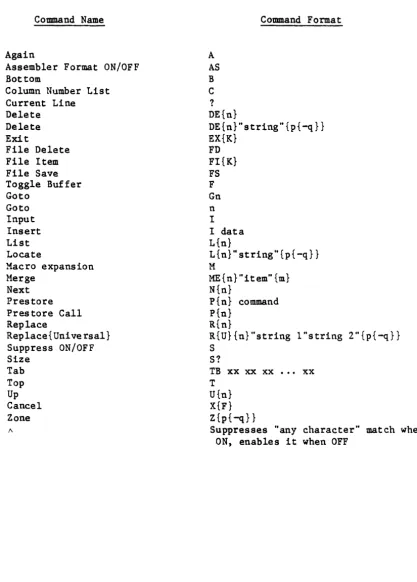
EDITOR commands (Table 1-1) are one- or two-letter mnemonics which must appear as the first non-blank input character. Command parameters follow the command; blanks may be inserted between parameters for clarity, but embedded blanks in parameters are not permitted. Any EDITOR command may be optionally preceded by a period (.), which will suppress all EDITOR output for that command.
EDITOR commands can be entered either in upper or lowercase. This is convenient for editing text items when the terminal is in lowercase Inode.
Certain EDITOR commands use a "string" which may be defined as a series of characters surrounded, or delimited, by a pair qf identical, non-numeric characters that do not appear within the string itself. For example, valid strings are:
/123 AB/
.EFG.
;For example, valid strings are:; PThis is a test stringP
The "string" is used in EDITOR commands that specify a search for matching data in the item. The colon <:) is a reserved delimiter; if used, it indicates that a first column correspondence between the first character in the string and the first character in the line is necessary for a match. For example, the "L" command with string:
L:LOOP :
would attempt to find the matching characters "LOOP "in columns 1 through 5 of the line; however, the string:
L/LOOP /
would attempt to find the matching characters "LOOP " anywhere within the line.
The up-arrow (1\) is a reserved character within the body of the "string"; if used, it indicates that any character in the corresponding position in the line is acceptable as a match. Note that this feature may be nullified by using the
"1\" command to turn the command to its "/,,\ON" setting. For example, the "L"
command with the string: L/AB CD/
would attempt to find the matching characters "AB", then any character whatsoever, then "CD" in the line.
For convenience, the terminal delimiter of the "string" is necessary only if further parameters follow the string specification, or trailing blanks are to be included as part of the "string."
Table 1-1.
Command Name
Again
Assembler Format ON/OFF Bottom
Column Number List Current Line
Delete Delete Exit
File Delete File Item File Save Toggle Buffer Goto Goto Input Insert List Locate
Macro expansion Merge
Next Prestore Pres tore Call Replace
Replace{Universal} Suppress ON/OFF Size Tab Top Up Cancel Zone
"
EDITOR Command Summary
A
AS
B
C ?
Command Format
DE{n} DE{n}"string"{p{-q} } EX{K} FD FI{K} FS F Gn n I
I data L{n}
L{n}"string"{p{-q}}
M
ME{n} "item" {m} N{n}
Pin} command Pin}
R{n}
R{U}{n}"string 1"string 2"{p{-q}}
S
S?
TB xx xx xx •.• xx
T
U{n} X{F} Z{p{-q}}
[image:16.620.74.492.134.717.2]1.5 CONTROLLING THE LINE POINTER: B, [CR], G, L, N, T AND U COMMANDS
There are seven commands provided for controlling the current line pointer and for listing the item being edited. The general form of these commands is:
Command
B
[CR] Carriage Return
Gn or n
L{n}
N{n}
T
U{n}
Description
Positions current line pointer at bottom (EOI)
Lists next line.
Positions current line pointer at line n.
Lists the next line or the next n lines.
Moves line pointer DOWN n lines, and lists current line.
Positions current line pointer at TOP.
I·foves line pointer UP by n lines, and lis ts current line.
The Bottom command positions the current line pointer at the end of the item (EOI) •
The [CR] or Null command is.executed by entering a carriage return only. This command lists the next line and advances the line pointer one line, which is identical to a List command where n is omitted. The [CR] command is included for convenience when stepping through lines in an item.
The Goto command positions the current line pointer at the line indicated by n and lists that line. If n is omitted or is 0, the current line pointer will be positioned at TOP. If G is omitted, positions the current line pointer at the line indicated by n.
The List command causes n lines to be listed, starting from the current line plus one. If n is omitted, only one line is listed. If n is greater than or equal to the number of lines from the current line to the EOI, then all the lines down to the EOI will be listed. If a List command is issued when the current line pointer is at the EOI, then the next n lines starting from line 1 will be listed. The List command positions the current line pointer at the last line listed.
The Next command increments the current line pointer by n lines and then lists the new current line. If n is omitted or is 0, the current line will be
listed.
The Top command positions the current line pointer at the TOP of the item.
The Up command decrements the current line pointer by n lines and then lists the new current line. If n is omitted or is 0, the current line will be listed.
For all of the above commands, the message TOP will be printed if the current line pointer is set to 0, and the message EOI m (where m is the last line number of the item) will be printed if the pointer is set to the EOl.
Examples of the use of these commands:
* )EDIT FILE1 ITEM [CR] TOP
*
.L99 [CR]<---
List command (lists 99 lines). 001 AAAAA*
*
002 BBBBB
003 CCCCC 004 DDDDD 005 EEEEE 006 FFFFF EOI 6
<---
Item consists of only 6 lines, so entire item is listed.[CR]
<---
Null command (since current lineTOP pointer is at EOI, the 1st line
001 AAAAA is listed).
[CR]
<---
Null command (lists next line). 002 BBBBB* .N2 [CR]
<---
Next command (goes down 2 lines004 DDDDD and lists line).
* .U2 [CR]
<---
Up command (goes up 2 lines and002 BBBBB lists line).
* .N9 [CR]
<---
Next command; since the item has006 FFFF only six lines, the last line
EOI 6 is listed.
*.L [CR]
<---
List command (since current lineTOP pointer is at EOl, the 1st line
001 AAAAA is listed.
* .L3 [CR]
<---
List command (lists next 3 lines). 002 BBBBB003 CCCCC 004 DDDDD
* >EDIT FILE1 ITEM [CR] TOP
* .L99 [CR]
<---
List command (lists 99 lines). 001 AAAAA002 BBBBB
003 CCCCC 004 DDDDD
005 EEEEE 006 FFFFF EOI 6
<---
Itam consists of only 6 lines, soentire item is listed.
*
.G5 [CR]<---
Goto command (lists line 5). 005 EEEEE*.B [CR]
<---
Bottom command (goes to EOI). EOI 6*.L [CR]
<---
List command (since current lineTOP pointer is at EOI, the 1st line
001 AAAAA is listed).
*.3 [CR]
<---
Goto command (lists line 3). 003 CCCCC*.T [CR]
<---
Top command (goes to line 0) TOP1.6 EDITOR COMMANDS: LOCATE (L) AND AGAIN (A)
The Locate command causes a search for characters that match a specified string. The Again command repeats the last Locate command issued. These commands have the following general form:
Command
L{n}"string"{p{-q}}
A
Description
Locates lines containing "string"; search may optionally be restricted to n lines and/or columns p through q.
Repeats last Locate command issued.
The Locate command causes a search for characters matching the "string." The search is restricted to a string starting in column p and beyond, or starting in columns p through q, if these parameters are specified. If q<p, q-p is assumed. If the delimiter used in the Locate command is a colon ":", then only matching strings starting in the first column will be located. (This is a useful tool for locating labels.)
If n is not specified, the next occurrence of "string" is located, and that line is listed; the current line pointer is set at the line that is listed. If n is specified, n lines (starting from the current line plus one) are scanned for the occurrence of "string"; all lines in which the "string" is found are listed. Note that the current line pointer will be incremented by n, and therefore mayor may not be located at the last line listed.
Examples of the use of these comments:
*
>ED F1 ABC [CR]TOP
*
.L99 [CR] 001 ABCDEFG 002 12ABCDEFG003 BCDEFG <--- This is what item ABC look like. 004 ABC
005 ABCDEFG EO! 5 *.T [CR]
TOP
*
.L"ABC" [CR] <--- Locate command (locates next line with "ABC").*
001 ABCDEFG <--- Line 1 located. *.T [CR]TOP
*
.LS/ABC/ [CR] <--- Locate command (scans 5 lines and 001 ABCDEFG locates lines containing "ABC"). 002 12ABCDEFG004 ABC 005 ABCDEFG EO! 5
*.T [CR]
TOP
*
.L5<A<3-4<---
Lines 1, 2, 4, and 5 located.[CR]
<---
Locate command (locates 3 through 4)."A" in columns
*
002 12ABCDEFG <--- Line 2 located. EO! 5* .LS:ABCD:
TOP
001 ABCDEFG 005 ABCDEFG
Eor 5
[CR]
<---
Locate command (locates "ABCD" column dependent (i.e., must be in columns 1 through 4».--!
--1
<---
Lines 1 and 5 located.1 • 7 INPUT (I) COMMAND
The Input command is used for data entry. The user may create a new item, or may insert or add lines to an already existing item.
The Input command, when issued, causes the EDITOR to enter the input
environment. All subsequent lines input by the user are then considered as data input lines to the item until the user exits the input environment. The general form of the Input command:
Command Description
I Enters Input Environment
If the Input command is issued for a new item which has not previously been edited, the new lines will be input to the item starting at line 1. The EDITOR will request data lines by prompting with the line number to which data is to be entered.
l~en the input environment is initially exited for a new item, an automatic F command will be executed by the EDITOR, thus toggling the function of the EDITOR buffers and allowing the newly entered lines to be listed. For example:
*
>EDIT AFILE AITEM [CRlNEW ITEM
<---
Note that this is a new item. TOP.1 [CRl
<---
Input command.*
001 INPUT --1<---
Input command.*
002 DATA [CRl --1*
003 [CRl<---
Input terminated.TOP
<---
Automatic F command has been executed.*
.L2<---
List command. 001 INPUT002 DATA EOI 2
If the Input command is issued for an item already containing data, then the new lines will be inserted following the current line. Input will be prompted with the line number after which the lines are to be inserted, followed by a plus sign. If the current line pointer is at line 0 (TOP), input lines will be inserted before the first line of the item with a prompt of "000+".
If there is an error in the current input line, the user can execute a
carriage return twice (to enter the line and exit the input' environment), then execute a Replace-string operation to fix the error, and then re-enter the input environment without executing an F command (except on initial input when it is executed automatically).
When new lines are input to an existing item, an F command may be entered by the user. This will perform in the same manner as the automatic F for new input and allow the new input to be listed. For example:
* >EDIT TESTFILE TESTITEM [CR]
TOP
* .L99 [CR] 001 LINE 1
002 LINE 2
<---
This is what item currently003 LINE 3 contains.
EOI 3
*.T [CR]
<---
Top command.TOP
*.1 [CR]
<---
Input command. * 000+ NEW LINE A [CR]<---
New line input. * 000+ [CR]<---
Input terminated. * .G2 [CR]<---
Gato command.002 Line 2
*.1 [CR]
<---
Input command. * 002+ NW~ LINE B -[CR]<---
New line input. * 002+ [CR]<---
Input terminated.*.F [CR]
<---
F command toggles buffers.TOP
* .L99 [CR]
<---
List command.001 NEW LINE A
002 LINE 1
003 LINE 2
004 NEW LINE B
005 LINE 3
EOI 5
1.8 INSERT (I) COMMAND
The Insert command is used to insert one new line. The command has the following general form:
Command Description
I data Inserts data following current line.
For Insert, the user enters an "I", followed by one blank, followed by the data to be inserted. The specified data will be inserted as a new line after the current line. Note that the data to be inserted must be separated from the "I" by only one blank; all other blanks will be considered as part of the line to be inserted. The line continuation character (control-Underline) cannot be used to continue data beyond one physical line.
The Insert command is most convenient for either inserting only one line of data (rather than using the Input command), or for inserting a null line; the latter is done by entering "I" and one space, followed by a carriage return. One may also insert a string of attribute marks (control t ) after the I space
to generate a string of null lines. This feature is particularly useful when entering Dictionary items that use null lines within their structure.
An example of the use of Insert:
* >EDIT ABC ITEM5 [CR] TOP
*
.L99 [CR]001 ABCDEFG --1
<---
This is what ITEM5 looks like. 002 HIJK --1EOI 2
*
.G1 [CR]<---
Goto command. 001 ABCDEFG*
.1 12345 [CR]<---
Insert command.*.F [CR]
<---
F command (toggles buffers). TOP* .L99 [CR] 001 ABCDEFG
*
002 12345 003 HIJK EOI 31 .9 MERGE (ME) COMMAND
The Merge command is used to insert one or more lines by merging lines from the same item, or from another item in the same file. The Merge command has the following form:
Command Description
ME {n}/item-id/{m} }1erges n lines of "item" starting at line m.
The Merge command causes n lines (starting from line number ~) of the item whose item-id is specified by litem-idl to be merged (inserted) into the item being edited. The lines will be inserted following the current line. The item specified by litem-idl must be in the same file as the item being edited. A value of one will be assumed for both nand m if either or both are omitted. If litem-idl is null (II), lines will be merged from the item being edited as it stands in the current buffer, thus duplicating the specified lines in the item. The user should note that if the item from which lines are to be merged is not on file, the message "NOT ON FILE" will be printed.
1.9.1 MERGING FROM OTHER FILES
The extended syntax requires the use of the delimiters ( and ) in place of the
I delimiter described above. These delimiters become reserved when using the merge command in the sense that the colon (:) is reserved when using the Locate, Replace, and Delete commands. In this case, there is the further peculiarity that ( and ) are not the same character, whereas any character may normally be used as a delimiter, so long as all the delimiters in a particular string are identical. This feature allows the following general forms:
MEnumber-of-lines (DICT file-name item-id) starting-line-number
MEnumber-of-lines (file-name item-id) starting-line-number
MEnumber-of-lines (DICT file-name) starting-line-number
MEnumber-of-lines (file-name) starting-line-number
where:
numbe r-of -Ii nes file-name item-id
starting-line-number
is number of lines to merge from item. is name of file containing item. is item-id of item to be merged. is starting line in item to merge.
The use of DICT is conventional. It means the same thing here as it does at the TCL level when referencing files, and when using the COpy processor. If there is no item-id specified, then the processor defaults the item-id of the item being edited at the moment.
(If there is no item-id with the default item-id in the file-name, you will receive the "NOT ON FILE" message.) This is useful if you wish to get a copy of an item into a test file and edit it quickly, or if you wish to assure that the item will not be filed inadvertently over the old copy.
There are certain other defaults which apply to the Merge command which will
be noted below.
MEnumber-of-lines (DICT file-name item-id
MEnumber-of-lines (file-name item-id
MEnumber-of-lines (DICT file-name
MEnumber-of-lines (file-name
These forms do the same thing as general forms, except that the starting line number defaults to line 1 in the merge source item.
ME(DICT file-name item-id) starting-line-number
ME(file-name item-id) starting-line-number
ME(DICT file-name) starting-line-number
ME(file-name) starting-line-number
These do the same thing as the general forms, except that starting-line-number is the only line which is merged into the destination item. As such, the line may then be modified using the Replace command.
ME(DICT file-name item-id)
ME(file-name item-id)
ME(DICT file-name)
ME (file-name)
An example of the use of Merge:
*
>EDIT FILE1 ITEM1 [CR] TOP*
.L99 [CR] 001 11111002 22222
<---
This is what ITEM1 looks like. 003 33333EOI 3
*
.EX [CR]<---
Exit command (exits EDITOR). EXIT*
>EDIT FILE1 ITEM2 [CR] TOP*
.L99 [CR] 001 AAAAA*
002 BBBBB003 CCCCC
EOI 3
<---
This is what ITEM2 looks like.*
.G2 [CR]<---
Goto command. 002 BBBBB*
.ME2"ITEM1"1 [CR]<---
Merge 2 lines from ITEM1 starting at line 1.*
.FTOP [CR]
<---
F command (toggles buffers).*
.L99 [CR] 001 AAAAA002 BBBBB
003 11111 004 22222 005 CCCCC
EOI 5
<---
Here is ITEM2 after the 2 linesfrom ITEM1 have been merged.
1.10 DELETE (DE) COMMAND
The Delete command causes one or more lines to be deleted from the item. The Delete command takes on two general forms:
Command
DE{n}
DE{n}"string"{p{-q}}
Description
Deletes n lines, starting with current line.
Deletes lines containing "string"; search may optionally be restricted to n lines and/or columns p through q.
The first form of this command causes n lines to be deleted (one if n is omitted), starting from the current line. The current line pointer is set to the line after the deletion, allowing command sequences of the form DE ••• ;
ME ••• , or I ••••
The second form of the Delete command causes a search for characters matching the specified "string" ("string" is defined in Section 1.4). If n is not specified, the next occurrence of "string" is located and that line is deleted. If n is specified, n lines, starting with the current line are scanned for the occurrence of "string"; all lines in which the "string" is found are deleted. Lines that are deleted are listed. The current line pointer is set to the line after the span of the Delete command.
If a colon is used for the string delimiter, the search will be restricted to column 1 to the length of the string. With any other delimiter, the search may be restricted to certain columns by specifying p-q. In this case, only
An example of the use of the Delete command:
*
)ED TEST ITl [CR]TOP
*
.L99 [CR]001 123XYZ 002 AAAAAAA
003 XYZ123
<---
This is what item ITI looks like. 004 ABABABAB005 12345 006 AA
EOI 6
*
.GS [CR]<---
Goto command.005 12345
*
.DE2EOI 6 [CR]
<---
Delete command (deletes 2 lines).*.F [CR]
<---
F command (toggles buffers).TOP
*
.L99 [CR]001 123XYZ 002 AAAAAAA
003 XYZl23 004 ABABABAB EOI 4
*.T [CR]
TOP
*
.DE99/l23/001 l23XYZ 003 XYZ123 EOI 4
*.F [CR]
TOP
*
.L99 [CR]001 AAAAAAA
002 ABABABAB EOI 2
!
<---
This is item ITl after lines 5 and 6 have been deleted.[CR]
<---
Delete command (deletes linescontaining "123").
--I (--- Deleted lines are listed.
--I
--I (--- Here is item ITI after deletion. --I
*
.DE: B: 2 [CR] (--- Delete command (deletes lineswith "B" in column 2). 002 ABABABAB (--- Deleted line is listed. EOI 2
* .
F [CR]TOP
*
.L99 [CR]001 AAAAAAA (--- Here is item ITI after deletion. EOI 1
1.11 REPLACE (R) COMMAND
The Replace command may be used to replace a number of lines or to replace one character string with another character string (in one or more lines). Several executions of the replace on a single line are permitted. An option allows replacement of all copies of a string within a line with the specified replacement string. The Replace command takes on two general forms:
Command
R{n}
R{U}{n}/string1/string2/{p{-q}}
Description
Replaces current line or n lines.
Replaces the first occurrence of string1 with string2 in current line, optionally
searching for n lines in columns p through q. If U is specified, replaces all occurrences of string1 with string2 in current or in n lines.
The simple form causes the input environment to be entered. Input is requested for data to replace n lines (one if n is omitted), starting from the current line. The input environment is exited when either: 1) data for the specified number of lines has been entered, or 2) a null line (carriage return or line feed only) is entered. In the latter case, the remainder of the lines
(including the line which received the null input) will remain unchanged. The current line pointer points to the next line in the current buffer to be
edited.
The complex form of the Replace command causes a search for characters matching "string 1". If n is not specified, then only the current line is scanned for "string 1". If "string 1" is located, then it is replaced by "string 2". If n is not specified, only the current line is scanned. If n is specified, then n lines (starting from the current line) are scanned. The first occurrence of "string 1" in each line is replaced by "string 2", unless the U form is used, in which case all occurrences of "string 1" are replaced by "string 2". Lines that are changed are listed in their updated form. The current line pointer points to the next line in the current buffer to be edited.
The search is restricted to column p, or columns p through q, if specified; if q<p, q-p is assumed. The user should note that only one delimiter separates "string I" and "string 2" in the complex form of this command, and that the third delimiter may be left out if the column specification is not needed. Any character not in "string 1" and "string 2" may be used as the delimiter.
1.11.1 MULTIPLE REPLACEMENTS WITHIN A LINE
PICK allows you to execute multiple replacements within a line in order to minimize typing and buffer switching (the F command). If there are several elements of a line you wish to change, you may change them one at a-time, using
the R cOinmand for each, without using the F command in between. On each use of the R command in this case, the command operates on the result of the last command. Only the first use of the R command operates on the original line. This means that if the X command is used, you move back to the original line)
rather than the line as it was before the last use of the R command, because the last copy is not saved. In general, you can modify a line indefinitely.
The column limit parameters and the U option to replace all cases of a string may be used with Multiple R commands.
If the replacement ~;ras a full-line replacement of the form R, (carriage return, followed by the line number prompt, followed by the text and a carriage
return), the line may not be modified by a string replace until the buffers have been exchanged using the F command. In this case, the X command can be used to undo the last change, and this may be followed by another replace.
1.11.2 REPLACEMENT AFTER MULTIPLE-LINE REPLACEMENT
It is possible to replace a given string in several lines by using the form Rn. It is also possible to replace text in the last line in the Rn group using another R command without first flipping the buffers (the F command) in the same way as modification after a single-line replacement command. It is not possible to access lines prior to the last without using either the F command, which exchanges the buffers, or the X command.
The Replace command may be used to create null lines. This is accomplished by using the Input command to create lines, each containing a fill character (such as tt &"), and then prior to permanently filing the item, replacing each fill
character with a null via a Replace command (such as R99/&//).
An example of the use of R:
* >ED Fl ABC [CR]
TOP
*
.L99 001 ABCDEF002 ABCDEF <--- This is what item ABC looks like. 003 ABCDEF
EOl 3
*.T [CR]
TOP
*
.R2 [CR] < - - - Replace command (replaces 2 lines). * 001 123ABC [CR] --1 <--- Replacement lines being input.002 XXXXXAB [CR] -1
*.F [CR] <---F command (toggles buffers).
TOP
* .L99 [CR] 001 123ABC 002 XXXXXAB 003 ABCDEF EO! 3 *.T [CR]
TOP
*
.R3"AB"HHH" 001 123HHHC 002 XXXXXIniH 003 HHHCDEF EO! 3 *.F [CR]TOP
*
.R3/HHH/S/1-3! <--- Here is item ABC after replacement.
[CR] <--- Replace command (replaces
"AB"
with"HHH").
<--- The 3 lines in which replacement took place are listed.
[CR] <--- Replace command (replaces "HHH" in columns 1 through 3 with "Sit).
003 SCDEF <--- Line in which replacement took place
EO! 3 is listed.
*.F [CR]
TOP
*
.R3/HHH/ /001 123C 002 XXXXX
EO! 3
[CR] <--- Replace command (replaces "HHH" with null).
--1 <--- Lines in which replacement took place
1.11.3 CORRECTING INPUT
When inputting a body of text, you eight make a typographical error or change your mind as to the text being entered. You can either use the XF command to cancel all of the lines input, or the F command to flip the buffers to make the text available for correction, but either action is time consuming and
destructive of the natural flow of the text. Instead, it is possible to execute two carriage returns, one to terminate the current line and one to return to command level, and then commence executing R commands to modify the last line of text inserted. Lines preceding the last line inserted cannot be modified in this manner for the same reasons that the lines before the last line after a multiple-line replacement cannot be modified.
After the last line is modified to the point that it is satisfactory, you may re-enter the input process by executing the usual I, followed by a carriage return.
Input may be corrected by using the R command after a single-line insertion generated by the form:
I text [CR]
1.11.4 A NOTE ON COLUMN SPECIFICATION
In the PICK system, the first column is referenced by 1. Columns may be easily referenced according to the numbers returned by the C command. If a
single-column reference is executed using the form:
R/X/Y/20
Then the first 'x' in line after column 19 will be replaced with a 'Y'. The search will continue to the end of the line.
If a two-column reference is executed using the form:
R/X/Y/2o-22
Then an 'X' in columns 20, 21, or 22 will be replaced with a 'Y'. If the form: R/CAT/DOG/20-22
is used, then the whole source string 'CAT' must be in the field starting at column 20 and ending at column 22. This is equivalent to looking for the string 'CAT' which starts in column 20. In other words, if the field being located by the Locate, Replace, or Delete commands is longer than one character and if it is being searched for in more than one column, then the ending column value must be the beginning column plus the length of the string plus the
number of columns in which the string may start minus 1. See the example of the use of column specification with the Replace command on the following page.
1.11.5 COLUMN SPECIFICATION AND THE REPLACE UNIVERSAL COMMAND
The Replace Universal command allows the replacement of all cases of the first string in the Replace command with the second string in the line or lines specified. This option is indicated by simply using the form RU for the command where R would be used in the normal case. The option allows
multiple-line replacements using the form RUn for the form Rn, and it allows column specification, as above.
An example of the Replace Universal command:
084 the difference between the beginning and ending
RU/the/any
084 any difference between any beginning and ending
An example of the use of column specification with the Replace command:
If the line being considered is the following:
084 the difference between the beginning and ending
C [CR]
and you wish to replace the second 'the' with 'any', then
1 2 3 4 5
1234567890123456789012345678901234567890123456789012345
R/t~e/any/24 [CR]
allows you to observe that the second 'the' commences at column 24. You may then use the form
which will yield
084 the difference between any beginning and ending
R/the/any/24-26 [CR]
In order to use the column range specification, you must use the form
which will yield
084 the difference between any beginning and ending
R/the/any/24-25 [CR]
R/the/any/22-25 [CR]
R/the/any/25-27 [CR]
If the form
is used, then the process will return to the prompt character without doing anything. The same will occur with
or
In general, success will occur if the
beginning column is prior to or on the first character to be identified in the line, and
the ending column is greater than or on the last character'to be identified in the line.
.
1.12 F, FILE ITEM (FI), FILE SAVE (FS), FILE DELETE (FD) AND EXIT (EX) COMMANDS
Five commands are provided for merging updates into the item, filing the item, deleting the item, and exiting the EDITOR. The general form of these commands:
Command
F
FI {options}
FS {options}
FD{K}
EX{K}
Description
Toggles function of EDITOR buffers.
Files item and returns control to TCL.
Files item and returns control to EDITOR.
Deletes item and returns control to TCL.
Returns control to TCL (does not file item).
The F (F) command merges updates with the previously existing item, and sets the current line pointer to O.
The File Item (FI) command updates the edited item to the disk file and returns control to TCL. When the item has been filed, the following message is printed: 'item-name' FIELD.
The File Save (FS) command updates the edited item to the disk file, returns control to the EDITOR, and sets current line pointer to O.
The File Delete (FO) command deletes the item from the disk file and returns control to TCL. When the item has been deleted, the following message is printed: 'item-name' DELETED.
The Exit (EX) command terminates the EDITOR session and returns control to TCL. The item being edited will neither be updated to nor deleted from the disk file unless an FS command has been issued prior to the EX. Upon exit, the message 'item-name' EXITED is printed.
Note that if multiple item-ids were specified in the EDIT verb at the TCL level, then any of the above commands which ordinarily return control to TCL will instead return control to the EDITOR to edit the next item which was
Options
K
L
Description
Exits EDITOR and returns control to TCL after filing item even if other item-ids were specified.
Converts item to list format.
o
item-name Overwrites existing items with same item-name.Options may be used with FI, FS, and EX commands, however, only the K option may be used with FI, FD and EX.
The purpose of the K option is to exit from the EDITOR and return to TCL. When multiple item-ids have been specified, you will not exit the EDITOR until the last item-id has been filed unless a K option is used on the current item. In that case, you will exit immediately from the EDITOR and be returned to TCL.
The L optuion is used when you need to file an item that is over 32K long. (The maximum size for an item is 32K.) In this case, you must have DC pointers in the MD and file directionary of the file to contain the item. Then the item will be filed in list format and may be retrieved and converted back to regular form.
The 0 option is used when you wish to overwrite an existing item with the new item. In this case, you use the 0 option and specify the item-name of the item to be ovewritten with the new item.
1.12.1 FILING ITEMS IN OTHER ITEMS AND OTHER FILES
You may file the item currently being edited to either a different item-name in the current file, or to the same item-name or to a different item-name in a different file. The syntax for the FI and FS commands are identical, but FS returns you to the top of the item currently being edited. You can only FD an item which you are currently editing. Massive use of the FD can be
accomplished with the DELETE verb or a Prestore command. The Delete verb is faster. The form of the File command to other items or files is:
FI(DICT file-name item-name
FI(DICT file-name
FI(file-name item-name
FI(file-name
FI item-name
where:
file-name is the name of the file into which to file the item, which is different from the file currently being used.
item-name is the item-id of the item into which to file the item, which is different from the item-id currently being used.
In the list of FI commands, the first command will file the item you are currently editing into the dictionary of a different file under a different item-name. The second will file the item under its current item-name into the dictionary of a different file. The third will file the item into the data section of a different file under a different item-name. The fourth will file the item into a different file under the same item-name. The fifth will file the item into the file currently being edited under a new item-name. Other possible commands are:
FS(file-name item-name
FIO(file-name item-name
An example of the use of these commands:
* >ED AFILE ABC [CRl TOP
* .L99 [CRl
001
AAAAAAAAA --1
<---
This is what item ABC looks like.002 12121212 --1
EOI 2
* .DEI [CRl
<---
Delete command (deletes line 2). EOI 2*.F [CR]
<---
F command (toggles buffers). TOP*
.L99 [CRl001
AAAAAAAAA
<---
Here is item ABC after deletion.EOI 1
*
.EX [CRl<---
Exit command (returns control to TCL8XIT but does not file updated item).
*
>ED AFILE ABC [CRl TOP*
.L99 [CRl001
AAAAAAAAA --1
002 12121212 EO! 2
-1
<---Item ABC still contains 2 lines since Exit command above did not file
updated item.
*
.DE1EO! 2 [CR]
<---
Delete command (deletes line 2).*
.FI [CRl<---
File Item command (files item and'ABC' FILED. returns control to TCL).
*
>ED AFILE ABC [CRl TOP*
.L99 [CR]001
AAAAAAAAA
<---
Here is item ABC (note that line 2 isEO! 1 now permanently deleted).
* .FS [CR1
<---
File Save command (files item andTOP returns control to EDITOR).
*.FD
[CRl<---
File Delete command (deletes item'ABC' DELETED. and returns control to TCL).
>
<---
TCL verb awaited.1.13 TAB (TB), ZONE (Z), AND SUPPRESS (S) COMMANDS
The Tab command sets tab positions for input. The Zone command sets column limits for output listing. The Suppress command may be used to suppress printing of line numbers on output. The general form of these commands:
Command Description
TB xx xx xx xx xx ••• xx Sets tab stops at each position xx; a total of 15 allowed.
Z{p{-q}} Sets column limits (p through q) for listing.
S Suppresses/enables listing of line numbers. Suppresses listing of object code of Assembly language program when AS option is in effect.
Tabs may be preset via the Tab command.
The xx's consist of up to 15 tab settings (in ascending order) separated by blanks. The following command, for example, sets four tab stops at columns 15,
20, 31, and 40:
TB 15 20 31 40
Tabbing is activated whenever the EDITOR is in the input environment and a control-I or, on some terminals, a TAB key is pressed. This will cause a series of blanks to be output, thus moving the cursor (or printer) to the next specified tab stop. A backspace and cancel will backspace over tabs.
Tabs set by the EDITOR are identical to those set by the external TAB command.
The Zone command sets print column limits for listing output of lines (i.e., only column positions p through q of each line will be listed). If p and q are omitted, the Zone is reset so that the entire line will be listed on output. If q<p, q-p is assumed. Setting a Zone does not affect the search for a "string" in the Locate, Delete, or Replace commands.
When used with the AS command, the S command (or the (S) option) causes the suppression of the object code of an Assembly language program when output to the terminal or to the printer.
An example of the use of these commands:
*
)ED FN5 XX [CR]NEW ITEM
<---
This is a new item. TOP*
.TB 9,18 [CR]<---
Tab command (sets 2 tab stops).*.1
[CR]<---
Input command.*
001 ABC [CR]*
002 ABCD EF [CR]<---
Lines being input; note that for line 2, a control-I (which does not print) was entered after "ABCD" causing the EDITOR to tab over to the first stop.*
003 123456789 [CR]*
004 [CR] TOP*
.Z2-3 [CR]*
.L99 [CR]001 BC 002 BC 003 23 EOI 3
* .
T [CR]TOP
<---
Zone commands (limits listing output to columns 2 through 3).<---~--- Only columns 2 through 3 are listed.
*.Z [CR]
<---
Zone command (restores full line).*.S
[CR]<---
Suppress command (suppresses lineSUPPRESS ON numbers).
*
.L99 [CR]ABC
ABCD EF 123456789 EOI 3
<---
Line numbers are suppressed.*
.S '[CR]<---
Suppress command (restores lineSUPPRESS OFF numbers).
*
.L99 [CR]TOP 001 ABC
002 ABCD EF 003 123456789 EOI 3
<---
Line numbers are listed.1.14 AS COMMAND
The AS command is used to format assembly code source programs in the standard assembly listing format. The AS command acts as an alternate-action toggle switch to either format assembly code source program lines in the assembly listing format, or to revert to unformatted form.
The general form of the command:
Command
AS
Description
Acts as an alternate action switch to turn the Assembly listing format on or off.
The EDITOR will respond with the message "AS-ON" or I t AS-OFF, ,. depending on the
previous state.
This mode may also be turned on when entering the EDITOR by using the (A) option on the EDIT command.
Assembly-code source programs contain the assembled object code and macro
expansions along with the original source text. If displayed in normal form, a line might look like:
007 LOOP STORE Dl SAVE ACCUMULATOR/01B A00499
If the AS mode is set ON, the same line will be displayed as:
007 OlB A00499 LOOP STORE D1 SAVE ACCUMULATOR
•• • object code ••• • •• source code ••• ••• comment field •••
This display format does not affect the search columns in Locate, Delete, or Replace commands, which use the internal (unformatted) form.
1.14.1 M COMMAND
When in the AS mode, the M command will cause macros to be expanded. It is normally off. Execution of the M command will cause the EDITOR to respond with the message "MACRO-ON" or "MACRO-OFF," depending on the previous state.
An example of the use of the AS command:
*
*
*
*
*
*
* )ED S~1 TERMIO [CR] TOP
*
.L3 [CR]001 FRAME 006] FRM: 006 001 7FF00006] ORG 1 001 002 *SYSTEM*UTILITY
003 *30SEP77
* .AS [CR]
<---
Turns Assembly formatting mode ON. AS-ON*.T [CR] TOP
*
.L3 [CR]001 001 7FF00006 001
FRAME 006
002 *SYSTEM*UTILITY
003 *30DEC77
.S [CR]
<---
3uppress object code. SUPPRESS ON• T [CR] .L3 [CR] 001 FRAME 006
002 *SYSTEM*UTILITY 003 *3OSEP77
.AS [CR]
<---
Clear Assembly formatting mode. AS-OFF<---
With Assembly formating mode off,.T [CR] the previous suppress command will
TOP now suppress line numbers.
.L3 [CR]
FRAME 006] FROM: 006 001 7FF0006] ORG 1 001 *SYSTEM*UTILITY
*30SEP77
1.15 C (COLUMN), S1, X, Xl p 1 (CURRENT LINE) AND 1\ COMMANDS
The C command will list column numbers. The X command may be used to delete the effect of certain update commands. The Current Line command interrogates the current line number. The 1\ command turns on or off the effect of 1\ within
a string. The general form of these commands:
Command Description
C Prints list of column numbers.
51 Displays size of item being edited.
X Deletes effect of last Input, Insert, Delete, Merge or Replace Command.
XF Deletes effect of all updates since last F command.
1 Returns current line number.
1\ Turns on or off the effect of the "1\" character within a string.
The C command will print out a list of column numbers so that the user can readily determine the column positions of data in a line. This is particularly helpful when editing fixed-field data or RUNOFF documentation.
The S1 command gives the total length in bytes of the item being edited.
The X command deletes the effect of the last Input, Insert, Delete, or Replace command that was issued. This is useful if one of these commands has been erroneously entered. When the effect of the update command has been deleted,
the message "L not will be printed (where n is the line number of the line whose update was deleted). The X command will not work after multiple string
replacements within a single line.
The XF command will reverse the effect of all updates executed since the last buffer exchange (F command).
The ? command outputs the name of the item being edited and the location of the line pOinter. When a 1 command is entered, the editor will respond with the file-name, item-id and the current line number.
1.15.1 PRINTING UNPRINTABLE CHARACTERS
Characters which are unprintable include the control characters between X'OQ' and X'lF', inclusive. The EDITOR marks control characters by inserting a period (.) where the control character stands in the text line; it does not indicate what the character is, however. It may then be removed by replacing a unique string which includes the control character with the string of your choice. The control character should be marked with an' in the first string in the replace.
1.16 PRESTORE COMMAND (Pn)
The Prestore facility allows the storage of up to ten strings of EDITOR commands, and the execution of the string by using the name of the string as
the command. The general form of this command:
Command Description
P{n} command Prestores specified command.
P{n} Calls Prestored command into effect.
The allowable string names are PO, P1, ••• ,P9. There are therefore a maximum of ten prestored commands available at anyone time. Further, each prestored command is allocated 100 bytes; so that, if you wish to generate a prestored command which exceeds 100 bytes, simply do not initialize the command whose name is ordinally next. In other words, if P1 is 150 bytes long, do not use P2. This may be inconvenient on rare Qccasions, but it makes things run faster. If n is not specified, O. is assumed.
1.16.1 PRESTORE COHHAND DEFINITION
In order to create a prestored command, type in the name of the prestored command (PO, P1, ••• , P9) followed by a space, followed by the first command to be executed, followed by the Prestore command delimiter, which is a start buffer mark (X'FB'), which may be input by typing CONTROL-[ (control-left-bracket) or ESCAPE (esc), followed by the next command, etc. Note that the ACCESS verbs S-DUMP, T-DUMP and T-LOAD will interpret the start buffer mark as a new item. Therefore, ACCOUNT-SAVE and ACCOUNT-RESTORE should be used to save and restore any accounts where these Prestore delimiters are used and stored in an item (PROC).'
Any valid EDITOR command may be prestored, including Prestore command names. Examples of single Prestores:
PO L22 This is loaded when you enter the
1.16.1.1 Prestore Command Defaults
In the examples in Section 4.16.1, note first that 'P' is a synonym for 'PO'. It is automatically loaded with 'L22' at entry to the EDITOR. PI through P9 are null at entry. Executing them will cause a CMND? response. All prestores created since the entry to EDITOR by use of the EDIT verb are retained until the EDITOR is exited. Any of them may be changed by creating another prestore command string with the same name. The prestores persist from item to item, whether the EDITOR is using an explicit item list, a selected list, or the whole file.
1.16.2 REPEATING PRESTORE COMMANDS
If one is going to use a prestore command for a repetitive task, it may either be activated each time it is to be used or it may call itself, at which time . its termination conditions must be considered. A Prestore command which calls
itself will terminate only when it runs out of items to process. This means that a Prestore which calls itself must have an EX, FI, or FD in the command string. If it does not have such an item iteration command in the string, it will loop indefinitely in the current item. The only exit from this loop is a BREAK-and-END. The primary use of the Prestore calling itself is to manipulate many items with a single instruction string initiated once. It is particularly useful for searching for specified strings in text files and replacing them as necessary. The following example searches a BP (BASIC program) file for the name GENERAL. LEDGER.
ED SP
*
ITEMNAME TOP.Pl LSOO/GENERAL.LEDGER[EX[Pl[CR]
• Pl [CR]
EOI nnn
, I TEMNAME' EXITED
NEW IT EMNAME TOP
Edit the file. The first item. Standard mark. Define the search • Initiate the run.
At this pOint, the EDITOR will exhibit all lines in the current item with the desired string, and then display
the number of lines in the item and the name of the item exited.
The name of the next item. The top mark.
All the lines with the string, if any, and so on, until the list is exhausted, at which time the process will return to TCL.
The same maneuver may be executed to the printer by appending the P option to the EDIT verb. In this case, all information which would have been displayed on the terminal will be sent to the printer.