User Guide
Version 5.1
Copyright © 2010 Pearson Education, Inc. or its affiliate(s).
All rights reserved. No part of this publication may be reproduced or transmitted in any form or by any means, electronic or mechanical, including photocopy, recording, or any information storage and retrieval system, without permission in writing from the copyright owner. Contact NCS Pearson, Inc., Educational Assessment, San Antonio, Texas; 1-800-228-0752.
“Pearson,” the Pearson logo and "PearsonInform" are trademarks of Pearson Education, Inc. or its affiliate(s) in the U.S. and/or other countries.
Table of Contents
User Guide Version 5.1... 1
1 Introduction ...6
1.1 Purpose ...6
1.2 Who Should Use This Guide ...6
1.3 Our Mission ...7
1.4 About Pearson...7
2 Getting Started...8
2.1 Work Environment ...8
2.2 Important Terms ...9
2.3 Accessing and Exiting the System ...10
2.3.1 To Log In: ...10
2.3.2 To Log Out: ...11
2.4 System Layout Overview...12
3 Dashboard Navigation...13
3.1 Dashboard Tab Control ...13
3.2 Toolbar ...14
3.3 Default Daily View ...15
3.3.1 Manage Default Daily Views Layout...16
3.3.2 Add a Default Daily View...17
4 Primary Dashboard ...19
5 Using the Library ...24
5.1 Reviewing the Report Library Layout ...24
5.2 Organizing the Report Library ...26
5.2.1 Enter Edit Mode ...26
5.2.2 Adding a Folder ...26
5.2.3 Editing a Folder ...27
5.2.4 Deleting a Folder ...28
5.2.5 Editing Report Settings...30
5.2.6 Deleting a Report ...31
5.2.7 Moving Dashboards and Reports between Folders...32
6 Working with Reports ...34
6.1 Report Layout Overview...34
6.2 Report Views ...36
6.2.1 Chart View ...36
6.2.2 Table View ...37
6.3 Modifying Charts and Tables Displays...38
6.3.1 Modifying Charts ...38
6.3.2 Modifying Tables ...42
6.4 Drilling Down into Data...44
6.4.1 Drill Down Categories...44
6.5 Viewing Criteria and Modifying a Query ...51
6.5.1 Viewing Criteria of a Report ...51
6.5.2 Modifying a Query...54
6.7 Printing and Exporting Report Data... 59
6.7.1 Printing a Report... 59
6.7.2 Exporting Report Data ... 62
7 Context Navigation ... 63
7.1 What Does Context Refer To? ... 63
7.2 Fixed and Floating Contexts ... 67
7.3 Changing the Context of the Dashboard ... 71
7.4 Changing the Context of a Report ... 74
8 Generating New Reports ... 76
8.1 Navigating the Query Engine ... 76
8.1.1 Creating a New Query... 76
8.2 Constructing a Student Performance Summary Query (Query 1)... 79
8.2.1 Querying the Student Performance Summary by Concept ... 86
8.3 Using Disaggregators ... 92
8.4 Constructing a Distribution of Student Scores Query (Query 2) ... 94
8.5 Constructing a Demographic Profile Query (Query 3)... 96
8.6 Constructing a School Comparison Query (Query 4)... 97
8.7 Constructing a Test Performance vs. Course Grades Query (Query 9) ... 101
8.8 Constructing a Test Item Analysis Query (Query 10)... 104
8.9 Constructing a Student Performance Gains Query (Query 11) ... 107
8.10 Constructing a Student Performance vs. AYP Goals Query (Query 12)... 110
9 Student Dashboard... 113
9.1 Searching for a Student ... 113
9.1.1 Student Search by Name ... 113
9.1.2 Student Search by Alphabetical Listing ... 116
9.1.3 Student Search by Student ID... 118
9.2 Student Dashboard Areas... 121
9.2.1 Student Assessment Profile View ... 121
9.2.2 Academic Improvement Plan (AIP) View... 122
9.2.3 Score Entry View... 126
9.2.4 Course Grades View... 130
10 Academic Improvement Plans (AIP) ... 131
10.1 View a Current Academic Improvement Plan ... 131
10.2 Viewing the Members of an AIP ... 131
10.3 Create a New Academic Improvement Plan... 132
10.4 Edit a Current AIP ... 136
10.5 Delete a Current AIP ... 136
11 Intervention Strategies ... 138
11.1 View Current Intervention Strategies... 138
11.2 View the Members of a Current Intervention Strategy... 139
11.3 Create New Intervention Strategies ... 140
11.4 Edit a Current Intervention Strategies... 141
11.5 Delete a Current Intervention Strategy ... 142
12 Target Student Groups ... 143
12.1 View Current Target Student Groups ... 143
12.2 View the Members of Current Target Student Groups ... 144
12.3 Create New Target Student Groups ... 145
12.3.2 View Available Intervention Group Criteria ...150
12.3.3 Create a New Intervention Group Criteria...151
12.3.4 Edit a Current Intervention Group Criteria ...156
12.3.5 Assigning Students to a Target Group via Intervention Group Criteria ...157
13 Assigning Intervention Activities...159
13.1 Assigning Intervention Activities to Target Groups ...159
1
Introduction
1.1
Purpose
Welcome to Pearson Inform 5.1! This application provides assistance and information for teachers, administrators, and parents. Pearson Inform 5.1 is a powerful, easy-to-use, web-based data analysis and reporting system perfect for Response to Intervention (RTI) and Adequate Yearly Progress (AYP) tracking.
Additionally, as a virtual student performance data library, the program brings all important
assessment results together in one place and allows teachers, principals, district leaders, and parents to:
• Measure progress against school, district, state, and federal standards • Make collaborative, informed decisions impacting teaching and learning • Target assistance for students, teachers, and schools
Inform provides comparative analysis of student achievement and classroom performance across a district or school, incorporating data from multiple sources, including:
• High-stakes test score data • State performance standards • District-specific proficiencies
• Multiple tests and test types, including state, district, school, and classroom tests • Multiple standards profiles for norm-, criterion- and rubric-referenced tests
This user guide will walk you through the technical requirements for this program and user
instructions for full functionality of your assessment platform. Our goal at Pearson is to support you every step of the way.
1.2
Who Should Use This Guide
This user guide is intended for district administrators, principals, teachers, and support specialists responsible for both monitoring and executing student academic intervention plans. Pearson Inform provides quick access to clear, intuitive reports on student and school performance. Powerful graphs and charts, predefined or customized, make it easy for educators to target assistance, measure progress, and inform decisions.
Copyright © 2010 Pearson Education, Inc. or its affiliate(s). All rights reserved. P a g e | 7
1.3
Our Mission
Our mission is to improve teaching and promote life-long learning. We help students, families, educators and professionals use assessment information, research and innovation to promote learning and personal development, advance academic achievement, improve instructional productivity, and transform educational communities.
1.4
About Pearson
Pearson, the global leader in education and education technology, reaches and engages today’s digital natives with effective and personalized learning, as well as dedicated professional
development for their teachers. This commitment is demonstrated in our investment in innovative print and digital education materials for preK through professional learning, student information systems and learning management systems, teacher development, career certification programs and testing and assessment products that set the standard for the industry.
Pearson's comprehensive offerings help inform targeted instruction and intervention so that success is within reach of every student at every level of education.
Pearson provides products and services to deliver mission-critical information to decision-makers at all levels in the education system:
• Students • Parents • Teachers
• Psychologists, speech pathologists and medical professionals • School administrators
• Local, state and federal government agencies
• National influencers on education reform and accountability • Employers and human resources professionals
P a g e | 8 Copyright © 2009 Pearson Education, Inc. or its affiliate(s). All rights reserved. Contact NCS Pearson, Inc., Educational Assessment, San Antonio, Texas; 1-800-228-0752.
2
Getting Started
2.1
Work Environment
Pearson Inform 5.1 is a web-based application. You must have an operating computer and broadband Internet connection to use the software.
Please check that the computer has the following minimum system requirements before logging in, to ensure the system functions properly. Please note, these are the minimum requirements and a noticed degradation in performance may be experienced as the amount of data stored and accessed increases, especially when running reports or data queries.
Computer Requirements
PC Macintosh
Windows® 98 or later OS 9.x or later
233 MHz Pentium® PPC/G3/G4 Processor
32 MB RAM 32 MB RAM
250 MB free hard drive space 250 MB free hard drive space
Internet Requirements
Windows OS Browsers MAC Browsers
Internet Explorer® 7.0 or later Safari®
FireFox® 1.5 or later FireFox 1.5 or later
Connectivity
DSL or cable modem Dial-up connection
A dial-up connection can be used. However, some applications may not run properly.
Copyright © 2010 Pearson Education, Inc. or its affiliate(s). All rights reserved. P a g e | 9
2.2
Important Terms
Term
Meaning
Primary Dashboard
The Primary Dashboard allows you to view multiple reports at the same time, including dynamic and static reports.
Student Dashboard
The Student Dashboard has its own set of tabs, and allows you to view student performance data, including student performance profiles, AIPs, grades and a composite view.
Toolbar Toolbars are available along the top of each display.
Dashboard Tabs
Each display has tabs in the upper-left corner that change the display.
Workspace The workspace is an open window that displays content based on your
selections.
Title Bar The Title bar displays your name, school district, logout link and the
Pearson Inform 5.1 logo.
Context Navigator
The context navigator allows the user to determine the level of criteria for the execution of reports by selecting district, teacher, class or student.
P a g e | 10 Copyright © 2009 Pearson Education, Inc. or its affiliate(s). All rights reserved. Contact NCS Pearson, Inc., Educational Assessment, San Antonio, Texas; 1-800-228-0752.
2.3
Accessing and Exiting the System
Each customer has a unique URL for Inform and each end user must use his or her unique username and password to access (log in to) and exit (log out of) the system. The Subscription ID identifies the Inform database that will be accessed. Generally it’s associated with the name of the school, district or facility. Only authorized users will be able to access the web portal page.
2.3.1
To Log In:
Launch your preferred web browser, e.g., Internet Explorer or Firefox. In the web address field at the top of the page:
To get to the proper login page, you will have to enter your Pearson Inform 5.1 URL web address, formatted as follows:
http://AssignedSubscriptionID.pearsoninform.com
Example:
Assigned Subscription ID: LSC
On the Browser Address Line enter:
http://lsc.pearsoninform.com
Bookmark this page to make it easier to find next time you log in. The Registered User - Log In window displays.
Figure 2-1
Once the login page opens to your Subscription ID, each administrator, teacher or student will be prompted to Enter log-in information. There are two fields: Username and Password.
Copyright © 2010 Pearson Education, Inc. or its affiliate(s). All rights reserved. P a g e | 11 In the Registered User – Log In window:
o Enter the assigned Username o Enter the assigned Password o Click the Login button
The PrimaryDashboard page displays.
Figure 2-2
2.3.2
To Log Out:
To log out of the system:
o Click the Exit link in the Title bar
The logout page displays the following message and a link to log in again: You have successfully logged out.
NOTE: The Pearson Inform application has an automatic “time-out” security feature that initiates a time-out of the software after 10 minutes of inactivity. When this happens, log in again.
NOTE: For security reasons, end users are strongly encouraged to log out from Pearson Inform 5.1 when finished with your current session. Otherwise, unauthorized users can access the system under your name until your session times out.
P a g e | 12 Copyright © 2009 Pearson Education, Inc. or its affiliate(s). All rights reserved. Contact NCS Pearson, Inc., Educational Assessment, San Antonio, Texas; 1-800-228-0752.
2.4
System Layout Overview
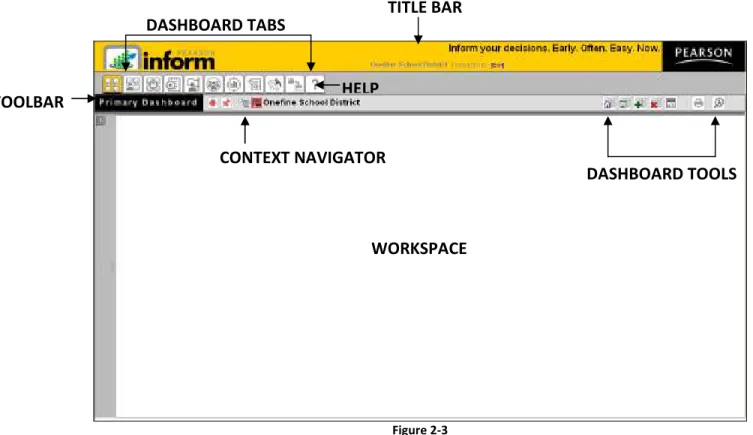
The Pearson Inform 5.1 Home Page is your default view. It provides a Title bar, Toolbar, Dashboard Tabs and Tools, Context Navigator and Workspace.
Figure 2-3
WORKSPACE TITLE BAR
TOOLBAR HELP
DASHBOARD TABS
CONTEXT NAVIGATOR
Copyright © 2010 Pearson Education, Inc. or its affiliate(s). All rights reserved. P a g e | 13
3
Dashboard Navigation
3.1
Dashboard Tab Control
The Dashboard Tabs allow end users to quickly move around in the system and open different pages, where they can view and remove existing reports, create dashboards, queries, and reports, look up student information and scores, receive system messages, create AIPs, specify intervention groups and look up proficiency profiles.
The Dashboard Tabs are as follows:
Figure 3-1
• Primary Dashboard — The Primary Dashboard contains a list of dashboards, queries, and reports that have been saved by you or others in the district or school.
• Student Dashboard — The Student Dashboard is a table that lists student information: Student ID, Student Name, and the current Grade. The list can include students in a teacher's class or students who are added from the Student Search.
• Assessment Dashboard — This Assessment Dashboard tab allows you to view all available assessments (including fixed assessments) and set up your own. Assessments can be modified and deleted from this page.
• Academic Improvement Plans — From this tab you can set up your Academic Improvement Plans.
• . Intervention Strategies — This tab allows you to design intervention activities for specific groups of students and then assign the activities to a student or a group of students.
• Student Groups — This tab will help you monitor the performance of a particular group of students by creating target groups.
P a g e | 14 Copyright © 2009 Pearson Education, Inc. or its affiliate(s). All rights reserved. Contact NCS Pearson, Inc., Educational Assessment, San Antonio, Texas; 1-800-228-0752. • Proficiency Profiles — The Proficiency Profiles tab allows you to review the different rubrics
that have been defined in your database.
• Messages — From this tab you can view new messages. All messages are read-only and are automatically deleted after 14 days.
• Setup & Maintenance — Set up and maintain different operations of Pearson Inform from this tab. Which items display in the Setup screen depends on the user role. For example, System Administrators will have permission to see and do more setup activities than a Classroom
Teacher. These roles are defined by the User Name and Password.
• Data Transfer Interface — This tab allows you to transfer and load data into Pearson Inform. This functionality is typically done only by a System Administrator.
• Help — The Help tab is your resource for Pearson Inform information to get help on the system’s functionality.
NOTE: All icons appear grayed until selected. For example, once the Primary Dashboard icon is selected, it will appear as .
3.2
Toolbar
The Dashboard Toolbar is displayed at the top of the pane: Figure 3-2 The Toolbar is made up of the following functions:
• Pin context in all panes — Fix the Context level for selected reports on the Dashboard (district-level, school-level, teacher-level, etc.)
• Unpin context in all panes — Float Context for selected reports on the Dashboard (district-level, school-(district-level, teacher-(district-level, etc.) This allows the reports on the Dashboard to update automatically with real-time data.
Copyright © 2010 Pearson Education, Inc. or its affiliate(s). All rights reserved. P a g e | 15 • Click for Context Navigator — Navigate to the district, school, teacher, course, or section level
of a report.
• School District — Represents the district-level view for the Dashboard. • Reload Default Dashboard — Reset the Dashboard to the default view.
• Save Dashboard to Library — Save the reports displayed in the Dashboard to your library. • Create New Report — Create a new report.
• Clear Dashboard — Clear all data being viewed in the Dashboard (this does not delete the data, only clears them from your view).
• Toggle Tiles in all Panes — Toggle the report control bars in and out of view. • Print / PDF — View your report as a PDF file and print.
• Student Search — Perform a student search and view student performance profiles.
3.3
Default Daily View
At any time you can change the default view displayed for the Dashboardby deleting, editing or even adding a new view. The following steps walk you through setting up your Dashboard Default View:
o From the home page, click the Setup & Maintenance tab. The Setup & Maintenance page displays:
P a g e | 16 Copyright © 2009 Pearson Education, Inc. or its affiliate(s). All rights reserved. Contact NCS Pearson, Inc., Educational Assessment, San Antonio, Texas; 1-800-228-0752. o ClickDefault Daily Views.
Figure 3-4 The Manage Default Daily Views page displays.
On this page you can edit, remove or add a daily view.
Figure 3-5
3.3.1
Manage Default Daily Views Layout
From the Manage Default Daily Views page, you can:
• Edit…
• Remove…
• Refresh list from server… • Add a new record… • Send list to Excel…
Copyright © 2010 Pearson Education, Inc. or its affiliate(s). All rights reserved. P a g e | 17 • Print list…
3.3.2
Add a Default Daily View
o To add a view, click Add a new record.
Figure 3-6 The Default Daily View Editor displays:
Figure 3-7 o Click in the Description field
o Give your Default Daily View a name that describes what it is displaying. For example, if it is a report showing last year’s state test scores, call it “[08-09] State Test Scores”.
o Select the Type: of view desired, based on who will see this Default Daily View when logging in.
• Role-Based means it will display for a person based on their user role: system admin, school admin, district admin, teacher, etc.
• Context-based means the Default Daily View applies to the context level: any user who logs in at the district level, the school level, or the classroom (teacher) level regardless of their role.
P a g e | 18 Copyright © 2009 Pearson Education, Inc. or its affiliate(s). All rights reserved. Contact NCS Pearson, Inc., Educational Assessment, San Antonio, Texas; 1-800-228-0752. o Report Sandbox:select this radio button if you want to choose your Default Daily View from
an existing report or dashboard in the Report Library.
o Assessment Sandbox: select this radio button if you want to choose your Default Daily View from the reports in the Assessment Sandbox.
o Click Save or Cancel
You will return to the Manage Default Daily Views page and the list will update based upon your changes:
Copyright © 2010 Pearson Education, Inc. or its affiliate(s). All rights reserved. P a g e | 19
4
Primary Dashboard
When a report is selected from the Primary Dashboard, it opens in the workspace of the Primary Dashboard. You can use the workspace to view all dashboards, dynamic reports, and static reports that have previously been created and stored.
Figure 4-1 To display a dashboard in the Primary Dashboard:
o Click Primary Dashboard.
o Expand the Report Library panel.
P a g e | 20 Copyright © 2009 Pearson Education, Inc. or its affiliate(s). All rights reserved. Contact NCS Pearson, Inc., Educational Assessment, San Antonio, Texas; 1-800-228-0752. The Report Library panel will display:
Figure 4-3
o Click to expand the Shared Library and view saved dashboards and reports.
Figure 4-4
o Click on a dashboard title.
Copyright © 2010 Pearson Education, Inc. or its affiliate(s). All rights reserved. P a g e | 21 The selected dashboard generates and displays in the Primary Dashboard:
Figure 4-6
To display a dynamic report:
o Click on a dynamic report title. To display a static report:
o Click on a static report title.
All report types will display in a separate window. Each window will have independent toolbars for modifying the report:
The Chart View Toolbar contains: • View Data as Chart
• View Data as Table • Query Controls • View Drilldown Data
P a g e | 22 Copyright © 2009 Pearson Education, Inc. or its affiliate(s). All rights reserved. The Chart Control Toolbar contains:
• Chart Type drop-down
• Toggle Legend • Swap Chart Variables • More Chart Info
Additionally, the option to Print/PDF and Save Report to Library will be available in each report window.
To display a collection of dashboards, dynamic reports and static reports at the same time: o Click on the first dashboard or report you want to display.
Figure 4-7
o Press and hold the <Ctrl> key on your keyboard while you click on other items you want to display.
o OR, Drag-and-drop the titles from the library onto the Primary Dashboard.
Figure 4-9
The selected reports generate and display in the right pane:
Figure 4-10
o Click Save Dashboard to Library to store the collection as a new dashboard in the Report Library.
P a g e | 24 Copyright © 2009 Pearson Education, Inc. or its affiliate(s). All rights reserved.
5
Using the Library
The Report Library is an area in Inform 5.1 that holds saved reports and dashboards for easy reuse.
5.1
Reviewing the Report Library Layout
To access the Report Library:
o Click the Primary Dashboard icon.
Figure 5-1
o Click the icon to expandthe Report Library panel.
Figure 5-2 A toolbar and two folders will display:
The Report Library Toolbar contains these icons: • Collapse This Panel
• Organize Report Library
• Expand Report Library
• Collapse Report Library
Shared Library
The Shared Library can contain selections of folders, dashboards, and reports saved and shared by users.
o Click on the dropdown arrow to view the list of Shared Library reports. Since this is a customizable area, your Shared Library may contain different information, but will be organized in the same fashion.
Figure 5-4 Personal Library
The Personal Library contains selections of folders, dashboards, and reports created by the user that is logged in. The items stored in the Personal Library cannot be viewed by other Pearson Inform users. Since this is a customizable area, your Personal Library may contain different information, but will be organized in the same fashion.
P a g e | 26 Copyright © 2009 Pearson Education, Inc. or its affiliate(s). All rights reserved.
5.2
Organizing the Report Library
The Primary Dashboard contains a list of queries, reports and dashboards that have been saved by you or others in the district or school. This is known as the Report Library. These reports are saved either in your own folders ( Personal Library) or in public folders ( Shared Library). When in Edit mode you can organize your folders by adding, editing or deleting a folder.
5.2.1
Enter Edit Mode
o To enter Edit mode, click the Organize Report Library icon to do so. The Report Library area will then turn yellow:
Figure 5-6
5.2.2
Adding a Folder
To add a folder:
o Click anywhere inside the panel. The Add Folder option displays:
o Click Add Folder.
The Add Folder pop-up window displays:
Figure 5-8
o Click in the Folder Name: text box and type the desired name for the folder. o Click the drop down arrow for School and select a school name.
o Click on the drop down arrow for Classification, and choose the desired setting for this folder.
o Click the Add button to save detailsor Cancel to cancel your actions.
5.2.3
Editing a Folder
To edit a folder:
o Click on the Organize Report Library icon. o Click on a folder name in the list.
The Edit Folder and Add Folder options display:
P a g e | 28 Copyright © 2009 Pearson Education, Inc. or its affiliate(s). All rights reserved.
o Click Edit Folder.
The Edit Folder pop-up window displays:
Figure 5-10
o Click in the Folder Name: text box and type the desired name for the folder. o Click the drop down arrow for School and select a school name.
o Click on the drop down arrow for Classification, and choose the desired setting for this folder.
o Click Save or Cancel.
5.2.4
Deleting a Folder
Deleting shared folders is a security-driven feature of Inform. You may only delete a shared folder if you are the one who created it. Personal folders, however, can be deleted at any time. Note: Only the owner of the personal folder or a user with administrative rights can
delete that personal folder. To delete a folder:
o Click on the Organize Report Library icon. o Click the folder name.
The Add Folder, Edit Folder and Delete Folder options display:
Figure 5-11
o Click Delete Folder.
The delete Confirmation box displays. o Click Yes or No.
Figure 5-12 Your library will update based on your selection.
o Once you are finished organizing your Report Library, click to exit the edit mode. The Organize Report Library icon and Report Library panel will display in their default view.
P a g e | 30 Copyright © 2009 Pearson Education, Inc. or its affiliate(s). All rights reserved.
5.2.5
Editing Report Settings
o Click on the Organize Report Library icon. o Click the dropdown arrow for a folder in the list. o Click a report name.
The Edit Saved Report and Delete Saved Report icon options display:
Figure 5-13
o Click Edit Saved Report.
o The Edit Report pop-up window displays:
Figure 5-14 o Edit the settings.
o Click the Save (Replace) or Cancel button.
o Once you are finished organizing your Report Library, click to exit the edit mode. The Organize Report Library icon and Report Library panel will display in their default view.
5.2.6
Deleting a Report
o Click on the Organize Report Library icon. o Click a report name.
o The Edit Saved Report and Delete Saved Report icon options display:
Figure 5-16
o Click Delete Saved Report.
The delete Confirmation pop-up window displays with a Yes or No option:
Figure 5-17 o Click the appropriate button.
o Once you are finished organizing your Report Library, click to exit the edit mode. The Organize Report Library icon and Report Library panel will display in their default view.
P a g e | 32 Copyright © 2009 Pearson Education, Inc. or its affiliate(s). All rights reserved.
5.2.7
Moving Dashboards and Reports between Folders
Once the Report Panel is expanded and you are in Edit mode, you can quickly organize your reports and dashboards by moving them between folders.
o Click on the Organize Report Library icon. o Choose a report or dashboard in one folder.
o To move, select and click the report and drag the title from its original folder to the new one.
o Select the report or dashboard.
Figure 5-18
o Clickanddrag the report or dashboard to the workspace.
Figure 5-19
o Release your mouse button to add the report to the new folder.
Figure 5-20 The report will display in the new folder:
Figure 5-21
o Click to exit edit mode.
P a g e | 34 Copyright © 2009 Pearson Education, Inc. or its affiliate(s). All rights reserved.
6
Working with Reports
6.1
Report Layout Overview
There are two types of reports: • Dynamic reports • Static reports
All report types will display in a separate window. Each window will have independent toolbars for modifying the report:
Figure 6-1
The Chart View Toolbar contains: • View Data as Chart
• View Data as Table • Query Controls • View Drilldown Data
The Chart Control Toolbar contains:
• Chart Type drop-down
• Toggle Legend • Swap Chart Variables • More Chart Info
Additionally, the option to Print/PDF and Save Report to Library will be available in each report window.
P a g e | 36 Copyright © 2009 Pearson Education, Inc. or its affiliate(s). All rights reserved.
6.2
Report Views
To toggle between the chart and table view of a report, you must first access the Report Library from the Primary Dashboard, and select a report for display.
6.2.1
Chart View
From the Report Library:
o Click a report name in the list.
Figure 6-2
Note: Alternatively, you can click and drag the report name from the Report Library to the Workspace.
Figure 6-3
The selected report will open in the Primary Dashboard in the default Chart View:
Though the default view for a report is the Chart View – you can also select this view if needed, from the Chart View Toolbar.
o Click the View Data as Chart icon at the top left of the report to review the open report as a chart.
Figure 6-5 The report displays as a chart.
6.2.2
Table View
The Table View is accessed from the Chart View Toolbar located at the top right of the report being displayed.
o Click the View Data as Table icon to view the open report in table format.
Figure 6-6
The selected report will open in the PrimaryDashboard in Table View:
P a g e | 38 Copyright © 2009 Pearson Education, Inc. or its affiliate(s). All rights reserved.
6.3
Modifying Charts and Tables Displays
6.3.1
Modifying Charts
When data is displayed as a chart in the workspace, the Chart Controls Toolbar on the top right corner of the workspace is available to modify the chart data.
Figure 6-8
The chart type dropdown list can be used to display the chart in one of five different formats.
Figure 6-9
Click to display a vertical bar chart comparing the values of the items in each category:
Click to display a horizontal bar chart comparing the values of the items in each category:
Figure 6-11
Click to display a vertical stacked bar chart showing the percentages of each item to total 100% across categories:
Figure 6-12
Click to display a horizontal stacked bar chart showing the percentages of each item to total 100% across categories:
P a g e | 40 Copyright © 2009 Pearson Education, Inc. or its affiliate(s). All rights reserved.
Click to display a horizontal trend line chart:
Figure 6-14
Other options include:
Click to hide the legend or change from a horizontal to a vertical display:
Figure 6-15 Click to swap chart variables:
Click to toggle more chart information:
Click to View report query parameters
Figure 6-17
Click to View test statistics:
Figure 6-18
Click to View Narrative / Notes:
Figure 6-19
Click the to Close this Panel:
P a g e | 42 Copyright © 2009 Pearson Education, Inc. or its affiliate(s). All rights reserved.
6.3.2
Modifying Tables
To modify tables:
o Click the View Data as Table icon to view the open report in table format:
Figure 6-21
o Use the Cross Tab drop-down to control the display of data in the selected table:
Figure 6-22
o SelectAll to view all table data, including the number of students in each category, the percent performing in each category, and the average of each category.
Narrow table data to the number of students tested and in each proficiency level:
Figure 6-23
Narrow table data to the average score for the total number of students tested and the average for each test session:
Figure 6-24
Narrow table data to display the percentage of students for scoring ranges:
P a g e | 44 Copyright © 2009 Pearson Education, Inc. or its affiliate(s). All rights reserved.
6.4
Drilling Down into Data
Users can drill down into data by moving the cursor over the data of interest and the icon will change to indicate that the drill-down mode has been activated.
Figure 6-26
6.4.1
Drill Down Categories
When the user left clicks with the Drill Down icon over an area of data, there are four areas of information to drill into:
Students in… Learning Standards Instructional Resources Standards Mastery
Figure 6-27
NOTE: Availability of the different drill down areas is dependent on the query criteria for that report.
Students in…
o Hover the mouse overStudents in…and then click on:
Figure 6-28 o Students in that single color segment:
Figure 6-29 o Students in that single category, all colors:
P a g e | 46 Copyright © 2009 Pearson Education, Inc. or its affiliate(s). All rights reserved. o Students in all categories, all colors:
Figure 6-31
Note: Once the data for a selected sub category is displayed, selecting a student opens that student’s data in the Student Dashboard. (See section 9 of this manual for information regarding the Student Dashboard)
Learning Standards
o Hover the mouse overLearning Standards…and then click on:
o Students in that single color segment by Learning Standards:
Figure 6-33
o Students in that single category, all colors by Learning Standards:
P a g e | 48 Copyright © 2009 Pearson Education, Inc. or its affiliate(s). All rights reserved. Instructional Resources
o Hover the mouse overInstructional Resources and clickto access links to remote support resources.
Figure 6-35
NOTE: These links to resources must be created and maintained by the district administrator in the Setup & Maintenance section of Pearson Inform.
Standards Mastery
o Hover the mouse overStudents in…and then click on:
o Students in that single color segment by Standards Mastery:
Figure 6-37
o Students in that single category, all colors by Standards Mastery:
P a g e | 50 Copyright © 2009 Pearson Education, Inc. or its affiliate(s). All rights reserved. o Students in all categories, all colors by Standards Mastery:
6.5
Viewing Criteria and Modifying a Query
6.5.1
Viewing Criteria of a Report
You may view the criteria of any report. The criterion is the filter or filters that are selected to modify the results of the query when the report is generated. First, select the report you want to work with from the Report Library:
o Click the Primary Dashboard icon.
Figure 6-40
o Expand the Report Library panel.
Figure 6-41 A toolbar and two folders will display:
Figure 6-42
o Click the drop-down arrow for either Shared Library or Personal Library.
P a g e | 52 Copyright © 2009 Pearson Education, Inc. or its affiliate(s). All rights reserved. A list of folders that is configurable by the system and district administrator security roles will
display:
Figure 6-43
Click the drop-down arrowfor a folder name in the list. A list of reports will display:
o Click or Drag and Drop a report name in the list to the dashboard.
Figure 6-45
The selected report will open in the Primary Dashboard in the default Chart View:
Figure 6-46
The Query Controls view allows you to view criteria used to generate reports. Saved queries can be modified for an existing report. To display the query page:
o Click the Query Controls icon to review the report criteria. The Query Controls preview displays:
P a g e | 54 Copyright © 2009 Pearson Education, Inc. or its affiliate(s). All rights reserved.
6.5.2
Modifying a Query
The criteria used in generating a report can be modified by accessing the properties of a query. The original or default filters or criteria set for the query can be modified to generate different results in the report.
The following steps walk you through how to modify the query controls: o Select the applicable query question from the drop-down.
Figure 6-48
o Select the applicable drop-down options for Test Parameters, and Student Group
Parameters.
Figure 6-49
o Select the applicable drop-down options for Disaggregators.
o Click to get Assessments, and then select the applicable Assessments from each folder checkbox.
Figure 6-51
o Click to generate the report for the new query.
P a g e | 56 Copyright © 2009 Pearson Education, Inc. or its affiliate(s). All rights reserved.
6.6
Saving and Sharing Reports
Once a report has been modified and displayed to the user’s expectations, the report can be saved by selecting the Save Report to Library icon on the top right of the pane.
Figure 6-53
Once the save button has been clicked, the user will enter all of the options for saving the report, including the Title, the Description, Dynamic or Static, the Access Type, Users, Context, Scope and the Report Library location.
o In the Titlefield, enter a title for your report.
NOTE: This is a required field. The title will display as a link in the Shared or Personal Library folder located in the Report Library.
o In the Description field, type a brief description, if needed.
o Select the Static Reportoption to save the query as a report with constant data, a snapshot in time.
o Select the Dynamic Reportoption to save the query as an active report that reflects the most current data.
o Determine the Access Type.
Figure 6-55
o Select Personalto store the report in a private folder that is available only to the current user.
o Select Sharedto store the report in a public folder that other users can access. o Specify if you want to save the report in the Shared Library or in the Personal
Libraryby clicking the arrow next to the folder name.
o Click the subfolder name desired, to highlight the destination for your saved report.
P a g e | 58 Copyright © 2009 Pearson Education, Inc. or its affiliate(s). All rights reserved. o ClickSave. The new report is listed in the specified folder in the Report Library:
6.7
Printing and Exporting Report Data
Any saved report can be printed separately or you may choose to print all reports that are displayed in a dashboard. The printing function produces a PDF file that you can view online and print on your printer. The Adobe Acrobat Reader file looks very similar to the actual report on the Dashboard and it displays the Chart Results, Table Results, and Selection Criteria.
6.7.1
Printing a Report
To print a report (or dashboard):
o Open a report in Primary Dashboard.
Figure 6-58
P a g e | 60 Copyright © 2009 Pearson Education, Inc. or its affiliate(s). All rights reserved. o The Reports Available window will display:
Figure 6-59
Specify the following:
o Select Screen Captureto print a picture of the pod on a separate piece of paper.
In addition to the graph, the printed page includes the legend, context navigation, and chart view toolbar.
o Select Chart View to print the graph.
o Select Data Viewto print the data in a table format.
o Select Criteriato print the criteria used to generate the report, including the
o ClickPage Setup to specify the Margins, Layout and Paper Size.
Figure 6-60
o ClickPreviewto preview the report before printing it. If you print several reports, each report displays on a separate page.
Figure 6-61 o ClickPrint to print the PDF file to a specified printer.
P a g e | 62 Copyright © 2009 Pearson Education, Inc. or its affiliate(s). All rights reserved.
6.7.2
Exporting Report Data
Dynamic report data can be exported and saved as a Microsoft Excel Worksheet. To export data:
o Open a dynamic report.
o Click the icon to view the data in a table.
o Click the icon Export to Excel to open or save the file in Microsoft Excel. The report will open as an Excel worksheet:
7
Context Navigation
7.1
What Does Context Refer To?
Your user role determines which Context levels display. The displayed data varies depending on your user role; depending on your permissions, you can see reports for the entire district, a selected school, a selected teacher’s classroom, or an individual student.
The Context Navigator is located on the Toolbar.
Figure 7-1
o Click the Context Navigator icon. The Context Navigator window will display:
Figure 7-2
From this page you can click the drop-down arrows to navigate through the different context levels: district, school, teacher, course, and student.
P a g e | 64 Copyright © 2009 Pearson Education, Inc. or its affiliate(s). All rights reserved. When navigating through the system, icons display in the toolbar to indicate the context level
you are in and how you got there.
Figure 7-4
In typical configurations, users can navigate to any context level; however, for teachers and principals, access to individual student information is limited to the user’s school or courses.
The District context provides an overall view of district-wide performance. At this context level, you can access the information aggregated across schools within your district.
TheSchoolcontext enables you to determine how individual schools in your district are performing. Each user will access their context upon login unless otherwise configured by the system administrator. System administrators and district administrators have access to all schools and all data within the district. Principals may access all of the data for the students on their campus. Teacher may access the data for students in their current class(es).
o From the ContextNavigator page, click to expand the District folder and display a list of all schools in the district.
Figure 7-5
o Then, double-click a school name to change the view to the school level.
TheTeachers context enables you to determine how individual teachers in your school are performing. You can analyze performance in a teacher's classroom at a particular school. School and district administrators can navigate to the Teachers level.
o In the ContextNavigator, click to expand the District folder and display a list of all schools in the district.
o Click to expand a School folder, click to expand the Teachersfolder and display a teacher list:
Figure 7-6
o Then click a teacher's name to change the context to the selected teacher level.
TheCoursescontext enables teachers to analyze performance of an individual classroom at a particular school. When teachers log into Pearson Inform, they automatically go to their own Courses view where they can access the information for the classes they teach. School and district administrators default to a higher context level, but can navigate to the Courses level if necessary.
o In the Context Navigator, click to expand the District folder and display a list of all schools in the district.
P a g e | 66 Copyright © 2009 Pearson Education, Inc. or its affiliate(s). All rights reserved. o Click to expand a School folder, click to expand the Coursesfolder, then
click a course name to change the context to the selected course level:
Figure 7-7
NOTE: Users can access data only if they have been given the required permission. Permissions are determined by the district’s System Administrator in the Maintenance area.
7.2
Fixed and Floating Contexts
All dashboard reports are viewed at a particular context level that can be changed from the Toolbar, according to your preference, at any time. In order to change the context in which you view a report, the context must be floating . A floating context can also be adjusted so that that the report remains fixed at the selected level.
From your dashboard, note which report panes are floating or fixed.
Also note the context levels of each report.
The image below shows a dashboard containing 3 reports; One is fixed at the school context level, and the other two have floating contexts at the district level:
School Level District Level District Level
When a report is fixed, the context remains at the selected level.
o To fix the context level of a report, click the push-pin within the selected report:
Figure 7-8
P a g e | 68 Copyright © 2009 Pearson Education, Inc. or its affiliate(s). All rights reserved. It will then display as fixed.
Figure 7-9 The report has been fixed at the District context level.
The first two reports are fixed with only the last one remaining as floating:
School Level District Level District Level
FLOATING
o From the Toolbar, attempt to change the context of your dashboard reports.
Figure 7-10
o Click the Context Navigator icon. A pop-up window will display:
Figure 7-11 o Select any context level.
P a g e | 70 Copyright © 2009 Pearson Education, Inc. or its affiliate(s). All rights reserved. The floating report on your dashboard will display with the newly selected context level.
The other reports remain fixed:
School Level District Level School Level
Tips To Remember:
If a dashboard report is floating, the context level can be changed from the toolbar’s Context Navigator.
A fixed report will remain at the selected context level when the toolbar’s Context Navigator is toggled.
Regardless of the fixed/floating status, a report’s context level can always be changed by using the push-pins located within the individual report.
7.3
Changing the Context of the Dashboard
The District context provides an overall view of district-wide performance. At this context level, you can access the information which is aggregated for the district.
TheSchoolcontext enables you to determine how individual schools in your district are performing. In general, when school administrators log into Pearson Inform, they automatically go to their school sites.
o From the ContextNavigator page, click to expand the District folder and display a list of all schools in the district:
Figure 7-12
o Then, double-click a school name to change the view the school level. TheTeachers context enables you to access classroom level data. School and district administrators can navigate to the Teachers level, while teachers can navigate to and view overall classroom and individual student assessment data.
o In the ContextNavigator, click to expand the District folder and display a list of all schools in the district.
P a g e | 72 Copyright © 2009 Pearson Education, Inc. or its affiliate(s). All rights reserved. o Click to expand a school's folder, click to expand the Teachersfolder and
display a teacher list:
Figure 7-13
o Then click a teacher's name to change the context to the selected teacher level.
TheCoursescontext enables teachers to analyze performance in an individual classroom at a particular school. When teachers log into Pearson Inform, they automatically go to their own Course view where they can access the information for the classes they teach. School and district administrators can navigate to the Courses level.
o In the Context Navigator, click to expand the District folder and display a list of all schools in the district.
o Click to expand a school's folder, click to expand the Coursesfolder, then
click a course name to change the context to the selected course level:
Figure 7-14
NOTE: Users can access data only if they have been given the required permission. Permissions are determined by the district’s System Administrator.
P a g e | 74 Copyright © 2009 Pearson Education, Inc. or its affiliate(s). All rights reserved.
7.4
Changing the Context of a Report
To change the context of any report, first open the report from the report library, and then click
the Context Navigator icon on the toolbar. Figure 7-15
The following information explains each context level and provides instructions for changing your context to the desired level.
The District context provides an overall view of district-wide performance. At this context level, you can access the information aggregated for your district.
TheSchoolcontext enables you to determine how individual schools in your district are performing. When school administrators log into Pearson Inform, they automatically go to their school sites.
o From the ContextNavigator page, click to expand the District folder and display a list of all schools in the district:
Figure 7-16
o Double-click a school name to change the view at the school level.
TheTeachers context enables you to determine how individual teachers in your school are performing. You can analyze performance in a teacher's classroom at a particular school. School and district administrators can navigate to the Teachers level.
o In the ContextNavigator, click to expand the District folder and display a list of all schools in the district.
o Click to expand a school's folder, click to expand the Teachersfolder and display a teacher list:
Figure 7-17
o Click a teacher's name to change the context to the selected teacher level.
TheCoursescontext enables teachers to analyze performance data for classrooms at a particular school. When teachers log into Pearson Inform, they automatically go to their own Courses views where they can access the information for the classes they teach. School and district administrators can navigate to the Courses level.
o In the Context Navigator, click to expand the District folder and display a list of all schools in the district.
o Click to expand a school's folder, click to expand the Coursesfolder, then
click a course name to change the context to the selected course level:
Figure 7-18
NOTE: Users can access data only if they have been given the required permission. Permissions are determined by the district’s System Administrator.
P a g e | 76 Copyright © 2009 Pearson Education, Inc. or its affiliate(s). All rights reserved.
8
Generating New Reports
8.1
Navigating the Query Engine
8.1.1
Creating a New Query
From the Primary Dashboard:
o Click Create New Report on the Toolbar.
Figure 8-1
Figure 8-2 The query page displays:
To create a query and generate a report, follow these four steps:
o Select the applicable query from the drop-down:
Figure 8-4
o Select the appropriate drop-down options for Test Parameters, Student Group
Parameters and Proficiency Profile, etc:
Figure 8-5
o Click to get Assessments, and then select the applicable Assessments from each folder checkbox:
P a g e | 78 Copyright © 2009 Pearson Education, Inc. or its affiliate(s). All rights reserved. o Click the gear icon to generate the report.
8.2
Constructing a Student Performance Summary
Query (Query 1)
NOTE: District/School/Class Context required.
The Student Performance Query can be used by educators at the District, School, Teacher, and Course levels to view and analyze the performance of students, courses, specific schools, and the district as a whole. You can select one or more assessments and take into account the proficiency level, concepts, student groups, school years, and student demographic groups. To run the [01] Student Performance Summary query, follow these steps:
o In the Query list, select query [01] Student Performance Summary:
Figure 8-8
o In the Test Parameters area, specify the Subject and Year.
Figure 8-9
NOTE: Select ALL from either drop-down list to analyze more than one subject or to view multiple years.
P a g e | 80 Copyright © 2009 Pearson Education, Inc. or its affiliate(s). All rights reserved. In the Test Parameters area, you are not limited to selecting a school year. You can also specify a date to query a particular set of students.
This is accomplished in two steps:
o SelectScored Since from the Year drop-down. o Specify a date using the calendar icon.
Figure 8-10
o In the Student Group Parameters area, specify the criteria required to analyze assessment results.
From theEnrollment drop-down:
o Select Currently Enrolledto displayresults for active students at the context level, either district, school, or class.
o SelectAll Tested to display results for all students who were tested at the context level, regardless of their enrollment status, i.e., inactive or active. o SelectContinuous Enrolled to display results for students active within the
specified dates, at the context, either district, school, or class.
Figure 8-11
o If you are in the District Context, select the By School: check box to display a separate chart for each school in your district.
o If you are in the School Context, select the By Class: check box to display a separate chart for each class in your school.
o In the Target Group drop-down,select an intervention group.
Figure 8-12
NOTE: An intervention group is defined based on assessment result criteria for assessments and concepts; the resulting list of students is saved as a target group. Students in a target group meet the criteria defined by the district for a particular performance.
Additional criteria are available by clicking the Advanced Controls icon. These additional criteria are optional, and can be left at their default settings. To access the Advanced Controls:
o Click to display the Curr Grd Lvl, Grd Lvl @ Test, andSchool Classification fields.
NOTE: Make sure the Grade Level @ Test is equal or less than the Current Grade level.
Figure 8-13
o Specify a Current Grade Levelto limit the number of available tests to the student's current grade level or select ALL.
o Specify a Grade Level @ Testto limit the number of available tests to the student's grade level at the time they took the test or select ALL.
o In the School Classification list, select a group of schools or select ALL.
NOTE: Selecting one of these classifications produces reports that include the aggregated performance of all the schools in the selected category. Additional classifications can be added by the system administrator.
P a g e | 82 Copyright © 2009 Pearson Education, Inc. or its affiliate(s). All rights reserved. o Select a Proficiency Profile to be the default profile used in a query:
Figure 8-14
Profiles define the cut scores or performance levels by which assessment results are displayed. The district can prepare proficiency profiles that vary for different assessments, which you can view.
o To choose your view, simply click the icon. Two display options are available: Above/Below Standard and Primary Proficiency
o In the Disaggregator area, specify display options and demographic filters. Use these items to analyze data broken down by demographics and special programs.
Figure 8-15
o From theDisplaydrop-down, select a demographic category for your query. For
example, By Gender will highlight the male and female scores. If you do not want to use demographic categories, select <NONE>.
Figure 8-16
o From theFilter drop-down select the filter that you want to apply to your report. Select <NONE> if you do not want to use filters.