Engagement
Deployment Planning Guide
July 2015
© 2000-2015, CCH INCORPORATED, a part of Wolters Kluwer. All rights reserved. Material in this publication may not be reproduced or transmitted, in any form or by any means, without prior written permission. Requests for that permission should be directed to:
CCH INCORPORATED 20101 Hamilton Ave., Suite 200
Torrance, CA 90502
The contents of this publication are believed to be accurate. However, responsibility cannot be assumed for the information contained herein, and the consequences resulting from the use thereof. Material in this publication is subject to change without notice.
This User Manual and the computer software it describes are designed to provide accurate and authoritative information in regard to the subject matter covered. They are distributed with the understanding that the publisher is not engaged in rendering accounting, legal, or other professional service. If legal advice or other expert assistance is required, the services of a competent professional should be sought.
“ProSystem fx” is a registered trademark of CCH INCORPORATED. “Windows” is a registered trademark of Microsoft Corporation.
Contents • i
Chapter 1: Deployment Planning – Configuration 1
Introduction 1
Scenario 1: Multi-Site Firm, WM Workstations, Distributed Office Servers 3 Scenario 2: Multi-Site Firm, WM Workstations, Centralized Office Servers 4 Scenario 3: Multi-Site Firm, WM via Terminal Services, Centralized Office
Servers 5
Scenario 4: Multi-Site Firm, Terminal Services, and Local PCs 6 Scenario 5: Single-Site Firm, WM Workstations 7 Scenario 6: Single-Site Firm, WM via Terminal Services 8 Scenario 7: Single-Site Firm, Terminal Services, and Local PCs 9
Other Scenarios 10
Summary of Deployment Scenario Recommendations 10
Chapter 2: Deployment Planning – Servers 11
Database Server Overview 11
High Availability and SQL Clustering 11 Microsoft SQL Express vs. Microsoft SQL Server Standard or Enterprise 11 Microsoft SQL Server (x86) with Address Windowing Extensions (AWE) vs. Microsoft SQL Server (x64) 12
File Servers Overview 12
Using a SAN 12
SQL 12
Physical Files 12
Microsoft Windows Server 12
Hardware Considerations 13
Firm IT Staff Roles and Responsibilities 13
Virtualization 14
Upgrading ProSystem fx Engagement 14 ProSystem fx Engagement Office Server Recommendations 15
Terminal Servers 16
ProSystem fx Engagement Terminal Services Client Overview 16 Terminal Services Client Recommendations 16 Terminal Services Database Overview 17 Terminal Services Database Recommendations 18
Summary 19
Chapter 3: Deployment Planning – Workstations 20
Overview 20
Microsoft Windows 20
Microsoft Office 20
Contents • ii
Microsoft SQL Server 20
Hardware Considerations 21
Installation 21
Active Directory Push 21
Security 21
Use of File Server – Network Template Storage 21 ProSystem fx Engagement Workpaper Management Recommendations 22
Chapter 4: Ongoing Monitoring and Upgrade Considerations 23
Monitoring the Servers 23
Database Backup and Health Check 23
Bin Maintenance 24
Disk Space Usage 24
Disk Fragmentation 24
Chapter 5: Working with ProSystem fx Engagement in the Field 25
Overview 25
Connection Types 26
Name Resolution 26
ProSystem fx Engagement Services and Ports 29
Firewalls 30
ProSystem fx Engagement Configuration Utility 32
Appendix A: Database Administration 36
Database Backup and Health Check 36
Database Maintenance Plan 37
Overview 37
Agent XPs 37
Database Maintenance Plan 37
ProSystem fx Engagement Administrator Migration 39 Migrating the Office Server 39
SQL Server Jobs 40
Database Statistics 41
Index Fragmentation 41
Transaction Log File Growth 41
Hardware Performance 41
Hardware Performance Indicators 42
CPU 42
Memory 42
Contents • iii
Disk I/O 43
Tools Available for Hardware Performance Monitoring 43
Performance Monitor 43
Performance Dashboard Reports for SQL Server 43 Troubleshooting Performance Issues 44 SQL Server (x64) vs. SQL Server (x86) with AWE Enabled 44
SQL Server Editions 44
SQL Server Express Edition 45 SQL Server Standard Edition vs. Enterprise Edition 45
Appendix B: Upgrading ProSystem fx Engagement 46
Before the Installation 46
Upgrading the Office Servers 46 Upgrading Workstations Using Active Directory 47 Manually Installing the Workstations 47
Appendix C: Installing ProSystem fx Engagement on a SQL Cluster 48
Before Beginning the Installation 48 Installing the Administrator Module 48 Installing the Terminal Services Database Module 49 Installing the Administrator and Terminal Services Database Module
Together 50
Performing a Repair of ProSystem fx Engagement on a SQL Cluster 51 Performing a Modify of ProSystem fx Engagement on a SQL Cluster 51 Uninstalling ProSystem fx Engagement on a SQL Cluster 52
Appendix D: Additional Resources 53
Chapter 1
C hapter 1: D eployment Planning – C onfiguration
Introduction
The purpose of this document is to identify the key factors that influence the performance, reliability, and functionality of the ProSystem fxEngagement application. This deployment guideline will help ensure the highest possible level of reliability, sustainability, performance, predictability, and end-user usability.
The target audiences for ProSystem fxEngagement deployment are the firm administrators and managers who make business decisions and evaluate technology and network infrastructure. Firms that are new to ProSystem fxEngagement, as well as firms which are upgrading an existing installation, must plan their deployment strategy well in advance of installation day.
Key decisions during planning may require answers to some of the following questions:
What is the hardware capacity that is needed to support the anticipated peak usage? Is there a need for additional hardware?
Does your firm prefer data in a central location or data distributed across multiple offices? Is there already an infrastructure established between multiple offices, such as a WAN connection? Is there a need for such an infrastructure?
Does your firm prefer that users access ProSystem fxEngagement through a Terminal Services Application Server? If so, is there already an Application Server in place? Does your firm prefer to use Citrix with Terminal Services?
How centralized would your firm prefer to manage workstation software installation and administration?
Is SQL Server Express adequate? If not, does your firm already have SQL Server Standard or Enterprise licenses? If so, does your firm require additional licenses?
Should your firm set up a Virtual Private Network?
What roles and skill sets are necessary to deploy, support, and maintain ProSystem fx
Engagement?
This planning guide will provide some general guidance to new and existing customers in answering these questions and many more.
Chapter 1: Deployment Planning – Configuration • 1
D
EPLOYMENT
P
LANNING
–
C
ONFIGURATION
Chapter 1 describes seven common deployment scenarios for ProSystem fxEngagement Workpaper Management (WM) and the associated Office Servers:
Scenario 1. Multi-Site Firm, WM Workstations, Distributed Office Servers
Scenario 2. Multi-Site Firm, WM Workstations, Centralized Office Servers
Scenario 3. Multi-Site Firm, WM via Terminal Services, Centralized Office Servers
Scenario 4. Multi-Site Firm, Terminal Services, and Local PCs
Scenario 5. Single-Site Firm, WM Workstations
Scenario 6. Single-Site Firm, WM via Terminal Services
Scenario 7. Single-Site Firm, Terminal Services, and Local PCs
Subsequent chapters address the details of Server, Network, and Workstations deployment applicable to the scenarios above.
ProSystem fxEngagement Office Servers host three basic categories of data:
Admin data. Firm information, staff properties and staff rights, licensing information, and client information
Central File Room data. Binders, workpaper properties, workpaper files, and notes
Central File Room workpaper files
ProSystem fxEngagement WM Workstations and WM Terminal Servers also host three basic categories of data:
Admin data. Firm information, staff properties and staff rights, licensing information, and client information
Local File Room data. Binders, workpaper properties, workpaper files, and notes
Local File Room workpaper files
The data and files are synchronized between Office Servers and the WM Workstations or WM Terminal Servers.
Scenario 1: Multi-Site Firm, WM Workstations, Distributed Office
Servers
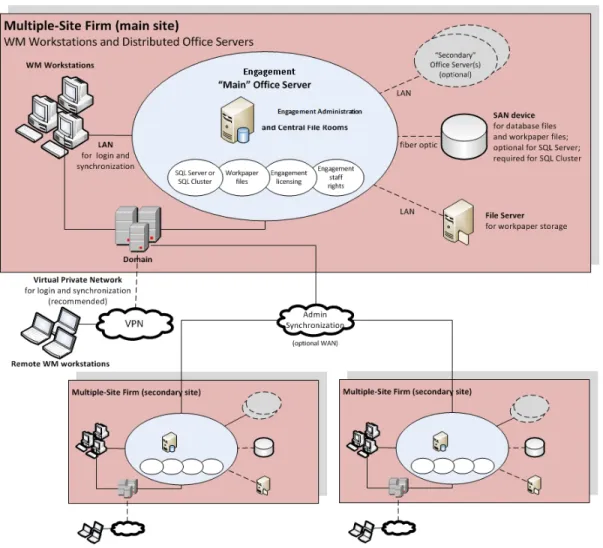
The first scenario is a multi-site firm that has deployed a “Main” Office Server at the firm’s main site and a “Secondary” Office Server at the other sites. The Central File Rooms are thus
“distributed” across the firm. At each site, users run Workpaper Management on their WM
workstations and synchronize binders between Local File Rooms (on workstations) and Central File Rooms (on servers) via a high-speed Local Area Network (LAN).
While this configuration maximizes the speed at which binders are synchronized, synchronization between offices is slower in the absence of a Wide Area Network (WAN). However, WAN
synchronizations are still significantly slower than LAN synchronizations.
Figure 1 – Multi-Site Firm, WM Workstations, Distributed Office Servers
Optionally, Office Server performance is optimized by storing SQL database files and workpaper files on a SAN device connected to the server with a fiber optic cable.
If an optional Virtual Private Network (VPN) is configured at a site, remote users may connect to synchronize.
Scenario 2: Multi-Site Firm, WM Workstations, Centralized Office
Servers
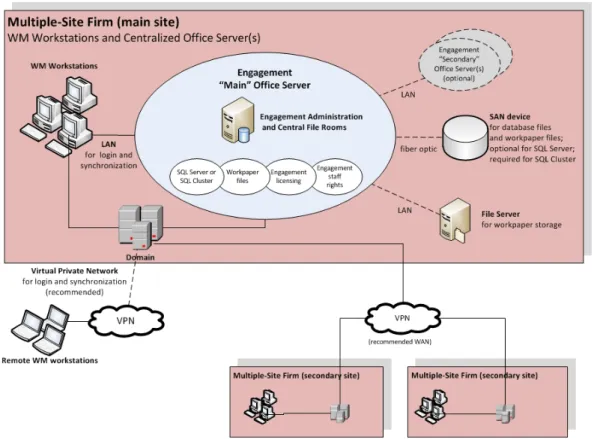
In the second scenario, there are also multiple sites, but only one site has an Office Server that is shared by all users at all sites.
This scenario minimizes server costs by eliminating the need for servers at all sites, except the main site. Because Workpaper Management is running on workstations, the server is stressed only by synchronization. Because binder synchronization typically occurs between sites, this
configuration is most suitable when those sites are connected through a WAN.
Figure 2 – Multi-Site Firm, WM Workstations, Centralized Office Servers
Scenario 3: Multi-Site Firm, WM via Terminal Services, Centralized
Office Servers
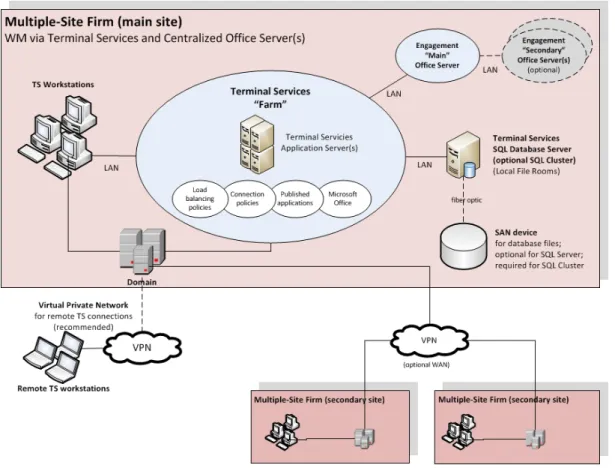
This configuration uses Terminal Services to provide Workpaper Management functionality to users. This requires an adequate investment in server hardware and software; however, the bandwidth requirement between offices is less significant than with Scenario 2. Usually the Terminal Services Database Module is installed on the same machine as the Administrator Module. In some cases, to boost performance it is necessary to split the installation of the Administrator module and the Terminal Services Database module.
Figure 3 - Multi-Site Firm, WM via Terminal Services, Centralized Office Servers
Scenario 4: Multi-Site Firm, Terminal Services, and Local PCs
This final configuration of the multi-site firm uses Terminal Services just like Scenario 3, but also has some installations on workstations.
Figure 4 - Multi-Site Firm, WM via Terminal Services, WM on Local Workstations, and Centralized Office Servers
Scenario 5: Single-Site Firm, WM Workstations
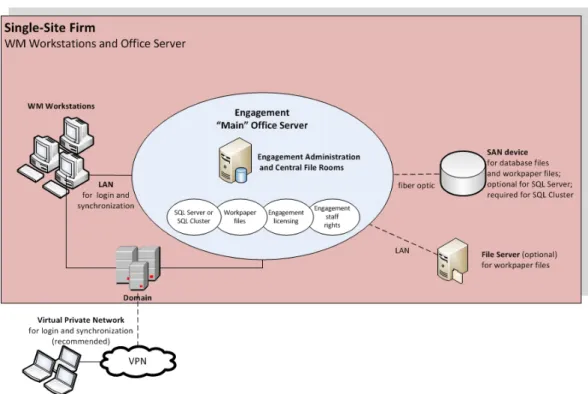
The single-site scenario for WM Workstations is identical to Scenario 1, but simpler due to the absence of secondary sites.
Figure 5 - Single-Site Firm, WM Workstations
Scenario 6: Single-Site Firm, WM via Terminal Services
The single-site scenario for Terminal Services is identical to Scenario 3, but simpler due to the absence of secondary sites.
Figure 6 - Single-Site Firm, WM via Terminal Services
Scenario 7: Single-Site Firm, Terminal Services, and Local PCs
The single-site scenario for Terminal Services is identical to Scenario 4, but simpler due to the absence of secondary sites.
Figure 7 - Single-Site Firm, WM via Terminal Services
Other Scenarios
If none of the listed scenarios is adequate, then all parties involved need to work together to develop a sustainable, predictable, and reliable solution.
Summary of Deployment Scenario Recommendations
Chapter 2
C hapter 2: D eployment Planning – Servers
The main types of servers that are implemented with ProSystem fxEngagement are a Database Server, a File Server, and an optional Terminal Server. Key factors in deployment of these servers include the Microsoft Windows version, available RAM, number of CPUs, Microsoft SQL Server edition, high availability, and the roles and responsibilities of the IT staff supporting these servers. A final consideration is whether to have a File Server or a SAN device. Some of these
considerations vary considerably based on the firm size and the number of users. See the chart in
ProSystem fx Engagement Office Server Recommendationson page 15 for recommendations.
Database Server Overview
Microsoft SQL Server is the database engine used by ProSystem fxEngagement. In this section, we describe some of the factors in deciding how to deploy SQL Server with ProSystem fx Engagement.
High Availability and SQL Clustering
Microsoft SQL Clustering can be used to reduce single points of failure as part of a high availability solution. The ProSystem fxEngagement Administrator and Terminal Services Database Modules can both be deployed inWindows Server 2008 R2cluster environment when either a SQL Server 2008 R2 or SQL Server 2012 instance has been configured for failover.
SeeSQL Server 2014andSQL Server 2012for more information on failover instances. Installation of this environment may require the assistance of the firm's system engineer, network engineer, storage management engineer, and database administrator.
To migrate from a non-clustered environment to a clustered environment, the ProSystem fx
Engagement Backup and Restore Utility should be used. SeeProSystem fx Engagement
Administrator Migrationon page 39 for the firm DBA on this topic. For instructions on deploying ProSystem fx Engagement to a SQL Cluster, seeAppendix C: Installing ProSystem fx Engagement on a SQL Clusteron page 48.
Microsoft SQL Express vs. Microsoft SQL Server Standard or Enterprise
Microsoft SQL Express is installed and set up with little effort by the firm, but it has limited resources and is not recommended for use with more robust environments. For recommendations on specific environments, please see the chart inProSystem fx Engagement Office Server
Recommendationson page 15. Therefore, Microsoft SQL Server Standard or Enterprise editions are recommended as the best choice for deploying SQL Server. SeeSQL Server Express Editionon page 45 in Appendix A for more information on this topic.
Chapter 2: Deployment Planning – Servers • 11
D
EPLOYMENT
P
LANNING
–
S
ERVERS
Microsoft SQL Server (x86) with Address Windowing Extensions (AWE) vs.
Microsoft SQL Server (x64)
Microsoft SQL Server (x86) only supports 2 GB of RAM by default. This is due to the 4 GB of virtual address space limitation of SQL Server 32-bit. The x64 version of Microsoft SQL server does not have this limitation. If for any reason there is a constraint that prevents installing Microsoft SQL Server (x64), it is still possible for Microsoft SQL Server (x86) to utilize more than 2 GB of RAM by enabling the AWE option. However, the maximum RAM SQL utilizes with AWE enabled depends on how much memory is supported by the corresponding operating system that is running SQL Server. Due to the limitations and complexity of implementing AWE, it is recommended that Microsoft SQL Server (x64) be installed for Enterprise solutions. SeeSQL Server (x64) vs. SQL Server (x86) with AWE Enabledon page 44 in Appendix A for additional information for the firm DBA on this topic.
File Servers Overview
Implementing a File Server may assist with space usage, redundancy, and in some cases performance. ProSystem fxEngagement allows the physical files for a Central File Room on a network location. A common device used for this implementation is a SAN device. Both of these hardware choices are optional but have many advantages if implemented.
Using a SAN
Both the SAN device and the File Server provide redundancy and help with disk space usage. SAN devices typically provide better performance than the File Server when connected via a fiber channel. For this reason, a SAN device with fiber channel is recommended for Enterprise solutions.
SQL
The SAN device is used to store the SQL Databases and physical files for the Central File Room (CFR), and also the Local File Room (LFR) for a Terminal Services Database, to minimize the latency created from disk I/O with these files. The SAN device is a requirement for setup of a clustered environment.
In addition, the SAN device must be configured and recognized as a local drive for Microsoft SQL Server to function correctly.
Physical Files
For physical file storage of the CFR workpapers, if the drive is configured as a local drive, similar to the configuration for using the SAN device as previously mentioned, a UNC path is not
necessary. Physical files that are located on a File Server network require a UNC path.
Microsoft Windows Server
While still fully supported, Microsoft Windows Server 2008 Standard is an aging product and Mainstream support from Microsoft for this product ended on 7/13/10. Microsoft Windows Server 2008 Standard Edition (x86) is limited to only 4 GB of RAM. The Enterprise Edition supports up to 64 GB of RAM. Microsoft Windows Server 2008 R2 does not have an (x86) version and the Standard edition has a limit of 32 GB of RAM. PAE technology allows for the (x86) versions to have large
memory support and is enabled after a few steps. Microsoft will not release another (x86) server version of a server operating system.
For these reasons, we recommend Microsoft Windows Server 2008 (x64), Microsoft Windows Server 2008 R2 (x64), and Microsoft Windows Server 2012 (x64) as the base operating system for all servers. The following two links have more information from Microsoft onRAM Limitationsand PAE.
Note: Microsoft Small Business Server (this includes Server 2011 Essentials and Server 2012 Essentials), Windows Server Essentials, and Windows Server Foundation are not supported .
Hardware Considerations
RAM, CPUs (or cores on the CPUs), and the file storage have the biggest impact on performance. For the database server, the highest performance is achieved when RAM is equal to the size of all the databases simultaneously loaded into memory to avoid swapping from the hard disk. However, this is not always practical. A Microsoft whitepaper on best practices for Microsoft SQL Server 2008 R2 data warehousing is locatedhere. The whitepaper explains, in some cases, only 20% of the data is being accessed. The exact minimum amount of RAM will vary depending on firm usage. The recommendations in this guide are for optimal performance.
The base recommendation for the larger more robust servers is to have anywhere from 32 GB of RAM to 64 GB of RAM. For application servers, ProSystem fxEngagement, Microsoft SQL Server, and Microsoft Office are used. The recommendation amount of RAM for application servers is 32 GB of RAM and a maximum of 20 users per server.
Indications of a bottleneck of CPU utilization are when CPU utilization is constantly over 80% and servers with high usage are operating with less than 24 cores. In addition, x64 processors are required to install the x64 versions of Microsoft Windows Server 2008 and Windows Server 2008 R2 as previously recommended.
Too much disk I/O is expensive, so preventing or minimizing the impact of when heavy disk I/O actually does happen is important. SAN devices are a good solution for this aspect and are
recommended for systems with over 250 connected users. More details on monitoring the hardware and performance considerations are inChapter 4: Ongoing Monitoring and Upgrade
Considerationson page 23 andHardware Performanceon page 41 in Appendix A.
Firm IT Staff Roles and Responsibilities
Certain roles and skill sets within the firm are necessary for ProSystem fxEngagement to perform optimally:
System Engineer for Windows Servers. Assist in the design, testing, and implementation stages of Windows Projects. This role should have working knowledge of Microsoft Windows operating systems, Active Directory, DNS, Terminal Services and Group Policy.
Network Engineer. Install, configure, and maintain network services and devices.
SQL DBA or Database Administrator. Install, configure, and maintain the machines with Microsoft SQL Server. This would include monitoring the performance, making any tuning adjustments, and performing backup processes.Chapter 4: Ongoing Monitoring and Upgrade
Considerationson page 23 andAppendix A: Database Administrationon page 36 include specific details on this role.
Storage Management Engineer. Plan, setup, and administer file servers and SAN devices.
Security Analyst. Implement and maintain the firm’s security policies, which include ProSystem fxEngagement, the services, SQL, Firewalls, and ports.
Deskside Technician. Install ProSystem fxEngagement on laptops and workstations, diagnose end user issues, and establish network connectivity.
Desktop Engineer. Share some of the same responsibilities as the Deskside Technician, except this role is responsible for physically setting up the system. The Desktop Engineer may also test hardware and software to see if it fits the firm’s needs. This role would also be responsible for performing an Active Directory Push of the installation.
These roles help design the initial setup and provide ongoing maintenance of the environment. Staff with these skills would do any troubleshooting or performance tuning. The configuration and complexity of your firm’s network and database structures will determine the types of roles and skill levels required. A single IT staff may perform one or more of the roles depending on their skill set.
Virtualization
The virtual machine must meet the same system requirements for ProSystem fxEngagement as a physical machine. Please consult with your virtualization vendor for specific recommendations.
Upgrading ProSystem
fx
Engagement
You can take several steps to help make the upgrade from a prior version go smoothly. The first step is reviewing all documentation such as the Release Bulletin, theProSystem fx Engagement Installation Guide, and theProSystem fx Engagement Deployment Guide.
You can also do the following to help ensure data integrity: Synchronize binders to the Central File Room
Perform a backup both before and after the upgrade using the ProSystem fxEngagement Backup and Restore Utility
Check for compressed databases
For detailed instructions on upgrading, seeAppendix B: Upgrading ProSystem fx Engagement on page 46.
ProSystem
fx
Engagement Office Server Recommendations
This chart contains recommendations in regards to deploying ProSystem fxEngagement Office Servers, also known as the Administrator module. The Office Servers are both Database Servers and File Servers. This chart shows the different considerations, including SQL Server, File Storage, and architecture.
The recommendations for the installation of ProSystem fxEngagement Office Servers, including some of the optional components from the chart on the previous page can be found on the Customer Support Web site under the ProSystem fxEngagement System Requirementstab.
Terminal Servers
Terminal Servers, although optional, allow for the use of the application server / database server topology. A few typical scenarios are generally chosen for this section. Refer toChapter 1: Deployment Planning – Configurationon page 1 for more details on Terminal Services, more specificallyScenario 3: Multi-Site Firm, WM via Terminal Services, Centralized Office Serverson page 5 andScenario 5: Single-Site Firm, WM Workstationson page 7.
ProSystem
fx
Engagement Terminal Services Client Overview
Application servers, dedicated for application files and no user data, are sometimes part of a farm. ProSystem fxEngagement will install on any machine with the Terminal Services Role installed. These machines link to the database server with ProSystem fxEngagement Terminal Services Database. The Terminal Services Client Module requires that Microsoft Office already be installed on the terminal server or Citrix box.
Terminal Services Client Recommendations
This chart contains recommendations in regards to deploying ProSystem fxEngagement on Terminal Services. We start with the recommendation of 20 users per Terminal Server, and then show recommendations for operating systems, Microsoft Office, and hardware. SeeMicrosoft Officeon page 20 for more details on the recommendations for Microsoft Office.
The recommendations for the installation of ProSystem fxEngagement Terminal Services Client, including some of the optional components from the chart on the previous page can be found on the Customer Support Web site under the ProSystem fxEngagement System Requirementstab.
Terminal Services Database Overview
Microsoft SQL Server and the prerequisites for SQL are installed first on these servers. This type of server is considered both a database server and a File Server as it contains both the physical files, such as Microsoft Excel and Microsoft Word, and the ProSystem fxEngagement database files.
Terminal Services Database Recommendations
This chart contains recommendations in regards to deploying the ProSystem fxEngagement Terminal Services Database. This module is used in conjunction with one or many ProSystem fx
Engagement Terminal Services Client installations. The recommendations are for Microsoft Windows, Microsoft SQL Server, file storage, and hardware.
The recommendations for the installation of the ProSystem fxEngagement Terminal Services Database, including some of the optional components from the chart on the previous page can be found on the Customer Support Web site under the ProSystem fxEngagement System Requirements tab.
Summary
Various hardware and software choices are made prior to deploying ProSystem fxEngagement. The server choices include operating system, amount of RAM, number of processors, and infrastructure. The choices are based on the role of the server as well as the usage. Several recommendations exist as a starting point, such as 64-bit operating systems, the use of Microsoft Standard or Enterprise Edition of SQL Server, and SAN devices for larger firms. As stated in
Chapter 1: Deployment Planning – Configurationon page 1, a few scenarios are generally chosen based on the firm’s needs.
Chapter 3
C hapter 3: D eployment Planning – Workstations
Overview
In an Enterprise environment, deploying ProSystem fx Engagement means deploying the application to possibly hundreds of workstations. This factor alone warrants planning the
deployment of these workstations. This chapter also covers Microsoft Windows, Microsoft Office, Microsoft SQL Server, installation, security, use of a File Server, hardware considerations, and the roles of the IT staff.
Microsoft Windows
Windows 7 or Windows 8 is recommended for the operating system choice on workstations. A few of Microsoft Windows 7 and Windows 8 features include Bitlocker, performance improvements over Vista, and (x64) support for larger amounts of memory. See theMicrosoft Windows Web site for more information.
Microsoft Office
ProSystem fx Engagement supports the features and benefits of Microsoft Office 2007, Microsoft Office 2010, Microsoft Office 2013, and Microsoft Office 365 - Desktop version; such as, the Office task-oriented ribbon interface, greater document capacity, and new customization features. In addition to the Microsoft Office features, Knowledge Coach requires Microsoft Office 2007 or higher. Only 32-bit versions are supported. The Microsoft Office 365 Online version is not supported.
Microsoft SQL Server
For workstations, Microsoft SQL Express is recommended. Microsoft Standard or Enterprise edition are only necessary for servers. Microsoft SQL Server 2014 or Microsoft SQL Server 2012 is
recommended.
Chapter 3: Deployment Planning – Workstations • 20
D
EPLOYMENT
P
LANNING
–
W
ORKSTATIONS
Hardware Considerations
RAM, CPUs (or cores on the CPUs), and the hard disk have the biggest impact on performance. As stated in the Office Server section of Chapter 2, ProSystem fxEngagement uses Microsoft Office and Microsoft SQL Server, so the system needs enough memory to run all of these applications along with other applications used by your firm. The recommendation for a workstation is 4 GB of RAM.
An indication of a possible hardware bottleneck is when CPU utilization is constantly over 80%. A dual- or quad-core processor is recommended. More details on monitoring the hardware and performance considerations are inChapter 4: Ongoing Monitoring and Upgrade Considerationson page 23 andHardware Performanceon page 41 in Appendix A.
Installation
ProSystem fxEngagement has several prerequisites before installation. The most important of these is a Microsoft SQL Server. For workstations, Microsoft SQL Express is easily installed from the ProSystem fxEngagement DVD (Install Media) and is already configured through the installer. Microsoft SQL Express is not the only requirement, however. TheProSystem fx Engagement Installation Guidelists what other components are required prior to installing ProSystem fx
Engagement.
Active Directory Push
Once all of the prerequisites are installed on the workstations, Active Directory can be used to push out the ProSystem fxEngagement MSI installer. By using this method, possibly several hundred machines can be updated at the same time. Refer to theProSystem fx Engagement Installation Guidefor more detailed instructions.
Security
Encryption, user rights, firewalls, virus scanning, script blocking, and Windows service packs are common forms of protection against security breaches. Microsoft Office also has its own set of security restrictions. If the restrictions on this software are not managed correctly, some functionality inside ProSystem fxEngagement is blocked. TheProSystem fx Engagement Installation Guideunder Appendix C has detailed information on these concerns.
Use of File Server – Network Template Storage
As previously stated in Chapter 2, a File Server is beneficial to your firm. ProSystem fx
Engagement utilizes several different types of templates. These templates are used for the creation of new binders, workpapers, account groupings, and trial balances. These templates are created and stored locally by default but are sometimes placed on a network location, if desired. If these templates are moved to the network, they are only accessible when the workstations have access to that location. If the workstations leave the office, they will need the templates locally.
ProSystem
fx
Engagement Workpaper Management
Recommendations
This chart contains recommendations in regards to deploying the ProSystem fxEngagement Workpaper Management, including recommendation on hardware, Microsoft Office, Microsoft Windows, and Microsoft SQL Server.
The recommendations for the installation of ProSystem fxEngagement Terminal Services Client, including some of the optional components from the chart on the previous page can be found on the Customer Support Web site under the ProSystem fxEngagementSystem Requirementstab.
Chapter 4
C hapter 4: Ongoing Monitoring and U pgrade C onsiderations
Monitoring the Servers
Monitoring the health of the machines using ProSystem fxEngagement is essential to ensure the best performance is achieved and to determine when an upgrade is necessary. There are three basic areas to monitor, RAM usage, CPU usage, and disk I/O. Disk I/O is one of the slowest functions on a system and heavy disk I/O will affect performance. Several counters are setup to monitor the disk I/O. A SAN device with fiber channels is also used to help performance with heavy disk I/O.
RAM will contribute to disk I/O if there is memory pressure; monitoring the memory usage is recommended. Consider that Microsoft SQL Server is a memory intensive application and by default will use as much memory as the operating system will allow. The final consideration for hardware is the processor. If the usage is constantly over 80%, an upgrade might be necessary. Monitoring the process at the same time as the RAM is ideal.
Consider all of the topics in this Chapter to create a clear picture of future hardware and software requirements. The counters help determine if more RAM is needed, more processing power is needed, or if the disk is too slow.Appendix A: Database Administrationon page 36 has some detailed information on exactly what to monitor and when to upgrade.
Database Backup and Health Check
Data integrity to the firm is important and the ProSystem fxEngagement Database Backup and Restore Utility assists the firm in this manner. The utility has a built-in health check for each of the SQL databases and will mark both the log file and the backup file with "Failed –" appended to the name in the case of an unsuccessful backup. The firm must create a Microsoft Windows scheduled task for this utility to perform these backups on a nightly basis. The utility will not back up the physical workpaper files. This is done by a separate task or 3rd party software. It is possible to use other backup techniques but ProSystem fxEngagement Database Backup and Restore allows for single-binder restoration.Database Backup and Health Checkon page 36 in Appendix A has more details on this topic.
Chapter 4: Ongoing Monitoring and Upgrade Considerations • 23
O
NGOING
M
ONITORING
AND
U
PGRADE
Bin Maintenance
By default, bin maintenance tasks are scheduled to run on a nightly basis. It is important to monitor the result of each run on a daily basis to make sure all steps are executed successfully. This will help to ensure sufficient database space is used in each bin and the database statistics are up-to-date. Pay special attention to the bin diagnostics report, which displays the first time an administrator logs in to the Office Server after each nightly task is run. You can also view this report by selectingTools/Bin Diagnostic Reportin the Administrator module. It is recommended to avoid overlap among different ProSystem fxEngagement nightly tasks, and between a
ProSystem fxEngagement nightly task and other nightly tasks, such as Windows updates.
Disk Space Usage
Make sure the disk drives hosting the database files have sufficient disk space for the database files to grow. Checking the location of the physical files is also recommended. At minimum, both tasks should be performed on a weekly basis.
Disk Fragmentation
Since disk fragmentation may have significant impact on performance, it is recommended to monitor the disk fragmentation on the hard drives hosting the ProSystem fxEngagement SQL .mdf and .ldf files on a weekly basis, and if significant numbers of fragments are detected,
defragmentation of the hard drive level should be performed.
Chapter 5
C hapter 5: Working with ProSystem fxEngagement in the Field
Overview
This document, along with theProSystem fx Engagement Installation GuideandProSystem fx Engagement User Guide, helps you understand and resolve common issues. The instructions here are intended for use by ProSystem fxEngagement users working together with their network administrators and IT professionals.
To provide a basic usage background, you are strongly encouraged to read the help topic
Synchronizing with a Local File Room. This topic gives a step-by-step overview of the Field Synchronization process which you need to understand before you can effectively create and use a field environment. To locate this topic from within ProSystem fxEngagement, selectHelp/Help Topics, and then open the topicSharing and Distributing Binders/Peer-to-Peer Network Environment - Field Synchronization/Synchronizing with a Local File Room.
Synchronizing data is an essential function. For synchronization to work properly, it is critical that the operating system is able to resolve the names of the other machines involved in this process. This can be a challenge in the field for two primary reasons:
The machines are no longer using the servers in the office including the DNS server. Four ports are required for synchronization. These must be open and not be blocked by a firewall.
It is important to create and test a simulated field environment while you are in the office. This can be done on a table in a conference room, using the actual laptops, networking cords, and any other networking equipment that will be used in the field. Every office is different, so it is important to establish a set of steps that works for your equipment before you go to the field. If there are difficulties at this point, it is much easier for you to work with ProSystem fx Engagement support personnel to find and implement a solution before the team is on an actual job in the field where time is critical, and users may be far from the office.
Any type of network connection can work with ProSystem fxEngagement as long as it provides network connectivity between the machines that are going to be used for field synchronization. Generally, the difficulties are not related to the specific type or brand of hardware being used, but are most often related to the myriad network configuration settings that must be considered for every unique environment. The remainder of this document focuses almost exclusively on these configuration settings rather than the underlying hardware.
Chapter 5: Working with ProSystem fx Engagement in the Field • 25
W
ORKING
WITH
P
RO
S
YSTEM
FX
E
NGAGEMENT
IN
Connection Types
ProSystem fxEngagement can work with many different types of network connections. As long as a connection meets all of the requirements, then the type of connection is not important. The connection type may affect factors such as speed and reliability, but do not determine whether ProSystem fxEngagement will work. ProSystem fxEngagement will use any connection type that meets its requirements.
Some possible connection types that can be used for field synchronization with ProSystem fx
Engagement include: Hub/Router
Wireless Access Point Ad Hoc Wireless Client Network
While each of these connection types can work with ProSystem fxEngagement, each one has different characteristics and may require different setup steps. It is the responsibility of your IT staff to assist with the setup and configuration of the network connection type, based on the available equipment and capabilities.
Name Resolution
The first and most important challenge in any field synchronization is to confirm that proper name resolution exists between the machines that will be connecting together. The basic concept of name resolution is quite simple. However, the process is greatly complicated by many factors, including IP address changes, server not available, client network setup, hub/router setup, Microsoft Windows version, and firewall settings. When the machines are not able to resolve each other’s names, the Networking tab of the ProSystem fxEngagement Configuration Utility can be used to assist with name resolution. See the section below that describes the usage of this utility.
Name Resolution Illustration
The following explores some of the issues around name resolution, and provides some tips for troubleshooting and resolving these issues.
Finding the IP Address and Machine Name
When a computer is booted, it is assigned an IP address, a unique set of four or six numbers that identifies the machine on the network. It is the basis for all network communications. When the machine is booted, it looks for a network connection and requests to be assigned an IP address from that network connection source.
In a normal office network, this address is provided by a Windows DNS server. However, if the machine is being booted from a remote location outside the office, the machine can get its IP address from a number of different places. This wide variety of connection types can cause a machine’s IP address to change often. That is why it can be very difficult to connect machines with each other when taken out of the standard office environment.
Machine Location IP address source
Connected to office network DNS server in office
Connected to client’s network DNS server on client’s network
Connected to hub/router Hub/router
Coffee shop or airport Wireless router in coffee shop or airport
Cell phone or air card Cell phone network provider
Company VPN Windows DNS server in office
Not connected to any network Machine uses a self-generated IP address
When attempting to connect machines in the field, it is very important to know the name of each machine as well as where each machine is getting its IP address from at any given moment. ProSystem fxEngagement relies on a working network connection to connect successfully for field synchronization.
To find the machine name and IP address, do the following:
1. ClickStart / All Programs / Accessories / Command Prompt.
2. Enterhostnameat the command line and pressEnter. The name of your machine displays below the command prompt.
3. Enteripconfigat the command line and pressEnter. Your IP address displays below the command prompt.
Testing IP Address Connections
Once you know the IP address and name for each machine in the group, you can begin testing to see if a connection exists between the machines, and whether there is the proper name resolution for the machines. To test for a connection, run a “ping” command for the machines in your group.
1. On your computer, click Start / All Programs / Accessories / Command Prompt.
2. Enterping <IP address>at the command line and pressEnter. Replace<IP address>with the IP address of another computer in the group. If the connection was:
Successful, you will see the following message:Packets: Sent = #, Received = #, Lost = 0 (0% loss).
Unsuccessful, you will see the following message: Packets: Sent = 0, Received = 0, Lost = # (100% loss).
Testing Name Resolution
Testing name resolution uses the machine name instead of the IP address. Notice in the screenshot below that the command has been changed accordingly.
1. On your computer, click Start / All Programs / Accessories / Command Prompt.
2. Enterping <machine name>at the command line and pressEnter. Replace<machine name>
with the machine name of another computer in the group. If the connection was:
Successful, you will see the following message:Packets: Sent = #, Received = #, Lost = 0 (0% loss).
Unsuccessful, you will see the following message: Packets: Sent = 0, Received = 0, Lost = # (100% loss).
If the test above has been successful, then we have confirmed that There is basic network connectivity (based on IP address). There is machine name resolution (based on machine name).
Both of these things are required to continue and for the ProSystem fxEngagement synchronization to function successfully.
ProSystem
fx
Engagement Services and Ports
ProSystem fxEngagement uses a number of different services and ports on the machines that will be connected to each other. The following illustration shows these services and some technical details about each one.
Depending on which functions are being used within ProSystem fxEngagement, these services and ports are used at various times. For the primary function of synchronization, ProSystem fx
Engagement uses SQL Server and the Synch Service. For these functions to work correctly, the machine must have basic connectivity as well as name resolution. Also, the machine must be able to communicate freely on the ports noted above. A port can be compared to a television channel. Even though the television may be connected to the antenna or cable, it must be tuned to receive the designated channel.
Firewalls
A firewall is used to block or allow communication on specific ports of the machine. Using the television channel analogy above, this is the equivalent of having certain channels blocked that might be considered harmful or undesirable. A firewall performs exactly the same function, keeping out certain types of network communications, while allowing other types.
If the ports needed for synchronization are blocked, this can affect how the ProSystem fx
Engagement synchronization process works. This can be caused by a firewall, an antivirus program, a client’s network, or almost any other connection type that restricts the type of network traffic that can pass through. The following illustrates a network connection that will not work correctly because of a firewall block.
Testing the ports that will be used by ProSystem fxEngagement can be done with the free Port Query tool from Microsoft. You enter the ports to be tested manually, or receive a special configuration file from ProSystem fxEngagement support that has the proper ports already entered.
Download the Port Query tool from the following link:
http://www.microsoft.com/download/en/details.aspx?id=24009
To test the ProSystem fxEngagement ports using the PortQryUI tool, do the following: 1. Open portqueryui.exe.
2. Enter the name of the machine to be tested. 3. Do one of the following:
Use the Engagement query predefined service. Select theQuery predefined serviceoption, and then selectEngagementfrom the list (the config.xml will need to be edited to add Engagement and its ports as a predefined service). Each of the primary ports used with Engagement is tested, and a separate section in the results will be listed for each port.
Manually input query ports. Select theManually input query portsoption, and then enter the port number and/or port ranges separated by commas.
4. ClickQuery.
For each port number, a result of LISTENTING or NOT LISTENING will be reported, as shown in the following illustration. If a port is noted as NOT LISTENING, this means either the associated service is not running, or the port that it is using is blocked by a firewall of some kind.
Based on the results of the PortQryUi tool, you can continue troubleshooting to determine what is causing the ports to be blocked.
If ports are blocked, do the following:
1. Disable the Windows Firewall on all machines.
2. Retry the Port Query test, and see if the result shows LISTENING. If so, you can successfully use ProSystem fxEngagement only if the firewall is turned off, or if specific exceptions for those ports are added to the Windows Firewall or other port monitoring software.
ProSystem
fx
Engagement Configuration Utility
Once a network connection has been established between the machines, every user working in ProSystem fxEngagement should run the ProSystem fxEngagement Configuration Utility.
1. SelectStart / All Programs / ProSystem fxEngagement / Utilities, right-click on the ProSystem fxEngagement Configuration Utility, and then select toRun as Administrator.
Note: It may be necessary to alter the short cut for the Configuration Utility. If it fails to launch, right click on the icon for the Configuration Utility and select Properties. The target will point to the PfxConfigUtil.exe and there will be a /m client switch at the end. In some cases this switch has prevented the utility from launching. Remove the /m client from the end of the Target path.
2. Select theNetworkingtab of the Configuration Utility.
3. Select all check boxes in theDelete Settingssection and clickDelete. This will remove any previous entries made by this utility that may no longer be relevant.
4. ClickDetectin theAuto Detectsection. It is important that every user do this step at the same time. The Detect feature will broadcast each user’s machine name and IP address. 5. Once all the users machines can be seen in the Auto Detect window, clickSave.
Note: Pressing the Save button will create an SQL alias in the registry and create entries for the workstations in the hosts file.
6. Close the Auto Detect window and close the ProSystem fxEngagement Configuration Utility.
7. Open ProSystem fxEngagement and selectFieldfrom theSelect locationlist.
8. Test the ability to connect to other users. This step is not required for field synchronization. a. Click theStafftab, right-click a user to connect to, and selectProperties. TheStaff
Location Propertieswindow displays.
b. Click theExisting locationdrop-down to verify the correct machine name for the user you are connecting to.
c. ClickOKand the contents of the other users' Local File Room should display. This is an indication of a successful connection between the two users and field synchronizations will be possible.
9. Perform a synchronization. a. Select a binder.
b. Right click and selectSynchronize binder. The Synchronize Binder Wizard will display and guide you through the synchronization process.
c. On theSelect a Synchronization Target page, select a user to sync with and verify that the Existing Locations list displays the correct machine name.
d. ClickNextto assign workpapers or clickFinishto complete the synchronization process.
Appendix A
A ppendix A : D atabase A dministration
As an important role for the ProSystem fx Engagement software operation, the SQL DBA will be responsible for performing a list of tasks, either on a period-by-period basis or based on
requests/needs. There are two types of SQL deployment that need to be closely monitored, the Office Server and the Citrix/Terminal Services SQL Server both of which are SQL Servers.
Database Backup and Health Check
One of the most important tasks for a DBA is to perform successful database backups on a regular basis.
At the very minimum, a full backup and health check should be performed on every Office Server on a daily basis. The ProSystem fxEngagement Backup and Restore Utility helps to make this easier and includes a built-in health check feature. The SQL DBA should create a nightly task to run the ProSystem fxEngagement Backup and Restore Utility, ideally allocating a dedicated window on the server for this task to run. The SQL DBA should be monitoring the status of this task, reviewing the log of the utility on a daily basis to make sure a successful backup was performed, and ensuring all databases remain in optimal health. For large firms, as the number of bin databases grows larger, it may take a longer time to perform full backup on a nightly basis. Therefore, you may need to monitor this closely to find out if the current window allocated for backup is sufficient for the task to run. If not, either reschedule the task for a different time when a longer window is available, or implement the differential backup option in the utility.
Important!
Make sure to save the backup files into a different drive other than the one hosting the database .mdf and .ldf files. If the files are on the same drive, a single point of disk failure could result in the loss of both the production drive and the backups.
Periodically check the recovery operations to validate the contents of the backup and ensure the entire environment can be restored.
Note: The Database Backup and Restore Utility does not back up any of the Terminal Services Databases.
Appendix A: Database Administration • 36
D
ATABASE
A
DMINISTRATION
Database Maintenance Plan
Overview
Setting up a database maintenance plan helps the SQL Server to operate efficiently and also helps to ensure data integrity. We recommend setting up this plan to check database integrity, shrink databases, rebuild indexes, update statistics, and cleanup. For a more detailed overview of database maintenance plans, refer to the following document:
http://msdn.microsoft.com/en-us/library/ms191002.aspx#Restrictions
Agent XPs
Before creating the plan, the SQL Server option for Agent XPs must be turned on. To turn on the SQL Server option for Agent XPs, refer to the following document:
http://msdn.microsoft.com/en-us/library/ms178127.aspx
Database Maintenance Plan
We recommend you set up the database maintenance plan by doing the following: 1. OpenSQL Server Management Studio.
2. Log in to the Engagement Instance. 3. Expand theManagementfolder. 4. Right-clickMaintenance Plans.
5. SelectMaintenance Plan Wizard.
6. EnterPfx Engagementfor the plan name.
7. LeaveSingle schedule for the entire plan or no scheduleselected.
8. ClickChange to change the schedule of the task. TheJob Schedule Propertiesdialog displays.
9. In theFrequencysection, selectMonthlyfrom theOccursdrop-down menu. 10. SelectThe first Sunday of every 1 month(s).
11. LeaveOccurs once at: 12:00:00 AMselected in theDaily frequencysection. 12. ClickOK.
13. ClickNext.TheSelect Maintenance Tasksdialog displays. 14. Select the following maintenance tasks:
a. Check Database Integrity b. Shrink Database
c. Rebuild Index d. Update Statistics
e. Maintenance Cleanup Task
15. ClickNext.The tasks should be performed in the order listed in step 14. 16. ClickNext.
17. Complete the following for the tasks selected: a. Database Check Integrity
i. SelectAll databasesorPfx Engagement databasesfrom theDatabases
drop-down menu. ii. ClickNext. b. Shrink Database
i. SelectAll databasesfrom theDatabasesdrop-down menu. ii. Enter100MB in theShrink databases when it grows beyondbox. iii. Leave 10% in theAmount of free space to remain after shrinkbox. iv. SelectReturn freed space to operating system.
v. ClickNext. c. Rebuild Index
i. SelectAll databasesorPfx Engagement databasesfrom theDatabases
drop-down menu.
ii. SelectReorganize pages with the default amount of free spacein theFree space optionssection.
iii. ClickNext. d. Update Statistics
i. SelectAll databasesorPfx Engagement databasesfrom theDatabases drop-down menu.
ii. SelectAll existing statisticsfrom theUpdateoptions available. iii. SelectFull scanas theScan type.
iv. ClickNext. e. Maintenance Cleanup
i. SelectMaintenance Plan text reportsfrom theDelete files of the following typeoptions.
ii. SelectSearch folder and delete files based on an extension.
iii. SelectBrowseand browse to the The ProfxEngagement SQL Server Log file path.
Example: C:\Program Files\Microsoft SQL Server\MSSQL10_ 50.PROFXENGAGEMENT\MSSQL\Log
iv. Entertxtin theFile extensionbox.
v. In theFile agesection, checkDelete files based on the age of the file as task run time.
vi. Enter2and selectMonthsfrom the drop-down menu in theDelete files older than the followingsection.
vii. ClickNext.TheSelect Report Optionsdialog displays. 18. Make your preferred report options selections.
19. ClickNext.
20. ClickFinishto complete the wizard.
Note: Maintenance Plans are not available in SQL Express.
ProSystem
fx
Engagement Administrator Migration
Server migrations are sometimes necessary due to various reasons. The simplest approach to migration utilizes the ProSystem fxEngagement Backup and Restore Utility. Prior to performing the migration, it is essential to take into consideration the factors mentioned here to help make the process go smoothly. Many of the recommendations mentioned take place prior to preparing for the migration and before the actual migration takes place. Missing any of these steps could result in data loss or an unsuccessful migration.
Prior to beginning the migration, it is recommended that all workpapers be checked in. It is also recommended that the installation path be the same on both the old server and the new server. For instance, if the ProSystem fxEngagement Administrator module is installed to C:\Pfx Engagement\ on the existing server, it should be installed to C:\Pfx Engagement\ on the new server. In addition, the same version of ProSystem fxEngagement Administrator should be installed on both servers.
The version of SQL Server can be greater than or the same version on the target, or new server, but it cannot be less than the original server. For example, if the original server was using Microsoft SQL Server 2008, the new machine can use either Microsoft SQL Server 2008, 2008 R2, 2012 or 2014. If the old server was using SQL Server 2012, then the new server cannot use SQL Server 2008. In addition, you cannot upgrade from different editions. For example, you cannot upgrade from Microsoft SQL Server 2008 Standard to Microsoft SQL Server 2012 Express.
Migrating the Office Server
Important Notes:
These steps only involve the migration of Administration Module. If you have other modules on your server, such as the Terminal Services Database, all binders from ProSystem fx
Engagement Terminal Services Client sessions must be checked into the Central File Room prior to migration.
The Terminal Services Database is not included in the backup of CFR SQL databases. The Terminal Services Database cannot be migrated.
The office server migration must be performed at a time when the ProSystem fxEngagement application is not in use.
It is required to use a full backup during a planned migration. To migrate the office server, do the following:
1. On the new server, install the same version of ProSystem fxEngagement Administrator to the same physical installation as on the old server.
Important!Do not launch the application on the new server once installation has completed.
2. On the old server, openProSystem fxEngagement Administrator. 3. Locate theCentral File Room(s)in the lower left-hand corner. 4. Right-click theCentral File Roomand selectProperties. 5. Locate the Workpaper path and document for future reference. 6. Repeat steps 3-5 for each Central File Room.
7. Still working with the old server, run ProSystem fxEngagement Database Backup and Restore Utility and perform a backup of the ProSystem fxEngagement application. SeeHow do I manually run the ProSystem fx Engagement Database Backup & Restore Utility?for instructions on how to back up your database.
Note: If you are on ProSystem fxEngagement 6.5, make sure you have downloaded and used the updated ProSystem fxEngagement Backup and Restore Utility from
http://support.cch.com/updates/Engagement/.
8. DisableProSystem fxEngagement SQL Service (SQL Server [PROFXENGAGEMENT])on the old server.
a. Right-clickMy Computerand selectManage.
b. SelectServices and Applicationsfrom the navigation tree. c. SelectServicesin theServices and Applicationstree. d. Locate theSQL Server (PROFXENGAGEMENT)service. e. Right-click the service and selectStop.
f. Right-click the service again and selectProperties. g. Change the startup type toDisabledand selectApply. h. Close theComputer Managementdialog.
9. Copy the .bak file created with the ProSystem fxEngagement Database Backup and Restore Utility to the new server.
10. On the new server, run theProSystem fx Engagement Database Backup and Restore Utility. Restore the .bak file you copied from the old server.
11. Copy theCentral File Room Workpaperfolder(s) from the old server to the exact same physical location on the new server.
Note: If the path is different on the new server, and you are on 6.x, you can use the CFR Workpaper Path Change executable that can be obtained from ProSystem fx
Engagement Support, or from the ProSystem fxEngagement DVD (Install Media) Image/utilities folder (available only on ProSystem fxEngagement version 6.8 and newer). SeeHow do I use the CFR workpaper path change utility?for instructions. 12. On the new server, open theProSystem fxEngagement Administratormodule for the first
time. If the server name has been changed, you are prompted to update to the new computer name.
13. SelectYesto accept the name change.
14. Log into each workstation that has ProSystem fxEngagement installed.
a. SelectOKon the message that displays indicating the program could not find the old server.
b. SelectBrowseand browse to the new office server, or type in the name of the new office server.
SQL Server Jobs
By default, the SQL Agent for ProSystem fxEngagement SQL instance is disabled. If for any reason this needs to be turned on and some SQL tasks need to be added, it is important to make sure these SQL tasks do not have significant impact either on the run time process during the day or any nightly tasks set to run for the ProSystem fxEngagement databases.
Database Statistics
Statistics update is essential to the performance of SQL Server. The update of statistics is part of the bin maintenance nightly tasks. It is recommended to monitor and make sure the update step is executed successfully on a daily basis to ensure the statistics are always up-to-date.
Index Fragmentation
Index fragmentation is monitored by running the “Index Physical Statistics” report from Microsoft SQL Management studio. If it is determined some indexes are highly fragmented, it is
recommended to perform an index rebuild or defragmentation based on the type of fragmentation during the weekend. Microsoft explains fragmentationhere.
Transaction Log File Growth
The transaction log files, also known as .ldf files, are the files that track transactions during the data modification operations. As ProSystem fxEngagement databases are created on the SQL instances, the corresponding .ldf files are set to not grow. It is recommended to keep monitoring these files on a weekly basis to make sure they do not grow to a significantly larger size or span over the hard drives. Typically, if the size of an .ldf file is larger than 1 GB, it is an indication the truncation process is not running properly. It is recommended to manually truncate the log and shrink the log file.
Hardware Performance
It is important to know how the hardware is currently performing for ProSystem fxEngagement operations. Since there are so many factors affecting the hardware performance, it is good practice to monitor performance of the main resources to determine if there is any bottleneck on the current hardware. Monitoring the following three areas is ideal:
CPU Memory Disk I/O
In some cases, it is necessary to monitor network utilization and performance.
It is recommended to monitor the hardware performance on a monthly basis. It is also a best practice to monitor performance for a period of time, for instance, from morning to evening, or during peak hours of the day. The following sections include details on what to measure and the tools that are available.
Hardware Performance Indicators
CPU
Two indicators help to determine whether there is any CPU pressure:
% CPU time. If CPU usage is frequently above 80%, it is an indication of CPU pressure. This is an indication that a hardware upgrade of the CPU may increase performance. To monitor this, set up a trace in Performance Monitor to capture the value in theProcessor:% Processor Timecounter by sampling the data every 10 seconds for peak hours or for the entire day.
Number of Tasks waiting to run. This number indicates how many runnable tasks are waiting for the CPU. A frequent observation of a non-zero value of this number or a high value is an indication of a CPU bottleneck. To obtain the value, reference the result under the “runnable_tasks_count“ column from the following query:
select scheduler_id, current_tasks_count, runnable_tasks_count from sys.dm_os_schedulers where
scheduler_id < 255
To monitor this, you may write a script to run this query repeatedly every 10 seconds in Microsoft SQL Management Studio and save the results in a table.
This value is also available under the column “SOS_SCHEDULER_YIELD” in the Performance Dashboard report – Wait category.
Memory
The following three indicators help to determine whether there is memory pressure:
Buffer Cache Hit Ratio. This value indicates when SQL needs to visit a particular page of data and determine how often it finds the data in the cache. If this value is frequently below 99%, this is an indication that a hardware upgrade of the memory may increase performance. This value is obtained from Performance monitor > SQL Server:Buffer Managerobject >
Buffer Cache Hit Ratiocounter. It is also available in Performance Dashboard.
Page Life Expectancy. This value indicates how long a page stays in memory, if it often below 300, then it indicates more memory could help to improve the performance. This value is available in Performance monitor > SQL Server:Buffer Managerobject >Page Life Expectancycounter.
Page reads/Sec. This number indicates the frequency for which the SQL Server needs to go to disk to visit a desired page data. If this value goes above 80, it is an indication of memory pressure. This number is obtained from Performance monitor > SQL Server:Buffer Manager
object >Page reads/Seccounter.
To monitor the memory pressure, simply add the above counters to the same task as stated above with the CPU Counters.
Disk I/O
The following three indicators help to determine the health of disk I/O:
Ave Disk Sec/Read. This value indicates how long it takes to fulfill one read request by the hard drive. The ideal value is 0.005 second. A value under 0.010 second is also acceptable. However, if it is frequent to see more than 0.010 second in this counter, it is an indication the hard drive throughput is not sufficient. This value is available inPerformance
Monitor > PhysicalDisk Object > Ave Disk Sec/Readcounter. The overall statistics values are also available in Performance Dashboard.
Ave Disk Sec/Write. This value indicates how long it takes to fulfill one write request by the hard drive. The ideal value is 0.005 second. A value under 0.010 second is also acceptable. However, if it is frequent to see more than 0.010 second in this counter, it is an indication the hard drive throughput is not sufficient. This value is available inPerformance Monitor > PhysicalDisk Object > Ave Disk Sec/Writecounter. The overall statistics values are also available in Performance Dashboard.
Ave Disk Queue Length. This value indicates how many tasks are waiting for the hard drive to perform a disk I/O. A frequent observation of values higher than 1 is an indication of I/O pressure. This value is available as a counter inPerformance Monitor > PhysicalDisk Object > Avg. Disk Queue Length. The overall statistics values are also available in Performance Dashboard.
To monitor the disk I/O, simply add the above counters to the same task as stated above with the CPU Counters.
Tools Available for Hardware Performance Monitoring
Performance Monitor
This tool is ideal for contiguous monitoring of resources for a period of time, for instance, during peak hours or for an entire day of operations. Since scheduled tasks are used to collect data on an interval basis, the performance monitor helps to provide the SQL DBA a good indication of how the hardware resources are utilized. All the desired indicators are available as counters under
different categories.
Performance Dashboard Reports for SQL Server
This tool provides a quick overview on performance-related facts for the current moment. It requires no set up and is easy to use. It is useful to help diagnose a known performance issue on the SQL server and help to analyze the hardware performance bottleneck for a given moment. It will also provide data to help analyze software bottlenecks, such as blocking.