Business Continuity Solutions
BUSINESS CONTINUITY
SonicWALL CDP Series
659 320 & silver metcool gray 5
SonicWALL CDP 3.1
© 2008 SonicWALL, Inc. All rights reserved.
Under the copyright laws, this manual or the software described within, cannot be copied, in whole or part, without the written consent of the manufacturer, except in the normal use of the software to make a backup copy. The same proprietary and copyright notices must be affixed to any permitted copies as were affixed to the original. This exception does not allow copies to be made for others, whether or not sold, but all of the material purchased (with all backup copies) can be sold, given, or loaned to another person. Under the law, copying includes translating into another language or format.
Specifications and descriptions subject to change without notice.
Trademarks
SonicWALL is a registered trademark of SonicWALL, Inc.
Microsoft Windows 98, Windows NT, Windows 2000, Windows XP, Windows Server 2003, Internet Explorer, and Active Directory are trademarks or registered trademarks of Microsoft Corporation. Netscape is a registered trademark of Netscape Communications Corporation in the U.S. and other countries. Netscape Navigator and Netscape Communicator are also trademarks of Netscape Communications Corporation and may be registered outside the U.S.
Adobe, Acrobat, and Acrobat Reader are either registered trademarks or trademarks of Adobe Systems Incorporated in the U.S. and/or other countries.
Other product and company names mentioned herein may be trademarks and/or registered trademarks of their respective companies and are the sole property of their respective manufacturers.
SonicWALL GPL Source Code
GNU General Public License (GPL)
SonicWALL will provide a readable copy of the GPL open source on a CD. To obtain a complete machine-readable copy, please send your written request, along with a certified check or money order in the amount of US $25.00 payable to "SonicWALL, Inc." to:
General Public License Source Code Request SonicWALL, Inc. Attn: Jennifer Anderson 1143 Borregas Ave
commencing not more than ninety (90) days after the original shipment by SonicWALL), and continuing for a period of twelve (12) months, that the product will be free from defects in materials and workmanship under normal use. This Limited Warranty is not transferable and applies only to the original end user of the product. SonicWALL and its suppliers' entire liability and Customer's sole and exclusive remedy under this limited warranty will be shipment of a replacement product. At SonicWALL's discretion the replacement product may be of equal or greater functionality and may be of either new or like-new quality. SonicWALL's obligations under this warranty are contingent upon the return of the defective product according to the terms of SonicWALL's then-current Support Services policies.
This warranty does not apply if the product has been subjected to abnormal electrical stress, damaged by accident, abuse, misuse or misapplication, or has been modified without the written permission of
SonicWALL.
DISCLAIMER OF WARRANTY. EXCEPT AS SPECIFIED IN THIS WARRANTY, ALL EXPRESS OR IMPLIED CONDITIONS, REPRESENTATIONS, AND WARRANTIES INCLUDING, WITHOUT
LIMITATION, ANY IMPLIED WARRANTY OR CONDITION OF MERCHANTABILITY, FITNESS FOR A PARTICULAR PURPOSE, NONINFRINGEMENT, SATISFACTORY QUALITY OR ARISING FROM A COURSE OF DEALING, LAW, USAGE, OR TRADE PRACTICE, ARE HEREBY EXCLUDED TO THE MAXIMUM EXTENT ALLOWED BY APPLICABLE LAW. TO THE EXTENT AN IMPLIED WARRANTY CANNOT BE EXCLUDED, SUCH WARRANTY IS LIMITED IN DURATION TO THE WARRANTY PERIOD. BECAUSE SOME STATES OR JURISDICTIONS DO NOT ALLOW LIMITATIONS ON HOW LONG AN IMPLIED WARRANTY LASTS, THE ABOVE LIMITATION MAY NOT APPLY TO YOU. THIS WARRANTY GIVES YOU SPECIFIC LEGAL RIGHTS, AND YOU MAY ALSO HAVE OTHER RIGHTS WHICH VARY FROM JURISDICTION TO JURISDICTION. This disclaimer and exclusion shall apply even if the express warranty set forth above fails of its essential purpose.
DISCLAIMER OF LIABILITY. SONICWALL'S SOLE LIABILITY IS THE SHIPMENT OF A
REPLACEMENT PRODUCT AS DESCRIBED IN THE ABOVE LIMITED WARRANTY. IN NO EVENT SHALL SONICWALL OR ITS SUPPLIERS BE LIABLE FOR ANY DAMAGES WHATSOEVER, INCLUDING, WITHOUT LIMITATION, DAMAGES FOR LOSS OF PROFITS, BUSINESS
INTERRUPTION, LOSS OF INFORMATION, OR OTHER PECUNIARY LOSS ARISING OUT OF THE USE OR INABILITY TO USE THE PRODUCT, OR FOR SPECIAL, INDIRECT, CONSEQUENTIAL, INCIDENTAL, OR PUNITIVE DAMAGES HOWEVER CAUSED AND REGARDLESS OF THE THEORY OF LIABILITY ARISING OUT OF THE USE OF OR INABILITY TO USE HARDWARE OR SOFTWARE EVEN IF SONICWALL OR ITS SUPPLIERS HAVE BEEN ADVISED OF THE POSSIBILITY OF SUCH DAMAGES. In no event shall SonicWALL or its suppliers' liability to Customer, whether in contract, tort (including negligence), or otherwise, exceed the price paid by Customer. The foregoing limitations shall apply even if the above-stated warranty fails of its essential purpose. BECAUSE SOME STATES OR JURISDICTIONS DO NOT ALLOW LIMITATION OR EXCLUSION OF CONSEQUENTIAL OR
The following Conventions used in this guide are as follows:
Icons Used in this Manual
These special messages refer to noteworthy information, and include a symbol for quick identification:
Tip A timesaving tip.
Note Important information on a feature that requires callout for special attention. Cross Reference: Provides a pointer to related information in the Administrator’s Guide or other resources.
Convention Use
Bold Highlights items you can select on the SonicWALL security appliance management interface.
Italic Highlights a value to enter into a field. For example, “type 192.68.168.168 in the IP Address field.”
Menu Item > Menu Item Indicates a multiple step Management Interface menu choice. For example, Security Services > Content Filter means select Security Services, then select Content Filter.
<http://www.sonicwall.com/support/support.html>. Web-based resources are available to help you resolve most technical issues or contact SonicWALL Technical Support.
To contact SonicWALL telephone support, see the telephone numbers listed below:
North America Telephone Support
U.S./Canada - 888.777.1476 or +1 408.752.7819
International Telephone Support
Australia - + 1800.35.1642 Austria - + 43(0)820.400.105 EMEA - +31(0)411.617.810 France - + 33(0)1.4933.7414 Germany - + 49(0)1805.0800.22 Hong Kong - + 1.800.93.0997 India - + 8026556828 Italy - +39.02.7541.9803 Japan - + 81(0)3.5460.5356 New Zealand - + 0800.446489 Singapore - + 800.110.1441 Spain - + 34(0)9137.53035 Switzerland - +41.1.308.3.977 UK - +44(0)1344.668.484Contact SonicWALL, Inc. for information about SonicWALL products and services at: Web: http://www.sonicwall.com E-mail: [email protected] Phone: (408) 745-9600 Fax: (408) 745-9300
Current Documentation
Check the SonicWALL documentation Web site for that latest versions of this manual and all other SonicWALL product documentation.
http://www.sonicwall.com/support/documentation.html
http://www.software.sonicwall.com/applications/dataprotect
Table of Contents
About this Guide . . . 1
SonicWALL CDP Overview . . . 2
What Is SonicWALL CDP? . . . 3
Why Use SonicWALL CDP? . . . 4
How Does SonicWALL CDP Work? . . . 6
Deployment Restrictions. . . 12
SonicWALL CDP Hardware . . . 13
Supported Platforms . . . 14
Offsite Service . . . 19
SonicWALL CDP Software . . . 20
Web-Based User Interface . . . 21
Enterprise Manager. . . 24
Agent Tool . . . 38
Configuration Task List . . . 40
Initial Configuration of SonicWALL CDP Using User Interface . . . 41
Editing Enterprise Manager Administrative Settings . . . 45
Configuring Email Alerts . . . .82
Recovering Your Data Using SonicWALL CDP . . . .83
Configuring SonicWALL CDP Agent and Enterprise Manager to Work with
Soft-ware Firewalls . . . .93
Adding a SonicWALL CDP Appliance to GMS . . . .101
Configuring Site-to-Site Backup and Recovery . . . .108
Troubleshooting SonicWALL CDP . . . .127
SonicWALL CDP Appliance Troubleshooting . . . .127
Backup and Recovery Troubleshooting. . . .128
Technical Frequently Asked Questions . . . .129
Glossary . . . .131
Related Documents . . . .133
User Guides . . . .133
Contributors . . . .134
Index
SonicWALL CDP (continuous data protection), including a high-level overview of SonicWALL CDP, a description of deployment restrictions, hardware and software components, configuration examples and basic troubleshooting.
The SonicWALL CDP Administrator’s Guide contains the following sections:
• “SonicWALL CDP Overview” section on page 2
• “Deployment Restrictions” section on page 12
• “SonicWALL CDP Hardware” section on page 13
• “SonicWALL CDP Software” section on page 20
• “Configuration Task List” section on page 40
• “Troubleshooting SonicWALL CDP” section on page 127
• “Technical Frequently Asked Questions” section on page 129
• “Glossary” section on page 131
SonicWALL CDP Overview
Protect your network using SonicWALL CDP (continuous data protection), a secure backup solution that runs continuously, archiving file and application data from assigned agents (servers, laptops or PCs intended for backup using SonicWALL CDP).
SonicWALL CDP replicates data in real time, capturing new, changed and deleted information. By storing multiple versions of each file and application revision, SonicWALL CDP can recall data from nearly any point in time.
In the event of local disaster, data can be recovered from the secure SonicWALL CDP Offsite Service.The Offsite Service is an optional service that backs up your data at a North American or European site. For more routine data recovery needs, the SonicWALL CDP appliance provides instant, onsite data recall. SonicWALL CDP works even when users are on remote laptops connected by IPsec or SSL-VPN connections.
SonicWALL CDP includes an appliance, a web-based user interface, Enterprise Manager software, Agent Tool software, and Offsite Service. The SonicWALL CDP management interface and software is available in the following languages: English, Spanish, French, Italian and German. The web-based user interface language can be modified as needed. The Enterprise Manager and Agent Tool software language is determined at installation and can be changed by uninstalling and re-installing the software. This section contains the following subsections, which provide an introduction to the SonicWALL CDP features and benefits:
• “What Is SonicWALL CDP?” section on page 3
• “Why Use SonicWALL CDP?” section on page 4
• “How Does SonicWALL CDP Work?” section on page 6
– “How the SonicWALL CDP Web-Based User Interface Works” section on page 7
– “How the SonicWALL CDP Appliance Works” section on page 8
– “How the SonicWALL CDP Agent Service and Agent Tool Work” section on page 9
– “How the SonicWALL CDP Enterprise Manager Works” section on page 10
– “How SonicWALL Bare Metal Recovery Works” section on page 10
What Is SonicWALL CDP?
SonicWALL CDP protects your network from data loss. SonicWALL CDP is a disk-based data backup and recovery system that provides protection for assigned agents, regularly preserving the latest file versions and database revisions locally, and if configured, storing full folder and full database revisions to the secure Offsite Service.
Backups are performed regularly by SonicWALL CDP, ensuring that new versions of files or application revisions are continuously updated. In addition, older versions of each file are stored, allowing recovery from multiple points in time.
SonicWALL CDP comprises the following components: The SonicWALL CDP web-based user interface, appliance, Offsite Service, Enterprise Manager, Agent Tool, Agent Service, and Bare Metal Recovery.
Each SonicWALL CDP component is described below.
• SonicWALL CDP Web-based User Interface—The SonicWALL CDP user interface is a Web browser-based interface that allows the SonicWALL CDP administrator to configure the
SonicWALL CDP appliance firmware. The user interface is available in the following languages: English, Spanish, French, Italian, German, Chinese and Japanese. For detailed SonicWALL CDP user interface specifications, refer to the “How the SonicWALL CDP Web-Based User Interface Works” section on page 7 and “Web-Based User Interface” section on page 21.
• SonicWALL CDP Appliance—The SonicWALL CDP appliance is a dedicated disk backup appliance that collects data blocks from agents for storage and for secure transmission to the Offsite Service (if configured). For detailed SonicWALL CDP appliance specifications, refer to the “How the SonicWALL CDP Appliance Works” section on page 8 and the “Supported Platforms” section on page 14.
• SonicWALL CDP Offsite Service—The SonicWALL CDP Offsite Service is a subscription service that provides protection against local disaster. Full file revisions from the SonicWALL CDP appliance are securely transmitted to the Offsite Service and stored for emergency recovery. The Offsite Service can be configured to use a North American or European data center. For detailed SonicWALL CDP Offsite Service specifications, refer to the “How the SonicWALL CDP Offsite Service Works” section on page 11 and the “Offsite Service” section on page 19.
• SonicWALL CDP Enterprise Manager—The SonicWALL CDP Enterprise Manager software is installed by the CDP administrator and used to manage appliance and agent options. Enterprise Manager is the master control panel to set policies for agents connected to a SonicWALL CDP appliance. The Enterprise Manager is available in one of the following languages: English, Spanish, French, Italian and German. For detailed SonicWALL CDP Enterprise Manager specifications, refer to the “How the SonicWALL CDP Enterprise Manager Works” section on page 10 and the
“Enterprise Manager” section on page 24.
• SonicWALL CDP Agent Service—The SonicWALL CDP Agent Service software is installed automatically with the SonicWALL Agent Tool. By running continuously in the background of each agent, the Agent Service enables backup of folders and application revisions as it performs handshaking with the appliance, transmits data, and listens for Windows Event Notifications. For detailed SonicWALL CDP Agent Service specifications, refer to the “How the SonicWALL CDP Agent Service and Agent Tool Work” section on page 9 and the “Agent Tool” section on page 38.
• Bare Metal Recovery—The Bare Metal Recovery software is a separate, standalone software, which provides the administrator with the option to create a hard disk image backup. A hard disk image backup is a copy of information stored on a disk, including the operating system, programs, documents and settings. For detailed Bare Metal Recovery specifications, refer to the “How SonicWALL Bare Metal Recovery Works” section on page 10.
Why Use SonicWALL CDP?
SonicWALL CDP is a complete and reliable data protection solution that eliminates exposure to threats of data loss, using the same security technology implemented by major financial and government institutions.
Specifically developed for the business and remote office network, SonicWALL CDP is employed in network environments with business requirements that necessitate continuous data backup. SonicWALL CDP also provides real-time, continuous data protection for laptops and remote agents connected by IPsec or SSL-VPN.
By running seamlessly, SonicWALL CDP captures the most recent file and application revisions, maintaining multiple versions of each backed up file. SonicWALL CDP stores backed up data on a local SonicWALL CDP appliance for instant recovery, and if configured, to the secure SonicWALL CDP Offsite Service for protection against local disaster.
You control SonicWALL CDP, specifying which agents will use the appliance, selecting files and applications for automatic backup, and applying custom filters for non mission-critical file types. SonicWALL CDP provides the following key features:
• Continuous Data Protection—SonicWALL CDP replicates data in real time, capturing new, changed and deleted information. SonicWALL CDP works even when users are on laptops or other remote connections using IPsec or SSL-VPN.
• Offsite Service—SonicWALL CDP Offsite Service protects businesses against power surges, theft, server crashes and other disasters by backing up full files and full database revisions to a secure data center. SonicWALL CDP monitors and recognizes Internet usage patterns so that it completes backups only when network usage is at its lowest. You can select a North American or European data center during the appliance registration process.
• Instant Recovery—Because SonicWALL CDP utilizes an onsite appliance for data storage, agents have instant access to old file versions and can recover data at any time. And, agents have the ability to restore their own data without help from an IT administrator.
• Multiple File Versions—SonicWALL CDP saves multiple versions of every file, not just the latest version. Therefore, any user on the network can instantly retrieve a previous version of a document, even after they have saved over it. SonicWALL CDP allows recovery of data from multiple points in time.
• Security—Transmission of data to the SonicWALL CDP Offsite Service is secured by the same 256-bit AES (advanced encryption standard) and SSL (secure socket layer) encryption technologies
• Intelligent Applications—SonicWALL CDP integrates a collection of intelligent software applications. One such application is a backup reporting tool, which provides constant visual data backup verification. The tool places a highlighted SonicWALL stamp on each protected file so the user knows that the SonicWALL CDP is working.
• Application Support—SonicWALL CDP supports most business applications. Supported agent applications include Outlook and Outlook Express, and supported server applications include Microsoft Exchange, Active Directory and SQL Server.
• RAID Support—The SonicWALL CDP 3440i and 4440i appliances support RAID (redundant array of independent disks), providing additional failover protection in the event of a disk failure. The SonicWALL CDP 3440i includes RAID 1, data mirroring from one drive onto another. The SonicWALL CDP 4440i includes RAID 5, block-level data striping with distributed parity across the drive set.
How Does SonicWALL CDP Work?
SonicWALL CDP includes the following major components: the SonicWALL CDP web-based user interface, appliance, Agent Tool, Agent Service, Enterprise Manager, Bare Metal Recovery and Offsite Service. Each element of the SonicWALL CDP works synchronously to ensure that data is protected continuously, in real time.
This section provides an overview of the SonicWALL CDP components. This section contains the following subsections:
• “How the SonicWALL CDP Web-Based User Interface Works” section on page 7
• “How the SonicWALL CDP Appliance Works” section on page 8
• “How the SonicWALL CDP Agent Service and Agent Tool Work” section on page 9
• “How the SonicWALL CDP Enterprise Manager Works” section on page 10
• “How SonicWALL Bare Metal Recovery Works” section on page 10
How the SonicWALL CDP Web-Based User Interface Works
The operating system inside the SonicWALL CDP appliance is called firmware. The user interface is a Web browser-based interface that allows the SonicWALL CDP administrator to configure the
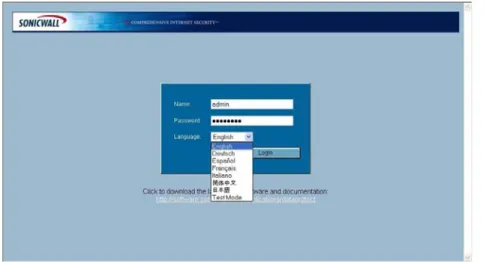
SonicWALL CDP appliance firmware. The user interface can be viewed in the following languages: English, Italian, French, Spanish, German, Chinese and Japanese. Select the language from the drop-down menu on the login screen.
The user interface provides the administrator the ability to register the appliance, view and configure system and network settings, and purge data from the appliance.
After initial set up of your SonicWALL CDP appliance using the user interface, which includes setting a static IP and user name and password, you will be prompted to register your appliance using the Enterprise Manager.
Figure 1 SonicWALL CDP User Interface
For more information about the SonicWALL CDP user interface, refer to the “Web-Based User Interface” section on page 21.
For more information about registration and initial setup of your SonicWALL CDP system, refer to the SonicWALL CDP 1440i/2440i Getting Started Guide or the SonicWALL CDP 3440i/4440i Getting Started Guide.
How the SonicWALL CDP Appliance Works
The SonicWALL CDP appliance performs three main tasks: Data processing, data storage, and if configured, data transmission to the Offsite Service.
The appliance receives data blocks from the Agent Service and compares them to existing blocks in order to discover new or changed information. The appliance stores the new or changed data blocks, and if configured, securely transmits them to the Offsite Service.
The appliance is connected using a standard CAT5 or higher Ethernet cable to your local area network (LAN). The SonicWALL CDP appliance requires configuration of a static IP address in order to communicate with your network, and a client must be connected to the same LAN as the appliance to complete initial installation and to run the Enterprise Manager software. An appliance can be connected manually by typing in its IP address or can be added through auto discovery.
The SonicWALL CDP appliance communicates with the Enterprise Manager, Agent Service and, if configured, to the Offsite Service. The appliance communicates with the SonicWALL CDP Offsite Service for registration and storage using HTTPS (TCP 443), providing enhanced security and greater levels of compatibility with network perimeter devices. As a result, your network must be configured to allow HTTPS (TCP 443) communication.
To ensure that the appliance performs at its peak, it will automatically alert the administrator if it is close to reaching capacity. If the appliance is busy, or if an agent has become disconnected from the network,
more information about the SonicWALL CDP appliance, refer to the “SonicWALL CDP Hardware” section on page 13.
The process of breaking down files into blocks and saving block-level differences (BLD) is called BLD optimization. In the case of PST files used by Outlook, Outlook Express and other mail client programs to archive mail information, the Agent performs BLD optimization directly on the Agent. PST files are normally very large and performing BLD on the Agent cuts down on network traffic utilization.
How the SonicWALL CDP Agent Service and Agent Tool Work
The SonicWALL CDP Agent Tool and Agent Service are installed at the same time. The Agent Service runs continuously and in the background as a service, allowing backups of folders and application revisions.
The Agent Tool is a user interface that allows users to control agent backup to and recovery from the CDP appliance. User access priveleges to the appliance using the Agent Tool is configured by the CDP administrator using the Enterprise Manager. Users can manage backup options and restore files and application revisions from the appliance using the Agent Tool.
The Agent Service does the handshaking with the appliance, transmits data to the appliance, and listens for Windows Event Notifications to discover when data has been written to a local disk, triggering the agent to backup the change to the SonicWALL CDP. The Agent Service performs discovery by sending a UDP broadcast to port 10001, and any appliances connected to the local broadcast domain will respond and can be selected for use. It is also possible to manually connect to a different broadcast domain by specifying an appliance’s IP address and leaving the port blank. When changes have been made, the Agent Service transmits 4 KB to 64 KB data blocks (compressed if necessary) to the appliance for backup. For more information about the SonicWALL CDP Agent Tool, refer to the “Agent Tool” section on page 38.
How the SonicWALL CDP Enterprise Manager Works
The SonicWALL CDP Enterprise Manager is used by the SonicWALL CDP administrator for configuration, to obtain logs and reports, set alarms and recover data. Enterprise Manager performs discovery by sending a UDP broadcast to port 10001, and any appliances connected to the local broadcast domain will respond and can be selected for use. It is also possible to manually connect to a different broadcast domain by specifying an appliance’s IP address and leaving the port blank. Administrators control the flow of data from the Agent Tool(s) to the appliance(s) using Enterprise Manager to set default policies for agents, specifying a maximum backup allotment, filtering to omit specific file types, and designating common folders (Desktop, Favorites and My Documents) and applications to be automatically backed up across agents. For more information on the SonicWALL CDP Enterprise Manager, refer to the “Enterprise Manager” section on page 24.
How SonicWALL Bare Metal Recovery Works
The Bare Metal Recovery standalone software creates a disk image of information stored on a disk, including the operating system, programs and documents, and settings.
Disk imaging includes images of disk partitions and zero track with master boot record (MBR). Disk partitions include files and folders (independent of their attributes), boot record, FAT (file allocation table) and root.
Bare Metal Recovery disk image creation is automatic, which means files and folders do not have to be earmarked for backup. To ensure that the backup and recovery processes are streamlined, Bare Metal Recovery disk images only store hard disk parts that contain data.
Bare Metal Recovery disk images can be created on local hard disks, CD-R/RW, DVD+R/RW, DVD-RW, or removable media such as Firewire (IEEE-1394) and USB (1.0, 1.1, and 2.0) devices. Once created, the image can later be transfered to any other media. Bare Metal Recovery images cannot be backed up directly to the CDP appliance.Lost data from the disk image can be retrieved at any time. Additionally, the disk image can be accessed as a virtual drive for browsing and extracting files.
For more information on Bare Metal Recovery, refer to the Bare Metal Recovery and Local Archiving - Workstation User’s Guide.
How the SonicWALL CDP Offsite Service Works
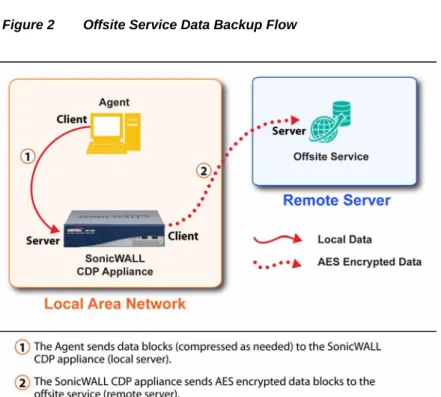
The SonicWALL CDP Offsite Service is a secure server that stores backed up data for protection against local disaster. During registration of your SonicWALL CDP, you are able to select a North American or European data center. Compressed data blocks of full file and full database revisions are sent from the appliance using 256-bit AES (advanced encryption standard) encryption. Offsite Service communication will occur with SSL/TLS transport layer encryption, and AES application layer encryption. Stored data can only be accessed with the AES 256-bit encryption key, available only to the network administrator. Refer to Figure 2 for the Offsite Service data backup flow. For more information about the SonicWALL CDP Offsite Service, refer to the “Offsite Service” section on page 19.
Deployment Restrictions
This section provides deployment considerations for your agents (client or server) and network requirements. Table 1 lists the minimum system and network requirements.
Table 1 SonicWALL CDP Deployment Restrictions
Minimum Agent Requirements • Pentium III Processor
• 450 MHZ with at least 256 MB of RAM
• 40 MB of free disk space
• Windows XP (Home and Professional), Windows Server 2003, Windows 2000 Professional
Minimum Server Requirements • Intel Celeron 2.0GHZ Process
• 256 MB DDR
• Windows XP (Home and Professional), Windows Server 2003, Windows 2000 (Professional and Server)
Network Requirements • High speed Internet connection (Serial, DSL, Cable, T1)
SonicWALL CDP Hardware
SonicWALL CDP includes the following hardware:
• SonicWall CDP Appliance—SonicWALL CDP appliances vary in storage size and agent support capacity. For individual product specifications, refer to SonicWALL CDP appliance subsections:
– “Supported Platforms” section on page 14
– “SonicWALL CDP 1440i” section on page 15
– “SonicWALL CDP 2440i” section on page 16
– “SonicWALL CDP 3440i” section on page 17
– “SonicWALL CDP 4440i” section on page 18
• Offsite Service—The SonicWALL CDP Offsite Service is a subscription service that backs up data offsite for disaster protection and recovery. For a list of Offsite Service key features, refer to the
Supported Platforms
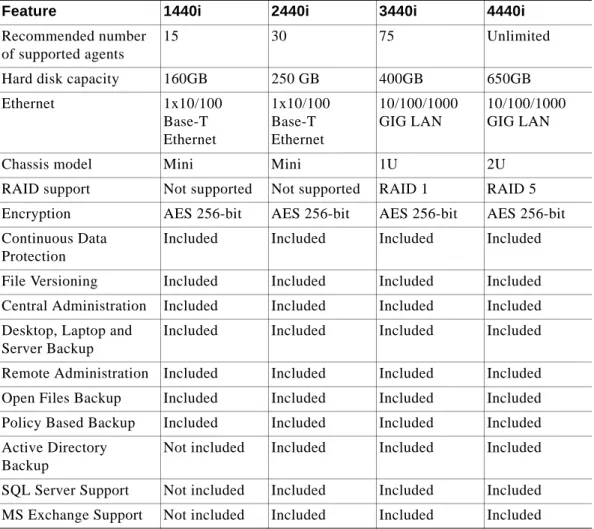
The SonicWALL CDP appliance is a dedicated disk backup appliance that collects data blocks from agents for storage and for secure transmission to the Offsite Service storage location (if configured). The SonicWALL CDP series has four appliance models that range in capacity, agent support and additional features. For instructions on restoring files using the SonicWALL CDP Appliance, refer to “Recovering Your Data Using SonicWALL CDP” section on page 83. The SonicWALL CDP appliances provide the following platforms differentiated by hard disk capacity and the recommended amount of agents. Table 2
provides a summary of features by platform for comparison.
Table 2 SonicWALL CDP Platform Comparison
Feature 1440i 2440i 3440i 4440i
Recommended number of supported agents
15 30 75 Unlimited
Hard disk capacity 160GB 250 GB 400GB 650GB
Ethernet 1x10/100 Base-T Ethernet 1x10/100 Base-T Ethernet 10/100/1000 GIG LAN 10/100/1000 GIG LAN
Chassis model Mini Mini 1U 2U
RAID support Not supported Not supported RAID 1 RAID 5 Encryption AES 256-bit AES 256-bit AES 256-bit AES 256-bit Continuous Data
Protection
Included Included Included Included
File Versioning Included Included Included Included
Central Administration Included Included Included Included Desktop, Laptop and
Server Backup
Included Included Included Included
Remote Administration Included Included Included Included Open Files Backup Included Included Included Included Policy Based Backup Included Included Included Included Active Directory
Backup
Not included Included Included Included
SQL Server Support Not included Included Included Included MS Exchange Support Not included Included Included Included
SonicWALL CDP 1440i
The SonicWALL CDP 1440i is a disk-based backup and recovery appliance that offers real-time end-to-end data protection for small businesses. It includes unique features such as instant data recovery and central administration. The CDP 1449 supports servers, PCs and laptops of small business networks up to 15 agents, 160 GB capacity and AES 256-bit encryption on offsite data security.
Figure 3 provides a front and back bezel photograph of the SonicWALL CDP 1440i appliance.
Figure 3 SonicWALL CDP 1440i
* Pressing the em button for several seconds will result in a reboot of the SonicWALL CDP appliance. **Do not plug devices into any ports (other than those indicated) unless explicitly instructed to do so by a SonicWALL technical support representative. Doing so may void your warranty.
The SonicWALL CDP appliance front and back bezel components are described in the following table
:
Feature Description HDD LED
(Hard Disk Drive)
Indicates data transfer to and from the hard disk.
Power LED Indicates the SonicWALL CDP appliance is powered on.
Reset Button Allows reboot of the SonicWALL CDP appliance.
Power Button Allows the SonicWALL CDP appliance to power on (one press) or power off (10-second press).
Cooling Fan Allows optimal air circulation.
AC Power Allows the SonicWALL CDP appliance to connect to AC power using the supplied power cable.
LAN Port Allows the SonicWALL CDP appliance to connect to your local area network.
SonicWALL CDP 2440i
The SonicWALL CDP 2440i is ideal for small businesses and remote offices. Featuring a 250 GB compressed capacity along with standard throughput and AES 256-bit encryption for offsite data security, it provides continuous real-time data protection for servers, laptops and PCs. Differentiating this solution from many of its competitors is its seamless support of most small business database and applications such as SQL Server and Microsoft Exchange without the need to integrate additional software packages.
Figure 4 provides a front and back bezel photograph of the SonicWALL CDP 2440i appliance.
Figure 4 SonicWALL CDP 2440i
* Pressing the stand button for several seconds will result in a reboot of the SonicWALL CDP appliance. **Do not plug devices into any ports (other than those indicated) unless explicitly instructed to do so by a SonicWALL technical support representative. Doing so may void your warranty
The SonicWALL CDP appliance front and back bezel components are described in the following table
:
Feature Description HDD LED
(Hard Disk Drive)
Indicates data transfer to and from the hard disk.
Power LED Indicates the SonicWALL CDP appliance is powered on.
Reset Button Allows reboot of the SonicWALL CDP appliance.
Power Button Allows the SonicWALL CDP appliance to power on (one press) or power off (10-second press).
Cooling Fan Allows optimal air circulation.
AC Power Allows the SonicWALL CDP appliance to connect to AC power using the supplied power cable.
LAN Port Allows the SonicWALL CDP appliance to connect to your local area network.
SonicWALL CDP 3440i
The SonicWALL CDP 3440i offers enterprise level data backup protection for small-to-medium businesses and remote offices. The high-performance 1U rack-mountable solution is optimized for up to 75 users and unlimited servers. Offering 400GB compressed capacity with RAID 1 along with
accelerated throughput and AES 256-bit encryption for offsite data security, it provides continuous real-time data protection for servers, laptops and PCs using policy-based backup, central administration and open file backup. It supports most small business databases and applications such as Microsoft Exchange, SQL Server, Quickbooks, PeachTree, Great Plains, and more.
Figure 5 provides a front and back bezel photograph of the SonicWALL CDP 3440i appliance.
Figure 5 SonicWALL CDP 3440i
* Pressing the reset button for several seconds will result in a reboot of the SonicWALL CDP appliance. **Do not plug devices into any ports (other than those indicated) unless explicitly instructed to do so by a SonicWALL technical support representative. Doing so may void your warranty.
The SonicWALL CDP appliance front and back bezel components are described in the following table
:
Feature Description HDD LED
(Hard Disk Drive)
Indicates data transfer to and from the hard disk.
Power LED Indicates the SonicWALL CDP appliance is powered on.
Reset Button Allows reboot of the SonicWALL CDP appliance.
Power Button Allows the SonicWALL CDP appliance to power on (one press) or power off (10-second press).
Cooling Fan Allows optimal air circulation.
AC Power Allows the SonicWALL CDP appliance to connect to AC power using the supplied power cable.
LAN Port Allows the SonicWALL CDP appliance to connect to your local area network.
SonicWALL CDP 4440i
The SonicWALL CDP 4440i is a robust 2U rack-mountable backup and recovery solution for branch offices and mid-size organizations. Offering a 650 GB compressed capacity with RAID 5 along with accelerated throughput and AES 256-bit encryption on offsite data security as well as the features of the CDP 34440i, it provides continuous real-time data protection for unlimited servers, laptops PCs, databases and business applications. IT administrators benefit from central management and file-level visibility into every agent machine connected to the SonicWALL CDP appliance, enabling enforcement of consistent backup policies and control features available to individual end users.
Figure 6 provides a front and back bezel photograph of the SonicWALL CDP 4440i appliance.
Figure 6 SonicWALL CDP 4400i.
* Pressing the reset button for several seconds will result in a reboot of the SonicWALL CDP appliance. **Do not plug devices into any ports (other than those indicated) unless explicitly instructed to do so by a SonicWALL technical support representative. Doing so may void your warranty
The SonicWALL CDP appliance front and back bezel components are described in the following table
:
Feature Description HDD LED
(Hard Disk Drive)
Indicates data transfer to and from the hard disk.
Power LED Indicates the SonicWALL CDP appliance is powered on.
Reset Button Allows reboot of the SonicWALL CDP appliance.
Power Button Allows the SonicWALL CDP appliance to power on (one press) or power off (10-second press).
Cooling Fan Allows optimal air circulation.
AC Power Allows the SonicWALL CDP appliance to connect to AC power using the supplied power cable.
LAN Port Allows the SonicWALL CDP appliance to connect to your local area network.
Offsite Service
Note The SonicWALL CDP Offsite Service is offered as a subscription-based service.
The SonicWALL CDP Offsite Service is a subscription-based service that offers secure offsite backup and recovery, protecting your data from local disaster, including theft, power surges and server crashes. Data transmitted and stored securely at either the North American or European Offsite Service is available for retrieval when onsite data has been destroyed or the onsite appliance has been rendered inoperable, enabling an enterprise to be up and running quickly after a disaster event. The Offsite Service selection is made when you register your SonicWALL CDP appliance.
Compressed full-database and full-file (with latest revision) data blocks are encrypted and transmitted from the SonicWALL CDP appliance to the Offsite Service. The SonicWALL CDP administrator can recover the data from the Offsite Service using an encryption key, in the event that a local SonicWALL CDP recovery is not viable
Because data backed up using SonicWALL CDP Offsite Service is protected by AES 256-bit encryption, it can only be recovered using an AES 256-bit encryption key. Data stored using the Offsite Service is fully secure, as it cannot be decrypted without the key, even by SonicWALL technical support engineers. For information about subscribing to the Offsite Service, contact SonicWALL Technical Support.
Configuration Examples
For configuration examples of the SonicWALL CDP Offsite Service, refer to the “Recovering Your Data Using SonicWALL CDP” section on page 83.
SonicWALL CDP Software
This section provides information about SonicWALL CDP Software. SonicWALL CDP includes the following software components:
• User Interface—The user interface is a Web browser-based administrative tool that provides initial system setting configuration for the SonicWALL CDP appliance. The user interface also provides system diagnostics and allows for a full purge of data from the appliance. For a list of firmware user interface key features, refer to the “Web-Based User Interface” section on page 21.
• Enterprise Manager—The Enterprise Manager is software used by SonicWALL CDP
administrator to control the appliance and connected agents. For a list of Enterprise Manager key features, refer to the “Enterprise Manager” section on page 24.
• Agent Tool—The Agent Tool is software installed on agents intended to be continuously backed up by the SonicWALL CDP appliance. The Agent Tool is the interface that allows users to control backing up to and restoring from the appliance. For a list of Agent Tool key features, refer to the
“Agent Tool” section on page 38.
• Agent Service—Agent Service is software that creates folder and application revision backups. The Agent Service is the workhorse of the SonicWALL CDP system, is installed automatically with the Agent Tool, and runs in the background of the agent, controlling communication with the
SonicWALL CDP appliance.
• Bare Metal Recovery—Bare Metal Recovery is software that creates a disk image backup. A disk image backup includes a backup of operating systems, applications and configuration files, software updates, personal settings and other data. For more information on Bare Metal Recovery, refer to the Bare Metal Recovery and Local Archiving - Workstation User’s Guide.
Web-Based User Interface
The operating system inside the SonicWALL appliance is called firmware. The user interface is a Web browser-based interface that allows the SonicWALL CDP administrator to configure the SonicWALL CDP appliance firmware.
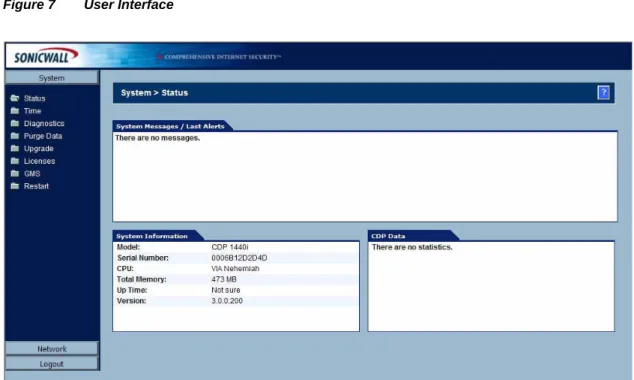
The user interface provides the administrator the ability to register the appliance, view and configure system and network settings, and purge data from the appliance. Figure 7 provides the Web browser display of the user interface.
The user interface provides the System controls outlined in Table 3, accessible from the tab column on the left side of the user interface.
Table 3 User Interface System Controls
System Control Description
Status Status provides a display of system messages, alerts, system information and CDP data. System information includes the appliance model number and serial number, CPU description, total memory, up time (including time and number of users), and version.
Time Time provides the administrator the ability to set the system time and add or delete NTP servers.
Diagnostics Diagnostics provides the administrator with a view of system processes, CPU information, memory utilization, network information and storage statistics.
Purge Data Purge Data provides the administrator the ability to purge all agent information and backed up files on the appliance. Purging data will not reset IP or password configuration.
Upgrade Upgrade provides the administrator the ability to upgrade the system.
Licenses Licenses provides the administrator the ability to manage licenses.
GMS GMS provides the administrator the ability to
enable and configure GMS management of the CDP appliance.
Restart Restart provides the administrator the ability to restart the system.
The user interface provides the Network controls outlined in Table 4, accessible from the tab column on the left side of the user interface.
Table 4 User Interface Network Controls
Configuration Examples
For configuration examples of the user interface settings, refer to:
• “Initial Configuration of SonicWALL CDP Using User Interface” section on page 41
• “Editing Enterprise Manager Administrative Settings” section on page 45
• “Purging Data from the SonicWALL CDP Appliance” section on page 91
Network Control Description
Settings Settings provides the administrator with configuration options, including IP address, subnet mask, default gateway IP address and interface, name servers, and hostname and domain.
Connectivity Connectivity provides the administrator with options for testing connectivity, including pinging the registration server, pinging a URL and resolving a URL.
Enterprise Manager
The SonicWALL CDP Enterprise Manager is installed by a network administrator and used to control and monitor the SonicWALL CDP appliance(s) and to administer agent access. Enterprise Manager is the master control panel to set policies for agents connected to a SonicWALL CDP appliance. This section provides information about the SonicWALL CDP Enterprise Manager software features. This section includes the following subsections, organized to follow the features available in the toolbar of the Enterprise Manager user interface:
• “Enterprise Manager Layout” section on page 25
• “Status Overview” section on page 27
• “Agents Overview” section on page 29
• “Applications Overview” section on page 30
• “Policies Overview” section on page 31
• “Search Overview” section on page 33
• “Reporting Overview” section on page 34
Enterprise Manager Layout
This section provides a brief overview of the Enterprise Manager software. Enterprise Manager is used by the SonicWALL CDP administrator to control agents and appliances. Enterprise Manager will be installed in one of the following languages: English, Spanish, Italian, French and German. The language is determined by the language selected at initial installation. To change the language used in the Enterprise Manager, you must uninstall and re-install the software. For more information, refer to the SonicWALL CDP 1440i/2440i Getting Started Guide or the SonicWALL CDP 3440i/4440i Getting Started Guide.
The Enterprise Manager user interface is depicted in Figure 8.
Table 5 provides a list of Enterprise Manager features, accessible using the toolbar at the top of the user interface.
Table 5 Enterprise Manager Features
Setting Description
Status Status provides the administrator with summary of the SonicWALL CDP Appliance, including disk usage, settings, and default policies for agents. For more information on Status, refer to the “Status Overview” section on page 27.
Agents Agents allows the administrator to control agent functionality, including adding, editing and removing agents and agent applications. For more information on Agents, refer to the “Agents Overview” section on page 29 and “Managing Agents in Enterprise Manager” section on page 49.
Applications Applications allows the administrator to view filtered file types and predefined and common applications, for example, MS Outlook. For more information on Applications, refer to the “Applications Overview” section on page 30.
Policies Policies allows the administrator to establish individual agent policies, default policies and common backup policies that propagate across all agents connected to the SonicWALL CDP Appliance. For more information on Policies, refer to the “Policies Overview” section on page 31 and “Managing Policies in Enterprise Manager” section on page 66.
Search Search provides the administrator with the ability to search for files or applications backed up on the appliance. For more information on Search, refer to the “Search Overview” section on page 33 and
“Performing Searches in Enterprise Manager” section on page 78.
Reporting Reporting provides key reports for the administrator to manage SonicWALL CDP. Reporting includes the following reports: Executive Summary, CDP Agent Summary, Disk Space by File Type, Disk Space by Agent, Policy Summary, Agents by Policy, Server Application Backup, Agent Application Backup and Offsite Status. For more information on Reporting, refer to the “Reporting Overview” section on page 34 and “Generating Reports in Enterprise Manager” section on page 80.
Alerts Alerts provides the administrator with an overview of warning messages that are sent when the SonicWALL CDP appliance reaches predefined capacity thresholds. Alerts can be configured for automatic email delivery. For more information on Alerts, refer to the “Alerts Overview” section on page 36.
Status Overview
Status, a function within Enterprise Manager, provides a system summary for the SonicWALL CDP appliance and basic usage statistics for all attached agents.
To enter the Status window, click the Status button at the top of the Enterprise Manager interface.
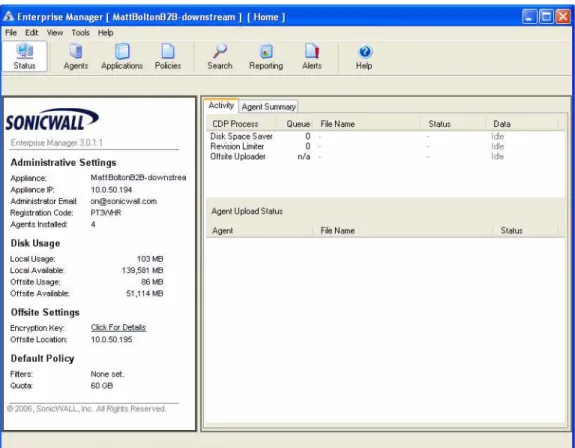
The Status window allows the administrator to view the general status of the appliance and its configured agents. The left pane provides Administrative Settings, which provides basic information about the appliance, disk usage, offsite settings and default policy. The right side of the Status window has two tabs: Activity and Agent Summary. The Activity tab provides information about CDP processes, including Disk Space Saver, Revision Limiter, and Offstie Uploader. The Agent Summary tab provides summaries by agent including disk space used, disk space available, and number of files backed up.
Figure 9 provides the Enterprise Manager view of the Status user interface.
The following tables provide a description of the fields in the left pane of the Status window.
Table 6 Administrative Settings
Table 7 Disk Usage
Table 8 Offsite Settings
Caution Data from the Offsite Service cannot be recovered without the encryption key, even by SonicWALL technical support engineers. It is advised that you store your encryption key in a secure location such as a safe or bank. Your encryption key may be viewed by selecting Edit > Encryption Settings in the top menu bar
Table 9 Default Policy
Field Description
Appliance Displays the name of the current SonicWALL CDP appliance.
Appliance IP Displays the IP address of the current SonicWALL CDP appliance.
Administrator Email Displays the email address of the current administrator to this SonicWALL CDP appliance.
Registration Code Displays the registration code for the current SonicWALL CDP appliance.
Agents Installed Displays the number of agents currently assigned to the SonicWALL CDP appliance.
Field Description
Local Usage Displays the amount of local disk space currently being used, in Kilobytes.
Local Available Displays the amount of local disk space available, in Kilobytes.
Offsite Usage Displays the amount of offsite (remote) disk space currently being used, in Kilobytes.
Offsite Available Displays the amount of offsite (remote) disk space available, in Kilobytes.
Field Description
Encryption Key Displays the key needed by administrator to decrypt data stored at the Offsite service. It is essential to save the Encryption Key in a secure area, such as a safe or a bank, because data stored at the Offsite Service cannot be restored without it.
Field Description
Filters Displays the current filters in use by the SonicWALL CDP appliance
Agents Overview
Agents, a function within Enterprise Manager, provides administrators the ability to configure SonicWALL agents assigned to a SonicWALL CDP appliance.
To view the Agent window, click the Agents button at the top of the Enterprise Manager interface.
The Agents function provides configuration options for agents assigned to the appliance, including a display of the agents currently backing up. Agents allows the administrator to add, edit agents, and configure agent applications and agent folders for backup.
Figure 10 provides the Enterprise Manager view of Agents user interface.
Figure 10 Agents
Configuration Examples
For configuration examples of Agent settings, refer to “Managing Agents in Enterprise Manager” section on page 49.
Applications Overview
Applications, a function within Enterprise Manager, allows the administrator to view agent applications and server applications assigned for backup.
Note SonicWALL CDP supports agent applications including Outlook and Outlook Express, and server applications including Microsoft Exchange, Active Directory and SQL Server.
To view the Applications window, click the Applications button at the top of the Enterprise Manager interface.
The Applications function allows administrators to view agent and server applications assigned for backup. It provides a list that includes application name, size and most recent backup date. Archives can be restored or removed within Applications.
Figure 11 provides the Enterprise Manager view of Applications user interface.
Policies Overview
Policies, a function within the Enterprise Manager, allows the administrator to establish common backup policies that propagate across agents connected to a SonicWALL CDP Appliance or for individual agents.
Figure 12 illustrates multiple agents communicating to the SonicWALL CDP Appliance for policy updates.
Figure 12 Multiple Agent Policy Management
To view the Policies window, click the Policies button at the top of the Enterprise Manager interface.
The Policies function provides the administrator with the ability to define and assign default policies to individual agents or to groups of agents. Policies may be added, edited or removed from the Policies window. The Policies window displays policies by name and has options for adding or editing default policies.
Figure 13 displays the Enterprise Manager view of the Policies user interface.
Figure 13 Policies
Note SonicWALL CDP has a default policy that initiates at installation. This policy has a filter set to exclude .tmp files from backup.
Configuration Examples
For configuration examples of Policies settings, refer to “Managing Policies in Enterprise Manager” section on page 66.
Search Overview
Search, a function within Enterprise Manager, provides the administrator with the ability to search for data stored on the SonicWALL CDP appliance.
To view the Search window, click the Search button at the top of the Enterprise Manager interface.
The Search window allows the administrator to search for specific files, search within server applications (SQL, Microsoft Exchange and Active Directory) and search within agent applications (Outlook and Outlook Express).
Figure 14 provides the Enterprise Manager view of the Search user interface.
Figure 14 Search
Configuration Examples
For configuration examples of Search settings, refer to “Performing Searches in Enterprise Manager” section on page 78.
Reporting Overview
Reporting, a function within Enterprise Manager, provides the administrator with key reports on usage and server status. Report types are listed in detail in Table 10 on page 35.
To view the Reporting window, click the Reporting button in the Enterprise Manager toolbar.
Figure 15 provides the Enterprise Manager view of the Reporting user interface.
The Reporting window allows the administrator to generate the reports listed in Table 10.
Table 10 Report Types
Configuration Examples
For configuration examples of Reports settings, refer to “Generating Reports in Enterprise Manager” section on page 80.
Report Type Description
Executive Summary ExecutiveSummary provides a general overview, including Appliance Information, Agent Summary and Top 10 (file types by disk space used).
Agent Summary AgentSummary provides a summary of agent usage, including file size, size on disk with revisions, server application size and policy name.
Disk Space by File Type Disk Space by File Type provides a summary of disk space usage, both by file size and number of files, sorted by file extension.
Disk Space by Agent Disk Space by Agent provides a summary of disk space usage by agent, including size on disk, percent of total, number of files and number of revisions.
Policy Summary Policy Summary provides a summary of policy usage by policy, including agents assigned to a policy, and backups (including from the desktop, My Documents and Favorites).
Agents by Policy Agents by Policy provides a summary of agents sorted by default policy.
Server Application Backup Summary
Server Application Backup Summary provides a summary of server applications selected for backup, including instance, database name, backup size and number of revisions.
Client Application Backup Summary
Client Application Backup Summary provides a summary of agent applications selected for backup, sorted by agent and including path name, application name, and file size.
Offsite Service Offsite Service provides a summary of data backed up to the Offsite Service, sorted both by appliance and agent. This report includes size of data marked for offsite backup and size of data currently backed up to the Offsite Service.
Alerts Overview
Alerts, a function within Enterprise Manager, allows the administrator to view a list of alerts that display before the appliance hits predefined capacity thresholds. Alerts can be configured for automatic email delivery. For information about setting up email alert delivery, refer to “Configuring Email Alerts” section on page 82.
To view the Alerts window, click the Alerts button in the Enterprise Manager toolbar.
Figure 16 provides the Enterprise Manager view of the Alerts user interface.
Figure 16 Alerts
Table 11 Alert Events
Help Overview
Help, a function within Enterprise Manager, redirects the administrator to online SonicWALL CDP help. content.
To view the help content, click the Help button in the Enterprise Manager toolbar.
Figure 17 provides the Enterprise Manager view of help content.
Figure 17 Help
Alert Event Description
Agent Quota Reached Agent Quota Reached alerts you when an agent quota has been reached, and when an agent has attempted to exceed the allotted quota.
Appliance Near Capacity Appliance Near Capacity alerts you when the appliance has reached a pre-set capacity threshold. The Appliance Warning default is 80%.
Appliance Full Appliance Full alerts you when the appliance is full and will not accept further backups. Full is 90% capacity.
Offsite Near Capacity Offsite Near Capacity alerts you when the Offsite Service is about to reach a pre-set capacity threshold. The default capacity warning is 80%.
Offsite Full Offsite Full alerts you when the Offsite Service has reached capacity. Full is 90% capacity.
Agent Tool
The SonicWALL CDP Agent Tool is software installed on every agent (server, laptop or PC intended to be backed up on the SonicWALL CDP Appliance).
The Agent Tool is a user interface that allows users of agents to set files and applications for backup (if so configured by the administrator in the Enterprise Manager) and to recover backed up files. The SonicWALL Agent Service is installed at automatically with the Agent Tool and runs in the background, communicating with the CDP appliance.
By default, the Agent Tool includes four controls: Status, Folders, Applications, and Search. These controls are displayed in Figure 18, which depicts the Agent Tool toolbar.
Figure 18 Agent Tool Toolbar
Agent access to these controls is granted and administered by the administrator using the Enterprise Manager. Table 12 provides an overview of the four default Agent Tool controls:
Table 12 Agent Tool Default Controls
Default Control Description
Status Status, a function within the Agent Tool, provides the user with a general overview, including agent information, agent status and policy settings.
Folders Folders, a function within the Agent Tool, provides the user with a list of folders being backed up and folder Offsite Service status. The Folders function also provides the ability to add folders, add common folders and remove old file versions.
Applications Applications, a function within the Agent Tool, provides the user with the backup status of agent and server applications and with the option to add applications for backup.
Search Search, a function within the Agent Tool, provides the user with the ability to search for files, server applications and agent applications. The Search function also provides the option to restore files and remove old file versions.
Help Help, a function within the Agent Tool, redirects the user to online SonicWALL CDP help.
Figure 19 provides the Agent Tool view of the user interface.
Figure 19 Agent Tool Interface
Note For more information on using the SonicWALL CDP Agent Tool, refer to the SonicWALL CDP Agent Tool User’s Guide.
Configuration Task List
This section provides a configuration task list for your SonicWALL CDP appliance using the Enterprise Manager and the user interface.
This section includes the following subsections:
• “Initial Configuration of SonicWALL CDP Using User Interface” section on page 41
• “Editing Enterprise Manager Administrative Settings” section on page 45
• “Changing the SonicWALL CDP Appliance” section on page 46
• “Encryption Key Management” section on page 47
• “Checking for Firmware Updates” section on page 48
• “Checking for Software Updates” section on page 48
• “Managing Agents in Enterprise Manager” section on page 49
• “Managing Policies in Enterprise Manager” section on page 66
• “Performing Searches in Enterprise Manager” section on page 78
• “Generating Reports in Enterprise Manager” section on page 80
• “Recovering Your Data Using SonicWALL CDP” section on page 83
• “Configuring SonicWALL CDP Agent and Enterprise Manager to Work with Software Firewalls” section on page 93
• “Adding the SonicWALL CDP Appliance to GMS” section on page 102
Initial Configuration of SonicWALL CDP Using User Interface
To prepare your SonicWALL CDP for first use, it is necessary to add a name server, configure a static IP address and set the local time zone for the SonicWALL CDP appliance using the user interface. The SonicWALL CDP appliance requires at least one valid name server and the correct time zone settings and a static IP address on your local subnet in order to communicate with your network.
For more information on registration and initial setup of SonicWALL CDP, refer to the SonicWALL CDP 1440i/2440i Getting Started Guide or the SonicWALL CDP 3440i/4440i Getting Started Guide. This section contains the following subsections:
• “Configuring Local Time Zone Using User Interface” section on page 41
• “Configuring a Static IP Address Using User Interface” section on page 42
• “Configuring a Default Gateway” section on page 43
• “Configuring Domain Name Server (DNS) Address” section on page 44
Configuring Local Time Zone Using User Interface
To configure local time zone settings and a local time zone on your SonicWALL CDP appliance, perform the following steps:
Step 2 Complete the fields as described in the table below:
Step 3 Click the Apply button to save changes.
Step 4 Click the Logout button in the left-hand navigation menu.
Configuring a Static IP Address Using User Interface
Note Once the IP address of your SonicWALL CDP appliance is changed, you will not be able to access the appliance without this address. Before continuing, make a not of the chosen IP address for your SonicWALL CDP appliance.
To configure a static IP address for your SonicWALL CDP appliance, perform the following steps:
Step 1 Using the supplied crossover cable and the computer you are using to administer the SonicWALL CDP appliance, connect the LAN port the computer to the LAN port on the back of your SonicWALL CDP appliance.
Step 2 Set the computer you use to manage the SonicWALL CDP appliance to have a static IP address of
192.168.168.50 (or another available IP address on the 192.168.0/24 subnet). For help with setting up a static IP address on your computer, refer to the SonicWALL CDP 1440i/2440i Getting Started Guide or the SonicWALL CDP 3440i/4440i Getting Started Guide.
Step 3 Open a Web browser on the computer you are using to administer the SonicWALL CDP appliance.
Step 4 Enter http://192.168.168.169 (the default IP address of the SonicWALL CDP appliance) in the Location
or Address bar. The SonicWALL CDP Static IP Management login screen displays.
Field Description
Time (hh:mm:ss) Select the time (hours:minutes:seconds) from the drop-down menus
in. The time is in 24 hour format.
Date Select the date (month, day, year) from the drop-down menus.
Time Zone Select your local time zone form the drop down menu.
Set time automatically using NTP
Check this box to allow the time to set automatically using the default NTP server.
NTP Server Click the Add button to add your own NTP server. If you do not add
your own NTP server, an internal list of servers will be used by default.
Step 5 Enter “admin” in the User Name field and “password” in the Password field. Select your preferred language from the Language drop-down menu. Click the Login button.
Step 6 Navigate to Network > Settings in the left-hand navigation menu.
Step 7 Click the Configure icon in the Interfaces table.
Step 8 In the IP Address field, enter an unused static IP address that is within the range of your local subnet and click the OK button.
Step 9 Press the Submit button to submit the IP address change.
Step 10 Disconnect your management computer from the CDP. Your SonicWALL CDP appliance is now set to communicate with your network using a static IP address.
For more information on initial setup of your SonicWALL CDP appliance, refer to the SonicWALL CDP 1440i/2440i Getting Started Guide or the SonicWALL CDP 3440i/4440i Getting Started Guide.