Chapter
1
Introduction
to Firewalls
This chapter provides a brief overview of firewalls—what they can and cannot do. It is not meant to comprehensively cover the topic of firewalls or network security in general. These topics are better covered by more general texts. In this chapter, you will explore some of the technologies used in firewalls, investigate which technologies are used by FireWall-1, and establish why FireWall-1 is the right firewall for you. Examples of how a given technology handles a specific service are also provided.
By the end of this chapter, you should be able to: • Understand what a firewall is and is not capable of • Understand what technologies firewalls typically employ • Discuss the pros and cons of different firewall technologies • Understand why FireWall-1 is the right firewall for the job
What Is a Firewall?
A firewall is a device that allows multiple networks to communicate with one another according to a defined security policy. They are used when there is a need for networks of varying levels of trust to communicate with one another. For example, a firewall typically exists between a corporate network and a public network like the Internet. It can also be used inside a private network to limit access to different parts of the network. Wherever there are different levels of trust among the different parts of a network, a firewall can and should be used.
Firewalls are similar to routers in that they connect networks together. Fire-wall software runs on a host, which is connected to both trusted and untrusted networks. The host operating system is responsible for performing routing func-tions, which many operating systems are capable of doing. The host operating system should be as secure as possible prior to installing the firewall software.
2 3 4 5 6 7 8 9
2 2 2 2 2 2 2 2 2 2 3 3 3 3 3 3 3 3 3 3 4
This not only means knowing how the operating system was installed but also making sure that all of the security patches are applied and that unnecessary services and features are disabled or removed. More details about these security issues are provided in Chapter 3.
Firewalls are different from routers in that they are able to provide security mechanisms for permitting and denying traffic, such as authentication, encryp-tion, content security, and address translation. Although many routers provide similar capabilities (such as high-end devices from Cisco), their primary func-tion is to route packets between networks. Security was not part of their initial design but rather an afterthought. A firewall’s primary function is to enforce a security policy, and it is designed with this in mind.
What a Firewall Cannot Do
It is important to realize that a firewall is a tool for enforcing a security policy. If all access between trusted and untrusted networks is not mediated by the firewall, or the firewall is enforcing an ineffective policy, the firewall is not going to provide any protection for your network. However, even a properly designed network with a properly configured firewall cannot protect you from the following dangers.
• Malicious use of authorized services:A firewall cannot, for instance, prevent someone from using an authenticated Telnet session to compromise your internal machines or from tunneling an unauthorized protocol through another, authorized protocol.
• Users not going through the firewall:A firewall can only restrict connections that go through it. It cannot protect you from people who can go around the firewall, for example, through a dial-up server behind the firewall. It also cannot prevent an internal intruder from hacking an internal system. To detect and thwart these kinds of threats, you may need a properly con-figured intrusion detection/prevention system.
• Social engineering:If intruders can somehow obtain passwords they are not authorized to have or otherwise compromise authentication mechanisms through social engineering mechanisms, the firewall won’t stop them. For example, a hacker could call your users pretending to be a system adminis-trator and ask them for their passwords to “fix some problem.”
• Flaws in the host operating system:A firewall is only as secure as the ing system on which it is installed. There are many flaws present in operat-ing systems that a firewall cannot protect against. This is why it is important to properly secure the operating system and apply the necessary security patches before you install the firewall and on a periodic basis 1
2 3 4 5 6 7 8 9 0 1 2 3 4 5 6 7 8 9 0 1 2 3 4 5 6 7 8 9 0 1 2 3 4 5 6 7 8 9 0
thereafter. It also explains why “appliance” firewalls such as those provided by Nokia and NetScreen, which contain a purpose-built, hardened oper-ating system, are becoming more popular.
• All threats that may occur: Firewall designers often react to problems dis-covered by hackers, who are usually at least one step ahead of the firewall manufacturers.
An Overview of Firewall Security Technologies
Many companies engage in marketing hype to try to prove that their technology is better. Despite the hype, all firewall security technology can be broken down into three basic types: packet filtering (stateful or otherwise), application layer gateways, and Stateful Inspection.
Packet Filters
Packet filters screen all network traffic at the network and transport layer of the TCP/IP packet. This means they look at source and destination IP addresses, protocol number, and, in the case of TCP and UDP, source and destination port numbers. Packet filtering is built into routers as well as some UNIX kernels. Usually, when site administrators start thinking about network security, they start with packet filtering because it is inexpensive. Most routers on the market today, even consumer-grade models, support some form of packet filtering. Because routers are needed to connect different networks together (especially when connecting to the Internet), the additional cost for using this technology is minimal. Packet filtering requires very little extra memory and processing power, so even a low-end router can handle a fairly moderate load. Packet filter-ing is also fairly transparent to legitimate users.
Traditional packet filtering is static, that is, the only criteria for allowing pack-ets are whether or not the IP addresses or port numbers match those specified in the packet filter configuration. Many packet filters today implement some con-cept of the “state” of a connection, using a table and additional information in the TCP headers to track previously allowed packets within a connection. This makes it much easier to allow only, for instance, outbound connections from a trusted network to an untrusted network without inadvertently allowing unre-lated packets from the untrusted network to the trusted network.
The biggest downside to packet filters is that they are difficult to maintain. Although this point is certainly arguable, even an expert can have trouble con-figuring a moderately complex set of access lists or Linux ipchainsrules. Many
consumer-grade routers that have packet filtering do not have an adequate inter-face or are very limited in what they can filter.
2 3 4 5 6 7 8 9
2 2 2 2 2 2 2 2 2 2 3 3 3 3 3 3 3 3 3 3 4
Packet filters also do not screen above the network and transport layers. This means they cannot do things like:
• Provide content security (e.g., virus scanning or filtering based on specific sites and Web pages accessed)
• Authenticate services (i.e., make sure only authorized users use a service) • Dynamically open and close ports for applications as they require them
(necessary for applications like RealAudio, FTP, and H.323 applications) • Validate a particular port that is used only for a specific service (e.g.,
mak-ing sure that only valid HTTP traffic traverses port 80)
Application Layer Gateways
Application layer gateways, also known as proxies or application proxies, take requests from clients and make them connect to servers on the client’s behalf. In some cases, the client explicitly connects to the proxy server. In other cases, the proxy intercepts the connection with help from the underlying operating system or network architecture. Because an application proxy is usually specific to the network service, it can be fully aware of the session. This means the proxy can do content screening, provide authentication, and ensure that only the particular service is used (e.g., an HTTP proxy can make sure that only HTTP traffic is allowed through), or it can provide other application-specific services such as caching. It also provides a well-formed connection to servers on the other side of the firewall because it opens up connections on behalf of the clients.
However, this extra capability comes at a price. Application proxies require memory and CPU cycles just like any other application. Generally speaking, application proxies use more memory and CPU cycles than packet filtering, although how much they use depends on the specific circumstances. If you want to use application proxies to provide services to the Internet, each application you want to run through your firewall must have a proxy written for it, or the application must be compatible with a “generic” proxy that will work with sim-ple TCP or UDP connections. Because many applications are not being devel-oped to work with an application proxy, some applications simply cannot be proxied. The client/server model is somewhat broken by application proxies because the application proxy will always originate the connection from the server’s point of view.1 In large environments, the poor throughput of applica-tion proxies is another drawback.
1 2 3 4 5 6 7 8 9 0 1 2 3 4 5 6 7 8 9 0 1 2 3 4 5 6 7 8 9 0 1 2 3 4 5 6 7 8 9
Another important drawback of a proxy, particularly for internal use, is that it becomes very difficult to track who is going where for how long because the proxy often masks the original source or destination of the traffic. You might be able to track this on the firewall, but from any other vantage point on the net-work, how do you know?
Stateful Inspection
Stateful Inspection combines the best features of stateful packet filtering and application layer gateways. Check Point’s Stateful Inspection engine rests be-tween the data link and network layers (e.g., bebe-tween the network interface card and the TCP/IP driver). TCP/IP packets from the network layer and higher are scanned according to your security policy and will be either allowed through or stopped. The TCP/IP stack will not see dropped or rejected packets, which can provide an extra layer of protection. Stateful Inspection can look at the entire packet and make security policy decisions based on the contents and the context of the packet, using a state table to store connection state and using knowledge of how specific protocols are supposed to operate. In the case of FTP, FireWall-1 can dynamically open ports between two hosts so that the communication will succeed and then close the ports when the connection is done. Stateful Inspec-tion is what gives FireWall-1 “ApplicaInspec-tion Intelligence” (e.g., NG with Applica-tion Intelligence, or NG AI).
Stateful Inspection requires slightly more memory and CPU cycles than packet filtering because it has to do more, but it takes substantially less memory and CPU usage than does an application proxy. Stateful Inspection is best when the engine is made aware of how a protocol functions, although Check Point does not make use of Stateful Inspection for every protocol. Because Stateful Inspection does track connection state regardless of the service, it is better than a packet filter, but you are limited to opening specific ports and allowing the traf-fic through without further checking.
Technology Comparison: Passive FTP
It is useful to compare how the different technologies handle complex connec-tion types. One such connecconnec-tion type is Passive FTP, which is used by Web browsers when they initiate an FTP connection. Passive FTP requires:
1. A TCP connection from a client to port 21 on the FTP server.
2. A TCP connection from a client to some random high port on the FTP server for data communication. The ports used for this communication are communicated to the client when it requests passive mode via the PASV command.
2 3 4 5 6 7 8 9
2 2 2 2 2 2 2 2 2 2 3 3 3 3 3 3 3 3 3 3 4
For this comparison, assume that the FTP server is behind your firewall and that you need to allow people on the Internet to FTP to this machine.
Packet Filters
Packet filtering can handle standard FTP quite nicely because it uses fixed TCP ports (20 and 21). However, in order to allow Passive FTP, the packet filter has to open all TCP ports above 1024 to allow Passive FTP to work with the FTP server. This is a gaping hole that can be used by programs other than FTP to compromise your systems.
Application Proxies
An application proxy is aware of the FTP connection and opens all the necessary ports and connections to complete the FTP connection. However, each TCP or UDP connection through an application proxy requires twice the normal num-ber of connections on the proxy server (one for each side of the connection). A normal Passive FTP connection requires two open connections on a client machine. On the application layer gateway, this translates to four open TCP connections.
Most operating systems have a limit to the number of simultaneous connec-tions they can handle. If enough connecconnec-tions are going through the machine at the same time, this limit will be reached, and no further connections will be allowed through. In high-performance, high-capacity networks, using a proxy for FTP connections is simply asking for trouble.
Stateful Inspection
Stateful Inspection understands connection context. When the PASV command is sent from the client to the server, Stateful Inspection reads the server’s response and opens the ports necessary to complete the connection. It also restricts the IP addresses that can use these ports to the client and server. The connection then goes through the firewall normally. Because Stateful Inspection allows the native operating system to route, no connections are established on the firewall itself. Once the connection is terminated, the ports opened by the PASV command are closed.
Technology Comparison: Traceroute
Traceroute is used to show the particular path a connection will take through the various routers and gateways within the network and gives you a basic idea of the latency between any two hosts on a network. It is a common troubleshoot-ing tool used by network administrators. There are two varieties of traceroute: 1
2 3 4 5 6 7 8 9 0 1 2 3 4 5 6 7 8 9 0 1 2 3 4 5 6 7 8 9 0 1 2 3 4 5 6 7 8 9 0
UDP and ICMP. UDP traceroute is used by almost every UNIX implementa-tion. ICMP traceroute is typically used by Microsoft operating systems, though some UNIX implementations also allow you to perform an ICMP traceroute. How traceroute functions can be used to show the strengths of Stateful Inspec-tion and the weaknesses of packet filters and applicaInspec-tion proxies.
UDP traceroute involves sending out packets to high-numbered ports above 31000—the actual ports used will vary based on the implementation. ICMP traceroute uses ICMP Echo Requests instead. In both cases, the client generates a number of packets (usually three) over a period of time (usually one second) to the server using a time to live (TTL) value of 1. Each subsequent set of packets will have an increasingly higher TTL value, which allows the packets to get closer and closer to the server.
During a traceroute session, any of the following can occur.
• The server responds with an ICMP Echo Reply message or an ICMP Port Unreachable packet (i.e., the traceroute has finally reached the server). • An intermediate router or gateway gets a packet with a TTL value of 1; it
decrements the TTL to 0. Because a router or gateway cannot route a packet with a TTL of 0, it sends back an ICMP Time Exceeded message. • An intermediate router or gateway determines it has no route to the server
and sends back an ICMP Destination Unreachable message.
• An intermediate router or gateway fails to respond either because it is con-figured to not respond to or pass traceroute traffic or because it is down. • The client decides it has sent too many sets of traceroute packets (the
default is 30) and stops.
For any firewall solution to securely allow traceroute through,2it must take all of these situations into account. Let’s explore how each of the firewall technologies can address passing traceroute.
Packet Filters
With packet filtering, you would have to allow the following types of traffic to pass through your packet filter:
• All UDP ports above 31000 • ICMP Echo Request
2 3 4 5 6 7 8 9
2 2 2 2 2 2 2 2 2 2 3 3 3 3 3 3 3 3 3 3 4 2. Most firewall administrators do not want to allow traceroute into their network from the outside but do
Conversely, you would also have to allow the following types of packets to enter your network from any host:
• ICMP Echo Reply • ICMP Time Exceeded
• ICMP Destination Unreachable • ICMP Port Unreachable
Although these rules would allow legitimate traceroute traffic, they can also allow network access by packets that were not in response to a valid traceroute request. In the past, these kinds of unsolicited packets were used in denial-of-service (DoS) attacks. It is important that you allow in only those packets that are in response to a traceroute or ping query. Packet filtering alone is not an ade-quate tool to allow traceroute to function yet protect you from possible DoS attacks. It is important to note that the UDP ports allowed could also be used for something other than traceroute.
Application Proxies
UDP can be proxied to some degree, but due to its nature, ICMP cannot be proxied, though some versions of SOCKS can proxy ICMP using special SOCKS-aware ICMP programs. In a relatively small, controlled, homogeneous environment, this may be feasible. In a large, heterogeneous environment pro-tected by application proxies, it may not be possible to allow all clients to trace-route through the firewall.
Stateful Inspection
With Stateful Inspection, you can watch for either a UDP packet with a low TTL value or an ICMP Echo Request packet coming from a particular client. Once this happens, you can temporarily permit the necessary ICMP packets to return to the client initiating the outgoing traceroute request. After you have received the appropriate response (i.e., an ICMP Echo Reply, Port Unreachable, or Destination Unreachable message) and/or after a specific period of time (e.g., 60 seconds), you can stop allowing the necessary ICMP packets to the client.
FireWall-1 statefully inspects ICMP.
What Kind of Firewall Is FireWall-1?
Check Point advertises FireWall-1 as primarily a Stateful Inspection firewall. Although this is certainly FireWall-1’s biggest strength, FireWall-1 uses both Stateful Inspection and application proxies. Application proxies are used when 1
2 3 4 5 6 7 8 9 0 1 2 3 4 5 6 7 8 9 0 1 2 3 4 5 6 7 8 9 0 1 2 3 4 5 6 7 8 9 0
content security or user authentication is necessary for HTTP, Telnet, rlogin, FTP, and SMTP. Stateful Inspection is used for all other security functions. To be fair, most commercial and even homegrown firewalls employ some combina-tion of these two technologies because none of the technologies can provide all the necessary functionality.
FireWall-1 also offers some other interesting capabilities, many of which are covered in future chapters:
• Site-to-site VPNs • Client-to-site VPNs
• Content filtering (with the help of third-party products) • Address translation
• Authentication (integrated with third-party authentication servers) • Enterprise-wide policy management
• High availability (with the help of third-party products)
• INSPECT, a language with which you can modify Check Point’s Stateful Inspection engine
Do You Really Need FireWall-1?
Whether or not you really need FireWall-1 might seem like a strange question to ask in a book about FireWall-1. One of the important points I make in this book is that FireWall-1 is simply a tool used to enforce a security policy. In some cases, using this tool may be overkill. In other cases, this tool is just one of many that are used.
Let’s look at a one- or two-person site. In this case, whether or not to use a firewall depends on what the network connection is and what needs to be pro-tected. If the connection is an analog dial-up connection to the Internet that does not stay up a majority of the time, a firewall may not be entirely necessary. If the connection is something more permanent, like a leased line, Digital Sub-scriber Line (DSL), or cable modem, or if what goes on at this site is highly sen-sitive or valuable, a firewall may be necessary. If the people who occupy this site are technically savvy, perhaps they will set up their external router with an access list, set up a multihomed host using a BSD or Linux-based operating system, use one of the many consumer-grade firewall devices on the market, or install per-sonal firewall software on the computers. Depending on what the site’s needs are, these solutions may be sufficient.
Now let’s look at a slightly larger site, say, one that employs 25 to 50 people. This type of site is likely to have some sort of permanent Internet connection.
2 3 4 5 6 7 8 9
2 2 2 2 2 2 2 2 2 2 3 3 3 3 3 3 3 3 3 3 4
It may even have an externally accessible server or two like a mail server and a Web server. Again, as mentioned previously, this type of site could probably get away with setting up a multihomed host using a BSD or Linux-based operating system running their built-in filtering mechanisms, or an access list on a router. Perhaps the site also needs to allow one or two people access to the internal net-work from home. At this point, a few “holes” would be added to the firewall. At a later time, a few other people might want to use some sort of specialized appli-cation through the firewall and a few more holes would get added. Pretty soon, the firewall starts to look like Swiss cheese.
Now let’s talk about a large corporate site with thousands of people. A site like this could use a firewall or two. One obvious place to put a firewall would be at the external connection to the world, but firewalls could also be used inter-nally to protect certain sensitive departments like human resources, research and development, or accounting. And perhaps this corporate site is also responsible for some smaller remote offices. These remote offices likely need secure access into the internal network at the corporate site. Also, the corporate site might like to be able to manage the security policy for the remote sites. And, of course, there are those who want to work from home or who need secure access to the corporate network from the Internet.
People tend to think of security needs in terms of the size of the network involved. The preceding examples are typical of what I have experienced in the real world. What type of firewall you require, if any at all, really comes down to your specific needs or the needs of an organization. A one- or two-person site might be developing source code that could potentially be worth millions of dollars; thus network security becomes important. Another example might be a university network with thousands of students, where an open environment is far more important than a secure environment—although you can bet that cer-tain parts of the network, like admissions and finance, require very tight secu-rity. The main question you have to ask when considering a firewall is, “What is at stake if an unauthorized person gains access to my network?”
FireWall-1 is an appropriate solution for networks of all shapes and sizes. This is because FireWall-1 is one of the few firewalls that can grow with your needs. In a network with few needs, FireWall-1 can start out as a simple Inter-net firewall. As your needs change, you can easily add firewalls and still be able to easily keep track of and manage your corporate-wide security policy. As your network grows, you can readily upgrade or change the platform on which FireWall-1 is installed and add functionality, such as a VPN, quite easily. Because FireWall-1 works the same on all supported platforms, you will not have to spend a significant amount of time reconfiguring or relearning the product. Adding new functionality is usually as simple as adding a new license string and 1
2 3 4 5 6 7 8 9 0 1 2 3 4 5 6 7 8 9 0 1 2 3 4 5 6 7 8 9 0 1 2 3 4 5 6 7 8 9 0
modifying your configuration to support the new feature. With the added func-tionality of INSPECT, you can program FireWall-1 to securely support just about any service.
With the help of this book, you will be able to effectively use FireWall-1 in just about any network environment in which you work.
More Information
Many other network security topics could have been covered in this chapter, and even the topics covered could have been covered in greater depth. However, the focus of this book is not on general security topics but rather on FireWall-1. Many of the general topics are covered in depth in other books by other authors. Appendix G includes a list of Web sites with more information on interesting software. Appendix H includes a list of recommended books.
2 3 4 5 6 7 8 9
2 2 2 2 2 2 2 2 2 2 3 3 3 3 3 3 3 3 3 3 4
Chapter
9
Content Security
In the last chapter, I talked about restricting access based on the user; in this chapter, I talk about restricting access to certain kinds of content. Such restric-tions include not allowing people to access certain kinds of sites (e.g., pornogra-phy, news), preventing people from accessing specific types of content (e.g., RealAudio, MP3), and scanning content for viruses. I also discuss the various Security Servers for HTTP, FTP, SMTP, and TCP in some detail.
By the end of this chapter, you should be able to: • Know what CVP and UFP are used for
• Restrict content for HTTP, FTP, SMTP, and generic TCP services • Understand the performance issues inherent in Content Security • Understand how to tune your FireWall-1 installation to perform well • Troubleshoot problems with Content Security
The Security Servers
FireWall-1 normally relies on Stateful Inspection. However, like authentication, the business of virus and content filtering requires more capabilities than can be provided by Stateful Inspection alone. In these cases, FireWall-1 uses the various Security Servers to perform the necessary tasks. In the last chapter, I discussed how they were used for authentication. In this chapter, I look at each individual Security Server a bit more closely and explain how to configure them.
A Word about Licensing and Third-Party Products
All firewall modules can use Content Security. Certain kinds of embedded fire-walls cannot use Content Security. However, in order to use more than the rudi-mentary functions of Content Security in FireWall-1, third-party software is required. Check Point maintains a list of compatible applications and software vendors at http://www.opsec.com.
2 3 4 5 6 7 8 9
2 2 2 2 2 2 2 2 2 2 3 3 3 3 3 3 3 3 3 3 4 269
CVP and UFP
Inevitably, Check Point recognized that it could not do everything in terms of providing security. Consequently, Check Point created a program called Open Platform for Security (OPSEC), which allows third-party products to “hook in” to Check Point FireWall-1 and provide services. Two of these protocols, Content Vectoring Protocol (CVP) and URL Filtering Protocol (UFP), are discussed in this section. Some of the other OPSEC functions include the following:
• Suspicious Activity Monitoring Protocol (SAMP): Provides for intrusion detection
• Log Export API (LEA):Offers the ability to analyze firewall logs
• Event Log API (ELA): Helps other applications tie into Check Point’s alerting mechanisms
• OPSEC Management Interface (OMI):Allows third-party products to access the security policy
• Public Key Infrastructure (PKI): Enables Check Point to use third-party certificate authorities for authentication and encryption
• Secure Authentication API (SAA): Allows Check Point to use a variety of authentication mechanisms such as hardware-based tokens and biometric authentication
• High Availability (HA):Provides for highly available firewall servers • User-to-Address Mapping (UAM):Helps authenticate and track users more
effectively
• User Authority API (UAA):Offers the ability to pass authentication infor-mation to other servers in order to reduce the number of authentication prompts
CVP is used to scan content. It is typically used to scan for viruses, but it can also be used to scan for malicious Java applets or ActiveX controls, depending on which CVP server you decide to use. CVP works this way: A content stream is intercepted by one of the Security Servers. FireWall-1 determines that the con-tent needs to be scanned by the CVP server before allowing the concon-tent to be given to the end user. As the content is downloaded through the firewall, it is sent to the CVP server, which typically runs on a separate server from the fire-wall. The CVP server then takes one of three actions toward the content (this action is configured in the security policy).
1. Send the content as is, without any modifications.
2. Send corrected content, with the virus or other offending content removed. 3. Do not send the content at all.
1 2 3 4 5 6 7 8 9 0 1 2 3 4 5 6 7 8 9 0 1 2 3 4 5 6 7 8 9 0 1 2 3 4 5 6 7 8 9 0
UFP is used to filter HTTP traffic destined for the Internet based on URLs and the categories under which they fall. As a user requests a URL in his or her Web browser, FireWall-1 uses the HTTP Security Server to check that URL against a UFP server, which returns the category for the URL. Based on that cat-egory and the defined security policy, FireWall-1 either permits the connection to the URL or rejects it. This allows, say, Christian organizations to filter non-Christian content or for workplaces to filter pornography.
Resources and Wildcards
Resources are simply a way to match a specific kind of content and then perform some action on it. Some resources are matched based on a query to a UFP server. Others are matched based on specific resources that you define.
The wildcards listed in Table 9.1 can be used in all resources. SMTP pro-vides an additional wildcard, which is discussed in the SMTP Security Server section later in this chapter.
The HTTP Security Server
Of all the Security Servers in FireWall-1, the HTTP Security Server is used most often. Because the HTTP Security Server can be used with both CVP and UFP, I will cover how to set up both types of Content Security.
The HTTP Security Server is enabled when the following situations are true.
• There is a line that permits in.ahttpd to start up in $FWDIR/conf/ fwauthd.conf. This is normally present by default.
• A resource is used in your security policy or in a rule that involves User Authentication for HTTP.
2 3 4 5 6 7 8 9
2 2 2 2 2 2 2 2 2 2 3 3 3 3 3 3 3 3 3 3 4
Character Description
* Matches any string of any length. For example, *@phoneboy.com matches all e-mail addresses at phoneboy.com.
+ Matches any single character. For example, [email protected] would match [email protected] but not [email protected].
{,} Matches any of the listed strings. For example, brain@{acmelabs,animaniacs}.com would match both [email protected] and [email protected].
Refer to Chapter 8 for information on authentication. Defining resources is first discussed in the Filtering HTTP without a UFP or CVP Server subsection. The proper line for the HTTP Security Server in $FWDIR/conf/fwauthd.conf
should have no comment symbol (#) at the beginning of the line and should
look like this:
80 fwssd in.ahttpd wait 0
The first argument is the port on which the HTTP Security Server runs (port 80). The second argument states that it uses the binary fwssdto run the
Security Server. The third argument specifies which server it will be. In this case, it is the HTTP Security Server (i.e., in.ahttpd). The fourth argument, which
is usually wait, is used to indicate one of two things: which port it listens on (if
greater than or equal to zero) or how many instances of the server to run (if neg-ative). I discuss the latter point in the Performance Tuning section later in this chapter. The only time you want the Security Server listening on a particular port is when users will use the firewall as a nontransparent proxy for HTTP. If this line is not present or is commented out, the HTTP Security Server will not run, and any process that relies on it will fail.
Filtering HTTP without a UFP or CVP Server
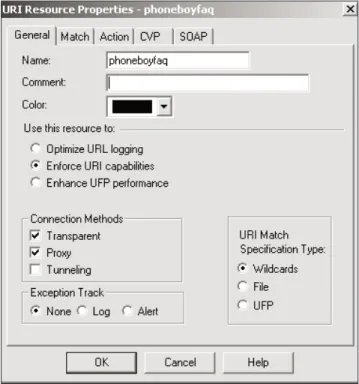
FireWall-1 has some rudimentary filtering features that can be used without a UFP or CVP server. These features should be used only for the most basic of fil-tering needs. Anything too complex should be done with a UFP or CVP server. You can use these filtering features by creating URI resources. From Smart Dashboard/Policy Editor, select Manage, then choose Resources or click on the icon in the objects tree, right-click on URI, and select New URI. Next, select New, and then choose URI. You are presented with the window shown in Figure 9.1.
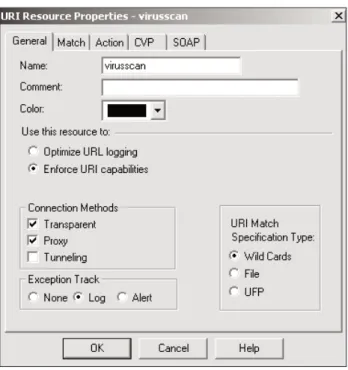
You can set the following properties on the General tab.
Name:In this field, enter the name of the resource (must be unique). Comment:Enter any information you like in this field.
Color:Select a color to represent the resource.
Use this resource to:This choice allows you to determine the resource’s pri-mary goal: logging URLs that users access (Optimize URL logging) or pro-viding content security (Enforce URI capabilities, which also logs URLs that people access). The latter relies on the HTTP Security Server; the former operates directly in the kernel and thus is faster. In NG with Application Intelligence, this tab also presents the option Enhance UFP performance. This allows you to move UFP functions into the kernel module to increase
1 2 3 4 5 6 7 8 9 0 1 2 3 4 5 6 7 8 9 0 1 2 3 4 5 6 7 8 9 0 1 2 3 4 5 6 7 8 9 0
performance but prevents you from using UFP caching (explained later in this chapter), CVP, or authentication. It also removes the ability to perform certain HTTP protocol checks, such as validating HTTP methods and con-tent length.
Connection Methods:In this section of the tab you can specify when this resource is applied. Transparent means that the user will use the service normally, and FireWall-1 will transparently intercept the communication. Proxy means that this resource is applied when people specify the firewall as the proxy in their browser. Tunneling is used when FireWall-1 (defined as the proxy to the client’s Web browser) cannot examine the content of the request, only the hostname and port number. An example of this is HTTPS. Only the hostname and port number are sent in cleartext; the rest of the content is encrypted. The hostname and port number are the only specifica-tions that can be filtered on using the Tunneling connection method. If Tun-neling is specified, all Content Security options in the URI specification are disabled.
URI Match Specification Type:This option specifies how you define this resource: as type Wildcards, File (which requires that you create a URI file),
2 3 4 5 6 7 8 9
2 2 2 2 2 2 2 2 2 2 3 3 3 3 3 3 3 3 3 3 4
or UFP. The first two methods are discussed later in this subsection. The last method is discussed in the UFP with the HTTP Security Server subsection. Exception Track: Here you can specify how to log anything this resource acts upon.
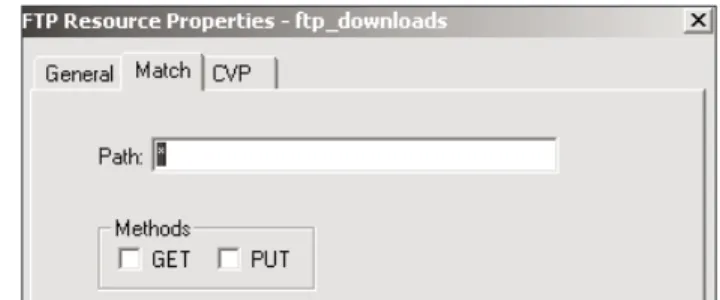
After setting these properties, you must then specify which URLs to filter by clicking on the Match tab. Figure 9.2 shows how it looks when the Wildcards option is selected on the General tab.
You can configure the following parameters.
Schemes:This parameter matches the different protocols you can use through the HTTP Security Server. It is relevant only if the firewall is specified as the proxy for these protocols. Normally, it is safe to just select the http checkbox. Methods:This parameter specifies methods for HTTP. GET is used when you request a particular page (or element on a page); POST is used when sending data to a Web site (filling out forms and so on); HEAD is usually used by caching servers and Web browsers to determine whether or not an element has changed (and thus to decide whether or not to download it); PUT is a less commonly used method for uploading files via HTTP. If another method is required, you can specify it in the Other field. To allow any method, use * in the Other field.
Host, Path, Query:These fields break down the various parts of the URL into filterable components. For example, in the URL http://www.phoneboy. com/search/wwwwais/wwwwais.cgi?keywords=content+security, the host part of the URL is www.phoneboy.com, the path is /search/wwwwais/ wwwwais.cgi, and the query is basically everything else (usually for CGI scripts such as search engines). You can filter on any part of the URL.
1 2 3 4 5 6 7 8 9 0 1 2 3 4 5 6 7 8 9 0 1 2 3 4 5 6 7 8 9 0 1 2 3 4 5 6 7 8 9
If you selected the File option under URI Match Specification Type on the General tab to create a resource of type File (i.e., to filter URIs based on a file) rather than Wildcards, the Match tab shown in Figure 9.3 appears.
A URI specification file is a series of lines in the following format:
ip-addr /path 0
ip-addris the IP address of the Web server you want to match against. For
sites that resolve to multiple IP addresses, you need to list each one specifically. You can also use fully qualified domain names in this file, though it requires that DNS be enabled and configured on the firewall. /pathis optional. If you want
to restrict a certain subdirectory of a site (or a certain URL), enter it here. 0(or
any hexadecimal number) is required at the end of each line. Here is a sample file:
10.0.146.201 0 10.251.29.12 0
10.91.182.100 /support.d 0 10.184.151.198 /support 0
There must also be a blank line at the end of the file. Once you have created this file, click the Import button and specify the path to this file on your Smart Console system. It will then be uploaded to your management console.
You then need to specify the action to take if this resource matches, so click the Action tab (see Figure 9.4).
On this tab, you can configure the following parameters.
Replacement URI:If the rulebase action this resource is used in is dropped or rejected, the user should be redirected to this URL. This could, for
2 3 4 5 6 7 8 9
2 2 2 2 2 2 2 2 2 2 3 3 3 3 3 3 3 3 3 3 4
instance, be a policy document telling people the rules and regulations of Web usage.
HTML Weeding:In this section of the tab you can select which tags to strip out if the action is accepted. The HTTP Security Server does not really strip them but rather comments out the offending HTML so that the tags are not active when downloaded. A user could theoretically save the HTML and reload a modified, local copy.
Block JAVA Code: FireWall-1 can block the download of any Java code if you select this checkbox. It does not match JavaScript, which is done with the HTML Weeding option Strip Script Tags.
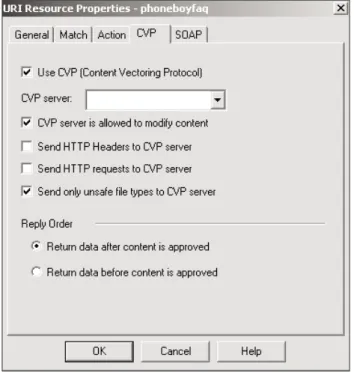
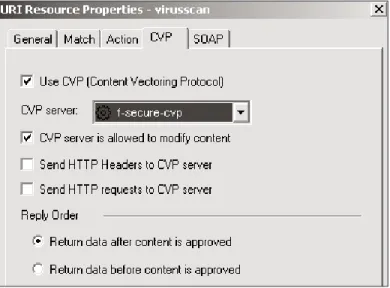
Figure 9.5 shows the CVP tab, where you can specify whether or not this resource will enforce virus scanning and the parameters that control how it is done.
This tab includes the following options.
Use CVP: Enable the use of CVP in this resource. If this property is un-checked, all other fields on this screen will be greyed out.
CVP server:Select an OPSEC Application server that has CVP in it. I will show how these are defined in the CVP with the HTTP Security Server sub-section.
CVP server is allowed to modify content:This allows the CVP server to attempt to disinfect a file that has a virus. If this option is not checked and the content is determined to have a virus, the communication will be rejected. Send HTTP Headers/requests to CVP server: These options allow the CVP server to make security or filtering decisions based on data contained in the HTTP request headers.
1 2 3 4 5 6 7 8 9 0 1 2 3 4 5 6 7 8 9 0 1 2 3 4 5 6 7 8 9 0 1 2 3 4 5 6 7 8 9 0
Send only unsafe file types to CVP server:This option was introduced in NG with Application Intelligence. Normally, FireWall-1 sends all traffic through the CVP server. If this option is enabled, FireWall-1 inspects the content of the traffic to determine whether it is a kind of file that may con-tain a virus—FireWall-1 does not trust file extensions or MIME types for these checks. Graphic or movie files are considered “safe” and thus are not sent to the CVP server. Executable and Microsoft Office documents are sent to the CVP server for virus scanning.
Return data after content is approved:Data is sent to the CVP server for approval. Only after all the data has been received and scanned is it sent back from the CVP server. The problem with this option is that with large files on slow links, this can cause the client connection with the server to take a very long time before any data is returned. The client may time out in this case. Return data before content is approved:This allows the CVP server to scan and correct content “on the fly.” This option solves the problem of transferring large files over slow links, but it may mean the client receives part of a file that the CVP server will ultimately reject because, for instance, it finds a virus it cannot disinfect.
2 3 4 5 6 7 8 9
2 2 2 2 2 2 2 2 2 2 3 3 3 3 3 3 3 3 3 3 4
Figure 9.6 shows the SOAP tab, which is relevant only when using Wildcard URI types and NG FP3 and later. This allows you to filter and/or log Simple Object Access Protocol (SOAP) requests over HTTP. You may either allow all SOAP requests or filter for specific ones.
The schemes you can select are defined in files in $FWDIR/conf/XMLon the
management console. There are several files in this directory (scheme1through scheme10) where you can define specific sets of allowed SOAP requests. The
files must contain entries of the following format: namespace method
For example:
http://tempuri.org/message/ EchoString http://tempuri.org/message/ SubtractNumbers
You can then use this resource in a rule, as shown in Figure 9.7.
UFP with the HTTP Security Server
The UFP server is a third-party application that should be run on a different platform from the firewall. A variety of UFP servers available for FireWall-1 run on Windows or Solaris. I will not cover their setup in this book. It is sufficient to say that once they are set up correctly, FireWall-1 can then communicate with them on TCP port 18182.
1 2 3 4 5 6 7 8 9 0 1 2 3 4 5 6 7 8 9 0 1 2 3 4 5 6 7 8 9 0 1 2 3 4 5 6 7 8 9 0
Figure 9.6 URI Resource Properties, SOAP tab
To configure UFP to work with FireWall-1 and the HTTP Security Server, perform the following steps.
1. Define the workstation object on which the UFP server is running (if necessary).
2. Define the OPSEC Application object that represents the UFP server. 3. Define a URI resource of type UFP.
4. Add a rule using the resource, and install the policy.
Let’s assume you have created a workstation object named babyike where the UFP server is installed. In SmartDashboard/Policy Editor, do one of the following.
• Select Manage and then choose OPSEC Applications.
• Click on the following icon in the objects tree: . Then right-click on OPSEC Application, and select New OPSEC Application.
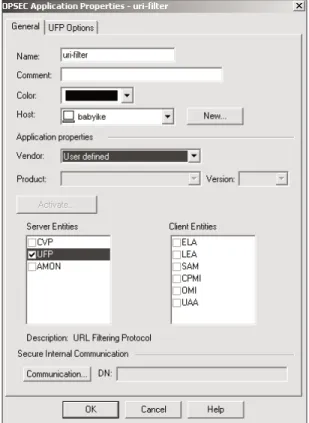
Figure 9.8 shows the resulting screen.
2 3 4 5 6 7 8 9
2 2 2 2 2 2 2 2 2 2 3 3 3 3 3 3 3 3 3 3 4
The General tab contains the following options.
Name:Enter the name of the resource (must be unique).
Comment:In this field, you can add a note about this OPSEC Application server.
Color:Select whichever color you would like.
Host:This is the workstation object on which the UFP server is running. Application properties: In this section of the tab, select the vendor of the application, the product, and the version as appropriate. If your vendor isn’t listed, you may want to select User defined. In this case, make sure that UFP is checked under Server Entities.
Secure Internal Communication:In FireWall-1 NG FP1 and later, SIC is used to authenticate communications with third-party OPSEC applica-tions. This is where you configure the one-time password used during the initial certificate exchange. Additional steps will need to be performed in your OPSEC application to perform this exchange.
Figure 9.9 shows the UFP properties described below.
Service:This field specifies the service used to communicate with this server. Normally, this should be FW1_ufp (TCP port 18182).
Dictionary:The information in this section is used to validate the connec-tion to your UFP server. Categories are shown if a connecconnec-tion can be suc-cessfully established. You can choose the actual categories that are allowed or disallowed in the individual URI resource.
Use early versions compatibility mode:In FireWall-1 4.1, authentication between the UFP server and the firewall module uses something other than SIC. In these cases, check this option and select the appropriate authentica-tion method.
After setting these properties, you can create your URI resource. For this example, the resource is called uri-filter. The URI resource needs to be of type UFP.
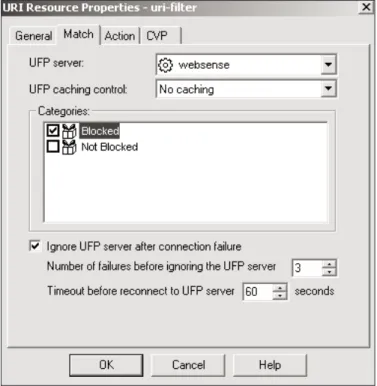
Next, go to the Match tab, select the UFP Server websense, and select the Blocked category, as shown in Figure 9.10.
This tab contains the following options.
UFP server:Specify the OPSEC Application object you created that defines the UFP server.
UFP caching control:This option will be explained in the UFP Caching subsection later in this chapter.
1 2 3 4 5 6 7 8 9 0 1 2 3 4 5 6 7 8 9 0 1 2 3 4 5 6 7 8 9 0 1 2 3 4 5 6 7 8 9 0
2 3 4 5 6 7 8 9
2 2 2 2 2 2 2 2 2 2 3 3 3 3 3 3 3 3 3 3 4
Figure 9.9 OPSEC Application Properties, UFP Options tab
Categories:Specify the categories on the UFP server to which this URI will apply. For Websense servers, this should be Blocked.
Ignore UFP server after connection failure: FireWall-1 will continually connect to the UFP server. If for some reason the UFP server fails to respond in a timely fashion, this option allows you to specify whether to “fail closed” (i.e., keep trying to connect to the UFP server until successful, meanwhile blocking all HTTP traffic) or “fail open” (i.e., after the specified amount of time, ignore the UFP server and do not categorize the traffic). You can spec-ify the number of failures permitted and the amount of time between each communication attempt before it ignores the UFP server.
If you wanted to, you could go to the Action tab and specify other filtering options, but instead, for this example, let’s move on to create the rules to block Web sites that Websense has been configured to block (see Figure 9.11).
The first rule is created by using the Add with Resource option for the Ser-vice column, selecting http, and then selecting uri-filter. This rule catches all Websense-filtered URLs. The second rule permits URLs that are not filtered by Websense. This second rule is necessary to allow access to all URLs except those prohibited by Websense.
CVP with the HTTP Security Server
The CVP server is a third-party application that should be run on a different platform from the firewall. A variety of CVP servers available for FireWall-1 run on Windows or Solaris. I will not attempt to cover their setup in this book. It is sufficient to say that once they are set up correctly, FireWall-1 can then commu-nicate with them on TCP port 18181.
To configure CVP to work with FireWall-1 and the HTTP Security Server, perform the following steps.
1. Define the workstation object on which the CVP server is running (if necessary).
2. Define the OPSEC Application object that represents the CVP server. 3. Define a resource that uses the CVP server (or modify an existing one). 4. Use the rule with the resource, and install the policy.
1 2 3 4 5 6 7 8 9 0 1 2 3 4 5 6 7 8 9 0 1 2 3 4 5 6 7 8 9 0 1 2 3 4 5 6 7 8 9
2 3 4 5 6 7 8 9
2 2 2 2 2 2 2 2 2 2 3 3 3 3 3 3 3 3 3 3 4
Figure 9.12 OPSEC Application Properties, CVP Options
As in the UFP example above, let’s assume you have created a workstation object named babyike where the CVP server is installed. In SmartDashboard/ Policy Editor, do one of the following.
• Select Manage and then choose OPSEC Applications.
• Click on the following icon in the objects tree: . Then right-click on OPSEC Application, and select New OPSEC Application.
A screen similar to Figure 9.8 (shown earlier) appears. For this example, the OPSEC Application object is named f-secure-cvp.
Since a CVP server is being defined, choose the relevant options for CVP— choose the correct CVP server information or select User defined in the Vendor field, and make sure CVP is checked under Server Entities. Also define SIC, if relevant.
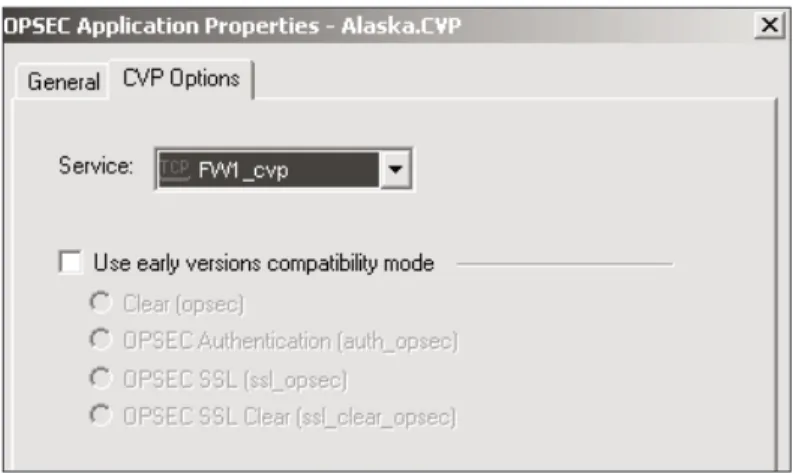
Figure 9.12 shows the CVP Options tab. The properties are listed below.
Service:Select the service used to communicate with this server. Normally, this should be FW1_cvp (TCP port 18181).
Use early versions compatibility mode:In FireWall-1 4.1, authentication between the CVP server and the firewall module uses something other than SIC. In these cases, check this option and select the appropriate authentica-tion method.
You then need to create a resource that performs CVP. Create a new resource called virusscan (see Figure 9.13), which matches all URIs and performs virus scanning.
The Match tab, shown in Figure 9.14, shows the settings used to make this resource match all URLs.
The CVP tab, shown in Figure 9.15, is where you define which CVP resource to apply. You then need to add this resource to a rule. You can combine it with the UFP example so that both URLs and content are filtered (see Figure 9.16).
1 2 3 4 5 6 7 8 9 0 1 2 3 4 5 6 7 8 9 0 1 2 3 4 5 6 7 8 9 0 1 2 3 4 5 6 7 8 9 0
Figure 9.13 URI Resource Properties, General tab
Frequently Asked Questions about the HTTP Security Server
To keep all the information about a particular Security Server together, I provide a corresponding FAQs subsection at the end of each Security Server section. 9.1: Can I Filter HTTP on Other Ports (e.g., Port 81)?
There are five steps necessary to enable filtering on other ports.
1. Create a TCP service for the port in question (e.g., http81), and make it of type URI.
2. Add a rule with a resource using the new service. 3. Install the security policy.
4. Reconfigure $FWDIR/conf/fwauthd.conf to run the Security Server
on that port.
5. Bounce the firewall (cprestart).
Creating the service is straightforward. Create a new service of type TCP. Set the Protocol Type to HTTP and the port as necessary (e.g., port 81). If you add a resource by right-clicking in the Service part of a rule, you can associate a
2 3 4 5 6 7 8 9
2 2 2 2 2 2 2 2 2 2 3 3 3 3 3 3 3 3 3 3 4
Figure 9.15 URI Resource Properties, CVP tab
resource with the new service you created (e.g., http81). If you filter with wild-card resources, you need to enter the host part of the URL as host:port. For
example, to match all, instead of entering *, you need to type it as *:*. If you do
not do this, your resource will fail. To reconfigure $FWDIR/conf/fwauthd. conf, you need to add a line to this file for each unusual port you want to filter
on. For port 81, for instance, the line would read as follows: 81 fwssd in.ahttpd wait 0
Reinstall the security policy, and bounce the firewall after making these changes (cprestart).
9.2: Can the HTTP Security Server Forward Requests to a Caching Proxy Server?
Yes, but only if your clients are configured to use the firewall as their proxy server. Set the Use Next Proxy setting in your gateway object definition, Authen-tication frame.
9.3: Why Do I Get the Error “Request to Proxy Other Than Next Proxy Resource http://proxy.foo.com” When Filtering Traffic to a Proxy Server?
Set the Use Next Proxy setting in your gateway object definition, Authentication frame, to point at the proxy server. This setting only allows you to filter traffic to one HTTP proxy server.
9.4: How Do I Redirect People to a Usage Policy Page?
The assumption here is that end users are redirected to a policy page only when they try to access a site that is against the usage policy. You can take one of two approaches.
• Create a resource that matches the sites you do not wantto allow access to. Use this resource in a rule as shown earlier in the chapter, setting the replacement URL accordingly in this resource.
• Create a resource that matches the sites you wantto allow access to. If you want to then redirect users to a policy page when they try to load a page they are not allowed to access, use the matchall resource and set the replacement URL accordingly. If you want to allow users access to only the sites matched by the resource allowedsites and deny access to every-thing else (via a matchall resource), the rules would look like those shown in Figure 9.16.
1 2 3 4 5 6 7 8 9 0 1 2 3 4 5 6 7 8 9 0 1 2 3 4 5 6 7 8 9 0 1 2 3 4 5 6 7 8 9 0
NOTE! If you use the replacement URL in conjunction with User Authenti-cation and a user is redirected to a policy page, the user will get FireWall-1’s Authentication Failed page with a link to the redirected page.
9.5: How Do I Prevent People from Downloading Files or Accessing Streaming Media via HTTP?
You can use the HTTP Security Server to deal with both of these issues. If you have CVP, you may be able to use the CVP server to screen out those MIME types. If you are not using a CVP server, you can do this with a wildcard URI. In the Path section of the Match tab, you can specify all file extensions that you do not want people to download.
• To block Real Audio/Real Video, enter *.{ra,ram,rm,rv}.
• To block most downloads, enter *.{exe,zip,com,bat,sit,tar,tgz,tar.gz,lha, rar,r0+}.
You would then create a rule that uses this resource and denies access to any-thing matching this resource. Place this rule before your other rules that permit HTTP.
WARNING! Attempting to filter based on file extension or even MIME type is futile. There are plenty of ways to get around these filters by using different extensions or different MIME types, which are merely suggestions for how the file should be treated. In order to filter out all the files you don’t want, you will likely filter some files that you dowant (throwing the baby out with the bath water).
9.6: Can I Allow Certain Users to Download Files Provided They Authenticate?
In order for this to work correctly, all users need to authenticate, even to use nor-mal HTTP. The rules to do this are shown in Figure 9.17.
2 3 4 5 6 7 8 9
2 2 2 2 2 2 2 2 2 2 3 3 3 3 3 3 3 3 3 3 4
Once a packet potentially matches a User Authentication rule—that is, the source, destination, and service match what is specified in the rule—the least restrictive rule in the rulebase is the one that will actually apply. Therefore, it is important to place the rule that denies access to downloads before the rule that allows everyone to use HTTP.
9.7: How Can I Set Up FireWall-1 to Support Content Security for Outbound HTTPS?
Due to the nature of HTTPS, it is possible to authenticate or provide Content Security for HTTPS only when the client specifies the firewall as the proxy for HTTPS. Some other steps must be performed as well.
First, ensure the following line exists in $FWDIR/conf/fwauthd.conf:
443 fwssd in.ahttpd wait 0
If this line does not exist or it is commented out, add/uncomment it, and bounce FireWall-1. Second, modify the predefined service HTTPS. Change the protocol type from None to http. You can then use HTTPS for authentication or Content Security as appropriate provided the client is configured to use the firewall as a proxy for HTTPS requests.
9.8: Can I Block the Use of KaZaA, Instant Messages, and Other Applications That Can Tunnel over HTTP?
These applications are difficult to filter because they can use legitimate HTTP requests. However, a closer inspection of these HTTP request headers reveals telltale traces of what kinds of applications they are. FireWall-1 NG FP3 and later have a way to filter this traffic by using the HTTP Security Server and some properties that you need to add manually to $FWDIR/conf/objects_5_0.C
on the management console. (See FAQ 4.2 in Chapter 4 for caveats on editing this file.)
The following example shows patterns that block KaZaA and Gnutella. Sev-eral other patterns may also already exist in your objects_5_0.Cfile.
(firewall_properties: :fields (
...
:http_header_detection (
:http_detect_header_pattern_mode (true) :http_detect_header_pattern_log (alert) 1
2 3 4 5 6 7 8 9 0 1 2 3 4 5 6 7 8 9 0 1 2 3 4 5 6 7 8 9 0 1 2 3 4 5 6 7 8 9 0
:http_header_names ( : (
:match_string (X-kazaa) :regular_exp (X-Kazaa) )
)
:http_header_names_values ( : (
:match_string (Server)
:regular_exp ([kK]a[zZ]a[aA]) )
: (
:match_string (Host) :regular_exp ([kK]azaa) )
: (
:match_string (User-Agent) :regular_exp ([gG]nu) )
) )
The properties used in these patterns are described below.
http_detect_header_pattern_mode:This property determines whether
or not header detection is enabled. By default, it is false. To enable header
detection, set this property to true.
http_detect_header_pattern_log:This one determines what kind of
log to generate when one of the defined patterns is detected. Valid values are
none(log nothing), log(generate a log entry), and alert(generate an alert).
http_header_names:This property specifies the header names to watch
for. Each header you wish to filter has a stanza with two elements: match_ string (simply for your reference, not actually used by FireWall-1) and regular_exp (to specify the regular expression that matches the desired
header).
http_header_names_values:Similar to the previous one, but with this
property you can look for a header that has a specific value, as specified in
match_string. If this header is found, the specified regular_expis
com-pared against the header’s value.
Once you have added these patterns, you need to use the HTTP Security Server to perform this filtering. This can be done with a simple matchall resource. For Gnutella specifically, you need to add GNUTELLA* to the match field of the resource and make sure the resource is used in a drop or reject rule.
2 3 4 5 6 7 8 9
2 2 2 2 2 2 2 2 2 2 3 3 3 3 3 3 3 3 3 3 4
9.9: Why Do I Have Problems Accessing Some Sites When the HTTP Security Server Is Enabled?
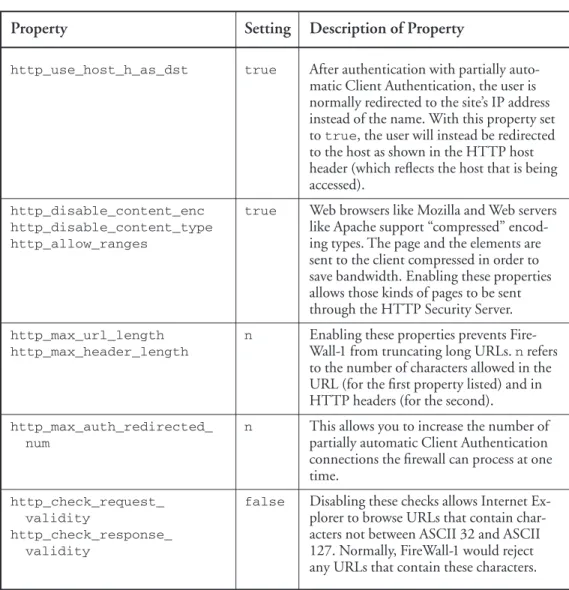
This happens because the HTTP Security Server requires tweaking to access many popular sites. Table 9.2 shows the various firewall_properties
tweaks you can perform by using dbediton the management server or by
man-ually editing the objects_5_0.Cfile (see FAQ 4.2 for details).
1 2 3 4 5 6 7 8 9 0 1 2 3 4 5 6 7 8 9 0 1 2 3 4 5 6 7 8 9 0 1 2 3 4 5 6 7 8 9 0
Property Setting Description of Property
http_enable_uri_queries true If this is set to false, FireWall-1 will strip
ASCII encoding of certain characters.
http_allow_content_ true Content disposition is a way to let the
disposition Web browser know what it is about to
receive. This could potentially allow people to download a type of file that the security policy may not allow them to download.
http_log_every_connection true This enables logging of all sites an
authen-ticated user visits.
http_buffer_size 32768 This allows you to specify the buffer size
used by the HTTP Security Server to process connections; 32768is the
maxi-mum, and 4096is the minimum.
http_sup_continue true This enables the HTTP Security Server
to support the HTTP 1.1 CONTINUE command.
http_force_down_to_10 true This forces the HTTP connection version
down to 1.0. You need to do this when working with CVP servers.
http_avoid_keep_alive true This forces the HTTP Security Server to
ignore the “keep-alive” directive in HTTP 1.1. You need to do this when working with CVP servers.
http_cvp_allow_chunked true These properties allow the HTTP Security
http_weeding_allow_chunked Server to handle requests that occur as
http_block_java_allow_ byte ranges, often used in HTTP 1.1
chunked requests.
http_allow_ranges (continued)
Table 9.2 Recommended firewall_propertiestweaks for the HTTP Security Server
9.10: How Can I Permit Schemes Other Than FTP and HTTP through the HTTP Security Server?
Enable the following properties by modifying the appropriate firewall_ propertiessection in objects_5_0.C:
:http_allow_double_slash (true) :http_use_default_schemes (true)
The first property enables the HTTP Security Server to accept double slashes (//) in a substring of a URL. In order to allow this, the Security Server defines a set of schemes that it will accept, which is what the second property covers.
2 3 4 5 6 7 8 9
2 2 2 2 2 2 2 2 2 2 3 3 3 3 3 3 3 3 3 3 4
Property Setting Description of Property
http_use_host_h_as_dst true After authentication with partially
auto-matic Client Authentication, the user is normally redirected to the site’s IP address instead of the name. With this property set to true, the user will instead be redirected
to the host as shown in the HTTP host header (which reflects the host that is being accessed).
http_disable_content_enc true Web browsers like Mozilla and Web servers
http_disable_content_type like Apache support “compressed”
encod-http_allow_ranges ing types. The page and the elements are
sent to the client compressed in order to save bandwidth. Enabling these properties allows those kinds of pages to be sent through the HTTP Security Server.
http_max_url_length n Enabling these properties prevents
Fire-http_max_header_length Wall-1 from truncating long URLs. nrefers
to the number of characters allowed in the URL (for the first property listed) and in HTTP headers (for the second).
http_max_auth_redirected_ n This allows you to increase the number of
num partially automatic Client Authentication
connections the firewall can process at one time.
http_check_request_ false Disabling these checks allows Internet
Ex-validity plorer to browse URLs that contain
char-http_check_response_ acters not between ASCII 32 and ASCII
validity 127. Normally, FireWall-1 would reject
any URLs that contain these characters.
The default set includes prospero, gopher, telnet, finger, mailto, http, news, nntp, wais, file, and ftp. You may also define new schemes to add to this set. This requires manual editing of objects_5_0.C. For example, to add the
schemes fish and trouble to the permitted list, add the following code to the
firewall_propertiessection of objects_5_0.C. (Note that the colons are
needed.) :scheme (
: (“fish:”) : (“trouble:”) )
9.11: How Can I Customize the Error Messages Given by the HTTP Security Server?
On the firewall module, edit the file $FWDIR/conf/cspc/cspc.en_us.This
enables you to modify just about any message that any of the Security Servers generate. Some common messages to edit include:
• “FW-1 at host”
• “Failed to connect to the WWW server” • “Unknown WWW server”
Each line in $FWDIR/conf/cspc/cspc.en_usis of the following format:
IDENTIFIER size string
IDENTIFIERis a unique string that identifies the message to FireWall-1. Do not
change this. sizeis the maximum number of characters the message can be. Do
not change this either. stringis the actual string that FireWall-1 will display.
It may contain some special words surrounded by # signs, such as #host# or #html#.
For the three examples listed above, the lines look like this: CPSC_HTTP_FW_AT_HOST 1024 “FW-1 at #host#:” CPSC_HTTP_CONN_FAIL_ERR 1024 “\n#local_host# Failed to connect to the #.40server#.”
CPSC_HTTP_UNKNOWN_SERVER_ERR 1024 “\n#local_host# Unknown WWW server.”
These lines could be changed so they read:
CPSC_HTTP_FW_AT_HOST 1024 “Message from firewall:” CPSC_HTTP_CONN_FAIL_ERR 1024 “\n#local_host# Failed to connect to the #.40server#. This may be a transient problem, in which case simply reloading the page will work. 1
2 3 4 5 6 7 8 9 0 1 2 3 4 5 6 7 8 9 0 1 2 3 4 5 6 7 8 9 0 1 2 3 4 5 6 7 8 9 0
If this problem persists, it may be a problem with the remote server.”
CPSC_HTTP_UNKNOWN_SERVER_ERR 1024 “\n#local_host# Unknown WWW server. This could mean you typed an incorrect URL or there was a problem looking up the site in DNS. If the URL is correct and the problem persists, contact your
administrator.”
Performance Tuning the HTTP Security Server
One of the most common complaints about Content Security is performance. This is partially the result of the HTTP Security Server running in user space, versus the kernel space where much of FireWall-1 lives. Some of the performance issues can be overcome by tuning the platform on which the HTTP Security Server is running. However, there are some inherent limitations in the Security Servers in terms of the number of users who can go through a single system be-cause Content Security overall requires significantly more resources than simply passing traffic. Personally, I would not use the HTTP Security Server for more than 1,000 users. Check Point has always claimed it is making strides in this area, and the company has increased performance in some circumstances by moving stuff to the kernel. However, I continually hear complaints from admin-istrators who attempt to implement the HTTP Security Server in a large enter-prise setting and end up doing something else.
In this subsection, I talk about what you need to do to improve performance of the Security Servers, which will increase the efficiency of the HTTP Security Servers. You should also apply the general performance-tuning suggestions in Appendix E.
Increasing the Number of Allowed Entries in proxied_conns
By default, the number of entries in proxied_conns(a table that stores
con-nections via the Security Servers) is 25,000. For best performance, you should modify this number to twice the number of connections you actually expect to handle. In $FWDIR/lib/table.def on the management console, modify the
following line:
proxied_conns = dynamic expires AUTH_TIMEOUT kbuf 4;
To modify the line to support 50,000 connections, for example, make it read: proxied_conns = dynamic limit 50000 expires AUTH_TIMEOUT kbuf 4;
Increasing the HTTP Buffer Size
The default size is 4,096 bytes. It can be increased to a maximum of 32,768. A larger buffer size means fewer system calls; however, each connection will take
2 3 4 5 6 7 8 9
2 2 2 2 2 2 2 2 2 2 3 3 3 3 3 3 3 3 3 3 4
up that much more memory, so there is a trade-off. See Table 9.2 in FAQ 9.9 for the property that sets the buffer size.
Increasing the Number of Security Server Instances
It’s usually necessary to increase the number of Security Server instances for the HTTP Security Server, but you can do it for any Security Server. If you have multiple processors on your firewall, increasing the number of instances allows you to take advantage of these processors. You can use this trick if you are using a single processor system, too.
To increase the number of instances for any Security Server, you need to modify its line in the $FWDIR/conf/fwauthd.conffile, which has the
follow-ing format:
<listen-port><binary><daemon-name>wait -<instances>
For example, if you want to run four instances of in.ahttpd, which will all
lis-ten on port 80, the corresponding line should look like this: 80 fwssd in.ahttpd wait -4
Connections from the same HTTP client will always be directed to the same daemon within the authenticated session timeout. Connections begin to use al-ternate daemons only after the previous daemon fills up. All connections from a client will always be handled by the same daemon.
UFP Caching
When an HTTP request is made, the IP address of the destination is checked against the cache. If the IP address is in the cache, the category associated with that IP address is used. If it is not in the cache, the HTTP Security Server sends the request to the UFP server, which returns the appropriate category informa-tion and is then cached. Caching can be controlled by FireWall-1 or by the UFP server. Check Point recommends the latter method, which is thought to be more accurate.
If FireWall-1 controls the caching, FireWall-1 uses two methods to update the cache.
• One-request method: FireWall-1 takes the information returned by the UFP server and writes it to the cache.
• Two-request method:FireWall-1 makes a second request to the UFP server to determine whether the IP address of the site could match multiple cate-gories. Only if the entire site uses the same category is the data written to the cache.
1 2 3 4 5 6 7 8 9 0 1 2 3 4 5 6 7 8 9 0 1 2 3 4 5 6 7 8 9 0 1 2 3 4 5 6 7 8 9 0