Windows Storage Server 2008
Architecture and Deployment White Paper
Version 1.0
Copyright © 2010 Microsoft Corporation. All rights reserved. Complying with the applicable copyright laws is your responsibility. By using or providing feedback on this documentation, you agree to the license agreement below.
If you are using this documentation solely for non-commercial purposes internally within YOUR company or organization, then this documentation is licensed to you under the Creative Commons
Attribution-NonCommercial License. To view a copy of this license, visit http://creativecommons.org/licenses/by-nc/2.5/ or send a letter to Creative Commons, 543 Howard Street, 5th Floor, San Francisco, California, 94105, USA. This documentation is provided to you for informational purposes only, and is provided to you entirely "AS IS". Your use of the documentation cannot be understood as substituting for customized service and information that might be developed by Microsoft Corporation for a particular user based upon that user’s particular environment. To the extent permitted by law, MICROSOFT MAKES NO WARRANTY OF ANY KIND, DISCLAIMS ALL EXPRESS, IMPLIED AND STATUTORY WARRANTIES, AND ASSUMES NO LIABILITY TO YOU FOR ANY
DAMAGES OF ANY TYPE IN CONNECTION WITH THESE MATERIALS OR ANY INTELLECTUAL PROPERTY IN THEM. Microsoft may have patents, patent applications, trademarks, or other intellectual property rights covering subject matter within this documentation. Except as provided in a separate agreement from Microsoft, your use of this document does not give you any license to these patents, trademarks or other intellectual property. Information in this document, including URL and other Internet Web site references, is subject to change without notice. Unless otherwise noted, the example companies, organizations, products, domain names, e-mail addresses, logos, people, places and events depicted herein are fictitious.
Microsoft, Active Directory, ActiveX, BitLocker Drive Encryption, Excel, Forefront, Internet Explorer, PowerPoint, SharePoint Portal Server, SharePoint Services, SQL Server, Windows, Windows 7, Windows PowerShell, Windows Server, Windows Storage Server 2008, Windows Server 2008, Windows Server 2003, Windows XP and Windows Vista are either registered trademarks or trademarks of Microsoft Corporation in the United States and/or other countries.
The names of actual companies and products mentioned herein may be the trademarks of their respective owners.
You have no obligation to give Microsoft any suggestions, comments or other feedback ("Feedback") relating to the documentation. However, if you do provide any Feedback to Microsoft then you provide to Microsoft, without charge, the right to use, share and commercialize your Feedback in any way and for any purpose. You also give to third parties, without charge, any patent rights needed for their products, technologies and services to use or interface with any specific parts of a Microsoft software or service that includes the Feedback. You will not give Feedback that is subject to a license that requires Microsoft to license its software or
Contents
Introduction... 1
Windows Storage Server 2008 Overview... 3
Comparing Windows Storage Server 2008 to Windows Server 2008 ... 3
Comparing Windows Storage Server 2008 Editions... 5
Comparing Windows Storage Server 2008 Edition Specifications ... 5
Identifying Windows Storage Server 2008 Storage Solution Advantages ... 7
Exploring Windows Storage Server 2008 Features and Capabilities ... 9
Providing Access to File Services Workloads ... 10
Supporting File Services Workloads Using SMB... 10
Supporting File Services Workloads Using NFS ... 10
Supporting File Services Workloads Using WebDAV ... 11
Supporting File Services Workloads Using Windows SharePoint Services ... 12
Providing Access to iSCSI Block I/O Workloads ... 12
Supporting iSCSI Block I/O Workloads Using Microsoft iSCSI Software Target ... 13
Supporting iSCSI Block I/O Workloads Using Microsoft iSCSI Software Initiator ... 16
Providing Access to Web Services Workloads ... 16
Providing Access to Print Services Workloads ... 17
Managing Windows Storage Server 2008 ... 19
Managing All Workloads... 19
Managing File Services Workloads ... 20
Managing File Services Workloads Using File Server Resource Manager ... 20
Managing File Services Workloads Using Share and Storage Management ... 21
Managing DFS Namespaces and DFS Replication ... 21
Managing Single Instance Storage ... 22
Managing iSCSI Block I/O Workloads ... 24
Managing the Microsoft iSCSI Software Target for iSCSI Block I/O Workloads ... 24
Managing the Microsoft iSCSI Software Initiator for iSCSI Block I/O Workloads ... 25
Managing Web Services Workloads ... 26
Managing Print Services Workloads ... 27
Protecting Windows Storage Server 2008 Workload Data ... 28
Using Windows Server Backup to Protect Data ... 28
Using Shadow Copies of Shared Folders to Protect Data ... 29
Using the Volume Shadow Copy Service to Protect Data... 30
Using DFS Replication to Protect Data ... 31
Using System Center Data Protection Manager 2007 to Protect Data ... 32
Using Virtual Disk Snapshots to Protect Data... 32
Using the PrintBRM.exe Tool to Backup Printer Information ... 33
Securing Windows Storage Server 2008 Workloads ... 34
Securing Windows Storage Server 2008 for All Workloads ... 34
Securing File Services Workloads ... 36
Securing iSCSI Block I/O Workloads ... 37
Securing Web Services Workloads ... 38
Securing Print Services Workloads... 39
Improving Availability of Windows Storage Server 2008 Workloads ... 39
Improving Availability of File Services Workloads ... 40
Improving Availability of iSCSI Block I/O Workloads ... 42
Creating Highly-Available iSCSI Targets ... 42
Creating Highly-Available iSCSI Initiators ... 44
Improving Availability of Web Services Workloads ... 46
Improving Availability of Print Services Workloads ... 47
Improving Performance and Scalability for Windows Storage Server 2008 Solutions ... 48
Improving Performance and Scalability for All Workloads... 48
Improvements in the Next Generation TCP/IP Protocol ... 48
Improvements in Network Adapter Performance ... 49
Reduction in Processor Utilization for I/O Operations ... 50
Improving Performance and Scalability for File Services Workloads ... 52
Review Improvements in the SMB Protocol ... 53
Review SMB-based File Services Workload Test Results ... 56
Improving Performance and Scalability for iSCSI Block I/O Workloads ... 59
Identify Methods for Improving iSCSI Block I/O Workload Performance and Scalability ... 59
Review I/O Storage Test Results ... 61
Improving Performance and Scalability for Web Services Workloads ... 62
Identify Methods for Improving Web Services Workload Performance and Scalability ... 62
Review Web Services Workload Test Results ... 62
Improving Performance and Scalability for Print Workloads ... 63
Windows Storage Server 2008 Deployment Scenarios ... 64
Overview of NAS Configurations ... 64
Using Windows Storage Server 2008 as a Stand-alone NAS in Solutions ... 64
Using Windows Storage Server 2008 as a Highly-Available NAS in Solutions ... 65
Using Windows Storage Server 2008 as a NAS Gateway in Solutions ... 66
Creating Branch Office Solutions ... 68
Creating Highly-available Solutions... 75
Creating Solutions for Storage Consolidation ... 76
Creating Small to Medium Business Solutions ... 79
Creating Solutions for Heterogeneous Environments ... 79
Creating Application Consolidation Solutions ... 80
Creating Virtualization Solutions ... 82 Conclusion... 84 More Information ... 84
Introduction
Windows® Storage Server 2008 is the latest in the Windows Storage Server family of products and is based on the technologies and features found in Windows Server® 2008. Windows Storage Server 2008, which is available through Windows Storage Server 2008 Partners, allows these OEM partners to provide unified storage solutions based on Windows Storage Server 2008. This white paper describes the features and technologies in Windows Storage Server, and how to create secure, extensible, scalable, and highly-available storage solutions, including file services, iSCSI block input/output (I/O), Web services, and print services workloads.
Windows Storage Server 2008 is built on Windows Server 2008 to create efficient and effective storage solutions. Microsoft OEM partners offer specialized hardware and additional software components to create network attached storage appliances running Windows Storage Server 2008.
Windows Storage Server 2008 provides a unified solution for the following workloads:
• Files services. Provides access to files managed by the appliance for computers using file access protocols, such as Common Internet File System (CIFS) or Network File System (NFS). Provides access to files using the Server Message Block (SMB) version 2.0, NFS version 3.0, Web-based Distributed Authoring and Versioning (WebDAV), File Transfer Protocol (FTP) and Hypertext Transfer Protocol (HTTP) protocols. SMB 2.0 provides a superset of the features found in CIFS and provides improved performance and reliability over previous versions of SMB.
• iSCSI Block storage services. Provides remote network attached storage that appears as a disk logical unit number (LUN) to other computers, which are connected using the Internet Small Computer System Interface (iSCSI) standard. These
services also provide high-performance access to remote disk LUNs using the iSCSI industry standard and can act as an iSCSI initiator or an iSCSI target.
• Web services. Provides access to Web-based content and services, which can be accessed using HTTP, Hypertext Transfer Protocol Secure (HTTPS), WebDAV, or FTP.
• Windows SharePoint Services. Provides the ability to share documents, track tasks, use e-mail efficiently and effectively, and share ideas and information. The most common feature is to store files in document libraries, which supports check-in and check-out features, version control, and file history.
• Print services. Provides access to printers using Microsoft print services, Line Printer Daemon (LPD) services, or Internet printing services.
The following table lists some of the problems and pain points that organizations have with network attached storage appliances, and how Windows Storage Server 2008-based appliances address them.
Table 1. Network Attached Storage Appliance Problems and Pain Points Problem or pain point Windows Storage Server 2008 solution Dedicated or limited function
appliance.
Provides servicing of multiple workloads on highly extensible Microsoft OEM vendor hardware platforms. Limited breadth of vendor
support.
Takes advantage of the breadth and depth of the software and hardware products provided by other vendors that are provided for Windows Server 2008.
Management of workloads. Uses familiar Windows Server management consoles. Minimal or no integration
with existing authentication and authorization system.
Integrates with Active Directory® Doman Services (AD DS) and Active Directory Lightweight Directory Services.
Problem or pain point Windows Storage Server 2008 solution Loosely integrated with
clients that consume the services.
Designed to work "better together" with Windows operating systems, including Windows Vista® and Windows® 7, to provide optimal security, performance, scalability, availability, and manageability.
Limited provisions for failover or fault tolerant configurations.
Supports Windows Server Failover Clusters, Distributed File System (DFS), and Network Load Balancing for improved availability and fault tolerance in addition to the hardware fault tolerance features provide by the Microsoft OEM partner.
Implements nonstandard or proprietary protocols or services.
Supports industry standard protocols and services that provide interoperability in heterogeneous environments.
Limited protection of information stored on the appliance.
Supports a wide variety of security products and
technologies, including BitLocker® Drive Encryption, NTFS permissions, Share permissions, and Microsoft®
Forefront™. Lack of comprehensive
software update management.
Provides a set of software update management technologies and products for any sized organization, including Windows Update, Windows Software Update Services (WSUS), and Microsoft System Center Configuration Manager.
Ongoing operations and maintenance is labor intensive.
Many on-going operations and management tasks can also be automated using System Center Configuration Manager or System Center Operations Manager. Limited customization and
extensibility.
Many of the management consoles can be customized to include Microsoft OEM partner branding and the server software supports extensibility using any application programming interfaces (APIs) supported by Windows Server 2008.
Limited disaster recovery. Provides Windows Server Backup as part of Windows Storage Server 2008, and supports other disaster recovery products from Microsoft, such as System Center Data Protection Manager, and from Microsoft partners.
Windows Storage Server 2008 Overview
Windows Storage Server 2008 is optimized for file workloads and includes additional technologies, such as deduplication of files using the Single Instance Storage (SIS) feature, full screen remote desktop control of storage server administration using Web RDP, and an iSCSI target using the Microsoft iSCSI Software Target, to provide a unified storage solution. Deduplication of files is a specific form of compression provided by the SIS feature that combines redundant files into a single instance of the file and links to the single instance to replace the previous file copies.
This overview to Windows Storage Server 2008 includes the following topics:
• Comparing Windows Storage Server 2008 to Windows Server 2008.
• Comparing Windows Storage Server 2008 Editions.
• Comparing Windows Storage Server 2008 Edition specifications.
• Identifying Windows Storage Server 2008 solution advantages.
Comparing Windows Storage Server 2008 to
Windows Server 2008
The following lists features and technologies common to both Windows Storage Server 2008 and Windows Server 2008:
• Administration Tools
• .NET 3.0
• BitLocker Drive Encryption
Note BitLocker Drive Encryption does not work with failover clusters.
• BITS Server Extensions
• Desktop Experience
• DFS Namespace
• DFS Replication
Note DFS Replication does not work with failover clusters.
• DHCP Server
• Failover Clustering
Note Failover clustering is available only in the Enterprise edition of Windows Storage Server 2008.
• File Server Resource Manager (FSRM)
• Full Text Search
• Group Policy Management Console
• Integration with Windows Server ecosystems (including backup software, and antivirus software.)
• Internet Printing Client
• LPR Port Monitor
• Microsoft file services based on SMB 2.0
• Microsoft Message Queuing (MSMQ)
• Multipath I/O
Note Multipath I/O is available only in Standard and Enterprise editions of Windows Storage Server 2008.
• Network File System (NFS)
• Peer Name Resolution Protocol
• Remote Assistance
• Remote Differential Compression
• Remote Server Admin Tools
• RPC Over HTTP Proxy
• Simple TCP/IP Services
• SNMP
• Subsystem for UNIX-Based Applications (SUA)
• Telnet Server
• TFTP Client
• Windows Biometric Framework
• Windows Firewall with Advanced Security
• Windows Network Load Balancing
• Windows PowerShell™ Integrated Scripting Environment (ISE)
Note Windows PowerShell ISE works only with the features that are common to Windows Server 2008 and Windows Storage Server 2008. Windows PowerShell ISE is not supported for storage features in Windows Storage Server 2008.
• Windows PowerShell
• Windows Process Activation Server
• Windows Server Backup
Note Windows Server Backup does not work with failover clusters and does not support volumes larger than 2 terabyte.
• Windows Server Migration Tools
• WS-Management
• Windows Management Instrumentation (WMI)
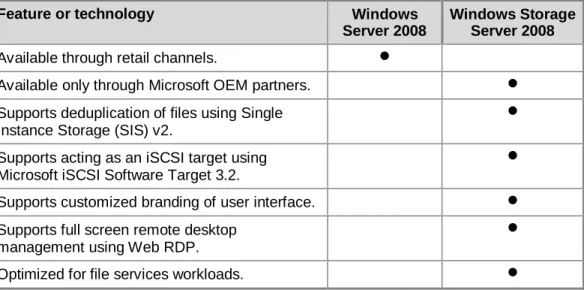
Although Windows Storage Server 2008 is based on the features and technologies in Windows Server 2008, there are some differences between the two products. Table 2 lists the feature and technology differences between the two products.
Table 2. Windows Storage Server 2008 and Windows Server 2008 Differences
Feature or technology Windows
Server 2008
Windows Storage Server 2008 Available through retail channels.
Available only through Microsoft OEM partners. Supports deduplication of files using Single
Instance Storage (SIS) v2.
Supports acting as an iSCSI target using Microsoft iSCSI Software Target 3.2.
Supports customized branding of user interface. Supports full screen remote desktop
management using Web RDP.
Comparing Windows Storage Server 2008
Editions
Windows Storage Server 2008, which provides key functionality to support any sized business and IT storage challenge, is available in the following editions:
• Windows Storage Server 2008 Basic. Basic is a cost-effective, entry-level technology foundation targeted at small business owners and IT generalists supporting small businesses. Basic provides support for less than 20 users, which require access to only Microsoft file services, print services, and Web services workloads in homogeneous environments.
• Windows Storage Server 2008 Workgroup. Workgroup is an entry-level technology foundation also targeted at small business owners and IT generalists supporting small businesses. Workgroup provides support for less than 50 users, which require access to file services using Microsoft file services or NFS, deduplication of files using Single Instance Storage, iSCSI block I/O services, print services, and Web services workloads.
• Windows Storage Server 2008 Standard. Standard provides support for an unlimited number of users, who require access to file services using Microsoft file services or NFS, deduplication of files using Single Instance Storage, iSCSI block I/O services, print services, and Web services workloads.
• Windows Storage Server 2008 Enterprise. Enterprise is an advanced platform that provides more cost-effective and reliable support for mission-critical workloads. Enterprise provides support for an unlimited number of users with maximum fault-tolerance and scalability provided in a Windows Storage Server product.
Comparing Windows Storage Server 2008
Edition Specifications
Table 3 lists the capabilities of Windows Storage Server, and the support level for the capabilities in each edition of the product. Use the information in Table 3 to identify which Windows Storage Server 2008 edition is best suited for your organization.
Note Unless otherwise noted in the following tables, assume that all editions support the features listed in the previous section, "Comparing Windows Storage Server 2008 to Windows Server 2008."
Table 3. Comparison of Windows Server 2008 and Windows Storage Server 2008
Maximum system resources support
Capabilities Basic Workgroup Standard Enterprise
Supported processor architecture.
32-bit or 64-bit
64-bit 64-bit 64-bit
Maximum number of processor sockets.
4 4 4 8
Maximum amount of memory. 4 GB (32-bit) or 32 GB
(64-bit)
32 GB 32 GB 2 terabyte
Maximum number of network adapters.
2 2 Unlimited Unlimited
Number of disks supported. 4 4 Any Any
Type of disk adapters supported. SATA Any Any Any
File services workload support
Capabilities Basic Workgroup Standard Enterprise
Maximum number of SMB connections supported.
20 50 Unlimited Unlimited
NFS.
DFS replication.
File Services Resource Manager. Deduplication of files using Single Instance Storage.
BitLocker Drive Encryption
Other workload support
Capabilities Basic Workgroup Standard Enterprise
Microsoft iSCSI Target Software. Note Some Microsoft partners include the Microsoft iSCSI Software Target by default.
Optional Optional Optional
Failover clusters.
Multipath I/O.
Number of printers supported for Print Services workloads.
2 Any Any Any
Fax services.
DHCP Server services.
Windows Search services.
Windows Management Instrumentation.
Windows Server Backup.
Active Directory Lightweight Directory Services.
For more information about the Microsoft iSCSI Software Target specifications, see the section, "Identifying Microsoft iSCSI Software Target Specifications" later in this white paper.
Identifying Windows Storage Server 2008
Storage Solution Advantages
Network attached storage appliances running Windows Storage Server 2008 have a number of advantages compared to other network attached storage appliances. Most of these advantages are because Windows Storage Server 2008 is based on Windows Server 2008.
Advantages to creating storage solutions using Windows Storage Server 2008 include:
• Reduces time to realize efficient management. Because Windows Storage Server 2008 is based on Windows Server 2008, you can take advantage of your expertise with Windows Server®. This familiarity dramatically can help reduce your learning curve so that you can quickly and efficiently plan, build, deploy, and operate storage solutions.
• Provides unified solution to storage management and operations. You can use the same set of tools and process to manage all the workloads supported by Windows Storage Server 2008. You can manage file services, iSCSI block I/O services, Web services, and print services workloads using the well-known
management consoles and utilities in Windows Storage Server 2008, instead of using a different set of management tools for each workload.
• Provides centralized storage for applications. The Microsoft iSCSI Software Target component in Windows Storage Server 2008 allows you to create iSCSI disk LUNs. Disk LUNs can be remotely mounted by application servers, such as Microsoft Exchange Server 2010 running on Windows Server operating systems, using the Microsoft iSCSI Software Initiator or applications running on other operating systems, such as Linux, using other iSCSI initiators.
• Reduces storage requirements. The Single Instance Storage feature in Windows Storage Server 2008 helps optimize storage capacity using built-in file deduplication. Single Instance Storage actively compares and eliminates identical files on file sharing volumes. Duplicate files are transparently replaced with file system links to the single copy retained in the SIS Common Store — saving significant capacity. As a result, file serving performance is improved because more information can be cached by the operating system. In addition, protection and recovery by Single Instance Store-aware backup solutions can significantly reduce backup windows and recovery times.
• Reduces administration effort for storage solutions. You can automate repetitive administrative tasks using Windows PowerShell scripts in Windows Storage Server 2008. For example, you can draw on the large number of existing scripts developed by the partner and peer communities to further reduce the time required to achieve automation. You can also centrally manage many of the Windows Storage Server 2008 configuration settings using Group Policy. In addition, you can use other Microsoft products to further automate the administration of Windows Storage Server 2008, such as System Center Configuration Manager or System Center Operations Manager.
Note You can only use Windows PowerShell to automate the features that are common to Windows Server 2008 and Windows Storage Server 2008. No Windows PowerShell providers exist for features that are specific to Windows Storage Server 2008.
• Resolves support issues faster, more precisely, and with less effort.
Comprehensive Microsoft support for Windows Server products and the extensive community of partners and peers help you resolve storage-related issues with less effort. Much of this existing knowledge is integrated in the product or available online. In addition, many of the Microsoft management products, such as System Center Operations Manager, include knowledge from the product groups at Microsoft to help provide you with accurate and relevant information to resolve support issues.
• Secures digital assets. You can use the same extensive security products and technologies found in Windows Server 2008 to secure Windows Storage Server 2008, such as BitLocker Drive Encryption, NTFS permissions, Windows Firewall with
Advanced Security, and IPsec. You can also use Microsoft and partner products to further strengthen the security of your storage solutions, such as Microsoft Forefront.
• Manages and operates your storage solution using your existing processes and procedures. You can manage and operate Windows Storage Server 2008 using the same IT processes and procedures that are currently used to manage Windows Server 2008. This helps protect your existing investment while developing custom processes and procedures. In addition, you can manage and operate Windows Storage Server using other products, such as System Center Configuration Manager or System Center Operations Manager 2007.
• Seamlessly integrates with your existing Windows IT infrastructure. Windows Storage Server 2008 integrates easily with existing Windows IT infrastructure services, such as AD DS and Remote Desktop Services Gateway. This level of integration also helps minimize any infrastructure remediation that may be required to deploy and operate your storage solution.
• Easily extends storage solutions. You can easily extend the features and services provided by Windows Storage Server 2008 using the large number of products and services provided by Microsoft partners or by developing your own solution. The broad range of well documented APIs and scripting languages can help you
customize Windows Storage Server 2008 to meet your organization's requirements.
• Migrates from other storage solutions to Windows Storage Server 2008. You can migrate workloads from existing Windows Server operating systems to Windows Storage Server 2008 using highly-automated migration tools, such as the Windows Server Migration Tools. These tools help protect the integrity of your existing data while ensuring the current user permissions and security configuration is transferred to Windows Storage Server 2008. In addition, many Microsoft partners produce products to help in migrating workloads to Windows Server products.
• Minimizes storage solution adoption risk. Because Windows Storage Server 2008 is based on Windows Server 2008, you can minimize the risk of adoption for your new storage solution. Your IT organization and users are less likely to experience difficulties in using and operating Windows Storage Server 2008 because they are already familiar with Windows Server 2008. You can use many of the existing tools, Microsoft Solution Accelerators, and best practice guidance to help make certain that the planning, deployment, and ongoing operations of Windows Storage Server 2008 succeed.
Exploring Windows Storage Server 2008
Features and Capabilities
Windows Storage Server 2008 includes a rich set of features and capabilities to help service multiple workloads, unlike dedicated or single function network attached storage appliances. These features and capabilities allow Windows Storage Server 2008 to act as a unified platform to manage various workloads, as illustrated in Figure 1.
Figure 1. Workloads supported by Window Storage Server 2008 These features and capabilities help you provide access to:
• iSCSI block I/O workloads.
• Web services workloads.
• Print services workloads
This section includes the following topics:
• Providing access to file services workloads.
• Providing access to iSCSI block I/O workloads.
• Providing access to Web services workloads.
• Providing access to print services workloads.
Providing Access to File Services Workloads
File services workloads allow computers to access files and folders stored on network access storage appliances. Windows Storage Server 2008 can support file services workloads in homogeneous Windows network environments or heterogeneous network environments with a variety of operating systems, as illustrated in Figure 1.Windows Storage Server 2008 provides support for homogeneous or heterogeneous file services workloads using the following protocols or features:
• SMB
• NFS
• WebDAV
• Windows SharePoint® Services
Supporting File Services Workloads Using SMB
The SMB protocol in Windows Storage Server 2008 provides access to files and folders for client computers using the SMB or CIFS protocols. Windows-based client computers use the SMB protocol while other operating systems typically use the CIFS protocol. The File Services server role in Windows Storage Server 2008 supports both SMB version 2.0, which is highly-optimized for use with Windows Vista Service Pack 1 (SP1) and Windows 7, and the prior version of SMB for previous Windows operating systems. Some network access storage appliances that are not running Windows Storage Server 2008 implement generic CIFS-based file services that implement only older versions of SMB and lack the performance advantages and improved reliability of SMB version 2.0. For more information about the improvements available in SMB version 2.0, see the "Review Improvements in File Services" section later in this white paper.
Select this protocol to support homogeneous or heterogeneous environments that contain:
• Windows-based computers that use Client for Microsoft Networks to access file services workloads using the SMB protocol.
• Computers running other operating systems that access file services workloads using the CIFS protocol.
Supporting File Services Workloads Using NFS
Windows Storage Server 2008 supports access to file services workloads using the NFS protocol version 3.0 with the Services for Network File System role service. The NFS protocol allows any NFS client computer to access files and folders managed by Windows Storage Server 2008 using version 2 and version 3 of the NFS protocol.
The Services for Network File System role service includes the following components:
• Server for NFS. This component allows a computer running Windows Storage Server 2008 and Server for NFS to service NFS client computer requests.
• Client for NFS. This component allows a computer running Windows Storage Server 2008 and Client for NFS to access NFS mount points on NFS servers.
The Server for NFS component is required to support file services workloads using NFS. This component includes the Services for NFS snap-in, and a number of command-line tools for managing it.
Note The Server for NFS component supports NFS version 2.0 and version 3.0. The Services for NFS supports the following versions of UNIX:
• Sun Microsystems Solaris version 9
• Red Hat Linux version 9
• IBM AIX version 5L 5.2
• Hewlett Packard HP-UX version 11i
The Server for NFS component allows you to share a folder as a NFS exported folder (also known as a NFS shared folder). A computer running an NFS client can mount the NFS exported folder into the local file system of the operating system running on the computer. For computers running Windows, the NFS client allows access to the NFS exported folder using a universal naming convention (UNC) path or by mapping the NFS exported folder to a drive letter.
The Server for NFS component can use Active Directory Domain Services (AD DS) or Active Directory Lightweight Directory Services (AD LDS) for identity management. In Windows Storage Server 2008, Windows Server 2008, and later Windows Server
operating systems, the Identity Management for UNIX Active Directory schema extension includes the UNIX user identifier (UID) and group identifier (GID) fields. This enables Server for NFS and Client for NFS to look up Windows-to-UNIX user account mappings directly from AD DS or AD LDS.
Select this protocol to support heterogeneous environments that contain computers running an NFS client that access file services workloads using the NFS protocol. For more information about:
• Installing and configuring the Services for Network File System role service, see Services for NFS Step-by-Step Guide for Windows Server 2008.
• Enabling identity mapping with Windows in an environment without an Active
Directory domain using AD LDS, see AD LDS Identity Mapping for Services for NFS.
Supporting File Services Workloads Using WebDAV
The WebDAV protocol is a set of extensions to the HTTP protocol that enables file management over any IP network. Client computers running a WebDAV redirector can access file services workloads using the WebDAV protocol. All current Windows
operating systems include a WebDAV redirector. Other operating systems also include a WebDAV redirector, which provides support for homogeneous and heterogeneous environments.
Windows Storage Server 2008 includes version 7.5 of the WebDAV extension module for Internet Information Services (IIS) 7.0. The WebDAV extension module is available as a separate download for:
• 32-bit versions of Windows Storage Server 2008 at WebDAV 7.5 for IIS 7.0 (x86).
• 64-bit versions of Windows Storage Server 2008 at WebDAV 7.5 for IIS 7.0 (x64). WebDAV 7.5 is the latest version of WebDAV for Windows Storage Server 2008, and includes the following improvements:
• Integration with IIS 7.0. IIS 7.0 has a new administration interface and configuration store. The new WebDAV extension module is tightly integrated with this new design.
Also, the new WebDAV extension module integrates with the Internet Information Services Manager console to provide ease of administration.
• Per-site Configuration. WebDAV 7.5 can be enabled at the site level. Previous versions of WebDAV only allowed you to enable WebDAV at the server level.
• Per-URL Security Settings. WebDAV 7.5 supports per-URL authoring rules,
allowing you to specify custom WebDAV security settings on a per-URL basis. These authoring rules are separate from the IIS 7.0 per-URL authorization rules, thereby allowing one set of security settings for normal HTTP requests, and a separate set of security settings for WebDAV requests.
Select this protocol to support heterogeneous environments that contain computers running WebDAV redirectors that need to access the file services workloads using the HTTP or HTTPS protocol.
For more information about providing WebDAV support on Windows Storage Server 2008, see WebDAV for IIS 7.0.
Supporting File Services Workloads Using Windows
SharePoint Services
Microsoft Windows SharePoint Services 3.0 allows users to collaborate with each other using either HTTP or HTTPS. Windows SharePoint Services include a number of collaboration features, but the feature specific to file services is the document library feature. Client computers can access the document libraries using either protocol. Computers running Windows can also access the document libraries through Windows Explorer. Also, Microsoft Office System client applications, such as Microsoft Word 2007 or Excel® 2007, support opening and saving files to document libraries directly within the application.
Document libraries include the ability to check in and check out files to help maintain version control. In addition, you can configure document libraries to retain a specified number of versions for each file in the document library, which allows you to easily restore a previous version of a file and track version history.
For more information about providing Windows SharePoint Services 3.0 support on Windows Storage Server 2008, see Microsoft Windows SharePoint Services 3.0.
Providing Access to iSCSI Block I/O
Workloads
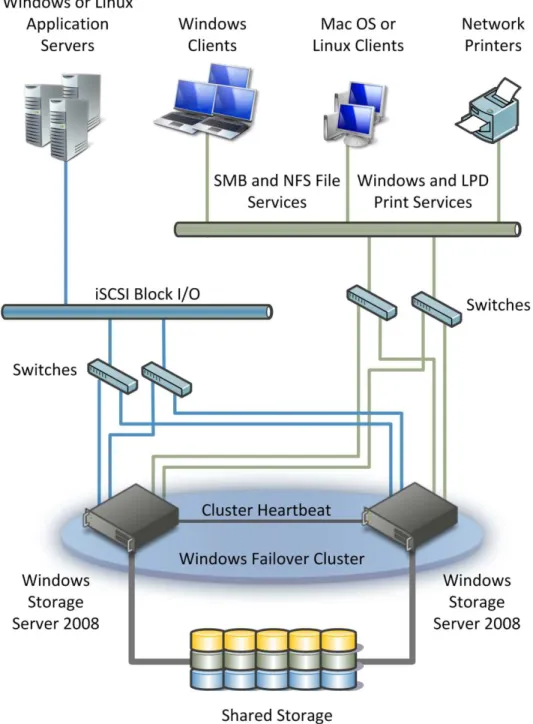
iSCSI block I/O workloads are another type of workload provided by most network access storage appliances. iSCSI block I/O workloads include both a server component (iSCSI target) and a client component (iSCSI initiator), as illustrated in Figure 2. As an iSCSI initiator, Windows Storage Server 2008 is used to connect to external iSCSI targets, such as a SAN. As an iSCSI target, Windows Storage Server 2008 is used to support iSCSI block IO workloads for applications, such as SQL Server® 2008 or Exchange Server 2010.
Note When Windows Storage Server 2008 is deployed in a NAS gateway scenario, Windows Storage Server 2008 can be an iSCSI, Serial Attached SCSI (SAS), or FibreChannel initiator based on the type of storage being accessed. For more information, see the section "Using Windows Storage Server 2008 as a NAS Gateway in Solutions," later in this white paper.
Figure 2. iSCSI block I/O workloads supported by Windows Storage Server 2008 Windows Storage Server 2008 supports iSCSI block I/O workloads using the iSCSI standard. Windows Storage Server can function as an iSCSI target (the server component) or an iSCSI initiator (the client component). This allows a large number of configuration options for iSCSI block I/O workload solutions.
Supporting iSCSI Block I/O Workloads Using Microsoft
iSCSI Software Target
The Microsoft iSCSI Software Target version 3.2 in Windows Storage Server 2008 provides iSCSI target functionality. The Microsoft iSCSI Software Target version 3.2 is the latest version of the iSCSI target software and is typically an optional component in Window Storage Server 2008 Workgroup, Standard, and Enterprise editions.
For more information about the Microsoft iSCSI Software Target version 3.2 in Windows Storage Server 2008, see Microsoft iSCSI Software Target.
Identifying Microsoft iSCSI Software Target Specifications
Table 4 lists the specifications for the Microsoft iSCSI Software Target version 3.2. These specifications are applicable to all Windows Storage Server 2008 editions that include the Microsoft iSCSI Software Target version 3.2.
Table 4. Microsoft iSCSI Software Target Version 3.2 Specifications
Specification Value
Maximum number of iSCSI target instances per appliance. 64 Maximum number of virtual disk per iSCSI target instance. 128 Maximum number of snapshots per virtual disk. 128 Maximum number of virtual disks per appliance. 512 Maximum number of virtual disks or snapshots that can be locally
mounted by the appliance.
32 (or 4 per cluster node) Maximum number of iSCSI initiators per appliance. 64 Maximum number of iSCSI initiators that can connect to the same
iSCSI target instance.
16
Maximum number of iSCSI initiator sessions that can connect to the same iSCSI target instance.
64
IPv4. Yes
IPv6. Yes
TCP offload. Yes
iSCSI offload. No
Jumbo frames. Yes
IPsec. Yes
Note Network adapter teaming, also known as NIC teaming, is not supported for the Microsoft iSCSI Software Target or Microsoft iSCSI Software Initiator.
Windows Storage Server 2008 includes support for single path and multipath I/O connections to nonclustered and clustered configurations. Multipath I/O connections allow for improved fault-tolerance and performance for iSCSI block I/O workloads. The Microsoft iSCSI Software Initiator includes a multipath I/O Device Specific Module (DSM) for the Microsoft Multipath I/O (MPIO) in Windows Server.
Table 5 lists the support for the Microsoft iSCSI Software Initiator and the Microsoft iSCSI Software Target with single or multipath I/O connections when connecting to
nonclustered or clustered configurations. For more information about multipath I/O, see the section "Improving Availability of iSCSI Block I/O Workloads," later in this white paper.
Table 5. Support for Single or Multipath IO Connections for Non-Clustered or Clustered Configurations
Specification Nonclustered Clustered
Windows Server 2008 (multipath I/O connection) Supported Supported Windows Server 2008 (single path I/O connection) Supported Limited *
Specification Nonclustered Clustered Windows Server 2008 (multipath I/O connection) Supported Limited * Windows Server 2003 (single path I/O connection) Supported Limited *
* There is limited support for iSCSI initiators or iSCSI targets in clustered configurations of Windows Server 2003 when connected to the Microsoft iSCSI Software Target. Failures on the iSCSI network path may result in delayed failover and recovery times. Failures for non-network related issues have been tested with acceptable recovery times. For these reasons, we
recommend to use Windows Server 2008 or Windows Server 2008 R2 in clustered configurations when connecting to the Microsoft iSCSI Software Target.
Note The limitation for iSCSI initiators or iSCSI targets in clustered configurations of Windows Server 2003 is specific to Microsoft iSCSI Software Target usage. Customers using a different iSCSI target should refer to the storage array vendor for supported configurations.
Identifying Microsoft iSCSI Software Target Support for iSCSI
Initiators
Microsoft iSCSI Software Target version 3.2 supports the following iSCSI initiators:
• Microsoft iSCSI Software Initiator 2.07 and 2.08 in Windows Server 2003.
• Microsoft iSCSI Software Initiator in Windows Server 2008 SP1 and SP2.
• Microsoft iSCSI Software Initiator in Windows Server 2008 R2.
• Microsoft iSCSI Software Initiator in Windows Vista.
• Microsoft iSCSI Software Initiator in Windows 7.
• Qlogic initiator QLE4062C-SP, firmware 3.00.01.24.
• RedHat Enterprise Linux iSCSI Initiator version 5.x.
• SuSE Enterprise Linux iSCSI Initiator version 10.x.
Identifying Microsoft iSCSI Software Target Support for VSS and VDS
Providers
Microsoft iSCSI Software Target version 3.2 includes a hardware provider for:
• Volume Shadow Copy Service (VSS). VSS is a set of APIs that implement a framework to allow volume backups to be performed while applications on a system continue to write to the volumes. iSCSI snapshots are created using VSS and a storage array with a hardware provider designed for use with VSS. The Microsoft iSCSI Software Target VSS Hardware Provider is required to create transportable snapshots of iSCSI virtual disks and application-consistent snapshots from iSCSI initiators.
Install this hardware provider on the computer running the iSCSI initiator and the computer that is to perform backups. The backup software must support transporting snapshots.
• Virtual Disk Service (VDS). VDS is a set of APIs that provides a single interface for managing disks. VDS provides an end-to-end solution for managing storage
hardware and disks, and for creating volumes on those disks. The Microsoft iSCSI Software Target VDS Hardware Provider is required to manage virtual disks on a storage subsystem.
Install the Microsoft iSCSI Software Target VDS Hardware Provider on each iSCSI initiator computer running a storage management application (such as the Microsoft Storage Manager for SANs) that uses the hardware provider to manage storage The most recent version of these hardware provider APIs is Microsoft iSCSI Software Target VSS Hardware Provider version 3.2 and Microsoft iSCSI Software Target VDS Hardware Provider version 3.2.
Note Microsoft iSCSI Software Target version 3.2 supports only version 3.2 of the Microsoft iSCSI Software Target VSS Hardware Provider, and Microsoft iSCSI Software Target VDS
Hardware Provider. Prior versions of the hardware providers are not supported by Microsoft iSCSI Software Target version 3.2.
The Microsoft iSCSI Software Target VSS Hardware Provider version 3.2 and the Microsoft iSCSI Software Target VDS Hardware Provider version 3.2 support the following operating systems:
• Windows Server 2008 R2 RTM.
• 32-bit or 64-bit versions of Windows Server 2008 SP1.
• 64-bit versions of Windows Storage Server 2008 RTM.
• 32-bit or 64-bit versions of Windows Server® 2003 SP2.
The following operating systems are not supported by Microsoft iSCSI Software Target VSS Hardware Provider version 3.2 and Microsoft iSCSI Software Target VDS Hardware Provider version 3.2:
• Any Windows client operating system, including Windows® XP, Windows Vista, and Windows® 7.
• 32-bit version of Windows Storage Server 2008.
Supporting iSCSI Block I/O Workloads Using Microsoft
iSCSI Software Initiator
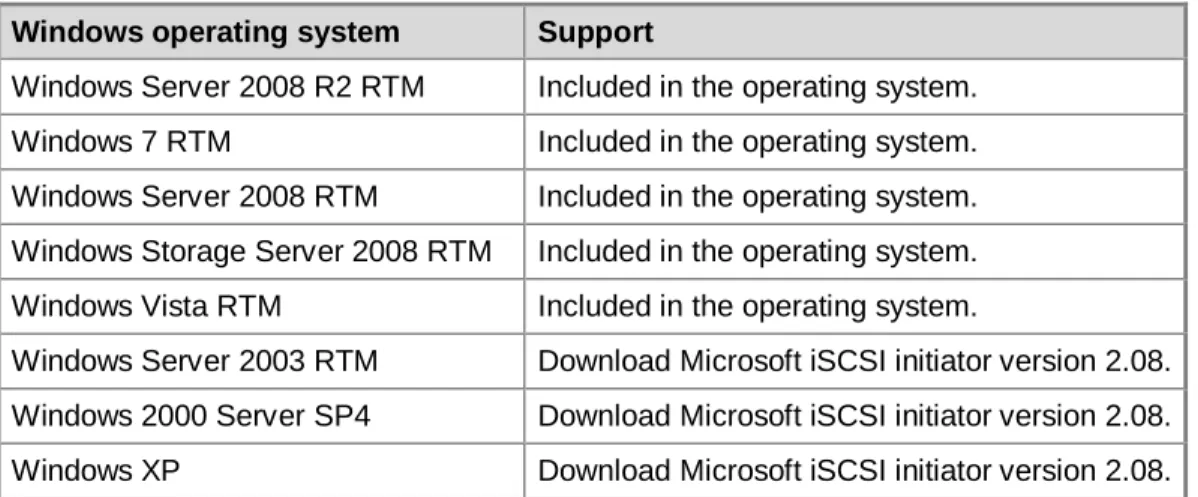
The Microsoft iSCSI Software Initiator version 2.08 in Windows Storage Server 2008 provides iSCSI initiator functionality. Table 6 lists the Windows operating systems that support the Microsoft iSCSI Software Initiator and how the initiator support is provided for that operating system.
Table 6. Windows Operating System and Microsoft iSCSI Software Initiator Support Windows operating system Support
Windows Server 2008 R2 RTM Included in the operating system. Windows 7 RTM Included in the operating system. Windows Server 2008 RTM Included in the operating system. Windows Storage Server 2008 RTM Included in the operating system. Windows Vista RTM Included in the operating system.
Windows Server 2003 RTM Download Microsoft iSCSI initiator version 2.08. Windows 2000 Server SP4 Download Microsoft iSCSI initiator version 2.08. Windows XP Download Microsoft iSCSI initiator version 2.08.
Note Network adapter teaming, also known as NIC teaming, is not supported for the Microsoft iSCSI Software Initiator.
Providing Access to Web Services Workloads
Unlike most network access storage appliances, Windows Storage Server 2008 supports Web services workloads. Web services workloads allow users to access Web-based content stored on Windows Storage Server 2008 appliances. Windows Storage Server 2008 can support Web services workloads in homogeneous Windows networkenvironments or heterogeneous network environments that include a variety of operating system.
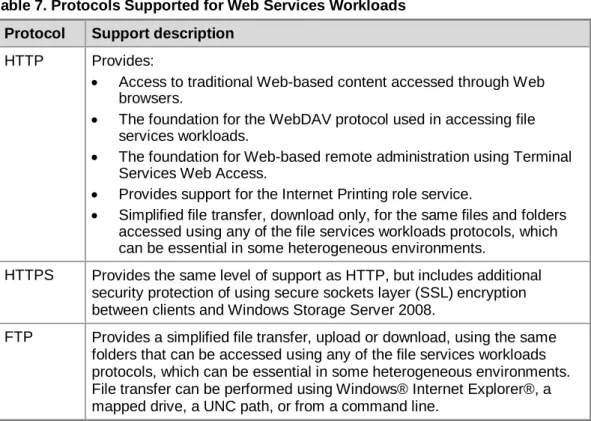
Windows Storage Server 2008 provides support for homogeneous or heterogeneous Web services workloads using the protocols listed in Table 7.
Table 7. Protocols Supported for Web Services Workloads Protocol Support description
HTTP Provides:
• Access to traditional Web-based content accessed through Web browsers.
• The foundation for the WebDAV protocol used in accessing file services workloads.
• The foundation for Web-based remote administration using Terminal Services Web Access.
• Provides support for the Internet Printing role service.
• Simplified file transfer, download only, for the same files and folders accessed using any of the file services workloads protocols, which can be essential in some heterogeneous environments.
HTTPS Provides the same level of support as HTTP, but includes additional security protection of using secure sockets layer (SSL) encryption between clients and Windows Storage Server 2008.
FTP Provides a simplified file transfer, upload or download, using the same folders that can be accessed using any of the file services workloads protocols, which can be essential in some heterogeneous environments. File transfer can be performed using Windows® Internet Explorer®, a mapped drive, a UNC path, or from a command line.
Windows Storage Server 2008 supports ASP and ASP.NET applications, any
applications or services supported by IIS 7.0, and any applications or services based on .NET Framework version 1.1 with SP1 or later.
For more information about:
• IIS 7.0, see The Official Microsoft IIS Site.
• The Web Server (IIS) server role, see Web Server (IIS).
Providing Access to Print Services
Workloads
Another advantage to using Windows Storage Server 2008-based appliances is the ability to support print services workloads. Print services workloads allow users to access printers managed by Windows Storage Server 2008 appliances. Windows Storage Server 2008 can support print services workloads in homogeneous Windows network environments or heterogeneous network environments that include a variety of operating system.
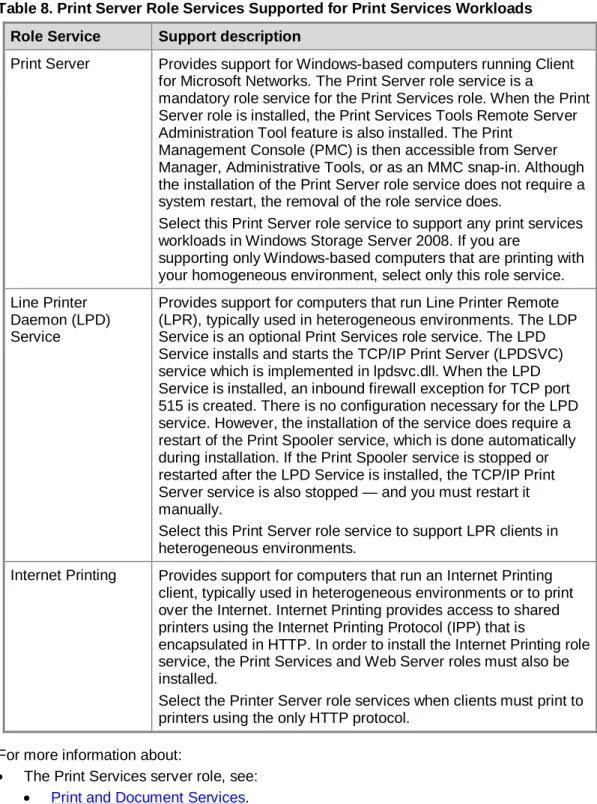
Windows Storage Server 2008 provides support for homogeneous or heterogeneous print services workloads using the Print Server role services listed in Table 8.
Table 8. Print Server Role Services Supported for Print Services Workloads Role Service Support description
Print Server Provides support for Windows-based computers running Client for Microsoft Networks. The Print Server role service is a
mandatory role service for the Print Services role. When the Print Server role is installed, the Print Services Tools Remote Server Administration Tool feature is also installed. The Print
Management Console (PMC) is then accessible from Server Manager, Administrative Tools, or as an MMC snap-in. Although the installation of the Print Server role service does not require a system restart, the removal of the role service does.
Select this Print Server role service to support any print services workloads in Windows Storage Server 2008. If you are
supporting only Windows-based computers that are printing with your homogeneous environment, select only this role service. Line Printer
Daemon (LPD) Service
Provides support for computers that run Line Printer Remote (LPR), typically used in heterogeneous environments. The LDP Service is an optional Print Services role service. The LPD Service installs and starts the TCP/IP Print Server (LPDSVC) service which is implemented in lpdsvc.dll. When the LPD Service is installed, an inbound firewall exception for TCP port 515 is created. There is no configuration necessary for the LPD service. However, the installation of the service does require a restart of the Print Spooler service, which is done automatically during installation. If the Print Spooler service is stopped or restarted after the LPD Service is installed, the TCP/IP Print Server service is also stopped — and you must restart it manually.
Select this Print Server role service to support LPR clients in heterogeneous environments.
Internet Printing Provides support for computers that run an Internet Printing client, typically used in heterogeneous environments or to print over the Internet. Internet Printing provides access to shared printers using the Internet Printing Protocol (IPP) that is
encapsulated in HTTP. In order to install the Internet Printing role service, the Print Services and Web Server roles must also be installed.
Select the Printer Server role services when clients must print to printers using the only HTTP protocol.
For more information about:
• The Print Services server role, see:
• Print and Document Services.
• WS2008: The Print Services Role.
Managing Windows Storage Server
2008
You can manage Windows Storage Server 2008 using the management features in each of the following areas:
• Management of all workloads
• Management of file services workloads
• Management of iSCSI block I/O workloads
• Management of Web services workloads
• Management of Print services workloads
Managing All Workloads
Windows Storage Server 2008 supports the following tools, features, and technologies for managing all workloads:
• Initial Configuration Tasks window. After installing Windows Storage Server 2008, and before deploying the new appliance in your enterprise, some configuration is required to identify the appliance to other computing resources on your network, secure the appliance, enable administrators to perform tasks on the appliance, and customize the appliance by adding server roles and features. You can complete these tasks by using commands in the Initial Configuration Tasks window, which opens immediately after the operating system installation is complete. For more information about the Initial Configuration Tasks window, see Windows Server Initial Configuration Tasks.
• Server Manager. Server Manager in Windows Storage Server 2008 provides a single source for managing a server's identity and system information, displaying server status, identifying problems with server role configuration, and managing all roles installed on the server. For more information about Server Manager, see Server Manager.
• Remote Desktop Services Connection. You can remotely manage Windows Storage Server 2008 using the Remote Desktop Connection feature. This feature requires the Remote Desktop Client to be installed on the computer used to manage Windows Storage Server 2008, and the feature uses the remote desktop protocol (RDP) to communicate with Windows Storage Server 2008. For more information, see Terminal Services in Windows Server 2008.
• Remote Desktop Services Web Connection. This feature requires only Internet Explorer to be installed on the computer used to manage Windows Storage Server 2008. You make the initial connection to Windows Storage Server 2008 using
Internet Explorer and the Terminal Services Web Access Web site. Then you connect to Windows Storage Server 2008 using the Microsoft ActiveX® control included in Remote Desktop Client version 6.1 and later versions. For more information, see Terminal Services Web Access (TS Web Access).
• Microsoft Remote Server Administration Tools (RSAT). RSAT allows you to remotely manage roles and features in Windows Storage Server 2008 from a
computer running Windows Vista SP1 or a later Windows operating system. You can run RSAT on 32-bit or 64-bit Windows operating systems, and you also can use it to manage 32-bit or 64-bit versions of Windows Storage Server 2008. For more information about RSAT, see Description of Windows Server 2008 Remote Server Administration Tools for Windows Vista Service Pack 1, Description of Remote Server Administration Tools for Windows 7, and Remote Server Administration Tools Pack.
• Group Policy. Group Policy provides an infrastructure for centralized configuration management of Windows Storage Server 2008, and the applications and services running on Windows Storage Server 2008. You can use Group Policy on any
Windows Storage Server 2008 appliance that is a member of an Active Directory domain. For more information, see Group Policy.
• Windows PowerShell. Windows PowerShell is a task-based command-line shell and scripting language designed especially for system administration. Windows PowerShell is built on the Microsoft .NET Framework and is designed to help you automate the administration of Windows Storage Server 2008, and the applications and services that run on Windows Storage Server 2008. A vast library of existing Windows PowerShell scripts reduces the effort and learning curve for using Windows PowerShell to automate administrative tasks. For more information, see Windows PowerShell.
• Telnet. You can use any Telnet client to create a remote command console session on a Windows Storage Server 2008 appliance. You can run command line programs, and scripts in the remote command console session just as if you were locally logged on to the host and using a local Command Prompt window. For more information, see Telnet.
Managing File Services Workloads
Managing file services workloads includes managing disk volumes, the folder structure to store the files, and the files themselves. You manage file services workloads running on Windows Storage Server 2008 by using:
• File Server Resource Manager.
• Share and Storage Management.
• DFS management tools.
• Single Instance Storage management tools.
Managing File Services Workloads Using File Server
Resource Manager
File Server Resource Manager is a suite of tools in Windows Storage Server 2008 that enables you to place storage limits on volumes and folders, prevent users from saving specific file types to the server, and generate comprehensive storage reports. File Server Resource Manager not only helps you efficiently control and monitor existing storage resources from a central location, it also aids in the planning and implementation of future changes to the storage infrastructure.
With the File Server Resource Manager snap-in, you can perform three tasks to manage storage resources on local or remote servers:
• Quota management. Set soft or hard space limits on a volume or folder tree. You can create and apply quota templates with standard quota properties.
• File screening management. Define filtering rules that monitor or block attempts by users to save certain file types on a volume or folder tree. You can create and apply screening templates with standard file exclusions.
• Storage reports management. Generate built-in reports to track quota usage, file screening activity, and patterns of storage use.
You can also apply quota and file screening policies when you provision a shared folder, or through a command-line interface. For more information, see File Server Resource Manager.
Managing File Services Workloads Using Share and
Storage Management
Share and Storage Management in Windows Storage Server 2008 provides a centralized location for you to perform:
• Shared resource management. You can configure shared folders for SMB or NFS protocols and DFS settings using Share and Storage Management. You can perform the following tasks using this tool:
• Specify the folder or volume that you want to share or create a new folder to share.
• Specify the network sharing protocol used to access the shared resource.
• Manage the local NTFS permissions for the folder or volume you will be sharing.
• Manage the share access permissions, user limits, and offline access to files in the shared resource.
• Publish the shared resource to a DFS namespace.
• Manage NFS-based access permissions for the shared resource.
• If File Server Resource Manager is installed, apply storage quotas to the new shared resource, and create file screens to limit the type of files that can be stored in it.
• Stop the sharing of a folder or volume.
• See which users are currently accessing a folder or a file and disconnect a user if necessary.
• Storage management. You can manage storage on disks available on your server, or on storage subsystems that have a VDS Hardware Provider using Share and Storage Management, such as the Microsoft iSCSI Software Target VDS Hardware Provider. You can perform the following tasks using this tool:
• Extend the size of a volume.
• Format a volume.
• Delete a volume.
• Change volume properties like compression, security, offline availability and indexing.
• Access disk tools for error checking, defragmentation, and backup.
For more information about Share and Storage Management, see Overview of Share and Storage Management.
Managing DFS Namespaces and DFS Replication
The Distributed File System (DFS) technologies offer wide area network (WAN)-friendly replication as well as simplified, highly-available access to geographically dispersed files. The technologies in DFS include the following:
• DFS Namespaces. DFS Namespaces lets you group shared folders located on different servers into one or more logically structured namespaces. Each namespace appears to users as a single shared folder with a series of subfolders. This structure increases availability and automatically connects users to shared folders in the same AD DS site, when available, instead of routing them over WAN connections.
• DFS Replication. DFS Replication is an efficient, multiple-master replication engine that you can use to keep folders synchronized between servers across limited bandwidth network connections. DFS Replication uses a new compression algorithm known as remote differential compression (RDC), which replaces the File Replication Service (FRS) as the replication engine for DFS Namespaces, as well as AD DS SYSVOL folder replication in domains that use the Windows Server 2008 domain functional level.
RDC is a "diff-over-the wire" client-server protocol that can be used to efficiently update files over a limited-bandwidth network. RDC detects insertions, removals, and re-arrangements of data in files, enabling DFS Replication to replicate only the changed file blocks when files are updated. This can greatly reduce the amount of traffic transferred over limited-bandwidth networks, such as in Branch office locations. You can manage DFS Namespaces and DFS Replication using the:
• The DFS Management snap-in hosted by Server Manager.
• The DFS Management snap-in from the Administrative Tools folder.
• The following command line tools:
• DfsUtil.exe
• DfsCmd.exe
• DfsDiag.exe
• DfsrAdmin.exe
• DfsrDiag.exe
You also can use DFS to replicate files and folders in geographically dispersed
environments so that users have a local copy of the files and folders. In addition, you can replicate files and folders to another location using DFS for disaster recovery scenarios. For more information about:
• DFS, see Distributed File System.
• Managing DFS Namespaces and DFS Replication, see DFS Management.
• Using DFS to replicate file services workloads for disaster recovery scenarios, see the section "Using DFS Replication to Protect File Services Workload Data," later in this white paper.
• For more information about DFS Replication, see Replication.
Managing Single Instance Storage
The Single Instance Storage feature in Windows Storage Server 2008 reduces the amount of space used to store data on a volume. Single Instance Storage does this by replacing duplicate files with logical links that point to a single copy of the file in the SIS Common Store, which is a hidden folder located in the root directory of the volume.
Identifying Single Instance Storage Architecture
Single Instance Storage consists of the following components that together maintain a database of file signatures:
• Groveler service. The Groveler service scans the hard-disk volumes on a server for duplicate copies of files. The Groveler discovers duplicate files and initiates the deduplication of files. The Groveler service runs in user-mode.
• Single Instance Storage Filter. The Single Instance Storage Filter is a file system filter service that redirects reads to the common store and performs the replacement of file pointers when users begin changing a duplicate file. The Single Instance Storage Filter runs in kernel mode.
For more information about:
• The Single Instance Storage feature, see Single Instance Storage.
• Managing Single Instance Storage using Sisadmin.exe, see Managing SIS Using SisAdmin.exe.
Identifying Single Instance Storage Management Tools
You can enable or disable Single Instance Storage on a volume through the Share and Storage Management console, but the primary administration tool for this feature is Sisadmin.exe. You can also automate the administration of Single Instance Storage using Windows PowerShell scripting or any other scripting language that supports WMI.
Indentifying Single Instance Storage Specifications
Table 9 lists the specifications for the Single Instance Storage feature in Windows Storage Server 2008.
Table 9. Single Instance Storage Feature Specifications in Windows Storage Server 2008
Specification Value
Maximum number of volumes per appliance. 128
Failover cluster support. Yes
Ability to undo single instancing of files. Yes
WMI support. Yes
Minimum file size supported. 32 KB
Supports replication of files using DFS Replication. Yes Requires volumes to be formatted as NTFS. Yes
Supports system drives. No
Supports boot drives. No
Supports remote drives. No
Support files with extended attributes. No
Support backup of single instance of file using Single Instance Storage APIs in sisbkup.dll.
Yes
Indentifying Typical Reduction in Storage Usage Using Single
Instance Storage
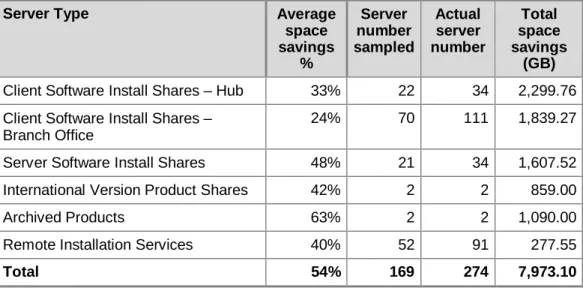
Microsoft IT, the internal IT organization within Microsoft, deployed Single Instance Storage on 274 servers on the Microsoft internal network to help reduce the file storage used by file services workloads. Table 10 lists the results that Microsoft realized by using Single Instance Storage.
Table 10. Microsoft IT Reduction in Storage Usage Using Single Instance Storage
Server Type Average
space savings
%
Server number sampled
Actual server number
Total space savings
(GB) Client Software Install Shares – Hub 33% 22 34 2,299.76 Client Software Install Shares –
Branch Office
24% 70 111 1,839.27
Server Software Install Shares 48% 21 34 1,607.52 International Version Product Shares 42% 2 2 859.00
Archived Products 63% 2 2 1,090.00
Remote Installation Services 40% 52 91 277.55
For more information about how Microsoft IT reduced storage usage by 25 percent to 40 percent, download Microsoft IT Showcase: Single Instance Storage in Microsoft Windows Storage Server 2003 R2.
Managing iSCSI Block I/O Workloads
The types of management tasks for disk block I/O workload include managing iSCSI targets, virtual disks, and connections to storage arrays. You can manage iSCSI block I/O workloads running on Windows Storage Server 2008 for the following components:
• Microsoft iSCSI Software Target
• Microsoft iSCSI Software Initiator
Managing the Microsoft iSCSI Software Target for iSCSI
Block I/O Workloads
The Microsoft iSCSI Software Target feature allows Windows Storage Server 2008 appliances to act as an iSCSI target. You can manage this feature by using the:
• Microsoft iSCSI Software Target snap-in.
• Share and Storage Management console.
Managing the Microsoft iSCSI Software Target Using Microsoft iSCSI
Software Target Snap-in
Typical tasks that you use the Microsoft iSCSI Target snap-in to perform include managing:
• iSCSI targets. iSCSI targets are the logical endpoint to which an iSCSI initiator connects. Typically, you assign just one iSCSI initiator to each iSCSI target. If you assign multiple iSCSI initiators to the same iSCSI target, there is a potential for conflict between the computers running the iSCSI initiators. The most typical reason for assigning multiple iSCSI initiators to the same iSCSI target is for shared storage in failover clusters. You manage iSCSI targets using the iSCSI Targets node in the Microsoft iSCSI Software Target snap-in.
• Virtual disks. Virtual disks are the LUNs that the computer running an iSCSI initiator uses. An iSCSI target can manage multiple virtual disks, but a virtual disk can only be managed by one iSCSI target. You manage virtual disks using the iSCSI Targets node in the Microsoft iSCSI Software Target snap-in.
• Virtual disk snapshots. Virtual disk snapshots are point-in-time copies of virtual disks that you can use to back up active virtual disks for disaster recover scenarios or to restore a LUN to a previous state. You manage virtual disks using the Snapshots node in the Microsoft iSCSI Software Target snap-in. For more information about using virtual disk snapshots for backup and in disaster recovery scenarios, see the section "Using Virtual Disk Snapshots to Protect iSCSI Block I/O Workload Data," later in this white paper.
Managing the Microsoft iSCSI Software Target Using Share and
Storage Management Console
You can manage storage on the Microsoft iSCSI Software Target using Share and Storage Management. The Microsoft iSCSI Software Target includes the Microsoft iSCSI Software Target VDS Hardware Provider that allows LUNs on Windows Storage Server 2008 to be managed by any application that uses VDS, such as Share and Storage Management. For more information about the Microsoft iSCSI Software Target VDS Hardware Provider, see the previous section, "Identifying Microsoft iSCSI Software Target Support for VSS and VDS Providers" in this white paper.
For more information about Share and Storage Management, see Overview of Share and Storage Management.
For more information about managing Microsoft iSCSI Software Target for iSCSI block I/O workloads, see:
• Configuring the Microsoft iSCSI Software Target.
• Microsoft iSCSI Software Target.
Managing the Microsoft iSCSI Software Initiator for iSCSI
Block I/O Workloads
The Microsoft iSCSI Software Initiator enables you to connect Windows operating systems to an external iSCSI-based storage array, such as the Microsoft iSCSI Software Target, through an Ethernet network adapter. All current Windows operating systems support the Microsoft iSCSI Software Initiator, and the most current version of the Microsoft iSCSI Software Initiator is version 2.08. The Microsoft iSCSI Software Initiator in Windows Storage Server 2008 allows the server software to connect to other external iSCSI-based storage arrays, such as those described in the section "Using Windows Storage Server 2008 as a NAS Gateway in Solutions," later in the white paper. You can manage the Microsoft iSCSI Software Initiator by using the:
• Graphical user interface in the Microsoft iSCSI Software Initiator.
• iSCSI Control Panel configuration utility (iSCSICPL.exe).
• iSCSICLI.exe tool from a command line.
For more information about managing the Microsoft iSCSI Software Initiator, see the Microsoft iSCSI Initiator Step-by-Step Guide.