171
Chapter 5
Microsoft Windows
Server 2008: Data
Protection
Solutions in this chapter:
BitLocker
Active Directory Rights Management Services Authorization ■ ■ ■ ˛ Summary
˛ Solutions Fast Track
Introduction
Computer and network security is of paramount importance for companies in the global marketplace, and a large percentage of these companies have Microsoft infrastructures in place, including domain controllers (DCs), Exchange servers, and Vista and XP workstations. A Windows server provides a number of useful functions in a company’s network infrastructure. In this chapter we explain how BitLocker, Digital Rights Management Services, and authentication can help you secure your data.
BitLocker
Everyone has heard the new reports about laptops being stolen, temporarily misplaced, or lost. The data stored on the hard drive can be retrieved by means other than through the operating system. Things such as bootable CDs or USB keys can be used to bypass the operating system and get directly to the information stored on the physical media without the need to know any passwords. Once the operating system has been bypassed, all the fi les on the drive can be viewed, edited, or copied. The best safeguard to defend against this security issue is encryption.
BitLocker is Microsoft’s answer to providing better security by encrypting the data stored on the drive’s operating system volume, and is available only in the Enterprise and Ultimate versions of Vista. This new security feature goes a long way toward helping users and organizations protect their data.
You can set up BitLocker in the following confi gurations:
TPM only In this confi guration, only the hardware microchip is used to protect the data stored on the drive. The Trusted Platform Module (TPM) stores the encryption key and verifi es that there have been no changes to the hard drive.
TPM and USB fl ash drive In this confi guration, the TPM will still verify the validity of the hard drive, but in addition, part of the encryption key is stored on the USB fl ash drive. The USB fl ash drive is required each time the computer starts.
TPM and PIN This confi guration is also a two-layer security approach. After successful verifi cation of the drive, you will be required to enter the correct PIN for the start process to continue.
■
■
The default confi guration for BitLocker is to be used in conjunction with a TPM. The TPM is a hardware microchip embedded into the motherboard that is used to store the encryption keys. This protects the hard drive even if it has been removed from the computer and installed into another computer. You can also use BitLocker on systems that don’t have the TPM hardware manufactured on the mother board. You can do this by changing the BitLocker’s default confi gurations with either a Group Policy or a script. When you use BitLocker without a TPM, you must store the key on a USB fl ash drive and insert the USB fl ash drive into the computer for the system to boot.
N
OTEIt is important to create a recovery password in case there are any hardware failures that may prevent the system from booting. Things such as mother-board failures and USB fl ash drive failures, where applicable, will affect the system. If a hardware failure occurs, the only way to recover the data is through the recover mode, and a recovery password is required. There are no other ways to restore the data without the recovery password.
Tools & Traps…
BitLocker Vulnerabilities
BitLocker is a new security feature in Vista. As with all security technology, some people are working on creating vulnerabilities or ways around this secu-rity, so you must always be aware that new threats are coming out all the time. Therefore, BitLocker is just another technical challenge to many hackers in the world.
To use a BitLocker-enabled system, the key must be stored in RAM while the system is up and running. Universities have found that when a system is shut down, it’s possible to retrieve the key from RAM for up to several min-utes, giving a hacker complete control over the entire system and all fi les
The hardware and software requirements for BitLocker are:
A computer that is capable of running Windows Server 2008 A Trusted Platform Module version 1.2, enabled in BIOS A Trusted Computing Group (TCG)-compliant BIOS.
Two NTFS disk partitions, one for the system volume and one for the operating system volume
Trusted Platform Modules
Developed by the Trusted Platform Group—an initiative by vendors such as AMD, Hewlett-Packard, IBM, Infi neon, Intel, Microsoft, and others—a TPM is a semiconductor built into your computer motherboard. It is capable of generating cryptographic keys, limiting the use of those keys, and generating pseudo-random numbers.
Each TPM has a unique RSA key (the endorsement key ) burnt into it that cannot be altered. The key is used for data encryption (a process known as binding ) . A TPM also provides facilities for Secure I/O, Memory curtaining, Remote Attestation , and Sealed
Storage. You can secure your TPM module by assigning a TPM owner password.
With secure input and output (which is also known as trusted path ), it is possible to establish a protected path between the computer user and the software that is running. The protected path prevents the user from capturing or intercepting data sent from the user to the software process, for example playing a media fi le. The trusted path is implemented in both hardware (TPM) and software and uses checksums for the verifi cation process.
■
■
■
■
stored on the drive. The main way to avoid this, of course, is to never leave a system unattended in an unsecured area in the fi rst place. The next step is to completely shut down the system so that the RAM can be allowed to fully discharge.
When Vista is used in a domain environment, it is important for the domain administrators to be able to retrieve the information stored on a sys-tem in case of any emergency or other type of event. In a case where a user isn’t able to work or is asked to leave the company, the information on the hard drive still needs to be accessed and recoverable. Active Directory domains in Server 2003 and 2008 provide administrators with the safeguard to set up Group Policies and have the BitLocker key backed up and stored in Active Directory on the servers.
Memory curtaining provides extended memory protection. With memory curtaining, even the operating system does not have full access to the protected memory area.
Remote attestation creates a hashed summary of the hardware and software confi guration of a system. This allows changes to the computer to be detected.
Sealed storage protects private information in a manner that the information can be read only on a system with the same confi guration. In the preceding example, sealed storage prevents the user from opening the fi le on a “foreign” media player or computer system. In conjunction, it even prevents the user from making a copy ( memory curtaining ) or capturing the data stream that is sent to the sound system ( secure I/O ).
A Practical Example
You download a music fi le from an online store. Digital rights management protects the fi le. All security methods are enforced: the fi le plays only in media players provided by the publisher ( remote attestation ). The fi le can be played only on your system ( sealed
storage ), and it can neither be copied ( memory curtaining ) nor digitally recorded by the
user during playback ( secure I/O ).
The major features of BitLocker are full-volume encryption, checking the integrity of the startup process, recovery mechanisms, remote administration, and a process for securely decommissioning systems.
Full Volume Encryption
Windows BitLocker provides data encryption for volumes on your local hard drive. Unlike Encrypting File System (EFS), BitLocker encrypts all data on a volume— operating system, applications and their data, as well as page and hibernation fi les. In Windows Server 2008, you can use BitLocker to encrypt the whole drive , as compared to Windows Vista where you can encrypt volumes. BitLocker operation is transparent to the user and should have a minimal performance impact on well-designed systems. The TPM endorsement key is one of the major components in this scenario.
Startup Process Integrity Verifi cation
Because Windows Startup components must be unencrypted for the computer to start, an attacker could gain access to these components, change the code, and then gain access to the computer, thereby gaining access to sensitive data such as BitLocker keys or user passwords as a consequence.
To prevent such attacks, BitLocker Integrity checking ensures that startup components (BIOS, Master Boot Record (MBR), boot sector, and boot manager code) have not been changed since the last boot.
Each startup component checks its code each time the computer starts, and calculates a hash value. This hash value is stored in the TPM and cannot be replaced until the next system restart. A combination of these values is also stored.
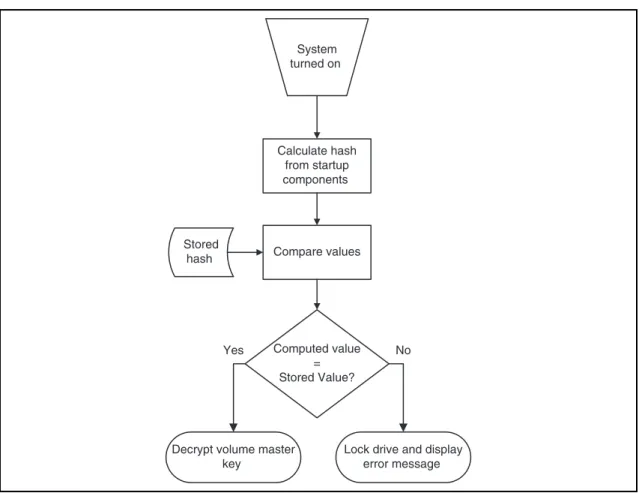
These values are also used to protect data. For this to work, the TPM creates a key that is bound to these values. The key is encrypted by the TPM (with the endorsement key) and can be decrypted only by the same TPM. During computer startup, the TPM compares the values that have been created by startup components with the values that existed when the key was created (see Figure 5.1 ). It decrypts the key only if these values match.
Computed value = Stored Value? Compare values
Lock drive and display error message Decrypt volume master
key Stored hash System turned on Calculate hash from startup components No Yes
Recovery Mechanisms
BitLocker includes a comprehensive set of recovery options to make sure data not only is protected, but also available. When BitLocker is enabled, the user is asked for a recovery password. This password must be either printed out, saved to fi le on a local or network drive, or saved to a USB drive.
In an enterprise environment, however, you would not want to rely on each user to store and protect BitLocker keys. Therefore, you can confi gure BitLocker to store recovery information in Active Directory. We will cover key recovery using Active Directory later in this chapter.
Remote Administration
Especially in environments with branch offi ces, it is desirable to have a remote management interface for BitLocker. A WMI script provided by Microsoft allows for BitLocker remote administration and management. You will fi nd the script in the \Windows\System32 folder after you install BitLocker.
To manage a BitLocker protected system via script: 1 . Log on as an administrator.
2 . Click Start , click All Programs , click Accessories , and then click Command Prompt .
3 . At the command prompt type cd /d C:\Windows\System32 .
4 . For example, to view the current status of BitLocker volumes, type cscript
manage-bde.wsf -status .
Secure Decommissioning
If you decommission or reassign (maybe donate) equipment it might be necessary to delete all confi dential data so that it cannot be reused by unauthorized people. Many processes and tools exist to remove confi dential data from disk drives. Most of them are very time consuming, costly, or even destroy the hardware.
BitLocker volume encryption makes sure that data on a disk is never stored in a format that can be useful to an attacker, a thief, or even the new owner of the hardware. By destroying all copies of the encryption key it is possible to render the disk permanently inaccessible. The disk itself can then be reused.
There are two scenarios when deleting the encryption key:
Deleting all key copies from volume metadata, while keeping an archive of it in a secure location such as a USB fl ash drive or Active Directory. This approach allows you to temporarily decommission hardware. It also enables you to safely transfer or ship a system without the risk of data exposure. Deleting all key copies from volume metadata without keeping any archive. Thus, no decryption key exists and the disk can no longer be decrypted.
BitLocker Architecture
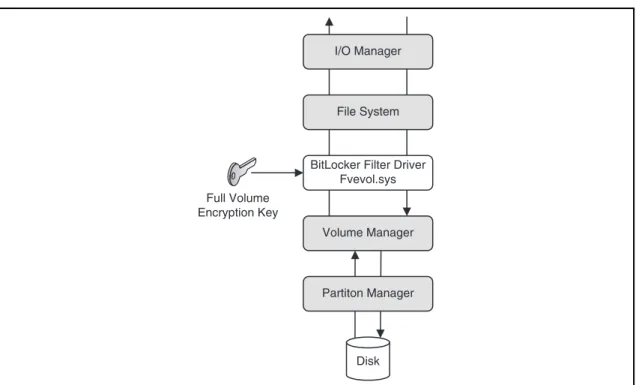
Once Integrity verifi cation is successful, a fi lter driver encrypts and decrypts disk sectors transparently as data is written or read from the protected volume. The fi lter driver is a component of Windows Server 2008 or Vista and is inserted into the fi le system stack during BitLocker installation (see Figure 5.2 ), thus requiring a system restart. After the initial encryption of the volume is completed, BitLocker operation is completely transparent to the user.
■
■
Notes from the Underground…
New Group Policy Settings to Support BitLocker
To support centralized administration of BitLocker, Group Policy (GPO) has been extended in Windows Server 2008 Active Directory. The new set of GPO settings allows for confi guration of BitLocker as well as TPM. These can be found under Computer Confi guration/Administrative Templates/Windows Components/ BitLocker Drive Encryption and Computer Confi guration/Administrative Templates /System/Trusted Platform Module. To confi gure these settings, make sure you have at least one Windows Vista or Windows Server 2008 Computer in your Active Directory to create a policy with the new settings available.
Keys Used for Volume Encryption
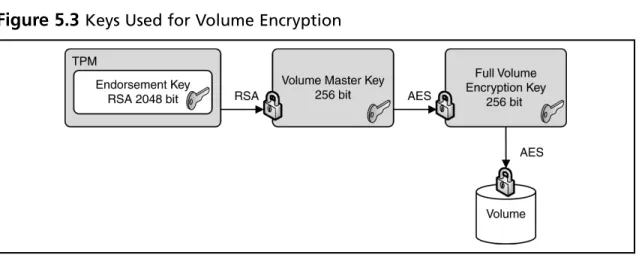
Volume encryption does not simply create a single key, which it will use to encrypt the volume. In fact, a full volume encryption key is used to encrypt the entire volume. This key is a 256-bit Advanced Encryption Standard (AES) key. BitLocker encrypts the full volume key with a volume master key . The volume master key is also 256-bit AES. Finally, the volume master key is encrypted with the TPM endorsement key . As mentioned before, the endorsement key is a RSA key (see Figure 5.3 ).
File System
Partiton Manager I/O Manager
Volume Manager BitLocker Filter Driver
Fvevol.sys
Disk Full Volume
Encryption Key
Hardware Upgrades
on BitLocker Protected Systems
Thanks to the use of volume master key , upgrades of hardware such as CPU, mother-board, and such are not very time consuming. To do so you have to disable BitLocker. Disabling BitLocker will not decrypt protected volumes. Instead, the volume master
Notes from the Underground…
New Group Policy Settings to Support BitLocker
Why does BitLocker use a volume master key? Wouldn’t it be easier to encrypt the full volume encryption key directly with the TPM endorsement key? At fi rst glance, this would make sense. However, without the volume master key you would have to decrypt and reencrypt the entire volume in case an upstream key is lost or compromised.
key will be encrypted with a symmetric key, which is stored unencrypted on the hard drive. Moving the disk to another BitLocker-enabled system and activating the volume is possible without any additional steps. Because the encryption key for the volume master key is stored unencrypted on the disk, administrators can boot the system and the reenable BitLocker.
By reenabling BitLocker the unencrypted key is removed from the disk, the volume master key is keyed and encrypted again, and BitLocker is turned back on.
BitLocker Authentication Modes
After Installation BitLocker can be confi gured to seamlessly integrate into the boot process (TPM only)—therefore being transparent to the user—or can require additional information in the form of a PIN or a startup key to initiate the boot process (TPM with PIN or startup key). The later scenarios add an additional layer of security through the use multifactor authentication options. TPM with PIN requires something the user knows (e.g., the PIN), TPM with startup key requires something the user has (e.g., a USB device).
TPM Only
In this scenario, you enable BitLocker with a TPM only. No additional authentication options are used. BitLocker operation is completely transparent to the user and
requires no interaction during the boot process.
TPM with PIN Authentication
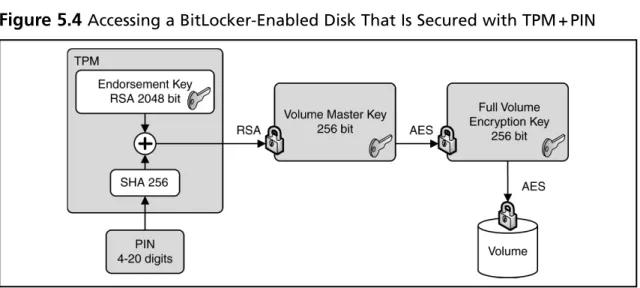
Using TPM with PIN authentication, the administrator sets up a PIN during BitLocker initialization. The PIN is hashed using SHA-256 and the fi rst 160 bits of the hash are used as authorization data for the TPM. The TPM uses the PIN data to seal the volume master key. Both the TPM and the PIN now protect the volume master key. During system startup or resume from hibernation, the user has to input the PIN to unseal the volume master key and initiate the boot process (see Figure 5.4 ).
TPM with Startup Key Authentication
In this scenario the administrator creates a startup key during BitLocker initialization and stores it on any USB device that can be enumerated by the computer BIOS. During system startup or resume from hibernation, the user must insert the device. The device can be removed after the system has successfully booted.
Startup Key-Only
In this scenario, the administrator enables BitLocker on a computer without a TPM module. The startup key for the computer is generated during initialization and is stored on a USB fl ash drive. The computer user has to insert the USB fl ash drive each time the computer starts or resumes from hibernation.
A system confi gured to use a startup key-only confi guration will not provide the same level of security as a system using one of the TPM modes. It will not check the integrity of system startup components. Using this scenario, make sure you create a Backup copy of the startup key! You do this by using the Control Panel BitLocker applet. The system saves the startup key with a .bek extension.
When to Use BitLocker
on a Windows 2008 Server
In shared or unsecured environments such as branch offi ces, BitLocker can provide an additional level of security to a server. By securing the startup process and encrypting the operating system volume and all data volumes, BitLocker protects data from unauthorized access.
The BitLocker feature is not installed by default on Windows Server 2008. You would install it using Server Manager. Setup and maintenance are performed either by GUI tools or from the command line using a script, which also allows for remote management. On Windows Server 2008, BitLocker also integrates with Extensible Firmware Interface (EFI) computers to support IA64 hardware platforms. EFI is a newer, more fl exible alternative to classical BIOS implementations. You should not install and enable BitLocker on a Windows Server 2008 Cluster machine, as it is a nonsupported scenario.
Encryption of data volumes on Windows Server 2008 is also supported. Data volumes are encrypted the same way as operating system volumes. Windows Server 2008 will automatically mount and decrypt these volumes on startup when confi gured to do so.
Support for Multifactor
Authentication on Windows Server 2008
Multifactor authentication extends the security of BitLocker protected drives, although there are some constraints that you should think about when you plan to implement it.
PIN Authentication
Although it might not be desirable to use BitLocker with multifactor authentication on a Server, PIN authentication is a supported scenario on Windows Server 2008. If you manage a server remotely and have to reboot, who would enter the PIN?
Of course, there are third-party solutions to overcome this limitation. Most of the modern server boxes offer a built-in remote management solution that is independent of the operating system. For example, Hewlett-Packard offers a so-called Integrated Lights Out (ILO) board to remotely connect to a server and transfer the screen to your desk.
If no remote management solutions were available, another possibility would be to instruct a trustworthy person at the branch offi ce on how and when to enter the pin.
Startup Key Authentication
Of course, startup key support also is built into Windows Server 2008 BitLocker. All the facts mentioned for PIN support apply also to the startup key scenario, plus an additional one: startup keys protect the server only if the key is not left in the server after startup completes. Hence, there must be someone to insert and remove the USB device every time you reboot the server.
Enabling BitLocker
Due to its tight integration into the operating system, enabling BitLocker is straight-forward. Before you begin installing and confi guring, make sure that the machine you want to secure meets all software and hardware requirements. To enable BitLocker you must be a member of the local administrators group on your computer.
Partitioning Disks for BitLocker Usage
For BitLocker to work your system must have at least two partitions confi gured. The fi rst, unencrypted partition is the system partition, which contains boot information. The second partition is the boot volume, which is encrypted and contains the operating system. Both partitions must be created before you install the operating system.
If you forgot to partition your system accordingly, there’s no way of reconfi guring your partitions (see Figure 5.5 ). Therefore, you must repartition your hard disk and reinstall the operating system from scratch.
Figure 5.5 BitLocker Refuses to Confi gure the System Due to an Invalid Partition Scheme
Creating Partitions for a Bitlocker Installation
In this section we’ll show you how to create partitions for a Bitlocker installation. 1 . Start the computer from the Windows Server 2008 Product DVD.
2 . In the Install Windows screen, choose your Installation language , Time and currency format and Keyboard layout , and then click Next . 3 . In the Install Windows screen, click Repair your Computer .
4 . In the System Recovery Options dialog box, make sure no operating system is selected. Then click Next .
5 . In the System Recovery Options dialog box, click Command Prompt . 6 . At the command prompt type Diskpart and then type Enter .
7 . Type select disk 0 .
8 . Type clean to erase all existing partitions.
9 . Type create partition primary size=1500 . This will create a primary partition with a size of 1.5 GB.
10 . Type assign letter=B to give this partition drive letter B. 11 . Type activate to set the partition as the active partition.
12 . Type create partition primary to create a partition with the remaining space. Windows Server 2008 will be installed on this partition.
13 . Type assign letter=c .
14 . Type list volume to see a display of all the volumes on this disk. 15 . Type exit .
16 . Type format c: /y /f /fs:ntfs to format the C volume. 17 . Type format b: /y /f /fs:ntfs to format the B volume. 18 . Type exit .
19 . Close the System Recovery Options window by clicking the close window icon in the upper right (do not click Shut Down or Restart). 20 . Click Install now to install Windows Server 2008. Use the larger partition
Installing BitLocker on Windows Server 2008
As we already mentioned, BitLocker is a Feature of Windows Server 2008 and is not installed by default. To install BitLocker you use Server Manager as you would with all other roles and features. Be aware that a restart is required after installation. You can also install BitLocker from the command line by typing ServerManagerCmd
-install BitLocker –restart .
Here are the steps to follow to install Bitlocker on Windows Server 2008. 1 . Log on as an administrator.
2 . Click Start | Administrative Tools | Server Manager . 3 . Scroll down to Feature Summary ; click Add Features .
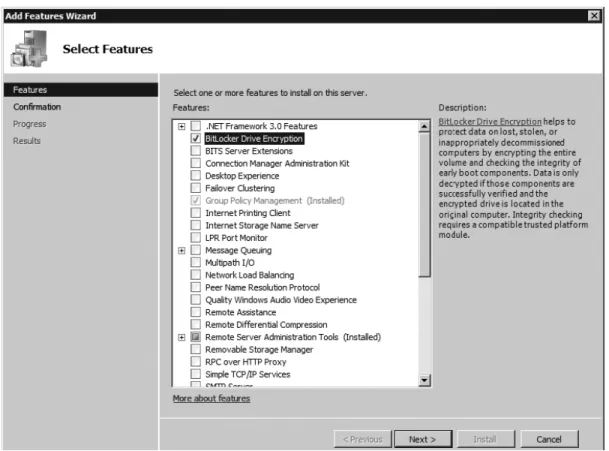
4 . On the Select Features page, choose BitLocker Drive Encryption (see Figure 5.6 ), and then click Next .
5 . On the Confi rm Installation Selections page, click Install . 6 . When installation is complete, click Close .
7 . In the Do you want to restart Window click Yes .
Turning on and Confi guring BitLocker
After installing the BitLocker Feature on your Server and rebooting the system, you need to turn on BitLocker via a Control Panel applet. Make sure you are logged on as an administrator on the system and you have decided where to store the recovery password. In case your computer does not have a TPM module or the TPM module is not supported, you will receive a warning (see Figure 5.7 ).
Here are the steps to follow for turning on BitLocker. 1 . Log on as an administrator.
2 . Click Start , click Control Panel , and then click BitLocker Drive
Encryption .
3 . On the BitLocker Drive Encryption page, click Turn On BitLocker on the operating system volume (see Figure 5.8 ).
N
OTEBefore you start with BitLocker confi guration, make sure that you open Server Manager (in case you selected the Do not show me this console at
next logon checkbox) and let the Post-Install wizard fi nish the installation.
4 . On the BitLocker Drive Encryption Platform Check dialog box click Continue with BitLocker Drive Encryption .
5 . If your TPM is not initialized already, you will see the Initialize TPM
Security Hardware screen.
6 . On the Save the recovery password page, click Save the password on a
USB drive (see Figure 5.9 ).
7 . On the Save a Recovery Password to a USB Drive box, select your USB drive and click Save .
8 . On the Encrypt the selected disk volume page, confi rm that the Run
BitLocker System Check checkbox is selected, and then click Continue . 9 . Confi rm that you want to reboot.
During the reboot phase, BitLocker verifi es the system and makes sure it is ready for encryption. After rebooting the system, you should log back on to the system and
verify that the Encryption in Progress status bar is displayed in the BitLocker Control Panel applet. In case your system cannot be enabled for BitLocker, an error message pops up during logon (see Figure 5.10 ).
Turning on Bitlocker for Data Volumes
Now we’ll show you how to turn on BitLocker for data volumes. 1 . Log on as an administrator.
2 . Click Start , click All Programs , click Accessories , and then click Command Prompt .
3 . At the command prompt type manage-bde –on <volume>: -rp –rk F:\ . This will encrypt the named volume, generate a recovery password, and store a recovery key on drive F:\ (which is the USB drive, in this example). Don’t forget to record the recovery password!
4 . At the command prompt type manage-bde –autounlock –enable
<volume>: to enable automatic unlocking of the volume. The key to
Figure 5.10 Error Enabling BitLocker
T
ESTD
AYT
IPIf you do not have a TPM module in your computer or are using virtual machines, you will not be able to confi gure BitLocker as described in Exercise 6.3. Alternatively, you can continue with Exercise 6.5, which fi rst enables BitLocker operation without a TPM and then continues with the confi guration.
automatically unlock the volume on each restart is stored on the operating system volume, which must be fully encrypted before this command is issued.
Confi guring BitLocker for TPM-Less Operation
The following steps confi gure your computer’s Group Policy settings to turn on BitLocker on systems without a TPM.
1 . Logon as an administrator.
2 . Click Start , click Run , type gpedit.msc in the open box, and then click OK .
3 . In the Local Group Policy Editor console tree, click Local Computer
Policy , click Administrative Templates , click Windows Components , and then click BitLocker Drive Encryption .
4 . Double-click the setting Control Panel Setup: Enable Advanced
Startup Options .
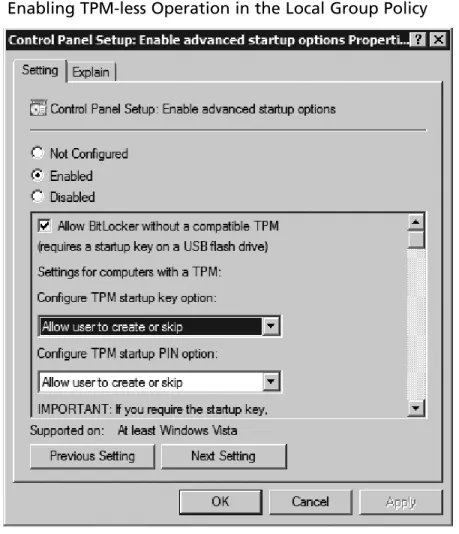
5 . Select the Enabled option, select the Allow BitLocker without
a compatible TPM check box, and then click OK (see Figure 5.11 ).
N
OTEWindows Server 2008 mounts a protected data volume as normal. The keys for protecting a data volume are independent of the keys used to protect the operating system volume. The key-chain protecting the data volume is also stored on the encrypted boot volume, therefore allowing the boot volume to automatically mount any data volume after system restart.
Turning on BitLocker on Systems without a TPM
Turning on BitLocker on systems without a TPM is similar to the normal activation process. Make sure you have a USB fl ash drive available to store the startup key.
1 . Log on as an administrator.
2 . Click Start , click Control Panel , and then click BitLocker Drive
Encryption .
3 . On the BitLocker Drive Encryption page, click Turn On BitLocker on the operating system volume.
4 . On the BitLocker Drive Encryption Platform Check dialog box click Continue with BitLocker Drive Encryption .
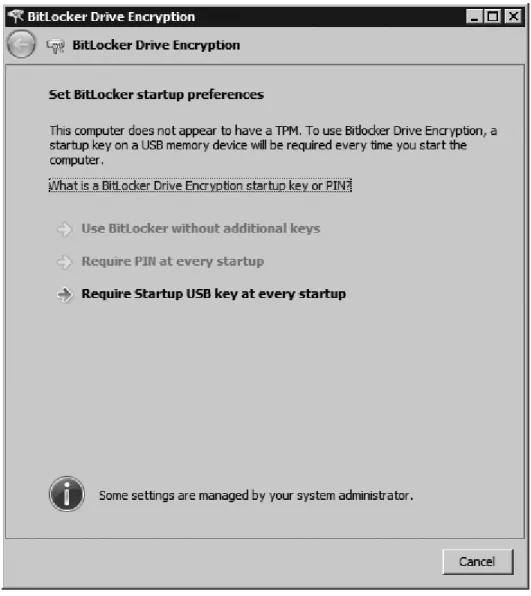
5 . On the Set BitLocker startup preferences page select Require Startup
USB key at every startup (see Figure 5.12 ).
6 . On the Save your Startup Key page select your USB drive from the list and click Next .
7 . On the Save the recovery password page, click Save the password on a
USB drive .
8 . On the Save a Recovery Password to a USB Drive Box, select your USB drive and click Save .
9 . On the Encrypt the selected disk volume page, confi rm that the Run
BitLocker System Check checkbox is selected, and then click Continue . 10 . Confi rm that you want to reboot.
Administration of BitLocker
In a managed Enterprise environment, it can be problematic to allow each user to enable BitLocker by themselves. Not only do you have to add the user to the local administrators group, you also give out the management of recovery passwords and/ or PINs and startup keys. In the real world, users forget their passwords and PINs. So why should this be different with BitLocker recovery information? Here’s an example: A user with a laptop decides to use BitLocker to make sure the data is secure even when the laptop is stolen. After enabling BitLocker, the user puts the recovery pass-word printout into the laptop bag... A security nightmare!
One method to act upon such defi ciencies is to educate users and increase their awareness so that they get more sensitive for security-related matters. Another approach might be technical. Windows Server 2008 extends well-known techniques and tools to give the administrator control over the BitLocker lifecycle. Group
Policies settings were added to control the behavior of BitLocker on client and server systems. Furthermore, the Windows Management Instrumentation (WMI) Interface for BitLocker allows for local and remote management of BitLocker. We will talk about the possibilities of WMI later in this chapter.
Using Group Policy with BitLocker
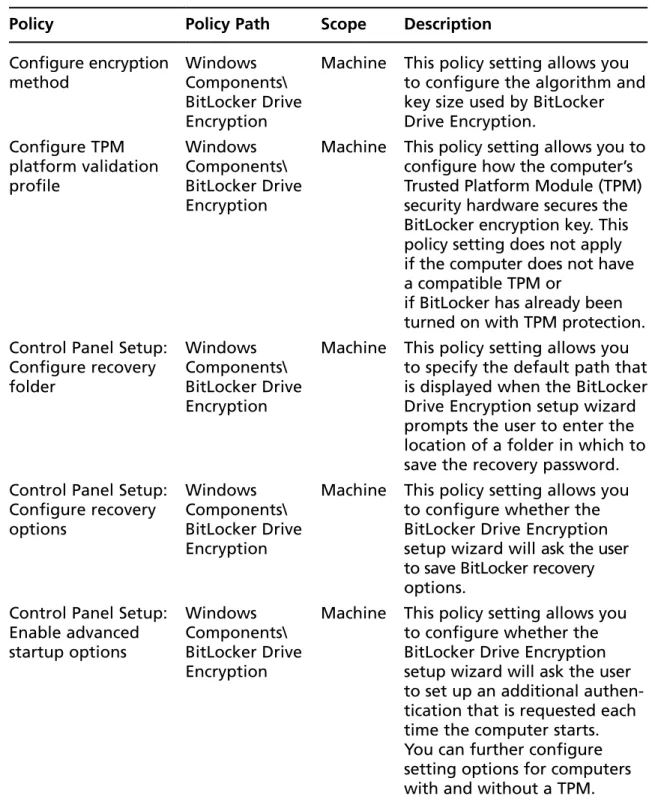
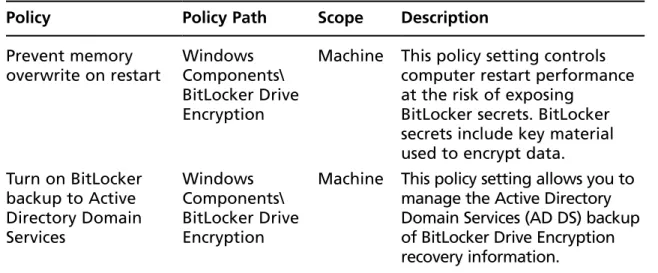
Group Policy (GPO) in Windows Server 2008 has been extended to provide BitLocker-specifi c confi guration settings. With GPO, the administrator can control BitLocker installation and confi guration as well as centralized storage of recovery passwords. Table 5.1 lists Windows Server 2008’s Group Policy settings for BitLocker.
Table 5.1 Overview of Windows Server 2008 BitLocker Group Policy Settings
Policy Policy Path Scope Description
Confi gure encryption method
Windows Components\ BitLocker Drive Encryption
Machine This policy setting allows you to confi gure the algorithm and key size used by BitLocker Drive Encryption. Confi gure TPM platform validation profi le Windows Components\ BitLocker Drive Encryption
Machine This policy setting allows you to confi gure how the computer’s Trusted Platform Module (TPM) security hardware secures the BitLocker encryption key. This policy setting does not apply if the computer does not have a compatible TPM or
if BitLocker has already been turned on with TPM protection. Control Panel Setup:
Confi gure recovery folder
Windows Components\ BitLocker Drive Encryption
Machine This policy setting allows you to specify the default path that is displayed when the BitLocker Drive Encryption setup wizard prompts the user to enter the location of a folder in which to save the recovery password. Control Panel Setup:
Confi gure recovery options
Windows Components\ BitLocker Drive Encryption
Machine This policy setting allows you to confi gure whether the BitLocker Drive Encryption setup wizard will ask the user to save BitLocker recovery options.
Control Panel Setup: Enable advanced startup options Windows Components\ BitLocker Drive Encryption
Machine This policy setting allows you to confi gure whether the BitLocker Drive Encryption setup wizard will ask the user to set up an additional authen-tication that is requested each time the computer starts. You can further confi gure setting options for computers with and without a TPM.
Storing BitLocker and TPM
Recovery Information in Active Directory
In conjunction with Group Policy and a downloadable toolkit, Active Directory can be confi gured to store backup information for Windows BitLocker and the Trusted Platform Module. Recovery information includes the recovery password, the TPM owner password, and the information required to identify to which computers and volumes the recovery information applies. Optionally, you can also save a package containing the actual keys used to encrypt the data as well as the recovery password required to access those keys.
As a best practice, confi gure Active Directory integration fi rst and then allow BitLocker usage on clients and servers. If you enable BitLocker on clients fi rst, recovery passwords for those computers are not stored in Active Directory, leading to an inconsistent experience in case you have to recover.
Storage of BitLocker Recovery Information in Active Directory
BitLocker recovery information is stored in Active Directory as a child object to the computer object. That is, the computer object acts as the parent container for a recovery object. Each BitLocker object includes the recovery password as well as other recovery information. Multiple recovery objects can exist under each computer account because there can be more than one recovery password for each protected volume.
Policy Policy Path Scope Description
Prevent memory overwrite on restart Windows Components\ BitLocker Drive Encryption
Machine This policy setting controls computer restart performance at the risk of exposing
BitLocker secrets. BitLocker secrets include key material used to encrypt data.
Turn on BitLocker backup to Active Directory Domain Services Windows Components\ BitLocker Drive Encryption
Machine This policy setting allows you to manage the Active Directory Domain Services (AD DS) backup of BitLocker Drive Encryption recovery information.
Table 5.1 Continued. Overview of Windows Server 2008 BitLocker Group
BitLocker recovery information is stored in objects from type
msFVE-RecoveryInformation . These objects are named after the following scheme: <Object Creation Date and Time><Recovery GUID>
For example:
2008-01-30T08:17:05-09:00{063DC7a8-879D-DE34-FF6F-2417448D55CB}
Each msFVE-RecoveryInformation object contains the attributes listed in Table 5.2 .
Storage of TPM Information in Active Directory
TPM owner passwords are stored as an attribute of the computer object in Active Directory. During TPM initialization or when the TPM password is changed, the hash of the password is stored in Active Directory in the ms-TPM-OwnerInformation.
Prerequisites
Since BitLocker Active Directory backup stores information in Active Directory objects, you need to extend the schema to support the storage of BitLocker-specifi c data. Schema extensions and scripts for enabling the Active Directory backup func-tionality are included in a downloadable toolkit from Microsoft. To access the down-load follow this link: http://go.microsoft.com/fwlink/?LinkId=78953 . After
extraction, the following sample scripts should help with the implementation:
Add-TPMSelfWriteACE.vbs BitLockerTPMSchemaExtension.ldf List-ACEs.vbs Get-TPMOwnerInfo.vbs Get-BitLockerRecoveryInfo.vbs ■ ■ ■ ■ ■
Attribute Name Description
ms-FVE-RecoveryPassword Contains the 48-digit recovery password
ms-FVE-RecoveryGuid Contains the GUID associated with a BitLocker
recovery password
ms-FVE-VolumeGuid Contains the GUID associated with a
BitLocker-supported disk volume
ms-FVE-KeyPackage Contains a volume’s BitLocker encryption key
N
OTEBitLocker recovery information is stored in Active Directory attributes fl agged as confi dential. The confi dential fl ag is a feature introduced in Windows Server 2003 Service Pack1 and provides advanced access control for sensitive data. With this feature, only domain administrators and authorized users have read access to those attributes. Therefore Active Directory backup for BitLocker recovery information should be implemented only if your domain controllers are running Windows Server 2003 Service Pack 1, Windows Server 2003 R2, or Windows Server 2008, ensuring backed up BitLocker information is properly protected.
Extending the Schema
The fi rst step in confi guring Active Directory BitLocker backup is extending the Active Directory schema to allow storage of BitLocker specifi c objects (see Figure 5.13 ). Before you start, extract the toolkit fi les to a folder named C:\BitLocker-AD .
To extend the Active Directory schema:
1 . Logon with an account that is a member of the schema admins group. 2 . Click Start , click All Programs , click Accessories , and then click
Command Prompt .
3 . At the command prompt, type cd /d C:\BitLocker-AD .
4 . At the command prompt, type ldifde -i -v -f BitLockerTPMSchema
Extension.ldf -c “DC=X” “distinguished name of your domain” -k -j. Do not forget the period at the end of the command!
C:\BitLocker-AD>ldifde -i -v -k -f BitLockerTPMSchemaExtension.ldf -c “DC=X” “DC=nsoftincad,dc=internal” -j .
Connecting to “Alpha.Nsoftincad.Internal” Logging in as current user using SSPI
Importing directory from fi le “BitLockerTPMSchemaExtension.ldf” Loading entries
1: CN=ms-TPM-OwnerInformation,CN=Schema,CN=Confi guration,DC=nsoftincad,dc=internal Entry already exists, entry skipped
2: CN=ms-FVE-RecoveryGuid,CN=Schema,CN=Confi guration,DC=nsoftincad,dc=internal Entry already exists, entry skipped
3: CN=ms-FVE-RecoveryPassword,CN=Schema,CN=Confi guration,DC=nsoftincad,dc=internal Entry already exists, entry skipped
4: (null)
Entry modifi ed successfully.
5: CN=ms-FVE-RecoveryInformation,CN=Schema,CN=Confi guration,DC=nsoftincad,dc=internal Entry already exists, entry skipped
6: CN=computer,CN=Schema,CN=Confi guration,DC=nsoftincad,dc=internal Entry modifi ed successfully.
7: (null)
Entry modifi ed successfully.
8: CN=ms-FVE-VolumeGuid,CN=Schema,CN=Confi guration,DC=nsoftincad,dc=internal Entry already exists, entry skipped
9: CN=ms-FVE-KeyPackage,CN=Schema,CN=Confi guration,DC=nsoftincad,dc=internal Entry already exists, entry skipped
10: (null)
Entry modifi ed successfully.
11: CN=ms-FVE-RecoveryInformation,CN=Schema,CN=Confi guration,DC=nsoftincad,dc=internal Entry modifi ed successfully.
12: CN=ms-FVE-RecoveryInformation,CN=Schema,CN=Confi guration,DC=nsoftincad,dc=internal Attribute or value exists, entry skipped.
13: CN=ms-TPM-OwnerInformation,CN=Schema,CN=Confi guration,DC=nsoftincad,dc=internal Entry modifi ed successfully.
14: CN=ms-TPM-OwnerInformation,CN=Schema,CN=Confi guration,DC=nsoftincad,dc=internal Entry modifi ed successfully.
15: CN=ms-FVE-RecoveryGuid,CN=Schema,CN=Confi guration,DC=nsoftincad,dc=internal Entry modifi ed successfully.
16: CN=ms-FVE-RecoveryGuid,CN=Schema,CN=Confi guration,DC=nsoftincad,dc=internal Entry modifi ed successfully.
17: CN=ms-FVE-RecoveryGuid,CN=Schema,CN=Confi guration,DC=nsoftincad,dc=internal Entry modifi ed successfully.
18: CN=ms-FVE-RecoveryGuid,CN=Schema,CN=Confi guration,DC=nsoftincad,dc=internal Entry modifi ed successfully.
19: CN=ms-FVE-RecoveryPassword,CN=Schema,CN=Confi guration,DC=nsoftincad,dc=internal Entry modifi ed successfully.
20: CN=ms-FVE-RecoveryPassword,CN=Schema,CN=Confi guration,DC=nsoftincad,dc=internal Entry modifi ed successfully.
21: CN=ms-FVE-RecoveryPassword,CN=Schema,CN=Confi guration,DC=nsoftincad,dc=internal Entry modifi ed successfully.
22: (null)
Entry modifi ed successfully. 15 entries modifi ed successfully. The command has completed successfully
Setting Required Permissions for Backing Up TPM Passwords
The second step is to set permission in Active Directory. By default Windows Vista clients can back up BitLocker recovery information in Active Directory. However, to back up the TPM owner password an Access Control Entry (ACE) must be added to the computer object. To add the ACE use the Add-TPMSelfWriteACE.vbs script from the toolkit. To add the ACE entry:
1 . Log on with a domain administrator account.
2 . Click Start , click All Programs , click Accessories , and then click Command Prompt .
3 . At the command prompt type cscript Add-TPMSelf WriteACE.vbs .
The script will add a single ACE to the top-level domain object in your domain. The ACE is inherited by all computer child objects in Active Directory.
Enabling Group Policy Settings for
BitLocker and TPM Active Directory Backup
Here are the steps to follow to confi gure Group Policies for clients and servers to use BitLocker Active Directory Backup.
1 . Log on with a domain administrator to any Domain Controller.
2 . Click Start , click All Programs , click Administrative Tools , and then click Group Policy Management .
3 . In the Group Policy Management Console, expand the forest tree down to the domain level.
5 . In the Group Policy Management Editor, open Computer Confi guration , open Administrative Templates , open Windows Components , and then open BitLocker Drive Encryption .
6 . In the right pane, double-click Turn on BitLocker backup to Active
Directory .
7 . Select the Enabled option, select Require BitLocker backup
to AD DS , and click OK .
To further enable storage of TPM recovery information:
8 . Open Computer Confi guration , open Administrative Templates , open System , and then open Trusted Platform Module Services .
9 . In the right pane, double-click Turn on TPM backup to Active
Directory .
10 . Select the Enabled option, select Require TPM backup to AD DS , and click OK.
Recovering Data
BitLocker will lock the computer when an encryption key is not available. Likely causes for this can be:
Inserting the BitLocker-protected drive into a new computer Replacing the computer motherboard
Performing maintenance operation on the TPM (such as clearing or disabling)
Updating the BIOS
Upgrading critical early boot components that cause system integrity validation to fail ■ ■ ■ ■ ■
W
ARNINGIn this example, we use the Default Domain Policy to confi gure Active Directory backup for BitLocker and TPM recovery information. However, in a real-world scenario you would create a new GPO that contains only BitLocker specifi c settings!
Forgetting the PIN when PIN authentication has been enabled
Losing the USB fl ash drive containing the startup key when startup key authentication has been enabled
When TPM fails to check the integrity of startup components, it will lock the computer at a very early stage before the operating system starts. When locked, the system enters recovery mode. You can use a USB fl ash drive with the recovery password stored on it or use the keyboard to enter the recovery password manually. In recovery mode, the keyboard assignment is somewhat different: you use functions keys to enter digits. F1 through F9 represents digits 1 trough 9, F10 represents 0.
Testing Bitlocker Data Recovery
To test BitLocker for data recovery, follow these steps: 1 . Log on as an administrator.
2 . Click Start , click Run , type tpm.msc in the open box, and click OK . The TPM Management Console is displayed.
3 . Under Actions , click Turn TPM Off . 4 . Provide the TPM owner password, if required.
5 . When the Status panel in the TPM Management on Local Computer task panel reads “Your TPM is off and ownership of the TPM has been taken,” close that task panel.
6 . Click the Safely Remove Hardware icon in the notifi cation area to remove the USB fl ash drive from the system.
7 . Restart your computer. When you restart the computer, you will be prompted for the recovery password, because the startup confi guration has changed since you encrypted the volume.
8 . The BitLocker Drive Encryption Recovery Console should appear. 9 . Insert your USB fl ash drive and press ESC . The computer will restart
automatically.
10 . The system should boot normally.
■
Disabling BitLocker
If you want to turn off BitLocker, you need to decide if you want to disable
BitLocker or decrypt the volume. Disabling BitLocker allows for TPM maintenance while the data is kept encrypted. Decrypting the volume means that the entire
volume will be decrypted. Disabling BitLocker is supported only on operating system volumes and not on data volumes.
To turn off BitLocker Drive Encryption:
1 . Click Start , click Control Panel , click Security , and then click BitLocker
Drive Encryption .
2 . On the BitLocker Drive Encryption page, fi nd the volume on which you want BitLocker Drive Encryption turned off, and click Turn Off
BitLocker Drive Encryption .
3 . From the What level of decryption do you want dialog box, click either Disable BitLocker Drive Encryption or Decrypt the volume as needed.
Active Directory
Rights Management Services
Active Directory Rights Management Services (AD RMS) is a format- and application-agnostic service designed to safeguard information by deterring inadvertent sharing of information with unauthorized people. AD RMS protects information when it is connected and when it is not connected to the corporate network. A usage policy is bound to the protected item so that no matter where it travels the rights are enforced to ensure that only the authorized recipient is able to access the contents. The policy can restrict users from actions such as viewing, copying, forwarding, and printing.
T
IPIf you do not have a USB fl ash drive with the recovery password on it, you would press ENTER instead of ESC. After pressing ENTER , the system prompts you for the recovery password. Input the recovery password and press ENTER again.
Previously shipped as an add-on for Windows Server, AD RMS is now included out-of-the-box as a role in Windows Server 2008. This release delivers a number of enhancements focused on easing administration and opening up cross-organization collaboration.
Active Directory Rights Management Services (AD RMS) includes features not available in Microsoft Windows RMS. Windows RMS was available for Windows Server 2003 and was used to restrict access to rights-protected content to fi les made by RMS-enabled applications. The added features were incorporated to ease administrative overhead of AD RMS and to extend use outside the organization. New features include:
AD RMS is now a server role
Microsoft Management Console (MMC) snap-in Integration with AD FS
Self-enrollment of AD RMS servers
The ability to delegate responsibility with new AD RMS administrative roles
As shown in Figure 5.14 , AD RMS works through a service cluster providing license issuing and validation services to a group of users. As a user accesses AD RMS for the fi rst time through an RMS-enabled application, his machine is enrolled with the RMS cluster and is issued a Client Licensor Certifi cate (CLC). This certifi cate is a key component in the protection process. It enables the user to publish content with a specifi c usage policy assigned. The usage policy is derived from several elements:
Actions Explicitly allowed, denied, or undefi ned actions that include a default set (view, edit, save, export, print, forward, reply, reply all, extract, allow macros, view rights) and the ability to defi ne new application-specifi c actions
Expiration Policy Disable the content after a specifi c date, a duration following the content license being applied, or a duration following the initial opening of the document (akin to a “self-destruct” option)
Revocation Policy Requiring the content to check a revocation list each time the content is accessed to ensure that the user’s right to access the content has not been explicitly revoked
Extended Policy Miscellaneous settings including granting the user the ability to view using a browser-based RMS viewer, forcing the user to obtain a new license every time she accesses the content, and adding additional custom attributes
■ ■ ■ ■ ■ ■ ■ ■ ■
Users can create their own custom policy based on a combination of the above as exposed by the application, or they can use policies defi ned at the organization level. The organization-defi ned policies, known as policy templates , provide a basis for implementing uniform policies across a large number of users (e.g., “Confi dential Company Information Read Only”, “For Research and Development Teams Only”). The policy syntax is based on Extensible Rights Markup Language (XrML). It allows third-party developers to RMS-enable their application and extend the AD RMS service to meet their information protection needs. With the policy created the information can be distributed by any means necessary to the authorized recipients.
When the recipients receive the information their RMS-enabled application applies for a Use License. The fi rst time the machine accesses the RMS service a Machine Certifi cate (MC) is issued to the computer. The RMS client then validates the viewer’s identity by creating a Rights Account Certifi cate (RAC) for the user. With the MC and RAC the RMS client evaluates the usage policy. If everything checks out okay, the user is issued a Use License to access the content and the appli-cation enables that access. Microsoft ships two main sets of RMS-enabled appliappli-cations today in the Offi ce suite and Internet Explorer. For Offi ce, you require the Professional edition or better to author protected content, whereas lower editions are only able to view the content. Internet Explorer acts as a viewer for RMS-protected content through an ActiveX plug-in.
You can deploy AD RMS in either a stand-alone server or a clustered confi guration. This gives you the fl exibility to get started with a basic confi guration and scale up to handle a larger volume of usage or implement redundancy as needed.
Before you install AD RMS on Windows Server 2008, you will need to have the .NET Framework 3.0 installed. Because of this dependency, you cannot install AD RMS on a Server Core installation of Windows Server 2008.
Managing Trust Policies
When you set up AD RMS it will trust your organization’s Active Directory domain by default. Depending on your business requirements you can expand or contract the boundaries of your RMS trust to specifi c user domains within your organization or other organizations. You can expand outside of your organization by trusting other AD RMS clusters, AD FS, as well as Windows Live ID accounts. The approach you take will depend on the types of trusts you require.
Issuing Use Licenses to users who are members of another AD RMS cluster requires that you explicitly trust the other cluster. You do this by adding the external cluster’s information into the Trusted User Domain (TUD) section of the Trust Policy. Once you’ve added it, you can allow or deny specifi c users or groups of users within the external AD RMS cluster.
Follow along as we extend the Trust Policy to another AD RMS cluster.
1 . Open the Control Panel , and under System and Maintenance |
Administration Tools double-click the Active Directory Rights
Management Services shortcut.
2 . In the Active Directory Rights Management Services management console, expand the cluster node and Trust Policie s node in the left-hand pane, and then click the Trusted User Domains node.
3 . In the right-hand action pane, click the Import Trusted User Domain link.
4 . In the Import Trusted User Domain dialog, provide the location of the Trusted User Domain File given to you by the administrator of the other AD RMS cluster, provide a Display Name , and click Finish .
To minimize the administrative burden for a small or diverse group of accounts you can use the Windows Live ID service as a source of RACs for users. Before you can do this, you will need to confi gure your AD RMS cluster to trust the Windows Live ID service. In preparation for this, be sure to enable anonymous access and expose the AD RMS licensing Web service (located at /_wmcs/licensing on your
Web server) for external users to obtain use licenses. Now, we will extend the Trust Policy to Windows Live ID.
1 . Open the Control Panel , and under System and Maintenance | Administration Tools double-click the Active Directory Rights Management Services shortcut.
2 . In the Active Directory Rights Management Services management console, expand the cluster node and Trust Policie s node in the left-hand pane, and then click the Trusted User Domains node.
3 . In the right-hand action pane, click the Trust Windows Live ID link.
AD RMS can also issue Publishing Licenses to users in other AD RMS clusters. This is useful if a trusted external cluster belongs to separate business units within your organization where a fully federated trust cannot be established. This process adds the external cluster’s Server Licensor Certifi cate (SLC) to the Trusted Publishing Domain (TPD) list.
Now let’s go through the steps for extending the trust policy to allow external users to receive publishing licenses.
1 . Open the Control Panel , and under System and Maintenance |
Administration Tools double-click the Active Directory Rights
Management Services shortcut.
2 . In the Active Directory Rights Management Services management console, expand the cluster node and Trust Policie s node in the left-hand pane, and then click the Trusted Publishing Domains node.
3 . In the right-hand action pane, click the Import Trusted Publishing
Domain link.
4 . In the Import Trusted Publishing Domain dialog, provide the location of the Trusted Publishing Domain File given to you by the administrator of the other AD RMS cluster, provide the Password for the fi le and a Display Name , and click Finish .
Federated trusts are an alternative to adding trusted organizations to both TUD and TPD lists. It is useful when you have a trusted partner organization with which you are working and sharing information. To protect both parties these trusts are not transitive, meaning that the TUD and TPD lists of one organization do not automatically
apply to the other organization. The trust is established at the highest level only. Now, we’ll go through the steps to establish a federated trust.
1 . Open the Control Panel , and under System and Maintenance |
Administration Tools double-click the Active Directory Rights
Management Services shortcut.
2 . In the Active Directory Rights Management Services management console, expand the cluster node and Trust Policies node in the left-hand pane, and then click the Federated Identity Support node.
3 . In the right-hand action pane, click the Enable Federated Identity
Support link.
4 . In the right-hand actions pane. click Properties .
5 . In the Federated Identity Support dialog, on the Policies tab, provide the Federated Identity Certifi cate Service URL for the external AD RMS cluster that will be trusted and click OK .
Exclusion Policies
In addition to including organizations, you can exclude certain users based on e-mail domains, specifi c addresses, applications, RMS client version, and Windows operating system version.
When using the Windows Live ID trust you can exclude specifi c users from obtaining a use certifi cate by adding them to the exclusion list. This could be useful if there are known users who present a security risk to corporate information. Now, we’ll walk through the steps of excluding Windows Live IDs.
1 . Open the Control Panel , and under System and Maintenance |
Administration Tools double-click the Active Directory Rights
Management Services shortcut.
2 . In the Active Directory Rights Management Services management console, expand the cluster node and Trust Policie s node in the left-hand pane, and then click the Trusted User Domains node.
3 . In the middle pane, right-click the Windows Live ID row and select Properties . 4 . In the Windows Live ID Properties dialog, click the Excluded
Windows Live IDs tab, enter the e-mail addresses or domains which you want to exclude, and click OK .
You can also exclude specifi c user accounts from your AD RMS cluster or other trusted clusters using the e-mail address or public key from the user’s RAC. By doing this, you will prevent the user from obtaining a new Use License from your AD RMS cluster. Note that this exclusion does not apply to other AD RMS clusters that trust your users.
1 . Open the Control Panel , and under System and Maintenance |
Administration Tools double-click the Active Directory Rights
Management Services shortcut.
2 . In the Active Directory Rights Management Services management console, expand the cluster node and Exclusion Policie s node in the left-hand pane, and then click the Users node.
3 . In the right action pane, click the Enable User Exclusion link. 4 . In the right action pane, click the Exclude User link.
5 . In the Exclude User dialog, provide the e-mail address of the user or the public key string and click Finish .
If you have an RMS client application which you no longer trust, either because an updated version is available or known defects in the application make it a risky application, you can prevent users from using that application for protected content. This policy will prevent AD RMS from issuing a new Use License to clients who are using the specifi ed version of the software. As with the user exclusion, this will apply only to your AD RMS cluster. Now, we’ll walk through the steps of excluding applications.
1 . Open the Control Panel , and under System and Maintenance |
Administration Tools double-click the Active Directory Rights
Management Services shortcut.
2 . In the Active Directory Rights Management Services management console, expand the cluster node and Exclusion Policie s node in the left-hand pane, and then click the Applications node.
3 . In the right action pane, click the Enable Application Exclusion link. 4 . In the right action pane, click the Exclude Application link.
5 . In the Exclude Application dialog (see Figure 5.15 ), provide the fi lename and version range to be excluded and click Finish .
You can perform two other types of exclusions with AD RMS: client and operating system version exclusions. The lockbox is the RMS client component that stores a user’s private key. With continued security research there is a possibility that vulnerabilities are found in a particular release of the RMS client. To mitigate the risks associated with older versions you can specify the minimum RMS client lockbox component version for which Use Licenses will be issued by the AD RMS cluster. Microsoft posts the latest released version of this component on its Web site located at http://go.microsoft.com/fwlink/?LinkID=12995 .
Finally, you can restrict older versions of the RMS client running on either Microsoft Windows 98 Second Edition or Windows Millennium Edition. These operating systems do not support a number of critical security features available in later releases. Restricting them from accessing RMS content will ensure that your content is protected using the
best measures available. As with all other exclusions, you will need to enable the Windows Version exclusion on each individual AD RMS cluster.
Confi guring Policy Templates
Rights policy templates provide a set of predefi ned rules for users to leverage in their RMS-enabled applications when making decisions regarding how to protect information. These templates form a basis for implementing uniform policies across a large number of users (e.g., “Confi dential Company Information Read Only”, “For Research and Development Teams Only”). They provide administrators the ability to defi ne the information sharing parameters, and later revoke the content as a whole when the template is deleted. Let’s now create a policy template.
1 . Open the Control Panel , and under System and Maintenance |
Administration Tools double-click the Active Directory Rights
Management Services shortcut.
2 . In the Active Directory Rights Management Services management console, expand the cluster node in the left-hand pane, and then click the Rights Policy Template node.
3 . In the right action pane, click the Create Distributed Rights Policy
Template link.
4 . In the Create Distributed Rights Policy Template dialog, on the Add
Template Identifi cation Information step, click the Add button, provide the Name and Description of the template, and click Next .
5 . On the Add User Rights step, click the Add button and type in the e-mail address of the user or group, or select Anyone to apply this policy to every-one. Then select the Rights from the list and click Next .
6 . On the Specify Expiration Policy step, set the appropriate Content and Use License expiration and click Next .
7 . On the Specify Extended Policy step, review the options and click Next . 8 . On the Specify Revocation Policy step, review the options and click
Finish .
When you are fi nished with a policy template it is recommended that you archive the template instead of deleting it. This will allow AD RMS to continue to issue Use Licenses for content protected with the particular template. When you do
fi nally delete a policy template it is recommended that you back up the confi guration database before doing so to enable you to recover rights-protected content if necessary. We’ll now archive a policy template.
1 . Open the Control Panel , and under System and Maintenance |
Administration Tools double-click the Active Directory Rights
Management Services shortcut.
2 . In the Active Directory Rights Management Services management console, expand the cluster node in the left-hand pane, and then click the Rights Policy Template node.
3 . In the middle pane, select the policy to be archived.
4 . In the right action pane, click the Archive this Rights Policy
Template link.
5 . On the warning dialog, click Yes .
Managing Your AD RMS Cluster
Now let’s discuss ways to manage your AD RMS cluster.
Super User
The Super User group is an administrative group whose members can decrypt any protected content, and subsequently remove the content protection from the fi le. By default, this group is disabled and contains no members. To enable it you will need to assign an Active Directory Universal Group to represent the AD RMS super group. Here are the steps to follow:
1 . Open the Control Panel , and under System and Maintenance |
Administration Tools double-click the Active Directory Rights
Management Services shortcut.
2 . In the Active Directory Rights Management Services management console, expand the cluster node and Security Policie s node in the left-hand pane, and then click the Super Users node.
3 . In the right-hand action pane, click the Enable Super Users link. 4 . In the middle pane, click the Change Super User Group link.
5 . In the Super Users dialog, click the Browse button and locate a Universal Group in Active Directory to represent the Super Users Group ; then click OK .
Removing AD RMS
With usage over time, AD RMS has become a critical component of your business infrastructure. A number of items have been protected and removing AD RMS from the environment may cause those items to become inaccessible. To prevent the loss of information you should properly decommission the AD RMS environment. This changes the behavior of the AD RMS cluster to provide a decryption key for all rights-protected content which had been published using its licenses. This will give your organization and its users a chance to save their content without the content protection features and the system administrators a chance to remove all AD RMS clients from the environment. Upon decommissioning an AD RMS cluster, you will no longer be able to administer the environment. Ensure that you have adequately backed up the system before performing this step. Now, we’ll walk through the steps of decommissioning a server.
1 . Open Windows Explorer and locate the Decommissioning.asmx fi le (typically found in %SYSTEMDRIVE%\inetpub\wwwroot\_wmcs\ decommission); then grant the Everyone group Read & Execute
permissions.
2 . Open the Control Panel , and under System and Maintenance | Administration Tools double-click the Active Directory Rights
Management Services shortcut.
3 . In the Active Directory Rights Management Services management console, expand the cluster node and Security Policie s node in the left-hand pane, and then click the Decommissioning node.
W
ARNINGRemoving AD RMS without fi rst decommissioning it will leave all protected content inaccessible for any scenario that requires a new Use License.
4 . In the right-hand action pane, click the Enable Decommissioning link. 5 . In the middle pane, click the Decommission button.
6 . When prompted with a warning about decommissioning, click Yes . 7 . Repeat these steps for the rest of the servers in the AD RMS cluster.
Reporting
AD RMS provides some basic usage reporting that will give you a view into who is using the rights protection services in your organization. There are three main reports:
Statistics Report This report provides the number of RACs issued by the AD RMS cluster. It is mainly used for licensing purposes.
System Health This provides two views—request type and performance— of the activity on a system:
Request Type Summary Outlines the number of success, failure, and total requests by request type, including a drill-down to the specifi c user Request Performance Report Provides an average duration and total number of requests by type
Troubleshooting Report This displays the number of success, failure, and total requests by request type for a specifi c user. The report is useful for determining which server responded and the details behind the request and response.
These reports are available in the AD RMS management console under Reports (see Figure 5.16 ). ■ ■ ■ ■ ■