NetAXS™
Access Control Unit
User’s Guide
or registered service marks of their respective owners. Printed in the United States of America. Honeywell reserves the right to change any information in this document at any time without prior notice.
Microsoft and Windows are registered trademarks of Microsoft Corporation. Windows Server is a trademark of Microsoft Corporation.
Ordering Information
Please contact your local Honeywell representative or visit us on the web at www.honeywellaccess.com for information about ordering.
Feedback
Honeywell appreciates your comments about this manual. Please visit us on the web at www.honeywellaccess.com to post your comments.
Chapter 1 Connecting to the Web Server
1.1 Overview ... 1-1 1.2 Connecting to the NetAXS™ Web Server ... 1-2 1.3 Reading the Select Panel ... 1-7
Chapter 2 Configuring via the Web Server
2.1 Overview ... 2-2 2.2 Configuring the System... 2-3 2.2.1 General Tab ... 2-3 2.2.2 File Mgmt Tab... 2-6 2.2.3 Network Tab... 2-8 2.2.4 Site Codes Tab ... 2-9 2.2.5 Downstream Devices Tab ... 2-11 2.2.6 Host/Loop Communications Tab ... 2-12 2.3 Configuring Time Management ... 2-15 2.3.1 Current Time Tab... 2-15 2.3.2 Time Zones Tab ... 2-17 2.3.3 Holidays Tab... 2-19 2.4 Configuring the Doors... 2-21 2.4.1 Reader Tab ... 2-21 2.4.2 Output Tab ... 2-28 2.4.3 Inputs Tab ... 2-30 2.5 Configuring Access Levels ... 2-34 2.6 Maintaining Cards ... 2-36 2.6.1 Adding New Cards... 2-36 2.6.2 Displaying and Modifying Cards... 2-39 2.6.3 Deleting Cards ... 2-40 2.6.4 Displaying Reports ... 2-41 2.7 Configuring Other I/O & Groups Tab ... 2-42 2.7.1 Inputs Tab ... 2-42 2.7.2 Outputs Tab... 2-46
Chapter 3 Configuring via WIN-PAK
3.1 Overview ... 3-1 3.2 Adding a New NetAXS™ Panel ... 3-2 3.2.1 Creating the Panel with Quick Start Wizard... 3-2 3.2.2 Configuring the Panel Manually... 3-3
Chapter 4 Monitoring NetAXS™ Status
4.1 Overview ... 4-1 4.2 Monitoring Alarms ... 4-2 4.3 Monitoring Events ... 4-5 4.4 Monitoring Inputs... 4-7 4.5 Monitoring Outputs ... 4-10 4.6 Monitoring System Status ... 4-12
Index
Figure 1-1: NetAXS™ Web Server Hub Connection ... 1-2 Figure 1-2: NetAXS™ Web Server Direct Connection ... 1-3 Figure 2-1: NetAXS™ System Configuration Flow Chart ... 2-2 Figure 2-2: Configuration > System > File Mgmt Tab ... 2-6 Figure 2-3: Configuration > System > Network Tab ... 2-8 Figure 2-4: Configuration > System > Site Codes Tab ... 2-9 Figure 2-5: Configuration > System > Downstream Devices Tab ... 2-11 Figure 2-6: Configuration > System >Host/Loop Communications Tab ... 2-12 Figure 2-7: Configuration > Time Management > Current Time Tab ... 2-15 Figure 2-8: Configuration > Time Management > Time Zones Tab ... 2-17 Figure 2-9: Configuration > Time Management > Holidays Tab ... 2-19 Figure 2-10: Configuration > Doors > Reader Tab ... 2-21 Figure 2-11: Configuration > Doors > Output Tab ... 2-28 Figure 2-12: Configuration > Doors > Inputs Tab ... 2-31 Figure 2-13: Configuration > Access Levels ... 2-34 Figure 2-14: Cards > Add Cards ... 2-36 Figure 2-15: Cards > Card Data ... 2-39 Figure 2-16: Cards > Delete Cards ... 2-40 Figure 2-17: Configuration > Other I/O & Groups > Inputs Tab > Powerfail ... 2-43 Figure 2-18: Configuration > Other I/O & Groups > Inputs Tab > PanelTamper ... 2-43 Figure 2-19: Configuration > Other I/O & Groups > Inputs Tab > Downstream ... 2-44 Figure 2-20: Configuration > Other I/O & Groups > Outputs Tab ... 2-46 Figure 2-21: Configuration > Other I/O & Groups > Outputs Tab > Downstream ... 2-47 Figure 2-22: Configuration > Other I/O & Groups > Groups Tab ... 2-49 Figure 2-23: Configuration > Interlocks ... 2-51 Figure 2-24: Configuration > Users ... 2-54 Figure 3-1: Quick Start Wizard - Panel Screen ... 3-2 Figure 3-2: WIN-PAK Panel Configuration Screen - Basic Tab ... 3-3 Figure 3-3: WIN-PAK Panel Configuration Screen - Card Format Tab ... 3-4 Figure 3-4: WIN-PAK Panel Configuration Screen - Time Zones Tab ... 3-5
Table 1-1: Reading the Select Panel ...1-8 Table 2-1: Configuration > System > General Tab Fields ...2-3 Table 2-2: Configuration > System > Host/Loop Communications Tab Field Descriptions .2-13 Table 2-3: Configuration > Time Management Tab Field Descriptions ...2-16 Table 2-4: Configuration > Doors > Reader Tab Descriptions ...2-23 Table 2-5: Configuration > Doors > Reader > Card Format Fields ...2-25 Table 2-6: Configuration > Doors > Output Tab Field Descriptions ...2-29 Table 2-7: Configuration > Doors > Inputs Tab Field Descriptions ...2-33 Table 2-8: Cards > Add Cards Field Descriptions ...2-37 Table 2-9: Cards > Reports Field Descriptions ...2-41 Table 2-10: Configuration > Other I/O & Groups > Inputs Tab Field Descriptions ...2-45 Table 2-11: Configuration > Other I/O & Groups > Outputs Tab > Fields ...2-48 Table 2-12: Configuration > Other I/O & Groups > Groups Tab Field Descriptions ...2-50 Table 2-13: Configuration > Interlocks > Field Descriptions ...2-52 Table 3-1: Interlock Reassignments for NetAXSs™ ...3-8 Table 4-1: Status > Alarms Field Descriptions ...4-3 Table 4-2: Status > Events > Panel Tab Field Descriptions ...4-5
1
In this chapter...
1.1 Overview
A NetAXS™ access control system consists of a host system and NetAXS™ access control units that exceed existing N-1000-III/IV, Pro Series specifications and approvals, and that communicate with each other and with a variety of input and output devices. Each access control unit, or panel, has four reader ports. See the
NetAXS™ NX4L1 Installation Guide or NetAXS™ NX4S1 Installation Guide to view illustrations of the supported NetAXS™ system configurations.
You access the NetAXS™ access control unit either through a host software system or by connecting to the NetAXS™ web server by an Ethernet connection. This chapter describes how to connect to the NetAXS™ web server. Chapter 2 describes how to use the NetAXS™ web interface after you are connected to the NetAXS™ panel through the NetAXS™ web server. Chapter 3 describes how to use the web server interface.
Overview 1-1
1.2 Connecting to the NetAXS™ Web Server
This section describes how to connect a computer to the NetAXS™ web server via Ethernet and Internet Explorer.
Notes:
• The NetAXS™ panel that you are connecting to the computer is the Gateway panel. DIP switch 6 on a Gateway panel must be set to ON for a successful connection.
• The Microsoft Windows™ screen captures used in this section reflect the Windows 2000™ platform. If you are using another Windows™ platform, the screens will be somewhat different.
Perform the following steps:
1. Connect your computer's Ethernet port and the NetAXS™ panel's Ethernet Port by using either of two methods:
a. Connect both the computer’s Ethernet port and the NetAXS™ panels Ethernet port to an Ethernet hub with standard straight-through Ethernet patch cables.
Figure 1-1: NetAXS™ Web Server Hub Connection
Terminal
Ethernet Hub NetAXS Panel
Ethernet Port Ethernet Port
Ethernet Cable
Figure 1-2: NetAXS™ Web Server Direct Connection
2. Configure the computer’s network connection: a. Select Start > Settings > Control Panel.
b. ClickNetwork and Dial-up Connections.
Terminal
NetAXS Panel Ethernet Port
Ethernet Crossover Cable
c. Identify your local Ethernet connection (commonly labelled Local Area Connection), and right click the icon to display the Local Area
Connection Properties screen.
d. Highlight the Internet Protocol (TCP/IP) connection.
e. Click Properties to display your system’s current Internet Protocol properties.
f. Important: Keep a record of your computer’s current network
configuration as it appears in this screen. You will need to re-instate this configuration later.
g. Select “Use the following IP address." h. Enter "192.168.1.10" in the IP address field.
k. Click OK to accept the entries.
3. Open your browser (Internet Explorer shown below), and enter https://192.168.1.150 as the target address.
4. Press the Enter key to display the Honeywell NetAXS™ login screen.
5. Enter “admin” in the User Name field, and enter “admin” in the Password field. Both the user name and password are case-sensitive.
6. Click Login to display the NetAXS™ main window. Note that the Select Panel column on the right edge of the screen displays all panels available to the computer. This list will include the gateway panel that you are connected to over Ethernet and any downstream panels connected via RS-485 to the Gateway panel.
Note: It is recommended that you change your default user name (admin) and password (admin) to a new user name and password at this time. To do this, proceed to the instructions in Chapter 2,
Configuring the NetAXS System™, Steps to modify a user:, page 55.
1.3 Reading the Select Panel
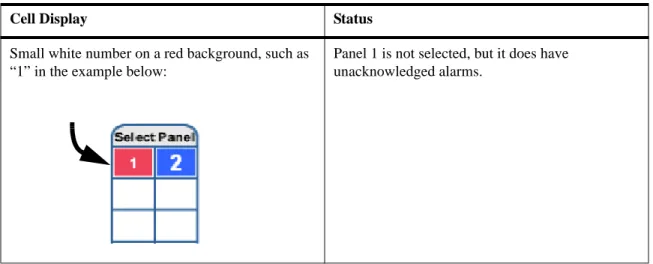
The Select Panel is located at the right margin of the NetAXS web server main screen, shown in the preceding section. The presence of a number in one of the Select Panel cells indicates that its associated panel is online. For example, if you see a number 1 in a cell, this indicates that panel 1 is online. The combinations of size and color of the number and the color of the cell background indicate the panel’s status, as shown in the following table:
Note: Holding the cursor over a cell also displays a popup message, which conveys the panel in that cell is online or selected.
Table 1-1: Reading the Select Panel
Cell Display Status
Large red number on a blue background, such as “1” in the example below:
Panel 1 is selected, and it has unacknowledged alarms.
Small black number on white background, such as “2” in the example below:
Panel 2 is not selected and it has no unacknowledged alarms.
Large white number on blue background, such as “2” in the example below:
Panel 2 is selected, and it has no unacknowledged alarms.
Small white number on a red background, such as “1” in the example below:
Panel 1 is not selected, but it does have unacknowledged alarms.
Table 1-1: Reading the Select Panel (continued)
2
Overview 2-2
Configuring the System 2-3
Configuring the Doors 2-21
Configuring Other I/O & Groups Tab 2-42
Configuring Interlocks 2-51
Configuring Time Management 2-15
Configuring Access Levels 2-34
2.1 Overview
This chapter explains the NetAXS™ configuration functions as accessed via the NetAXS™ web server. These functions should be performed only by the NetAXS™ system administrator or service personnel.
Caution: The sequence of NetAXS™ configuration tasks is critical. If the sequence given below is not followed, the NetAXS™ system cannot be successfully configured. The flow chart in Figure 2-1 shows the order in which to perform the administrative functions.
Figure 2-1: NetAXS™ System Configuration Flow Chart
Configure the Panel Configuration > System > General (Network Tab, page 8) Configuration > System > General (General Tab, page 3) Configuration > System > Site Codes (Site Codes Tab, page 9) Configuration > System > Host/Loop Communications (Host/Loop Communications Tab, page 12)
Configure the Time Zones
Configuration > Time Management > Time Zones (Time Zones Tab, page 17)
Configure the Access Levels
Configuration > Access Levels (Configuring Access Levels, page 34) Configure the Doors
Configuration > Doors > Reader (Reader Tab, page 21) Configuration > Doors > Output (Output Tab, page 28) Configuration > Doors > Inputs (Inputs Tab, page 30)
2.2 Configuring the System
Click Configuration >System in the NetAXS™ menu to display the System Configuration (General) screen:
2.2.1 General Tab
The General Tab enables you to:
• Set the general configuration settings. • Reset the panel.
Steps: Use the descriptions in the following table to configure the general settings, and click Submit Changes:
Table 2-1: Configuration > System > General Tab Fields
Parameter Description
Name Unique name that identifies the panel.
Address Displays the address set by the panel’s DIP switches. Type Displays “NetAXS” as the panel type.
Reset Reboots the panel. A reset does not change the current configuration in the database.
Cardholder Note 1 Specifies any information field you might want to put on a card. For example, if you enter “Department” here, a field labeled “Department” appears on the card. The user who creates the card would then enter the cardholder’s department name. See Adding New Cards, page 36. Anti-Passback Enabled – Enables anti-passback, which prevents an
entrant to an area from passing his card back to another potential entrant.
Local – Enforces anti-passback only at doors configured locally to the panel controlling the original card read.
Global – Enforces anti-passback at panels throughout the NetAXS™ system after a successful card read at any one of the system’s readers.
Forgiveness – Causes all system codes to be reset at midnight every day. This enables a cardholder who exited the building in the evening without using his card to use his card for entry the following morning.
Gateway Panel Addr Sets the panel address of the Gateway panel, or the panel directly connected to the host system.
Web Session Timeout Disabled – Disables the timeout.
___ Minutes – Activates a web session timeout after the specified number of minutes has elapsed.
Use PIN Enabled – Requires a valid PIN verification.
Free Egress Enabled – Configures the panel for free egress. Reader 1 activates output 1, reader 2 activates output 2, reader 3 activates output 3, and reader 4 activates output 4. Inputs 1, 3, 5, and 7 are egress defaults that activate outputs 1, 2, 3, and 4, respectively. Inputs 2, 4, 6, and 8 are status defaults for outputs 1, 2, 3, and 4, respectively.
Table 2-1: Configuration > System > General Tab Fields (continued)
Duress Detect Enabled – Enables the user to trigger an alarm or output device in times of duress, such as when the operator is forced to grant access against his will to an unauthorized person. This feature is available only when the reader is configured with a “Card and Pin” access mode (see
Reader Tab, page 21).
When this feature is enabled, you can configure an auxiliary output with a pulse time and connect it to a device with an interlock (see “Outputs Tab“ on page 46 for the output configuration).
During normal operation, the duress output does nothing. To energize the output, the cardholder presents his card to a reader that is configured for Card and PIN access (see “Reader Tab“ on page 21). The cardholder then enters a PIN that is either one number higher or one number lower than his correct PIN. For example, if his PIN is 2222, the cardholder would enter either 2221 or 2223. Even though the PIN is incorrect, the door will still open normally, but the duress output pulses and an alarm is generated. In this way, the cardholder notifies others without detection by the unauthorized person.
Continuous Card Reads Enabled – Enables continuous card reading while the output is being energized. When this option is not enabled, a reader will not be able to read a second card during the pulsing of the output caused by the previous card read.
Reader LEDs Identifies the color of a reader LED when a grant is authorized.
Cardholder Note 2 Specifies any information field you might want to put on a card. For example, if you enter “Phone Number” here, a field labeled “Phone Number” appears on the card. The user who creates the card would then enter the
cardholder’s telephone number. See Adding New Cards,
page 36.
Card Use Types Visitor Cards (limited days) – Specifies a card for a visitor that can be used only a limited number of days. The specified period begins at the time the card is
Table 2-1: Configuration > System > General Tab Fields (continued)
2.2.2 File Mgmt Tab
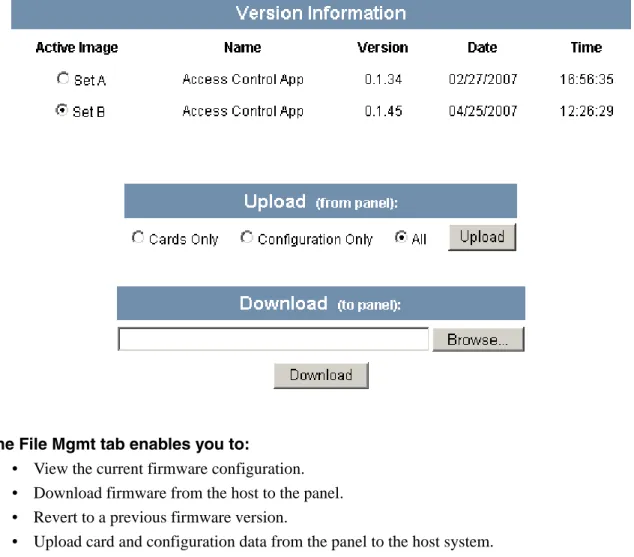
Firmware is software that is embedded in the NetAXS™ board. The firmware provides this web interface and all access control functionality. Periodically, the firmware is updated. This tab enables you to download new versions of the firmware, revert to a previous version of the firmware, upload and/or download card and configuration databases.
Click File Mgmt to display the File Management tab:
Figure 2-2: Configuration > System > File Mgmt Tab
The File Mgmt tab enables you to:
• View the current firmware configuration. • Download firmware from the host to the panel. • Revert to a previous firmware version.
• Upload card and configuration data from the panel to the host system.
Steps to upload data from the panel to the host:
1. Select either Cards Only, Configuration Only, or All to send card data, configuration data, or both, respectively.
2.2.3 Network Tab
Your NetAXS™ panel is physically configured in one of a number of possible network configurations. See the “System Configuration” section in the NetAXS™ NX4L1 Installation Guide or NetAXS™ NX4S1 Installation Guide for illustrations of the supported network configurations. For the panel to function in any of these configurations, the other panels and devices in the network must know the panel’s network addresses.
Click Network to display the Network tab:
Figure 2-3: Configuration > System > Network Tab
The Network tab enables you to:
• View the panel’s MAC address. • View and edit the panel’s IP address. • View and edit the panel’s subnet mask. • View and edit the panel’s default gateway.
2.2.4 Site Codes Tab
Site codes identify an enterprise’s site. You can create a maximum of eight site codes to serve as secondary IDs (in addition to the card number) on the card for additional validation.
Click Site Codes to display the Site Codes tab:
Figure 2-4: Configuration > System > Site Codes Tab
The Site Codes tab enables you to:
• View existing site codes. • Create one or more site codes. • Modify an existing site code. • Delete a selected site code. • Delete all site codes.
Steps to delete all site codes:
1. Click Delete All Codes to display a prompt. 2. Click OK to delete the codes.
Steps to create a site code:
1. Enter a name for the site code in the Name field.
2. Enter a unique number (up to five digits) for the site code in the Site Code field.
3. Click Add Site Code to create the site code.
Steps to modify a site code:
1. Click the site code’s number in the Num column to select the site code.
2. Click Modify to display the Name and Site Code fields.
3. Modify the name or site code number as you desire, and click Modify again.
Steps to delete a site code:
1. In the Num column, click the number of the site you want to delete. 2. Click Delete to display a prompt.
2.2.5 Downstream Devices Tab
The NetAXS™ downstream devices are Monitorable Input Relay Output (MIRO) boards. These boards provide the NetAXS™ panel with additional inputs and outputs. The NetAXS™ panel supports two MIRO types:
• 32/0 – Provides 32 inputs and no outputs. The 32/0 MIRO boards must be assigned network addresses 1 and 2.
• 2/16 – Provides two inputs and 16 outputs. The 2/16 MIRO boards must be assigned network addresses 3-6.
Note: The MIRO network addresses are set by the DIP switches on each board. Refer to the “Downstream I/O” section in the NetAXS™ Access Control Unit NX4L1 Installation Guide or the NetAXS™ Access Control Unit NX4S1 Installation Guide for more information about setting MIRO DIP switches.
A NetAXS™ panel supports a maximum of six daisy-chained MIROs – two 32/0 boards and four 2/16 boards. The boards connect to the NetAXS™ panel’s Downstream port (Terminal Block 10).
Click the Downstream Devices tab:
The Downstream Devices tab enables you to:
• View and modify the names of the devices that communicate with the panel. • View the types and addresses of the devices that communicate with the panel.
2.2.6 Host/Loop Communications Tab
In order to maintain your NetAXS™ system configuration or to monitor its status, you must connect to the NetAXS™ panel by using one of two modes:
• Host mode (monitor only) – a host software system, such as WIN-PAK™, connects to the panel (through the NetAXS™ gateway panel, which has an on-board PCI communications adapter), and it enables you to monitor the status of the NetAXS™ system. The on-board PCI adapter functions as an interface between a host computer’s RS-232 port and one or more panels connected on the Multidrop line.
• Web mode (configure and monitor) – the NetAXS™ web server connects to the panel and enables you to configure the panel and monitor system status. This tab enables you to select and configure the communication mode you will use to connect to the panel.
Click the Host/Loop Communications tab:
The Host/Loop Communications tab enables you to:
• Configure the following host settings: – Connection type (host or web server) – Communications type
– Baud rate – Port number – Time sync
• Configure the loop baud rate for communication among downstream panels.
Steps: Use the descriptions in the following table to configure the settings:
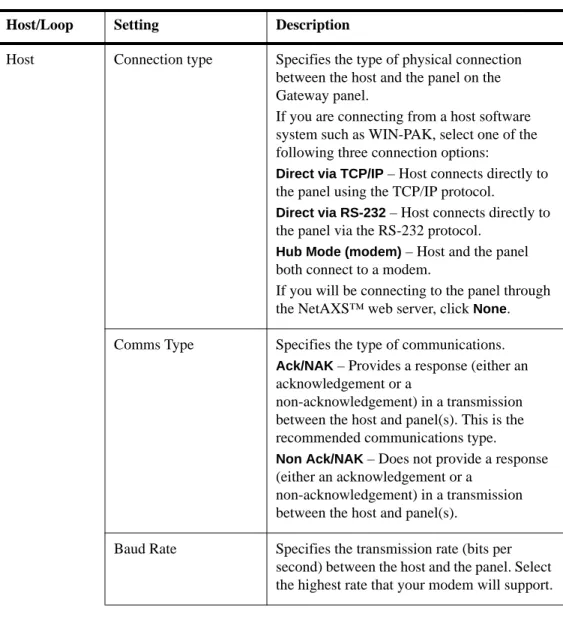
Table 2-2: Configuration > System > Host/Loop Communications Tab Field
Descriptions
Host/Loop Setting Description
Host Connection type Specifies the type of physical connection between the host and the panel on the Gateway panel.
If you are connecting from a host software system such as WIN-PAK, select one of the following three connection options:
Direct via TCP/IP – Host connects directly to the panel using the TCP/IP protocol.
Direct via RS-232 – Host connects directly to the panel via the RS-232 protocol.
Hub Mode (modem) – Host and the panel both connect to a modem.
If you will be connecting to the panel through the NetAXS™ web server, click None. Comms Type Specifies the type of communications.
Ack/NAK – Provides a response (either an acknowledgement or a
non-acknowledgement) in a transmission between the host and panel(s). This is the recommended communications type.
Non Ack/NAK – Does not provide a response (either an acknowledgement or a
non-acknowledgement) in a transmission between the host and panel(s).
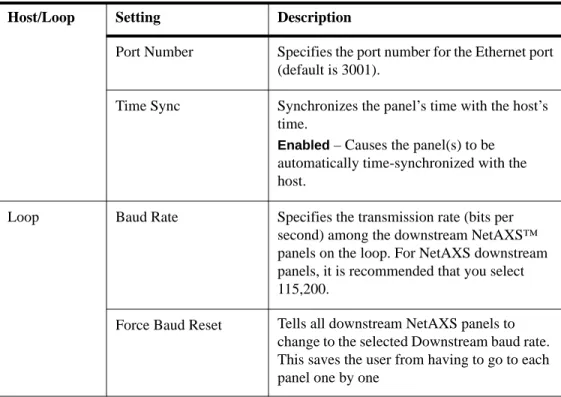
Port Number Specifies the port number for the Ethernet port (default is 3001).
Time Sync Synchronizes the panel’s time with the host’s time.
Enabled – Causes the panel(s) to be automatically time-synchronized with the host.
Loop Baud Rate Specifies the transmission rate (bits per second) among the downstream NetAXS™ panels on the loop. For NetAXS downstream panels, it is recommended that you select 115,200.
Force Baud Reset Tells all downstream NetAXS panels to change to the selected Downstream baud rate. This saves the user from having to go to each panel one by one
Table 2-2: Configuration > System > Host/Loop Communications Tab Field
Descriptions (continued)
2.3 Configuring Time Management
This set of time-related functions includes:• Setting the current time by which the panel will function.
• Creating the time zones by which the panel will control the operation of the inputs, outputs, groups, readers, access levels, and cards through access levels. • Defining the holiday schedule.
2.3.1 Current Time Tab
Click Current Time to display the Current Time screen:
Figure 2-7: Configuration > Time Management > Current Time Tab
The Current Time tab enables you to:
• Set the current loop time.
Steps: Use the descriptions in the following table to configure the time settings:
Table 2-3: Configuration > Time Management Tab Field Descriptions
Setting Description
Current loop time Displays by default the current time setting.
Format 12 hour – The 24-hour day is divided into two 12-hour halves, a.m. and p.m.; each half is numbered 1-12.
24 hour – The hours in the 24-hour day are numbered consecutively 0-23.
New Date Specifies a new date to be the current date. New Time Specifies a new time to be the current time. Geographic Time
Zone
Select the geographic time zone in which the panel will operate.
Time Server Enter the IP address of the machine whose time is used as the standard for all panels.
Enabled – Select to enable the specified machine to be the active time server.
Update Interval – Specifies the interval of time between each automated synchronization.
Force Timesync – Synchronizes the time between the time server and panel(s) manually.
2.3.2 Time Zones Tab
The NetAXS™ panel controls access by using time zones, or time schedules. Inputs, outputs, groups, readers, access levels, and cards through access levels are all configured with time zones by which they will be energized or de-energized, enabled or disabled. For example, you might assign a group of outputs to be energized from 12:00 a.m. to 6:00 a.m. every day. The 12:00 a.m. to 6:00 a.m., Sunday through Saturday, time period is called a time zone. The Time Zones tab enables you to create the time zones you will use to configure your NetAXS™ system.
Click Time Zones to display the Time Zones screen:
Figure 2-8: Configuration > Time Management > Time Zones Tab
The Time Zones tab enables you to:
• Create a new time zone. • Modify a time zone. • Delete a time zone.
Steps to create a time zone:
1. Enter the name of the new time zone in the Name field. 2. Enter a start time and an end time for the time zone.
3. Select the days of the week during which the time zone will be in effect.
4. If the time zone will not be in effect during holidays, select the Exclude Holidays checkbox. 5. If the time zone will be linked to another time zone, select the “linked to” time zone’s number
from the drop down list.
6. Click the Add Time Zone button.
Steps to modify a time zone:
1. In the Tz column, click the number of the time zone you want to modify. 2. Change the time zone settings as you desire.
3. Click the Modify button to accept the changes.
Steps to delete a time zone:
Caution: Do not delete a time zone that is currently in use.
1. In the Tz column, click the number of the time zone you want to delete. 2. Click the Delete button.
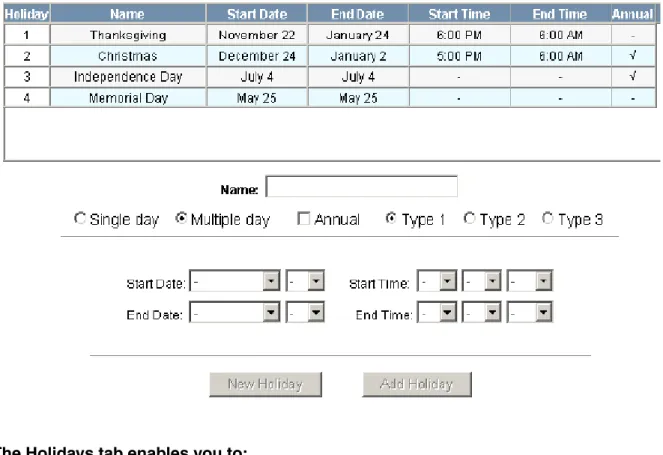
2.3.3 Holidays Tab
Holidays are days when no work is scheduled at the facility. These holidays are used in time zone configuration (see “Time Zones Tab“ on page 17).
Click the Holidays tab:
Figure 2-9: Configuration > Time Management > Holidays Tab
The Holidays tab enables you to:
• Create a holiday. • Modify a holiday. • Delete a holiday.
Steps to create a holiday:
1. Enter the name of the new holiday in the Name field (up to 25 characters).
5. Select the holiday’s month and date from the drop down lists. 6. Click the Add Holiday button.
Steps to modify a holiday:
1. In the Holiday column, click the number of the holiday you want to modify. 2. Change the holiday settings as you desire.
3. Click the Modify button to accept the changes.
Steps to delete a holiday:
1. In the Holiday column, click the number of the holiday you want to delete. 2. Click the Delete button.
2.4 Configuring the Doors
Each NetAXS™ panel supports four doors. For each door, you must configure the readers, inputs, and outputs.
At Configuration > Doors in the task menu at the left margin of the NetAXS™ screen, click 1 to display the Door Configuration screen for door 1. Follow the same procedures below for doors 2, 3, and 4 for each panel.
2.4.1 Reader Tab
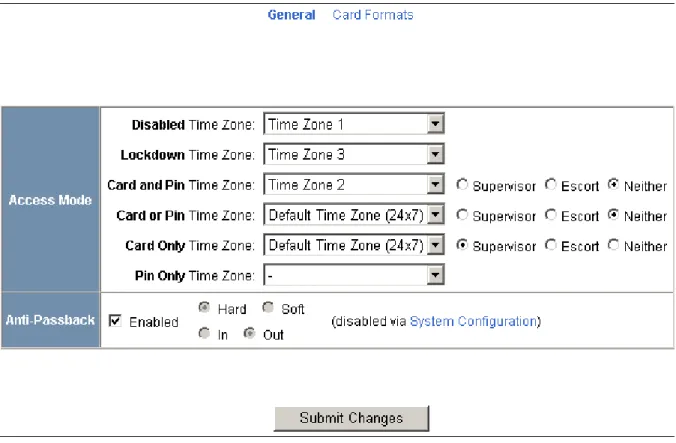
A reader is a device that reads cards and either grants or denies access at the door. Click the Reader tab:
The Reader tab enables you to:
• Define the time zone during which the reader will be disabled. When the reader is disabled, neither exit nor entry by Card and PIN mode or Card or PIN mode is allowed. Also, free egress is not allowed.
• Define the time zone during which the reader will be in lockdown mode (see
Time Zones Tab, page 17 for details about setting time zones). When the reader is in lockdown mode, entry is prevented but egress is still allowed. • Define the reader’s access mode (the combination of card and/or PIN entry
required by the reader). Note that the access mode defined here for the door can be overridden by a card assigned with a VIP card type (see “Adding New Cards“ on page 36 for information about assigning a VIP card type).
• Enable the Card Only, PIN Only, Card and PIN, and Card or PIN access modes with either the Supervisor or Escort rule:
– Supervisor Rule: When the supervisor presents his card during the specified time zone just once, he gains access but does not enable access for
non-supervisory personnel.
– Escort Rule: This rule requires a supervisor escort for a non-supervisor. • Configure the anti-passback feature. When enabled, the anti-passback feature
prevents an entrant to an area from passing his card back to another potential entrant. Note that anti-passback must first be enabled at the Configuration > System > General screen (see General Tab, page 3).
• Specify the data format the reader must use to read the card data. • Reconfigure a selected format’s data layout.
Steps:
1. Use the descriptions in the table below to configure the General reader settings.
Table 2-4: Configuration > Doors > Reader Tab Descriptions
Setting Description
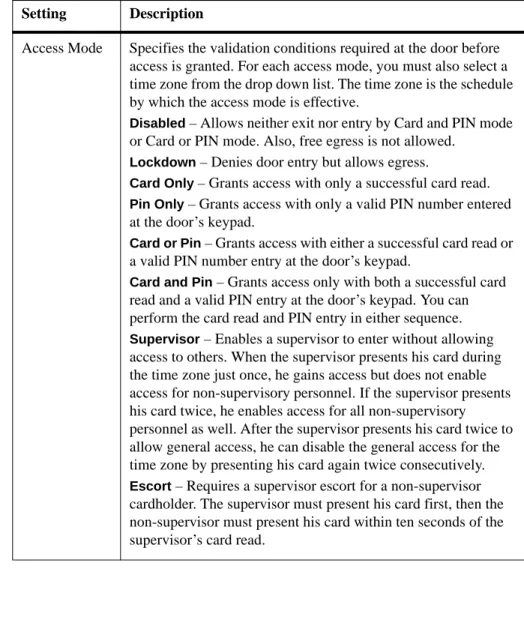
Access Mode Specifies the validation conditions required at the door before access is granted. For each access mode, you must also select a time zone from the drop down list. The time zone is the schedule by which the access mode is effective.
Disabled – Allows neither exit nor entry by Card and PIN mode or Card or PIN mode. Also, free egress is not allowed.
Lockdown – Denies door entry but allows egress.
Card Only – Grants access with only a successful card read.
Pin Only – Grants access with only a valid PIN number entered at the door’s keypad.
Card or Pin – Grants access with either a successful card read or a valid PIN number entry at the door’s keypad.
Card and Pin – Grants access only with both a successful card read and a valid PIN entry at the door’s keypad. You can perform the card read and PIN entry in either sequence.
Supervisor – Enables a supervisor to enter without allowing access to others. When the supervisor presents his card during the time zone just once, he gains access but does not enable access for non-supervisory personnel. If the supervisor presents his card twice, he enables access for all non-supervisory personnel as well. After the supervisor presents his card twice to allow general access, he can disable the general access for the time zone by presenting his card again twice consecutively.
Escort – Requires a supervisor escort for a non-supervisor cardholder. The supervisor must present his card first, then the non-supervisor must present his card within ten seconds of the supervisor’s card read.
2. Click Card Formats at the top of the tab. A card format tells the panel how the card number will be read. The panel supplies the format to the card readers. Then, the card readers can correctly read the card.
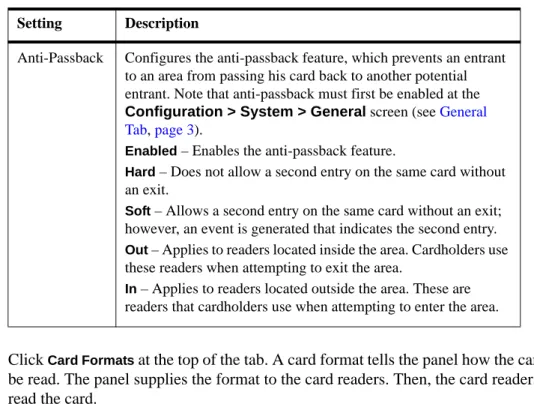
Anti-Passback Configures the anti-passback feature, which prevents an entrant to an area from passing his card back to another potential entrant. Note that anti-passback must first be enabled at the
Configuration > System > General screen (see General Tab, page 3).
Enabled – Enables the anti-passback feature.
Hard – Does not allow a second entry on the same card without an exit.
Soft – Allows a second entry on the same card without an exit; however, an event is generated that indicates the second entry.
Out – Applies to readers located inside the area. Cardholders use these readers when attempting to exit the area.
In – Applies to readers located outside the area. These are readers that cardholders use when attempting to enter the area.
Table 2-4: Configuration > Doors > Reader Tab Descriptions (continued)
3. Click to highlight each desired card format listed in the Available box, and click the green right arrow button to move the format(s) into the Selected box.
Note: If you select no formats, the reader will function in legacy mode and the reader interprets the panel’s formats. If you select a subset of formats for a given reader, the reader will interpret only those formats and ignore formats that are not selected.
4. Click Submit Changes.
5. If you want to create a new card format, click the New Format button to display an empty Card Format Data Layout screen. Use the field descriptions given in the following table to define the layout and click Save.
Note: To disable a field, enter “--” in the Start Bit box and “0” in the Num Bits box.
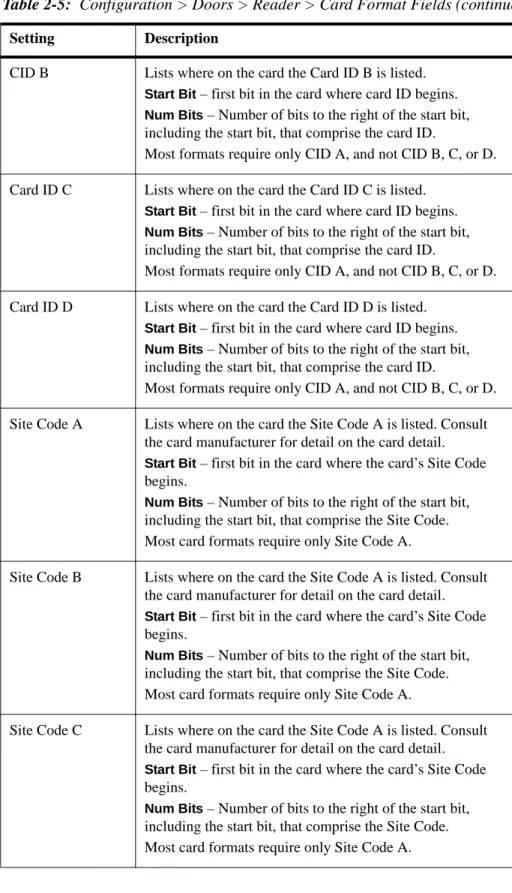
Table 2-5: Configuration > Doors > Reader > Card Format Fields
Setting Description
Name Displays the name by which the format will be listed in the Card Formats tab. The name is user-defined.
Reverse Bit Order Returns the message from the reader in reverse bit order (least significant bit first and most significant bit last). Concatenated Site
Code
Combines the Site Code and Card ID as one unique number.
Total Num Bits Lists the total number of bits on the card.
Even Parity Lists where on the card that even parity is being observed.
Start Bit – first bit in the card where even parity begins.
Num Bits – Number of bits to the right of the start bit, including the start bit, to include in the even parity check. Odd Parity Lists where on the card that odd parity is being observed.
Start Bit – first bit in the card where odd parity begins.
Num Bits – Number of bits to the right of the start bit, including the start bit, to include in the odd parity check. CID A Lists where on the card the Card ID A is listed.
Start Bit – first bit in the card where card ID begins.
Num Bits – Number of bits to the right of the start bit, including the start bit, that comprise the card ID.
CID B Lists where on the card the Card ID B is listed.
Start Bit – first bit in the card where card ID begins.
Num Bits – Number of bits to the right of the start bit, including the start bit, that comprise the card ID.
Most formats require only CID A, and not CID B, C, or D. Card ID C Lists where on the card the Card ID C is listed.
Start Bit – first bit in the card where card ID begins.
Num Bits – Number of bits to the right of the start bit, including the start bit, that comprise the card ID.
Most formats require only CID A, and not CID B, C, or D. Card ID D Lists where on the card the Card ID D is listed.
Start Bit – first bit in the card where card ID begins.
Num Bits – Number of bits to the right of the start bit, including the start bit, that comprise the card ID.
Most formats require only CID A, and not CID B, C, or D. Site Code A Lists where on the card the Site Code A is listed. Consult
the card manufacturer for detail on the card detail.
Start Bit – first bit in the card where the card’s Site Code begins.
Num Bits – Number of bits to the right of the start bit, including the start bit, that comprise the Site Code. Most card formats require only Site Code A.
Site Code B Lists where on the card the Site Code A is listed. Consult the card manufacturer for detail on the card detail.
Start Bit – first bit in the card where the card’s Site Code begins.
Num Bits – Number of bits to the right of the start bit, including the start bit, that comprise the Site Code. Most card formats require only Site Code A.
Site Code C Lists where on the card the Site Code A is listed. Consult the card manufacturer for detail on the card detail.
Start Bit – first bit in the card where the card’s Site Code begins.
Table 2-5: Configuration > Doors > Reader > Card Format Fields (continued)
6. If you want to change an existing card format’s data layout, double-click the format’s name on the list of existing formats to display the Card Format Data Layout screen. Use the descriptions in the table above to edit the layout’s fields. Then, click Update (to save in the format’s current name) or Save as (to save with a different format name) to save the edited format. To return to the default settings for the card format, click Reset. To delete the card format, click
Delete.
Site Code D Lists where on the card the Site Code A is listed. Consult the card manufacturer for detail on the card detail.
Start Bit – first bit in the card where the card’s Site Code begins.
Num Bits – Number of bits to the right of the start bit, including the start bit, that comprise the Site Code. Most card formats require only Site Code A. Issue Code Lists where on the card the Issue Code A is listed.
Start Bit – first bit in the card where the card’s Issue Code begins.
Num Bits – Number of bits to the right of the start bit, including the start bit, that comprise the Issue Code. Most cards do not contain an Issue Code.
Table 2-5: Configuration > Doors > Reader > Card Format Fields (continued)
2.4.2 Output Tab
An output, or output relay, is a switch on the panel that either energizes or de-energizes or pulses an output device, such as a door lock or a horn. For example, a successful card read at a reader (input device) causes the output relay switch on the panel board to change the normal state of a door lock (output device), so that the normally-locked door strike releases and permits entry. This tab configures the output relays.
Click the Output tab:
Figure 2-11: Configuration > Doors > Output Tab
The Output tab enables you to:
• Configure the following for each of the door’s output devices: – Name
Steps: Use the descriptions in the following table to configure each output device:
Table 2-6: Configuration > Doors > Output Tab Field Descriptions
Setting Description
Name Enter a unique name to identify the device.
Pulse Time Specifies the duration for which the device will assume abnormal status. For example, it specifies how long a horn will blow or a door strike will remain released. Enter the desired number of hours (1024 maximum), minutes (60 maximum), and seconds (60 maximum). The sum of all three units comprises the pulse time. Note that you can express seconds in tenths of a second.
Time Zones Specifies two schedules:
• Energized – sets the period during which the output switches are automatically energized.
• Disable Interlock – sets the period during which the interlock, or a programmed interaction between selected inputs and outputs will be disabled.
Latching When selected, this locks a relay (either Normally Open or Normally Closed) to lock into place until it is reset either manually or by a signal
Interlock Enables you to disable the interlock, or programmed interaction between this output device and an input device. Keep On Keeps the selected input shunted or the selected output (or output group) energized for the duration of its time zone. Snow Day Requires, like the First Card Rule, a valid card read before
the time zone (period in which doors are unlocked) can take effect. Unlike the First Card Rule, however, the user can swipe the card a second time to return the doors to a locked state. For example, the principal of a school opens the school with a valid card read, and then closes the school with another card swipe when a storm arises. The time zone does not become active at its normal time.
Note that both Snow Day and First Card Rule cannot be enabled at the same time.
2.4.3 Inputs Tab
Three inputs are associated with each of the four doors on a NetAXS™ panel: • Status – Provides the following door status information:
– Normal – Reports that the door’s state is currently in its normal state, either Normally Open or Normally Closed.
– Alarm – Reports that the door’s state is currently in its abnormal state: if the door is configured as Normally Open, its abnormal state is to be closed; if the door is configured as Normally Closed, its abnormal state is to be open.
– Shorted (supervised input only) – Reports that the electrical circuit supporting the door and its devices has been short-circuited
.
– Cut (supervised input only) – Reports that the electrical circuit supporting the door has been cut or disconnected.
• Egress – Allows the door to open or close normally without generating an alarm. • Tamper – Reports abnormal handling of the reader device or wiring.
First Card Rule Requires a valid card read before the time zone (period in which doors are unlocked) can take effect. For example, the principal of a school would normally open the school with a valid card read, and the time zone becomes active at its normal time. When the school is cancelled due to a storm, the principal stays home, the doors are not opened, and the time zone does not become active at its normal time. Note that both Snow Day and First Card Rule cannot be enabled at the same time.
Table 2-6: Configuration > Doors > Output Tab Field Descriptions (continued)
Click to display the Inputs tab:
Figure 2-12: Configuration > Doors > Inputs Tab
Note that there are four possible Mode configurations. Shown in the screen above is the Normally Closed/Unsupervised Mode. The following screens show the remaining modes:
The Inputs tab enables you to:
• Define the Status, Egress, and Tamper inputs’ access modes.
• Specify the Status, Egress, and Tamper shunt time, or the period of time the door’s normal state will be ignored.
• Specify the Status, Egress, and Tamper debounce time, or the period of time the input must remain in its new state before it is recognized as being in the new state.
• Specify the time zones for the Status, Egress, and Tamper inputs. • Enable or disable Auto-Relock for the Status inputs.
Steps: Use the descriptions in the table below to configure the Status, Egress, and Tamper inputs, then click Submit Changes:
Table 2-7: Configuration > Doors > Inputs Tab Field Descriptions
Setting Description
Mode Normally Closed – Specifies that the door’s normal state is closed.
Normally Open – Specifies that the door’s normal state is open.
Unsupervised – Specifies that the door’s electrical circuit is wired in one path without alternative paths supervised by resistors.
Supervised – Specifies that the door’s electrical circuit is wired with alternative paths supervised by resistors.
R1 & R2 Values – Specifies the resistor values being used in the supervised modes. The default is 2.2K.
Shunt Time Specifies the amount of time for which the inputs will be shunted, or de-activated. For example, it specifies how long a door strike will remain released. Enter the desired number of hours (1024 maximum), minutes (60 maximum), and seconds (60 maximum). The sum of all three units comprises the shunt time. Note that you can express seconds in tenths of a second. Time Zones Shunt – Specifies the time period during which the input will be
ignored.
Disable Interlock – Specifies the time period during which the programmed action on this input from another point will be disabled.
Disable Alarm Msgs – Specifies the time period during which Alarm and Normal will not be reported, but Short and Cut will be reported.
Auto-Relock Causes the door to re-lock immediately when the door status switch closes after entry. The output relay that controls the door strike de-energizes when the associated input returns to normal state instead of remaining energized for the duration of the pulse time. To enable Auto-Relock, de-select the Disable checkbox, and select the associated output from the drop down list.
2.5 Configuring Access Levels
Every card is assigned an access level. The access level specifies the time zone, or time schedule, during which the card holder can be granted access at a specific door. For example, an access level embedded in an employee’s card might allow the employee to enter the facility only through door 2 from 6:00 a.m. to 6:00 p.m., Monday through Friday.
This section explains how to create the access levels that subsequently can be assigned to cards.
Note: Since an access level is defined by door and time zone configurations, you must configure the door (see “Configuring the Doors“ on page 21) and the time zone (see “Configuring Time
Management“ on page 15) before configuring an access level.
Click Access Levels to display the Access Level Configuration screen: Figure 2-13: Configuration > Access Levels
Steps to create an access level:
1. Select the door(s). The access level will allow access only at the door(s) you select here. 2. Enter the name of the access level in the Name field. This should be a unique name that
identifies the general user group.
3. Select the time zone you want from the drop down list in the Time Zone field. The access level will allow access to the card holder only during this time zone.
4. Click the Add Level button.
Steps to modify an access level:
1. From the drop down list in the Level field, select the number of the access level you want to modify.
2. Make the desired modifications. 3. Click the Modify button.
Steps to delete an access level:
1. Select the number of the access level you want to delete from the drop down list in the Level
field.
2. Click the Delete button.
2.6 Maintaining Cards
A card is a plastic card about the size of a credit card that is encoded with a unique number and the card holder’s rights to access NetAXS™ system resources. For example, in addition to its unique number, a card would allow the card holder to be granted access to certain doors during a certain time of day.
2.6.1 Adding New Cards
Click Cards > Add Card(s) to display the Add New Card(s) screen:
Figure 2-14: Cards > Add Cards
– Site Code – Trace capability – Expiration date – Use limits
– Card holder note 1 – Card holder note 2 – Access levels
Steps:
Use the field descriptions in the following table to complete the card fields and click
Add Card(s):
Table 2-8: Cards > Add Cards Field Descriptions
Field Description
Card Number(s) Specifies the unique number by which the card holder will be identified. A card number is required.
Card Holder Name Identifies the card holder. A card holder first and last name is required. Each name can have up to 25 characters.
Card Type Specifies whether the card holder is a supervisor, employee, a VIP, or a temporary employee (Temp). Note that the Temp box is active when the panel is configured for visitor cards in
Configuration > System > General (see “General Tab“ on page 3). A card type is required.
Issue Number Specifies the number of times this card number has been issued to the card holder. For example, a card holder may lose his original card having an issue number of 1. You would issue him a replacement with the same card number but with an issue number of 2. An issue number is required. The maximum issue number is 99.
PIN Specifies the Personal Identification Number (PIN) for the card holder. A PIN is optional; however, if the door reader is configured to require PIN identification (see “Reader Tab“ on page 21), then you must create a PIN for the card holder here. The PIN number has a maximum of six digits.
Site Code Specifies a unique code that identifies the card holder’s site. This setting is optional.
Expiration Date Specifies the date that a visitor’s card is de-activated. A visitor’s card is one that is configured in Configuration > System > General Tab (see “General Tab“ on page 3) with the Use Limits field set to Visitor Cards (limited days). Note that this field is active only when the Temp box is checked in the Card Type field.
Use Limits Specifies the number of times or the number of days a card may be read at a card reader to which it has valid access. A panel is configured with one of three card use settings at Configuration > System > General Tab (see “General Tab“ on page 3):
Visitor Cards (limited days) – Specifies a card for a visitor that can be used only a limited number of days. The specified period begins at the time the card is created.
Limited-Use Cards – Specifies a card that can be used only a limited number of times.
Neither – Specifies all cards other than visitor or limited-use cards.
If the panel is configured with Visitor Cards (limited days), the Use Limits field accepts a number of days. If the panel is configured with Limited-Use Cards, the Use Limits field accepts a number of uses.
Note 1 Provides a user-defined field. See Configuring the System, page 3 for information about how this field is defined for the Add New Card template.
Note 2 Provides a user-defined field. See Configuring the System, page 3 for information about how this field is defined for the Add New Card template.
Access Level Specifies the time zone, or time schedule, during which the card holder can be granted access at a specific door.
Table 2-8: Cards > Add Cards Field Descriptions (continued)
2.6.2 Displaying and Modifying Cards
Use this function to display specified cards and modify them.
Click Cards > Card Data to display the search screen with which you can find and display specified cards.
Figure 2-15: Cards > Card Data
The Display or Modify Card(s) screen enables you to:
• Display cards by searching on any of the following keys: – Card number
– Card holder’s last name • Modify the displayed card(s)
Steps:
1. Enter a value for either of the search keys (card number or cardholder last name).
2. Click the Display/Modify Card(s) button. The cards specified in step 1 appear. 3. Use the field descriptions given in the table in “Adding New Cards“ on page
2.6.3 Deleting Cards
Click Cards > Delete Card(s) to display the Delete Cards screen: Figure 2-16: Cards > Delete Cards
The Delete Card(s) screen enables you to:
• Delete cards retrieved by any of the following keys: – Card number
– Range of card numbers – Card holder’s last name
Steps:
1. Enter a value for any of the search keys (card number, card number range, or cardholder name).
2. Click Delete Card(s) to delete all cards matching the search keys you entered. 3. Click OK at the prompt to delete the card.
2.6.4 Displaying Reports
Use this function to display a report of all cards and card data. You can display the cards either by the cardholder’s last name or by the card number.
Click Cards > Reports to display the Card Reports screen.
The Card Reports screen enables you to:
• View card records by the cardholder’s last name. • View card records by the cards’ numbers.
Steps:
1. Click the By Name tab to display the card records by the cardholders’ last names.
2. Click the By Number tab to display the card records by the cards’ numbers. 3. Use the descriptions given in the following table to read the card records (see
“Adding New Cards“ on page 36 for more information about card data):
Table 2-9: Cards > Reports Field Descriptions
Field Description
Last Shows the cardholder’s last name. First Shows the cardholder’s first name. Card Number Shows the card number.
Site Shows the Site Code number. A Site Code is a
user-configured name that identifies the site, or location, of the cardholder’s access. See “Site Codes Tab“ on page 9 for more information about Site Codes. To determine the Site Code name associated with the Site Code number, click
Configuration > System > Site Codes to display the Site Codes tab.
PIN Shows the Personal Identification Number (PIN) for the card holder. The PIN number has a maximum of six digits. Access Level Shows the access level(s) configured for the cardholder. An
access level specifies the time zone, or time schedule, dur-ing which the card holder can be granted access at a specific door. See “Configuring Access Levels“ on page 34 for more
2.7 Configuring Other I/O & Groups Tab
The NetAXS™ panel provides up to 14 inputs and eight outputs. Two of the inputs and four of the outputs are “other” inputs and outputs, because you can use them for other than door lock/unlock functions. This section explains how to configure these other inputs, outputs, and groups (for pulse and time zone).
2.7.1 Inputs Tab
This tab enables you to configure inputs 13 (AC Power Fail) and 14 (Panel Tamper) on Terminal Block 8, and the inputs on downstream MIRO boards daisy-chained to Terminal Block 10. The downstream inputs are numbered 25-96.
Note: The NetAXS™ panel supports two MIRO types: • 32/0 – Provides 32 inputs and no outputs. • 2/16 – Provides two inputs and 16 outputs.
A NetAXS™ panel supports a maximum of six daisy-chained MIROs – two 32/0 boards and four 2/16 boards. A MIRO-32/0 module has 32 supervised, four-state inputs that are limited to 2,200 ohms resistance. The MIRO-2/16 has two supervised inputs and 16 SPDT relay outputs; each input is limited to 2,200 ohms resistance. Each board is configured with a unique address in the Configuration > System > Downstream Devices tab (see “Downstream Devices Tab“ on page 11).
On panels with internal power supply, the Power Fail input generates an alarm when primary power is lost as indicated by the power supply. The Panel Tamper input generates an alarm when the NetAXS™ cabinet has been forced open. The Downstream inputs are available for general use.
Note: You can also configure the Power Fail and the Panel Tamper inputs for general use, if you choose not to wire them for power and tamper detection.
Type Shows the card type. The card type specifies whether the card holder is configured as a supervisor (Supr), employee (Empl), temporary employee (Temp), a VIP (VIP), or a combination of these types.
Tmp Indicates (with a check mark) that the card is a temporary card.
Table 2-9: Cards > Reports Field Descriptions (continued)
Figure 2-17: Configuration > Other I/O & Groups > Inputs Tab > Powerfail
Click Panel Tamper to display the Panel Tamper screen:
Click Downstream to display the Downstream Input screen:
Figure 2-19: Configuration > Other I/O & Groups > Inputs Tab > Downstream
The Input tab enables you to:
• Configure the mode, debounce time, and time zones for the Power Fail input (input 13). • Configure the mode, debounce time, and time zones for the Panel Tamper input (input 14). • Configure the mode, shunt time, debounce time, time zones, and auto-relock for the
Steps: Use the descriptions in the following table to configure the Power Fail, Panel Tamper, and downstream inputs:
Table 2-10: Configuration > Other I/O & Groups > Inputs Tab Field Descriptions
Setting Description
Name Enter a unique name to identify the device.
Mode Normally Closed – Specifies that the door’s normal state is closed.
Normally Open – Specifies that the door’s normal state is open.
Unsupervised – Specifies that the door’s electrical circuit is wired in one path without alternative paths supervised by resistors.
Supervised – Specifies that the door’s electrical circuit is wired with alternative paths supervised by resistors.
Shunt Time Specifies the amount of time for which the inputs will be shunted, or de-activated. For example, it specifies how long a door strike will remain released. Enter the desired number of hours (1024 maximum), minutes (60 maximum), and seconds (60 maximum). The sum of all three units comprises the shunt time. Note that you can express seconds in tenths of a second. Debounce Time Specifies the period of time the input must remain in a new state
before generating an alarm. For example, if a Normal state is changed to Alarm, the state must remain in Alarm for five seconds before an alarm is generated.
Time Zones Shunt – Specifies the time period during which the input will be energized.
Disable Interlock – Specifies the time period during which the programmed action on this input from another point will be disabled.
Disable Alarm Msgs – Specifies the time period during which the input will generate no alarms.
Auto-Relock Causes the door to re-lock immediately when the door status switch closes after entry. The output relay that controls the door strike de-energizes when the associated input returns to normal state instead of remaining energized for the duration of the pulse time. To enable Auto-Relock, de-select the Disable checkbox, and select the associated output from the drop down list.
2.7.2 Outputs Tab
This tab enables you to configure the four NetAXS™ auxiliary outputs (outputs 5-8) that are physically located on the panel board, and the outputs on downstream 2/16 MIRO boards
daisy-chained to Terminal Block 10. A NetAXS™ panel supports a maximum of four 2/16 MIRO boards, and each board provides two inputs and 16 outputs. The downstream outputs are numbered 17-81.
Click Outputs to display the Auxiliary Output screen for the on-board outputs: Figure 2-20: Configuration > Other I/O & Groups > Outputs Tab
Click Downstream to display the Downstream Output screen:
Figure 2-21: Configuration > Other I/O & Groups > Outputs Tab > Downstream
The Outputs tab enables you to:
• Configure the following for each of the auxiliary outputs -- on board the panel as well as downstream:
– Name – Pulse time – Time zones – Latching – Interlock – Keep on – Snow day
Steps: Use the descriptions in the following table to configure each output device:
Table 2-11: Configuration > Other I/O & Groups > Outputs Tab > Fields
Setting Description
Name Enter a unique name to identify the device.
Pulse Time Specifies the duration for which the device will assume abnormal status. For example, it specifies how long a horn will blow or a door strike will remain released. Enter the desired number of hours (1024 maximum), minutes (60 maximum), and seconds (60 maximum). The sum of all three units comprises the pulse time. Note that you can express seconds in tenths of a second.
Time Zones Specifies two schedules:
• Energized – Sets the period during which the output switches are automatically energized.
• Disable Interlock – Sets the period during which the interlock, or a programmed interaction between selected inputs and outputs will be disabled.
Latching When selected, this locks a relay (either Normally Open or Normally Closed) to lock into place until it is reset either manually or by a signal.
Interlock Enables you to disable the interlock, or programmed interaction between this output device and an input device.
Keep On Keeps the selected input shunted or the selected output (or output group) energized for the duration of its time zone. Snow Day Requires, like the First Card Rule, a valid card read before the
time zone (period in which doors are unlocked) can take effect. Unlike the First Card Rule, however, the user can swipe the card a second time to return the doors to a locked state. For example, the principal of a school opens the school with a valid card read, and then closes the school with another card swipe when a storm arises. The time zone does not become active at its normal time. Note that both Snow Day and First Card Rule cannot be enabled at the same time.
2.7.3 Groups Tab
This tab enables you to configure outputs in groups. For example, you might want a group of horns in your facility to sound for the same duration or to be enabled or disabled according to the same schedule, or time zone. You might want a group of doors to be energized or de-energized during the same time zone. A NetAXS™ web server supports up to 64 output groups.
Click Groups to display the Groups screen:
Figure 2-22: Configuration > Other I/O & Groups > Groups Tab
First Card Rule Requires a valid card read before the time zone (period in which doors are unlocked) can take effect. For example, the principal of a school would normally open the school with a valid card read, and the time zone becomes active at its normal time. When the school is cancelled due to a storm, the principal stays home, the doors are not opened, and the time zone does not become active at its normal time. Note that both Snow Day and First Card Rule cannot be enabled at the same time.
Table 2-11: Configuration > Other I/O & Groups > Outputs Tab > Fields (continued)
The Groups tab enables you to:
• Associate any of the panel’s eight output relays in one or more groups. • Configure the following for each group:
– Pulse Time
– Energized TZ (Time Zone)
– Interlock Disabled TZ (Time Zone) – Latch
Steps: Use the descriptions in the following table to configure each group:
Table 2-12: Configuration > Other I/O & Groups > Groups Tab Field Descriptions
Setting Description
Name Enter a unique name to identify the group.
Pulse Time Specifies the duration for which the device will assume abnormal status. For example, it specifies how long a horn will blow or a door strike will remain released. Enter the desired number of hours (1024 maximum), minutes (60 maximum), and seconds (60 maximum). The sum of all three units comprises the pulse time. Note that you can express seconds in tenths of a second.
Energized TZ Specifies the period during which the group of output relays are automatically energized.
Interlock Disabled TZ
Specifies the period during which the interlocks that control the group’s outputs will be disabled.
Latch Toggles the state of the outputs between energized and de-energized status upon every activation (code use, interlock, or manual pulse).
2.8 Configuring Interlocks
An interlock is a programmed connection between two points. The interlock causes an input point, output point, or group of output points to act in a specified manner when another input point, output point, or group of output points changes its state. An action on one point cause a reaction from a second point on the same panel or attached MIRO board. For example, when a motion detector (input) detects movement, it causes a horn (output) to sound.
Click Interlocks to display the Interlocks Configuration screen: Figure 2-23: Configuration > Interlocks
The Interlocks screen enables you to:
• Create, modify, and delete interlocks. • Enable or disable existing interlocks.
Steps to create an interlock:
1. Click the New Interlock button to display the screen.
2. Use the descriptions in the following table to configure the interlock:
3. Click the Add Interlock button to create the interlock.
Table 2-13: Configuration > Interlocks > Field Descriptions
Interlock element Description
Trigger Specifies the input, output, or output group for which a change of state will cause a reaction from another input, output, or group. Also, use the drop down list to specify the number of the input, output, or group.
Reacting Component Specifies the input, output, or output group that will react to a change of state from the trigger point. Also, use the drop down list to specify the number of the input, output, or group.
Reacting Component’s Action
Upon Trigger Alarm – Specifies the reacting component’s action when the trigger’s change of state occurs. Select the action from the Upon Trigger Alarm drop down list.
Upon Trigger Normal – Specifies the reacting component’s action when the trigger’s change of state occurs. Select the action from the Upon Trigger Normal drop down list.
Steps to modify an interlock:
1. In the Int Lk column, click the number of the interlock you want to modify. 2. Click the New Interlock button.
3. Use the descriptions in the table above to make the desired modifications in the empty Trigger, Reacting Component, and Reacting Component’s Action fields for the selected interlock: 4. Click the Add Interlock button to complete the modification.
Steps to delete an interlock:
1. In the Int Lk column, click the number of the interlock you want to delete.
2. Click the Delete Interlock button to display the Delete Interlock screen, and click OK to complete the deletion.
Steps to enable/disable an interlock:
1. To enable an interlock, click the Enable button. 2. To disable an interlock, click the Disable button.