MICROPRO
WORDSTAR®
WITH CORRECT _ITTM
Section 1: General Manual
. . ,
Section 2 : Reference Manual
__
Section 3: Installation Manual
_
WordStar Manuals
WordStar is now documented in two new manuals for beginners: o WordStar Training Guide
o WordStar Operator·s Guide (to be p.1blished sane time in 1981)
along with three manuals derived from the old WordStar Userls Guide. These three replace that manual as of release 3.0:
o WordStar General InfOJJllation Manual o WordStar Reference Manual
o WOrdStar Installatim Manual
For an overview of WordStarls features without any detailed explanations, read the General InfoIllBtion Manual.
To choose a system on which to use WordStar or to determine whether your present system is adequate, read Section 1 of the Installation Manual. If you have just received WordStar and you are ready to make it work on your equipment or if you need to make custom changes, continue reading under the appropriate section (terminals, printers, printer protocols, printer drivers, or label patcher).
If you have a running WordStar system and you are ready to start using it, read Sections I and 2 of the Reference Manual. Detailed explanations of editing commands may be found in Sections 3-6; explanations of ordi-nary printing commands, in Sections 7 and 8; explanations of optional MailMerge commands, in Sections 9-12. You will find a summary of all WordStar commands in Appendix A, and error messages in Apt:endix B.
WordStar is rich in command functions. It has all the basic functions for simple tasks, of course, but it also has many time-saving convenience functions that perform what would otherwise require numerous basic functions. So when you begin learning WordStar, you can start with the most essential commands at first. Then, as you become more proficient, you can pick up the others that you need later o~
Welcome to WordStar Release 3.01
This new release of WordStar has some outstanding features that will make using WordStar even more rewarding for you. Horizontal scrolling, column move, new menus, and a new WordStar option called SpellStar are the latest enhancements you'll use to turn out perfect documents easily and speedily.
Here's what the new features do and how they do it. Horizontal Scrolling
Horizontal scrolling is most useful in creating oversized documents, because it gives you a better picture of how a wide document will actually look.
Say you want to produce a document on 11" x 14" paper. You can set your right margin to extend past the last screen column (column 79 for most terminals), as usual. As you enter text past the last column, WordStar will scroll text to the left, so that you have a blank s~reen area into which you'll continue to enter
text. .
Before horizontal scrolling, when you entered lines wider than the screen, WordStar put a
"+"
flag in the rightmost column and continued the text on the next screen line. You couldn't easily see if your right margin was justified or if columns were properly aligned, because the format was broken up by continuation lines. Horizontal scrolling allows you to see ~ your text as it will appear when printed.Horizontal scrolling is similar to the familiar vertical scrolling WordStar has always had. With both kinds of scrolling, a "screen window" moves over a document larger than the screen to show you the text you're entering or some other portion you want to see. So, when you enter text in a blank screen area, previously-entered text scrolls off the screen.
It may take you a little while to get used to horizontal scrolling if you've used earlier WordStar versions. Just keep in mind the similarity to vertical scrolling, and when you start wondering "where the words went," be assured that a cursor movement command can take you wherever you want to go in your text. Whenever you're in doubt as to where you are, check the status line for the column number.
The familiar
"+"
will still be there in the rightmost column to let you know you've exceeded screen width, but your long lines will now keep going horizontally "off" the screen into a new screen area.As you enter text past the last column, the screen window scrolls right 22 columns at a time.* You can keep scrolling 22 columns at once, up to a maximum right margin of 255. If word wrap is off, you can keep scrolling up to about 32,000 columns!
"'QD will move you to the end of your line in increments, if the end is more than 80 columns from the cursor.
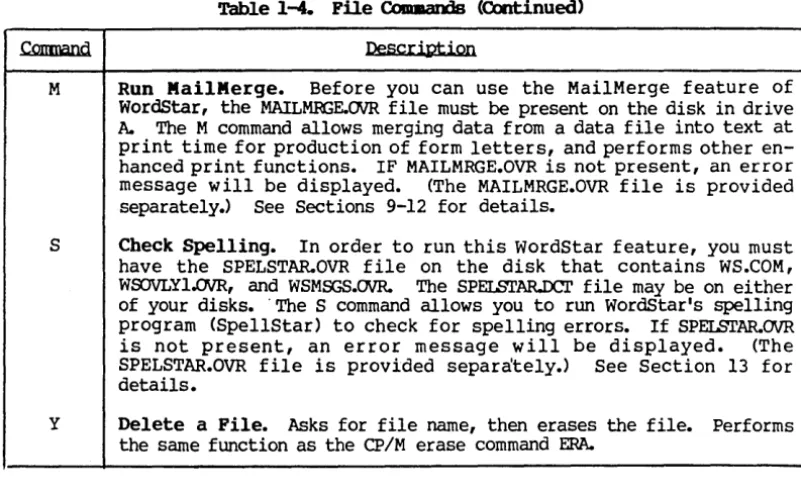
Here's an example of how WordStar Release 3.0 handles an oversized document:
IGC . . . DfT'I . . . ,~
--cue, ...
LI"---_ LI"---_ • C - _ / c - _ U ... ~ .... __ . . . ea .... 'c-... .. .... b . " - " ... . - . . - . . . ,
---
..... _ .... c . . -.. _
•• / l ... _ _ •
'_ .... I~"_ •• • /1"1 . - , ...
__ c-.w... c-•
.
,.'.... _
...
...--. ~.,...-....
-
...
-
...
.
,.,.....
_ ....-
..
... _-.-n..
"."""'--Printed Document
< --
125 characters -->
Document Onscreen
(first and second screen views)
*
The 22-column scroll is the default condition and may be changed. See the WordStar 3.0 Installation Manual, Appendix E.When you then want to go back to the previous screenful of text, use a command that moves the cursor off the left side of the screen (AA or AS). The screen window will scroll to the left, and
"+" flags will appear in the rightmost column. And, of course, word wrap will automatically take you back to the first screen, placing the cursor at the left margin. AQS will also always take you directly to the beginning of the line in one scroll.
You should be aware that even if your right margin is less than 80, you could end up with lines that continue beyond the right edge of the screen. For example, this could happen if you are entering or inserting text with word-wrap off, or you insert text that pushes the line past the last column, or you join two paragraphs so that the line that joins them extends beyond the last column.
If you then try to move the cursor into the offscreen portion of the extended line, you may find that much of your text "disappears" from the screen. Don't be alarmed! You can get back to it simply by employing one of the commands that moves the cursor left (AA, AS, AQS ).
To learn more about horizontal scrolling, read pages 2-12 and 3-4,S of the WordStar Reference Manual.
Column MQQe.
Column mode allows you to move, copy, and delete ~ID~ of text and numbers. With previous releases of WordStar, you could move only blocks of text that extended from margin to margin. Column mode is particularly useful in creating and editing tables and diagrams.
AKN is the toggle command that gives you either block mode or column mode. The default situation is that block mode is ON, column mode is OFF.
When you move text in WordStar's block mode, the carriage returns move along with the block of text. In column mode, this isn't so. When you move a column composed of lines ending in carriage returns, a block of blank lines will remain in their place. To remove the gap in your document, you will have to delete these blank lines.
You cannot use the command AKy (Delete block) to delete blank lines while you're in column mode, because column move, copy, and delete commands do not affect carria~e returns. So, to eliminate the blank lines, enter the command KN to return to block mode, mark the block of blank lines, and delete them with AKy•
Column mode does not change the way you use WordStar to enter text or edit within a column. For example, it doesn1t allow you to word wrap or justify columns. All text entry and edit operations will still affect your text from margin to margin, whether or not you are in column mode.
You should keep this principle in mind when you use print control characters (for underlining, boldfacing, or doublestriking, for example) in columns. You need to make sure the print control characters begin and end on each line of the column you want to be affected.
For instance, if you are creating a table of several columns, and you want the first three lines of the first column to be boldfaced, you can't just use the ApB command (for boldface) at the beginning of the first line and the end of the third line. If you do, the first three lines of ~ column will be boldfaced. Instead, use the ApB command at the beginning and end of the first three lines of the first column.
This:
ABxxxxxxxxxx xxxxxxxxxx xxxxxxxxxx xxxxxxxxxx xxxxxxxxxxAB xxxxxxxxxx xxxxxxxxxx xxxxxxxxxx produces this result:
xxxxxxxxxx xxxxxxxxxx
... .,.,vw ... -.r . . ... . A A A A A A A A
xxxxxxxxxx
This:
xxxxxxxxxx xxxxxxxxxx
xxxxxxxxxx
xxxxxxxxxx
ABxxxxxxxxxxAB xxxxxxxxxx ABxxxxxxxxxxAB xxxxxxxxxx ABxxxxxxxxxxAB xxxxxxxxxx xxxxxxxxxx xxxxxxxxxx produces this result:
xxxxxxxxxx xxxxxxxxxx xxxxxxxxxx
xxxxxxxxxx
xxxxxxxxxx xxxxxxxxxx xxxxxxxxxx xxxxxxxxxx
See Section 6 of the reference manual for a complete description of how to use column mode.
New Menus
All the menus in WordStar 3.0 have been revised so that you can read them more easily and locate commands faster. Commands are grouped and labeled according to the jobs they do.
For more about the new menus, see Sections reference manual.
SpellStar
and 2 of the
SpellStar makes a l l your documents l e t t e r perfect, by "proofreading" them so you can weed out all spelling and typing mistakes. There are two training chapters (Chapters 19 and 20 of the WordStar Training Guide) that take you step-by-step through the program, and one reference section (Section 13 of the Reference Manual) to use once you have practiced with SpellStar.
The two training chapters assume that you will be using a double-density 8" disk to hold the SpellStar and WordStar files. If you're using single density 8" or 5 1/4" disks, you will need more than one disk for WordStar, SpellStar and the dictionary. This will modify somewhat your use of the training guide, and you should pay particular attention to the notes concerning disk space.
This page left intentionally blank.
MICROPRO
WOR
•• ~~ •"
I0'
1, f . ,SJJAR®
~" ' , '
','.
~'
" " ' , ' , " ,WITH CORRECT
_ITTM
WordStar
General Information Manual
WS-3630-l (3.0) First Issue: May 15, 1981
Copyright (c) 1981
MicroPro International Corporation 1299 Fourth Street, Suite 400 San Rafael, California 94901 USA
COPYRIGHT NOTICE
Copyright (c) 1981 by MicroPro International Corporation. All Rights Reserved Worldwide. No part of this publication may be reproduced, transmitted, transcribed, stored in a retrieval system, or translated into any human or computer language, in any form or by any means, electronic, mechanical, magnetic, optical, chemical, manual, or otherwise, without the express written per-mission of MicroPro International Corporation, 1299 Fourth Street,
San Rafael, california 94901 U.S.A.
TRADEMARK
The names MailMerge, WordStar, DataStar, WordMaster, SuperSort, I/O Master, and MicroPro International Corporation are trademarks of MicroPro International Corporation.
DISCLAIMER
MicroPro International Corporation makes no representations or warranties with respect to the contents hereof and specifically disclaims any implied warranties of merchantibility or fitness for any particular purpose. Further, MicroPro International Corpora-tion reserves the right to revise this publicaCorpora-tion and to make changes from time to time in the content hereof without obligation of MicroPro International Corporation to notify any person or organization of such revision or changes.
References are made throughout this manual to the Control Program for Microprocessors, commonly known as CP/M. CP/M is a trademark of Digital Research of Pacific Grove, Californi~
This page intentionally left blank
1 Introduction
An OVerview of Wordstar
The Editing Function Video Editing
Contents
Automatic Disk Buffering On-Screen Text Fonmatting Powerful Editing Commands
Flexible Find and Replace Commands Help System
Dynamic Page Break Display Precise Control of Text Fonmat Hyphen-Help
Moving Text and Wide Documents The Printing Function
Page Formatting Pagination Control Special Effects
Microspace Justification Operator Options
The MailMerge Option Merging Text Data Files
Nested and Chained Printing Screen Display and Input Printing Multiple Copies Print-Time Fonmatting Print-Time Conditionals Additional WordStar Features
Keyboard Buffering Convenient Defaults
2 Systan Requirements
Co~atibi1ity
File Compatibility
Terminal Co~atibi1ity
Printer Compatibility Easy Installation The Terminal
The Screen The CUrsor Highlighting
Insert and Delete a Line The Keyboard
Other Oomponents The Disk Drives
The Rest of the Computer The Operating System
WordStar General Information Manual
Contents
3 Files and Diskettes: Part 1
Files
Text Files
Documents and Files Structure of a Text File The Importance of Saving Text Naming Files
Name and Type
Drive Name
Choosing File Names Diskettes and Files
The Logged Disk Drive Diskette capacity File Sizes
File Backup
4 Files and Diskettes: Part 2
Setting Up Diskettes Wordstar Installation WordStar Files
Setting Up a Wordstar System Diskette Work Diskettes
Changing Diskettes
The Simple and Safe Rule The WordStar Exception File Changes During Editing
Saving a Document
Restoring the Backup File Summary of Backing Up a File File Update in Detail
5 Editing a IklcIlDF'flt
Line Forming Margins Line Spacing Justification Forming a Line Word Wrap
Reforming a Paragraph carriage Returns Spaces
Hyphenation
Slm1Il\ary of Reforming
6 Printing a IklcIIDF'flt
3-1 3-1 3-1 3-1 3-2 3-2 3-2 3-2 3-2 3-3 3-3 3-3 3-3 3-4 4-1 4-1 4-1 4-1 4-2 4-2 4-2 4-2 4-3 4-3 4-4 4-4 4-5 5-1 5-1 5-1 5-1 5-2 5-2 5-2 5-3 5-3 5-4 5-4
Print Formatting 6-1
~~atioo ~l
Special Effects 6-1
other Printing Features 6-1
PrintControl Characters 6-2
Dot COmmands 6-3
Contents
A TeDninals
SUWOrted
Standard Installation A-I
Special Installation A-I
<Xl Request A-2
Special Versions A-2
Under Consideration A-3
Notsupported A-3
B Fomats
SUWOrted
Formats Supplied by MicroPro and Lifeboat B-1
Formats Supplied by MicroPro O.E.M.s B-2
For.mats Supplied by Lifeboat B-2
C Printers
SUWOrted
Specialty Printers C-l
Teletype-Like Printers C-l
illustrations
TYPical Screen Display 1-1
The Help Menu 1-3
TYPical Keyboard 2-3
Sample Backup Procedure 4-4
Word Wrap 5-2
This Page Intentionally Left Blank
Section 1 Introduction
AN OVERVIEW OF WORDSTAR
Section 1 Introduction
WordStar is a screen-oriented word-processing system with integrated printing. Both initial entry of text and alteration of text previously entered are dis-played directly on the screen. Most formatting functions take place imme-diately, resulting in the display of a true print image; additional
enhance-ments are performed during printout. The MailMerge option adds form letter
generation and other capabilities. Originally designed for use under the Command Program Monitor (CP/M), WordStar has since been modified for use on other operating systems.
THE EDITING FUNCTION
WordStar's editing function is used to create and alter documents stored on diskette. Features of the edit function include video editing, automatic disk buffering, on-screen text formatting, powerful editing commands, flexible find
and replace commands, help system, dynamic page break display, precis~ control
of text format, and hyphen help.
Video Editing
A portion of the document being entered or corrected is always shown on the
terminal screen: additions and corrections are immediately displayed. Text
entry is accomplished merely by typing the desired text; command functions such as cursor motion or deletion of text are quickly accomplished with visual feedback.
A : TEST •
roc
PAGE 1 LINE I COL 1 INSERT ON< < <
M A I N MEN U> > >
* *
Cursor Movement* *
I*
Delete*
I*
Miscellaneous*
I*
Other Menus*
"s char left "0 char right I "G char I "I Tab "B Reform I (fran Main only)
"A word left "F word right IDEL chr lfl~ Insert off / ON I"J Help "K Block
"E line up "X line down I"T word rtl"L Find/Replce againl"Q Quick "p Print
* *
Scrolling*
*
I "y line I RE'IURN End paragraph I "0 Onscreer."z
line up "W line down I I"N Insert a RETURN I"c screen up "R screen dCMlI I "u Stop a coomand I
L - - - l - - l - - l - - l - - l - - l - - l - - l - - l - - l - - ! R
WordStar is a screen-oriented word-processing system with
integrated printing. Both initial entry of text and alteration
of text previously entered are displayed directly on the screen. Most formatting functions take place •
~ical Screen Display
Section 1 Introduction
Autaoatic Disk Buffering
The size of a document is not limited by the amount of random access memory
(RAM) in your computer, but by disk capacity. Text is brought into RAM as
required, with no operator intervention or concern.
cm-screen Text Fomatting
Text is displayed on the screen as it will appear when printed, thereby facilitating review and correction before printing. On-screen text formatting is accomplished with the aid of these features: word wrap; automatic margina-tion, justificamargina-tion, line spacing, and centering; and paragraph re-form.
WORD WRAP
Paragraphs may be entered at high speed without striking the RmURN key. When
a word exceeds the right margin, WordStar automatically moves the word being entered to the next line and justifies and redisplays the line just completed. The RETURN key is used only to indicate the end of a paragraph, blank line, or other point where a permanent line break is desired. The typist need not break rhythm to think about the end of the line, nor feel the necessity of looking up from the material being entered.
AU'IDMATIC MARGINATION« JUSTIFICATION « LINE SPAClt-N« AND CENrERIt-N
With word wrap in effect, each completed line is automatically adjusted to fit the left and right margins, justified (right-aligned) unless the user has selected ragged-right format, and, optionally, double-spaced or triple spaced.
A line of text can be centered between the current left and right margins with
a keystroke command.
PARAGRAPH RE-FORM
Text from the cursor position to the end of the paragraph may be lire-formed" on command to change the margins or line spacing, to change from ragged right
to justified or vice versa, or to clean up after alterations.
1Werful Editing Cmmands
In addition to the basic functions--cursor motion, scrolling, by character, word, or line, and selection of insertion or WordStar's editing commands include the following:
o set or clear a variable tab stop--ordinary or decimal
o move, copy, or delete a block
o set or move to a place marker
o find or find and replace text
o write to and read fran additiooal. files
text deletion ove r
Section 1 Introduction
Flexible Find and Replace Qmnands
Searching operations and substitution operations can be done once, n times,
globally (on the entire document), on whole words only, ignoring case (u~r
or lower), and/or selectively (the operator is asked whether replacement is to be performed in each instance).
Help System
A menu of cornnands appears at the top of the screen dur ing editing, or may be
suppressed for additional text display area. When the first character of a
two-character command is entered, after a short pause the menu automatically changes to show all commands that begin with the key just entered. Additional explanations of various topics can be called up at will, by selecting from the
Help Menu (shown here).
"J A: TEST .OOC PAGE 1 LINE 1 CDL 1 INSERT ON
> > >
< < <
H E L P MEN UH Display and set the help level B Paragraph reform (CTRL B command) F Flags in rightmost column of screen D Ordinary dot conmands (P corrmand)
I I
*
Other Menus*
I S Status line I (from Main only)
I R Ruler line I"J Help "K Block
I M Margins and tabs I"Q Quick "p Print
I P Place markers 1"0 Onscreen
I V Moving text ISpace bar returns
I Iyou to Main Menu.
L - - - l - - - ! - - - l - - l - - l - - ! - - ! - - ! - - l - - l - - l - - - R D
'Itle Help Henu
Dynamic Page Break. Display
Within certain limitations, the page breaks that will occur at printout are indicated on the screen during editing, and change appropriately in response
to every insertion or deletion. Thus printing is unnecessary to review page
layout or page break positions.
Precise Control of Text Format
WordStar remembers which spaces and carriage returns were typed by the
opera-tor and which were inserted by the word wrap or paragraph refonm operation. For example, if text is entered with two spaces after periods, the spaces will remain through the initial word wrap and any later reforming, even if they fall initially at end of line and later in mid-line. Anything produced by the automatic formatting features can be altered by explicit editing commands afterwards. All automatic features can be disabled.
Section I Introduction
IIyplen-Belp
WordStar can identify desirable places to divide a word between lines with a
hyphen. At each occurence, the operator may decide whether to hyphenate, and
optionally adjust the hyphen position. Hyphen-Help inserts temporary ~
which do not print if moved to mid-line by later reforming.
tbving Text and Wide DoctIDents
WordStar allows you to move either an ordinary block of text or a column of
text, as in a table. For documents more than 80 columns wide, WordStar also
allows horizontal scrolling of text in either direction.
~HE PRINTING FUNCTION
WordStar's printing function is used to print documents which have been entered and saved on diskette with the edit
function. The print function features
concurrent printiDJ - one document may
be printed while another is being
edited. Print formatting features
in-clude page formatting, pagination
con-trol, special effects, microspace
justification, and operator options.
Page Formatting
Each page is vertically formatted with top margin, variable heading and
footing texts, page m.nnber, and bottom margin. The page size and margins may
be specified with "dot conmands" inserted in the document; defaults make such
specification unneccessary for typical cases. The heading and footing may be
changed as many times as desired throughout the document.
The page mmiler appears by default at bottom center, but may be placed at top, bottom, left, center, right, or alternating left and right via specifications in the heading and/or footing texts. The page number may be set to any number desired, or suppressed completely.
Paginatim Control
Page breaks occur whenever the page is full, or in response to unconditional
page or conditional page directives in the document. Conditional page
directives allow specifying that a group of lines is to print together, at the top of the next page if they will not fit the current page. Use of these conmands will prevent inappropriate page breaks without the necessity of explicitly readjusting page ends every time changes are made in the document. Page breaks are shown on the screen during editing.
Section I Introduction
Special Effects
Underline, Double Strike, Boldface, and 6tt'i~ are generated at print time,
in response to special characters imbedded in the document. WordStar can
print these enhancements on regular printers as well as on daisy-wheel
printers. During editing, the special characters used to invoke the
enhance-ments are displayed at the beginning and end of the affected text, allCMing most standard CRT terminals to be used.
SUbscripts (CO2), superscripts
(e2
x), variable character pitch (pica, elite,or your choice of number of characters per inch), variable line height (6, 8, or your choice of lines per inch) and alternate ribbon color are fully supported on daisy-wheel and other incremental printers, and within limita-tions on Teletype-like printers.
Underline, double strike, boldface, and strikeout may be used freely in
mid-paragraph as well as in separate lines such as titles; use of these features
is completely compatible with word wrap and paragraph reform. Print
enhance-ments may be used in all caIbinations. For example, underlined text and
boldfaced subscripts are possible
tAx).
Ricrospace Justification
When printing justified text on a daisy wheel printer, the white space in each line is evenly distributed between the words and characters for superior
appearance. On printers not capable of incremental spacing, and on the
termi-nal display while editing, justification is accomplished by varying the number of blanks between words.
~rator Options
The operator may specify any combination of the follCMing printing features:
o starting and ending page numbers
o use of Ilform feed II characters
o pausing between pages for single-sheet paper loading
o printing exact file contents without page formatting
o outputting to a disk file instead of the printer
Print operation can be suspended or aborted at any time while printing is being performed, whether or not a document is being edited.
THE MAILRERGE OPTION
WordStar's MaiLMerge option allCMs production of form letters and provides
other enhanced printing capabilities. The separately supplied MaiLMerge
option activates the IMaiLMerge" comnand. The MaiLMerge comnand has all of
the capabilities of the regular print function (as described above) except the ability to edit while printing, plus a number of additional capabilities, including the following:
Section 1 Introduction
Merging Text
MailMerge can insert variable information into a document and automatically
print a copy for each set of data. For example, a personalized letter can be
produced for each name and address on a mailing list. The letter is prepared
with the edit function in the usual manner, with imbedded directives added to
control the merging. The information to be inserted commonly comes from a
IIdata filell
; alternately, the operator may be queried for variable
informa-tion, or values may be set at the beginning of a document for insertion at
multiple places in the document.
JBta Files
Data files containing mailing lists or other information to be inserted into
documents by MailMerge may be prepared with WordStar's edit function or with
MicroPro's screen-oriented data entry program, DataStar. The compatible for-mat used also allows generation of data files by programs written in BASIC or another language.
Nested and Olained Printing
One document may invoke another document file by name during printout.
IlBoiler platell paragraphs used in many documents can be recorded on separate
files and invoked from as many documents as desired; insertion of variable
information and reformatting may be performed during printout of the invoked
file. A large document that is maintained on multiple files may be printed
with a single operator request through the use of a control file containing commands to invoke printout of the various sections.
Screen Display and Inp.It
Corrmands "may be imbedded in a document file to display messages to the
opera-tor on the screen during printout, and to request operaopera-tor input of variable information.
Printing Multiple {»pies
A conmand may be imbedded in a document to cause repeated pr inting. Such
repetition also occurs automatically when variable information is read fram a
data file. In addition, the operator may request multiple-copy printing when
MailMerge is invoked. The operator-requested multiple-copy printout
comple-ments that invoked by commands in the file, to permit producing (for example) two or more copies of each letter printed fram a mailing list.
Print-Time Fomatting
The forming of text into lines, normally done during text entry with
WordStar's edit function, is also performed by MailMerge. Thus, variable
information may be inserted in mid-paragraph: MailMerge will realign the
margins as necessary.
Section 1 Introduction
Print-'l'ime Onlitionals
WordStar allows you to write conditional statements to control printing of a
docmnent. These statements may be canpounded and may contain ar i tl"anetic and
logical terms.
ADDITIONAL WORDSTAR FEATURES Keyboard Buffering
If the operator types faster than the screen display can respond, the
key-strokes are saved until they can be processed. Also, screen updating is
usually suspended until WOrdStar catches up with processing all the
key-strokes. Thus, the operator can enter text or type commands at high speed,
then pause when he/she wishes to see the latest screen display. The only
exception to this is during disk I/O, which is indicated by a message at the top of the screen as well as the usual noise from the disk drive.
Convenient Defaults
While WOrdStar has many options and user-set quantities, all are set to gen-erally useful values at startup. For example, the left margin is at column 1, the right margin is at column 65 and there are tab stops every 5 columns. The page paper length defaults to 66 lines long for normal 11 inch forms, with
margins at the top and bottom. Thus, WordStar can be used initially without
even knowing how to change these variables, and there will rarely be need to
change more than a fe.w of them for a typical document.
Section 1 Introduction
This Page Intentionally Left Blank
Section 2
COMPATIBILITY
Section 2 System Requirements
System Requirements
WordStar is compatible with a wide variety of hardware configurations, and can share files with other software:
File O>mpatibility
The disk files used by WordStar for documents are standard CP/M text files, with very minor additions; a "non-docurnent" edit mode is available to suppress even the minor differences. All formatting features such as word wrap, justification, and settable tabs can be individually enabled and disabled. The formatting performed by the print command can be suppressed.
Thus, WordStar is useful as a general purpose text editor/print despooler as well as a self-contained word processing system. It may be used to edit program source files, to input files for other text formatters, for data
entry, etc. The print function may be used to print output written to disk by
other applications or programs (even while you use the edit function to pre-pare the input for the next run!).
Terminal Compatibility
Once installed, WordStar's video editing function will operate on almost any CRT terminal or video board 16 x 64 or larger that has a cursor positioning function and that is accessible as a console device under CP/M (also Apple II
16 x 40). If the CRT has line insert and line delete functions, these will be
used for split screen update after changes in the text. If the CRT has a highlighting method such as inverse video or bright/dim, the highlighting method will be used to distinguish menus and other prompts from the text being edited, as well as for distinguishing blocks of text "marked" in preparation for block copy, move, or delete. Certain memory-mapped video boards meeting requirements detailed in the Installation Manual can alternately be operated in direct memory access mode for extra fast and smooth screen update.
Printer O>mpatibility
WordStar will drive almost any p~inter, whether it is Teletype-like or daisy
wheel, and whether it is accessed via CP/M's "list output" logical device or via direct hardware I/O instructions issued by WordStar. OEM daisy wheel and similar printers are supported when used with the MicroPro "I/O Master" S-Hm interface board.
For daisy wheel and similar incremental printers, variable line spacing (1 to 127 forty-eighths of an inch), variable character pitch (1 to 127 one-hundred-twentieths of an inch), and automatic microspace justification are supported. For other printers, selection of two character widths is supported (when supported by the printer) and limited user-definable access to other special control sequences is provided. Subscripts, superscripts, and boldface text print differently on non-incremental printers.
Section 2 System Requirements
It is possible to use a fast printer for drafts and a daisy wheel for finished copy with no special considerations other than creating two versions of WordStar installed for different printers.
'The INSTALL program supplied with WordStar allows easy menu selection of any of about twenty common terminal types and of one of the following printers
(see Appendices A, B, and C for complete lists):
o Diablo 1619/1628/1649/1658
o Qume Sprint 5
o NFX: Spinwriter 5519/5528
o OEM daisy wheel printer (Diablo Hy-Type II, Qume Sprint 3, NEC
55000) connected to either a MicroPro "1/0 Master" interface board
or an Imsai PIo-4/4 with an Imsai cable G
o Teletype-like printer
Operation of the INSTALL program is described in the Installation Manual. Installation for unusual terminals, video boards, and printers is handled by ''patching'' the program. Extensive provisions have been made for user patching to accomodate various console and printer devices, as well as to customize other features. Such modifications are discussed in the Installation Manual.
THE TERMINAL
The Screen
The screen is capable of displaying at least 16 lines of 64 charactersi· 24 lines of 80 characters is a common size. We will refer to the leftmost character position on each line as "column I", and the rightmost character p:>sition as "the right-most column" since the actual number of columns on the screen varies from terminal to terminal.
'!he CUrsor
The cursor indicates where the next character will appear on the screen. Depending on the terminal, the cursor may appear as a rectangle, triangle, or underline, and mayor may not blink.
BighlightiD]
Many terminals have some way of making certain text stand out on the screen. One common method is to use bright and dim displaYi another is inverse video, whereby the characters to be differentiated are black on a white background instead of white on a black background. If your terminal has one of these highlighting methods and WordStar is installed to use it, WordStar will use highlighting to distinguish menus and error messages from text, and to indi-cate text in the document that has been "marked" as a block.
Section 2 System Requirements
Insert and Delete Line
Many terminals have special control codes to permit deleting or inserting a line of text on the screen, automatically moving the lines below up or down. If your term,inal has these capabilities and WordStar is correctly installed to use them, WordStar will use split screen upward and downward scrolling to achieve rapid screen update as text is edited or scanned.
Most computer keyboards are similar to typewriter keyboards, but with a number
of additional keys. Placement and labelling of keys varies from keyboard to
keyboard. A 'picture of a typical keyboard showing all keys that are essential to use of WordStar is shown below (see Appendix B of the Installation Manual for keyboard arrangements of special versions such as the TRS-80 Model I):
space bar
Typical. Keyboard
The CTRL key is used like a shift key to enter the control characters
(control-A through control-Z). TO type a control character, hold the CTRL key
down while typing the letter. In this manual, "control II is abbreviated II ... ;
that is, .... A means control-A, typed by holding down CTRL and typing an A; "B means control-B, etc. COntrol characters are used for commands to WordStar, to tell WordStar to do something; other keys enter document characters.
Your DEL key may be labelled DELETE, RUB or RUBOUT and mayor may not be shared with the underscore key and mayor may not require SHIM' to activate.
Your ESC key may be labelled ESCAPE.
The RRIURN key may be labelled C'.ARRIAGE RE'lURN or ENrER.
Note that the space bar is for entering spaces. Unlike on a typewriter, you cannot use the space bar to move over characters already on the screen.
Section 2 System Requirements
A number of additional keys may be present, including:
BACl<SPACE: same as ... Hi use with WordStar for backspacing. TAB: same as ... Ii use with WordStar for tabbing. LINE FEED: same as ... J.
Some terminal keyboards have four cursor motion keys with arrows pointing in four directionsi these can be activated for WordStar through special installa-tion procedures (Installainstalla-tion Manual).
Many terminals have a REP~ key which may be held down along with another key to type that character continuouslYi other terminals auto-repeat any character ~hose key is held down.
OTHER COMPONENTS 'l'be Disk Drives
In addition to the terminal, a computer suitable for WordStar use has one or more disk drives into which diskettes may be inserted for file storage. To use WordStar, you should know how to load diskettes into your particular drives. Before beginning extensive entry of documents, you should have a supply of blank diskettes. Also, remember that you cannot change diskettes indiscriminately while using WordStar--the appropriate times for changing the diskette in a drive will be described in Section 4 ("Changing Diskettes"). "!he Rest of the CcIIp1ter
The remainder of the computer need not be understood to make effective use of WordStar. We will occasionally refer to parts of the computer such as ''RAM'' (random access memory) for the better understanding of those familiar with such termsi if such words are all Greek to you, don't be concerne<L
WordStar operates under CP/M and a few other operating systems. The operating system is used by WordStar to maintain files of data on diskette, and by the user for a number of utility functions. (Files are discussed in Sections 3 and 4.) After turning your computer on, you must start ("boot") your ting system before you can invoke WordStar. Refer to your computer or opera-ting system instruction manuals for "booopera-ting" directions.
When you turn on your computer and boot CP/M, the system's "console command processor" (probably referred to as the CCP in your system manuals) is invoked. It prompts with UA)" and waits for you to enter a command.
WordStar can then be called up by typing ''WS'' and pressing carriage return, as discussed in greater detail in the Reference ~
There are also a number of CP/M commands ("console commands") which can be given at this point. Functions performed by CP/M commands needed in
con-junction with WordStar use include
o
2-4
Determining the amount of space left on a diskette (STAT command in most systems).
Section 2 System Requirements
o Determining the size of a particular file (USTAT filenameh
) .
o Making a copy of a file on another diskette (PIP command).
PIP may be used to make backup copies of documents, as well as to set up diskettes (Section 4). You may also use the WordStar copy command to copy
files (refer to the Reference Manual).
Section 2 System Requirements
.cw 12
This Page Intentionally Left Blank
Section 3
Files and Diskettes: Part 1
FILES
Understanding the nature of a file is important to understanding the operation
of WordStar. Since we will refer to files frequently, we will discuss them
and related concepts before proceeding.
What is a file? A file is a collection of characters stored, in order, under a name, on a diskette.
Text files
Files containing text are used to store documents, such as letters, books, grocery lists, and so on diskette. When you enter a document int9 the compu-ter with WordStar, you are using WordStar to create a file containing the text of the document. When you make corrections in a document, you are modifying an existing file.
Documents and Files
Generally, we will use the words "file" and "document" interchangeably to
refer to the textual material being entered or altered with WordStar.
OCca-sionally, of course, what you think of as a "document" may not correspond to a "file". For example, a book (a large document!) might have each chapter stored
as a separate file, or a commonly used paragraph (less than a document) might
be stored on a separate file for later retrieval for inclusion in future docu-ments.
structure of a Text File
The characters are stored in a file containing text in exactly the order you would type them on a typewriter. Every place you would hit the space bar, a "space" character is stored in the file. At the end of each line, where you would return the carriage, there is a "carriage return" character stored in the file.
Note
There really is a "character" for "carriage return" that is stored between lines in the file. You can take advantage of this knowledge when editing a document. For example, if you want to join two lines together, you delete the "carriage return" at the end of the first line. If you command the cursor to back up from the beginning of a line, the cursor goes to the end of the preceding line.
(Technically speaking, there are two characters, called "carriage
return" and "line feed", between lines of a text file. Since
WordStar automatically manipulates the line feed along with the carriage return, the user need not be aware of the second character except in a few specific contexts which will be mentioned later.)
Section 3 Files and Diskettes
~ Importance of Saving 'l'ert
A.file is the only non-ephemeral storage in the computer. Text entered into WordStar (or modif ication to previously entered text) is permanently filed only when the operator gives one of WordStar's save commands. For example, if you enter text then turn off your computer without saving, the text will be
gone when you turn the computer on again. Save your ~entl
NAMING FILES
A file is identified by a
'I
name "; this name is typed whenever the file isreferred to, (e.g., to determine its size, edit it, or print it). A name is chosen for a file when it is created. The name may be changed with a CP/M system command (REN) or with the WordStar rename command (see NNo-File
Commands, II Reference Manual).
Name
am
TypeAs described in detail in your operating system documentation, a file name contains up to three parts: the primary part is a name consisting of one to eight letters and/or digits (most punctuation characters can also be used).
Lower case letters may be typed in, but they are taken as equivalent to upper
case letters. This name can optionally be followed by a period and one to
three more characters called the "typell or "extensionll• Commonly, type IX)C is
used for documents to distinguish them from other files, but blank (omitted) file types also work. Examples of valid file names as described so far:
ABC.XYZ
X
Drive Name
IBrrER.OOC GRX:ERY .LST
ClIAPrERl. .OOC
XXS-8-79.00c
The third part of a file name, a drive letter, is optional. It is entered first and separated from the rest of the name with a colon. This letter, A or
B (or C or D if you have more drives) specifies the drive (A or B) containing
the diskette for the file. Examples:
A:ABC.D B:FOO B:ABRA~.BRA
When no letter is included in the file name, the file name is assumed to be on
the drive currently logged.
A file name as we have just described it may be referred to as an-liunambiguous
file namell or lIufnll in your system documentation.
(])oosing File Names
File names may be chosen any way you wish, provided the same name and type are
not already in use for another file on the same diskette, except that you
should not use type ''BAKII (backup). Choose something that helps you remember
the file contents.
Section 3 Files and Diskettes
DI&a::1're:s All) FILES
1be Logged Disk Drive
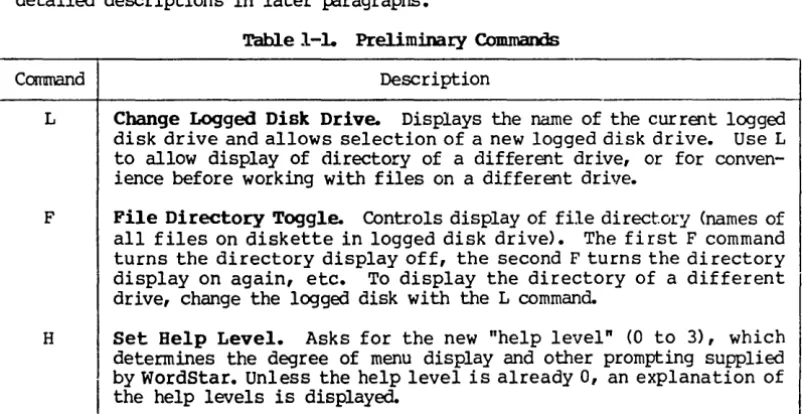
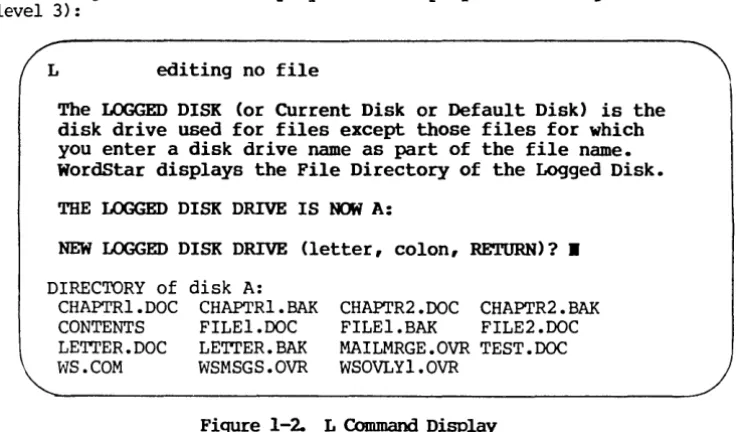
The "Logged DriveN (or current logged drive or current drive) is the disk drive used for any file for which no drive letter is entered when the file name is entered. The logged drive is drive A when the operating system (CP/M) is started. The logged drive may be changed with a CP/M command (by typing drive letter followed by a colon to the console command processor), or with WordStar commands (described later). For example, if you are going to be working with files on a diskette in drive B, you might find it convenient to change the logged drive to B to eliminate the need to type B: before each file name.
WordStar displays the file directory (i.e., the names of all files on the
diskette) of the logged drive. Thus, to view the file directory of drive B,
you must change the logged dr i ve to dr i ve B.
Diskette capacity
A diskette has a fixed capacity in characters (bytes). This is the total for all files on the diskette, including non-text files such as the WordStar program or PIP or STAT as well as your documents. The exact number of charac-ters varies with the diskette type and system; an ordinary 8-inch single-density IBM-compatible diskette will hold a total of 24lK (243,892) characters on most systems. The total number of files is also limited (sometimes to 64), but unless you use very short files, the total number of characters is the limiting factor.
If a diskette gets full, it may be impossible to save a document that has just
been entered or corrected. It is not permissable to change diskettes after entry or correction of a file has begun, so check your disk space (STAT
command in most systems) before commencing entry or correction. If the
diskette you are using doesn't have lots of extra space on it, start another.
Watch your disk space!
File Sizes
A printed page of text usually contains two or three thousand characters; the exact size of course depends on the line length, number of lines, and number
of blank lines. A system console command is available (STAT filename in most
systems) to display the current size of a given file.
While you are learning WordStar, you will probably work with files of moderate size--several pages only. With such files, it is prudent to keep empty space on the diskette equal to twice the size of your largest document. When the space gets less than this, start a new diskette; if you are going to be adding to existing files, move some of them to the new diskette.
For large files, of course, it may not be practical to keep this much space, as the file may be bigger than a third the capacity of a diskette. We recom-mend that, when practical, large documents be divided into several files of moderate size. For example, each chapter of a book might be a separate file.
We will discuss large file considerations further in the Reference Manual.
Section 3 Files and Diskettes
File Backup
Prudent data processing practice includes keeping addi tional copies of all
data. This permits recovery if a file is destroyed by any unforeseen ci~cum
stances such as computer breakdown, power failure, accidentally deleting the wrong file, spilling a cup of coffee on the diskette, etc.
In microcomputer word processing, the best method of backup is to make a copy of the file on a different diskette, then remove this diskette and store it safely. Any time you have invested considerable effort in correcting or
up-dating a file, exit from WordStar and make another backup. Be sure to label
your backup diskettes carefully - next time you go to use the document, you will want to be sure you can identify the latest version!
Files may be copied in most systems with a command called "PIP"; refer to your system documentation. WordStar also has a file copy command that will be described later. Some systems have a command with a name such as DISKCOPY that makes and verifies a copy of an entire diskette; if this is available, it is the best method due to the verification.
Orderly and regular backup procedures take little effort and will save much
grief should a file loss or diskette loss ever occur. Back up your filesl
Section 4
Files and Diskettes: Part 2
SETTING UP DISKETTES
Initializing diskettes requires greater understanding of the operating system
commands than other aspects of WordStar use. In some installations, a single
individual may learn this process, and make a supply of initialized diskettes for use by a number of typists, who will then need only to understand the operation of WordStar proper. Be sure, however, to keep extra initialized diskettes at hand and make sure all operators know how to monitor the empty space on their diskettes.
WordStar Installation
If you don't already have a copy of WordStar installed to work with your terminal and printer, refer to the Installation Manual before attempting to initialize a diskette or to use WordStar.
wordStar Files
The WordStar program consists of the following files:
WS.a>M
WSMffiS. OVR
WSOVLYI.OVR
MAIIMRGE.OVR
Main "Program. The program loaded when you call up
WordStar. In order to call up WordStar, you must have
this file on the diskette in the drive you call it from
(normally A). (You can select another name dur ing
instal-lation. For details, see the Installation Manual.)
Message File. The text of all WordStar messages and
menus. This file should always be on-line when WordStar
is in use. WSMSGS.OVR may be on the diskette in drive A,
or in the diskette. in the logged drive (if other than A)--WordStar will find it either place.
Overlay File. WordStar overlays. This file contains elements of theWordStar program, and must be on-line at all times in order to use WordStar.
MailMerge File (Optional). MailMerge overlays. This file, which must be present on the system in order to use the optional MailMerge command, is supplied separately.
Setting Up a WordStar System Diskette
You will normally want to put the following on each WordStar working diskette:
1. The "system image": the portion of· the operating system read into
RAM whenever the system boots or warm-restarts (this includes when WordStar exits to the system). This is not a file, but is on a reserved area of the diskette, copied from one diskette to another with a special, system-dependent program sometimes called SYSGEN.
Section 4 Files and Diskettes
2. The files for any "transient" CP/M commands you wish. We recommend STAT. COM and PIP.COM for all diskettes.
3. The files required by WordStar:
a. WS.COM, the WS program (as produced by the "installation" procedure, described in the Installation Manual).
b. WSMSGS.OVR, the WordStar message text file. This file should always be on the diskette in drive A, or on the diskette in the logged drive.
c. WSOVLYl.OVR, the WordStar overlay file. This file must always be on the diskette in the logged drive, or on the diskette in drive A. We recommend that you keep a diskette containing all three of these files in drive A whenever you use WordStar.
d. MAILMRGE.OVR (optional). This file must be present on the
dis-kette in drive A (or in the logged drive) in order to use WordStar's MailMerge capability.
In most systems, files (items 2 and 3) are moved with the CP/M utility program PIP; refer to your operating system documentation. Once your WordStar is installed, a WordStar command may also be used to move files.
Work Diskettes
A diskette in drive B can be used for document file storage only. It need have none of the above items on it (provided WSMffiS.OVR and WSOVLYl.OVR are on the diskette in drive A), making its entire capacity available for document storage. (However, it is often to include items 2 and 3 for convenience.)
Note
For WordStar to operate, there must always be a diskette in drive A, and also in the logged drive if other than A.
(]JAR;IK; DISKEI'IES
']be Simple and Safe Rule
Change diskettes only when the system is ready to accept a command (A> or B> prompt), and after changing diskettes type control-C ("C). Don't forget the AC! Changing diskettes at the wrong time, such as when WordStar is editing or printing a file, or forgetting the control-C results in errors under some versions, and destroys existing files under other versions. Under certain systems, AC is unnecessary, but it does no harm.
1.be WordStar Exception
When WordStar is running, diskettes may be changed if WordStar is neither editing a file nor printing. The no-file menu (descrlbed later) must be on the screen, and printing must be inactive. AC is not used in this case.
Section 4 Files and Diskettes
Used with caution, this exception is a convenience: it makes it unnecessary to re-invoke WordStar to edit a file on a different diskette, and eliminates the need to have WS.COM take up diskette space when working with large files.
There is no general provision for changing diskettes in the midst of an edi~
Make sure you have plenty of working space on your diskette before invoking WordStar.
caution
Never change diskettes while editing or printing!
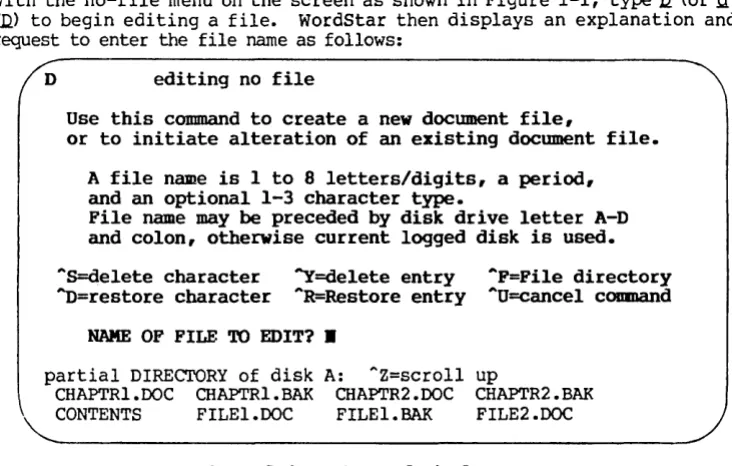
When initiating editing with WordStar, the operator enters a file name. This
may be the name of an existing file to be altered, or the name of a new file
into which text is to be entered. The processes of altering an existing
docu-ment and entering a new docudocu-ment are the same in WordStar, except of course that the new document starts out empty.
saving a I))ct1DP'lt
When an existing document is edited, the changes are entered temporarily into an ephemeral working document; no change is made in the permanent diskette storage until one of WordStar's save commands is given. When you save the
document, the previous version of the file is changed to type I 'BAR II (backup),
and the contents of the working document are filed under the file name of the previous version (see the illustration below under "SummaryU).
For example, if you edit a previously entered file named LETTER.DOC, after saving it the new version will be on the original file name (LETTER. DOC) and the version of the document that existed before the edit will now be called
LE'ITER. BAK.
When a new document is entered, the text goes into the working document as it is entered and is permanently recorded on diskette only when a save command is given. After saving the first time, the entered text will be on the specified file name. There will be no BAK file since there was no prior version.
To review, the working document is the version of the document containing changes and additions made during editing. The original file is not altered until you give a save command (and even then the original version is kept,
with type BAK). If the edit is interrupted for any reason-operator command,
power failure, etc.--the working document is lost and the original file is unchanged (non-existent for a new file).
The most important point about the working document is its transitory nature:
working document text is not permanently recorded on diskette until you ~
i~ Save your document! For convenience, WordStar contains a "save and
re-editll command which does a complete save, then initiates editing of the file
just saved. Use of this command periodically during long edit sessions is highly recommended.
Section 4 Files and Diskettes
Best:oring the Backup File
Alternately, if you make changes in a document, then decide before saving that you want the original kept, you may use WordStar's abandon command as des-cribed later. This command discards the working document, leaving the origi-nal file unchanged.
If you discover after saving that you made drastic errors while editing file
LETT~DOC, you may recover the prior version by using operating system
com-mands to copy or rename LE'ITER.BAK to LETTERJX)C, or by using WordStar's "read
additional file" command.
Note that only one prior version is kept. If you want to keep a version
indefinitely, make a copy on another file name--say ~OLD or ~00l.
If the "save and re-edit" command is used during an edit, the BAl< file (upon
completion) will be the version at the last "save and reedit".
We have made three important points in the above paragraphs:
4-4
1. Disk files aren1t changed at all until a save command is given, and
any work not saved will be lost.
2. When an existing file is edited and saved, the new version is filed
under the original primary name and type.
3. When an existing file is edited and saved, the previous version is
filed under the original primary name and type BAK.
Working
Document TEXT.DOC
= = >
in RAM (Disk File)
(TEXT. DOC)
________ v ______ __
TEXT.BAK
(Disk File)
Sanple Backup Procedure
section 4 Files and Diskettes
File Update in Detail
We will now describe the implementation of the ~orking document and the file
changes which occur when a file is edited in a more precise and technical
manner, and point out implications for large documents. (New and
non-techni-cal readers may skip the rest of this section).
During an edit, the working document is stored in RAM and, for large docu-ments, on temporary disk files that are created and erased automatically. Initially, the beginning of the original (input) document is read from disk into RAM for display and possible modification. As you proceed through the
document, additional text is automatically read as required. If and when the
capacity of your RAM is reached, some of the text from the beginning of what is in RAM is automatically written to a temporary output file.
Upon saving, the rest of the text is copied to this temporary file. Then, any existing BAK file is deleted, the input file is renamed to type BAK, and the temporary file is renamed to the file name being edited, thus becoming the output file.
If you move the cursor backwards through the file over more characters than are contained in RAM (the number of characters RAM will hold depends on how much RAM you have), text is read back from this temporary output file, and, if
necessary, text from the end of that in RAM is written to another temporary
file. This backing up operation is logically transparent, but it is slow and uses extra diskette space for the additional working file.
Thus, large files can be edited most rapidly and with minimum diskette space requirements by working forward through the file, from the beginning to the
end. To move from near the end to near the beginning, use a "save and reedit"
command ("KS) as described later. Saving is a relatively quick operation
because, if the cursor is near the end of the document when the save command is given, much of the text is already in the temporary file which is renamed to become the output file.
Section 4 Files and Diskettes
This Page Intentionally Left Blank
section 5 Editing a Document
This section introduces the concepts and terminology relating to WordStar's on-screen formatting. Section 6 describes those concepts that apply to printing. Descriptions of the specific editing commands and print directives are given in the Reference Manual.
LINE-FORMING
Here we will introduce WordStar's on-screen line formatting features, word wrap and paragraph reform, and define a number of terms used when discussing WordStar.
Margins
WordStar uses left and right margins that determine where on the page the text appears and how long the lines are. Like a typewriter, the left margin and right margin are set to the desired columns; the difference between them determines the line lengt~ By default, the left margin is column 1 and the right margin is column 65; commands for changing the margins will be described later.
Line Spacing
WordStar allows you to set single, double, triple, or greater line spacing; the default is single.
Justification
"Justified" text has additional spaces inserted between the words to make the right end of each line in a paragraph come out exactly at the right margin; "ragged right" text does not l'l.ave these spaces. The bulk of this manual is an example of "justified" text; this particular paragraph is ragged right to provide an example of the difference. WordStar's justification is on by de-fault, but may be turned off to produce ragged right text. Some users prefer ragged right, e.g. for correspondence which they wish to appear hand-typed.
Note
Justified text is always displayed on the screen with whole spaces inserted to achieve justification; this leads to uneven word spacing. However, if you have a daisy wheel printer capable of incremental spacing and WordStar is properly installed for it, the printed copy will be "microspace justified" with the white space added evenly throughout the line.
Margins, line spacing, and justification are all applied automatically by WordStar to text as it is entered, or upon command to previously entered text. We will refer to this process as forming the text; and will describe the process in more detail.
Section 5 Editing a Document
Forming a line
Given a collection of words, WordStar ~ a "lineh in the document as
follows:
1. Establishes the left margin: inserts the necessary number of spaces
to move from colwnn 1 to left margin coltnnn.
2. Places as many words as fit on the line. If all the words fit, then
this is a partial line and WordStar stops here. Otherwise, saves
the excess words for later lines and does steps 3 and 4.
3. If justification is on, adds spaces between words to align right
margin.
4. Adds a carriage return to the end of the line--or two for d