Worcester Polytechnic Institute
Digital WPI
Interactive Qualifying Projects (All Years) Interactive Qualifying Projects
May 2017
PLACEments Interactive Qualifying Project
Larisa I. Motova
Worcester Polytechnic Institute
Matthew Wyatt Piazza
Worcester Polytechnic Institute
Follow this and additional works at:https://digitalcommons.wpi.edu/iqp-all
This Unrestricted is brought to you for free and open access by the Interactive Qualifying Projects at Digital WPI. It has been accepted for inclusion in Interactive Qualifying Projects (All Years) by an authorized administrator of Digital WPI. For more information, please [email protected].
Repository Citation
Motova, L. I., & Piazza, M. W. (2017).PLACEments Interactive Qualifying Project. Retrieved fromhttps://digitalcommons.wpi.edu/ iqp-all/3303
PLACEments Interactive Qualifying Project
Prepared By:
Larisa Motova
Matthew Piazza
Prepared For:
Professor Neil Heffernan
Date:
Executive Summary
Within the field of education, teachers seek to develop their students’ understanding and knowledge, but they commonly face the problem of how to pace their courses and curriculum for the benefit of their students. Assessing the individual understanding of each student within a class is an essential element of overcoming this problem, but such a task is easier said than done. Our goal in this project was to reach teachers and classes with a tool that would allow meaningful assessment over a variety of skills while not requiring a massive investment of time.
As a fledgling system, PLACEments has not had a large base of users that it can offer itself to beyond those already connected to the ASSISTments organization. Through this project we sought to reach a broader group of teachers and equip them with the ability to customize PLACEments to the needs and preferences of the teachers themselves individually, as well as their courses and curriculum. By integrating PLACEments with Google Classroom we have sought to provide a foundation for offering our teaching aid to its massive group of currently unreached teachers and students, and from that foundation the current tools may be further enhanced and future features and tools may also be added. We also sought to add a custom skill builder to PLACEments in order to allow teachers to more easily design a testing environment for their students that they feel would be appropriate to the classes they teach. With a customizable skill hierarchy, teachers could choose what skills they believe are important to their students, how those build upon one another, and how they want to test those skills, all at their own discretion. In order to integrate PLACEments with Google Classroom, we compartmentalized our PLACEments website into two independent perspectives for users to reside in and toggle between as necessary: one for Google Classroom users and one for standard users. Within the Google Classroom perspective, teachers can assign PLACEments tests to their Google Classroom stream by the means of Google assignments with links to PLACEments within. These links direct teachers to a grading report within PLACEments when activated, and they direct students to the assigned test, remediation, or grading report depending on the student’s level of completion of the assignment. Through the nature of these links as Google assignments, we have also implemented a system for automatically uploading grades to the assignments within Google, easing the task of a teacher in maintaining a gradebook.
In order to allow teachers to more simply manage their classroom environment through PLACEments, a tool called the Skill Manager was created. Using the Skill Manager, teachers are given two general ways to change a variety of elements in the three layers of the PLACEments system. The uppermost layer, referred to as Subjects, contains a list of skills. These skills are the fundamental element that PLACEments tests are built upon. In the Skill Manager, teachers are free to create new skills, edit existing ones - through editing their name, description, or code number - or delete them. Once a set of skills have been made, users can then make the next layer in the PLACEments system: Skill Graphs. Skill Graphs contain a list, referred to as prerequisites, of links between skills, and they therefore cannot exist without a Subject. Each skill can have many Prerequisites, and
using these, PLACEments can figure out how students should be tested upon incorrectly solving test problems. The third and final layer is the Test Versions, containing Skill Sequences, linking a set of test problems and remediation problems to each skill in a particular Skill Graph. The Skill Manager allows users to edit any of these three layers with ease through a single table containing all of the skill information, prerequisites, and test and remediation information for any specific Subject-Skill Graph-Test Version combination. The second portion of Skill Manager also lets users upload and download any of this information using CSV files and Microsoft Excel spreadsheets.
While the technical goal of this project may have been to add the Skill Manager and integrate PLACEments with Google Classroom, the practical goal pursued reaching more users. To actually attract and serve users, a clean and intuitive interface is necessary or else all the technical functionality developed is for naught. Since we developed the user interfaces both of the Skill Manager and of the Google Classroom integration with PLACEments at our own discretion and that of our advisors, their ease of use has not yet been measured through feedback from actual users. We strongly recommend that any further work be focused upon refining the interface according to user feedback and incorporating a preferences and settings page for users to customize the behavior and appearance of PLACEments. We also would suggest that any further development of the Google Classroom and PLACEments integration consider adjusting the continuation and timing of the remediation assignment system to a manner similar to the ARRS system within ASSISTments described later in this report. Additionally, the topic of what exactly should occur when skills are deleted should be discussed about with teachers. As the fundamental element in the PLACEments hierarchy, deleting skills would have an effect on many other elements in the hierarchy, and the consequences and behaviors desired or intuitively expected by the users should be surveyed.
Abstract
We worked with the ASSISTments team to create a foundation with which PLACE-ments could be made more readily available and practical to those within the educational system. Towards this end, we integrated PLACEments with Google Classroom and in-corporated a new Skill Manager feature to PLACEments. These features are functionally complete and the PLACEments team will continue to prepare them for delivery to the public. We recommend that any continuing work first be focused on refining the interface according to user feedback.
Acknowledgements
We would like to thank our advisors Neil and Christina Heffernan for their support and direction throughout our project. Their enthusiasm and personal dedication to AS-SISTments and PLACEments helped drive and energize our work. We would also like to thank our supervisor and mentor Seth Adjei for his constant help. He made himself available to us even in the wee hours of the night and greatly aided us with his immedi-ate response. We would like to thank Brian Zylich and Neeraj Menon as well for their contributions to the design and ease of use of the PLACEments website, and we thank David Magid, Siyuan Zhao, and Christopher Donnelly for their support in providing us with and maintaining a software architecture to build on top of.
Authorship
Larisa Motova and Matthew Piazza both contributed to the research and writing of this report. The following is a breakdown of how the report was written for this project. Larisa Motova contributed to this report by writing in the Introduction about the current usage of PLACEments and how it differs from similar systems. She also wrote about the history of PLACEments and the need for a Skill Manager in the Background. In the Process and Methodology section, she wrote the subsections for the Skill Manager. Matthew Piazza contributed to this report by describing in the Introduction the initial setting in which the project started. Additionally, he wrote the subsections for ASSIST-ments and Google Classroom in the Background section and the introduction paragraph of the Process and Methodology section. Matthew wrote the Conclusion and also the subsection involving the integration of Google Classroom and PLACEments within the Process and Methodology section.
In addition to writing individual sections of this report, Larisa Motova and Matthew Piazza both edited the paper for grammar, content, and flow together. They also collab-orated in describing the goals in the Introduction section and writing the introduction to the Background section. Additionally, they worked together to create the Abstract, Executive Summary, and Results and Future Work sections.
Contents
Executive Summary ii Abstract iv Acknowledgements v Authorship vi 1 Introduction 1 2 Background 3 2.1 Introduction . . . 3 2.2 ASSISTments . . . 3 2.3 PLACEments . . . 4 2.4 Skill Manager . . . 5 2.5 Google Classroom . . . 63 Process and Methodology 7 3.1 Introduction . . . 7
3.2 Google Classroom Integration Process . . . 7
3.3 Creation of Skill Manager . . . 9
3.3.1 Before the Creation of the Skill Manager . . . 9
3.3.2 Creation of the First Skill Manager . . . 9
3.3.3 Creation of the Newest Skill Manager . . . 10
4 Results and Future Work 13 5 Conclusion 15 Bibliography 16 Appendix A: PLACEments and Google Integration Tutorial 17 A.1 Assigning Your First Test . . . 17
A.2 Taking Your First Test . . . 28
List of Figures
1 Initial Portal For Teachers . . . 17
2 Permissions Page . . . 18
3 Course Management Page . . . 19
4 Course Management Page With All Courses Imported . . . 20
5 Test Assignment Page . . . 21
6 Grade Level Pop-up . . . 22
7 Test Assignment Window . . . 23
8 Test Assignment Confirmation . . . 24
9 Google Classroom Stream Initial View . . . 25
10 Google Classroom Stream View After Student Completes Test . . . 26
11 Empty PLACEments Test Report . . . 27
12 Detailed PLACEments Test Report . . . 27
13 Student View Google Classroom . . . 28
14 Permissions Page . . . 29
15 Tutor Page . . . 30
16 View Assignments Page . . . 31
17 Switching to the Skill Manager . . . 32
18 Accessing the Manage Skills Screen . . . 33
19 A Sample PLACEments Environment Table . . . 34
20 Preparing to Make a New Subject . . . 34
21 Creating a new subject . . . 35
22 A New Subject . . . 36
23 To Add a New Skill . . . 36
24 After Pressing the Add Skill Button Three Times . . . 36
25 Editing a Skill . . . 37
26 After Naming Three Skills . . . 37
27 Creating a Prerequisite . . . 38
28 Creating a Skill Graph . . . 38
29 Beginning to Add an Additional Prerequisite . . . 39
30 Adding an Additional Prerequisite Step-By-Step . . . 39
31 Making a Skill Graph Permanent . . . 40
32 Table After a Graph Has Been Made Permanent . . . 40
33 Adding Test Banks . . . 41
34 Creating a New Test Version . . . 41
35 Making a Test Version Permanent . . . 42
36 After Saving a Test Version . . . 42
37 Copying a Subject . . . 43
38 After Copying a Subject . . . 43
39 Viewing All Existing Skill Graphs . . . 44
40 Entering the Imports and Exports Page . . . 45
42 The Exports Pane . . . 47 43 Alternate View of the Exports Pane . . . 47 44 The Imports Pane . . . 48
1 Introduction
Within the field of education, teachers seek to develop their students’ understanding and knowledge, but they commonly face the problem of how to pace their courses and curriculum for the benefit of their students. Some students will learn more quickly than others, while others learn more slowly, and it has always been the teacher’s dilemma to tailor their time and classes to best equip all students while they progress at various speeds. Regardless of the teacher’s ability to bring along students individually at their own best pace, teachers commonly encounter the issue in which they do not know the spectrum of understanding within the class from one student to another, and it is far more difficult to best aid a student when their current understanding is unknown. Assessing the individual understanding of each student within a class becomes a key necessity then for the dedicated teacher.
Unfortunately for teachers, they face a daunting task in this. Assessment of students is often accomplished through tests and homeworks, yet while testing all the students in a class as a whole is a common occurrence, teachers must invest their time to create such assignments. The greater their care in the difficult business of balancing breadth and depth of questions, the greater time committed. If they truly want to assess the students’ understanding, they must use problems with enough variety to cover a broad range of skills, and yet each problem must have enough complexity such that solving it reveals true comprehension. Of course these problems could be resolved by a comprehensive test, yet by their nature such tests trade their comprehensiveness for time invested by both students in taking them and teachers in designing and administering them. Our goal was to reach teachers and classes with a tool that would allow meaningful assessment over a variety of skills while not requiring a massive investment of time.
This tool known as PLACEments was the brainchild of two Worcester Polytechnic Institute graduate students, Corey Belhumeur and Skyler Whorton, and it later be-came an extension of the ASSISTments system, a free online tutoring service offered by Worcester Polytechnic Institute. PLACEments allows teachers to assign their students comprehensive tests covering a custom collection of skills that the teacher expects their students to understand and have mastered, and PLACEments also reacts during the test to the correctness of answers. While other software that provides similar functionality to PLACEments exists, such as IXL and NWEA’s MAP, PLACEments provides a valuable feature that is missing in these software: prerequisites.
In the case of a subject like math, students build upon previous skills that they have learned as they progress in their studies, and missing any skills can be fatal for their learning. PLACEments realizes this, so if a student fails a test for a skill with prerequi-sites, the test adapts by adding questions on those prerequisites as well. Students who continue to miss questions are then tested on the building blocks of those skills until they reach a collection of skills that they have mastered. Through this process of diving into prerequisite skills only when problems are incorrectly solved, the test saves time on testing mastered skills while giving focus to those that are not, producing a report at the conclusion identifying both the current level and the exact missing gaps of a student’s
understanding.
As a fledgling system, PLACEments has not had a large base of users that it can offer itself to beyond those already connected to the ASSISTments organization. Through this project we sought to reach a broader group of teachers and equip them with the ability to customize PLACEments to the needs and preferences of the teachers themselves individ-ually, as well as their courses and curriculum. Since its launch in 2014, Google Classroom has already accumulated over ten million users, and by integrating PLACEments with Google Classroom we have sought to provide a foundation for offering our teaching aid to this massive group of currently unreached teachers and students. We also sought to add a custom skill builder to PLACEments in order to allow teachers to more easily design a testing environment for their students that they feel would be appropriate to the classes they teach. With a customizable skill hierarchy, teachers could choose what skills they believe are important to their students, how those build upon one another, and how they want to test those skills, all at their own discretion.
2 Background
2.1 Introduction
This section discusses the original intent and drive leading to the creation of ASSIST-ments. Further discussion will continue on the use of ASSISTments for purposes beyond its original envisionment and the subsequent development of PLACEments to fulfill the new need. In the continuing development of PLACEments, this chapter will describe the need for and intent behind the pursuit of a skill manager for teachers’ customization of PLACEments and also of integration between PLACEments and Google Classroom.
2.2 ASSISTments
As an online tutoring system, ASSISTments fills a need as a cost-effective tool that schools can implement to offer their students greater individual feedback in a time-efficient manner. Many teachers are inundated by piles of assignments and tests to grade when they leave work for the day and head home, but the utilization of a system with online exercises and automatic grading can relieve that load. Students receive feedback immedi-ately and can come to class the next day knowing their grade already and what they need to ask for help on, and teachers can enjoy a more free afternoon and evening. Chantelle Holmes, a 7th grade math teacher using ASSISTments, said, “In the past, students would do the work and often would not even know they needed help. With the immediate feed-back, the number of students raising hands asking for help or clarification has increased dramatically.” Just scanning the grading reports ASSISTments provides before coming into class can immediately reveal to teachers what exactly their students need or can give them confidence that their students are ready to move on, and teachers can prepare accordingly for the next day’s content. Even beyond that, ASSISTments can even aid teachers during school hours; as Kristin Douglas wrote, “I love sitting in the computer lab with the students and seeing immediately on my teacher report who is struggling. I can walk over to those students and reteach in the moment.”
Though ASSISTments has standard exercises teachers may assign their students, it also offers teachers the ability to customize exercises for their students to fit the current curriculum. One teacher referred to it as “the customizable Khan Academy” where students can work on either standard practice problems or ones that the teacher has tailored for his or her students, and where the students can also receive support in solving those problems from their teachers and peers in hints and tutorials uploaded by other users. Just as the exercises can be tailored for the students by the teachers, so too does ASSISTments tailor the tips and advice that students can open as they’re working through a problem. By noticing how well students do after watching one tutorial and by recording their feedback on its helpfulness, ASSISTments can generate high quality, crowdsourced help while also creating a sense of community among its users.
unlooked-for need began to reveal itself. ASSISTments exercises can be offered as a quiz and test with automatic remediations being scheduled over time to ensure students truly had learned the skill, but teachers began to use this feature to assess the students by as-signing them the exercises for all the skills in a particular grade and subject, leading to an overwhelming burden on students since the exercises of ASSISTments are balanced timewise to be worked on one skill at a time. This new desired usage of ASSISTments led into the development of PLACEments. The grading reports automatically generated by ASSISTments allow students to immediately receive their grades instead of waiting on receiving their homework back, and ASSISTments also saves the teachers the time of analyzing all the assignments to determine which problems cause the greatest challenge for their students or what common misconceptions and mistakes are. However, while both ASSISTments and PLACEments reveal the strengths and weaknesses of students individually and as a class, ASSISTments operates in a manner analogous to a home-work, a selection of exercises to give practice in a deliberately chosen specific area, while PLACEments behaves more like a test. It can offer assessment across a broad scope of skills without the prohibitive investment of time ASSISTments would require in such a scenario, and PLACEments can also reveal a need for reinforcement in skills that aren’t even tested but that build up into those that are.
2.3 PLACEments
PLACEments was originally thought up by two graduate students at WPI - Corey Belhumeur and Skyler Whorton - for a class assignment where they were required to propose a “novel idea.” The two, while being advised by ASSISTments advisor Andrew Burnett and assisted by undergraduate student Doran Smestad, had looked at existing assessment systems, such as MAP, and found that there were parts lacking. For example, while MAP does assess student’s knowledge and predicts state test scores well, it only provides a description of the student’s academic level and does not identify exactly what the student does or does not know. One problem that arises in this lack of specificity is that if a teacher decides to use MAP or any similar testing program, he or she may still not understand exactly what material the students need reinforcement in.
Additionally, PLACEments also fills a gap that the original ASSISTments platform has: benchmark assessments. In ASSISTments, students can be tested by the Automatic Reassessment and Remediation System (ARRS) to verify that they know a specific skill. Each skill has a set of assignments referred to as skill builders, and ARRS passes a student if they complete a skill builder by consecutively answering a certain number of problems correctly in a particular set. While this is excellent for learning and relearning skills, using ARRS to determine what skills a student already has consumes a great deal of time for both the teacher and student due to the number of exercises in each skill that a student must complete in order to be regarded as having mastered the skill.
The goal of PLACEments was to create an adaptive test - much like MAP - that also informs students and teachers of what the student does or does not know. PLACEments’ assessments differ from MAP’s in that PLACEments uses a hierarchy of prerequisites. For many subjects, such as mathematics, some skills have very clear-cut prerequisite skills (e.g. one cannot add fractions before knowing how to add whole numbers). PLACEments uses these hierarchies in testing students to understand what they do not know. If a student fails a question, PLACEments determines what the prerequisites of the skill being
tested were, and it then proceeds to test the student on the prerequisites, continuing until the student reaches a set of problems that they are able to solve fully. Any questions missed correspond to skills that the student may need to be retaught. Once the student has completed the original assessment test, they are able to work on remediation problems that test the same skills that they had failed in the first test, and the teacher can verify whether the student has learned the material, or whether they may require additional help.
Because PLACEments assesses where each student lies skill-wise through exercises across a variety of skills rather than a sequence of exercises in the same skill, the teachers are no longer required to inundate their students with exercises to assess their under-standing across a wide scope of skills. In ASSISTments, many teachers will assign all skill builders in a grade level to their students, in hopes that the students will complete all of them if they have the skills, and the teacher will uncover what skills they are missing exactly if they fail any problems. What starts out with good intentions quickly becomes very overwhelming for even the best of students due to the sheer number of skill builders there are. But with PLACEments, teachers can assign simply a few skill builders to the students, and if there are any skills that the students are missing, the amount of problems will expand appropriately. In the case of a student missing a single problem due to a small miscalculation, they will only have to complete a small amount of exercises to confirm that they have mastered the skill, and the additional practice is not harmful. The primary goal of PLACEments and ASSISTments for the students is that they understand the material.
2.4 Skill Manager
PLACEments provides some subjects with default skill hierarchies and problem sets, such as the Common Core for math, which satisfy many teachers’ needs by themselves, but there are numerous other instances where a teacher requires more. A teacher may, for example, approve of the skill hierarchy itself and the prerequisites but be unsatisfied with the problems students are being tested with. Another teacher may disagree with which prerequisites are assigned to which skills but agree with the set of skills themselves and the corresponding exercises. There may also be a teacher who wants to change a name or some other attribute of the skills themselves but keep all other features the same. Cases like these are as many as there are teachers, which resulted in wanting PLACEments to allow teachers to create and manage their own skills through a custom skill manager.
The Skill Manager enables teachers and other authorized individuals to change the skill hierarchy in a variety of ways. Teachers are free to create their own subjects from scratch or from previously available default subjects, and the Skill Manager allows them to add, remove, or modify as many skills as they see fit. Once teachers have a base set of skills, they can also give those skills prerequisites and test banks. If a teacher decides that they would like to make additional skill hierarchies or problem sets later, the custom skill manager will save the previous skill groups and problems, so that the teacher can alter them later. When a teacher is satisfied with the default skill hierarchies, they are free to use those for their classes as well.
2.5 Google Classroom
As a group providing a free online educational aid, the ASSISTments and PLACEments group seeks to offer its tools to as many teachers and students as possible. Despite a user base that has doubled in size every year [1] there continues to be numerous teachers and students who slog forward every year with tedious effort, and this project has sought to reduce that burden upon them. As technology continues to advance and more people are becoming familiar with keeping files and work in the cloud, schools have begun to adopt Google’s new classroom extension to supplement their curriculum.
Google Classroom excels in providing a highly accessible and persistent environment for coursework, waiting for the students anytime they have the time to work on it. It may be accessed from any computer over any internet connection, and students can take it on the go with them wherever they may be. They cannot lose homework in clutter piles as they might with paper assignments, and material and assignments can be simply organized and neatly laid out. Unfortunately, setting up custom assignments in Google Classroom can be intimidating and a time-consuming hassle for teachers. This is where PLACEments and ASSISTments comes in: providing a simple tool that integrates naturally with Google Classroom and offers already existing exercises and quizzes. With this tool, teachers can reduce the struggle of starting from scratch and trying to reinvent the wheel. They can use the premade tests and practice sets, or customize them for their students as desired if they have the need and the time.
Currently Google Classroom has been able to offer its services to over 40 million users [2] since its inception, and it is this conglomerate of users that we seek to reach and be of aid to in whatever degree we can. By integrating PLACEments with Google Classroom, a foundation has been built with which to offer our teaching aid to this massive group of teachers and students, and from that foundation current tools may be enhanced and future features and tools may be added.
3 Process and Methodology
3.1 Introduction
The goal of our project was to provide a foundation for additional users to utilize the PLACEments system and to provide a method for them to customize its prerequisite skill trees to their own curriculum. In order to achieve these goals, we added a means to integrate PLACEments with Google Classroom and also an interface for managing skills and mappings between prerequisites. This chapter discusses the process of development of each of these features and provides context which leads into the following section describing the end state and results of our project.
3.2 Google Classroom Integration Process
In beginning to develop an integration for Google Classroom with the existing PLACE-ments website, we chose to create a new sector of the website dedicated specifically to Google users which would contain tools and features similar to a standard PLACEments user’s abilities and interface but different in implementation. We also decided that as we lay this foundation for integration with Google Classroom, it ought to be extendable to permit further integration of PLACEments with other learning management systems (LMS) such as Edmodo and Schoology, which both also offer teachers and students tools and aids for learning.
As we began development of this new section of the website, it became apparent from the start that the user interface would be an evolving yet vital consideration for us since no matter how technically advanced or smooth our system worked, it would be useless unless a user could intuitively understand how to work with it. Due to this, we prototyped our web pages with a mockup software called Balsamiq and determined the design for the entire group of pages before actually beginning to construct them. This brought many new considerations to our attention at a point in time in which we could design around them rather than merge them in later, which would have been far more difficult.
The foundation laid for integrating the multiple LMS systems was designed for us by a colleague familiar with the existing PLACEments system. Currently PLACEments maintains its own database for each new assignment and user, and without data in these tables LMS users such as those from Google Classroom would not be able to take PLACEments tests. Thus a generic mapping was created to maintain synchronization between the data tracked by the LMS system and the data in PLACEments. Beyond this, authentication details for each user’s LMS account were also necessary to request and store in order to manage their assignments for them automatically. Unfortunately, different LMS systems require different authentication methods, and we were not able to find a generic approach to communicate with each LMS that would be standardized. Thus while a standard foundation for integration with these other LMS systems was created in terms of configuring the PLACEments databases to transform LMS data, we
focused on developing an environment and interface specifically for Google Classroom. PLACEments runs through three separate systems: the standard development kit (SDK), which contains functionality standard to both PLACEments and ASSISTments; the PLACEments service, which contains functionality specific to PLACEments; and the PLACEments web application, which contains the configuration and tools supporting the website and online interface. Developing the authentication system for Google Classroom led to much exploration of their API as we discovered conflicts between the structure of the existing PLACEments system and the structure necessary to communicate to Google Classroom. At first our goal was to offer ASSISTments the same authentication and integration with Google Classroom as we were created for PLACEments, and thus we attempted to develop our communication methods within the SDK. Unfortunately due to the structure of the SDK and web pages, communication between these two could not established until our colleagues approached us with a new login portal within the SDK that transcended the channels and format separating it from the PLACEments service. Fortunately, during the time period in which the SDK was not a suitable place for au-thenticating users with Google, our development was still possible to prototype and test through a patch which bridged the gap between PLACEments and the SDK.
Once authentication was established with Google Classroom, we approached the cre-ation of PLACEments tests as assignments within a user’s personal Google Classroom stream, which is their interface representing a single classroom. We desired to imitate the flow that a student and teacher would naturally take through PLACEments if they were standard users unaffiliated with any LMS. The goal of mimicking standard PLACEments test generated our design goals and led to creating multiple requirements for integrating PLACEments tests within Google Classroom. We required each assigned test to be split into two assignments with independent grades for both the test and any necessary reme-diations, and these assignments needed to be capable of containing optional due dates, though the assignments needed to still allow students to take them after the due date. Tests needed to be offered across the range of grade and skill levels of standard PLACE-ments tests, and within Google Classroom the test assignment’s grade must relate to its percent correctness while the remediation assignment’s grade must relate to its percent completeness. These requirements alongside considerations for an intuitive user interface and efficient code structure guided us in our development of the integration functionality. We assumed that users who came to PLACEments from Google Classroom would continue to rely predominantly on Google Classroom for their educational needs and would consider our interface within PLACEments to be a plug-in with which they would desire to spend as little time in as necessary. To this end, we decided to compartmentalize our PLACEments website into two perspectives: one for Google Classroom users and one for standard users. However, we recognized that some users would need both perspectives if they made a transition to Google Classroom after already becoming familiar with PLACEments, and these users would need functionality to allow them to manage both their classes inside Google and in PLACEments. Thus a bridge was established allowing users to switch perspective from Google Classroom to standard view should they so desire. Due to the independence of these two perspectives, however, we decided that standard users should not have an option to switch to Google Classroom perspective since all Google users would be standard users but the converse would not always hold true.
As an online system, we recognized that our users would not all reside in the same timezone, and therefore due dates must be shifted according to a user’s specific timezone. Fortunately the SDK already contained fields and functionality for managing a
PLACE-ments user’s timezones and due dates, and Google users also set a timezone that their assignments within Google Classroom are reflective of. With these two features, account-ing for a user’s timezone on an assignment and synchronizaccount-ing with the time displayed in Google Classroom was simple to accomplish.
Throughout the entire course of this system’s development, we concerned ourselves with the cleanliness of the user interface and its ease of use alongside the technical portion of actually communicating between Google Classroom and PLACEments. While the technical goal of this project may have been to integrate the two systems together, the practical goal pursued reaching more users. To actually attract and serve users, a clean and intuitive interface is necessary or else all the technical functionality developed is for naught. In further pursuit of creating a practical and personalized interface for users, alongside the integration with Google Classroom this project also pursued the addition of a Skill Manager to PLACEments.
3.3 Creation of Skill Manager
3.3.1 Before the Creation of the Skill Manager
When this project started, there was no method for teachers or administrators to interact with or view the environment for PLACEments. The environment consisted of three elements: a subject, a skill graph, and a test version. Subjects correspond to a set of skills, a skill graph corresponds to the prerequisite links between skills, and a test version corresponds to the test question banks and remediation problems associated with a skill. Originally, the only possible environment setting was the Common Core State Standards for mathematics with no skill graphs and one test version. If a teacher wanted to change something about the Common Core or create their own subject with their own skills and problems, it would not be possible.
3.3.2 Creation of the First Skill Manager
To alleviate this issue, a Skill Manager was implemented to allow personalization of the PLACEments environment. When this project began, only two portions of the hierarchy were used: subjects - referred to as domains at this point in time - and skills. The original plan was to build some sort of system where users could view what subjects they have as well as what skills are in each subjects, and the system would also enable users to edit, delete, or create a subject or skill. This led to a Skill Manager designed with two pages, each containing a table with either all of the subjects or all skills. The subjects table featured the name of the domain, its description, and its creator. The skills table included the skill name, its code, a description, the subject it belonged to, as well as its creator. Above the tables was a button that opened a pop-up modal that allowed users to create a subject or skill one at a time. Users could delete and edit subjects and skills by clicking buttons that appeared to the right of the subject’s or skill’s name.
Once these two table designs were created, the next step was to create an interface where users could assign prerequisites for skills. Because there were potentially a great number of prerequisites, we had wanted to create some method to add multiple prereq-uisites at once. This need brought about the idea of importing prereqprereq-uisites through a user-uploaded CSV file. With the ability to upload prerequisites, the next logical step was to enable users to download prerequisites. Because we had wanted to only create one
web page for managing every element of the PLACEments environment, an accordion was created for each feature with the first panel containing the table, the second contain-ing an input for uploadcontain-ing prerequisites, and a third for downloadcontain-ing prerequisites. This web page makes the third of four pages we created, the first two being the pages for the domains and skills respectively.
The fourth and final page created was designed for test versions. Test versions were the set of test banks and remediation problems - which were referred to as skill sequences - associated with skills in a subject. Test versions were unique compared to the subjects, skills, and prerequisites in that the creation and deletion of them involved multiple steps. To create a test version, users would have to first create a test version with temporary skill sequences, which could be edited freely by the creator. Once a user was satisfied with the temporary skill sequences he or she has created, it would then be possible to save these skill sequences, which would result in them being ready for deployment to students. If a user decided that they did not like the temporary skill sequences they had created, they could delete them at will; however, once they had become saved, this deletion would only be a soft deletion in which the skill sequences disappear from the view of the user but remain in the database. This was necessary because of the possibility that a student may be in the middle of being tested by that skill sequence’s test banks of remediation questions. Another unique characteristic of the test versions was that users could choose to create new test versions based off of existing ones, and users could also upload a “base” test version, which they could then edit until they are satisfied and press the save button. The four pages of subjects, skills, prerequisites, and test versions were functional, but room for improvement and additional needs were found. Ideally, users would not need to traverse through as many pages; prerequisites and skills could be expanded to contain multiple versions, much like test versions; and adding multiple elements at once in a more intuitive way was desired. These needs, amongst others, led to a complete redesign of the Skill Manager to its current state.
3.3.3 Creation of the Newest Skill Manager
The first major change that occurred was adapting all elements of the Skill Manager to fit into one table. With only one table, users could see each level of the PLACEments hierarchy on one page with ease. This table contained for any particular combination of subject and test version the names, codes, and descriptions for all skills in that subject as well as the prerequisites and test banks and remediation problems associated with that test version. Very shortly, a new need was desired: the need for multiple sets of prerequisites in a subject. This led to the creation of the concept of skill graphs. Skill graphs fit between domains and test versions in the PLACEments hierarchy; any particular subject can have many skill graphs, and any skill graph can have many test versions, but a test version can only belong to one skill graph, and a skill graph can likewise only belong to one subject. Skill graphs were meant to function similarly to test versions in that they would have a stage in which they are temporary and can be edited freely, but they would need to be saved by the creator in order to be usable in a classroom. Like test versions, users could also chose to delete temporary skill graphs, but a permanent skill graphs may only be soft-deleted and would still exist for any students in the middle of using it.
The next issue that came about was the problem of editing only parts of the hierarchy. The original version of the Skill Manager had solved this problem by using a button that
would create a new element corresponding to whatever page the user was currently on, and elements could be edited or deleted easily by clicking a button besides its name in the table. But with multiple elements all on one table, introducing a new button for each element just to add it - not to mention the buttons for editing and deleting each element - would have caused the page to be far too clunky. With this in mind, an entirely new method for editing elements was created: users now edit the table by simply clicking the cell they would like to edit. In the case of most cells, this turns the cell into an input box in which users can change the value of the cell by typing in a new value. In the case of a cell containing prerequisites, a selection box is created. If a cell holds more than one prerequisite, then the specific prerequisite that was clicked on will transform into a selection box; if a cell has one or no prerequisites, then the entire cell itself will turn into a selection box. This selection box contains all of the skills in the current domain that the table is showing, and in the case of at least one prerequisite already existing, it will also contain options for creating an additional prerequisite, or deleting the current prerequisite (i.e. the one that turned into a selection box). Clicking a prerequisite will send a call to the server, which will then make the appropriate edits to the database. Clicking outside of the selection box will return the table to its original state. Removing a prerequisite also sends a message to the server to delete said prerequisite from the database, and removes it from the table as well. Adding a prerequisite closes the current selection box, and creates a new one identical to the previously opened one, which disappears if no option is selected.
Once the problem of editing elements of the hierarchy was solved, the next problem was how to create new ones. Because each element in the hierarchy is all related to at least one thing - the skill - the original strategy was done by clicking a button above the table that would open a pop-up modal similar to the one in the original version. But in order to limit the number of additional page-like objects the user would have to see, this button was transformed into one that adds a new row to the top of the table. This new skill’s row has no name, code, description, prerequisites, or problems associated with it, but once a user gives it a name, a new skill is created in the database corresponding to that name. Users must finish naming the skill before they can give it anything else, but once it has a name, it act like any other part of the table.
The next issue that arose was how to create new domains, skill graphs, and test versions without adding additional buttons to the page. Two methods for creating these three levels were written. The first was that users could, using the domain, skill graph, and test version selection boxes at the top of the page, select the option for creating a new level. This opens a pop-up where users can name the new level, change where in the hierarchy it falls under, and say whether they would like to copy and existing level in the hierarchy. Copying an existing level would mean that all elements corresponding to that level would now exist in the new one; in the case of skill graphs, any prerequisites that existed in the previous skill graph will now exist in the new one. Not copying an existing level creates an entirely new one; in the case of a skill graph, there will be no prerequisites in this new skill graph. The second method is done by interacting with the table. If a user attempts to add, edit, or delete any prerequisites in a permanent skill graph, they will be prompted to create a new skill graph; likewise, if a user tries to edit a problem set or remediation problem number in a permanent test version, they will be prompted for a new test version. Not creating a new skill graph/test version does not save any changes, but choosing to create one will copy whatever prerequisites or problem sets and remediation problems were in the previous skill graph or test version that they
were trying to change respectively. Creating a new skill graph does not create or copy any test versions. Domains were also renamed to subjects at this point in time.
Finally, in order to support the notion of multiple users, the concept of approving was created. At the moment, users can only see the subjects, skill graphs, and test versions that they’ve created themselves as well as a set of “approved” test versions with corre-sponding skill graphs and subjects. Users can send a request to PLACEments to approve test versions that they’ve created, which can then be approved by an administrative user. In addition to these changes to the table and the hierarchy itself, another page was created. On this second page, users can download or upload elements on any level of the hierarchy of their choosing. Skill information, prerequisites, and test bank and remedia-tion problems can be downloaded and uploaded in the form of a CSV file or a Microsoft Excel spreadsheet. Any level of the hierarchy can be downloaded or uploaded individu-ally, as well as the entire table itself. Users can also create entirely new skill graphs and test versions by through this. This page is split into three accordion panels: the first tab contains templates that the user can download so they can fit the scheme of whatever they would like to upload, the second tab allows users to download any portion of the table they’d like, and the third lets users upload any portion of the hierarchy.
4 Results and Future Work
Through this project we sought to reach a greater crowd of teachers and students with PLACEments and equip teachers with the ability to customize it to their needs and pref-erences both individually and in regard to their courses and curriculum. The goals we opened this project with have remained constant as our focus without significant redi-rection, and while there continues to be room for improvement, we are satisfied that the achievements we have realized have supported the target vision we have maintained with-out loose threads left to be wrapped up by another project group. We have successfully developed the technical features necessary to enable teachers to customize tests and exer-cises to their programs through the Skill Manager and to integrate PLACEments testing with Google Classroom, and a foundation has been laid for more advanced features to build upon.
In order to integrate PLACEments with Google Classroom, we compartmentalized our PLACEments website into two independent perspectives for users to reside in and toggle between as necessary: one for Google Classroom users and one for standard users. Within the Google Classroom perspective, teachers can assign PLACEments tests to their Google Classroom stream by the means of Google assignments with links to PLACEments within. These links direct teachers to a grading report within PLACEments when activated, and they direct students to the assigned test, remediation, or grading report depending on the student’s level of completion of the assignment. Through the nature of these links as Google assignments, we have also implemented a system for automatically uploading grades to the assignments within Google, easing the task of a teacher in maintaining a gradebook.
While the channels for communication between Google Classroom and PLACEments has been successfully opened, additional features within this integration would increase its usefulness to users. We recommend that further development of this integration fo-cus upon the continuing remediation assignment system and the addition of a personal settings page for the teacher in the Google Classroom perspective of PLACEments. Cur-rently students are given remediations for problems they answer incorrectly, and these remediations are given to the student all at once with the same due date as the orig-inal test. Adding settings to allow teachers to customize the due date and method of grading remediations as well as possibly reassigning the remediations after a set pe-riod would be useful features to incorporate. Another useful feature would be to allow users in the standard PLACEments website perspective to have an option to switch to their Google Classroom perspective directly within PLACEments without using the links within Google Classroom itself or searching their browsing history. Currently grades in Google Classroom are updated from the PLACEments grades whenever the teacher ex-amines the grading report in PLACEments, and we would strongly support development of a feature to send grades to Google Classroom automatically either after the due date passed or as soon as a test or remediation is completed.
The Skill Manager in its current state is ready to be used by teachers, but there remains portions that desire future development. Skill codes, for example, have their
own hierarchy, and creating a code or changing a code for an existing skill requires much more than simply changing text. On a similar vein, skills are also currently unable to be deleted. Due to the integration of all elements of the PLACEments hierarchy into one table, deleting individual skills has become a complicated issue. If a skill that already has a prerequisites or test banks is deleted, a new subject would need to be created in order to keep the pre-existing sub-elements, but when a new subject is created, what exactly should be copied? Would teachers expect the already selected skill graph and test version to be copied into the new subject? Or would they prefer it be entirely empty? This requires surveying users for their input. Additionally, while the skill manager is in a good state for its users, it still needs to be integrated into the other parts of PLACEments so students can also have access to the skills, prerequisites, and test versions.
Since we developed the user interfaces both of the Skill Manager and of the Google Classroom integration with PLACEments at our own discretion and that of our advisors, their interfaces’ ease of use has not yet been measured through feedback from actual users. Future work to poll users once this system has reached the beta-testing state would greatly enhance our confidence in its practicality and ease of use.
5 Conclusion
Seeking to offer aid to teachers overwhelmed by the task of determining the under-standing of and missing gaps within the comprehension of each individual student in their class, we set out to create a foundation with which PLACEments could be made more readily available and practical to those within the educational system. PLACE-ments offers a unique tool in its standardized yet customizable tests based on a tree of skills containing mappings of each skills relation to another as a possible prerequisite and we developed the Skill Manager to increase the personalization possibilities within PLACEments for teachers to greater adapt it to their individual curriculums. However, despite its exponential growth of users over the past few years, PLACEments still seeks to offer itself to a base of users beyond simply that of its partner system ASSISTments, and through this project we also sought to lay a foundation through which PLACEments might be offered to the user base of Google Classroom.
We have successfully developed the technical features of integrating PLACEments with Google Classroom and incorporating the new Skill Manager to the system of PLACE-ments, and through these, a foundation has been laid for more advanced features to build upon. The user interfaces of the Skill Manager and Google Classroom perspective of PLACEments have been designed through the experience of our advisors and colleagues with previous feedback on the existing PLACEments and ASSISTments systems in mind, but these interfaces would still greatly benefit from direct testing and feedback from users. Currently these new interface developments are in the process of being prepared for pre-sentation to the public, and we recommend that any further work be focused upon refining the interface according to user feedback and incorporating a preferences and settings page for users to customize the behavior and appearance of PLACEments.
Bibliography
[1] Burnett, Andrew. ”Mission and Vision”ASSISTments. ASSISTments, 2014. Web. 07 May 2017.
[2] Madda, Mary Jo. ”Google Classroom Celebrates One Year Anniversary With New Features for Teachers (EdSurge News).” EdSurge. EdSurge, 10 July 2016. Web. 07 May 2017.
[3] Burnett, Andrew. ”Learning Increase With Immediate Feedback on Textbook and Skill Homework” ASSISTments. ASSISTments, 2016. Web. 07 May 2017.
Appendix A: PLACEments and Google
Integration Tutorials
Appendix A.1: Assigning Your First Test
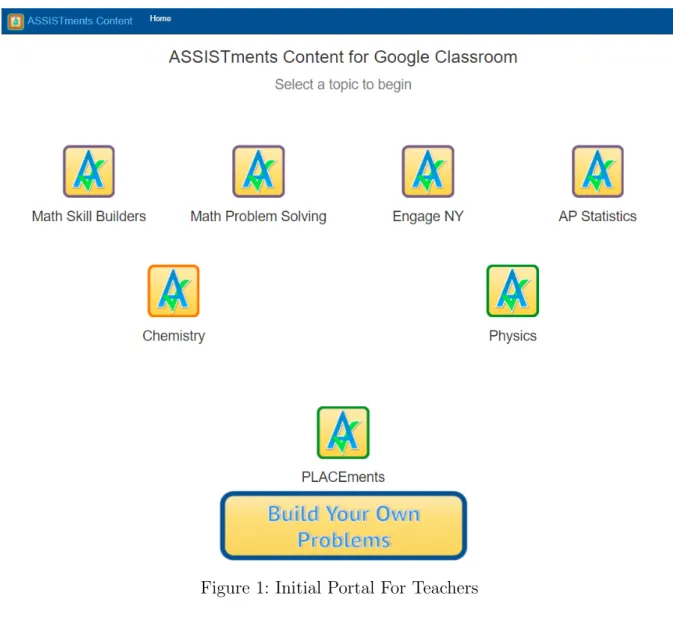
Step 1: Enter PLACEmentsClick the PLACEments button on the website: classroom.assistments.org You may need to authenticate yourself in Google if you have not already.
Step 2: Give PLACEments permission to access Google Classroom
Click Allow on the permissions page which Google will interject onto your browser win-dow. This enables PLACEments to import your courses and students and add assign-ments in Google Classroom when you so choose.
Step 3: Import your Google Classroom courses
In the My Students tab you can manage your courses and check which courses (if any are not imported yet) to add to your account in PLACEments. Figure 3 shows a teacher with one course imported and one more about to be imported. Figure 4 displays the My Students page after the previous course was imported. Each course has a drop-down window which contains a list of the students in the course.
Step 4: Choose a Grade Level
Clicking the Create An Assignment tab at the top of the page brings you to the page for creating a new test. This is also the default page you arrive at from the initial portal if no tests are currently assigned. At this page you may choose which grade level to test students at.
Step 5: Viewing the Skills
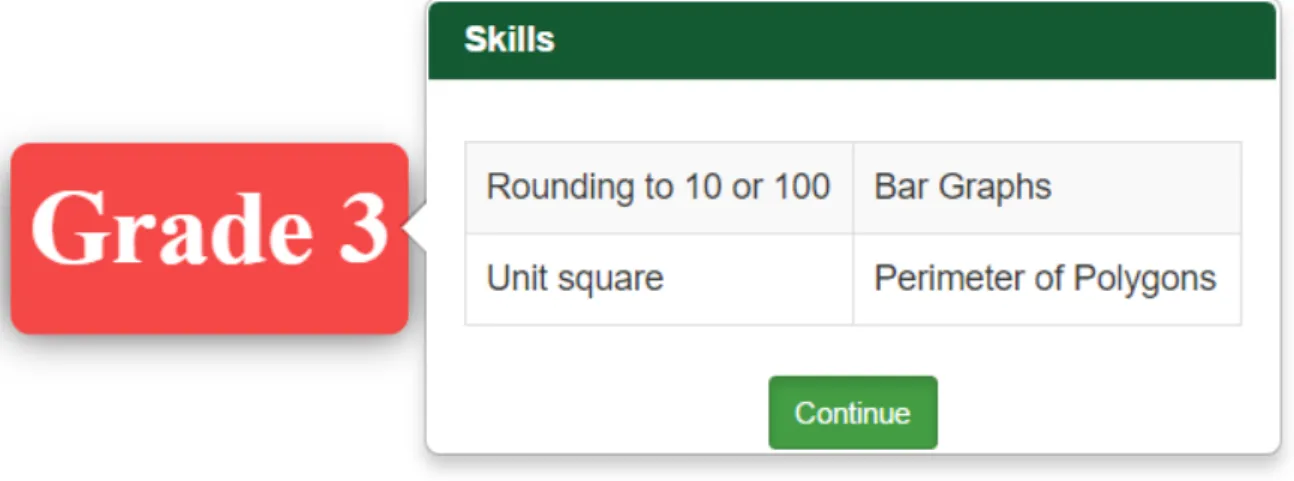
Once a grade level has been selected, a pop-up will appear displaying the skills within the given test. If these are satisfactory, click the Continue button.
Step 6: Creating the Test
By this point a window will appear allowing you to choose the test name and due date as well as provide instructions for the assignment to your students if you so choose. Click “ASSIGN” once you have specified the test details as desired. Please note that the same test name may not be used more than once.
Step 7: Review Test
Once a test has been assigned, the assignment window will change to confirm that your test has been assigned to Google Classroom. A “View” button will take the place of the “ASSIGN” button, and if clicked, it will bring you to your stream in Google Classroom to view the new assignments.
Step 8: View Assignments In Classroom
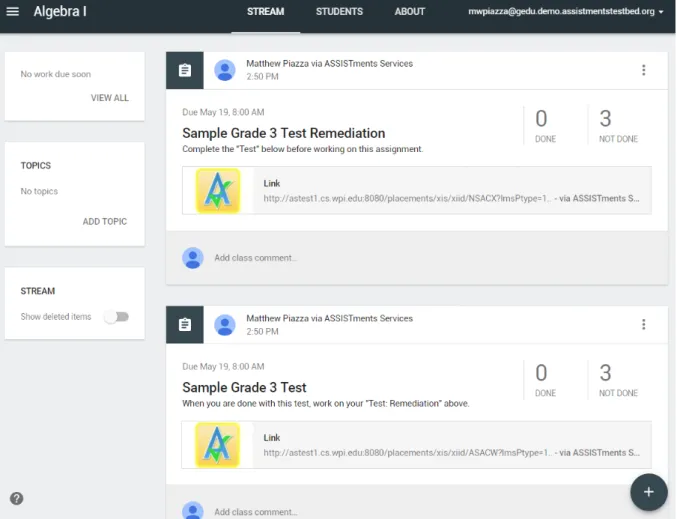
In your stream, two new assignments will have been added with links. The bottom of the two is the test assignment, which will hold the grade for the percentage of problems which a student has correctly solved in the test. The top assignment will hold the grade for the percentage of necessary remediations which a student has completed. One remediation is assigned automatically for each skill that a student incorrectly solves the corresponding exercise of on the PLACEments test. Once a student has completed their assignments, PLACEments will mark the assignment done for them automatically. Be careful of depending on this, however, since students can mark the assignment done in their stream without actually following the link and completing the assignment.
Step 9: View Report
Clicking either assignment link in Google Classroom will bring you into PLACEments and show you a detailed report and summary of how well students have done in the test and how many remediations they have needed and completed. If no students have completed the assignment yet, no report will be shown.
Figure 11: Empty PLACEments Test Report
Appendix A.2: Taking Your First Test
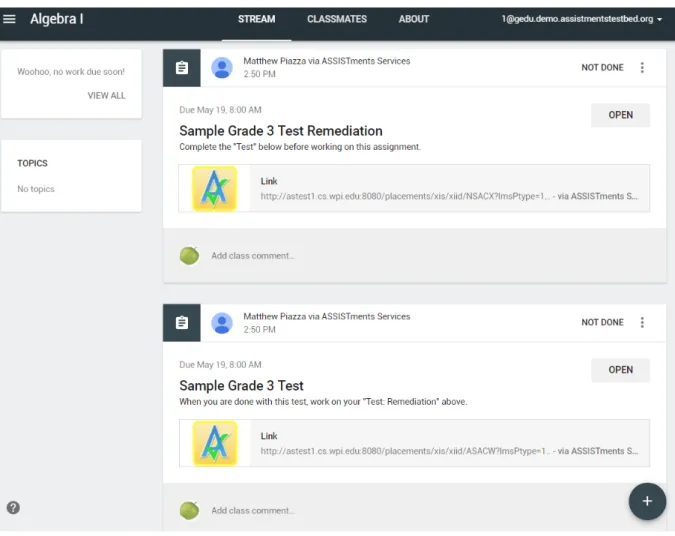
Step 1: Enter PLACEmentsBefore you take a PLACEments test, your teacher must assign it to your stream in Google Classroom. Afterwards you will find two assignments with links in them. You may click either one to reach PLACEments.
The bottom of the two is the test assignment, which will hold the grade for the percentage of problems which you have correctly solved in the test. The top assignment will hold the grade for the percentage of necessary remediations you have completed. One remediation is assigned automatically for each incorrect answer on the PLACEments test. Both links work the same way and you may click either one. Once you complete your test, these links will direct you to your remediations instead, if any are necessary.
Step 2: Give PLACEments permission to access Google Classroom
Click Allow on the permissions page which Google will interject onto your browser win-dow. This enables PLACEments to update your assignment progress for you when you complete tests and remediations.
Step 3: Take The Test
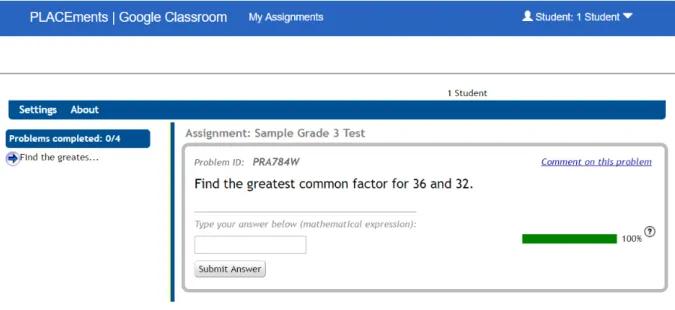
Once you click the link in the test assignment, it will bring you directly to the Tutor page in which you take the test.
Step 4: Review Assignments
Once you have completed your test, you will be brought to a page listing all your previous and currently assigned tests. If you have any remediations to complete, they will also be listed in another drop-down above the list of current assignment left to do. You can also use the “Test Report” link to view how you did and take the remediations for any problems missed.
Appendix B: Skill Manager Tutorial
Step 1: Log In and Switch to the Administrator View
When users first log into a PLACEments administrator account, they may not necessarily see an administrator page, depending on what roles they have. During this time, users should click their user-name at the top right to open a menu with the item “Switch to Partner Administrator.”
Step 2: Enter the Manage Skills Screen
Upon switching to the administrator view, click Manage PLACEments Setup on the top left, and then Manage Skills.
Step 3: Prepare to Create a New Subject
The following figure shows the PLACEments environment table.
To add a new subject to the list of existing subjects, click on the select box to the right of the Subjects label in the middle of the page, and then select Make New Subject at the bottom. Skill graphs and test versions can be created in a similar manner using their selection boxes, located right below the Subject selection box.
Figure 19: A Sample PLACEments Environment Table
Step 4: Make A New Subject
A modal where users can add their own subjects should now be opened. Users can create their subjects by first naming them, then selecting a subject to copy over if they so choose, and then finally by providing it with a description. Copying over a subject entails copying the contents of each skill that exists in the previous subject over into the newer subject.
Step 5: Add Skills
Figure 22 below shows what a subject without any skills looks like in the table. To add a skill, click the “Add row” button above the table on the left. Figure 24 shows what the table will look like after clicking the button three times.
Figure 22: A New Subject
Figure 23: To Add a New Skill
Step 6: Editing a Skill
Clicking on one of the new cells in the table causes it to become an input cell, which users can directly type into to change any of the attributes of the skill. After editing the names of any skill, it becomes part of the table and, depending on its location in the table, will change color; Figure 26 shows three skills now in the database.
Figure 25: Editing a Skill
Step 7: Add Prerequisites
If a user would like to add a prerequisite to a skill in their subject, they can click on one of the blue cells on the right, which then creates a selection box with all of the existing skills in it. If a user is not currently editing an editable skill graph, attempting to change or add any prerequisites will open up a modal much like that in Figure 28, where users must enter the name of the skill graph they would like to create. This step is not optional if users wish to change prerequisites. Additionally, this new skill graph will have all of the prerequisites that the skill graph the user was working on had.
Figure 27: Creating a Prerequisite
Step 8: Edit Prerequisites and Add Multiple to One Skill
To change a prerequisite, users must click on it again. This opens a menu similar to the last, with the addition of two new options: “Make a new Prerequisite” and “Delete this Prerequisite.” Clicking on “Make a new Prerequisite” creates a new selection box below the already existing prerequisites. Users can then create their new prerequisite by selecting a prerequisite, much like they did in Step 7. Once a second prerequisite is created, the cell will appear similar to that in the third portion of Figure 30.
Figure 29: Beginning to Add an Additional Prerequisite
Step 9: Make the Skill Graph Permanent
Skill graphs are editable until users request that they be made permanent. Once a user has decided that they are satisfied with their prerequisites, they can click the “Save Skill Graph” button on the top right of the table to make it permanent. If a user decides they don’t want to keep the skill graph, they can simply click “Delete Skill Graph.” Once a graph has been made permanent, the table will look similar to that in Figure 32. If a graph is deletable (i.e. has no test versions under it), the “Delete this Skill Graph” button on the left-hand side appears and becomes clickable.
Figure 31: Making a Skill Graph Permanent
Step 10: Create Test Banks and Remediation Problems
With a skill graph created, users can now edit test banks by clicking on any of the left red cells. Attempting to edit remediation banks (the right red cells) for skills that have no test banks will be unsuccessful. Similar to skill graphs, if a user is not editing a currently editable test version, they will be required to create a new test version by providing a name for one. Any test banks and remediation problems from the previously opened test version will be copied over to the new one.
Figure 33: Adding Test Banks
Step 11: Save the Test Version
Once all changes to the test banks and/or remediation problems have been made, users can then make them permanent by pressing the “Save Test Version” button on the above the table on the right. Similarly to skill graphs, clicking “Cancel Test Version” will get rid of the yet-to-be-saved test version. Unlike skill graphs, however, a “Request Approval” button appears on the top right after saving a test version. Permanent test versions that have not been approved can request to be approved by clicking this button. If a test version is approved, it - and the skill graph and subject it falls under - can be viewed by all other uses of the PLACEments management system. This concludes the basic use of the Skill Manager’s table.
Figure 35: Making a Test Version Permanent
Step 12: Create a Subject From an Existing Subject
If a user wants to create another subject but also wants to make its new skills identical to that of an already existing subject, they can, in the Add a New Subject window, choose that subject in the menu in the middle of the window. Creating subjects like this will cause all skills to be copied over into the new subject. The same can be done for skill graphs (by copying over prerequisites) and for test versions (by copying over test banks and remediation problems) in their respective interfaces. The result of copying the English Language Arts subject created earlier can be seen in Figure 38.
Figure 37: Copying a Subject
Step 13: View All Existing Subjects, Skill Graphs, and Test Versions Clicking the “?” buttons to the left of the subject, skill graph, and test version boxes above the table will open a table like the one below, where users can see all skills, prerequisites, or problem banks respectively.
Step 14: The Imports and Exports Page
In the case that a user does not want to use the PLACEments table, they have an ad-ditional method of introducing new skills, prerequisites, and problem banks. By clicking Manage PLACEments Setup, and then Import/Export, users are brought to a new page.
The imports and exports page holds an accordion with three panes to it. The first pane contains download links to templates that users can use to upload their own portions of the PLACEments environment.
The second pane contains an area where users can download skills, prerequisites, prob-lem banks, or all of the above all at once. If there are no skill graphs or test versions for a particular subject or skill graph, the buttons corresponding to each will become unclickable.
Figure 42: The Exports Pane
Finally, the third pane contains a spot for users to upload their own skills, prerequisites, problems, or all three at once. If a user is simply uploading skills, they must select the domain that they would like to upload those skills to in the leftmost select box. If a user would like to upload prerequisites, they must select the domain the prerequisites belong to, a graph to copy if they so choose, and they must also provide a name for the new skill graph that will be created. If a user would like to upload test banks and remediation questions, they must select its subject, skill graph, test version to be copied from, and give it a name.