Module C
Uni
t 7:
Get
tin
g
Connected
Living Online
The Living Online examination covers aspects of working in an Internet or networked environment, including basic knowledge of networks and the Internet, skills in specific applications such as electronic mail software and Web browsers, skills required to find and evaluate information, and an understanding of issues related to computing and the Internet being used at work, home and school (ergonomics, security, ethics, Internet "rules of the road" or "netiquette," etc.).
To pass this examination, the examinee must demonstrate knowledge in the following areas:
How computers connect to communication networks and the Internet
How electronic communication works and how to communicate using electronic mail, social networks and other communication methods
Knowledge of the World Wide Web, how to use a Web browsing program and how to create, locate and evaluate online content
Knowledge of the impact of computing and the Internet on society The Living Online module covers four domains of knowledge and skill: Domain 1.0 - Communication Networks and the Internet
Objective 1.1 Identify network fundamentals and the benefits and risks of network computing Domain 2.0 - Electronic Communication and Collaboration
Objective 2.1 Identify different types of electronic communication/collaboration and how they work Objective 2.2 Identify how to use an electronic mail application
Objective 2.3 Identify the appropriate use of different types of communication/collaboration tools and the “rules of the road” regarding online communication ("netiquette")
Domain 3.0 - Using the Internet and the World Wide Web
Objective 3.1 Identity information about the Internet, the World Wide Web and Web sites and be able to use a Web browsing application
Objective 3.2 Understand how content is created, located and evaluated on the World Wide Web Domain 4.0 - The Impact of Computing and the Internet on Society
Objective 4.1 Identify how computers are used in different areas of work, school and home
Objective 4.2 Identify the risks of using computer hardware and software and how to use computers and the Internet safely, ethically and legally
Unit 7
This unit will introduce you to some of the common terminology and tasks associated with going “online”. You will begin with a look at what networks are, how they can connect you to others either in the office or off-site, and how to use e-mail to communicate.
Lesson Topic
41 Networking Fundamentals
42 Understanding Electronic Communications 43 Using Microsoft Outlook 2010
Unit Ob
jectives
Uni
t 7:
Get
tin
g
Connected
L e s s o n 4 1
N e t w o r k i n g F u n d a m e n t a l s
Lesson 41
Networking
Fundamentals
Objectives
In this lesson, you will look at what a network is and how it relates to “living online”. On completion, you will be familiar with:
basic networking fundamentals
how the telephone network works
how the computer network works
advantages and disadvantages of being on a network
how to connect to a network
identifying low and high bandwidth connections
Skills
3-1.1.1 Identify that networks (including computer networks and other networks such as the telephone network) transmit different types of data
3-1.1.2 Identify benefits of networked computing 3-1.1.3 Identify the risks of networked computing
3-1.1.4 Identify the roles of clients and servers in a network 3-1.1.5 Identify networks by size and type
3-1.1.6 Identify concepts related to network communication (e.g. high speed, broadband, wireless (wifi), etc.) 3-1.1.7 Identify fundamental principles of security on a network including authorization, authentication, and
wireless security issues
Networking Fundamentals
3-1.1.1 3-1.1.4 3-1.1.5 3-1.1.6
The purpose of setting up a network of any type is to share information regardless of whether the content consists of audio, data, or video data. Technology has evolved rapidly over history since the invention of the telegraph. The telegraph and telephone systems were developed using analog signals carried over long distances and converted by dedicated devices to and from sound—these are two examples of audio data. With the advent of radio (not only of modern-day public radio stations, but also 2-way ham and military radios) and television, these analog signals became transmitted using wireless technology. Television technology is an example of video data carried over networks. All of these technologies—and early cell phones—described to this point utilized analog signaling technology.
But analog signals consumed large amounts of bandwidth—the carrying capacity of the wires or radio medium. As a result, television signals were primarily distributed only from central sources, and early attempts at 2-way video conferencing were failures due to high cost.
True networks now rely on digital technology to be able to carry large volumes of data, forming a foundation that supports a true network where information is shared back and forth instead of in just one direction.
Looking at the Telephone Network
To talk to someone in another city or country, you key in the appropriate telephone number, wait for the telephone to ring, and then start speaking when the other party answers.
To communicate successfully, you need to know the number of the other person, and you must speak the same language. If you do not speak the same language, you will still be able to connect but you will not communicate successfully.
Getting Connected
The main difference between cellular and landline phones is the type of devices or equipment needed to connect them to a network. Cellular phones are popular due to their portability and, as such, must connect via a wireless connection to a cellular network. Many cellular phones are also multi-function devices with digital services such as e-mail and Internet services, whereas a landline telephone may only be able to transmit audio and, with some special units, video.
Each country has an organization responsible for the telephone network, which ensures that the network conforms to international telephony protocols or standards. This allows all country networks to be interconnected to form an international telephony network.
All devices connected to the voice telephone network are analog devices and transmit voice, facsimile (fax), or data information using that technology. Devices connected via the network must “speak the same language” and follow the same rules or protocol. Computers using the telephone system to communicate to each other required a modem (either built into the computer or added on) on both ends to convert their internal digital signals (1s and 0s) to the analog signals carried by the telephone system. In the developed countries of the world, telephone service providers now convert analog signals to digital signals before transmitting over their lines, and back to analog at their destination. In most under-developed countries, telephones still communicate by the simple to implement analog technology.
Because the telephone trunk lines are now digital, telephone companies can offer many more computer-related services using these lines, such as Internet access.
Looking at Computer Networks
A computer network exists when two or more computers are connected to share resources and information. A network can be as small as two computers in a home, or as large as a company or school with locations around the world.
Computers connected to a network can be of any type, from a mainframe to a PC, Mac desktop or notebook,
PDA (Personal Digital Assistant) or cell phone. The only restriction is that the network software must understand the protocol needed to recognize the computer type and its operating system.
The Internet
The Internet is an international, wide-area, computer network, similar in design to the worldwide telephone network. These networks are made up of smaller networks connected together to allow people from all over the world to communicate with each other using a shared set of standards.
The same principles that apply to telephone networks also apply to the Internet. Each country has a
computer network that conforms to international standards; these networks are connected, forming an interconnected network or Internet.
Any computer connected to the Internet can “speak” or transmit to any other computer connected to the Internet provided that you know the number of the other computer, and that both computers use the same language and protocol. The set of protocols used by the Internet is called TCP/IP (transfer control protocol/Internet protocol).
“Living online” refers to the ability to connect to the Internet and find information. The Internet is a “living” network of resources where you can communicate with others to find new, updated, or archived information.
Uni
t 7:
Get
tin
g
Connected
L e s s o n 4 1
N e t w o r k i n g F u n d a m e n t a l s
Peer-to-Peer Networks
Peer-to-peer networks are inexpensive and easy to put together, making them ideal for home or small office networks. It is known as a peer-to-peer network
because all the computers have equal authority—every computer is fully functional on its own. If the network breaks down, users can continue working with virtually no interruption except for the shared resources. Any computer can share its resources with other computers on the network.
For example, computer C can make its color printer a shared resource. When computer A wants to print a document, the color printer appears in the list of available printers as if it were connected directly to computer A.
LANs and WANs
If a network stays within a building, it is a LAN or Local Area Network. If the network crosses a public street and makes use of publicly supplied cabling for part of the network, it is a WAN or Wide Area Network. The number of computers that make up each network type is irrelevant. A company with 200 computers connected to a main server in the same building is still a LAN. The moment that company has at least one computer in another building or location, this network becomes a WAN. If the company continues to grow and has multiple computers in various locations around the world, it is still a WAN.
Client-Server Networks
A “client” is a computer that requests services from a server. Client-server networks are typical in larger networks where multiple servers perform dedicated functions such as database, e-mail, file storage, web, and security administration (each server does one function).
Servers are commonly used in large organizations because they are a cost-effective way of delivering shared resources and they control who can access what resources and when they can do so. Servers share the same network as computers in a peer-to-peer arrangement; that is, a desktop or notebook computer can share resources, such as files, with other desktops and notebooks, and act as a client for a server
computer all at the same time. A server can be in the LAN, the WAN, or accessible via the Internet.
The server can be a mainframe computer, minicomputer, Unix workstation, or very powerful PC; it must also have server software installed, with users clearly identified and access rights assigned.
WAN
Getting Connected
The client can be any computer with a network card and appropriate software to connect with a server. Many larger companies have a mixture of computing devices connected to their networks including those with mobile requirements such as PDAs; all users share information from the same server even though the protocol to connect each computer to the server may differ. A games system can also be connected to this network if the company offers this type of service to their customers. For example, you could play a game on your Xbox against someone in another location using his/her Xbox game system. The company enables the two individuals to connect through the server using a secure connection that may be dedicated to the entertainment service offered. This could also be true of a game being played on a Dell notebook against another user who is playing on an iBook.
Intranet
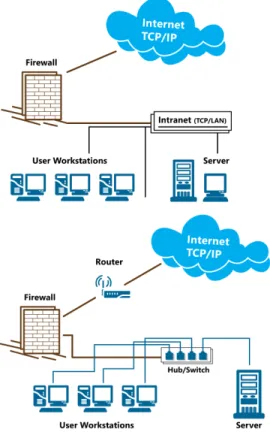
An intranet is a private local area network or LAN that uses the same set of network protocols as the Internet but is set up within one company or organization. This network typically has a Web server that contains common documents, such as the company policy and procedure manual. Any employee can then access these documents using a Web browser. Many companies use Microsoft Office SharePoint to allow employees in any location to access the main server.
This diagram shows a schematic representation of a typical intranet connected to the Internet.
When the intranet is connected to the Internet, there is a danger that confidential information on the intranet can be accessed by people external to the company. A firewall is then placed between the intranet and the Internet to block unauthorized access to the intranet. The firewall can be as simple as a program, or a combination of a computer and software, depending on the level of security needed. This diagram shows intranet and network components.
Extranet
An extranet uses Internet technology to allow a company to share information with another company or organization. For example, employees from company A working on a project are given usernames and passwords to allow them access to files and resources relating to the project on company B’s intranet. This is shown schematically in the
diagram shown to the left.
The security protection levels are lower for an extranet than the Internet, but higher than the internal intranet. The intention of having the extranet is to allow employees of different companies to be able to share data, therefore files, data, and resources on designated servers at both companies become available that the general public would not have access to. Extranets are commonly used in B2B (business-to-business) networks. It is advisable to involve a network security expert when setting up an extranet.
Uni
t 7:
Get
tin
g
Connected
L e s s o n 4 1
N e t w o r k i n g F u n d a m e n t a l s
Benefits of Networking
3-1.1.2Networking does not make individual workstations faster or more powerful. The benefits of networking fall into two main categories: communication and sharing of resources. These two benefits can contribute significantly to increasing productivity and reducing expenses as users can interact with each other from their own locations.
Communicating
In order to send information on a stand-alone PC to another stand-alone PC, the information must first be transferred to a portable storage device such as a USB drive or a DVD, which is then sent to the other person, and copied from that device onto their PC. In contrast, users on a network can send the information directly between each other—without the delay of using a portable storage device.
Another communication advantage of a network is that a message can be stored on it and is not lost if the recipient is not available when the message is sent. This is useful when you need to communicate with someone but you do not need an immediate response, and it is more cost-effective than calling long distance.
Another method of communication between network users is instant messaging (IM). Instant messaging allows for “real time interaction,” almost like having a conversation with someone in front of you, but in text. All IM users need to connect to the same network; multiple users can participate in the same conversation. This can be very advantageous when several users in different locations need to collaborate on a project.
Programs such as Web conferencing also enable users in different locations to collaborate on projects or have meetings where information can be shared on the screen for all users to view. This is less expensive than sending someone to a remote site for several days.
Sharing Resources
Devices such as printers or wireless routers can be expensive to set up on every PC, especially if individuals only use them occasionally. Networks share these devices, so the company saves costs when purchasing devices. This also saves time needed for technical support or maintenance, as having a network that connects devices shared by multiple users allows the network administrator to perform updates or troubleshoot problems from the server location.
In addition, in a stand-alone PC environment, information has to be duplicated on every computer, which can lead to unnecessary work, potential errors, and conflicting versions. With a network, files or folders can be set to be shared by all users.
A group of people sharing information is called a “workgroup.” They can transfer or save files to a common area or centralized server; an example would be marketing materials for sales staff. As a central area, the server controls which files can be accessed and which users can use these files.
This is also extremely helpful to the network administrator for setting up rights or performing maintenance for the workgroups. Tasks can be accomplished from one system instead of going to individual systems to complete them.
Disadvantages of Networking
3-1.1.3 3-1.1.7
There are disadvantages to setting up a network, some of which include dependency, security risks, loss of autonomy or privacy, and viruses.
Dependency
The organization’s activities and communication lines depend on the network to be working properly. If the network fails, users lose access to information and the ability to communicate electronically. In some instances, users can work from a local drive, but if the company’s information is stored and shared from the server, the cost of downtime may become expensive.
Getting Connected
For example, in the case of a network-wide failure, such as an office building fire where data is not retrievable, the amount of time required to get the server and computers working could add up to many lost work hours. The network administrator and IT staff will need to replace the server equipment as well as user computers, configure and set up the server, restore backups of data, and then ensure that user IDs and passwords work properly. What are the company’s other employees able to do without computers and likely no paper documentation as reference?
If the failure involves communication lines, internal and external communication via the telephone or e-mail will be disrupted. It may be possible to continue working on documents off the network and create draft versions of messages, but you will not be able to send them until the connection lines are repaired.
Security Risks
A network can also represent a potential security risk for the organization as some of the information stored there may be sensitive or commercially valuable. This information can, in principle, be accessed by any computer connected to the network by a person with ill intent, such as a disgruntled employee or hacker. However, the network administrator can set up the server with resources to restrict and prevent unauthorized access. To minimize potential damage, the network administrator should:
Ensure every user entitled to access to the server has a valid and unique login ID set up according to the company’s standards. If available, biometric data devices such as fingerprint readers can help to ensure valid identification.
Require that passwords be changed at set intervals, and set up restrictions on passwords, such as minimum and maximum numbers of characters, and mixtures of numbers and letters, and special characters.
Audit IDs periodically to ensure that each user has the access to the programs and files appropriate to his/her position, and none other. It is easy to overlook that a user has moved to a different position in the company and no longer needs access to certain files.
Ensure that any requests for network access, including setup of new users, are appropriately authorized. It should be standard procedure to provide proper notification to the network administrator with ample time to set up the new login ID, password, e-mail account, and access rights.
Delete all IDs and passwords assigned to any user who no longer works for the company, and ensure that the former user’s messages are forwarded to someone else. At a minimum, the former employee’s password should be changed to something secure that the previous user cannot determine. If the user has moved to another branch or location, his/her access rights should be changed accordingly.
Ensure that user passwords are never given out, and especially not the one for the network administrator. In the event that a network administrator needs to change a user’s password, he/she will typically set an initial password which will force the user to change it when he/she next logs in. If the user finds that the initial password does not work, then someone else has already stolen it.
Occasionally change his/her password.
Assign login IDs and passwords to any employees who work with the network administrator. Although they may have similar access rights as the network administrator, they should have unique IDs and passwords, which should be changed if they leave the department, or deleted if they leave the company.
Set up firewalls and proxy servers to prevent unauthorized users outside of the network (usually the Internet) from accessing internal company networks such as intranets. Keeping the security software updated to the most current version with the newest security features will also help to reduce the potential for external security threats.
Take extra care where a network has wireless capabilities by, for example, enabling security on the wireless access point or router and entering the security passphrase on each authorized wireless-enabled computer. Measures, such as this, to secure the router can prevent unauthorized individuals from “stealing” access to a wireless connection that is reserved for specific users, such as employees at a company or students at a school.
Uni
t 7:
Get
tin
g
Connected
L e s s o n 4 1
N e t w o r k i n g F u n d a m e n t a l s
Implement administrative features to ensure that users have control over their own files and folders, but don’t have the ability to delete other files or folders on the network drive. Users should be advised against deleting anything that they did not create, and should be encouraged to check shared drives periodically to clean up any files or folders that don’t belong there.
Update the antivirus program on the server as often as needed to provide protection against the latest viruses. This program should be set up to start automatically when the computer starts and check all incoming messages. As users may bring in files from home or receive them from others, it is also crucial that the antivirus program perform a scan each time a user logs into the server.
Perform maintenance checks to view reports or logs created by the antivirus program. These reports identify if any viruses are found, and indicates the status of these viruses. They may also show if a user is getting many viruses, requiring network personnel to check that workstation.
Monitor employee activities on the Internet to prevent potential software threats, such as viruses or spyware, from entering the network. The Internet Service Provider (ISP) may be able to assist by blocking unwanted types of messages and monitoring undesirable activities such as downloading from specific sites.
Encourage users to ensure they have the latest updates of Windows on their computers. It is crucial that the security updates be applied to each station that has an Internet connection. Depending on how the computers were set up, network personnel may perform the update so that each user is updated the next time he/she logs into the network; or network personnel may need to check each system and update it themselves or request that users perform the update.
Loss of Autonomy or Privacy
Loss of autonomy refers to an inability to work independently from the server. Some companies have guidelines requiring that all documents be stored on the network drive, regardless of document type. Other companies recognize that it may be important for some departments to store documents on the local drive as a way of increasing productivity, reducing file duplication on the network, and protecting sensitive or important documents from being “stolen” by unauthorized people.
Privacy may also be a concern. A network administrator has access to all information on a network, whether it is confidential or not. Confidential material printed on a shared printer can be seen by anyone prior to the owner retrieving it.
If you leave your computer logged in when you are not at your desk, anyone can access your local drive. If you share a computer with someone else, even though they login with their own ID, they can see the files on your local drive. You do not have to login to a network to see the files on a local drive.
General business rules dictate that work on a company computer belongs to the company, even if you work on the document on your own time. Check with your manager to ensure there is no consideration of impropriety, or do the work on your own computer. This also holds true for a school environment.
Watching for Viruses
Networks are vulnerable to virus attacks. A virus introduced on one workstation can spread quickly to other workstations. Some viruses, called “worms,” specifically target the servers on a network. Worms typically make the server do some task repetitively, keeping it so busy that it is no longer available for other requests made of the network. It is crucial to ensure the antivirus program on the server is current and active, and that all workstations connected to the network have a local copy of the antivirus program active at all times.
New viruses are created every day and it is prudent for users to read the screen carefully before opening a message or clicking the highlighted button on the screen. Viruses come in different forms and, as such, can be hidden in a message that looks harmless but could be damaging to your system and anyone in your e-mail address book.
All antivirus programs provide a feature to automatically detect viruses in “real time.” This feature usually appears as an icon in the task notification area. Remember to run a scan of your computer on a frequent basis and check for updates.
Getting Connected
Connecting to a Network
3-1.1.3 3-1.1.6
There is a variety of connection or cabling options to access information to or from a network. Newer connection types allow data to flow much more quickly, and more people are setting up or switching to faster connection methods. Some popular connection options include:
Coaxial
A copper wire surrounded with insulation with a grounded cover of braided wire to minimize electrical and radio frequency interference. This was the main type of cable used for cable television distribution and (now obsolete) computer networks.
Fiber Optics
Bundled glass or plastic fibers (threads) are used to transmit data. This has a much larger bandwidth for transmitting data than metal cables and is less susceptible to interference.
Twisted Pair
A type of cable containing 1, 2, 3, or 4 pairs of copper wires carrying analog or digital signals. Telephone and computer networks commonly use this form of connection.
Wireless
Wireless connections do not require any cables but each computer must have a wireless network interface card and an access point; wireless connections can work with radio frequencies for data transmission. A wireless connection can be called a “wifi” connection. Infrared
This wireless option works with infrared light waves to transmit data. A downside to infrared is that the distance between infrared devices must be less than if you are using a wireless device that works with radio frequencies. In addition, the infrared transmitter must be pointed at the receiver, otherwise the beam is diluted and signal strength is too weak to register.
Connecting to the Internet
There are several ways to connect to the Internet, depending on your needs and how much money you are prepared to spend with your ISP. One important variable is bandwidth, which refers to the amount of data that can be transmitted over the type of Internet connection you choose.
Low Bandwidth
Telephone or dial-up access is considered low bandwidth, which means it might not connect to the Internet or download information as quickly as you might want. When you set up an account with an ISP, you get a telephone number to dial, which then connects to an incoming line at the ISP. Your computer also needs a modem to connect to the ISP’s dial-up line. This connection type can be cost-effective if you do not need a lot of time on the Internet, or if you only want to send or receive low volumes of data, such as text e-mail that contain no or very few attachments (such as documents, photos, or multimedia files). Take note that, with a dial-up connection, you pay a set amount for a certain number of minutes; the number of minutes is counted from the time you dial into the ISP until you disconnect, and you may be charged at a higher rate for any “overage” or extra minutes.
High Bandwidth
A high bandwidth connection works with your TV cable. Cable companies have a network of high-performance cabling (cablevision) designed for TV signals. High bandwidth systems work with this network by using a cable modem to convert your computer message to TV signals so that it can travel over the TV cabling system. Many telephone companies are also offering high bandwidth connections.
With a high bandwidth connection, you are connected all the time. It is faster than dial-up access, but also more expensive. However, if you need or want 24-hour access or you have multiple computers and users in your location, this can be a very cost-effective option.
Uni
t 7:
Get
tin
g
Connected
L e s s o n 4 1
N e t w o r k i n g F u n d a m e n t a l s
Cable is a popular option for home users as it can be packaged with TV cable services and offers very fast speeds. Many cablevision companies are replacing their existing cables with fiber optic cables, thereby offering even faster speeds.
Digital high-speed connections using your telephone line include Integrated Services Digital Network (ISDN), Digital Subscriber Line (DSL), or Asynchronous Digital Subscriber Line (ADSL). “Digital” means your computer data does not have to be converted to sound but can be transmitted in computer signal form using a special modem for this connection type.
An advantage of having a digital connection is dedicated access. There is never a busy signal when connecting through your ISP to the Internet, even though you are connecting via a telephone line.
T1 lines are generally leased by ISPs, although some companies use these lines for faster speeds to process large amounts of data online. These lines are relatively expensive in comparison with the other types of connections; home users tend to purchase a service package with cable or ADSL connections whereas businesses may choose a T1 line for much faster connections, despite the added cost.
Summary
In this lesson you looked at what a network is and how it related to “living online”. You should now be familiar with:
basic networking fundamentals
how the telephone network works
how the computer network works
advantages and disadvantages of being on a network
how to connect to a network
identifying low and high bandwidth connections
Review Questions
1. What is the set of protocols used by the Internet called?
a. DNS c. TCP/IP
b. SMTP d. All of the above
2. A server provides services and a client uses those services.
a. True b. False
3. What are some benefits of networking? a. Communicating with others b. Sharing devices like printers
c. Having a server that is dedicated to a specific task, such as, mail, database, or network d. Sharing of files and other information
e. Any of the above f. a, b, or d
4. What are some disadvantages of networking? a. Cost of setting up and maintaining the network b. Potential security risks by outside sources c. Dependency on the network always working d. Viruses
e. Any of the above f. a, b, or d
5. A unique login ID and a password can be set up using biometric data.
Getting Connected
Lesson 42
Understanding
Electronic
Communications
Objectives
In this lesson you will look at electronic communication types and methods of sharing information. On completion, you will be familiar with:
different types of electronic communication
identifying users on communication systems
different communication methods
appropriate uses for electronic communication
advantages of electronic communication
how an e-mail address is structured
identifying e-mail components
using attachments effectively
understanding how junk mail works
common problems with electronic communication
Skills
3-2.1.1 Identify the different methods of electronic communication/collaboration and the advantages and disadvantages of each (e.g. e-mail, instant messaging, blogging, social networking, etc.)
3-2.1.2 Identify how unique users are identified with communication services such as instant mail, text messaging, online conferencing, and social network sites
3-2.1.3 Identify how communication tools such as electronic mail or instant messaging are accessed and used 3-2.2.1 Identify how electronic mail identifies a unique e-mail user by e-mail address
3-2.2.2 Identify the components of an electronic mail message or instant message
3-2.3.1 Identify appropriate uses for different communication methods (e.g. e-mail, instant messaging, teleconference, and syndication)
3-2.3.2 Identify the advantages of electronic communication
3-2.3.3 Identify common problems associated with electronic communication (e.g. delivery failure, junk mail, fraud hoaxes, viruses, etc.)
3-2.3.4 Identify the elements of professional and effective electronic communications (e.g. timely responses, correct spelling and grammar, appropriate level of formality, etc.)
3-2.3.5 Identify appropriate use of e-mail attachments and other supplementary information (e.g. large attachments, embedding a URL, security issues, etc.)
3-2.3.6 Identify issues regarding unsolicited e-mail ("spam") and how to minimize or control unsolicited mail 3-2.3.7 Identify effective procedures for ensuring the safe and effective use of electronic communication including
“netiquette”, understanding school or company policies, and following guidelines
What is Electronic Communication?
3-2.1.1 3-2.1.2 3-2.1.3 3-2.3.1
Electronic communication refers to any process that enables you to communicate and interact with others using an electronic method such as e-mail or instant/text messaging. Some methods include:
Electronic Mail
This is commonly known as e-mail. Like postal mail, a valid address is required to send messages; however, the messages are sent electronically using an account provided by an ISP. E-mail is a very popular method of sending messages when a response is not urgent. The message becomes available to the recipient when he/she logs into their e-mail program.
Uni
t 7:
Get
tin
g
Connected
L e s s o n 4 2
U n d e r s t a n d i n g E l e c t r o n i c C o m m u n i c a t i o n s
Instant MessagesSometimes called IM, this type of electronic communication is like having a conversation involving two or more people, except that it is in text and only one comment at a time can be received by everyone in that conversation. Instant messaging programs such as Windows Live Messenger or Yahoo! Messenger enable people to converse in “real time” without needing to be at the same location. It can be very useful when an answer is needed quickly. Computers are used to send instant messages through the Internet or the internal company intranet to other users. Some IM programs also permit live audio and video to be exchanged in real-time as well.
Text Messages
These types of messages are similar to instant messages except they are created and sent from cellular phones, and the number of characters allowed per message is limited (about 100 to 200 characters per message, depending on the service provider). You can send a text message to one or many people but it may not be received as quickly as with IMs. Text messaging can be useful when no other forms of communication are available or if a reply is not needed. For example, if you just found a supplier of specialized paper for printing marketing materials, you can text a colleague at the office to continue printing on existing stock until you return with the new supply.
VoIP
VOIP stands for Voice over Internet Protocol, which is an alternative to traditional telephone calls. VoIP, also known as Internet telephony or Voice over Broad Band (VoBB), uses a digital format that follows Internet protocol to enable audio conversations involving two or more people in different regions or countries. Some cellular phones run on VoIP technology, but you can also make or receive a VoIP call using a headset at your computer. Businesses can realize cost savings because using VoIP for long distance calls costs less per minute than traditional phone calls, and they can utilize a single network for both audio and data transmission. It is also possible to host conference calls via VoIP, although there are limitations on the number of parties that can be involved.
Online Conferencing
This type of electronic communication can be advantageous for saving costs for meetings where numerous people will be involved and many of them reside at significant distance from one another. Online or Web conferencing software enables people to meet online using the Internet. Depending on configurations, this may include video or may be restricted to watching the screen and using audio through the traditional telephone. This can be a useful way to conduct online training sessions or meetings that include employees in remote locations. Chat Rooms
Chat rooms are similar to IM; you can participate in the main discussion or you can go into a separate “room” away from the main chat room for a different or private conversation. People from anywhere in the world can join a chat room, which is monitored by people acting as moderators. Most chat rooms are text based although some newer versions use video as well; others offer games for multiple players. An example of how you could use a chat room in business would be to conduct a survey with existing customers about potential new products and then set up different chat rooms for discussion on specific products.
Social Networking Sites
These are Web sites that you can join to connect with people you know as well as to meet new people. You can create a profile on the site and post pictures, video, or text about yourself, or even play games. You can invite other people to display links to their profiles on your page, and other people can invite you to do the same. You can access these sites from anywhere in the world that has an Internet connection. Some people use social networking sites to find old friends and keep in touch with current ones; other people use business networking sites to widen their professional contact lists. A company may also set up a page on a social networking site to promote a service or product they offer, as in the case of a radio station with a dedicated page for popular radio personalities.
Blogs
Blogs can be used as journals where one person writes on a specific topic, and others then post comments on that topic. A company may set up a blog on their Web site to encourage customers to offer suggestions or discuss problems regarding a service or product. You need to register with a blog site before you can submit comments.
Getting Connected
Message Boards or Newsgroups
Message boards or newsgroups are similar to bulletin boards where you can post a comment about a topic. Some sites may require that you subscribe to the newsgroup. Subscriptions are handled through an e-mail address and you can set up your e-mail program to receive new postings when you receive new messages. Many of these communication methods are able to exchange data with each other. For example, many cell phone providers will allow you to enter a text message on their Web site and send it to a cell phone on their network. However, there are limitations to the technology—you cannot send messages from your cell phone to an e-mail system unless it is a multi-function device with e-mail service or web browser functionality. As a result, you have more capability to communicate with others today than ever before, but improvements can still be made if manufacturers can agree on how to exchange data. To achieve this and higher levels of exchangeability in the future, communication protocol standards need to be developed and adhered to by device manufacturers, software developers, and service providers. ISO (International Organization for Standardization) recognition is generally regarded as the method of gaining standardization for new protocols.
The client component may be called a “user agent” or an application program that works with a specific set of protocols (standards) to access the Web. In most cases, this is a Web browser, a search engine, or an e-mail program.
The server component must be able to manage the different types of services required such as newsgroups, blogs, wikis, Web sites, or online conferences. Mail servers manage the flow of electronic communication for internal or external mail, IM, and in some cases text messaging or chat rooms.
Identifying the Sender
Every form of electronic communication requires that the sender have a unique identifier. For example, you must have an e-mail address to send or receive e-mail, and then you can use the same e-mail address for a blog, IM, or a social networking site.
When you use a telephone to communicate, whether by audio/video call or text message, the telephone number identifies you. The telephone may also be programmed to display your name so the recipient can recognize the caller.
Some services require additional authentication methods to identify you when you login. For instance, a Web site may ask you for a username that is not your e-mail address, as well as a unique password; it then displays that username when you are on that site. This provides an option for you to remain anonymous to other users on the same site.
Using Electronic Communications
3-2.3.1 3-2.3.2
There are several advantages to using electronic communications, including:
It can be faster to use electronic communication such as e-mail to send a message to one or more people, which can reduce the time spent on the telephone trying to contact them. E-mails are almost always short and “to the point”. The same communication by telephone and face-to-face conversation usually take longer to complete because we usually include unrelated social discussions before and/or after the discussion. With e-mail, you can be concise and stay on topic when replying or forwarding the message. A text or instant message sent to you may contain the answer you need without further meetings or e-mail.
In most cases, you can print a copy of the conversations as a record of the communication. When using e-mail programs, you can create folders to store the messages, particularly if you need to capture the history of your discussions and action items as a “paper trail”. This can also be true of instant messages, although they are meant for quick and short responses.
You can share information by sending files or attachments with e-mails, in your instant messages, or through another online feature such as Web conferencing. When sending files, keep in mind the size and type of file; some e-mail programs will block some file types, such as executable files (.exe), which are considered suspicious.
Uni
t 7:
Get
tin
g
Connected
L e s s o n 4 2
U n d e r s t a n d i n g E l e c t r o n i c C o m m u n i c a t i o n s
An alternative could be to post the file as a download from your Web site. If you want to share some news with customers you might enter it in a blog or as a news feed that is transmitted to everyone subscribed to that newsgroup. An Internet connection gives you the freedom and convenience of accessing your e-mail and your company’s intranet, or Web site from any location, provided you are set up accordingly. All electronic communications programs offer trial versions that you can download, use, and evaluate before buying. This is a cost-effective way to determine if a program such as Web conferencing is suitable for your needs.
You can use electronic messaging to set up meetings or inform others about them, and then meet using programs such as Web conferencing or IM (perhaps including a Webcam for video). You can send a message to one or more people and “copy in” one or more other people, or you can forward or route a message to someone else to handle.
The initial cost of setting up electronic communication may be high but the cost of maintaining a variety of the methods available is low compared to long distance calls, shipping costs, or physical visits.
Regardless of which electronic communication methods you choose, you will require a server to provide the service(s) and a computing device for the client using it, although the device need not necessarily be a computer. For instance, a sales representative who works from home can view content and hear a presenter via a cellular phone or PDA. With the Internet and appropriate access to the organization’s servers, this person can use the handheld device to communicate with colleagues, customers, or management even though he/she is working from another location.
Having the option to share and communicate with others can help to build a sense of community for users, whether it is within a company network or includes external users around the world. For example, some people use an Internet site called Wikipedia as one of their main sources of information, whether they are viewing or contributing information. Others may blog or share their experiences on a particular subject such as software issues or vacation tips. This ability to share common interests is an example of how living online can enhance your life and the lives of others in your “online community.”
Understanding an E-mail Address
3-2.2.1 3-2.2.2
To use an e-mail address, you must be set up as a user on a domain. This could be the ISP or it could be your company. Your e-mail address is structured as follows:
Mailbox Name The mailbox name identifies a particular mailbox on the e-mail server. The name is based on company or ISP standards for e-mail addresses. Some domains allow you to create your own mailbox name, as long as it is unique.
Name of Organization
The middle part of an e-mail address identifies the organization that owns the server. It could be the full formal name of the organization, a shorter version of the company name, or a unique combination of words if another organization is already using that name. For example, you might contact CCI Learning Solutions at [email protected] if [email protected] is already taken.
Domain Category The domain category identifies the type of domain; for example, .com refers to a commercial organization while .uk refers to a country.
The [email protected] address indicates that the address belongs to someone at a commercial company called CCI Learning whose last name is “Smith” and whose first name starts with a “J.” The [email protected] indicates this address belongs to someone with the same name as many other people; the number “909” makes this address unique. The account is with a company called My ISP, which is located in the United Kingdom.
[email protected] [email protected]
1 Mailbox Name 2 Name of Organization 3 Domain Category
Getting Connected
Other common domains include .edu for education sites, .gov for government, or .org for non-profit organizations. Take note that not all commercial companies use .com and may use a domain code to represent the country of origin. For example, ebay.ca is an indicator that this person works at the Canadian office of eBay, whereas louvre.fr indicates this person works at the Louvre in France. Be careful to check the domain code as these are not always obvious, as in the case of .ch which is the country code for Switzerland and the code for China is actually .cn.
Looking at E-mail Components
Regardless of the e-mail program, the components of an e-mail message are the same. Internet e-mail protocols dictate that all e-mails include:
Addressing
Subject Line
Body
Attachments
Although many e-mail programs are currently available, for the purpose of this courseware we will use Outlook 2010. Remember that the concepts remain the same regardless of the e-mail program; the differences lie in where the commands and features are located in each program.
Addressing
The addressing lines are very important as they identify who will receive the e-mail.
To This identifies the primary recipient(s) of the e-mail. You can send the e-mail to one or several recipients by separating their unique addresses with a comma or semicolon.
Cc This stands for “carbon copy” and indicates who will receive a copy of this e-mail for information purposes only.
Bcc Bcc means “blind carbon copy” and is a way to hide that this recipient is being copied in, such as if you send an e-mail confirming a dinner date and Bcc the friend organizing the surprise party.
The Subject Line
This identifies the topic of the message, which is usually a short description of the content or purpose of the e-mail. Always try to put something relevant in this line so people can scan through the subjects in their list of received e-mails. Avoid sending an e-mail without a subject line as messages with no subject line are usually considered spam or junk mail.
Uni
t 7:
Get
tin
g
Connected
L e s s o n 4 2
U n d e r s t a n d i n g E l e c t r o n i c C o m m u n i c a t i o n s
The Body
This is where you type the body of the message. Some e-mail programs provide formatting features, such as bold, italics, or underline, which you can apply to the text for emphasis or enhancement. You can also include pictures, sounds, slide shows, and so on that will appear with the text, as well as links that will connect the recipient directly to another e-mail address or a Web site.
Attachments
You can attach files to the message when you want others to receive specific files. This is much more convenient and faster than physically transporting the files to someone else. ISPs may restrict the size of attachments (usually to 5Mb) as these may slow down the retrieval of mail at the recipient’s end, or cause traffic delays at the mail server during sending and receiving.
Using Electronic Communications
Appropriately
3-2.3.1 3-2.3.3 3-2.3.4 3-2.3.5 3-2.3.6 3-2.3.7
There are no fixed rules for the use of electronic communications; the writing style and emphasis used in the messages should match the audience. Some general guidelines include:
E-mail should never completely replace another form of communication; before you choose e-mail, think about the purpose of your message, the response you are seeking, and how quickly you need it. For instance, if you need technical support on a software issue immediately, it will be faster to call the vendor than to send an e-mail. If a situation is best resolved by speaking to someone directly, always choose this method over sending an e-mail that could be open to misinterpretation or time delay.
When writing an e-mail, think about your audience. For instance, a business or school e-mail should have a professional tone and follow general business practices for correspondence. Check spelling and grammar, use a formal writing style, and focus on the product or service. Remember that your e-mail represents your organization or school to the recipient and should reflect the appropriate image.
Use discretion when entering names in the To, Cc or Bcc fields. Names entered in the To field are usually people you want to take action on the message, whereas names in the Cc or Bcc fields are people who need this e-mail for information purposes only.
Ensure you include subject text that clearly identifies the purpose of this e-mail. The subject text should be brief with details provided in the actual message area. This also applies to personal messages. Wherever possible, avoid leaving the subject line blank as your message may be marked as unwanted mail and the recipient may never receive it.
Consider the length of your message; if the message is longer than one page, it is best to send it as an attachment or provide a link to further information. (The same principle holds true for text and instant messages; if the message requires much explanation, it may be better to send it as an e-mail.) The intent of messaging communications is to send information in a brief and concise manner. Additional details such as pricing lists, assignments, or catalog items should be provided as secondary references.
When replying to a message, consider how much of the previous message needs to appear in your reply. For instance, if this is the fourth time you’ve replied to the same message, this reply will contain the entire history of this communication or e-mail “string.” In some cases, you may want to keep these as an official record; in other situations, it may not be necessary to show the history and you can delete some of the earlier responses from the body of the message.
Remember that business e-mails are official company correspondence; file and archive them using the folders in the e-mail program.
Getting Connected
When replying to a message with several names, consider whether it is necessary for everyone who received it to read your reply; you may need to respond to the originator only. Perhaps your supervisor sends an e-mail reminding you to submit your travel budget so he/she can complete the department budget; he/she might Cc the Accounting department as a courtesy, to show them more information is needed in order to complete the report. In this case, your reply need only be sent to your supervisor. Or maybe a teacher e-mails four group leaders reminding all to submit agendas of your presentations; you need only reply to the teacher, not the other group leaders.
Always take a moment to review a message carefully before you send it to ensure it meets general guidelines. Do this for both new messages and responses to previous messages. Proofread the message for word usage, writing style and level, formatting, to ensure that links are working or are appropriate to place here, and so on.
If there is anything confidential, sensitive, or requiring a signature for approval, consider whether e-mail is the correct method of communication or if traditional hard copy might be better.
Be careful about sending messages with personal jibes, ethnic jokes, or bad language, even to people you know, as they can easily be misinterpreted.
Avoid “flaming” people. A flame is an e-mail message where the recipient is attacked personally. Such messages have no place in business or school communication, informal or personal communication, or instant messaging. If you have been flamed, it is best to ignore it. If you respond in kind, this may lead to an escalation which is referred to as a “flame war.”
Refrain from using uppercase letters in your message as this is considered “shouting.” Use shouting with utmost discretion. ALL CAPITALS is very hard to read; if you want to indicate emphasis, use bold text instead.
Refrain from using abbreviations and acronyms in business or school communications, even when sending personal messages or using an instant or text messaging program. Because not everyone is familiar with these, this can lead to misinterpretation or confusion. This also includes emoticons, which are text symbols that attempt to convey to the recipient what the sender’s emotion was.
Remember that sites that encourage you to join and contribute personal information such as photos or videos are generally accessible by the general public, particularly via the many social networking sites and blogs available on the Web. Keep this in mind when deciding what you want to post about yourself (or others) and who might see it.
Use netiquette, or good manners, in all electronic communication, whether it is for business or personal purposes. The Internet provides a perceived anonymity that can make it tempting to communicate more directly than you might in person. But these modes of communication tend to be very open to miscommunication. Try to treat others in the same manner that you want to be treated, online or in person.
This includes sending responses in a timely manner. Not all messages need a response but when the message contains a question or requires further action, be sure to send an appropriate reply. For instance, if you receive a message that needs action by someone else, respond to the sender by letting them know you have forwarded the information to this person for further action and what the next step will be in the process.
Always establish and follow the rules and guidelines set up by the school or organization (and local, regional and national laws if appropriate) regarding electronic communications. This may extend to laws set by the different levels of governing authorities in your area.
Working with Attachments
Sending attachments with your e-mail enables you to share information. However, consider the following points regarding attachments:
Keep the attachment file size as small as possible. The size of a message when received is based on how much text is contained in the body of the message plus the size of any attachments. One way to reduce attachment size is to convert the original document into a format that reduces file size; for example, you can save a Word document as a PDF file. (Using this format can also protect your document from being changed by the recipient.)
Uni
t 7:
Get
tin
g
Connected
L e s s o n 4 2
U n d e r s t a n d i n g E l e c t r o n i c C o m m u n i c a t i o n s
Consider what the attachment is and whether e-mail is the best way to send it. The more secure orconfidential a document is, the more you should protect it from being accessed and used by others online. For example, a legal contract requiring handwritten signatures may be better sent as a printed document via courier. You can still send an e-mail, without including an attachment, confirming that the document will be arriving by courier for signatures.
If you must send a sensitive or confidential document as an attachment, use a program that can encrypt or secure the document from unauthorized users.
Consider including a URL link in the body of your e-mail instead of sending a large file as an attachment. For example, if you have a video demonstration of a product, place a copy of it on your Web site and provide the URL in the message to the customer. This is more interesting than receiving an attachment with words and pictures describing the product. As well, whenever the Web site owner updates or changes the demo, he/she will be “freshening” the content of the Web site (and thereby increasing its appeal).
Consider the file type and whether the recipient has a program that will recognize and open it. In an effort to screen out spam or junk mail and minimize security risks, some organizations or schools set their mail servers or readers to block e-mail messages with certain types of attachments.
Be aware that this can also occur when graphics or URLs are included in a message. While including links and pictures can be a handy way to provide a customer with specific information, the recipient may have security options set to prevent these graphics and URLs from appearing, as well as converting formatted messages to plain text.
Also be aware of other ways the recipient’s e-mail security options may be set up to react to the content or attachments of messages. All electronic communications programs include security options; the level of flexibility or customization depends on the program and its purpose. For instance, an e-mail and instant messaging program may not block files you send but it may perform an antivirus scan on the file before it saves it on the recipient’s hard drive.
Always set your antivirus program to automatically scan and check all incoming and outgoing mail to prevent any viruses from entering or being sent from your computer to others.
Managing Spam
Spam refers to any unsolicited message to promote products and services or for political/religious purposes. Spam mail is the same as junk mail. People or companies who send these types of messages are called
spammers.
Spammers buy e-mail address lists from companies that specialize in e-mail marketing. These lists can be generated by using software programs that harvest or collect any e-mail addresses that appear on personal or business Web sites. They may also generate random e-mail addresses for a particular site as a percentage of them will turn out to be real addresses.
It is natural for companies to want to market their products and “keep you informed.” Reputable companies will have a marketing policy that asks for your e-mail address and permission to give it to other companies who sell associated products and services, and will only use your information if you give your permission. This is becoming the accepted norm for companies marketing their services and products on the Internet.
Most e-mail programs have a filtering feature to block spam or other junk e-mail. Many ISPs also have this feature set up on their mail servers to block the most common types of spam mail before they reach your e-mail inbox. The Internet provides access to smaller programs you can download and install to help block other types of spam messages your e-mail or ISP filtering program does not catch.
Following are some ways to avoid being placed on a list that results in your receiving spam messages:
Do not allow your e-mail address to be added to any marketing address lists. When you visit a Web site that asks for your e-mail address, be sure to read the company’s privacy policy. Only give your e-mail address away if you are sure the company will not sell it or give it away.
Set up an e-mail account, separate from your personal account, with a Web-based e-mail program that you can use for these types of requests. This separates e-mail you want from what you don’t want; when you check your Web-based account, you can delete all the junk messages at once.
Getting Connected
Do not reply to any e-mail that you consider junk even if the message says that your name will be removed from their list if you respond as indicated. You may actually be confirming for them that your e-mail address is real, which can then result in your receiving even more spam mail.
Avoid putting your name and e-mail address on any public lists, such as adding your name to a mailing list at a seminar or joining an online petition against a cause.
Avoid giving away your e-mail address on any online forums or newsgroups as they commonly exchange information. If you leave your address in one of these online areas, try to use an alias, or disguise the address by changing the structure with extra text. For example, you might type out j_smith at hotmail dot com or [email protected]..
To avoid being flagged as spam by other servers, follow the general guidelines for sending e-mail. Always put appropriate text in the Subject line. Some of the things spam filters are programmed to search for are Subject lines that include Hi, Re: Your Order, and so on.
The foregoing discussion relates specifically to spam e-mail, but you can receive junk mail through other electronic communication devices such as cellular phones and PDAs. With text messages you may be able to stop receiving spam by sending a text message with the word “Stop” to the originator.
Identifying Common Problems
Electronic communications are associated with many risks or problems. Some of these you can “troubleshoot” or resolve on your own; others may require additional software, maintenance of software, or support from a specialist such as the ISP or a network administrator. Some common problems include:
Lost connection — Losing a connection with your server can be inconvenient if you are waiting for an e-mail, if it occurs during a Web conferencing session, or if you are in an area where you cannot get service for your cellular phone or the GPS in your vehicle. When you lose a connection, you will generally need to work with your ISP to determine how long it will take them to restore it.
Messages not being sent or received — This could indicate that the mail server at your ISP is not connecting to your system. First, check the cables from your system to the wall for your telephone, cable, or wireless connections. Also check that power cords for any modems or wireless devices are fully plugged in, both at the back of the device and at the wall plug. If all of those are in order, you may need to check the settings for the e-mail program, or call the ISP for help to determine what the problem may be or to retrieve information such as the correct IP address or mail server names.
Delivery failure message — When you receive a “failure message,” read the contents carefully to determine whether the problem is something simple, such as the mailbox is temporarily unavailable, the e-mail address does not exist or is spelled incorrectly, the domain server is temporarily unavailable, the domain does not exist or is spelled incorrectly, or perhaps simply that there is too much traffic through the mail server and you need to try again in a few minutes or a few hours. However, keep in mind that there is no guarantee you will be notified if a message is delivered. If you suspect, perhaps because the recipient doesn’t respond, that a message has failed, it is best to contact them using a traditional method, such as telephone or personal visit, to convey the information and determine whether you need to report the delivery failure to the ISP.
Garbled messages — These can arise when different mail formats are used for sending and receiving messages. Many e-mail programs can switch between plain text and HTML format. Plain text reduces the size of the message but is not very exciting to look at; HTML displays messages much as they would appear on a Web page or in a formatted document, but a lot of formatting can require a lot of “coding,” which the recipient’s e-mail program must then “decode” in order to receive and display the message. This can slow down both the delivery of messages and how quickly and accurately the message displays. For example, if you send a formatted message using a Macintosh computer to a recipient who is using Linux, the message may arrive without formatting due to problems converting the file from one operating environment to another.