Applies to:
SAP® BusinessObjects™ Access Control 10.0,
Summary
This how-to-guide explains how to set up the SAPconnect communication interface in your application server in order to send out email notifications triggered by workflow events in Access Control 10.0. This guide provides a comprehensive overview of workflow events that can trigger email notifications and notification variables used to populate the message bodies with information that is specific to each request. The guide also explains how the pre-delivered message bodies can be replaced by custom messages as well as how email reminders are set up.
Author: Frank Rambo, SAP Customer Solution Adoption
Created on: March 31, 2011
Version: 1.0
Notification Templates for
Document History
Version Date Description
Typographic Conventions
Type Style Description
Example Text Words or characters quoted from the screen. These include field names, screen titles, pushbuttons labels, menu names, menu paths, and menu options.
Cross-references to other documentation
Example text Emphasized words or phrases in body text, graphic titles, and table titles
Example text File and directory names and their paths, messages, names of variables and parameters, source text, and names of installation, upgrade and database tools.
Example text User entry texts. These are words or characters that you enter in the system exactly as they appear in the
documentation.
<Example text>
Variable user entry. Angle brackets indicate that you replace these words and characters with appropriate entries to make entries in the system.
EXAMPLE TEXT Keys on the keyboard, for example, F2 or ENTER.
Icons
Icon Description
Caution
Note or Important Example
Table of Contents
1. Business Scenario... 1
2. Prerequisites ... 1
3. Step-by-Step Procedure ... 2
3.1 Setting up SAPconnect ... 2
3.2 Available Notification Templates ... 5
3.3 Available Notification Variables ... 10
3.4 How to Customize Email Notifications ... 13
3.4.1 Create Custom Document Objects ... 13
3.4.2 Associate Custom Document Object with Message Class ... 14
3.5 Select Notification Templates and Recipients ... 15
3.6 Setting up Email Reminders ... 17
1.
Business Scenario
SAP BusinessObjects Access Control (AC)10.0 comes with a number of workflow processes for the following purposes:
Access request approval workflow for users and Human Resource Org objects
Control Assignment Approval Workflow
Mitigation Control Maintenance Workflow
Fire Fighter Log Report Review Workflow
Function Approval Workflow
Risk Approval Workflow
Role Approval Workflow
SOD Risk Review Workflow
User Access Review Workflow
Workflow can be customized to send out email notifications to customizable recipients upon occurrence of workflow events such as request submission, approval, rejection, and escalation. AC comes with individual notification templates for each workflow event that can trigger an email notification.
You can use either the pre-delivered message bodies, or replace them with customized text messages including notification variables that refer to request attributes, user IDs, and other content.
NOTE
In the 10.0 release, you cannot include graphical elements for corporate branding in the provided notification templates. Customization is limited to textual messages and hyperlinks.
Before the system can send out any email notifications it is necessary to set up the SAPconnect communication interface to the SMTP server and schedule some recurring batch jobs.
2.
Prerequisites
In order to test custom notification templates for AC 10.0 workflows you must verify that you meet the following prerequisites:
1. Installed core application software component GRFND_A V1000 on an SAP NetWeaver Application Server ABAP 7.0 EHP 2 SP06+.
2. Installed SAP business backend systems with the GRC 10.0 plug-ins GRCPINW and GRCPIERP in the same support package level as the core application.
3. Performed all required post-installation steps.
4. Configured the MSMP workflow processes you want to set up or test the email notifications to the processes.
3.
Step-by-Step Procedure
This section contains step-by-step instructions and overview information required to enable your system to send out customized email notifications for all AC workflow events that come with this capability:
1. Setting up SAPconnect
2. Available Notification Templates 3. Available Notification Variables 4. How to Customize Email Notifications 5. Select Notification Templates and Recipients 6. Setting up Email Reminders
3.1
Setting up SAPconnect
You must set up the SAPconnect communication interface before the system can send out the email notifications that are triggered by workflow events. You can perform the setup in the Customizing activity Governance, Risk, and Compliance General Settings Workflow Workflow Email Notifications.
To set up SAPconnect: 1. Select INT -> SMTP.
If no SMTP node exists, you need to create one by positioning the cursor on the INT node and clicking the Create icon
2. Double-click SMTP.
3. Select the Node in Use checkbox and enter the Mail Host and Mail Port.
4. In the Supported Address Types pane, select the Internet checkbox, and then choose Set. The SAPconnect Address type for node screen appears.
5. In the Address Area field, enter an asterisk (*), and then confirm all entries in the dialog boxes.
6. Click the Job icon to ensure that the send job is scheduled for address type INT.
Alternatively, you can schedule a job clicking the icon and selecting Schedule Job for INT.
7. In the menu bar select Settings -> Confirmation of Receipt.
We recommended that you only send a receipt confirmation at the time of testing the e-mail message function.
Following successful testing of the email system, deactivate this option in your system.
3.2
Available Notification Templates
Every workflow event in the Access Control 10.0 workflow process can trigger an email notification that corresponds to exactly one pre-defined message class. Each message class is corresponds to one document object containing a pre-delivered message body for the respective workflow event. The link between message class and pre-delivered document object can be viewed, but not altered in the table view GRFNVNOTIFYMSG.
You can create custom document objects with message bodies that are better suited to your requirements and replace the pre-delivered document objects in IMG Customizing. Most processes come with four different events that can be configured to send an email notification.
The workflow events are:
1. New Work Item: send to the inbox of the responsible approver(s). 2. Approval: approval of request or line item.
3. Rejection: rejection of request or line item. 4. Escalation: escalation of request.
The table below lists each process ID or event and the corresponding message class for each one of the workflow events.
Process ID\ Event New Work Item Approved Rejected Escalated
SAP_GRAC_ACCESS_REQUEST & SAP_GRAC_ACCESS_REQUEST_HR 0MSMP_AR_ NEWWORKITM 0MSMP_AR_ APPROVED 0MSMP_AR_ REJECTED 0MSMP_AR_ ESCALATION
SAP_GRAC_CONTROL_ASGN 0MSMP_CNTLASGN_ NEWWI 0MSMP_CNTLASGN_ APPR 0MSMP_CNTLASGN_ REJC 0MSMP_CNTLASGN_ ESCL
SAP_GRAC_CONTROL_MAINT 0MSMP_MITCNTRL_ NEWWI 0MSMP_MITCNTRL_ APPR 0MSMP_MITCNTRL_ REJC 0MSMP_MITCNTRL_ ESCL
SAP_GRAC_FIREFIGHT_LOG_REPORT 0MSMP_LOGRPT_ NEWWI 0MSMP_LOGRPT_ APPR 0MSMP_LOGRPT_ REJC 0MSMP_LOGRPT_ ESCL
SAP_GRAC_FUNC_APPR 0MSMP_FUNCAPPR_ NEWWI 0MSMP_FUNCAPPR_ APPR 0MSMP_FUNCAPPR_ REJC 0MSMP_FUNCAPPR_ ESCL
SAP_GRAC_RISK_APPR 0MSMP_RISK_ NEWWI 0MSMP_RISK_ APPR 0MSMP_RISK_ REJC 0MSMP_RISK_ ESCL
SAP_GRAC_ROLE_APPR 0MSMP_ROLEAPPR_ NEWWI 0MSMP_ROLEAPPR_ APPR 0MSMP_ROLEAPPR_ REJC 0MSMP_ROLEAPPR_ ESCL
SAP_GRAC_SOD_RISK_REVIEW N/A 0MSMP_RISKREVW_ APPR
0MSMP_RISKREVW_ REJC
0MSMP_RISKREVW_ ESCL
SAP_GRAC_USER_ACCESS_REVIEW 0MSMP_USERACC_ NEWWI 0MSMP_USERACC_ APPR 0MSMP_USERACC_ REJC 0MSMP_USERACC_ ESCL
There are two processes which feature additional workflow events that enable the sending out of email notifications. The two processes are Access Request Approval workflow and SOD Risk Review workflow.
Access Request Approval workflow (for both, users and HR OM Objects) having process IDs
SAP_GRAC_ACCESS_REQUEST and SAP_GRAC_ACCESS_REQUEST_HR, respectively, comes with the following additional events and message classes:
7. Request submission: 0AC_AR_SUBMIT (sent to affected user)
8. Request approval by Mail: 0MSMP_AR_APP_REJ (sent to approver alternatively to message class 0MSMP_AR_NEWWORKITM)
9. Request forwarded: 0MSMP_AR_FORWARD (sent to approver(s) who the request was forwarded to)
10. Request closed (completed): 0AC_AR_CLOSE (sent to affected user)
SOD Risk Review workflow comes with two additional message classes for email reminder events:
SOD: 0MSMP_EMAILRMDR_SOD (sent to responsible approver(s))
0MSMP_EMAILRMDR (sent to responsible approver(s)) .
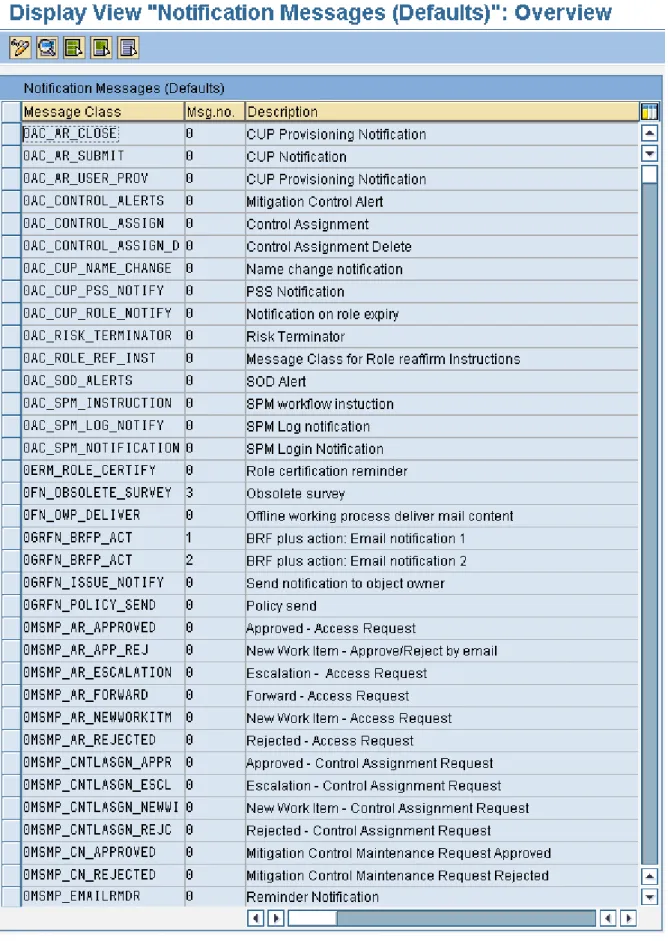
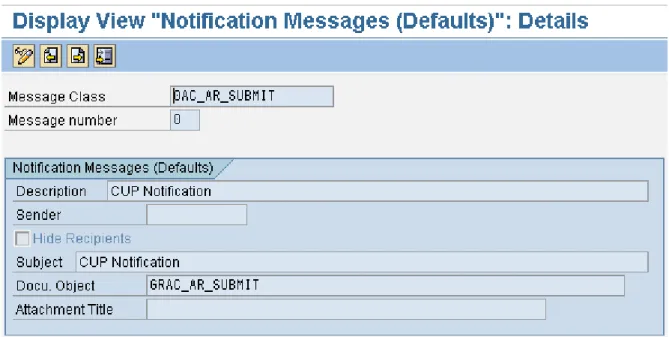
You can look up the names of the pre-delivered document objects for each message class in the view GRFNVNOTIFYMSG double clicking on the message class (Error! Reference source not found.
and Figure 3: In transaction SE61, select Document Class General Text, enter the name of the document object you want to view, and click Display.). Use transaction SE61 to display the document object. You need to select Document Class General Text (Error! Reference source not found. and Figure 5: Message Classes and Document Objects displayed by the process in MSMP Workflow Maintenance.).
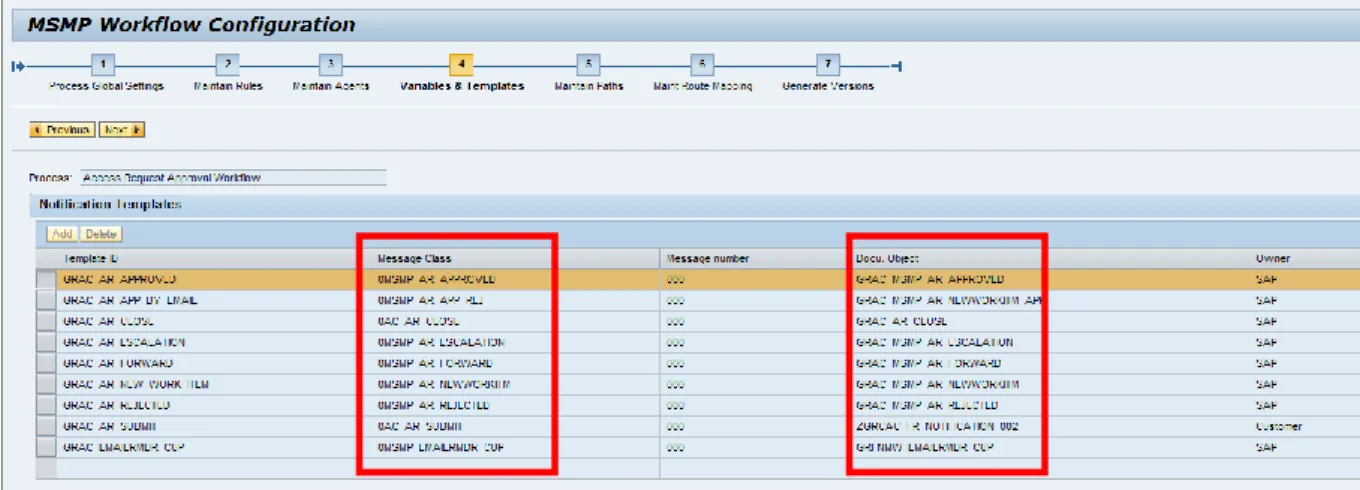
Alternatively, you can use the web interface of the IMG customizing activity Governance, Risk, and Compliance Access Control Workflow for Access Control Maintain MSMP Workflows to look up the document object used for a given message class. Select the respective workflow process and navigate to the guided procedure to step 4, Variables and Templates (Error! Reference source not found.).
Figure 1: View GRFNVNOTIFYMSG – Double-click on the message class to view the pre-delivered document object that is associated with it.
Figure 2: Document Object and subject line in email associated with message class 0AC_AR_SUBMIT.
Figure 3: In transaction SE61, select Document Class General Text, enter the name of the document object you want to view, and click Display.
Figure 4: Pre-delivered document object with message body and variables.
Figure 5: Message Classes and Document Objects displayed by the process in MSMP Workflow Maintenance.
3.3
Available Notification Variables
Message bodies included in the document objects (Figure 5: Message Classes and Document Objects displayed by the process in MSMP Workflow Maintenance.) not only contain static text, but also feature notification variables that refer to the user name, request number, and other information that depends on the attributes and content of the respective request.
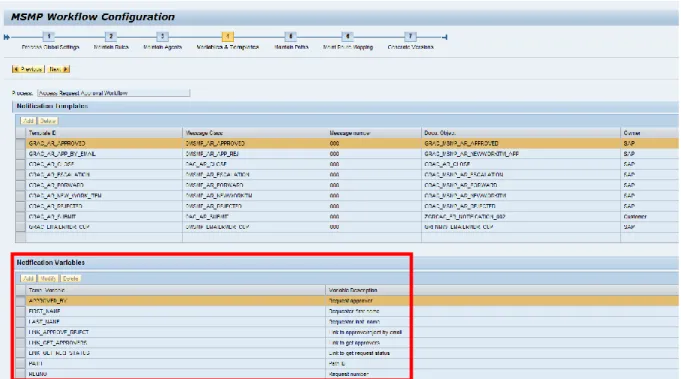
Each workflow process comes with a number of notification variables that are available to all notification templates that belong to it. They are displayed on the bottom of the screen in step 4, ”Variables & Templates”, in the customizing activity Maintain MSMP Workflows (Figure 7: Notification Variable Rules evaluate the actual values of notification variables. ). These variables are used in the pre-delivered document objects as shown in Figure 5: Message Classes and Document Objects displayed by the process in MSMP Workflow Maintenance. and can also be used in custom document objects. They appear in message bodies featuring the % character (For example, %REQNO%).
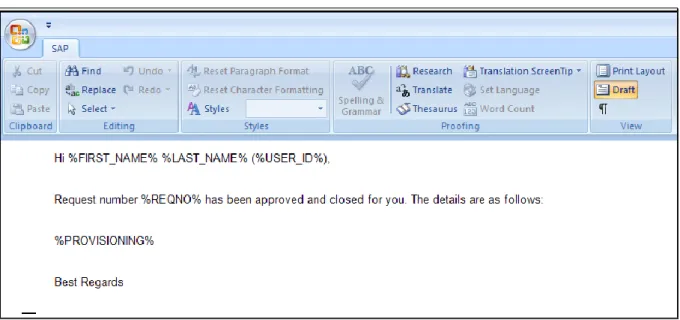
button. To perform this, however, requires the enhanced version of the pre-delivered notification variables rule assigned to the workflow process in step 2, “Maintain Rules” (Figure 8: Document object for request completion containing the multi-value variable PROVISIONING. ).
The pre-delivered notification variable rule GRAC_NOTIF_VAR_RULE_AR is a function module that evaluates the actual values at run time of each of the notification variables. Note that creation of an enhanced version requires some familiarity with software development.
The following table lists the available notification variables by workflow process. The variable PROVISIONING is a multi-value variable that lists users and roles provisioned to one or multiple systems (Figure 9: Email generated from document object shown in Error! Not a valid bookmark self-reference. & Error! Reference source not found.). The variable may not be listed in the MSMP Workflow Maintenance interface, but can be used in the document object tied to the message class 0AC_AR_CLOSE.
Notification Variable SA
P _G R A C_ A CC E S S _R E Q UE S T & _ HR S A P _G R A C_CO NT RO L_ A S G N S A P _G R A C_CO NT RO L_ M A INT S A P _G R A C_FIR E F IG HT _ LO G _RE P O RT S A P _G R A C_FU NC_ A P P R S A P _G R A C_R IS K _ A P P R S A P _G R A C_RO LE _A P P R S A P _G R A C_ S O D_R IS K _ RE V IE W S A P _G R A C_U S E R_ A CC E S S _RE V IE W
APPROVED_BY Y Y Y Y Y Y Y Y Y
FIRST_NAME (Requester) Y Y Y Y Y Y Y Y Y
LAST_NAME (Requester) Y Y Y Y Y Y Y Y Y
LINK_APPROVE_REJECT Y N N N N N N N N
LINK_GET_APPROVERS Y N N N N N N Y Y
LINK_GET_REQ_STATUS Y N N N N N N Y Y
PATH Y Y Y Y Y Y Y Y Y
REQNO Y Y Y Y Y Y Y Y Y
REQUESTER_NAME Y Y Y Y Y Y Y Y Y
REQUEST_TYPE Y Y Y Y Y Y Y Y Y
SENDER (UserID) Y Y Y Y Y Y Y Y Y
STAGE Y Y Y Y Y Y Y Y Y
ATTACHMENT_REPORT N N N N N N Y Y Y
CO_ORDINATOR N N N N N N Y Y Y
REVIEWER N N N N N N Y Y Y
PROVISIONING (Y) N N N N N N N N
Figure 6: Notification Variables available to the process Access Request Approval Workflow'
Figure 8: Document object for request completion containing the multi-value variable PROVISIONING.
Figure 9: Email generated from document object shown in Error! Not a valid bookmark self-reference.
3.4
How to Customize Email Notifications
In order to replace the pre-delivered standard messages, for a particular workflow event, with customized email notifications, you must perform the following two procedures:
1. Create Custom Document Objects
2. Associate Custom Document Object with Message Class
3.4.1
Create Custom Document Objects
Perform the following procedure to create custom document objects:
2. Select Document Class General Text, the language to be used, enter a name for the custom document object starting with the letter Z (customer name space), and click Create:
3. Enter the message body, including variables, as needed.
4. When you have completed your configuration, click the Save Active icon. You can save it as local object or add it to a transport request.
3.4.2
Associate Custom Document Object with Message
Class
You can associate a message class in AC with only one document object at the time because only the single message number 000 is available. While the associated pre-delivered document object is observable in the view GRFNVNOTIFYMSG, you must overwrite this assignment in IMG Customizing by navigating to Governance, Risk, and Compliance Access Control Workflow for Access Control Maintain Custom Notification Messages and then click New Entries. Then enter the following fields:
Message Number: pre-filled– does not change as only the designation of “000” is permitted.
Description: provide a description about the use of the message. The description will not appear in the email notification.
Sender: not applicable
Checkbox Hide Recipients: if checked, the email will display an empty list of recipients.
Subject: enter a subjectthat will appear in the subject line of the email notification.
Docu. Object: enter the name of the custom document object you created previously.
Attachment: not applicable
In order to save the notification message, you may need a transport request, depending on your client settings. The notification message will replace the document object that is associated with the
selected message class in step 4 of the MSMP workflow maintenance web interface. The notification message also replaces the entry SAP in the owner column by Customer as displayed in the final row.
3.5
Select Notification Templates and Recipients
Once you have all the notification templates you want to use for your relevant workflow processes, you must assign the notification templates in MSMP Workflow maintenance. You must also select the recipients of the notifications.
You can select from four different, pre-delivered agents of the Purpose, Notification, to determine the recipients. The pre-delivered agents include:
1. Current Approvers (of current stage) 2. Other Approvers
3. Requester
The Agent Type GRC API Rules supports the BRF Plus Rule, Function Module Based Rule, ABAP Class Based Rule, and BRF Plus Flat Rule. This functionality provides you with the flexibility to determine recipients for workflow notifications.
MSMP Workflow Maintenance interface notification templates are always selected by their Template ID, which is indicated by the respective message class prefix GRAC. If you created a custom document object for your message class Template ID, the system will always use the custom text rather than the pre-delivered text.
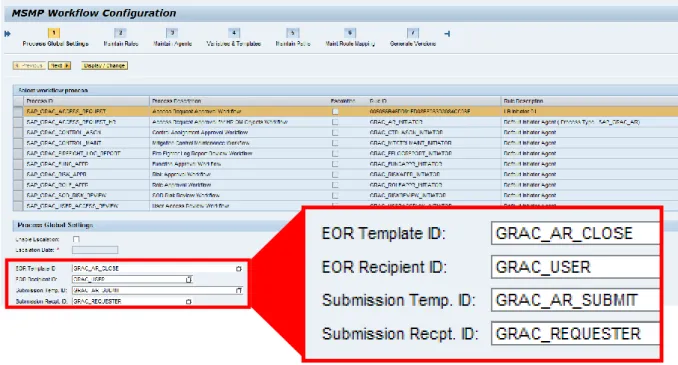
The processes SAP_GRAC_ACCESS_REQUEST and SAP_GRAC_ACCESS_REQUEST_HR are the only workflow process that comes with a message template classes for request submissions, (GRAC_AR_SUBMIT) and completions (GRAC_AR_CLOSE). You can select them together with their recipients in the section, “Process Global Settings”, in the first step of the MSMP Workflow
Maintenance guided procedure (Figure 11: Select Notification Templates and their recipients per stage ).
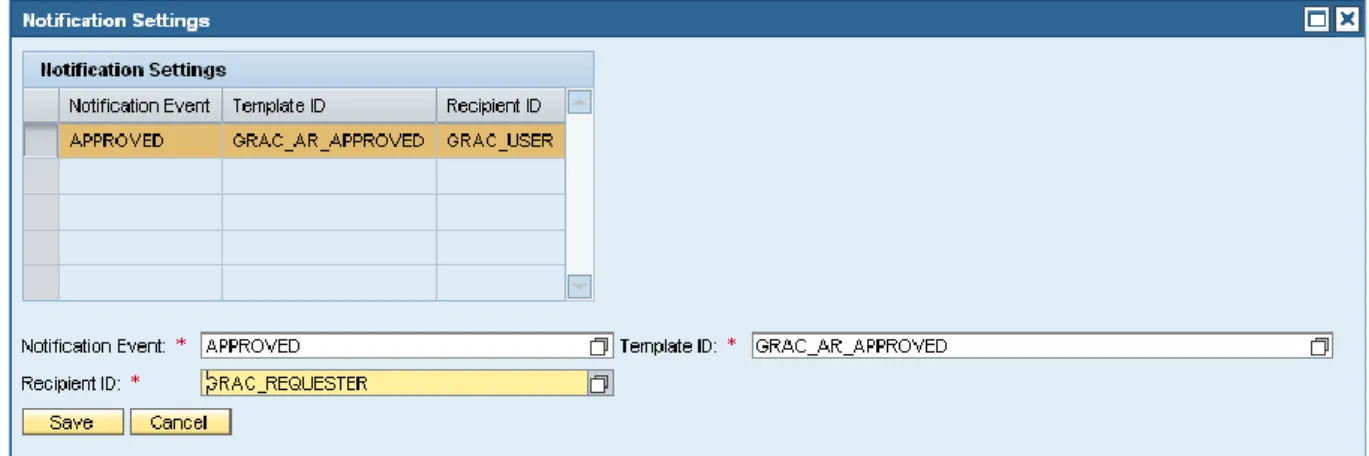
Notification Templates for the events New Work Item, Approved, Rejected, Forward, and Escalation are selected by stage in step 5, Maintain Paths. Select the stage you want to select notification templates for and the recipients to receive them and click on Notification Settings (Figure 12: Select Notification Events, Template IDs and Recipient IDs as needed ). Click Create and select Notification Event, Template ID and Recipient IDs as required for the selected stage (Error! Reference source not found.).
Figure 10: Select Template ID and Recipients for Notifications upon Request Submission and Completion
Figure 11: Select Notification Templates and their recipients per stage
Figure 12: Select Notification Events, Template IDs and Recipient IDs as needed
3.6
Setting up Email Reminders
For each individual workflow process you can configure a schedule as to whether to use periodic email reminders as well as select a notification template. There are already three pre-delivered templates available:
GRAC_EMAILRMDR_CUP: used for Access Request Approval workflows
GRAC_EMAILRMDR_SOD: used for SOD Risk Review Workflow
To create a variant:
1. Start transaction SA38.
2. In the ABAP Program field, enter GRFNMW_BATCH_EMAIL_REMINDER and click Execute. 3. Select the workflow process from the drop-down list. Then, enter the frequency of the reminder,
and the Template ID.
5. Provide the Variant Name and Description. Click Save.
8. You can monitor the results of the job in SM37 by reviewing the spool files that are generated during job execution.
4.
Comments and Feedback
Your feedback is very valuable and will enable us to improve our documents. Please take a few moments to complete our feedback form. Any information you submit will be kept confidential. You can access the feedback form at:
5.
Copyright
© 2011 SAP AG. All rights reserved.
No part of this publication may be reproduced or transmitted in any form or for any purpose without the express permission of SAP AG. The information contained herein may be changed without prior notice.
Some software products marketed by SAP AG and its distributors contain proprietary software components of other software vendors.
Microsoft, Windows, Excel, Outlook, and PowerPoint are registered trademarks of Microsoft Corporation.
IBM, DB2, DB2 Universal Database, System i, System i5, System p, System p5, System x, System z, System z10, System z9, z10, z9, iSeries, pSeries, xSeries, zSeries, eServer, z/VM, z/OS, i5/OS, S/390, OS/390, OS/400, AS/400, S/390 Parallel Enterprise Server, PowerVM, Power Architecture, POWER6+, POWER6, POWER5+, POWER5, POWER, OpenPower, PowerPC, BatchPipes, BladeCenter, System Storage, GPFS, HACMP, RETAIN, DB2 Connect, RACF, Redbooks, OS/2, Parallel Sysplex, MVS/ESA, AIX, Intelligent Miner, WebSphere, Netfinity, Tivoli and Informix are trademarks or registered trademarks of IBM Corporation.
Linux is the registered trademark of Linus Torvalds in the U.S. and other countries.
Adobe, the Adobe logo, Acrobat, PostScript, and Reader are either trademarks or registered trademarks of Adobe Systems Incorporated in the United States and/or other countries. Oracle is a registered trademark of Oracle Corporation.
UNIX, X/Open, OSF/1, and Motif are registered trademarks of the Open Group.
Citrix, ICA, Program Neighborhood, MetaFrame, WinFrame, VideoFrame, and MultiWin are trademarks or registered trademarks of Citrix Systems, Inc.
HTML, XML, XHTML and W3C are trademarks or registered trademarks of W3C®, World Wide Web Consortium, Massachusetts Institute of Technology.
Java is a registered trademark of Sun Microsystems, Inc.
JavaScript is a registered trademark of Sun Microsystems, Inc., used under license for technology invented and implemented by Netscape.
SAP, R/3, SAP NetWeaver, Duet, PartnerEdge, ByDesign, SAP BusinessObjects Explorer,
StreamWork, and other SAP products and services mentioned herein as well as their respective logos are trademarks or registered trademarks of SAP AG in Germany and other countries.
Business Objects and the Business Objects logo, BusinessObjects, Crystal Reports, Crystal
Decisions, Web Intelligence, Xcelsius, and other Business Objects products and services mentioned herein as well as their respective logos are trademarks or registered trademarks of Business Objects Software Ltd. Business Objects is an SAP company.
Sybase and Adaptive Server, iAnywhere, Sybase 365, SQL Anywhere, and other Sybase products and services mentioned herein as well as their respective logos are trademarks or registered trademarks of Sybase, Inc. Sybase is an SAP company.
warranty of any kind, and SAP Group shall not be liable for errors or omissions with respect to the materials. The only warranties for SAP Group products and services are those that are set forth in the express warranty statements accompanying such products and services, if any. Nothing herein should be construed as constituting an additional warranty.