Honeywell
SERIES 60 (LEVEL 68)
SOFTWARE
Honeywell
SERIES 60 (lEVEL 68)
SUBJECT:
MUL TICS DFAST SUBSYSTEM
USERS' GUIDE
Description of the General Characteristics of the Multics DFAST Subsystem
and the Multics DFAST Command Language
SOFTWARE SUPPORTED:
Multics Software Release 3.1
DATE:
PREFACE
This document describes DFAST, a time-sharing facility supporting BASIC and
FORTRAN program development. DFAST operates as a subsystem under Multics. Its
command language and repertoire are based on the Dartmouth Time-Sharing System
(DTSS) with additions for compatibility with the Multics storage system, access
control features, and input/output facilities.
The manual presupposes no knowledge of the Multics system. BASIC
programmers using DFAST are referred to the Multics BASIC manual (Order
No. AM82) and to Appendix C of this document. which outlines differences
implemented for DFAST BASIC. FORTRAN programmers are referred to the Multics
Section I
Section II
Section III
Section IV
CONTENTS
Introduction
DFAST Features Using DFAST . .
Logging In
Typing Conventions Quit Signal . • . •
Case Conventions . . . •
Logging Out • • Error Handling
Sample Session
Command Language Overview _ DFAST Language Conventions
File Naming Conventions • Command L;i",nj3s . • •
Input Lines . . . Command Environment •
Current and Alter Files Current Name
Current System Access Control . . • .
Access Control List
Access Modes . . • •
Setting Access Listing Access Deleting Access DFAST Command Repertoire
Logging In/Logging Out File Creation and Edit File Storage and Retrieval
Access Control . •
Command Environment . . Information . . • . . . •
Input/Output . • . . • .
Programming Facilities
Command Descriptions append, app bill, bil • • brief, bri
build, bui . . . .
bye • = • •
catalog, cat compile, com
delete_acl, da . • . • .
dprint; dp
edi t, edi . enter, e
enterp, ep . . .
explain, exp
Section V
Appendix A
[image:5.624.185.511.68.584.2]Appendix B
Figure 3-1.
CONTENTS (cont)
list, lis . . . . listnh, lisn
list_acl, la . . .
login, 1 . . . . •
nbrief, nbr . new . . . • old • . . . • onecase, one rename, ren • . replace, rep run . . . . . save, sav • .
scratch, scr . . . •
set_acl, sa • set_tty, stty sort, sor . . . system, sys . tty . . . . • twocase, two unsave, uns
users, use • • • •
Text Editing append, app • delete, del
,-, , .~.
.
desequence, des
explain, exp • . • .
extract, ext insert, ins. join, joi . . list, lis . locate, loc • merge, mer
move, mov . • • • . prefix, pre.
replace, rep . • • • •
resequence, res •• sequence, seq
strinlZ. str .
suffix~ suf .
Command Summary
DFAST BASIC •
Index
ILLUSTRATIONS
Storage System Hierarchy
Page 4-24 4-24 4-26 4-28 4-30 4-31 4-32 4-33 4-34 4-35 4-36 4-37 4-38 4-39 4-41 4-43 4-44 4-45 4-46 4-47 4-48 5-1 5-2 5-3 5-4 5-5 5-6 5-1 5-9 5-10 5-11 5-12 5-13 5-15 5-16 5-17 5-19 5-20 ~-~ I·
A-1
B-1
i-1
SECTION I
INTRODUCTION
DFAST is an easy-to-use time-sharing facility designed primarily for
creating and running BASIC and FORTRAN programs. A simple command language is
used to create and edit text files, to compile and run programs, and to select a variety of options.
The files and programs of DFAST are part of the Multics system environment
in which DFAST operates. The DFAST command repertoire and language conventions
are based on the Dartmouth Time-Sharing System (DTSS) with extensions for
compatibility with Multics. In addition, a small set of Multics commands have
been added to the DFAST language to provide user control of Multics file access
and input/output mechanisms. No knowledge of Multics is required to use DFAST.
",:.;
This manual is intended to permit the programmer to use DFAST immediately.
The introductory information in this section and the sample session in
Section II provide enough information to begin using DFAST. A complete overview
of DFAST is given in Section III. Section IV gives detailed descriptions of
each of the DFAST commands. Section V describes text editing facilities.
DFAST FEATURES
The user interacts with DFAST in an online session, issuing commands and
awaiting I~esponse. The major activity during a user-DFAST dialogue is centered
on creating and manipulating the current file (a unit consisting of all input
entered by the user during the session), a file retrieved from the Multics
storage system (permanent online storage), or an object program produced by one of the DFAST compilers.
DFAST BASIC is similar to the original Dartmouth version, differing from
standard Multics BASIC as described in Appendix B. The system name "basic"
selects BASIC with single-precision arithmetic. The system name "dbasic"
selects BASIC with double-precision arithmetic. Use of both precisions is not
allowed in the same program run and files produced by one version are not
compatible with those produced by the other (basic uses one word to store
numbers, dbasic two).
The version of FORTRAN used on DFAST is a superset of ANSI FORTRAN (1966).
A number of time-sharing oriented features have been added and the use of
expressions in language constructs generally expanded. The DFAST FORTRAN
language is described in the Multics DFAST/FAST FORTRAN Reference Manual (Order
File handling facilities support file creation, deletion, modification, and
renaming. A user can access any file in the Multics system to which he has the
appropriate access privileges. This means that the user can use programs that
belong to other users or programs from system libraries.
DFAST maintains a variety of online information available to a user on
request. This includes brief descriptions of DFAST commands, information on the
current state of the DFAST subsystem, and file-related information.
uSING DFAST
To begin a DFAST session, the user logs in to the Multics system. After
the Multics initial message has ,been typed, DFAST issues a ready message in the form:
ready 0900
This message is printed throughout the session to inform the user that DFAST has
completed a specified task and is again ready to accept user input. The time of
day is printed with each ready message.
User input can be a command or text. '''' t'nput text usually must begin with a
line number. The build command, described in Section IV, can be used to enter
nonnumbered lines.
At the end of the session, a user must log out.
Logging In
A DFAST user must be registered under a project associated with DFAST. He
will be assigned a unique identification (called a Person_id) and a password,
both of which must be entered precisely as assigned whenever he logs in. If the
user's Person_id is JBrown, he cannot log in if he types Jbrown or J Brown.
The password is entered either superimposed on a string of cover-up
characters or with printing suppressed, to ensure confidentiality.
A sample login, including the messages printed by Multics and DFAST is
shown below. Prior to this interchange, the user must dial the appropriate
telephone number to establish a connection with Multics. The exclamation point
(!) is used here and throughout this document to denote text typed by the user;
this should not actually be typed by a user.
Multics MRX.X: Multics Service, PCO,Phoenix,AZ. Load
=
26.0 out of 100.0 units: users=
26login JBrown Password:
You are protected from preemption until 0829.
JBrown Multics logged in 01/21116 0129.2 mst Tue from ASCII terminal "none". Last login 01/26/76 1230.0 mst Mon from ASCII terminal "none".
The ready message indicates that the user, JBrown, is successfully logged in and
that DFAST is awaiting input. Additional messages may be printed to provide
general information such as the addition of features, scheduled shutdowns, and
so on. Errors during logging in are described by messages such as:
Login incorrect
Please try again or type "help" for instructions.
Typing Conventions
User-typed lines can contain commands or input text but not both. Usually,
the user types one command or line of text per physical line, terminating a line
with the appropriate carriage-control character. After a command line, DFAST
issues a ready message and spaces down one line.
Typing errors can be corrected using the special symbols' and @. The
number sign (,) indicates that the character immediately preceding it should be
deleted. To delete a character five positions back, five " s must be typed,
deleting all characters back to that point. (An exception to this is when
blanks or tabs are intervening; one # deletes all white space.) Some examples
of the use of # are given below. In each example, an exclamation point precedes
the line typed by the user and the line beneath it shows what the final input
is.
new newfa#ile.basic new newfile.basic
new new###oldfile.fortran new oldfile.fortran
mew new#I##II#new newfile new newfile
The commercial at sign (@) "deletes an entire line.
new new@new anotherfile new anotherfile
Quit Signal
The user can interrupt DFAST during command or program execution by
depressing the ATTN, INTERRUPT, BRK, or QUIT key on the terminal. DFAST returns
to command level and issues a new ready message.
Case Conventions
Input from twocase terminals is stored as entered by the user. Input from
onecase terminals is stored as all lowercase. If a user wishes to ente~ a
Output conventions can be controlled by the user with the DFAST commands
onecase and twocase. At login, the output mode is twocase. Characters are
printed exactly as stored. Thus, a capital Z is printed as \Z on a onecase
terminal and simply as Z on a twocase. A lowercase z is printed as Z on a
onecase terminal and as z on a twocase. A nonprinting character is typed as a
backslash followed by the octal representation.
In onecase output mode, both lowercase and uppercase letters are printed as uppercase on all terminals and nonprinting characters are suppressed.
Logging Out
When a user has completed a session, he must log out. To log out and
disconnect the terminal, he can issue either of the commands bye or goodbye
(some terminals require that the user manually disconnect the acoustic coupler).
The hello command logs the user out, maintaining the connection for the next
user.
Error Handling
When a user makes an error in a command line, DFAST issues a descriptive
error message of the form:
command_name: message
Several commands may invoke the same error message. For example, "unknown
argument" can be issued by most commands. When a DFAST error occurs, the user
is issued a new ready message and can retype the command or input line that
caused it. If the user has a question about an error, he can obtain an online
description of the command that caused it using the explain command (using
i'explain topics" he can determine if there is an online description of a general topic such as file access).
The sample session excerpted below shows an error message printed by DFAST.
compile
compile: current segment must be saved "test.basic"
ready 0910
save
ready 0910
compile
ready 0911
Here, the user had to save the current file before compilation could be
successfully performed (the compile command causes the source text in the
SECTION II
SAMPLE SESSION
The following session shows the application of DFAST commands to the
compilation and execution of a BASIC program. User typing is indicated by the
exclamation point character (!). Comments are to the right and preceded by the
slash character (I). Full descriptions of the commands used in the sample
session are given in Section IV.
The user begins the session by dialing into the Multics system and receives a response before logging in.
Multics MRX.X: Multics Service, PCO,Phoenix,AZ. Load = 11.0 out of 80.0 units: users = 11
login Smith ."
Password:
You are protected from preemption until 0820.
Smith Multics logged in 01/27/76 0720.2 mst Tue from ASCII terminal "none". Last login 01/26/76 1230.0 mst Mon from ASCII terminal "none".
ready 0720
To begin entering input, the user issues theDFAST command, new, and
supplies a name for the current file.
new parens.basic
ready 0720
Any name that adheres to the naming conventions given in Section III can be
assigned. Here, the user is entering a BASIC source program indicated by the
second component of the name. Input to the file begins now. this is a program
intended to check for matching parentheses in any input string.
100 input 1$ 110 let n = 0 120 let m = 0
130 for i = 1 to len (1$ ) 140 let b$ = seg$ ( 1, ; - ; )
- 7 - ,
150 if b$ <> "(,, then 200
160 let n = n +1
200 if b <> ")" then 220 210 let m = m + 1
215 if m>n then 260 220 next i
250 stop
260 print "parens don't match, try again" 270 goto 100
save
ready 0722
The user here has saved his current file permanently before running it
under the name assigned with the new command. The current file can be saved
under another name by supplying a name as an argument to the save command.
run
String expression required in 140
Mixed string and numeric expression in 200 No end statement as of 270
run: error in compilation "parens"
ready 0722
IBASIC error messages
IDFAST error message
The user has issued a run command that ordinarily compiles a program and
then executes it immediately. This time, he has received error messages from
BASIC as well as an error message from DFAST. The compiler used by default was
BASIC because it was the current system at this time. If the current system had
been FORTRAN, the user could have issued the command "run basic," which would
have reset the current system. To ascertain the current system as well as the
name of the current file, the user issues a tty command.
tty
name
=
parens.basic,ready 0723
system
=
basic, user=
Smith.Design, line=
tty020In order to successfully compile his program, the user must correct the source
code. This can be done in DFAST simply by typing new lines with the same
numbers to replace errors. To delete a line, the user can simply type a line
number immediately followed by a carriage return.
140 let b$
=
seg$ (1$, i, i) 200 if b$<> ")"
then 220 280 endThese corrections are added to the current file. To store them on the saved
copy, the user must overwrite the saved version with the contents of the current file.
replace parens.basic
ready 0724
To obtain a listing of the source code, the user can issue a list or listnh
(abbreviated to lisn) command. Here, lisn, which suppresses header information
lisn
100 input 1$ 110 let n
=
0 120 let m=
0130 for i
=
1 to len (1$) 140 let b$=
seg$ (1, i, i) 150 if b$ <> 11(" then 200 160 let n=
n +1200 if b$ <> rt)" then 220 210 let m
=
m + 1215 if m>n then 260 220 next i
230 if n <> m then 260 240 print "parens match" 250 stop
260 print "parens dtin't match, try again" 270 goto 100
280 end ready 0121
Now, the user wishes to recompile the program. Instead of the run command, the
user decides to use the compile command, which compiles and, if successful,
returns the object code as the current file. It can then be saved for
subsequent execution. In the sample program, the user types in a string of
characters when the? character is printed by the program.
compile ready . 0128
save
ready 0728
run ?
«(»
parens don't match, try again ? ) ) ( (
parens don't match, try again
? (12(20(abcd)e)f)
parens match ready 0130
To end the session, the user logs out by issuing the bye command.
bye
Smith Multics logged out 01/21116 0131.3 mst Tue
CPU usage 5 sec, memory usage 16.5 units.
If, in the future, the user wishes to change or add on to his program, he
can retrieve the source file parens.basic by issuing the command "old
parens.basic". The original source program then becomes the current file and
SECTION III
COMMAND LANGUAGE OVERVIEW
The DFAST command language is based on a set of commands that describe general functions to be performed. Many of these commands require arguments to particularize the function. For example, the save command, which stores a file in the Multics storage system, requires a name under which to store it. The user need not always supply such an argument since most DFAST commands operate on default assumptions based on the current state of the command environment. In the case of save, when the user supplies no argument, the current file is stored under its current name.
DFAST LANGUAGE CONVENTIONS
User-supplied arguments to commands must adhere to appropriate naming conventions; that is, file names must be constructed according to the rules given under "File Naming Conventions" below, line numbers to conventions given under "Input Lines" below, and so on.
File Naming Conventions
A fi~e name is a user-constructed identifier from one to 32 characters long. It can contain any uppercase or lowercase alphabetic character, any number (0-9), and the hyphen (-), underscore (_), and period (.). A period has a special effect, dividing a user construct into separate components to be interpreted by DFAST. For example, the use of the period in:
test.fortran
produces a two-component name whose second component is a language suffix indicating that the file is a FORTRAN source program.
By convention, an asterisk (*) can be used to represent any component when a file name argument is given in a command such as catalog, which searches the storage system. Called the star convention, the asterisk in this context means i1any text." Thus,
,,*
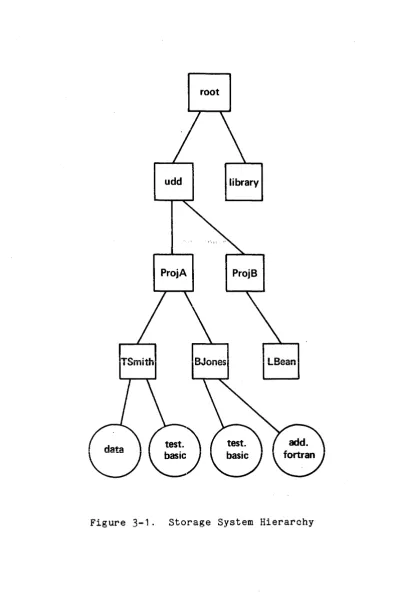
.fortran" would indicate all files with a two-component name whose second component is fortran. Two asterisks can be used together to represent any number of components (including none). For example, "test.**" would m~~cn any of the following: test, test.basic, test.fortran,A DFAST file is equivalent to a Multics segment, the basic unit of the Multics storage system. On Multics, directory segments are maintained for use in locating other segments (including other directory segments). Directories maintain a tree-structured hierarchy that permits any segment to be referenced by the series of directories leading from the root of the tree to the target segment (or DFAST file.) Each user is assigned his own directory (home directory) at login to which all his storage system requests refer by default (that is, when he does not specify some other directory explicitly). When a file becomes part of the storage system, its name identifies its position in this tree-structured hierarchy. Figure 3-1 shows a portion of this structure in a very simplified form.
Based on the sample hierarchy of Figure 3-1, if user TSmith wants to use user BJones' file called test.basic, he would provide a name indicating the list of directories leading to BJones (Jones' home directory) and terminating with the desired file. This string of names is called a pathname. By convention, individual names in a pathname are separated by the greater-than character (»)
and the root directory need not be specified. Thus, the full pathname for Jones' file named test.basic would be:
)udd)ProjA)BJones)test.basic
Notice that this notation permits users TSmith and BJones to have files with the same name. Smith's test.basic file would be specified by Jones as:
)udd)ProjA)TSmith)test.basic
By convention, DFAST permits a user to specify files in his home directory by name alone. Thus, if a DFAST user means to specify his own copy of test.basic he need type only "test.basic". To specify another user's test.basic file, however, he must still supply a full pathname.
Command Lines
A line containing a single command can begin at any horizontal position. When arguments are supplied, at least one blank must separate them from the
c0wWQ~d. A~g~~cr.ts a~e se~~ret~~ ~~~m p.~r.h other bv blanks. and the entire line
is terminated by a newline character (ASCII code 012).
More than one command can appear on a line if a separator is used. By convention in DFAST, if the first character typed is not alphanumeric, it will be interpreted as a separator, as in:
/rename newfile/save/compile/
This is equivalent to the sequence:
rename newfile save
compile
root
udd library
ProjA ProjB
TSmith BJones
[image:15.615.117.521.77.691.2]Input Lines
Any line that begins with a number is interpreted as a line of input text,
except within the context of an executing user program. Preceding blanks are
ignored. All of the following lines will be entered into the current file.
iOO enter 110 new
5 text
7 here
Line numbers can range from 1 to 99999. _ Lines can be entered in any order.
They are automatically sorted into ascending line-number sequence. If the user
types in a line with a number that has been entered previously, the new text
replaces the old associated with that line number. If a user types in a line
number with no text, the existing line with that number is deleted.
Text without line numbers can be entered using the build command.
COMMAND ENVIRONMENT
The effect of a particular DFAST comm'and can vary at different executions,
depending on the current state of the environment. For example, if a user has
just compiled a FORTRAN program, the current system becomes FORTRAN and must be
changed to BASIC before a BASIC program can be compiled. There are four
elements of the command environment that can affect the use of commands. These
are:
current file alter file current name current system
At login, these have the following values:
current file alter file current name current system
empty empty "no name" basic
Subsequent user-DFAST interaction changes these values. When a command uses one
of these as a default value, the most recent change is in effect.
Current and Alter Files
The file that a user creates in a DFAST session is called the current file.
All information entered into the current file is first temporarily stored in a
buffer called the alter file. To begin a new current file, the user issues the
command, new, followed by line-numbered input. The input lines are stored in
the alter file. When a command is issued that acts on the current file, the
The sample below shows the user-DFAST dialogue on the left and the corresponding contents of the current and alter files to the right.
new 100 110 90 90 save newfile new text for new file this isn't This is
ready 0610
80 now 120 sample
90 here is
replace newfile
ready 0610
alter file
90 This is
100 new text 110 for new file
alter file (empty)
alter file
80 now
90 here is
120 sample
alter file (empty)
' - . : ;
current file
(empty)
current file
90 This is
100 new text 110 for new file
current file
90 This is
100 new text 110 for new file
current file
80
now90 here is
100 new text 110 for new file 120 sample
The contents of the current file can also be changed by other methods. For
example, a previously saved file can be retrieved using the command, old. When
the current file is a source program to be compiled, the current file after
compilation is changed to the resultant object program. In these cases, as with
build, the alter file is not used.
Current Name
The current name of a file is initially "no name"; that is, the character string "no name" is used on listings where the name would normally appear. The
current name can be explicitly assigned by providing a name argument with the
command, new, or by executing a rename command. When the command, old, is
issued, the current name is automatically changed to the name of the retrieved
file. The current name is also changed as a byproduct of a successful
compilation using the compile command, which returns object code as the current file. In this case, if the source program name has a language suffix of "basic" or "fortran," then the current name is changed to the name pr~ceding the suffix (for example, "test.basic" becomes "test"). If the source program does not have a language suffix, the current name is changed to "object."
Current System
The current system is the compiler (basic, dbasic, or fortran) that is used
by default in the compile and run commands. It is also used in connection with
the resequencing facility of the edit command (see Section V). At logging in
time, the current system is basic. It can be explicitly reset by a compile,
system, or run command. It is automatically changed by the old, rename, and new
commands as follows. If the name referenced by old has a language suffix or is
ACCESS CONTROL
Each file stored in the Multics storage system has a set of access rights
associated with it. By default, a user has complete access to all files in his
home directory, and access is denied to any other user. The user has control of
these rights and can specify both those users who can have access to a
particular file and the type of access. For example, a user may specify that
anyone can have access to read a particular have access to write on it.
he himself can
Access Control List
The access rights for each file are described in its access control list
(ACL). An ACL contains the identification of users permitted (or specifically
denied) access to the file plus a description of the type of access allowed.
The user identification in the ACL consists of a three-component name:
Person_id, Project_id, and an instance tag, separated by periods. The Person_id
is as described under "Logging In" in Section I. The Project_id is the
identification of the user's project, registered by a Multics system
administrator. Multics assigns the instance tag when the user logs in.
Whenever anyone tries to access a file on the Multics system, his
three-component name must match one of the entries on the ACL of that particular file; if not, he has no access to that file:
Access Modes
The type of access allowed is defined by access modes: four modes for files and four modes for directories.
Access modes for files are:
read (r) data in the file can be read
write (w) data in the file can be written (modified)
execute (e) an executing process can transfer to and execute
instructions in this file
null (n) access to the file is denied
Access modes for directories are:
status (s)
modify (m)
append (a)
null (n)
the attributes of files contained in the directory can be obtained
the attributes of existing files contained in the directory can be modified (changed or deleted)
Generally, combinations of access modes are assigned to files and
directories. Typical access mode combinations are:
Files
l2
ir ectoriesr s
w sm
re sa
rw sma
rew null
null
The user can specify access mode assignments for files only, although he
can list the access on directories. Once specified, the access is not "frozen";
the user may change it at will by specifying different modes, persons, or
projects as arguments to the set_acl" command, described below.
Setting Access
The command the user invokes to set the ACL, set acl (described in detail
in Section IVj "Command Descriptions"), either adds an- entry to the ACL or
modifies an existing entry. The set_acl command, which may be abbreviated sa,
has the general format: ,-,,;
For example, Tom Smith has text in file xsolve of his directory that Jane Doe wants to use. To give her access so she can read the file, he types:
sa xsolve r JDoe.*.*
If he instead decides that his file should not be available to Jane and
wants to make sure she cannot read it, he type-s:
sa xsolve null JDoe.*.*
The asterisk following Jane's Person_id (JDoe) in the above command lines
means that the requested access applies to Jane no matter what project she may
be on, no matter what instance tag may be associated with her work. For
example, the User_id Tom gave, JDoe.*.*, matches:
JDoe.ProjB.* JDoe.ProjA.* JDoe.ANYTHING.*
When the user wants to denote any Person_id, he types an asterisk for the
first component; any Project_idj an asterisk fo~ the second component; and any
instance tag, an asterisk for the third component. (It is best to use an
asterisk for the third component since the user generally does not know the
Listing Access
To check the ACL of a file, the user invokes the command that lists the
ACL, list_acl (described in detail in Section IV, "Command Descr'iptions"). The list_acl command, which may be abbreviated la, has the general format:
As explained earlier, any file_name that does not begin with the
greater-than symbol is assumed to be in the user's home directory. Thus, if Tom
Smith wants to list the ACL of xsolve, he types:
la xsolve
rw TSmith.ProjA.*
r JDoe.*.*
rw ~.SysDaemon.*
r *.ProjA.*
The third entry in the example, *.SysDaemon.*, identifies various Multics
system processes that control such things as offline printing and making copies
of files or "backup" tapes. Appropriate ACL entries are placed on every file
the user creates so these system processes will have the necessary access to
perform the various backup, metering, and .input/output functions.
If Tom is interested in checking the access he has given only Jane on
xsolve, he types:
la xsolve JDoe
r JDoe.*.*
or to check the access rights of only ProjA, he types:
la xsolve .ProjA
rw TSmith.ProjA.*
r *.ProjA.*
Notice that when specifying the user identifications, periods must be used
to show "missing" components to the left of a specified component; however, it is not necessary to include periods for "missing" components on the right.
Deleting Access
A third access control command, delete_acl, allows the user to delete ACL
entries. This command, which may be abbreviated da, has the same general format
For example, if Tom Smith has changed file beta, he might want to also
change its ACL. First, he lists the ACL entries to see who currently has access
to beta:
la beta
rw TSmith.ProjA.*
re Gray.Merlin.*
rw Butler.Merlin.*
rw Jones.*.*
re JDoe.*.*
rw *.SysDaemon.*
r * * *
Tom decides that he no longer wants user Jones1 anyone on the Merlin
project, or the entire user community (represented by *.*.*) to have access to
beta. Therefore, he invokes the delete_acl command in the following manner:
da beta Jones * * * .Merlin
If Tom now again invokes list_acl, he will see that the requested change
has already taken place.
la beta
rw TSmith.ProjA.*
re JDoe.*.*
rw *.SysDaemon.*
Changes in access rights occur instantaneously. If Jane has access to a
file of Tom's, and he· changes the access while she is using the file, DFAST
prints out a message telling her that she has incorrect access to the file and returns her to command level.
DFAST COMMAND REPERTOIRE
The complete repertoire of DFAST commands is given below, organized in
terms of general function. A detailed description of each of these commands is
provided in Section IV.
Logging In/Logging Out
enter, enterp
goodbye, bye
hello
login
connects anonymous user to the Multics system.
terminates a user session and disconnects the
terminal.
terminates a user session but leaves the terminal connected for subsequent user.
connects registered user to the Multics system;
File Creation and Edit
append
build
edit
ignore
list, listnh
new
scratch
sort·
File storage and Retrieval
catalog
old
replace
save
unsave
Access Control
Command Environment
rename
system
appends unsorted contents of alter file to current file.
initiates non-line-numbered mode of ~nput.
performs text-editing requests.
discards contents of the alter file.
lists all or portions of the current and/or alter files (listnh suppresses header information).
initiates a new current file, deletes both the
cuprent and alter files, and changes the current name.
deletes both the current and alter files.
sorts the current file into ascending line-number sequence.
requests information about
specified directories. files stored in
retrieves a previously saved file and makes it the current file.
replaces the contents of a previously saved file with the contents of the current file.
creates a new file that contains a copy of the
contents of the current segment.
deletes a stored file.
removes an ACL entry.
prints an ACL entry.
adds or changes an ACL entry.
renames the current file.
Information
bill
explain
help
length
tty
users
,Input/Output
brief
dprint
nbrief
onecase
twocase
Programming Facilities
compile
run
prints accounting information.
prints online description of specified topic.
at login, prints login information; otherwise like explain.
prints the number of words in the current file.
prints current command environment values.
lists users currently logged in.
establishes brief output mode for printing.
queues a file for printing on the high-speed line printer.
terminates brief output mode.
establishes'~ingle-case input/output mode.
establishes new terminal type.
establishes two-case output mode.
compiles the source program in the current file.
SECTION IV
COMMAND DESCRIPTIONS
This section contains, in alphabetical order, a description of each of the DFAST commands giving its usage and .function and illustrating its application in
a user session. The contents and notation conventions associated with the
various divisions of a command description are given below.
The heading, Name:, is followed by the full command name which in turn is
followed by a comma and the valid abbreviation for the command, as in:
> • -, .~.:
Name: append~ app
Here, the append command can be invoked by typing either "append" or "app."
USAGE
The heading, Usage, is followed by a line showing a prototype command Optional arguments are enclosed by braces, as in:
compile {system_name}
,.:_-.1..1.ut::.
Here, system_name is an optional argument and valid user-supplied entries for it
are given after the format line. Arguments are shown in the order in which they
should be supplied. Required arguments appear without surrounding braces.
EXAMPLE
Under the heading Example, portions of user-DFAST dialogue are given to
show the usage and effects of executing the command. In these dialogues, the
user's typing is preceded by an exclamation point (!). This is purely a
append append
Name: append, app
The append command appends all information currently contained in the alter file to the current file; that is, information is added at the end of the file instead of being merged into the appropriate line-number sequence.
Prior to execution of an append command, the alter file contains all
information entered since the last command that caused a merge of the alter and
current files such as new, old,. or replace. After execution, the alter file is
empty.
Usage
append
Example
new new_file
ready 1301
100 this is old 110 text
save
ready 1301
100 this is new 110 text
lisn current 100 this is old 110 text
ready 1301
lisn alter 100 this is new 110 text
ready 1302
append
ready 1302
lisn current 100 this is old 110 text
100 this is new 110 text
bill bill
Name: bill, bil
The bill command prints a record of charges for computer usage by the user.
The output gives the date covered by the report, the total charges, and a
breakdown of charges.
Usage
bill
Example
bill
'-.:.: ,.
Smith.Design Report from 10/22/75 1935.1 to 10/30/75
Month-To-Date Charge: $
Resource Limit: $
Interactive Usage: $
shift 1 3
$charge 32.56
4.10
37.40;
100.00;
36.66; 13 logins, 0 crashes.
$limit open open
Absentee Usage: none;
10 Daemon Usage:
queue $charge
3 0.74
ready 1002
$ 0.64;
lines/K
1
brief brief
Name: brief, bri
The brief command suppresses the DFAST-issued ready message and the header
preceding a printout by the list command.
brief
Example
list alter
alter 12/2/75
100 random text
ready 1210
brief list alter 100 random text
ready 1210
build build
Name: build, bui
The build command initiates an input mode for nonnumbered lines of text
that are appended directly to the current file. Any text in the alter file when
build is given is merged before the new text is appended. (Notice that a DFAST
command entered in this mode is simply accepted as text.) The build mode of
input is terminated by typing a line consisting of a newline. When DFAST issues
a ready message, the normal command environment is restored.
Usage
build
Example
new test ready 0925
100 this is 110 a test build
of lines typed save
replace etcetera
ready 0925
lisn
100 this is 110 a test of lines typed save
replace
etcetera ready 0926
bye bye
Name: bye
The bye command terminates a user session and ends communication with the
DFAST system.
On terminals equipped with acoustic couplers, it is necessary to hang up
the telephone handset.
bye
Example
bye . ,', ~ ;
Smith Design logged out 11/07/75 1240.4 mst Fri
catalog catalog
Name: catalog, cat
When a file is saved, its name and other information about it is placed in
the directory specified (by default, the user's home directory). To print
information about the files in a single directory, the user can issue a catalog_
command. A variety of control arguments allow the user to restrict the listing
to a subset of files and/or a subset of information. When no arguments are
given, the command prints the name, access mode, and length for each file in the
home directory in the ord~r in which they were created. The star convention is
allowed (see "File Naming Convention~" in Section III).
Usage
catalog {file_names} {-control_args}
where:
1 •
2.
-pathname path, -pn path
-name, -nm
,-.,.:
are a subset of the files whose attributes
are to be listed. Listing of information
about these files depends on the control
arguments given.
may be chosen from the arguments
and supplied in any order. The
format of catalog is a series
each of which corresponds to an
the file. If no attributes are
given below
basic output of columns, attribute of
explicitly stated, ua.WI:;::, access mode, and records used
are printed. Otherwise, only the name and
specified attributes are printed. Both
totals and detailed information are printed
unless the user specifies otherwise. Files
are printed in the order they occur unless
the user explicitly requests a different
order.
lists the contents of the directory specified
by path; if this control argument is not
supplied, the home directory is assumed.
prints only the names column.
-date_time_entry_modified, prints the date and time the file was last
-dtem modified.
-total, -tt
-no_header, -nhe
prints only the heading line, giving the
total number of files (Multics segments) and the sum of their sizes.
catalog
Example
catalog
Segments
=
4, Lengths=
26.r w 10 test.basic
rew 9 test
r w 5 newfile
r w 2 summary. basic
ready 0910
catalog •. basic
Segments
=
2, Lengths=
12.r w 10 test.basic
r w 2 summary. basic
ready 0910
catalog -.basic -nm -nhe
test.basic summary. basic
ready 0911
catalog -tt
Segments
=
ij, Lengths=
26.ready 0911
compile compile
Name: compile, com
The compile command compiles the current program into object code by the
BASIC or FORTRAN compiler. The resultant object program becomes the current
file and can be executed immediately using the run command or can be saved for
subsequent execution. The current file must be saved before compilation.
The current name is changed, as follows, with respect to the source program
name. If the source program name has a language suffix (e.g., prog.basic), the
current name after compilation becomes the source name with the suffix removed
(e.g., prog). If no suffix was used for the source program (e.g., prog), the
current name becomes "object." If errors are detected during compilation, error
messages are issued by the compiler and the source program is retained as the
current file.
compile {system_name}
where syst.em_name is basic, dbasic, or fortran.
If no argument is supplied, the current system is the value assumed. For·
information on determining the current system, see "Current System" in Section III.
Example
rename test.basic
ready 1100
compile
compile: current segment must be saved
ready 1100
save
ready 1100
compile
ready 1100
tty
delete acl
The delete acl command removes entries from the access control lists (ACLs) of files. See ~Access Control" in Section III.
,Usage
where:
1 •
2. User_ids
3.
-ali, -a
-br:Lef, -bf
is the name of the file whose ACL is to be deleted. If
it is omitted, only a User_id of -all or -a is allowed. The star convention can be used.
are access control names that must be of the form
Person_id.Project_id.tag. All ACL entries with matching
names are deleted." (For a description of the matching
strategy, refer to the set_acl command.) If User_id is
-a or -all, the entire ACL is deleted with the exception
of an entry for •. SysDaemon .•. If no User_id is given,
the user's Person_id and Project_id are assumed.
can be chosen from the following:
causes the entire ACL to be deleted with the exception
of an entry for •. SysDaemon .•.
suppresses the message "User name not on ACL."
An ACL entry for •. SysDaemon .• can be deleted only by specifying all three
components. The user should be aware that in deleting access to the SysDaemon
project he prevents Backup.SysDaemon .• from saving the segment or directory on
tape, Dumper.SysDaemon.. from reloading it, and Retriever.SysDaemon.. from
retrieving it.
Example
delete_acl news .Faculty. Jones
deletes from the ACL of news all entries with Project_id Faculty and the entry
delete acl
da beta.** ..
dprint dprint
Name.: dprint, dp
The dprint command queues specified files for printing on the line printer.
The output begins with a header sheet that is identified by the requestor's
User id and, if specified, the destination. A summary sheet indicates the time
of the request, the time of printing, the number of lines and pages printed, and the cost of printing.
dprint {-control_args} {filel fileZ ... filen}
where:
1 .
-header XX, -he XX
-destination XX, -ds XX
-map
2. filei
Notes
may be chosen from the following list of control arguments and can appear anywhere in the command line:
identifies subsequent output by the string
XX. If this control argument is, not given,
the default is the requestor's Person ide
This argument can be overruled by a
subsequent -header control argument.
labels subsequent output with the string XX,
which is used to determine where to deliver
the output. If this control argument is not
given, the default is the requestor's
Project_ide This argument can be overruled
by a subsequent -destination control
argument.
prints a file using only uppercase letters.
See "Notes" below.
each filel is the name of a file to be
queued for printing.
The dprint command, invoked without any arguments, prints a message telling how many requests are in the queue for printing.
If control arguments are present, they affect only files specified after
their appearance in the command line. If control arguments are given without a
following filei argument, they are ignored for this invocation of the command
and a warning message is returned.
If the -map control argument is used, an uppercase version of the
file is created in his home directory with the name "file_name.map".
printing, it is deleted. Only one file can be printed by dprint when the
control argument is supplied.
dprint dprint
Example
dp -he Jones test.basic test.fortran
causes a copy of each of t~e files named test.basic and test.fortran in the home
edit edit
~: edit, edi
The edit command invokes a specified text-editing function. The desired
function is expressed as one of the keywords given under "Usage" below with
arguments as required by a specified function. A detailed description of all
edit functions is given in Section V, "Text Editing."
edit function
where function may be selected from one of the following:
Function append delete desequence explain extrac:t insert join list locate merge move prefix replace resequence sequence Effect
combines two."or more files and resequences line
numbers.
deletes one or more lines in current file.
removes line numbers from current file.
prints online description of request.
specified
selects specified lines to be retained
current file is deleted.
edit
when
inserts the contents of one or more files at
specified locations of the current file.
combines two or more files without resequencing.
requests printout of all or a portion of the
current file.
requests a listing of lines containing a specified text string.
merges and sorts the contents of two or more
files.
relocates one or more lines within the current
file.
inserts a given character string before existing string.
substitutes new character string for existing one.
assigns a new set of line numbers to all or a
portion of the current file.
assigns a new set of line numbers to an entire
edit
string
suffix
edit
converts the current file to a random-access
string file for use with BASIC and FORTRAN
programs.
enter enter
Name: enter, e
enter'p, ep
These requests are used by anonymous users to gain access to DFAST. Either
one is actually a request to the answering service to create a process for the
anonymous user. See also the login command.
Anonymous users who are not to supply a password use the enter (e) request. Anonymous users who are to supply a password use the enterp (ep) request.
Usage
enter {anonymous_name} Project_id {-control_args}
where:
1 • anonymous_name
2.
3 •
-brief, -bf
is an optional identifier that is not checked by
the Multics system, but is treated as if it were a person identifier.
is the identification of the user's project, which is registered by the Multics system administrator.
can be chosen from the following list of control arguments:
suppresses messages associated with a successful
login.
overtypes a string of
black area for the
np.~p.~~ary only for
suppress printing.
characters to provide a
user to type his password;
explain explain
Name: explain, exp
The explain command prints a specific online description. Such a
description is mairitained for each DFAST command and for general topics such as
file access. A list of topics available can be obtained by issuing the command
with "topics" as its argument.
Usage
explain {-long} topicl{ topicg ... topicnl
where:
1 . -long
2. topic
is a control argument that specifies a long form of explain
messages for given topics; if not supplied, a brief message
is printed.
is a keyword indicating the explain message desired.
Example
explain new
02/11/76 new
Function: starts input of a new current file.
Syntax: new file_name
Argument: file_name is the name to be assigned to the current file.
ready 0930
explain teach
expiain: no explain segment for "teach"
goodbye
goodbye, goo
Terminates a user session and disconnects the terminal. identical to the bye commando
goodbye
This command is
On terminals equipped with acoustic couplers, it is necessary to hang up
the telephone handset.
goodbye
Example
goodbye
Smith, Multics logged out 11/07/75 1240.4 mst Fri
CPU usage 5 sec, memory usage 16.5 units.
hello hello
~: hello, hel
The hello command terminates work by one user but does not disconnect the
terminal. The next user can log in immediately.
hello
Example
hello
Smith Multics logged out 11/12/75 0830.3 mst ~ed
CPU usage 8 sec, memory usage 80.~ uril~~.
Multics MRX.X: Multics Service, PCO,Phoenix,AZ. Load = 19.0 out of 41.0 units: users = 19
login JBrown Pass\ol'ord:
You are protected from preemption until 0932.
JBrown Design logged in 11/12/75 0832.3 mst Wed from ASCII terminal "none". Last login 11/11/75 0729.2 mst Tue from ASCII terminal "none".
help help
~: help
The help command prints information about logging in when issued prior to a
successful login. If help is issued at any other time, DFAST prints a message
referring the user to the explain command.
Usage
help
Example
login JBRown Password:
Login incorrect.
Please try again or type "help" for instructions.
help
Examples of correct login: login Person_id
enterp {anonymous_name} Project_id enter {anonymous_name} Project_id
Uppercase and lowercase letters are different. Check any typing conventions for your terminal.
Contact (appropriate accounting office) (phone) for more help. Please try again.
login JBrown
You are protected from preemption until 0830.
JBrown Design logged in 01/28/76 0830.3 mst Wed from ASCII terminal "none". Last login 01/27/76 0729.2 mst Tue from ASCII terminal "none".
ignore ignore
Name: ignore, ign
The ignore command discards line-numbered information in the alter file
rather than merging with information already stored as part of the current file.
Generally, the alter file contains all line-numbered information entered since
the user last executed a command that caused the alter file to be merged with
the current file, such as new, old, or replace. The contents of the alter file
can be examined using the list command.
ignore
Example
new new_file
ready 1120
100 nl9W text
110 is in the alter 120 file
save
ready 1120
200 old text is 210 in the current 120 file now
replace
ready 1120
220 file now 230 and also list alter
alter 11/01115 1121.3 mst Fri
220 file now 230 and also
ready 1121
ignore
ready 1121
220 file today replace
ignore
lisn current 100 new text
110 is in the alter 120 file now
200 old text is 210 in the current 220 file today
ready 1121
length length
Name: length, len
The length command prints the number of words in the current file. One
word is equal to four characters (including punctuation, spacing, and newline
characters). If the total number of characters is not a multiple of four, the
last word will contain fewer than four characters. The smallest unit of storage
on Multics is a record. A record consists of 1024 words. In the example shown,
the user has used one record even though only 12 words were required by the
file.
Usage
length
Example
100 How many 110 words are 120 in this file? length
list list
~: list, lis
listnh, lisn
The list command displays information contained in the current file alone,
the alter file alone, or of the current file after merging with the alter file .
. In the latter case, the list command causes the merge to take place thereby
clearing the alter file. The output from list is preceded by a header giving
the file name and the time and date. To suppress this header, the user may use
listnh with the same type of arguments.
Usage
list {file} {line_number}
where:
1 •
2.
file identifies the file to be listed (current or alter).
is any valid line number.
The effects of the various uses of list are shown below:
list
list line_number
list current, list cur
list alter, list alt
Effect
prints the current file (after merging with alter
file) .
prints the current file beginning at the line number
given; if no such line number exists, the next higher
line number is used; if the line number is greater than any line number in the file, the last line of the file is printed.
prints tne current. file (without mel'giug l!unLt::r:d .. 5 of
alter file).
prints contents of alter file after sorting numerical order by line number (lines containing line numbers are retained in this case).
into only
A line number may be specified with either current or alter (e.g., list alt 40).
The printout adheres to the rule given for the list line_number form above but
list list
Example
The output of the listings below assumes the following contents for the
current and alter files.
current file alter file
100 text 120 new text
110 to be 150 may also
120 listed 160 be
130 next 170 listed
list current
current 11/07/75 1214.6 mst Fri
100 text 110 to be 120 listed 130 next
ready 1214
list alters 200
alter 11/07/75 1215.2 mst Fri
170 listed ready 1215
list
no name 11/07/75 1216.1 mst Fri
100 text 110 to be 120 new text
130 next 150 may also 160 be
170 listed
ready 1216
list alter
The list acl command lists the access control lists (ACLs) of files or directories. TSee "Access Control" in Section III.}
Usage
where:
1 .
2. User ids
3·
-all, -a
-brief, -bf
-directory, -dr
identifies the file whose ACL is to be listed. If
it is omitted, the home directory is assumed and no
User_ids can be specified. The star convention can
be used.
are access control names that must be of the form
Person_id.Project_id.tag. All ACL entries with
matching names are listed. (For a description of
the matching strategy, refer to the set acl
command.) If User_id is -a, ~all, or omitted, -the
entire ACL is listed.
can be chosen from the following control arguments:
lists the entire ACL. This argument overrides any
specified User_ids.
suppresses the message "User name not on ACL of
file/directory."
lists the ACLs of directories only. The default is
files and directories.
If the list_acl command is invoked with no arguments, it lists the entire ACL of the home directory.
Example
list_acl notice.runoff .Faculty. Doe
list_acl *.basic
lists the whole ACL of every file in the home directory that has a two-component name with a second component of basic.
la -wd .Faculty. *.*.*
login login
Name: login, I
The login command is used to gain access to the Multics system. First, the
user must dial the appropriate number to activate the terminal and wait until a
message is printed by the answering service. The login command is actually a
request to the answering service to start the user id€ntification and process
creation procedures. Therefore, this command can only be issued from a terminal
connected to the answering service; that is, one that has just dialed up, or one that has been returned to the answering service after a session terminated with a hello command.
The login command requests a password from ~ne user (and attempts to ensure
either that the password does not appear at all on the user's terminal or that
it is thoroughly hidden in a string of cover-up characters). The password is a
string of one to eight letters and/or integers associated with the Person_id.
After the user responds with his password, the Multics system looks up the
Person_id and the password in its tables and verifies that the Person_id is
valid and that the password given matches the registered password. If these
tests succeed, and if the user is not already logged in, the load control
mechanism is consulted to determine if allowing the user to log in would
overload the system.
Usage
login Person_id {-control_argsl
where:
1 •
2. control_args
-brief, -bf
-change_password, -cpw
is the user's registered personal identifier.
This argument must be supplied.
can be selected from the following:
suppresses messages associated with a successful
login.
changes the user's password to a newly given one. Multics asks for the old one before requesting the
new. If the old password is correct, the new
password replaces it for subsequent logins and the message "password changed" is printed. The user
should not type the new password as part of the
control argument.
overtypes a string of characters to provide a
black area for the user to type his pa~~ra
(necessary only for users whose terminals do not