MERLIN LEGEND™
Communications System
Release
2.0
Notice
Every effort was made to ensure that the information in this book was complete and accurate at the time of printing. However, information is subject to change.
Federal Communications Commission (FCC)
Electromagnetic Interference Information
This equipment has been tested and found to comply with the limits for a Class A digital device, pursuant to Part 15 of the FCC Rules. These limits are designed to provide reasonable protection against harmful interference when the equipment is operated in a commercial environment. This equipment generates, uses, and can radiate radio frequency energy and, if not installed and used in accordance with the instruction manual, may cause harmful interference to radio communications. Operation of this equipment in a residential area is likely to cause harmful interference, in which case the user will be required to correct the interference at his own expense.
Canadian Department of Communications (DOC)
Interference Information
This digital apparatus does not exceed the Class A limits for radio noise emissions set out in the radio interference regulations of the Canadian Department of Communications. Le Présent Appareil Numérique n’émet pas de bruits radioélectriques dépassant les limites applicable aux appareils numériques de la class A prescrites dans le Règlement sur le brouillage radioélectrique édicté par le ministère des Communications du Canada.
Trademarks
CONVERSANT, Magic On Hold, and MERLIN are registered trademarks, and AUDIX Voice Power, InnManager, MERLIN Attendant, MERLIN LEGEND, MERLIN MAIL, MERLIN PFC, MLX-10, MLX-10D, MLX-20L, and MLX-28D are trademarks of AT&T in the U.S. and other countries.
MS-DOS is a registered trademark of Microsoft Corp.
Mirage, StarSet, Supra, and Supra NC are registered trademarks of Plantronics, Inc.
Support Telephone Number
AT&T provides a toll-free customer Helpline (1-800-628-2888) 24 hours a day
About This Book
1 ■ ■ ■ ■ ■Intended Audience 1
Conventions 1
Product Safety Labels 2
Related Documents 3
How to Comment on This Document 5
1
Introduction to Installation
1-1■ Overview of the Installation Process 1-2
■ System Forms 1-3
■ Upgrading the Communications System 1-6
2
Installing the Control Unit
■ ■ ■ ■ ■ ■ ■ ■ ■ ■ ■ Overview Preparation
Power and Grounding Unit Loads
Installing the Basic Carrier Upgrading the Control Unit Installing Expansion Carriers Installing the Power Supply Installing the Processor Installing the Modules
Connecting the Control Unit to an AC Outlet
■ Powering Up the System 2-63
■ Powering Down the System 2-64
3
Installing Telephones and Adjuncts
3-1■ Installing the Multi-Function Module 3-2
■ Installing Adjuncts 3-12
■ Installing the Direct Station Selector 3-31
■ Assembling the MLX Telephone 3-36
■ Connecting the Telephones to the Control Unit 3-43
4
Connecting the Control Unit to the
Network Interface
4-1■ Wiring 4 - 2
■ Testing Trunks 4-14
■ Labeling Trunks 4-16
■ Installing the Channel Service Unit 4-17
5
Installing the PC, CAT, or Printer
5-1■ Connecting a PC to the Control Unit 5-1
■ Connecting a CAT to the Control Unit 5-7
6
Connecting Data Equipment
6-1■ Data Stations 6-2
■ Modem Pools 6-23
7
Initializing and Testing the System
7-1■ Initializing the System 7-1
■ Setting the Time and Date 7-9
■ Testing the System 7-10
■ Installing the Control Unit Housing 7-32
8
Installing Applications
8-1■ ■ ■ ■ ■ ■ ■ ■ ■ ■ ■ ■
Voice Messaging Systems and TTRs Automated Document Delivery System Call Accounting System
Call Accounting Terminal Call Management System CONVERSANT Intro
InnManager Guest Management System Integrated Solution III
MERLIN Attendant
MERLIN MAIL Voice Messaging System MERLIN PFC
System Programming and Maintenance (SPM)
A
System Numbering Forms
A-1■ Form 2a, System Numbering—Station Jacks A-2
■ Form 2b, System Numbering—Digital Adjuncts A-4
■ Form 2c, System Numbering—Trunk Jacks A-5
■ Form 2d, System Numbering—Special Renumbers A-6
B
Unit Load Calculation Worksheet
B-1■ Unit Load Worksheet B-2
C
Ordering Codes
C-12
Installing the Control Unit
Figure 2-1. AC Grounding RequirementsFigure 2-2. Measuring the AC Outlet Voltages Figure 2-3. Central Office and AC Grounds Figure 2-4. Installing 146A and 147A Protectors Figure 2-5. Marking the Basic Carrier Screw Holes Figure 2-6. Installing the Housing Clips on the Carrier Figure 2-7. Removing the Control Unit Housing
Figure 2-8. Connecting the Carriers
Figure 2-9. Installing a Ring Generator in the Power S u p p l y
Figure 2-10. Replacing a Ring Generator
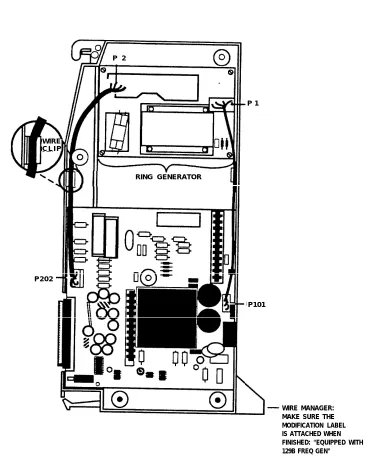
Figure 2-11. Installing a Copper Shield in the Power Supply Figure 2-12. Modifying the Processor Board for Key Mode Figure 2-13. Installing the Feature Module in the Processor Figure 2-14. Installing the Processor into the Carrier
Figure 2-15. Installing an Auxiliary Power Unit
Figure 2-16. Setting the 400EM Module DIP Switches for E&M Signaling Types 1C and 5
Figure 2-17. Trunk and Telephone Jacks on Each Module
2-7 2-10 2-12 2-17 2-20 2-21 2-23 2-26 2-31 2-34 2-37 2-42 2-44 2-47 2-49 2-54 2-58
3
Installing Telephones and Adjuncts
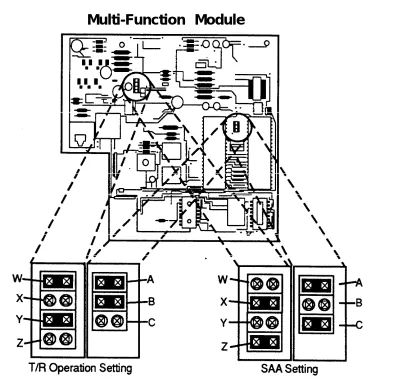
Figure 3-1. Multi-Function Module Packing List 3-3
Figure 3-2. Remove Desk Stand and Module Cover 3-5
Figure 3-5. Removing the Jack Guard
Figure 3-6. Powering up the Telephone after Installing the MFM
Figure 3-7. Routing the Cord(s) through the Cord Channel Figure 3-8. Single-Zone Paging with PagePac 20
Figure 3-9. Single-Zone Paging with Customer-Supplied Amplifier
Figure 3-10. Single-Zone Paging with Paging Access M o d u l e
Figure 3-11. Single-Zone Paging with Background Music and Magic On Hold
Figure 3-12. Multizone Paging with Background Music, Magic On Hold, and Talk-Back
Figure 3-13. Installing the Supplemental Alert Adapter Figure 3-14. Connecting One or More DSSS
Figure 3-15. Removing the Extension Label Figure 3-16. Labeling the Extension
Figure 3-17. Removing the Handset Holder Figure 3-18. Rotating the Handset Holder Figure 3-19. Replacing the Extension Label
Figure 3-20. Routing the Cord through the Backplate Figure 3-21. Mounting the Backplate
Figure 3-22. Hardware for Connecting up to 24 Telephones (also included in SYSTIMAX Hardware Kit; see also Figure 3-27)
Figure 3-23. Tools for Connecting up to 24 Telephones
Figure 3-25. Using the D-Impact Tool to Seat the Conductors
Figure 3-26. Routing the Wires through the Wire Troughs and D-Rings
Figure 3-27. SYSTIMAX Hardware Kit (See also Figure 3-22)
Figure 3-28. Attaching the SYSTIMAX Template to the Wall Figure 3-29. Using the SYSTIMAX Template to Place the
Hardware
Figure 3-30. Drilling Holes for Each Piece of Hardware Figure 3-31. Using the 788J1 Tool to Seat and Trim the
Conductors
Figure 3-32. Using the Reversed Blade Edge on the 788J1 Impact Tool
Figure 3-33. Connecting Termination Blocks to Field-Terminated Blocks
Figure 3-34. Connecting Two Voice Pairs to a Telephone Using a Bridge Adapter (BR-241-B1)
Figure 3-35. Pressing the Wires Over the Slots in the Outlet Figure 3-36. Removing the Connecting Block
3-51 3-52 3-54 3-56 3-57 3-58 3-60 3-61 3-63 3-64 3-66 3-73
4
Connecting the Control Unit to the
Network Interface
Figure 4-1. RJ21X Network Interface Connector Figure 4-2. RJ21X Wiring Field Hardware
Figure 4-3. RJ21X Wiring Field Tools
Figure 4-4. Using the D-Impact Tool to Seat the
Figure 4-5. RJ11 and RJ14 Interfaces 4-11 Figure 4-6. Connecting the ESF T1 CSU (Rear Panel) 4-26
Figure 4-7. ESF T1 CSU Front Panel 4-30
Figure 4-8. 551 T1 CSU 4-33
Figure 4-9. Connecting the T1 Lines to the CSU 4-37
Figure 4-10. Signal Monitor Unit 4-38
Figure 4-11. Inserting the Office Repeater into the
551 T1 CSU 4-40
5
Installing the PC, CAT, or Printer
Figure 5-1. Connecting the PC (Within 50 Feet) 5-3
Figure 5-2. Connecting the PC (50 Feet or More) 5-5
Figure 5-3. Connecting the Printer (Within 50 Feet) 5-13 Figure 5-4. Connecting the Printer (50 Feet or More) 5-17 Figure 5-5. Connecting the 248B Adapter and the 2012D
T r a n s f o r m e r 5-20
6
Connecting Data Equipment
Figure 6-1. Data Stations and a Modem Pool 6 - 1
Figure 6-2. Analog Data and Analog Voice
Equipment Configuration 6-6
Figure 6-3. Analog Data Only Equipment Configuration 6-9 Figure 6-4. Analog Data and Digital Voice
Equipment Configuration 6-11
Figure 6-7. Video Conferencing Connections 6-20
Figure 6-8. Modem Pool Configurations 6-26
7
Initializing and Testing the System
Figure 7-1. Ground-Start Button 7-29
Figure 7-2. Installing the Control Unit Housing 7-32
8
Installing Applications
Figure 8-1. Connecting the CAT 8-9
A
System Numbering Forms
Figure A-1. Form 2a, System Numbering—Station Jacks A-2 Figure A-2. Form 2b, System Numbering—Digital Adjuncts A-4 Figure A-3. Form 2c, System Numbering—Trunk Jacks A-5 Figure A-4. Form 2d, System Numbering—Special
2
Installing the Control Unit
Table 2-1. Environmental Requirements 2-3
Table 2-2. AC Power Requirements 2-8
Table 2-3. Heavy Lightning Protection 2-16
Table 2-4. Setting the 400EM Module DIP Switches 2-55
Table 2-5. Sample DIP Switches for the 400EM Module 2-55
3
Installing Telephones and Adjuncts
Table 3-1. Unsupported Telephones and Adjuncts 3-30
Table 3-2. Insert Labels 3-68
4
Connecting the Control Unit to the
Network Interface
Table 4-1. Table 4-2. Table 4-3. Table 4-4. Table 4-5. Table 4-6. Table 4-7. Table 4-8. Table 4-9. Table 4-10. Network InterfacesCentral Office Network Interface Codes SW1 Default Settings
SW2 Default Settings SW4 Default Settings SW5 Default Settings SW6 Default Settings SW7 Settings
SW2 BER Options
Switch Settings in Hybrid/PBX Mode: Network and Equipment are ESF Framed lJsing AMI ZCS Line Code
Table 4-11. Table 4-12. Table 4-13. Table 4-14. Table 4-15. Table 4-16. Table 4-17. Table 4-18. Table 4-19. Table 4-20. Table 4-21. Table 4-22. Table 4-23. Table 4-24. Table 4-25. Table 4-26. Table 4-27.
Switch Settings in Hybrid/PBX Mode: Network and Equipment are ESF Framed Using B8ZS Line Code
Switch Settings in Hybrid/PBX Mode: Network and Equipment are D4 Framed
Artificial Transmit Line Options 100D Module Pin Assignments
Wire-Wrap Connector Pin Assignments DTE 15-Pin Connector Pin Assignments Network 15-Pin Connector Pin Assignments CSU Front Panel LEDs
CSU Front-Panel Controls CSU Front-Panel Test Jacks
Signal Monitor Unit Switch Settings
Office Repeater Power Mode Option Settings Office Repeater Artificial Line Options
Signal Monitor Unit Front-Panel LEDs Signal Monitor Unit Front-Panel Test Jacks CSU Rear-Panel Pin Assignments.
TBI Pin Assignments
4-23 4-24 4-25 4-27 4-28 4-29 4-29 4-31 4-32 4-32 4-35 4-36 4-36 4-39 4-39 4-41 4-42
5
Installing the PC, CAT, or Printer
Table 5-1. AT&T 572 Printer Options 5-21
6
Connecting Data Equipment
Table 6-1. Data Station Configurations 6-4
Table 6-2. Data Module Settings 6-23
Table 6-3. 7500B Option Settings for Digital-to-Analog
Modem Pool 6-30
Table 6-4. Modem Option Settings for Modem Pools 6-31
Table 6-5. 7500B Option Settings for Analog-to-Digital
Modem Pool 6-32
7
Initializing and Testing the System
Table 7-1. Compatibility of SPM Versions during Upgrade 7-4
Table 7-2. Programming Compatibility 7-4
8
Installing Applications
Table 8-1. TTRs Required by VMS 8-3
Table 8-2. Voice Channels Required 8-18
hands-on instructor-led course covering installation and maintenance for this product. Installation or maintenance of this product by anyone other than a qualified service technician may void the warranty. Hazardous electrical voltages are present inside this product.
The exclamation point in an equilateral triangle is intended to alert the user to the presence of
important operating and maintenance (servicing) instructions in the literature accompanying the product.
IMPORTANT SAFETY INSTRUCTIONS
When installing telephone equipment, always follow basic safety precautions to reduce the risk of fire, electrical shock, and injury to persons, including:
■
■
■
■
■
■
Read and understand all instructions.
Follow all warnings and instructions marked on or packed with the product.
Never install telephone wiring during a lightning storm.
Never install a telephone jack in a wet location unless the jack is specifically designed for wet locations.
Never touch uninsulated telephone wires or terminals unless the telephone wiring has been disconnected at the network interface.
■ ■ ■ ■ ■ ■ ■ ■ ■
Use only AT&T-recommended/approved MERLIN LEGEND Communications System accessories.
If equipment connected to the analog station modules (008, 408, 408 GS/LS) or to the MLX telephone modules (008 MLX, 408 GS/LS-MLX) is to be used for in-range out-of-building (IROB) applications, IROB protectors are required.
Do not install this product near water, for example, in a wet basement location.
Do not overload wall outlets, as this can result in the risk of fire or electrical shock.
The MERLIN LEGEND Communications System is equipped with a three-wire grounding-type plug with a third (grounding) pin. This plug will fit only into a grounding-type power outlet. This is a safety feature. If you are unable to insert the plug into the outlet, contact an electrician to replace the obsolete outlet. Do not defeat the safety purpose of the grounding plug.
The MERLIN LEGEND Communications System requires a supplementary ground.
Do not attach the power supply cord to building surfaces. Do not allow anything to rest on the power cord. Do not locate this product where the cord will be abused by persons walking on it.
Slots and openings in the module housings are provided for ventilation. To protect this equipment from overheating, do not block these
openings.
Support Telephone Number
In the U.S.A. only, AT&T provides a toll-free customer Helpline (1-800-628-2888)
24 hours a day. Call the Helpline, or your authorized dealer, if you need assistance when installing, programming, or using your system.
Outside the U.S.A., if you need assistance when installing, programming, or using
your system, contact your authorized AT&T dealer.
Federal Communications Commission (FCC) Electromagnetic Interference Information
This equipment has been tested and found to comply with the limits for a Class A digital device, pursuant to Part 15 of the FCC Rules. These limits are designed to provide reasonable protection against harmful interference when the equipment is operated in a commercial environment. This equipment generates, uses, and can radiate radio frequency energy and, if not installed and used in accordance with the instruction manual, may cause harmful interference to radio communications.
Operation of this equipment in a residential area is likely to cause harmful interference, in which case the user will be required to correct the interference at his own expense.
Canadian Department of Communications (DOC) Interference Information
This digital apparatus does not exceed the Class A limits for radio noise emissions set out in the radio interference regulations of the Canadian Department of
FCC Notification and Repair Information
This equipment is registered with the FCC in accordance with Part 68 of its rules. In compliance with those rules, you are advised of the following:
■ Means of Connection. Connection of this equipment to the telephone network
shall be through a standard network interface jack: USOC RJ11C, RJ14C, RJ21X. Connection to E&M tie trunks requires a USOC RJ2GX. Connection to off-premises stations requires a USOC RJ11C or RJ14C. Connection to 1.544-Mbps digital facilities must be through a USOC RJ48C or RJ48X. Connection to DID requires a USOC RJ11C, RJ14C, or RJ21X. These USOCs must be ordered from your telephone company.
This equipment may not be used with party lines or coin telephone lines.
■ Notification to the Telephone Companies. Before connecting this
equipment, you or your equipment supplier must notify your local telephone company’s business office of the following:
— The telephone number(s) you will be using with this equipment. — The appropriate registration number and ringer equivalence number
(REN), which can be found on the back or bottom of the control unit, as follows:
If this equipment is to be used as Key System, report the number AS593M-72914-KF-E.
If the system provides both manual and automatic selection of incoming/outgoing access to the network, report the number AS593M-72682-MF-E.
If there are no directly terminated trunks, or if the only directly terminated facilities are personal lines, report the number AS5USA-65646-PF-E.
The REN for all three systems is 1.5A.
— For tie line connection, the facility interface code (FIC) is TL31M and the service order code (SOC) is 9.0F.
— For connection to off-premises stations, the FIC is OL13C and the SOC is 9.0F.
— For equipment to be connected to 1.544-Mbps digital service, the FIC is 04DU9-B for D4 framing format or 04DU9-C for extended framing format, and the SOC is 6.0P.
— For equipment to be connected to DID facilities, the FIC is 02RV2-T and the SOC is AS.2.
ringing in response to an incoming call. In most, but not all, areas the sum of the RENs should not exceed five (5.0). To be certain of the number of devices that may be connected to the line, as determined by the total RENs, contact the telephone company to determine the maximum REN for the calling area.
Installation and Operational Procedures
The manuals for your system contain information about installation and operational procedures. ■ ■ ■ ■ ■
Repair Instructions. If you experience trouble because your equipment is
malfunctioning, the FCC requires that the equipment not be used and that it be disconnected from the network until the problem has been corrected. Repairs to this equipment can be made only by the manufacturers, their authorized agents, or others who may be authorized by the FCC. In the event repairs are needed on this equipment, contact your authorized AT&T dealer or, in the
U.S.A. only, contact the National Service Assistance Center (NSAC) at
1-800-628-2888.
Rights of the Local Telephone Company. If this equipment causes harm to
the telephone network, the local telephone company may discontinue your service temporarily. If possible, they will notify you in advance. But if advance notice is not practical, you will be notified as soon as possible. You will also be informed of your right to file a complaint with the FCC.
Your local telephone company may make changes in its facilities, equipment, operations, or procedures that affect the proper functioning of this equipment.
If they do, you will be notified in advance to give you an opportunity to maintain uninterrupted telephone service.
Hearing Aid Compatibility. The custom telephone sets for this system are
compatible with inductively coupled hearing aids as prescribed by the FCC.
Automatic Dialers. WHEN PROGRAMMING EMERGENCY NUMBERS AND/OR MAKING TEST CALLS TO EMERGENCY NUMBERS:
— Remain on the line and briefly explain to the dispatcher the reason for the call.
— Perform such activities in off-peak hours, such as early morning or late e v e n i n g .
Direct Inward Dialing (DID).
a. This equipment returns answer supervision signals to the Public Switched Telephone Network when:
(1) answered by the called station (2) answered by the attendant
b. This equipment returns answer supervision on all DID calls forwarded back to the Public Switched Telephone Network. Permissible
exceptions are when:
(1) a call is unanswered (2) a busy tone is received (3) a reorder tone is received
Allowing this equipment to be operated in such a.manner as not to provide proper answer supervision signaling is in violation of Part 68 rules.
DOC Notification and Repair Information
NOTICE: The Canadian Department of Communications (DOC) label identifies certified
equipment. This certification means that the equipment meets certain
telecommunications network protective, operational, and safety requirements. The DOC does not guarantee the equipment will operate to the user’s satisfaction.
Before installing this equipment, users should ensure that it is permissible to connect it to the facilities of the local telecommunications company. The equipment must also be installed using an acceptable method of connection. In some cases, the company’s inside wiring for single-line individual service may be extended by means of a certified connector assembly (telephone extension cord). The customer should be aware that compliance with the above conditions may not prevent degradation of service in some situations.
Repairs to certified equipment should be made by an authorized Canadian
maintenance facility designated by the supplier. Any repairs or alterations made by the user to this equipment, or any equipment malfunctions, may give the
telecommunications company cause to request the user to disconnect the equipment. Users should ensure for their own protection that the electrical ground connections of the power utility, telephone lines, and internal metallic water pipe system, if present, are connected. This precaution may be particularly important in rural areas.
CAUTION: Users should not attempt to make such connections themselves, but should
contact the appropriate electrical inspection authority or electrician, as appropriate. To prevent overloading, the Load Number (LN) assigned to each terminal device denotes the percentage of the total load to be connected to a telephone loop used by the device. The termination on a loop may consist of any combination of devices subject only to the requirement that the total of the Load Numbers of all the devices does not exceed 100.
Renseignements sur la notification du ministère des Communications du Canada et la réparation
AVIS: L'étiquette du ministère des Communications du Canada identifie le matériel
homologué. Cette étiquette certifie que le matériel est conforme à certaines normes de protection, d'exploitation et de sécurité des réseaux de télécommunications. Le
Ministère n'assure toutefois pas que le matériel fonctionnera à la satisfaction de l'utilisateur.
Avant d'installer ce matériel, l'utilisateur doit s'assurer qu'il est permis de le raccorder aux installations de l'entreprise locale de télécommunication. Le matériel doit
également être installe en suivant une méthode acceptée de raccordement. Dans certains cas, les fils intérieurs de l'enterprise utilsés pour un service individuel à ligne unique peuvent être prolongés au moyen d'un dispositif homologué de raccordement (cordon prolongateur téléphonique interne.)
L'abonné ne doit pas oublier qu'il est possible que la conformité aux conditions énoncées ci-dessus n'empêchent pas la dégradation du service dans certaines
situations. Actuellement, les enreprises de télécommunication ne permettent pas que l'on raccorde leur matériel à de jacks d'abonne, sauf dans les cas précis prévus pas les tarifs particuliers de ces entreprises.
Les réparations de matériel homologué doivent être effectuées par un centre d'entretien canadien autorisé désigne par le fournisseur. La compagnie de
télécommunications peut demander à l'utilisateur de débrancher un appareil à la suite de réparations ou de modifications effectuées par l'utilisateur ou à cause de mauvais fonctionnnement.
Pour sa propre protection, l'utilisateur doit s'assurer que tous les fils de mise à la terre de la source d'energie électrique, des lignes téléphoniques et des canalisations d'eau métalliques, s'il y en a, sont raccordés ensemble. Cette précaution est
particulièrement importante dans les régions rurales.
AVERTISSEMENT: L'utilisateur ne doit pas tenter de faire ces raccordements
lui-même; il doit avoir recors à un service d'inspection des installations électriques, ou à un electricien, selon le cas.
L'indice de charge (IC) assigné à chaque dispositif terminal indique, pour éviter toute surcharge, le pourcentage de la charge totale qui peut être raccordée à un circuit téléphonique bouclé utilisé par ce dispositif. La terminaison du circuit bouclé peut être constituée de n'importe quelle combinaison de dispositifs, pourvu que la somme des indices de charge de l'ensemble des dispositifs ne dépasse pas 100.
MERLIN LEGEND D.O.C. Location Label Placement
Security of Your System—Preventing Toll Fraud
As a customer of a new telephone system, you should be aware that there exists an increasing problem of telephone toll fraud. Telephone toll fraud can occur in many forms, despite the numerous efforts of telephone companies and telephone equipment manufacturers to control it. Some individuals use electronic devices to prevent or falsify records of these calls. Others charge calls to someone else’s number by illegally using lost or stolen calling cards, billing innocent parties, clipping on to
someone else’s line, and breaking into someone else’s telephone equipment physically or electronically. in certain instances, unauthorized individuals make connections to the telephone network through the use of remote access features.
The Remote Access feature of your system, if you choose to use it, permits off-premises callers to access the system from a remote telephone by using an 800 number or a 7- or 10-digit telephone number. The system returns an
acknowledgement signaling the user to key in his or her authorization code, which is selected and administered by the system manager. After the authorization code is accepted, the system returns dial tone to the user. If you do not program specific egress restrictions, the user will be able to place any call normally dialed from a telephone associated with the system. Such an off-premises network call is originated at, and will be billed from the system location.
The Remote Access feature, as designed, helps the customer, through proper administration, to minimize the ability of unauthorized persons to gain access to the network. Most commonly, phone numbers and codes are compromised when overheard in a public location, through theft of a wallet or purse containing access information, or through carelessness (writing codes on a piece of paper and improperly discarding it). Additionally, hackers may use a computer to dial an access code and then publish the information to other hackers. Enormous charges can be run up quickly. It is the customer’s responsibility to take the appropriate steps to properly implement the features, evaluate and administer the various restriction levels, protect access codes, and distribute access codes only to individuals who have been fully advised of the sensitive nature of the access information.
To minimize the risk of unauthorized access to your communications system: ■ ■ ■ ■ ■ ■ ■ ■ ■
Use a nonpublished Remote Access number.
Assign authorization codes randomly to users on a need-to-have basis,
keeping a log of ALL authorized users and assigning one code to one person. Use random sequence authorization codes, which are less likely to be easily broken.
Deactivate all unassigned codes promptly.
Ensure that Remote Access users are aware of their responsibility to keep the telephone number and any authorization codes secure.
When possible, restrict the off-network capability of off-premises callers, via use of Call Restrictions and Disallowed List capabilities.
When possible, block out-of-hours calling.
Frequently monitor system call detail reports for quicker detection of any unauthorized or abnormal calling patterns.
Limit Remote Call Forward to persons on a need-to-have basis.
Limited Warranty and Limitation of Liability
AT&T warrants to you, the customer, that your MERLIN LEGEND Communications System will be in good working order on the date AT&T or its authorized reseller delivers or installs the system, whichever is later (“Warranty Date”). If you notify AT&T or its authorized reseller within one year of the Warranty Date that your system is not in good working order, AT&T will without charge to you repair or replace, at its option, the system components that are not in good working order. Repair or replacement parts may be new or refurbished and will be provided on an exchange basis. If AT&T determines that your system cannot be repaired or replaced, AT&T will remove the system and, at your option, refund the purchase price of your system, or apply the purchase price towards the purchase of another AT&T system.
Voice Mail Systems
Your Voice Mail system permits callers to leave verbal messages for system users or gain access to the back-up position in an emergency as well as create and distribute voice messages among system users.
responsibility to take appropriate steps to implement the features properly, evaluate and administer the various restriction levels, protect and carefully distribute access c o d e s .
Under applicable tariffs, you will be responsible for payment of toll charges. AT&T cannot be responsible for such charges and will not make any allowance or give any credit resulting from unauthorized access.
To reduce the risk of unauthorized access through your Voice Mail system, please observe the following procedures:
■
■
■
■
■
Employees who have voice mailboxes should be required to use the passwords to protect their mailboxes.
— Have them use random sequence passwords.
— Impress upon them the importance of keeping their passwords a secret.
— Encourage them to change their passwords regularly.
The administrator should remove any unneeded voice mailboxes from the
system immediately. .
AUDIX Voice Power™ has the ability to limit transfers to subscribers only. You are strongly urged to limit transfers in this manner.
Use the PBX or Key system administration capability to do the following: — Block direct access to outgoing lines and force the use of account
codes/authorization codes.
— Disallow trunk-to-trunk transfer unless required.
— Assign toll restriction levels to all AUDIX Voice Power ports.
— If you do not need to use the Outcalling feature, completely restrict the outward calling capability of the AUDIX Voice Power ports.
Monitor SMDR reports or Call Accounting System reports for outgoing calls that might be originated by AUDIX Voice Power ports.
Remote Administration and Maintenance
The Remote Administration and Maintenance feature of your telecommunications system, if you choose to use it, permits users to change the system features and capabilities from a remote location.
can accumulate quickly. It is your responsibility to take appropriate steps to implement the features properly, evaluate and administer the various restriction levels, and protect and carefully distribute access codes.
Under applicable tariffs, you will be responsible for payment of toll charges. AT&T cannot be responsible for such charges and will not make any allowance or give any credit resulting from unauthorized access.
To reduce the risk of unauthorized access through Remote Administration and Maintenance, please observe the following procedures:
■ The System Administration and Maintenance capability of a PBX or Key system
is protected by a password.
— Change the default password immediately. — Continue to change the password regularly.
— Only give the password to people who need it and impress upon them the need to keep it secret.
— If anyone who knows the password leaves the company, change the password immediately.
■ If you have a special telephone line connected to your PBX or Key system for
Remote Administration and Maintenance, you should do one of the following: — Unplug the line when it is not being used.
— Install a switch in the line to turn it off when it is not being used. — Keep the Remote Administration and Maintenance telephone number
secret. Only give it to people who need to know it, and impress upon them the need to keep it a secret. Do not write the telephone number on the PBX or Key system, the connecting equipment, or anywhere else in the system room.
The Installation guide contains information on installing and upgrading the MERLIN LEGENDTM
Communications System.
Intended Audience
This book is intended for qualified technicians who install and upgrade the system.
Conventions
The following typographical conventions are used in this book:
■ Bold type is used for telephone buttons.
Press Drop to delete the current entry.
■ Italic type is used for emphasis and as a substitute for information for
■ Constant width type is used for information on telephone display screens or on a PC screen.
Select Sys Program.
■ Bold constant width type indicates exactly as shown.
Type install; dial #55.
■ Keys on the PC are shown in boxes.
Press [F7] .
nformation that you enter
■ When two keys are to be pressed at the same time, the keys are
connected by a hyphen. Press [Alt] - [P] .
Product Safety Labels
Throughout these documents, hazardous situations are indicated by an exclamation point inside a triangle and the-word “caution” or “warning.”
WARNING:
Warning indicates the presence of a hazard that could cause death or severe personal injury if the hazard is not avoided.
CAUTION:
Related Documents
The books listed below comprise the entire MERLIN LEGEND
Communications System family of documentation. These documents are listed by their abbreviated titles. For example, MERLIN LEGEND, Release 2.0 Communications System Installation is referred ‘to as installation.
To order these books, call the Customer Information Center (CIC). Check the inside front cover for the telephone number.
NOTE:
For any application that runs on the system, you can also order
documentation from the CIC. If you do not know the exact title or number, they can provide
Document No.
you with a list of all documentation for each application.
Title 555-620-114 555-620-110 555-620-115 555-620-116 555-620-111 555-620-112 555-620-113 555-620-122 555-620-123 555-620-150 555-620-152 555-620-124 555-620-125 555-620-151 System Documents System Overview Feature Reference
Equipment and Operations Reference Pocket Reference
System Programming System Planning System Planning Forms
Telephone User Support
MLX-10D™, MLX-28D™, and MLX-20L™ Display Telephones User’s Guide
MLX-10D, MLX-28D, and MLX-20L Display Telephones Quick Reference MLX-10D Telephone Tray Cards (6 cards)
MLX-28D and MLX-20L Telephone Tray Cards (5 cards) MLX-10™ Non-Display Telephone User’s Guide
Document No. Title 555-620-120 555-620-121 555-620-128 555-620-126 555-620-127 555-620-134 555-620-135 555-620-132 555-620-133 555-620-136 555-620-137 555-620-130 555-620-131 555-620-129 555-620-140 555-620-141 555-620-142 555-620-143 555-620-144
Analog Multiline Telephones User’s Guide
Analog Multiline Telephones Quick Reference MLC-5 Cordless Telephone Quick Reference Single-Line Telephones User’s Guide
Single-Line Telephones Quick Reference
System Operator Support
MLX Direct-Line Consoles Operator’s Guide MLX Direct-Line Consoles Quick Reference Analog Direct-Line Consoles Operator’s Guide
Analog Direct-Line Consoles Quick Reference MLX Queued Call Console Operator’s Guide
MLX Queued Call Console Quick Reference
Miscellaneous User Support
Calling Group Supervisor’s Guide
Calling Group Supervisor’s Quick Reference Data User’s Guide
Documentation for Qualified Technicians
Installation, Programming, & Maintenance (lP&M) Binder (consists of 555-620-141, 555-620-142, 555-620-143, and 555-620-144)
Installation
System Programming & Maintenance (SPM) Maintenance and Troubleshooting
How to Comment on This Document
We welcome your comments, both good and bad. Please use the feedback form on the next page to let us know how we can continue to serve you.
If the feedback form is not included in this section, write directly to the following address:
A. Sherwood AT&T
99 Jefferson Road Room 2A25
1
Installation of the MERLIN LEGEND Communications System, involves the following:
■ installing the control unit
■ installing the telephones
■ connecting the system wiring
■ installing optional equipment
Overview of the Installation Process
The following is a comprehensive list of everything that the system could include. When installing your customer’s system, try to adhere to this order as much as possible.
1. 2. 3. 4. 5. 6. 7. 8. 9.
Install the control unit (required). See Chapter 2.
Connect power accessories to the control unit (optional). See Chapter 2.
Install the telephones (required) and adjuncts (optional). See Chapter 3.
Connect the telephones to the control unit (required). See Chapter 3.
Connect the control unit to the network interface (required). See Chapter 4.
Connect the channel service unit to the 100D module on the control unit (required only with the 100D module).
See Chapter 4.
Connect the printer and PC to the control unit (optional). See Chapter 5.
Connect data equipment to the control unit (optional).
See Chapter 6. .
Initialize and test the system (required). See Chapter 7.
10. Install the control unit housing (required). See Chapter 7.
Tools and Equipment
A list of required tools and equipment is provided just before each procedure throughout this guide.
System Forms
Throughout this guide, the installation procedures refer to system forms. These forms indicate information that is specific to your customer’s system. The forms that you need should be included with the system programming diskette, which contains all of the programming specifically for your
customer’s system.
If you find that you do not have a fully completed set of planning forms for your customer’s system, contact your technical support organization or the Customer Service Center (CSC). See the inside of the front cover for telephone numbers.
Using the System Forms
Not all of the system forms are necessary for each system.
The following sections list the forms according to the following categories:
■ Installing the control unit
■ Installing telephones and adjuncts
■ Connecting the network interface
■ Connecting data equipment
Installing the Control Unit
■ Form 1, System Planning (the Control Unit Diagram on the back)
■ Form 3c, Incoming Trunks—Tie
Some of the procedures in Chapter 2 refer to the Control Unit Diagram, which is the second side of Form 1, System Planning.
If you are installing a 400EM module in the control unit, you need Form 3c, Incoming Trunks—Tie to determine the switch settings prior to installing the module in the control unit.
Installing Telephones and Adjuncts
The following forms indicate the telephones and adjuncts that are to be installed, as described in Chapter 3.
■ Form 2a, System Numbering—Station Jacks
■ Form 2b,
■ Form 4b,
■ Form 4d,
■ Form 4e,
System Numbering—Digital Adjuncts
Analog Multiline Telephone
MLX Telephone
MFM Adjunct—MLX Telephone
■ Form 4f, Tip/Ring Equipment
■ Form 5a, Direct-Line Console (DLC)—Analog
■ Form 5b, Direct-Line Console (DLC)—Digital
■ Form 5c, MFM Adjunct—DLC
■ Form 5d, Queued Call Console (QCC)
Connecting the Network Interface
-■ Form 2c, System Numbering—Trunk Jacks
■ Form 3a, Incoming Trunks—Remote Access
■ Form 3b, Incoming Trunks—DS1 Connectivity
■ Form 3d, Incoming Trunks—DID
(100D Module)
Connecting Data Equipment
The following forms indicate the data equipment needed to setup data stations and modem pools, as described in Chapter 6:
■ Data Form 1a,
■ Data Form 1b,
■ Data Form 2a,
■ Data Form 2b,
Modem Pool—Analog to Digital
Modem Pool—Digital to Analog
Analog Data Station
Digital Data Station
■ Data Form 3, Data Hunt Groups
Programming the System
Upgrading the Communications
System
If you are upgrading to Release 2.0 from Release 1.0, 1.1, or from the MERLIN® II Communications System, see Chapter 7 for the upgrade procedure.
NOTE:
2
If you have not read Chapter 1, do so before continuing with any instructions in this chapter.
Overview
Installing the control unit involves the following, which this chapter describes in detail:
1. Installing the backboard
2. Meeting the power and grounding requirements
3. Checking the total unit load
4. Installing the basic carrier
5. Installing any expansion carriers specified for the system
6. Installing the power supply
9. Connecting the control unit to AC power
10. Powering up the system
11. Powering down the system
Be sure to follow these procedures in the order specified.
Preparation
The control unit must be installed on a backboard, which may already be installed. If so, skip to the section, “Power and Grounding.”
If backboard installation is your responsibility, follow the procedures in this section.
Environment
Table 2-1. Environmental Requirements
Operating Temperatures
40° - 104°F (4° - 40°C)
Optimum temperature: 60°F (15.6°C)
Humidity 2 0 % - 8 0 %
Airborne
Contamination
Do not expose the control unit to moisture, corrosive gases, dust, chemicals, spray paint, or similar material.
Ventilation Allow at least 1 inch (2.54 cm) on the right and left sides of the control unit and 12 inches (31 cm) above and below to prevent overheating.
Do not place the control unit near extreme heat (for example: furnaces, heaters, attics, or direct sunlight).
Electrical Fields
Do not expose the control unit to devices that generate electrical currents causing interference (such as arc welders or motors).
Heat
Dissipation
Basic carrier: 500 BTU/hr
Basic carrier with one expansion carrier: 1000 BTU/hr Basic carrier with two expansion carriers: 1500 BTU/hr
WARNING:
Do not install the control unit outdoors.
Electrical Noise/Radio-Frequency Interference (RFI)
Radio transmitters (AM or FM), television stations, induction heaters, motors (with commutators) of 0.25 horsepower (200 watts) or greater, and similar equipment are leading causes of interference. Small tools with universal motors are generally not a problem when they operate on separate power lines. Motors without commutators generally do not cause interference.
Field strengths below 1.0 volt per meter are unlikely to cause interference. The field strength produced by radio transmitters can be estimated by
dividing the square root of the emitted power in kilowatts by the distance from the antenna in kilometers. This yields the approximate field strength in volts per meter and is relatively accurate for distances greater than about half a wavelength (492 ft, or 150 m, for a frequency of 1000 Hz). See the Customer Support Information in the beginning of this guide for FCC Part 15 radio frequency regulations.
Control Unit Requirements
■ Dimensions
— Basic carrier: 14” W x 23” H x 12” D
— Basic carrier and one expansion carrier: 25” W x 23” H x 12” D
— Basic carrier and two expansion carriers: 37” W x 23” H x 12” D
■ Location
— Within 5 ft controlled
(152 cm) of AC power outlet that is not
switch-— Within 25 ft (762 cm) of the network interfaceswitch-—or use an off-premises range extender (OPRE)
Backboard Requirements
The backboard should be wide enough to accommodate additional carriers if system growth is anticipated. In addition to the basic carrier, two expansion carriers can be added.
To accommodate the maximum control unit size, make sure the backboard meets the following requirements:
■ Dimensions
— with SYSTIMAX wiring: 7’ W x 4’ H x 3/4” D
— without SYSTIMAX wiring: 6’ W x 3’ H x 3/4” D
■ Material
— 3/4” plywood
— Check with local building code enforcement agency to see if fire-retardant material is required.
— Make sure that the material meets local building code requirements.
Installing the Backboard
When you are certain that the backboard and its location meet the requirements indicated in this section, attach the backboard to the wall, allowing enough room on either side of the control unit for necessary wiring fields and future addition of expansion carriers.
Use the following mounting hardware:
■ For a wood mounting surface, use woodscrews.
NOTE:
The combined pullout force of the backboard should be at least 650 pounds (295 kilograms).
Power and Grounding
Proper power and grounding are essential for correct and safe functioning of the system.
Use
■
■
■
■
this section to verify that all power and grounding requirements are met.
CAUTION:
If any of these requirements are not met, have the customer contact a licensed electrician. Do not install the system until all requirements are met.
The load center of appropriate current rating must be equipped with circuit breaker(s) labeled 120 VAC, 15 amps.
Each breaker must protect one dedicated quad AC outlet or two dedicated duplex AC outlets.
All AC outlets must be connected to the same load center and must have the ground wire connected to the single-point ground bar on the first AC outlet (see Figure 2-1).
TYPICL AC GROUNDING
From AC Load Center (2 separately fused 15 A
circuits) (#14 AWG)Ground
4" Box (RACO 230 or equivalent) HUBBELL Receptacles
(5262 15 A or equivalent)
Single-Point Ground
Ground Bar 4" Cover (RACO 807 or equivalent) Mounted on a 4" Box
(Square "D" PK9GTA or
approved equivalent) Approved Building Ground (#6 AWG Copper) #12 or #14 AWG Copper
Wire to EAch Power Supply Grounding Screw
Figure 2-1. AC Grounding Requirements
■ Each carrier requires one outlet receptacle.
■ Additional AC outlets may be required for auxiliary equipment.
■ If a printer or a PC is to be installed with the system, it must be
■ The AC power requirements indicated in the next section, “AC Outlet
Tests” must be met.
CAUTION:
The AC outlet for the control unit cannot be switch-controlled. Plugging the control unit into such an outiet invites accidental disconnection of the system. The AC outlet must be properly wired as described in the next section, “AC Outlet Tests.”
AC Outlet Tests
If the AC outlet tests indicate that any of the power requirements in Table 2-2 are not met, your customer must contact a licensed electrician. Do not install the system until all requirements are met.
Table 2-2. AC Power Requirements
Parameter Value
Nominal voltage 117
Voltage range 110-125
Frequency 60±5%
Maximum current 3 per power supply
Power consumption 225 per power supply
Unit
VAC
VAC
Hz
amps
If the AC outlet tests reveal any of the following conditions, they must be corrected before you install the system:
■ open ground
■ hot and neutral
■ open hot
■ open neutral
■ hot and ground
reversed
reversed
WARNING:
Hazardous voltages are present during the following tests. Follow all instructions carefully when working with AC power line voltages.
Using an Ideal 61-035 Circuit Tester (or Equivalent)
1.
2.
Using a
1.
2.
A
Plug the circuit tester -into the outlet to be tested.
If the circuit is properly grounded, the yellow and white lights on the tester turn on.
Unplug the circuit tester.
Volt-Ohm Milliammeter (VOM)
Set the VOM to the scale on which you can read 130 VAC.
110 - 125 Volts
N e u t r a l P h a s e( H O T )
G r o u n d
Less than 2 . 5 V o l t s
110 - 125 V o l t s
Figure 2-2.
■
■
■
Measuring the AC Outlet Voltages
Phase to ground should be 110 to 125 VAC.
Neutral to ground should be less than 1 VAC. Phase to neutral should be 110 to 125 VAC.
WARNING:
Grounding Requirements
Proper grounding of the installation site safeguards system functioning by protecting the system from the following:
■ lightning
■ power surges
■ power crosses on central office trunks
■ electrostatic discharge (ESD)
When installing the control unit, make sure that you meet the following grounding requirements:
■
■
■
■
■
The control unit, the central office trunk protector, and the AC power service panel should be as close to each other as possible.
Because equipment can be located throughout a building, the National Electrical Code requires that the ground point for the central office trunk protector be bonded to the AC power ground as shown in Figure 2-3.
The AC outlet and the single-point ground bar must be properly grounded as shown earlier in Figure 2-1.
Each power supply in the control unit must be connected to the single-point ground bar by a #12 AWG or a #14 AWG solid copper wire. Figures 2-1 and 2-3 show this connection.
This wire run should be as short as possible, preferably within 5 ft (152 cm), not to exceed 10 ft (305 cm). This procedure is described later in this chapter under “Providing the Proper Grounding.”
To Central Office or Serving Facility CO
Lines C O D2R Cords
CO DIW or 25-Pair Cable Line NetworkInterface Wiring
Field Protector Coupled Bonding Conductor (optional) Power Supply Commercial Power AC Ground Plug Outlet Wire B Power Service Single -Point Ground B a r
W GND (Green) #6 AWG Shield Ground Earth Ground Power Ground Rod Bond Wire
WARNING:
Improper ground can cause equipment failures, service outages, and electrical shock. Verify that the AC power uses an approved ground for its primary ground, that all voltage-limiting devices are grounded to an approved ground, and that the ground is one of the approved grounds listed below.
Approved Grounds
The following is a list of approved grounds, starting with the most preferred:
■ building steel
■ acceptable water pipe—must be a metal, underground water pipe at
least ½-inch (30.4 cm) in diameter, and in direct contact with the earth for at least 10 ft (3 m).
It must be electrically continuous so that the protector ground is
connected. (Check for insulated joints, plastic pipe, and plastic water meters that might interrupt electrical continuity.)
A metallic underground water pipe must be supplemented by the metal frame of the building, a concrete-encased ground, or a ground ring. If these grounds are not available, the water pipe ground can be supplemented by one of the following types of grounds:
— other local metal underground systems or structures—local underground structures such as tanks and piping systems
— rod and pipe electrodes—a 5/8 -inch (1.6-cm) solid rod or ¾-inch (1.9-cm) conduit or pipe electrode driven to a minimum depth of 8 ft (244 cm)
■ concrete-encased ground—must be an electrode, consisting of one of
the following:
— at least 20 ft (6.1 m) of one or more steel reinforcing rods, each being at least ½-inch (1.27 cm) in diameter
— 20 ft (6.1 m) of bare copper conductor not smaller than #4 AWG, encased in 2 inches (5 cm) of concrete.
— This electrode must be located within and near the bottom of a concrete foundation or footing that is in direct contact with the earth.
— ground ring-consists of at least 20 ft (6.1 m) of bare copper conductor not smaller than #2 AWG encircling the building. The ground ring must be in direct contact with the earth and buried at least 2.5 ft (77 cm) below the earth’s surface.
WARNING:
Do not use metal underground gas piping system—this is a safety risk.
Central Office Trunk Protection
The telephone company is responsible for providing the following protection of central office trunks at the entrance to the site:
■ carbon blocks or gas discharge tubes connected to an approved
ground
■ adequate bonding of the central office trunk protector ground and the
CAUTION:
Check these requirements with a simple, visual inspection; if you cannot verify that the central office grounding requirements are met, contact the central office. Do not connect the centrai office trunks until you are ceflain that these requirements are met.
Heavy Lightning Protection
For most surges, adequate protection is provided by meeting the
requirements listed in the previous section, “Grounding Requirements.”
Additional protection is required when the customer is located in a heavy lightning area:
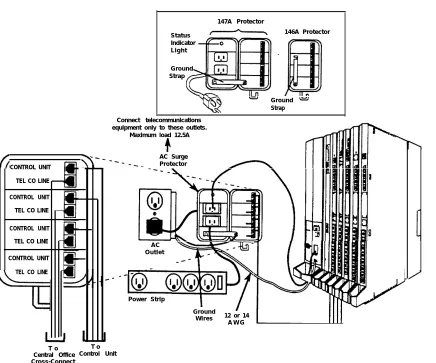
Connect a 147A protector to the system to limit surges from the AC lines and central office trunks.
One 147A protector provides protection for four central office trunks.
■ Connect a 146A protector to the 147A to provide protection for another four trunks.
You can connect as many as three 146A protectors to a 147A, which allows a maximum of 16 central office trunks on one 147A protector.
■ For more than 16 trunks, add another 147A protector and continue
adding 146As as needed.
See Table 2-3 for various configurations.
Table 2-3. Heavy Lightning Protection
If you have this number of
central office trunks . . .
Connect these protectors
1-4 147A
5-8 147A and a 146A
9-12 147A and two 146As
13-16 147A and three 146As
17-20 Two 147As and three 146As
See the note below.
21-24 Two 147As and four 146As
See the note below.
NOTE:
147A Protector Status Indicator Light 146A Protector Ground Strap Ground Strap Connect telecommunications
equipment only to these outlets. Maximum load 12.5A
AC Surge Protector CONTROL UNIT
TEL CO LINE
CONTROL UNIT TEL CO LINE
CONTROL UNIT TEL CO LINE
AC Outlet CONTROL UNIT
TEL CO LINE
Power Strip
Ground
Wires 12 or 14 A W G
T o Central Office Cross-Connect
F i e l d
T o Control Unit
Figure 2-4. Installing 146A and 147A Protectors
Unit Loads
A unit load is a measure of power (1.9 watts) used to determine the electrical load that the following components have on each carrier’s power supply:
■ telephones and adjuncts
Only the telephones and adjuncts that connect to the analog and digital ports on the control unit require unit load calculation. Do not include any equipment with its own power supply in the unit load calculation.
■ 800 DID modules
Checking Unit Loads
In the event of maintenance or equipment changes, recalculate the unit loads for each carrier resulting in a different configuration.
Use the worksheet in Appendix B.
General Rule: If you can distribute the 800 DID modules and telephone modules equally
any one carrier.
Also, depending provide the rules
Unit Loads for
across the carriers, you will prevent unnecessary drain on
on the system’s mode, the rules vary. The next two sections for calculating unit loads in various modes.
the Hvbrid/PBX Mode
The power supply (model 391A1) generally supports six modules of any type in a Hybrid/PBX system— without requiring an auxiliary power unit.
If, however, both of the following conditions are true, the unit loads on a carrier can exceed the 54-unit maximum, and therefore require auxiliary power:
■ all six carrier slots are occupied by MLX telephone or analog multiline
■ the carrier has a total of more than 45 MLX-20L telephones or
34-button analog multiline telephones installed
Unit Loads for Key or Behind Switch Mode
In a Key or Behind Switch system with four or fewer modules, no calculation is needed. The power supply (model 391A1) generally supports four modules of any type in Key or Behind Switch mode.
Auxiliary Power Units
The power supply provides 54 unit loads to each carrier. If the unit load requirement for a carrier exceeds 54, an auxiliary power unit is needed to allow that carrier to support an additional 27 unit loads.
CAUTION:
Running the system with more than 54 unit loads per carrier may not appear to do harm. However, this can cause the system to
malfunction, thereby creating “no trouble found” situations, such as malfunctioning LEDs on multiline telephones, or power unit failure.
Any station connected to the modules in the last two slots receives power from the auxiliary power unit instead of from the power supply.
Installing the Basic Carrier
Begin this procedure only if you have met all of the requirements discussed earlier in this chapter.
NOTE:
If you are upgrading a system, the basic carrier (and possibly one or two expansion carriers) is already installed. Do not remove any of these carriers; skip to the next section, “Upgrading the Control Unit.”
Following the instructions given below, mount the basic carrier onto the plywood, leaving 5 inches (12.7 cm) of plywood to the left. This allows easy access to the installation and removal of the system cover, while allowing enough room for system expansion (up to a total of three carriers and 5 inches (12.7 cm) of plywood to the right of the third carrier).
1. Mark the screw hole locations on the backboard using the basic carrier as a guide. See Figure 2-5.
Make sure the carrier is level before marking the holes.
Mounting Surface
Mounting
S c r e w Background
Basic Carrier
2. Remove the carrier from the backboard and drill a pilot hole in the center of each of the four screw-hole marks.
3. Anchor the screws approximately halfway into the backboard.
4. Place the housing clips around the molding for the screws on the back of the carrier. See Figure 2-6.
NOTE:
Install all four housing clips if the system has only one carrier.
If an expansion carrier is to be added, install the housing clips only on the left side of the basic carrier.
Figure 2-6. Installing the Housing Clips on the Carrier
5. Position the carrier on the screws and slide the carrier to the left.
6. Check to see that the carrier is level and that the housing clips extend as far as possible from the sides of the carrier.
Upgrading the Control Unit
When upgrading, do the following:
1. Remove the control unit housing:
a. Disconnect AC power from each auxiliary power unit at the wall outlet.
b. Disconnect AC power from each carrier by disconnecting the power cord at the wall outlet.
c. If the existing control unit is a MERLIN II Communications System, remove the housing as follows. See Figure 2-7.
i. Remove the front housing from each carrier by pulling the bottom-front towards you. When it releases, remove it by lifting up as shown in Figure 2-7.
ii. Remove the top from each carrier. in the system by pushing it straight up from the front.
iii. Discard the MERLIN II Communications System housing.
d. If the existing control unit is a MERLIN LEGEND Communications System, remove the housing as follows. See Figure 2-7.
i. From both sides of the control unit, pry the clips from the housing, using a screwdriver if difficult to reach.
ii. When the clips are freed from the housing, carefully pull the housing towards you.
NOTE:
If the system has more than one carrier, make sure you hold the housing only from the basic carrier side. Otherwise, the housing may disassemble.
MERLIN II
Communications System Communications SystemMERLIN LEGEND
Figure 2-7. Removing the Control Unit Housing
2. Do not remove any of the existing carriers.
4. See the Control Unit Diagram on Form 1, System Planning.
If you will be adding an expansion carrier, remove the rightmost module from the control unit and put it aside.
CAUTION:
If you remove the cords from the module, make sure they are labeled first.
5. If housing clips are already installed on the existing control unit, remove them:
a.
b.
c.
d.
e.
Remove the rightmost module from the control unit. See “Removing a Module” later in this chapter for instructions.
Using a flat-blade screwdriver, unscrew the upper-right corner of the carrier only far enough to free the clip.
Pull the top-right corner of the carrier toward you while grasping the housing clip and pushing it away from you (to free it from the carrier).
When the clip is free enough to clear the screw molding on the back of the carrier, slide the clip out and discard it.
Compare the Control Unit Diagram with the existing control unit.
If you will be installing an additional expansion carrier in this upgrade, do not replace the clip on the right side until the last expansion carrier is installed. If no more carriers are to be installed, replace the clip now, making sure the clip is as far to the right as possible.
6. Remove the power supply as follows:
a. Press upon the tab at the bottom rear of the power supply.
b. While the tab is unlocked, pull the power supply towards you, and then lift it straight up.
WARNING:
Beware of hazardous voltages; whenever the carrier connections are exposed, use extreme caution; do not touch them directly or with any type of tool. Follow all procedures carefully.
7. Remove the clips from the left side of the control unit in the same way; however, make sure you replace the clips before securing the screws again.
8. If not already installed, install the new clips on the left side of the control unit:
a. Using a flat-blade screwdriver, unscrew the upper-left corner of the carrier only enough to slide a new clip behind the screw molding on the back of the carrier.
b. With the clip in place, secure the screw, making sure the clip is as far to the left as possible.
c. Repeat Steps a and b for the lower-left corner.
9. Reinstall the power supply by hooking it onto the rod at the top of the carrier, and then swinging it down into place.
10. Push the power supply firmly until you hear it lock.
Installing Expansion Carriers
If one or more expansion carriers is indicated for the system, follow this procedure to mount each one (see Figure 2-8).
1. If you are adding an expansion carrier to an existing system, see the previous section before continuing.
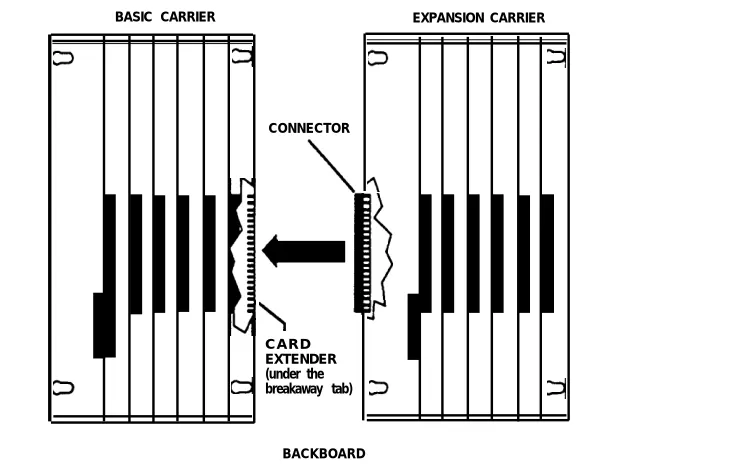
2. Locate the breakaway plastic tab on the right side of the previously mounted carrier. Using a flat-blade screwdriver, gently pry the tab open to expose the card extenders and connectors on the carriers.
BASIC CARRIER EXPANSION CARRIER
CONNECTOR
C A R D EXTENDER (under the breakaway tab)
BACKBOARD
Figure 2-8. Connecting the Carriers
3. Align the connector of the expansion carrier with the card extender on the previously mounted carrier and slide the connector onto the
5.
6.
7.
8.
9.
10.
11.
12.
Disconnect the expansion carrier connector from the previously mounted carrier and put the expansion carrier aside.
Drill a pilot hole in the center of each of the four screw-hole marks.
Anchor the screws approximately halfway into the backboard.
If this is the last carrier in the system, place the control unit housing clips around the right-hand molding for the screws on the back of the carrier.
If not, skip this step.
Position the expansion carrier on the screws and slide it to the left, thereby reconnecting the expansion carrier card extender to the previous carrier’s connector.
Make sure the connection is secure.
Check to see that the carrier is level and that the housing clips extend as far as possible from the right side of the carrier.
Installing the Power Supply
WARNING:
■
■
■
■
■
■
Do not attach any cables or power cords to the power supply until it is installed in the carrier.
Do not power up the control unit until all of the modules and power equipment are installed.
Once they are installed, follow the procedures under “Powering Up the System” later in this chapter. Failure to comply with these procedures can result in shock hazard or damage to the equipment.
If a ring generator is specified in the system forms (Control Unit Diagram), install it in the power supply before putting the power supply in the carrier. The detailed procedure is
provided in the section “Step 2a: Installing a Ring Generator,” later in this chapter.
For expansion carriers only, a copper shield must be installed on the power supply before installing it in the carrier. The detailed procedure is provided in the