c
EDIT
Advanced 8080 Edita
Users
Manua~
Describes EDIT, Release 1.0
iProcessor
Technology
Corpora~ion
7100 Johnson Industrial Drive
Pleasanton, CA 94566
Telephone (415) 829-2600
Copyright (C) 1978, Processor Technology Corporation First Edition, First Printing, June 1978
IMPORTANT NOTICE
This manual, and the program it describes, are copyrighted by
Processor Technology Corporation. All rights are reserved. All
Processor Technology software packages are distributed through authorized dealers solely for sale to individual retail customers. Wholesaling of these packages is not permitted under the
agree-ment between Processor Technology and its dealers. No license
to copy or duplicate is granted with distribution or subsequent sale.
EDIT was derived from EDIT3, a product of LSM Engineering. Major
SECTION 1 2 3 4 5
c
TABLE OF CONTENTS
INTRODUCTION ••••••• 1.1 1.2 1.3 Capabilities. Conventions •• Definitions •••
ACCESSING THE EDIT PROGRAM ••
2.1 2.2
Loading ••••• Starting Up.
LANGUAGE ELEMENTS •••
3.1 3.2 3.3 3.4 3.5 Command Command Command Command 3.4.1 3.4.2 3.4.3 Format •• Summary •• Str ings ••
Keying Errors.
Character Level: DELete •••••••
Command Level: MODE SELECT ••••
Command Buffer ••••••••••••••••
Special Handling.
CONSOLE INPUT/OUTPUT •••
.
.
TAPE FILE INPUT/OUTPUT. • • 0 • • • • • • • • • • • • • • • D • • • • • • •
5.1
5.2
5.3
Opening And Closing Tape Files.
5.1.1 5.1.2 5.1.3 5.1. 4 Input 5.2.1 5.2.2
Opening: < <filename> $ or > <filename> $ ••••••
Setting Block Size:
Printing: <= or
Closing: <$ or
from a Tape File •••
YANK: Y
APPEND: A
. . .
• • 0 • • n; •••>= 0· • • • • • •
>$
...
Output to a Tape File ••••••••••••••••••••
5.3.1 5.3.2 5.3.3
PUT: P
PUT without a Formfeed:
PUT and Endfile: PE
TABLE OF CONTENTS (Continued)
SECTION
5.4 Combined Tape Input and Output ••••••••••••••
5 • 4 • 1 END: E ••••••.•••••.•••••••••••••••••
5 • 4 • 2 PUT and YANK: nR ••••.•••••..•••••.••
5.5 Rewinding a Tape: ?
(Yes, it's the command) •••••••••••••••••••••
6 BUFFER CONTENTS ••••••••••••••••••••••••••••••••••
7 CONTROLLING THE CHARACTER POINTER ••••••••••••.•.•
7.1 Page Level: Band Z •••••••••••••••..••••••
7.2 Line Level: Land J •••••••••••••••••••••••
7.3 Character Level:
M, Sstring$, Qstring$, and Nstring$ •••••••••
8 ALTERING BUFFER CONTENTS •••••••••••.•••••••••••••
8.1 Addition/Insertion ••••••••••.•••••••••••••••
8.1.1 8.1.2
Text: Istring$ ••••••••••••••.••••••
Single Character: nI •••••••••••••••
8.2 Deletion/Substitution •.•••••..••••••••••...•
8.2.1 8.2.2 8.2.3
Line Level: K . . . .
Character Level: D •••••••••••.•••••
String Level: C . . . • . . .
9 COMMAND MACROS •••••••••••••••••••••••••••••••••••
9.1 9.2 9.3 9.4 9.5
Summary of De..f ining: Executing: Deleting: Printing:
Macro Commands ••••••••••••••••••• XM
X XD
X?
<command string> $$
. .
.
.
. .
.
. . .
.
. . .
.
. .
.
10 LEAVING EDIT ••••••••••••••••••••••••••••••.••.••.
10.1 HL2 10.3
Summary of EXIT Commands •••••••••••••••••••
Go to User Routine: G <hex address> $ •••
Halting: H . . . .
11 TEXT BUFFER SIZE •••••••••••••••••••••••••••••••••
c
, ' /
(
'--.
(
TABLE OF CONTENTS (Continued)
SEC'I'ION PAGE
12 IMMEDIATE COMMANDS ••.••..•....•..•.••.•..•.•••.•. 12-1
12.1 12.2 12.3
13 ERROR
14 ABOU'l'
Summary of Immediate Commands ••••..•••.•.•• 12-1
Print Last Command String: Ap .••••••••••• 12-1
Re-execute Last Command String: AR •••.••• 12-1
f.lESSAGES. . . • • . • • . • . • • • . • . . . • . . . . • . . • . • . • • 13-1
CASSETTE RECORDERS AND CASSETTE FILES .••••• 14-1
APPENDIX
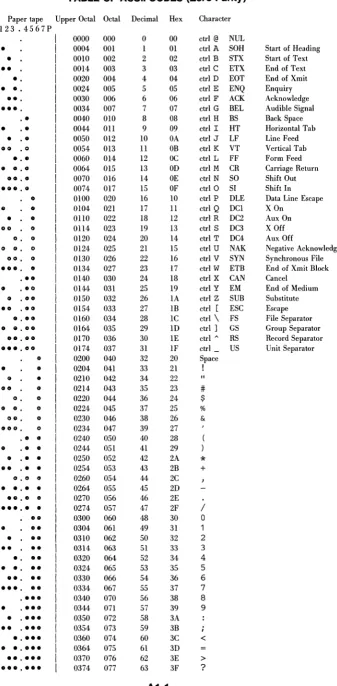
1 TABLE OF ASCII CODES
2 PACK AND UNPAC
(~
SECTION 1INTRODUCTION
1.1 CAPABILITIES
EDIT is a text editor program that allows for the creation or
modification of ASCII files such as source files coded in FORTRAN,
BASIC, or Assembly Language. This program allows editing on
character, string, line and page levels; at any of these lev-els additions, insertions, substitutions and deletions of text
may be made. Additionally, EDIT offers the option to retain a
command string as a macro and execute it repeatedly.
The EDIT program itself resides in low memory and requires
ap-proximately 4K. EDIT uses the remaining portion of memory as
the text buffer area, reserving a few areas: one for use as a
command buffer, another for use as a macro buffer, and others for cassette Input/Output.
EDIT receives its text from two sources: it reads data from
multiple-block tape files (see Appendix 2) or allows creation of
new text on-line from an operator's keyboard. An input file is
treated as a continuous string of characters, usually organized
into pages. Upon command, EDIT will read one page of text from
a tape file: that is, reading will progress until a page
ter-minator (formfeed character) is encountered in the file, or until
the buffer is full. Text may be stored, at the conclusion of
editing, with or without the page terminator. (A text without
terminators will be regarded by EDIT as a single page.)
Notice that when you use EDIT, you will most likely be using two cassette recorders, unit 1 for input, unit 2 for output. Details on how to connect the cassette recorder to the computer,
itself, are to be found in Section 7 of your Sol manual. (If
you intend to use only one cassette recorder for both input and output, it will be necessary for you to move the cables from
jack to jack.) Section 14 of this manual provides some useful
information about working with cassette recorders, in general.
It is possible to use this cassette version of EDIT to write
files compatible with the disk system. The name of any such
file should be PTFIL, and its block size should be 1024. (See
Section 5.1.2 on block size.) A file which has already been
written with a different name and/or block size may be edited
to incorporate these characteristics. (See Section 5 about
tape file input and output.)
1.2 CONVENTIONS
The conventions listed on the next page are used to clarify the commands and examples within this manual:
1. The ESCape key, entered by the operator, is echoed to the Video Display, and is represented in the examples by a dollar symbol ($).
2. Control characters in this manual are represented by
a "A" followed by the character depressed in conjunc-tion with the control key, e.g., Ap denotes a
control-P. These representations do not correspond to the way
in which control characters actually appear on the Video Display, where each such character, if it is echoed at
all, has a symbolic counterpart, e.g., AA appears as #.
NOTE: Some control characters (such as Ap) are commands
and are not echoed to the console.
3. Whenever a string parameter is part of a command
for-mat, it is represented in lower case (e.g., Sstring$ represents a command which might actually be entered as Sgoto, or SBLACK, followed by an ESCape.)
In the text that accompanies examples a string is set
off by quotation marks. For example, the command
CAB$CD$$ appears expanded in the explanation as: C
"AB" to "CD".
4. Lower case n represents a positive or negative decimal
integer which, when it precedes a command, is related
to that command in a certain quantitative way: for
ex-ample, it can indicate the number of times an action is
to be performed. The legal values of a quantifier are
given in connection with a specific command when it is
discussed. (-65535 to 65535 is the maximum range.) A
plus sign before a quantifier is for clarification~ its
use is optional.
5. "<" and ">" are meta-symbols (except as noted) and the enclosed string indicates the type of string desired,rather than an actual string.
6. A <cr> in an example indicates the insertion
of a carriage-return.
7. EDIT may be run under either the Processor Technology
SOLOS or CUTER monitor programs. "SOLOS/CUTER" is used
in this manual to refer to whichever monitor is in use.
1.3 DEFINITIONS
An input file is a continuous string of characters that EDIT reads, page by page, from a tape file or receives on-line from the
operator's keyboard. A formfeed character marks the end of a
page; a page includes all of the characters up to, but not
in-cluding, the formfeed. The formfeed is not retained within the
A page may be segmented into lines. Each line is a string of
characters up to and including the carriage return. A
line-feed is assumed after each carriage return, although it does not actually appear as a character within the file.
EDIT maintains a character pointer (CP) within the text buffer. This pointer is moved through the text by various commands; it
should be regarded as always pointing between two characters, rather than at a particular character!
SECTION 2
ACCESSING THE EDIT PROGRAM
2.1 LOADING
EDIT is loaded at location 0000 through approximately 1100 Hex. To read EDIT off of its cassette tape from SOLOS/CUTER, type either XEQ EDIT <cr> or GET EDIT <cr> EX 0 <cr>.
If you follow the advice given in Section 14 and CAtalog the tape before using it, you will notice that two other programs are re-corded after EDI~. PACK and UNPAC are described in Appendix 2;
they enable you to 1) take a single-block file created by some other program and convert it to multiple-block structure so that i t can be EDITed, or 2) take a multiple-block file created by EDIT and convert i t to single-block structure for use in another program, e.g., ALS-8 or Software #1.
2.2 S~ARTING UP
EDIT is started at location 0000 Hex; whereupon, the EDIT pro-gram clears its scratch area, macro, and command buffers, then searches contiguous random access memory (RAM) to find the last available location that the text buffer can occupy.
EDIT then displays:
EDIT X.Y ZZZZZ
Where X.Y is the version of EDIT
ZZZZZ is the total character space (decimal) available in the text buffer
is EDIT's prompt
If ZZZZZ is a smaller number than you would expect to find available, given the amount of memory in your computer, EDIT has probably encountered either read-only memory, or a bad random-access memory location, and discontinued its search for text buffer space.
The text buffer initially takes up all available memory space. The contents of memory (routines, data, etc.) "are not altered until text is entered. The last location for memory usage may be specified at any time after initialization is complete.
(The size command is described in Section 11.)
In case of accidental exit, EDIT may be restarted by executing address 0000H, bypassing all clearing and initialization. If memory has not been changed externally, the text buffer will
remain intact. (There are commands which enable you to leave EDIT intentionally, to execute some other routine or to return
to SOLOS/CUTER. The G and H commands, which serve these
I
',--SECTION 3
LANGUAGE ELEMENTS
3.1 COMMAND FORMAT
A single instruction to EDIT has one of the formats listed
be-low. (Spaces are not part of any EDIT commands, except within
strings, and are used in this manual only for clarity.)
1. <command> 2. n <command>
3. <command> string $
4. <command> stringl $ string2 $
5. <command> <hex address> $
The command portion is a one or two character mnemonic (such as
W or X?). Commands may be upper or lower case.
A signed integer, the n parameter, may be used to quantify a com-mand, that is, to indicate how many times a command is to be
executed or how many characters are involved. EDIT interprets
a quantifier as a decimal number. Decimal values may range
from -65535 to +65535. (If the operator enters a quantifier
where it is not required, EDIT executes the command, ignores the
quantifier, and returns no error message. If a negative
quanti-fier is specified, but is meaningless to the command, it is taken to be positive; no error message is displayed.)
Some commands require at least one string. A string may be zero
or more characters in length, and is terminated by the ESCape key
(echoed as the $ symbol on the operator's Video Display). A
string may include the carriage return character.
EDIT begins execution of most commands when two consecutive
ESCapes are entered. (One of these may be a string terminator.)
The commands Ap , AR , and AT are exceptions to this rule: they
are executed immediately upon being entered by the operator.
NOTE: If you have typed in a command and it appears not to
have been accepted properly, make sure that you have actually typed in ESCapes, rather than dollar signs, as command termina-tors.
EXAMPLES:
: 5L$$ The command to move the cursor to the beginning of
the fifth line following its present line position must be terminated by two ESCapes.
SLXI$$ The command to search for the string "LXI" requires
one ESCape as a string terminator, and a second as
a
command terminator.
3.2 COMMAND SUMMARY
Here is an overview of the commands to be used with EDIT.
Note that each command is accompanied by 1) a very brief explana-tion of its funcexplana-tion, and 2) a reference pointing to the secexplana-tion of this manual where a more complete explanation may be found.
The abbreviation, "CP",here and elsewhere in the manual, stands for Character Pointer, as defined in Section 1.3, above.
There are a number of search commands which are listed under COMBINED TAPE INPUT AND OUTPUT, rather than under CP CONTROL, because they have tape input/output functions associated with them.
COMMAND
SPECIAL CHARACTERS (immediate execution)
DELete
MODE SELECT
SPACE-BAR
"'P
Deletes the last character entered.
Cancels a current command string, or halts its execution.
Turns off tab simulation, if on; turns it on, if off. Tabs are pre-defined at a-space intervals. There
is no provision for changing them.
Alternately holds and continues output to the console display dur-ing TYPE command execution.
Prints the last command string.
Re-executes the last command string.
CONSOLE INPUT/OUTPUT
REFERENCE
3.4.1
3.4.2
4.
4.
12.2
12.3
v
Prints entire buffer on Video Display. 4.nV Prints n lines, beginning at the CP, 4.
on the Video Display.
'II Sends buffer to the current pseudo- 4.
port.
nT Sends n lines, beginning at the CP, 4.
\ '-. ( '-.. nTN nTW
Specifies number of nulls to be sent after each carriage return/line feed on subsequent T commands.
Specifies the width of an output line (n characters) on subsequent T com-mands.
OPENING AND CLOSING FILES
< <filename> $ Opens a file for input.
> <filename> $ Opens a file for output.
n; Sets block size.
<= Prints name of current input file.
>= Prints name of current output file.
<$ Closes current input file.
>$ Closes current output file.
INPUT FROM A TAPE FILE
Y
A
Clears the previous contents of the text buffer, without writing it, and reads ("yanks") the next page. Reads the next page, and appends the input to the current contents of the text buffer.
OUTPUT TO A 'l'APE FILE
P nP PW nPW PE nPE
writes the entire text buffer with a final formfeed.
Writes n lines from the CP and a final formfeed.
Writes the entire text buffer with-out a final formfeed.
writes n lines from the CP and no final formfeed.
Writes the entire text buffer with a file terminator. Closes the file. Writes n lines from the CP with a file terminator. Closes the file.
COMBINED TAPE INPUT AND OUTPUT
4. 4. 5.1.1 5.1.2 5.1.3 5.1. 4 5.2.1 5.2.2 5.3.1 5.3.1 5.3.2 5.3.2 5.3.3 5.3.3
E Copies current buffer and remainder of 5.4.1
input file to output file; closes out-put file.
nR Executes, n times, the sequence: P, 5.4.2
then Y. (See "INPUT ••• ","OUTPUT ••. ")
Nstring$ Searches buffer for "string"; continues 7.3 search" page by page, each time writing out the buffer (P) before proceeding to the next page (Y).
Qstring$ Like Nstring$, but does not write out 7.3
the text buffer before proceeding to the next page.
Ostringl$string2$ Changes "stringl" to "string2", search- 8.2.3 ing the whole file by doing p's and
Y's, as necessary.
Ostringl$$ Deletes "stringl", searching the file 8.2.3
by doing p's and Y's, as necessary.
? Rewinds the input tape 5.5
BUFFER INFORMATION
= Displays the total number of lines/ 6.
characters in the text buffer.
@ Displays the number of the line 6.
in which the CP resides.
W Returns the number of characters 6.
in the line at which --actually, immediately before which-- the CP resides.
<hex address> $ Specifies the last available mem- 11.
CP CONTROL
B
z
L
+ or - nL
nJ
+ or - nM
Sstring$
ory location for the text buffer.
Moves the CP to the beginning of the text buffer.
Moves the CP to the end of the text buffer.
Moves the CP to the beginning of the current line.
Moves the CP forward (+) or
back-ward (-) n lines.
Moves the CP to the beginning of the nth line.
Moves the CP forward (+) or
back-ward (-) n characters.
Moves the CP to the first charac-ter afcharac-ter "string".
7.1 7.1 7.2 7.2 7.2 7.3 7.3
Also see Nand Q commands in combined tape input and output, above.
ADDITION/INSERTION
Istring$
nI
Inserts a string of characters at the CPo
Inserts a decimal value of a single character at the CPo
8.1.1
-'
l
(
'-- . DELETION/SUBSTITUTION K nK+ or - nD
Cstringl$string2$ Cstring$$
Deletes the entire line, no
matter where the CP is located on it.
Deletes from the current CP for-ward over n carriage returns.
Deletes forward (+) or backward
(-) n characters.
Changes "stringl" to "string2". Deletes "string" (changes it it to null).
8.2.1
8.2.1.
8.2.2
8.2.3 8.2.3
Also see 0 commands in COMBINED TAPE INPUT AND OUTPUT, above.
MACROS
XM <command string> $$ Defines a macro command
string.
nX Executes the macro n times.
XD Deletes the macro.
X? Prints the macro.
LEAVING EDIT
G <hex address> $ Goes to an external user routine.
H Close files; return to SOLOS/CUTER.
3.3 COMMAND STRINGS
9.2 9.3 9.4 9.S 10.2 HJ.3
EDIT is able to execute, not only a single command, but also a group of commands entered as a series, before returning to
the command entry state. As each command is entered into
what becomes a command string, it is placed into the command
buffer. An ESCape between commands in a command string is
op-tional, unless either 1) a command includes a string parameter, or 2) the following command might otherwise be construed as part of the first command (e.g., The command string X$D must be differentiated from the single command XD).
EXAMPLES:
: YSSLST$$ This command string consists of three commands:
Y, SSL, and ST. The command string is
termi-nated by two ESCapes.
SADD$LITCl:;i2$$
SFILE$ <cr> L <cr>
This command string consists of four commands: S "ADD", L, IT, and C "1" to "2". Note that only the strings, in the Sand C commands, re-quire the ESCape separator, and that when a character string is the final item in a com-mand string, only one additional ESCape is needed.
This command string consists of four commands:
S "FILE", L and ST. A carriage return may be
used as a visual separator between commands in a command string; such carriage returns do not affect the way that the command string is executed.
3.4 COMMAND KEYING ERRORS
EDIT executes a command string one command at a time. If EDIT
encounters a command that cannot be executed, it will print out an error message and the unexecuted portion of the command
string, and it will clear the command buffer. EDIT will ignore
a quantifier if it appears without a command.
EXAMPLES:
: YABCZZ$33$LK$$ String not found ? ? ?
CZZ$33$LK$$
Six commands: Y, A, B, C "ZZ" to "33", L,
and K. EDIT types an error message
("String not found" and "? ? ?"), the un-executed portion of the command string and the prompt symbol.
CAUTION: A carriage return within a text string or between the
characters of a two-character command is not ignored.
AVOID:
: X <cr> D$$
EDIT executes the XD (a legal command) as X, also a legal command, then deletes one character.
If an error is made while keying a command, it may be corrected in one of the following ways:
KEY
DELete
MODE SELECT
ACTION TAKEN
Deletes last character entered. Cursor
back-spaces.
(
3.4.1 Character Level: DELete
As commands are entered, they are stored in the command buffer. DELete deletes the last character entered in the command buffer. Several DELetes may be entered to delete several characters. If the deletion empties the command buffer, EDIT issues the prompt.
3.4.2 Command Level: MODE SELECT
Before a command string is terminated, it can be canceled by
is-suing a MODE SELECT. EDIT stops, empties the command buffer,
and issues the prompt symbol. If the interrupted command is
performing 1/0, the Character Pointer is set to the beginning of the text buffer; otherwise, it is left in its current position
(nP, nPW, or nPE), or at the end of the previous text (A).
3.4.3 Command Buffer
The command buffer is of sufficient length (124 characters) to accommodate long command strings; if the command buffer length is exceeded, the command input, up to that point, will be
exe-cuted. The exception to this rule is that the insert command
will allow input until the text buffer is filled.
3.5 SPECIAL HANDLING
Several input characters receive special handling by EDIT, de-pending upon whether the character originates from the console
or from a tape file. Where the word "normal" appears in the
table below, it is used to indicate that a particular control character, where it is read or inserted into the text buffer, is regarded as though it were any other text character, i.e., i t does not initiate any action by the program or the system. Exceptions are noted below.
CHARACTER
~lODE SELECT or null, or A@
LINEFEED or AJ
DEL or RUBOUT
HEX
01
0A
7F
FROM KEYBOARD FROM TAPE FILE
Executed, not echoed, Ignored
not retained
Echoed as #, retained Normal
as AA in the command string
Not executed Ignored
Executed, Ignored
not retained
Executed,
not retained
Normal char-acter
(no tab)
ESCape, SHIFT-~K
carriage-return, ~M or <cr>
~L or formfeed
~p
IB
0D
0C
10
12
Echoed as $, retained as ESC in the command string
Echoes as CR/LF, retained as CR
Echoed as special character, retained as formfeed.
Executed and not re-tained if it is the first character of the command.
Otherwise normal.
Executed and not re-tained if it is the first character of the command.
Otherwise normal.
Ignored
Normal
Terminates page, then is discarded
Normal
Normal
On output to the Video Display, EDIT provides a linefeed charac-ter afcharac-ter each carriage return.
Null, ~A, ESCape and DELete cannot be inserted into the text;
control-T can be inserted using the I command and a quantifier. All other characters of this set may be keyed in directly.
Note that SHIFT-3 (the
#
symbol) and SHIFT-4 (the $ symbol) mayalso be used as regular characters.
/~
(
I
~
c
SECTION 4
CONSOLE INPUT/OUTPUT
All manual (as opposed to tape file) input, including entering commands and new text, is taken from the current SOLOS/CUTER
input pseudo-port. In this manual console input is assumed to
be from a keyboard. All input is echoed on the Video Display.
Non-tape output can be directed to two different places: either
the Video Display or the current SOLOS/CUTER output pseudo-port. It is expected that all normal editing will be done on the Video Display and that information and error messages will be sent there. The output to the current pseudo-port is intended primarily to
be used to get hard copy output of a text file, where a printer
is connected to the port. In this manual, output is assumed to
go to the Video Display.
The speed of output to the Video Display is altered if a key representing a digit is hit during printing. The digit 1 causes output to be fastest (no delay), whereas 9 causes it to be
slowest. Output to the Video Display is suspended temporarily
when the user hits the space bar during printing; it is made to
resume when he hits the space bar or another key. Output
may be aborted with the MODE SELECT key.
COMMAND EFFECT
v
Print entire buffer on Video Display.nV Print n lines following the Character Pointer
on the Video Display. Where n exceeds the number of lines that exist in the buffer past the CP, print as many lines as exist.
T Send buffer to current pseudo-port.
nT Send n lines following the CP to the current
pseudo-port.
nTN Specify number of nulls (n) to be sent after
each carriage return/linefeed for the subsequent T command.
nTW Specify output line to be n characters wide for
subsequent T commands.
AT Toggle tabbing mode (on/off)
EXAMPLES:
: 2V$$
DOlT: STA DPEX
LDA FLAG
=10V$$
2/24
TUIT: ANA B
STA TABLE
SLDA$lT$$ PINK SLDA$LlT$$
LDA PINK
The command 2V causes two lines, start-ing at the Character Pointer, to be printed on the Video Display.
This command string has two commands
in it (= and l0V).
There are two lines (and twenty-four characters) in the buffer. n exceeds this number, even assuming that the CP is positioned at the beginning of the
text. Therefore, only two of the ten
requested lines are printed.
After a SEARCH for "LDA," typing starts at the current position of the CPo
To examine the entire line, issue the L command before the nT command.
When the tabbing mode is on, all AI's (09H) sent to the current pseudo-port via the T command cause spaces to be printed until
the next tab stop is reached. Tabs are defined at columns 1,9,
l7,25,etc. There is no provision for changing these settings.
When tabbing is off, AI's are sent normally. To see how the
tabbing looks, set the current pseudo-port to the Video Display,
and then use the T command, rather than the V command, to print.
-~.
(
'---.
SECTION 5
TAPE FILE INPUT/OUTPUT
5.1 OPENING AND CLOSING TAPE FILES
COMfvlAND EFFECT
< <filename> $ Opens the file <filename> for input from
tape unit l .
> <filename> $ Opens the file <filename> for output to
tape unit 2.
ni Sets to n the tape block size for output
files. ( n is a quantifier.)
<= Prints the name of the current input file.
>= Prints the name of the current output file.
<$ Closes the current input file.
>$ Closes the current output file.
NOTE: In these commands the first "<" or ">" is a literal part of the command, not a meta-symbol.
To copy an existing file and change its name, open an output file with the desired filename, and transfer the information in your original file with a succession of Yanks and Puts. If the file is intended to be compatible with the disk system,
its name should be PTFIL. (Remember that its block size should
also be 1024. The procedure for creating such a file is
out-lined in Section 5.1.2, below.)
5.1.1 Opening: < <filename> $ or > <filename> $
The < command opens the specified file for input operations.
The input file must be on a cassette in tape unit 1. There
is an immediate search to make sure that the file exists. The> command opens the specified file for output operations.
The output file will be written to tape unit 2. The cassette
should be positioned past the leader and placed in RECORD
mode. Any file previously being used for the same function
(input or output, depending what kind of file has been
opened) will be closed, if necessary. Because tape input/output
is buffered, tape movement will not necessarily occur instanta-neously when a command is entered.
EXAMPLES:
<'l'UNA$$ Opens the file TUNA (on unit 1) for Y, A, E,
R, N, 0, AND Q commands.
>FISH$$ Opens the file FISH (on unit 2) for P, E, R,
N, 0, AND Q commands.
A legal filename consists of up to five ASCII characters, none
of which may be a blank or a slash. (See Appendix 1 for a list
of ASCII characters.) If you open a file for input and the file
does not exist on the tape being read--if, for example, the filename is misspelled in the command--EDIT will read through the whole tape in search of a matching header, and never return
an error message. The MODE SELECT key can be used to abort
a read; the message "Tape read error" will be displayed,
and the prompt (:) will reappear on the screen. Enter the
com-mand again, using the correct filename.
5.1.2 Setting Block Size: n;
Output files are written on the tape as a series of blocks. The
; command sets the number of bytes to be in each block. Default
and maximum is 1024. For BASIC files this parameter should be
set to 256. The larger the block size, the quicker tape access
is, by virtue of the reduced number of between-block gaps. If
size 0 or no size is specified, the block size is set to the
de-fault value. The block size must be set before the output file
is opened.
If the output file is intended for use in ALS-8 or Software #1, you will need to use the PACK program (described in Appendix 2) to change the file structure.
If the file which you are creating is intended for use in the
disk system, its block size must be set to 1024. The following
procedure will result in the "copying" of an existing, but not properly structured, file into a file with the desired charac-teristics:
1. ()pen the existing file for input. (See 5.1.1)
2. Set block size to 1024 bytes.
3. Open for output a file called PTFIL.
4. Use Y, followed by E, to copy the file.
5.1.3 Printing: <= or >=
The <= command prints the current input <filename>; the >=
command prints the current output <filename>. If no such
EXAMPLE:
: <=$$ TUNA
>=$$ FISH
>=$$
The last < command was "<TUNA$".
The last> command was ">FISH$".
No output file is open.
5.1.4 Closing: <$ or >$
The <$ command closes the current input file. The >$ command closes the current output file. If the corresponding file was not open, then the command has no effect.
EXAMPLE:
<$<=$$ Closes the input file and then tries to print its name.
Any file written in EDIT must be either closed or endfiled before an attempt is made to read from it. The Put and End-file (PE) command will automatically close a End-file; the command to close a file will automatically endfile it. Also, leaving EDIT will result in the closing of all files open at the time
that the command is entered.
5.2 INPUT FROM A TAPE FILE
The following commands allow input from a file that is opened:
COMMAND
y
A
Q
EFFECT
Reads the next page into the text buffer and overwrites the previous buffer contents.
Reads the next page into the text buffer, appending the input to the end of the current buffer contents.
See Section 7.3
Any quantifier preceding these commands is ignored. Note that the formfeed page terminator is not retained within the text buffer and all input characters are masked to 7 bits.
5. 2 • 1 YANK: Y
The YANK (Y) command always destroys the current contents of the text buffer, and attempts to read in a page from the assigned
file. The CP is positioned before the first character of
the new page. If no page is available, EDIT issues the
appro-priate error message; EDIT does not complain if the next page is empty (formfeed only).
EXAMPLE:
YY$$ YANKS one page, then immediately YANKS another page
from the assigned file.
The first page of text YANKED was destroyed but the next page is available for editing.
If the input fills the text buffer before a formfeed is
en-countered, EDIT types the "Buffer full" error message. A small
amount of space, from 133 to 265 bytes, has been reserved in the text buffer, so that some editing may still be done before the text, or part of it, is'written out (See also section 5.2.2).
5.2.2 APPEND: A
The APPEND (A) command does not destroy the previous contents of
the text buffer. It appends the subsequent page to the current
contents. Unless the formfeed character is inserted, the two
pages are now concatenated. The CP is positioned before the
first character of the appended page.
EXAMPLE:
YAA$$ YANK one page, then immediately APPEND two
addi-tional pages.
If the input fills the text buffer before an EOF or a formfeed is encountered, EDIT types a message indicating that the buffer is full; the CP is moved to the beginning of the text buffer.
Some text may be written out of the text buffer, and then deleted
from it, to clear space. Some text should be deleted in this
manner if another APPEND is desired.
EXAMPLE:
: AAAAA$$ Attempt to APPEND five additional pages.
Buffer full ? ? ?
AAA$$ EDIT types out the unexecuted portion of the
command string.
5.3 OU'rpUT TO A TAPE FILE
"-(~
COMMAND
P
nP
PW
nPW
PE
nPE
EFFECT
writes the entire text buffer with a final formfeed.
writes n lines, starting at the CP, and a final formfeed.
writes the entire text buffer without a final formfeed.
writes n lines, starting at the CP, without a final forrnfeed.
writes the entire text buffer and endfiles.
writes n lines, starting at the CP, and end-files.
The first and last text characters are the limits of the above
commands. Under these commands, the CP is never moved, although
i t is used to locate where writing should start when n is speci-fied.
All output characters have the high bit set equal to zero (no parity) .
5.3.1 PUT: P
The entire contents of the text buffer are written to the as-signed file and formfeed, specifying a page, is written
as the final character. If the text buffer is empty, only the
formfeed is written. If n is specified, EDIT writes n lines,
starting at the current CP, and a final formfeed; note that
the CP is not moved. If n is 0, only a formfeed is written.
EXAMPLE:
: 20P$$ Twenty lines and a final formfeed are written.
5.3.2 PUT without A Formfeed: PW
The PW command is like the P command, except that the
en-tire buffer (PW) or the specified number of lines from the cur-rent CP (nPW) are written without the final formfeed.
EXAMPLE:
Y$$ PW$$ Y$$ P$$
Four commands (Y, PW, Y and P) that combine two
pages into one. The command string YAP$$ could
also be used.
5.3.3 PUT and Endfile: PE
The PE command is like the P command, except that the
en-tire text buffer (PE) or the specified number of lines from the current CP (nPE) are written and the file is endfiled.
No final formfeed is written. If n is 0, then the file is
just endfiled.
Remember that a file should be either closed, or endfiled, or both, if it is to be used later as an input file.
5.4 COMBINED TAPE ~NPUT AND OUTPUT
COMMAND
E
nR
N
o
5.4.1 End: E
EFFECT
Copies current buffer and remainder of input file to the output file and closes the output file.
R does a P (Put) followed by a Y (Yank)~
n indicates how many times R is to be performed.
See Section 7.3
See Section 8.2.3
E copies the input file page by page, preserving page structure
until the end of file. When the end of file is encountered, E
endfiles and closes the output file.
EXAMPLE:
: YCMVI$MOV$E$$ EOF
Reads a page, changes the first occur-rence of MVI to MOV, copies input file to output file and endfiles the latter.
5.4.2 Put and Yank: nR
R does a Put, followed by a Yank, as many times as the
quanti-fier n indicates. If the end of file is encountered during the
Yank portion of the command, the R command is terminated
immedi-ately and EOF is printed. In such a case, the last page of text
has NOT been written to the output file.
EXAMPLE:
:Y5RSend$-3DE$$ EOF
Yanks a page, does a Put followed by a Yank, etc., until EOF is encountered
during a Yank. The last page has not
5.5 REWINDING A TAPE
COMMAND
?
EFFECT
Powers tape unit 1 and issues a rewind message.
It is assumed that only input files will need to be rewound, so
only unit 1 can be powered. The? command causes tape unit 1
to be powered and the message,"Rewind tape unit 1 ... " to be
re-turned.Once the tape has been rewound, enter a carriage return to remove power from the tape unit.
An input file should be opened again, after rewinding, before the next attempt to read from it.
(
~-l
SECTION 6
BUFFER CONTENTS
The commands listed below provide information about the text buffer and the position of the Character Pointer.
COMMAND
=
@
W
EFFECT
Returns the total number of lines/characters in the text buffer.
Returns the number of the line in which the CP is currently positioned.
Returns the number of the character immediate-ly ahead of which the CP is positioned.
EDIT returns each value as a decimal number. If the text buffer
is empty, the
=
command returns a % value (no lines, nochar-acters)1 the @ command returns 1 (CP is in the first line), and
the W command returns 0.
If a quantifier precedes any of these commands, it is ignored.
EXAMPLES:
: =$$
2370/16878
Y=$$ 33/1109
@W$$ 206 15
There are currently 2370 lines and 16878
char-acters in the text buffer.
As part of a command string of two commands: YANK, total lines and total characters.
Where is the CP?
On line 206, character 15.
" )
SECTION 7
CONTROLLING THE CHARACTER POINTER
Several commands are available for positioning the Character Pointer at the page, line or character level.
7.1 PAGE LEVEL: Band Z
The following commands move the Character Pointer to a speci-fied position relative to the entire page of text being edited.
COMMAND
B
Z
EFFECT
Moves the CP to the beginning of the text buf-fer (before the first text character).
Moves the CP to the end of the text buffer (after the last text character).
Any quantifiers used with the Band Z commands are ignored: EDIT
executes the command once, and issues no error message.
EXAMPLE:
: @B2V$$ 287
LDA FLAG ORA A
The @ command finds the line position of the
CP (287); the B command moves it to the beginning of the buffer and the 2V command types the first two lines in the buffer.
7.2 LINE LEVEL: Land J
The following commands move the Character Pointer to a given line.
COMMAND
L Moves the CP to the beginning of the current line.
+nL Moves the CP forward n lines (over n carriage
re-turns).
-nL Moves the CP backward n lines (over n carriage
returns) .
nJ Moves the CP to the beginning of the nth line.
The LINE (L) commands position the CP before the first character
of a particular line. Where a quantifier is supplied, it
indi-cates how many carriage returns the CP must encounter in order
to reach the appropriate line. In the absence of a quantifier,
the current line is assumed.
The L command moves the CP to the beginning of the correct line. EDIT moves the CP back to the last carriage return and then
forward one position.
When moving backward (the minus sign is required) through the
text~ EDIT proceeds by counting n+l carriage returns back, and 1
position forward. The beginning of the buffer is equivalent
to a carriage return}. If n directs the CP beyond the limits of
the buffer, the CP is left positioned after the last character in the buffer (+n) or before the first (-n).
EXAMPLE:
8 5
@-3L@$$ CP starts in line 8 and moves backward 3 lines to
the beginning of line 5.
The JUMP (J) command moves the CP to the beginning of the text buffer, then forward over n-l carriage returns, finally
posi-tioning the CP before the first character of the nth line. If
n is omitted, the CP is positioned at the beginning of the text
buffer. If line n does not exist, EDIT issues the "? ? ?"
error message.
EXAMPLE:
: @32J@$$ 47
32
The CP located in line 47 moves to the beginning of the buffer, then jumps to the 32nd line.
7.3 CHARACTER LEVEL: M, Sstring$, Qstring$, and Nstring$
COMMAND +nM -nM Sstring$ Qstring$ Nstring$ EFFECT
Moves the CP forward n characters.
Moves the CP backward n characters.
Searches the buffer for "string" and positions the CP after the last character of "string."
Searches the file, page by page, for "string." Positions the CP after the last character of "string."
Like Qstring$, but copies the input file to the output file during the search.
The MOVE (+ or - M) command moves the CP forward or backward by
character through the text buffer. If n is omitted, the CP is
moved one position. If n is specified, the CP moves forward n
characters and is positioned before the n+lth character. If n
is negative, the CP moves backward characters and is positioned
before the nth character back from the current position. If n
exceeds the limits of the text, the CP is left positioned after the last text character (+n), for example, after the final car-riage return or before the first character (-n) in the text buf-fer.
EXAMPLE:
: IV5MIV$$
LXI D,FUN
D,FUN
Three commands: IV, 5M, and IV. The
CP moves from the beginning of the line to the D.
The SEARCH (Sstring$) command moves the CP forward from its cur-rent position while searching for "string" in the text buffer. If "string" is found, the CP is positioned after the last
char-acter in "string". The search ends when the first occurrence
is encountered. If the text buffer is searched to its end and
"string" is not found, EDIT types the "String not found" error message and positions the CP at the start of the text buffer.
: IVSADC$IV$$ ADC L L
Three commands: IV, SEARCH "ADC" and IV.
After finding the string, the CP is
posi-tioned after the 'C'i the next command
(IV) types from the CP to the end of the line.
The SEARCH string may include mask character positions. Enter
~A to mark a character position that will be found to match
any other character; ~A is echoed as #.
EXAMPLE:
: SA#B#C$LlV$$ A2BXCL 123
The command searches for the occurrence of A, Band C, each separated by anyone char-acter, and types the line.
The Nand Q commands are similar to S, except that they search
the entire file, page by page. If an end-of-file is reached and
"string" is not in the buffer, then the "String not found"
mes-sage is printed. The N command copies the input file to the
SECTION 8
ALTERING BUFFER CONTENTS
8.1 ADDITION/INSERTION
The following commands allow individual characters and text to be inserted into the text buffer:
COMMAND
Istring$
nI
EFFECT
Inserts a string of characters at the CPo
Inserts the character whose decimal ASCII value is n at the CPo
8.1.1 Text: Istring$
The "string" may be null, one character in length, several lines, or the entire text buffer. The CP is left positioned after the last character of the "string".
EXAMPLE:
: I
$$
LDA MOV INX
UP M,A H
The string is comprised of three lines which are in-serted.
A "long" insertion operation proceeds to fill the command buf-fer before entering the text into the text bufbuf-fer; as each additional line is typed (a line is defined as ending in a carriage return), i t is entered into the text buffer. At this point cancelling (A@) will only cancel within the line being entered and rubout will only delete characters back to the be-ginning of the last line started.
8.1.2 Single Character: nI
This command makes i t possible to insert into text a character that the keyboard does not have (such as a lower case character) or one that receives special handling. The numeric value of a single character is masked to 7 bits and inserted; the CP is left positioned after the character. The n parameter, which may range from 2 to 127, corresponds to the decimal ASCII representa-tion of the character to be inserted. Appendix A has a list of ASCII characters. Formfeeds (0CH) may be inserted to divide the
text buffer into two or more pages.
Exceptions: null (00H), EOF (0lH), ESCape (lBH),and DELete (17FH) are ignored.
EXAMPLES:
161$$ Inserts the decimal value of ~P into the text
buffer at the current Character Position.
EXAMPLE OF ERROR:
l28ILlV$$
? ? ? l281LlV$$
Attempted to enter three commands: inserting
the decimal integer 128, L and IV, but EDIT masks the converted integer to 7 bits
which become 0, aborts command string proces-sing with an error message, since the insert command would have tried to insert a null.
8.2 DELETION/SUBSTITUTION
Several commands are available to delete text at either the
line, character or string level. Substitution of text or a
null string (effective deletion) is available only at the string level.
8.2.1 Line Level: K
The following command:
COMMAND EFFECT
K Deletes the entire line including the carriage
return.
+nK Deletes from the CP, forward over n carriage
returns.
The KILL (K) command counts carriage returns and regards a line
as all the characters up to and including the carriage return.
The K alone deletes the entire line, no matter where the CP is
located on it. If n is specified, EDIT deletes the remainder
of the current line, as well as all text encountered for the
next n carriage returns. The limits of the buffer are the limits
of the K command.
EXAMPLES:
4JlV$$
STA TABF B3KlV$$
STA TABF
Jumps to the 4th line and displays it.
Moves the CP to the beginning of the buffer,
KILLS three lines; the old line 4 is now the
8.2.2 Character Level: D
The following command:
COMMAND EFFECT
+nD Deletes from the CP forward n characters.
-nD Deletes from the CP backward n characters.
The DELETE (D) command, like the MOVE (M) command, is easier to understand if the CP is regarded as pointing between two
charac-ters. The limits of the buffer are the limits of the command.
If n is 0 or omitted, one character is deleted.
Since a carriage return is one character, this command may also be used to join lines by deleting the carriage return.
EXAMPLES:
: IVS $lDLIV$$ JMP @l
JMP 1
B2V$$ XCHG RET SG$lDLIV$$
XCHG RET
Five commands: lV, SEARCH for a space, ID,
L and IV. The command string types the
current line, finds the space, deletes the following character, moves the CP to the start of the line and displays the entire line.
The command string displays the original two lines.
Four commands: SEARCH for "G", ID, Land
IV. After a search for the "G", the next character, a carriage return, is deleted, so that the two lines previously separated by the carriage return are concatenated.
8.2.3 String Level: C or 0
The search for and substitution of one string for another is commanded by:
COMMAND
Cstringl$string2
Cstringl$$
Ostringl$string2$
Ostringl$$
EFFECT
Changes "stringl" to "string2".
Deletes "stringl" (changes it to null) •
Changes "stringl" to "string2," searching the entire file while
doing pIS (Puts) and Y's (Yanks)
Deletes "stringl," searching the entire file, if necessary.
The CHANGE (Cstringl$string2$) command moves the CP forward from its current position while searching for the first
oc-currence of "stringl". When located, the string is deleted
and replaced with "string2"; the CP is positioned after the
last character of "string2". If the end of the text buffer
is reached before "stringl" is found, EDIT types the "String not found" error message, and moves the CP to the start of the text buffer.
Note that if "string2" is null (Cstring$$), "stringl"
is deleted. This form of the CHANGE command will automatically
be the last command in a command string since the two ESCapes force execution of the command string.
Any quantifier preceding C is ignored.
EXAMPLES:
CFILE$TEST$LIV$$
LDA TEST
ABC69$DE$$
String not found
? ? ? C69$DE$$
Three commands: CHANGE "FILE" to
"TEST", L and IV. After replacing
"FILE" with "TEST", EDIT types the line.
The first two commands (A and B) are executed: the search for "69" was unsuccessful.
The search string ("stringl") may contain mask character
po-sitions. AA (echoed as #) should occupy the mask character
position or positions in the search string.
I
\
~/
EXAMPLE:
: CA##B$BA$$ The command searches for the first occurrence
of A and B separated by any two characters and changes those four to BA.
The substitute string ("string2") must not contain any mask characters, or a command error will result.
The 0 command is similar to the C command, except that if "stringl" is not found in the buffer, a P (Put) followed by a
Y (Yank) is done and the search is continued. If the search is
unsuccessful, then the message is printed and the output file is closed.
SECTION 9
MACROS
9.1 SUMMARY OF MACRO COMl-lANDS
EDIT offers the capability of retaining a command string and
ex-ecuting the string repeatedly by issuing a single command. The
command string is stored in the macro buffer. The following
commands are associated with macro handling (note that spaces are not part of the command definition, and are used here only for clarity):
COMMAND EFFECT
XM <command string> $$ Defines a macro command string
nX Executes the macro n times.
XD Deletes the macro.
X? Prints out the current macro.
9.2 DEFINING: XM <command string> $$
~-- Any previous macro is destroyed by the definition of a new
macro. Any quantifier is ignored when this command is executed.
A macro definition becomes the last command in a command string
since it is terminated by two ESCapes. The macro command string
length is limited to 122 characters.
(
"-...
EXAMPLES:
XMYS$l $-3D$$
<TEST$XMY=$$
Defines the macro as a command string contain-ing three commands: Y, S "$1 " and -3D.
The command string opens the disk
file TEST for input and then defines a
macro containing two commands: YANK and text
buffer information (how many lines/characters)
9.3 EXECUTING: X
The commands X, 0X and IX are equivalent: the command string
currently retained in the macro buffer is executed once. If n
is greater than 1, the macro is executed n times.
Any positioning of the CP corresponds to the specific commands
that are contained in the macro. Any error situation caused by
an individual command in the macro causes EDIT to halt execu-tion, type the appropriate error message, and return control to
the operator. If a macro is undefined or contains the X
com-mand (recursive execution of the macro), EDIT types "Macro
error." A macro must not contain other macro commands.
EXAMPLE:
XMYAP$$
10X$$ Where the macro buffer contains the command
string, YAP, executing the command successfully ten times produces 10 pages from the 20 that are read in.
As with any command, MODE SELECT or A@ may be used to halt
execution.
9.4 DELETING: XD
The macro might best be deleted in cases where a powerful macro would destroy the contents of the text buffer, if the X command were issued inadvertently.
EXAMPLE:
: XD$$ Deletes the macro.
9.5 PRINTING: X?
Printing the current macro can save reentering a complicated command string, or can be used to determine exactly what effect the last X command had.
EXAMPLE:
: X?$$
lSLlSV$$ The last command that defined a macro was:
SECTION 10
LEAVING EDIT
10.1 SUMMARY OF EXIT COMMANDS
The user may leave EDIT, using the G or the H command, to exe-cute another routine anywhere in memory, or to return to SOLOS/
CUTER. This procedure is comparable to the use of a CALL
in-struction. After either the G or the H command, executing
ad-dress 0000 Hex will result in a safe re-entry to EDIT, with the buffer intact, unless it has been changed externally.
10.2
COMMAND
G <hex address> $
H
EFFECT
Generates a return address and goes to the routine at the given location.
Close EDIT files and return to SOLOS/CUTER.
GO TO USER ROUTINE: G <hex address> $
Leading zeros in the hex address ·are not required. If G is not
the last command in the command string, subsequent commands are
~_ held until a proper return to EDIT is made. The return loca
-tion is placed on the EDIT stack~ therefore, if the stack is
not modified, a RET instruction in the external routine is all that is required to return to command string processing.
10.3 HALTING: H
This is the normal method of leaving EDIT. Any files opened
by EDIT will be closed. If H is issued accidentally, the
re-start address (0000H) may be executed to recover the text
buf-fer. Because the input file is closed, and the output file is
endfiled and closed by this command, the previous state of the output file, and the position of the input file, can not be recovered by an execution of the restart address.
SECTION 11
SETTING THE TEXT BUFFER LIMIT
The text buffer uses the highest portion of memory related to
EDIT. At system start up, EDIT takes as much contiguous RAM
memory as it can find for the text buffer. This area is tested,
but left unchanged. If the operator wishes , at any time, to
specify the last location to be available for text, the size
command may be issued. Issuing the size command, to limit the
text buffer area prior to putting in text, will prevent the pos-sible destruction of memory contents above the specified last available memory location.
COMMAND EFFECT
<hex address> $ Specifies the last available memory
location for the text buffer.
The hex address must be larger than the present last location used for text and less than where it found the end of contiguous memory, or EDIT issues the "? ? ?" error message.
After the size command is issued, EDIT will respond with total buffer character space (decimal) available.
EXAMPLE:
: :lFFF$$ 3446
Limit the text buffer not to expand past memory
location lFFF hex. EDIT indicates that there is
now space for 3446 characters in the text buffer.
SECTION 12
IMMEDIATE COMMANDS
12.1 SUMMARY OF IMMEDIATE COMMANDS
There are three single-character commands which are executed
immediately upon being entered. They do not affect the
command buffer.
COMMAND EFFECT
"'p Reprint the last command string entered.
Re-execute the last command string entered.
Toggle the tabbing switch. See Section 4.
12.2 PRINT LAST COMMAND STRING: "'p
If "'p is entered as the first character after execution of a
cbmmand string, that command string is printed. The "'p is not
echoed and not retained. If "'p is entered other than as the first
character, it is echoed and treated normally. This command is
useful as a means of seeing what was just executed, and also as a prelude to the "'R command.
12.3 RE-EXECUTE LAST COMMAND STRING: "'R
If "'R is entered as the first character after execution of a
command string, that command string is re-executed. The "'R is
not echoed and not retained. If "'R is entered other than as the
first character, i t is echoed and treated normally. This feature
allows the contents of the command buffer to be treated like a second macro.
NOTE: A "'p or "'R may be entered successfully after a "'p or "'R. "'P and "'R will not work after an error has occurred, because the command buffer is cleared when there has been an error.
. I
SECTION 13
ERROR MESSAGES
When an error is encountered, EDIT types an error message and the unexecuted remainder of the command string, beginning with the command in error.
ERROR MESSAGE
Unknown command
? ? ?
<remainder of command string>
String not found
? ? ?
<remainder of command string>
Buffer full
? ? ?
<remainder of command string>
Macro error
? ? ?
<remainder of command string>
EOF
No input file open No output file open
EXPLANATION
EDIT did not recognize the char-acter just entered as a valid command.
EDIT encountered a command that it was not able to execute. Check the command.
The string, as specified by the operator, was not found. Check the command string itself.
The capacity of the text buffer was exceeded--a result of in-putting to the limit of the text buffer before a form feed was
encountered. The text in the
text buffer may be edited and output.
This message is also typed when the APPEND Command is issued in spite of an already full text buffer.
At the time the X command was issued, the macro buffer was empty, or the macro buffer
con-tained the X command. Define a
macro that does not include an X command.
A YANK or APPEND command has found the end of file.
A P, Y or A command was issued and there was no corresponding tape file open.
Error in read from tape Either there is some problem with the input tape (e.g., a framing er