Munich Personal RePEc Archive
Random Variables, Their Properties, and
Deviational Ellipses: In Map Point and
Excel, v 4.0
Goodwin, Roger L
6 December 2014
Online at
https://mpra.ub.uni-muenchen.de/64443/
RANDOM VARIABLES, THEIR
PROPERTIES, AND DEVIATIONAL
ELLIPSES
In Map Point and Excel, v 4.2
CONTENTS IN BRIEF
1 Introduction to VBA 1
2 Introduction to Map Point 13
3 Mathematics Review 23
4 Geo-Coding 35
5 Standard Deviational Ellipse 45
6 The Exponential Ellipse 65
7 The Weibull Ellipse 89
8 Spherical Statistics 119
CONTENTS
List of Figures xiii
List of Tables xix
Foreword xxi
Preface xxiii
Acknowledgments xxvii
Acronyms xxix
1 Introduction to VBA 1
1.1 The Development Environment 1
1.2 Variables 3
1.3 Arrays and Records 4
1.4 Branching 5
1.5 Loops 6
1.6 Setting Properties 7
1.7 The Excel Examples 8
2 Introduction to Map Point 13
x CONTENTS
2.1 User Data 14
2.2 Plotting the Mean Center 14
2.3 Visualizing the Survey Data 15
2.4 Drawing Axes 19
2.5 Drawing Ellipse Boundaries 19
2.6 Programmer Notes 21
3 Mathematics Review 23
3.1 Notation 23
3.2 Derivatives 24
3.3 Integrals 25
3.4 Quadratic Equation 26
3.5 Ellipse Equation 26
3.6 Trigonometry Functions and Conversion Factors 26
3.7 Modulo Arithmetic 27
3.8 Weighted Data 28
3.9 Area 30
3.10 Eccentricity 30
3.11 Axes Length 31
3.12 Rotation 32
3.13 Base 10 Logarithm 33
4 Geo-Coding 35
4.1 Kentucky June Area Survey 37
4.2 US Crime Statistics 39
4.3 OECD Countries 40
4.4 Coordinate Systems 42
5 Standard Deviational Ellipse 45
5.1 A Weighted Regression Model 46
5.2 Mean Latitude and Mean Longitude 47
5.3 Standard Deviational Ellipse 47
5.3.1 Weighted Mean Center 48
5.4 Ellipse Properties 49
5.5 Kentucky Example 51
5.6 Crime Example 53
5.7 GDP Example 53
CONTENTS xi
5.9 VBA Code 56
6 The Exponential Ellipse 65
6.1 Mean Latitude 65
6.2 Mean Longitude 68
6.3 Joint Distribution 69
6.4 Exponential Ellipse 71
6.4.1 Mean Center 71
6.4.2 Ellipse 71
6.5 Axis Rotation 72
6.6 Ellipse Properties 72
6.7 Kentucky Example 73
6.8 Crime Example 75
6.9 GDP Example 77
6.10 Comparison to SDE 78
6.11 Exercises 82
6.12 VBA Code 85
7 The Weibull Ellipse 89
7.1 Latitude Mean Center 89
7.2 Longitude Mean Center 92
7.3 Joint Distribution 95
7.4 Weibull Ellipse 98
7.4.1 Ellipse Angle 98
7.5 Ellipse Properties 99
7.6 Kentucky Example 100
7.7 Crime Example 103
7.8 GDP Example 103
7.9 Axes Length Comparison 105
7.10 Sample Distribution Fitting 105
7.11 Exercises 107
7.12 VBA Code 109
8 Spherical Statistics 119
8.1 Introduction 119
8.2 Concepts 121
8.3 X-Axis Mean Center and Resultant Length 122
xii CONTENTS
8.4.1 Spherical Variance 123
8.5 Test and Characterizations 124
8.5.1 Finding the Eigenvalues 127
8.5.2 Finding the Eigenvectors 127
8.6 Kentucky Example 128
8.7 Crime Example 130
8.8 GDP Example 133
A Standard Deviational Ellipse VBA Driver 137
B Exponential VBA Driver 143
C Weibull VBA Driver 149
D References 157
LIST OF FIGURES
1.1 This figure shows Excel without the Developer menu. 2
1.2 This figure shows Excel Options dialog box. Excel uses the
dialog box for adding the Developer menu for VBA programming. 2
1.3 This figure shows Excel with the Developer menu at the top of the
screen. 3
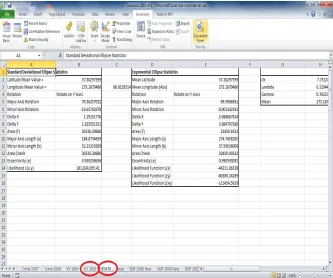
1.4 This figure shows the Excel workbook. A data worksheet at the bottom named KY 2003 has been circled. The worksheet named STATS has been circled. This application always saves the results
to the STATS worksheet. 10
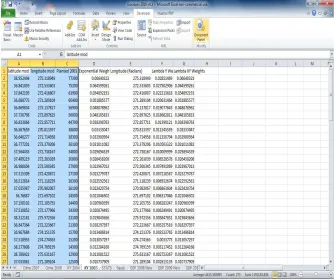
1.5 This figure shows the Excel spreadsheet with data. For this application to run properly, the first row can contain any column names the reader wishes. Column 1 must contain the latitude observations. Column 2 must contain the longitude observations. Column 3 must contain the random variable of interest. It is not advisable to put any observations in the remaining columns as
this application may over-write them. 11
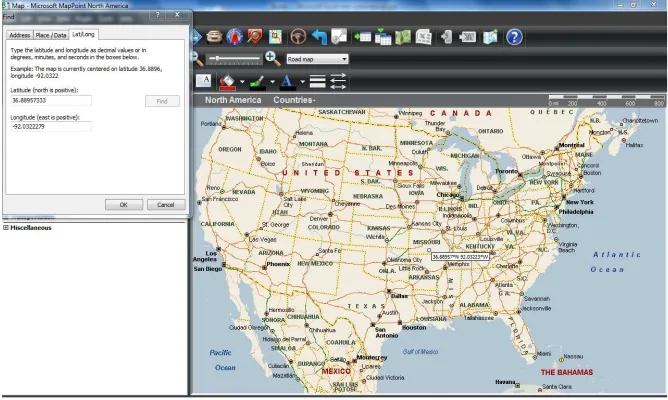
2.1 This figure shows the Map Point dialog box for finding a point on the Earth using the latitude and longitude. 14
xiv LIST OF FIGURES
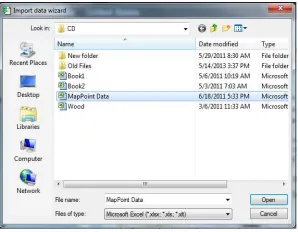
2.2 This figure shows the Map Point dialog box for browsing Excel files, which have the coordinates and the random variable. 15
2.3 This figure shows the Map Point dialog box that lists the Excel
spreadsheets in the Excel workbook. 15
2.4 This figure shows the Map Point dialog box containing the
spreadsheet column names and the data. 16
2.5 This figure shows the Map Point Data mapping wizard. 17
2.6 This figure shows the Map Point choices for the pushpin colors. 17
2.7 This figure shows the Map Point choice for the column chart. 17
2.8 This figure shows the Map Point choices for scaling the data and
change the label text. 18
2.9 This figure shows the Microsoft Word shapes for drawing an
ellipse. 19
2.10 This figure shows the Microsoft Office dialog box for formatting
a shape. 20
3.1 This figure shows theOptions dialog box in Map Point. We use it to convert the latitude and longitude coordinates to decimal
degrees. 27
3.2 This figure shows theOptions dialog box in Google Earth. We use it to convert the latitude and longitude coordinates to decimal
degrees. 28
4.1 This figure shows Google Earth. It shows how to geo-code a
county with-in a state. 36
4.2 This figure shows the Excel spreadsheet of the Kentucky data. The spreadsheet has not been geo-coded. It still contains the
regional data. 38
4.3 This figure shows the Excel spreadsheet of the crime data. The spreadsheet has not been geo-coded and still contains the regional data, two years of data in the same spreadsheet, merged
columns, and percentages. 39
4.4 This figure shows the Excel spreadsheet of the Gross Domestic Product data. The spreadsheet has not been geo-coded. 41
4.5 This figure shows the Earth using Map Point. We identify points
LIST OF FIGURES xv
5.1 This figure shows the Kentucky data from 2003 and the standard deviational ellipse. It shows a sketch of the standard deviational ellipse with Ohio County at the center. The semi-major axis is approximately 184 miles long and the semi-minor axis is approximately 52 miles long. We rotated the major axis roughly 70from the Y-axis in an imaginary Cartesian coordinate system. 52
5.2 This figure shows the standard deviational ellipse of violent crime in the US for the year 2007. It also shows the values of the violent crime using a bar graph. The ellipse is rather large
compared to the area in the survey. 54
5.3 This figure shows the plot of the mean centers of global GDP on a map. As the years progress, the mean center measurements
move closer to the Chinese coastline. 55
6.1 This figure shows the probability plot of the weighted latitude transformation. The exponential distribution fits the weighted
latitude data since it shows a straight line. 66
6.2 This figure shows the probability plot of the weighted longitude transformation. The exponential distribution fits the absolute value of the weighted longitude data since it shows a straight line. It was necessary to take absolute values since longitudinal
data is negative. 66
6.3 This figure shows sketches of both the standard deviational ellipse and the exponential deviational ellipse from the Kentucky data for the year 2003. The exponential ellipse is the smaller of the two ellipses. It covers one-third the area of the standard deviational ellipse, yet one-half of the same points. 74
6.4 This figure shows a raised bar graph of the weights in their respective counties for the Kentucky data for the year 2003. The majority of the weighted data comes from the lower-left corner of the state of Kentucky. The majority of the un-weighted data
comes from the center of the state and the right-hand side. 75
6.5 This figure shows both the exponential deviational ellipse and the standard deviational ellipse for the violent crime data in the US for 2007. Both have the same center of gravity. The exponential ellipse is much smaller than the standard deviational ellipse. 76
xvi LIST OF FIGURES
7.2 This figure shows both the Weibull deviational ellipse for the Crime data for the year 2007. The zoom level is 550 miles above the earth. The standard deviational ellipse was too large to fit on the map. It has the same center of gravity as the other ellipses. The Weibull ellipse is much smaller than the other two. 104
8.1 This figure shows a map of the U.S. relative to the Equator
(represented by the black line). 121
8.2 This figure shows the diagram of a triangle with the quantities for the longitudeθ, n0,and the resultant lengthR. 126
8.3 This figure shows the histogram for the Kentucky 2003 data. 128
8.4 This figure shows the Kentucky 2003 converted data. 128
8.5 This figure shows the histogram for the Violent Crime 2008 data. Three possible modes appear at California, Texas, and Florida. 131
8.6 This figure shows the 2008 US Crime converted data. 131
8.7 This figure shows the histogram for the GDP 2008 data. The U.S. accounts for approximately 25% of the total GDP and China
accounts for approximately 14%. 133
8.8 This figure shows the 2008 Gross Domestic Product converted
data. 133
A.1 In Excel, double click on the module named Ch4StandardDeviationalEllipse on the left-hand pane circled in red to display the VBA code
for the Standard Deviational Ellipse. The subroutine called Standard Dev Ellipse() runs the programs to calculate
the statistics in Chapter 5. 139
A.2 This figure shows the VBA environment for the module named Ch4StandardDeviationalEllipse. It also highlights the driver
subroutineStandard Dev Ellipse(). 139
A.3 This figure shows theSTATS worksheet and the results from the Standard Dev Ellipse() subroutine. 140
B.1 This figure shows the VBA environment for the module Ch5ExponentialDeviationalEllipse. It also
highlights the driver subroutineExponential Dev Ellipse(). 144
LIST OF FIGURES xvii
C.1 This figure shows the VBA environment for the moduleCh6 Weibull Deviational Ellipse. It also highlights
the driver subroutineWeibull Dev Ellipse(). 150
C.2 This figure shows theSTATS worksheet and the results from the
LIST OF TABLES
5.1 Results on Corn acreage in Kentucky 51
5.2 Results on Corn acreage in Kentucky 52
5.3 Results on Violent Crime in the U.S. 53
5.4 Results on Violent Crime in the U.S. 53
5.5 Results on Gross Domestic Product of OECD Countries 54
5.6 Results on Gross Domestic Product of OECD Countries 55
6.1 Results for the Exponential Model for Kentucky 74
6.2 Results for the Exponential Model for Kentucky 74
6.3 Results for the Exponential Model on Violent Crime in the U.S. 75
6.4 Results for the Exponential Model on Violent Crime in the U.S. 76
6.5 Results for the Exponential Model on Gross Domestic Product 77
6.6 Results for the Exponential Model on Gross Domestic Product 77
6.7 Relationship of angles of rotation for largex
is. 82
xx LIST OF TABLES
6.8 Relationship of angles of rotation for smallx
is. 82
7.1 Results for the Weibull Model for Kentucky 101
7.2 Results for the Weibull Model for Kentucky 101
7.3 Results for the Weibull Model on Violent Crime in the U.S. 103
7.4 Results for the Weibull Model on Violent Crime in the U.S. 103
7.5 Results for the Weibull Model on Gross Domestic Product 104
7.6 Results for the Weibull Model on Gross Domestic Product 104
8.1 Interpretation of the Eigenvalues 126
8.2 Eigenvalues and Eigenvectors for the 2003 Kentucky Data 129
8.3 Results for the Spherical Model for Kentucky 130
8.4 Eigenvalues and Eigenvectors for the 2008 Vilonent Crime Data 132
8.5 Results for the Spherical Model for 2008 Crime 132
8.6 Eigenvalues and Eigenvectors for the 2008 Gross Domestic Product134
FOREWORD
This book is a practical reference guide accompanied with an Excel Workbook. This book gives an elementary introduction of the weighted standard deviational ellipse. This book also presents the computational aspects of the weighted exponential distri-butions as well. For the examples given, calculations are performed using VBA for Excel. This book makes comparisons (and shows the computations via VBA for Ex-cel) using the likelihood functions with spatial data of the weighted ellipses. Lastly, the book covers spherical statistics. Throughout the text, the reader can see how to perform these difficult calculations and learn to adapt the code for his research.
PREFACE
Scientific articles exist since the 1960’s for the use of an area frames for collecting and interpreting survey data in the United States, and in the 1990’s in Europe and Africa. Cartographers divide units of land from satellite imagery into enumerable segments. Statisticians assign the segments to defined strata. Typically, crop esti-mation is performed using imagery analyzes, field surveys, and mail surveys. The following list of articles includes both practical results and theoretical results typi-cally found in the literature on area frame surveys.
[Pratt, Bird, Taylor, and Carter (52)] wrote a paper that covers the topics of plan-ning and implementing an area frame survey in Nigeria and choosing the estimation procedures. They were careful to choose their satellite imagery and coordinate it with the fieldwork. In Europe and Africa, Statisticians use regression to classify the satellite images from field data collection and from image classification. Image classification without field data collection does tend to lead to failure due to the fol-lowing reasons: 1) intercropping practices, 2) fallow/cultivated continuum and 3) small, irregular field structure. The authors more generally state those reasons as ”spectral confusion.” The authors state that the best time to perform their fieldwork is shortly after harvest because it would be easiest to distinguish harvested rice fields from wet, green swamp grasslands. [page 70] calculates the sample size in terms of segments according to several criteria: 1) the size of the study size area, 2) the need to maximize the area covered, 3) the speed to cover the area during enumeration, 4)
xxiv PREFACE
reduce locational error within the segment during field mapping. The authors ob-tain a 4.8% sampling fraction by choosing forty-nine segments (500×500 meters with a sampling fraction of 5%) out of 75. Three estimators of the data collected are presented: 1) direct expansion of the survey data, 2) pixel count, and 3) regres-sion estimator. The authors recommend the regresregres-sion estimator, which take into, account both the irrigation mapped by enumerators on the ground in each segment and the satellite image classification. This is because it was highly dependent on the classifier and gave a narrower range of possible classifications. They used a ratio of the direct expansion variance and the regression model to prove this mathematically. [Kelly (32), Chhikara and Deng (6), Faulkenberry and Garoui, (15)] discuss area-frame data collection and estimation in the United States. [Kelly (32)] collects and summarizes survey data in a production environment. [Chhikara and Deng (6)] con-sider the problem of using the area frame and rotating segments amongst years. On page 926, they develop an ANOVA model to capture the stratum means per year and the segment mean effects for a particular random variable. The author also rotates and overlaps segments amongst years via a simulation study that shows the optimal rotation of segments should be 40% to 60%. [Faulkenberry and Garoui, (15)] discuss the topic of estimating population totals and variances from an area survey frame. The authors point out that because of the association of a farm with more than one segment does not lead to cluster sampling. Based on four classifications, the authors show that the Horvitz-Thompson estimator for totals is probably the best choice of estimators. It is a good estimator when the probability of selectionπkis proportional with the random variablesy
ks.Depending on the number of farms or the number of known segments, four classifications arise. The author assigns an estimator to each class that will work well, and then takes expectations and variances.
Although most of the authors so far do present maps with their articles and their statistical estimation methods, they lack discussing the latitude and longitude of their random variables. The remainder of this section will discuss the history of associat-ing random variables with the latitude and longitude (i.e. the placement on a map).
[Ebdon, (13), Chapter 7, 1985] discusses spatial statistics and several measures. The author gives interpretations to the concepts of the mean center and standard deviational ellipse. For instance, the mean center can be thought of the ”center of gravity” of the distribution of the given points on a map. He defines the standard deviational ellipse as the ”spread of points” about the mean center. Without using modern software, the author has an interesting way to draw the ellipse. It involves plotting the deviation for each point parallel to the rotated axes and fitting the ellipse [Ebdon, (13), p. 137].
PREFACE xxv
1. The center of the system determined by the distances from the central point (versus the extreme unit locations).
2. The direction or trend of the system given by the angleθmof the axis of max-imum standard deviational variation value. This is the line of best fit for the entire system of unit locations.
3. The concentration of the system (or dispersion) shown in terms of a standard deviational ellipse.
4. The relative concentration given by the ratio of observations within the ellipse compared to the entire population expressed in area units.
The author gives no references in the paper. To summarize, the article presents the mean and standard deviation of a set of numbers — longitude and latitude. So, who came up with the idea of weighting the longitude and latitude data?
The weighted standard deviational ellipse appears in the literature in 1971 in [Yuill, (67)]. The author begins with a discussion of the work by Lefever and the comments by Furtey in 1927. The paper proceeds to defend using the ellipse for geographic applications. The author derives the formulas on pages 30-31 for the weighted standard deviational ellipse. It is on page 32 that the weighted mean center is introduced (a new notion in the literature). The author weights the latitude and longitudinal observations using the random variable. The author gives the following computations for comparing ellipses.
1. The enclosed area within the ellipse.
2. The number of points enclosed within the ellipse (more is better).
3. The shape of the ellipse measured by its eccentricity .
The shape of the ellipse determines the distribution of the points . Points con-centrated at the pole of the ellipse (or circle) should have a non-uniform distribution while those scattered from the pole will have a uniform distribution . Finally, the au-thor applies the concepts to several sets of data. References appear in the footnotes throughout the paper.
xxvi PREFACE
according to the distribution of the phenomenon. If a city’s population is the ran-dom variable of interest, then the city’s population is the weight for the latitude and longitude. We apply weights in the context of [Lee and Wong, (36)] in this book.
ACKNOWLEDGMENTS
Map Point, Excel, and MS Word are products of Microsoft Corporation
Google Earth is a product of Google, Inc.
R. L. G.
ACRONYMS
GDP Gross Domestic Product
OECD Organization for Economic Cooperation and Development
SDE Standard Deviational Ellipse
VBA Visual Basic for Applications
Random Variables, Their Properties, and Deviational Ellipses.
By Roger L. Goodwin Copyright c2015 Roger L. Goodwin
CHAPTER 1
INTRODUCTION TO VBA
1.1 The Development Environment
The calculations in this book are difficult at times. Having a programming environ-ment becomes advantageous. A programming environenviron-ment provides the flexibility to calculate statistics and likelihood functions. This textbook uses the Visual Basic Application (VBA) for Excel. It is a programming environment based on the Visual Basic programming language. The VBA Development environment does not auto-matically appear as a menu option in Excel. See Figure 1.1. The user must make this option visible by following these steps:
1. Click onFile | Options | Customize Ribbon. The dialog box
in Figure 1.2 will appear.
2. From theChoose Commands drop-down list, selectMain Tabs.
3. HighlightDeveloper.
4. Click on theAdd>> button in the middle of the screen.
Random Variables, Their Properties, and Deviational Ellipses.
By Roger L. Goodwin Copyright c2015 Roger L. Goodwin
2 INTRODUCTION TO VBA
Figure 1.1 This figure shows Excel without the Developer menu.
VARIABLES 3
Figure 1.3 This figure shows Excel with the Developer menu at the top of the screen.
TheDeveloper menu option will appear somewhere along the top of the screen. See Figure 1.3.
1.2 Variables
To declare variables explicitly in VBA for Excel, use the Dim statement. Excel supports the following basic data types:
Integer numbers —DimX As Integer The Integer data type holds integer variables stored as 2-byte whole numbers in the range of -32,768 to 32,767.
Real numbers —DimYAs Double.TheRealdata type holds double-precision floating-point numbers as 64-bit numbers in the range of -1.79769313486231E308 to -4.94065645841247E-324 for negative values and 4.94065645841247E-324 to 1.79769313486232E308 for positive values.
String characters — DimS As String. The Stringdata can include letters, numbers, spaces, and punctuation. TheStringdata type can store fixed-length strings ranging in length from 0 to approximately 63,000 characters.
4 INTRODUCTION TO VBA
Dates are stored as part of a real number. Values to the left of the decimal represent the date; values to the right of the decimal represent the time. Negative numbers represent dates prior to December 30, 1899.
A date can be any sequence of characters with a valid format surrounded by number signs (#). Valid formats include the date format specified by the locale settings for your code or the universal date format. For example, use #12/31/92# in the VBA editor when explicitly referring to a date.
Currency —DimQAs Currency. TheCurrency data type has a range of -922,337,203,685,477.5808 to 922,337,203,685,477.5807. Use this data type for calculations involving money and for fixed-point calculations where accuracy is particularly important. In the VBA Editor, use the ”@” sign when referring to currency.
Long integer —DimR As Long. TheLongdata type is a 4-byte integer ranging in value from -2,147,483,648 to 2,147,483,647. In the VBA Editor, use the ”&” symbol when referring to long integers.
Logical —DimLAs Boolean. TheBooleandata type has only two possible values, True (-1) or False (0).
Variables defined inside a subroutine are visible only inside that subroutine. Vari-ables defined at the module level are visible to the subroutines defined in that module.
1.3 Arrays and Records
We can build on the basic data types listed in Section 1.2. Consider arrays and records.
One diminisional array —Dim Name List(1To 10) As String. This array defines a set of sequentially indexed elements having the data typeString.Each element of the array has a unique identifying index number. Changes made to one element of an array do not affect the other elements.
Two diminisional array —DimAList(1To5, 1To10)As Double. This array defines a matrix of indexed elements having the numeric data typeDouble.
BRANCHING 5
1
TypeCustomers
3
First Name, Last NameAs String
AddressAs String
CityAs String
StateAs String
Zip CodeAs Integer
PhoneAs Integer End Type
2DimListAsCustomers
Do not use theDiminside theTYPE-END-TYPEstatement. Use the dot ”.” notation to reference the items in the record. For example in the VBA Editor, to reference the customer phone number, use the code:
1List.Phone = 3223223
1.4 Branching
VBA has anIF-THEN-ELSEstatement for conditionally executing code. The syn-tax is as follow:
1
2
If<condition>Then
VBA statements
3
Else
VBA statements
End If
6 INTRODUCTION TO VBA 1 2
If<condition>Then
VBA statements 3
ElseIf<condition>Then
VBA statements 4
ElseIf<condition>Then
VBA statements 5 Else VBA statements End If
If the user has a short, single VBA statement for any of theELSEIFstatements, it is not advisable to put it on the same line after theTHEN. It usually creates a run-time error even though the syntax looks correct.
1.5 Loops
The two loops covered in this section are theFOR-NEXTloop and the WHILE-WENDloop. To execute a set of VBA statements a given number of times in a given sequence, theFOR-NEXTloop has the following syntax:
1
For<counter>=startToend VBA statements
Next<counter>
As an example, we can generate two digits in a phone number.
1
multiplier = 1 List.phone = 0
2
Fori=1To 7
List.phone = List.phone + i*multiplier multiplier = multiplier * 10
Nexti
The value ofList.phone is 28 because n(n+1)2 = 7(8)2 = 28.The only pur-pose of the example is to show the syntax of theFOR-NEXTloop.
TheWHILE-WENDloop has the following syntax.
1
While<condition>
VBA statements
SETTING PROPERTIES 7
It is more likely to program infinite loops with theWHILE-WENDloop than with theFOR-NEXT loop. It is important to initialize the condition variable(s) before entering the loop and to update the condition variable(s) inside the loop.
1.6 Setting Properties
Both the Excel spreadsheet and the VBA environment allow the user to change the cell contents properties to bold, italic, underline, strikethrough, and the font size. Except for the font size, most of these properties are Boolean valued.
Object.Bold — Boolean
Object.Italic — Boolean
Object.Size — Integer
Object.StrikeThrough — Boolean
Object.Underline — Boolean
In our case, the VBA object is a cell in a spreadsheet. We use the following code to reference the properties of the cell.
1
ActiveSheet.Cells(1, 3).Font.Bold = True ActiveSheet.Cells(1, 3).Font.Italic = True ActiveSheet.Cells(1, 3).Font.Size = 25
ActiveSheet.Cells(1, 3).Font.Strikethrough = True ActiveSheet.Cells(1, 3).Font.Underline = True
Cells(1,3) references row 1, column C in the last spreadsheet viewed before entering the VBA environment. Alternatively, we could have substituted the Ac-tiveSheet with a specific spreadsheet name such asWorksheets("Sheet1"). We have hard-codedSheet1. Sheet1 will always be the spreadsheet refer-enced.
When updating a set of cells in a spreadsheet, it is convenient to use the WITH-END-WITHstatement. It can save some typing and make the code easier to read. For example, we can re-write the VBA code for the font updates as follow:
1
WithActiveSheet
.Cells(1, 3).Font.Bold = True .Cells(1, 3).Font.Italic = True .Cells(1, 3).Font.Size = 25
.Cells(1, 3).Font.Strikethrough = True .Cells(1, 3).Font.Underline = True End With
8 INTRODUCTION TO VBA
1.7 The Excel Examples
The Excel spreadsheet and the Excel VBA environment contain many of the same functions. Some common syntax and conventions for the worksheet follows.
1. Columns in an Excel worksheet always begin with a letter.
2. Rows in an Excel worksheet always begin with a number.
3. The three default names of the worksheets in an Excel workbook areSheet1, Sheet2, andSheet3. Microsoft Corporation capitalized the ”S” in the word ”Sheet.” In the VBA for Excel environment, upper and lower case counts.
4. Character and numeric data can ordinarily be copy and pasted into the work-sheet cells.
5. Precede numeric data with leading zeros with the single quote ” ’ ”to retain those leading zeros. Entering the single quote in front of the data is a man-ual operation. Changing the column to the TEXT format usman-ually causes other problems later on.
6. Formulas begin with an equal sign. Some useful formulas used in this applica-tion include:
mod(number, divisor) — where the argumentnumber can either be reference to a cell or a hard coded number such as 180 or 360; and the argumentdivisor can either be a cell reference or a hard coded number such as 180 or 360.
average(range) — where the argument range is a range of cells
such asA2..A91.
sum(range) — where the argumentrange is a range of cells such as C2..C39.
In this application, we keep the data and results in the worksheets. We use VBA to perform the calculations. Some common conventions in VBA for Excel follow.
1. Declare global variables at the top of a module.
2. VBA program code must appear inside a subroutine. Some useful, recurring VBA statements used in this application include:
THE EXCEL EXAMPLES 9
ActiveSheet.Cells(row, col).Value —
The activesheet object references the data in the spreadsheet high-lighted before entering the VBA editor. This entire statement allows reading the data.
Worksheets("name").Cells(row, col).Value —
Theworksheets object references the spreadsheet namedNAME. In the application name = stats. This entire statement allows writing data to a spreadsheet other than the active spreadsheet.
For-Next — This is the common looping structure used for calculating the sums, the areas, the probability distributions, eccentricities, and so on.
While-Wend This application uses this looping in Module 3 in the Secant algorithms because the termination condition required more knowledge that the number of observations in the data set.
VBA numeric calculations — The Visual Basic for Excel numeric calcula-tions are similar in style to those of other programming language statements.
Some useful, recurring VBA functions used in this application include:
log(number) — This function returns the latural logarithm of the given number. The user must write his own code for other base logarithms.
exp(number) — This function returns the exponential function of the givennumber. eis approximately 2.718282.
worksheetfunction.pi() — This function returns the value ofπ.
3. Modules are a collection of related subroutines and variables.
4. Declare local variables inside a subroutine.
5. Variable names are not case sensitive. For all declared variables, the VBA editor will change the upper and lower case spelling.
In this application, the results are stored in the spreadsheet called STATS. See Figure 1.4. The data are stored in the remaining spreadsheets. The first three columns of the data must be in a particular order. Seel Figure 1.5.
1. Latitudexi.
2. Longitudeyi.
3. Random variable of interestwi.
Further, select the data (and only the data) so that the subroutines can identify the beginning and ending rows. To get into the VBA editor, follow these steps.
10 INTRODUCTION TO VBA
THE EXCEL EXAMPLES 11
12 INTRODUCTION TO VBA
2. Click on theVisual Basic button on the left side.
3. For a new module, click on theInsert menu item and select Module.
CHAPTER 2
INTRODUCTION TO MAP POINT
Map Point is a software package that maps points on the Earth. The user provides the latitude and longitude, and Map Point plots the point. The points in this textbook are either geo-coded observations from Google Earth or calculations such as the mean center (also called the center of gravity) or the semi-major and semi-minor axis lengths of an ellipse. It is possible to enter, say a county name into Map Point. Map Point will identify the county on the Earth. However, it will not give the user the latitude and longitude coordinates. This is why we must use an alternate software product.
There are several useful concepts when using Map Point:
1. Plotting the mean center on the Earth.
2. Plotting and graphing the entire survey of points on the Earth.
3. Drawing lines with an exact length in miles (or kilometers).
4. Saving work.
5. Copying and pasting images to other software applications.
Random Variables, Their Properties, and Deviational Ellipses.
By Roger L. Goodwin Copyright c2015 Roger L. Goodwin
14 INTRODUCTION TO MAP POINT
Figure 2.1 This figure shows the Map Point dialog box for finding a point on the Earth using the latitude and longitude.
Map Point does allow us to draw ellipses. However, it does not allow us to rotate them. Because of this, we must draw ellipses outside of Map Point. We use Map Point to draw the semi-major axis and the semi-minor axes.
2.1 User Data
Map Point has two ways to enter data:
1. Manually one data point at a time usingTools | Find | Lat\Long.
2. Import an Excel spreadsheet usingData | Data import wizard.
When the user enters data manually, one data point at a time, Map Point requests the latitude and the longitude. When the user imports multiple data points via an Ex-cel spreadsheet, Map Point requires column names with ”latitude” and ”longitude.” In addition, Map Point expects the user to plot a third variable called a ”data” vari-able or an analysis varivari-able along with the latitude and longitude. Naming the third variable is at the user’s discretion. Notes on entering data manually appear in Section 2.2. More notes follow on importing data in Section 2.3.
2.2 Plotting the Mean Center
VISUALIZING THE SURVEY DATA 15
Figure 2.2 This figure shows the Map Point dialog box for browsing Excel files, which have the coordinates and the random variable.
Figure 2.3 This figure shows the Map Point dialog box that lists the Excel spreadsheets in the Excel workbook.
at the top of the dialog box, the user types in the coordinates and clicks on theFind button. Map Point will locate that latitude and longitude on the Earth and identify those coordinates with a box.
2.3 Visualizing the Survey Data
Sometimes the user may want to visualize the survey data (i.e. many data points) and the ellipse together (i.e. drawing). Alternatively, maybe, the user may want to visu-alize the plotted points on the Earth with the random measurements (i.e. graphing). Map Point does provide the software tool to plot or graph an entire data set onto the Earth.
[image:46.612.75.196.300.409.2]16 INTRODUCTION TO MAP POINT
Figure 2.4 This figure shows the Map Point dialog box containing the spreadsheet column names and the data.
The dialog box in Figure 2.2 allows the user to browse the hard drive and select the Excel file that contains the survey data.
Map Point displays the dialog box in Figure 2.3 showing the spreadsheet names in the Excel workbook. Select one of the spreadsheets.
Click theNext button in the Import Data Wizard. The screen in Figure 2.4 appears showing the columns and the data in the spreadsheet.
Click theFinish button.
TheData mapping wizard in Figure 2.5 appears. There are some choices here. Do we want to use shaded circles, sized circles or pushpins to mark the points on the Earth? The remaining options pertain to graphing the data. We will discuss graphing later. Let us choose pushpins since they stand out the best.
Click on thePushpin button.
Click on theNext button at the bottom of the dialog box. The dialog box in Figure 2.6 appears. The user can change the color of the pushpins here, if desired. Map Point automatically recognized the column nameslatitude andlongitude. This is important because the user would have had to identify these had this not been the case.
Click on theFinish button at the bottom of the dialog box. Map Point plots the data in the spreadsheet on the Earth. Plotted data on the Earth are shown throughout the textbook.
VISUALIZING THE SURVEY DATA 17
[image:48.612.75.194.327.450.2]Figure 2.5 This figure shows the Map Point Data mapping wizard.
Figure 2.6 This figure shows the Map Point choices for the pushpin colors.
[image:48.612.76.194.509.632.2]18 INTRODUCTION TO MAP POINT
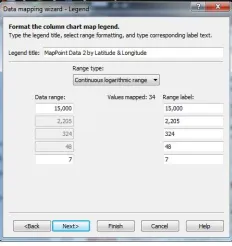
Figure 2.8 This figure shows the Map Point choices for scaling the data and change the label text.
The dialog box in Figure 2.2 allows the user to browse the hard drive and select the Excel file that contains the data to analyze.
Map Point displays the dialog box in Figure 2.3 showing the spreadsheet names in the Excel workbook. Select one of the spreadsheets.
Click theNext button in the Import Data Wizard. The screen in Figure 2.4 appears which shows the column names and the data.
Click theFinish button.
TheData mapping wizard in Figure 2.5 appears. There are some choices here. Do we want our data displayed as a pie chart, sized pie chart, column chart, or as a series column chart? The remaining options pertain to plotting the data. We discussed plotting data in the previous section.
Click on theColumn chart button.
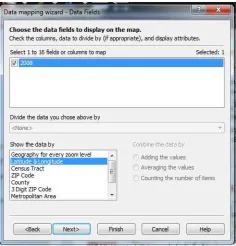
Click on theNext button at the bottom of the dialog box. The dialog box in Figure 2.7 appears. Map Point automatically recognized the column names latitude andlongitude. The user must confirm to Map Point to graph the column name2008.
Click the check box next to the field2008 to confirm graphing this field.
Click theNext button. The dialog box in Figure 2.8 appears. This lets the user scale the data if needed. It also allows the user to change the label text.
DRAWING AXES 19
Figure 2.9 This figure shows the Microsoft Word shapes for drawing an ellipse.
2.4 Drawing Axes
Before drawing an axis, it may be necessary to zoom into the survey area. To draw an axis for an ellipse which has an exact length measured in miles or kilometers,
selectTools | Measure distance. To toggle between miles and
kilo-meters, selectTools | Options and the dialog box in Figure 3.1 will appear. The section onUnits changes the unit of measure.
Single click on the label box for the mean center. This will anchor the ruler. Map Point displays the unit of measure and number of measurements at the right side of the line.
Drag the mouse the length required.
Single click. This will anchor the right end of the line.
Hit the<Esc>key to stop drawing lines.
2.5 Drawing Ellipse Boundaries
Given that we drew the major axis and the minor axis, and we identified the mean center of the ellipse, it is a simple task to draw the ellipse using MS Word. The steps are as follow:
20 INTRODUCTION TO MAP POINT
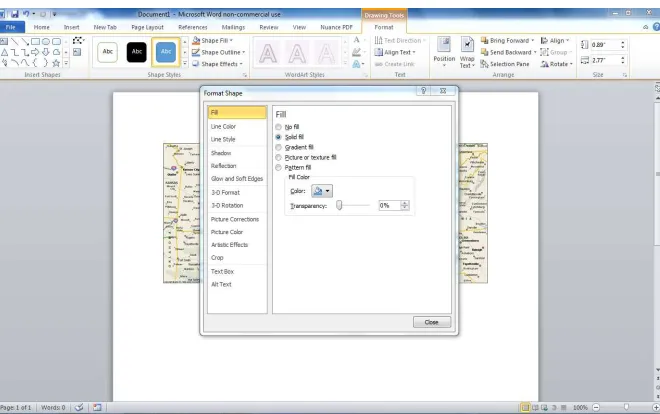
Figure 2.10 This figure shows the Microsoft Office dialog box for formatting a shape.
Note the axis of rotation (e.g.XorY)from the statistical computations.
Copy and paste the image from Map Point into MS Word. The imaginaryX andY-axes form90angles. Half of90is45,and so on. If the rotation is
from theY-axis, then begin counting from there.
In MS Word, selectInsert | Shapes. The shapes in Figure 2.9 will
appear.
Select the fifth shape from the top,oval. Left click and right click around the axes lengths. The oval will be dark filled.
Right click the oval. Left click the oval and selectFormat shape. The dialog box in Figure 2.10 will appear.
Click on theNo fill radio button.
Click onClose.
We drew the ellipse following the steps above. We need to rotate the ellipse. Suppose we want to rotate the ellipse from theY-axis70.Then, follow these steps:
Click on one of the edges of the ellipse to highlight it.
PROGRAMMER NOTES 21
Drag the mouse to obtain a70angle between theY-axis and the semi-major
axis. Certainly you know where90and45are at. This is not difficult.
SelectFile | Save As to save the ellipse.
To avoid the appearance ofcross hairs in any published graphs, the user can alternatively identify the ends of the major and minor axes using pushpins or some other symbol. When in Map Point, delete any lines drawn when using the ruler.
2.6 Programmer Notes
Microsoft Corporation did not provide Map Point with a development environ-ment as they did with Excel and MS Word. We need to perform repetitive re-search manually. The one advantage is that the registered version of Map Point does accept Excel files for plotting and graphing data.
Not being able to rotate ellipses in Map Point is a draw back. This is just another reason to leave Map Point for another software product.
CHAPTER 3
MATHEMATICS REVIEW
3.1 Notation
We discuss some common notation used throughout this book here.
Random Variables, Their Properties, and Deviational Ellipses.
By Roger L. Goodwin Copyright c2015 Roger L. Goodwin
24 MATHEMATICS REVIEW
Notation Meaning
x Subscript denoting latitude.
y Subscript denoting longitude.
t A dummy variable used in integration. Usually denotes the latitude.
u A dummy variable used in integration. Usually denotes the longitude.
w Subscript denoting the weight variable.
γx Shape parameter to the Weibull distribution for the latitude.
γy Shape parameter to the Weibull distribution for the
longi-tude.
λx Scale parameter to the Exponential distribution and the
Weibull distribution for the latitude. Generally, there is no implied equality.
λy Scale parameter to the Exponential distribution and the
Weibull distribution for the longitude. Generally, there is no implied equality.
k The iteration number in the Secant algorithm.
n Denotes the sample size .
φi Represents the observed values of the latitude in spherical
statistics.
θi Represents the observed values of the longitude in spherical
statistics.
R Called the resultant length in spherical statistics. ¯
l0,m¯0,n¯0 Called the mean direction of cosines in spherical statistics. S∗
Denotes the spherical variance.
T Denotes the matrix T.The diagonal elements sum to the sample sizen.
B Denotes the matrixB.The diagonal elements sum to2n.
The set{x1, x2, ..., xn}represents the observed values of the latitude. The set
{y1, y2, ..., yn}represents the observed values of the longitude. The set{w1, w2, ..., wn}represents the observed values of the random variable at those corresponding latitude and longitude. Using these three sets of observed numbers(wi, xi, yi),we estimate parameters from known distributions.
3.2 Derivatives
INTEGRALS 25
Example 1:
d(a) dx = 0. Example 2:
dlogen dx = 0. Example 3:
dlogeu d x =
1 u
du dx. Example 4:
d eu dx =e
udu dx. Take the derivative off(w, λ, x) =wλ1e−x
λ with respect tox.
d w1λe−x λ
d x =−w
1
λ
2 e−x
λ
Example 5:
d xa da =x
alogx.
We are not asking for the derivative with respect toxin this example.
3.3 Integrals
Some common integrals used in this text are given in this section. Example 6:
x
0
a du=ax.
Example 7:
a
0
lnn dx=xlnn
a
0
=alnn.
Example 8:
1
xdx= logx Example 9:
eax=eax/a
26 MATHEMATICS REVIEW
3.4 Quadratic Equation
Most of the material in this section appears in CRC’s Standard Math Tables. A quadratic equation has the formax2+bx+c= 0.Then, the roots are
x=−b±
√
b2−4ac 2a Ifa, b,andcare real, then
1. Ifb2−4acis positive, then the roots are real and unequal. 2. Ifb2−4acis zero, then the roots are real and equal.
3. Ifb2−4acis negative, then the roots are imaginary and unequal.
The roots to the quadratic equation give the equation for the standard deviational ellipse. Cases (1) and (2) have more practicable importance than (3). We will discuss the standard deviational ellipse and other ellipses in later Chapters.
3.5 Ellipse Equation
The elliptical formula appears in Equation (3.1).
(x−h)2 a2 +
(y−k)2
b2 = 1, a > b >0 (3.1) It may be necessary to complete the quadratic equations in the numerators to obtain an ellipse.
3.6 Trigonometry Functions and Conversion Factors
In Excel, theAtn() function is used to obtain the argument xfrom the tangent functionT an(x).The function takes degrees as input, but returns radians as output. Given that, it is convenient to know the following conversion factors:
To convert radians to degrees,
1radian = 180
π = 57.2957795degrees.
To convert degrees to radians,
1degree = π
MODULO ARITHMETIC 27
3.7 Modulo Arithmetic
Modulo arithmetic arises when we convert spherical data to directional data. The spherical data comes from the observed latitude and longitude for a random event. To apply some statistical techniques, we need to convert the longitude to a circu-lar reference system, which results in directional data. To accomplish this, we use modulo arithmetic.
To convert the latitude coordinatesxi to the circular reference systemxiwe use the general rule:
x
i=mod(xi,180). (3.2) To convert the summary statistic for the mean latitudex¯back to the original co-ordinate system, we use the general rule:
¯ x=
¯
x, ifx¯≤90.
−mod(180,x),¯ ifx >¯ 90. (3.3)
The reader should not worry about how to calulatex¯in this Chapter. Realize that when samples with mixed signs for the latitude and longitude arise, we must have a mechanism to determine the sign of the summary statistics.
Example 10:The coordinates of Australia are(xi, yi) = (25 1627.84 South,13346 30.49East).The decimal degree coodinates are(xi, yi) = (−25.47399,133.775136).
To convert the coordinates to decimal degrees in Map Point or Google Earth:
SelectTools | Options.
If using Map Point, the dialog box in Figure 3.1 will appear. If using Google Earth, the dialog box in Figure 3.2 will appear.
[image:58.612.74.242.503.619.2]Click on the radion buttonDecimal degrees.
28 MATHEMATICS REVIEW
Figure 3.2 This figure shows the Options dialog box in Google Earth. We use it to convert the latitude and longitude coordinates to decimal degrees.
The latitude is negative. The longitude is positive. We convert the latitude using modulo arithmetic. The new latitude observation becomesx
i=mod(−25.47399,180) =
154.52601.For computation purposes, we use the coodinates(xi, yi) = (154.52601,133.775136).
To convert the longitude coordinatesyito the circular reference systemyiwe use the general rule:
yi=mod(yi,360). (3.4) To convert the summary statistic for the mean longitudey¯back to the original coordinate system, we use the general rule:
¯ y=
¯
y, ify¯≤180.
−mod(360,y),¯ ify >¯ 180. (3.5)
Example 11:The coordinates of Canada are(xi, yi) = (5556 18.59 North,106 2048.37 West).The decimal degree coodinates are(xi, yi) = (55.938497,−106.346771).
The longitude is negative. The latitude is positive. We convert the longitude using modulo arithmetic. The new longitude becomesy
i = mod(−106.346771,360) = 253.653229.For computation purposes, we use the coodinates(xi, yi) = (55.938497, 253.653229).
3.8 Weighted Data
WEIGHTED DATA 29
and the average of the longitude observations. Averages are un-biased estimators. To say that each state contributes equally to the center of gravity is misleading. Some states have a high number of incidents of crime while others have a low number of incidents of crime. We should reflect this fact in the estimator. The literature on weighted data typically multiplies the latitude and longitude by a weight. In this case, the weight is the number of incidents of violent crime divided by the sum of the number of incidents of violent crime for the entire U.S. This ensures the weights are between zero and one. It ensures those states with a high number of incidents of violent crime will have a correspondingly proportional effect on the center of gravity — those states will draw the mean center of gravity to themselves. Vise-versa, those states with a low number of incidents of violent crime will have the mean center of gravity pulled away from them.
Throughout the text book, the examples use weighted data. Equation (3.6) shows the weighting scheme for observationiout ofnobservations.
w
i= wi
n
i=1wi
(3.6) 1
SubSet Weights(sum weight)
’this procedure calculates the weights between 0 and 1 in column D ’columns A, B, and C must be highlighed
n =Selection.Rows.Count
sum weight = 0
2
Fori = 2Ton
4
WithActiveSheet
sum weight = sum weight +.Cells(i, 3).Value End With Next 3
Fori = 2Ton
5
WithActiveSheet
.Cells(i, 4).Value=.Cells(i, 3).Value/ sum weight
End With Next End Sub
30 MATHEMATICS REVIEW
Upon running this subroutine, columnD will always sum to one. The use of the WITH-END-WITH statement is optional. It is a short-cut to not having to keep typ-ing in the Excel object — in this case, the spreadsheet last referenced ”Activesheet.”
3.9 Area
Consider the simple formula for calculating the area of an ellipse (or a circle). Let abe the length of the semi-major axis. Letbbe the length of the semi-minor axis. Ifa > b,then we have an ellipse. Ifa = b,then we have a circle. A function to calculate the area of an ellipse is given next. The parameters to the function are the semi-major axis lengthaand the semi-minor axis lengthb.Equation (3.7) gives the formula for the area of an ellipse.
f =πab. (3.7)
1
FunctionArea(a, b) ’a= semi-major axis length ’b= semi-minor axis length 2
Area =WorksheetFunction.Pi* a * b
End Function
Line 2 calculates the area of the ellipse using the formula in Equation (3.7). The value of the calculation is returned via the function nameArea.
3.10 Eccentricity
Equation (3.8) gives the eccentricity of an ellipse (or circle) whereais the length of the semi-major axis andbis the length of the semi-minor axis,a≥b.
e=
√
a2−b2
a (3.8)
1
FunctionEccentricity(a, b) ’a= semi-major axis length ’b= semi-minor axis length
2
Ifa>=bThen
Eccentricity =Sqr(aˆ2 - bˆ2) / a ’ eccentricity
Else
Eccentricity =Sqr(bˆ2 - aˆ2) / b ’eccentricity
AXES LENGTH 31
Some defensive programming has been incorporated into theEccentricity() function. Ifais the semi-major axis, then Equation (3.8) works fine. If the user for-gets the variable definitions, then the function would return an error message if only one formula was programmed. Ifa < b,the roles ofaandbare switched in Equation (3.8). TheIF-THEN-ELSE statment (2) demonstrates the defensive programming concept.
3.11 Axes Length
Equation (3.9) gives the formula for the semi-major axis lengtha.Equation (3.10) gives the formula for the semi-minor axis lengthb.
a=
ny + 2(xy)
2
n−(x−y) +(x−y)2+ 4(xy)2 (3.9)
b=
nx+ 2(xy)
2
n−(x−y) +(x−y)2+ 4(xy)2 (3.10) Calculating the valuesx, y,andxyare complicated sums depending on the proba-bility distribution. The details on calculating the sums will be covered in later Chap-ters. For now, assume that the variablesx, y,andxyare given.
1
SubAxes Length(m, x, y, xy, a, b) ’m= number of observations
’x= sum of diffs from mean center squared x direction (input) ’y= sum of diffs from mean center squared y direction (input) ’xy= diff sums from mean centers x and y direction (input) ’a= semi-major axis (output)
’b= semi-minor axis (output)
2
Ifx>=yThen
a =Sqr(y / m + 2 * (xy)ˆ2 / (m * (-1 * (x - y) +Sqr((x - y)ˆ2 + 4 * xyˆ2)))) b =Sqr(x / m - 2 * (xy)ˆ2 / (m * (-1 * (x - y) +Sqr((x - y)ˆ2 + 4 * xyˆ2))))
Else
a =Sqr(x / m + 2 * (xy)ˆ2 / (m * (-1 * (y - x) +Sqr((y - x)ˆ2 + 4 * xyˆ2)))) b =Sqr(y / m - 2 * (xy)ˆ2 / (m * (-1 * (y - x) +Sqr((y - x)ˆ2 + 4 * xyˆ2))))
End If End Sub
32 MATHEMATICS REVIEW
3.12 Rotation
The subroutineAngle of Rotation() calculates the angle of rotationθin Equa-tion (5.10). It also gives the axis of rotaEqua-tion. The firstFOR-NEXT loop (12) cal-culates the individual sums in Equation (5.10) and stores the values in the variables x, y, andxy. The next four VBA statements calculate the angle of rotation with the plus and minus sign accounted for. The angle of rotationθis stored in the
variablestheta1 andtheta2. The IF-THEN-ELSE statement (13)
deter-mines the axis of rotation using the valuestheta1 andtheta2. Iftheta1 > theta2 then the axis of rotation is the Y-axis because the square root term is positive. Otherwise, the square root term is negative (or equal) and the axis of rota-tion is the X-axis. TheWITH-END-WITH statement (14) puts the results onto the spreadsheet calledSTATS.
1
SubAngle of Rotation(x, y, xy, note, atheta, itheta) ’calculate the rotation from the axes
’x= sum of diffs from mean center squared x direction (input) ’y= sum of diffs from mean center squared y direction (input) ’xy= diff sums from mean centers x and y direction (input) ’note= states direction of rotation (output)
’atheta= angle of rotation in the x direction (output) ’itheta= angle of rotation in the y direction (output)
tan theta1 = -1 * (x - y) / (2 * xy) +Sqr((x - y)ˆ2 + 4 * xyˆ2) / (2 * xy) tan theta2 = -1 * (x - y) / (2 * xy) -Sqr((x - y)ˆ2 + 4 * xyˆ2) / (2 * xy) theta1 =Atn(tan theta1) * 180 /WorksheetFunction.Pi()
theta2 =Atn(tan theta2) * 180 /WorksheetFunction.Pi()
2
Iftheta1>theta2Then
note = ”Rotate on Y-Axis” atheta = theta1
itheta = theta2
Else
note = ”Rotate on X-Axis” atheta = theta2
itheta = theta1
BASE 10 LOGARITHM 33
3.13 Base 10 Logarithm
The VBA logarithm function has a natural exponetial base. VBA for Excel does not provide a means to change the base of the logarithm. If the programmer wishes to change the base, then the programmer must write a function for that particular logarithm with that particular base. The static functionLog10(X) returns the log-arithm of the numberXwith the base 10.
1
Static FunctionLog10(X) Log10 =Log(X) /Log(10#)
CHAPTER 4
GEO-CODING
The data used in this book comes from many sources. The majority of the data resides on government web sites today. It would have been nice if the data were pre-pared before downloading it. The data provided (free) did have the random variables of interest. However, the data did not have the latitude and longitude observations. Thus, the data must begeo-codedbefore performing any analyzes in this textbook.
Existing textbook authors use either outdated software or expensive software to calculate their statistics. Outdated software such as FORTRAN 77 and 10 Statement Fortran has been around since at least the 1960’s. Arc GIS and Map Soft are modern Geographic Software Information systems that can geo-code data; however, products such as those are expensive. We can always geo-code the data free on Google Earth — but this becomes time consuming. Academic software products do exist such as CrimeStat.It performs many statistical calculations including weighted calculations. That one comes with an extensive software manual, too. Map Point, a Microsoft product, is fairly inexpensive. The user can save work to the hard drive. The user can copy and paste maps into other Microsoft products to draw the ellipse and to rotate it. [Hammond (26)] has a thirty-one page printed ”Student Notebook Atlas” of the world. The atlas has the land masses enclosed in a box with the latitude and longitude references on the sides of the box. The Hammond Atlas is an inexpensive
Random Variables, Their Properties, and Deviational Ellipses.
By Roger L. Goodwin Copyright c2015 Roger L. Goodwin
36 GEO-CODING
product, too. It may be difficult to get the same precise coordinates that the software products give.
It is a trade-off among data precision, time, cost, and scope of the research as to what software one chooses. Data is data — of course, obtain it in the most prestine condition possible before performing the research.
Do we need the software or data provider to geo-code the data and calculate the statistics or just geo-code the data? In this case, we just want the data geo-coded. We will write the code for calculating the statistics for the various ellipses in Visual Basic for Applications (VBA) in Excel 2010. This application is further accessible on Andriod tablets and smart phones usingQuick Office.
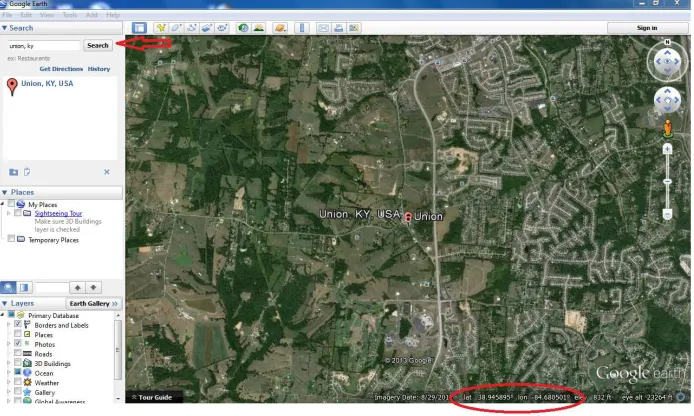
[image:67.612.77.424.376.584.2]Most of the geo-coding in this textbook was done using Google Earth. Begin by downloading the software at http://www.google.com/earth/index.html. Google Earth periodically updates their images of the Earth. This causes slight differences in latitude and longitude readings. As long as the data is geo-coded under one or another satellite images, it does not alter the survey data or the statistical techniques presented in this textbook. Figure 4.1 shows Google Earth. As an example, for the June Area Survey in Kentucky, the user types-in the county and state in the upper-left corner of Google Earth. Google Earth returns the decimal degrees of the county and state in the lower-right corner.
Figure 4.1 This figure shows Google Earth. It shows how to geo-code a county with-in a state.
KENTUCKY JUNE AREA SURVEY 37
the altitude (which is not being collected) will change. This in turn will change the latitude and longitude observations.
4.1 Kentucky June Area Survey
This is a survey conducted by the US Department of Agriculture (USDA). Within the USDA, the National Agricultural Statistics Service (NASS) supervises and oversees the data collection and reporting responsibilities for this survey. Plenty of data is available and downloadable that is ready to use with little or no formatting issues.
Experience says the Area Frame Section at USDA / NASS uses a stratified survey design to obtain population totals, standard errors, and CVs. The June Area Survey is conduced every year to measure, among other things, corn acreage, cotton acreage, soybean acreage, three seasons of wheat acreage, NOL cattle, and the number of farms in the United States. Each state has a set of land use strata specific to it. Within each strata, replicates are assigned to sub-strata. A sample of land called a segment is finally sampled. Since a minimum of two replicates is assigned to the sub-strata, the minimum number of segments per strata is two (assuming one sub-strata). Segment sizes range from 1/10th of a square mile to 1 square mile (640 acres per mile). Often, multiple sub-strata are assigned to each stratum. A complete, comprehensive set of designs for the United States can be found in the Area Frame Design Books.
[Kelly (32)] describes the June Area Survey conducted by the USDA / National Agricultural Statistics Service. That paper describes techniques intended to identify differences in variation, not to visualize them. Given that the spatial data is available and the computations described so far, it is possible to visualize the variation in the data. The author draws the sample from a sample of land called a segment. Segment sizes range from 1/10th of a square mile to 1 square mile (640 acres per mile). Enumerators completely cover each segment during the survey. Cartographers and survey researchers know every segments center point coordinates. Instead of using the simplistic weighted estimators for the total crop acreage where the weights are simply the total number of segments divided by the number of sampled segments, the alternative weights will be defined using spatial data . We will define alternative weights using spatial data, instead of using the simplistic weighted estimators for the total crop acreage where the weights are simply the total number of segments divided by the number of sampled segments. From these alternative weights, we can derive what are called what are calledweighted mean centersandweighted standard deviational ellipses.
We obtain the data in this book by augmenting the NASS data available to the public with Google Earth1 coordinates for each county. Data consumers can easily download the crop data. Figure 4.2 shows the data downloaded from the NASS web site. Regional level observations have arrows identifying them. The yellow arrows point to the following formatting issues for us.
1The web site is www.earthgoogle.com. Decimal coordinates are preferred since we can more easily
38 GEO-CODING
A. The arrow points to non-geographical data. For analytical purposes, we delete non-geographical observations.
B. The arrow points to the sum of a region. For analytical purposes, we delete regional observations.
[image:69.612.76.403.313.561.2]Obtaining the latitude and longitude for the counties does take time. Given that, our sample will be the county-level data in Kentucky for corn for grain. We are not so much interested in the quantity of acreage of corn grown in June for the state.We are interested in the location that corresponds to that single quantity for the state. Hence, we augment the data with latitude and longitude coordinates.
Figure 4.2 This figure shows the Excel spreadsheet of the Kentucky data. The spreadsheet has not been geo-coded. It still contains the regional data.
US CRIME STATISTICS 39
4.2 US Crime Statistics
The Department of Justice established the Bureau of Justice Statistics (BJS) on De-cember 27, 1979, under the Justice Systems Improvement Act of 1979 as an amend-ment to the Omnibus Crime Control and Safe Streets Act of 1968. According to the Bureau of Justice Statistic’s website, their mission is to collect, analyze, publish, and disseminate information on crime, criminal offenders, victims of crime, and the operation of justice systems at all levels of government.
[image:70.612.77.400.321.523.2]This data appears on the Fed Stats web site. Figure 4.3 shows the downloaded data from the Department of Justice. Examining the left column (Column A), some of the rows are summarized to the regional level . The data provider merged the headings across the top. The data include Puerto Rico and Hawaii. These states and islands are disconnected from the US. We are interested in the main-land part of the United States.
Figure 4.3 This figure shows the Excel spreadsheet of the crime data. The spreadsheet has not been geo-coded and still contains the regional data, two years of data in the same spreadsheet, merged columns, and percentages.
40 GEO-CODING
A. The arrow points to the sum of the U.S. totals for the U.S. This is the first clue that other summary data exists in the spreadsheet. We need to delete summary data.
B. The arrow points to multiple years of data in the same spreadsheet. We need to separate this into two different spreadsheets for the algorithms in the VBA code to work properly.
C. The arrow points to a percentage change. Although useful for a presentation, we do not need the percentage change for any analyzes in this book. We need to delete percentage change data.
4.3 OECD Countries
The Organization for Economic Cooperation and Development (OECD) has its head-quarters in Paris, France; the organization produces 250 publications per year. rope created OECD as a successor to the Marshall Plan for the reconstruction of Eu-rope after World War II. OECD countries are committed to democracy and the mar-ket economy. This data comes from theOrganization for Cooperation and Economic Developmentwebsite at www.oecd.org. Obviously, some very large economies are missing from the data. Non-OPEC countries such as India is missing. Most OPEC countries (Saudi Arabia, Egypt, Iran, Libya, etc.) are missing. This data does provide a global aspect for the computations in this textbook. We must perform additional pre-computations on the latitude and longitude before performing any proposed cal-culations.
We need knowledge of the bounds on the latitude and longitude before modeling this data set. In prior data sets, the longitude was consistently negative. We can simply change the sign to positive, and then carry out certain computations. This is not the case with the OECD data. It has mixed signs for both the latitude and the longitude. See Figure 4.4. An understanding of the Prime Meridian and the Equator measurements helps. Very little formatting is necessary compared to the US Crime data to use it ”as-is.”
OECD COUNTRIES 41
Figure 4.4 This figure shows the Excel spreadsheet of the Gross Domestic Product data. The spreadsheet has not been geo-coded.
Latitude mod(xi,180)
10 10
20 20
30 30
40 40
50 50
60 60
70 70
80 80
90 90
0 0
−10 170
−20 160
−40 140
−50 130
−60 120
42 GEO-CODING
For negative values of the latitude, the conversion has unique, positive latitude values. We can do the same for the longitude using modulo 360. When we interpret the results, the mean latitude and longitude must be converted back to the original coordinate system.
Longitude mod(yi,360)
10 10
40 40
80 80
120 120
160 160
180 180
−10 350
−40 320
−80 280
−120 240
−160 200 4.4 Coordinate Systems
The Cartesian coordinate system is the classical coordinate system taught in most textbooks. In two dimensions, we have an X-axis and aY-axis. This is a single pole coordinate system with(0,0)at the center. In three dimensions, we have the additionalZ-axis — still a single pole coordinate system.
We can alternatively define the functionr = ix+jy,whereiandjare vectors defined as:
i=
1 0
and
j=
0 1