Volume 2, Issue 5, May 2013
Page 276
ABSTRACT
Startup manager run in expert mode as system utility software. startup time will be reduce or increase after each start or restart of the windows, by using this utility we can find minimum startup time, I/O space in memory, Delay% , pause% and running %.Windows 7 have large number of application software are installed in the system. By using startup manager when we start our system again and again the impact of startup manager clearly shown in tables. These four tables have shown for 1st, 2nd, and 3rd start then we see the resultant difference and changes have made displayed in these tables after each start or restart. Resultant changes for startup time, CPU time, RAM,I/O Time, Run%, Delay % and pause% have shown for different application startup .
Keywords:: BIOS, FFI, POST, Startup time,Soluto etc.
1.
INTRODUCTION
Windows startup manager has to offer following types of activity or facility for windows:
1.1 Auto-runs for Windows
This is a program that really stands out. If you want to know absolutely everything that’s running at the Windows startup, this is the program that will show you. It has tabs for each type of startup items: Windows Explorer startup items, logon programs, Internet Explorer startup items, Services, Drivers, Scheduled Tasks, Codecs, Desktop Gadgets etc. The information shows by auto runs is complete and sometimes overwhelming. Other than that, its functionality is pretty basic: you can enable, delete , disable startup items. You can also open Windows properties and search for information on the web about them. Another cool feature is that it allows to save snapshots of your system at different points in time, and it allows compare so that you can see what are the differences [5].
1.2 Soluto program
This is the most user friendly program. I have tested in this roundup. It’s strength is that it is the only program able to advise the user, It is based on the wisdom of its user group. You do not have to be very knowledgeable to manage your startup items in a reasonably safe manner. Another cool fact about Soluto program is that you can restore all the items that you have disabled or delayed and it is the only solution having complete "undo" functionality. Soluto is also able to manage your Internet Explorer’s startup program and help fix some of the crashes you encounter. Next distinctive thing about is that it doesn’t split boot items or boot programs into startup programs and different startup services[5]. These categories are integrated into this list, which is split into groups of recommendations: remove from boot, potentially removable or advanced users and Cannot be removed with Soluto.
1.3 Starter product
It is a very simple product which shows only your startup programs and not your services. At least not in a way other products do. It chooses to show all Windows services and doesn’t help you filter which services is non-Microsoft or which added them at startup later on. What makes things work is that, unlike the Services tool from Windows, it doesn’t help you for set services as having a automatic startup and delayed. Therefore, it is best not to use it to manage Windows services[5].
1.4 Startup Delayer program-
According to the name implies, this startup manager is focused on giving you options to delay the startup of programs. You can choose between several presets on how you want the tool to delay programs which are currently running. Also,
Performance Analysis of Startup Time in CPU
within Windows Environment
Kamlesh Kumar Gautam1, Narendra Kumar Gautam2, Dr. P.C. Agrawal3
1
Research Scholar (CSE) Mewar University, Chittorgarh (Rajasthan), India
2
SDE BSNL, Ghaziabad,
3
Guest Professor (CSE) Mewar University, Chittorgarh (Rajasthan), India
and Retired Scientist (Director level) form Ministry of Information Technology, New Delhi
Volume 2, Issue 5, May 2013
Page 277
you can set some interesting wait rules between applications, so that you make sure an application is completely loaded before others start loading and starting running. It can also schedule programs to run at startup only on specific days and according to your choice, which can be useful on systems with a more complex setup. The program also shows a list of running processes and services. However, it doesn’t offer much in terms of have functionality for managing these services. You can only start, pause, stop or restart services[5]. You cannot manage the way they start or quickly filter them and show only non-Microsoft services.
1.5 System Configuration Startup manager
Its functionality is very basic and gets the job done quickly and effectively. You can only enable or disable startup programs and different services. On top of that you have options for managing the default boot operating systems and how Windows boots or loaded [5]. You can also use it to launch some of the most common and useful system tools in Windows environment.
1.6 What In My Startup
This is the most straightforward product. It focuses only on showing startup programs and not services. Also, it does a good job at that, having the second best detection rate in startup. It allows you to disable / delete items, search on Google for information about them and check their properties with ease. Unlike other such type of programs, it also allows you to add a new startup item[5].
1.7 WinPatrol Free
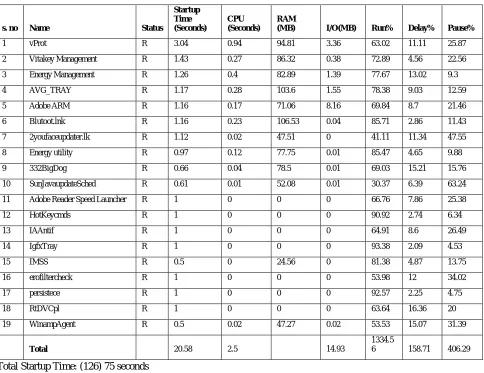
It offers different features which make it a combination of Auto run for Windows and Startup Delayer. However, it doesn’t offer all its detection features for free of cost. To get a complete list of startup categories similar to Auto-run for Windows operating system, you need to pay for the PLUS version. Also, you can delay startup items but you don’t have functionality as advanced as in System Delayer[4,5]. Its detection rates were pretty good. Actual running status of Startup manager has shown in figure.1.
Figure 1 Startup Manager (Expert Mode) View
2. Understanding the Windows Operating system Startup Process
To diagnose and correct a windows operating system startup problem, you need to understand what occurs during windows operating system startup. Windows Environment startup process Figure provides a high-level overview of the different paths windows startup can take.
Basic Input / Output System (BIOS)
Extensible Firmware Interface(EFI)
Windows Boot Manager
Windows Boot Loader
Windows Resume Applications
Windows Legacy OS Loader(NTLDR)
Windows Memory Diagnostics
Windows 7 Windows XP or
other versions
Volume 2, Issue 5, May 2013
Page 278
The normal startup sequence for Windows 7 is: Windows Power-on self test (POST) phase. Windows Initial startup phase.
Windows Boot Manager phase. Windows Boot Loader phase. Windows Kernel loading phase. Windows Logon phase.
This sequence will vary, if the computer is resuming from hibernation or if a non-Windows 7 option is selected during the Windows Boot Manager phase. The following sections describe the phases of a normal startup process in more detail.
2.1 Windows Power-on self test (POST) phase
When you turn on a computer, its processor begins to carry out the programming instructions contained in the BIOS or EFI. These are types of firmware, these contain the processor-dependent code that starts the computer regardless of the operating system installed [4,5]. The 1st set of startup instructions is the POST, which is responsible for the following system and diagnostic functions:
It performs initial hardware checks, such as determining the amount of memory present. It verifies that the devices needed to start an operating system, such as a hard disk, are present.
It retrieves system configuration settings from nonvolatile memory, which is located on the motherboard.
The contents of the nonvolatile memory remain even after you shut down the computer. Examples of hardware settings stored in the non-volatile memory include device boot order and Plug and Play (PnP) information[4,5].
After the completion of motherboard POST, add-on adapters that have their own firmware (for example, video and hard drive controllers) carry out internal diagnostic tests.
When startup fails before or during POST, your computer is experiencing a hardware failure. The BIOS or EFI windows environment displays an error message.
It indicates the nature of the problem.
If video is not functioning correctly, the windows BIOS or EFI usually indicates the nature of the failure with a series of beeps.
To access and change system, peripheral firmware settings, consult the system documentation provided by the manufacturer or company[4,5].
2.1 Windows Environment Initial startup phase
1) After the POST, computers must find and load the Windows Boot Manager. Older BIOS computers and newer Extensible Firmware Interface ( EFI) computers do this slightly differently, as the following sections describe [4,5]. We can understand windows operating System Boot Manager Phase, Windows Boot Loader Phase, Kernel Loading Phase, Initial Startup Phase for BIOS Computers, Initial Startup Phase for EFI Computers, Windows Control Sets, Values for the Start Registry Entry, Value Descriptions for Type Entries, Other Registry Entries in the Service-name Sub-keys, Important Startup Files, Session Manager, Logon Phase. How to Configure Startup Settings?, How to Use the Startup And Recovery Dialog Box?, How to Use the System Configuration Tool?, How to Use BCD Edit and more?
2.3 Windows Environment Boot Manager Phase
After the POST, the settings that are stored in the nonvolatile memory, such as boot order, determine the devices that the computer can use to start an operating system. In addition to floppy disks, CD, DVD or hard disks attached to Advanced Technology Attachment (ATA), Serial ATA, and small computer system interface (SCSI) controllers, computers can typically start windows operating system from other devices, such as the following:
Different Network adapters Any type of removable disks
Secondary storage devices installed in docking stations for portable computers or laptop Zip drive
CDs or DVDs
Universal serial bus (USB) flash drives or pen drives
It is possible to specify a custom boot order, such as CD-ROM, DVD, Pen drive, Floppy, Hard Disk. When you specify a boot order, the following events occur at startup:
Volume 2, Issue 5, May 2013
Page 279
drive in the CD-ROM drive can add to the time the system requires to start. If you do not aim to start the computer from CD/DVD/ pen drive, remove all CDs/DVD/ pen drive from the CD-ROM/DVD/ USB drive before restarting your computer[4,5].
The computer searches the floppy disk for bootable media. If a bootable floppy is present, the computer uses the floppy disk as the startup device and loads the first sector (sector 0, the floppy disk boot sector) into memory. Otherwise, the computer searches the next device in the boot order or displays an error message[4,5].
The computer uses the hard disk as the startup device. The computer typically uses the hard disk as the startup device only when the USB drive for pen drive, CD-ROM/DVD/ USB drive and the floppy disk drive are empty.
There are some exceptions in which code on bootable media transfers control to the hard disk. Eg. when you start your system by using the bootable Windows DVD/CD, Windows Setup checks the hard disk for Windows installations. If one is found, you have the option of bypassing DVD/CD startup by not responding to the Press Any Key, To Boot From CD/DVD/ pen drive prompt that appears[4,5]. This prompt is actually displayed by the startup program located on the Windows DVD, not by your computer's hardware.
When startup fails during the initial startup phase, you are experiencing a problem with the BIOS configuration, the disk subsystem, or the file system of current used media. The following error message is common during startup phase. It indicates that none of the configured bootable media types was available in specified drive[4,5].
If you changed the disk configuration recently, verify that all cables are properly connected and jumpers are correctly configured or exists.
If booting from the hard disk, verify that all removable media have been removed.
If booting from a pen drive, CD or DVD, verify that the BIOS is configured to start from the pen drive, CD or DVD and that the Windows medium is present.
If the disk subsystem and BIOS are configured correctly, the problem may be related to the file system. For instructions on repairing the Master Boot Record (MBR) and the boot sector, for more information about configuring the boot order, consult your computer's documentation or help file.
If you boot from the hard disk, the computer reads the boot code instructions located on the MBR. The MBR is the first sector of data on the startup hard disk that can be used further reference.
The MBR contains instructions ( boot code) and a table (partition table) that identify primary and extended partitions.
The BIOS reads the MBR into memory and transfers control to the code in the MBR(boot code).
The computer then searches the partition table for the active partition, also known as a bootable partition. The first sector of the active partition contains boot code that enables the computer to do the following:
It read the contents of the file system used.
Locate, start or restart a 16-bit stub program (Bootmgr) in the root directory of the boot volume. This stub program switches the processor into 32- or 64-bit Protected mode and loads the 32- or 64-bit Windows Boot Manager, which is stored in the same Bootmgr file. After the Windows Boot Manager loads, startup is identical for both BIOS and EFI computers [4,5].
Note: The stub program is necessary because 32-bit and 64-bit computers first start in Real mode. In Real mode, the processor disables certain features to allow compatibility with software designed to run on 8-bit and 16-bit processors. The Windows Boot Manager is bit or 64-bit, however, so the stub program sets up the BIOS computer to run the 32-bit or 64-32-bit software properly.
If an active partition does not exist or if boot sector information is missing or corrupt, a message similar to any of the following might appear:
Invalid partition table
Error loading operating system Missing operating system
If an active partition is successfully located, the code in the boot sector locates and starts Windows Boot Loader (WinLoad) and the BIOS transfers execution to it.
Startup for EFI computers initially differs from startup for BIOS computers. EFI computers have a built-in boot manager that enables the computer's hardware to choose from multiple operating systems based on user input. When you install Windows 7 on an EFI computer, Windows adds a single entry to the EFI boot manager with the title Windows Boot Manager. This entry points to the \Efi\Microsoft\Boot\Bootmgfw.efi 32-bit or 64-bit EFI executable program-the Windows Boot Manager. This is the same Windows Boot Manager that is eventually loaded on
BIOS-Non-system disk or disk error
Volume 2, Issue 5, May 2013
Page 280
based computers. Windows configures the EFI boot manager to display the EFI startup menu for only 2 seconds and then load the Windows Boot Manager by default to minimize complexity and startup time [4,5].
If you install a different operating system or manually change the EFI boot manager settings, EFI might no longer load the Windows Boot Manager. To resolve this problem, use the Startup Repair tool, as described in the section titled "The Process of Troubleshooting Startup" later in this tutorial. Alternatively, you might be able to update the EFI boot manager settings manually using your computer's built-in EFI tools. For more information about configuring EFI, consult your computer's documentation [4,5].
2.4 Windows Boot Loader phase
The Windows Boot Manager is capable of natively reading supported file systems, and it uses that capability to parse the BCD registry file without fully loading the file system.
For computers that have a single operating system, Windows Boot Manager never displays a user interface. It does, however, wait for a few moments to allow the user to press a key to display the standard boot menu or to press F8 to choose Advanced Boot Options. If the user does not press a key within a few seconds of POST completing, Windows Boot Manager starts the Windows Boot Loader, which in turn starts Windows 7.
Windows Boot Manager enables you to choose from multiple operating systems or start Windows Memory Diagnostics. During startup, you can interrupt the default behavior of Windows Boot Manager to view the Advanced Boot Options. For computers with multiple operating systems installed (such as both Windows 7 and Windows XP), Windows Boot Manager displays a menu of operating system choices at startup. Depending on what you choose, Windows Boot Manager will start a different process:
When you choose Windows Vista or Windows 7, Windows Boot Manager starts the Windows Boot Loader to open Windows.
When you choose Earlier Version Of Windows or another entry for Windows Server 2003, Windows XP Professional, Microsoft Windows 2000, or Microsoft Windows NT 4.0, Windows Boot Manager starts Ntldr, which then proceeds with the hardware detection phase.
When you select another operating system, control is passed to the boot sector for the other operating system.
When you choose Windows Memory Diagnostic by pressing the Tab key, Windows Boot Manager starts the diagnostic tool without first opening Windows.
The Windows Boot Manager starts the Windows Boot Loader phase when the user chooses to load Windows Vista or Windows 7 [4,5]. The Windows Boot Loader does the following:
Windows Boot Loader Loads the operating system kernel, Ntoskrnl.exe, but does not yet run it.
Windows Boot Loader Loads the Hardware Abstraction Layer (HAL), Hal.dll. This will not be used until the kernel is run.
Windows Boot Loader Loads the system registry hive (System32\Config\System) into memory.
Windows Boot Loader Scans the HKEY_LOCAL_MACHINE\SYSTEM\Services key for device drivers and loads all drivers that are configured for the boot class into memory. The Windows Boot Loader does not, however, initiate the drivers. Drivers are not initiated until the kernel loading phase.
Windows Boot Loader Enables paging.
Windows Boot Loader Passes control to the operating system kernel, which starts the next phase.
2.5 Windows Kernel loading phase
In case of windows kernel loading phase, the Windows Boot Loader is responsible for loading the Windows kernel (Ntoskrnl.exe) and the HAL into memory. Together, the kernel and the HAL initialize a group of software features that are called the Windows executive. The Windows executive processes the configuration information stored in the registry in HKLM\SYSTEM\CurrentControlSet and starts services and drivers [4,5].
2.6 Windows Logon phase.
In case of windows Logon phase, the Windows Boot Loader is used to reads/access control set of information from the registry key HKEY_LOCAL_MACHINE\SYSTEM, which is stored in the file %SystemRoot%\System32 \Config\System, so that the kernel can determine which device drivers need to be loaded during windows startup and which device drivers need not to be loaded during windows startup. Typically, several control sets exist, with the actual number depending on how often system configuration settings change [4,5].
3. Related works
Volume 2, Issue 5, May 2013
Page 281
colors of numeric values have shown changes made after each start or restart. Following character shows their behavior according to their meaning [5].
R: Running Process
R: Activating /Applying Running Process D: Delay Process
Application running 19 delayed: 0 paused: 0
Table 1 Application running 19, paused 0 and delayed 0 as a 1st start
s. no Name Status
Startup Time (Seconds)
CPU (Seconds)
RAM
(MB) I/O(MB) Run% Delay% Pause%
1 vProt R 3.04 0.94 94.81 3.36 63.02 11.11 25.87
2 Vitakey Management R 1.43 0.27 86.32 0.38 72.89 4.56 22.56
3 Energy Management R 1.26 0.4 82.89 1.39 77.67 13.02 9.3
4 AVG_TRAY R 1.17 0.28 103.6 1.55 78.38 9.03 12.59
5 Adobe ARM R 1.16 0.17 71.06 8.16 69.84 8.7 21.46
6 Blutoot.lnk R 1.16 0.23 106.53 0.04 85.71 2.86 11.43
7 2youfaceupdater.lk R 1.12 0.02 47.51 0 41.11 11.34 47.55
8 Energy utility R 0.97 0.12 77.75 0.01 85.47 4.65 9.88
9 332BigDog R 0.66 0.04 78.5 0.01 69.03 15.21 15.76
10 SunJavaupdateSched R 0.61 0.01 52.08 0.01 30.37 6.39 63.24
11 Adobe Reader Speed Launcher R 1 0 0 0 66.76 7.86 25.38
12 HotKeycmds R 1 0 0 0 90.92 2.74 6.34
13 IAAntif R 1 0 0 0 64.91 8.6 26.49
14 IgfxTray R 1 0 0 0 93.38 2.09 4.53
15 IMSS R 0.5 0 24.56 0 81.38 4.87 13.75
16 erofiltercheck R 1 0 0 0 53.98 12 34.02
17 persistece R 1 0 0 0 92.57 2.25 4.75
18 RtDVCpl R 1 0 0 0 63.64 16.36 20
19 WinampAgent R 0.5 0.02 47.27 0.02 53.53 15.07 31.39
Total 20.58 2.5 14.93
1334.5
6 158.71 406.29
Total Startup Time: (126) 75 seconds You can save upto 21 seconds each start Application running 19 delayed: 0 paused: 0
Table 2 Application running 18, paused 0 and delayed 1 as a 1st restart
s. no Name
Stat us
Startup Time(Se conds)
CPU(Se conds)
RAM (MB)
I/O (MB)
Run %
Delay %
Pause %
1 vProt R 3.04 0.96 94.85 3.35 63.02 11.11 25.87
2 VitakeyTSR R 1.4 0.23 86.61 0.37 72.89 4.56 22.56
3 Energy Management R 1.27 0.37 83.52 1.39 77.67 13.02 9.3
4 AVG_TRAY R 1.19 0.27
103.6
1 1.54 78.38 9.03 12.59
5 Adobe ARM R 1.16 0.17 71.06 8.16 69.84 8.7 21.46
6 Bluetooth.lnk R 1.25 0.23 107 0.03 85.71 2.86 11.43
7 2YouFace_Updater.lk R 0.94 0.02 47.46 0 41.11 11.34 47.55
Volume 2, Issue 5, May 2013
Page 282
9 332BigDog R 0.64 0.04 79.95 0.01 69.03 15.21 15.76
10 SunJavaupdateSched R 0.57 0.01 52.08 0.01 30.37 6.39 63.24
11
Adobe Reader Speed
Launcher D 1 0 0 0 66.76 7.86 25.38
12 HotKeyCmds R 1 0 0 0 90.92 2.74 6.34
13 IAAntif R 1 0 0 0 64.91 8.6 26.49
14 IgfxTray R 1 0 0 0 93.38 2.09 4.53
15 IMSS R 0.5 0 24.56 0 81.38 4.87 13.75
16 NeroFilterCheck R 1 0 0 0 53.98 12 34.02
17 Persistence R 1 0 0 0 92.57 2.25 4.75
18 RtDVCpl R 1 0 0 0 63.64 16.36 20
19 WinampAgent R 0.5 0.02 47.27 0.02 53.53 15.07 31.39
Total R 20.44 2.43 14.89
1334. 56
158.7 1
406.2 9
In above Table 2 shows changes in red numeric figures after 1st restart. Total Startup Time: (75) 72 seconds
You can save upto 19 seconds each start Application running 18 delayed: 1 paused: 0
Table 3 Application running 18, paused 0and delayed 1 as a 2nd restart
s. no Name
St at us
Startup Time(Sec onds)
CPU(Se conds)
RAM (MB)
I/O (MB)
Run %
Delay %
Pause %
1 vProt R 2.97 0.96 93.86 3.36 63.02 11.11 25.87
2 VitakeyTSR R 1.36 0.22 86.23 0.36 72.89 4.56 22.56
3 Energy Management R 1.17 0.4 82.89 1.39 77.67 13.02 9.3
4 AVG_TRAY R 1.19 0.28
102.5
2 1.55 78.38 9.03 12.59
5 Adobe ARM R 1.04 0.15 67.32 7.7 69.84 8.7 21.46
6 Bluetooth.lnk R 1.18 0.22
105.6
8 0.03 85.71 2.86 11.43
7 2YouFace_Updater.lk R 0.88 0.02 47.63 0 41.11 11.34 47.55
8 Energy utility R 1.06 0.12 77.59 0.01 85.47 4.65 9.88
9 332BigDog R 0.63 0.04 79.58 0.01 69.03 15.21 15.76
10 SunJavaupdateSched R 0.55 0.01 50.71 0.01 30.37 6.39 63.24
11
Adobe Reader Speed
Launcher D 1 0 0 0 66.76 7.86 25.38
12 HotKeyCmds R 1 0 0 0 90.92 2.74 6.34
13 IAAntif R 1 0 0 0 64.91 8.6 26.49
14 IgfxTray R 1 0 0 0 93.38 2.09 4.53
15 IMSS R 0.5 0 24.53 0 81.38 4.87 13.75
16 NeroFilterCheck R 1 0 0 0 53.98 12 34.02
17 Persistence R 1 0 0 0 92.57 2.25 4.75
18 RtDVCpl R 1 0 0 0 63.64 16.36 20
19 WinampAgent R 0.5 0.02 45.62 0.02 53.53 15.07 31.39
Total R 20.03 2.44 14.44
1334. 56
158.7 1
Volume 2, Issue 5, May 2013
Page 283
Total Startup Time: (72) 129 seconds You can save upto 19 seconds each start Application running 18 delayed: 1 paused: 0
Table 4 Application running 18, paused 0and delayed 1 as a 3rd restart
s. no Name
Stat us
Startup Time (Seconds)
CPU(Sec onds)
RAM (MB)
I/O
(MB) Run%
Delay %
Pause %
1 vProt R 3.56 1.3 98.67 3.77 63.02 11.11 25.87
2 VitakeyTSR R 1.33 0.21 86.38 0.36 72.89 4.56 22.56
3 Energy Management R 1.21 0.4 83.27 1.4 77.67 13.02 9.3
4 AVG_TRAY R 1.18 0.29 102.74 1.55 78.3 9.05 12.65
5 Adobe ARM R 1.03 0.14 66.78 7.48 69.84 8.71 21.45
6 Bluetooth.lnk R 1.21 0.22 106.18 0.03 85.71 2.86 11.43
7 2YouFace_Updater.lk R 0.81 0.02 47.59 0.01 42.08 11.02 46.9
8 Energy utility R 1.01 0.12 77.65 0.01 85.47 4.65 9.88
9 332BigDog R 0.61 0.04 80.24 0.01 69.11 15.17 15.72
10 SunJavaupdateSched R 0.54 0.01 50.98 0 30.49 6.37 63.14
11 Adobe Reader Speed Launcher D 1 0 0 0 66.72 7.9 25.38
12 HotKeyCmds R 1 0 0 0 90.93 6.33 2.54
13 IAAntif R 1 0 0 0 64.9 8.62 26.49
14 IgfxTray R 1 0 0 0 93.4 2.08 4.52
15 IMSS R 0.5 0 24.65 0 81.38 4.87 13.75
16 NeroFilterCheck R 1 0 0 0 53.96 12.01 34.04
17 Persistence R 1 0 0 0 92.57 2.25 4.75
18 RtDVCpl R 1 0 0 0 63.64 16.36 20
19 WinampAgent R 0.5 0.02 46.03 0.02 53.55 15.05 31.39
Total R 20.49 2.77 14.64 1335.63 161.99 401.76
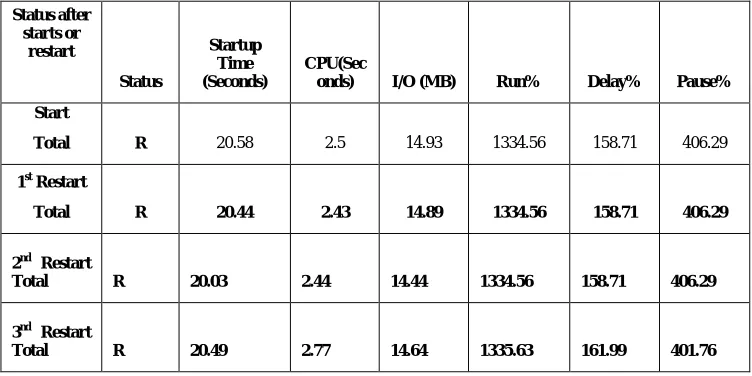
Table 5 total startup time, CPU,I /O Space, Running%, Delay%, Pause% minimum
Status after starts or
restart
Status
Startup Time (Seconds)
CPU(Sec
onds) I/O (MB) Run% Delay% Pause%
Start
Total R 20.58 2.5 14.93 1334.56 158.71 406.29
1st Restart
Total R 20.44 2.43 14.89 1334.56 158.71 406.29
2nd Restart
Total R 20.03 2.44 14.44 1334.56 158.71 406.29
3nd Restart
Total R 20.49 2.77 14.64 1335.63 161.99 401.76
Total minimum time after 1st restart CPU : 2.43 Seconds
Volume 2, Issue 5, May 2013
Page 284
4. To removal of an vprot error
To removal of a vprot error free file information forum can help you determine if vprot.exe is a virus, Trojan, spyware, or adware etc that you can remove, or a file belonging to a Windows system or an application you can trust [2].
This is a windows startup entry, not a running process - although it may be visible in windows Task Manager (CTRL+ALT+DEL) if it continues running after windows startup. Before ending a process via CTRL+ALT+DEL just because it is listed as an "X", please check whether it's actually set to start using MSCONFIG or another tool[2]. Some bad windows startup entries use the same names as common windows processes, and it may be difficult to distinguish between them in windows task manager. If in doubt, seek advice before doing anything.
5. Conclusion
In this paper practically, we have find different results shown for startup manager run in expert mode as system utility software. Total startup time is taken by the windows 7 when a large number of application software are installed in the system. By using startup manager when we start our system again and again the impact of startup manager clearly shown in 3 tables. These four tables have shown for start ,1st, 2nd, and 3rd restart then we see the resultant difference and changes have made displayed in these tables after each start. Resultant changes for startup time, CPU time, RAM,I/O Time, Run%, Delay % and pause% have shown for different application startups. Minimum CPU takes 2.43 seconds in 1st restart, 2nd restart minimum startup rime is 20.03 second and 14.44 MB takes to store as I/O and 3rd restart pause is 401.76%.
References
[1.] http://systemexplorer.net/file-database/file/vprot-exe [2.] http://www.file.net/process/vprot.exe.html