Table of Contents
Introduction . . . .3
Form Types . . . .3
What is a form? . . . .3
Form structure . . . .4
Form types and design elements . . . .5
What is forms processing? . . . .6
The cost of manual processing . . . .7
Automated forms processing . . . .8
OCR/ICR basics . . . .9
Automated Forms Processing . . . .10
Where data capture should be used? . . . .10
Designing a form . . . .11
Determining the form's logic . . . .11
Selecting form type and design . . . .11
Drawing a form . . . .12
Setting up FormReader . . . .13
Selecting a scanner . . . .14
Personnel training . . . .15
Processing cycles . . . .15
Ensuring Data Quality . . . .17
Defining data quality . . . .17
Image preprocessing . . . .17
Data type checks . . . .18
Verification . . . .19
Data format checks . . . .20
Controlling logic . . . .21
Processing multipage forms . . . .22
Operator stress as an important quality factor . . . .22
Organizing Automated Forms Processing………. ……… .23
Approaches to data capture . . . .23
Frontoffice data capture . . . .23
Backoffice data capture . . . .24
Data capture basics . . . .25
Batch processing . . . .25 Operator specialization . . . .25 Scalability . . . .25 Processing queues . . . .25 Data flows . . . .25 Production capture . . . .26
Using ABBYY Technologies to Solve Untypical Tasks………. ………. .27
What if FormReader does not support a required language? . . . .27
Remote scanning and processing faxed forms . . . .28
Distributed verification . . . .28
Processing flexible forms . . . .29
Capturing data from forms that are not machinereadable . . . .29
Conclusion . . . .31
Form Types
Introduction
Form Types
What is a form?
A form is a document with blank spaces to be filled in with par ticulars before it is executed. These blank spaces are called fields and are usually provided with explanations or captions that tell people what kind of information and in what format is to be entered into each particular field.
Forms are used whenever information must be collected from a large number of people. Government bodies in particular make wide use of all sorts of forms. In Russia, for example, forms are extensively used by the Tax Ministry and the Pension Fund. The former collects and processes tax returnsfilled in by hand and the latter collects
social security forms.
.
Forms are also widely used in business. Insurance companies, for example, have to handle thousands of insurance applications and insurance claims, marketing agencies have to deal with opin ion polls and customer surveys, and educational institutions make extensive use of forms in all sorts of examinations and formalized
tests. The banking industry also uses forms when issuing credit cards or handing out loans to their clients. There are also mail orders, coupons, medical forms, utility bills and many more the list is practically endless.
In the course of our lives we fill in hundreds of forms applica tion forms, questionnaires, insurance claims, etc. At the same time computers have become indispensable for collecting and managing information, making the task of extracting data from printed docu ments even more pressing.
This White Paper presents an overview of the existing data cap ture technologies used to extract handprinted text from completed forms and explains in detail the principles behind ABBYY FormReader, a data capture solution that is used to process forms in more than 30 countries.
Automated Forms Processing
When completing a form one has to enter information into blank spaces or specially designed fields that make up the structure of the form. This information must then be extracted and processed. Forms from which data can be extracted, or "captured", automati cally by computer are called machinereadable. Almost any form can be structured in such a way as to become machinereadable.
Forms can be filled in:
by hand (such forms are called handprinted, because informa tion is entered in separate block letters, each letter occupying one character space);
using a typewriter or printer in a printing house;
using a combination of all of the above.
Form structure
Sometimes people filling in a form are too careless or sloppy. For this reason forms are designed in such a way as to make their completion intuitive and selfevident. The following design ele mentsare used to tell people where to write what:.
Entry (or data) fields. These include
Text fields. Each text field consists of a certain number of character spaces supplied with an explanatory caption. Character spaces stand apart so that the entered letters do not merge.
Check boxes. These are fields of various shapes (usually squares, but in practice this can be any geometrical figure with a closed boundary). A person filling in the form makes a mark such as a check, a tick or a cross in this field to select a particular option. Or they may simply ink over the entire box.
Groups of check boxes. These are used for multiple choices. Usually check boxes within one group correspond to mutu ally exclusive options, i.e. only one of them must be selected.
Service fields. Service fields contain socalled anchor or refer ence points that facilitate forms processing. Anchor points are used by a data capture program to detect the top and bottom of a form and to correct distortions introduced by scanning. Anchor points may also be used to identify different forms if mixed types of forms are processed within one batch. The fol lowing elements may be used as reference points on forms processed by ABBYY FormReader:
black squares, corners and crosses; vertical or horizontal lines;
static text, i.e. field captions that remain unchanged from form to form.
ID fields or identifiers. These fields serve to identify the form. Black squares, corners and crosses can also be used to identify forms, but identification is more reliable if forms are identified using such identifiers as numbers, bar codes or form titles.
Image areas. These areas contain objects which are not to be recognized, e.g. seals or signatures which will be treated as pic tures. FormReader can save such images into an ODBC data base in the following formats: TIF, BMP, JPG, PCX, and WMF.
Optional design elements: logos, headers, footers and other formatting elements. In data capture, data contained in these elements can also be used to identify forms, e.g. by analysing text in logos the program can find out which company has issued the invoice.
service fields
text fields check boxes
identifier
Form Types
Form types and design elements
Forms can be divided into two major classes structured forms, on which the locations and sizes of all fields are exactly the same for all forms in a batch, and flexible forms, on which the sizes and locations of fields may vary from form to form. In order to capture data from a structured form, a program has to know where . to look for data. For this purpose a template is created which is essentially a skeleton of a form that contains information about the locations of fields and the kind of data the program may expect to find in each of them. The program will then match this template with a completed form and separate the entered data from the field borders and cap tions. Next, the entered data are "read" or recognized, i.e. converted into text and digits.All the forms in a batch must conform to one and the same pat tern. It is also essential that reference points and ID fields are pre served during scanning.
If a form is not structured, it cannot be processed automatically and requires a human operator to read the data from its fields and type them into a database. This is a slow and tedious process that can be avoided by designing a wellstructured form that can then be read by computer.
Depending on their design, machinereadable forms can be divided into the following threemajor types:
Colour forms. All data fields on such forms consist of white rectangles printed on a colour background. Backgrounds are usually light grey, pink, orange, or green. The colours and satu ration are selected so that the background disappears during scanning (this is why they are also known as dropout colours). Ideally, all elements must disappear during scanning with the exception of reference points and ID fields. Special scanners with red or green lamps are used to scan such forms.
Alternatively, the drivers of common scanners may be adjusted so that they become blind to the background. Colour forms pro vide the best recognition quality.
Raster forms. Data fields on such forms consist of white rec tangles printed on a colour background, but unlike on colour forms, backgrounds are made up of small dots located at regu lar intervals from one another. These dots do not disappear during scanning, but ABBYY recognition software can remove such dots without losing information entered into the data fields. There is also a subtype of raster form which has no back ground at all. The borders of data fields on such forms are made
up of separate dots which can then be filtered out by ABBYY software.
Blackandwhite linear forms. Field borders on such forms consist of solid black lines which do not disappear during scan ning.
The following field designs are available for linear forms:
(a) solid lines
(b) frames for words
(c) isolated frames for characters
(d) conjoined frames for characters
(e) lines with "combs”
(f) frames with "combs"
The recognition engine separates the data from the field bor ders and then recognizes them. ABBYY FormReader uses informa tion about the field design provided on the template and looks for specific design elements such as vertical lines or the number of character cells. The program then ignores the formatting and rec ognizes only the data contained within the fields. A form may also contain "garbage" or undesirable artefacts resembling field lines. The program will remember the shape of the fields and distinguish between the meaningful field borders and the arbitrary "noise" which will be removed so that it does not interfere with recognition.
A blackandwhite form on which characters are to be entered into separate frames. Colour dropout form.
Automated Forms Processing
What is form processing?
Forms processing is a process whereby information entered into data fields is converted into electronic form:
entered data are "captured" form their respective fields forms themselves are digitised and saved as images.
In most cases forms processing is considered complete when the data from all the forms have been captured, verified and saved into a database. It is also essential that the integrity of the captured data be preserved.
As has been mentioned earlier, forms can be processed manu ally or using forms processing software. In the sections that follow we consider the advantages and disadvantages of each method.
Many people still prefer to process forms manually, even though this is not the most efficient and reliable method. Here is a list of typical actions that need to be performed in the case of man ual data entry:
Each human operator (keyer)must be provided with a work ing place. This entails the most expenses, since each operator must be provided with a computer connected to the local area network, and the average productivity of a qualified operator is no more than 200 forms per day.
Forms preprocessing requires sorting operatorsand input controllers. Controllers make sure that no pages are lost if a form has more than one page and oversee the sorting process. The number of sorting operators and input controllers depends on the expected work load. On average, one sorting operator will sort up to 1,000 forms per day, and one input controller will handle up to 300 forms per day
Once the data from forms have been entered into a computer, they must be checked by verifiers. Verifiers check the data entered by keyers and correct any errors that may have occurred.
Finally, a manager is required to supervise the entire data entry team.
Now suppose you need to enter data from 1,000 forms per day. You will need five keyers, one input controller and one manager. This means seven desks, seven chairs, seven PCs and additional equipment network adapters and UPS.
Costs,USD Qty Total, USD
PC 1,000 7 7000
Office furniture 1,000 7 7000 Network and other equipment 1,000 15000
Table 1. Lumpsum costs for manual processing at 1,000 pages per day.
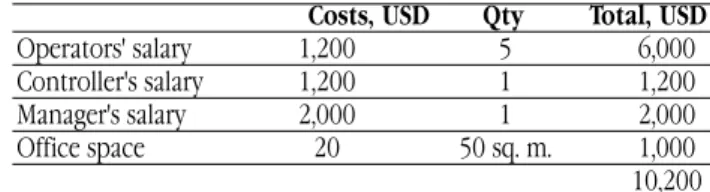
The lumpsum costs stand at around USD 15,000. Now let's count your monthly costs for the same productivity. You will need an office of at least 50 sq. m. which may cost you around 1,000 per month. Labour costs will amount to USD 1200 for the operator and controller and another USD 2000 for the manager.
Costs, USD Qty Total, USD
Operators' salary 1,200 5 6,000 Controller's salary 1,200 1 1,200 Manager's salary 2,000 1 2,000 Office space 20 50 sq. m. 1,000 10,200
Table 2. Monthly costs for manual processing at 1,000 pages per day.
Note that these calculations do not include the cost of electricity, telephone, cleaning, fillin staff, etc. But even this austere budget stands at around USD 10,200per month
Form Types
The cost of manual processing
In the previous section you saw that the lumpsum and running costs of manual forms processing add up to a pretty sum. And we have the first conclusion.But money is not the only problem associated with manual forms processing. You will need additional staff and another tier of management. Obviously it takes some time to set up a team of 8 10 employees and buy the necessary equipment. And some of the new staff may not like this tiresome job and leave.
Now suppose your client needs his forms processed by tomor row or by the day after tomorrow. Obviously, high costs is not the only problem you simply won't be able to kickstart the whole process within these two days. The second conclusion suggests itself.
Another important point is that whatever the size of your pro cessing team, you won't be able to increase their productivity quickly hiring additional operators is useless unless you provide them with the right equipment. This equipment will require addi tional office space. Hiring additional staff entails costs which are comparable to the lumpsum costs of setting up the entire team. The third conclusion is:
There is a host of other problems. The most critical of them have to do with the human factor, and this is practically unsolv able. Manual data entry is a tedious job try typing, for example, a newspaper article in your word processor. This means that even experienced keyers will make mistakes, and their number tends to increase towards the end of the working day. Some of these mis takes will be corrected by the output controller, but controllers are
also human, and the quality of the output data tends to deterio rate. And typing is a great strain for the eyes, so you are likely to get complaints from your staff as early as within the first two months.
The quality of the output data is likely to be unacceptably low because a human operator cannot verify data character by charac ter for hours. Your customer will never be happy with an errorrid den database which your team of operators took so long to create. Two other conclusions arise:
It follows, then, that manual forms processing is not the best solution, particularly for companies which need to process large number of forms regularly.
Manual processing is expensive.
Manual processing takes time to set up.
Manual processing is not easily scalable.
Your staff won't like the job. And you won't like the results of the their work.
Scheme of manual forms processing.
Input
Manager
Database keyers
Automated Forms Processing
Automated forms processing
Automated forms processing.
Input Data entry operator supervises scanning, recogni tion, verification and export of data
Database
An alternative is a data capture solution such as ABBYY FormReader. This is how FormReader works:
A batch of completed forms is scanned using a highspeed scanner (usually scanners that scan at least 10 pages per minute are used);
Most of the data are recognized automatically;
A few characters about which the program is uncertain are passed on to a human operator;
Verified data are saved into a database.
It is noteworthy that the entire process requires only one human operator since all of the stages, except verification, are fully auto mated.
The operator's workplace must be equipped with one scanner and one PC connected to the local area network. This workplace can be set up within one day and does not require a lot of office space.
Neither manual sorting nor checking for missing pages is required, since FormReader can identify forms and select the matching template. With ABBYY FormReader 6.0 Desktop Edition, one operator will be able to process from 1,000 to 3,000 forms per day depending on the complexity of their layout.
Now let us estimate the possible onetime and monthly costs for processing the same 1,000 pages per day using ABBYY FormReader.
Costs, Qty Total,
USD USD PC 1,000 1 1,000 Scanner 1,500 1 1,500 Office furniture 1,000 1 1,000 Software licence 1,695 1 1,695 Software installation 1500 1 1,500 and setup 6,695
Table 3. Lumpsum costs for FormReader at 1,000 pages per day.
Costs, Qty Total,
USD USD
Main operator 1,200 1 person 1,200 Fillin operator 1,000 1 person 1,000 Office space 50 10 sq. m. 500 Scanner maintenance 50
3,250
Table 4. Monthly costs for ABBYY FormReader at 1,000 forms per day.
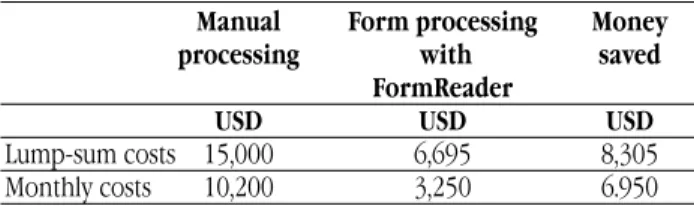
The costs of manual and automated processing compared:
Manual Form processing Money
processing with saved
FormReader
USD USD USD
Lumpsum costs 15,000 6,695 8,305 Monthly costs 10,200 3,250 6.950
Table 5. Money you can save when processing 1,000 forms per day using ABBYY FormReader.
These figures talk for themselves, but, more importantly, FormReader will solveall of the five problems discussed above.
ABBYY FormReader is a highly scalable solution you only need a few more FormReader modules and several additional oper ators (whom it will take just hours to train). There is no other way to increase productivity tenfold within just one day.
It goes without saying that the quality of output data will be much higher, because the role of the human factor will be reduced to a minimum. Most of the job will be done by computers which never get tired and never make typos. What's more, FormReader can use specially designed validation rules ensuring even higher data integrity and reliability.
Form Types
OCR/ICR basics
There are two major types of character recognition Optical Character Recognition (OCR) and Intelligent Character Recognition (ICR). OCR programs recognize characters printed using a printer, a plotter or a typewriter. ICR programs read docu ments filled in by hand in block letters (socalled handprint recog nition). Let us consider the main differences between OCR programs and ICR programs.
An OCR program first analyses the image and divides it into zones which include text, tables, illustrations, etc. Next, it divides these zones into smaller objects: paragraphs, lines, words, and char acters. Once the characters have been recognized by the character classifiers, the OCR program will assemble them back into words, lines, paragraphs, etc., until it gets an electronic version of the orig inal paper document.
ICR programs, which are mainly used to process handfilled forms, work differently. First, an ICR program detects zones that are expected to contain meaningful data entered by the user. These zones are then processed by the program's modules, including the character classifiers. ICR programs do not attempt to recreate the original document. Instead, they are extracting information from particular fields and save it into a database.
An important feature of an ICR program is mark sense recog nition, or recognition of marks in check boxes. Check boxes are widely used on all sorts of forms, because they make their comple tion easier and can increase the reliability of output data up to 99.9%. ABBYY FormReader 6.0 can recognize all sorts of marks. Mark sense recognition is usually referred to as OMR (Optical Mark Recognition) and works as follows: when creating a template, the operator singles out a checkbox zone where the program has to look for a mark; the program then analyses these zones on com pleted forms and calculates the black/white ratio in these areas. If the portion of black colour in a check box exceeds a certain thresh old, FormReader will consider the check box selected. FormReader can even recognize corrected marks, i.e. boxes ticked by mistake and then inked over.
ABBYY FormReader 6.0 will reliably recognize not only conven tional ticks/checks and crosses, but also completely inked over check boxes if the latter are rectangular in shape or have no borders.
This feature of ABBYY FormReader has a very important prac tical application. Suppose someone filling in a form makes a mis take and ticks the wrong box. Instead of taking a new blank form and filling it from scratch, they can just blot out the mark in the check box selected by mistake and put a new mark in the right check box. FormReader will treat the inkedover check box as a mistake and consider it to be unchecked. This method may also be used when recognizing text fields.
Automated forms processing
Automated forms processing: step by step
Where data capture should be used?
There are numerous situations when automated forms processing is the only right solution. Here are some possible scenarios.
Forms processing is not the main speciality of a company.
Manufacturing or trading companies in most cases don't even have a department responsible for forms processing. Forms, such as order bills, are usually processed manually by secre taries or office assistants. Everything runs smoothly if the com pany needs to process no more than several dozen forms. But processing hundreds of forms requires additional staff, other wise there will be long waiting lists and the personnel will be distracted from their main job of communication with cus tomers.
Solution: installing a forms processing application, such as ABBYY FormReader Desktop Edition. The entire system can be placed on one desk and does not require additional staff or main tenance.
Processing questionnaires is one of the major business processes of a company. A good example is a marketing agency that collects and analyses data. Sometimes such agen cies need to process tens of thousands of forms per day. In this case data capture is part of the entire technological process and selecting a data capture solution has its own specifics. Firstly, the volume of incoming information varies greatly and depends on the customer's needs and the scale of a particular survey. Therefore scalabilityis crucial, so that the agency can easily increase its throughput.
Secondly, in the case of a marketing agency, investing into automated forms processing means investing into means of production. Consequently, the ROI must be easy to calcu late.
Thirdly, questionnaires will change significantly from survey to survey, and the marketing agency will need a tool for design ing new forms.
In this case, ABBYY FormReader Enterprise Edition would be the ideal choice. This is a highly scalable solution whose productiv ity can be increased by organizing distributed forms processing and adding new modules.
Converting archives into electronic form. In most cases this job has to be done only once, but the amount of information to be processed is considerable a paper archive may take up sev eral rooms. At the same time archive owners often do not have the sufficient administrative or financial resources to hire addi tional personnel.
In this case time required to install and set up a data capture solu tion is not so crucial. What is important is its ease of use and effi ciency. ABBYY FormReader Desktop Edition would be the ideal solution for archives.
ABBYY offers a very attractive licensing scheme which takes into account the number of pages processed by FormReader. The licence allows you to process a certain number of pages, and once this allowed number has been used up, FormReader becomes inop erable. Next time you need to process a known number of pages you will simply need to renew your licence. This approach is par ticularly suitable for situations similar to the one described above.
It is quite possible that your company needs to solve a similar task. But how do you set about choosing the right solution? Where do you start?
Automated forms processing: step by step
Designing a form
First of all you have to design a form. You need a form that is both easy to fill in and to process. The design is crucial because any mistakes made at this stage may drastically reduce the speed of processing. Be sure to follow the recommendations of the supplier of your data cap ture application.
To create a form, you first need to think out its logical structure, then design it, and, finally, draw your form. A detailed treatment of each stage follows.
Determining the form's logic
Forms with carefully thoughtout logical structures are easier to fill in and process. You need to decide what data you will need to gather and draw up a list of required data fields. Be sure to dis cuss these fields with your clients.
Next, you have to determine such parameters as the size of the form and the number of pages in the form. If you decide to change these parameters later, you may need to make considerable changes in the setup of your data capture program. This is why we recom mend drawing all your sketches on sheets of paper the size of your future form so that you have enough space for all the elements you wish to place on the form.
ID fields (identifiers). If you need a form which consists of several pages, be sure to introduce elements which will help you avoid confusion. Usually each page is provided with an ID field which is the same for all the pages of the same kind. The nature of the ID field depends on the nature of the form. This can be an SSN, a customer's ID, the code of the project, etc.
Simple and complex fields. Try making your fields as simple as possible. This will make for fewer errors when filling in and pro cessing the form. The more predictable the words or numbers entered into particular fields, the higher the recognition rate. It is best to split such fields as Name, Date, Telephone (area code + city code), Address (country+city+street)into several subfields.
Free space is a rare commodity on any form, therefore if you know the maximum length of a field do not make it larger than necessary. This will prevent the person filling in the form from entering redundant information and will make the whole comple tion process more selfevident. Examples of data fields with a known number of character spaces: SSN, postal code, abbreviations for US states, local telephone numbers, standard names of curren cies.
Field length. The length of words in such fields as Street, Second Name or Email is difficult to predict, therefore you need to provide some extra character spaces "just in case". If you think one line may prove insufficient, allocate two or more lines to such fields. FormReader can logically merge such lines into one field without diminishing recognition quality.
Separators. The form must encourage people who fill it in to enter only meaningful information into its fields. For example, it would be wise to design a Date field in such a way that users do not have to enter separators (e.g. slashes, hyphens or dots) themselves, because they will be printed on their forms. This will greatly increase recognition accuracy. Similar examples: preprinted hyphens in SSN and ISO fields, the first three digits of the current year, etc.
Check boxes.If possible answers are known in advance, it is best to use check boxes instead of text fields, as OMR algorithms are much more reliable than ICR. For example, do not ask users to fill in their marital status in text fields by writing such words as
"married", "single", "divorced" or "widower". Instead, print the possi ble answers on the form and ask users to tick the appropriate box.
Captions and photos. If your form will include such fields as Signature, Seal, Photo or Fingerprint, be sure to provide enough space for these fields. This will reduce the number of corrections and increase recognition quality. Don't forget that affixing a stamp or putting a seal on a form may result in blots on the reverse side which may impede the recognition of the text there.
Selecting form type and design
One of the major recognition tasks is to separate the contents of the fields from the field boundaries. The success of this task largely depends on selecting the right type of form. Remember that colour dropout forms provide the best results. Users will enter information into white rectangles and the scanner will later remove the background. The general rule of thumb: use grey forms when ever you cannot print colour dropout forms.
When designing your forms, pay particular attention to refer ence points and ID fields this will help you get the most out of automated forms processing.
What is a reference point? FormReader uses reference points to match forms with their templates. Reference points are also used to correct linear distortions introduced by scanning and to detect the location of the fields on the form. Sometimes reference points are referred to as anchors. Examples of reference points: black squares, corners, crosses, captions that do not disappear during scanning, vertical and horizontal lines. We recommend placing three or four reference points in the corners of the page. This will enable FormReader to match forms with their templates and to process similar forms printed on different printers or sent in by fax.
What is an identifier? Identifiers are form elements that do not disappear during scanning and that are used to match a form with its template. If multiplepage forms are processed within one batch, you need to provide a unique element on each page which will be used to identify pages as belonging to a particular form. We recommend using bar codes, form titles or additional black squares as form iden tifiers.
Drawing a form
Once the logical structure of the form has been arrived at, you need to draw your form. What drawing tool should you use? Currently there are several tools available on the market.
If your designer is familiar with CorelDRAW or Adobe Illustrator, they may draw the form in one of these applications. These are good professional design tools but they have their draw backs both programs are a bit too "heavy" and expensive. They are too difficult for a novice to learn, and learning all their features will take considerable time.
Microsoft Visio is more common and less difficult to use. Even though it is mainly intended for drawing charts and graphics, it can also be used to draw quite attractive forms. The easiest way to design a form in MS Visio is to use its socalled template galleries. You can obtain a template gallery containing various form elements form ABBYY. MS Visio can be used to create professionallylooking colour dropout forms which can then be printed on a laser printer. As a last resort, you can create forms in Microsoft Word. Since MS Word was not originally intended as a tool for designing forms, drawing a form in this text editor may prove a real challenge.
Automated forms processing
FormReader also includes a very handy fromdrawing tool.
FormDesigner is a formcreation application provided with each copy of FormReader. This is a simple and efficient form drawer that will help you draw even the most sophisticated forms.
All forms include certain typical design elements: titles, black squares, text fields, check boxes, etc. FormDesigner is a WYSIWYG form editor that provides you with a set of readymade elements which you can edit and adjust to suit your needs. Just click on one of the elements and place it where you want to see it on the form. You will be able to start creating your forms right away because you won't need to find graphic primitives first. Once you have designed
your form, FormDesigner will create an *.xfd file which will include all the relevant information for your template. When setting up FormReader to process your form, simply import this file and you will get a template almost ready for use. All you will need to do is specify the properties of the already marked fields, adjust reference points and add validation rules if required.
The next step is to set up FormReader so that it can capture data from your forms.
Automated forms processing: step by step
Setting up FormReader
When you are setting up FormReader to capture data from a particular kind of form, you are "telling" the program where to look for data fields and what "hints" are available on printed forms. Setting up the program correctly is just as important as designing the form.
Creating a form template. Below follows a brief treatment of all the steps you need to perform in order to create a form tem plate.
1. First, you must obtain an image of a blank form. You can either scan a blank form or use an image file obtained form any other source. If the form was created in ABBYY FormDesigner, simply import the *.xfd file created in FormDesigner. This template already includes all the required blocks.
If you do not have an *.xfd file, you will need to scan a blank form and follow steps 2 to 8
.
2. Mark out reference points and identifiers. These blocks can be marked out either manually or automatically. Sometimes unchangeable text or bar codes are used as identifiers.
3. The next step is to test your template to make sure that it matches the original form.. Try placing the template on the form to see whether the reference points and identifiers enable the program to match the form and its template cor rectly.
4. Mark out data fields. Use your mouse to draw blocks around those fields from which data must be captured.
5. Now you need to specify the properties of the fields, i.e. tell the program what kind of field borders are used and what kind of information will be entered into these fields. To optimise this process, we recommend first analysing the template and deter mining the properties that are common to most of the fields. You can then specify them as default properties for all blocks.
6. Next you need to add validation rules. These are the conditions that the data entered in the fields must satisfy. The program will use these rules to validate the format of the data and to nor malize them if required (e.g. the program may convert the dates into a specific format). Rules can also be used to compare entered data with similar data in a database to make sure, for example, that sums written in figures correspond to the same sums written in words.
7. The right parameters under Recognition and Verification may also have a great impact on the quality of recognition..
8. If the captured data are to be exported to a database using an ODBC connection, the latter must also be set up in the Template editor..
Before you can start capturing data you must also select a scanner.
Specifying reference points and identifiers in form template designer.
Specifying barcode as a form identifier.
Specifying field propeties in form template designer.
Automated Forms Processing
Specifying verification options.
Selecting a scanner
Choosing the right scanner is important because scanners have a direct impact on the speed and quality of processing. It should be noted that if you need to process more than 100 forms per day com mon flatbed scanners will not do. Such scanners are widely used in offices throughout the world to digitise photos and documents, but they are not suitable for industry data capture, because they are too slow and have a small inservice lifetime. After scanning 1,000 pages the lid of a flatbed scanner may just fall off!
To scan large numbers of forms quickly and reliably you need a special scanner.Here is a list of scanner features to look for:
Paper format. Usually forms are scanned using A3, A4 and A5 scanners.
Resolution. Forms must be scanned at 200300 dpi and all scanners support this resolution. Higher resolutions will inevitably slow down the entire process
Duplex scanning. Many projects require scanners that can run in both duplex and simplex modes and scan either in black andwhite or in colour. The latter is required when removing colour seals from images or when saving colour photos from questionnaires.
Automatic Document Feeder (ADF).
This device allows you to load batches of 25, 50, or 100 docu ments into the scanner. This is a must have, otherwise the operator will spend 90% of his time feeding paper documents into the scanner.
Throughput. Very often the overall speed of processing depends on the speed of scanning. In terms of throughput, scanners can be divided into the following three groups: office lowthroughput scanners, office mediumthroughput scanners, and production scanners with very high throughput. Lowend office scanners have a throughput of up to 500 pages per day while productions scanners may scan more than 20,000 pages per day.
Page feeder. If the scanner accidentally takes in two form pages at a time, this may result in some of the pages not processed at all. To prevent this from happening, many scanners have a spe cial control mechanism which weighs paper sheets, measures their thickness or measures the light that may penetrate them. But these methods do not work if the forms are not homoge neous (i.e. printed on different kinds of paper, have different colours and paper thickness, etc.). The solution is to use ultra sonic sensors which make sure that the signal has been reflected only from one surface, i.e. from one page.
Additional features. Some scanners may have a number of additional features which may also come in useful
An endorser or a builtin printer that prints on scanned documents an index that is then used to identify them; A hardware image enhancement module;
A hardware image compression module;
Colour lamps that can remove certain backgrounds (so called dropout colours red, blue or green);
Caching images in the scanner's onboard memory, which makes for faster scanning.
Automated forms processing: step by step
Personnel training
Processing cycles
Working with ABBYY FormReader requires minimum special knowledge and training. The data capture system is usually run by operators responsible for entering data from
forms and an administrator who sets up and monitors the system. Depending on how data capture is organized, the operator's job can be of two kinds
all operations are performed on one computer, the opera tor loads forms into the scanner, and oversees the scan ning, recognition, and verification processes;
in the case of ABBYY FormReader Enterprise Edition, dif ferent operators are responsible for specific processes scanning, document assembly, verification, and export. The program is set up by an administrator. In the case of ABBYY FormReader Enterprise Edition, the administrator deploys the system, allocates processing roles to operators, cre ates templates and descriptions of multipage documents. The
operator also oversees the flow of information within the sys tem
It takes from several hours to 23 days to train the operators and the administrator*.
All the practical knowledge required to operate FormReader can be acquired within this time period thanks to a carefully thought out training course
* The administrator's training course includes the following topics : 1) production capture;
2) designing new forms; 3) creating form templates;
4) installing ABBYY products (including network installations); 5) setting up scanning, recognition and verification options; 6) allocating processing roles to operators;
7) creating validation rules and document assembly rules; 8) monitoring the operation of the program and creating reports.
For a better understanding of how ABBYY FormReader works, let us take a closer look at the main processing cycles.
1. Creating a batch. A batch is a collection of similar documents which must be processed and saved both as images and as text data captured from the fields. Batches can be opened either by an operator or automatically by the program.
2. Adding images to a batch.Images of forms that need to be processed may be added to a batch in one of the following ways:
by scanning paper forms;
by adding prescanned images from a special dialog box; by dragging and dropping document icons in
Windows Explorer.
3. Recognition.Recognition is an automated process whereby the text in the data fields is "read" by the program and con verted into electronic form. First, the program selects the right template for the form and detects blocks from which data have to be captured. Next, the block images are converted into elec tronic text.
4. Validation and verification.Once all the images in a batch have been recognized, some pages may contain characters about which the program is unsure. These pages are passed on to the operator for verification. The verifier either confirms the characters or corrects them. Similarly the operator corrects any errors detected by validation rules (the program marks pages with errors with special colour flags).
5. Export. Finally, verified and validated data are saved to a file or exported to a database. All the operator needs to do is to click the "Export" button.
Throughout the entire data capture process the involvement of the operator is kept to a minimum. More importantly, the oper ator's actions are strictly circumscribed, which greatly reduces the chance of errors. Therefore, automated forms processing is not only much faster than manual data entry but produces much more accurate results. The quality of resulting data is paramount and the following section describes various mechanisms used in ABBYY FormReader to ensure the high quality of captured data.
Automated Forms Processing
Processing forms in ABBYY FormReader 6.0 Enterprise Edition.
Below you can see a chart showing how forms are processed in ABBYY FormReader Enterprise Edition.
There are two streams of data an input and an output stream. Each operator is responsible only for one processing stage, e.g. scanning and registering images in the system.
The operators handle data as if they were working at an assem bly line.
If there are not enough operators responsible for a particular stage, their number can be easily increased
All the data and settings for all the modules are stored in one place.
A protection key is plugged into the server and is used to pro tect the entire system..
Single protection key Paper forms, Image archive
Text files XML Database
Data and License Server Administration Station
Verification Station
Recognition Station Correction Station Scanning Station
Input
Output
Ensuring Data Quality
Image preprocessing
Very often form images will contain "garbage" in the form of excess dots introduced by scanning. Sometimes an image may be skewed or rotated by 90 degrees from its normal orientation. It is very important that the influence of such external factors be minimized. ABBYY FormReader can do the following:
despeckle images, i.e. remove excess dots that hamper recogni tion (the size of the dots to be removed can be adjusted); deskew images that have a skew angle of up to 10 degrees; rotate images by 90 degrees;
invert images, i.e. turn black pixels into white and vice versa.
The program can also detect textured backgrounds consisting of dots or lines that are much thinner than the characters to be rec ognized. FormReader will remove such textures before it starts analysing and recognizing the text. Excess dots will be removed during preprocessing, and grids of hairwidth lines will be detected and removed when analysing the structure of the document.
Ensuring the quality of data
Defining data quality
In the previous sections we have often used the phrase "quality of data". By the quality of data we mean the completeness and accuracy of captured information. The higher the correspondence between the data exported into the database and the data entered into the fields of the paper forms, the higher the quality of data.
The quality of data is the correspondence of the data entered into the target system to the data entered into the fields of the paper forms. The quality of data is one of the most important parameters of a forms processing application.
The following factors may have an adverse effect on the qual ity of data:
Sloppy writing. If someone writes carelessly, makes correc tions or merges some letters, the chances of recognition errors will increase. There is an obvious remedy: when designing a form make sure that there is a separate character space for each letter and digit on the form and that complex fields are broken down into simpler ones, which are easier for the program to handle. Follow the recommendations given in "Developing the Logical Structure of the Form", and sloppy writing will have a minimal impact on recognition accuracy.
Typos. When entering data from forms manually, typos are an important factor. Keyers will inevitably get tired and make more mistakes towards the end of the day. The only solution is to give up manual processing altogether. Operators of auto mated data capture systems experience much less strain, and even if they do get tired this will have almost no impact on the quality of the resulting data ABBYY FormReader will use val idation rules to ensure data integrity. Even if an operator
makes a mistake, the program will easily detect it and alert the operator.
Recognition errors. When reading information from the fields, the program will mark some characters as "uncertainly recognized". These will be passed on to the operator for verifi cation. But suppose the program is too selfconfident about some characters, even though they have been recognized wrongly. They would not be submitted for manual verification and incorrect data would be exported into the database. This is the bane of all data capture applications, but ABBYY develop ers have successfully tackled this problem of "hidden" errors. Tests show that chances of error are as low as 0.5% for letters and 0.1% for marks in check boxes.
To sum up: FormReader has special methods and tech niques to ensure the high quality of data. These include : image preprocessing;
data type checks; data verification; data format checks; validation rules; document assembly rules
(in ABBYY FormReader 6.0 Enterprise Edition).
Automated Forms Processing
Data type checks
Even before submitting data for verification, ABBYY FormReader 6.0 will check the recognized data against dictionaries and user databases.
Suppose your questionnaire has a field captioned "Your favourite brand of cheese". You can create a dictionary of cheese brands and use it to facilitate recognition. Dictionaries can be created for any data types to help the program more readily recognize the informa tion entered into the fields.
ABBYY FormReader 6.0 already includes multilingual dictionar ies for standard data types ranging from proper names and cities to currencies and postal codes. Of course it is impossible to cover all possible areas of human activity, but users can create their own dic tionaries and associate them with the corresponding fields.
Creating a user's data type and connecting a user's dic tionary in ABBYY FormReader 6.0 Desktop Edition 6.0.
Adding a data type defined by a regular expression in ABBYY FormReader 6.0 Desktop Edition.
Together with dictionarydefined data types, FormReader makes extensive use of regular expressions. Regular expressions describe the possible combinations of characters and their mutual positions. For
example "c*t" describes all threeletter words staring with a "c" and ending with a "t" cat, cut, cot, etc.
Ensuring Data Quality
.
Verification
To improve recognition accuracy, ABBYY FormReader 6.0 may submit data for manual verification by the operator. FormReader offers three verification methods
1. Group verification. This is the ideal method for checking data belonging to a particular limited set, e.g. digits. Group verifica tion groups together uncertainly recognized characters of the same kind (e.g. all 3's) and displays them to the operator. The operator will easily spot the "odd one out" and correct it. This is more efficient than going through the whole text. Group verifi cation greatly speeds up data checking, as the operator can con firm hundreds of characters by simply pressing "Enter".
2. Context verification. Context verification displays two lines recognized text and the corresponding section of the original image. The operator may compare the two texts and either confirm or correct the characters.
All the verification methods described above serve one purpose to minimize the number of buttons that the operator has to press. It is the number of buttons the operator presses that has the most impact on the speed and quality of verification, and ultimately, on the quality of entered data. In most cases even characters highlighted by the program as "uncertainly recognized" have been recognized correctly and just need to be confirmed by the operator. Even if the program has encountered a rare word that is not present in any of its dictionaries and highlighted it on all forms, the operator needs to press Enter just once to con firm all these highlights.
Group verification of digits.
Inform verification.
3. Inform verification. If data checks detect serious errors on a form, such form will be marked with a special colour flag. Then the form will be submitted to the operator so that the opera tor may review all the suspect fields and make the necessary corrections.
Automated Forms Processing
Data format checks
Once FormReader finishes recognizing the data, it will check whether the results conform to the format specified in the template. Let is take a closer look at this type of check using a Serial Number field as an example. Suppose the serial number must have the fol lowing format:
SNFRnnnnnnnn, where n is a digit When creating the template, the user can
write a regular expressionthat describes this format:
An error has been detected on this page the date has the wrong format.
A regular expression used to check the format of data.
FormReader will use this regular expression to make sure that the data entered into the Serial Number field conform to the set for mat. Those pages on which the regular expression reports an error will be marked with a warning flag. This approach helps to detect such tricky errors as "o" instead of "0", "l" instead of "1", etc. There are
several gradations of flags some serve to alert the operator, others will prevent the form from further processing until the operator has made the necessary corrections..
Ensuring Data Quality
Controlling logic
Very often certain restrictions apply the data to be entered into the fields. For example, numbers may have to belong to a certain interval. This can also be checked by validation rules, and if the rec ognized data do not meet the imposed requirements, the rule will report an error. Here are some examples of such validation rules:
Normalize and check dates. This rule (a) validates the date,
(b) converts the date into a predefined format,
(c) checks that the date falls within a predefined time period. The first step will discard such dates as 32/45/199, the second step will arrange the figures in the required order, e.g. dd/mm/yyyy, and the third step will make sure that the date falls within the speci fied interval.
Date validation rule.
Check sum validation in ABBYY FormReader. Check sums. If there are several digits on the form and a field
contains their sum total, we may add an additional validation rule that will make sure that the recognized figures add up.
Automated Forms Processing
Normalize prices. The price function automatically converts the price into the required format, e.g. 12.90 or 12,90 (Russian style). If the recognized data cannot be converted into the required format the program will report an error.
Conditional checks. The user can use a special language, which is very much similar to programming languages, to specify cer tain conditions and actions to be performed by the program if these conditions have or have not been met. Below follows a sample condition that reports an error if the fields Country and City are empty.
If [City]. IsEmpty() then Error ([City], No City Name is signed
else
If [Country]. IsEmpty() then Error ([Country],
No Country Name is signed. else TRUE
Sum in figures sum in words. This rule compares the recog nized number written in digits with the recognized number writ ten in words. This rule works only for whole numbers in Russianlanguage documents.
Automation checks. OLE Automation checks enable the user to create their own validation rules, however complex. FormReader provides various means to control the logic of rec ognized data. Any errors that might slip in will be detected and reported to the operator. Critical data will not be exported until reviewed and corrected by the operator.
Processing multipage forms
When processing multiplepage forms, pages of one form may get mixed with the pages of another form. This is a serious problem which may compromise the quality of the resulting data. To elimi nate this sort of errors, multiplepage forms may be provided with a special field that contains a unique ID. All the pages of one form must be marked with the same ID. The program will use this ID to identify the pages as belonging to a particular form during docu ment assembly.ABBYY FormReader Enterprise Edition can process forms con taining multiple pages. In ABBYY FormReader Enterprise Edition, document assembly means collecting data from separate pages of the same form and uniting them into an informational entity whose structure corresponds to the structure of the original paper form.
A good example of identifier used in processing large numbers of multipage forms is INN (individual tax payer's number issued to all Russian tax payers). INNs are placed on each page of a tax return, which makes it possible to identify all the pages and assemble them into one document.
If, for some reason, the document assembly rule reports an error, the document will be passed on to the Verification Station. The operator will replace the pages, add the missing pages, asks for a rescan of the document, etc., and then run the validation rules once again.
Operator stress as an important quality factor
One of the main advantages of a data capture application is thatit relieves operators from the repetitive and monotonous task of typing data manually. ABBYY FormReader operators spend 90% of the time verifying data. They do not have to divide their attention between the keyboard, the screen and the paper forms. Nor do they have to keep in mind endless database columns into which this or that figure is to be entered. All the logical relationships between the data are established and checked at the preparatory stage.
But the most striking effect is that operators become less stressed, they do not strain their eyes weeding out errors, and they do not have to worry about the deadlines. This makes for better working atmosphere and has a direct impact on the operators' effi ciency.
Organizing Automated Forms Processing
Organizing automated forms processing
Approaches to data capture
If you take into account such factors as the quality of entered data, the speed of processing and the working conditions of the operators, data capture applications are hard to beat. Automated data capture becomes economically viable whenever you need to process 100 forms per day or more.But even relatively small processing volumes will require certain changes in how the working process is organized. Processing thou sands of forms per day is a huge task that will need significant changes in organization and administration.
Data capture can be organized in one of the following ways: forms may be processed as soon as they are submitted, or forms may be first collected and then processed in batches. In the former case the data capture solution will be implemented in the front office, and in the latter case it will be implemented in the back office.
Frontoffice data capture
A good example of the first approach is a data capture solution installed in a warehouse of a trading company. A client wishing to place an order fills in an order form where he states the name and number of the goods he wishes to purchase. This form must be processed as soon as it gets to the staff of the warehouse, who will issue an invoice. The invoice will be paid by the client while the warehouse staff pack the ordered goods. This means that the data capture application must be installed directly in the warehouse. This kind of application will have a number of distinctive features:
1. The speed of scanning in this particular case is not very crucial, because packing and loading goods takes a lot more time than scanning orders. This means that even a flatbed scanner will do. (It takes modern scanners 3040 minutes to scan an A4 page, which is quite acceptable in this case.)
All data capture is performed at one desk where the client sub mits his order form. Even additional operations which are not directly related to data capture may also be performed at this desk, e.g. printing out an invoice, archiving the paper order, etc. In situations like the one above ABBYY FormReader Desktop Edition will be the ideal choice.
Incoming forms Operator using a scanner and ABBYY FormReader Desktop Edition
Database
Automated Forms Processing
Backoffice data capture
A good example of the second approach is the processing of tax returns. The Russian Ministry of Taxes has adopted the following sys tem of processing tax returns: for a period of several months tax returns are to be gathered from citizens by local tax officials, after which the collected documents are shipped to a central site for pro cessing. A very powerful data capture solution is required to process huge numbers of tax returns. This solution will have the following dis tinctive features:
1. Highspeed production scanners must be used.
2. A distributed data capture solution is required. Each operator must be responsible for specific operations carried out on only one workstation scanning, recognition, verification, or export. 3. Much more stringent quality control is required compared to the warehouse example above: you can always make corrections in an order, but it is virtually impossible to make corrections in mil lions of tax returns.
4. Several working shifts are to be organized for maximum speed of processing. Among other things, this will use the highspeed scanners to their full capacity.
The best solution in this case would be ABBYY FormReader Enterprise Edition.
These two examples show that an optimal data capture solu tion can be selected for each project, however large or small. When deciding on what forms processing solution to choose, one has to
take into account all the specifics of the project and the capabilities of a particular application. Therefore, the customer and the solu tion provider must work hand in hand at the project design and implementation stages.
Let us now consider the basic principles of deploying large scale data capture solutions. These principles are based on our suc cessful experiences in implementing largescale projects where ABBYY data capture products have been used.
Incoming forms
Gathering forms for subsequent processing.
Form batches Scanning operator Recognition Station
Verification operators
Organizing Automated Forms Processing
Data capture basics
Batch processing
Batches are collections of forms. Each batch has a unique iden tifier. An important advantage of this approach is that it structures information streams and facilitates administration, routing and storage of data.
Operator specialization
Production capture solutions operate like assembly lines where each person is responsible for a specific operation. Specialization increases productivity and makes the system highly scalable. You can easily add, say, more Scanning Stations and scanning operators without interfering with the job of the recognition or verification operators.
Scalability
As has been said above, the entire system consists of highly spe cialized modules whose number can be easily increased or reduced to meet particular processing requirements. Suppose the initial configuration included one recognition module (a powerful two processor server) and eight verification modules. If verification becomes a "bottleneck", you can easily add any number of verifica tion modules to increase verification throughput. This makes the system very flexible and manageable and saves customers a lot of money.
Processing queues
Batch routing is an important concept in data capture. Batch move ment cannot be arbitrary but should be optimised to reflect the logic of forms processing.
Depending on the stage of processing of a particular batch, the sys tem a particular status to the batch. In a complex data capture sys tem several batches can have "verify" status at a given moment. They will be placed into the verification queue, and as soon as one of the Verification Stations is freed up one of the queued batches will be sent to this station. This allows the system to evenly distrib ute the workload between the stations and operators, so that they do not stand idle or become overwhelmed.
Data flows
To optimise batch processing, batches are routed and placed into processing queues. If a problem occurs with any document (e.g. it was poorly scanned), the problem batch will be immediately taken out of the queue so as not to interfere with the processing of the other batches. As a rule, problem batches are set aside to be processed manually the operator will have to identify the cause of the problem and select the right solution. In this particular exam ple the document will be sent to the Scanning Station to be re scanned. It should be noted that the processing of the other batches will continue at the same speed.
Production capture has its own specifics. Largescale projects require dedicated software and hardware, special training for the personnel and careful organization.
Forms processing software
Experience shows that processing more than 3,000 forms per day by more than three operators requires a distributed software solu tion. Each operator will be able to concentrate on their specific task and deliver the best quality. ABBYY FormReader Enterprise Edition is a distributed data capture solution that can process practically unlimited numbers of forms. Additionally, the program can assemble multipage documents and validate data using sophisticated rules.
Production scanners
Highspeed production scanners are essential in largescale proj ects. In theory, an alternative solution might be to distribute scan ning between a large number of cheap lowend scanners. In practice this approach never works, as ordinary scanners tend to break down, which entails additional costs.
Hardware
Almost any PC will do as a Scanning Station, the only critical requirement being sufficient harddisk space.
Recognition Stations must be more powerful than Scanning Stations powerful processors and large RAM are essential. Multiprocessor servers are often used. Many data capture pro grams, ABBYY FormReader included, support multiprocessor systems.
Verification Stations must be equipped with goodquality com puter screens to reduce the operators' eyestrain.
The Export Station must have enough RAM, so that data may be exported in background mode.
The local area network must have a high throughput since internal traffic can be fairly high one batch can be dozens of megabytes in size.
A powerful PC is required for the database server, as FormReader stores all settings and entered data in an internal database.
Export of data
Unlike desktop systems, large enterprise systems usually do not save data to files. Very often a special export module is created which exports data into an external data storage or management system. An alternative method of exporting data is to save them into an XML file which can then be processed by a specially cre ated XML analyser. All ABBYY FormReader products support sav ing in XML.
Personnel training
The staff who will run and administer the system have to be spe cially trained. Even though ABBYY FormReader's interface is fairly straightforward, some preliminary instructions are necessary. ABBYY specialists will always provide expert advice and training for operators when implementing largescale projects. Handson training is particularly effective and allows operators to start pro cessing forms within a very short time.
Production capture
Sometimes ABBYY products may look like unlikely solutions for some not very typical or unusual tasks. Indeed, why select FormReader for processing forms, say, in Portuguese if FormReader does not support this language? However, FormReader can be effectively used even in cases similar to the one above.
What if FormReader does not support a required language?
Suppose FormReader does not support the language you need torecognize, e.g. Korean or Thai. Or forms are completed using cur sive script and all letters are glued together. These situations have one thing in common: the program cannot recognize the letters in the fields, but the operator can read them. The following solu tions can be recommended:
1. When designing a form, use as few text fields as possible: replace them by check boxes or groups of check boxes. Explanations to the check boxes (i.e. the wording of choices) can be in any language since the program will not have to rec ognize them.
2. Use digital fields and barcode fields in most cases data can be captured from such fields automatically.
3. Use the Key From Image (KFI) technique. In ABBYY FormReader 6.0 this option is called "manual input fields", because the operator enters data in such fields manually. The program will display the images of data fields, so that the oper ator may read the information from these fields and enter it into a database. Note that this does not diminish the other important advantages of automated forms processing:
All the relationships linking the data fields and the fields in the database have been carefully though out in advance and are defined in the form template the operator does not need to rack his brains trying to find out in which field to enter this or that piece of information;
The operator does not have to divide his attention between the paper document, the keyboard and the computer screen; Data can still be validated using automatic validation rules, how
ever complex and sophisticated it makes no difference to the program whether the information to be validated was captured automatically or typed in manually.
Therefore, using KFI or manual input fields is still much more con venient and produces more accurate results than pure manual typing.
Using ABBYY Technologies to Solve
Untypical Tasks
Using ABBYY Technologies to Solve Untypical Tasks
Even if FormReader does not support the language of the document to be recognized, it nevertheless can greatly speed up data entry. Sample Korean form.