Managing Web Authentication
• Obtaining a Web Authentication Certificate, page 1 • Web Authentication Process, page 4
• Choosing the Default Web Authentication Login Page, page 7
• Using a Customized Web Authentication Login Page from an External Web Server, page 13 • Downloading a Customized Web Authentication Login Page, page 15
• Assigning Login, Login Failure, and Logout Pages per WLAN, page 18
Obtaining a Web Authentication Certificate
Information About Web Authentication Certificates
The operating system of the controller automatically generates a fully functional web authentication certificate, so you do not need to do anything in order to use certificates with Layer 3 web authentication. However, if desired, you can prompt the operating system to generate a new web authentication certificate, or you can download an externally generated SSL certificate.
Starting with 7.0.250.0 and 7.3.101.0 releases (but not in 7.2.x release), SHA2 certificates are supported.
The WEB UI home page may not load whenip http access classcommand is enabled. When you encounter this issue, we recommend that you do the following:
Note
1 Run theshow iosd liincommand.
2 Get the internet-address and configure the same ip aspermitin the access-list.
For WEB UI access using TACACS+ server, custom method-list for authentication and authorization pointing to the TACACS+ server group does not work. You should use the default authorization method-list pointing to the same TACACS+ server group for the WEB UI to work.
Support for Chained Certificate
Cisco WLC allows the device certificate to be downloaded as a chained certificate (up to a level of 2) for web authentication. Wildcard certificates are also supported. For more information about chained certificates, see theGenerate CSR for Third-Party Certificates and Download Chained Certificates to the WLCdocument at
http://www.cisco.com/c/en/us/support/docs/wireless/4400-series-wireless-lan-controllers/ 109597-csr-chained-certificates-wlc-00.html.
While installing certificate for web authentication for Release 7.6, certificate load fails due to Missing Root CA cert error. Please download a chained certificate that includes intermediate Certificate Authority (CA) & root CA and install it on the Cisco WLC.
Note
Obtaining a Web Authentication Certificate (GUI)
Step 1 ChooseSecurity>Web Auth>Certificateto open the Web Authentication Certificate page. This page shows the details of the current web authentication certificate.
Step 2 If you want to use a new operating system-generated web authentication certificate, follow these steps:
a) ClickRegenerate Certificate. The operating system generates a new web authentication certificate, and a successfully generated web authentication certificate message appears.
b) Reboot the controller to register the new certificate.
Step 3 If you prefer to use an externally generated web authentication certificate, follow these steps: a) Verify that the controller can ping the TFTP server.
b) Select theDownload SSL Certificatecheck box.
c) In the Server IP Address text box, enter the IP address of the TFTP server.
The default values of 10 retries and 6 seconds for the Maximum Retries and Timeout text boxes should work correctly without any adjustment. However, you can change these values.
d) Enter the maximum number of times that each download can be attempted in the Maximum Retries text box and the amount of time (in seconds) allowed for each download in the Timeout text box.
e) In the Certificate File Path text box, enter the directory path of the certificate.
f) In the Certificate File Name text box, enter the name of the certificate (certname.pem). g) In the Certificate Password text box, enter the password for the certificate.
h) ClickApplyto commit your changes. The operating system downloads the new certificate from the TFTP server. i) Reboot the controller to register the new certificate.
Managing Web Authentication Obtaining a Web Authentication Certificate (GUI)
Obtaining a Web Authentication Certificate (CLI)
Step 1 See the current web authentication certificate by entering this command: show certificate summary
Information similar to the following appears:
Web Administration Certificate... Locally Generated Web Authentication Certificate... Locally Generated Certificate compatibility mode:... off
Step 2 If you want the operating system to generate a new web authentication certificate, follow these steps: a) To generate the new certificate, enter this command:
config certificate generate webauth
b) To reboot the controller to register the new certificate, enter this command: reset system
Step 3 If you prefer to use an externally generated web authentication certificate, follow these steps:
We recommend that the Common Name (CN) of the externally generated web authentication certificate be 1.1.1.1 (or the equivalent virtual interface IP address) in order for the client’s browser to match the domains of the web authentication URL and the web authentication certificate.
Note
1 Specify the name, path, and type of certificate to be downloaded by entering these commands: transfer download mode tftp
transfer download datatype webauthcert transfer download serverip server_ip_address transfer download path server_path_to_file transfer download filename certname.pem transfer download certpassword password transfer download tftpMaxRetries retries transfer download tftpPktTimeout timeout
The default values of 10 retries and a 6-second timeout should work correctly without any adjustment. However, you can change these values. To do so, enter the maximum number of times that each download can be attempted for theretriesparameter and the amount of time (in seconds) allowed for each download for thetimeoutparameter.
Note
2 Start the download process by entering this command: transfer download start
3 Reboot the controller to register the new certificate by entering this command: reset system
Managing Web Authentication
Web Authentication Process
Web authentication is a Layer 3 security feature that causes the controller to not allow IP traffic (except DHCP-related packets) from a particular client until that client has correctly supplied a valid username and password. When you use web authentication to authenticate clients, you must define a username and password for each client. When the clients attempt to join the wireless LAN, their users must enter the username and password when prompted by a login page.
If a client uses more than 20 DNS resolved addresses, the controller overwrites the 21st address in the first address space in the Mobile Station Control Block (MSCB) table, but the first address is still retained in the client. If the client again tries to use the first address, it will not be reachable because the controller does not have this address in the list of allowed addresses for the client's MSCB table.
Note
One-Time Passwords (OTP) are not supported on web authentication. Note
When a client is associated with 802.1X + WebAuth Security and when the client roams, the 802.1X username is updated in the client information.
Web Authentication does not work with IPv6 URL when WLAN is LS however IPv4 with LS and IPv6 with CS works.. The re-directed web-auth page is not displayed when IPv6 URL is typed in the browser and WLAN is in Local Switching.
Note
Managing Web Authentication Web Authentication Process
Disabling Security Alert for Web Authentication Process
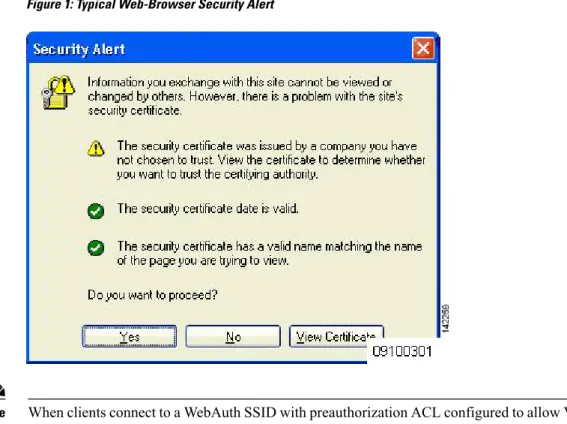
When web authentication is enabled (under Layer 3 Security), users might receive a web-browser security alert the first time that they attempt to access a URL.
Figure 1: Typical Web-Browser Security Alert
When clients connect to a WebAuth SSID with preauthorization ACL configured to allow VPN users, the clients will get disconnected from the SSID every few minutes. Webauth SSIDs must not connect without authenticating on the web page.
Note
After the user clicksYesto proceed (or if the client’s browser does not display a security alert), the web authentication system redirects the client to a login page.
Step 1 ClickView Certificateon the Security Alert page.
Step 2 ClickInstall Certificate.
Step 3 When the Certificate Import Wizard appears, clickNext.
Step 4 ChoosePlace all certificates in the following storeand clickBrowse.
Step 5 Expand theTrusted Root Certification Authoritiesfolder and chooseLocal Computer.
Step 6 ClickOK.
Step 7 ClickNext>Finish.
Step 8 When the“The import was successful”message appears, clickOK.
Because the issuer text box is blank on the controller self-signed certificate, open Internet Explorer, chooseTools> Internet Options>Advanced, unselect theWarn about Invalid Site Certificatescheck box under Security, and click OK.
Managing Web Authentication
Step 9 Reboot the PC. On the next web authentication attempt, the login page appears.
The following figure shows the default web authentication login page. Figure 2: Default Web Authentication Login Page
The default login page contains a Cisco logo and Cisco-specific text. You can choose to have the web authentication system display one of the following:
•The default login page
•A modified version of the default login page
•A customized login page that you configure on an external web server
•A customized login page that you download to the controller
The Choosing the Default Web Authentication Login Page section provides instructions for choosing how the web authentication login page appears.
Managing Web Authentication Disabling Security Alert for Web Authentication Process
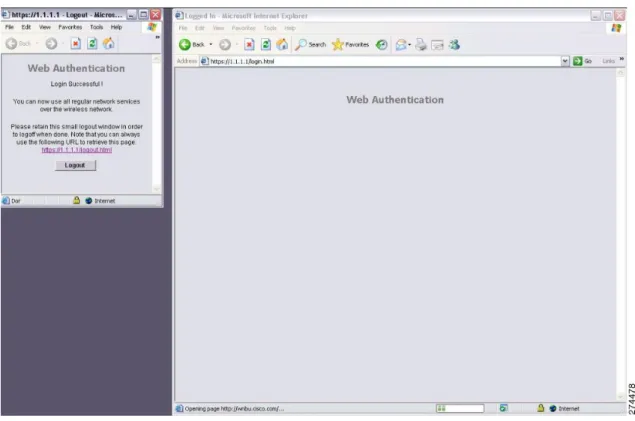
When the user enters a valid username and password on the web authentication login page and clicksSubmit, the web authentication system displays a successful login page and redirects the authenticated client to the requested URL. Figure 3: Successful Login Page
The default successful login page contains a pointer to a virtual gateway address URL in thehttps://<IP
address>/logout.htmlformat. The IP address that you set for the controller virtual interface serves as the redirect address for the login page
Choosing the Default Web Authentication Login Page
Information About Default Web Authentication Login Page
If you are using a custom web-auth bundle that is served by the internal controller web server, the page should not contain more than 5 elements (including HTML, CSS, and Images). This is because the internal controller web server implements a DoS protection mechanism that limits each client to open a maximum of 5 (five) concurrent TCP connections depending on the load. Some browsers may try to open more than 5 TCP sessions at the same time (For example Firefox 4) if the page contains more elements and this may result in the page loading slowly depending on how the browser handles the DoS protection.
Managing Web Authentication
If you do not want users to connect to a web page using a browser that is configured with SSLv2 only, you can disable SSLv2 for web authentication by entering theconfig network secureweb cipher-option sslv2 disable command. If you enter this command, users must use a browser that is configured to use a more secure protocol such as SSLv3 or later releases. The default value is disabled.
Cisco TAC is not responsible for creating a custom webauth bundle. Note
If you have a complex custom web authentication module, it is recommended that you use an external web-auth config on the controller, where the full login page is hosted at an external web server.
Choosing the Default Web Authentication Login Page (GUI)
Step 1 ChooseSecurity>Web Auth>Web Login Pageto open the Web Login page.
Step 2 From the Web Authentication Type drop-down list, chooseInternal (Default).
Step 3 If you want to use the default web authentication login page as is, go toStep 8. If you want to modify the default login page, go toStep 4.
Step 4 If you want to hide the Cisco logo that appears in the top right corner of the default page, choose the Cisco LogoHide option. Otherwise, click theShowoption.
Step 5 If you want the user to be directed to a particular URL (such as the URL for your company) after login, enter the desired URL in the Redirect URL After Login text box. You can enter up to 254 characters.
Step 6 If you want to create your own headline on the login page, enter the desired text in the Headline text box. You can enter up to 127 characters. The default headline is“Welcome to the Cisco wireless network.”
Step 7 If you want to create your own message on the login page, enter the desired text in the Message text box. You can enter up to 2047 characters. The default message is“Cisco is pleased to provide the Wireless LAN infrastructure for your network. Please login and put your air space to work.”
Step 8 ClickApplyto commit your changes.
Step 9 ClickPreviewto view the web authentication login page.
Step 10 If you are satisfied with the content and appearance of the login page, clickSave Configurationto save your changes. Otherwise, repeat any of the previous steps as necessary to achieve your desired results.
Choosing the Default Web Authentication Login Page (CLI)
Step 1 Specify the default web authentication type by entering this command: config custom-web webauth_type internal
Step 2 If you want to use the default web authentication login page as is, go to Step 7. If you want to modify the default login page, go to Step 3.
Step 3 To show or hide the Cisco logo that appears in the top right corner of the default login page, enter this command:
Managing Web Authentication Choosing the Default Web Authentication Login Page (GUI)
config custom-web weblogo{enable|disable}
Step 4 If you want the user to be directed to a particular URL (such as the URL for your company) after login, enter this command:
config custom-web redirecturl url
You can enter up to 130 characters for the URL. To change the redirect back to the default setting, enter theclear redirecturlcommand.
Step 5 If you want to create your own headline on the login page, enter this command: config custom-web webtitle title
You can enter up to 130 characters. The default headline is“Welcome to the Cisco wireless network.”To reset the headline to the default setting, enter theclear webtitlecommand.
Step 6 If you want to create your own message on the login page, enter this command: config custom-web webmessage message
You can enter up to 130 characters. The default message is“Cisco is pleased to provide the Wireless LAN infrastructure for your network. Please login and put your air space to work.”To reset the message to the default setting, enter theclear webmessagecommand.
Step 7 To enable or disable the web authentication logout popup window, enter this command: config custom-web logout-popup{enable|disable}
Step 8 Enter thesave configcommand to save your settings.
Step 9 Import your own logo into the web authentication login page as follows:
1 Make sure that you have a Trivial File Transfer Protocol (TFTP) server available for the file download. Follow these guidelines when setting up a TFTP server:
•If you are downloading through the service port, the TFTP server must be on the same subnet as the service port because the service port is not routable, or you must create static routes on the controller.
•If you are downloading through the distribution system network port, the TFTP server can be on the same or a different subnet because the distribution system port is routable.
•A third-party TFTP server cannot run on the same computer as the Cisco Prime Infrastructure because the Prime Infrastructure built-in TFTP server and the third-party TFTP server require the same communication port. 2 Ensure that the controller can contact the TFTP server by entering this command:
ping ip-address
3 Copy the logo file (in .jpg, .gif, or .png format) to the default directory on your TFTP server. The maximum file size is 30 kilobits. For an optimal fit, the logo should be approximately 180 pixels wide and 360 pixels high.
4 Specify the download mode by entering this command: transfer download mode tftp
5 Specify the type of file to be downloaded by entering this command: transfer download datatype image
6 Specify the IP address of the TFTP server by entering this command: transfer download serverip tftp-server-ip-address
Managing Web Authentication
Some TFTP servers require only a forward slash (/) as the TFTP server IP address, and the TFTP server automatically determines the path to the correct directory.
Note
7 Specify the download path by entering this command: transfer download path absolute-tftp-server-path-to-file 8 Specify the file to be downloaded by entering this command:
transfer download filename{filename.jpg|filename.gif|filename.png}
9 View your updated settings and answeryto the prompt to confirm the current download settings and start the download by entering this command:
transfer download start
10 Save your settings by entering this command: save config
If you ever want to remove this logo from the web authentication login page, enter theclear webimage command.
Note
Step 10 Follow the instructions in theVerifying the Web Authentication Login Page Settings (CLI), on page 18section to verify your settings.
Example: Creating a Customized Web Authentication Login Page
This section provides information on creating a customized web authentication login page, which can then be accessed from an external web server.
Here is a web authentication login page template. It can be used as a model when creating your own customized page:
<html> <head>
<meta http-equiv="Pragma" content="no-cache">
<meta HTTP-EQUIV="Content-Type" CONTENT="text/html; charset=iso-8859-1"> <title>Web Authentication</title>
<script>
function submitAction(){
var link = document.location.href; var searchString = "redirect=";
var equalIndex = link.indexOf(searchString); var redirectUrl = "";
if (document.forms[0].action == "") { var url = window.location.href; var args = new Object();
var query = location.search.substring(1); var pairs = query.split("&");
for(var i=0;i<pairs.length;i++){ var pos = pairs[i].indexOf('=');
if(pos == -1) continue;
var argname = pairs[i].substring(0,pos); var value = pairs[i].substring(pos+1); args[argname] = unescape(value); }
document.forms[0].action = args.switch_url; }
Managing Web Authentication Example: Creating a Customized Web Authentication Login Page
if(equalIndex >= 0) {
equalIndex += searchString.length; redirectUrl = "";
redirectUrl += link.substring(equalIndex); }
if(redirectUrl.length > 255)
redirectUrl = redirectUrl.substring(0,255);
document.forms[0].redirect_url.value = redirectUrl; document.forms[0].buttonClicked.value = 4;
document.forms[0].submit(); }
function loadAction(){
var url = window.location.href; var args = new Object();
var query = location.search.substring(1); var pairs = query.split("&");
for(var i=0;i<pairs.length;i++){ var pos = pairs[i].indexOf('='); if(pos == -1) continue;
var argname = pairs[i].substring(0,pos); var value = pairs[i].substring(pos+1); args[argname] = unescape(value); }
//alert( "AP MAC Address is " + args.ap_mac);
//alert( "The Switch URL to post user credentials is " + args.switch_url); document.forms[0].action = args.switch_url;
// This is the status code returned from webauth login action // Any value of status code from 1 to 5 is error condition and user // should be shown error as below or modify the message as it suits // the customer
if(args.statusCode == 1){
alert("You are already logged in. No further action is required on your part."); }
else if(args.statusCode == 2){
alert("You are not configured to authenticate against web portal. No further action is required on your part.");
}
else if(args.statusCode == 3){
alert("The username specified cannot be used at this time. Perhaps the username is already logged into the system?");
}
else if(args.statusCode == 4){
alert("The User has been excluded. Please contact the administrator."); }
else if(args.statusCode == 5){
alert("Invalid username and password. Please try again."); }
else if(args.statusCode == 6){
alert("Invalid email address format. Please try again."); }
}
</script> </head>
<body topmargin="50" marginheight="50" onload="loadAction();"> <form method="post" action="https://209.165.200.225/login.html">
<input TYPE="hidden" NAME="buttonClicked" SIZE="16" MAXLENGTH="15" value="0"> <input TYPE="hidden" NAME="redirect_url" SIZE="255" MAXLENGTH="255" VALUE=""> <input TYPE="hidden" NAME="err_flag" SIZE="16" MAXLENGTH="15" value="0"> <div align="center">
<table border="0" cellspacing="0" cellpadding="0"> <tr> <td> </td></tr>
<tr align="center"> <td colspan="2"><font size="10" color="#336699">Web Authentication</font></td></tr>
<tr align="center">
<td colspan="2"> User Name <input type="TEXT" name="username" SIZE="25" Managing Web Authentication
MAXLENGTH="63" VALUE=""> </td>
</tr>
<tr align="center" >
<td colspan="2"> Password <input type="Password" name="password" SIZE="25" MAXLENGTH="24">
</td> </tr>
<tr align="center">
<td colspan="2"><input type="button" name="Submit" value="Submit" class="button" onclick="submitAction();">
</td> </tr> </table> </div> </form> </body> </html>
These parameters are added to the URL when the user’s Internet browser is redirected to the customized login page:
•ap_mac—The MAC address of the access point to which the wireless user is associated.
•switch_url—The URL of the controller to which the user credentials should be posted.
•redirect—The URL to which the user is redirected after authentication is successful.
•statusCode—The status code returned from the controller’s web authentication server.
•wlan—The WLAN SSID to which the wireless user is associated.
The available status codes are as follows:
•Status Code 1:“You are already logged in. No further action is required on your part.”
•Status Code 2:“You are not configured to authenticate against web portal. No further action is required on your part.”
•Status Code 3:“The username specified cannot be used at this time. Perhaps the username is already logged into the system?”
•Status Code 4:“You have been excluded.”
•Status Code 5:“The User Name and Password combination you have entered is invalid. Please try again.”
For additional information, see theExternal Web Authentication with Wireless LAN Controllers Configuration Exampleat
http://www.cisco.com/c/en/us/support/docs/wireless-mobility/wlan-security/71881-ext-web-auth-wlc.html. Note
Managing Web Authentication Example: Creating a Customized Web Authentication Login Page
Example: Modified Default Web Authentication Login Page Example
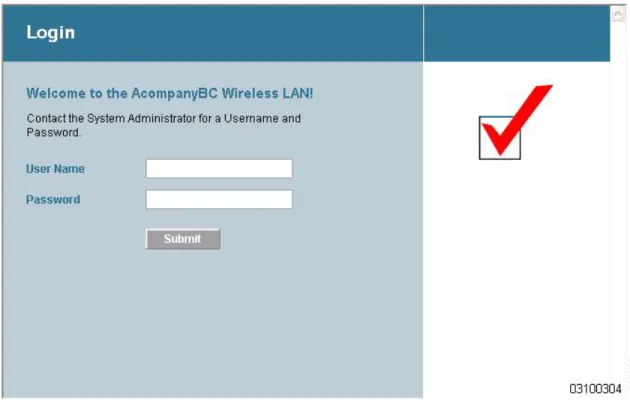
This figure shows an example of a modified default web authentication login page. Figure 4: Modified Default Web Authentication Login Page Example
These CLI commands were used to create this login page:
•config custom-web weblogo disable
•config custom-web webtitle Welcome to the AcompanyBC Wireless LAN!
•config custom-web webmessage Contact the System Administrator for a Username and Password.
•transfer download start
•config custom-web redirecturl url
Using a Customized Web Authentication Login Page from an
External Web Server
Information About Customized Web Authentication Login Page
You can customize the web authentication login page to redirect to an external web server. When you enable this feature, the user is directed to your customized login page on the external web server.
Managing Web Authentication
You must configure a preauthentication access control list (ACL) on the WLAN for the external web server and then choose this ACL as the WLAN preauthentication ACL under Security Policies > Web Policy on the WLANs > Edit page.
Choosing a Customized Web Authentication Login Page from an External Web
Server (GUI)
Step 1 ChooseSecurity>Web Auth>Web Login Pageto open the Web Login page.
Step 2 From the Web Authentication Type drop-down list, chooseExternal (Redirect to external server).
Step 3 In the Redirect URL after login text box, enter the URL that you want the user to be redirected after a login. For example, you may enter your company's URL here and the users will be directed to that URL after login. The maximum length is 254 characters. By default, the user is redirected to the URL that was entered in the user's browser before the login page was served. of the customized web authentication login page on your web server. You can enter up to 252 characters.
Step 4 In the External Webauth URL text box, enter the URL that is to be used for external web authentication.
Step 5 ClickApply.
Step 6 ClickSave Configuration.
Choosing a Customized Web Authentication Login Page from an External Web
Server (CLI)
Step 1 Specify the web authentication type by entering this command: config custom-web webauth_type external
Step 2 Specify the URL of the customized web authentication login page on your web server by entering this command: config custom-web ext-webauth-url url
You can enter up to 252 characters for the URL.
Step 3 Specify the IP address of your web server by entering this command: config custom-web ext-webserver{add|delete}server_IP_address
Step 4 Enter thesave configcommand to save your settings.
Step 5 Follow the instructions in theVerifying the Web Authentication Login Page Settings (CLI), on page 18section to verify your settings.
Managing Web Authentication Choosing a Customized Web Authentication Login Page from an External Web Server (GUI)
Downloading a Customized Web Authentication Login Page
You can compress the page and image files used for displaying a web authentication login page into a.tar file for download to a controller. These files are known as the webauth bundle. The maximum allowed size of the files in their uncompressed state is 1 MB. When the .tar file is downloaded from a local TFTP server, it enters the controller’s file system as an untarred file.You can download a login page example from Cisco Prime Infrastructure and use it as a starting point for your customized login page. For more information, see the Cisco Prime Infrastructure documentation.
If you load a webauth bundle with a .tar compression application that is not GNU compliant, the controller cannot extract the files in the bundle and the following error messages appear:“Extracting error”and
“TFTP transfer failed.”Therefore, we recommend that you use an application that complies with GNU standards, such as PicoZip, to compress the .tar file for the webauth bundle.
Note
Configuration backups do not include extra files or components, such as the webauth bundle or external licenses, that you download and store on your controller, so you should manually save external backup copies of those files or components.
Note
If the customized webauth bundle has more than 3 separated elements, we advise you to use an external server to prevent page load issues that may be caused because of TCP rate-limiting policy on the controller. Note
Prerequisites for Downloading a Customized Web Authentication Login Page
•Name the login pagelogin.html. The controller prepares the web authentication URL based on this name. If the server does not find this file after the webauth bundle has been untarred, the bundle is discarded, and an error message appears.
•Include input text boxes for both a username and password.
•Retain the redirect URL as a hidden input item after extracting from the original URL.
•Extract and set the action URL in the page from the original URL.
•Include scripts to decode the return status code.
•Make sure that all paths used in the main page (to refer to images, for example).
•Ensure that no filenames within the bundle are greater than 30 characters.
Managing Web Authentication
Downloading a Customized Web Authentication Login Page (GUI)
Step 1 Copy the .tar file containing your login page to the default directory on your server.
Step 2 ChooseCommands>Download Fileto open the Download File to Controller page.
Step 3 From theFile Typedrop-down list, chooseWebauth Bundle.
Step 4 From theTransfer Modedrop-down list, choose from the following options:
•TFTP
•FTP
•SFTP(available in the 7.4 and later releases)
Step 5 In theIP Addresstext box, enter the IP address of the server.
Step 6 If you are using a TFTP server, enter the maximum number of times the controller should attempt to download the .tar file in the Maximum Retries text box.
The range is 1 to 254. The default is 10.
Step 7 If you are using a TFTP server, enter the amount of time in seconds before the controller times out while attempting to download the *.tar file in the Timeout text box.
The range is 1 to 254 seconds. The default is 6 seconds.
Step 8 In theFile Pathtext box, enter the path of the .tar file to be downloaded. The default value is“/.”
Step 9 In theFile Nametext box, enter the name of the .tar file to be downloaded.
Step 10 If you are using an FTP server, follow these steps:
1 In theServer Login Usernametext box, enter the username to log into the FTP server. 2 In theServer Login Passwordtext box, enter the password to log into the FTP server.
3 In theServer Port Numbertext box, enter the port number on the FTP server through which the download occurs. The default value is 21.
Step 11 ClickDownloadto download the .tar file to the controller.
Step 12 ChooseSecurity>Web Auth>Web Login Pageto open the Web Login page.
Step 13 From the Web Authentication Type drop-down list, chooseCustomized (Downloaded).
Step 14 ClickApply.
Step 15 ClickPreviewto view your customized web authentication login page.
Step 16 If you are satisfied with the content and appearance of the login page, clickSave Configuration.
Managing Web Authentication Downloading a Customized Web Authentication Login Page (GUI)
Downloading a Customized Web Authentication Login Page (CLI)
Step 1 Copy the .tar file containing your login page to the default directory on your server.
Step 2 Specify the download mode by entering this command: transfer download mode{tftp|ftp|sftp}
Step 3 Specify the type of file to be downloaded by entering this command: transfer download datatype webauthbundle
Step 4 Specify the IP address of the TFTP server by entering this command: transfer download serverip tftp-server-ip-address.
Some TFTP servers require only a forward slash (/) as the TFTP server IP address, and the TFTP server automatically determines the path to the correct directory.
Note
Step 5 Specify the download path by entering this command: transfer download path absolute-tftp-server-path-to-file
Step 6 Specify the file to be downloaded by entering this command: transfer download filename filename.tar
Step 7 View your updated settings and answeryto the prompt to confirm the current download settings and start the download by entering this command:
transfer download start
Step 8 Specify the web authentication type by entering this command: config custom-web webauth_type customized
Step 9 Enter thesave configcommand to save your settings.
Managing Web Authentication
Example: Customized Web Authentication Login Page
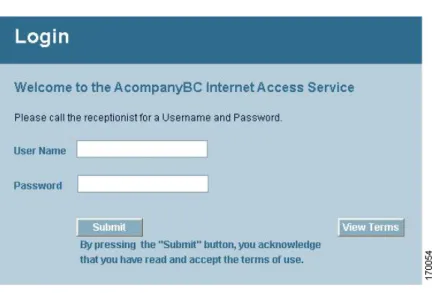
This figure shows an example of a customized web authentication login page. Figure 5: Customized Web Authentication Login Page Example
Verifying the Web Authentication Login Page Settings (CLI)
Verify your changes to the web authentication login page by entering this command: show custom-web
Assigning Login, Login Failure, and Logout Pages per WLAN
Information About Assigning Login, Login Failure, and Logout Pages per WLAN
You can display different web authentication login, login failure, and logout pages to users per WLAN. This feature enables user-specific web authentication pages to be displayed for a variety of network users, such as guest users or employees within different departments of an organization.
Different login pages are available for all web authentication types (internal, external, and customized). However, different login failure and logout pages can be specified only when you choose customized as the web authentication type.
Managing Web Authentication Example: Customized Web Authentication Login Page
Assigning Login, Login Failure, and Logout Pages per WLAN (GUI)
Step 1 ChooseWLANsto open the WLANs page.
Step 2 Click the ID number of the WLAN to which you want to assign a web login, login failure, or logout page.
Step 3 ChooseSecurity>Layer 3.
Step 4 Make sure thatWeb PolicyandAuthenticationare selected.
Step 5 To override the global authentication configuration web authentication pages, select theOverride Global Configcheck box.
Step 6 When the Web Auth Type drop-down list appears, choose one of the following options to define the web authentication pages for wireless guest users:
•Internal—Displays the default web login page for the controller. This is the default value.
•Customized—Displays custom web login, login failure, and logout pages. If you choose this option, three separate drop-down lists appear for login, login failure, and logout page selection. You do not need to define a customized page for all three options. ChooseNonefrom the appropriate drop-down list if you do not want to display a customized page for that option.
These optional login, login failure, and logout pages are downloaded to the controller as webauth.tar files.
Note
•External—Redirects users to an external server for authentication. If you choose this option, you must also enter the URL of the external server in the URL text box.
You can choose specific RADIUS or LDAP servers to provide external authentication on the WLANs > Edit (Security > AAA Servers) page. Additionally, you can define the priority in which the servers provide authentication.
Step 7 If you chose External as the web authentication type inStep 6, chooseAAA Serversand choose up to three RADIUS and LDAP servers using the drop-down lists.
The RADIUS and LDAP external servers must already be configured in order to be selectable options on the WLANs > Edit (Security > AAA Servers) page. You can configure these servers on the RADIUS Authentication Servers page and LDAP Servers page.
Note
Step 8 Establish the priority in which the servers are contacted to perform web authentication as follows: The default order is local, RADIUS,
LDAP. Note
1 Highlight the server type (local, RADIUS, or LDAP) that you want to be contacted first in the box next to the Up and Down buttons.
2 ClickUpandDownuntil the desired server type is at the top of the box. 3 Click the<arrow to move the server type to the priority box on the left. 4 Repeat these steps to assign priority to the other servers.
Step 9 ClickApplyto commit your changes.
Step 10 ClickSave Configurationto save your changes.
Managing Web Authentication
Assigning Login, Login Failure, and Logout Pages per WLAN (CLI)
Step 1 Determine the ID number of the WLAN to which you want to assign a web login, login failure, or logout page by entering this command:
show wlan summary
Step 2 If you want wireless guest users to log into a customized web login, login failure, or logout page, enter these commands to specify the filename of the web authentication page and the WLAN for which it should display:
•config wlan custom-web login-page page_name wlan_id—Defines a customized login page for agiven WLAN.
•config wlan custom-web loginfailure-page page_name wlan_id—Defines a customized loginfailure page for a given WLAN.
To use the controller’s default login failure page, enter theconfig wlan custom-web loginfailure-page none wlan_idcommand.
Note
•config wlan custom-web logout-page page_name wlan_id—Defines a customized logout page fora given WLAN. To use the controller’s default logout page, enter theconfig wlan custom-web logout-page none wlan_id command.
Note
Step 3 Redirect wireless guess users to an external server before accessing the web login page by entering this command to specify the URL of the external server:
config wlan custom-web ext-webauth-url ext_web_url wlan_id
Step 4 Define the order in which web authentication servers are contacted by entering this command:
config wlan security web-auth server-precedence wlan_id{local|ldap|radius} {local|ldap|radius} {local|ldap |radius}
The default order of server web authentication is local, RADIUS and LDAP.
All external servers must be preconfigured on the controller. You can configure them on the RADIUS Authentication Servers page and the LDAP Servers page.
Note
Step 5 Define which web authentication page displays for a wireless guest user by entering this command: config wlan custom-web webauth-type{internal|customized|external}wlan_id
where
•internaldisplays the default web login page for the controller. This is the default value.
•customizeddisplays the custom web login page that was configured inStep 2.
You do not need to define the web authentication type inStep 5for the login failure and logout pages as they are always customized.
Note
•externalredirects users to the URL that was configured inStep 3.
Step 6 Use a WLAN-specific custom web configuration rather than a global custom web configuration by entering this command: config wlan custom-web global disable wlan_id
If you enter theconfig wlan custom-web global enable wlan_idcommand, the custom web authentication configuration at the global level is used.
Note
Step 7 Save your changes by entering this command:
Managing Web Authentication Assigning Login, Login Failure, and Logout Pages per WLAN (CLI)
save config
Managing Web Authentication
Managing Web Authentication Assigning Login, Login Failure, and Logout Pages per WLAN (CLI)