Abyss Web Server
TMFor Windows
®Revision History Revision 1.0.0 February 20, 2002 Revision 1.0.3 May 10, 2002 Revision 1.0.7 July 1, 2002 Revision 1.1.0 October 3, 2002 Revision 1.1.6 July 7, 2003 Revision 1.2.0 b1 October 18, 2003 Revision 1.2.0 b2 November 10, 2003 Revision 2.0.0 b2 August 28, 2004 Revision 2.0.0 b3 November 3, 2004 Revision 2.0.0 February 18, 2005 Revision 2.0.1 April 20, 2005 Revision 2.0.6 June 10, 2005 Revision 2.3.0 b1 January 12, 2006 Revision 2.3.1 May 08, 2006 Revision 2.3.2 May 21, 2006 Revision 2.4.0 b1 November 8, 2006 Revision 2.4.0 b2 November 30, 2006 Revision 2.4.0.3 January 1, 2007 Revision 2.4.9 June 28, 2007 Revision 2.4.9.8 July 17, 2007 Revision 2.5 August 22, 2007 Revision 2.6 January 6, 2009 Revision 2.7 April 12, 2011 Revision 2.8 April 24, 2012 Revision 2.9 May 24, 2013 Revision 2.9.3 March 27, 2014
DISCLAIMER OF WARRANTIES
Aprelium makes no representations or warranties, either express or implied, by or with respect to anything in this guide, and shall not be liable for any warranties of merchantability or fitness for a particular purpose or for any indirect, special or consequential damages.
LICENSE NOTES
No part of this guide may be reproduced, stored in a retrieval system or transmitted, in any form or by any means, photocopying, recording, or otherwise, without prior written consent of Aprelium. No patent liability is assumed with respect to the use of the information contained herein.
While every precaution has been taken in the preparation of this guide, Aprelium assumes no responsibility for errors or omissions. This guide and features described herein are subject to change without notice.
TRADEMARKS
Aprelium and The Aprelium logo are registered trademarks and Abyss Web Server is a trademark of Aprelium SARL.
Other products or brand names are trademarks or registered trademarks of their respective holders.
CONTACT INFORMATION
Web Site http://www.aprelium.com
Technical support http://www.aprelium.com/support
System requirements...vii
Alternative formats...vii
What you should know...vii
Chapter quick reference...vii
Conventions used in this guide...viii
Typographical conventions...viii
Terminology...viii
1. Introduction...1
What is Abyss Web Server?...1
How do web servers work?...1
2. Getting Started...3
Getting the software...3
Installing/Upgrading the software...3
First contact...3
Setting up a web site...6
Shutting down the server...6
Asking for support...7
3. Using The Console...8
What is the console?...8
Accessing the console...8
Console interface basics...9
Help buttons...9
Tables...9
Applying configuration changes...9
Console Configuration...9
Changing the console port and protocol...10
Changing the console access credentials...11
Changing the language...12
Controlling the access to the console...13
4. Server Management...15
Overview...15
Server Statistics...15
Server Activity...16
General server configuration...17
Parameters...17
MIME Types...19
Global Bandwidth Limits...20
Anti-Hacking Protection...21
Logging Parameters...23
SSL/TLS Certificates...23
Overview...24
Creating a self-signed certificate...27
5. Hosts Management...29
Overview...29
Declaring a new host...29
Configuring a host...30 General...31 Index Files...34 Directory Listing...35 Aliases...37 XSSI Parameters...38
Users and Groups...39
Custom Error Pages...40
Scripting Parameters...41 ASP.NET Parameters...46 Access Control...48 IP Address Control...50 URL Rewriting...51 Compression...55 Bandwidth Limits...56 Logging...57 Reverse Proxy...59
Restricted Downloads Areas...60
Anti-Leeching...62
Statistics...63
6. CGI, FastCGI, and ISAPI...65
Setting up an interpreter...65
How are they run?...65
CGI environment variables...66
FastCGI...71
ISAPI Extensions...71
X-Sendfile Support...71
7. eXtended Server Side Includes...73
What are XSSI?...73
XSSI Syntax...73 Attribute Values...73 Character Escaping...73 Variables Expansion...73 Directives...74 #config...74 #echo...75 #exec...76
#set...77
Conditional blocks...78
Syntax...78
Expression evaluation...78
Encoding...79
8. Custom Directory Listings...81
Defining a template...81
Scripts...83
Glossary...85
A. Command Line Parameters...87
B. Startup Configuration...88
C. IP Addresses and Ranges Format...89
IPv4 Addresses and Ranges...89
IPv6 Addresses and Ranges...89
D. Patterns Format...91
E. Regular Expressions...92
F. Uninstalling The Software...94
G. Solving Ports Listening Problems...95
System requirements
Abyss Web Server is a multiplatform software designed for Microsoft
Windows 95, 98, Millennium Edition (ME), NT 3.51 (and higher), 2000, XP (all editions), 2003, Vista (all editions), 7 (all editions), 2008 (all editions), 8 (all editions), Mac OS X 10.2 (and higher), and Linux (Kernel 2.4 and higher) systems. It is compatible with both 32 and 64-bit architectures and operating systems.
This guide documents the Windows version. Abyss Web Server for Windows minimum requirements are:
• An Intel 80486 processor at 33 MHz.
• 4 Mb of free RAM.
• A modern web browser withHTML4.0 and CSS 1.0 support. • TCP/IPprotocol stack installed.
Although Abyss Web Server can run on a standalone computer, it is
recommended to have a Modem or a network card and to be connected to a LAN (Local Area Network) or to the Internet.
Alternative formats
This guide exists in several formats: Online HTML, Offline HTML, and PDF. For more information, browse the documentation section at
http://www.aprelium.com/abyssws.
What you should know
Because it is impossible to provide highly detailed information for every given instruction in this guide, you are encouraged to read the documentation
accompanying your operating system if you are not already familiar with it. This guide assumes also that you master the basics of web browsing.
Chapter quick reference
This guide documents the features and capabilities of Abyss Web Server. It can guide you to quickly master the basics and move on to use the advanced features.
If you are new to web servers, go to Chapter 1, "Introduction," to get a quick overview.
If you want to get started right away, go to Chapter 2, "Getting Started," for step by step instruction on installing and running the software.
Chapter 3, "Using the Console," describes the web configuration interface of Abyss Web Server.
Use Chapter 4, "Server Management," to understand how to configure your web server and manage SSL/TLS certificates.
Chapter 5, "Hosts Management," focuses on all the parameters related to the configuration of hosts served by Abyss Web Server.
See Chapter 6, "CGI, FastCGI, and ISAPI," for information on using CGI, FastCGI, and ISAPI interpreters or applications with Abyss Web Server and making scripts work.
Read Chapter 7, "eXtended Server Side Includes," for the complete reference on XSSI.
Chapter 8, "Directory Listings," provides all the necessary information on directory listings templates and scripts.
Refer to the "Glossary" for definitions of key terms and concepts used in this guide.
Conventions used in this guide
Typographical conventions
UI Object
Refers to user interface objects such as buttons, icons and text fields. Computer I/O
Used for computer input and output such as URLs, filenames and commands.
<Variable>
Terminology
Your computerThe computer on which Abyss Web Server is installed. The server
The instance of Abyss Web Server under execution. The browser
The web browser you use. The console
The web configuration interface of Abyss Web Server. The network
The network to which your computer is connected. It can be:
• A single computer network if you are not physically connected to any
network and your computer is alone.
• A LAN (Local Area Network). • The Internet
What is Abyss Web Server?
Abyss Web Server turns your computer in a full-featured web server. People all over the Internet can view documents, download graphics, listen to music and even view movies hosted on it. Abyss Web Server was designed with both novice and experimented users in mind. That’s why it is easy to use and incredibly powerful.
Abyss Web Server exists in two editions:
• Abyss Web Server X1: Free personal edition. It is a fully functional software
with no limitations, no nag screens, no spyware, and no advertisements.
• Abyss Web Server X2: Professional edition. It is suitable for demanding users and medium to high loaded web sites. It supports virtual hosting, dual hosts (HTTP+HTTPS), and advanced features. For more information, visithttp://www.aprelium.com/abyssws/x2
For additional information about both editions and a comparison between their feature set, browsehttp://www.aprelium.com/abyssws.
How do web servers work?
What happens when you enter in the address field of your browser theURL
http://www.aprelium.com/doc/sample.html? First, the browser slices the URL in 3 parts:
• http://: This part indicates that the document you want to access can be retrieved from web server, which understands theHTTPprotocol. The HTTP protocol is a standardized language of communication between browsers and web servers.
• www.aprelium.com: This is the host name of the computer from which the document can be downloaded.
• /doc/sample.html: This is the virtual path of the document in the www.aprelium.com’s web server.
Then, the browser contacts a DNS (Domain Name Server) to know the IP address of the computer which full qualified domain name is
www.aprelium.com. The domain name server is usually run by your ISP or by your company.
The browser establishes a connection channel with the web server on the computer which IP address was given by the DNS server and requests the document on the host which name iswww.aprelium.comand which virtual path isdoc/sample.html. The browser has to specify in the request the host name because many modern web servers (including Abyss Web Server) have the ability to serve more than a one host from a single computer with a single IP address only. This is calledvirtual hosting. In such a case, the IP address of this computer is associated with more than one domain name.
The server decodes the request and maps the virtual path to a real one, which should match an existing file. The server sends the file to the browser with some useful information such as its last modification time and its MIME type. The MIME type helps the browser decide how to display the received
document. In our example, it is a HTML file. So the server sets its MIME type totext/htmland the browser understands that it must render it as text. Sometimes you enter a URL without an explicit filename such as
http://www.aprelium.com/doc. The browser sends the request to the web server as in the previous example. The server detects that the virtual path maps to a directory and not to a file. It searches then in this directory an index file. Index files are usually namedindex.htmlorindex.htm. If it finds for exampleindex.html, it acts as if the requested URL was
http://www.aprelium.com/doc/index.html. If no index file is found, the web server generates a listing of the directory contents and sends it to the browser or reports an error.
Getting the software
If you already have the Abyss Web Server installation package, skip this section.
To download Abyss Web Server, browse
http://www.aprelium.com/downloads. Follow the provided
instructions and choose the correct version of the software suitable to your computer and to the operating system you are using. Once done, the browser displays a dialog box asking where to save the downloaded file. Choose a directory and validate.
Installing/Upgrading the software
To setup Abyss Web Server:• Open the directory where you have saved the software package. • Double-click on the software package icon.
• If an old version of Abyss Web Server is already installed on your computer,
you may be asked to uninstall it. All you have to do is to follow the
on-screen instructions.IMPORTANT NOTICE: When the uninstaller asks you to confirm the deletion of the installation directory, selectNo.
• Read carefully the license agreement. If you agree with it, pressI Agree. If
you do not, pressCanceland delete Abyss Web Server package from your computer.
• Deselect components you do not want to install.Auto Startenables Abyss
Web Server auto starting when a Windows session starts.Start Menu Shortcutsenables adding Abyss Web Server shortcuts in theStart Menu.
Documentationinstalls help files.
• PressNext.
• Choose a directory where you want to install Abyss Web Server files. From now on,<Abyss Web Server directory>will refer to this directory.
• PressInstall.
After installing, you will be asked if you want to launch Abyss Web Server. If you pressNo, you should pressCloseto close the setup program.
First contact
If Abyss Web Server is not running, open theStartmenu, choosePrograms, thenAbyss Web Serverand selectAbyss Web Server. You can also open the directory where you have installed it and double-click on theabyssws.exeor
abysswsicon.
Figure 2-1. Abyss Web Server main window
Abyss Web Server inserts a small icon in the system tray. The icon represents a globe that spins when the server is accessed.
Figure 2-2. Abyss Web Server icon in the system tray
Abyss Web Server creates automatically a configuration file where it stores the web server’s parameters. Then, it opens the browser and displays the console.
Figure 2-3. Configuration file creation notification
Note:Refer to the "Troubleshooting Guide" appendix to solve the most common problems that can occur with Abyss Web Server startup.
In the displayed browser window, press a button corresponding to the language you want to use in the console.
Figure 2-4. Console Language setup
Next, choose a login and a password to and enter them in the form displayed in the browser and pressOK.
Figure 2-5. Console Access Credentials setup
The browser asks you for your credentials. Enter the login and the password you have already chosen and validate.
Figure 2-6. Credentials dialog
Note:If you are using Abyss Web Server X2, you may be asked at this stage to enter your license information in the console. Follow the on-screen instructions to enter the required information. For more details, please refer to the instructions that were provided to you when downloading Abyss Web Server X2 or its updates.
At this point, Abyss Web Server is ready to serve. To test it, point the browser to the web server URL, which is printed on the server’s window . You should see theWelcome to Abyss Web Serverpage.
Note:You can launch Abyss Web Server manually or configure it to run automatically when your computer boots up or when you start a user session in Windows.. See the "Startup Configuration" appendix for more information.
Setting up a web site
Using your favorite web pages editor (also known as HTML editor), create a web site and put its files in the directory<Abyss Web Server
directory>/htdocs. The index files must be calledindex.htmlor index.htm.
Other computers on the network can access your web site if they browse http://<your host name>:<host port>.
<your host name>is the host name of your computer or its IP address. Ask your network’s administrator for this information. If you want to connect to the server from the computer it runs on, you can also use127.0.0.1,::1, or localhost.
<host port>is the number of the port the server waits for connections on. It is printed on the server’s window or terminal. If<host port>is 80 (which is the default), it can be omitted from the URL and the web server can be
Shutting down the server
SelectExitfrom theServermenu or close the server’s main window. If the server is running, you will be asked to confirm exiting.
Asking for support
If you have questions or need help, please selectHelp and Supportin the console and use one of the support links available there. Alternatively, browse the official Abyss Web Server support pages at
What is the console?
The console is a remote web based configuration and monitoring system. With the console, you can:
• Configure Abyss Web Server.
• Stop, run and shutdown the web server. • View the web server’s access statistics. • Read the documentation.
Accessing the console
From your computer (locally)Browsehttp://127.0.0.1:<console port>, http://[::1]:<console port>, or
http://localhost:<console port>. From any computer connected to the network
Browsehttp://<your host name>:<console port>. Note that by default, only the local access to the console is allowed so that only the computer where Abyss Web Server is installed (which IPv4 address is 127.0.0.1and IPv6 address is::1) and computers connected to your LAN (which IPv4 addresses range from192.168.0.1to
192.168.255.254, from172.16.0.1to172.31.255.254, and from 10.0.0.1to10.255.255.254) are able to browse the console. Remote access from other computers is disabled by default. To enable it, please read "Configuring the console IP Address Control".
<console port>is printed on the web server’s window . It is 9999 by default.
Figure 3-1. Console homepage
Console interface basics
Although the console has an intuitive point and click interface, some of its elements are described more in depth in this section.
Help buttons
A small tip is displayed when you put the mouse cursor on a help button . Pressing it displays the related documentation topic.
Note:Not all the browsers support displaying tips.
Tables
Each line of a table contains a pen button and a wastebin button . Press the pen button on a line to display a dialog where you can modify its contents or press the wastebin button to delete it. PressingAdddisplays a dialog where you can enter the contents of a new line.
Applying configuration changes
After any configuration change, the console displays a request to restart the server. Just press theRestartbutton and wait until the server restarts.
Console Configuration
To change the console parameters, open the console and selectConsole Configuration.
Figure 3-2. Console Configuration dialog
Changing the console port and protocol
In theConsole Configurationdialog, selectParameters. In the displayed dialog,Protocolcan be set toHTTPorHTTPS. IfHTTPSis selected, the console will be accessible through secure connections using SSL/TLS and you will have to setCertificateto the name of the certificate you want to use for console accesses. A certificate that will be used for the console can be a self-signed certificate and it is recommended to set itsHost Name (Common Name)to*to have it match with any host name you may use when accessing the console.
You can also choose a new port number that will be used for the console in the
If the port number is invalid or is already used by another application on your computer, the console displays an error and asks you to enter another value. Advanced configuration options of the console can be accessed by pressing
Edit...next toAdvanced Parameters. The advanced parameters dialog contains the following fields:
• Bind to IP Address: The IP address of the network interface that the
console should listen on. When empty or set to*, the host listens for
incoming connections on all available network interface (which the default and the recommended setting.)
• SSL/TLS Parameters: Detailed parameters of the SSL/TLS secure layer are accessible by pressingEdit.... In the displayed disalog, it is possible to set the SSL/TLS profile. It is highly recommended to let it set to its default and recommended value. If you set itCustom, it becomes possible to select the accepted protocols and configure theCiphersparameter to select the ciphers that the server can accept to use when negotiating with a browser establishing a HTTPS connection to the console. When set toStrong, no weak cipher (any cipher with a key length strictly less than 128 bits) will be used. But this can restrict access from some old browsers which do not support modern and strong ciphers. For custom ciphers specification, set this parameter toCustom Specificationand fill the displayed text field with a string conforming to thehttp:
//www.openssl.org/docs/apps/ciphers.html#CIPHER_LIST_FORMAT.
Changing the console access credentials
Because the console access needs authorization, it is important to keep your console access credentials secret. It is also highly recommended not to choose them similar to your system login or password or any valuable credentials. Indeed, as the console relies on the browser to perform the authorization and as browsers use a relatively weak authorization scheme, console access
information could be intercepted and deciphered by malicious persons on the network.
To change the console access credentials:
• Go to theConsole Configurationdialog and selectAccess Credentials. • Enter an administrator login.
• Enter a password. It is recommended to choose a password containing characters, digits, and special symbols. This password should not be a dictionary word.
• PressOK.
Figure 3-4. Console Access Credentials dialog
Once the change is made, the browser asks you to enter the new login and password.
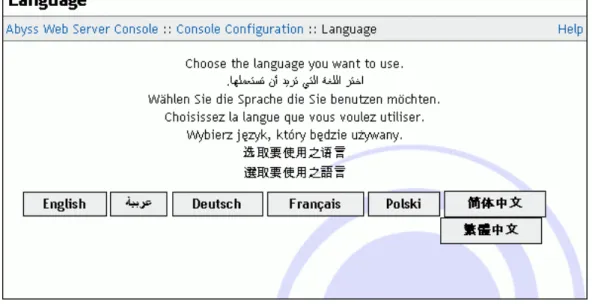
Changing the language
To change the language used in the console:• Go to theConsole Configurationdialog and selectLanguage. • Select a language by pressing one of displayed buttons.
Figure 3-5. Console Language dialog
To add support for an additional language, download the corresponding language file fromhttp://www.aprelium.com/abyssws/languages and save it inside<Abyss Web Server directory>/lang. You may need to restart the server to have it take into account the new language file.
Controlling the access to the console
To restrict or grant access to the console to an IP address or an IP address range, go to theConsole Configurationdialog and selectIP Address Control.
Figure 3-6. Console IP Address Control dialog
• Order: The order that the server follows to check if access is granted to a client based on its IP address. If it is set toAllow/Deny, access is denied by default and is allowed only if the IP address is in theAllow forlist and is not in theDeny forlist. If it is set toDeny/Allow, access is allowed by default and is denied only if the IP address is in theDeny forlist and is not in theAllow forlist.
• Allowed IP Addresses: The list of IP addresses and IP address ranges for which access is allowed. Refer to "IP Addresses and Ranges Format" appendix for more information about the IP addresses and ranges.
• Denied IP Addresses: The list of IP addresses and IP address ranges for which access is denied. Refer to "IP Addresses and Ranges Format" appendix for more information about the IP addresses and ranges.
Note:The access to the console is always allowed for the computer on which Abyss Web Server runs (which IPv4 address is127.0.0.1and IPv6 address is::1.)
Note:IfDenied IP Addresseslist is empty and the order isDeny/Allow, access is granted to any IP address.
Overview
All the server management tasks can be accomplished using the console. In this section, you will learn how to:
• Configure the global parameters of the web server.
• Add, delete, and configure hosts. • Start or stop hosts.
• Monitor the accesses to the web server and to every host.
• Create, manage, and request signature of SSL/TLS certificates.
Server Statistics
Open the console and selectServer Statistics. The console displays a dialog containing a set of statistics on the server’s activity since the installation or the last server statistics reset:
• Total Uptime: The total time during which the server was up.
• Uptime since Last Restart: The time during which the server was up since
the last start or restart.
• Total Hits: The total number of processed requests for all the hosts. It includes also bad requests that were not targeting a specific host and that resulted in an error.
• Compressed Hits: The number of processed requests that resulted in compressed responses across all the hosts.
• Error Hits: The number of requests for which the server replied by an error. • HTML Hits: The number of requests the server replied to by a document
which MIME type wastext/html.
• Image Hits: The number of requests the server replied to by a document
which MIME type starts withimage/.
• Not Modified Hits: The number of requests for which the server detected that the requested document has not changed.
• Transferred Data: The total size of the payload sent by the server to the
• Compression Savings: The amount of data that was saved thanks to the
compressed responses sent by the server to the clients.
Figure 4-1. Server Statistics dialog
The server statistics are refreshed automatically every 10 seconds. You can also pressRefreshfor immediate refreshing. They can be reset by pressingReset. PressOKto go back to the main console page.
Note:The statistics are preserved when the server is shut down.
Note:The server statistics are also available in real time to scripts and XSSI pages. Refer to the "CGI environment variables" for more information.
Server Activity
Open the console and selectServer Activity. The console displays a dialog listing the current active connections. For each connection, the following properties are reported:
• The IP address of the client
• The URL being served on the connection
• The HTTP status code of the response served on the connection
• The elapsed time since the beginning of the service of the request associated
to the connection
• The amount of data sent so far as a response on the connection
The list of the active connections is automatically refreshed every 10 seconds. Pressing theRefreshbutton forces an immediate update of the view.
PressOKto go back to the main console page.
Note:Connections that are still established waiting for a subsequent request are shown with the textKept-alive connection. These connections are actually made from HTTP/1.1 clients which support the HTTP keep-alive feature (serving more than a single request on one connection.)
Note:The listing may include the connection serving the URL associated with the
Server Activityfeature.
General server configuration
Open the console and selectServer Configurationto display the general server configuration dialog.
Figure 4-2. General server configuration dialog
The following subsections describe the server configuration options.
Parameters
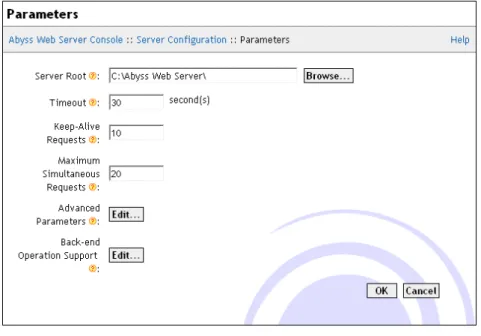
SelectParametersin theServer Configurationdialog to display the server parameters dialog.
Figure 4-3. Server Parameters dialog
The dialog includes the following fields:
• Server Root: The root path of the web server. By default, it is the directory
where Abyss Web Server executable is installed. It is used as the base path for all relative real paths in the configuration.
• Timeout: How many seconds the server waits for an inactive connection
before closing it.
• Keep-Alive Requests: The maximum number of requests that can be served over the same connection. Only HTTP/1.1 and some HTTP/1.0 compliant browsers can benefit from this feature.
• Maximum Simultaneous Requests: The maximum number of requests the server can serve in parallel.
• Advanced Parameters: PressEdit...to access the advanced parameters
dialog. This dialog has the following fields:
• Maximum length of the HTTP request line: The maximum length in bytes of the HTTP request line. Requests which do not respect this limit are refused and a HTTP error 414 (Request-URI Too Long) is reported to the client.
• Maximum length of the HTTP request headers: The maximum length in bytes of all the HTTP request headers. Requests which exceed this limit are refused and a HTTP error 413 (Request Entity Too Large) is reported to the client.
• Back-end Operation Support: When Abyss Web Server is used as a
back-end for another reverse proxy, it can be configured to restore the original IP address of the reverse proxy client and other details before processing the request. This can help make the frontal reverse proxy
completely transparent to Web applications running on Abyss Web Server and to the logging taking place on it.
PressEdit...to control the back-end operation support settings. This dialog contains the following fields:
• Proxies: The list of IP addresses of computers which are recognized as reverse proxies and for which the server should act as a transparent back-end.
• Forwarded-For Headers: The names of the headers that should be checked for the original IP of the reverse proxy client.
X-Forwarded-ForandX-Real-IPare the most common ones widely used in reverse proxies.
• Forwarded-Host Headers: The names of the headers that should be checked for the originalHostheader value as the client sent it to the frontal reverse proxy.X-Forwarded-HostandX-Hostare the most common header names used for that purpose. Note that when theHost value is restored, the request will be normally processed and checked against the host names of each of the hosts managed by the server.
MIME Types
When the server sends a document to a browser, it also sends its MIME type. This information helps the browser to know what kind of file it is (HTML, ZIP, JPEG image, etc. . . ) and what to do with it (display it, save it on the disk, launch a configured application to read it, etc. . . ). Abyss Web Server comes with a list of common MIME types used as a default.
A MIME Type has the formattype/subtypeand is associated to one or more extensions separated by spaces.
Figure 4-4. MIME Types dialog
Use theCustom MIME Typestable to edit, remove or add custom MIME types. If a MIME Type is declared in both theCustom MIME Typestable and theDefault MIME Typestable, the custom definition prevails.
Example:The text/html MIME type
HTML files havetext/htmlas MIME type. By default,text/htmlis associated
to extensionshtmlandhtm. As a consequence, when the server sends to a browser a
document which extension ishtmlorhtm, it will also set the document’s MIME
Global Bandwidth Limits
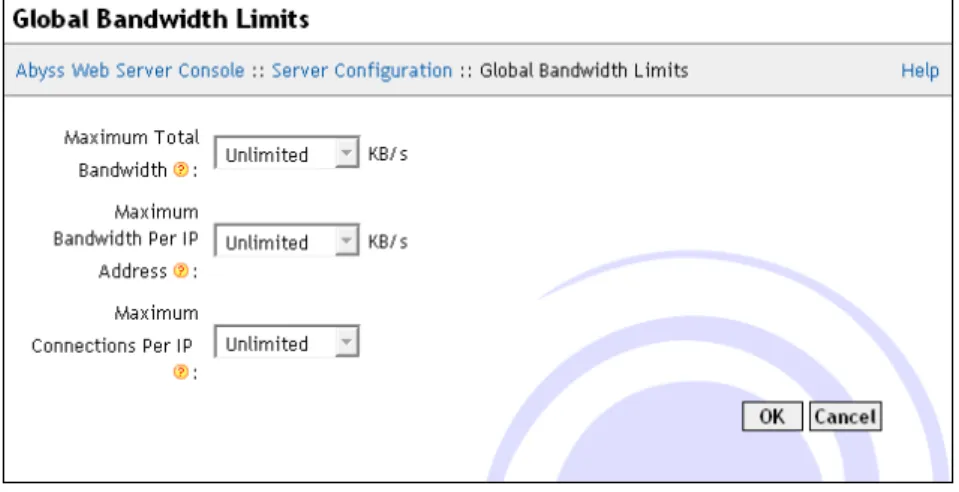
Abyss Web Server gives you complete control over the bandwidth the server uses when answering to requests. SelectGlobal Bandwidth Limitsin the
Server Configurationdialog to display the global bandwidth parameters dialog. For finer bandwidth settings, you should useBandwidth Limitsin every host configuration menu.
Figure 4-5. Global Bandwidth Limits dialog
The dialog contains the following fields:
• Maximum Total Bandwidth: The amount of output bandwidth that the server should not exceed for all the connections. If set toUnlimited, the total output bandwidth will be unrestricted.
• Maximum Bandwidth Per IP Address: The total amount of output bandwidth that the server should not exceed for all the connections made by a single IP address. No such limit will ever be applied if this parameter is set toUnlimited.
• Maximum Connections Per IP Address: The maximum number of simultaneous connections made by a single IP address to the server. To disable such a limitation, set this parameter toUnlimited.
Note:Abyss Web Server does always its best to deliver data to clients while respecting the restrictions set on the bandwidth. For example, assume thatMaximum Total Bandwidthis set to10KB/s andMaximum Bandwidth Per IP Addressto4
KB/s. If there are 2 clients connecting from different IP addresses, the server allocates to each of them a bandwidth of4KB/s. But if there are 5 clients, the server will
allocate to each of them only2KB/s.
Anti-Hacking Protection
Although Abyss Web Server is secure and has an integrated system to prevent malicious accesses to the server, it was equipped with an automatic
anti-hacking protectionsystem to detect clients that are trying to attack the server and to ban them. This system improves the overall security, detects at an early stagedenial of serviceattacks, and saves the bandwidth that could be wasted during attacks.
To configure the anti-hacking system, selectAnti-Hacking Protectionin the
Server Configurationdialog.
Figure 4-6. Anti-Hacking Protection dialog
The displayed dialog is made of the following items:
• Enable Automatic Anti-Hacking Protection: Check it to enable the automatic anti-hacking protection system.
• Do not Monitor Requests from: This table contains the IP addresses or IP address ranges that should not be protected against hacking. Refer to "IP Addresses and Ranges Format" appendix for more information about the IP addresses and ranges. Fill this table with trusted IP addresses only.
• Bad Requests Count Before Banning: The number of tolerated bad requests before considering the client as attempting to hack the server. A request that results in a reply which HTTP status code is 400 or 401 is counted as a bad request. A request that results in a reply which HTTP status code is 403, 404, 405, or 408 is counted as half a bad request.
• Monitoring Period: The server considers only the bad requests that are
generated by a client during the lastMonitoring Periodto decide whether to ban it or not. The bigger this parameter is, the more memory the
anti-hacking system needs to record all the bad requests.
• Banning Duration: How much time a client is banned when it is considered as hacking the server.
In other words, the anti-hacking system works as follows: If a client has generatedBad Requests Count Before Banningbad requests during the last
Monitoring Periodseconds, then ban it for the nextBanning Duration
seconds. When a client is banned, the server will not accept connections from it.
Note:The server preserves the list of banned clients when it is shutdown. So if a client was banned for 2 hours at 10:00, and if the server was stopped at 10:15 and restarted at 11:00, the server will continue to not accept requests from the banned client until 12:00.
Logging Parameters
Beside the common log format and the combined log format, Abyss Web Server offers the possibility to define custom logging formats that can be used in the configuration of hosts. SelectLogging Parametersin theServer
Configurationdialog and use theCustom Logging Formatstable to edit, remove or add custom logging formats definitions.
Each format is defined by itsnameand a list of fields it contains. Fields refer to information from the requests, the responses, or the CGI variables. They can also refer to general information (such as the date and time) or to static text that is to be inserted in each log line.
SSL/TLS Certificates
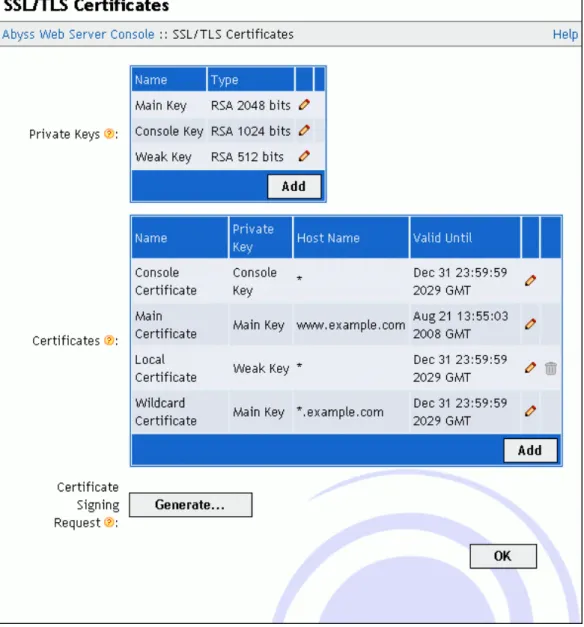
Open the console and selectSSL/TLS Configurationto display the SSL/TLS certificates management interface. With it, you can:
• Create and manage private keys. • Create self-signed certificates.
• Add certificates signed by certification authorities.
Figure 4-7. Certificates management dialog
Overview
SSL/TLS is a communication protocol which encrypts data exchanged between the server and the client. It is used to transfer HTTP requests and responses securely on the network in order to prevent spying or data sniffing. To secure one of your hosts or the console with SSL, you first need to generate a private key. A private key should never be disclosed as it is used to cipher (i.e. encode) transferred data.
SSL/TLS requires also that the server makes its real identity available to the client by sending a certificate as soon as a connection is established between both of them. A certificate contains information about the certificate holder. If you intend to host a business site or a site where sensitive data is expected to be gathered or displayed, we strongly recommend that the certificate is signed by an independent certification authority which will check the holder
work but the visitors’ browsers will always display a warning message and invite them to confirm that they trust your self-signed certificate.
To sign a certificate by a certification authority, you have to create a CSR (Certificate Signing Request). A CSR is generated by choosing a private key and by entering your information. Once the CSR generated, you will have to send it to a certification authority which will do the necessary to check your information and to generate a signed certificate. Note that only the CSR has to be sent to the certification authority, the private key used to generate it should never be sent to them. When you receive the signed certificate, all you have to do is to enter it in Abyss Web Server console to start using it.
Generating a private key
To create a new private key, pressAddin thePrivate Keystable. In the displayed dialog, choose a distinctive name for the key and enter it in the
Namefield. SetActiontoGenerateand select the key type using the
dropdown menuType. When you pressOK, the private key generation starts. It can take from a second to a minute depending on your computer speed and the type of the key you have chosen.
Figure 4-8. Private key generation dialog
Importing a private key
If you already have a private key and want to use it in Abyss Web Server, press
Addin thePrivate Keystable. In the displayed dialog, choose a distinctive name for the key and enter it in theNamefield. SetActiontoImportand copy the private key text contents in theKey Contentstext area. Note that a private key stored in a file using the PEM encoding can be opened with any text editor and its contents copied then pasted inKey Contentsto import it.
Generating a CSR
To obtain a certificate signed by a certification authority, pressGeneratein front ofCertificate Signing Request. In the displayed dialog, choose a private key that the certificate will be based on. Next fill the listed fields with your information. Note that you must enter accurate information as most
certification authorities will verify them before issuing the signed certificate. PressOKwhen you are done. The console will then display the CSR contents in a text area. Depending on your certification authority, you may have to send it, copy it in an online form, or put it in a text file and forward it to them. We strongly recommend that you check with your certification authority about the best way to provide them with the CSR.
Figure 4-9. CSR generation dialog
Note:TheHost name (Common Name)must be filled with the name of the host which will use the certificate. If the host name iswww.example.com, that field
should containwww.example.com and not onlyexample.com.
Note:Some certification authorities support wildcard certificates. In such a case, you can enter in that field*.example.comwhich will create a CSR for a certificate that
will be valid forwww.example.com,test.example.com, or mail.example.com. However that certificate will not be valid for example.com ortest.mail.example.com.
Note:Some certification authorities may also support certificates with more than one host name. To generate a CSR for such a certification authority, enter in theHost name (Common Name)all the host names separated with spaces. For example, if a
certificate is to be associated with bothtest.example.comand
mail.example.com, entertest.example.com mail.example.com.
Note:Some certification authorities will ask you about your server type. This information is mainly used for statistical purposes and makes no difference on the final signed certificate they will deliver. If you do not find Abyss Web Server on their list, selectOther Web ServerorOther. If no such choices are available, you can selectOpenSSLorOpenSSL-based server. Again if no such choices are available, you can safely selectApacheorModSSLas our SSL/TLS implementation is based on OpenSSL which is also used by Apache and ModSSL.
Note:Abyss Web Server accepts IDN (International Domain Names) in theHost name (Common Name)field. It will recognize them and convert them to the proper format for use inside a CSR.
Adding a signed certificate
To import a certificate signed by a certification authority into Abyss Web Server, pressAddin theCertificatestable. In the displayed dialog, choose a name for the new certificate and enter it inName. SetPrivate Keyto the private key that the certificate is based on: It is the same private key that you selected when generating the CSR associated with that certificate. Next set
TypetoSigned by a Certification Authority (CA). Enter the main certificate inMain Certificate. If it was delivered in a file, open it with a text editor and copy its contents toMain Certificate.
If the certification authority provided you with additional certificates that are necessary to establish the trust chain, they must be entered in the
Intermediate Certificates. If more than a single intermediate certificate is available, enter their contents one after the other in that field.
The last fieldCA Root Certificatemust be filled with the CA (Certification Authority) or root certificate if available. PressOKto validate the new certificate.
Creating a self-signed certificate
If your use of SSL is limited or if you do not mind having your visitors get a warning from their browser about your certificate each time they access your site, you can generate a self-signed certificate using the console.
Figure 4-10. Self-signed certificate creation dialog
To generate a self-signed certificate, pressAddin theCertificatestable. In the displayed dialog, choose a name for the new certificate and enter it inName. UsePrivate Keyto select the private key that the certificate will be based on. Next setTypetoSelf-Signed Certificate. Fill the information fields with your details. Finally pressOKto create the certificate.
Note:A site using a self-signed certificate offers the same security as a site using a certificate signed by a certification authority since the encryption is private key dependent only. But consider that self-signed certificates cannot be trusted by visitors who do not know you. So use them only for tests or for sites which access is limited and which visitors trust you (for example in an Intranet or for a family Web site).
Overview
The main console dialog contains a table listing all the declared hosts in the server. Each line in this table is associated with a host and contains:
• Its name or identifier
• Its status: It can beRunning,Stopped, orErrorwhen the host cannot be
started because of a configuration error; in such a case, clickErrorto have detailed information about the problem.
• AStartorStopbutton.
• AConfigureto access the host configuration dialog.
Declaring a new host
To add a new host to the web server, go to the main console dialog and press
Addin theHoststable.
Figure 5-1. New host dialog
• Protocol: Set it toHTTPif the host will use normal non-secure connections.
If you want to have the host serve content over secure connections only using SSL/TLS, set it toHTTPS. If you are on Abyss Web Server X2, you can also choose to have the host serve content on both secure and
non-secure connections by settingProtocoltoHTTP+HTTPS. In such a situation, you can configure some virtual paths to be accessible on secure connections only by adding them to theExclusively Serve On HTTPStable.
• HTTP Port: The port on which the new host will wait for HTTP
connections. Its default value is 80. This field is not available if theProtocol
is set toHTTPSonly.
• HTTPS Port: The port on which the new host will wait for secure HTTPS connections. Its default value is 443. This field is not available if theProtocol
is set toHTTPonly.
• Certificate: The certificate that will be used for secure connections with the
new host. This field is not available if theProtocolis set toHTTPonly. Note that the certificate’sHost Name (Common Name)should be equal to or match with the names of the new host that you are declaring. Otherwise, visitors’ browsers will report a warning about mismatched names on every access to the host.
• Host Name: The main name of the new host. If the field is empty, the host
will not be associated with any name and will answer to all requests that reach it on the configured port. The host can also have more than one name: additional names should be declared later in theHost Namestable in the
Generaldialog related to the host. The host name may be an Internation Domain Name (IDN) containing non-Latin characters. The host name can also be a pattern such as*.mysite.com. Refer to the "Patterns Format" appendix for more information about patterns.
• Documents Path: The path of the web site files. If it is a relative path then it is considered as a subpath of the server root.
• Log File: The path of the log file. If it is relative, it is considered as a
subpath of the server root. If empty, logging is disabled.
• Copy Configuration From: The configuration of the new host is cloned from the configuration of already defined hosts or from the default configuration.
Note:Adding a new host is only possible in Abyss Web Server X2. Abyss Web Server X1 can only manage a single host.
Configuring a host
Hostsdialog.
Figure 5-2. Host configuration dialog
The following subsections describe all the host configuration options.
General
Figure 5-3. General dialog
This dialog has the following elements:
• Documents Path: The path of the web site files. If it is a relative path then it is considered as a subpath of the server root.
• Protocol: Set it toHTTPto configure the host to use normal non-secure connections. To have the host serve content over secure connections only using SSL/TLS, set it toHTTPS. On Abyss Web Server X2, the host can be configured to serve content on both secure and non-secure connections by settingProtocoltoHTTP+HTTPS. In such a situation, you can configure some virtual paths to be accessible on secure connections only by adding them to theExclusively Serve On HTTPStable.
• HTTP Port: The port on which the host waits for HTTP connections. Its default value is 80. This field is not available if theProtocolis set toHTTPS
only.
• HTTPS Port: The port on which the host waits for secure HTTPS
connections. Its default value is 443. This field is not available if theProtocol
is set toHTTPonly.
• Certificate: The certificate that is used for secure connections with the current host. This field is not available if theProtocolis set toHTTPonly. Note that the certificate’sHost Name (Common Name)should be equal to
visitors’ browsers will report a warning about mismatched names on every access to the host.
• Host Names: This table contains the names associated with the current
host. If the table is empty, the host is not associated with a specific name and will answer any request that reaches it on the configured port. A host can also have one or more names. Names may contain non-Latin characters ans Abyss Web Server supports International Domain Names (IDN) natively. A host name in this table can also be a pattern such as*.mysite.com. Refer to the "Patterns Format" appendix for more information about patterns.
• Advanced Parameters: PressEdit...to open the advanced parameters dialog which contains the following fields:
• Bind to IP Address: The IP address of the network interface that the host should listen on. When empty or set to*, the host listens for incoming connections on all available network interface (which the default and the recommended setting.)
• SSL/TLS Parameters: Detailed parameters of the SSL/TLS secure layer are accessible by pressingEdit.... In the displayed disalog, it is possible to set the SSL/TLS profile. It is highly recommended to let it set to its
default and recommended value. If you set itCustom, it becomes possible to select the accepted protocols and configure theCiphersparameter to select the ciphers that the server can accept to use when negotiating with a browser establishing a HTTPS connection to the console. When set to
Strong, no weak cipher (any cipher with a key length strictly less than 128 bits) will be used. But this can restrict access from some old browsers which do not support modern and strong ciphers. For custom ciphers specification, set this parameter toCustom Specificationand fill the displayed text field with a string conforming to thehttp:
//www.openssl.org/docs/apps/ciphers.html#CIPHER_LIST_FORMAT. • Disable Download Resuming for: Download resuming (through the
RangeHTTP header) is disabled for requests which path matches one of the virtual paths listed in this table.
• Disable Caching Negotiation for: Caching negotiation with the browser (through theIf-modifiedHTTP headers) is disabled for requests which path matches one of the virtual paths listed in this table.
• Custom HTTP Headers: Use this table to declare custom HTTP headers that will be included in the server responses. A custom header is added when the request’s virtual path matches with the value or the pattern of its associatedVirtual Pathfield. See the "Patterns Format" appendix for more information about patterns. The HTTP headersServer,
Connection,Keep-Alive,Transfer-Encoding, and Content-Lengthcannot be customized.
• Exclusively Serve On HTTPS: If a request’s virtual path matches with one of the paths or the patterns declared in that table, and if the request
was received on a non-secure (HTTP) connection, the server generates a redirection to the same virtual path but using HTTPS to force it to be served on a secure connection. TheExclusively Serve On HTTPStable is available on Abyss Web Server X2 only when the current host’sProtocol
is set toHTTP+HTTPS.
• Request Body Restrictions: Restriction on the request body (sent by client for HTTP POST requests for example) are applied for requests which path matches one of the virtual paths listed in this table. Each of these virtual paths could be associated with a restriction on the total length of request body (controlled through theMaximum Length
parameter.) Similarly, request bodies which are sent by the client using chunked encoding could be automatically dechunked and served as normal request bodies to scripts and Web applications which are not compatible with chunked encoding. Note that CGI and FastCGI compatible scripts and Web applications need dechunking as these
specification do not support chunked encoding. The parameterDechunk
controls the support of that feature for a given virtual path and
Maximum Dechunk Lengthdefines the maximum size of the dechunk buffer. Since dechunking requires buffering in the memory, do not set this limit too high especially on busy servers.
• File Expiration Times: If the virtual path of a request matches with one of the paths or the patterns declared in this table and if it refers to a static file, the MIME type of the file is compared to the one in the matching rule. If it matches, anExpireHTTP header is injected in the reply. The
expiration date is set using the value of theTime Deltafield relatively to theTime Basewhich is either the file’s last modification date or the current date (now.)
• Do not serve file requests with Pathinfo in: By default, if a virtual path such as/photos/2014/house.jpgrefers to an actual static file or SSI page, a request for virtual path
/photos/2014/house.jpg/extra/goes/herewill be successful and will serve the same content as the previous and shorter virtual path. /extra/goes/hereis called the path information (or simplyPathinfo.) If the virtual path of a request matches with one of the paths or the patterns declared in this table, if it refers to a static or SSI file, and if path information is present, the server replies with an error which status code is 404 (Not found) instead of serving the file.
Note:TheHost Namestable is only available in Abyss Web Server X2. Abyss Web Server X1 answers to all the requests that reach the main host on the configured port regardless of the host name used in the browser.
Index Files
When a browser asks for a URL that does not contain a filename, the server checks for the existence of each index file in the mapped directory. If none is found and automatic directory indexing is enabled, a directory listing is generated and sent to the browser. Otherwise, an error is reported.
Figure 5-4. Index Files dialog
To edit, remove or add index filenames, use theIndex Filestable in theIndex Filesdialog.
Example:index.htm and index.html as index files
Assume thatindex.htmlandindex.htm are set as index filenames. If a browser
asks forhttp://<your host name>:<host port>/hello/, the server
checks if<documents path>/hello/index.htmlexists. If not, it checks if <documents path>/hello/index.htmexists. If so, it is sent to the browser.
If not, a listing of the directory<documents path>/hello/is generated and
sent to the browser if automatic directory indexing is enabled. If it is disabled, the server replies with a forbidden error message.
Directory Listing
When a browser asks for a URL that does not contain a filename, and if the server does not find an index file in the mapped directory, it generates a directory listing.
Figure 5-5. Directory Listing dialog
This dialog contains the following elements:
• Type: The type of listing that should be generated. It can be:
• Disabled: Disables directory listing. In this case, the server generates error 403 instead of a listing.
• Standard Listing: A listing based on a standard and fixed basic template is generated.
• From Template: A listing is generated according to the configured custom template. See the "Custom Directory Listings" chapter for detailed information about creating custom templates.
• From Script: A listing is generated by the script configured in theScript field. Refer to the "Custom Directory Listings" chapter for detailed
information about creating directory listing scripts.
• Scope: PressEdit...to configure the virtual paths where directory listing is permitted. The displayed dialog has the following items:
• Order: The order that the server follows to check if directory listing is permitted for a virtual path. If it is set toAllow/Deny, listing is denied by default and is allowed only if the virtual path is in theAllow forlist and is not in theDeny forlist. If it is set toDeny/Allow, listing is allowed by default and is denied only if the virtual path is in theDeny forlist and is not in theAllow forlist.
• Allow for: The list of virtual paths for which directory listing is allowed. The table can contain also path patterns. See the "Patterns Format"
• Deny for: The list of virtual paths for which directory listing is denied. The table can contain also path patterns. See the "Patterns Format" appendix for more information about patterns.
• Hidden Files: The file names that are equal or that match with the listed file name patterns in this table are not included in the directory listings. See the "Patterns Format" appendix for more information about patterns. This table should only contain file names with no path references.
Aliases
SelectAliasesin the host configuration menu to display the aliases table.
Figure 5-6. Aliases dialog
If a URL matches an alias’ virtual path, the web server maps it to the alias’ associated real path.
Use the displayed table to edit, remove or add aliases.
Example:Relative real path
Assume that there exists an alias which virtual path is/imagesand which real path
isweb/artwork. If a browser asks forhttp://<your host name>:<host port>/images/logo.jpg, the server maps the requested URL to the file
<server root>/web/artwork/logo.jpg. The<server root>is added
because the real path was relative.
Example:Absolute real path
Assume now that there exists an alias which virtual path is/imagesand which real
path isd:\web\artwork. If a browser asks forhttp://<your host
to the filed:\web\artwork\logo.jpg. The difference with the previous example
is that the real path is absolute and not relative.
XSSI Parameters
To configure XSSI (eXtended Server Side Includes), selectXSSI Parametersin the host configuration menu.
Figure 5-7. XSSI Parameters dialog
This dialog includes the following fields:
• Enable XSSI Processing: Enable/disable XSSI processing.
• XSSI Error Message: The default error message that the server inserts
when an error is detected while processing an XSSI directive. If empty, an accurate error description with debugging information is generated.
• Time Format String: The default time format string that the server uses to
format string, read the description of<!-- #config
timefmt="time_format" -->directive in "eXtended Server Side
Includes" chapter.
• Abbreviated File Size: The default way to display file sizes. If it is checked, file sizes are displayed in KB or MB. Otherwise, they are displayed in bytes.
• Process "#Exec cmd" Directives: Enable/disable the execution of shell
commands in XSSI.
• Associated Extensions: If a file name extension matches with one of these extensions or extensions patterns, it is processed as an XSSI file. Read the "Patterns Format" appendix for more information about patterns. By default, the server is configured to process XSSI directives in files which extensions areshtml,shtm, orstm.
• "#Exec cgi" Search Paths: If the argument of a#exec cgidirective is a relative path, the server will try to locate the file inside the directory containing the currently processed XSSI file. If it is not found there, it will search for it inside the virtual paths listed in’#exec cgi’ Search Paths.
For more information about XSSI, refer to "eXtended Server Side Includes" chapter.
Users and Groups
SelectUsers and Groupsin the host configuration menu to display the users and groups tables.
Figure 5-8. Users and Groups dialog
Use the displayed tables to edit, remove or add users and groups.
A user is defined by its name and its password. A group is defined by its name and its members which can be users and other groups.
Note:The console hides automatically groups that can lead to circular references when editing a group.
Custom Error Pages
With Abyss Web Server, you can override the standard error pages and replace them with yours. To do so, selectCustom Error Pagesin the host configuration menu.
Figure 5-9. Custom Error Pages dialog
This dialog includes the following elements:
• Custom Error Pages: This table contains the customized errors and their associated URLs.
• Default Custom Error Page: The URL used when an error which code is
not listed in theCustom Error Pagestable occurs. If empty, Abyss Web Server generates automatically a standard error page.
An error URL can be:
• Local: If it begins with a slash/, the URL is local to the web server.
• Global: If it begins withhttp://, the URL is global and the web server informs the browser a redirect to that URL when an error occurs.
Note:It is only relevant to set 4xx and 5xx error codes. Other error codes are handled internally in the web server and do not lead to displaying an error page.
Note:When using a local URL that is a CGI script or an XSSI page as a custom error page, the server operates an internal redirection and adds to the custom error page’s environment variables all the faulty request environment variables prefixed with
REDIRECT_. It adds also the special variablesREDIRECT_STATUS and
REDIRECT_STATUS_CODE which contain the status code of the faulty request. For
more information, read "CGI environment variables" section in "CGI, FastCGI, and ISAPI" chapter.
Scripting Parameters
To configure CGI, FastCGI, ISAPI, and scripts execution, selectScripting Parametersin the host configuration menu.
Figure 5-10. Scripting Parameters dialog
This dialog includes the following fields:
• Enable Scripts Execution: Enable/disable CGI, FastCGI, ISAPI, and scripts
execution.
• CGI Parameters: PressEdit...to access the CGI parameters dialog which contains the following elements:
• Error File: The path of the file where CGI scripts write error messages. You can leave it empty if you do not want to trace CGI scripts’ errors. • I/O Timeout: How long (in seconds) the server should wait for a CGI
script or application to deliver content before aborting it.
• Resolve Interpreter from the Windows Registry: Use the Windows Registry to automatically find the interpreter which can run a CGI script. This parameter should be used very carefully as it can make the server report Error 500 (Internal Server Error) for normal documents. For
example, if a HTML file is in one of the CGI Paths (or matches with one of the CGI Paths patterns), and if this parameter is checked, the server asks the Windows Registry about the executable that is normally used to open HTML files (in a similar fashion to what does Windows Explorer to know what application to launch when you double-click on a document icon). The Windows Registry gives back your browser executable path and Abyss Web Server runs the HTML file as a CGI Script with this browser as its interpreter. But after launching it, Abyss Web Server understands that this executable is not a valid CGI Interpreter. So it aborts the executable and reports Error 500.
• Resolve Interpreter using the #! Line: Read the first line of the CGI script. If it begins with#!, the rest of the line is considered as the path to the script’s interpreter.
• ISAPI Parameters: PressEdit...to access the ISAPI parameters dialog
which contains the following elements:
• Error File: The path of the file where ISAPI extensions write error messages and where the server logs ISAPI activity whenDebugging Levelis set to a value other thanNone. You can leave it empty if you do not want to trace ISAPI errors.
• Debugging Level: The type of information Abyss Web Server should log when an ISAPI is invoked. It should be set theNoneunless you are developing or debugging an ISAPI extension.
• ISAPI Filename Extensions: This table contains the file name extensions that helps the server recognize if a file is an ISAPI or not. It is filled with dllby default. This table is used for example to know if a declared interpreter is an ISAPI extension or not.
• FastCGI Parameters: PressEdit...to access the FastCGI parameters dialog
which contains the following elements:
• Error File: The path of the file where FastCGI executables and
interpreters write error messages and where the server logs their activity whenDebugging Levelis set to a value other thanNone. You can leave it empty if you do not want to trace FastCGI errors.