HPCC in a Virtual Machine
Boca Raton Documentation Team
August 2011 Version 3.0.4
Copyright © 2011 HPCC Systems. All rights reserved
We welcome your comments and feedback about this document via email to <[email protected]> Please include Docu-mentation Feedback in the subject line and reference the document name, page numbers, and current Version Number in the text of the message. LexisNexis and the Knowledge Burst logo are registered trademarks of Reed Elsevier Properties Inc., used under license. Other products, logos, and services may be trademarks or registered trademarks of their respective companies. All names and example data used in this manual are fictitious. Any similarity to actual persons, living or dead, is purely coincidental.
System Requirements ... 5
Getting the Tools and the VM Image ... 6
Download and Install the VMWare player ... 7
Get the latest HPCC Virtual Image File ... 8
Running the HPCC VM ... 10
Running the ECL IDE for the first time ... 12
Running the HPCC ECL IDE when you had a previous version installed ... 14
Write some ECL ... 17
Working with ECL ... 22
Working with data files ... 38
Next Steps ... 42
Introduction
These instructions will guide you through installing and running an HPCC1 System on a single node inside a Linux virtual machine running on a Windows host.Packaged to run inside a virtual machine, this version provides a hands-on experience with an HPCC system. You can experiment with it and even create real-world data analytics applications-all on your desktop or laptop PC. This version includes the tools and functionality of an HPCC without the need for a physical cluster of servers. It provides enough for you to evaluate an HPCC system and learn to use ECL2. Naturally, you do not get the power of parallel processing, but you can use this version as an evaluation, learning, and experimentation tool.
Reading this document in its entirety before beginning. The steps in this document can take an hour or two, depending on your download speed.
System Requirements
Running HPCC in a virtual machine requires (at minimum):
• A personal computer running Windows XP, Vista, Windows 7 (either 32- or 64-bit)
• A minimum of 2 GB ram, with at least 1.5 GB of free memory available. We recommend 4 GB or more • Intel Pentium D (or better) or AMD Athlon64/Opteron/Phenom processor
• Minimum 5 GB of available disk space, we recommend 20 GB • VMWare® Player or Server (version 3.0 or later)
• Internet Explorer® 7, Google Chrome 10, or Firefox™ 3.0 (or later)
Getting the Tools and the VM Image
To run this version of the HPCC System, you need the VM player (version 3.0 or later) from VMWare®.In the following sections, you will: • Download and install the VM Player
• Download the HPCC virtual machine image from HPCC Systems. • Open the image in the VM Player
Download and Install the VMWare
player
If you already have VMPlayer (version 3.0 or later) installed, you can skip this section and go to the section called “Get the latest HPCC Virtual Image File”.
1. Go to the VMWare site: http://www.vmware.com/products/player/.
2. Click on download link, then follow the instructions to download the version for 32-bit and 64-bit Windows. Registration is required, but the player is free.
3. Download the VMWare Player (save to a folder on your machine). 4. Follow VMWare's on-screen instructions and install the VM Player.
Get the latest HPCC Virtual Image File
1. Download the latest HPCC virtual machine image file from: http://hpccsystems.com/download/hpcc-vm-image
Note: You may need to register and login.
2. Save the .zip file to a folder on your machine, and extract the contents to a folder on your machine.
3. Go to the folder where you extracted the files and double-click on the .vmx. file (HPCCSystemsVM-n.n.n.n.vmx , where n.n.n.n is the version number).
The .vmx file should open in the VMWare player. If your VMPlayer is not installed correctly, the .vmx file will not open. Please check your VMPlayer installation.
4. Wait for the HPCC virtual machine to load to the desktop in the VM player. This may take a few minutes.
Note: The first time you use the VM Player, you must accept the license agreement. You may also be prompted to install add-ons, but they are not necessary for the HPCC virtual machine.
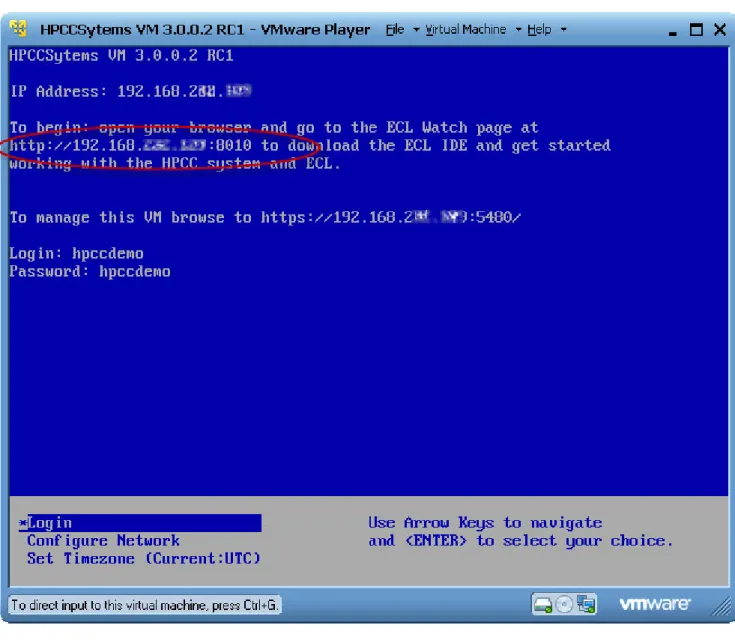
5. Once the VM initialization completes, you will see a window similar to the following:
Figure 1. VM Welcome Screen
Your virtual IP address could be different from the ones provided in the example images. Please use the IP address provided by your installation.
Running the HPCC VM
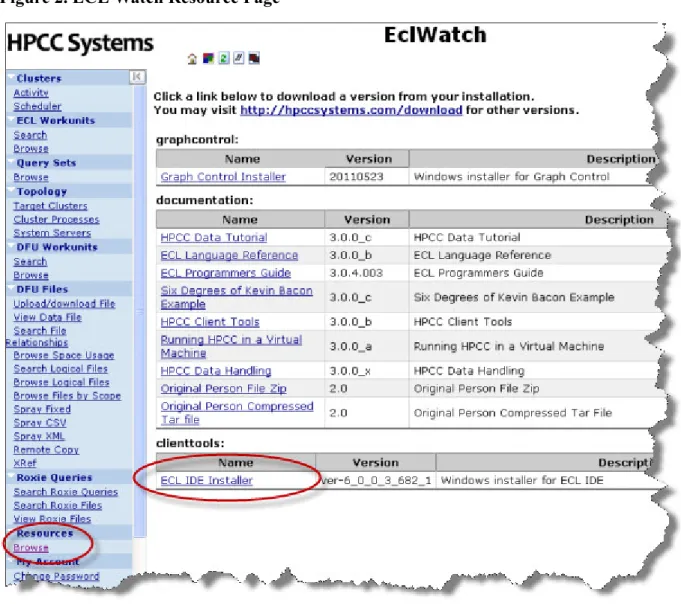
In this section, we will access the HPCC using the web-based interface: ECL Watch1.From ECL Watch, we will download the ECL IDE2. If you already have the ECL IDE installed, you can skip this section and continue at Running the HPCC ECL IDE when you had a previous version installed.1. In your browser, go to the ECL Watch URL displayed (circled in red) in Figure 1, “VM Welcome Screen”. For example, http://nnn.nnn.nnn.nnn:8010, where nnn.nnn.nnn.nnn is your Virtual Machine's IP address. .
Your virtual IP address could be different from the ones provided in the example images. Please use the IP address provided by your installation.
Figure 2. ECL Watch Resource Page
3. Click on the ECL IDE Installer link. When prompted save this file to your PC and then run it—do not run directly from your browser. This is a Windows installer for a Windows application.
4. You can close your browser, if desired.
5. Install the ECL IDE, following the prompts in the installer. Once the ECL IDE is installed successfully, you can proceed.
Running the ECL IDE for the first time
In this section, we will configure the ECL IDE.
1. Open the ECL IDE, from your start menu. (Start ► All Programs ► HPCCSystems ► ECL IDE ► ECL IDE). You can create a shortcut on your desktop to provide quick access to the ECL IDE.
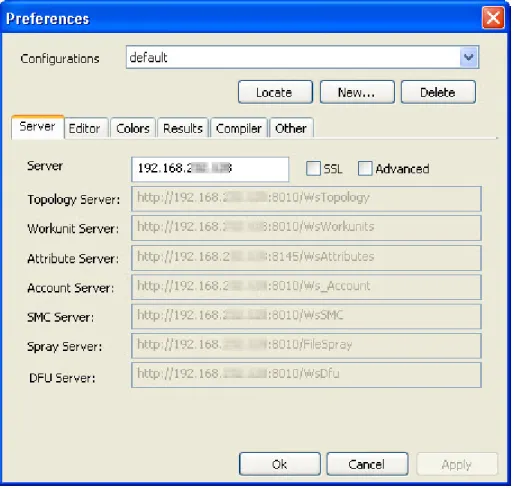
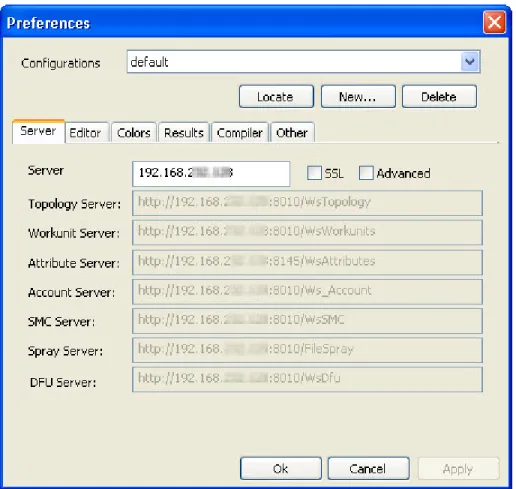
2. Enter the IP Address shown in Figure 1, “VM Welcome Screen” for the server in the Server box (as shown in Figure 3, “ECL IDE Preferences”) and press the OK button.
Figure 3. ECL IDE Preferences
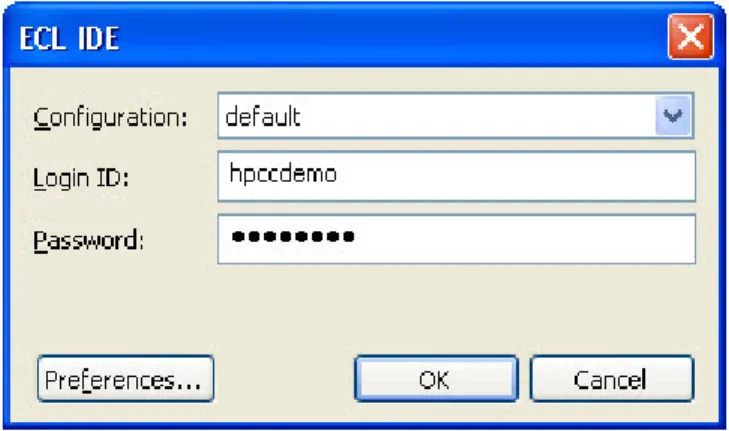
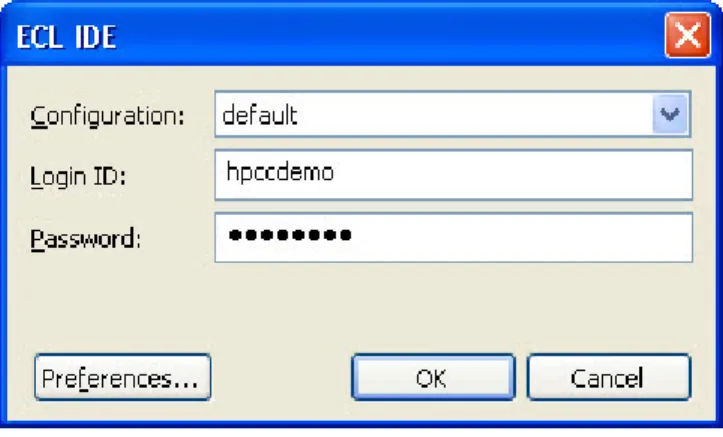
3. Enter the Login ID and Password provided in the Login dialog. Login ID hpccdemo
Figure 4. Login Window
4. Press the OK button.
Running the HPCC ECL IDE when you
had a previous version installed
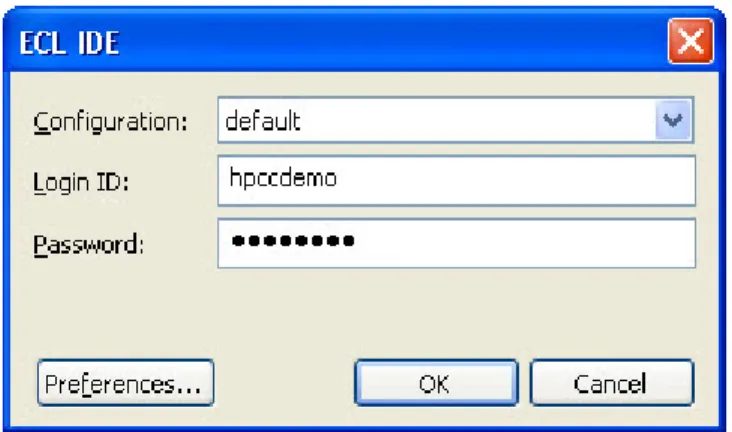
1. Open the ECL IDE, from your Start menu. (Start ► All Programs ► HPCCSystems ► ECL IDE ► ECL IDE) 2. Press the Preferences button in the Login dialog that displays upon start up.
Figure 5. Login Window
3. Enter the IP Address shown in Figure 1, “VM Welcome Screen” for the server in the Server box (as shown in Figure 6, “ECL IDE Preferences”) and press the OK button.
Figure 6. ECL IDE Preferences
4. Enter the Login ID and Password provided in the Login dialog. Login ID hpccdemo
Figure 7. Login Window
5. Press the OK button.
Write some ECL
Let's write, compile, and execute a simple "Hello World" program on our HPCC.
1. Open ECL IDE, from your Start menu. (Start ► All Programs ► HPCCSystems ► ECL IDE or use the desktop shortcut, if you have created one.)
The Login Window displays.
Figure 8. Login Window
2. Provide your credentials (hpccdemo) then press the OK button.
3. Open a new Builder Window (CTRL+N) and write the following code:
OUTPUT('Hello World');
This could also be written as:
'Hello World';
In the second program listing, the OUTPUT keyword is omitted. This is possible because the language is declar-ative and the OUTPUT action is implicit.
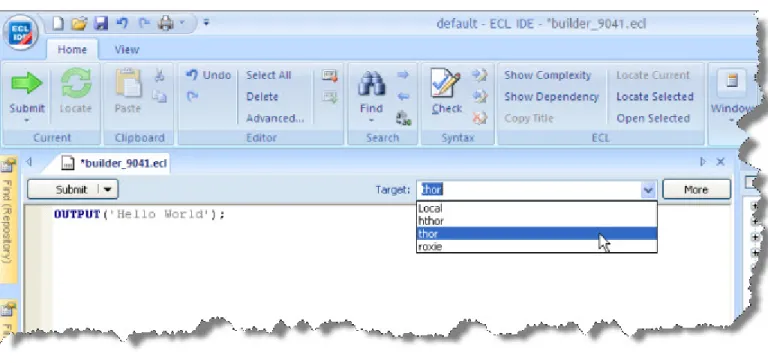
4. Select thor as your target cluster.
Thor is the Data Refinery component of your HPCC. It is a massively parallel computer cluster, optimized for sorting, manipulating, and transforming massive data. This process is also known as ETL (Extract, Transform,
Figure 9. Select target
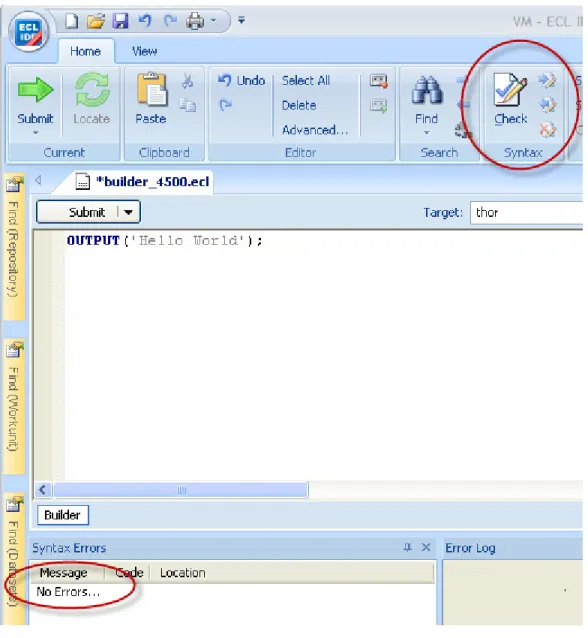
Figure 10. Syntax Check
A successful syntax check displays the "No Errors" message. 6. Press the Submit button (or press CTRL+ENTER).
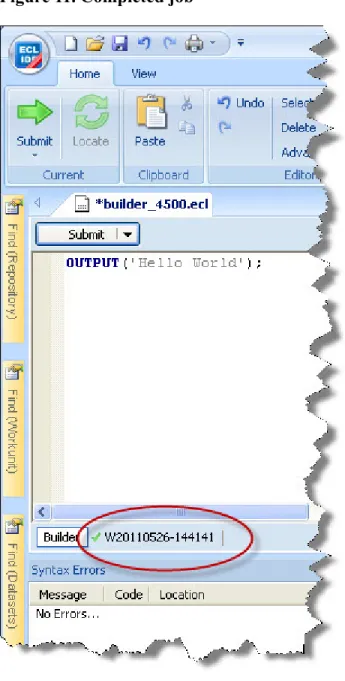
Figure 11. Completed job
The green check mark indicates successful completion.
Working with ECL
Now that you have submitted some ECL code, it's time to try some more complex operations. The following examples are provided to get you started.
ECL Example: Anagram1
This example takes a STRING and produces every possible anagram from it. This code is the basis for a second example which evaluates which of these are actual words using a word list data file.
1. Open a new Builder Window (CTRL+N) and write the following code:
STRING Word := 'FRED' :STORED('Word'); R := RECORD
STRING SoFar {MAXLENGTH(200)}; STRING Rest {MAXLENGTH(200)}; END;
Init := DATASET([{'',Word}],R);
R Pluck1(DATASET(R) infile) := FUNCTION R TakeOne(R le, UNSIGNED1 c) := TRANSFORM
SELF.SoFar := le.SoFar + le.Rest[c];
SELF.Rest := le.Rest[..c-1]+le.Rest[c+1..]; // Boundary Conditions handled automatically
END;
RETURN NORMALIZE(infile,LENGTH(LEFT.Rest),TakeOne(LEFT,COUNTER)); END;
L := LOOP(Init,LENGTH(TRIM(Word)),Pluck1(ROWS(LEFT))); OUTPUT(L);
2. Select thor as your target cluster.
3. Press the syntax check button on the main toolbar (or press F7) 4. Press the Submit button (or press CTRL+ENTER).
Figure 13. Completed job
Roxie Example: Anagram2
In this example, we will download an open source data file of dictionary words, spray that file to our Thor cluster, then validate our anagrams against that file so that we determine which are valid words. The validation step uses a JOIN of the anagram list to the dictionary file. Using an index and a keyed join would be more efficient, but this serves as a simple example.
Download the word list
We will download the word list from from http://wordlist.sourceforge.net/ 1. Download the Official 12 Dicts Package
2. Extract the 2of12.txt file to a folder on your local machine. The files are available in tar.gz or ZIP format.
Load the Dictionary File to your Landing Zone
In this step, you will copy the data files to a location from which it can be sprayed to your HPCC cluster. A Landing Zone is a storage location attached to your HPCC. It has a utility running to facilitate file spraying to a cluster. For smaller data files, maximum of 2GB, you can use the upload/download file utility in ECL Watch. This data file is only ~400 kb.
Next you will distribute (or Spray) the dataset to all the nodes in the HPCC cluster. The power of the HPCC comes from its ability to assign multiple processors to work on different portions of the data file in parallel. Even though the VM Edition only has a single node, the data must be sprayed to the cluster.
1. In your browser, go to the ECL Watch URL For example, http://nnn.nnn.nnn.nnn:8010, where nnn.nnn.nnn.nnn is your ESP Server's IP address.
Your IP address could be different from the ones provided in the example images. Please use the IP address provided by your installation.
Figure 15. Upload/download
Once you click on the Upload/download file link, it will take you to the Dropzones and Files page, where you can choose to Browse your machine for a file to upload:
3. Press the Browse button to browse the files on your local machine, select the file to upload and then press the
Open button.
The file you selected should appear in the Select a file to upload: field. The data file is named: 2of12.txt. 4. Press on Upload Now to complete the file upload.
Spray the Data File to your
Data Refinery (Thor) Cluster
To use the data file in our HPCC system, we must “spray” it to all the nodes. A spray or import is the relocation of a data file from one location (such as a Landing Zone) to multiple file parts on nodes in a cluster.
The distributed or sprayed file is given a logical-file-name as follows: thor::word_list_csv The system maintains a list of logical files and the corresponding physical file locations of the file parts.
1. Open ECL Watch using the following URL:
http://nnn.nnn.nnn.nnn:pppp(where nnn.nnn.nnn.nnn is your ESP Server’s IP Address and pppp is the port. The default port is 8010)
2. CLICK on the Spray CSV hyperlink under the DFU Files menu on the left.
3. Select mydropzone in the Source Machine/dropzone drop-list.
The IP Address is automatically filled and the Local Path is partially filled with the default folder on your landing zone. Note: The VM and Community Edition typically only has one landing zone defined.
4. Complete the Local Path to include the complete file name or use the Choose File button to select the file from a list of files in the folder. The file is 2of12.txt.
5. Fill in the rest of the parameters (if they are not filled in already). • Max Record Length 8192
• Separator \,
• Line Terminator \n,\r\n • Quote: '
6. Fill in the Label using the Logical File name desired: thor::word_list_csv
7. Make sure the Overwrite and Replicate boxes are checked.
Figure 19. View Progress
9. Click the View Progress link
10.The Workunit progress page displays.
Run the query on Thor
1. Open a new Builder Window (CTRL+N) and write the following code:
IMPORT Std;
layout_word_list := record string word;
end;
File_Word_List := dataset('~thor::word_list_csv', layout_word_list, CSV(heading(1),separator(','),quote(''))); STRING Word := 'teacher' :STORED('Word');
STRING SortString(STRING input) := FUNCTION OneChar := RECORD
STRING c; END;
OneChar MakeSingle(OneChar L, unsigned pos) := TRANSFORM SELF.c := L.c[pos];
END;
Split := NORMALIZE(DATASET([input],OneChar), LENGTH(input), MakeSingle(LEFT,COUNTER));
SortedSplit := SORT(Split, c);
OneChar Recombine(OneChar L, OneChar R) := TRANSFORM SELF.c := L.c+R.c;
END;
Recombined := ROLLUP(SortedSplit, Recombine(LEFT, RIGHT),ALL); RETURN Recombined[1].c;
END;
STRING CleanedWord := SortString(TRIM(Std.Str.ToUpperCase(Word))); R := RECORD
STRING SoFar {MAXLENGTH(200)}; STRING Rest {MAXLENGTH(200)}; END;
Init := DATASET([{'',CleanedWord}],R); R Pluck1(DATASET(R) infile) := FUNCTION R TakeOne(R le, UNSIGNED1 c) := TRANSFORM SELF.SoFar := le.SoFar + le.Rest[c];
SELF.Rest := le.Rest[..c-1]+le.Rest[c+1..]; // Boundary Conditions // handled automatically END; RETURN DEDUP(NORMALIZE(infile,LENGTH(LEFT.Rest),TakeOne(LEFT,COUNTER))); END; L := LOOP(Init,LENGTH(CleanedWord),Pluck1(ROWS(LEFT))); ValidWords := JOIN(L,File_Word_List, LEFT.SoFar=Std.Str.ToUpperCase(RIGHT.Word),TRANSFORM(LEFT)); OUTPUT(CleanedWord); COUNT(ValidWords); OUTPUT(ValidWords)
2. Select thor as your target cluster.
3. Press the syntax check button on the main toolbar (or press F7) 4. Press the Submit button.
5. When it completes, select the Workunittab, then select the Result tab. 6. Examine the result, then close the Builder window.
Figure 21. Insert Folder
Figure 22. Enter Folder Label
3. RT-CLICK on the Anagram Folder, and select Insert File from the pop-up menu. 4. Enter ValidateAnagrams for the label, then press the OK button.
A Builder Window opens.
Figure 23. Builder Window
5. Write the following code (you can copy the code from the other builder window):
IMPORT Std;
layout_word_list := record string word;
end;
STRING c; END;
OneChar MakeSingle(OneChar L, unsigned pos) := TRANSFORM SELF.c := L.c[pos];
END;
Split := NORMALIZE(DATASET([input],OneChar), LENGTH(input), MakeSingle(LEFT,COUNTER));
SortedSplit := SORT(Split, c);
OneChar Recombine(OneChar L, OneChar R) := TRANSFORM SELF.c := L.c+R.c;
END;
Recombined := ROLLUP(SortedSplit, Recombine(LEFT, RIGHT),ALL); RETURN Recombined[1].c;
END;
STRING CleanedWord := SortString(TRIM(Std.Str.ToUpperCase(Word))); R := RECORD
STRING SoFar {MAXLENGTH(200)}; STRING Rest {MAXLENGTH(200)}; END;
Init := DATASET([{'',CleanedWord}],R); R Pluck1(DATASET(R) infile) := FUNCTION R TakeOne(R le, UNSIGNED1 c) := TRANSFORM SELF.SoFar := le.SoFar + le.Rest[c];
SELF.Rest := le.Rest[..c-1]+le.Rest[c+1..]; // Boundary Conditions // handled automatically END; RETURN DEDUP(NORMALIZE(infile,LENGTH(LEFT.Rest),TakeOne(LEFT,COUNTER))); END; L := LOOP(Init,LENGTH(CleanedWord),Pluck1(ROWS(LEFT))); ValidWords := JOIN(L,File_Word_List, LEFT.SoFar=Std.Str.ToUpperCase(RIGHT.Word),TRANSFORM(LEFT)); OUTPUT(CleanedWord); COUNT(ValidWords); OUTPUT(ValidWords)
6. Select Roxie as your target cluster.
7. Press the syntax check button on the main toolbar (or press F7)
8. In the Builder window, in the upper left corner the Submit button has a drop down arrow next to it. Select the arrow to expose the Compile option.
9. Select Compile
10.When it completes, select the Workunittab, then select the Result tab.
11.When the workunit finishes, it will display a green circle indicating it has compiled.
Figure 25. Compiled
Publish the Roxie query
Next we will publish the query to a Roxie Cluster.
1. Select the workunit tab for the ValidateAnagrams that you just compiled. 2. Select the ECL Watch tab.
Figure 27. Workunit Published
Run the Roxie Query in WsECL
Now that the query is published to a Roxie cluster, we can run it using the WsECL service Using the following URL:
http://nnn.nnn.nnn.nnn:pppp (where nnn.nnn.nnn.nnn is your ESP Server’s IP address and pppp is the port. The default port is 8002)
1. Click on the + sign next to myroxie to expand the tree. 2. Click on the ValidateAnagrams.1 hyperlink.
The form for the service displays.
Figure 28. RoxieECL
3. Select Output Tables in the drop-list.
4. Provide a word to make anagrams from (e.g., TEACHER), then press the Submit button. The results display.
Working with data files
Once you start working with your HPCC system, you will want to process some real data, this section shows you how to load data to your HPCC system.
Before you begin
A typical production HPCC system would have much more data capacity than using a virtual system for testing purposes. The size of the file you wish to work with is limited by the size of your virtual machine.
• The virtual machine has a limit of 20GB.
• The size of the file(s) you can work with in your virtual machine is also limited by your machine's available disk space. Make sure you have adequate disk space available.
If you exceed the file size limits your VM state will not be saved and you risk losing your work. Make sure that you have ample space to not only store your data, but your virtual machine's "state" to be able to save your work.
Uploading a file
For smaller data files, maximum of 2GB, you can use the upload/download file utility in ECL Watch.
1. In your browser, go to the ECL Watch URL displayed (circled in red) in Figure 1, “VM Welcome Screen”. For example, http://nnn.nnn.nnn.nnn:8010, where nnn.nnn.nnn.nnn is your Virtual Machine's IP address.
Your virtual IP address could be different from the ones provided in the example images. Please use the IP address provided by your installation.
2. From ECL Watch page, click on the Upload/download File link in the menu on the left side.
Figure 31. Dropzones
3. Press the Browse button to browse the files on your local machine, select the file to upload and then click Open
button.
The file you selected should appear in the Select a file to upload field. 4. Press on Upload Now to complete the file upload.
5. Now that the file is on your Landing Zone, you can spray the file to your cluster and write ECL code to process it.
Uploading files with a Secure Copy Client
To upload a large file for processing to your virtual machine, you will need a tool that supports the secure copy protocol. In this section, we discuss using WinSCP. There are other tools available, but the steps are similar. 1. Open the WinSCP tool, and login to your Virtual Machine's IP address using the username and password given.
Login ID: hpccdemo Password: hpccdemo
2. Once logged in, it should, navigate automatically to the landing zone folder. (/var/lib/HPCCSystems/mydropzone) 3. Navigate to where your local file is in the left part of the window.
Figure 32. WinSCP
4. Select the data file to send and copy it to the landing zone, using drag-and-drop.
Next Steps
Available from the menu in ECL Watch are several documents which provide details on various aspects of the HPCC.
Figure 33. ECL Watch Resource Page
Figure 34. Help Menu
To familiarize yourself with what your system can do, we recommend: • The ECL Data Tutorial
This is a simple, step-by-step tutorial that shows the end-to-end process from receiving a receiving a raw data file to publishing a web-based query to search the data. Along the way, you will learn how to process the data, index it, then write and publish a query to search the data. The self-led tutorial and accompanying data file is available on the ECL Watch Resource Page.
• The Six Degrees of Kevin Bacon Example
This is a more complex example (*also available on the ECL Watch Resource Page) that uses a database of movie data to find the degree of separation between actors in films.
• The HPCC Systems Portal (http://hpccsystems.com) is another valuable resource for more information including: • Video Tutorials
• Additional examples • White Papers • Documentation • Support Forums
Frequently Asked Questions
1. Can I run the VM while connected to my network using a Virtual Private network (VPN)?
No. Most VPN clients take control of your network device and routing and do not allow split tunnels.
2. Can I install this virtual machine on multiple nodes?
No. If you want to evaluate a multi-node system, you should use the Community version available from the HPCC Systems Portal at http://hpccsystems.com.
3. What are the limits of this version?
The HPCC VM Edition runs on a single node, has a limit of 20 GB in it workspace, and doesn't support custom configurations.
4. Can I run the VM on my Linux machine?
You can run the HPCC VM using the Linux VM Player. The HPCC ECL IDE is a Windows application, but can run under WINE. See the Client Tools Manual for details.
5. Can I run the VM on my Mac?
Not at this time. There is no Mac version of the VM Player.
6. Can I run the VM on my Windows Server?
Yes, You can run on Windows Server 2003 or 2008, providing you have access to it using Remote Desktop Protocol (RDP).
7. Do I need a 64-bit processor to run the VM Edition?
No. The VM Player runs in either 32- or 64-bit environments and does not require a 64-bit processor.
8. Do I need a 64-bit processor to run the Community Edition?
Yes. Community Edition binaries run natively on 64-bit Linux server(s). You can access that HPCC from any Windows workstation (32- or 64-bit) that can run the ECL IDE and a supported browser.
9. What happens to my work when I close the virtual machine?
The VM Player saves the state of your system when it closes. It saves all of your workunit information, data files, and published query sets as long as there is available space. The maximum size of the saved session is 20 GB.
10. Why won't my VM allow access to my network interface?
Check your Firewall settings. You may need to disable the Firewall for your VM's network interface.
11. Will this version utilize my multi-core processor? This VM is designed to utilize a single core.