August 2015 E65820-01
Introduction 4
How does Policy Automation work with Oracle Service Cloud? 4
For Customers 4
For Employees 4
Prerequisites for Oracle Service Cloud 4
Oracle Service Cloud concepts 5
Connections to an Oracle Service Cloud site 6
Establish a connection to an Oracle Service Cloud site 6
Configure your Oracle Service Cloud connection 6
Create the user OPA_Client in Oracle Service Cloud 6
Enter the password for the user OPA_Client in Policy Automation Hub 11
View your Oracle Service Cloud connection details 12
Test an Oracle Service Cloud connection from an interview 13
Troubleshoot Oracle Service Cloud connections 17
Create an Oracle Service Cloud interview 19
Create a new Oracle Service Cloud answer 20
Interviews in Agent Desktop 22
Incorporate interviews into Oracle Service Cloud Agent Desktop 22
Create a new custom workspace 22
Add the OPA control to the workspace 25
Configure the OPA control 31
Provide access to the workspace 31
Test the workspace 34
Interviews in Customer Portal 36
Incorporate interviews into Oracle Service Cloud Customer Portal 36
Embed an anonymous interview in Oracle Service Cloud Customer Portal 36
Embed an interview that uses portal data in Oracle Service Cloud Customer Portal 39
Deploy and configure the OPA sample widget 40
Install the widget 40
Ensure compatibility of info.yml file with Oracle Service Cloud 14.2 and later versions 41
Activate the widget 42
Configure the shared secret 42
Test and stage the widget 44
Insert the sample widget into a Customer Portal page 44
Insert the widget into an Answer 44
Insert the widget into a page 45
Insert the widget into an Incident detail page 45
Enable mobile or basic rendering of Oracle Service Cloud Customer Portal 45
Configure widget parameters 46
Test the widget 46
Data mapping 49
Set up data mappings for an Oracle Service Cloud interview 49
Decide who the interview is for 49
Decide where to pre-seed interview data from 50
Decide what to do with the data at the end of an interview 53
Save the data mappings 54
Refresh the data model 54
View example data mappings 54
For anonymous users 54
For Customer Portal users 55
For contact center staff 57
Bind an entity to an Oracle Service Cloud table 59
Map an entity to an Oracle Service Cloud data source table 59
Bind an attribute to an Oracle Service Cloud field 61
Bind an attribute to a field in the Oracle Service Cloud data source 62
Understand data type compatibility between Oracle Policy Automation and Oracle Service Cloud 64
Oracle Service Cloud lists supported by OPA 65
Understand Oracle Service Cloud data mapping limitations 69
Example project 71
Understand and configure the provided custom control example project 71
Locate the custom controller files 71
Upload the custom controller files to an Oracle Service Cloud instance 71 Update the Emergency Response example project to use the custom controller files 72
Troubleshooting 73
Troubleshoot Oracle Service Cloud interviews 73
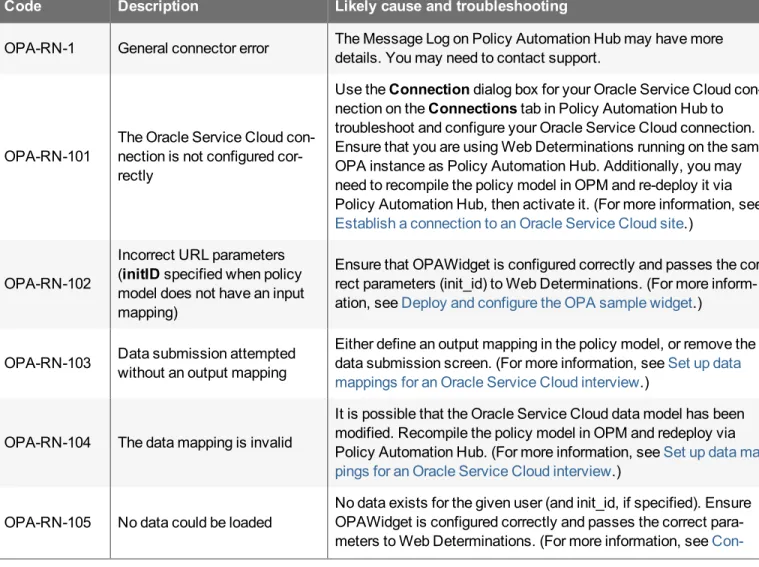
Understand the Oracle Service Cloud data adapter error codes 73
Ensure compatibility with Oracle Service Cloud 14.2 and later versions 75
Fix widget activation issues 75
Delete the OPAWidget 76
Create a new widget 76
Oracle Service Cloud compatibility 78
Oracle Service Cloud Customer Portal compatibility 78
Oracle Service Cloud Agent Desktop compatibility 78
Legal Notices 80
Third-party products and licenses 81
List of third-party products 81
How does Policy Automation work with Oracle Service Cloud?
Oracle Policy Automation (OPA) Cloud Service can be used with Oracle Service Cloud by customers, employees or both.
For Customers
Using OPA within Oracle Service Cloud Customer Portal:
l Customers can be anonymous, or logged in as authenticated users (Contacts) l OPA interviews can be embedded in answers, or embedded directly on a page l Incidents and other Service Cloud objects can be created and updated
For more information, see:
l Incorporate interviews into Oracle Service Cloud Customer Portal l Deploy and configure the OPA sample widget
OPA can also be used standalone, for example, integrated with any other portal or website.
For Employees
Using OPA within Oracle Service Cloud Agent Desktop: l Agents must be logged in to use OPA interviews l The OPA workspace control is used
l Incidents and other Service Cloud objects can be created and updated For more information, see:
l Incorporate interviews into Oracle Service Cloud Agent Desktop
OPA can also be used by authenticated Service Cloud agents, via a web browser. To do this:
l Ensure each agent has an Account (a System Administrator must manage Accounts using Agent Desktop) l Access the agent interview URL via the browser. (The agent interview URL is the same as the session-based
interview URL, with the addition of "secure" in the path before the startsession. For example, https://server-/path/web-determinations/secure/startsession/projectname. For more information, see Start a new interview via a URL in the Developer Guide.
l When prompted, login with Account username and password
See also:
l Understand Oracle Service Cloud data mapping limitations
Prerequisites for Oracle Service Cloud
There are certain prerequisites for successfully integrating Oracle Policy Automation (OPA) with Oracle Service Cloud. The prerequisites are that:
1. You have the correct version of the Oracle Service Cloud. This should be no earlier than the August 2012 release. For a complete list of compatible releases, seeOracle Service Cloud compatibility.
2. The OPA Cloud Service has been provisioned and linked to your Oracle Service Cloud instance. Additionally, Connect web services must be enabled for your Oracle Service Cloud instance.
3. The userOPA_Clienthas been set up as described inCreate the user OPA_Client in Oracle Service Cloud.
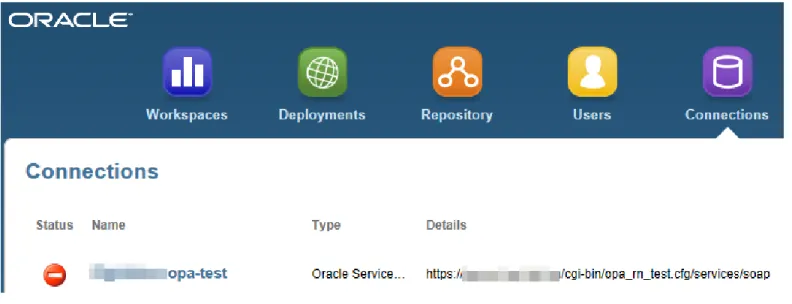
-4. TheStatusof your Oracle Service Cloud connection on theConnectionstab on Policy Automation Hub dis-plays as Available (indicated by a green check icon). SeeTroubleshooting Oracle Service Cloud connectionfor more information if the connectionStatusdisplays as Failing (indicated by a red stop icon).
5. MOD_CP_DEVELOPMENT_ENABLEDis set toYesin the Oracle Service CloudSite Configuration Set-tings. This will enable the uploading of the widget for integrating data-bound interviews into the Customer Portal.
Note: This is only necessary if you are going to be editing Customer Portal pages, including thedeployment of the widget.
To test that the integration of OPA with Oracle Service Cloud has been successful, seeTest an Oracle Service Cloud con-nection from an interview.
Notes:
l Each OPA Cloud Service (Policy Automation Hub) can only link to one Oracle Service Cloud instance. l If you have multiple Policy Automation Hubs set up (for example, a development Hub and a production Hub):
l both can link to the same Oracle Service Cloud instance, and
l if you have an OPA project where attributes and entities aredata-mapped to custom Oracle Service
Cloud objects or fields, both development and production Hubs must link to the same Oracle Service Cloud instance.
Oracle Service Cloud concepts
The following are the key concepts when using Policy Automation with Oracle Service Cloud:
Oracle Service Cloud
Oracle Service Cloud (formerly RightNow) is part of Oracle's portfolio of Customer Exper-ience (CX) Software as a Service (SaaS) applications. It is delivered through Oracle Cloud. It includes a Customer Portal, an Agent Desktop, Policy Automation and other integrated applications.
Customer Portal
A component of Oracle Service Cloud that allows customers to raise and review incid-ents, interact with Policy Automation interviews, find and read knowledge articles and complete other tasks.
Agent Desktop
A component of Oracle Service Cloud that allows agents to manage and review incid-ents, interact with Policy Automation interviews, knowledge articles and other inform-ation needed to support customers via online, chat or call center.
Establish a connection to an Oracle Service Cloud site
The Oracle Service Cloud connection on Policy Automation Hub is used to communicate between Policy Automation Hub and Oracle Service Cloud. Through the Oracle Service Cloud connection:
l metadata is retrieved from Oracle Service Cloud, and
l data is saved and loaded by deployed Oracle Policy Automation (OPA) interviews. For more information, see:
l Test the Oracle Service Cloud connection from an interview l Troubleshooting Oracle Service Cloud interviews
l Troubleshooting your Oracle Service Cloud connection
If you do not have an Oracle Service Cloud connection enabled, you should contact Oracle Service Cloud customer sup-port.
What do you want to do ?
Configure your Oracle Service Cloud connection View your Oracle Service Cloud connection details
Configure your Oracle Service Cloud connection
To configure your Oracle Service Cloud connection you need to: 1. Create a user called OPA_Client in Oracle Service Cloud, and 2. Enter the password for OPA_Client in Policy Automation Hub. You can thenview the Oracle Service Cloud connection details.
Create the user OPA_Client in Oracle Service Cloud
The Oracle Service Cloud connection on Policy Automation Hub uses a user calledOPA_Clientto communicate with the Oracle Service Cloud Connect web service. You must create theOPA_Clientuser in Oracle Service Cloud and provide it with access permissions in the Public SOAP API (Simple Object Access Protocol Application Programming Interface) area.
1. Log in to your CX Console. 2. Create a profile. To do this:
i. In theConfigurationnavigation pane on the left, open theStaff Managementfolder. Double-click Profiles.
ii. On theHometab, clickNew. A newProfiletab is displayed showing theProfile Interfaces - Edit view.
-iii. Enter a name for the profile.
iv. On theHometab, clickPermissions. AnOPAServiceProfiletab is displayed showing theProfile Permissions - Editview.
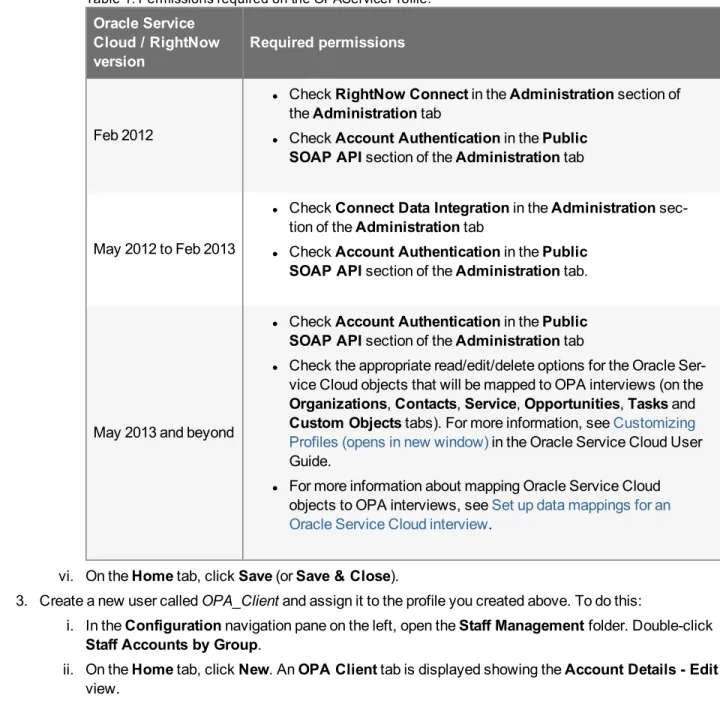
v. On theAdministrationtab, set the permissions required for the appropriate release version as described in the table below.
Oracle Service Cloud / RightNow version
Required permissions
Feb 2012
l CheckRightNow Connectin theAdministrationsection of theAdministrationtab
l CheckAccount Authenticationin thePublic SOAP API section of theAdministrationtab
May 2012 to Feb 2013
l CheckConnect Data Integrationin theAdministration sec-tion of theAdministrationtab
l CheckAccount Authenticationin thePublic SOAP API section of theAdministrationtab.
May 2013 and beyond
l CheckAccount Authenticationin thePublic SOAP API section of theAdministrationtab
l Check the appropriate read/edit/delete options for the Oracle Ser-vice Cloud objects that will be mapped to OPA interviews (on the Organizations,Contacts,Service,Opportunities,Tasksand Custom Objectstabs). For more information, seeCustomizing Profiles (opens in new window)in the Oracle Service Cloud User Guide.
l For more information about mapping Oracle Service Cloud objects to OPA interviews, seeSet up data mappings for an Oracle Service Cloud interview.
Table 1. Permissions required on the OPAServiceProfile.
vi. On theHometab, clickSave(orSave & Close).
3. Create a new user calledOPA_Clientand assign it to the profile you created above. To do this:
i. In theConfigurationnavigation pane on the left, open theStaff Managementfolder. Double-click Staff Accounts by Group.
ii. On theHometab, clickNew. AnOPA Clienttab is displayed showing theAccount Details - Edit view.
-iii. Complete all of the mandatory fields. To create a new group for the OPA_Client user (unless a suit-able group exists already):
a. Click the search icon to the right of theGroupfield. b. In theAccount Groupsdialog, clickNew Group.
c. Enter the group nameOPAClientGroup.
d. ClickOK.
iv. Click theChange Passwordbutton. In theChange Passworddialog, enter and confirm your pass-word. Ensure it follows the password policy of your organization. This isthe password that will be entered in Policy Automation Hubfor the user OPA_Client.
v. Specify theTime Zone. The time zone must be west of UTC (Coordinated Universal Time) - any-thing between GMT-1 and GMT-14.
vi. On theHometab, clickSave(orSave & Close).
Note: For more detailed information on how to create users in Oracle Service Cloud, see the sectionInitial setup for the administrator (opens in new window)in the Oracle Service Cloud documentation.
-Enter the password for the user OPA_Client in Policy Automation Hub
The password is required for seeding and saving data to an interview from Oracle Service Cloud. The password set in Policy Automation Hub must match the password set for the userOPA_Clientin Oracle Service Cloud.
Note that any errors that occur during data loading and saving of data-bound interviews are logged to Policy Automation Hub and can be viewed by clicking on theMessage Logstab. For a description of the errors you might encounter, see
Understand the Oracle Service Cloud data adapter error codes.
To enter the password for the userOPA_Clientin Policy Automation Hub:
1. Log in to the Policy Automation Hub web interface with a Hub Administrator user role.
2. Click theConnectionsbutton on the Welcome screen. This will display theConnectionstab.
3. In theConnectionstab, your Oracle Service Cloud connection should appear in the list of connections, with a connectionTypeof 'Oracle Service Cloud'.
Click the name of the connection. TheConnectiondialog box shows details of the connection.
5. ClickSave and Close. Policy Automation Hub tests the connection with the new password. If the test is: l successful, theStatusdisplays as Available - indicated by a green check icon
l unsucCessful, theStatusdisplays as Failing - indicated by a red stop icon . Ensure you have typed the password correctly. Tip: A log of messages about the connection, including any errors, can be viewed on theMessage Logstab on Policy Automation Hub. For a description of the errors you might encounter, seeUnderstand the Oracle Service Cloud data adapter error codes. If you are unable to fix the failing connection after viewing the Message Log, contact your Policy Automation Hub admin-istrator or Oracle Service Cloud customer support.
View your Oracle Service Cloud connection details
Once you have completed configuring your Oracle Service Cloud connection, you can view the details in theConnections tab on Policy Automation Hub. To do this:
1. Log in to the Policy Automation Hub web interface with a Hub Administrator user role. 2. Click theConnectionsbutton on the Welcome page.
3. In theConnectionstab, your Oracle Service Cloud connection should appear in the list of connections, with a connectionTypeofOracle Service Cloud. Click the name of the connection. TheConnectiondialog box opens, showing details of the connection.
This dialog box displays:
l theNameof the Oracle Service Cloud connection (your CX site name)
l the connectionType'Oracle Service Cloud'. Note: if the connectionTypeis not 'Oracle Service Cloud', you are viewing details for the wrong connection. ClickCanceland find a connection with a Typeof 'Oracle Service Cloud' in the list ofConnectionson the Policy Automation HubConnections tab.
-l the currentStatusof the Oracle Service Cloud connection. This will be either: l Available - indicated by a green check icon , or
l Failing - indicated by a red stop icon
l theShared Secretfield. You can view the existing shared secret by clicking theShow shared secret link. You can also generate a new shared secret from theActionsmenu.
For more information about theShared Secretfield, seeConfigure the shared secret.
l the SOAP (Simple Object Access Protocol)URLof the web service corresponding to the Oracle Ser-vice Cloud instance
l theUsernameused to access the Oracle Service Cloud instance, and
l theNew Passwordfield. For information on changing this password, seeEnter the password for the
user OPA_Client in Policy Automation Hub.
Tip: A log of messages about the connection, including any errors, can be viewed on theMessage Logstab on Policy Automation Hub. For a description of the errors you might encounter, seeUnderstand the Oracle Service Cloud data adapter error codes.
Test an Oracle Service Cloud connection from an interview
The following test can be performed to confirm that the end-to-end integration has been successful and that a data-bound interview can be run in the Customer Portal.
1. Ensure that all of theprerequisitesfor integrating Oracle Policy Automation (OPA) with the Oracle Service Cloud have been implemented.
2. In Policy Modeling, open the RightNowSimple example policy model. 3. Connect it to your Policy Automation Hub.
4. Refreshthe data model. 5. Deploy and activate the project.
6. Optionally, add the interview to your Oracle Service Cloud Customer Portal. For more information, see Incor-porate OPA interviews into Oracle Service Cloud Customer Portal.
-Troubleshoot Oracle Service Cloud connections
If theConnectionstab on Policy Automation Hub shows that an Oracle Service Cloud connection is failing or that the con-nection is not configured, you can troubleshoot the problem using the information in Table 1.
Oracle Service Cloud connection
status Troubleshooting
Failing(circular red stop icon)
Ensure that the Oracle Service Cloud connection is configured correctly. For more information, seeEstablish a connection to an Oracle Service Cloud site. Ensure that you have Connect Web Services enabled for your Oracle Service Cloud instance.
Ensure that the prerequisites for successfully integrating Oracle Policy Auto-mation (OPA) with Oracle Service Cloud have been met. For more inforAuto-mation, seePrerequisites for OPA with Oracle Service Cloud.
If the problem persists, contact Oracle Service Cloud provisioning as there may be other environmental issues affecting the service.
Not configured (not visible in Con-nectionstab)
Ensure that the password set in Policy Automation Hub matches the password set for the userOPA_Clientin Oracle Service Cloud. For more information, see
Enter the password for the user OPA_Client in Policy Automation Hub. Table 1. Oracle Service Cloud connection errors
See also:
l Troubleshoot Oracle Service Cloud interviews
-The process for creating an Oracle Service Cloud interview is as follows:
1. Ensure your Hub Administrator has set up a connection to Oracle Service Cloud. For more information, see
Establish a connection to an Oracle Service Cloud site.
2. Choose the connection from your project in Policy Modeling. Note: If exactly one connection is configured on Policy Automation Hub, Policy Modeling will automatically choose that connection for you and you can skip this step. You can change a connection at any time.
3. Map the data in the policy model to the appropriate objects and fields in Oracle Service Cloud. For more inform-ation, seeSet up data mappings for an Oracle Service Cloud interview.
4. Create screens for collecting data in the interview. For more information, see Add, modify or delete a screen in the Policy Modeling User Guide. Note that if the interview requires saving to Oracle Service Cloud and has out-put data mappings, one of the screens needs to have a Submit button.
5. Deploy and activate the project from Policy Modeling (or deploy it from Policy Modeling and activate it from Policy Automation Hub). For more information, see Deploy and activate a project in the Project Administrator Guide.
6. If the interview is an authenticated Customer Portal interview and requires saving data, deploy the OPA widget. For more information, seeDeploy and configure the OPA sample widget.
7. Run the interview. For more information, see Test an activated interview in the Project Administrator Guide. 8. Fix any errors encountered while running the interview. For more information, seeTroubleshoot Oracle Service
Cloud interviews.
Tip: Oracle Service Cloud interviews are demonstrated in the Insurance Picker, RightNowSimple, Student Benefits and Travel Compensation example projects that are installed with Policy Modeling.
This topic is a quick introduction to creating Answers in Oracle Service Cloud. For more information, consult the Oracle Service Cloud documentation.
To create a new answer in Oracle Service Cloud:
1. Log in to your CX Console. Note: Ensure that you have sufficient permissions within your Oracle Service Cloud instance to add or edit answers.
2. Click Ctrl+Shift+A.
3. On theNew Answertab:
i. In theSummaryfield, enter a name for the answer. ii. In theStatusdropdown list, select thePublic.
4. On theContenttab on theQuestionsub-tab, enter the text for the question being asked. Note that this text will appear above the widget for the duration of the interview. A short sentence such as an introduction to the ques-tions being asked and for what purpose may be useful, or if the interview itself explains this clearly and you do not want static question text on the page, leave theQuestionblank.
-5. On theHomeribbon, clickSave. See also:
Incorporate interviews into Oracle Service Cloud Agent Desktop
Once a project has been deployed as an Oracle Policy Automation (OPA) interview via Policy Automation Hub, the OPA interview can be incorporated into Oracle Service Cloud Agent Desktop. To do this you need to:
1. Create a new custom workspace
2. Add the OPA control to the workspace
3. Configure the OPA control
4. Provide access to the workspace
5. Test the workspace
Tip: The Student Benefits (Agent Desktop) example project that is installed with Policy Modeling is designed for use with Oracle Service Cloud Agent Desktop.
Create a new custom workspace
To create a new custom workspace:
1. Log in to your CX Console. Note: Ensure that you have sufficient permissions within your Oracle Service Cloud instance to make configuration changes.
2. In theConfigurationnavigation pane on the left, open theApplication Appearancefolder. Double-click Work-spaces.
3. In theFoldersview, clickStandard.
4. In theStandardfolder, select the workspace where you want to embed the OPA interview (for example, Contact). Tip: If using Oracle Service Cloud August 2014, this can be a chat workspace if desired.
-5. Right-click and selectCopy.
6. In theCopy Asdialog, enter a name for the custom workspace in theNamefield (for example, Cus-tomContact).
-7. ClickOK. The new workspace should appear in theWorkspacesfolder.
Add the OPA control to the workspace
1. Log in to your CX Console. Note: Ensure that you have sufficient permissions within your Oracle Service Cloud instance to make configuration changes.
2. In theConfigurationnavigation pane on the left, open theApplication Appearancefolder. Double-click Work-spaces.
3. In theFoldersview, clickWorkspaces.
4. In theWorkspacesfolder, double-click the workspace created inCreate a new custom workspace(for example,CustomContact).
5. In the main Oracle Service Cloud menu, select theDesigntab. 6. In theSelected Objectgroup, clickAdd Tab.
-A new subtab is added to the workspace tab. 7. On theDesigntab in theLabelgroup, clickText.
8. In the drop-down field, enter a name for the new tab (for example,Student Benefits).
9. In the main Oracle Service Cloud menu, select theInsert Controltab.
10. In theControlsgroup, select thePolicy Automationcontrol and drag it onto the new tab.
11. (Optional) If:
l the new workspace you have created is a chat workspace, and
l the OPA control you have inserted is for a project which hasinput or output mappings to the Oracle
Ser-vice Cloud Incident object,
you may wish to adjust the default Incident creation behavior of the chat workspace. To start this process, click theOptionsbutton on theHometab.
12. (Optional) If your OPA project is configured to:
l upload files to Oracle Service Cloud from the OPA interview, or
l save a copy of a generated form from the OPA interview to Oracle Service Cloud,
you will need to expose theAttachmentstab in the workspace so that the Agent Desktop user can see the saved files.
-Configure the OPA control
To configure the OPA control:
1. Log in to your CX Console. Note: Ensure that you have sufficient permissions within your Oracle Service Cloud instance to make configuration changes.
2. In theConfigurationnavigation pane on the left, open theApplication Appearancefolder. Double-click Work-spaces.
3. In theFoldersview, clickWorkspaces.
4. In theWorkspacesfolder, double-click the workspace created inCreate a new custom workspace(for example,CustomContact).
5. On the workspace tab, select the tab created inAdd the OPA control to the workspace. 6. In the main Oracle Service Cloud menu, select theDesigntab.
7. In theOptionsgroup, clickPolicy Model.
8. In the text entry field which appears, type the exact name of the deployed policy model that contains the inter-view you want to expose to agents (for example,StudentBenefits).
Note: The policy model must have the mapping settings set to load the same object that the workspace is for. For information on the mapping settings for agent interviews, seeDecide where to pre-seed interview data from for contact center staff.
9. (Optional) In theOptionsgroup, clickLocale.
10. (Optional) In the text entry field which appears, type the locale for the interview (for example,en-USfor United States English orpt-BRfor Brazilian Portuguese). This must match a valid locale name for the deployed inter-view. Tip: Leave this field blank to use the default locale for the interinter-view.
11. On the main Oracle Service Cloud toolbar, click the save button.
1. Log in to your CX Console. Note: Ensure that you have sufficient permissions within your Oracle Service Cloud instance to make configuration changes.
2. In theConfigurationnavigation pane on the left, open theStaff Managementfolder. Double-clickProfiles. 3. On theProfilestab, double-click the profile that you want to give access to the new workspace.
-4. On the tab for that profile, click the magnifying glass icon for the new workspace (for example, CustomControl).
5. In theWorkspacesdialog, select the new workspace. ClickOK.
Test the workspace
To test the new workspace:
1. Log in to your CX Console. Note: Ensure that you have sufficient permissions within your Oracle Service Cloud instance to make configuration changes.
2. Access a record relevant to the new workspace, for example, a Contact or Incident record.
3. Click the tab you created inAdd the OPA control to the workspace. The OPA interview should appear.
-Tips:
1. If you are working with an OPA control in a chat workspace, you can:
l drag the OPA interview question text into theComposepane of the chat, and
l copy and paste customer answers as required, from theComposepane of the chat into variable input controls in the OPA interview.
For more information on working with an OPA control in a chat workspace, see the video tutorialChat Work-space Integration. To watch, visitAugust 2014 Policy Automation New Feature Tutorials (opens in new win-dow)and follow the link.
2. If your OPA project is configured to:
l upload files to Oracle Service Cloud from the OPA interview, or
l save a copy of a generated form from the OPA interview to Oracle Service Cloud,
you will need to expose theAttachmentstab in the workspace to check that the Agent Desktop user can see the saved files.
Note: If you see a 404 error in the place where the first page of the OPA interview should be, this could be because, when
configuring the OPA Control, the name of the deployed policy model (in Step 8) or the locale (in Step 10) was entered incor-rectly. Check the available log files, including the Policy Automation Hub Message Logs Tab, for details. For more inform-ation, seeTroubleshooting Oracle Service Cloud interviews.
See also:
Incorporate interviews into Oracle Service Cloud Customer Portal
Once a project has been deployed as an interview, the interview can be embedded into Oracle Service Cloud Customer Portal. There are two ways to do this:
1. Anonymous interviews can be embedded directly into an inline frame. For more information, seeEmbed an anonymous interview in Oracle Service Cloud Customer Portal.
2. Interviews designed for logged-in Contacts that need to load or save Contact data can be embedded using the provided sample widget. For more information, seeEmbed an interview that uses portal data in Oracle Service Cloud Customer Portal.
See also:
l Prerequisites for Oracle Service Cloud
Embed an anonymous interview in Oracle Service Cloud Customer Portal
You can embed an Oracle Policy Automation (OPA) interview into Oracle Service Cloud Customer Portal by rendering it in an inline frame (IFRAME). To do this:
1. Deploy and activate the project.
2. View the project on Policy Automation Hub.
3. Copy the URL in theInterviewfield in the box at the top of the deployment details screen for the project.
-4. Create a new Oracle Service Cloud answer. Alternatively, you can edit an existing Oracle Service Cloud answer.
5. On theAnswersub-tab, select theSourcesub-tab.
6. Enter the text of the answer, including the following code where you want to embed the OPA interview: <iframe height="580" src="http://example.com" width="100%"></iframe>. Tip: The scrollingattribute can be used to specify whether or not to display scrollbars in the IFRAME. (Valid attrib-utes values areauto,yesandno.)
Note:http://example.commust be replaced by the URL of the interview that you copied from Policy Auto-mation Hub in step 3 above. It is in the form of
https://server/path/web-determ-inations/startsession/projectname/whereserver/pathrepresents the path to the location of the Policy Automation Hub server, andprojectnameis the name of the policy model.
7. On theHomeribbon, clickSave. Tip: Click onQuick Previewto check that the answer appears as it should. 8. Launch your Oracle Service Cloud Customer Portal. (The URL for this would have been provided to you when
you installed your Oracle Service Cloud instance.) 9. On theAnswerstab, click on the new answer link.
The view now shows the question and answer text and the embedded OPA interview.
-Tip: You can change the appearance of your OPA interview to make it a more integrated experience. This can include modi-fying the header, the footer and the progress bar and changing the colors and fonts used on the page. For more information, see Configure the appearance of the interview in the Policy Modeling User Guide.
See also:
l Prerequisites for OPA with Oracle Service Cloud
Embed an interview that uses portal data in Oracle Service Cloud Customer
Portal
To embed an Oracle Policy Automation (OPA) interview that uses portal data in Oracle Service Cloud Customer Portal, you need to:
1. Deploy and activate the project.
3. Insert the widget into an Answer or any other page in Customer Portal. l To insert the widget into an Answer:
i. Create a new Oracle Service Cloud answer. Alternatively, you can use an existing Oracle Service Cloud answer.
ii. Add the widget into the Answer detail page for the relevant answer as described inInsert the sample widget into an Answer.
l To insert the widget into any other page, simply edit the relevant page as described inInsert the widget
into a Page.
Note that for this integration to work:
a. The policy model must have data mappings configured for Customer Portal users. For more information, see
Set up data mappings for an Oracle Service Cloud interview.
b. The widget must be embedded on a page that is viewed by a logged-in Contact rather than an anonymous user.
Tips:
l You can change the appearance of your OPA interview to make it a more integrated experience. This can include modifying the header, the footer and the progress bar and changing the colors and fonts used on the page. For more information, see Configure the appearance of the interview in the Policy Modeling User Guide.
l You can allow a user to upload files from within your OPA interview, which can then be attached to an Incident in Oracle Service Cloud Customer Portal. You can also do this with copies of forms generated during the interview. For more information, see Save a copy of a generated form to an external data source and Add uploads to screens in the Policy Modeling User Guide.
l The Student Benefits example project that is installed with Policy Modeling has data mappings configured for Cus-tomer Portal users.
See also:
l Prerequisites for Oracle Service Cloud
Deploy and configure the OPA sample widget
To integrate Oracle Policy Automation (OPA) interviews inside the Customer Portal, we provide a sample Customer Portal widget. The widget captures the currently logged-in Contact ID and passes it to the OPA interview so that the OPA inter-view can load and save Oracle Service Cloud data related to the Contact.
To deploy and configure the sample widget you need to: 1. Install the widget
2. Activate the widget
3. Configure the shared secret
4. Test and stage the widget
Install the widget
A sample Customer Portal widget is provided and can be used to display an OPA interview. To install the sample widget, do the following:
1. Save the fileOracle_Policy_Automation_Cloud_Examples_Aug2015.zip.
2. Unzip or extract the contents of the file.
-3. Upload the required files to your Oracle Service Cloud instance using WebDAV. (For information on how to do this, consult the Oracle Service Cloud documentation.)
a. For RightNow versions Aug 2012 and earlier (that is, Customer Portal framework version 2): i. Upload the directory OPAWidget from
customer-portal/widget/v2 to
dav/euf/development/widgets/custom/opa ii. Upload the fileopa-helper.phpfrom
customer-portal/widget to
dav/euf/development/helpers
Note: You will need toconfigure the shared secretbefore uploading this file.
b. For Oracle Service Cloud versions Nov 2012 and later (that is, Customer Portal framework version 3):
i. Upload the directory OPAWidget from customer-portal/widget/v3
to
dav/cp/customer/development/widgets/custom/opa ii. Upload the fileopa-helper.phpfrom
customer-portal/widget to
dav/cp/customer/development/helpers
Note: You will need toconfigure the shared secretbefore uploading this file.
Ensure compatibility of info.yml file with Oracle Service Cloud 14.2 and later versions
If you are using Oracle Service Cloud version 14.2 (or a later version), and you experience problems attempting to run an OPA interview with a widget that was working previously, you may need to make a minor change to theinfo.ymlfile in your currently deployed widget to fix the problem.
To do this:
1. Using a WebDAV client (such as Cyberduck), log on to the site where your widget is currently deployed. For information on how to do this, consult the Oracle Service Cloud documentation.
2. Navigate to the following widget location:
cp/-customer/development/widgets/custom/opa/OPAWidget/1.0/info.yml
3. In therequires:section of theinfo.ymlfile (commencing at line 2), delete the entireframeworkline (line 3). That is, delete the text "framework: ["3.0", "3.1"]".
4. Save your changes, and upload your modified info.yml file to replace the existing one. 5. Test, stage and promote the new widget.
Alternatively, you can simplydelete your existing widgetandcreate a new widgetfrom scratch.
Activate the widget
Having now installed the widget, it can be activated as follows. Note that activation is only needed for Oracle Service Cloud versions Nov 2012 and later.
1. Open the Customer Portal Administration site athttps://<your_site>/ci/admin. 2. In the menu bar, selectWidgets, thenBrowse Widgets.
3. On theWidgetspage, selectCustom Widgets, thenopa, and thenOPAWidget. 4. In thecustom/opa/OPAWidgetview, click theStart using this versionbutton.
For information relating to any issues you may encounter during activation, seeFix widget activation issues.
Configure the shared secret
The shared secret is used to establish the link between the Customer Portal widget and OPA Web Determinations. The shared secret in Policy Automation Hub must match the shared secret in an existing OPA widget, so that OPA interviews embedded in Oracle Service Cloud Customer Portal can seed or save data to Oracle Service Cloud.
To configure the shared secret:
1. Log in to the Policy Automation Hub web interface with a Hub Administrator user role. 2. Click theConnectionsbutton on the Welcome page. This will open theConnectionstab.
3. In theConnectionstab, your Oracle Service Cloud connection should appear in the list of connections, with a connectionTypeofOracle Service Cloud. Click the name of the connection. TheConnectiondialog box
-opens, showing details of the connection.
Tip: If you need to recover the existing shared secret, click theShow shared secretlink. For example, you might want to verify that the widget has the correct shared secret. Alternatively, you may be debugging a widget that was deployed some time ago and you do not want to break it by generating a new shared secret.
Note: There may be limited circumstances when you may wish to set the shared secret to match the shared secret of an existing widget deployed to Customer Portal. To do this, click theShow shared secretlink, then edit the shared secret. However, for new connections it is recommended best practice that you always gen-erate a new shared secret (see Step 4).
4. In theActionsdrop-down menu, clickGenerate New Shared Secret.
A shared secret is generated.
Note: When you generate a new shared secret, any existing deployed widget using the previous shared secret will no longer work.
5. Copy the shared secret and paste it into the$shared_secretvariable in theopa_helper.phpfile. Note: The sample implementation of the widget has a hard-coded shared secret. You may wish to load the shared secret from a file or a database.
Test and stage the widget
To test that you have deployed and configured the widget successfully, you should check that the interview starts in Web Determinations, and that data can be loaded.
When the widget is working as expected, you may wish to promote it toStagingand thenProduction. Note: Ensure that the widget is activated before promoting it toStaging.
See also:
l Prerequisites for Oracle Service Cloud
l Insert the sample widget into a Customer Portal page
Insert the sample widget into a Customer Portal page
TheOPA widgetcan be embedded in any Oracle Service Cloud Customer Portal page, for example, an Answer page or an Incident detail page.
What do you want to do?
Insert the widget into an Answer Insert the widget into a page
Enable mobile or basic rendering of Oracle Service Cloud Customer Portal Configure widget parameters
Test the widget
Insert the widget into an Answer
To insert the widget into an Answer:
1. Open the answer detail filedetail.php. This file can be found at:
l For RightNow versions Aug 2012 and earlier: dav/euf/rightnow/views/pages/answers l For Oracle Service Cloud versions Nov 2012 and later:
dav-/cp/customer/development/views/pages/answers
2. Insert the widget. Tip: A good place to add it is immediately after the closing tag of thern_Answerdiv. l If you wish to display the widget only for certain answers, usegetUrlParm('a_id')to determine the
Answer ID. For example, the following code snippet inserts the OPA widget for an Answer with ID 1: <?php if (getUrlParm('a_id') == 1) {?>
<rn:widget path="custom/opa/OPAWidget/"
web_determinations_url="https://<Policy Automation Hub URL>/web-determ-inations"
policy_model="<name of your policy model>" locale="<locale code>"/>
<?php } ?>
l If you wish to display the widget for all answers, then use the following code snippet: <rn:widget path="custom/opa/OPAWidget/"
web_determinations_url="https://<Policy Automation Hub URL>/web-determ-inations"
policy_model="<name of your policy model>" locale="<locale code>"/>
-3. Ensure any otherwidget parametersare set as required.
Insert the widget into a page
To insert the widget into a page:
1. Open the file where you wish to embed the OPA interview (for examplehome.php). 2. Insert the following code snippet:
<rn:widget path="custom/opa/OPAWidget/"
web_determinations_url="https://<Policy Automation Hub URL>/web-determinations" policy_model="<name of your policy model>"
locale="<locale code"/>
Insert the widget into an Incident detail page
To insert the widget into an Incident detail page so as to pre-seed the interview with values from the current Incident: 1. Deploy a policy model that is set up to load Incident data in addition to the logged-in Contact. (For more
inform-ation, seeSet up data mappings for Oracle Service Cloud interview.) 2. Open the detail filedetail.php. This file can be found at:
l For RightNow versions Aug 2012 and earlier: dav/euf/rightnow/views/pages/account/questions l For Oracle Service Cloud versions Nov 2012 and later:
dav-/cp/customer/development/views/pages/account/questions 3. Insert the following code snippet as the first item under rn_pageContent:
<?php
$incidentID = \RightNow\Utils\Url::getParameter('i_id'); ?>
<div>
<rn:widget path="custom/opa/OPAWidget/"
web_determinations_url="http://<Policy Automation Hub URL>/web-determinations" policy_model="<name of your policy model>"
init_id=#rn:php:$incidentID# /> </div>
4. Ensure any otherwidget parametersare set as required.
Enable mobile or basic rendering of Oracle Service Cloud Customer Portal
To enable a mobile version of your Oracle Service Cloud Customer Portal, you need to: 1. Open the Customer Portal Administration site athttps://<your_site>/ci/admin. 2. ClickPage Set Mappings.
3. ClickEnablefor theiPhoneand/orAndroidmappings. This creates a mobile specific copy of all the pages, answers, questions and so on in the //views/pages/mobile/ directory.
4. Embed the widget code in these files too.
To enable a basic version of your Oracle Service Cloud Customer Portal, you need to: 1. Open the Customer Portal Administration site athttps://<your_site>/ci/admin. 2. ClickPage Set Mappings.
and so on in the //views/pages/basic/ directory. 4. Embed the widget code in these files too.
Configure widget parameters
Each page that includes the widget must configure the parameters the widget will use, and optionally specify additional parameters as outlined below.
web_determinations_url(required)
The full path to Web Determinations, for example,https://host/web-determinations, wherehttps://hostis the URL of the relevant Policy Automation Hub. Note: to configure this parameter for your own environment, replacehttps://hostwith the URL of the Policy Automation Hub you wish to use.
policy_model(required)
The name of the policy model to load. This must match the name of a policy model that has been deployed as an OPA inter-view via Policy Automation Hub.
locale
The locale to use during the interview. The locale is the language code of the rule language for the policy model, specified when you created the project. Alternatively, the locale of any of the additional translation files may be used to view the inter-view in those languages. For more information on the locale setting, see Locale codes in the Policy Modeling User Guide. init_id
The ID (primary key) of the input data context for pre-seeding. This corresponds to the ID of an object mapped to global in the OPA data mapping. If this attribute is omitted, data will only be pre-seeded from the Contact object. Note that this para-meter is required if the policy model data mappings refer to Contact and an additional input table (for example, Incident). In this case, the value of theinit_idparameter should be the primary key of the input table (for example, Incident). You may wish to use custom code to populate the value of theinit_idparameter at runtime, as in the Incident detail page example above. (For more information, seeInsert the widget into an Incident detail page.)
Note: For readability, we recommend placing each parameter on a separate line, for example:
<rn:widget path="custom/opa/OPAWidget/"
web_determinations_url="https://host/web-determinations" policy_model="StudentBenefits"
locale="en-US"/>
The widget parameters are also described at: l For RightNow versions Nov 2012 and earlier:
https://<your_site>/ci/tags/widgets
l For Oracle Service Cloud versions Feb 2013 and later: https://<your_site>/ci/admin/docs/widgets/browse
Test the widget
To test the widget to ensure that the integration is working as expected:
1. Open the Customer Portal Administration site athttps://<your_site>/ci/admin. 2. ClickView Development Area.
-3. If you are not signed in as a Contact, do so now. Note that if you do not have an account you may have to register.
4. On theAnswerstab, click on the answer link.
You should now see the OPA interview running inside an Answer, showing that the integration is working as expected. Tip: If you see a 404 error in the place where the widget should be, this could be because one of the
widget parametersis missing or has been entered incorrectly. Check the available log files, including the Policy Automation Hub Message Logs Tab, for details. For more information, seeTroubleshooting Oracle Service Cloud interviews.
5. When the widget is working as expected, you may wish to promote it toStagingand thenProduction. Note: Ensure that the widget is activated before promoting it toStaging. For more information, seeActivate the widget.
See also:
l Prerequisites for OPA with Oracle Service Cloud
-Set up data mappings for an Oracle Service Cloud interview
To set up the data mappings for an Oracle Service Cloud interview, you need to specify the data source tables to read, update and create.
Mapping information for the global entity is defined in theMapping Settingsdialog which is accessed by clicking the Map-ping settingsbutton on theDatatab. When you click this button for the first time for a particular policy model you will be prompted to log in to Policy Automation Hub. This enables table information and metadata to be retrieved from Policy Auto-mation Hub (based on theOracle Service Cloud connectionthat is configured in Policy Automation Hub). Note that you need to data map using the latest version of Policy Modeling. (You can get the latest version of Policy Modeling from Policy Automation Hub. For more information, see Install Oracle Policy Modeling in the Policy Modeling User Guide.) When setting up your data mappings you need to decide who the interview is for, where to pre-seed interview data from (these are the inputs for the global entity), and what you want to do with the data collected during an interview, at the end of the interview (these are the outputs for the global entity).
The global entity instance in Oracle Policy Automation (OPA) can be bound to a maximum of three objects in Oracle Ser-vice Cloud: the user context, an additional top-level input and a top-level output.
Note: For Oracle Service Cloud versions May 2013 and onwards, ensure that theOPAServiceProfilehas the appropriate permissions to read/edit/delete the Oracle Service Cloud objects that are to be data mapped to OPA interviews. (For more information, seeEstablish a connection to an Oracle Service Cloud site).
What do you want to do?
Decide who the interview is for
Decide where to pre-seed interview data from
Decide what to do with the data at the end of an interview Save the data mappings
Refresh the data model View example data mappings
Decide who the interview is for
Interviews can be for anonymous users, Oracle Service Cloud Customer Portal users or contact center staff. l Anonymous users - do not have any data that can be pre-seeded into the interview
o Used for providing general advice (for example, calculators)
l Customer Portal users - have data that can be pre-seeded into the interview
o Used for providing customer advice, with existing information pre-filling some answers
o Used for case initiation, where answers and decisions are saved to the data source and create new incid-ents
o Used for change of circumstance reporting, where an existing Contact record or related information is updated
l Contact center staff - have data that can be pre-seeded into the interview
o Used to give agents the ability to run an interview on behalf of a Contact who is currently engaging with the agent
l A customer or agent must be logged in before any data from Oracle Service Cloud can be loaded or updated. Anonymous users can create, but not load or update.
l If you wish to restrict access to the OPA interview by requiring a username and password, you must specify that the interviews is for either Customer Portal users or Contact center staff. For more information, see Securing Oracle Policy Automation interviews in the Project Administrator Guide.
To select who the interview is for:
1. On theDatatab, click theMapping settingsbutton. TheMapping Settingsdialog opens. 2. In theWho is this interview for?section, select:
l Anonymous users, or
l Customer portal users (Contact), or l Contact center staff (Account)
Decide where to pre-seed interview data from
For Customer Portal users
For Oracle Service Cloud Customer Portal users, you can choose to pre-seed data from just the Contact object, or from the Contact object and an optional additional object.
Note: Interviews for Customer Portal users need to be deployed in the context of the sample OPA widget. For more inform-ation, seeDeploy and configure the OPA sample widget.
Choosing to pre-seed from the Contact only will allow you to map OPA global attributes to fields in the Contact table, and map OPA child entities to tables that are related to Contact in Oracle Service Cloud.
To pre-seed interview data from the Contact only, in theMapping Settingsdialog simply select theCustomer portal users (Contact)option when specifying who the interview is for.
-Tip: The Student Benefits example project that is installed with Policy Modeling pre-seeds interview data from the Contact only.
Choosing to pre-seed from the Contact and an additional object will allow you to map OPA global attributes to fields of another table related to Contact (that is, Incident, Opportunity, Task or custom object). This is provided that at runtime you specify which record of the additional table to load. This is done by using theinit_id parameterof the OPA widget.
To pre-seed interview data from the Contact and an additional object:
1. In theMapping Settingsdialog, select theCustomer portal users (Contact)option when specifying who the interview is for.
2. In theAt start of interviewsection, select the option toLoad data related to a particular:. 3. In the drop-down list, select the object to load the data from.
5. If required, select the optionLoading this data is optional. If this option is selected, the interview can either be conducted as an Update (that is, load and save) if an init_ID is supplied at runtime (for the primary key of the additional input), or a Create if no init_ID is supplied.
For contact center staff
For contact center staff, you can choose to pre-seed data from any of the following objects: l Incident, Contact, Opportunity, Organization, Task or custom object
Note that interviews for contact center staff need to be run in the context of the OPA control for Agent Desktop. For more information, seeIncorporate Oracle Policy Automation interviews into Oracle Service Cloud Agent Desktop.
You can load any object (for example, any Incident) from the list of allowed objects, regardless of whether there is a rela-tionship between that particular object and the staff member, as long as the OPA control is embedded into the workspace for that object type.
To pre-seed interview data for an Oracle Service Cloud object:
-1. In theMapping Settingsdialog, select theContact center staff (Account)option when specifying who the interview is for.
2. In theAt start of interviewsection, select the option toLoad data related to a particular. 3. In the drop-down list, select the object to load the data from.
4. If required, select the optionLoading this data is optional. If this option is selected, the interview can either be conducted as an Update (that is, load and save) if the interview is viewed within an existing workspace record, or a Create if the interview is viewed within a new unsaved workspace record.
For anonymous users
For anonymous users, there is no data to pre-seed from so at the start of the interview no data will be loaded.
Decide what to do with the data at the end of an interview
At the end of the interview, you can choose to: l do nothing with the collected data, or
l create a new record in Oracle Service Cloud, or
l update an existing record in Oracle Service Cloud (for non-anonymous users).
Note: To create or update records in Oracle Service Cloud, you need to haveestablished a connection to an Oracle Ser-vice Cloud site.
Tip: It is also possible to save interview data and outcomes to Oracle Service Cloud in documentary format. For more information, see Save a copy of a generated form to an external data source in the Policy Modeling User Guide. The files will be saved to the Oracle Service Cloud table mapped for output to the Global entity. However, you must ensure the table you are creating or updating supports the saving of file attachments. The easiest way to tell is to open an instance of the object in Service Cloud and see if it has a Attachments tab. Note that all of the standard objects which are listed in the Create newdrop-down in theMapping Settingsdialog support file attachments (except Assets). For information on enabling file attachments for custom objects, seeAdding fields to custom objects.
To specify what to do with the data at the end of an interview:
1. In theMapping Settingsdialog, specify who the interview is for and what to do at the start of the interview (if required).
2. In theAt end of interviewsection, select: l Don't save, or
l Create newand select the record type from the drop-down list, or
l Update <record type>. Note that this option is only available for logged-in users, as anonymous users do not have existing records in Oracle Service Cloud.
Save the data mappings
After you have specified the user type, the inputs and the outputs using the settings above, clickOKin theMapping Set-tingsdialog to save these settings.
The name of the Global entity, as shown in the entity list on theDatatab, is automatically-updated to reflect the data source table names that are mapped.
After your data mappings have been saved, you can map the non-global entities in Policy Modeling to the equivalent data source tables. For more information, seeBind an entity to an Oracle Service Cloud table.
Refresh the data model
If you have changed the data model of the data source (for example, by adding a new custom field or object), you will need to refresh the view of the data model in Policy Modeling.
View example data mappings
The following examples show common scenarios for data mapping.
For anonymous users
Example 1. Setting up an interview for anonymous users which will create a new Contact at the end of the interview.
-This type of interview is exemplified in the RightNow Simple example policy model that is installed with Policy Modeling.
For Customer Portal users
Example 1. Setting up an interview that pre-seeds the interview with Contact data.
Example 3. Setting up an interview that pre-seeds the interview with Contact data and creates a new Incident record at the end of the interview.
This type of interview is exemplified in the Student Benefits example policy model that is installed with Policy Modeling. Example 4. Setting up an interview that pre-seeds the interview with Contact and Incident data, and updates the Incident at the end of the interview.
-Note: To Create/Update an Incident where an Incident thread (an Oracle Service Cloud Message) may also be created, it is suggested that:
l the user of the interview is not shown or allowed to set the ‘entry type’; and l the 'entry type' value is hidden and submitted as ‘Customer’.
If the 'Customer' entry type is used, the Contact field of the thread will be set to the logged-in Oracle Service Cloud user. Use of any other entry type enumeration will not set the contact field to the logged-in user, and the relationship “Incid-entsWithThreads” will not be able to access Incidents via these Threads.
For contact center staff
Note that this interview requires the OPA control to be embedded in the Contact workspace. This type of interview is exem-plified in the Student Benefits (Agent Desktop) example policy model that is installed with Policy Modeling.
Example 2. Setting up an interview that allows contact center staff to either load and update an existing Incident, or create a new Incident if run within an unsaved workspace record.
Note that this interview requires the OPA control to be embedded in the Incident workspace.
Example 3. Setting up an interview that allows contact center staff to create a new custom "Benefits" object.
For this interview, the OPA control can be embedded into any workspace.
See also:
l Troubleshooting Oracle Service Cloud interviews
-Bind an entity to an Oracle Service Cloud table
A non-global entity in Policy Modeling can be mapped to a specific Oracle Service Cloud data source table. This also binds the Oracle Policy Automation (OPA) containment relationship to the relationship in the data source. (Note that the mapping of reference relationships is not currently supported for Service Cloud connections. This means you will not be able to save the members of a reference relationship directly to the Service Cloud data source. You can, however, use an attribute from the relevant entity to identify relationship membership in the Service Cloud data source.)
Note that OPA entities can only be bound after the data mappings for the global entity have been set up. For more inform-ation, seeSet up data mappings for an interview.
Map an entity to an Oracle Service Cloud data source table
To map a non-global entity to an Oracle Service Cloud data source table:
2. In theEdit Entitydialog in theMapped todrop-down list, select an Oracle Service Cloud data source table.
3. In theViadrop-down list, select the Oracle Service Cloud data source relationship.
-Where there are multiple input tables, entities can be mapped to relationships from either source table. For example, where both Contact and Incident are input tables, you can bind to a relationship in either table (that is, the list of relationships in this dialog will contain both those belonging to the source table Contact and to the source table Incident).
Next to each relationship is an icon that indicates how the OPA entity will be able to interact with it.
l Read (open book icon): indicates that instances of the target table will be pre-seeded into the interview from the data source.
l Write (pen and paper icon): indicates that instances of the target table will be created when the inter-view is submitted.
l Read and write (both open book and pen/paper icons): indicates that instances of the target table will be pre-seeded, and created, updated or deleted when the interview is submitted
4. ClickOK.
After you have bound your non-global entities, you can map the individual attributes in OPA to fields in the data source table. For more information, seeBind an attribute to an Oracle Service Cloud field.
Tip: To see an example of a policy model where an OPA entity is mapped to a table in the data source, open the RightNow Simple example project that is installed with Policy Modeling.
See also:
l Troubleshooting Oracle Service Cloud interviews
Bind an attribute to an Oracle Service Cloud field
Oracle Policy Automation (OPA) attributes can be mapped to table fields in the Oracle Service Cloud data source. When choosing how to bind an attribute to the data source:
l the bound input will determine the field to use for populating the attribute
l the bound output will determine the field to use for saving the data to a table in the data source.
Note that OPA attributes can only be bound after the data mappings for the global and non-global entities have been set up. SeeSet up data mappings for an Oracle Service Cloud interviewandBind an entity to an Oracle Service Cloud tablefor more information.
The RightNow Simple, Student Benefits and Insurance Picker example policy models that are installed with Policy Model-ing contain examples of input and/or output attribute mappModel-ings.
What do you want to do?
Bind an attribute to a field in the Oracle Service Cloud data source
Understand data type compatibility between Oracle Policy Automation and Oracle Service Cloud
Bind an attribute to a field in the Oracle Service Cloud data source
To bind an attribute:
1. On theDatatab, double-click the attribute in the attribute list. TheEdit Attributedialog is displayed.
2. (Optional) To map in from a field, select a table field from theMapped indrop-down list. This setting will only be available either:
a. for input tables onLoad at start, or
b. for global output tables withLoad after submit.
Tip: For more information on theLoad at startandLoad after submitoptions, see Understand load stages in the Policy Modeling User Guide.
3. (Optional) To map out to a field, select a table field from theMapped outdrop-down list. This setting will only be available for output tables and either:
a. for attributes whose input mapping load at start, or b. for attributes with no input mappings.
-4. ClickOK. The attribute list on theDatatab will be updated to show the fields that are mapped in and mapped out. Tip: You can filter the attribute list to only showMappedattributes.
Notes:
i. If the entity has input mappings to more than one table, then the list of fields shown in theMapped in drop-down list will contain those belonging to both tables.
ii. The list of table fields that can be mapped to and from will be filtered to only show fields with acompatible data typeto the selected OPA attribute. For example, for a text attribute in Policy Modeling, the list of data source fields shown in theMapped inandMapped outdrop-down lists will only be those that are of the data type String.
iii. You can input map the same data source field to many OPA attributes (including with different load stages), but you can only output map to one.
v. Do not input-map an attribute likely to have a temporal value if it is used in the policy modeling project: l as an input control on an interview screen, or
l to govern the state of an interview screen control (in other words, it is used
l as a visibility attribute (to govern whether a control on an interview screen is displayed or hid-den)
l to govern whether an interview screen control is read-only or enabled l to govern whether an interview screen control is optional or mandatory.).
vi. Fields that are required by a data source (indicated in theMapped outdrop-down list by a yellow star icon ) must be output-mapped for the interview to complete successfully.
vii. An OPA attribute that has an output mapping must only ever contain non-temporal values when the interview is run. So, when writing rules with temporal reasoning, consider the attributes that could have temporal values and do not output-map them.
viii. You can output-map an attribute to an Oracle Service Cloud Channel field (for example the Channel for an Incid-ent or for a Thread) in Step 3. However, due to restrictions within Oracle Service Cloud, the Channel field can only be set to the value of the attribute once, and cannot be changed. Accordingly, when you output-map an attribute to an Oracle Service Cloud Channel field, you will see an information icon adjacent to theMapped out drop-down list, with a tooltip "Field value will be set on create only, not on update".
ix. When mapping to Tasks in Service Cloud, where the value of Type causes one of Opportunity, Organization, Contact, Incident or Answer to become a required field, if a valid value for the related field is not supplied, then Type becomes null [No Value].
Understand data type compatibility between Oracle Policy Automation and Oracle
Service Cloud
When choosing an Oracle Service Cloud table field to bind a Policy Modeling attribute to, it must be of a compatible data type. The table below describes the compatibility of data types between the two applications.
OPA Oracle Service Cloud Notes
Boolean Boolean
Number/Currency Decimal, Integer, Long, String
When stored as Integer/Long, it is rounded to the nearest whole number. When stored as Text, it is stored with full precision and unformatted (the decimal separator is a dot).
Oracle Service Cloud currently only supports numbers in the range -2,147,483,645 to 2,147,483,647. To restrict users from entering invalid numbers when the OPA attribute is stored as Integer/Long, specify an input validation with - 2,147,483,645 as the minimum value and 2,147,483,647 as the maximum value
Date Date
Oracle Service Cloud currently only supports dates after 1 Jan 1970. For pre-1970 dates, you need to:
1. Create Integer fields in Oracle Service Cloud for each of the date components (for example, dob_day, dob_month and dob_year). Refer to the Oracle Service CloudUser Guide for details on how to create custom fields. Table 1. Data type compatibility between OPA and Oracle Service Cloud