NB007 Analyzer
User Manual
User Manual of NB007 Analyzer Foreword
Doc V1.0 i
Foreword
Overview
Hongdian NB007 NB-IoT Analyzer is a hand-held easy-to-carry product supporting NB-IoT signal network quality analysis. By analyzing various indicators of signal quality to determine the strength and stability of the signal, NB007 guides users to quickly select the best installation location and the best network operator for installation of terminals. It can be widely used in multiple industries like power supply, water supply, gas supply, environmental protection monitoring, water conservancy, meteorology, heat pipe network, coal mine, oil field, etc. This document aims to help readers to comprehend functional features of the product and typical use case, to be familiar with installation and configuration of the product, and to understand the way of troubleshooting in the process of use.
Product version
The product version corresponding to the document is shown below.
Product name Product features
NB007 Analyzer NB-IoT network signal analyzer
Target readers
The document is suitable for following personnel: ⚫ Research and development engineers ⚫ Technological support engineers ⚫ End users
If it is first time that you get in touch with and use Hongdian NB-IoT analyzer, we suggest you read the whole contents of the document starting from Chapter I to gain knowledge and correct use of the product.
If you have already known or used Hongdian NB-IoT Analyzer product or similar product manufactured by other companies, we recommend you selectively read the chapter content you wish to know through document structural navigation.
A brief introduction to the contents
The document provides the following descriptions on use of NB007 Analyzer product.
Chapter Content
1
Introduction This chapter introduces functional features and product positioning of NB007.2
Installation This chapter introduces NB007 software, hardware structure and installation.3
Initial configurations This chapter introduces NB007 functional configuration operations.4
FAQ/troubleshooting This chapter introduces common causes to failures and troubleshooting of NB007 in the process of use.User Manual of NB007 Analyzer Foreword
Doc V1.0 ii
Convention
Symbolic convention
Connotations of the following symbols in the document are as follows.
Symbol Description
Texts starting by this symbol means there are potential risks, and if the texts are ignored, it may result in device damages, data loss, device performance degradation or unpredictable results.
Texts starting from this symbol can help to revolve a particular issue or save time. Texts starting from this symbol are annexed information of main body, which are emphasis and supplement of main body.
General format convention
Format Description
Times New Roman typeface
Main body adopts Times New Roman typeface for representation.
Boldface Level one, level two and level three subject adopts boldface
Regular script Content such as warning, reminder should all use regular script, and line is added at front and end of the content to isolate the main body.
“Terminal Display” format
‘Terminal Display’ format indicates output information on screen. In addition, input information from terminal by users contained in screen output information is expressed in bold font.
Graphic interface element reference convention
Format Meaning
“ ” Format with “ ” means various interface control and data table, such as single click “confirm”.
> Multi-level menu uses “>” to separate. For example, select “document>new>folder” means “folder’ menu item under sub-menu “new” under “document” menu.
User Manual of NB007 Analyzer Table of Contents Doc V1.0 iii
Table of Contents
1 Introduction ...1 1.1 Overview ...1 1.2 Product positioning ...11.3 Key features of the product...1
1.4 Technical specification ...2
1.5 Product appearance and size ...3
2 Installation ...4
2.1 Overview ...4
2.2 Packaging list ...4
2.3 Mounting SIM card ...4
2.4 Battery mounting and charging ...5
2.5 Power/reset button...6 2.6 LED indicator ...6 3 Initial Configuration...8 3.1 Overview ...8 3.2 Bluetooth connection...8 3.3 APP ...10 Main page ...10 Network ...12 Map ...14
3.4 Automatic power off /sleep mode ...15
4 FAQ/Troubleshooting ...16
5.1 Overview ...16
5.2 NB007 PING test result is error or timeout ...16
NB007 Analyzer User Manual Introduction
Doc V1.0 1 -1
1
Introduction
1.1 Overview
NB-IoT analyzer is based on signal quality of LPWAN (Low-Power Wide-Area Network) communication technology. It mainly provides test operations for NB network, which is characterized by low power consumption, wide coverage and low cost.
1.2
Product positioning
NB007 NB-IoT analyzer is a portable testing product specialized in providing analysis on signal network quality. Signal strength and stability are specified through testing and analyzing indicators of signal quality, and network communication quality is determined by using network testing tool. Users are instructed to swiftly choose the best internet service provider with optimized network coverage and the position suitable for mounting wireless device antenna. Its networking is as shown in graph 1-1.
Graph 1-1: Application scenario topology
1.3
Key features of the product
This product is a portable wireless signal quality testing product based on NB-IoT/GSM/CAT M network, built-in industrial 32-bit processor and communication module, and performs separation test through Bluetooth and APP. The product uses 18650 battery for power supply, which is capable for 10 hours continuously working time. It supports Type-C charging, can be fully charged within 4 hours. It also supports low power consumption mode. The device can be configured into automatic power-off when the device is idle for a period; it supports inserting 3 SIM cards and 1 ESIM card at the same time for clients to implement comparative testing between multiple internet service providers; it provides TTL serial interface, for connecting serial interface device and rapidly building remote wireless communication.
NB007 Analyzer User Manual Introduction Doc V1.0 1 -2
1.4
Technical specification
Interface
1 Power button 1 Power indicator1 CAT NB1 network signal indicator 1 Bluetooth connection status indicator 1 battery power level indicator
1 Type-C USB charging dock 1 battery cover
1 Li-ion 18650 rechargeable battery 1 RESET button
1 debugging interface (3.3V TTL UART)
1 piece of built-in high performance FPC antenna 1 or 3 Nano-SIM cards
Power supply
Supply voltage: DC5.0V~5.2V
Built-in battery: ER18650 Li-ion battery (3.7V@2600mAh)
Shutdown power consumption: 0.014mA [ER18650 battery connected only] Stand-by power consumption: Approx. [email protected] DC
Working power consumption: Approx. [email protected] DC [peak time slot is short] Average power consumption: Approx. [email protected] DC
Other parameters
Weight: 180g [net weight: 128g, rubber shell and sling: 52g] Working environment temperature: -20~+55 ºC
Storage temperature: -30~+75 ºC
NB007 Analyzer User Manual Introduction
Doc V1.0 1 -3
1.5
Product appearance and size
Graph 1-2 Product appearance
NB007 Analyzer User Manual Installation
Doc V1.0 2 -4
2
Installation
2.1
Overview
This chapter introduces NB007’s basic usage and mounting method.
2.2
Packaging list
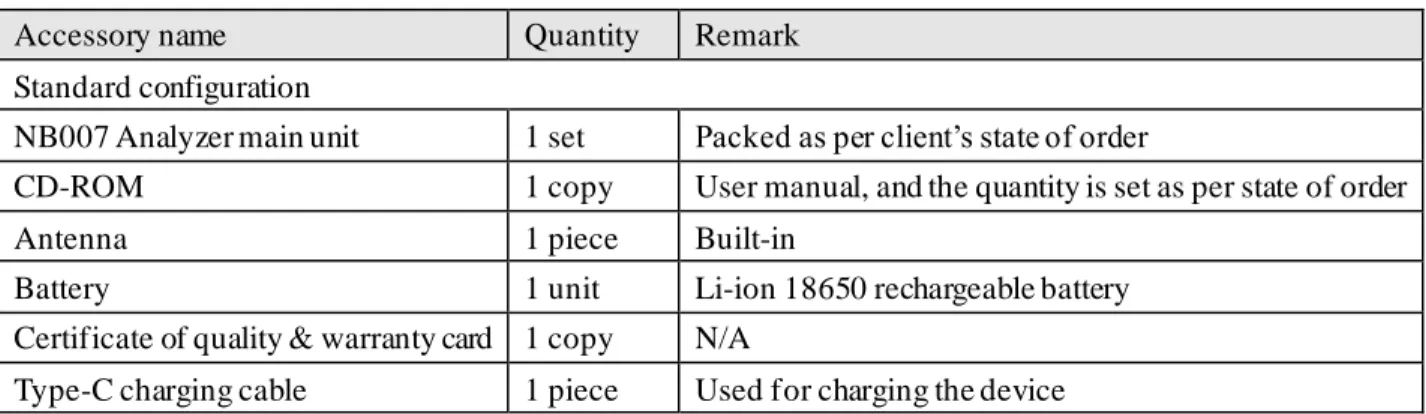
NB007 includes the accessories shown in table 2-1.
Table 2-1 NB007 Analyzer packaging list
Accessory name Quantity Remark
Standard configuration
NB007 Analyzer main unit 1 set Packed as per client’s state of order
CD-ROM 1 copy User manual, and the quantity is set as per state of order
Antenna 1 piece Built-in
Battery 1 unit Li-ion 18650 rechargeable battery
Certificate of quality & warranty card 1 copy N/A
Type-C charging cable 1 piece Used for charging the device
2.3
Mounting SIM card
Step 1: remove the battery cover from the back panel
Step 2: unlock the SIM card slot as the indication beside the slot Step 3: insert SIM card along correct direction
NB007 Analyzer User Manual Installation
Doc V1.0 2 -5
Graph 2-1 Mounting SIM card
2.4
Battery mounting and charging
Step 1: remove the battery cover from the back panelStep 2: mount battery as per the direction indicated on battery cover of the device Step 3: mount battery cover to the device. See graph 2-2.
Step 4: Charging, use the USB Type-C cable for charging the device, make sure using an adaptor with 5V@1A power input.
Graph 2-2 Battery mounting and charging
NB007 Analyzer User Manual Installation
Doc V1.0 2 -6
2.5
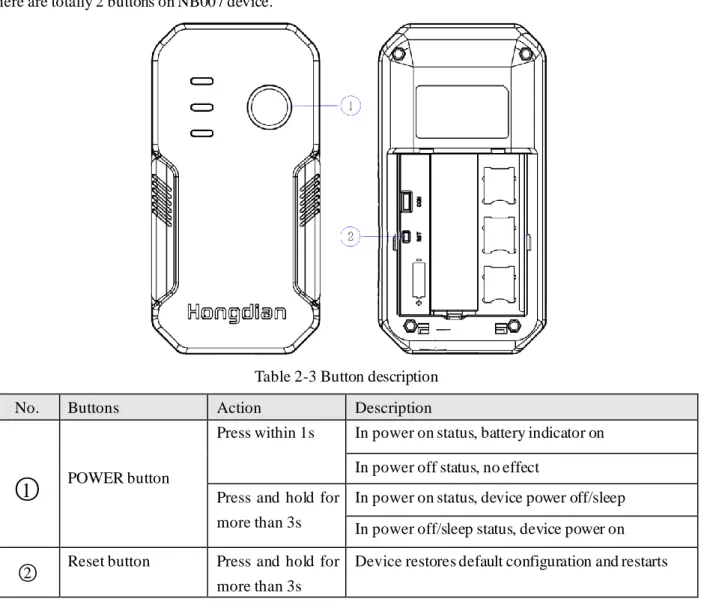
Power/reset button
There are totally 2 buttons on NB007 device.Table 2-3 Button description
No. Buttons Action Description
○
1
POWER buttonPress within 1s In power on status, battery indicator on In power off status, no effect
Press and hold for more than 3s
In power on status, device power off/sleep In power off/sleep status, device power on
○
2 Reset button Press and hold for more than 3sDevice restores default configuration and restarts
2.6
LED indicator
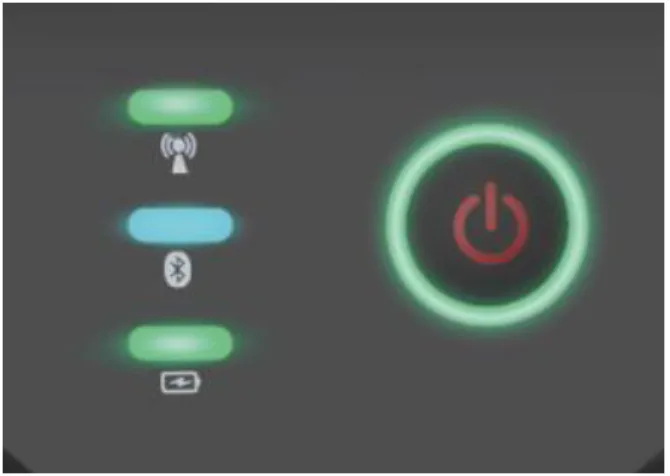
There are totally 4 LED indicators at the front panel of NB007, indicating the operating status of the device, as is shown in graph 2-3.
NB007 Analyzer User Manual Installation
Doc V1.0 2 -7
Graph 2-3 Graphic representation of LED indicator
Table 2-2 LED status description
LED indicator Indication Description
POWER
Always on Working normally
Blinking Powering off
Off Power off/sleep mode
SIGNAL
Green CSQ:15-31
Yellow CSQ:10-14
Red CSQ:1-9
Off No signal/power off
Bluetooth Blue Bluetooth is connected
Off Bluetooth is disconnected or power off
BATTERY
Green, blinking Charging
Short press power button once, indicator turns green
The battery has 100%~75% power left
Short press power button once, indicator turns yellow
The battery has 75%~50% power left
Short press power button once, indicator turns red
The battery has 50%~25% power left
Short press power button once, indicator turns red and blinks
The battery has 25%~0% power left
Off Power off
NB007 Analyzer User Manual Initial Configuration
Doc V1.0 3 -8
3
Initial Configuration
3.1
Overview
NB007 can be operated and configured via Bluetooth by installing an APP on smartphone, which is very handy and visible. This chapter mainly includes: The power on/power off/sleep mechanism, how APP sets up connection with the device, APP page introduction and how to operate.
3.2
Bluetooth connection
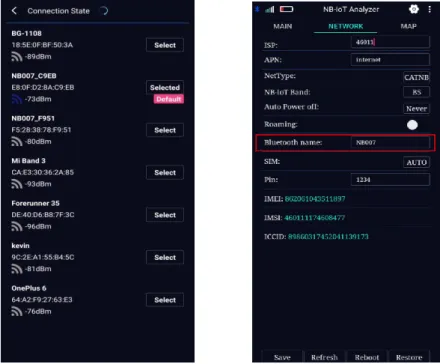
Provide interactive bridge for APP and the deviceStep 1: open NB-IOT Analyzer APP, click button at upper right corner and enter Connection State interface. Step 2: click “Select” button at the back of Bluetooth name of the devices needing to be connected, APP will select the device to connect, and Bluetooth name will appear in Bluetooth name item on NETWORK page, and it can be revised manually as is shown in graph 3-2.
1. When Bluetooth name configuration is NB007, in order to avoid repetition of Bluetooth name of multiple NB devices, actua l effected Bluetooth name is: “default name_the last four digits of Bluetooth mac”. For example, if Bluetooth mac address is e8:0f:d2:8a:c9:eb, the effected Bluetooth name during default configuration is: NB007_C9EB.
2. If revised Bluetooth name is not NB007, actua l effected name is consistent with configured Bluetooth name, and la st four d igits of ma c address will not be a dded.
3. After Bluetooth name is revised, loca l connection is not disconnected, a nd new name is used to connect for next connection.
NB007 Analyzer User Manual Initial Configuration
Doc V1.0 3 -9
Graph 3-2 Bluetooth connection and configuration tag
Step 3: Configure Bluetooth connection parameters, and the description is as shown in table 3-2. Table 3-2 Bluetooth name configuration parameter description
Parameter name Parameter description
Bluetooth name It’s used for reviewing Bluetooth name that changes currently connected devices, and default configuration is NB007.
NB007 Analyzer User Manual Initial Configuration
Doc V1.0 3 -10
3.3
APP
APP is mainly responsible for completing dial parameter configuration of the device, signal quality detection, ping test, delay test, export and share as reports, which contain location information.
Main page
Main page is mainly for displaying signal parameters, creating signal statistic graph, and performing PING test, delay test and export report function.
Step 1: Open APP and connect devices.
Refer to “3.3 Bluetooth connection” for connection method.
Step 2: return to “MAIN” tag
Graph 3-3 Mobile web page tag Step 3 “PING”, “D-TEST”, and “REPORT” operations.
PING
1. Click “ ” to enter mobile network configuration page, click “add” to add ping setting IP, as is shown in graph 3-4.
NB007 Analyzer User Manual Initial Configuration
Doc V1.0 3 -11
Graph 3-4 Adding ping setting IP tag 2. Return to MAIN page, click “PING” button to conduct PING test
D-TEST
1. Click “ ” to enter into Setting tag; revise Delay Test time; default is 10s, which means the testing will be lauched after 10s, as is shown in graph 3-5.
Graph 3-5 Setting tag and launch D-test 2. Return to MAIN page, click “D-TEST” button to conduct delay test.
NB007 Analyzer User Manual Initial Configuration
Doc V1.0 3 -12
3. After delay test is finished, APP pop-up “D-TEST done, generate report?” Click “Yes” to export delay test report.
During the dela y test, Bluetooth is a llowed to be disconnected, but exiting the APP is not a llowed.
After dela y test is finished, if you choose not to generate delay test report, the test report will not be a ble to be generated any more.
--- End
REPORT
As is shown in graph 3-3, click REPORT button after the test to generate the report. Also, the field image or location information can be contained in the report, as is shown in graph 3-6.
graph 3-6 Generate the test report
Before clicking REPORT, PING test shall be conducted first.
---- End
Network
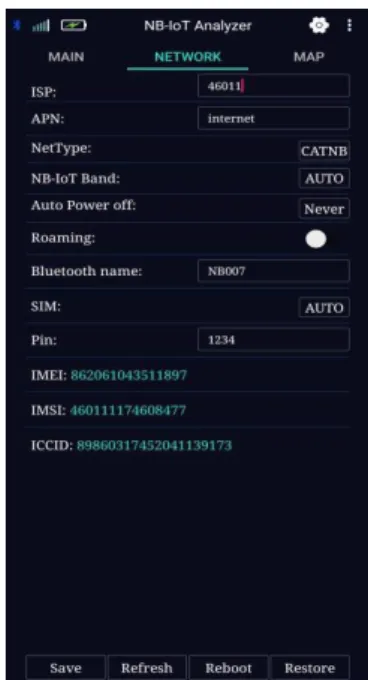
NETWORK page provides device dialing parameter configuration. It is the core function of NB007, and provides security for user’s signal quality test. NB007 supports 3 SIM cards and 1 ESIM card inserted and only 1 SIM/ESIM can be dial up at the same time. NB007 supports CAT NB, CAT M, and GSM network.
Step 1: open APP connection device
Refer to “3.3 Bluetooth connection” for connection method.
Step 2: return to “MAIN” tag; click “NETWORK” or swipe the screen to the left to enter into NETWORK page, as is shown in graph 3-6.
NB007 Analyzer User Manual Initial Configuration
Doc V1.0 3 -13
Step 3: configure NETWORK parameters, as is shown in graph 3-6, and NETWORK parameters description is as is shown in table 3-3.
Graph 3-7 NETWORK tag
Table 3-3 NETWORK tag parameters description
Parameter name Parameter description
Internet service provider (ISP)
Access to internet service provider in a mandatory manner via this option (only digit format is supported)
Access point name (APN) Sign information for accessing to internet service provider. It is generally used for indicating the type of network of internet service provider being accessed to. As to private network, it is generally named as per private network type, and is provided by the operator or ISP. Internet type (NetType) Mandatory network should be accessed to via this option. Generally, it
is used under the condition that one particular network is not stable or wish to work in only one particular network (AUTO, CAT NB, CAT M and GSM can be optional).
Frequency band (NB-IoT band)
One particular frequency band of mandatory network should be accessed via this option. Different network type supports different frequency band, can be set as AUTO.
Roaming Roaming dialing, on or off is optional
SIM Supports 3 SIM cards and 1 ESIM card switching, and supports
configuring AUTO
PIN Personal Identification Number, identification code of SIM card. User can use PIN code to unlock or lock SIM card to prevent illegal use. Step 4: click “Save”, and complete parameter configuration of “NETWORK”.
NB007 Analyzer User Manual Initial Configuration
Doc V1.0 3 -14
Refresh
Click “Refresh” button; restarts the querying process for the current network. Reboot
Click “Reboot” button; reboots the NB007 device currently connected. Restore
Click “Restore” button, conduct factory reset operation for NB007 device currently connected.
After pa rameters a re modified, only by clicking “Sa ve” button to save can parameters be effective.
--- End
Map
MAP page is for showing the position of current test. Step 1: open APP connection device.
Refer to “3.3 Bluetooth connection” for connection method.
Step 2: click “MAP” to switch to MAP page, as is shown in graph 3-7.
Graph 3-8 graphic representation of MAP tag
The APP’s MAP background uses Google Map, and make sure your mobile phone can visit Google Map before using.
NB007 Analyzer User Manual Initial Configuration
Doc V1.0 3 -15
3.4
Automatic power off /sleep mode
Step 1 Enable the Auto power off function, choose how long you want it to automatically power off.
Graph 3-1 Automatic power off parameter configuration tag
a) Without extended power supply: if there is no data transmitting via Bluetooth or serial interface during Auto Power off period, the device will be powered off automatically.
b) With extended power supply: if there is no data transmitting via Bluetooth or serial interface during Auto Power off period, the device enters sleep mode.
c) The device would automatically power off when battery’s voltage is lower than 3.2V.
The power on/power off status described by this section defaults battery having been connected, and power supply only through adapter without connecting battery is categorized as unregulated operation, out of the discussion. --- End
Step 2: Configure Automatic power off configuration, and parameter description is as shown in table 3-1. Table 3-1 Automatic power off configuration parameter descriptions
Parameter name Parameter description Automatic power
off time (Auto Power off)
if there is no data transmitting via Bluetooth or serial interface during Auto Power off period, the device enters sleep status
Supported configurations: NEVER, 5min, 10min, 15min, 20min, 30min, wherein Never means never automatic power off
NB007 Analyzer User Manual FAQ/Troubleshooting
Doc V1.0 4 -16
4
FAQ/Troubleshooting
5.1 Overview
This chapter mainly introduces causes to common failure and treatment methods in the process of using NB007.
5.2 NB007 PING test result is error or timeout
Failure phenomenon
NB007 PING test result is error or timeout.
Failure causes
Causes to occurrence of the failure are as follows:
⚫ The area where the device is located is unable to provide mobile network service, and mobile network service does not fully cover the area.
⚫ Tested IP is not the PING connected IP of current network.
Solutions
⚫ If the area where the device is located is unable to provide mobile network service, please contact internet service provider to solve rationally.
⚫ If IP configuration is incorrect, please configure parameters correctly.
5.3 Device is unable to power on
Failure phenomenon
The device is unable to power on.
Causes to failure
Causes to the failure are as follows: ⚫ Battery power level is too low.
Solutions
NB007 Analyzer User Manual FAQ/Troubleshooting
Doc V1.0 4 -17
Shenzhen Hongdian Technologies Corporation provides all-round technical support for clients, and clients can contact headquarter of the company directly.
Shenzhen Hongdian Technologies Corporation
Address: F14-F16, Zhonghaixin Science Park Headquarter Center, Bulan Avenue, Longgang District, Shenzhen
Website: http://www.hongdian.com
Technical special line: 400-00-64288 dial 2 Complaint hot line: 400-00-64288 dial 3
Fax: 0755-83644677
Post code: 518112
Copyright reserved © 2020 Shenzhen Hongdian Technologies Corporation. All rights reserved.
The contents included in the user manual are protected by copyright law. Any organizations or individuals shall not make photocopies and reprint of the whole manual and part of the contents in any forms or methods whatsoever without written authorization by Shenzhen Hongdian Technologies Corporation.
Trade mark statement
, DTU, NB007 is the trademark owned by Shenzhen Hongdian Technologies Corporation. Other trademark mentioned in the manual is owned by the institute that has the proprietary over the trademark, and Hongdian Corporation has no ownership right in other trademark.
Note
Due to upgrade of product version or other causes, contents of the document will be updated irregularly. Unless agreed otherwise, the document is for user guidance only. All illustration, information and recommendations in the document do not constitute any expressed or implied warranty.
Connecting Things