White Paper A A A
Abbbstractbstractstract stract
This paper provides an introduction to the EMC integration with SAP Landscape Virtualization Management (LVM) for customers that are not familiar with the EMC products (EMC Storage Integrator (ESI) for SAP LVM, EMC HLS Administration Console (EHAC), EMC Solutions Enabler and EMC SMI-S Provider. The SAP NetWeaver Landscape Virtualization Management product provides the SAP application virtualization feature and the ability to automate end-to-end the SAP system copy process. June 2013
SAP NETWEAVER LANDSCAPE VIRTUALIZATION
MANAGEMENT SOFTWARE INTEGRATION WITH
EMC
Copyright © 2013 EMC Corporation. All Rights Reserved. EMC believes the information in this publication is accurate as of its publication date. The information is subject to change without notice.
The information in this publication is provided “as is.” EMC Corporation makes no representations or warranties of any kind with respect to the information in this publication, and
specifically disclaims implied warranties of merchantability or fitness for a particular purpose.
Use, copying, and distribution of any EMC software described in this publication requires an applicable software license.
For the most up-to-date listing of EMC product names, see EMC Corporation Trademarks on EMC.com.
VMware is a registered trademark or trademark of VMware, Inc. in the United States and/or other jurisdictions. All other
trademarks used herein are the property of their respective owners.
Table of Contents
Table of Contents
Table of Contents
Table of Contents
Executive Summary Executive Summary Executive Summary Executive Summary ... 5555 Objective ... 5 Audience ... 5 SAP LVM Introduction SAP LVM Introduction SAP LVM Introduction SAP LVM Introduction ... 6666 Standard Edition ... 7 Enterprise Edition ... 7EMC Integration with SAP LVM EMC Integration with SAP LVM EMC Integration with SAP LVM EMC Integration with SAP LVM ... 8888 Overview ... 9
EMC Storage Integrator (ESI) for SAP LVM ... 10
EMC HLS Administration Console (EHAC) ... 10
EMC SMI-S Provider... 11
EMC Solutions Enabler ... 12
EMC SAP LVM Support Matrix ... 12
Standard Edition ... 12
Enterprise Edition ... 13
EMC Software Installation and Preparation EMC Software Installation and Preparation EMC Software Installation and Preparation EMC Software Installation and Preparation ... 14141414 EMC Storage Integrator (ESI) for SAP LVM ... 14
EMC HLS Administration Console (EHAC) ... 14
EMC SMI-S Provider ... 18
EMC Solutions Enabler ... 19
Overview of SAP LVM Operations Overview of SAP LVM Operations Overview of SAP LVM Operations Overview of SAP LVM Operations ... 22...222222 Standard Edition ... 22
Enterprise Edition ... 24
System Clone... 24
System Copy ... 25
System Refresh ... 26
Initial Setup and Configuration Initial Setup and Configuration Initial Setup and Configuration Initial Setup and Configuration ... 26...262626 Setup ... 27
SAP Host Control Agent and SAP Profile Parameters ... 27
Retrieving SAP system mount points in SAP LVM ... 28
Issuing operation functions for SAP systems and instances ... 29
Advanced Configuration for Enterprise Edition Advanced Configuration for Enterprise Edition Advanced Configuration for Enterprise Edition Advanced Configuration for Enterprise Edition ... 30...303030 Setup ... 30
ESI for SAP LVM Storage Adapter Configuration ... 31
Issuing clone and copy operations for SAP systems and instances ... 34
Conclusion Conclusion Conclusion
Executive S
Executive S
Executive S
Executive Summary
ummary
ummary
ummary
SAP NetWeaver Landscape Virtualization Management (SAP NetWeaver LVM) is one of SAP’s products in their virtualization and cloud strategy designed to take customers to the on-premise (private) cloud.
SAP NETWEAVER LVM provides application virtualization and management of SAP systems through a single user interface. This powerful management tool simplifies and optimizes provisioning, deployment, and management of SAP Systems through the use of virtualization and Infrastructure as a Service (IaaS) cloud technology, providing the following benefits:
• Reduced TCO (Total Cost of Ownership)
• Increased flexibility and agility to respond to business demands
SAP NetWeaver LVM’s current features include:
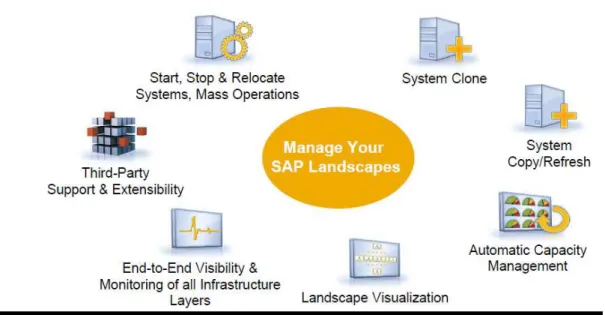
• Framework for SAP system clone, copy, and refresh, including fully automated post-copy tasks
• Capacity management – proposal-based dialog instance scaling • End-to-end visibility, monitoring and management of SAP and non-SAP
applications in virtual infrastructures
• Overview dashboard with customization options
• Landscape visualization, from a high-level landscape view down to the infrastructure level
• Reporting options: on individual systems, and across landscapes
Objective Objective Objective Objective
This focus of this document covers the integration between EMC and SAP to enable the use SAP NetWeaver LVM to execute SAP system clone, copy, and refresh
processes, including the post-copy automation tasks. The post-copy automation (PCA) tasks are eligible to be executed with the SAP system copy and refresh processes only.
Audience Audience Audience Audience
This white paper is intended for customers that are familiar with SAP NetWeaver Landscape Virtualization Management but not familiar with EMC’s integration and product set to support that integration. It will document the EMC tasks required during the installation process to enable full support of our integration with SAP NetWeaver LVM. This paper is designed for the storage administrative team responsible for supporting the SAP team interested in SAP NetWeaver LVM.
SAP
SAP
SAP
SAP NetWeaver LVM
NetWeaver LVM
NetWeaver LVM IIIIntroduction
NetWeaver LVM
ntroduction
ntroduction
ntroduction
SAP NetWeaver LVM provides a central point of control for flexibly assigning computing resources and managing application services in the system landscape. SAP NetWeaver LVM is built on four key principles:
• Unified – Reduce the time and effort to transition to virtual and cloud environments by decoupling the application from the underlying
infrastructure; by providing a unified view and management of the hardware, software, and virtualization layers; and by automating system relocation. • Complete – Improve your ability to respond to business needs with support for
configuring, deploying, monitoring, and managing your SAP systems and landscapes in both physical and virtualized infrastructures, providing you more infrastructure options and faster time to value.
• Simplified – Simplify the management of SAP landscapes by hiding the technical complexities of physical and virtualized infrastructures from day to day operations.
• Automated – Reduce the capital investment and operational costs (TCO) of your SAP systems with capabilities including scheduling system operations in advance with a built-in task planner; and by leveraging virtualization to reduce your hardware requirements and improve resource utilization.
Figure 1 provides a high level view of the features provided by SAP NetWeaver LVM.
Figure Figure Figure
Feature availability is dependent on the SAP NetWeaver LVM license installed. There are two different licenses of SAP NetWeaver LVM, standard and enterprise. Figure 2 helps depict the progression from the standard edition to the enterprise edition:
Figure
Figure Figure
Figure 2222: SAP NetWeaver LVM standard edition versus enterprise edition: SAP NetWeaver LVM standard edition versus enterprise edition: SAP NetWeaver LVM standard edition versus enterprise edition: SAP NetWeaver LVM standard edition versus enterprise edition
Standard Edition Standard Edition Standard Edition Standard Edition
The standard edition key features include: • Intersystem dependency framework
• Single system and mass operations (for example, start, stop) • Ability to relocate systems from one host to another
• Task planner
• Application server (un-)install
• Custom services, operations, and hooks
For a deeper understanding of any of these features please contact SAP.
Enterprise Edition Enterprise Edition Enterprise Edition Enterprise Edition
The enterprise edition key features include:
• SAP system clone, copy, and refresh framework • Automatic capacity management
• Visualization of the whole landscape • Intersystem dependency framework
• Single system and mass operations (for example, start, stop) • Ability to relocate systems from one host to another
• User configurable dashboards • Reporting
• Task planner
• Application server (un-)install
• Custom services, operations, and hooks
For more detailed information about the features of SAP NetWeaver LVM refer to
http://help.sap.com/nwlvm or contact SAP.
EMC Integration with SAP
EMC Integration with SAP
EMC Integration with SAP
EMC Integration with SAP NetWeaver
NetWeaver
NetWeaver
NetWeaver LVM
LVM
LVM
LVM
This scope of this paper is to describe the EMC integration with SAP NetWeaver LVM software. This paper does not cover all of the available features in SAP NetWeaver Landscape Virtualization Management software. The features directly related to EMC’s integration points (EMC Storage Integrator, EMC HLS Configuration Console, EMC SMI-S Provider, and EMC Solutions Enabler) are covered.
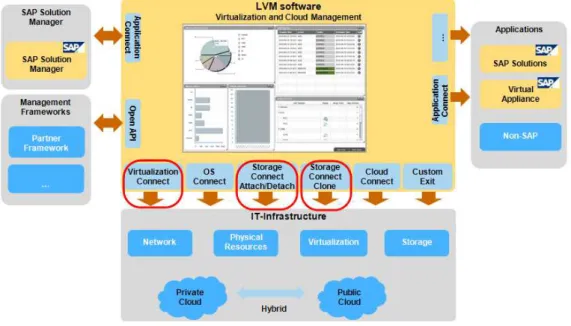
Figure 3 is a big picture view of SAP NetWeaver Landscape Virtualization Management software with integration to various IT components.
Figure Figure Figure
EMC Solutions Enabler, EMC Storage Integrator (ESI) for SAP NetWeaver LVM, EMC HLS Administration Console (EHAC), and EMC SMI-S Provider will integrate to the
Storage Connect Attach/Detach module and the Storage Connect Clone module. VMware integration occurs in the Virtualization Connect module.
EMC support for SAP NetWeaver Landscape Virtualization Management is a natural fit to EMC’s strategy and direction on virtualization and cloud. EMC Integration to SAP NetWeaver LVM allows customers to maximize the value of their infrastructure while providing them with a path to virtualization and cloud technologies.
Overview Overview Overview Overview
Figure 4 shows the SAP NetWeaver LVM design consisting of a management server, the SAP NetWeaver LVM Server itself, and managed systems, which are the SAP systems managed by SAP NetWeaver LVM server. The SAP NetWeaver LVM
management server collects information from the managed servers using the SAP Host Agent software.
There are two adapters available in SAP NetWeaver LVM; a virtualization adapter and a storage adapter. This paper will focus on the storage adapter.
Figure Figure Figure
Figure 4444: SAP NetWeaver LVM overall architecture: SAP NetWeaver LVM overall architecture: SAP NetWeaver LVM overall architecture: SAP NetWeaver LVM overall architecture
SAP Application Virtualization (Adaptive Computing) SAP Application Virtualization (Adaptive Computing) SAP Application Virtualization (Adaptive Computing) SAP Application Virtualization (Adaptive Computing)
SAP provides what is called Application-based Virtualization, which decouples the SAP application and database from the underlying Operating system, differently from the
hypervisor-based virtualization, offered by VMware for example, which decouples the Virtual Machine and its OS from the underlying server hardware.
EMC’s Integration with SAP NetWeaver LVM EMC’s Integration with SAP NetWeaver LVM EMC’s Integration with SAP NetWeaver LVM EMC’s Integration with SAP NetWeaver LVM
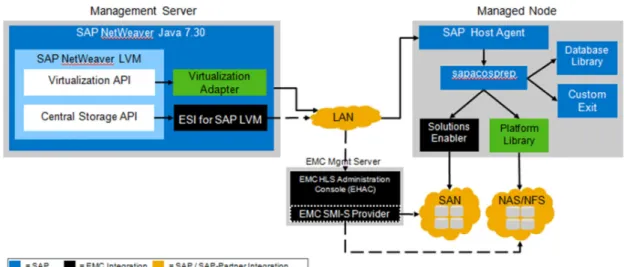
Figure 5 shows EMC’s integration points depicted in black. These include the central storage adapter, the central storage management, and the storage library. EMC’s central storage
adapter is called EMC Storage Integrator (ESI) for SAP NetWeaver LVM. The central storage management section will consist of EMC HLS Administration Console (EHAC) and EMC SMI-S Provider. The EMC SMI-S Provider is only required in SAN configurations.
The EMC storage library is shipped with EMC Solutions Enabler, a widely used product by EMC customers. This is only required in SAN configurations to perform functions such as logical volume group import/export and mounts and unmount of the file systems. NAS configuration will not require these additional functions.
Figure Figure Figure
Figure 5555: EMC’s Integration with SAP NetWeaver LVM: EMC’s Integration with SAP NetWeaver LVM: EMC’s Integration with SAP NetWeaver LVM: EMC’s Integration with SAP NetWeaver LVM
EMC Storage Integrator (ESI) for SAP EMC Storage Integrator (ESI) for SAP EMC Storage Integrator (ESI) for SAP
EMC Storage Integrator (ESI) for SAP NetWeaver LVMNetWeaver LVMNetWeaver LVMNetWeaver LVM
EMC® Storage Integrator (ESI) for SAP NetWeaver LVM is an adapter for SAP® NetWeaver® Landscape Virtualization Management (LVM). ESI for SAP NetWeaver LVM has two main components, the SAP NW LVM adapter and a web service called the EMC HLS Administration Console (EHAC).
ESI for SAP LVM is distributed as a Java Enterprise Archive (EAR) file that complies with SAP NetWeaver LVM specifications. The ESI for SAP LVM adapter runs in the LVM Java application server and integrates with EMC File and Block storage systems. E
EE
EMC HLS Administration Console MC HLS Administration Console MC HLS Administration Console (EHAC)MC HLS Administration Console (EHAC)(EHAC)(EHAC)
ESI for SAP LVM adapter includes an administration console that storage
administrators can use to manage users, storage systems, ECOM servers and access control. HLS stands for High Level SMI-S.
EHAC provides a single point of management used to create user accounts and assign storage systems to users. This is a gateway for the LVM adapter to access EMC file or block storage systems. With EHAC, administrators can manage storage space
assigned to individual users by controlling read/write access to the storage pools for each storage system.
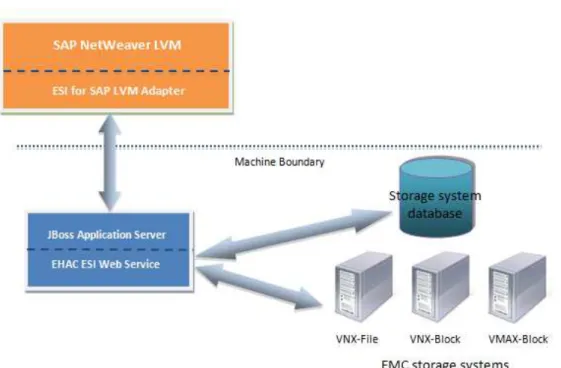
Figure 6 demonstrates how the ESI for SAP LVM storage adapter and the EHAC console integrate with EMC storage.
Figure Figure Figure
Figure 6666: Overview of the ESI for SAP LVM and the EHAC integr: Overview of the ESI for SAP LVM and the EHAC integr: Overview of the ESI for SAP LVM and the EHAC integr: Overview of the ESI for SAP LVM and the EHAC integration with EMC storageation with EMC storageation with EMC storageation with EMC storage
EMC SMI EMC SMI EMC SMI
EMC SMI----S ProviderS ProviderS ProviderS Provider
EMC® SMI-S (Storage Management Interface Specification) Provider supports the SNIA Storage Management Initiative (SMI), an ANSI standard for storage
management. This initiative has developed a standard management interface that has culminated in a comprehensive specification.
EMC SMI-S Provider is paired with the EMC CIM (Common Interface Module) Server to provide an SMI-compliant interface for EMC VMAX® arrays, EMC CLARiiON® arrays, and EMC VNX family storage systems. The SAP clone, copy, and refresh processes utilize EMC’s integration with SMI-S, through the ESI for SAP LVM adapter.
Multiple installations of EMC’s SMI-S Provider are not required in a SAP NetWeaver LVM environment. One SMI-S Provider can manage up to 5 different EMC storage arrays. If more than 5 arrays are used, then an additional Provider will need to be installed.
The EMC recommendations are:
• Install the SMI-S provider on the same server as the EHAC, provided this is a Linux or Windows server
• Do not install the SMI-S Provider on a SAP NW LVM managed servers because the required versions of EMC SMI-S Provider and EMC Solutions Enabler may be different
EMC EMC EMC
EMC Solutions EnablerSolutions EnablerSolutions Enabler Solutions Enabler
EMC® Solutions Enabler host-based software provides an API-shared library and a special command set that comprises the Symmetrix® Command Line Interface (SYMCLI) for use by storage administrators and systems engineers in SAN configurations.
Solutions Enabler supports command-line entries and scripts to map and perform control operations on devices and data objects to manage your storage complex. Solutions Enabler releases are managed through a continuous lifecycle management process.
SAP NetWeaver LVM programmatically manages storage for the SAP NetWeaver LVM graphical interface user. The SAP application virtualization is enhanced by two components provided by the SAP host agent package:
• The executable (sapacosprep), which stands for SAP Adaptive Computing Open Systems PREParation
• The SAP shared library (libsapacosprep)
The EMC component is invoked by the EMC shared library (libsapacosprep_emc), which is packaged in EMC Solutions Enabler.
The SAP executable, sapacosprep, supplements SAP NetWeaver LVM. It is invoked on behalf of SAP LVM GUI to control and establish the application virtualization layer, by attaching and detaching files systems and volume groups via the SAP and EMC shared libraries.
EMC’s Solutions Enabler software must be installed on every host in the SAP
NetWeaver LVM SAN environment. It is not required on servers in a NAS environment. This includes any server, physical or virtual, that will have a SAP LVM managed SAP system or instance, and including potential servers to be used for storage based clones or copies.
EMC SAP EMC SAP EMC SAP
EMC SAP NetWeaver NetWeaver NetWeaver NetWeaver LVM Support MatrixLVM Support MatrixLVM Support MatrixLVM Support Matrix
EMC integration with SAP NetWeaver LVM will depend on the SAP LVM license purchased and the features that are planned on being used. There are currently two versions, Standard Edition and Enterprise Edition.
Standard Edition Standard Edition Standard Edition Standard Edition
The start, stop, and relocation features in the standard edition will require additional EMC integration in SAN configurations. NAS configurations are supported on EMC storage arrays without additional EMC integration.
These SAP NetWeaver LVM features are the evolution from SAP Adaptive Computing Controller (SAP ACC) and will continue to be available in SAP Adaptive Computing. EMC holds numerous SAP ACC certificates of conformity and will continue to provide support for SAP ACC customer implementations.
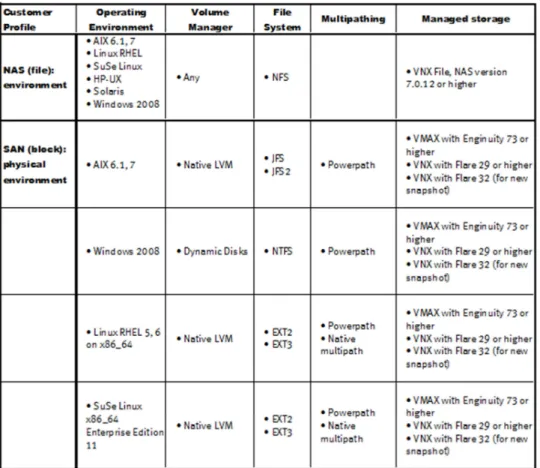
For a better customer experience, additional enhancements were added to these features and are available in SAP NetWeaver LVM 1.0. EMC will support all of the operating systems and volume managers listed in the support matrix in Figure 7.
Enterprise Edition Enterprise Edition Enterprise Edition Enterprise Edition
In addition to the features supported in the standard edition, the enterprise edition SAP system clone, copy, and refresh features will require additional support from EMC for both SAN and NAS configurations. EMC will support all of the operating systems and volume managers listed in the support matrix in Figure 7.
Support Matrix for EMC Solutions Enabler Support Matrix for EMC Solutions Enabler Support Matrix for EMC Solutions Enabler Support Matrix for EMC Solutions Enabler
Figure 7 will show a quick glance support matrix but please refer to the full EMC Support Matrix referred to here.
For the particular OS versions supported, please refer to the EMC Support Matrix by utilizing EMC’s E-Lab™ Interoperability Navigator at http://elabnavigator.emc.com. Once you enter the E-Lab Interoperability Navigator, select the appropriate login option, that is, Customer and Partners: Login to E-Lab Interoperability Navigator through PowerLink. This will require a Powerlink ID.
Figure Figure Figure
EMC S
EMC S
EMC S
EMC Software Installation and Preparation
oftware Installation and Preparation
oftware Installation and Preparation
oftware Installation and Preparation
This section will focus on EMC software installations related to SAP NetWeaver LVM and some of the preparatory work associated with the configuration of SAP
NetWeaver LVM
EMC Storage Integrator (ESI) for SAP LVM EMC Storage Integrator (ESI) for SAP LVM EMC Storage Integrator (ESI) for SAP LVM EMC Storage Integrator (ESI) for SAP LVM
ESI for SAP LVM is available on the EMC Online Support website for download. ESI is distributed as an EAR (Java Enterprise Archive) file.
You can download and use the ESI Adapter and EMC HLS Administration Console (EHAC) separately. This could commonly occur if the SAP NetWeaver LVM user is not also the storage administrator.
This adapter is deployed on the SAP LVM Java Application server. For complete installation instructions please refer to the “EMC Storage Integrator for SAP LVM Storage Adapter User Guide”.
EMC HLS Administration Console (EHAC) EMC HLS Administration Console (EHAC) EMC HLS Administration Console (EHAC) EMC HLS Administration Console (EHAC)
EHAC is distributed as an EAR (Enterprise Archive) file and two jar files used to configure the database and update the JBoss configuration files. For complete
installation and configuration instructions please refer to the “EMC Storage Integrator for SAP LVM: EMC HLS Administration Console”.
As mentioned above, you can download and use the ESI Adapter and EMC HLS
Administration Console (EHAC) separately. This could commonly occur if the LVM user is not also the storage administrator.
The following software must be installed and set up before you install the EMC HLS Administration Console (EHAC).
Sof SofSof
Softwaretwaretwaretware Required software versionRequired software version Required software versionRequired software version Java Development Kit
(JDK)
Version 1.6 Java Cryptography
Extension 6 (JCE-6)
JCE-6 for Java 1.6 with Unlimited Strength Jurisdiction Policy Files 6, which supports Strong Encryption
JBoss Application Server 7
Version 7.1.1 or later
The following software must be installed and set up on the EHAC server if you use block storage.
Software SoftwareSoftware
Software Required software versionRequired software version Required software versionRequired software version
SMI-S provider 4.5.1
Browser IE 9 or later, if Internet Explorer is used. Other browsers can be used as well.
Note: Note: Note:
Note: You must also configure an SMI-S Provider account with the Administrator role to allow full access. Zoning should also be completed prior to cloning.
Once the EHAC and prerequisite software is installed and configured, the administration console can be accessed by the storage administration at the following URL:
http://<EHAC server ip>:<port id>/esi_sap_lvm_saconfig.1.5
The administration console can be set up to run in SSL mode. These instructions are detailed in the “EMC Storage Integrator for SAP LVM Storage Adapter User Guide”. Running in SSL mode enhances the security between the client and the server, when you access the server remotely. The client is the browser from which the request comes to the server. The request and the response are both encrypted.
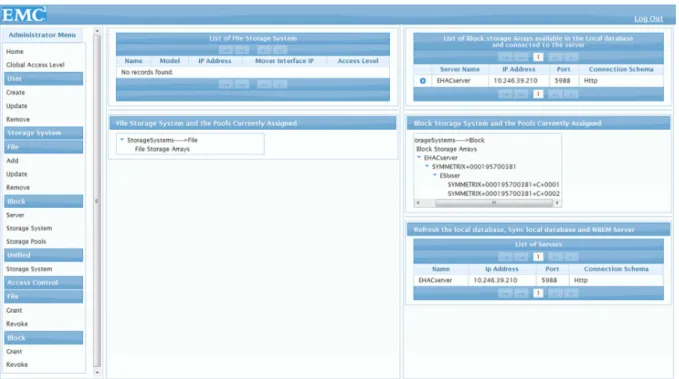
After the storage administrator logs into EHAC, the controls are listed down the left in the Administrator Menu. These controls include defining the user accounts,
accessing, listing, and granting/revoking user privileges to the available EMC storage arrays (File, Block, or Unified). On the Home page includes two panes:
• The left pane displays file storage systems and the pools that are assigned to specific users
• The right pane displays block storage and the pools that are assigned to specific users
Figure 8 shows the EMC admin console where the “ESIuser” has been granted access to 2 storage pools residing in block Symmetrix VMAX storage id ending in 381.
Figure Figure Figure
A Global Access Level can be created to enable or disable read/write access to storage systems for all users. You can do this with one click, and the Global Access Level overrides everything else. If the Global Access Level is set to read-only, all write access to users is also disabled.
The user id configured in the SAP NetWeaver LVM GUI, in the Configuration section,
Infrastructure tab, under Storage Manager is defined in the User section of EHAC. Figure 9 shows the EHAC screen where this user id is created.
Figure Figure Figure
Figure 9999: EHAC user id create page: EHAC user id create page: EHAC user id create page: EHAC user id create page
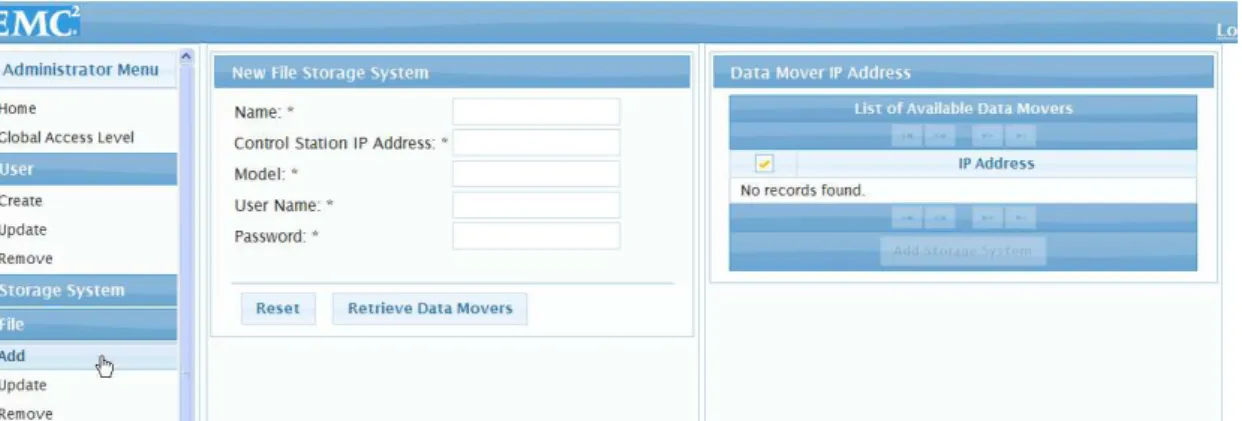
Figure 10 is an example of the Storage Systems section where the storage admin will gain access to the EMC storage arrays. This can be done in two different ways for File and Block. For file arrays, the control station IP address of the array is required. This will include VNX and CX4 arrays.
Figure Figure Figure
Figure 10101010: EHAC file storage system definition page: EHAC file storage system definition page: EHAC file storage system definition page : EHAC file storage system definition page
Block storage will be retrieved through the SMI-S provider for all VNX or VMAX arrays configured as block. Figure 11 shows the screen where this storage can be added in the Server section of Block Storage Systems. The SMI-S provider connection schema can be setup as http or https for added security. Refer to the “SMI-S Provider Release Notes” for information on how to set up the SSL mode for the SMI-S Provider.
VMAX storage will only require the server to be configured along with the appropriate gatekeeper connectivity. This is documented in the “SMI-S Provider Release Notes”.
Figure Figure Figure
Figure 11111111: EHAC block storage system definition page: EHAC block storage system definition page: EHAC block storage system definition page : EHAC block storage system definition page
VNX and CX4 block arrays will require the SP-A and SP-B IP addresses to be
configured. Refer to the “EMC Storage Integrator for SAP LVM Storage Adapter User Guide” or the “SMI-S Provider Release Notes” for more detailed instruction.
EHAC Access Controls EHAC Access Controls EHAC Access Controls EHAC Access Controls
Access to the arrays is either granted or revoked in the Access Controls section of EHAC, shown in Figure 12. Access can be granted or revoked at the array level or the storage pool level.
Figure Figure Figure
Figure 12121212: EHAC grant access c: EHAC grant access c: EHAC grant access control page: EHAC grant access control pageontrol pageontrol page
A full explanation of how to configure EHAC is provided in the “EMC Storage Integrator for SAP LVM Storage Adapter User Guide”.
EMC SMI EMC SMI EMC SMI
EMC SMI----S ProviderS ProviderS ProviderS Provider
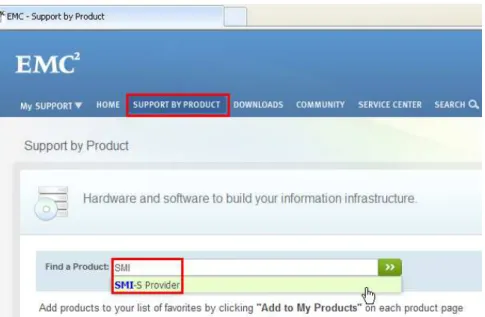
SMI-S Provider software can be downloaded from the EMC Support® website (https://support.EMC.com) under Support by Product section, as seen in Figure 13.
Figure Figure Figure
Figure 13131313: EMC Support By Product : EMC Support By Product : EMC Support By Product –: EMC Support By Product ––– SMISMISMI----S ProviderSMIS ProviderS ProviderS Provider
Simply enter “SMI-S Provider” on the Find a Product line and click the green arrows or hit enter. On the next screen, you will be able to select Documentation or Downloads, as seen in Figure 14.
Figure Figure Figure
Figure 14141414: EMC Support Page for SMI: EMC Support Page for SMI: EMC Support Page for SMI----S Provider: EMC Support Page for SMIS ProviderS Provider S Provider
The “SMI-S Provider Release Notes” explain how to install SMI-S Provider for either Linux or Windows environments.
This section will highlight the main points to keep in mind for SMI-S during the installation process. The installation process is very similar to EMC Solutions Enabler. The SMI-S installation and setup process installs the following:
• EMC CIM (Common Interface Model) server • EMC Solutions Enabler runtime libraries
Only the “Array” provider is required for SAP NetWeaver LVM software. The “VASA” provider will automatically be installed but you will not be required to perform any of the setup processes for this provider. The “Host” provider is not required and should NOT be installed. The installation process is will be different for Linux and Windows, please consult the release notes for specifics on each operating system.
Symmetrix VMAX family arrays will require six (6) additional gatekeepers for SMI-S monitoring. The VNX and CLARiiON product will require a discovery process to be able to view the arrays. These will be either an in-band or out-of-band process depending on if there are VNX or CLARiiON luns present on the SMI-S host. Both of these processes are detailed in the release notes in the Post-installation tasks
section. The SMI-S Provide executable (ECOM) may also need to be restarted to make sure all of the arrays can be discovered. The executable file resides in
/opt/emc/ECIM/ECOM/bin directory for Linux configurations and C:\Program
Files\EMC\ECIM\ECOM\bin directory for Windows configurations and can be
restarted from this directory with the following command: ./ECOM -d (Linux)
or
sm_service start ecom.exe (Windows)
The /opt/emc/ECIM/ECOM/bin/TestSmiProvider (Linux) or C:\Program
Files\EMC\ECIM\ECOM\bin\TestSmiProvider.exe (Windows) executable
will be used to log into the SMI-S provider and issue commands against the arrays. There are commands to view version information, discover the arrays, refresh the arrays, and remove any arrays. Once the initial discovery and communication is defined between the SMI-S provider and the EMC storage arrays, no more manual commands need to be issued against SMI-S. The communication for the clone, copy, and refresh process will happen between SAP and EMC and be seamless to the SAP NetWeaver LVM user.
Note: Note: Note:
Note: Do not to install Solutions Enabler over the SMI-S provider because it will prevent the SMI-S provider from working properly. This is reason why EMC SMI-S Provider contains and installs EMC Solutions Enabler.
EMC Solutions Enabler EMC Solutions Enabler EMC Solutions Enabler EMC Solutions Enabler
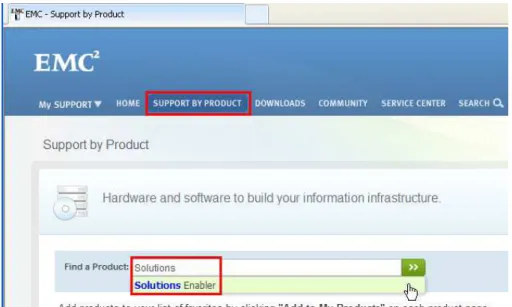
EMC Solutions Enabler software can be downloaded from the EMC Support® website (https://support.EMC.com) under Support by Product section, as seen in Figure 15.
Figure Figure Figure
Figure 15151515: EMC Support By Product : EMC Support By Product : EMC Support By Product –: EMC Support By Product ––– Solutions EnablerSolutions EnablerSolutions Enabler Solutions Enabler
Simply enter “Solutions Enabler” on the Find a Product line and click the green arrows or hit enter. On the next screen, you will be able to select Documentation or
Downloads, as seen in Figure 16.
Figure Figure Figure
Figure 16161616: EMC Support Page for Solutions Enabler: EMC Support Page for Solutions Enabler: EMC Support Page for Solutions Enabler : EMC Support Page for Solutions Enabler
The EMC Solutions Enabler installation guide is very thorough and should always be followed.
This section will only discuss unique steps required when using the EMC integration with SAP NetWeaver LVM software. During the installation process, the defaults can be taken with the exception of whether to install EMC Solutions Enabler SRM
Components. The default is ‘N’ but this integration requires the SRM components to be installed. Please select ‘Y’ for yes to the question, “Install EMC Solutions Enabler SRM Components?”
These components are the Storage Resource Management (SRM) components and provides additional functionality used with the volume groups for EMC on all platforms. Additional information can be found in the same location mentioned above on the EMC Support website in the EMC Solutions Enabler Symmetrix SRM CLI Product Guide, but in-depth knowledge of these components is not required. All of the integration is done between SAP and EMC and is not exposed to the SAP NetWeaver LVM user.
After Solutions Enabler is installed, the SAP Host Control Agent must be installed, in order for sapacosprep to function properly. The latest version is recommended. This will create the SAP Host Control Agent directory, /usr/sap/hostctrl/exe (Linux)
or C:\Program Files\SAP\hostctrl\exe (Windows). A symbolic link must
be created in this directory to point to the EMC shared library, libsapacosprep_emc.*, which is installed by default in the /opt/emc/SYMCLI/shlib/apps/SAP/
(Linux) or C:\Program Files\EMC\SYMCLI\shlib\apps\SAP\ (Windows) directory.
This library and directory is installed and created by the EMC Solutions Enabler install. The following example is using the Linux configuration and is executed from
the /usr/sap/hostctrl/exe directory in order to create a symbolic link:
ln -s /opt/emc/SYMCLI/shlib/apps/SAP/libsapacosprep_emc.so libsapacosprep_emc.so The format of the command is ln -s {target-filename}
{symbolic-filename}. After adding the symbolic link it is recommended to stop and restart
the SAP Host Control Agent from the /usr/sap/hostctrl/exe directory:
./saphostexec -stop ./saphostexec -restart ./saphostexec -status
A command line test can be run to verify the communication of shared libraries. This command will list the mount points in a format designed for SAP LVM:
/usr/sap/hostctrl/exe/sapacosprep -a ListFileSystems
If this command fails, please view /usr/sap/tmp/sapacosprep.log for additional information.
Note: Note: Note:
Note: Do NOT to install Solutions Enabler over the SMI-S provider because it will prevent the SMI-S provider from working properly. This is reason why EMC SMI-S Provider contains and installs EMC Solutions Enabler.
Overview of
Overview of
Overview of
Overview of SAP
SAP
SAP
SAP NetWeaver
NetWeaver
NetWeaver LVM
NetWeaver
LVM
LVM
LVM Operations
Operations
Operations
Operations
Figure 17 shows how SAP NetWeaver Landscape Virtualization Management is based on four building blocks; control, which is the SAP LVM GUI, compute resources, which includes the SAP systems/instances referred to as services and physical or virtual servers referred to as resources, network, which ties the compute resource to the 4th
building block, storage. The SAP systems and instances have to be installed on centralized storage with a virtual name in order to be controlled by SAP NetWeaver LVM.
Figure Figure Figure
Figure 17171717: SAP NetWeaver LVM Building Blocks: SAP NetWeaver LVM Building Blocks: SAP NetWeaver LVM Building Blocks : SAP NetWeaver LVM Building Blocks
The Standard Edition functionality, start/stop/relocate/mass operations, will provide wide support across EMC storage platforms. The Enterprise Edition features,
clone/copy/refresh, will have partial support initially.
Standard Edition Standard Edition Standard Edition Standard Edition
The start and stop functions are very basic starting and stopping of an SAP system or instance. You can extend these functions by adding a prepare or unprepare function to mount or unmount the files systems or volume groups associated with the SAP system or instance in a SAN environment. In a NAS environment the equivalent process is a bind or unbind of the mount points associated with the SAP system or instances. The relocate function will simply stop and unprepare the SAP system or instance on server x and then issue a prepare and start on server y, which is shown in
Figure 18.
Figure Figure Figure
Figure 18181818: SAP NetWeaver LVM Relocate: SAP NetWeaver LVM Relocate: SAP NetWeaver LVM Relocate : SAP NetWeaver LVM Relocate
At this point, the functionality only requires EMC Solutions Enabler and does not require any of the other EMC software. One of the benefits of using this functionality is to have a single control interface to start and stop all of your SAP systems. This provides ease of management versus having to manually maintain a list of all servers and SAP systems that are used by an SAP NetWeaver Technology person (formerly referred to as Basis). This includes having a single control interface to start and stop the SAP systems versus having to log in and out of every server to issue the start or stop commands. The SAP NetWeaver LVM user will also be able to schedule start and stop operations and perform mass operations, starting or stopping more than one SAP system or instance.
This functionality is providing SAP application virtualization, by allowing the SAP system or instance to be relocated to different servers (same architecture) and not being tied to the hardware it was originally installed on. SAP NetWeaver LVM also supports hypervisor or server virtualization products. One example is VMware virtualization.
The SAP NetWeaver LVM user has the flexibility to choose between using application virtualization or hypervisor virtualization depending on the configuration of the SAP Landscape. For example, if there is scheduled hardware maintenance on a server, then the SAP NetWeaver LVM user may choose to use the hypervisor virtualization to move the virtual machines off that hardware. During a maintenance weekend, the SAP NetWeaver LVM user may choose to use application virtualization to move certain SAP systems to more powerful servers to speed up processing during the limited time imposed during the weekend.
Enterprise Edition Enterprise Edition Enterprise Edition Enterprise Edition
SAP has extended the functionality of SAP NetWeaver LVM to include system clone, copy, and refresh and other features. Figure 19 displays the differences between clone, copy, and refresh. SAP system cloning will create an isolated copy of SAP system without renaming the system. SAP system copy will create a new, renamed SAP system. SAP system refresh will create a newer version of an existing copy.
Figure Figure Figure
Figure 19191919: SAP NetWeaver Clone / Copy / Refresh: SAP NetWeaver Clone / Copy / Refresh: SAP NetWeaver Clone / Copy / Refresh : SAP NetWeaver Clone / Copy / Refresh
System Clone System Clone System Clone System Clone
Figure 20 depicts an SAP system clone process in SAP NetWeaver LVM. SAP system cloning will create an isolated copy of the SAP system by using a fenced LAN configuration. This is done so the SAP System ID can remain the same. The
integration with EMC will include the ability to make the copy of the SAP system using either full volume Clones or pointer-based Snaps within the array.
EMC clones are like devices that will use the same storage space as the source SAP system. EMC Snaps are pointer-based copies that require the space for changed data. In typical environments this could be as little as 30% of the source SAP system. It depends how frequently the SAP system data is updated and changed. EMC has tools that can help determine how much space is actually needed for Snaps.
Once a clone is initiated, the SAP NetWeaver LVM interface will use EMC’s integration with ESI for SAP LVM, EHAC, and the SMI-S Provider software to create new devices for the clone or snap. Either a clone or a snap will be created and activated. SAP
NetWeaver LVM will then create a fenced LAN environment on the target server. The clones or snaps of the cloned SAP system will be mounted or bound (prepared) on the target server, which accesses our integration with the storage library in EMC Solutions Enabler for SAN configurations. Finally the newly cloned SAP system will be started.
Figure Figure Figure
Figure 20202020: SAP NetWeaver : SAP NetWeaver : SAP NetWeaver LVM : SAP NetWeaver LVM LVM LVM SAP System CloneSAP System CloneSAP System CloneSAP System Clone
System System System System CopyCopyCopy Copy
Figure 21 depicts an SAP system copy process in SAP NetWeaver LVM. SAP system copy performs many of the same steps as the clone process; additionally SAP NetWeaver LVM renames the SAP system and invokes the SAP’s Post Copy
Automation, PCA. The PCA process automates and performs all of the numerous post copy steps required that many SAP customers struggled with for years and are very familiar with its required effort and restrictions when executed manually. EMC’s integration will create new devices in order to create either an EMC clone or Snap for the copied SAP system.
Once a copy is initiated, the SAP NetWeaver LVM interface will use EMC’s integration with ESI for SAP LVM, EHAC, and the SMI-S Provider software will create new devices for the clone or snap. Either a clone or a snap will be created and activated. SAP NetWeaver LVM will then rename the SAP system id and perform the post-copy automation tasks. The clones or snaps of the copied SAP system will be mounted or bound (prepared) on the target server, which accesses our integration with the storage library in EMC Solutions Enabler in SAN configurations. Finally the newly copied SAP system will be started.
Figure Figure Figure
Figure 21212121: SAP NetWeaver LVM SAP: SAP NetWeaver LVM SAP: SAP NetWeaver LVM SAP System Copy: SAP NetWeaver LVM SAPSystem CopySystem CopySystem Copy
System Refresh System Refresh System Refresh System Refresh
SAP system refresh performs many of the same steps as the copy process, while capturing certain data from the previous target SAP system, copying the source system, and then applying the data collected earlier to the new (refreshed) target system. The SAP Post Copy Automation, PCA, tasks can be invoked for full
automation.
Once a copy is initiated, the SAP NetWeaver LVM interface will use EMC’s integration with ESI for SAP LVM, EHAC, and the SMI-S Provider software will create new devices for the clone or snap. Either a clone or a snap will be created and activated. SAP NetWeaver LVM will then rename the SAP system id and perform the post-copy automation tasks. The clones or snaps of the copied SAP system will be mounted or bound (prepared) on the target server, which accesses the EMC integration with the storage library in EMC Solutions Enabler in SAN configurations. The newly copied SAP system will be started.
Initial
Initial
Initial
Initial S
S
S
Setup
etup
etup
etup and
and C
and
and
C
C
Configur
onfigur
onfigur
onfiguration
ation
ation
ation
The initial setup and configuration steps will be required whether you have a Standard or Enterprise Edition license. There are many options and configuration steps that are required that are not discussed in this paper. Please refer to the SAP
NetWeaver Landscape Virtualization Management documentation. We will only point out the important steps for the EMC integration with SAP NetWeaver Landscape Virtualization Management.
Setup Setup Setup Setup
To the far right of the SAP NetWeaver LVM GUI is the Setup section, as seen in Figure 22:
Figure Figure Figure
Figure 22222222: SAP NetWeaver LVM GUI: SAP NetWeaver LVM GUI: SAP NetWeaver LVM GUI : SAP NetWeaver LVM GUI
Figure 23 shows there are three area of configurable parameters in the Setup section;
User InterfaceSettings, E-Mail Notification Settings, and Engine Settings.
Figure Figure Figure
Figure 23232323: S: S: SAP NetWeaver LVM Setup: SAP NetWeaver LVM SetupAP NetWeaver LVM SetupAP NetWeaver LVM Setup
We recommend viewing these options in order to become familiar with what can be configured. During the testing conducted in our labs, the following options were selected on Engine Settings; “Allow Multiple Services on Same Resource”, “Allow Multiple Database Services on Same Resource”, and “Show Advanced Shutdown Options when Stopping Operations” to enable additional functionality.
SAP SAP SAP
SAP Host Control Agent and SAP Profile PHost Control Agent and SAP Profile PHost Control Agent and SAP Profile PHost Control Agent and SAP Profile Parameters arameters arameters arameters
It is recommended by SAP to install the latest version of the SAP Host Control Agent on the server running SAP NetWeaver LVM, as well as all managed servers. It is important to apply SAP note 1550099, to add the operations.d directory with a configuration file, following the exact procedure described in this note.
The SAP profiles requires additional parameters; SAPLOCALHOST,
SAPLOCALHOSTFULL, icm/host_name_full. Refer to the SAP LVM 1.0 help documentation available on the link: http://help.sap.com/instlvm.
Install EMC Solutions Enabler on all servers that currently host or will host a SAP LVM managed SAP systems. You will create the required SAP users if the target servers do
not already have them defined or if your landscape does not have a NIS or LDAP previously configured, which is recommended by SAP to simplify, automate, and centralize the user management process for SAP NetWeaver LVM. Verify all SAP LVM managed servers in a SAN configuration has the EMC shared library configured as a symbolic link /usr/sap/hostctrl/exe/libsapacosprep_emc.* (Linux) or C:\\Program Files\SAP\hostctrl\exe\libsapacosprep_emc.* (Windows).
It is highly recommended to enable multi-pathing using EMC PowerPath. Native multi-pathing is also supported.
Retrieving SAP system mount points in SAP Retrieving SAP system mount points in SAP Retrieving SAP system mount points in SAP
Retrieving SAP system mount points in SAP NetWeaver NetWeaver NetWeaver NetWeaver LVMLVMLVM LVM
In the configuration screen of the SAP NetWeaver Landscape Virtualization Management interface, you will define pools, services, and resources, as seen in Figure 24.
Figure Figure Figure
Figure 24242424: SAP NetWeaver LVM Configuration => Services : SAP NetWeaver LVM Configuration => Services : SAP NetWeaver LVM Configuration => Services : SAP NetWeaver LVM Configuration => Services
During the add services process, you will be able to define the mount points in step 3. In step 1, you will be providing the database configuration information.
Step 2 you will select the system to be AC-Enabled. This allows for the management of the SAP System by SAP NetWeaver LVM.
In step 3, you will add your mount points. You should retrieve the mount points automatically by selecting the Retrieve Mount List button, which is shown in Figure 25.
Figure Figure Figure
The button will use the binaries and the shared libraries between SAP and EMC to automatically populate the mount list with all of the mount points that are seen on the server running the SAP Host Agent and the EMC storage library. Highlight and remove the mount points that do not pertain to this SAP instance. Below is an example of what will be populated. Each field contains detailed information about the mount point, volume group, logical volume, and physical luns. The Retrieve Mount List button populates all of the required information, as shown in Figure 26. The SAP NetWeaver LVM user will not know what is required in each field.
Figure Figure Figure
Figure 26262626: SAP NetWeaver Mount List: SAP NetWeaver Mount List: SAP NetWeaver Mount List : SAP NetWeaver Mount List
Issuing operation functions for SAP systems and instances Issuing operation functions for SAP systems and instances Issuing operation functions for SAP systems and instances Issuing operation functions for SAP systems and instances
Once the mount points are configured for all SAP systems and instances, you have the freedom to start, stop, prepare, unprepare, and relocate the SAP systems and instances in the Operations section of SAP LVM, as shown in Figure 27.
Figure Figure Figure
Figure 27272727: SAP NetWeaver : SAP NetWeaver : SAP NetWeaver –: SAP NetWeaver ––– OperationsOperationsOperations Operations
The SAP NetWeaver LVM interface shows the available SAP systems and instances on the top half of the screen and you can select your options on the lower half of the screen. Figure 27 shows a mass relocate of the SE1 SAP system from the saperpsrc server to the saplin249 server.
Figure Figure Figure
Figure 28282828: SAP NetWeaver : SAP NetWeaver : SAP NetWeaver –: SAP NetWeaver ––– Service LockedService LockedService Locked Service Locked
Once the execute button is selected the services are locked and the process begins, as seen in Figure 28. You can switch to the Monitoring section of the SAP NetWeaver LVM Interface. Figure 29 shows the Monitoring screen and how it displays all of the automated steps and the progress through these steps.
Figure Figure Figure
Figure 29292929: SAP NetWeaver : SAP NetWeaver : SAP NetWeaver ---- Monitoring: SAP NetWeaver MonitoringMonitoringMonitoring
Advanced Co
Advanced Co
Advanced Co
Advanced Configuration
nfiguration
nfiguration
nfiguration for Enterprise Edition
for Enterprise Edition
for Enterprise Edition
for Enterprise Edition
The Enterprise Edition license is required to purchase the system clone, copy, and refresh features. The section covers the EMC specific integration requirements to enable them.
Setup Setup Setup Setup
In order to enable clone, copy, or refresh you must first set a system profile parameter and enable the SAP system for clone and/or copy in the configuration screen. The SAP system profile, service/EnableRemoteDeployment = true, should be looked at to
see if you require this in your environment. Also a unique identifier, system/UUID=
will be required to be set but can also be set from the SAP NetWeaver LVM interface. The Configuration section, Services tab in the SAP NetWeaver LVM interface will need to have cloning or copying selected in order to access those screens. The UUID parameter mentioned above can also be added to the default profile on this screen, as shown in Figure 30. The copy option will also require RFC connections to be defined and tested.
Figure Figure Figure
Figure 30303030: SAP NetWeaver : SAP NetWeaver : SAP NetWeaver –: SAP NetWeaver ––– UUIDUUIDUUIDUUID
ESI for SAP LVM Storage Adapter ESI for SAP LVM Storage Adapter ESI for SAP LVM Storage Adapter
ESI for SAP LVM Storage Adapter ConfigurationConfigurationConfiguration Configuration
After the storage administrator has configured the user accounts for the storage adapter and granted the read/write permission to the storage for this user, the
adapter must be configured in SAP NetWeaver LVM. There is also an Infrastructure tab in the Configuration section of the SAP NetWeaver LVM interface that must be
completed. You will add the storage adapter user account credentials received from the storage administrator in the Storage Manager area in the Infrastructure tab, as shown in Figure 31.
Figure Figure Figure
Figure 31313131: SAP NetWeaver : SAP NetWeaver : SAP NetWeaver –: SAP NetWeaver ––– Storage ManagerStorage ManagerStorage Manager Storage Manager
After you select the Add button, lists of supported Storage Managers are listed. You will select the one pertaining to EMC. There may be more than one in the list for EMC. The interface you want to select is listed as EMC Corp for the vendor field and ESI for SAP-LVM for the product field, as shown in Figure 32.
Figure Figure Figure
Figure 32323232: SAP NetWeaver : SAP NetWeaver : SAP NetWeaver –: SAP NetWeaver ––– EMC Storage AdapterEMC Storage AdapterEMC Storage Adapter EMC Storage Adapter
On the next screen you will enter the user account information received from the storage administrator. This account information was defined in the EMC HLS Administration Console. The Label field can be named anything you desire. In our example we named it ESI_Adapter. The next two fields, User Name and Password are the user id and password provided by the storage administrator. This was defined in
the EHAC. The final field, URL, is IP address of the server that the EHAC is installed on following by a colon “:” and the port number for EHAC, 8080 is the default port. Once all of this information is entered, select the Test Configuration button to check if the administration console is communicating properly with SAP NetWeaver LVM. If it is you will receive a Connection successful: Connection to the ESI configuration utility web service was established successfully message at the bottom of the screen, as shown in Figure 33.
Figure Figure Figure
Figure 33333333: SAP NetWeaver : SAP NetWeaver : SAP NetWeaver –: SAP NetWeaver ––– EMC Storage Adapter ConfigurationEMC Storage Adapter ConfigurationEMC Storage Adapter Configuration EMC Storage Adapter Configuration
You can select the Next button. After you select Save, Figure 34 shows you an overview of the configuration.
Figure Figure Figure
Issuing clone and copy operations for SAP systems and instances Issuing clone and copy operations for SAP systems and instances Issuing clone and copy operations for SAP systems and instances Issuing clone and copy operations for SAP systems and instances
Once the ESI adapter is configured properly and the proper profile parameters are specified you can begin to issue clone, copy, and refresh of the SAP systems. This document will focus on the highlights of the clone steps focusing on the storage integration from EMC. These steps will apply to clone, copy, and refresh. We will not focus on the additional steps in the copy and refresh procedure because it is related to SAP functionality only and out of the scope of this document.
The Provisioning section of the SAP NetWeaver LVM interface is where you will initiate the clone, copy, and refresh procedures. The SAP NetWeaver LVM screen will list the available systems to clone on the left hand side of the screen. You will also have more options if you select additional options in the Configuration section. For example, our screen only shows Clone System and Manage System Snapshots
because we did not select the copy option yet or set up the RFC connections.
Highlight the SAP system you would like to clone and select the Clone System button to initiate the steps for cloning, as shown in Figure 35.
Figure Figure Figure
Figure 35353535: SAP NetWeaver LVM : SAP NetWeaver LVM : SAP NetWeaver LVM –: SAP NetWeaver LVM ––– Provisioning System CloneProvisioning System CloneProvisioning System CloneProvisioning System Clone
This process will take you through six (6) steps to populate the information for a clone. The first step will select the pool for the clone and name the clone process as well as provide a description of the clone. The second step will allow the SAP LVM user to define the resources or servers. The source server is already populated but the target server should be selected from the available server resources defined in the
Configuration section. The third step will define the virtual host names and network information of the cloned SAP system. All of this is shown in Figure 36.
Figure Figure Figure
Figure 36363636: SAP NetWeaver LVM : SAP NetWeaver LVM : SAP NetWeaver LVM –: SAP NetWeaver LVM ––– Cloning Steps 1Cloning Steps 1Cloning Steps 1Cloning Steps 1----3333
Step four is where the storage information is populated and is shown in Figure 37. At the top of the screen you have the ability to select the consistency options; No
special actions to ensure consistency, Database Consistency (Online Clone), and
Stop & Restart the SAP System (Offline Clone).
The lower section will list the source information on the left and the target information on the right. The target information is populated with the same Storage System array id as the source. The Storage Pool will need to be populated, and will typically be the same as the source. The storage administrator will notify the LVM administrator which pool to use. This pool will have to access provided by EHAC. A special note for Meta Volumes, it is required to leave the Storage Pool blank. If this field is left blank, EMC’s SMI-S Provider will select the appropriate storage pool.
The Operation field will default to Create New Volume. The Volume field will be left blank. Create New Volume will direct SMI-S to create a completely new device in the
Storage Pool provided.
Figure Figure Figure
Figure 37373737: SAP NetWeaver LVM : SAP NetWeaver LVM : SAP NetWeaver LVM –: SAP NetWeaver LVM ––– Cloning Storage StepCloning Storage StepCloning Storage StepCloning Storage Step
When the line is highlighted the mount data is listed at the bottom of the screen for that LUN. In this example, the source Volume 8E is /usr/sap/SE1. Finally the last column is where you select either full volume clone or pointer-based snap from EMC. If it is checked you will receive a full volume clone, otherwise you will receive a pointer-based snap.
N N N
Note:ote:ote:ote: It is recommended to coordinate with the storage management personnel when setting up the clone processes to verify the proper information is used to populate this screen.
The fifth step is associated with the fenced LAN isolation. The sixth step is a summary of all the steps and where you select the Start System Cloning button. Immediately SAP NetWeaver LVM will bring up the Monitoring section of the interface. This screen is shown in Figure 38 and will list all of the steps required to create the
SAP System clone.
Figure Figure Figure
Figure 38383838: SAP NetWeaver LVM : SAP NetWeaver LVM : SAP NetWeaver LVM –: SAP NetWeaver LVM ––– SAP System Clone MonitoringSAP System Clone MonitoringSAP System Clone MonitoringSAP System Clone Monitoring
The same process will occur for copy and refresh, except with additional steps for the post-copy automation steps, renaming of the SAP system, and exporting/importing the configuration. The EMC integration is very similar as what is listed above.
Conclusion
Conclusion
Conclusion
Conclusion
EMC’s integration with SAP NetWeaver Landscape Virtualization Management software includes the use of a storage library for SAN configurations. This storage library, delivered through EMC Solutions Enabler, provides the ability to automatically detect and retrieve the SAP system mount points, mount and unmount file systems and volume groups. This process is used during any Prepare or Unprepare phase. This could be while Relocating SAP systems or making Clones or Copies of those SAP systems.
The clone or snap process executed during a SAP Clone, Copy, or Refresh processes is a result of the integration provided by EMC Storage Integrator for SAP LVM adapter (ESI for SAP LVM) and EMC SMI-S Provider integration. This functionality will create new volumes or use existing volumes for the replication process.
The EMC HLS Administration Console provides the storage administration team the ability to grant permission to storage for the SAP NetWeaver LVM administrator’s use. EMC will continue to enhance the integration with SAP NetWeaver Landscape