RDS
Directory Synchronization
SSL Guide
Software Version 3.1.1
For Windows, Linux and UNIX operating systems
August 4, 2009
RepliWeb, Inc., 6441 Lyons Road, Coconut Creek, FL 33073
Tel: (954) 946-2274, Fax: (954) 337-6424
RDS v3.1.1 SSL Guide
ii
Copyright © 2009 RepliWeb® Inc., All Rights Reserved
The information in this manual has been compiled with care, but RepliWeb, Inc. makes no warranties as to its accuracy or completeness. The software described herein may be changed or enhanced from time to time. This information does not constitute a commitment or representation by RepliWeb and is subject to change without notice. The software described in this document is furnished under license and may be used and/or copied only in accordance with the terms of this license and the End User License Agreement.
No part of this manual may be reproduced or transmitted, in any form, by any means (electronic, photocopying, recording or otherwise) without the express written consent of RepliWeb, Inc.
Windows and Windows XP are trademarks of Microsoft Corporation in the US and/or other countries. UNIX is a registered trademark of Bell Laboratories licensed to X/OPEN.
Any other product or company names referred to in this document may be the trademarks of their respective owners.
Please direct correspondence or inquiries to:
RepliWeb, Inc. 6441 Lyons Road
Coconut Creek, Florida 33073 USA
Telephone: (954) 946-2274 Fax: (954) 337-6424
Sales & General Information: [email protected]
Documentation: [email protected]
Technical Support: http://support.repliweb.com
iii
Table of Contents
1. SECURITY ... 1 2. OVERVIEW ... 2 3. SSL INTRODUCTION ... 3 CONFIDENTIALITY ... 3 INTEGRITY ... 3 AUTHENTICATION ... 3 4. SSL TERMINOLOGY ... 4 PUBLIC KEY CRYPTOGRAPHY ... 4 DIGITAL CERTIFICATES ... 4 CERTIFICATE AUTHORITY ... 5 SSLHANDSHAKE ... 5 5. SSL 3.1.1 IN RDS ... 6 GUI ... 7 CLI ... 10 USING RDSDEFAULTS... 11 6. COMMON SSL CONFIGURATIONS ... 12CONTROLLER AUTHENTICATING CONSOLE ... 12
Console authentication ... 12
MUTUAL CONTROLLER-SATELLITE AUTHENTICATION ... 16
Controller Settings (Client) ... 16
Satellite Settings (Server) ... 17
CONTROLLER AUTHENTICATING CONSOLES &SATELLITES ... 21
Console-Controller Communication ... 22
Controller-Satellite Communication ... 25
7. MULTIPLE TRUSTED CERTIFICATE AUTHORITIES ... 29
USING A MULTIPLE APPROVED CAFILES ... 29
RDS v3.1.1 SSL Guide
1
1. Security
RDS security mechanisms allow using the Internet and Internet-based VPNs and WANs as an efficient replication channel, without the concerns of data loss, pilferage or
malicious impersonation. RDS uses SSL end-to-end, making integration with other systems seamless.
RDS allows authenticated and encrypted data transfer of valuable digital assets between hosts. All access is denied by default, unless specifically permitted and is granular to the file level. Trusted IP addresses, subnets, users and schedules are supported, as well as the total anonymity of user/password/directory information from one host to another, thus allowing for secure transport between untrusted networks.
This authentication proxy mechanism adds a layer of autonomy to B2B content
replication, enabling hosts that do not trust each other to synchronize massive content stores without having to divulge anything beyond the machine name or IP address, virtual user and virtual password.
RDS v3.1.1 SSL Guide
2
2. Overview
RDS offers the following SSL features:
Three certificate authentication levels: Certificate level/Common Name/None
A choice of strong encryption ciphers
Private key-phrase protection
NOTE: SSL is enabled for jobs using the WAN or LFA transport engines. When using SSL, all traffic in the job, such as snapshot generation and files transfer, is encrypted. SSL communication is supported both for Console Controller communication and
ControllerSatellite communication.
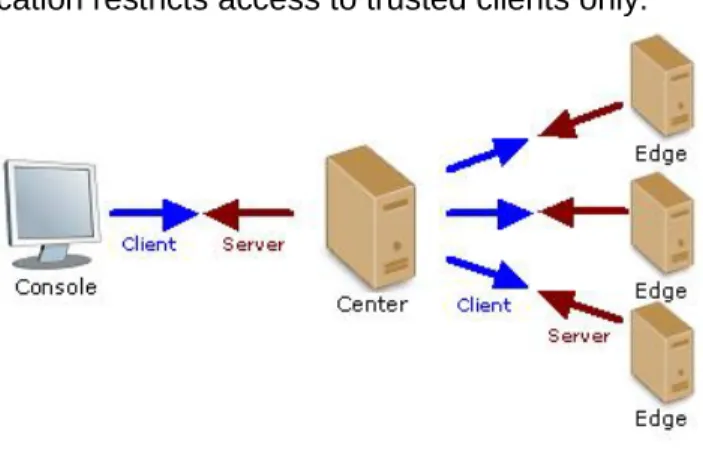
In a typical SSL session, the Server presents its digital certificate to the Client and the Client, in turn, presents the Server with its own digital certificate. To successfully negotiate an SSL connection, the Client and the Server must authenticate each other. This type of authentication is referred to as mutual authentication.
Both the Client and the Server are required to have digital certificates from trusted certificate authorities. When using mutual authentication, both the Server and the Client need private keys and digital certificates that represent their identity.
This type of authentication restricts access to trusted clients only.
Figure 1 – SSL Topology
Using RDS for Console Controller with SSL communication, the Console is the Client and the Controller is the Server. For ControllerSatellite SSL communication (during a replication process), the Controller is the Client and the Satellite is the Server.
NOTE: Using SSL connection for both Console Controller and Controller Satellite, the Controller needs to be configured twice: once as an SSL Server and once as an SSL Client.
RDS v3.1.1 SSL Guide
3
3. SSL Introduction
SSL 3.1.1 protocol protects your data against tampering and provides the following security features:
Confidentiality
Integrity
Authentication
Confidentiality
Confidentiality is the ability to keep communications secret from parties other than the intended recipient. It is achieved by encrypting data with strong algorithms. The SSL protocol provides a secure mechanism that enables two communicating parties to negotiate the strongest algorithm they both support and to agree on the key with which to encrypt the data.
Integrity
Integrity is a guarantee that the data being transferred has not been modified in transit. The same handshake mechanism, which allows the two parties to agree on algorithms and keys, also allows the two ends of an SSL connection to establish shared data integrity secrets, which are used to ensure that when data is received any modifications will be detected.
Authentication
Authentication is the ability to ascertain with whom you are speaking. By using digital certificates and public key security, RDS client and server applications can each be authenticated to the other. This allows the two parties to be certain they are
communicating with someone they trust.
The SSL protocol provides secure connections by allowing two applications connecting over a network connection to authenticate the other's identity and by encrypting the data exchanged between the applications. When using the SSL protocol, the target always authenticates itself to the initiator. Encryption makes data transmitted over the network intelligible only to the intended recipient. An SSL connection begins with a handshake during which the applications exchange digital certificates, agree on the encryption algorithms to use, and generate encryption keys used for the remainder of the session. The SSL protocol uses public key encryption for authentication.
RDS v3.1.1 SSL Guide
4
4. SSL Terminology
Public Key Cryptography
Public-key cryptography - also known as asymmetric cryptography - uses a pair of keys that work together to fulfill one or both of the following functions:
Encrypt and decrypt information
Sign and verify digital signatures
One key is freely distributed (the public key) while the other key (the private key) is kept secret. The sender uses the public key to encrypt messages to the recipient. The
recipient uses his or her private key to decrypt messages from the sender. Similarly, the sender may use his or her private key to “sign” a digital signature. The recipient uses his or her public key to verify the authenticity of the sender’s signature. The private key will only work with its corresponding public key.
Digital Certificates
Digital certificates are electronic documents used to uniquely identify entities over networks such as the Internet. A digital certificate securely binds the client/server identity, as verified by a trusted third party known as a certificate authority (CA), to a particular public key. The combination of the public key and the private key provides a unique identity to the owner of the digital certificate.
Digital certificates provide confirmation that a specific public key does in fact belong to the sender. A recipient of a digital certificate can use the public key contained in the digital certificate to verify that a digital signature was created with the corresponding private key. If the verification is successful, the recipient can be certain that the
corresponding private key belongs to the subject named in the digital certificate, and that the digital signature was created by that particular subject.
A digital certificate typically includes a variety of information, such as:
The name of the subject (holder, owner) and other identification information required to uniquely identifying the subject, such as the hostname of the node using the digital certificate (in the Common Name field), or an individual's email address.
The subject's public key.
The name of the certificate authority that issued the digital certificate.
A serial number.
The validity period (or lifetime) of the digital certificate (defined by a start date and an end date).
RDS v3.1.1 SSL Guide SSL Terminology
5
Certificate Authority
Digital certificates are issued by a Certificate Authority (CA). Any trusted third-party organization or company that is willing to vouch for the identities of those to whom it issues digital certificates and public keys can be a certificate authority. When a certificate authority creates a digital certificate, the certificate authority signs it with its private key, to ensure the detection of tampering. The certificate authority then returns the signed digital certificate to the requesting subject.
The subject can verify the digital signature of the issuing certificate authority by using the public key of the certificate authority. The certificate authority makes its public key
available by providing a digital certificate issued from a higher-level certificate authority attesting to the validity of the public key of the lower-level certificate authority.
Thus, digital signatures establish the identities of communicating entities, but a digital signature can be trusted only to the extent that the public key for verifying the digital signature can be trusted.
SSL Handshake
The SSL handshake establishes the encrypted connection. This is accomplished in part by mutual authentication whereby the client authenticates itself to the server and the server authenticates itself to the client. Authentication involves digital certificates, which employ public-key encryption techniques.
During the SSL handshake, the server and client exchange a symmetric session key. The session key itself is encrypted using public-key techniques, so only the intended recipient can decrypt it.
RDS v3.1.1 SSL Guide
6
5. SSL 3.1.1 in RDS
RDS uses OpenSSL to enable Encryption and Authentication for:
o Console Controller communication effective for RDS Console
Controller, RTM Console RTM Organizer and RTM Console RTM Host.
o ControllerSatellite communication effective for WAN transfer replication jobs.
SSL sessions can be configured using RTM GUI and Manage / Controller or Manage / Console SSL Settings on the Console GUI user interfaces.
NOTE: For maximal data-security, although the key-phrase is encrypted at all times, it is recommended to set SSL configuration using a local Console on each of the Controllers and Satellites, and not over the network.
RDS v3.1.1 SSL Guide SSL 3.1.1 in RDS
7
GUI
NOTE: Only users with Administrative Group Privileges on the Controller may configure SSL settings.
Connecting to a UNIX Controller, use root or root-like users (UID and GID 0);
connecting to a Windows Controller, use a member of the Administrator group on the Controller.
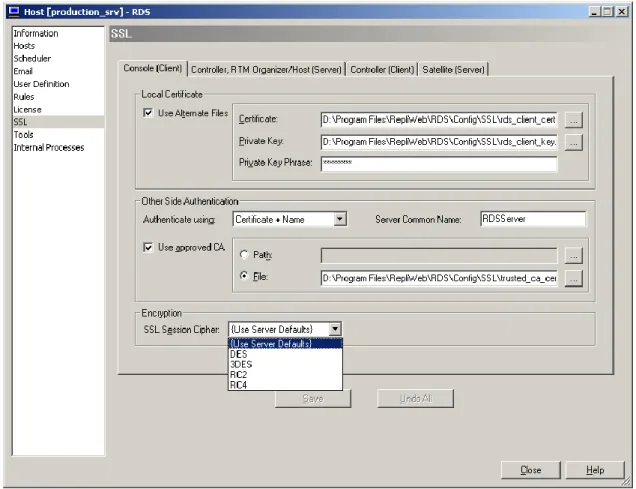
Figure 2 – SSL Configuration
NOTE: Use default certificate and key provided with RDS to configure and test SSL communication. However, for production environment, it is recommended to use certificates provided by a Certificate Authority (CA).
Internal Tabs – Select one of the 4 end-points to configure.
o Console (Client) – Configure the Client in a Console Controller
communication.
o Controller / RTM Organizer / RTM Host (Server) – Configure the Server
RDS v3.1.1 SSL Guide SSL 3.1.1 in RDS
8
o Controller (Client) – Configure the Client in a Controller Satellite
replication process communication.
o Satellite (Server) – Configure the Server in a Controller Satellite
replication process communication.
Local Certificate – Specify how the machine being configured introduces itself in the
Authentication stage.
o Use Files – Specify the Certificate and Key file names to be used. If
unchecked – default certificate, private key and private key phrase will be used. If checked, the following will be used:
Certificate – Specify the full path to the CA Certificate file.
Private Key – Specify the full path to the private key file.
Private Key Phrase – Specify the password to read the private
key file. The key phrase is kept encrypted and hidden.
NOTE: The Private Key Phrase is kept encrypted for each Windows Login user separately.
Other Side Authentication – Specify how the machine being configured verifies the
other side in the Authentication stage.
o Authenticate Using –Select the authentication type that will take place:
Certificate – Authenticate the other end using a certificate
Certificate + Name – Authenticate the other end by using a
certificate and the Common name written in certificate.
Server / Client Common Name –When using
authentication by name – this name will be expected in the other end’s certificate.
None –Do not authenticate the other end. The SSL session will use encryption but not authentication.
This option is only available in Console Controller
communication.
NOTE: Authenticating the other side using Certificate or Certificate + Name, the other side has to have the Local certificate / Use Files option checked.
o Use Approved CA –If unchecked - default certificate, private key and private key phrase will be used. If checked, the following will be used:
CA File – Specify the full path to a file containing trusted
RDS v3.1.1 SSL Guide SSL 3.1.1 in RDS
9
CA Dir – Specify the full path to a directory containing trusted
certificate authorities files.
Encryption – Select the encryption type to use during the SSL session. Options are:
o DES – DES (Data Encryption Standard) applies a 56-bit key to each
64-bit block of data.
o 3DES – Triple DES
o RC2 – RC2 (Rivet’s Cipher 2) is a variable key-size block cipher.
o RC4 – RC4 is a variable key-size block cipher with a key size range of 40
to 128 bits. It is faster than DES and is exportable with a key size of 40 bits.
o Use Server Defaults – The encryption type is selected by the server
automatically.
RDS v3.1.1 SSL Guide SSL 3.1.1 in RDS
10
CLI
Using the CLI, use the appropriate qualifier to specify SSL usage:
o Console Controller communication:
-controller_ssl|-nocontroller_ssl
Specify to RDS that all communication to the Controller will be over SSL.
o Controller Satellite communication effective for WAN transfer replication and replication jobs.
-ssl|-nossl qualifier in the submit command.
Specify to RDS that all communication with the Satellites will be over SSL.
NOTE: The CLI cannot be used to set SSL properties. This can only be performed using the GUI.
RDS v3.1.1 SSL Guide SSL 3.1.1 in RDS
11
Using RDS Defaults
Sample key files and certificates are located in the following default directories:
Windows: ~\RepliWeb\RDS\Config\SSL
UNIX: ~/repliweb/rds/config/SSL/
The files are:
Client certificate rds_client_cert.pem Client private key file rds_client_key.pem Server certificate rds_server_cert.pem Server private key file rds_server_key.pem Trusted CA (RepliWeb) certificate trusted_ca_cert.pem Key Phrases for default private keys are:
Client private key phrase rdsclient
Server private key phrase rdsserver
Common Names:
Client Common Name RDSClient
Server Common Name RDSServer
Default Certificates directory is located in:
Windows: ~\RepliWeb\RDS\Config\SSL\Cert
UNIX: ~/repliweb/rds/config/SSL/cert
These directories may be used for using Multiple Approved CA Path option. They contain the files (Windows) and Links (UNIX) required for this option.
RDS v3.1.1 SSL Guide
12
6. Common SSL Configurations
This chapter explains in detail what properties need to be set for common SSL configurations.
Controller Authenticating Console
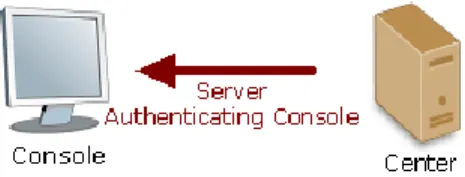
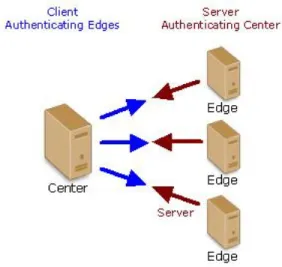
In this configuration the Controller authenticates all Consoles connecting to it.
Figure 3 – Controller Authenticating Console
The configuration settings steps are as follows:
1. Set Console and Controller SSL for Console Authentication.
2. Test Console connection using SSL by opening the Console GUI, and connecting to the Controller.
Console authentication
Set Console and Controller SSL for Console Authentication, and then verify settings by connecting to the Controller using the Console GUI.
Console Settings (Client)
1. On the Console machine create a directory which would include the following files:
Certificate file identifying the Console (Client).
Private Key file that matches the Certificate file.
2. Using the Console GUI, select the menu option Manage / Console SSL Settings. This option can be performed while the Console is not connected to any Controller (offline).
3. If connected to a Controller, using the Console GUI, select the Manage / Controller / SSL tab menu option:
RDS v3.1.1 SSL Guide Common SSL Configurations
13
a. To configure the machine the Console is currently running on, connect to localhost.
b. To configure a remote Console, connect to the remote Controller on that machine
o Local Certificate – the Console (Client) will be authenticated using
the following:
Check Use Files
Browse to the client Certificate and PrivateKey files copied earlier.
Enter Private key Phrase.
Using the default RDS files, the key phrase is:
rdsclient
o Other Side Authentication – The Console is not authenticating the
Controller, hence fields are left blank.
Authenticate Using: None
Leave Use Approved CA unchecked.
o Encryption: Select any value 4. Click Save.
Controller Settings (Server)
NOTE: For maximal data-security, although the key-phrase is encrypted at all times, it is recommended to set SSL configuration using a local Console on the Controller, and not over the network.
1. On the Controller machine create a directory which would include the following files:
Trusted CertificateAuthority file
2. Using the Console GUI, connect to the Controller, and select the menu option
Manage / Controller / SSL Tab. 3. Select Controller (Server) sub-tab
Local Certificate – The Controller is not being authenticated, hence
Controller Authentication fields are left blank.
RDS v3.1.1 SSL Guide Common SSL Configurations
14
Other Side Authentication – the Console (Client) will be authenticated using
the following:
o Authenticate Using: Certificate + Name
o Enter Client Common Name.
Using the default RDS files, the Client Common Name is:RDSClient o Check Use Approved CA
Browse to the Trusted CA file. 4. Click Save.
RDS v3.1.1 SSL Guide Common SSL Configurations
15
Testing Console
Controller Communication
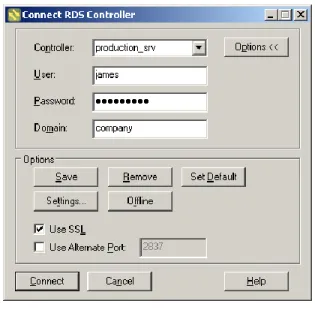
Test the SSL settings defined so far. Using the Console GUI, connect to the Controller using SSL.
Figure 4 – Connecting using SSL
When the connection is approved and the main Console window is opened, the SSL lock is displayed at the Controller Status bar at the bottom of the screen.
RDS v3.1.1 SSL Guide Common SSL Configurations
16
Mutual Controller-Satellite Authentication
In this configuration the Controller and Satellite authenticate each other during Replication jobs.
Figure 6 – Mutual Authentication
The configuration settings steps are as follows: 1. Set Controller SSL for Satellite Authentication. 2. Set Satellite SSL for Controller Authentication.
3. Test Controller - Satellite communication using SSL by running an RDS job.
Controller Settings (Client)
NOTE: For maximal data-security, although the key-phrase is encrypted at all times, it is recommended to set SSL configuration using a local Console on the Controllers, and not over the network.
1. On the Controller machine create a directory which would include the following files:
Trusted CertificateAuthority file.
Certificate file identifying the Controller (Client).
Private Key file that matches the Certificate file.
2. Using the Console GUI, connect to the Controller, and select the menu option
RDS v3.1.1 SSL Guide Common SSL Configurations
17
3. Select Controller (Client) sub-tab
Local Certificate – the Controller (Client) will be authenticated using the
following:
o Check Use Files
Browse to the client Certificate and PrivateKey files copied earlier.
Enter Private key Phrase.
Using the default RDS files, the key phrase is: rdsclient
Other Side Authentication –The Satellite (Server) will be authenticated using the following:
o Authenticate Using: Certificate + Name
o Enter Client Common Name.
Using the default RDS files, the Client Common Name is:RDSServer o Check Use Approved CA
Browse to the Trusted CA file.
Encryption: Select any value 4. Click Save.
Satellite Settings (Server)
NOTE: Using an Satellite only machine, only the RTM Console can be used to Manage SSL settings for that Satellite. If the Satellite machine also has the Controller component installed, then SSL settings for that Satellite can be performed through the RDS Console GUI connected to the Controller.
NOTE: For maximal data-security, although the key-phrase is encrypted at all times, it is recommended to set SSL configuration using a local Console GUI on the Satellite, and not over the network, using the RTM Console.
1. On the Satellite machine create a directory which would include the following files:
Trusted CertificateAuthority file
RDS v3.1.1 SSL Guide Common SSL Configurations
18
Private Key file that matches the Certificate file.
2. Using the RTM Console, select the Satellite and Click on the Manage menu option.
3. SelectSatellite (Server) sub-tab
Local Certificate – the Satellite (Server) will be authenticated using the
following:
o Check Use Files
Browse to the server Certificate and PrivateKey files copied earlier.
Enter Private key Phrase.
Using the default RDS files, the key phrase is:rdsserver
Other Side Authentication - The Controller (Client) will be authenticated using the following:
o Authenticate Using: Certificate + Name
o
Enter Client Common Name.Using the default RDS files, the Client Common Name is:RDSClient o Check Use Approved CA
Browse to the Trusted CA file. 4. Click Save.
RDS v3.1.1 SSL Guide Common SSL Configurations
19
Testing Controller
Satellite Communication
Test the SSL settings defined so far.
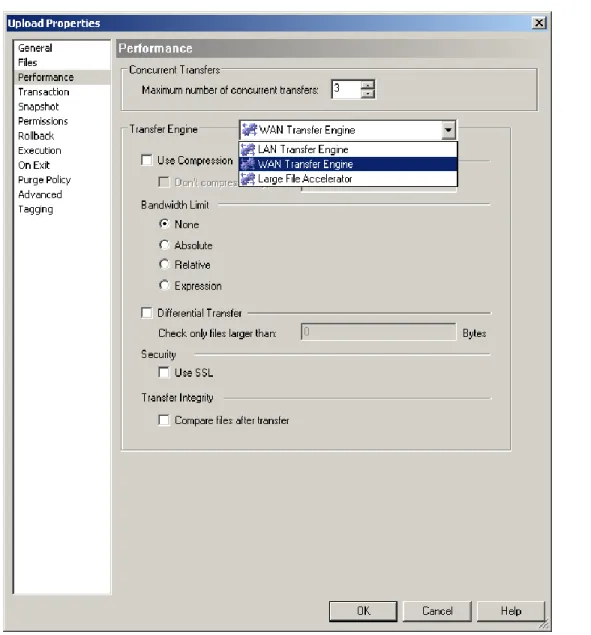
1. Using the Console GUI, connect to the Controller. 2. Define an Upload job from the Controller to the Satellite.
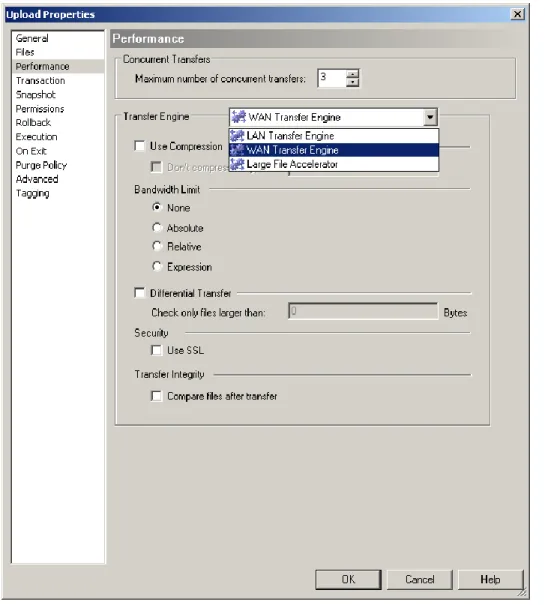
3. In the Performance Tab, select to use WAN or LFA transport engines and check the Use SSL option. Make sure the job actually transfers data.
NOTE: SSL is not available when using LAN transport engine.
RDS v3.1.1 SSL Guide Common SSL Configurations
20
The General Report should indicate that SSL was used during the transfer stage:
…
12:27:18 Starting files transfer to target Using WAN Transfer Engine
Using SSL authentication and encryption …
RDS v3.1.1 SSL Guide Common SSL Configurations
21
Controller Authenticating Consoles & Satellites
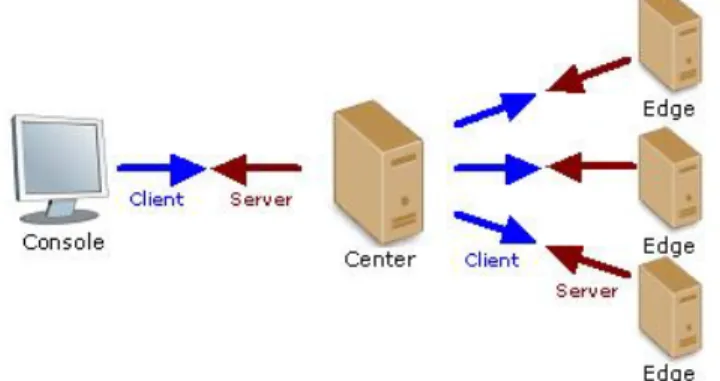
In this configuration the Controller authenticates all Consoles and all Satellites connecting to it, and the Console and Satellites authenticate the Controller.
The Controller plays a duplicate role here, once as a Server (in a Console – Controller communication), and once as a Client (in a Controller – Satellite communication).
Figure 8 – Controller Authenticating Console & Satellites; Console & Satellites Authenticating the Controller
The configuration settings steps are as follows:
1. Set Console and Controller SSL for Console-Controller Communication. 2. Test Console connection using SSL by opening the Console GUI, and
connecting to the Controller.
3. Set Controller and Satellite SSL for Controller-Satellite Communication.
4. Test Satellite communication using SSL by running an RDS job using the WAN transfer engine.
RDS v3.1.1 SSL Guide Common SSL Configurations
22
Console-Controller Communication
Set Console and Controller SSL properties, and then verify settings by connecting to the Controller using the Console GUI.
Console Settings (Client)
1. On the Console machine create a directory which would include the following files:
Trusted CertificateAuthority file.
Certificate file identifying the Console (Client).
Private Key file that matches the Certificate file.
2. Using the Console GUI, select the menu option Manage / Console SSL Settings. This option can be performed while the Console is not connected to any
Controller (offline).
3. If connected to a Controller, using the Console GUI, select the menu option
Manage / Controller / SSL tab:
a. To configure the machine the Console is currently running on, connect to
localhost
.
b. To configure a remote Console, connect to the remote Controller on that machine
o Local Certificate – the Console (Client) will be authenticated using
the following:
Check Use Files
Browse to the client Certificate and PrivateKey files copied earlier.
Enter Private key Phrase.
Using the default RDS files, the key phrase is:
rdsclient
o Other Side Authentication – The Console is not authenticating the
Controller, hence fields are left blank.
Authenticate Using: Certificate + Name
Enter Server Common Name.RDS v3.1.1 SSL Guide Common SSL Configurations
23
RDSServer
Check Use Approved CA
Browse to the Trusted CA file.
Encryption: Select any value 4. Click Save.
Controller Settings (Server)
NOTE: For maximal data-security, although the key-phrase is encrypted at all times, it is recommended to set SSL configuration using a local Console on the Controller, and not over the network.
1. On the Controller machine create a directory which would include the following files:
Trusted CertificateAuthority file.
Certificate file identifying the Controller (Server).
Private Key file that matches the Certificate file.
2. Using the Console GUI, connect to the Controller, and select the menu option
Manage / Controller / SSL Tab. 3. Select Controller (Server) sub-tab
Local Certificate – The Controller is not being authenticated, hence
Controller Authentication fields are left blank.
o Leave unchecked Use Files
Other Side Authentication – the Console (Client) will be authenticated using
the following:
o Authenticate Using: Certificate + Name
o Enter Client Common Name.
Using the default RDS files, the Client Common Name is:RDSClient o Check Use Approved CA
Browse to the Trusted CA file. 4. Click Save.
RDS v3.1.1 SSL Guide Common SSL Configurations
24
Testing Console
Controller Communication
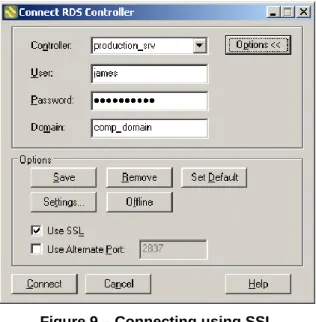
Test the SSL settings defined so far. Using the Console GUI, connect to the Controller using SSL.
Figure 9 – Connecting using SSL
When the connection is approved and the main Console window is opened, the SSL lock is displayed at the Controller Status bar at the bottom of the screen.
RDS v3.1.1 SSL Guide Common SSL Configurations
25
Controller-Satellite Communication
Set Controller and Satellite SSL properties, and then verify settings by running a
replication job from the Controller to the Satellite using WAN Transfer Engine with SSL.
Controller Settings (Client)
NOTE: For maximal data-security, although the key-phrase is encrypted at all times, it is recommended to set SSL configuration using a local Console on the Controllers, and not over the network.
1. On the Controller machine create a directory which would include the following files:
Trusted CertificateAuthority file.
Certificate file identifying the Controller (Client).
Private Key file that matches the Certificate file.
2. Using the Console GUI, connect to the Controller, and select the menu option
Manage / Controller / SSL Tab. 3. Select Controller (Client) sub-tab.
Local Certificate – The Satellite is not authenticating the Controller, hence
Controller Authentication fields are left blank.
o Leave unchecked Use Files
Other Side Authentication –The Satellite (Server) will be authenticated using the following:
o Authenticate Using: Certificate + Name
o Enter Client Common Name.
Using the default RDS files, the Client Common Name is:RDSServer o Check Use Approved CA
Browse to the Trusted CA file.
Encryption: Select any value 4. Click Save.
RDS v3.1.1 SSL Guide Common SSL Configurations
26
Satellite Settings (Server)
NOTE: Using a Satellite only machine, only the RTM Console can be used to Manage SSL settings for that Satellite. If the Satellite machine also has the Controller component installed, then SSL settings for that Satellite can be performed through the RDS Console GUI connected to the Controller.
NOTE: For maximal data-security, although the key-phrase is encrypted at all times, it is recommended to set SSL configuration using a local Console GUI on the Satellite, and not over the network, using the RTM Console.
1. On the Console machine create a directory which would include the following files:
Trusted CertificateAuthority file.
Certificate file identifying the Satellite (Server).
Private Key file that matches the Certificate file.
2. Using the RTM Console, select the Satellite and Click on the Manage menu option.
Local Certificate – the Satellite (Server) will be authenticated using the
following:
o Check Use Files
Browse to the server Certificate and PrivateKey files copied earlier.
Enter Private key Phrase.
Using the default RDS files, the key phrase is:rdsserver
Other Side Authentication – The Satellite is not authenticating the
Controller, hence fields are left blank.
o Authenticate Using: Certificate + Name
o Enter Client Common Name.
Using the default RDS files, the Client Common Name is:RDSClient o Check Use Approved CA
Browse to the Trusted CA file. 3. Click Save.
RDS v3.1.1 SSL Guide Common SSL Configurations
27
Testing Controller
Satellite Communication
Test the SSL settings defined so far.
1. Using the Console GUI, connect to the Controller. 2. Define an Upload job from the Controller to the Satellite.
3. In the Performance Tab, select to use WAN or LFA transport engines and check the Use SSL option. Make sure the job actually transfers data.
NOTE: SSL is not available when using LAN transport engine.
RDS v3.1.1 SSL Guide Common SSL Configurations
28
The General Report should indicate that SSL was used during the transfer stage:
…
12:27:18 Starting files transfer to target Using WAN Transfer Engine
Using SSL authentication and encryption …
RDS v3.1.1 SSL Guide
29
7. Multiple Trusted Certificate
Authorities
Installing a trusted CA (Certificate Authority) certificate on a system means that the system now completely trusts that CA in terms of authentication.
If there are multiple authorities to trust, all certificates should be stored in one place: either put all files in the same path with one authority certificate in each file, or put all certificate files in one directory.
OpenSSL will search the multiple certificates to verify that the currently used authority exists, and therefore can be trusted.
A typical certificate looks like:
---BEGIN CERTIFICATE---
MIICgTCCAeoCAQAwDQYJKoZIhvcNAQEEBQAwgYgxCzAJBgNVBAYTAklMMQ8wDQYD …
gDxENH1kxR5O7xb1+D5JBjZypgVe ---END CERTIFICATE---
Using a Multiple Approved CA Files
You can store multiple certificates multiple approved CA in a single file.
1. Using a text editor, append all certificates into one file. Make sure that each certificate is copied in full, including the lines:
---BEGIN CERTIFICATE---
---END CERTIFICATE---
2. Using the RDS Console, in the Manage / SSL Tab of the configured component:
Check Use Approved CA
o Select the File option.
o Browse to the file containing all certificates. 3. Click Save.
RDS v3.1.1 SSL Guide Multiple Trusted Certificate Authorities
30
NOTE: Whenever the certificate changes, being replaced, the trusted CA file has to be updated.
Using a Multiple Approved CA Path
Multiple Certificates can be stored in a single directory.
In this case, OpenSSL is looking for certificates by Hash Values, and not by file names.
NOTE: To use this option, a UNIX machine must be used with OpenSSL installed. The certificates can be stored on a Windows machine at the end of the process, but the hashing utility can be activated on UNIX only.
1.
Copy all Approved CA Files to a UNIX machine to a single folder …/cert_dir.2.
Run a utility called c_rehash to create hash keys to all approved CA certificate files incert_dir by performing:> cd …/cert_dir > ls –l
-rwxr-xr-x 1 root root 928 Jul 26 09:21 trusted_ca_cert.pem --wxrw--wt 1 root root 1314 Jul 29 06:31 trusted_ca_cert_sl.pem
> c_rehash
3.
Verify that a link was created for each of the CA files. Link names are in a hexadecimal format.> ls –l
lrwxrwxrwx 1 root root 22 Jul 29 08:53 50d59a91.0 -> trusted_ca_cert_sl.pem lrwxrwxrwx 1 root root 19 Jul 29 08:53 58c1d707.0 -> trusted_ca_cert.pem -rwxr-xr-x 1 root root 928 Jul 26 09:21 trusted_ca_cert.pem
--wxrw--wt 1 root root 1314 Jul 29 06:31 trusted_ca_cert_sl.pem
4.
This folder is now ready to be used. If the CA files are required on a Windows machine, perform the following steps:i. Create a directory with the CA files stored in it.
ii. Copy each CA file (in the same directory) and name the copy with the appropriate hash value from the UNIX machine.
iii. In this example we will now have 4 files in the directory
50d59a91.0 identical to trusted_ca_cert_sl.pem 58c1d707.0 identical to trusted_ca_cert.pem
RDS v3.1.1 SSL Guide Multiple Trusted Certificate Authorities
31
5.
Using the RDS Console, in the Manage / SSL Tab of the configured component: Check Use Approved CA
o Select the Path option.
o Browse to the folder containing all certificates.
6.
Click Save.NOTE: RDS is installed with a default Certificates directory is located in:
Windows: ~\RepliWeb\RDS\Config\SSL\Cert
UNIX: ~/repliweb/rds/config/SSL/cert
These directories may be used for using Multiple Approved CA Path option. They contain the files (Windows) and Links (UNIX) required for this option.