Work.com Implementation
Guide
© Copyright 2000–2015 salesforce.com, inc. All rights reserved. Salesforce is a registered trademark of salesforce.com, inc., as are other names and marks. Other marks appearing herein may be trademarks of their respective owners.
CONTENTS
WORK.COM IMPLEMENTATION OVERVIEW
. . . 1PREREQUISITES
. . . 2ENABLE WORK.COM
. . . 3Assign a Work.com Administrator. . . 3
Enable Work.com Features . . . 3
Work.com Feature Access. . . 4
Assign Permission Sets . . . 5
Assign Profiles . . . 6
Work.com License Types. . . 6
Assign Work.com Only User Licenses. . . 7
Assign Work.com User Feature Licenses. . . 7
CONFIGURE WORK.COM FEATURES
. . . 8Work.com Feature Overview . . . 8
Thanks and Skills Features. . . 9
Configure Thanks in the Chatter Publisher and Salesforce1 Action Bar. . . 9
Assign Publisher Layout to Profiles. . . 10
Goals and Coaching Features. . . 10
Enable Feed Tracking for Goals . . . 11
Enable Feed Tracking for Coaching. . . 11
Enable Feed Tracking for Metrics. . . 12
Enable History Tracking for Goal Fields. . . 12
Enable History Tracking for Coaching Fields. . . 13
Enable History Tracking for Metric Fields. . . 13
Configure Key Company Goals . . . 14
Configure Who Can Complete a Goal. . . 14
INDEX
. . . 34 ContentsWORK.COM IMPLEMENTATION OVERVIEW
EDITIONS
Work.com is available as an add-on license for
Professional Edition,
Enterprise Edition,
Unlimited Edition, or
Developer Edition, and is included in Performance Edition.
Work.com is a suite of sales-management and service-management tools that help managers and teams learn faster and perform better.
Work.com has various features to help your sales and service teams. This includes recognition tied to real rewards, detailed goals and real-time coaching, and full-featured performance reviews. After you receive your Work.com licenses, you’ll need to set up Work.com by performing the following activities.
• Assign a Work.com administrator to complete the setup process.
• Enable preferences for Work.com features.
• Set up permissions to Work.com features with profiles or permission sets.
• Assign Work.com licenses to users.
• Configure Work.com features for your organization.
SEE ALSO:
PREREQUISITES
EDITIONS
Work.com is available as an add-on license for
Professional Edition,
Enterprise Edition,
Unlimited Edition, or
Developer Edition, and is included in Performance Edition.
USER PERMISSIONS
“Customize Application” To enable Work.com features:
“Assign Permission Sets” To assign permission sets:
“Manage Users” To assign profiles:
“Manage Profiles and Permission Sets” AND
“Customize Application” To set field-level security:
“Enable Work.com Calibration” To view the Calibration tab:
Plan out your implementation before enabling Work.com in your organization.
Administrators should make the decisions outlined in the Business Decision Checklist before enabling Work.com.
Before beginning the implementation process, Salesforce must enable Work.com permissions and provision Work.com licenses for your organization. Your Salesforce contact will coordinate this with you, but you can check if your organization has available Work.com licenses. In Setup, click Company Profile > Company Information, and check for Work.com User under Feature Licenses.
Note: It is recommended that you enable Chatter regardless of the edition your organization is using. Many Work.com features use the Chatter feed to notify and and interact with users. To confirm Chatter is enabled, from Setup, click Customize > Chatter >
ENABLE WORK.COM
Assign a Work.com Administrator
EDITIONS Available in: • Professional • Enterprise • Performance • Unlimited • Developer
USER PERMISSIONS To assign a Work.com administrator:
• “Customize Application”
Before enabling Work.com in your organization, you must assign a Work.com user feature license to the person who will be the system administrator and responsible for setting up Work.com for your organization.
If you’re the administrator setting up Work.com, assign the license to yourself.
1. From Setup, click Manage Users > Users.
2. Find the name of the person who will be the system administrator and click Edit next to their name.
3. In the right-hand column, select the Work.com User checkbox.
4. Click Save.
We strongly recommend that you create a separate Work.com Administrator profile with limited access because the standard Salesforce System Administrator profile is so powerful. For more information, see the Create Your Work.com Administrator Profile.
Enable Work.com Features
EDITIONS Available in: • Professional • Enterprise • Performance • Unlimited • Developer USER PERMISSIONS To enable Work.com
Administrators can enable preferences for Work.com features on the Work.com Settings page. All the settings except for Thanks Settings and Skills Settings require a Work.com license.
1. From Setup, click Customize > Work.com > Settings.
2. Select the Work.com features you want to enable:
For users that purchased Work.com prior to the Spring ’15 release, the features that appear differ depending on whether you have add-on licenses to Work.com Motivate, Work.com Align, or Work.com Perform.
Description Section
Feature
Enable Thanks to allow users to recognize others
Thanks Settings
Description Section
Feature
Enable Rewards to tie tangible rewards to badges. Reward creators can upload gift codes to create Reward funds. See the “Reward Funds” topic for more information about creating rewards.
Recognition Settings
Enable Rewards
Enable Calibration to see and update performance across teams and individuals.
Perform Settings
Enable Calibration
Note: For Performance Edition organizations, Calibration is not available for the following profiles: Contract Manager, Marketing User, Read Only, and Solution Manager.
Enable Skills to allow users to add skills to their profiles and endorse the skills of other users. Enabling this setting replaces the Knowledgeable About widget on Chatter profiles.
Skills Settings
Enable Skills
Disables inline editing of skills and endorsements on Chatter profiles, and restricts editing to record detail pages. Recommended if you have customized these objects with custom required fields.
Skills Settings
Restrict Skill and Endorsement Editing to Record Detail Pages
Note: Don’t enable this setting if you want to use skills in Chatter profiles.
Enable to automatically create Chatter feed posts when a user adds a new skill.
Skills Settings
Enable Automatic Skill Feed Posts
Enable Suggested Skills to have the skills widget suggest skills for users to add based on their Chatter Topics activity.
Skills Settings
Enable Suggested Skills
3. Click Save.
Work.com Feature Access
EDITIONS Available in: • Professional • Enterprise • Performance • Unlimited • Developer
Once Work.com is enabled for your organization, grant users access to Work.com features using either profiles or permission sets.
Administrators can grant users access to Work.com features with either profiles or permission sets.
Note: Professional Edition organizations will need to grant access through existing profiles.
• A profile contains user permissions and access settings that control what users can do within their organization. Each user can only have one profile. Refer to Recommended Work.com Profiles for more information about creating profiles.
• A permission set is a collection of settings and permissions that gives users access to various
tools and functions. Permission sets extend users’ functional access without changing their profiles. Refer to Recommended Work.com Permission Sets for more information about creating the proper permission sets.
If your organization has provisioned Work.com Only user licenses, they come with a standard Work.com Only profile. Keep in mind that you can’t modify the standard profile, but you can clone it and modify the cloned profile.
Work.com Feature Access Enable Work.com
IN THIS SECTION: Assign Permission Sets
Assign permission sets to your users from Setup.
Assign Profiles
Assign profiles with Work.com access to your users from Setup.
Assign Permission Sets
EDITIONS Available in: • Professional • Enterprise • Performance • Unlimited • Developer
USER PERMISSIONS To assign permission sets: • “Assign Permission Sets”
Assign permission sets to your users from Setup.
Before you can assign permission sets to your users, you must create permission sets with Work.com access. Refer to Recommended Work.com Permission Sets for more information.
1. From Setup, click Manage Users > Users.
2. Select a user.
3. In the Permission Set Assignments related list, click Edit Assignments.
4. To assign a permission set, select it from the Available Permission Sets box and click Add. To remove a permission set assignment, select it from the Enabled Permission Sets box and click
Remove.
You can also assign permission sets to many users at the same time. For more information, see
Mass Assigning Permission Sets.
Note:
• The Permission Set Assignments page shows permission sets with no associated license and permission sets that match the user's license. For example, if a user's license is Chatter Only, you can assign permission sets with the Chatter Only license and permission sets with no associated license to that user.
If you assign a permission set with no associated user license, all of its enabled settings and permissions must be allowed by the user’s license, or the assignment will fail.
• Some permissions require users to have permission set licenses before the user can have those permissions. For example, if you add the “Use Identity Connect” permission to the “Identity” permission set, only users with the Identity Connect permission set license can be assigned the “Identity” permission set.
5. Click Save.
Assign Permission Sets Enable Work.com
Assign Profiles
EDITIONS Available in: • Professional • Enterprise • Performance • Unlimited • Developer USER PERMISSIONS To assign profiles: • “Manage Users”
Assign profiles with Work.com access to your users from Setup.
Before you can assign profiles to your users, you must create profiles with Work.com access. Refer to Recommended Work.com Profiles for more information.
1. From Setup, click Manage Users > Users.
2. Click Edit next to a user.
3. From the Profile drop-down, select the profile you would like to assign.
4. Click Save.
Work.com License Types
EDITIONS Available in: • Professional • Enterprise • Performance • Unlimited • Developer
After granting access to Work.com features with permission sets or profiles, assign users a Work.com license.
Work.com has two types of licenses.
• Work.com Only user licenses are for users who don’t have a Salesforce license and will only use the Work.com features in your organization.
Note: Work.com Only user licenses have limited administrator functionality. Assign Work.com User Feature licenses instead for users who will be administering performance summary cycles or other Work.com features.
• Work.com User Feature licenses are for users who also have a Salesforce license.
You may want to configure Work.com features before assigning licenses to all users. For example, you may want to initially limit licenses to Work.com administrators to avoid exposing certain features prior to your launch date.
IN THIS SECTION:
Assign Work.com Only User Licenses
Assign a Work.com Only license to users who don’t have a Salesforce license and will only use Work.com.
Assign Work.com User Feature Licenses
Assign a Work.com User Feature license to users who also have a Salesforce license.
Assign Profiles Enable Work.com
Assign Work.com Only User Licenses
EDITIONS Available in: • Professional • Enterprise • Performance • Unlimited • Developer USER PERMISSIONS To assign user licenses: • “Manage Users”
Assign a Work.com Only license to users who don’t have a Salesforce license and will only use Work.com.
Work.com Only user licenses have limited administrator functionality. Assign Work.com User Feature licenses instead for users who will be administering performance summary cycles or other Work.com features.
1. From Setup, click Manage Users > Users.
2. Click Edit next to a user.
3. From the User License drop-down, select Work.com Only.
4. Click Save.
Assign Work.com User Feature Licenses
EDITIONS Available in: • Professional • Enterprise • Performance • Unlimited • Developer USER PERMISSIONS To assign user feature licenses:
• “Manage Users”
Assign a Work.com User Feature license to users who also have a Salesforce license.
1. From Setup, click Manage Users > Users.
2. Click Edit next to a user.
3. In the right-hand column, select the Work.com User checkbox.
4. Click Save.
Assign Work.com Only User Licenses Enable Work.com
CONFIGURE WORK.COM FEATURES
Work.com Feature Overview
EDITIONS Available in: • Professional • Enterprise • Performance • Unlimited • Developer
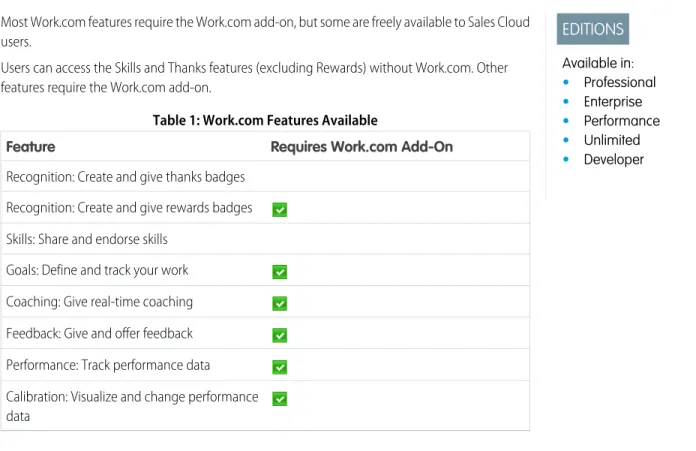
Most Work.com features require the Work.com add-on, but some are freely available to Sales Cloud users.
Users can access the Skills and Thanks features (excluding Rewards) without Work.com. Other features require the Work.com add-on.
Table 1: Work.com Features Available
Requires Work.com Add-On Feature
Recognition: Create and give thanks badges Recognition: Create and give rewards badges Skills: Share and endorse skills
Goals: Define and track your work Coaching: Give real-time coaching Feedback: Give and offer feedback Performance: Track performance data Calibration: Visualize and change performance data
Note: It is recommended that you enable Chatter regardless of the edition your organization is using. Many Work.com features use the Chatter feed to notify and and interact with users. To confirm Chatter is enabled, from Setup, click Customize > Chatter >
Settings, and verify that Chatter Settings is enabled.
You can customize where different tabs, such as Goals and Feedback, appear within the Work.com app and on user profiles. From Setup, click Create > Apps and make changes to the desired apps and subtab apps. For more information, see Editing App Properties or Managing Subtab Apps.
Thanks and Skills Features
EDITIONS Available in: • Professional • Enterprise • Performance • Unlimited • Developer
Set up Thanks and Skills features by configuring thanks in the Chatter publisher and assigning a publisher layout to profiles.
Make sure you’ve enabled the desired Thanks and Recognition features prior to configuring them. From Setup, click Customize > Work.com > Settings and enable the relevant settings. For detailed information about creating rewards, refer to Reward Funds in the Salesforce Help. Additionally, information about customizing skills can be found in the Skills Customization topic.
IN THIS SECTION:
Configure Thanks in the Chatter Publisher and Salesforce1 Action Bar
You can change the position of the Thanks action in the Chatter publisher and the Salesforce1 action bar, or even hide Thanks for specific profiles.
Assign Publisher Layout to Profiles
Assign the publisher layout with Thanks to user profiles. People with these profiles can thank their coworkers directly from the publisher.
Configure Thanks in the Chatter Publisher and Salesforce1 Action Bar
EDITIONS Available in: • Professional • Enterprise • Performance • Unlimited • Developer
USER PERMISSIONS To set up actions:
• “Customize Application”
You can change the position of the Thanks action in the Chatter publisher and the Salesforce1 action bar, or even hide Thanks for specific profiles.
To modify the Chatter publisher, actions in the publisher must be enabled.
1. From Setup, click Customize > Chatter > Settings.
2. Confirm that Enable Actions in the Publisher is selected in the Actions in the Publisher section. If it isn’t enabled, click Edit, select Enable Actions in the
Publisher, and click Save.
3. From Setup, click Create > Global Actions > Publisher Layouts.
4. Click Edit next to the Global Publisher Layout.
5. Drag the Thanks action to where you want it to appear in the Chatter publisher or the Salesforce1 action bar.
6. Click Save.
You can hide Thanks for specific users by changing profile visibility settings.
Thanks and Skills Features Configure Work.com Features
Assign Publisher Layout to Profiles
EDITIONS Available in: • Professional • Enterprise • Performance • Unlimited • Developer USER PERMISSIONS To set up quick actions: • “Customize Application”Assign the publisher layout with Thanks to user profiles. People with these profiles can thank their coworkers directly from the publisher.
If not everyone in your organization should have this feature, create another layout without Thanks and assign it to a profile. People with that profile won’t see Thanks in their publisher.
1. From Setup, click Create > Global Actions > Publisher Layouts.
2. Click Publisher Layout Assignment.
3. Click Edit Assignment.
4. Select a user profile by clicking anywhere on its row in the table.
You can assign a global publisher layout to multiple profiles by using SHIFT+click to select adjacent profiles and CTRL+click to select non-adjacent profiles.
5. From the Publisher Layout to Use drop-down, select the global publisher layout that you want to assign to the highlighted profile.
6. Click Save.
Goals and Coaching Features
EDITIONS Available in: • Professional • Enterprise • Performance • Unlimited • Developer
Enable feed and history tracking to further track goals and coaching.
Note: Make sure you’ve enabled Chatter in your organization before you configure Goals and Coaching features.
Feed tracking lets users see Chatter feed updates for any relevant changes. History tracking lets you track changes to critical fields. We recommend that you track changes for Goal, Metric, and Coaching objects.
Surface key company goals to give all employees visibility into company-wide goals. To create and manage goal templates, download the Work.com Goal Templates app from the AppExchange.
For additional information about creating an overall Goals strategy for your organization, see the Goals Strategy Guide.
IN THIS SECTION:
Enable Feed Tracking for Goals
Track updates for goals so users can receive notifications about important changes.
Enable Feed Tracking for Coaching
Track updates for coaching spaces, so users can receive notifications about important changes.
Enable Feed Tracking for Metrics
Track updates for goals so users can receive notifications about important changes.
Enable History Tracking for Goal Fields
Track changes to the Goal object for auditing purposes.
Enable History Tracking for Coaching Fields
Track changes to the Coaching object for auditing purposes.
Assign Publisher Layout to Profiles Configure Work.com Features
Enable History Tracking for Metric Fields
Track changes to the Metric object for auditing purposes.
Configure Key Company Goals
Key company goals give everyone in your organization visibility into a company-wide goal. Work.com administrators and people who have been granted access have the ability to create key company goals.
Configure Who Can Complete a Goal
Use field-level security to control who in your organization can mark a goal as completed.
Enable Feed Tracking for Goals
EDITIONS Available in: • Professional • Enterprise • Performance • Unlimited • Developer
USER PERMISSIONS To customize fields tracked in feeds:
• “Customize Application”
Track updates for goals so users can receive notifications about important changes.
Determine which goal updates should notify people and select the associated fields for tracking.
1. From Setup, click Customize > Chatter > Feed Tracking.
2. Click on the Goal object.
3. Click the Enable Feed Tracking checkbox.
4. Select the fields you would like to track.
Tip: For goals, it’s helpful to track Completion Date, Due Date, Owner Name, Progress, and All Related Objects.
5. Click Save.
Enable Feed Tracking for Coaching
EDITIONS Available in: • Professional • Enterprise • Performance • Unlimited • Developer
Track updates for coaching spaces, so users can receive notifications about important changes. Determine which coaching updates should notify people and select the associated fields for tracking.
1. From Setup, click Customize > Chatter > Feed Tracking.
2. Click on the Coaching object.
3. Click the Enable Feed Tracking checkbox.
4. Select the fields you would like to track.
Tip: For coaching, it’s helpful to track Inactive and All Related Objects.
Enable Feed Tracking for Goals Configure Work.com Features
Enable Feed Tracking for Metrics
EDITIONS Available in: • Professional • Enterprise • Performance • Unlimited • Developer USER PERMISSIONS To customize fields tracked in feeds:
• “Customize Application”
Track updates for goals so users can receive notifications about important changes.
Determine which metric updates should notify people and select the associated fields for tracking.
1. From Setup, click Customize > Chatter > Feed Tracking.
2. Click on the Metric object.
3. Click the Enable Feed Tracking checkbox.
4. Select the fields you would like to track.
Tip: For metrics, it’s helpful to track Comment, Completion Date, Current Value, Due Date, Goal, Initial Value, Owner Name, Status, Target Value, and All Related Objects.
5. Click Save.
Enable History Tracking for Goal Fields
EDITIONS Available in: • Professional • Enterprise • Performance • Unlimited • Developer USER PERMISSIONS To set up which fields are tracked:
• “Customize Application”
Track changes to the Goal object for auditing purposes.
We recommend tracking the Completion Date, Due Date, Owner Name, Progress, Start Date, Status, and Description fields.
1. From Setup, click Customize > Work.com > Goals > Fields.
2. Click Set History Tracking.
3. Select up to 20 fields to track.
4. Click Save.
Enable Feed Tracking for Metrics Configure Work.com Features
Enable History Tracking for Coaching Fields
EDITIONS Available in: • Professional • Enterprise • Performance • Unlimited • Developer USER PERMISSIONS To set up which fields are tracked:
• “Customize Application”
Track changes to the Coaching object for auditing purposes.
We recommend tracking the Coach, Inactive, Owner Name, and Person Coached fields.
1. From Setup, click Customize > Work.com > Coaching > Fields.
2. Click Set History Tracking.
3. Select up to 20 fields to track.
4. Click Save.
Enable History Tracking for Metric Fields
EDITIONS Available in: • Professional • Enterprise • Performance • Unlimited • Developer USER PERMISSIONS To set up which fields are tracked:
• “Customize Application”
Track changes to the Metric object for auditing purposes.
We recommend tracking the Comment, Completion Date, Current Value, Due Date, Goal, Initial Value, Owner Name, Status, Target Value, Weight, and Description fields.
1. From Setup, click Customize > Work.com > Metrics > Fields.
2. Click Set History Tracking.
3. Select up to 20 fields to track.
4. Click Save.
Enable History Tracking for Coaching Fields Configure Work.com Features
Configure Key Company Goals
EDITIONS Available in: • Professional • Enterprise • Performance • Unlimited • Developer USER PERMISSIONS To set field-level security: • “Manage Profiles and
Permission Sets” AND
“Customize Application”
Key company goals give everyone in your organization visibility into a company-wide goal. Work.com administrators and people who have been granted access have the ability to create key company goals.
Alternatively, you can also set field-level security using permission sets.
1. From Setup, click Customize > Work.com > Goals > Fields.
2. Click on the Key Company Goal field label.
3. Click Set Field-Level Security.
4. Ensure the Visible checkbox is selected for all profiles with goals access.
5. Ensure the Read-Only checkbox is not selected for profiles that should be able to create key company goals.
6. Click Save.
Configure Who Can Complete a Goal
EDITIONS Available in: • Professional • Enterprise • Performance • Unlimited • Developer
USER PERMISSIONS To set field-level security: • “Manage Profiles and
Permission Sets” AND
“Customize Application”
Use field-level security to control who in your organization can mark a goal as completed. Alternatively, you can also set field-level security using permission sets.
1. From Setup, click Customize > Work.com > Goals > Fields.
2. Click on the Completion Date field label.
3. Click Set Field-Level Security.
4. Ensure the Visible checkbox is selected for all profiles with goals access.
5. Ensure the Read-Only checkbox is not selected for profiles that should be able to complete goals.
6. Click Save.
Configure Key Company Goals Configure Work.com Features
Performance Summary and Calibration Features
EDITIONS Available in: • Professional • Enterprise • Performance • Unlimited • Developer
Set up Calibration reports to compare and update performance ratings in your organization. Work.com performance summaries gather feedback about people in your organization with a custom questionnaire. You can create, deploy, and share different performance summaries across your organizations by managing performance summary cycles. Once users have submitted performance summary details, you can see and update performance ratings across the organization with the Calibration feature.
You can create and deploy performance summary cycles from the Deployment subtab under the
Performance tab. Users with the Performance Cycle Manager permission set or profile will be able to see the Deployment subtab.
For detailed information about creating and deploying performance summary cycles, refer to Performance Summary Cycles Overview
in the Salesforce Help. For more information about the Calibration feature, refer to the Calibration Overview topic.
IN THIS SECTION:
Set Up Calibration Reports
Calibration reports are populated with data from performance summary cycles. They are designed for managers and executives to review overall performance of their teams or organizations. Before using the Calibration feature, you must create a report that loads the performance summary data.
Set Up Calibration Reports
EDITIONS Available in: • Professional • Enterprise • Performance • Unlimited • Developer USER PERMISSIONS To view the Calibration tab: • “Enable Work.com
Calibration reports are populated with data from performance summary cycles. They are designed for managers and executives to review overall performance of their teams or organizations. Before using the Calibration feature, you must create a report that loads the performance summary data. Define your own calibration report or download the calibration reports package from the Package Installation page.
• Production Calibration Report Package
• Sandbox Calibration Report Package
1. On the Calibration tab, select a calibration report from the drop-down list.
2. Click View/Edit Report.
3. Click Save As.
4. Type a name, an optional description, unique name, and specify the report folder.
Performance Summary and Calibration Features Configure Work.com Features
Performance Cycle ID
–
– Feedback Request ID
– Feedback ID
– Subject: User ID
– Subject: Full Name (or Subject: First Name and Subject: Last Name)
• The report must be filtered to only view one performance summary cycle.
Once you’ve downloaded the package or created a report that meets the criteria, it automatically appears in the Calibration drop-down.
Set Up Calibration Reports Configure Work.com Features
CONFIGURE WORK.COM REPORTS AND DASHBOARDS
Work.com Report and Dashboard Overview
EDITIONS Available in: • Professional • Enterprise • Performance • Unlimited • Developer
Use reports and dashboards to see how Work.com features are being used in your organization. Salesforce reports and dashboards are available for all Work.com users. Administrators should install the reporting package that applies to their Work.com edition. The Work.com reporting package contains:
• Custom report types for Work.com objects
• Custom fields for Work.com objects
• Example dashboards
Install one of the following packages based on the Work.com edition you purchased. For example, if your organization has Work.com Align, only install the Align package. Refer to your product contract to confirm which Work.com edition you have.
Note:
• Make sure you’ve enabled the features related to your Work.com edition prior to installing the package. The package will only install correctly if you’ve enabled the features beforehand.
• If you purchased Work.com after the Spring ’15 release, install the Work.com Perform package.
• It is not possible or necessary to install all the packages. Production Packages:
• Work.com Motivate
• Work.com Align
• Work.com Perform
• Thanks and Skills Reports and Dashboards
Sandbox Packages:
• Work.com Motivate
• Work.com Align
Work.com Report and Dashboard Details
EDITIONS Available in: • Professional • Enterprise • Performance • Unlimited • Developer
The Work.com reports and dashboards included in the reporting package are a good starting point. Use these examples to create reports and dashboards that are useful to your organization.
Reports
Work.com reports are organized in folders based on features. There are several possible report folders depending on your organization’s edition of Work.com:
• Work.com Coaching Reports
• Work.com Goal Reports
• Work.com Recognition Reports
• Work.com Skills Reports
Table 2: Work.com Coaching Reports Description Report Name
Tasks and events related to coaching spaces Coaching Activities (Tasks and Events)
Coaching activities of your team over the last 30 days Coaching Activities Team - Last 30 Days
Coaching activities over the last 30 days sorted by department Coaching Activity Last 30 Days
The percentage of users that have coaching spaces by department Coaching Coverage Report
Events related to coaching spaces Coaching Events by Relationship
Coaching feed activity including comments and likes Coaching Feed Activity
All coaching spaces in your organization Coaching Relationships
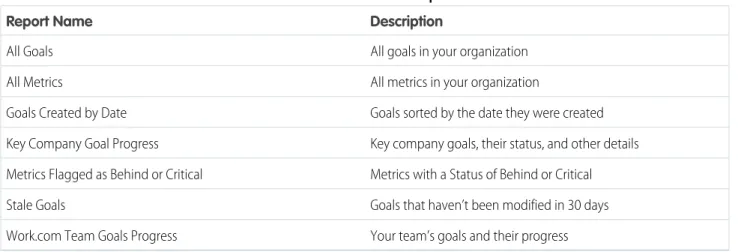
Table 3: Work.com Goal Reports Description Report Name
All goals in your organization All Goals
All metrics in your organization All Metrics
Goals sorted by the date they were created Goals Created by Date
Key company goals, their status, and other details Key Company Goal Progress
Metrics with a Status of Behind or Critical Metrics Flagged as Behind or Critical
Goals that haven’t been modified in 30 days Stale Goals
Your team’s goals and their progress Work.com Team Goals Progress
Work.com Report and Dashboard Details Configure Work.com Reports and Dashboards
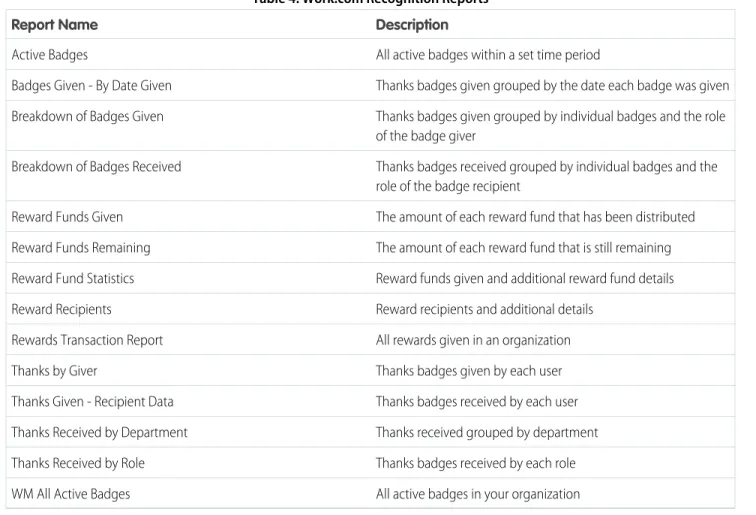
Table 4: Work.com Recognition Reports Description Report Name
All active badges within a set time period Active Badges
Thanks badges given grouped by the date each badge was given Badges Given - By Date Given
Thanks badges given grouped by individual badges and the role of the badge giver
Breakdown of Badges Given
Thanks badges received grouped by individual badges and the role of the badge recipient
Breakdown of Badges Received
The amount of each reward fund that has been distributed Reward Funds Given
The amount of each reward fund that is still remaining Reward Funds Remaining
Reward funds given and additional reward fund details Reward Fund Statistics
Reward recipients and additional details Reward Recipients
All rewards given in an organization Rewards Transaction Report
Thanks badges given by each user Thanks by Giver
Thanks badges received by each user Thanks Given - Recipient Data
Thanks received grouped by department Thanks Received by Department
Thanks badges received by each role Thanks Received by Role
All active badges in your organization WM All Active Badges
Table 5: Work.com Skills Reports Description Report Name
Users with the most skill endorsements Most Endorsed People
Users with the most associated skill records Most Skilled People
Skills arranged by the date they were created New Skill Creation By Date
Endorsements arranged by the date they were created Skill Endorsements By Date
Skills arranged by the date they were associated with different user Skills Added To Profiles By Date
Work.com Report and Dashboard Details Configure Work.com Reports and Dashboards
• Work.com Skills Dashboards
Table 6: Work.com Coaching Dashboards Description Report Name
Displays coaching coverage and activity across your company Company Coaching Dashboard
Displays Key Company Goals and the number of goals created Company Goals Dashboard
Displays coaching and goals related to your team Manager Coaching Dashboard
Table 7: Work.com Recognition Dashboards Description
Report Name
Displays badge statistics and users giving and receiving badges Recognition Dashboard
Displays badge and rewards statistics and users giving and receiving badges
Recognition with Rewards Dashboard
Table 8: Work.com Skills Dashboards Description Report Name
Displays skills statistics for your organization Skills Dashboard
Work.com Report and Dashboard Details Configure Work.com Reports and Dashboards
RECOMMENDED WORK.COM PERMISSION SETS
EDITIONS Available in: • Professional • Enterprise • Performance • Unlimited • DeveloperCreate different permission sets for different types of Work.com users. Create new permission sets for each type of Work.com user.
Walk Through It: create, edit, and assign a permission set
Use the tables below to assign the appropriate object settings and system permissions for each permission set.
Standard User
The Standard User permission set gives a user all the basic Work.com functionality.
Table 9: Standard User Object Settings
Modify All Data (MAD) View All
Data (VAD) Delete
Edit Create
Read Available/Visible
Object Name
Available Visible Badges (tab)
Coaching (object)
Available Visible Coaching (tab)
Documents Endorsements Goals (object)
Modify All Data (MAD) View All
Data (VAD) Delete
Edit Create
Read Available/Visible
Object Name
Feedback (object)
Available Visible Feedback (tab)
Feedback Questions Feedback Question Sets Feedback Request Metric Data Links
(available for upgraded Goals feature)
Metrics
(available for upgraded Goals feature)
Available Visible Performance (tab)
Performance Cycles
Available Visible Recognition (tab)
Reward Funds Reward Fund Types Rewards
Available Visible Skills (tab)
Skills Skill Users
Table 10: Standard User System Permissions Enabled
System Permissions
API Enabled Edit Events Edit Tasks
Performance Cycle Manager
The Performance Cycle Manager permission set is typically used for creating and deploying performance summaries to employees.
Note: This permission set should be assigned in addition to the Standard User permission set.
Table 11: Performance Cycle Manager Object Settings
Modify All Data (MAD) View All
Data (VAD) Delete
Edit Create
Read Available/Visible
Object Name
Available Visible Calibration (tab)
Feedback (object) Feedback Questions Feedback Question Sets Feedback Request Performance Cycles
Table 12: Performance Cycle Manager System Permissions Enabled
System Permissions
Enable Work.com Calibration
• This permission set should be assigned in addition to the Standard User permission set.
Table 13: Custom Badge Creator System Permissions Enabled
System Permissions
Create custom Badge Definitions Moderate Chatter
Reward Creator
The Reward Creator permission set is for users who should have the ability to link badges to tangible rewards.
Note: This permission set should be assigned in addition to the Standard User permission set.
Table 14: Reward Creator Object Settings
Modify All Data (MAD) View All
Data (VAD) Delete
Edit Create
Read Object Name
Reward Funds Reward Fund Types Rewards
Table 15: Reward Creator System Permissions Enabled
System Permissions
Create custom Badge Definitions
Work.com Administrator
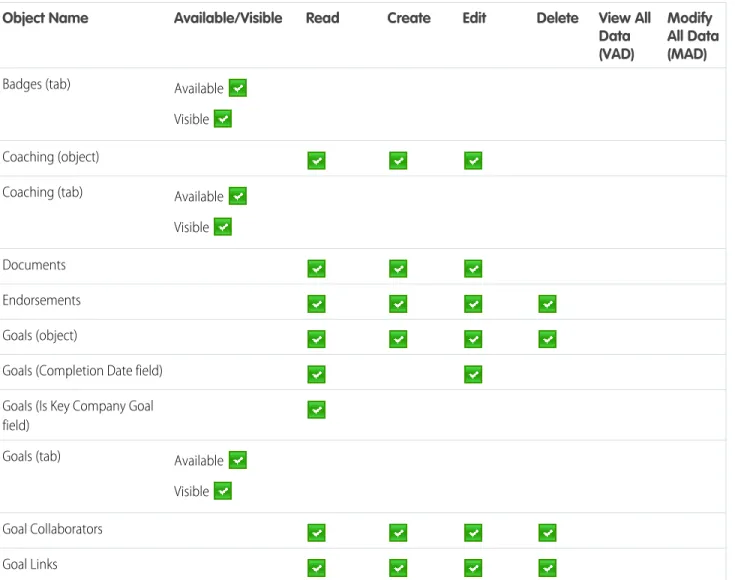
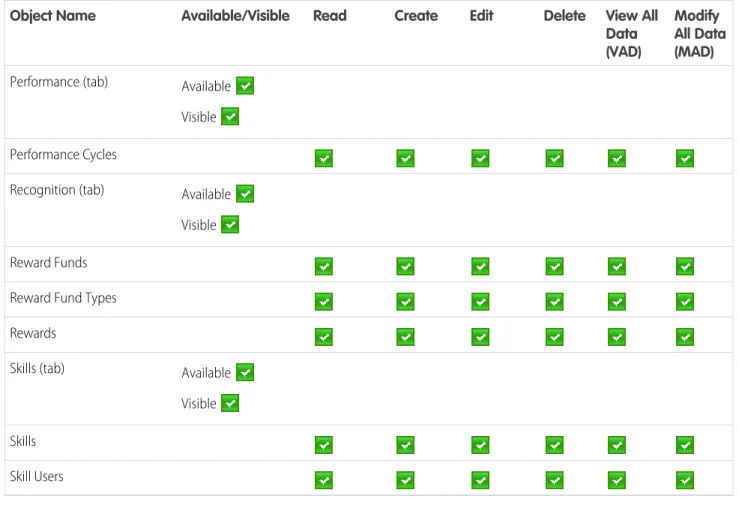
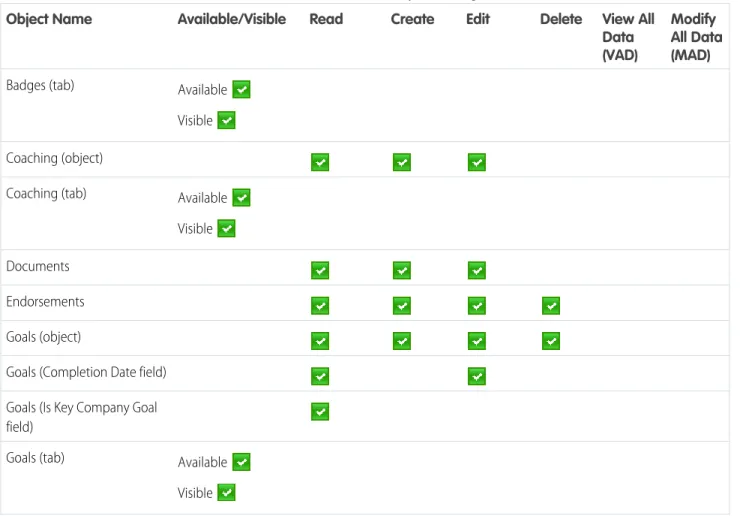
The Work.com Administrator permission set gives a user full administrative access to Work.com objects and features. This permission set should be assigned instead of the Standard User permission set.
Table 16: Standard User Object Settings
Modify All Data (MAD) View All
Data (VAD) Delete
Edit Create
Read Available/Visible
Object Name
Available Visible Badges (tab)
Modify All Data (MAD) View All
Data (VAD) Delete
Edit Create
Read Available/Visible
Object Name
Available Visible Calibration (tab)
Coaching (object)
Available Visible Coaching (tab)
Documents Endorsements Goals (object)
Goals (Completion Date field) Goals (Is Key Company Goal field)
Available Visible Goals (tab)
Goal Collaborators Goal Links Feedback (object)
Available Visible Feedback (tab)
Feedback Questions Feedback Question Sets
Modify All Data (MAD) View All
Data (VAD) Delete
Edit Create
Read Available/Visible
Object Name
Available Visible Performance (tab)
Performance Cycles
Available Visible Recognition (tab)
Reward Funds Reward Fund Types Rewards
Available Visible Skills (tab)
Skills Skill Users
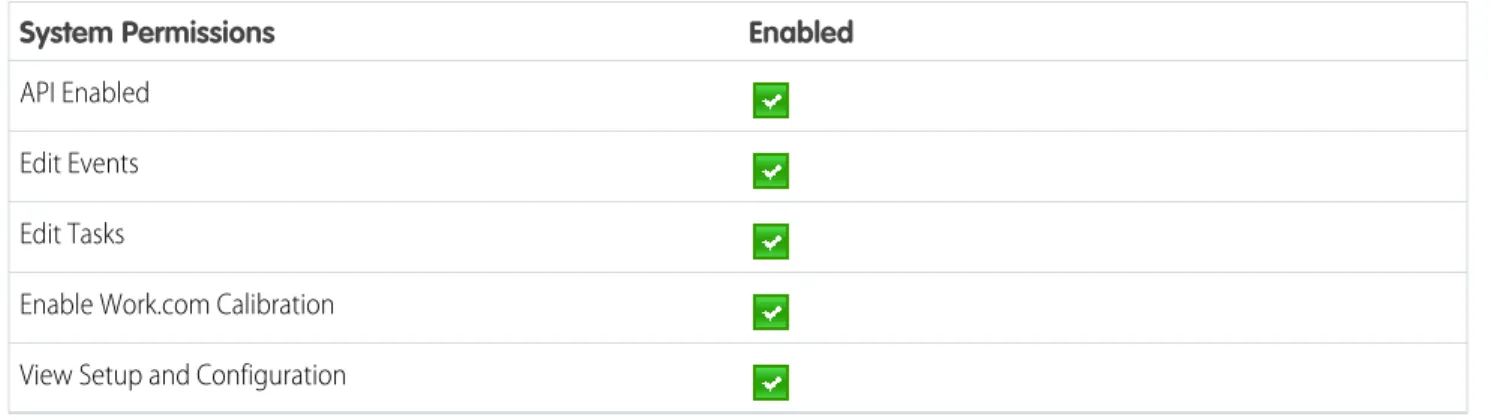
Table 17: Work.com Administrator System Permissions Enabled
System Permissions
API Enabled
Create custom Badge Definitions Edit Events
Edit Tasks
Enable Work.com Calibration Moderate Chatter
View Setup and Configuration
RECOMMENDED WORK.COM PROFILES
EDITIONS Available in: • Professional • Enterprise • Performance • Unlimited • Developer
Create different profiles for different types of Work.com users.
Create a new profile for each type of Work.com user. For more information about creating profiles, see either Working with Profiles in the Original Profile Interface or Working in the Enhanced Profile User Interface Overview Page depending on whether you have the Enable Enhanced Profile User Interface preference turned on.
Note: Professional Edition organizations will need to grant access through existing profiles. The Work.com Only User, Chatter Only User, and Standard User profiles grant basic access to Work.com objects. The System Administrator profile grants users full administrative access to all Work.com features.
Use the tables below to assign the appropriate object settings and system permissions for each profile.
Standard User
The Standard User profile gives a user all the basic Work.com functionality.
Table 18: Standard User Object Settings
Modify All Data (MAD) View All
Data (VAD) Delete
Edit Create
Read Available/Visible
Object Name
Available Visible Badges (tab)
Coaching (object)
Available Visible Coaching (tab)
Modify All Data (MAD) View All
Data (VAD) Delete
Edit Create
Read Available/Visible
Object Name
Goal Collaborators Goal Links Feedback (object)
Available Visible Feedback (tab)
Feedback Questions Feedback Question Sets Feedback Request Metric Data Link
(available for upgraded Goals feature)
Metrics
(available for upgraded Goals feature)
Available Visible Performance (tab)
Performance Cycles
Available Visible Recognition (tab)
Reward Funds Reward Fund Types Rewards
Available Visible Skills (tab)
Skills Skill Users
Table 19: Standard User System Permissions Enabled
System Permissions
API Enabled Edit Events Edit Tasks
Performance Cycle Manager
The Performance Cycle Manager profile is typically used for creating and deploying performance summaries to employees.
Table 20: Performance Cycle Manager Object Settings
Modify All Data (MAD) View All
Data (VAD) Delete
Edit Create
Read Available/Visible
Object Name
Available Visible Badges (tab)
Available Visible Calibration (tab)
Coaching (object)
Available Visible Coaching (tab)
Documents Endorsements Goals (object)
Goals (Completion Date field)
Modify All Data (MAD) View All
Data (VAD) Delete
Edit Create
Read Available/Visible
Object Name
Feedback (object)
Available Visible Feedback (tab)
Feedback Questions Feedback Question Sets Feedback Request Metric Data Link
(available for upgraded Goals feature)
Metrics
(available for upgraded Goals feature)
Available Visible Performance (tab)
Performance Cycles
Available Visible Recognition (tab)
Reward Funds Reward Fund Types Rewards
Available Visible Skills (tab)
Skills Skill Users
Table 21: Performance Cycle Manager System Permissions Enabled
System Permissions
API Enabled Edit Events Edit Tasks
Enable Work.com Calibration View Setup and Configuration
Work.com Administrator
The Work.com Administrator profile gives a user full administrative access to Work.com objects and features.
Table 22: Work.com Administrator Object Settings
Modify All Data (MAD) View All
Data (VAD) Delete
Edit Create
Read Available/Visible
Object Name
Available Visible Badges (tab)
Available Visible Calibration (tab)
Coaching (object)
Available Visible Coaching (tab)
Documents Endorsements
Modify All Data (MAD) View All
Data (VAD) Delete
Edit Create
Read Available/Visible
Object Name
Goal Collaborators Goal Links Feedback (object)
Available Visible Feedback (tab)
Feedback Questions Feedback Question Sets Feedback Request Metric Data Link
(available for upgraded Goals feature)
Metrics
(available for upgraded Goals feature)
Available Visible Performance (tab)
Performance Cycles
Available Visible Recognition (tab)
Reward Funds Reward Fund Types Rewards
Available Visible Skills (tab)
Skills Skill Users
Table 23: Work.com Administrator System Permissions Enabled
System Permissions
API Enabled
Create custom Badge Definitions Edit Events
Edit Tasks
Enable Work.com Calibration Moderate Chatter
View Setup and Configuration
INDEX
C
Calibration report setup15
E
Enable
Work.com features3
F
Feed tracking coaching11
goals11
metrics12
G
Global publisher layout assigning to profiles10
Goal completion configuration14
H
History tracking coaching fields13
goal fields12
metric fields13
K
Key company goals configuration14
T
Thanks
Chatter publisher9
W
Work.com
administrator3
Align10
dashboard examples18
dashboards17
feature activation3
feature overview8
implementation prerequisites2
licenses6
Motivate9
overview1
Perform15
permission sets21
permissions set assignment5
permissions sets4
profiles4, 27
profiles assignment6
report details18
reports17
user feature license assignment7