MC67
MC67
USER GUIDE
72E-161697-02
Rev. A
August 2013
No part of this publication may be reproduced or used in any form, or by any electrical or mechanical means, without permission in writing from Motorola. This includes electronic or mechanical means, such as
photocopying, recording, or information storage and retrieval systems. The material in this manual is subject to change without notice.
The software is provided strictly on an “as is” basis. All software, including firmware, furnished to the user is on a licensed basis. Motorola grants to the user a non-transferable and non-exclusive license to use each software or firmware program delivered hereunder (licensed program). Except as noted below, such license may not be assigned, sublicensed, or otherwise transferred by the user without prior written consent of Motorola. No right to copy a licensed program in whole or in part is granted, except as permitted under copyright law. The user shall not modify, merge, or incorporate any form or portion of a licensed program with other program material, create a derivative work from a licensed program, or use a licensed program in a network without written permission from Motorola. The user agrees to maintain Motorola’s copyright notice on the licensed programs delivered hereunder, and to include the same on any authorized copies it makes, in whole or in part. The user agrees not to decompile, disassemble, decode, or reverse engineer any licensed program delivered to the user or any portion thereof.
Motorola reserves the right to make changes to any software or product to improve reliability, function, or design.
Motorola does not assume any product liability arising out of, or in connection with, the application or use of any product, circuit, or application described herein.
No license is granted, either expressly or by implication, estoppel, or otherwise under any Motorola, Inc., intellectual property rights. An implied license only exists for equipment, circuits, and subsystems contained in Motorola products.
iii
Revision History
Changes to the original guide are listed below:
Change Date Description
-01 Rev. A 09/19/12 Initial release.
TABLE OF CONTENTS
Revision History ... iii
About This Guide Introduction ... xiii
Documentation Set ... xiii
Configurations... xiii
Software Versions ... xiv
Chapter Descriptions ... xiv
Notational Conventions... xv
Related Documents ... xv
Service Information ... xvi
Chapter 1: Getting Started
Introduction ... 1-1 Unpacking ... 1-1 Getting Started ... 1-2 Installing a microSD Card ... 1-2 Installing the SIM Card ... 1-3 Installing the Battery ... 1-4 Charging the Battery ... 1-5 Charging the Main Battery ... 1-5 Charging Spare Batteries ... 1-6 Charging Temperature ... 1-6 Powering On the MC67 ... 1-6 Calibrating the Screen ... 1-6 Checking Battery Status ... 1-6 Replacing the Battery ... 1-7 Replacing the microSD Card ... 1-7 Replacing the SIM Card ... 1-8 Battery Management ... 1-9 Changing the Power Settings ... 1-9 Changing the Backlight Settings ... 1-9 Changing the Keypad Backlight Settings ... 1-9
Turning Off the Radios ... 1-10
Chapter 2: Using the MC67
Introduction ... 2-1 Features ... 2-1 LED Indicators ... 2-2 Keypads ... 2-3 Finger Scrolling ... 2-4 Home Screen ... 2-4 Classic Today Screen ... 2-6 Status Bar ... 2-7 Tile Bar ... 2-10 Adjusting Volume ... 2-12 Resetting the MC67 ... 2-12 Performing a Warm Boot ... 2-12 Performing a Cold Boot ... 2-12 Locking the MC67 ... 2-12 Un-locking with Simple PIN ... 2-13 Un-locking with Strong Password ... 2-13 Battery Status Indications ... 2-14 Battery Reserve Options ... 2-15 Main Battery Temperature Notifications ... 2-16 Interactive Sensor Technology ... 2-17 Power Management ... 2-17 Display Orientation ... 2-17 Free Fall Detection ... 2-17 Stylus ... 2-18 Entering Data ... 2-18 Using Voice-Over-IP ... 2-19
Chapter 3: Data Capture
Introduction ... 3-1 Imaging ... 3-1 Operational Modes ... 3-1 Digital Camera ... 3-2 Scanning Considerations ... 3-2 Imager Scanning ... 3-3 Digital Camera Scanning ... 3-4 Using the RS507 Hands-free Imager ... 3-4 DataWedge ... 3-5 Enable DataWedge ... 3-5 Disable DataWedge ... 3-5 Taking Pictures ... 3-6 Burst Mode ... 3-6 Timer Mode ... 3-6 Editing Pictures ... 3-7 Setting a Picture as Wallpaper ... 3-7 Camera Configuration ... 3-7 Recording a Video ... 3-8
Table of Contents
vii
Video Configuration ... 3-8 Viewing Pictures and Videos ... 3-9 Customizing Pictures & Videos ... 3-9
Chapter 4: Making Calls
Introduction ... 4-1 Making a Call ... 4-1 Using the Phone Keypad ... 4-1 Smart Dialing ... 4-2 Using Contacts ... 4-3 Using Call History ... 4-3 Making a Speed Dial Call ... 4-4 Answering a Call ... 4-4 Incoming Call Features ... 4-5 Missed Call Notification ... 4-5 Emergency Calling ... 4-5 Audio Modes ... 4-5 Using a Bluetooth Headset ... 4-6 Adjusting Audio Volume ... 4-6 Muting a Call ... 4-6 Taking Notes ... 4-6 Using Call History ... 4-7 Managing Call History ... 4-7 Changing the Call History View ... 4-7 Resetting the Recent Calls Counter ... 4-8 Deleting All Call History Items ... 4-8 Viewing Call Status ... 4-8 Using the Call History Menu ... 4-9 Conference Calling ... 4-10 Swapping Calls ... 4-10 Speed Dial Setup ... 4-11 Adding a Speed Dial Entry ... 4-11 Editing a Speed Dial Entry ... 4-13 Deleting a Speed Dial Entry ... 4-14
Chapter 5: Using WLAN
Introduction ... 5-1 Fusion Overview ... 5-1 Connecting to the Internet ... 5-2 Supported Applications ... 5-2 Fusion Setup ... 5-3
Chapter 6: Messaging
Introduction ... 6-1 Email ... 6-1 Creating an Email Message ... 6-1 Viewing an Email Message ... 6-1 Replying to a Message ... 6-2
Text Messaging ... 6-2 Viewing Text Messages ... 6-2 Sending a Text Message ... 6-4 Using a Dual Line SIM ... 6-5
Chapter 7: Bluetooth
Introduction ... 7-1 Adaptive Frequency Hopping ... 7-1 Security ... 7-2 Security Mode 3 (Link Level Encryption) ... 7-2 Microsoft Bluetooth Stack ... 7-2 StoneStreet One Bluetooth Stack ... 7-2 FIPS 140-2 ... 7-3 Bluetooth Configuration ... 7-4 Bluetooth Power States ... 7-5 Cold Boot ... 7-5 Warm Boot ... 7-5 Suspend ... 7-5 Resume ... 7-6 Using Microsoft Bluetooth Stack ... 7-6 Turning the Bluetooth Radio Mode On and Off ... 7-6 Enabling Bluetooth ... 7-6 Disabling Bluetooth ... 7-6 Discovering Bluetooth Device(s) ... 7-7 Available Services ... 7-9 Object Push Services via Beam ... 7-9 Internet Sharing ... 7-10 Serial Port Services ... 7-11 ActiveSync Using Serial Port Services ... 7-12 Phone Book Access Profile Services ... 7-13 Using Bluetooth StoneStreet One Bluetooth Stack ... 7-14 Turning the Bluetooth Radio Mode On and Off ... 7-14 Disabling Bluetooth ... 7-14 Enabling Bluetooth ... 7-14 Modes ... 7-14 Wizard Mode ... 7-14 Explorer Mode ... 7-14 Discovering Bluetooth Device(s) ... 7-15 Available Services ... 7-18 File Transfer Services ... 7-18 Connecting to the Internet Using an Access Point ... 7-20 Dial-Up Networking Services ... 7-20 Add a Dial-up Entry ... 7-22 Object Exchange Push Services ... 7-23 Headset Services ... 7-26 Serial Port Services ... 7-27 ActiveSync Using Serial Port Services ... 7-27 Personal Area Network Services ... 7-29 A2DP/AVRCP Services ... 7-29 Connect to a HID Device ... 7-30
Table of Contents
ix
Pairing with Discovered Device(s) ... 7-30 Bluetooth Settings ... 7-32 Device Info ... 7-32 Services ... 7-32 Security ... 7-37 Discovery ... 7-37 Virtual COM Port ... 7-38 HID ... 7-38 Profiles ... 7-39 System Parameters ... 7-39 Miscellaneous ... 7-39
Chapter 8: Using GPS Navigation
Introduction ... 8-1 Software Installation ... 8-1 MC67 GPS Setup ... 8-1 Operation ... 8-2 GPS Maps on microSD Cards ... 8-2 Answering a Phone Call While Using GPS ... 8-2 Losing the GPS Signal While in a Vehicle ... 8-2 Assisted GPS ... 8-2
Chapter 9: Settings
Settings Folder ... 9-1 Locking the MC67 ... 9-4 Power Settings ... 9-4 Backlight Settings ... 9-5 Keypad Backlight Settings ... 9-5 USB Configuration ... 9-5 UI Settings ... 9-6 Start Screen Settings ... 9-6 IE Zoom Mapping ... 9-6 IST Settings ... 9-8 Info Tab ... 9-8 Display Tab ... 9-8 Power Management Tab ... 9-8 On Face Down ... 9-9 Keep Alive On Motion ... 9-9 Setting Sensitivity ... 9-9 Events Tab ... 9-10 Sensors Tab ... 9-10 Email Setup ... 9-12 Setting Up an IMAP or POP Account ... 9-12 Automatic Email Setup ... 9-12 Manual Email Setup ... 9-13 Entering Email Settings Manually ... 9-13 Editing an Email Account ... 9-14 Setting Email Signatures ... 9-15
Chapter 10: Accessories
Introduction ... 10-1 Accessories ... 10-1 Single Slot USB Cradle ... 10-3 Charging the MC67 Battery ... 10-3 Charging the Spare Battery ... 10-4 Battery Charging Indicators ... 10-4 Charging Temperature ... 10-4 Single-slot Ethernet/Modem/USB Cradle ... 10-5 Country Settings ... 10-5 Connection Setup ... 10-5 Indicators ... 10-6 Operation ... 10-6 Ethernet Connection ... 10-6 Modem Connection ... 10-6 Four Slot Charge Only Cradle ... 10-7 Charging ... 10-7 Battery Charging Indicators ... 10-7 Charging Temperature ... 10-7 Four Slot Ethernet Cradle ... 10-8 Charging ... 10-8 Communication ... 10-8 LED Indicators (CRD5500-4000ER) ... 10-9 LED Indicators (CRD5501-4000ER) ... 10-9 VCD5000 Vehicle Cradle ... 10-10
Charging the MC67 Battery ... 10-10 Removing the MC67 ... 10-10 Battery Charging Indicators ... 10-11 Charging Temperature ... 10-11 Four Slot Battery Charger ... 10-12 Battery Charging ... 10-12 Battery Charging Indicators ... 10-12 Charging Temperature ... 10-12 Cables ... 10-13 Battery Charging and Operating Power ... 10-13 LED Charge Indications ... 10-14 Charging Temperature ... 10-14 Trigger Handle ... 10-15 Inserting the MC67 into the Trigger Handle ... 10-15 Removing the MC67 ... 10-15 Scanning ... 10-15
Chapter 11: Maintenance & Troubleshooting
Introduction ... 11-1 Maintaining the MC67 ... 11-1 Removing the Screen Protector ... 11-2 Battery Safety Guidelines ... 11-2 Cleaning ... 11-3 Materials Required ... 11-3 Cleaning the MC67 ... 11-4
Table of Contents
xi
Housing ... 11-4 Display ... 11-4 Scanner Exit Window ... 11-4 Connector ... 11-4 Cleaning Cradle Connectors ... 11-4 Cleaning Frequency ... 11-5 Troubleshooting ... 11-5 MC67 ... 11-5 Single Slot USB Cradle ... 11-8 Four Slot Ethernet Cradle ... 11-9 Vehicle Cradle ... 11-9 Four Slot Battery Charger ... 11-10 Cables ... 11-10 Magnetic Stripe Reader ... 11-11
Appendix A: Technical Specifications
MC67 ... A-1
Appendix B: Keypads
Introduction ... B-1 Numeric Keypad Configuration ... B-1 Alpha-numeric Keypad Configurations ... B-5 PIM Keypad Configuration ... B-13 DSD Keypad Configuration ... B-15 Special Character Key ... B-18
Glossary
ABOUT THIS GUIDE
Introduction
This guide provides information about using the MC67 mobile computer and accessories.
Documentation Set
The documentation set for the MC67 provides information for specific user needs, and includes:
• MC67 Quick Start Guide - describes how to get the MC67 up and running.
• MC67 User Guide - describes how to use the MC67.
• MC67 Integrator Guide - describes how to set up the MC67 and accessories.
• Enterprise Mobility Developer Kit (EMDK) Help File - provides API information for writing applications. NOTE Screens and windows pictured in this guide are samples and can differ from actual screens.
Configurations
This guide covers the following configurations:
Software Versions
This guide covers various software configurations and references are made to operating system or software versions for:
• Adaptation Kit Update (AKU) version
• OEM version
• Fusion software
• Phone software.
AKU Version
To determine the Adaptation Kit Update (AKU) version: Tap > Settings > System > About > Version.
The second line lists the operating system version and the build number. The last part of the build number represents the AKU number. For example, Build 29058.5.3.12.8 indicates that the device is running AKU version 5.3.12.8.
OEM Version
To determine the OEM software version:
Tap > Settings > System > System Info > System.
Fusion Software
To determine the Fusion software version:
Configuration Radios Display Memory
Data Capture Options
Operating
System Keypads
MC67NA WLAN: 802.11 a/b/g/n WPAN: Bluetooth v2.1 EDR WWAN:GSM/UMTS GPS: Stand-alone GPS or A-GPS 3.5” VGA Color
512 MB RAM/ 2 GB Flash
2D imager or 2D imager and camera Windows Embedded Handheld 6.5 Numeric, QWERTY, QWERTZ, AZERTY, PIM or DSD
MC67ND WLAN: 802.11 a/b/g/n WPAN: Bluetooth v2.1 EDR WWAN:GSM/UMTS or 1XRTT/ CDMA GPS: Stand-alone GPS or A-GPS 3.5” VGA Color
1 GB RAM/ 8 GB Flash
2D imager or 2D imager and camera Windows Embedded Handheld 6.5 Numeric, QWERTY, QWERTZ, AZERTY or DSD
About This Guide
xv
Tap > Wireless Companion > WirelessStatus > Versions.
Phone Software
To determine the Phone software version: Press > > Phone information.
Chapter Descriptions
Topics covered in this guide are as follows:
• Chapter 1, Getting Started provides information on getting the MC67 up and running for the first time.
• Chapter 2, Using the MC67 provides basic instructions for using the MC67, including powering on and resetting the MC67.
• Chapter 3, Data Capture provides instructions for capturing data.
• Chapter 4, Making Calls provides setup instructions for the MC67 phone.
• Chapter 5, Using WLAN provides information for connection the MC67 to a WLAN.
• Chapter 6, Messaging provides information for using Email, SMS and MMS messaging.
• Chapter 7, Bluetooth explains Bluetooth functionality on the MC67.
• Chapter 8, Using GPS Navigation provides information about GPS navigation with the MC67.
• Chapter 9, Settings provides basic instructions for using the MC67 phone.
• Chapter 10, Accessories describes the available accessories and how to use them with the MC67.
• Chapter 11, Maintenance & Troubleshooting includes instructions on cleaning and storing the MC67, and provides troubleshooting solutions for potential problems during MC67 operation.
• Appendix A, Technical Specifications provides the technical specifications for the MC67.
• Appendix B, Keypads Provides information on the various keypad configuration.
Notational Conventions
The followingconventions are used in this document:
• Mobile computer refers to the Motorola MC67 series of hand-held computers.
• Italics are used to highlight the following:
• Chapters and sections in this and related documents
• Icons on a screen.
• Bold text is used to highlight the following:
• Dialog box, window, and screen names
• Drop-down list and list box names
• Check box and radio button names
• Key names on a keypad
• Bullets (•) indicate:
• Action items
• Lists of alternatives
• Lists of required steps that are not necessarily sequential
• Sequential lists (e.g., those that describe step-by-step procedures) appear as numbered lists.
Related Documents
• MC67 Quick Start Guide, p/n 72-116172-xx.
• MC67 Regulatory Guide, p/n 72-116171-xx.
• MC67 Integrator Guide, p/n 72E-161698-xx.
• Mobility Services Platform User Guide, p/n 72E-100158-xx.
• Enterprise Mobility Developer Kits (EMDKs), available at: http://supportcentral.motorola.com.
• Latest ActiveSync or Windows Mobile Device Center software, available at: http://www.microsoft.com.
For the latest version of this guide and all guides, go to: http://supportcentral.motorola.com.
Service Information
If the user has a problem with the equipment, contact Motorola Solutions Global Customer Support in the region. Contact information is available at: http://www.motorolasolutions.com/support.
When contacting support, please have the following information available:
• Serial number of the unit (found on manufacturing label)
• Model number or product name (found on manufacturing label)
• Software type and version number
• IMEI number.
Motorola Solutions responds to calls by email, telephone or fax within the time limits set forth in support agreements.
About This Guide
xvii
If the problem cannot be solved by Motorola Solutions Global Customer Support, the user may need to return the equipment for servicing and will be given specific directions. Motorola Solutions is not responsible for any damages incurred during shipment if the approved shipping container is not used. Shipping the units
improperly can possibly void the warranty. Remove the SIM card and/or microSD card from the MC67 before shipping for service.
If the device was purchased from a Motorola Solutions business partner, contact that business partner for support.
CHAPTER 1 GETTING STARTED
Introduction
This chapter lists the parts and accessories for the MC67 and explains how to set up the MC67 for the first time.
Unpacking
Carefully remove all protective material from the MC67 and save the shipping container for later storage and shipping.
Verify that the following were received:
• MC67 mobile computer
• 3600 mAh Lithium-ion battery
• stylus with tether (installed)
• Regulatory Guide
• Quick Start Guide.
Inspect the equipment for damage. If any equipment is missing or damaged, contact the Motorola Solutions Global Customer Support center immediately. See page xvi for contact information.
Prior to using the MC67 for the first time, remove the protective shipping film that covers the scan window, display and camera window.
Getting Started
To start using the MC67 for the first time:
1. Install a micro secure digital (SD) card (optional)
2. Install the subscriber identification module (SIM) card (GSM/UMTS only)
3. Install the battery.
4. Charge the MC67.
5. Power on the MC67.
Installing a microSD Card
The microSD card slot provides secondary non-volatile storage. The slot is located under the battery pack. Refer to the documentation provided with the card for more information, and follow the manufacturer’s recommendations for use.
To install the microSD card:
1. Remove the handstrap.
2. Lift the rubber access door.
3. Slide the SIM card holder door up to unlock.
4. Lift the SIM card holder door.
Figure 1-1 Lift SIM Slot Holder Door 5. Lift the microSD card holder door.
6. Insert the microSD card into the card holder door ensuring that the card slides into the holding tabs on each side of the door.
CAUTION Follow proper electrostatic discharge (ESD) precautions to avoid damaging the microSD card. Proper ESD precautions include, but are not limited to, working on an ESD mat and ensuring that the operator is properly grounded.
Rubber access door
microSD card holder door SIM card holder door
Getting Started
1 - 3
Figure 1-2 Insert microSD Card in Holder
7. Close the card holder door and push down until it is securely in place.
8. If installing a SIM card, proceed to Installing the SIM Card.
9. Close the SIM card holder door and slide down until it locks into place.
10. Close the rubber access door.
Installing the SIM Card
Global System for Mobile communications (GSM) phone service requires a SIM card. Obtain the card from a service provider. The card fits into the MC67 and can contain the following information:
• Mobile phone service provider account details.
• Information regarding service access and preferences.
• Contact information, which can be moved to Contacts on the MC67.
• Any additional subscribed services.
To install the SIM card:
1. Lift rubber access door.
2. Slide the SIM card holder up to unlock.
3. Lift the SIM card holder door.
microSD card
Holding tab
NOTE GSM/UMTS networks only.
Figure 1-3 Lifting the SIM Cover
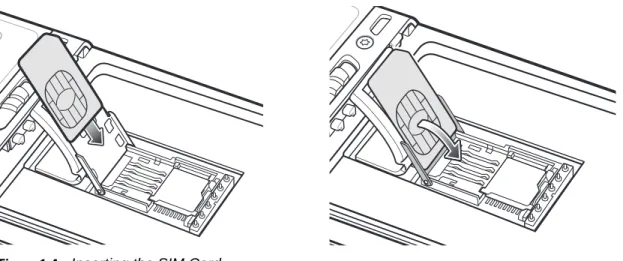
4. Insert the SIM card, as shown in Figure 1-4 ensuring that the card slides into the holding tabs on each side of the door.
Figure 1-4 Inserting the SIM Card
5. Close the SIM card holder door and slide down to lock into place.
6. Close the rubber access door.
7. Install the battery.
Installing the Battery
To install the battery.
1. Insert the battery, bottom first, into the battery compartment in the back of the MC67.
2. Press the battery down into the battery compartment until the battery release latch snaps (two clicks) into place.
3. Replace the handstrap.
Getting Started
1 - 5
Figure 1-5 Inserting the Battery
Charging the Battery
Charging the Main Battery
Before using the MC67 for the first time, charge the main battery until the amber Charging/Battery Status light emitting diode (LED) remains lit (see Table 1-1 on page 1-6 for charge status indications). To charge the MC67, use a cable or a cradle with the appropriate power supply. For information about the accessories available for the MC67, see Chapter 10, Accessories.
The MC67 is equipped with a backup battery which automatically charges from the fully-charged main battery. When using the MC67 for the first time, the backup battery requires approximately 40 hours to fully charge. This is also true any time the backup battery is discharged, which occurs when the main battery is removed for several hours. The backup battery retains random access memory (RAM) data in memory for at least 15 minutes (at room temperature) when the MC67’s main battery is removed. When the MC67 reaches a very low battery state, the combination of main battery and backup battery retains RAM data in memory for at least 36 hours.
For cable and cradle setup and charging procedures refer to the MC67 Integrator Guide.
• USB Charging Cable
• Charge Only Cable
• Single Slot USB Cradle
• Four Slot Charge Only Cradle
• Four Slot Ethernet Cradle.
1 2
Battery Battery Release Latch
To charge the main battery:
1. Connect the charging accessory to the appropriate power source.
2. Insert the MC67 into a cradle or attach to a cable. The MC67 begins charging. The Charging/Battery Status LED blinks amber while charging, then turns solid amber when fully charged. See Table 1-1 for charging indications.
The 3600 mAh battery charges in less than six hours.
Charging Spare Batteries
See Chapter 10, Accessories for information on using accessories to change spare batteries.
Charging Temperature
Charge batteries in temperatures from 0 °C to 40 °C (32 °F to 104 °F). Note that charging is intelligently controlled by the MC67.
To accomplish this, for small periods of time, the MC67 or accessory alternately enables and disables battery charging to keep the battery at acceptable temperatures. The MC67 or accessory indicates when charging is disabled due to abnormal temperatures via its LED. See Table 1-1.
Powering On the MC67
Press the Power button to turn on the MC67. The splash screen displays for about a minute as the MC67 initializes its flash file system, then the calibration window appears.
Table 1-1 LED Charge Indicators Charging/Battery
Status LED Indication
Off MC67 is not charging.
MC67 is not inserted correctly in the cradle or connected to a power source. Charger/cradle is not powered.
Slow Blinking Amber (1 blink every 2 seconds)
MC67 is charging. Solid Amber Charging complete.
Note: When the battery is initially inserted in the MC67, the amber LED flashes once if the battery power is low or the battery is not fully inserted.
Fast Blinking Amber (2 blinks/second)
Charging error, e.g.:
• Temperature is too low or too high.
• Charging has gone on too long without completion (typically eight hours).
Getting Started
1 - 7
Calibrating the Screen
To calibrate the screen so the cursor on the touch screen aligns with the tip of the stylus:
1. Remove the stylus from its holder on the side of the MC67.
2. Carefully press and briefly hold the tip of stylus on the center of each target that appears on the screen.
3. Repeat as the target moves around the screen, then tap the screen to continue.
Checking Battery Status
To check the charge status of the main battery in the MC67, tap > Settings > Power to display the Power
window.
Replacing the Battery
1. If the MC67 is in a cradle, remove it before performing a Safe Battery Swap.
2. If the MC67 is in suspend mode, press the red Power button to wake the device.
3. Press the red Power button. The Power Action Key window appears.
4. Tap Safe Battery Swap. The Data Capture LED lights red.
5. When the LED turns off, remove the handstrap.
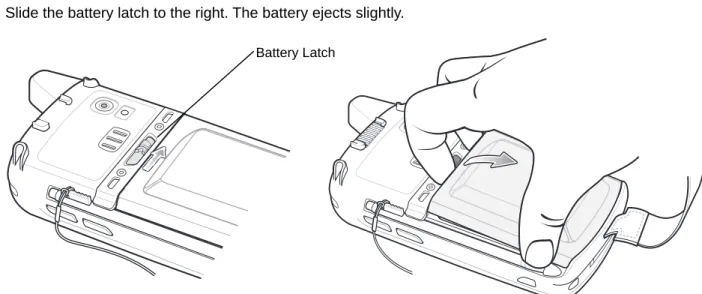
6. Slide the battery latch to the right. The battery ejects slightly.
Figure 1-6 Removing the Battery
NOTE The Calibration screen can be accessed by pressing Blue key then Backspace key.
On the Personal Information Manager (PIM) keypad, tap Settings > System > Screen > Align Screen.
CAUTION The MC67 backup battery retains data for up to 15 minutes. Replace the battery within 15 minutes to ensure that application states are maintained and that data is not lost.
7. Lift the battery from the MC67.
8. Insert the replacement battery, bottom first, into the battery compartment in the back of the MC67.
9. Press the battery down until the battery release latch snaps (two clicks) into place.
10. Replace the handstrap.
Replacing the microSD Card
To replace an microSD card:
1. If the MC67 is in a cradle, remove it before performing a Safe Battery Swap.
2. If the MC67 is in suspend mode, press the red Power button to wake the device.
3. Press the red Power button. The Power Action Key window appears.
4. Tap Safe Battery Swap. The Data Capture LED lights red.
5. When the LED turns off, remove the handstrap.
6. Remove the battery.
7. Lift the rubber access door.
8. Slide SIM card holder door up to unlock.
9. Lift SIM Card holder door.
10. Lift the microSD card holder door.
11. Remove microSD card from holder.
12. Close microSD card holder door.
13. Close SIM card holder door.
14. Slide SIM card holder door down to lock into place.
15. Close the rubber access door.
16. Insert the battery, bottom first, into the battery compartment in the back of the MC67.
17. Press the battery down until the battery release latch snaps (two clicks) into place.
18. Replace the handstrap.
19. If a SIM card is installed, warm boot the MC67. See Resetting the MC67 on page 2-12.
Replacing the SIM Card
CAUTION The MC67 backup battery retains data for up to 15 minutes. Replace the battery within 15 minutes to ensure that application states are maintained and that data is not lost.
CAUTION The MC67 backup battery retains data for up to 15 minutes. Replace the battery within 15 minutes to ensure that application states are maintained and that data is not lost.
Getting Started
1 - 9
To replace a SIM card:
1. If the MC67 is in a cradle, remove it before performing a Safe Battery Swap.
2. If the MC67 is in suspend mode, press the red Power button to wake the device.
3. Press the red Power button. The Power Action Key window appears.
4. Tap Safe Battery Swap. The Data Capture LED lights red.
5. When the LED turns off, remove the handstrap.
6. Remove the battery.
7. Lift the rubber access door.
8. Slide SIM card holder door up to unlock.
9. Lift the SIM Card holder door.
10. Remove SIM card from holder.
11. Close SIM card holder door.
12. Slide SIM card holder door down to lock into place.
13. Close the rubber access door.
14. Insert the battery, bottom first, into the battery compartment in the back of the MC67.
15. Press the battery down until the battery release latch snaps (two clicks) into place.
16. Replace the handstrap.
17. Warm boot the MC67. See Resetting the MC67 on page 2-12.
Battery Management
Observe the following battery saving tips:
• Leave the MC67 connected to AC power at all times when not in use.
• Set the MC67 to turn off after a short period of non-use.
• Set the backlight to turn off after a short period of non-use.
• Turn off all wireless activities when not in use.
Changing the Power Settings
To set the MC67 to turn off after a short period of non-use:
1. Tap > Setting > System > Power.
2. Tap the Advanced tab.
3. Select the On battery power: Turn off device if not used for check box and select a value from the drop-down list.
Changing the Backlight Settings
To change the backlight settings in order to conserve more battery power:
1. Tap > Settings > System > Backlight > Battery Power.
2. Select the Disable backlight if device is not used for check box and select a value from the drop-down list.
3. Select the Brightness tab.
4. Tap the Disable backlight check box to turn off the display backlight, or use the slider to set a low value for the backlight.
5. Select OK.
Changing the Keypad Backlight Settings
To change the keypad backlight settings in order to conserve more battery power:
1. Tap > Settings > System > Keylight > BatteryPower.
2. Select the On battery power: Disable keylight if device if not used for check box and select a value from the drop-down list.
3. Select the Advanced tab.
4. Tap the Disable keylight check box to turn off the keypad backlight.
5. Select OK.
Turning Off the Radios
The MC67 includes Wireless Manager, which provides a simple method of enabling, disabling, and configuring all the MC67’s wireless capabilities.
To open Wireless Manager, tap > Settings > Connections > Wireless Manager.
• Tap All to toggle all the radios on or off.
• Tap Phone to toggle the phone radio on or off.
• Tap Wi-Fi to toggle the wireless local area network (WLAN) radio on or off.
• Tap Bluetooth to toggle the Bluetooth radio on or off.
Network Activation
Network activation is dependent upon the network type. When an GSM/UTMS SIM card is installed in the MC67ND, upon startup the MC67ND is configured for the GSM/UTMS network.
Activating an MC67ND on a CDMA Network
To activate on a CDMA network:1. Setup an account with the CDMA carrier. Provide the MEID number (located under the battery of the MC67ND) to the customer service representative.
Getting Started 1 - 11
2. Tap Start > Settings > Connections > Network Setup & Activation. The Network Setup & Activation
window displays.
Figure 1-7 Network Setup and Activation Setup Window 3. Tap Switch to CDMA.
4. The window closes.
5. Tap Network Setup & Activation.
6. Tap Activation. The CDMA Activation window appears.
7. Tap Start Activation and PRL Update.
8. Follow the on-screen instructions.
For detailed information for configuring the phone and activating on a different network, refer to the MC67 Integrator Guide.
Switching from CDMA to GSM/UMTS
To switch from a CDMA network to a GSM/UTMAS network:
1. Tap Start > Settings > Connections > Network Setup & Activation. The Network & Activation window appears.
Figure 1-8 Network Setup and Activation Setup Window 2. Tap Switch to GSNM/UTMS.
3. The window closes.
4. Tap Network Setup & Activation.
5. In the GSM/UMTS Settings drop-down list, select connection type. Options:
a. Auto (GSM&UTMS)
b. GSM Only
c. UMTS Only.
6. Tap Apply GSM/UMTS Settings.
7. Tap OK.
Switching from GSM/UTMS to CDMA
1. Tap Start > Settings > Connections > Network Setup & Activation. The Network & Activation window appears.
2. Tap Switch to CDMA.
3. The window closes.
CHAPTER 2 USING THE MC67
Introduction
This chapter explains the buttons, status icons, and controls on the MC67, and provides basic instructions for using the MC67, including resetting the MC67 and entering data.
Features
Figure 2-1 MC67 Front View
Data Capture LED
Charging/Battery Status LED
WAN Radio Status LED
Scan/Action Button
Keypad
(Alpha-Numeric Keypad Shown)
Power Button
I/O Connector Volume
Up/Down Button
Touch Screen with Protective Overlay
Microphone Scan Button
Figure 2-2 MC67 Rear View
LED Indicators
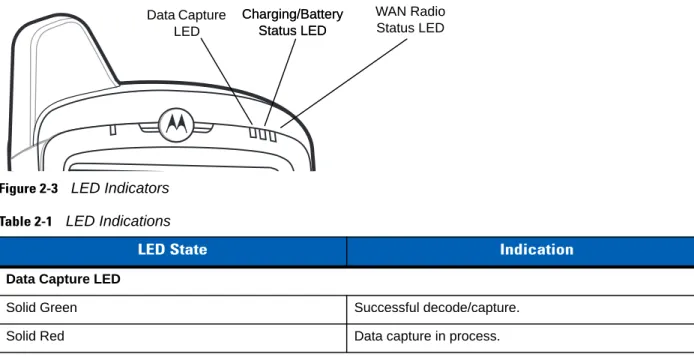
The MC67 has three light emitting diode (LED) indicators. The Data Capture LED indicates status for scanning. The Charging/Battery Status LED indicates battery charging and status.The Radio Status LED indicates Wide Area Network (WAN) radio status. Table 2-1 describes the LED indications.
Figure 2-3 LED Indicators
Battery
Speaker
Exit Window
Stylus Battery Latch
Camera
Stylus Clip Camera Flash
Action Button
Scan/Action Button Handstrap
Table 2-1 LED Indications
LED State Indication
Data Capture LED
Solid Green Successful decode/capture.
Solid Red Data capture in process.
Data Capture LED
Charging/Battery Status LED Charging/Battery
Status LED
WAN Radio Status LED
Using the MC67
2 - 3
Keypads
The MC67 offers six keypad configurations: Numeric, QWERTY, AZERTY, QWERTZ, Direct Store Delivery (DSD) and Personal Information Manager (PIM).
Figure 2-4 MC67 Numeric Keypad
Refer to Appendix B, Keypads for detailed information on the keypad configurations.
Flashing Green Software initiated notification.
Solid Red (after Safe Battery Swap mode) MC67 is shutting down for battery replacement.
Off Data capture not enabled.
Charging/Battery Status LED
Slow Blinking Amber Main battery in MC67 is charging.
Solid Amber Main battery in MC67 is fully charged.
Fast Blinking Amber Charging error.
Off MC67 not charging.
WAN Radio Status LED
Slow Blinking Green RF (WAN) radio is on.
Off RF (WAN) radio is off.
Table 2-1 LED Indications (Continued)
LED State Indication
NOTE For information about scanning/decoding, see Chapter 3, Data Capture. For information about WAN radio status and settings, see Chapter 4, Making Calls, or refer to the MC67 Integrator Guide.
Finger Scrolling
Finger scrolling can be used to scroll up and down web pages, documents, and lists such as the contacts list, file list, message list, calendar appointments list, and more.
When finger scrolling, swipe or flick a finger on the screen.
To scroll down, swipe a finger upward on the screen. To scroll up, swipe a finger downward on the screen. To auto-scroll, flick a finger upward or downward on the screen. Touch the screen to stop scrolling.
Home Screen
The default home screen on the MC67 is the Windows Embedded Handheld Home screen. The Home screen contains a Status Bar at the top of the screen and a Tile Bar at the bottom of the screen.
The Home screen is scrollable and contains a list of application plug-ins and an Information Status bar. The Information Status bar highlights the application plug-in that is under it and provides additional information.
Figure 2-5 Windows Embedded Handheld Home Screen
Touch and hold the screen with a finger and move the Home screen up and down. As the application names move under the Information Status bar, information relevant to that application appear in the bar.
Open the Start Menu Tiles
Status Bar
Home Screen
Using the MC67
2 - 5
Figure 2-6 Moving Today Screen
Also touch and hold the Information Status bar and move it up and down over an application name. Remove finger and the Information Status bar and application name center in the screen.
Figure 2-7 Moving Information Status Bar
Figure 2-8 Information Bar Example
To customize the Home screen, tap > Settings > Today. On the horizontal scroll, use Appearance to customize the background and the Items to change the display format.
Application Icon Application Information
Classic Today Screen
The user can change to the classic Today screen layout that is used in Windows Mobile 6.1.
Figure 2-9 Classic Today Screen
To change to the classic view tap > Settings > Home > Items.
Figure 2-10 Home Screen Settings
Deselect the Windows Default checkbox and select any of the other checkboxes. Tap .
The task bar at the bottom of the screen can contain the task tray icons listed in Table 2-2. Tile Bar
Status Bar
Today Screen
Using the MC67
2 - 7
Status Bar
The Status Bar at the top of the screen displays the status icons listed in Table 2-3.
Figure 2-11 Status Bar Icons
Table 2-2 Task Tray Icons
Icon Name Description
Wireless connection status
Wireless connection status icon. Indicates wireless local area network (WLAN) signal strength and opens the Wireless Applications menu.
Bluetooth Enabled The Bluetooth Enabled iconappears in the task tray and indicates that the Bluetooth radio is on (Displays only if the StoneStreet One Bluetooth stack is enabled).
Bluetooth Disabled The Bluetooth Disabled iconappears in the task tray and indicates that the Bluetooth radio is off (Displays only if the StoneStreet One Bluetooth stack is enabled).
Bluetooth Communication
The Bluetooth Communication iconappears in the task tray and indicates that the mobile computer is communicating with another Bluetooth device (Displays only if the StoneStreet One Bluetooth stack is enabled).
Table 2-3 Status Bar Icons
Icon Description Icon Description
Notifications
Reminder of an upcoming calendar event. One or more instant messages were received. One or more text messages were received. One or more voice messages were received. There are more notification icons than can be
displayed.
Bluetooth radio is on.
One or more Email messages were received. Microsoft customer feedback alert. Backup battery is low.
Battery Audio WAN Connectivity Battery Clock Notifications
Tap the Status Bar to display an icon bar. Tap an icon to get additional notification or status information.
Connectivity
Connection is active. Connection is not active.
Synchronization is occurring. wireless fidelity (Wi-Fi) available.
Wi-Fi in use. HSPA+ available.
3G available. GPRS available.
EGPRS available. Roaming.
WAN
Call missed. Dialing while no SIM card is installed.
Call in progress. Calls are forwarded.
Call on hold. Speakerphone is on.
Phone on/good signal. Phone off.
No WAN service. Searching for WAN service.
Evolved High-Speed Packet Access (HSPA+) connecting.
HSPA+ in use.
3G in use. 3G connecting.
General Packet Radio Service (GPRS) in use. GPRS connecting. Enhanced General Packet Radio Service
(EGPRS) in use.
EGPRS connecting.
Subscriber identification module (SIM) Card not installed.
Audio
All sounds are on. All sounds are off.
Vibrate is on.
Battery
Battery is charging. Battery has a full charge. Battery has a high charge. Battery has a medium charge. Battery has a low charge. Battery has a very low charge.
Table 2-3 Status Bar Icons (Continued)
Using the MC67
2 - 9
Figure 2-12 Icon Bar
Table 2-4 Task Tray Icons
Icon Name Description
Magnify Enlarges the screen.
Voicemail Dials Voicemail.
Missed Call Opens the Call History window and displays a list of missed calls. Low Backup Battery Indicates that the backup battery is low.
Notifications Indicates that notifications are available.
Headset Indicates that a wireless stereo headset is connected to the MC67.
Connectivity Displays the Connectivity dialog box. Phone Data Displays the Phone dialog box. Volume Displays the Volume dialog box. Power Displays the Power window.
Clock & Alarms Opens the Clocks & Alarms window. Icon Bar
Tile Bar
The Tile Bar, located at the bottom of the screen, contains the Start tile to open the Start Menu. It also displays tiles that vary depending upon the open application.
Figure 2-13 Tile Bar Examples
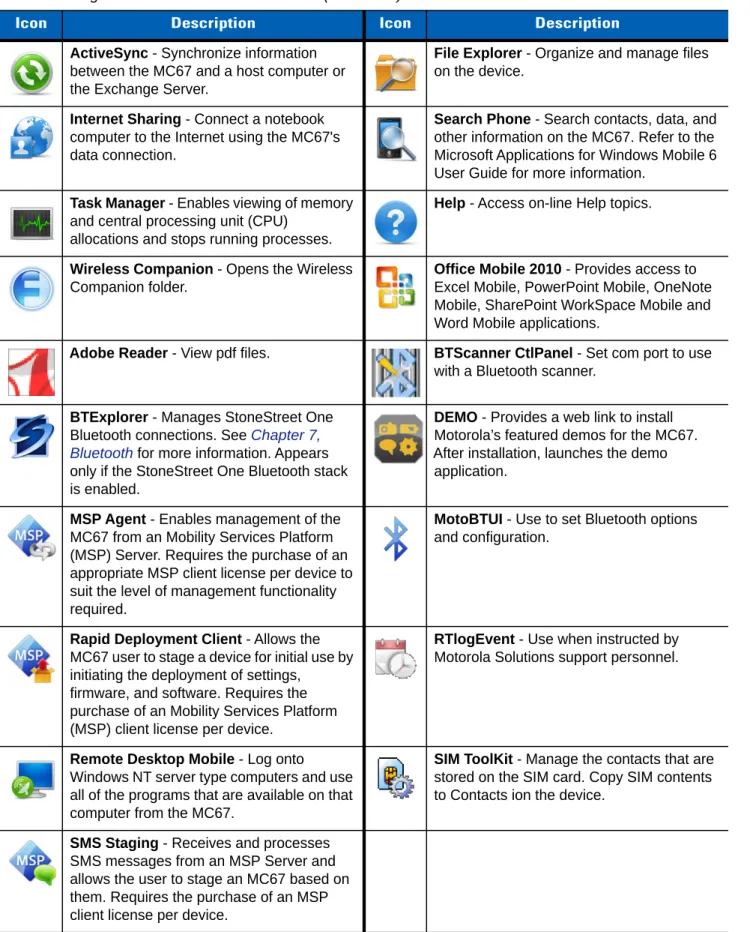
Table 2-5 Programs Available on the Start Menu
Icon Description Icon Description
Home - Closes the Start menu and displays the Home screen.
Text - Send an text message.
Phone - Make calls. E-mail - Send an Email.
Contacts - Keep track of friends and colleagues.
Battery Swap - Properly shuts down the MC67 during battery replacement.
Internet Explorer - Browse Web sites as well as download new programs and files from the Internet.
Settings - Opens the Settings folder. See
Chapter 9, Settings for more information.
Calendar - Keep track of appointments and create meeting requests.
Getting Started - Launch the Getting Started application.
Pictures & Videos - View and manage pictures and video files.
Alarms - Set the clock to the date and time of the current location. Alarms can also be set at specified days and times of a week.
Windows Media - Play back audio and video files.
Messenger - Use the mobile version of Windows Live Messenger.
Marketplace - Purchase applications from the Marketplace.
MSN Weather - Check the local weather.
MSN Money - Keep track of finances. Windows Live - Use the mobile version of Windows Live™ to find information on the web.
Calculator - Perform basic arithmetic and calculations, such as addition, subtraction, multiplication, and division.
Notes - Create handwritten or typed notes, drawings, and voice recordings.
Using the MC67 2 - 11
ActiveSync - Synchronize information between the MC67 and a host computer or the Exchange Server.
File Explorer - Organize and manage files on the device.
Internet Sharing - Connect a notebook computer to the Internet using the MC67's data connection.
Search Phone - Search contacts, data, and other information on the MC67. Refer to the Microsoft Applications for Windows Mobile 6 User Guide for more information.
Task Manager - Enables viewing of memory and central processing unit (CPU)
allocations and stops running processes.
Help - Access on-line Help topics.
Wireless Companion - Opens the Wireless Companion folder.
Office Mobile 2010 - Provides access to Excel Mobile, PowerPoint Mobile, OneNote Mobile, SharePoint WorkSpace Mobile and Word Mobile applications.
Adobe Reader - View pdf files. BTScanner CtlPanel - Set com port to use with a Bluetooth scanner.
BTExplorer - Manages StoneStreet One Bluetooth connections. See Chapter 7, Bluetooth for more information. Appears only if the StoneStreet One Bluetooth stack is enabled.
DEMO - Provides a web link to install Motorola’s featured demos for the MC67. After installation, launches the demo application.
MSP Agent - Enables management of the MC67 from an Mobility Services Platform (MSP) Server. Requires the purchase of an appropriate MSP client license per device to suit the level of management functionality required.
MotoBTUI - Use to set Bluetooth options and configuration.
Rapid Deployment Client - Allows the MC67 user to stage a device for initial use by initiating the deployment of settings,
firmware, and software. Requires the purchase of an Mobility Services Platform (MSP) client license per device.
RTlogEvent - Use when instructed by Motorola Solutions support personnel.
Remote Desktop Mobile - Log onto Windows NT server type computers and use all of the programs that are available on that computer from the MC67.
SIM ToolKit - Manage the contacts that are stored on the SIM card. Copy SIM contents to Contacts ion the device.
SMS Staging - Receives and processes SMS messages from an MSP Server and allows the user to stage an MC67 based on them. Requires the purchase of an MSP client license per device.
Table 2-5 Programs Available on the Start Menu (Continued)
Adjusting Volume
To adjust the system volume:
1. Press the volume buttons on the right side of the MC67 to increase and decrease the system volume. The
Volume dialog box appears.
2. As the user increases or decreases the volume, the slider moves accordingly. The user can also move the slider to adjust the volume.
3. Select the Vibrate radio button to turn off the system audio and enable the MC67 to vibrate upon system notifications.
4. Select Off radio button to turn off all system audio notifications.
Resetting the MC67
There are two reset functions, warm boot and cold boot. A warm boot restarts the MC67 by closing all running programs. A cold boot also restarts the MC67, and also initializes some drivers. Data saved in flash memory or a memory card is not lost.
If the MC67 is not functioning properly, perform a warm boot first. If the MC67 still does not respond, perform a cold boot.
Performing a Warm Boot
Hold down the red Power button for approximately five seconds. As soon as the MC67 starts to boot (splash screen displays) release the Power button.
Performing a Cold Boot
To perform a cold boot:• On a numeric or DSD keypad, simultaneously press the red Power button and the and keys.
• On an alphanumeric keypad, simultaneously press the red Power button and the and keys.
• On an PIM keypad, simultaneously press the red Power button and the and keys.
Locking the MC67
Locking the MC67 turns off keyboard and touch screen functionality. This is helpful when the MC67 is turned on and to prevent accidental key presses.
To lock the MC67, tap > .
Using the MC67 2 - 13
Figure 2-14 Unlock Device Window
If the MC67 was locked with a PIN or password, a prompt appears.
Un-locking with Simple PIN
When the MC67 is locked, the Lock screen appears.
Figure 2-15 Simple PIN Lock Screen
Enter the password to un-lock the device.
Tap the Unlock button to unlock the device and go to the Home screen, or tap the Contact button to unlock the device and go to the Contacts window or tap the Email button to unlock the device and go to the Messaging
window.
Un-locking with Strong Password
Figure 2-16 Strong Password Lock Screen
Enter the strong password and then tap Unlock.
Battery Status Indications
Battery icons appear on the Status bar indicating the battery power level. When the main battery power falls below a predetermined level the icon indicates the status and a battery dialog box appears indicating the status of the battery. When the backup battery is low an icon appears in the Status bar and a battery dialog box appears indicating the status of the backup battery.
Figure 2-17 Battery Status Dialog Boxes
The Battery icon always appears in the Status bar. The icon indicates the battery power level. The message displays until the Dismiss button is pressed.
Also view the battery status using the Power window. Either:
• Tap the Status bar and then the Battery icon.
• Tap > Settings > System > Power.
NOTE If the user enters an incorrect password eight times, the user is requested to enter a code before trying again.
Using the MC67 2 - 15
Figure 2-18 Settings Power Window
Battery Reserve Options
If the charge of the battery reaches a critical threshold, the MC67 shuts down. This threshold can be changed but affects the amount of time that data can be retained.
1. Tap > Settings > System > Power > RunTime. A warning message appears.
Figure 2-19 Warning Message
2. Read the warning message and tap OK.
3. Select one of the Battery Reserve Options.
• Option 1: Minimum - After a low battery shutdown, data will be retained for minimum amount of time. Battery should be replaced immediately to avoid data loss.
• Option 2: Less - After a low battery shutdown, data will be retained for less than normal amount of time.
• Option 3: Normal - After a low battery shutdown, data will be retained for maximum amount of time.
4. Tap OK.
Main Battery Temperature Notifications
The temperature notification system implements three levels of notification when the temperature within the battery exceeds specific temperature thresholds:
• Level 1: Temperature Watch; this level is similar to main battery low warning. It indicates that the battery temperature has reached the first threshold level. The user should move to an environment within proper operating temperature.
• Level 2: Temperature Warning; this level is similar to main battery very low warning. It indicates the battery temperature has reached the second threshold level. The user should close all running applications and stop using the MC67.
• Level 3: Temperature Error; this level indicates the battery has reached an unusable temperature threshold and immediately suspends the MC67. This level does not have any graphical notification associated with it.
Figure 2-21 Main Battery Temperature Watch Dialog Box
Using the MC67 2 - 17
Interactive Sensor Technology
The Interactive Sensor Technology (IST) supports the following features:
• Power Management – manages power by configuring IST to control switching on/off the backlight, control suspend mode of the MC67 by monitoring motion and orientation.
• Display Orientation – switches the screen orientation to either landscape or portrait depending on the MC67 orientation.
• Free Fall Detection – monitors free fall duration and records the time and type of the drop event. The MC67 is equipped with sophisticated and powerful sensors to sense and react to environmental changes, motion, orientation and user input. These sensors include accelerometer, magnetometer, gyroscope, ambient light sensor, near range sensor, temperature sensor and proximity sensor.
The accelerometer and gyroscope measure the linear acceleration and angular velocity. The magnetometer measures the magnetic field intensity experienced by the MC67. This information can be used to derive the motion state and the orientation of the device. For example, an MC67 can automatically rotate the display from portrait to landscape mode to match the device orientation, enter suspend mode or switch off backlight to save power when display is placed face down.
The ambient light sensor detects the intensity of light on or around the display screen. The MC67 can adjust the screen brightness for optimum visibility while conserving power.
The near range proximity sensor detects any object in close proximity to device. This information can be used to disable the touch pad when the caller's face is close to the device to prevent unintended key press.
See IST Settings on page 9-8 for more information.
Power Management
The MC67 orientation and motion sensitive data can be used as an indicator of MC67 usage and can be used to manage the battery power of the mobile computer. For example, IST can be configured to control the backlight on and off functionality or go into suspend according to a user gesture by placing screen facing down. It can also be used to keep the MC67 active while it is in movement to prevent it from quickly going into suspend mode while in use.
Display Orientation
The screen can be rotated between portrait and landscape modes automatically, depending on the physical orientation of the MC67. For example, if the MC67 is rotated 90° counterclockwise, IST rotates the display counterclockwise 90° so that the screen display appears correct.
This functionality is achieved by monitoring screen angle and rotating the display to counter any changes. IST only rotates the screen in multiples of 90°.
Free Fall Detection
IST continuously monitors gravitational force on the MC67 according to its current position. When the MC67 free falls, IST detects the absence of gravitational force and records the event data if it detects a free fall more
than 450 ms, which may indicates nearly a one meter drop. This data can be used as an indicator of potential abuse or misuse.
IST features a log for recording the free fall events. This log records the date, time and the time period of the free fall.
Stylus
Use the MC67 stylus to select items and enter information. The stylus functions as a mouse.
• Tap: Touch the screen once with the stylus to press option buttons and open menu items.
• Tap and Hold: Tap and hold the stylus on an item to see a list of actions available for that item. On the pop-up menu that appears, tap the action to perform.
• Drag: Hold the stylus on the screen and drag across the screen to select text and images. Drag in a list to select multiple items.
Entering Data
When entering data on the keypad, use either the single-hand method or the two-hand method as shown in
Figure 2-23.
Figure 2-23 Entering Data on the Keypad
CAUTION To prevent damage to the screen, do not use any device other than the Motorola-provided stylus.
Using the MC67 2 - 19
Using Voice-Over-IP
The MC67 supports Voice over IP over WLAN (VoWLAN) using third party voice clients. The MC67 can communicate using VoIP either using the MC67 supports several audio outputs, including back speaker phone, front receiver or handset, and Bluetooth headset.
It is recommended that the wireless network use the 802.11a (5 GHz) band for voice applications. Using the 5 GHz band avoids some noise sources that may occur on the 802.11b/g (2.4 GHz) band due to wireless interference.
When using a Bluetooth headset with the MC67 and VoWLAN, it is required to use the Bluetooth Headset profile instead of Hands-free profile. Use the buttons on the MC67 to answer and end calls. See Chapter 7, Bluetooth for information on setting up a Bluetooth Headset Profile.
CHAPTER 3 DATA CAPTURE
Introduction
The MC67 offers three types of data capture options:
• Imaging
• Digital camera.
Imaging
The MC67 with an integrated imager has the following features:
• Omnidirectional reading of a variety of bar code symbologies, including the most popular linear, postal, PDF417, and 2D matrix code types.
• The ability to capture and download images to a host for a variety of imaging applications.
• Advanced intuitive laser aiming cross-hair and dot aiming for easy point-and-shoot operation.
The imager uses imaging technology to take a picture of a bar code, stores the resulting image in its memory, and executes state-of-the-art software decoding algorithms to extract the bar code data from the image.
Operational Modes
The MC67 with an integrated imager supports three modes of operation, listed below. Activate each mode by pressing the Scan button.
• Decode Mode: In this mode, the MC67 attempts to locate and decode enabled bar codes within its field of view. The imager remains in this mode as long as the user holds the scan button, or until it decodes a bar code.
• Pick List Mode: This mode allows the user to selectively decode a bar code when more than one bar code is in the MC67’s field of view. To accomplish this, move the aiming crosshair or dot over the
required bar code to decode only this bar code. This feature is ideal for pick lists containing multiple bar codes and manufacturing or transport labels containing more than one bar code type (either 1D or 2D).
• Image Capture Mode: Use this mode to capture an image within the MC67’s field of view. This is useful for capturing signatures or images of items like damaged boxes.
Digital Camera
The MC67 with an integrated camera based bar code scanning solution has the following features:
• Omnidirectional reading of a variety of bar code symbologies, including the most popular linear, postal, PDF417, and 2D matrix code types.
• Advanced intuitive aiming for easy point-and-shoot operation
• Taking photos and recording videos.
The solution uses the advanced camera technology to take a digital picture of a bar code, and executes state-of-the-art software decoding algorithms to extract the data from the image.
Scanning Considerations
Typically, scanning is a simple matter of aim, scan, and decode and a few quick trial efforts master it. However, consider the following to optimize scanning performance:
• Range
Any scanning device decodes well over a particular working range — minimum and maximum distances from the bar code. This range varies according to bar code density and scanning device optics.
Scanning within range brings quick and constant decodes; scanning too close or too far away prevents decodes. Move the scanner closer and further away to find the right working range for the bar codes being scanned.
• Angle
Scanning angle is important for promoting quick decodes. When laser beams reflect directly back into the scanner from the bar code, this specular reflection can “blind” the scanner.
To avoid this, scan the bar code so that the beam does not bounce directly back. But don’t scan at too sharp an angle; the scanner needs to collect scattered reflections from the scan to make a successful decode. Practice quickly shows what tolerances to work within.
• Hold the MC67 farther away for larger symbols.
• Move the MC67 closer for symbols with bars that are close together.
Imager Scanning
To read a bar code, a scan-enabled application is required. The MC67 contains the DataWedge application that allows the user to enable the imager, decode the bar code data and display the bar code content.
1. Enable DataWedge. See Enable DataWedge on page 3-4.
NOTE Scanning procedures depend on the application and MC67 configuration. An application may use different scanning procedures from the one listed above.
Data Capture
3 - 3
2. Launch an application that supports text inputs, such as Word Mobile 2010 or Excel Mobile 2010.
3. Point the exit window on the top of the MC67 at a bar code.
Figure 3-1 Imager Scanning
4. Press and hold the scan button.
The red laser aiming pattern turns on to assist in aiming. Ensure the bar code is within the area formed by the crosshairs in the aiming pattern. The aiming dot is used for increased visibility in bright lighting conditions.
The Scan/Decode LED lights red to indicate that scanning is in process, then lights green and a beep sounds, by default, to indicate the bar code was decoded successfully. Note that when the MC67 is in Pick List Mode, the imager does not decode the bar code until the crosshair or aiming dot touches the bar code.
Figure 3-2 Aiming Pattern
Figure 3-3 Pick List Mode with Multiple Bar Codes in Aiming Pattern 5. Release the scan button.
6. Disable DataWedge. See Disable DataWedge on page 3-5. Correct
Incorrect
Decoded Not Decoded
NOTE Imager decoding usually occurs instantaneously. The MC67 repeats the steps required to take a digital picture (image) of a poor or difficult bar code as long as the scan button remains pressed.
Digital Camera Scanning
To read a bar code, a scan-enabled application is required. The MC67 contains the DataWedge application that allows the user to enable the camera, decode the bar code data and display the bar code content.
1. Enable DataWedge. See Enable DataWedge on page 3-4.
2. Launch an application that supports text inputs, such as Word Mobile 2010 or Excel Mobile 2010.
3. Point the camera lens on the back of the MC67 at a bar code.
Figure 3-4 Camera Scanning
4. Press and hold . A preview window appears on the display window and a red aiming line emits from the MC67. The Data Capture LED lights red indicating that the data capture is in process.
5. Move the MC67 until the red aiming line is across the bar code.
6. The light emitting diode (LED) lights green and a beep sounds, by default, to indicate the bar code was decoded successfully.
7. The bar code content data displays in the text field.
DataWedge
Enable DataWedge
To enable DataWedge:1. Tap > Settings > System > DataWedge.
2. Tap Basic configuration.
3. Tap 1. Barcode input.
4. Tap one of the following:
a. 1. Block Buster Imager (for scanning using the imager).
b. 2. Camera Scanner Driver (for scanning using the camera).
c. 3. Bluetooth SSI Scanner Driver (for scanning using the RS507, see Using the RS507 Hands-free Imager on page 10-19).
Data Capture
3 - 5
5. Ensure that a check mark is next to 1. Enabled. If not, tap 1. Enabled.
6. Tap 0. Back.
7. Tap 0. Back.
8. Tap 0. Exit and then tap OK.
9. Tap Running to start the DataWedge process. The DataWedge Status changes to Ready.
10. Tap OK.
Disable DataWedge
To disable DataWedge:1. Tap > Settings > System > DataWedge.
2. Tap the Running option to end the DataWedge process. The DataWedge Status changes to Stopped.
3. Tap OK.
Taking Pictures
To take a picture:
1. Tap > Pictures & Videos.
2. Tap Camera.
Figure 3-5 Camera Window
The Camera window displays the view finder. Information about the current settings or the remaining number of pictures that can be saved to the MC67 are displayed on the lower right corner of the screen.
3. Check the image on the view finder, adjust if necessary.
4. Press the Enter key to take the picture.
Burst Mode
1. Tap > Pictures & Videos.
2. Tap Camera.
3. Tap Menu > Mode > Burst.
4. Check the image on the view finder, adjust if necessary.
5. Press the Enter key to take the picture.
To stop a burst of pictures before all pictures have been taken tap OK.
Timer Mode
To take pictures using the timer:
1. Tap > Pictures & Videos.
2. Tap Camera.
3. Tap Menu > Mode > Timer.
4. Check the image on the view finder, adjust if necessary.
5. Press the Enter key to take the picture.
Editing Pictures
Rotate, crop, zoom, and adjust the brightness and color contrast pictures.
1. Tap > Pictures & Videos.
2. Tap the thumbnail of the picture to view.
3. Tap Menu > Zoom to display the Zoom panel, used to zoom in or out of a picture. Tap Menu > Zoom again to close the Zoom panel.
4. To rotate a picture 90 degrees counter-clockwise, tap Menu > Edit, then tap Rotate.
5. To crop a picture, tap Menu > Edit, then tap Menu > Crop. Drag the stylus across the screen to select the crop area. Tap inside the area to crop the picture, or outside of the area to cancel cropping.
Setting a Picture as Wallpaper
To add a custom look to the Home screen of the MC67 (using the Windows Home screen); apply a wallpaper using any image. To set an image as a Home wallpaper:
1. Tap and hold a thumbnail, then select Set as Home Background.
2. Tap the up or down arrows to set the transparency level.
3. Tap OK.
Camera Configuration
To configure the camera settings: