User Guide
Volume 2
D
ISTRIBUTION
P
URCHASINGS
ALESQ
UOTATIONSS
ALESO
RDERS/I
NVOICESC
ONSOLIDATEDO
RDERP
ROCESSINGS
HIPPINGE
NTERPRISEM
ATERIALT
RANSFERC
ONFIGUREDP
RODUCTSS
ALESA
NALYSIS78-0448A MFG/PRO Version 9.0 Printed in the U.S.A. March 1999
QAD Inc. The information contained in this document is subject to change without notice. QAD Inc. provides this material as is and makes no warranty of any kind, expressed or implied, including, but not limited to, the implied warranties of merchantability and fitness for a particular purpose. QAD Inc. shall not be liable for errors contained herein or for incidental or consequential damages (including lost profits) in connection with the furnishing, performance, or use of this material whether based on warranty, contract, or other legal theory.
Some states do not allow the exclusion of implied warranties or the limitation or exclusion of liability for incidental or consequential damages, so the above limitations and exclusion may not be applicable.
PROGRESS® is a registered trademark of Progress Software Corporation. Windows™ is a trademark of Microsoft Corporation.
MFG/PRO® is a registered trademark of QAD Inc. Copyright © 1999 by QAD Inc.
78-0448A QAD Inc. 6450 Via Real Carpinteria, California 93013 Phone (805) 684-6614 Fax (805) 684-1890
Contents
A
BOUTT
HISG
UIDE. . . 1
What Is in This Guide? . . . 2
Other 9.0 Documentation . . . 2
Online Help . . . 2
QAD Web Site . . . 2
Conventions . . . 3
Windows Keyboard Commands . . . 3
Character Keyboard Commands . . . 4
C
HAPTER1
I
NTRODUCTIONTOD
ISTRIBUTION. . . 7
Purchasing . . . 8
Sales Quotations . . . 8
Sales Orders/Invoices . . . 9
Consolidated Order Processing . . . 9
Shipping . . . 9
Enterprise Material Transfer . . . 9
Configured Products . . . 10
Sales Analysis . . . 10
C
HAPTER2
P
URCHASING. . . 11
Introduction . . . 12
Purchasing . . . 12
Types of Purchase Orders . . . 14
Creating Purchase Orders . . . 16
Header . . . 17
Line Items . . . 18
Trailer . . . 22
Updating Purchase Order Costs . . . 23
Creating Blanket Orders . . . 24
Creating Receivers . . . 26
PO Receipt Packing Slip Inquiry . . . 27
PO Containers and Shippers . . . 27
PO Fiscal Receiving . . . 28
Creating Returns . . . 33
Deleting Expired Orders . . . 34
Calculating Purchase Price Variances . . . 34
Subcontract Purchasing . . . 35
Subcontract Pricing . . . 35
Inventory and Cost Control . . . 35
Subcontract Lead Time . . . 36
Routings and Work Centers . . . 36
Triggering Purchase Orders . . . 36
Supplier Capacity . . . 37
Material Requirements Planning . . . 37
Subcontract Workflow . . . 37
Special Purchasing Topics . . . 38
Multisite Purchasing . . . 38
Purchasing Memo Items . . . 38
Purchasing Miscellaneous Items . . . 39
C
HAPTER3
S
ALESQ
UOTATIONS. . . 41
Sales Quotations Overview . . . 42
Types of Quotes . . . 42
Menu Listing . . . 43
Setting Up Sales Quotes . . . 43
Creating Sales Quotes . . . 45
CONTENTS V
Copying a Sales Quote . . . 49
Printing Sales Quotes . . . 50
Releasing Sales Quotes . . . 50
Repricing Sales Quotes . . . 52
Deleting and Archiving Sales Quotes . . . 53
C
HAPTER4
S
ALESO
RDERS/I
NVOICES. . . 55
Introduction . . . 56
Sales Order Work Flow . . . 57
Creating Sales Orders . . . 58
Header . . . 58
Line Items . . . 60
Trailer . . . 62
Processing Freight Charges . . . 63
Automatic Freight Calculations and Sales Order Returns . . . 64
Freight Accounting . . . 64
Freight Charges Setup . . . 65
Repricing Sales Orders . . . 65
Printing Sales Orders . . . 67
Printing Picklists . . . 68
Shipping . . . 69
Managing Containers and Shippers . . . 69
Processing Invoices . . . 70
Reviewing a Pending Invoice . . . 71
Printing Invoices . . . 71
Posting Invoices . . . 72
Correcting Invoices . . . 72
Invoicing Multiple Shipments . . . 72
Special Invoice Requirements . . . 72
Processing Returns . . . 73
Credit Invoices for Returned Goods . . . 74
C
HAPTER5
C
ONSOLIDATEDO
RDERP
ROCESSING. . . 77
Introduction . . . 78
Using Multiple Databases . . . 82
Requirements . . . 82
Examples . . . 83
Setup Requirements . . . 83
Creating Consolidated Orders . . . 84
Sales Orders . . . 84
Purchase Orders . . . 87
Financial Transactions . . . 90
Processing Configured Products . . . 92
C
HAPTER6
S
HIPPING. . . 97
Introduction . . . 98
Setting Up Shipping . . . 98
Define Number Sequences . . . 100
Define Document Formats . . . 103
Define Inventory Movement Codes . . . 105
Assign Inventory Movement Code Security . . . 106
Define Carrier Addresses . . . 107
Define Shipping Groups . . . 107
Set Up Container/Shipper Control File . . . 115
Processing Shipments . . . 118
Container/Shipper Method of Shipping . . . 118
Containers . . . 118
Shippers . . . 133
Bills of Lading . . . 164
Processing Issue Transactions . . . 168
Inventory Control Programs . . . 169
Purchase Order Returns . . . 173
Distribution Order Shipments . . . 174
Receipt Processing . . . 174
Creating Scanned Shipping Documents . . . 175
CONTENTS VII
Overview of Form Services . . . 178
Additional Form Services . . . 179
Creating a Custom Shipper . . . 181
C
HAPTER7
E
NTERPRISEM
ATERIALT
RANSFER(EMT) . . . 187
Introduction . . . 188
Business Units . . . 188
Shipment Types . . . 189
Electronic Data Interchange . . . 190
Transmission Manager . . . 191
Exporting . . . 192
Importing . . . 193
EMT Process Flow . . . 194
Confirming a Secondary Sales Order Shipment . . . 194
Building a Purchase Order Shipment . . . 195
Picking and Unpicking . . . 195
EMT Procedures . . . 195
Overview of Standard EMT . . . 199
Creating an EMT Sales Order . . . 199
Credit Held Orders . . . 199
Calculating Due Dates . . . 200
Modifying a Sales Order at the PBU . . . 202
Modifying a Sales Order at the SBU . . . 205
Setting Up Standard EMT . . . 205
Setting Up Sites . . . 206
Establishing Sites as Companies . . . 207
Setting Up Customer Profiles . . . 207
Setting Up Supplier Profiles . . . 209
Setting Up Items . . . 210
Establishing Item-Site Relationships . . . 211
Setting Up Item Cross-References . . . 211
Setting Up the Sales Order Control File . . . 212
Setting Up the Purchasing Control File . . . 213
Overview of EDI Transmissions . . . 214
Setting Up Trading Partners at the PBU and the SBU . . . 215
Establishing EDI IDs for the PBU and the SBU . . . 215
Setting Up the EDI Control File . . . 215
Using Standard EMT . . . 217
Transshipments . . . 217
Direct Shipments . . . 221
Multilevel EMT . . . 223
Organizational Roles at Multiple Levels . . . 224
Multilevel Restrictions . . . 224
Multilevel Flexibility . . . 225
Setting Up Multilevel EMT . . . 226
Processing Sales Orders . . . 226
Processing EMT Purchase Orders . . . 229
Change Management . . . 229
Processing Advance Ship Notices (ASNs) . . . 232
Processing Supplier or Shipping Type Changes . . . 234
C
HAPTER8
C
ONFIGUREDP
RODUCTS. . . 237
Introduction . . . 238
Defining Control File Settings . . . 239
Defining a Configured Product . . . 240
Set Up the Parent Item . . . 240
Define the Base Components . . . 241
Define Features and Options . . . 241
Ordering a Configured Product . . . 243
Cost and Price . . . 245
Modifying Configured Line Items . . . 245
Phantoms . . . 246
Configured Components . . . 246
Pending Invoice Maintenance . . . 246
Issuing Final Assembly Orders . . . 246
Configuration Updates . . . 247
CONTENTS IX
Shipping in an Average Cost Environment . . . 248
Finished Goods Inventory . . . 249
Using Shippers with Configured Products . . . 249
Master Scheduling . . . 250
C
HAPTER9
S
ALESA
NALYSIS. . . 251
Introduction . . . 252
Fiscal Year and Calendar Year Reporting . . . 252
Using Salesperson Quota Maintenance . . . 253
Using Sales Analysis Inquiries . . . 254
Salesperson Quota Inquiry . . . 254
Salesperson Margin Inquiry . . . 254
Using Sales Analysis Browses . . . 254
Using Sales Analysis Reports . . . 255
Salesperson Ranking Report . . . 255
Sales by Site Report . . . 255
Sales by Customer Report . . . 256
Customer Ranking Report . . . 257
Sales by Item Report . . . 257
Item Ranking Report . . . 257
Changing the Fiscal Year . . . 258
Deleting/Archiving Sales History . . . 259
About This Guide
What Is in This Guide? 2Windows Keyboard Commands 3 Character Keyboard Commands 4
What Is in This Guide?
This guide covers the modules and functions included under the Distribution icon on the main menu of MFG/PRO Version 9.0 for Windows.
Other 9.0 Documentation
• For an overview of new features and software updates, see the 9.0 Release Bulletin.
• For software installation instructions, refer to the 9.0 Installation Guides.
• For instructions on navigating the MFG/PRO environment, refer to the 9.0 User Interface Guide.
• For information on using MFG/PRO, refer to the 9.0 User Guides.
• For technical details, refer to the 9.0 File Relationships and 9.0 Database Definitions.
• To review MFG/PRO program screens, refer to the Screen Book, Volumes 1–3.
• To view documents online in PDF format, see the 9.0 Documents on CD.
Online Help
MFG/PRO has an extensive online help system. Help is available for most fields found on a screen. Procedure help is available for most programs that update the database. Most inquiries, reports, and browses do not have procedure help.
For information on using the help system, refer to the 9.0 User Interface Guide.
QAD Web Site
For MFG/PRO users with a QAD Web account, MFG/PRO documentation is available for viewing or downloading at:
ABOUT THIS GUIDE 3
To obtain a QAD Web account, go to:
http://support.qad.com/
The QAD Web site also has information about training classes and other services that can help you learn about MFG/PRO.
Conventions
MFG/PRO 9.0 is available in several interfaces: Windows, character, Web browser, and an interface for object-oriented programs. To standardize presentation, the documentation uses the following conventions:
• MFG/PRO screen captures reflect the Windows interface.
• References to keyboard commands are generic. For example, choose Go refers to F2 in the Windows interface and to F1 in the character interface. The following tables identify the keyboard commands for the Windows and character interfaces.
Windows Keyboard Commands
Navigation Commands
Keyboard
Entry Description
Go F2 Moves to next frame.
End Esc Exits a frame, program, or menu. Previous F9 or up arrow Retrieves previous record in a key data
field.
Next F10 or down
arrow
Retrieves next record in a key data field. Enter Enter Moves to next field within a frame. Tab Tab Moves to next field within a frame. Back Tab Shift+Tab Moves back one field within a frame.
Exit Alt+X Closes a program.
Run Ctrl+R Starts a program by name.
Save (object) F12 In a key frame, moves to data entry; in data entry, saves and returns to key frame.
Print (object) Ctrl+P Prints browse or maintenance information.
Character Keyboard Commands
Help Commands
Keyboard
Entry Description
Field Help F1 Opens help on current field. Procedure Help Shift+F1 Opens help on current program. Browse Alt+F1 Displays choice of records. Look-Up Browse Alt+F2 Displays choice of records. About Ctrl+F1 Displays the program name. Browse Options F7 Opens the browse options window. Browse Options Toggle Alt+F Turns the browse options on and off. Browse Graph Shift+F11 Opens the browse graphing window. Field Name Ctrl+F Displays the field name.
Edit Commands
Keyboard
Entry Description
Delete Record F5 Deletes an open record.
Cut Ctrl+X Cuts a field or selection to clipboard. Copy Ctrl+C Copies a field or selection to clipboard. Paste Ctrl+V Pastes data from the clipboard.
Navigation Commands Keyboard Entry Control Key Entry Description
Go F1 Ctrl+X Moves to next frame.
End F4 Ctrl+E Exits a frame, program, or menu. User Menu F6 Ctrl+P Displays list of user-selected
programs.
Previous F9 or up arrow Ctrl+K Retrieves previous record in a key data field and scrolls up in look-up browses.
Next F10 or down arrow
Ctrl+J Retrieves next record in a key data field and scrolls down in look-up browses.
ABOUT THIS GUIDE 5
Tab Tab Moves to next field within a frame. Back Tab Shift+Tab Ctrl+U Moves back one field within a frame. Menu Bar
(object)
Esc, M Accesses the menu bar.
Save (object) F12 In a key frame, moves to data entry; in data entry, saves and returns to key frame.
Print (object) Ctrl+P Prints browse or maintenance information Help Commands Keyboard Entry Control Key Entry Description
Field Help F2 Ctrl+W Opens help on current field. Procedure Help F2 Ctrl+W Opens help on current program. Look-Up
Browse
F2 Ctrl+W Displays choice of records. Browse
Options
F7 Opens the browse options window. Browse
Options Toggle
Alt+F Turns the browse options on and off. Field Name Ctrl+F Ctrl+F Displays the field name.
Edit Commands Keyboard Entry Control Key Entry Description
Insert F3 Ctrl+T Enables text insertion. Delete Record F5 Ctrl+D Deletes an open record. Recall
(standard)
F7 Ctrl+R Recalls last saved value in a field.
Cut F8 Clears a field.
Copy F11 Ctrl+B Copies a field.
Paste F11 Ctrl+B Inserts value that you copied.
Navigation Commands Keyboard Entry Control Key Entry Description
Multiple Copy (standard)
F12 Ctrl+A Copies values from one or more fields and pastes them into the same fields of another record.
Clear Date Shift+? Clears the value in date fields.
Edit Commands Keyboard Entry Control Key Entry Description
C
HAPTER1
Introduction to
Distribution
Purchasing 8 Sales Quotations 8 Sales Orders/Invoices 9Consolidated Order Processing 9 Shipping 9
Enterprise Material Transfer 9 Configured Products 10 Sales Analysis 10
Fig. 1.1
Distribution
Purchasing
ÏSee “Purchasing”on page 11. Purchasing provides comprehensive support for procuring components, materials, and supplies in a centralized or distributed environment.
Features include:
• Creation and management of requisitions and purchase orders
• Integrated receiving and invoice vouchering
• Seamless integration with the Inventory Control, Materials
Requirements Planning (MRP), Quality Management, and Accounts Payable
Sales Quotations
ÏSee “SalesQuotations” on page 41.
Sales Quotations lets you respond to requests for quotations (RFQs), monitor statuses, calculate gross margins, retain histories by item and customer, and track unsuccessful quotes. Once accepted, sales quotes can be released to sales orders.
Distribution Purchasing Shipping Enterprise Material Transfer Configured Products Sales Quotes Consolidated Order Processing Sales Analysis Sales Orders
INTRODUCTIONTO DISTRIBUTION 9
Sales Orders/Invoices
ÏSee “Sales Orders/Invoices” on page 55.
Sales Orders/Invoices lets you enter, price, and print sales orders, verify credit, allocate inventory, print picklists and packing lists, record shipment data, print invoices, and generate control reports. Sales Orders/ Invoices is closely integrated with MFG/PRO’s Inventory Control, MRP, and Accounts Receivable modules to give a high level of control over the sales order process.
Consolidated Order Processing
ÏSee
“Consolidated Order Processing” on page 77.
This chapter introduces topics on managing sales and purchase orders in a multi-site, multi-database environment. Consolidated order processing affects programs in the Sales Orders/Invoices and Purchasing modules.
Shipping
ÏSee “Shipping” on page 97.
MFG/PRO’s shipping covers a wide range of features that support complex international shipping requirements. These requirements include numbering control, document formats, multiple carriers, and transaction based security.
Advanced shipping programs such as the Pre-Shipper/Shipper Workbench enable users to perform many functions in one place. Workbench
automatically creates shippers for picklists and allows shipments to be containerized in a single process.
Enterprise Material Transfer
ÏSee “Enterprise Material Transfer (EMT)” on page 187.
Enterprise Material Transfer (EMT) supports automatic translation of sales orders into purchase orders. Where Electronic Data Interchange (EDI) technology is installed, EMT can transmit these purchase orders to secondary organizations that use different databases.
Configured Products
ÏSee “ConfiguredProducts” on page 237.
Configured Products lets you define a product structure that includes optional features and accessories. During sales order entry, you can accept a standard bill of material or select from a set of predefined features and options.
Sales Analysis
ÏSee “SalesAnalysis” on page 251.
Sales Analysis lets you monitor salesperson productivity and
effectiveness at maintaining margins. It gives greater visibility on sales by product line or item, and lets you rank items by sales, margin, or quantity.
C
HAPTER2
Purchasing
MFG/PRO Purchasing provides comprehensive support for procuring components, materials, and supplies in a centralized or distributed environment.
Introduction 12
Creating Requisitions 15 Creating Purchase Orders 16 Updating Purchase Order Costs 23 Creating Blanket Orders 24 Creating Receivers 26 Creating Returns 33 Deleting Expired Orders 34
Calculating Purchase Price Variances 34 Subcontract Purchasing 35
Introduction
MFG/PRO Purchasing lets you manage all aspects of ordering and receiving materials and services—requisitions, approvals, purchase orders, receipts, and returns. It supports purchasing of products as well as non-product materials and services and gives you the means to support discrete, process, and just-in-time (JIT) manufacturing.
ÏSee Chapter 7, “Enterprise Material Transfer (EMT),” for details.
Purchasing also works with MFG/PRO’s optional Enterprise Material Transfer (EMT), which automatically translates sales orders into purchase orders.
Purchasing
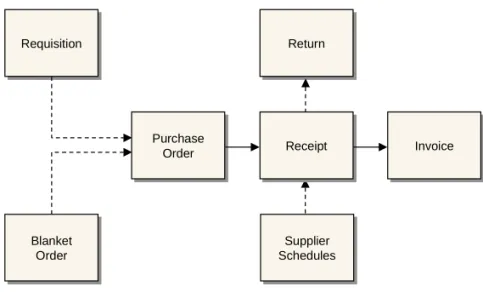
A purchase involves several steps. Often the first step is a requisition, which is the result of demands recognized by material requirements planning (MRP). An order is next, either a purchase order, a blanket order, or a supplier schedule. When the ordered goods arrive, a record is made called a receiver. If the goods are returned to the supplier, another record is made. MFG/PRO keeps a record of each step.
Fig. 2.1
Overview of Purchasing Activities
Requisitions
A requisition is a record stating that an item is needed. Requisitions specify quantity, date needed, and place to be delivered. A requisition is often the first step of a purchase, although you can issue a purchase order
Requisition Requisition Purchase Order Purchase Order Blanket Order Blanket Order Receipt
Receipt InvoiceInvoice
Supplier Schedules Supplier Schedules Return Return
PURCHASING 13
without it. Create requisitions manually or by approving a planned order from MRP. Some companies also require approvals before requisitions become orders. The requisition’s information is then transferred to a purchase order or a blanket order, and the requisition is deleted.
Purchase Orders
A purchase order is a contract with a supplier for items to be delivered on specified dates. It includes the delivery address, the terms of the
agreement, tax data, and shipping costs.
Receivers and Vouchers
A receiver is a record that goods have been received into inventory. Receivers update inventory balances and allow accounts payable to verify quantities and prices before paying suppliers.
As items are received into inventory, a supplier invoice for the items is typically received in accounts payable. Information from the invoice is recorded in a voucher. After verifying that no discrepancies exist among the voucher, the purchase order, and the receiver, accounts payable approves the voucher for payment.
ÏSee User Guide
Volume 4: Financials.
Optionally, use MFG/PRO’s Evaluated Receipts Settlement (ERS) features to record a pending payment to a supplier without an invoice.
Returns
A return is a record of purchased items returned to a supplier. If items are returned for exchange, a return transaction tracks the items. If they are returned for credit, a purchase order with a negative quantity adjusts supplier balances.
Types of Purchase Orders
MFG/PRO supports three kinds of purchase orders.
• Discrete purchase orders
• Blanket purchase orders
• Supplier schedules
Discrete Purchase Orders
Use these for single transactions with a supplier, where there is no assumption that further transactions will occur. Purchase orders contain a single delivery date for each line item. MRP treats purchase order items as supply, and assumes that ordered amounts will be available on the delivery date. Receipts can be processed against these purchase orders.
Blanket Orders
Use these for multiple deliveries of stock items, where an ongoing relationship with the supplier is assumed, but exact delivery dates are yet to be determined. Quantities and due dates can be entered up to the time when a blanket order becomes a purchase order.
MRP ignores blanket orders, and receipts cannot be processed against them.
MFG/PRO uses the blanket order as a template to create a purchase order when a release is made. However, once a blanket order is released, the resulting purchase order is treated like any other. Blanket orders can be released at specified intervals.
Example A manufacturer of circuit boards buys solder at irregular intervals, but always from the same supplier. A blanket order for 12 months is created. Each month an order for solder is released to the supplier, each order specifying a particular quantity.
PURCHASING 15
Supplier Schedules
ÏSee User Guide
Volume 7: Release Management for more information on supplier schedules.
A supplier schedule is an agreement with a supplier that guarantees a specified order level. Supplier schedules specify dates and even hours of delivery for the near term, and inform MRP and the supplier about long-term plans.
The header and trailer of a supplier schedule resemble those of a discrete purchase order for a single line item with multiple delivery dates. However, the line item section of a supplier schedule has two parts.
• A short-term shipping schedule with exact quantities and delivery instructions
• A long-term planning schedule showing upcoming orders and authorizing the supplier to buy raw materials or make subassemblies Items listed in supplier schedules are seen by MRP as supply, and receipts can be processed against them. Supplier schedules are also used for multiple orders from a supplier who may need to adjust production to accommodate the orders.
Tip
For ongoing, irregular demands, use a blanket purchase order.
Example A manufacturer of circuit boards needs circuit board blanks supplied each week. The manufacturer knows its exact needs for the next four weeks and its approximate needs for the next 12 months. The supplier of the blanks uses the information in the supplier schedule to plan orders for raw materials and to plan production and deliveries.
Creating Requisitions
Create requisitions manually with Purchase Requisition Maintenance (5.1.4) or by approving an MRP planned order with Planned Purchase Order Approval (23.11). The system refers to requisitions by requisition number.
Each requisition contains the following.
• One item number
• The quantity needed of the item
• The item’s unit of measure
• The site where the item will be received
• The ordering site
Use a requisition for non-inventory items—but not for subcontract purchases or supplier schedules. A requisition can use only the company base currency. Tip Small purchases may require a different super-visor’s approval than large purchases.
Use Requisition Approval Maintenance (5.1.16) to predefine approval levels. When a requisition is created, either manually or through MRP, the system determines the approval level. Approval codes can be set up for supervisors, sites, product lines, and purchase accounts.
When a requisition is approved, it is considered open until a purchase order or blanket order references it. When an order references an open requisition, two things occur.
• The information from the requisition is transferred to the order. Tip
Blanket orders consume open requisition quantities when purchase orders are released for the orders.
• The requisition quantity is decreased by the amount of the order. When the requisition quantity reaches zero, the requisition is automatically deleted.
Use Purchase Requisition Report (5.1.6) to generate reports showing supplier items, units of measure, quote prices, quote quantities, and lead times.
To specify suppliers or item prices, use a blanket order instead of a requisition.
Creating Purchase Orders
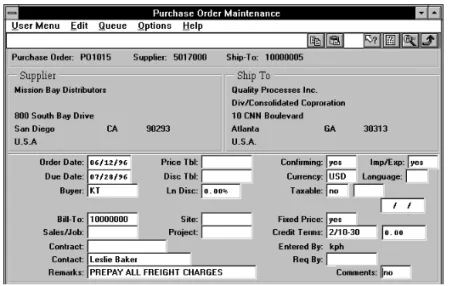
Use Purchase Order Maintenance (5.7) to create a purchase order, which includes three sections.
• Header. Contains the general terms of a contract, such as supplier name, ship-to address, currency (but not price), and delivery date. Some values can be updated during line-item entry.
• Line Item. Specifies a particular item being ordered, its order quantity, and price. Lists any exceptions to header information, such as a delivery date or address that applies to only the line item and not the whole order.
• Trailer. Contains tax, shipping, and order status information for all line items.
PURCHASING 17
Fig. 2.2
Purchase Order Maintenance (5.7)
Header
Some header elements, such as Site, Due Date, and Sales/Job, become default values for the line items and can be changed during line item entry. Others, such as Supplier, apply to the entire purchase order and cannot be changed on the line items. Header fields with special significance to the PO include the following.
Site. This site entered on the header may or may not be the site the items are to be shipped to. This site code displays as the default for each line item, but you can change it manually. If you leave the site code blank on the header, you must enter a site manually for each line item.
When you enter the voucher for this order, the system posts accounts payable amounts to the site entered on the header, regardless of the site receiving the shipments. All inventory transactions use the site entered on the line item receipt.
Currency. Specify the system base currency or an alternate currency. An order entered in an alternate currency can be paid in the alternate or the base currency.
When a non-base currency is entered, the system displays the effective exchange rate relationship and lets you override it.
Price Tbl. Enter a price list. Price lists for purchase orders are defined in the PO/RTS/Sched/RMA Recpt Price Menu (1.10.2). These lists
differ from those used for sales orders. Default price lists for purchase order headers can be specified in Supplier Maintenance (2.3.1). When a price list is referenced on an order, the system uses it to calculate the item’s unit cost.
ÏSee User Guide
Volume 6: Master Files for more
information.
Credit Terms. MFG/PRO supports proximo terms, end of week and end of fortnight dating, start dates for due date calculations (base date), and credit terms interest (for hyperinflationary environments).
Line Items
Tip
Use single-line mode if you are using EMT.
Enter line items in single or multiple entry format. Single entry lets you customize due dates, sites, tax statuses, and other information for each line item. Multiple entry lets you enter basic information such as item number, quantity, and price for several lines on a single screen. The default format is specified in the Purchasing Control File (5.24). Fig. 2.3
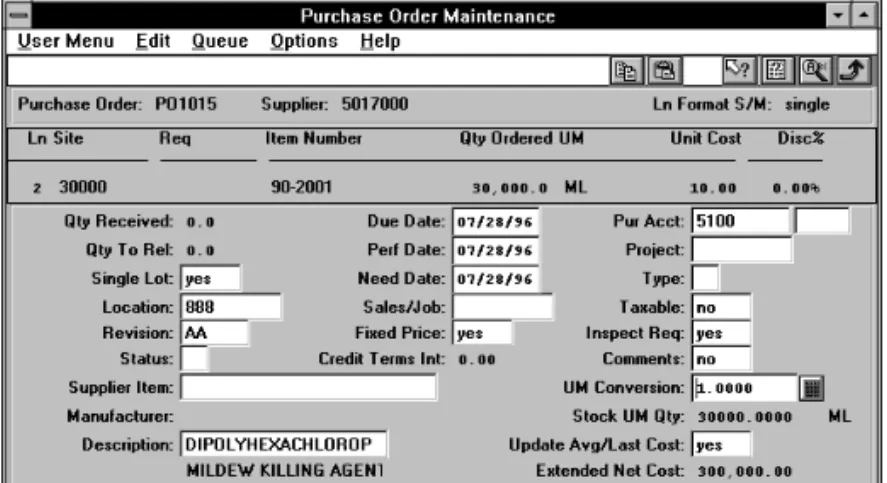
Purchase Order Line Items
ÏSee “Type” on page 21.
Item Number. Enter the number of the item to be ordered. Item numbers tell the system whether the item is an inventory item, memo item, or supplier item. If the item number you enter is not in the item master, the system automatically treats the line as a memo purchase. When you enter a supplier item, the system displays the inventory item number, the default purchasing unit of measure, and quote cost. Qty Ordered. Enter an order quantity. When you print a purchase order, it reflects the open order quantity. If receipts have already been recorded against the order, the printed order no longer shows the original order quantity.
PURCHASING 19
Tip
The system can process receipts in either the standard or alternate unit of measure.
Unit of Measure. Enter a unit of measure for the item. This value can differ from the standard unit of measure specified in the item master. When entering alternate UMs, use conversion factors to simplify line item entry and retain accurate planning and reporting. If a conversion factor exists, the system automatically accesses it to update the item unit cost for the alternate UM. If no conversion factor exists, enter a value in UM Conversion. The default is 1.000, and an error message displays.
Example A company buys steel rods in boxes of 100 but maintains inventory and planning records for each unit. The conversion is set up for EA to BX, and the conversion factor is 100.
Unit Cost. If a price list is not specified in the header, the system determines the unit cost of an item to be one of the following.
• Supplier item price, if one exists
• Item master GL cost, if one exists
• Requisition cost
If a price list is specified in the header, the system checks the line item against that list. If there is a match, the default unit cost is recalculated using that listed value.
Tip
You can apply quantity based pricing to both discrete purchase orders and scheduled purchase orders.
If you specify a minimum and/or maximum price in a price list, the system verifies the calculated (or user-entered) net price against it. If the net cost is outside the minimum/maximum range, the system displays a warning message and replaces the line item net cost with either the maximum or minimum price from the price list, as
appropriate. You can also use price lists to define specific discounts or markups at different quantity levels.
Tip
The purchase order prints the unit price after discount.
Disc %. Enter the percentage, if any, by which the unit price is decreased.
Location. Enter the location where the item is to be received. If Inspection Required is Yes in the item master, the Location defaults to the inspection location specified in the Purchasing Control File. Otherwise, the location defaults to the item location defined in the item inventory data.
Revision. Enter the revision level code for the line item. This can differ from the current item revision level, which defaults from the
item master. This revision relates to the item and not to the purchase order document itself. The PO revision number is in the trailer. Tip
To have the system automatically cancel an ordered item if the quantity received is less than ordered, set Cancel Back Orders to Yes in the Purchasing Control File (5.24).
Status. This code indicates whether an item or order is open (blank), canceled (X), or closed (C). Even if individual items are closed or canceled, the order can remain open.
When a line item is completely received, the system changes its status to closed. Once all line items are closed, the system changes the order status to closed.
Manually close an order or line item by changing the status to C or X. Line items and purchase orders that have been canceled or closed can be reinstated by changing the status code. However, it is not
necessary to reopen items or orders to process returns.
When you cancel an order or line item, the system retains a record of unreceived quantities but excludes them from open order reports and MRP.
Supplier Item. Some suppliers require their item numbers to be on orders. In such cases, enter the supplier’s item number here. Tip
If a supplier needs more information, use line item comments.
You can set up a table in MFG/PRO to cross-reference items in the item master file with a supplier’s item numbers. This lets you enter either your item number or the supplier’s, and enables both numbers to be printed on orders.
Enter supplier items in Supplier Item Maintenance (1.19). For each supplier item, you can specify the unit of measure, lead time, quote price and quantity, currency, and references for its manufacturer and manufacturer item number.
Supplier items appear on printed purchase requisitions and purchase requisition reports. The buyer can review requirements for an item and compare lead times and prices for various suppliers.
The system uses the supplier number to set the default unit of measure. It also sets the default unit cost to supplier quote cost when:
• Currency for the order is the same as for the supplier item
• Order quantity is at least as great as the quote quantity
• Unit of measure is the same as for the supplier item
Due Date. The date when items are due to be received at the specified site. Defaults from the header.
PURCHASING 21
Perform Date. Enter the supplier’s promised delivery date, or leave blank to default to the due date.
Need Date. The date items must be available for shipping or issuing to manufacturing. Need date should equal the due date plus any inspection lead time. If the line item references a requisition, the need date defaults from the requisition need date. If no requisition number is entered and need date is left blank, the need date defaults from the line item due date.
Sales/Job Number. An optional code associating the purchase order with a specific sales or job number. If entered on the header, the number displays on each order line, but can be overridden there. Purchases Account. An expense or asset account used for memo purchases only, although the field also displays when entering inventory and subcontract line items. When a quantity is received against a memo item, a GL transaction is created to debit purchases and credit expensed PO receipts.
Type. Leave blank to indicate an inventory item. Enter Memo to indicate a memo item, and Subcontract to indicate a subcontract item. The three item types each have a different effect on inventory, planning, and cost accounting when received.
If a line item is in the item master, the system assumes it is an inventory item and defaults to type blank. Keep this value to have receipts update inventory balances and be considered supply by MRP. If the system cannot find the item number in the item master, the type defaults to Memo. Memo items do not update inventory. They are expensed or capitalized upon receipt, depending on the purchases account for the item. Memo items have no effect on MRP.
Tip
Purchase orders and blanket orders can contain any kind of item. However, items on supplier schedules must be inventory items.
Although subcontract items are in the item master, they are received to work orders rather than to inventory. As a result, MRP does not consider them a source of supply since these quantities are already included in the work order. The system prompts you to enter the work order number, work order ID, and operation for the subcontract item. Taxable. Indicates whether an item is taxable or not. Items purchased for resale are normally not taxable. The taxable status on the purchase order header displays as the default for each line item, but it can be changed.
Inspection Required. Indicates if the item is to be inspected after receipt. Defaults from item master. If Yes, the location defaults to the inspection location as specified in the Purchasing Control File (5.24). If No, the location defaults to the item location specified in the item inventory data.
Update Average/Last Cost. Indicates whether the purchase order is to be reflected in the current cost of the item. The update will set the cost to the last cost (that is, this purchase) or to a weighted average cost depending on the setting in the Inventory Control File (3.24). If you use MFG/PRO’s Cost Management and select average cost for GL as well as current cost purposes, the system updates both current and GL costs.
Trailer
The trailer section contains financial information for the entire order. Major fields include the following.
Taxes. Enter U.S. taxes with up to three tax percentages for city, county, and state of the ship-to. Value added tax (VAT) is not shown on purchase orders. Canadian purchase orders have one tax (PST) applicable to the city and province of the ship-to.
ÏSee User Guide
Volume 6: Master Files for more
information on GTM.
If you use MFG/PRO’s Global Tax Management (GTM), you can record additional tax information using the View/Edit Tax Detail, which lets you review and change tax amounts.
Revision. A manually entered revision level of the purchase order. This value should not be confused with the item revision, which identifies the item’s engineering drawing revision. Each time a purchase order is changed, you may want to increase the number by 1 to show how many times the order was changed. You may also want to add comments describing the change and reasons for making it. A new copy of the order can be printed to document the change. Print PO. Only open order quantities appear on printed purchase orders. If you print the order after receiving line items, it is not reflected in the original order quantity.
To prevent you from accidentally reprinting an order, the system automatically resets Print PO to No. If you reprint the order without
PURCHASING 23
resetting Print PO to Yes, the word DUPLICATE appears on the order.
The revision level or change order number printed on the purchase order must be maintained manually on the purchase order trailer. EDI PO. If you are using the Electronic Data Interchange module, this flag controls whether the purchase order will be exported by EDI Purchase Order Export. Defaults from the value set for the same field in EDI Trading Partner Parameters Maint.
Amount Prepaid. The amount of deposit sent with this purchase order. The amount does not update the GL or supplier account balance. Note that a separate cash payment entry must be made to record the payment in Accounts Payable. This can be done by recording a manual non-AP check. A credit voucher should also be entered to track the prepayment amount. The credit voucher can be placed on hold and released later when the invoice is received.
FOB Point. Free on Board. Identifies where title passes to the buyer and often is used to indicate who pays shipping charges.
Ship Via. Default carrier name set up in Supplier Maintenance (2.3.1), which identifies the preferred carrier for a supplier’s orders. This value can be overridden.
Updating Purchase Order Costs
Use Purchase Order Cost Update (5.19) to update the unit cost of items. This program uses the same logic as Purchase Order Maintenance (5.7) to recalculate the price of eligible lines on the selected purchase orders. Enter Yes in Fixed Price to exclude individual order lines from automatic cost recalculation or No to include them. Lines that are closed, canceled, or returned are automatically excluded from the update. Set the default value for each supplier in Supplier Maintenance (2.3.1). The header value is defaulted into each of the line items.
Orders are selected for update based on selection criteria you specify. Enter no selection criteria to have all orders selected for processing. If Fixed Price for a line item is No, all available pricing information is used
to determine the item’s new cost, including item master cost, and the price list specified in the purchase order if applicable.
Example Enter a price list of type list. All purchase orders specifying that price list in the header are selected. Line items eligible for cost recalculation have their new costs calculated.
The update report shows both old and new costs and the discount for all lines changed. Net cost after discount is determined by the quantity ordered, but the open quantity is printed on the report. Taxes are not recalculated by the update. Recalculate a purchase order’s taxes using Purchase Order Maintenance.
If Keep Booking History is Yes in the Purchasing Control File (5.24), Purchase Order Cost Update creates transaction history records for all lines changed.
Creating Blanket Orders
Blanket orders save time when placing periodic or recurring orders for the same item because they let you preapprove purchase orders. Blanket orders are templates for purchase orders. You cannot receive items against them and MRP does not include them as supply.
Fig. 2.4
Blanket Order Flow
You do not have to specify order and line item due dates during order entry. Leave these fields blank to have the system assign them automatically when the blanket order is released.
Enter blanket order.
Enter blanket order.
Print blanket order.
Print blanket order.
Release blanket order to purchase order.
Release blanket order to purchase order.
PURCHASING 25
Fig. 2.5
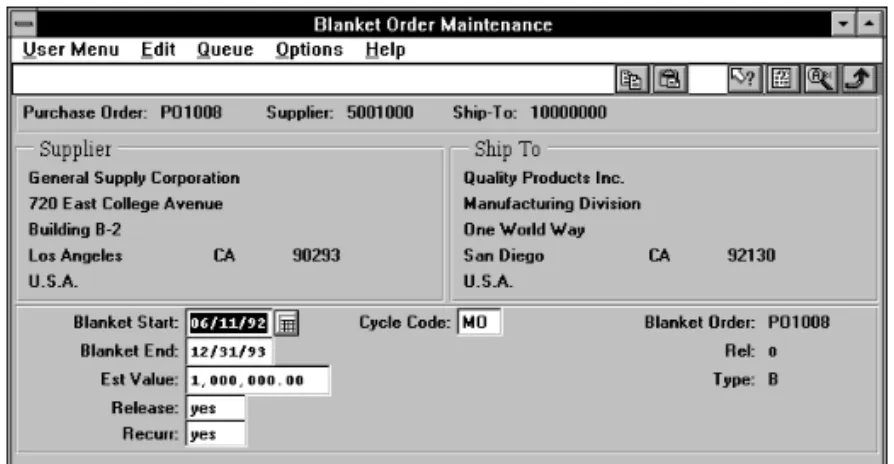
Blanket Order Maintenance (5.3.1)
To release a blanket order to a purchase order, set Release to Yes and enter the quantity to be released for each item. If you release orders by cycle code, the blanket order must also have a cycle code—for example, monthly, weekly, daily. Set up values in Generalized Codes Maintenance (36.2.13) for field po_cycl to standardize input.
Tip If the appended number would exceed eight characters, the system assigns a new number.
Release the blanket order in Blanket Order Release to PO (5.3.6). You can set selection criteria for any combination of cycle code, order number, supplier, blanket order date, or due date. The system assigns a PO number by appending a release number to the blanket order number. For example, the first purchase order for blanket order 12004 would be 12004001, the second would be 12004002, and so on.
If a purchase order line item is canceled or deleted, the open quantity on the corresponding blanket PO is automatically adjusted. When a receipt is posted against a PO released from a blanket PO, the corresponding blanket order receipt quantity (if any) is also updated. The system closes blanket orders when the order is fully released or when all the lines are closed or canceled.
Creating Receivers
Record receipts against both purchase orders and supplier schedules in Purchase Order Receipts (5.13.1). More than one line item can be processed in a single transaction. You can correct errors made in receiving by entering negative quantities in Purchase Order Receipts. However, you may have to reopen a purchase order line to do this.
Fig. 2.6
Receiving Flow
Control File Settings
Several settings in the Purchasing Control File (5.24) determine how receiving documents are entered and printed.
If the cumulative quantity received for a scheduled order line exceeds the maximum order quantity for that line, the system displays a warning message. On discrete orders, the system displays an error if the
cumulative quantity received exceeds the value in the PO Rcts Tolerance field in the Purchasing Control File.
History Records
When recording a receipt, the system records several kinds of history records.
• Purchase receipts
• Inventory transactions
• Inventory GL costs
• Tax transactions, depending on the tax method and settings These records are used for accounts payable, variance reporting, tax reporting, and supplier performance reports. If you receive more than one
Supplier processes order.
Supplier processes order.
Receive items.
Receive items.
Print receiver.
Print receiver.
Exchange items or return for credit.
Exchange items or return for credit.
PURCHASING 27
delivery from a supplier on the same day for the same order, enter separate receipts to simplify vouchering in accounts payable.
Shipment Information
If Shipment Info for Receipts is Yes in the Container/Shipper Control File, you can specify additional shipment information during receipt entry, A Shipment Information frame displays for input of data in:
• PO Shipper Receipt (5.5.5.11, 5.13.20)
• Purchase Order Receipts (5.13.1)
PO Receipt Packing Slip Inquiry
PO Receipt Packing Slip Inquiry (5.13.4) lets you review information by packing slip number and PO receipt number. Select records using one or more of the following selection criteria:
• Item number
• Purchase order
• Receiver
• Packing slip number
You can reconcile shipments by matching the supplier’s packing slip number or fiscal document number against your PO receipt. This is useful for supplier schedules and fiscal receiving.
Fig. 2.7
PO Receipt Packing Slip Inquiry (5.13.4)
PO Containers and Shippers
You can receive items for one purchase order at a time. However, purchase order items are often grouped in containers and managed with shippers. The Purchasing Receipts/Returns menu (5.13) provides support
for recording, confirming, and deleting/archiving of container and shipper information.
Use PO Container Maintenance (5.13.13) to record information on racks, boxes, crates, bags, or other conveyances used by a supplier to enclose and transport items or other containers. As with scheduled orders, containers must be defined in the item master before they can be used in PO Container Maintenance.
Use PO Shipper Maintenance (5.13.14) to record item numbers and quantities from formal shipping documents or supplier packing lists. In contrast to Purchase Order Receipts (5.13.1), PO Shipper Maintenance does not immediately update inventory balances or create general ledger (GL) transactions for PO receipts and inventory accounts. Rather, it lets you record a receipt and take time to verify it. PO Shipper Maintenance also lets you receive consolidated packing lists, as when a supplier consolidates several purchase orders in one shipment.
Use PO Shipper Receipt (5.13.20) to update inventory and the general ledger after manually verifying received items and quantities.
Use PO Shipper Delete/Archive (5.13.23) to permanently remove shipper records from the system.
PO Fiscal Receiving
PO Fiscal Receiving (5.13.16) lets you:
• Record item numbers, quantities, costs, and taxes from shipping documents
• Update inventory and GL accounts
• Process multiple POs per receipt
• Calculate and register applicable taxes, if using MFG/PRO’s Global Tax Management (GTM)
Fiscal receiving supports companies where:
• PO receipts are registered for fiscal inventory control and/or tax purposes.
PURCHASING 29
• Multiple POs are frequently consolidated by the supplier into one fiscal shipment for the same ship-to address.
• It is necessary to update purchase costs at PO receipt.
Fig. 2.8
Fiscal Receiving Processing Flow
To have PO Fiscal Receiving record the tax effects of a receipt, you must use GTM.
If the fiscal total does not match the PO total, a warning displays. However, PO Fiscal Receiving does not change the purchase order. This leaves a basis for comparison. PO Fiscal Receiving updates purchasing and tax records but does not affect physical inventory or GL balances. After verifying received items and financial information, use PO Shipper Receipt (5.5.5.11 or 5.13.20) to finalize receipt and create inventory and GL transactions. Use PO Shipper Receipt to reference the fiscal receipt in AP Voucher Maintenance (28.1).
Fig. 2.9
Header, PO Fiscal Receiving (5.13.16)
Supplier. The supplier who sent you the goods. Must be a valid supplier in the database.
Shipper ID. This field is mandatory, and is usually used to record the fiscal document number, Nota Fiscal, or other shipping document number. It can also be used to record the bill of lading number.
Order goods using purchase orders or scheduled orders.
Order goods using purchase orders or scheduled orders.
Accept goods.
Accept goods.
Update inventory and GL.
Update inventory and GL.
Pay for goods.
Pay for goods. PO Maintenance
Scheduled Order Maint.
PO Receipts
PO Fiscal Receiving
PO Shipper Maint.
PO Shipper Receipt
Ship-To. The site code or address code of the company address accepting the goods.
Control Lines. The total number of lines on the fiscal document. Control Total. The total monetary amount shown on the shipping document, including tax amounts. Used as a control total for the fiscal receipt. If the sum of all lines received does not equal this total, a warning displays.
Credit Terms. The credit terms listed on the shipping document. Should be the same terms as on the purchase order. Especially important in hyperinflationary environments or if a credit terms interest percentage is specified on the purchase order.
Issue Date. The date the supplier generated the shipment document. Becomes the start date for credit terms calculations.
Due Date. The date the supplier is expecting payment for the
shipment. Leave blank to have the system calculate the date based on credit terms and issue date. If you enter the due date printed on the supplier document, a warning displays if this due date is inconsistent with the credit terms and issue date.
For example, if the credit terms are 2% Net 30 Days and the Issue Date is April 1, and you enter a Due Date of April 15, a warning displays because the credit terms specify a due date of May 1. Fig. 2.10
Line Item Screen, PO Fiscal
PURCHASING 31
After the first screen, you see a frame for recording the PO, quantity, cost, and receiving information for each line item.
Item. The item number as entered in the purchase order. This can be a memo item.
Purchase Order. The purchase order number for the received line. Must correspond to a purchase order in the database. As noted earlier, you can reference multiple purchase order numbers on the same receipt, but only one per line item.
Line. The purchase order line number. An error displays if you reference a line number that is not on the original purchase order or that corresponds to an item different from the item entered above. Fiscal Line. The line item number from the shipping document. If only one purchase order is involved, this is normally the same as the PO Line. If you are referencing an existing fiscal receipt, you can retrieve the remaining item information in this screen by scrolling through either of the line fields.
ÏSee User Guide Volume 6: Master Files for more
information on GTM.
As noted earlier, the fiscal receiving process requires Global Tax Management. After entering the Item, PO, PO Line, and Fiscal Line, a pop-up window prompts you to review and optionally edit the default Tax Usage, Tax Environment, and Tax In settings from the PO for the fiscal receipt. These settings determine how taxes are
calculated for the fiscal receipt.
Tip
Changing the site can cause the taxes to be recalculated, if the new site is in a different tax zone.
Most fields in this screen function the same way as their counterparts in Purchase Order Receipts (5.13.1) and PO Shipper Maintenance (5.13.14). If you receive items into a different site or location than specified on the PO, update them here. You can always go back to PO Fiscal Receiving and update this information before processing the receipt using PO Shipper Receipt.
Quantity. The actual received item quantity for this line. UM. The unit of measure for the shipped items.
Conv. The conversion factor to use if the shipping unit of measure is not the same as the inventory stocking unit of measure. For example, if the shipping UM is cases, the stocking UM is pallets, and there are 10 cases per pallet, the conversion factor is .1.
Packing Qty. The packing list quantity printed on the supplier’s packing list, or the official fiscal quantity printed on the supplier’s fiscal document.
Rcvd Cost. The line item cost from the fiscal document for the received quantity. This cost includes any taxes included in the line cost. The value entered is the amount used for the received PO cost calculation, which overrides the cost entered in the PO line. For average cost users, this is the beginning basis for the average cost calculation.
PO Net Cost. Output only. Net line item cost from the purchase order. When you exit the screen, a warning displays if the received cost does not equal the PO cost. The system does not maintain an audit trail of variances, but variances are marked with an asterisk (*) in PO Fiscal Receipt Inquiry (5.13.17).
Site. The company site that receives the items.
Location. The company location that receives the items.
Lot/Serial. Optional. Used only if items are tracked by lot or serial number.
Ref. An optional lot reference number for the received items. Multi Entry. Indicates whether the item was received into multiple sites and locations, or whether multiple lot/serial numbers or lot reference numbers were received. Enter Yes to call the multiple entry window.
PO Cmmts. Enter Yes to enter transaction comments for the fiscal receipt. The default master reference for the comment is RCPT: <purchase order number>.
PO Ln Cmmts. Enter Yes to enter comments for individual line items. The default master reference for the comment is RCPT: <purchase order number><line number.
The trailer screen displays line item and tax totals. Use the View/Edit Tax Detail option to review and change tax amounts.
Control Lines. Output only. The number of lines specified in the fiscal receipt header.
PURCHASING 33
Lines Entered. Output only. Indicates the number of lines entered on the fiscal receipt.
Control Total. Output only. Control total you specified earlier in the receiver header.
PO Total. Output only. Sum of all line items you expected to receive, at the PO cost.
Use PO Fiscal Receipt Inquiry (5.13.17) to review fiscal receipts. Supplier code and shipper ID are mandatory. You can display either quantity or cost information. Variances for calculated due date, quantities, and costs are marked with an asterisk (*). Where possible, investigate and resolve any discrepancies before processing the actual receipt using PO Shipper Receipt (5.5.5.11 or 5.13.20).
Creating Returns
There are two ways to return goods to a supplier. If the purchase order still exists, use Purchase Order Returns (5.13.7). Or use Purchase Order Maintenance (5.7) to enter a new line or order for the items to be returned. Use negative numbers to indicate returned quantities. Receive items in Purchase Order Receipts (5.13.1).
ÏSee User Guide
Volume 8B: SSM
for details.
If you are using the Service/Support Management module, the Return to Supplier functions (11.7.3) are used to return items to the supplier for service.
Note If you are not using purchasing, you can use Issues–Return to Supplier (3.8). This program is disabled once purchasing is installed. The Return to Replace field in Purchase Order Returns defaults to No, indicating a return for credit. If Yes, the system automatically adds a new line to the original PO for the returned quantity.
All fields on the new line default to values for the returned line item except order quantity, which shows that quantity returned, cumulative quantity received, last quantity received, last quantity returned, and last quantity changed are all zero. The date received field for the new line is set to unknown, and the line number is set to the highest line on the PO plus one. The new line updates quantity on order, MRP, and transaction history just like any other PO line.
Tip
The Return to Replace option will reopen a closed PO, but does not work if the original PO has been deleted.
When you process a voucher against the supplier invoice with Voucher Maintenance (28.1), the quantity returned appears in the receiver window as a negative quantity offset against the original PO line.
Purchase Order Returns also supports reverse tax accruals and re-averages cost (return goods at the original received value). It also supports global shipping when a shipping group exists for the purchase order return.
ÏSee “Purchase Order Returns” on page 173 for details.
Many countries require that formal shipping documents accompany any movement of goods, even when goods are merely transferred, not sold. You can record shipping information and generate shipping documents for issue transactions in Purchase Order Returns.
Deleting Expired Orders
Deleting expired blanket orders, purchase orders, supplier schedules, and receivers helps conserve database space. Use the following programs:
• Closed PO Receipt Delete/Archive (5.22)
• Closed PO Delete/Archive (5.23)
• Schedule Delete/Archive (5.5.3.23)
• PO Shipper Delete/Archive (5.5.5.23)
Calculating Purchase Price Variances
Two types of variances can be calculated when purchasing materials:
• Purchase price variance
• Accounts payable variance
Purchase price variance is the difference between the purchase order cost and the GL cost and is calculated when purchase orders are received. Accounts payable variance is the difference between the invoice price and the purchase order cost and is calculated when the supplier invoice is vouchered in accounts payable.
Note A third type of variance is caused by exchange rate fluctuations between the time a foreign currency order is received and when it is vouchered.
PURCHASING 35
Subcontract Purchasing
Instead of materials, suppliers sometimes provide services for completing manufacturing operations. Companies subcontract operations when there is insufficient manufacturing capacity or when operations require specialized equipment.
Like inventory items, subcontract services are set up in Item Master Maintenance (1.4.1). However, they are received to work orders rather than to inventory. As a result, MRP does not consider them a source of supply since these quantities are already included in the work order. During order entry, the system prompts you to enter the work order number, work order ID, and operation for the subcontract item. This information is needed by the receiving process.
A number of accounting and cost issues in subcontract purchasing influence use and implementation of other MFG/PRO modules.
Subcontract Pricing
In Items/Sites, supplier items should be set up with quote prices and quote quantities so that the unit cost on subcontract purchase orders defaults to the correct price. The order of precedence for determining the correct price is as follows.
• Price list
• Quote
• GL cost
Inventory and Cost Control
There are several ways of tracking components provided by you or the subcontractor. When components are supplied in kits for individual work orders, they should be handled as regular work order components.
Sometimes a manufacturer provides components to the supplier, who stores these as consignment inventory until used. In this case, set up a separate inventory site and location for supplier inventory since the supplier site is functioning as an extension of your company’s inventory.
A supplier may provide components that are added during subcontract operations. Since there is no requirement to track supplier inventory, the cost of the components is usually included in the subcontract purchase cost. Normally, the components are not planned by MRP, and do not appear on work order picklists. To have them appear on product structures, you must exclude them from MRP and work order picklists. Also, the component costs must not be included in cost rollups for the parent product. One way to ensure this is to assign a structure code of Demo to the components.
Subcontract Lead Time
Use Routing Maintenance (14.13.1) to enter subcontract lead time. A subcontract lead time applies to an entire lot, not to individual units. The lead time for a work order operation is the same whether the quantity ordered is 1 or 10,000.
Routings and Work Centers
Consider setting up separate departments (and possibly work centers) for outside processing to distinguish them from internal operations. Define departments and work centers for individual suppliers if more than one supplier can perform a particular operation.
Example Have all subcontract work center codes begin with the letter S to easily identify them on reports such as the Work Order Dispatch Report (16.18).
Triggering Purchase Orders
If work order operations are used with work orders, determine when to release purchase orders for subcontract operations with Work Order Dispatch Report. This report lists upcoming operations by work center, then by item.
PURCHASING 37
Supplier Capacity
The Resource Planning and Capacity Requirements Planning (CRP) modules can be used to evaluate supplier capacity. Resource planning is set up and implemented in the same way as the planning of internal resources. However, there are special requirements for CRP:
• Set up one work center for each supplier.
• Give each work center its own shop calendar.
• Set up subcontract operations with queue, setup, run, wait, and move times.
Material Requirements Planning
Open purchase order lines for subcontract items are not recognized as supply records by MRP. Supply for subcontract assemblies is represented by their corresponding work orders.
Subcontract Workflow
If all of the modules are used, the subcontract cycle includes the following steps:
1 Work Order Maintenance (16.1) or Planned Work Order Approval (23.10)
2 Work Order Component Check (16.5)
3 Work Order Release/Print (16.6)
4 Work Order Component Issue (16.10)
5 Work Order Dispatch Report (16.18)
6 Purchase Order Maintenance (5.7)
7 Purchase Order Receipts (5.13.1)
8 Shop Floor Control labor feedback functions
9 Work Order Receipt (16.11)
Special Purchasing Topics
This section discusses issues related to purchasing in a multiple database environment, processing memo items, and special purchase needs.
Multisite Purchasing
ÏSee Chapter 5, “Consolidated Order Processing,” for details on distributed and centralized purchasing.Often in multisite companies inventory items are purchased from one site only, although each site buys its own non-inventory items, such as supplies, floor stock, and expensed items. MFG/PRO supports purchasing initiated from multiple sites or databases.
Example Site Singapore creates a requisition for an item, specifying that the item be bought by Site Chicago because of price considerations. Because Singapore specifies Chicago in the PO Site field of Purchase Requisition Maintenance (5.1.4), Chicago sees the requisition when reviewing its requisition reports. Chicago creates a purchase order, taking information from the requisition and specifying that the item be delivered to Singapore. Receiver and voucher information is processed at Chicago. MRP information is processed at Singapore.
When generating reports in a multi-database environment, if the current database is not the originating database for a particular PO, that PO does not appear on the PO reports (by order, by supplier, commitment, or supply schedule). This happens even if line items on the PO are received into sites at the current database. To see these POs, switch to the
originating database, which also contains the supplier address files.
Purchasing Memo Items
Tip
To process an inventory item as a memo item, change the Type field from blank to M in PO Maintenance.
Memo purchases are for items not in the item master, such as office supplies and equipment. Memo items do not update inventory. Rather, they are expensed or capitalized upon receipt, depending on the purchases account for the line item. Memo items have no effect on MRP.
Even if an item is in the item master, it is preferable in some cases to process it as a memo purchase. Such cases might include procurement of as-needed production materials and inventory items for non-production departments. Production materials, such as adhesives and solvents, are used as needed, and it is often impractical to maintain inventory balances and to process transactions for such materials.
PURCHASING 39
Inventory items are items ordered for a non-production department, such as engineering or marketing. If these are handled as memo purchases, they can be charged to these departments upon receipt. Another way of transferring materials to non-production departments is by unplanned inventory issues.
Purchasing Miscellaneous Items
Purchases for items not directly related to manufacturing or inventory and not delivered to a receiving department, such as airline tickets or seminar fees, are sometimes easier to handle with external purchase orders—that is, purchase orders outside the system. This is because when invoices are vouchered in Accounts Payable, MFG/PRO lets you verify a purchase by matching an order, a receiver, and an invoice. Items that have not been delivered to a receiving department have no associated receivers. To have each purchase accounted for in a purchase order, use manual purchase orders for items not delivered to a receiving department.