◆
C++ GUI Programming with Qt 3
Jasmin Blanchette, Mark Summerfield
◆
Managing Linux Systems with Webmin: System
Administration and Module Development
Jamie Cameron
◆
Understanding the Linux Virtual Memory Manager
Mel Gorman
◆
Implementing CIFS: The Common Internet File System
Christopher R. Hertel
◆
Embedded Software Development with eCos
Anthony J. Massa
◆
Rapid Application Development with Mozilla
Nigel McFarlane
◆
The Linux Development Platform: Configuring, Using,
and Maintaining a Complete Programming
Environment
Rafeeq Ur Rehman, Christopher Paul
◆
Intrusion Detection Systems with Snort:
Advanced IDS Techniques with Snort, Apache,
MySQL, PHP, and ACID
Rafeeq Ur Rehman
C++ GUI Programming
with Qt 3
Jasmin Blanchette Mark Summerfield
Cover Design Director: Jerry Votta Art Director: Gail Cocker-Bogusz Manufacturing Buyer: Maura Zaldivar Acquisitions Editor: Jill Harry Editorial Assistant: Brenda Mulligan Marketing Manager: Dan Depasquale
Copyright2004 Trolltech AS Published by Pearson Education, Inc.
Publishing as Prentice Hall Professional Technical Reference Upper Saddle River, New Jersey 07458
This material may only be distributed subject to the terms and conditions set forth in the Open Publication License, v1.0 or later (the latest version is available at http://www.open-content.org/openpub/).
Prentice Hall PTR offers excellent discounts on this book when ordered in quanti-ty for bulk purchases or special sales. For more information, please contact: U.S. Corporate and Government Sales, 1-800-382-3419, corpsales@pearsontechgroup. com. For sales outside of the U.S., please contact: International Sales, 1-317-581-3793, [email protected].
Trolltech, Qt, and the Trolltech logo are registered trademarks of Trolltech. OpenGL is a trademark of Silicon Graphics, Inc. in the United States and other countries. All other company and product names mentioned herein are the trademarks or registered trademarks of their respective owners.
The authors, copyright holder, and publisher have taken care in the preparation of this book, but make no expressed or implied warranty of any kind and assume no responsibility for errors or omissions. The information in this book is furnished for informational use only, is subject to change without notice, and does not represent a commitment on the part of the copyright holder or the publisher. No liability is assumed for incidental or consequential damages in connection with or arising out of the use of the information or programs contained herein.
The software described in this book is furnished under a license agreement or non-disclosure agreement. The software may be used or copied only in accordance with the terms of the agreement.
Printed in the United States of America
First Printing
ISBN 0-13-124072-2
Pearson Education Ltd.
Pearson Education Australia Pty., Limited Pearson Education Singapore, Pte. Ltd. Pearson Education North Asia Ltd. Pearson Education Canada, Ltd.
Pearson Educación de Mexico, S.A. de C.V. Pearson Education-Japan
Contents
Foreword. . . ix
Preface. . . xi
Acknowledgments . . . xiii
A Brief History of Qt . . . xv
Part I: Basic Qt 1. Getting Started . . . 3
Hello Qt . . . 3
Making Connections . . . 5
Using the Reference Documentation . . . 8
2. Creating Dialogs . . . 11
Subclassing QDialog . . . 11
Signals and Slots in Depth . . . 18
Rapid Dialog Design . . . 21
Shape-Changing Dialogs . . . 28
Dynamic Dialogs . . . 33
Built-in Widget and Dialog Classes . . . 33
3. Creating Main Windows . . . 39
Subclassing QMainWindow . . . 40
Creating Menus and Toolbars . . . 44
Implementing the File Menu . . . 49
Setting Up the Status Bar . . . 56
Using Dialogs . . . 58
Storing Settings . . . 63
Multiple Documents . . . 64
Splash Screens . . . 67
Loading and Saving . . . 77
Implementing the Edit Menu . . . 80
Implementing the Other Menus . . . 84
Subclassing QTableItem . . . 88
5. Creating Custom Widgets. . . 97
Customizing Qt Widgets . . . 97
Subclassing QWidget . . . 99
Integrating Custom Widgets with Qt Designer . . . 108
Double Buffering . . . 112
Part II: Intermediate Qt 6. Layout Management . . . 135
Basic Layouts . . . 135
Splitters . . . 140
Widget Stacks . . . 144
Scroll Views . . . 145
Dock Windows . . . 150
Multiple Document Interface . . . 152
7. Event Processing . . . 163
Reimplementing Event Handlers . . . 163
Installing Event Filters . . . 168
Staying Responsive During Intensive Processing . . . 171
8. 2D and 3D Graphics . . . 175
Painting with QPainter . . . 175
Graphics with QCanvas . . . 185
Printing . . . 198
Graphics with OpenGL . . . 209
9. Drag and Drop . . . 215
Enabling Drag and Drop . . . 215
Supporting Custom Drag Types . . . 220
Advanced Clipboard Handling . . . 224
10. Input/Output. . . 227
Reading and Writing Binary Data . . . 227
Reading and Writing Text . . . 234
Handling Files and Directories . . . 237
Inter-Process Communication . . . 239
11. Container Classes. . . 243
Vectors . . . 243
Lists . . . 247
Maps . . . 249
Pointer-Based Containers . . . 251
QString and QVariant . . . 254
12. Databases . . . 261
Connecting and Querying . . . 261
Presenting Data in Tabular Form . . . 266
Creating Data-Aware Forms . . . 275
13. Networking . . . 283
Using QFtp . . . 283
Using QHttp . . . 289
TCP Networking with QSocket . . . 291
UDP Networking with QSocketDevice . . . 301
14. XML . . . 307
Reading XML with SAX . . . 307
Reading XML with DOM . . . 312
Writing XML . . . 316
15. Internationalization . . . 319
Working with Unicode . . . 319
Making Applications Translation-Aware . . . 323
Dynamic Language Switching . . . 329
Translating Applications . . . 334
16. Providing Online Help. . . 339
Tooltips, Status Tips, and “What’s This?” Help . . . 339
Using QTextBrowser as a Simple Help Engine . . . 342
Using Qt Assistant for Powerful Online Help . . . 346
Using Qt’s Classes in Non-GUI Threads . . . 363
18. Platform-Specific Features . . . 367
Interfacing with Native APIs . . . 367
Using ActiveX . . . 371
Session Management . . . 384
Appendices A. Installing Qt . . . 393
A Note on Licensing . . . 393
Installing Qt/Windows . . . 394
Installing Qt/Mac . . . 395
Installing Qt/X11 . . . 397
B. Qt’s Class Hierarchy. . . 399
Index . . . 403
Foreword
Why Qt? Why do programmers like us choose Qt? Sure, there are the obvious answers: Qt’s single-source compatibility, its feature richness, its C++ perfor-mance, the availability of the source code, its documentation, the high-quality technical support, and all the other items mentioned in Trolltech’s glossy mar-keting materials. This is all very well, but it misses the most important point: Qt is successful because programmerslikeit.
How come programmers like one technology, but dislike another? Personally, I believe software engineers enjoy technology that feels right, but dislike ev-erything that doesn’t. How else can we explain that some of the brightest pro-grammers need help to program a VCR, or that most engineers seem to have trouble operating the company’s phone system? I for one am perfectly capa-ble of memorizing sequences of random numbers and commands, but if these are required to control my answering machine, I’d prefer not to have one. At Trolltech, our phone system forces us to hold the ‘∗’ key pressed down for two seconds before we are allowed to type in the other person’s extension number. If you forget to do this but start typing the extension immediately, you have to dial the entire number again. Why ‘∗’? Why not ‘#’, or ‘1’, or ‘5’, or any of the other twenty keys on the phone? Why two seconds and not one, or three, or one and a half? Why anything at all? I find the phone so irritating that I avoid using it whenever I can. Nobody likes having to do random things, espe-cially when those random things apparently depend on some equally random context you wish you didn’t have to know about in the first place.
Programming can be a lot like using our phone system, only worse. And this is where Qt comes to the rescue. Qt is different. For one thing, Qt makes sense. And for another, Qt is fun. Qt lets you concentrate on your tasks. When Qt’s original architects faced a problem, they didn’t just look for a good solution, or a quick solution, or the simplest solution. They looked for therightsolution, and then they documented it. Granted they made mistakes, and granted some of their design decisions didn’t pass the test of time, but they still got a lot of things right, and what wasn’t right could and can be corrected. You can see this by the fact that a system originally designed to bridge Windows 95 and Unix/Motif now unifies modern desktop systems as diverse as Windows XP, Mac OS X, and GNU/Linux with KDE.
Long before Qt became so popular and so widely used, the dedication of Qt’s developers to finding the right solutions made Qt special. That dedication is just as strong today and affects everyone who maintains and develops Qt. For us, working on Qt is a responsibility and a privilege. We are proud of helping to make your professional and open source lives easier and more enjoyable.
the “Qt way”, and how to get the best from Qt. The book will teach a C++ programmer how to program Qt, and provides enough advanced material to satisfy experienced Qt programmers. The book is packed with good examples, advice, and explanations, and will be the text that we use to induct all new programmers who join Trolltech.
Nowadays, there are a vast number of commercial and free Qt applications available for purchase or download. Some are specialized for particular vertical markets, while others are aimed at the mass-market. Seeing so many applications built with Qt fills us with pride and inspires us to make Qt even better. And with the help of this book, there will be more and higher quality Qt applications than ever before.
Matthias Ettrich Oslo, Norway November 2003
Preface
The Qt toolkit is a C++ class library and a set of tools for building multiplat-form GUI programs using a “write once, compile anywhere” approach. Qt lets programmers use a single source tree for applications that will run on Win-dows 95 to XP, Mac OS X, Linux, Solaris, HP-UX, and many other versions of Unix with X11. A version of Qt is also available for Embedded Linux, with the same API.
The purpose of this book is to teach you how to write GUI programs using Qt 3. The book starts with “Hello Qt” and quickly moves on to more advanced topics, such as creating custom widgets and providing drag and drop. The text is complemented by a CD that contains the source code of the example programs. The CD also provides Qt and Borland C++ for Windows, Qt for Unix, and Qt for Mac OS X. Appendix A explains how to install the software.
The book focuses on explaining good idiomatic Qt 3 programming techniques rather than simply rehashing or summarizing Qt’s extensive online documen-tation. And because we are involved in the development of Qt 4, we have tried to ensure that most of what we teach here will still be valid and sensible for Qt 4.
It is assumed that you have a basic knowledge of C++. The code examples use a subset of C++, avoiding many C++ features that are rarely needed when programming Qt. In the few places where a more advanced C++ construct is unavoidable, it is explained as it is used.
Qt made its reputation as a multiplatform toolkit, but because of its intuitive and powerful API, many organizations use Qt for single-platform develop-ment. Adobe Photoshop Album is just one example of a mass-market Windows application written in Qt. Many sophisticated software systems in vertical markets, such as 3D animation tools, digital film processing, electronic design automation (for chip design), oil and gas exploration, financial services, and medical imaging, are built with Qt. If you are making a living with a success-ful Windows product written in Qt, you can easily create new markets in the Mac OS X and Linux worlds simply by recompiling.
Qt is available under various licenses. If you want to build commercial applications, you must buy a commercial license; if you want to build open source programs, you can use a non-commercial Qt edition. (The editions of Qt on the CD are non-commercial.) Qt is the foundation on which the K Desktop Environment (KDE) and the many open source applications that go with it are built.
www.trolltech.com/products/3rdparty/for information on Qt add-ons. Qt also has a well-established and thriving user community that uses theqt-interest
mailing list; seehttp://lists.trolltech.com/for details.
The book is divided into two parts. Part I covers all the concepts and practices necessary for programming GUI applications using Qt. Knowledge of this part alone is sufficient to write useful GUI applications. Part II covers central Qt topics in more depth and provides more specialized and advanced material. The chapters of Part II can be read in any order, but they assume familiarity with the contents of Part I.
If you spot errors in the book, have suggestions for the next edition, or want to give us feedback, we would be delighted to hear from you. You can reach us [email protected]@trolltech.com. The errata will be placed on http://vig.prenhall.com/catalog/academic/product/ 0,4096,0131240722,00.html.
Acknowledgments
Our first acknowledgment goes to Eirik Chambe-Eng, Trolltech’s president. Eirik not only enthusiastically encouraged us to write the book, he also allowed us to spend a considerable amount of our work time writing it. Eirik and Trolltech CEO Haavard Nord both read the manuscript and provided valuable feedback. Their generosity and foresight was aided and abetted by Matthias Ettrich, Trolltech’s lead developer and our boss. Matthias cheerfully accepted our neglect of duty as we obsessed over the writing of this book and gave us a lot of advice on good Qt programming style.
We asked two Qt customers, Paul Curtis and Klaus Schmidinger, to be our external reviewers. Both are Qt experts with an amazing attention to tech-nical detail, which they proved by spotting some very subtle errors in our manuscript and suggesting numerous improvements.
Within Trolltech, alongside Matthias, our most stalwart reviewer was Regi-nald Stadlbauer.★His technical insight was invaluable, and he taught us how to do some things in Qt that we didn’t even know were possible.
Our other key reviewers within Trolltech were Trenton Schulz, Andy Shaw, and Andreas Aardal Hanssen. Trenton and Andy gave feedback on all aspects of the book and were especially helpful regarding Qt/Mac and Qt/Windows. Andreas gave us invaluable help refining Part I.
In addition to the reviewers mentioned above, we received expert help from Warwick Allison (2D graphics), Eirik Chambe-Eng (Qt’s history), Matthias Ettrich (event processing and custom widgets), Harald Fernengel (databas-es), Volker Hilsheimer (ActiveX), Bradley Hughes (multithreading), Trond Kjernåsen (3D graphics and databases), Lars Knoll (2D graphics), Sam Mag-nuson (qmake), Dimitri Papadopoulos (Qt/X11), Paul Olav Tvete (custom
wid-gets and Qt/Embedded), Rainer Schmid (networking and XML), and Gunnar Sletta (event processing).
Extra thanks are due to Trolltech’s support team for helping to keep our support load under control while the book consumed so much of our time, and to Trolltech’s system administrators for keeping our machines running and our networks communicating throughout the project.
We are also grateful to Troy Kitch from Borland for giving us permission to include Borland C++ compilers on the accompanying CD, and to the SQLite developers for putting their database into the public domain.
★Reginald has now moved to Germany, where he co-founded froglogic, a software consultancy.
tool in the light of our feedback. Jill Harry of Prentice Hall had faith in the project from the start and ensured that all the practical matters were smooth-ly handled, leaving us free to concentrate on the writing. And Lisa Iarkowski turned our camera-ready manuscript into the beautiful volume you now hold in your hands.
A Brief History of Qt
The Qt toolkit first became publicly available in May 1995. It was initially developed by Haavard Nord (Trolltech’s CEO) and Eirik Chambe-Eng (Troll-tech’s president). Haavard and Eirik met each other at the Norwegian Insti-tute of Technology in Trondheim, Norway, where they both graduated with master’s degrees in computer science.
Haavard’s interest in C++ GUI development began in 1988 when he was com-missioned by a Swedish company to design and implement a C++ GUI toolk-it. A couple of years later, in the summer of 1990, Haavard and Eirik were working together on a C++ database application for ultrasound images. The system needed to be able to run with a GUI on Unix, Macintosh, and Windows. One day that summer, Haavard and Eirik went outside to enjoy the sunshine, and as they sat on a park bench, Haavard said, “We need an object-oriented display system.” The resulting discussion laid the intellectual foundation for the object-oriented multiplatform GUI toolkit they would soon go on to build.
In 1991, Haavard started writing the classes that eventually became Qt, col-laborating with Eirik on the design. The following year, Eirik came up the idea for “signals and slots”, a simple but powerful GUI programming paradigm. Haavard took the idea and produced a hand-coded implementation. By 1993, Haavard and Eirik had developed Qt’s first graphics kernel and were able to implement their own widgets. At the end of the year, Haavard suggested that they go into business together to build “the world’s best C++ GUI toolkit”.
The year 1994 began inauspiciously with the two young programmers wanting to enter a well established market, with no customers, an unfinished product, and no money. Fortunately, both their wives had work and were willing to sup-port their husbands for the two years Eirik and Haavard expected to need to develop the product and start earning an income.
They chose ‘Q’ as the class prefix because the letter looked beautiful in Haa-vard’s Emacs font. The ‘t’ was added to stand for “toolkit”, inspired by “Xt”, the X Toolkit. The company was incorporated on 4 March 1994, originally as “Quasar Technologies”, then as “Troll Tech”, and today as “Trolltech”.
In April 1995, thanks to a contact made through one of Haavard’s University professors, the Norwegian company Metis gave them a contract to develop software based on Qt. Around this time, Trolltech hired Arnt Gulbrandsen,★ who devised and implemented an ingenious documentation system as well as contributing to Qt’s code.
★Arnt left the company a few years ago to pursue his career in Germany.
day one: A commercial license was required for commercial development and a free software edition was available for open source development. The Metis contract kept Trolltech afloat, while for ten long months no one bought a commercial Qt license.
In March 1996, the European Space Agency became the second Qt customer, with a purchase of ten commercial licenses. With unwavering faith, Eirik and Haavard hired another developer. Qt 0.97 was released at the end of May, and on 24 September 1996, Qt 1.0 came out. By the end of the year, Qt had reached version 1.1; eight customers, each in a different country, had bought 18 licenses between them. This year also saw the founding of the KDE project, led by Matthias Ettrich.
Qt 1.2 was released in April 1997. Matthias Ettrich’s decision to use Qt to build KDE helped Qt become the de-facto standard for C++ GUI development on Linux. Qt 1.3 was released in September 1997.
Matthias joined Trolltech in 1998, and the last major Qt 1 release, 1.40, was made in September of that year. Qt 2.0 was released in June 1999. Qt 2 had many major architectural changes and was a much stronger and more mature product than its predecessor. It also featured forty new classes and Unicode support. Qt 2 had a new open source license, the Q Public License (QPL), which complied to the Open Source Definition. In August 1999, Qt won the LinuxWorld award for best library/tool. Around this time, Trolltech Pty Ltd (Australia) was established.
Trolltech released Qt/Embedded in 2000. It was designed to run on Embedded Linux devices and provided is own window system as a lightweight replace-ment for X11. Both Qt/Embedded and Qt/X11 were now offered under the widely used GNU General Public License (GPL) as well as under commercial licenses. By the end of 2000, Trolltech had established Trolltech Inc. (USA) and had released the first version of Qtopia, an environment for handheld devices. Qt/Embedded won the LinuxWorld “Best Embedded Linux Solution” award in both 2001 and 2002.
Qt 3.0 was released in 2001. Qt was now available on Windows, Unix, Linux, Embedded Linux, and Mac OS X. Qt 3.0 provided 42 new classes and the code surpassed 500,000 lines. Qt 3.0 won the Software Development Times “Jolt Productivity Award” in 2002.
Trolltech’s sales have doubled year on year since the company’s birth. This success is a reflection both of the quality of Qt and of how enjoyable it is to use. For most of the company’s existence, sales and marketing were handled by just a couple of people. Yet, in less than a decade, Qt has gone from being a “secret” product, known only to a select group of professionals, to having thousands of customers and tens of thousands of open source developers all around the world.
Part I
1
1
Getting Started
• Hello Qt
• Making Connections
• Using the Reference Documentation
This chapter shows how to combine basic C++ with the functionality provided by Qt to create a few small graphical user interface (GUI) applications. This chapter also introduces two key Qt ideas: “signals and slots” and layouts. In Chapter 2, we will go into more depth, and in Chapter 3, we will start building a realistic application.
Hello Qt
Here’s a very simple Qt program:
001 #include <qapplication.h>
002 #include <qlabel.h>
003 int main(int argc, char *argv[])
004 {
005 QApplication app(argc, argv);
006 QLabel *label = new QLabel("Hello Qt!", 0);
007 app.setMainWidget(label);
008 label->show();
009 return app.exec();
010 }
We will first study it line by line, then we will see how to compile and run it.
Lines 1 and 2 include the definitions of theQApplicationandQLabelclasses.
Line 5 creates a QApplicationobject to manage application-wide resources. TheQApplication constructor requiresargcand argvbecause Qt supports a few command-line arguments of its own.
Line 6 creates aQLabelwidget that displays “Hello Qt!”. In Qt terminology, a
widgetis a visual element in a user interface. Buttons, menus, scroll bars, and frames are all examples of widgets. Widgets can contain other widgets; for
, a , and some other widgets. The 0 argument to the constructor (a null pointer) means that the widget is a window in its own right, not a widget inside another window.
Line 7 makes the label the application’s main widget. When the user closes the main widget (by clickingXin the window’s title bar, for example), the program terminates. Without a main widget, the program would keep running in the background even after the user has closed the window.
Line 8 makes the label visible. Widgets are always created hidden, so that we can customize them before showing them, thereby avoiding flicker.
Line 9 passes control of the application on to Qt. At this point, the program enters a kind of stand-by mode, where it waits for user actions such as mouse clicks and key presses.
User actions generateevents(also called “messages”) to which the program can respond, usually by executing one or more functions. In this respect, GUI applications differ drastically from conventional batch programs, which typi-cally process input, produce results, and terminate without human interven-tion.
Figure 1.1. Hello on Windows XP
It is now time to test the program on your machine. First, you will need to in-stall Qt 3.2 (or a later Qt 3 release), a process that is explained in Appendix A. From now on, we will assume that you have a correctly installed copy of Qt 3.2 and that Qt’sbindirectory is in yourPATHenvironment variable. (On Windows, this is done automatically by the Qt installation program, so you don’t need to worry about it.)
You will also need the Hello program’s source code in a file calledhello.cppin a directory calledhello. You can type inhello.cppyourself, or copy it from the CD provided with this book, where it is available as\examples\chap01\hello\ hello.cpp.
From a command prompt, change directory tohello, then type
qmake -project
to create a platform-independent project file (hello.pro), then type
qmake hello.pro
Hello Qt 5
you will need to runnmake instead of make. Alternatively, you can create a Visual Studio project file fromhello.proby typing
qmake -tp vc hello.pro
and then build the program in Visual Studio.
Figure 1.2. A label with basic HTML formatting
Now let’s have some fun: We will brighten up the label by using some simple HTML-style formatting. This can be done by replacing the line
QLabel *label = new QLabel("Hello Qt!", 0);
with
QLabel *label = new QLabel("<h2><i>Hello</i> "
"<font color=red>Qt!</font></h2>", 0);
and rebuilding the application.
Making Connections
The next example illustrates how to respond to user actions. The application consists of a button that the user can click to quit. The source code is very similar to Hello, except that we are using aQPushButtoninstead of aQLabelas our main widget, and we are connecting a user action (clicking a button) to a piece of code.
This application’s source code is on the CD in the file\examples\chap01\quit\ quit.cpp.
Figure 1.3. The Quit application
001 #include <qapplication.h>
002 #include <qpushbutton.h>
003 int main(int argc, char *argv[])
004 {
005 QApplication app(argc, argv);
009 app.setMainWidget(button);
010 button->show();
011 return app.exec();
012 }
Qt’s widgets emitsignalsto indicate that a user action or a change of state has occurred.★For instance,QPushButtonemits aclicked()signal when the user clicks the button. A signal can be connected to a function (called aslotin that context), so that when the signal is emitted, the slot is automatically executed. In our example, we connect the button’sclicked()signal to theQApplication
object’squit() slot. TheSIGNAL()andSLOT() macros are part of the syntax; they are explained in more detail in the next chapter.
We will now build the application. We assume that you have created a direc-tory calledquitcontainingquit.cpp. Runqmakein thequitdirectory to gener-ate the project file, then run it again to genergener-ate a makefile:
qmake -project qmake quit.pro
Now build the application, and run it. If you clickQuit, or pressSpace(which presses the button), the application will terminate.
The next example demonstrates how to use signals and slots to synchronize two widgets. The application asks for the user’s age, which the user can enter by manipulating either a spin box or a slider.
Figure 1.4. The Age application
The application consists of three widgets: aQSpinBox, aQSlider, and aQHBox
(horizontal layout box). The QHBox is the application’s main widget. The
QSpinBoxand theQSliderare rendered inside theQHBox; they arechildrenof theQHBox.
Caption ✕
QHBox
QSpinBox QSlider
Figure 1.5. The Age application’s widgets
Making Connections 7
001 #include <qapplication.h>
002 #include <qhbox.h>
003 #include <qslider.h>
004 #include <qspinbox.h>
005 int main(int argc, char *argv[])
006 {
007 QApplication app(argc, argv);
008 QHBox *hbox = new QHBox(0);
009 hbox->setCaption("Enter Your Age");
010 hbox->setMargin(6);
011 hbox->setSpacing(6);
012 QSpinBox *spinBox = new QSpinBox(hbox);
013 QSlider *slider = new QSlider(Qt::Horizontal, hbox);
014 spinBox->setRange(0, 130);
015 slider->setRange(0, 130);
016 QObject::connect(spinBox, SIGNAL(valueChanged(int)),
017 slider, SLOT(setValue(int)));
018 QObject::connect(slider, SIGNAL(valueChanged(int)),
019 spinBox, SLOT(setValue(int)));
020 spinBox->setValue(35);
021 app.setMainWidget(hbox);
022 hbox->show();
023 return app.exec();
024 }
Lines 8 to 11 set up theQHBox.★We callsetCaption()to set the text displayed in the window’s title bar. Then we put some space (6 pixels) around and in between the child widgets.
Lines 12 and 13 create aQSpinBoxand aQSliderwith theQHBoxas the parent.
Even though we didn’t set the position or size of any widget explicitly, the
QSpinBoxandQSliderappear nicely laid out side by side inside theQHBox. This is becauseQHBoxautomatically assigns reasonable positions and sizes to its children based on their needs. Qt provides many classes likeQHBoxto free us from the chore of hard-coding screen positions in our applications.
Lines 14 and 15 set the valid range for the spin box and the slider. (We can safely assume that the user is at most 130 years old.) The twoconnect()calls shown in lines 16 to 19 ensure that the spin box and the slider are synchro-nized so that they always show the same value. Whenever the value of one widget changes, itsvalueChanged(int)signal is emitted, and thesetValue(int)
slot of the other widget is called with the new value.
Line 20 sets the spin box value to 35. When this happens, theQSpinBoxemits thevalueChanged(int) signal with anintargument of 35. This argument is
★If you get a compiler error on theQHBoxconstructor, it means that you are using an older version
slider then emits the signal, because its own value changed, triggering the spin box’ssetValue(int)slot. But at this point,setValue(int)
doesn’t emit any signal, since the spin box value is already 35. This prevents infinite recursion. Figure 1.6 summarizes the situation.
1. 00↕ ❙ ❙ ❙ ❙ ❙ ❙ ❙ ❙ ❙ ❙ ❙ ❙ ❙ ❙
setValue(35)
2. 35↕ ❙ ❙ ❙ ❙ ❙ ❙ ❙ ❙ ❙ ❙ ❙ ❙ ❙ ❙ valueChanged(35)
setValue(35)
3. 35↕ ❙ ❙ ❙ ❙ ❙ ❙ ❙ ❙ ❙ ❙ ❙ ❙ ❙ ❙ valueChanged(35)
setValue(35)
4. 35↕ ❙ ❙ ❙ ❙ ❙ ❙ ❙ ❙ ❙ ❙ ❙ ❙ ❙ ❙
Figure 1.6. Changing one value changes both
Line 22 shows theQHBoxand its two child widgets.
Qt’s approach to building user interfaces is simple to understand and very flex-ible. The most common pattern that Qt programmers use is to instantiate the required widgets and then set their properties as necessary. Programmers add the widgets to layouts, which automatically take care of sizing and positioning. User interface behavior is managed by connecting widgets together using Qt’s signals and slots mechanism.
Using the Reference Documentation
Using the Reference Documentation 9
Widget Styles
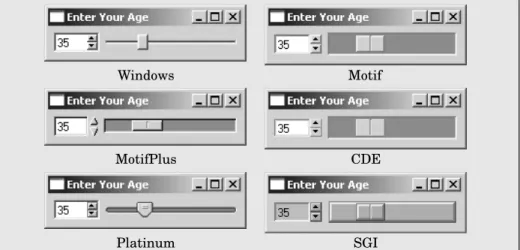
The screenshots we have seen so far have been taken on Windows XP, but Qt applications look native on every supported platform. Qt achieves this by emulating the platform’s look and feel, rather than wrapping a particular platform or toolkit’s widget set.
Windows Motif
MotifPlus CDE
Platinum SGI
Figure 1.7. Styles available everywhere
Qt application users can override the default style by using the -style
command-line option. For example, to launch the Age application with Platinum style on Unix, simply type
./age -style=Platinum
on the command line.
Windows XP Mac
Figure 1.8. Platform-specific styles
Unlike the other styles, the Windows XP and Mac styles are only available on their native platforms, since they rely on the platforms’ theme engines.
The documentation is available in HTML format in Qt’sdoc\html directo-ry and can be read using any web browser. You can also useQt Assistant, the Qt help browser, whose powerful search and indexing features make it quicker and easier to use than a web browser. To launchQt Assistant, click
Figure 1.9. Qt’s documentation inQt Assistant
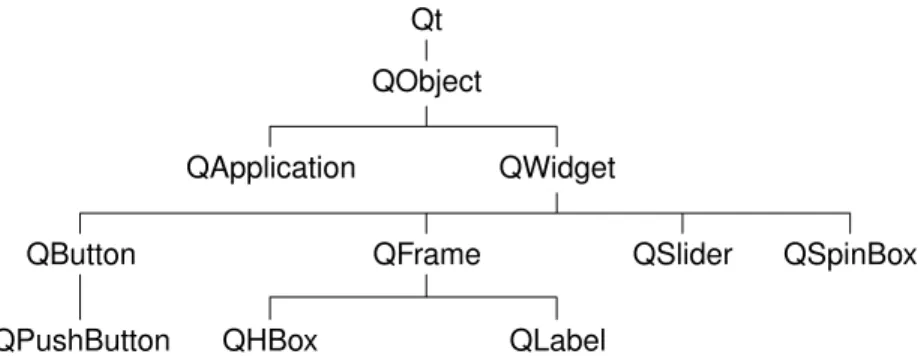
The links in the “API Reference” section on the home page provide different ways of navigating Qt’s classes. The “All Classes” page lists every class in Qt’s API. The “Main Classes” page lists only the most commonly used Qt classes. As an exercise, you might want to look up the classes and functions that we have used in this chapter. Note that inherited functions are documented in the base class; for example,QPushButtonhas noshow()function of its own, but it inherits one from its ancestorQWidget. Figure 1.10 shows how the classes we have seen so far relate to each other.
Qt
QObject
QApplication QWidget
QButton QFrame QSlider QSpinBox
QPushButton QHBox QLabel
Figure 1.10. Inheritance tree for the Qt classes seen so far
2
2
Creating Dialogs
• Subclassing QDialog
• Signals and Slots in Depth
• Rapid Dialog Design
• Shape-Changing Dialogs
• Dynamic Dialogs
• Built-in Widget and Dialog Classes
This chapter will teach you how to create dialog boxes using Qt. They are called dialog boxes, or simply “dialogs”, because they provide a means by which users and applications can “talk to” each other.
Dialogs present users with options and choices, and allow them to set the op-tions to their preferred values and to make their choice. Most GUI applica-tions consist of a main window with a menu bar and toolbar, along with dozens of dialogs that complement the main window. It is also possible to create dia-log applications that respond directly to the user’s choices by performing the appropriate actions (for example, a calculator application).
We will create our first dialog purely by writing code to show how it is done. Then we will see how to build dialogs usingQt Designer, Qt’s visual design tool. UsingQt Designeris a lot faster than hand-coding and makes it simple to test different designs and to change designs later.
Subclassing QDialog
Our first example is a Find dialog written entirely in C++. We will implement the dialog as a class in its own right. By doing so, we make it an independent, self-contained component, with its own signals and slots.
Figure 2.1. Find dialog on Linux (KDE)
will start with .
001 #ifndef FINDDIALOG_H
002 #define FINDDIALOG_H
003 #include <qdialog.h>
004 class QCheckBox;
005 class QLabel;
006 class QLineEdit;
007 class QPushButton;
Lines 1 and 2 (and 27) prevent the header file from multiple inclusions.
Line 3 includes the definition of QDialog, the base class for dialogs in Qt.
QDialoginheritsQWidget.
Lines 4 to 7 are forward declarations of the Qt classes that we will use to im-plement the dialog. Aforward declarationtells the C++ compiler that a class exists, without giving all the detail that a class definition (usually located in a header file of its own) provides. We will say more about this shortly.
We then defineFindDialogas a subclass ofQDialog:
008 class FindDialog : public QDialog
009 {
010 Q_OBJECT
011 public:
012 FindDialog(QWidget *parent = 0, const char *name = 0);
TheQ_OBJECTmacro at the beginning of the class definition is necessary for all classes that define signals or slots.
TheFindDialogconstructor is typical of Qt widget classes. Theparent param-eter specifies the parent widget, and thename parameter gives the widget a name. The name is optional; it is primarily used for debugging and testing.
013 signals:
014 void findNext(const QString &str, bool caseSensitive);
015 void findPrev(const QString &str, bool caseSensitive);
Thesignalssection declares two signals that the dialog emits when the user
clicks theFindbutton. If theSearch backwardoption is enabled, the dialog emits
findPrev(); otherwise, it emitsfindNext().
Thesignalskeyword is actually a macro. The C++ preprocessor converts it
into standard C++ before the compiler sees it.
016 private slots:
017 void findClicked();
018 void enableFindButton(const QString &text);
019 private:
020 QLabel *label;
021 QLineEdit *lineEdit;
Subclassing QDialog 13
023 QCheckBox *backwardCheckBox;
024 QPushButton *findButton;
025 QPushButton *closeButton;
026 };
027 #endif
In the class’s private section, we declare two slots. To implement the slots, we will need to access most of the dialog’s child widgets, so we keep pointers to them as well. Theslotskeyword is, likesignals, a macro that expands into a construct that the C++ compiler can digest.
Since all the variables are pointers and we don’t use them in the header file, the compiler doesn’t need the full class definitions; forward declarations are sufficient. We could have included the relevant header files (<qcheckbox.h>,
<qlabel.h>, etc.) instead, but using forward declarations when it is possible makes compiling somewhat faster.
We will now look atfinddialog.cpp, which contains the implementation of the
FindDialogclass:
001 #include <qcheckbox.h>
002 #include <qlabel.h>
003 #include <qlayout.h>
004 #include <qlineedit.h>
005 #include <qpushbutton.h>
006 #include "finddialog.h"
First, we include the header files for all the Qt classes we use, in addition to
finddialog.h. For most Qt classes, the header file is a lower-case version of the
class name with a.hextension.
007 FindDialog::FindDialog(QWidget *parent, const char *name)
008 : QDialog(parent, name)
009 {
010 setCaption(tr("Find"));
011 label = new QLabel(tr("Find &what:"), this);
012 lineEdit = new QLineEdit(this);
013 label->setBuddy(lineEdit);
014 caseCheckBox = new QCheckBox(tr("Match &case"), this);
015 backwardCheckBox = new QCheckBox(tr("Search &backward"), this);
016 findButton = new QPushButton(tr("&Find"), this);
017 findButton->setDefault(true);
018 findButton->setEnabled(false);
019 closeButton = new QPushButton(tr("Close"), this);
On line 8, we pass on theparent andnameparameters to the base class con-structor.
for translating your applications to other languages. Translating Qt applica-tions is covered in Chapter 15.
Then we create the child widgets. We use ampersands (‘&’) to indicate ac-celerator keys. For example, line 16 creates aFindbutton, which the user can activate by pressingAlt+F. Ampersands can also be used to control focus: On line 11 we create a label with an accelerator key (Alt+W), and on line 13 we set the label’s buddy to be the line editor. Abuddyis a widget that accepts the fo-cus when the label’s accelerator key is pressed. So when the user pressesAlt+W
(the label’s accelerator), the focus goes to the line editor (the buddy).
On line 17, we make the Find button the dialog’s default button by calling
setDefault(true).★ The default button is the button that is pressed when the user hitsEnter. On line 18, we disable theFindbutton. When a widget is disabled, it is usually shown grayed out and will not interact with the user.
020 connect(lineEdit, SIGNAL(textChanged(const QString &)),
021 this, SLOT(enableFindButton(const QString &)));
022 connect(findButton, SIGNAL(clicked()),
023 this, SLOT(findClicked()));
024 connect(closeButton, SIGNAL(clicked()),
025 this, SLOT(close()));
The private slot enableFindButton(const QString &) is called whenever the text in the line editor changes. The private slotfindClicked()is called when the user clicks theFindbutton. The dialog closes itself when the user clicks
Close. Theclose() slot is inherited fromQWidget, and its default behavior is to hide the widget. We will look at the code for theenableFindButton()and
findClicked()slots later on.
SinceQObjectis one ofFindDialog’s ancestors, we can omit theQObject::prefix in front of theconnect()calls.
026 QHBoxLayout *topLeftLayout = new QHBoxLayout;
027 topLeftLayout->addWidget(label);
028 topLeftLayout->addWidget(lineEdit);
029 QVBoxLayout *leftLayout = new QVBoxLayout;
030 leftLayout->addLayout(topLeftLayout);
031 leftLayout->addWidget(caseCheckBox);
032 leftLayout->addWidget(backwardCheckBox);
033 QVBoxLayout *rightLayout = new QVBoxLayout;
034 rightLayout->addWidget(findButton);
035 rightLayout->addWidget(closeButton);
036 rightLayout->addStretch(1);
037 QHBoxLayout *mainLayout = new QHBoxLayout(this);
038 mainLayout->setMargin(11);
★Qt providesTRUEandFALSEfor all platforms and uses them throughout as synonyms for the
Subclassing QDialog 15
039 mainLayout->setSpacing(6);
040 mainLayout->addLayout(leftLayout);
041 mainLayout->addLayout(rightLayout);
042 }
Finally, we lay out the child widgets usinglayout managers. A layout manager is an object that manages the size and position of widgets. Qt provides three layout managers: QHBoxLayoutlays out widgets horizontally from left to right (right to left for some cultures),QVBoxLayoutlays out widgets vertically from top to bottom, andQGridLayoutlays out widgets in a grid.
Layouts can contain both widgets and other layouts. By nestingQHBoxLayouts,
QVBoxLayouts, andQGridLayouts in various combinations, it is possible to build very sophisticated dialogs.
Caption ✕
QLabel QLineEdit
QCheckBox
QCheckBox
QPushButton
QPushButton
εε εε εε ε
leftLayout topLeftLayout
rightLayout mainLayout
spacer
Figure 2.2. The Find dialog’s layouts
For the Find dialog, we use twoQHBoxLayouts and twoQVBoxLayouts, as shown in Figure 2.2. The outer layout is the main layout; it is constructed with the
FindDialogobject (this) as its parent and is responsible for the dialog’s entire area. The other three layouts are sub-layouts. The little “spring” at the bottom right of Figure 2.2 is a spacer item (or “stretch”). It uses up the empty space below theFindandClosebuttons, ensuring that these buttons occupy the top of their layout.
One subtle aspect of the layout manager classes is that they are not widgets. Instead, they inheritQLayout, which in turn inheritsQObject. In the figure, wid-gets are represented by solid outlines and layouts are represented by dashed outlines to highlight the difference between them. In a running application, layouts are invisible.
and . When we create an object (a widget, layout, or other kind) with a parent, the parent adds the object to the list of its children. When the parent is deleted, it walks through its list of children and deletes each child. The children themselves then delete all of their children, and so on recursively until none remain.
The parent–child mechanism simplifies memory management a lot, reducing the risk of memory leaks. The only objects we must delete explicitly are the objects we create withnewand that have no parent. And if we delete a child object before its parent, Qt will automatically remove that object from the parent’s list of children.
For widgets, the parent has an additional meaning: Child widgets are shown within the parent’s area. When we delete the parent widget, not only does the child vanish from memory, it also vanishes from the screen.
When we insert a layout into another usingaddLayout(), the inner layout is automatically made a child of the outer layout, to simplify memory manage-ment. In contrast, when we insert a widget into a layout usingaddWidget(), the widget doesn’t change parent.
Figure 2.3 shows the parentage of the widgets and layouts. The parentage can easily be deduced from theFindDialogconstructor code by looking at the lines that contain anewor anaddLayout()call. The important thing to remember is that the layout managers are not parents of the widgets they manage.
FindDialog
QLabel (label) QLineEdit (lineEdit)
QCheckBox (caseCheckBox) QCheckBox (backwardCheckBox) QPushButton (findButton)
QPushButton (closeButton)
QHBoxLayout (mainLayout)
QVBoxLayout (leftLayout)
QHBoxLayout (topLeftLayout) QVBoxLayout (rightLayout)
Figure 2.3. The Find dialog’s parent–child relationships
In addition to the layout managers, Qt provides somelayout widgets:QHBox
Subclassing QDialog 17
This completes the review of FindDialog’s constructor. Since we usednewto create the dialog’s widgets and layouts, it would seem that we need to write a destructor that callsdeleteon each of the widgets and layouts we created. But this isn’t necessary, since Qt automatically deletes child objects when the parent is destroyed, and the objects we allocated withneware all descendants of theFindDialog.
Now we will look at the dialog’s slots:
043 void FindDialog::findClicked()
044 {
045 QString text = lineEdit->text();
046 bool caseSensitive = caseCheckBox->isOn();
047 if (backwardCheckBox->isOn())
048 emit findPrev(text, caseSensitive);
049 else
050 emit findNext(text, caseSensitive);
051 }
052 void FindDialog::enableFindButton(const QString &text)
053 {
054 findButton->setEnabled(!text.isEmpty());
055 }
ThefindClicked()slot is called when the user clicks theFindbutton. It emits thefindPrev()or thefindNext()signal, depending on theSearch backward op-tion. Theemitkeyword is specific to Qt; like other Qt extensions, it is converted into standard C++ by the C++ preprocessor.
TheenableFindButton()slot is called whenever the user changes the text in the line editor. It enables the button if there is some text in the editor, and disables it otherwise.
These two slots complete the dialog. We can now create amain.cppfile to test ourFindDialogwidget:
001 #include <qapplication.h>
002 #include "finddialog.h"
003 int main(int argc, char *argv[])
004 {
005 QApplication app(argc, argv);
006 FindDialog *dialog = new FindDialog;
007 app.setMainWidget(dialog);
008 dialog->show();
009 return app.exec();
010 }
To compile the program, run qmake as usual. Since the FindDialog class definition contains theQ_OBJECTmacro, the makefile generated byqmakewill include special rules to runmoc, Qt’s meta-object compiler.
Classes that use theQ_OBJECTmacro must havemocrun on them. This isn’t a problem becauseqmakeautomatically adds the necessary rules to the makefile. But if you forget to regenerate your makefile usingqmakeandmocisn’t run, the linker will complain that some functions are declared but not implemented. The messages can be fairly obscure. GCC produces warnings like this one:
finddialog.o(.text+0x28): undefined reference to ‘FindDialog::QPaintDevice virtual table’
Visual C++’s output starts like this:
finddialog.obj : error LNK2001: unresolved external symbol "public:~virtual bool __thiscall FindDialog::qt_property(int, int,class QVariant *)"
If this ever happens to you, run qmake again to update the makefile, then rebuild the application.
Now run the program. Verify that the accelerator keysAlt+W,Alt+C,Alt+B, and
Alt+Ftrigger the correct behavior. PressTabto navigate through the widgets with the keyboard. The default tab order is the order in which the widgets were created. This can be changed by callingQWidget::setTabOrder().
Providing a sensible tab order and keyboard accelerators ensures that users who don’t want to (or cannot) use a mouse are able to make full use of the application. Full keyboard control is also appreciated by fast typists.
In Chapter 3, we will use the Find dialog inside a real application, and we will connect thefindPrev()andfindNext()signals to some slots.
Signals and Slots in Depth
The signals and slots mechanism is fundamental to Qt programming. It enables the application programmer to bind objects together without the objects knowing anything about each other. We have already connected some signals and slots together, declared our own signals and slots, implemented our own slots, and emitted our own signals. Let’s take a moment to look at the mechanism more closely.
Slots are almost identical to ordinary C++ member functions. They can be virtual, they can be overloaded, they can be public, protected, or private, and they can be directly invoked like any other C++ member functions. The difference is that a slot can also be connected to a signal, in which case it is automatically called each time the signal is emitted.
Theconnect()statement looks like this:
connect(sender, SIGNAL(signal), receiver, SLOT(slot));
Signals and Slots in Depth 19
are function signatures without parameter names. TheSIGNAL()andSLOT()
macros essentially convert their argument to a string.
In the examples we have seen so far, we have always connected different signals to different slots. There are more possibilities to explore:
• One signal can be connected to many slots:
connect(slider, SIGNAL(valueChanged(int)), spinBox, SLOT(setValue(int))); connect(slider, SIGNAL(valueChanged(int)),
this, SLOT(updateStatusBarIndicator(int)));
When the signal is emitted, the slots are called one after the other, in an arbitrary order.
• Many signals can be connected to the same slot:
connect(lcd, SIGNAL(overflow()), this, SLOT(handleMathError())); connect(calculator, SIGNAL(divisionByZero()), this, SLOT(handleMathError()));
When either signal is emitted, the slot is called.
• A signal can be connected to another signal:
connect(lineEdit, SIGNAL(textChanged(const QString &)), this, SIGNAL(updateRecord(const QString &)));
When the first signal is emitted, the second signal is emitted as well. Apart from that, signal–signal connections are indistinguishable from signal–slot connections.
• Connections can be removed:
disconnect(lcd, SIGNAL(overflow()),
this, SLOT(handleMathError()));
This is rarely needed, because Qt automatically removes all connections involving an object when that object is deleted.
When connecting a signal to a slot (or to another signal), they must both have the same parameter types in the same order:
connect(ftp, SIGNAL(rawCommandReply(int, const QString &)), this, SLOT(processReply(int, const QString &)));
Exceptionally, if a signal has more parameters than the slot it is connected to, the additional parameters are simply ignored:
connect(ftp, SIGNAL(rawCommandReply(int, const QString &)), this, SLOT(checkErrorCode(int)));
One of Qt’s major achievements has been the extension of C++ with a mechanism for creating independent software components that can be bound together without any component knowing anything about the other components it is connected to.
The mechanism is called the meta-object system, and it provides two key services: signals and slots, and introspection. The introspection functional-ity is necessary for implementing signals and slots, and allows application programmers to obtain “meta-information” aboutQObjectsubclasses at run-time, including the list of signals and slots supported by the object and its class name. The mechanism also supports properties (forQt Designer) and text translation (for internationalization).
Standard C++ doesn’t provide support for the dynamic meta-information needed by Qt’s meta-object system. Qt solves this problem by providing a separate tool,moc, that parsesQ_OBJECTclass definitions and makes the information available through C++ functions. Since moc implements all its functionality using pure C++, Qt’s meta-object system works with any C++ compiler.
The mechanism works as follows:
• TheQ_OBJECTmacro declares some introspection functions that must be
implemented in everyQObjectsubclass:metaObject(),className(),tr(),
and a few more.
• Qt’smoctool generates implementations for the functions declared by
Q_OBJECTand for all the signals.
• QObjectmember functions such asconnect()anddisconnect()use the
introspection functions to do their work.
All of this is handled automatically byqmake,moc, andQObject, so you rarely need to think about it. But if you are curious, you can look at the C++ source files generated bymocto see how the implementation works.
So far, we have only used signals and slots with widgets. But the mechanism itself is implemented inQObject, and isn’t limited to GUI programming. The mechanism can be used by anyQObjectsubclass:
class Employee : public QObject {
Q_OBJECT public:
Employee() { mySalary = 0; }
int salary() const { return mySalary; }
public slots:
void setSalary(int newSalary);
Signals and Slots in Depth 21
void salaryChanged(int newSalary);
private:
int mySalary; };
void Employee::setSalary(int newSalary) {
if (newSalary != mySalary) { mySalary = newSalary;
emit salaryChanged(mySalary); }
}
Notice how thesetSalary() slot is implemented. We only emit the salary-Changed()signal if newSalary != mySalary. This ensures that cyclic connections don’t lead to infinite loops.
Rapid Dialog Design
Qt is designed to be pleasant and intuitive to hand-code, and it is perfectly possible to develop Qt applications purely by writing C++ source code. Qt Designerexpands the options available to programmers, allowing them to combine visually designed forms with their source code.
In this section, we will useQt Designerto create the Go-to-Cell dialog shown in Figure 2.4. Whether we do it in code or inQt Designer, creating a dialog always involves the same fundamental steps:
• Create and initialize the child widgets.
• Put the child widgets in layouts.
• Set the tab order.
• Establish signal–slot connections.
• Implement the dialog’s custom slots.
Figure 2.4. Go-to-Cell dialog
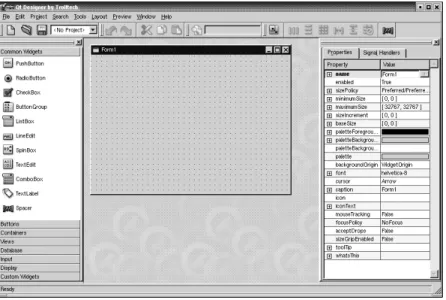
To launchQt Designer, clickQt 3.2.x|Qt Designerin theStartmenu on Windows, typedesigner on the command line on Unix, or double-clickdesignerin the
Figure 2.5. Qt Designerwith an empty form
The first step is to create the child widgets and place them on the form. Create one text label, one line editor, one (horizontal) spacer, and two push buttons. For each item, click its name or icon in the “toolbox” at the left ofQt Designer’s main window and then click the form roughly where the item should go. Now drag the bottom of the form up to make it shorter. This should produce a form that is similar to Figure 2.6. Don’t spend too much time positioning the items on the form; Qt’s layout managers will lay them out precisely later on.
The spacer item is shown inQt Designeras a blue spring. It is invisible in the final form.
Figure 2.6. The form with some widgets
Set each widget’s properties using the property editor on the right of Qt Designer’s main window:
1. Click the text label. Set itsnameproperty to “label” and itstextproperty to “&Cell Location:”.
2. Click the line editor. Set itsnameproperty to “lineEdit”.
Rapid Dialog Design 23
4. Click the first button. Set itsname property to “okButton”, its enabled
property to “False”, itsdefaultproperty to “True”, and itstextproperty to “OK”.
5. Click the second button. Set itsnameproperty to “cancelButton” and its
textproperty to “Cancel”.
6. Click the background of the form to select the form itself. Set itsname
property to “GoToCellDialog” and itscaptionproperty to “Go to Cell”.
All the widgets look fine now, except the text label, which shows&Cell Location. Click Tools|Set Buddy. Click the label and drag the rubber band to the line editor, then release. The label should now show Cell Locationand have the line editor as its buddy. You can verify this by checking that the label’sbuddy
property is set to “lineEdit”.
Figure 2.7. The form with properties set
The next step is to lay out the widgets on the form:
1. Click theCell Locationlabel and pressShiftas you click the line editor next to it so that they are both selected. ClickLayout|Lay Out Horizontally. 2. Click the spacer, then hold Shift as you click the form’s OK and Cancel
buttons. ClickLayout|Lay Out Horizontally.
3. Click the background of the form to deselect any selected items, then click
Layout|Lay Out Vertically.
4. ClickLayout|Adjust Sizeto resize the form to its optimal size.
The red lines that appear on the form show the layouts that have been created. They never appear when the form is run.
widget that can accept focus. Click each widget in turn in the order you want them to accept focus, then pressEsc.
Figure 2.9. Setting the form’s tab order
Now that the form has been designed, we are ready to make it functional by setting up some signal–slot connections and by implementing some custom slots. ClickEdit|Connectionsto invoke the connection editor.
Figure 2.10. Qt Designer’s connection editor (after making the connections)
Figure 2.11. Qt Designer’s slot editor
Rapid Dialog Design 25
Connect theokButton’sclicked()signal to theGoToCellDialog’saccept()slot. Connect thecancelButton’sclicked()signal to theGoToCellDialog’sreject()
slot. ClickEdit Slotsto invokeQt Designer’s slot editor (shown in Figure 2.11), and create anenableOkButton() private slot. Finally, connect the lineEdit’s
textChanged(const QString &)signal to theGoToCellDialog’s new enableOkBut-ton()slot.
To preview the dialog, click thePreview|Preview Formmenu option. Check the tab order by pressingTabrepeatedly. PressAlt+Cto move the focus to the line editor. ClickCancelto close the dialog.
Save the dialog asgotocelldialog.uiin a directory calledgotocell, and create amain.cppfile in the same directory using a plain text editor:
#include <qapplication.h>
#include "gotocelldialog.h"
int main(int argc, char *argv[]) {
QApplication app(argc, argv);
GoToCellDialog *dialog = new GoToCellDialog; app.setMainWidget(dialog);
dialog->show(); return app.exec(); }
Now run qmake to create a .pro file and a makefile (qmake -project; qmake gotocell.pro). Theqmaketool is smart enough to detect the user interface file
gotocelldialog.ui and to generate the appropriate makefile rules to create
gotocelldialog.handgotocelldialog.cpp. The.uifile is converted to C++ by
uic, Qt’s user interface compiler.
One of the beauties of usingQt Designeris that it allows programmers great freedom to modify their form designs without disturbing their source code. When you develop a form purely by writing C++ code, changes to the design can be quite time-consuming. With Qt Designer, no time is lost since uic
simply regenerates the source code for any forms that have changed.
If you run the program now, the dialog will work, but it doesn’t function exactly as we want:
• TheOKbutton is always disabled.
• The line editor accepts any text, instead of only accepting valid cell lo-cations.
We must write some code to solve these problems.
Double-click the background of the form to invokeQt Designer’s code editor. In the editor window, enter the following code:
#include <qvalidator.h>
lineEdit->setValidator(new QRegExpValidator(regExp, this)); }
void GoToCellDialog::enableOkButton() {
okButton->setEnabled(lineEdit->hasAcceptableInput()); }
Theinit()function is automatically called at the end of the form’s constructor (generated byuic). We set up a validator to restrict the range of the input. Qt provides three built-in validator classes:QIntValidator,QDoubleValidator, and
QRegExpValidator. Here we use aQRegExpValidatorwith the regular expression “[A-Za-z][1-9][0-9]{0,2}”, which means: Allow one upper- or lower-case letter, followed by one digit in the range 1 to 9, followed by up to two digits each in the range 0 to 9. (For an introduction to regular expressions, see theQRegExp
class documentation.)
By passing this to the QRegExpValidator constructor, we make it a child of theGoToCellDialogobject. By doing so, we don’t have to worry about deleting theQRegExpValidator later; it will be deleted automatically when its parent is deleted.
The enableOkButton() slot enables or disables the OK button, according to whether the line edit contains a valid cell location. QLineEdit::hasAcceptable-Input()uses the validator we set in theinit()function.
Figure 2.12. Qt Designer’s code editor
Rapid Dialog Design 27
In this example, we edited the dialog inQt Designer, then we added some code usingQt Designer’s code editor. The dialog’s user interface is saved in a.ui
file (an XML-based file format), while the code is saved in a.ui.hfile (a C++ source file). This split is very convenient for developers who want to edit the
.ui.hfile in their favorite text editor.
An alternative to the.ui.happroach is to create a.uifile withQt Designer
as usual, then create an additional class that inherits the uic-generated class and adds the extra functionality there. For example, for the Go-to-Cell dialog, this would mean creating a GoToCellDialogImpl class that inherits
GoToCellDialogand that implements what’s missing. It is straightforward to convert the.ui.hcode to use this approach. The result is this header file:
#ifndef GOTOCELLDIALOGIMPL_H #define GOTOCELLDIALOGIMPL_H
#include "gotocelldialog.h"
class GoToCellDialogImpl : public GoToCellDialog {
Q_OBJECT public:
GoToCellDialogImpl(QWidget *parent = 0, const char *name = 0);
private slots:
void enableOkButton(); };
#endif
And this source file:
#include <qlineedit.h> #include <qpushbutton.h> #include <qvalidator.h>
#include "gotocelldialogimpl.h"
GoToCellDialogImpl::GoToCellDialogImpl(QWidget *parent, const char *name) : GoToCellDialog(parent, name)
{
QRegExp regExp("[A-Za-z][1-9][0-9]{0,2}");
lineEdit->setValidator(new QRegExpValidator(regExp, this)); }
void GoToCellDialogImpl::enableOkButton() {
okButton->setEnabled(lineEdit->hasAcceptableInput()); }
classes based on forms created withQt Designer. Use to generate a skeleton header file, and use-subimplto generate the matching implementa-tion file.
In this book, we use the.ui.happroach since this is the most common practice, and since it is easy to convert.ui.hfiles into subclasses. You might want to read the “Designer Approach” chapter inQt Designer’s manual for a technical appreciation of the differences between subclassing and using.ui.hfiles. An-other chapter in the manual, “Creating Dialogs”, demonstrates how to useQt Designer’sMemberstab to declare member variables inuic-generated classes.
Shape-Changing Dialogs
We have seen how to create dialogs that always show the same widgets when-ever they are used. In some cases, it is desirable to provide dialogs that can change shape. The two most common kinds of shape-changing dialogs are ex-tension dialogsandmulti-page dialogs. Both types of dialog can be implement-ed in Qt, either purely in code or usingQt Designer.
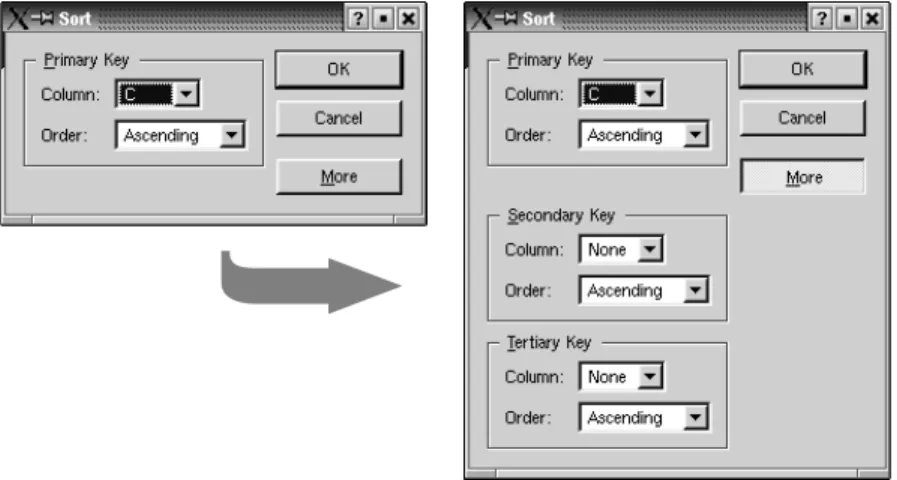
Extension dialogs usually present a simple appearance but have a toggle but-ton that allows the user to switch between the dialog’s simple and extended appearances. Extension dialogs are commonly used for applications that are trying to cater for both casual and power users, hiding the advanced options unless the user explicitly asks to see them. In this section, we will useQt De-signerto create the extension dialog shown in Figure 2.13.
➥
Figure 2.13. Sort dialog with simple and extended appearances
Shape-Changing Dialogs 29
two extra sort keys. AMorebutton lets the user switch between the simple and extended appearances.
We will create the widget with its extended appearance inQt Designer, and hide the secondary and tertiary keys at run-time as needed. The widget looks complicated, but it’s fairly easy to do inQt Designer. The trick is to do the primary key part first, then copy and paste it twice to obtain the secondary and tertiary keys:
1. Create a group box, two text labels, two comboboxes, and one horizontal spacer.
2. Drag the bottom right corner of the group box to make it larger.
3. Move the other widgets into the group box and position them approxi-mately as shown in Figure 2.14 (a).
4. Drag the right edge of the second combobox to make it about twice as wide as the first combobox.
5. Set the group box’stitleproperty to “&Primary Key”, the first label’stext
property to “Column:”, and the second label’stextproperty to “Order:”.
6. Double-click the first combobox to pop upQt Designer’s list box editor, and create one item with the text “None”.
7. Double-click the second combobox and create an “Ascending” item and a “Descending” item.
8. Click the group box, then clickLayout|Lay Out in a Grid. This will produce the layout shown in Figure 2.14 (b).
(a) Without layout (b) With layout
Figure 2.14. Laying out the group box’s children in a grid
If a layout doesn’t turn out quite right or if you make a mistake, you can always clickEdit|Undo, then roughly reposition the widgets being laid out and try again.
We will now add theSecondary KeyandTertiary Keygroup boxes:
1. Make the dialog window tall enough for the extra parts. Select the group box, click Edit|Copy, then click Edit|Paste twice to obtain two additional group boxes. Drag the two new group boxes to the approximate positions that they should occupy. Change their title property to “&Secondary
3. Set the OK button’s default property to “True” and the More button’s
toggleproperty to “True”.
4. Create two vertical spacers.
5. Arrange theOK,Cancel, andMorebuttons vertically, with a vertical spacer between theCancelandMorebuttons. Then select all four items and click
Layout|Lay Out Vertically.
6. Place the second vertical spacer between the primary key group box and the secondary key group box.
7. Set the two vertical spacer items’sizeHintproperty to (20, 10).
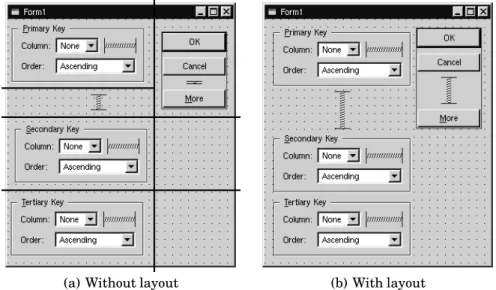
8. Arrange the widgets in the grid-like pattern shown in Figure 2.15 (a).
9. ClickLayout|Lay Out in a Grid. The form should now match Figure 2.15 (b).
(a) Without layout (b) With layout
Figure 2.15. Laying out the form’s children in a grid
The resulting grid layout has two columns and four rows, giving a total of eight cells. ThePrimary Keygroup box, the leftmost vertical spacer item, the
Secondary Keygroup box, and theTertiary Keygroup box each occupy a single cell. The vertical layout that contains theOK,Cancel, andMorebuttons occupies two cells. That leaves two empty cells in the bottom-right of the dialog. If this isn’t what you have, undo the layout, reposition the widgets, and try again.
Change the form’sresizeModeproperty from “Auto” to “Fixed”, making the