VGB10 / VGB11 Video Terminal
Installation and Operating Information
Installations- und Betriebshinweise
Información de instalación y funcionamiento
Guide d'installation et d'utilisation
Informazioni di installazione e guida operativa
Installatie- en gebruikshandleiding
VGB10 / VGB11 Video Terminal
Installation and Operating Information
in the manner described in this publication will not infringe on existing or future patent rights, nor do the descriptions contained in this publication imply the granting of licenses to make, use, or sell equipment or software in accordance with the description.
DEC, OpenVMS, ULTRIX, VMS, and VT are trademarks of Digital Equipment Corporation.
ADDS is a trademark of Applied Digital Data Systems, Inc.
IBM, ProPrinter, and PS/2 are registered trademarks of International Business Machines Corporation.
SCO is a trademark of Santa Cruz Operations, Inc. TVI is a trademark of TeleVideo, Inc.
UNIX is a registered trademark of UNIX System Laboratories, Inc. WY and WYSE are registered trademarks of Wyse Technologies. All other trademarks and registered trademarks are the property of their respective holders.
© Boundless Technologies, Inc. 1996 All Rights Reserved.
Printed in USA
FCC ID: CR8-VGB10—NOTE: The North American version of this equipment has been tested and found to comply with the limits for a Class A digital device, pursuant to Part 15 of FCC Rules. These limits are designed to provide reasonable protection against harmful interference when the equipment is operated in a commercial environment. This equipment generates, uses, and can radiate radio frequency energy and, if not installed and used in accordance with the instruction manual, may cause harmful interference to radio
communications. Operation of this equipment in a residential area is likely to cause harmful interference, in which case, the user will be required to correct the interference at his own expense.
Canadian Standards Association (CSA) Statement
This digital apparatus does not exceed the Class A limits for radio noise emissions from digital apparatus as set out in the radio interference regulations of the Canadian Department of Communications.
Overview iii
Use of Ozone Depleting Substance (ODS)
The VGB10 / VGB11 is in full compliance with the labeling requirements in the US Clean Air Act Amendments of 1990. It does not contain, nor is it
i chapter
1
Contents
Preface
v
Overview ...v
Environment ...v
Before you Start...v
Conventions...vii
Proper Setup and Use...vii
1
Installation and Set-Up
1-1
ii
Select the keyboard language ...1-8 Select the communications/printer port configuration...1-9 Select the communication word size ...1-9 Select the communications parity...1-10 Select the communication transmit speed...1-10 Select the communication receive speed...1-11 Select the printer type...1-11 Save your settings...1-12 Restore the settings...1-12 Exit the Set-Up menu...1-12
2
Desktop Features
2-1
Invoking Desktop Features...2-1 Overview...2-1 Clock feature ...2-2 Calculator feature ...2-3 Show Character Sets feature ...2-4 Banner message...2-4
3 Maintenance and Troubleshooting
3-1
Cleaning your Video Terminal...3-1 Cleaning the Screen...3-1 Cleaning the Keyboard ...3-1 Troubleshooting...3-1 Identifying and Correcting Problems ...3-1 Troubleshooting Table ...3-2 Disposing of your Terminal...3-4 Installing the ROM Cartridge...3-4 Installing and Removing the ROM Cartridge ...3-4
Define Key Editor... 4-1 Moving Standard Functions... 4-1 Customization... 4-2 Modifier Keys... 4-2 Creating a New Function... 4-2 Correcting a Mistake... 4-3 Examples of Uses... 4-3
A Specifications
A-1
Video Terminal ...A-1 Adapters...A-5
B Keyboard Function Keys
B-1
v chapter
1
0
Preface
Overview
This guide is for users who wish to install and configure the VGB10 / VGB11 video terminal. This guide describes how to connect cables and enter the Set-Up Menu to make changes, as needed. This guide also has reference tables for troubleshooting, specifications, and compose sequences.
For more detailed information on programming the terminal, refer to the VGB10 / VGB11 Video Terminal Programmer Information. See the inside back cover for ordering information.
Environment
This product has been designed and manufactured to minimize the impact to the environment. The packaging is recyclable and the terminal can be returned for proper disposal.
Before you Start
Ensure that you have received the following: ◊ Video terminal
◊ Keyboard
A small flat-blade screwdriver may be needed to install the communication or the printer cables.
Obtain the following information before installing your VGB10 / VGB11 video terminal. Write any changes to the default settings in the column on the right.
Information Needed Obtain From… Changes to Default
Setting
The keyboard country language that you have.
Bottom of the keyboard
Terminal Emulation:
ANSI-style, PC Term, ADDS, SCO, TVI, WYSE
System Manager
Communication Information:
Word size: 8 bits, 7 bits
Parity: none, even, odd, mark, space
Transmit speed: 9600
System Manager
Printer Information:
Printer type: DEC VT, IBM ProPrinter, DEC + IBM
Printer serial speed: 4800
System Manager
Conventions vii
Conventions
The following conventions are used in this document:
Convention Meaning
Shift+Tab Indicates two keys that you must press in
combination. Press and hold the first key while you press the second key.
Shift–Enter Indicates two keys that you must press in
sequence. Press and release the first key before you press the second key. Caps Lock+Alt+F11 Indicates three keys that you must press
in combination, hold the first two down while pressing the third.
terminal Describes the VGB10 / VGB11 video terminal
Display Menu items are in boldface type. Provides general information
Caution Provide information to prevent damage to equipment.
Warning Provides information to prevent injury.
Proper Setup and Use
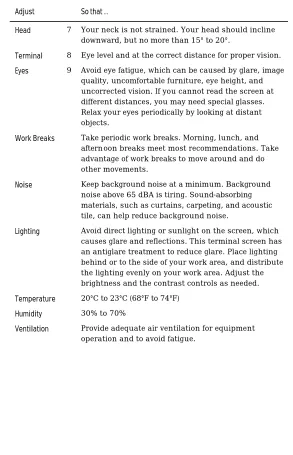
Table 1 Recommendations for Proper Setup and Use
Adjust So that …
Chair 1 Feet are flat on the floor or footrest, if needed. 2 Legs are vertical forming a right angle to the floor. 3 Your weight is off your thighs and are in a horizontal
position. Keep the back of your knees away from the seat so you do not compress the area behind them, which could restrict the blood flow.
4 Your upper body is erect and your lower back is supported with a backrest.
Keyboard 5 Your wrists are straight and do not flex more than 15°. They may be supported but should not rest on sharp edges.
Proper Setup and Use ix
Forearms are at a 70° to 90° angle.
Table 2 (Cont.) Recommendations for Proper Setup and Use
Adjust So that …
Head 7 Your neck is not strained. Your head should incline downward, but no more than 15° to 20°.
Terminal 8 Eye level and at the correct distance for proper vision. Eyes 9 Avoid eye fatigue, which can be caused by glare, image
quality, uncomfortable furniture, eye height, and uncorrected vision. If you cannot read the screen at different distances, you may need special glasses. Relax your eyes periodically by looking at distant objects.
Work Breaks Take periodic work breaks. Morning, lunch, and afternoon breaks meet most recommendations. Take advantage of work breaks to move around and do other movements.
Noise Keep background noise at a minimum. Background
noise above 65 dBA is tiring. Sound-absorbing materials, such as curtains, carpeting, and acoustic tile, can help reduce background noise.
Lighting Avoid direct lighting or sunlight on the screen, which causes glare and reflections. This terminal screen has an antiglare treatment to reduce glare. Place lighting behind or to the side of your work area, and distribute the lighting evenly on your work area. Adjust the brightness and the contrast controls as needed. Temperature 20°C to 23°C (68°F to 74°F)
Humidity 30% to 70%
[image:12.612.168.461.192.647.2]Space Between Terminals
More than 70 cm (28 in.) enter to center, preferable more than 152 cm (60 in.).
1-1
chapter
1
1
Installation and Set-Up
Install the tilt/swivel stand
1. Carefully set the terminal face down.
2. Insert the hooks on the stand into the slots at the bottom of the terminal.
Install your terminal
Connect the cables to the terminal
To install your terminal, connect the cable to the terminal as shown.
Install your terminal 1-3
Plug in the power cord and push the power switch on
The terminal will beep indicating that the power is on.
Set the Brightness and Contrast controls
If necessary, set the brightness and contrast controls by doing the following:
1. Set both controls to maximum by turning controls all the way to the right.
2. Adjust the brightness control •by turning the control to the left until the background raster is not visible. This sets the black level.
3. Adjust the Contrast control Πby turning the control to the left to set the white level for conformable viewing.
“Selftest OK” appears on the screen
The terminal takes a few seconds to warm up and complete its power up self-tests. Then, the terminal should display “Selftest OK.” If a problem occurs, go to Chapter 3.
Set up your terminal
Use Set-Up to examine or change the terminal operating features, such as the transmit speed, receive speed, or the language, The Set-Up menus in this section will get you started in operating the terminal. Only the basic Set-Up feature is performed with this procedure. There are many more Set-Up features in the terminal that you may wish to change. Before changing the Set-Up features, contact your System Manager, if necessary, for information on the terminal type, terminal ID to host, and the communication settings.
Printer operations are suspended upon entering Set-Up and are resumed upon exiting Set-Up.
Entering Set-Up
To enter Set-Up, perform the following procedure:
On a … Press … Refer to …
ANSI-style keyboard F3 Figure 1-1
Keyboards 1-5
Moving within a Set-Up Menu
Use the arrow keys (ß, à, á, â) to move among the menus or within a list or to select buttons.
In a menu … Indicates …
? A pull-right menu is available.
… A dialog box is available for you to specify more information.
l a ¡ b ¡ c
The menu item with the filled-in circle is enabled. Only one of these items can be enabled at a time.
þ The menu item with the check box is
enabled.
Press Enter, Return, Do, or Select to start the action or to choose the currently highlighted feature.
A dimmed menu item does not apply to the currently selected mode.
Keyboards
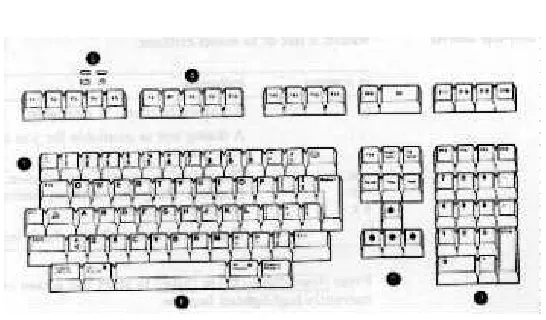
An ANSI-style keyboard (Figure 1) and a PC keyboard (Figure 1-2) differ in the placement of some of the keys, such as the arrow keys. An ANSI-style keyboard has 20 function keys (F1 – F20) above the main keypad, while a PC keyboard has 12 function keys (F1 – F12).
Figure 1-1 – ANSI-Style Keyboard Layout
Figure 1-2 – PC-Style Keyboard Layout
[image:19.612.159.431.338.478.2]Select the Set-Up language 1-7
Select the Set-Up language
This language selection is for set up only and does not affect the keyboard, the character set, or the printer settings. As you make changes to some Set-Up parameters, the Set-Up summary line will reflect those changes.
Actions ?
Display ?
Terminal type ?
ASCII emulation ?
Keyboard ?
Communication ?
Modem ?
Printer ?
Tabs ….
Set-Up language ?
---þ On-line Save settings Restore settings Exit Set-Up
l English
¡ Fran•ais
¡ Deutsch
¡ Espa²ol
¡ Italiano
S1=comm1 9600N81 ISO Latin-1 North American VT320
Œ
•
Ž
•
•
Select the emulation mode terminal type
Actions ?
Display ?
Terminal type ?
ASCII emulation ?
Keyboard ?
Communication ?
Modem ?
Printer ?
Tabs ….
Set-Up language ?
---þ On-line Save settings Restore settings Exit Set-Up
Emulation mode ?
Terminal ID to host ? VT default char set ? PCTerm character set ?
o 7-bit NRCS characters
þ Transmit 7-bit controls
l VT320 VT220
¡ VT100
¡ VT52
¡ VT420
¡ WYSE 160/60 Native
¡ WYSE 160/60 PCTerm
¡ WYSE 50+
¡ WYSE 150/120
¡ TVI 950
¡ TVI 925
¡ TVI 910+
¡ ADDS A2 ¡ SCO console
Select the keyboard language
Actions ? Display ? Terminal type ? ASCII emulation ?
Keyboard ?
Communication ? Modem ? Printer ? Tabs ….
Set-Up language ?
---þ On-line Save settings Restore settings Exit Set-Up
VT Keyboard language?
PC Keyboard language? Define key …
Save key definitions Recall key definitions
o Lock key definitions Caps lock function ? Keyclick volume ? Warning bell volume ? Margin bell volume ? Keyboard encoding ?
þ Auto repeat
o Data processing keys
o Application cursor keys
Select the communication/printer port configuration 1-9
Select the communication/printer port configuration
Actions ?
Display ?
Terminal type ?
ASCII emulation ?
Keyboard ?
Communication ?
Modem ?
Printer ?
Tabs ….
Set-Up language ?
---þ On-line Save settings Restore settings Exit Set-Up
Port select ?
Word size ?
Parity ?
Stop bits ?
Transmit speed ?
Receive speed ?
Transmit flow control ? Receive flow control ? Flow control threshold ? Transmit rate limit ?
Fkey rate limit ?
þ Ignore Null character
o Local echo
o Half duplex
o Auto answerback Answerback message
o Answerback canceled
l S1=comm1 print=comm2
¡ S1=comm1 print=parallel
¡ S1=comm2 print=comm1
¡ S1=comm2 print=parallel
Select the communication word size
Actions ?
Display ?
Terminal type ?
ASCII emulation ?
Keyboard ?
Communication ?
Modem ?
Printer ?
Tabs ….
Set-Up language ?
---þ On-line Save settings Restore settings Exit Set-Up
Port select ?
Word size ?
Parity ?
Stop bits ?
Transmit speed ?
Receive speed ?
Transmit flow control ? Receive flow control ? Flow control threshold ? Transmit rate limit ?
Fkey rate limit ?
þ Ignore Null character
o Local echo
o Half duplex
o Auto answerback Answerback message
o Answerback canceled
l 8 bits
Select the communications parity
Actions ? Display ? Terminal type ? ASCII emulation ? Keyboard ?
Communication ?
Modem ? Printer ? Tabs ….
Set-Up language ?
---þ On-line Save settings Restore settings Exit Set-Up
Port select ? Word size ?
Parity ?
Stop bits ? Transmit speed ? Receive speed ? Transmit flow control ? Receive flow control ? Flow control threshold ? Transmit rate limit ? Fkey rate limit ?
þ Ignore Null character
o Local echo
o Half duplex
o Auto answerback Answerback message
o Answerback canceled
l None
¡ Even
¡ Odd
¡ Even, unchecked
¡ Odd, unchecked
¡ Mark
¡ Space
Select the communication transmit speed
Actions ? Display ? Terminal type ? ASCII emulation ? Keyboard ?
Communication ?
Modem ? Printer ? Tabs ….
Set-Up language ?
---þ On-line Save settings Restore settings Exit Set-Up
Port select ? Word size ? Parity ? Stop bits ?
Transmit speed ?
Receive speed ? Transmit flow control ? Receive flow control ? Flow control threshold ? Transmit rate limit ? Fkey rate limit ?
þ Ignore Null character
o Local echo
o Half duplex
o Auto answerback Answerback message
o Answerback canceled
¡115.2K baud
¡ 76.8K baud
¡ 57.6K baud
¡ 38.4K baud
¡ 19.2K baud
l 9600 baud
¡ 4800 baud
¡ 2400 baud
¡ 1200 baud
¡ 600 baud
Select the communication receive speed 1-11
Select the communication receive speed
Actions ?
Display ?
Terminal type ?
ASCII emulation ?
Keyboard ?
Communication ?
Modem ?
Printer ?
Tabs ….
Set-Up language ?
---þ On-line Save settings Restore settings Exit Set-Up
Port select ?
Word size ?
Parity ?
Stop bits ?
Transmit speed ?
Receive speed ?
Transmit flow control ? Receive flow control ? Flow control threshold ? Transmit rate limit ?
Fkey rate limit ?
þ Ignore Null character
o Local echo
o Half duplex
o Auto answerback Answerback message
o Answerback canceled
l Transmit speed
¡115.2K baud
¡ 76.8K baud
¡ 57.6K baud
¡ 38.4K baud
¡ 19.2.K baud
¡ 9600 baud
¡ 4800 baud
¡ 2400 baud
¡ 1200 baud
¡ 600 baud
¡ 300 baud
Select the printer type
Actions ? Display ? Terminal type ? ASCII emulation ? Keyboard ? Communication ? Modem ?
Printer ?
Tabs ….
Set-Up language ?
---þ On-line Save settings Restore settings Exit Set-Up
Port select ? Print mode ?
Printer type ?
DEC/ISO char sets ? PC character sets ? Print extent ? Print terminator ? Serial print speed ?
o 2-way communication Transmit flow control ? Receive flow control ? Word size ? Parity ? Stop bits ?
l DEC ANSI
¡ IBM Proprinter
Save your settings
Select the Save Settings menu item, the press Enter or Return.
Caution: If you disable the Screen Saver feature, an image may etch onto the screen, which may shorten the terminal’s useful life.
Restore the settings
To recall the settings that you stored in memory using the Save Setting menu item, select the Restore Setting menu item and press Enter or Return.
Restore factory defaults is a selection included in the Action menu.
Exit the Set-Up menu
To exit Set-Up, select the Exit Set-Up menu item or perform the following procedure:
On a … Press … Refer to …
ANSI-style keyboard F3 Figure 1-1
2-1
chapter
2
2
Desktop Features
Invoking Desktop Features
Overview
From the Actions menu, you can invoke the Clock, Calculator, and Show character sets features. When the feature is highlighted (displayed in reverse video), press Enter or Return to enable the feature. You can also invoke the Banner message dialog box by selecting the Banner message menu item for the Actions menu.
Actions ?
Display Actions ? Terminal type ? ASCII emulation ? Keyboard ? Communication ? Modem ? Printer ? Tabs ….
Set-Up language ?
---þ On-line Save settings Restore settings Exit Set-Up
Clear display Clear communications Reset terminal Restore factory defaults Clock
Calculator Show character sets Banner message …
Clock feature
You can enable the Clock feature without entering Set-Up by pressing Caps Lock +Alt+F11 if you are not in an ASCII emulation mode.
The current time is displayed in the status line if this feature is enabled. The format is HH:MM, followed by AM or PM if the 12-hour format is selected. Use the following keys within the clock features:
Key Function
â
â or Tab Go to next field.
á
á or Shift+Tab Go to previous field.
ß
ß or àà Move within a field.
Return or Enter If desired, check the 24-hour
format box. For example, before entering 13:00, enable 24-hour format.
A or P For 12-hour format, set the time to morning by pressing A or P for afternoon.
Invoking Desktop Features 2-3
Calculator feature
You can enable the Calculator feature without entering Set-Up by pressing Caps Lock +Alt+F12 if you are not in an ASCII emulation mode.
In addition to the numbers on the numeric keypad, you use the following keys within the calculator:
Key Function
H, O, or D Select hexadecimal H, octal O, or decimal D format.
Arrow keys Move the position of the calculator on the screen.
Shift Change the keypad display to
allow selecting STO, RCL, 1/x, X2, and Insert Results.
Alt Change the keypad display to
hexadecimal and allow selecting keys A through F o the numeric keypad.
C/E Clear the entry.
STO Store the number in the display
into memory.
RCL Recall the number from memory
and place it in the display.
Shift–Enter Insert the result at the current
cursor position after exiting the calculator feature.
All calculator math operations have equal priority except 1/χ and
χ2. If a result is wider than the display, then a rounded number will be
Show Character Sets feature
You can enable the Show character sets desktop feature without entering Set-Up by pressing Caps Lock +Alt+F10 if you are not in an ASCII emulation mode. When the character set is displayed, you can use the following keys with this feature:
Key Function
Next or Prev Page Up or Page Down
Look through the available character sets.
Shift–L Display the line drawing character
set if you are using a VT character set.
Shift–T Display the technical character
set.
Shift–Enter For the current character set,
insert the highlighted character into text at the current cursor position, if you are using a VT character set.
Banner message
From the Actions menu, select Banner message … 1. Press Return or Enter to display a dialog box. 2. Enter our banner message.
3. Press the ââ to select the OK button.
3-1
chapter
3
3
Maintenance and
Troubleshooting
Cleaning your Video Terminal
Cleaning the Screen
Before cleaning the screen, set the terminal power switch to the off position and wait 20 seconds to let the static electricity dissipate. Clean the screen with a video screen cleaner.
Cleaning the Keyboard
If needed, wipe the keys with a soft cloth. Do not allow moisture to get under the keys.
Troubleshooting
Identifying and Correcting Problems
The following can be sources of problems: ◊ Communications cables
◊ Host system
Troubleshooting Table
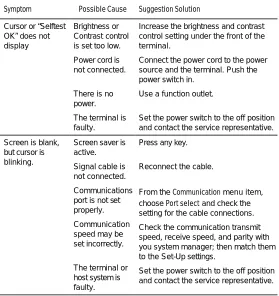
Use Table 3-1 to identify and correct any problem areas. Table 3 -3 Identifying and correcting problems
Symptom Possible Cause Suggestion Solution
Cursor or “Selftest OK” does not display
Brightness or Contrast control is set too low.
Power cord is not connected.
There is no power.
The terminal is faulty.
Increase the brightness and contrast control setting under the front of the terminal.
Connect the power cord to the power source and the terminal. Push the power switch in.
Use a function outlet.
Set the power switch to the off position and contact the service representative.
Screen is blank, but cursor is blinking.
Screen saver is active.
Signal cable is not connected.
Communications port is not set properly.
Communication speed may be set incorrectly.
The terminal or host system is faulty.
Press any key.
Reconnect the cable.
From the Communication menu item, choose Port select and check the setting for the cable connections.
Check the communication transmit speed, receive speed, and parity with you system manager; then match them to the Set-Up settings.
[image:31.612.156.435.202.498.2]Troubleshooting 3-3
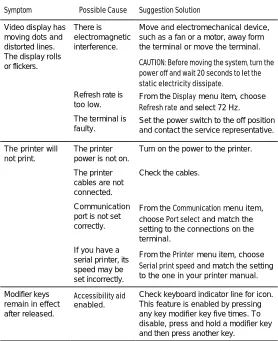
Table 3 -4 (Cont.) Identifying and correcting problems
Symptom Possible Cause Suggestion Solution
Video display has moving dots and distorted lines. The display rolls or flickers.
There is electromagnetic interference.
Refresh rate is too low.
The terminal is faulty.
Move and electromechanical device, such as a fan or a motor, away form the terminal or move the terminal.
CAUTION: Before moving the system, turn the power off and wait 20 seconds to let the static electricity dissipate.
From the Display menu item, choose Refresh rate and select 72 Hz.
Set the power switch to the off position and contact the service representative.
The printer will not print.
The printer power is not on.
The printer cables are not connected.
Communication port is not set correctly.
If you have a serial pri nter, its speed may be set incorrectly.
Turn on the power to the printer.
Check the cables.
From the Communication menu item, choose Port select and match the setting to the connections on the terminal.
From the Printer menu item, choose Serial print speed and match the setting to the one in your printer manual.
Modifier keys remain in effect after released.
Accessibility aid enabled.
[image:32.612.179.457.168.509.2]Disposing of your Terminal
Warning: If you need to dispose of your terminal, ask a qualified service representative for the proper disposal procedures. Improper disposal could result in personal injury.
Installing the ROM Cartridge
The terminal can accommodate an optional ROM cartridge at the back of the terminal. This ROM cartridge will completely replace the factory-installed software within the terminal for new software versions or special applications.
When an option ROM is not used, the ROM cartridge holder is empty with a cover over it.
Installing and Removing the ROM Cartridge
To install a ROM cartridge:
1. Set the power switch to the off position.
2. Remove the blank cover by lifting the cover from the bottom and gently pulling it straight back.
Installing the ROM Cartridge 3-5
4-1
chapter
4
4
Defining Keys
Define Key Editor
The VGB10 / VGB11 provides a powerful Define Key Editor that allows you to modify the function of keys on your keyboard. Since VGB10 / VGB11 keystrokes can perform many different functions, it will take some practice to understand how the keys work. This section is an introduction to customizing your keyboard.
Moving Standard Functions
The simplest way to re-program a key is to copy the behavior of another key. This method allows you to move factory default key functions to any position on the keyboard. To move factory default key functions:
1. From the Keyboard menu item, select the Define key … function, and the Define Key Editor menu will appear. 2. Press the key for which you want to assign a new behavior. 3. Press the à key to highlight the “Copy of key default” radio
button (• Copy of key default) and press Enter.
4. Press the key whose factory default behavior is what you want your defined key to do.
Customization
If you want to program a key to behave differently than one of the factory defined keys, then you will need to know about the following VGB10 / VGB11 key categories:
Function: Keys used to transmit function key sequences or to perform local terminal functions such as the arrow keys (ß, à, á, â), and Shift modifier keys, or the Set-Up key.
Alphanumeric: Keys used to transmit alphanumeric characters.
Modifier Keys
Modifier keys vary from within the function and alphanumeric categories. A modifier key is a key that modifies the behavior of other keys when it is pressed and held down. For example, pressing an alphanumeric key in combination with the Shift modified key will normally send the shifted or uppercase characters for that key.
Modifier keys are treated as a special kind of local terminal function. The VGB10 / VGB11 function modifier keys are: Shift, Ctrl, and Alt. VGB10 / VGB11 alphanumeric keys can also be modified by pressing Group Shift (Alt Gr on enhanced PC keyboards) and Alt+Shift (Shift-2). Modifier keys themselves cannot normally be modified by other keys. A key assigned to act as the Shift modifier, for example, cannot transmit a functions sequence when pressed in combination with the Alt key. Defining a key as a modifier key makes all assignable combinations of that key act as a modifier.
Creating a New Function
To define a new function key:
1. From the Keyboard menu item, select the Define key… function, and the Define key editor menu will appear.
2. Press the key for which you want to assign a new behavior. 3. Press the ß and à keys to highlight the “Function” radio
Define Key Editor 4-3
4. Press the á and â keys to highlight the modifier combination that you want to define (unshifted, shifted, control, and so on) and press Enter.
5. Press the à key to move to the “Select function” scroll box. Press the á and â keys to highlight the desired keystroke function from the list and press Enter.
6. Press the ß key to return to the modifier selection. 7. Repeat steps 4 through 6 to define other modifier
combinations as desired.
8. Use the arrow keys (ß, à, á, â) to highlight the OK or Apply pushbutton and press Enter.
Correcting a Mistake
If you make a mistake or want to start over, select the Cancel pushbutton or select the Exit Set-Up menu item. Your changes will not be recognized until you select the OK or Apply pushbutton. To save your key definitions so they will be available the next time you turn on the system power, select the Save key definitions menu item for the Keyboard menu.
Examples of Uses
Examples of when to create new functions include: ◊ To change the ÕÕ key to delete when unshifted and to
backspace when shifted
◊ To disable the Compose, Break, or set-Up key by assigning them to have no function
The Define Key editor can be very powerful if you take the time to learn how to use it. No matter how you define the keys, you can always enter Set-Up by pressing F3 after powering on.
Additionally, you can always restore the factory default settings by invoking the Actions menu items.
See the VGB10 / VGB11 Video Terminal Programmer Information
A-1
appendix
A
A
Specifications
Video Terminal
The following are the specifications for the video terminal.
Dimensions
Height 32 cm (12.6 in)
Width 31.5 cm (12.4 in)
Depth 33 cm (13 in)
Weight 7.9 kg (17.4 Ib)
Tilt Range 25° (5° forward, 20° backward)
Swivel Range ± 90° (left and right)
Display
Cathode ray tube (CRT)
35 cm (14 in) diagonal antiglare flat-profile screen
Overscan 60 Hz – 16 x 10 font; 72 Hz – 13 x 10 font
Area 800 x 432 pixels with 88 DPI density
Usable area 17 cm (6.7 in) x 23 cm (9 in); 1:1.4 aspect ratio
No. of lines 25, 42, or 53 data lines
Operating Systems Supported
UNIX, MDOS, OpenVMS, VMS, or any other that supports ASCII or ANSI protocols.
Terminal Emulations ANSI, PCTerm, and ASCII emulations: VT, WYSE. TVI, ADDS, or SCO console.
Character Set Support Multiple languages using ISO and IBM code pages; Set-Up selectable in five languages
Productivity Features Local copy and paste
Time-of-day clock—sound alarms and display messages
Desktop calculator—insert result into text
Show character sets—insert character into text.
ROM cartridge support 4-Mbit (512 K byte) customer- installable ROM cartridge at back of system unit that completely replaces the factory installed ROM code for new versions of the terminal’s firmware Electrical Requirements
AC input voltage 120 Vac only; or 110, 120, 220, 330, 240 auto-sensing (product variant) single phase, 3-wire
Line frequency 47 Hz to 63 Hz Power consumption 40 watts maximum Operating Temperature 10°C to 40°C (50°F to 104°F)
Humidity 10% to 90% relative humidity
Maximum wet bulb = 28°C Minimum dew point = 2°C (noncondensing)
Keyboard The following are the specifications for
the keyboard.
Video Terminal A-3
European languages.
Protocol IBM enhanced PS/2-compatible
Connector PS/2-style, 6-pin mini DIN
Keyboard keys All keys are programmable for single characters, character sequences, or local functions.
Nonvolatile memory 768K bytes memory
User-defined key maximum length = 255 bytes
Cables The 25-pin D-sub connectors (Comm1)
use an EIA-232 cable, with maximum cable length of 15.3 m (50 ft).
The parallel printer connector can use a 25-pin D-sub male to 36-pin Champ male.
The 9-pin female connector (Comm2) uses any standard PC serial cable. Communication/Printer
Ports
Serial Bidirectional serial communication/ printer ports with full modem support at 300 to 115.2K baud:
EIA 423
Comm1 (Figure A-1): Two 25-pin D-sub m/f (use one or the other)
EIA 232
Comm2 (Figure A-2): 6-pin MMJ
Parallel Centronics (25-pin D-sub f) parallel printer connector (Figure A-3).
CCITT/EIA/DIN
Figure A–1 Serial Communication/Printer Portsl
1 DCD 2 RXD 3 TXD 4 DTR 5 SIG GND 6 DSR 7 RTS 8 CTS 9 RI
CCITT/EIA/DIN
109/CF/M5 104/BB/D2 103/BA/D1 108.2/CD/S1.2 102/AB/E2 107/CC/M1 105/CA/S2 106/CB/M2 —
Figure A–2 9-Pin EIA 232 Port
1 In North America, pin 1 is open; in international units, pin 1 is ground.
Adapters A-5
1 STROBE L 2 DAT<0> 3 DAT<1> 4 DAT<2> 5 DAT<3> 6 DAT<4> 7 DAT<5> 8 DAT<6> 9 DAT<7>
10 ACKNLG L 11 BUSY 12 PE 13 SLCT
[image:44.612.181.311.382.447.2]14 AUTO FEED XT L 15 ERROR L 16 INIT L 17 SLCT IN L 18–25 GND
Figure A–3 — Parallel Printer Port
Adapters
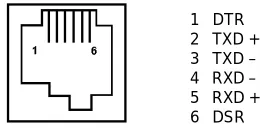
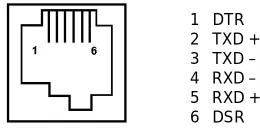
An MMJ adapter can he used with the 25-pin connector. Use an EIA-423 cable with a maximum cable of 76 m (250 ft.). Figure A-4 shows the MMJ adapter pins.
1 DTR 2 TXD + 3 TXD – 4 RXD – 5 RXD + 6 DSR
Acoustic Levels
Acoustic noise – Preliminary declared values per ISO 9296 and ISO 7779:
Sound Power Level L w A d , B
Sound Pressure Level2
L p A m , dBA
Product1 Idle Operate Idle Operate
VGB10 PCXAL PC7XL LK411 <3.9 NA NA NA <3.9 6.0 5.3 5.6 <22 NA NA NA <22 51 47 52
VGB10 / VGB11 Terminal
Agency Type Standard Subject
CSA Safety CSA 22.2 #950 M1989
CSA 22.1
Safety of Information Technology Equipment Including Electrical Business Equipment (Canada)
Canadian electrical code
CISPR-22 EMI/RFI CISPR-22 Class A Electromagnetic compatibility
EIA Telcom EIA 423 EIA 232-E
Serial communications
DOC Canada EMI/RFI CSA 108.8 North American Class A version
FCC EMI/RFI FCC part 15 Class B
Electromagnetic compatibility
1 1 B = 10 dBA.
VGB10 / VGB11 Terminal A-7
Agency Type Standard Subject
Australia PPT German PPT Japan PPT Sweden PPT
Telekom CCITT V.24 and V.28
Serial communications
Australia Safety AS3260 Australia product safety
TUV Safety EN60950 (2nd ed, 1988)
EN60950 (Amd 1 & 2, 1990)
IEC950( 2nd ed, 1991)
German X-Ray Act RöV §5(2) EMKO-TSE (74-SEC) 203/92 SS 436 14 90, MPR II
Safety of Information Technology Equipment Including Electrical Business Equipment
GS-Marl (Geprüfte Sicherheit)
TUV Ergonomic ISO/DIS 9241-3 VDT Ergonomic Requirements
UL Safety UL 544 (2nd ed) Standard for Medical and Dental Equipment
UL 1950 (1st ed) Safety of Information Technology Equipment Including Electrical Business Equipment
NFPA 70 U.S. National Fire Protection Agency - National Electrical Code
VDE EMI/RFI Vfg 243/1991
EN55022 class B
Radio Protection Mark
VCCI (Japan)
VGB10 / VGB11 Terminal A-9
In addition to the standard listed previously, the VGB10 / VGB11 low-emissions video terminal complies with the following standards:
Agency Type Standard Subject
NBOSH EMI/RFI MPR-2 1990:8 Swedish National Council for Metrology and Testing Display Units
EMI/RFI SS 436 14 90 Swedish standard for low emissions
Flame Retardants
The thermoplastic enclosures do not contain polybrominated diphenylether (PBDE) as a flame retardant additive; therefore, they do not emit toxic dibenzofuran and dibenzodioxin gases.
PVC
The plastic enclosures are not made of rigid PVC. The material has a non-halogenated, flame-retardant system and is cadmium free.
Asbestos
Asbestos is not used in this product or in its manufacturing process.
Ozone Depleting Substance
B-1
appendix
B
B
Keyboard Function Keys
User Definable Keys
All keyboard keys are programmable by selecting the Definekey function from the Keyboard menu item in Set-Up. They can be programmed to send single characters or character sequences, or to invoke a local function, such as Print Screen.
The function keys have the following key levels: Unshifted, Shifted, Control, Shift Control, Alt, Shift, Control, and Alt-Shift-Control.
Local Functions
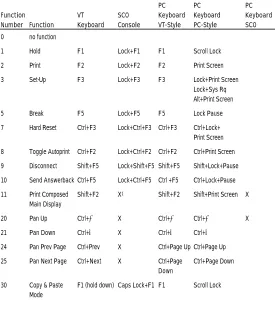
Table B -1 Local Functions
Function Number Function
VT Keyboard SCO Console PC Keyboard VT-Style PC Keyboard PC-Style PC Keyboard SCO
0 no function
1 Hold F1 Lock+F1 F1 Scroll Lock 2 Print F2 Lock+F2 F2 Print Screen
3 Set-Up F3 Lock+F3 F3 Lock+Print Screen Lock+Sys Rq Alt+Print Screen 5 Break F5 Lock+F5 F5 Lock Pause
7 Hard Reset Ctrl+F3 Lock+Ctrl+F3 Ctrl+F3 Ctrl+Lock+ Print Screen
8 Toggle Autoprint Ctrl+F2 Lock+Ctrl+F2 Ctrl+F2 Ctrl+Print Screen 9 Disconnect Shift+F5 Lock+Shift+F5 Shift+F5 Shift+Lock+Pause
10 Send Answerback Ctrl+F5 Lock+Ctrl+F5 Ctrl +F5 Ctrl+Lock+Pause 11 Print Composed
Main Display
Shift+F2 X1 Shift+F2 Shift+Print Screen X
20 Pan Up Ctrl+á X Ctrl+á Ctrl+á X 21 Pan Down Ctrl+â X Ctrl+â Ctrl+â
24 Pan Prev Page Ctrl+Prev X Ctrl+Page Up Ctrl+Page Up 25 Pan Next Page Ctrl+Next X Ctrl+Page
Down
Ctrl+Page Down
30 Copy & Paste Mode
F1 (hold down) Caps Lock+F1 F1 Scroll Lock
1 X means the function is not available in the default SCO state. If there is no
“X” in the SCO Console column, then this means that the key sequence is the same as the VT Keyboard column. If there is no “X” in the PC Keyboard SCO
column, then this means that the key sequence is the same as the PC Keyboard PC-Style column.
[image:51.612.159.434.167.487.2]User Definable Keys B-3
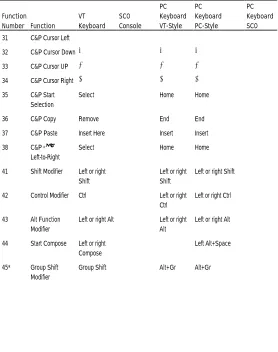
Table B -1 (Cont.) Local Functions
Function Number Function
VT Keyboard SCO Console PC Keyboard VT-Style PC Keyboard PC-Style PC Keyboard SCO
31 C&P Cursor Left ß ß ß
32 C&P Cursor Down â â â
33 C&P Cursor UP á á á
34 C&P Cursor Right à à à
35 C&P Start Selection
Select Home Home
36 C&P Copy Remove End End
37 C&P Paste Insert Here Insert Insert 38 C&P x ±
Left-to-Right
Select Home Home
41 Shift Modifier Left or right Shift
Left or right Shift
Left or right Shift
42 Control Modifier Ctrl Left or right Ctrl
Left or right Ctrl
43 Alt Function Modifier
Left or right Alt Left or right Alt
Left or right Alt
44 Start Compose Left or right Compose
Left Alt+Space
45* Group Shift Modifier
Group Shift Alt+Gr Alt+Gr
± means the function switches alternately between on and off.
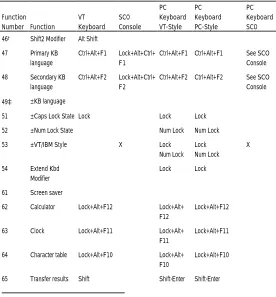
[image:52.612.181.459.166.518.2]Table B -1 (Cont.) Local Functions
Function Number Function
VT Keyboard SCO Console PC Keyboard VT-Style PC Keyboard PC-Style PC Keyboard SCO
46† Shift2 Modifier Alt Shift
47 Primary KB language
Ctrl+Alt+F1 Lock+Alt+Ctrl+ F1
Ctrl+Alt+F1 Ctrl+Alt+F1 See SCO Console 48 Secondary KB
language
Ctrl+Alt+F2 Lock+Alt+Ctrl+ F2
Ctrl+Alt+F2 Ctrl+Alt+F2 See SCO Console
49‡ ±KB language
51 ±Caps Lock State Lock Lock Lock 52 ±Num Lock State Num Lock Num Lock 53 ±VT/IBM Style X Lock
Num Lock Lock Num Lock
X
54 Extend Kbd Modifier
Lock Lock
61 Screen saver
62 Calculator Lock+Alt+F12 Lock+Alt+ F12
Lock+Alt+F12
63 Clock Lock+Alt+F11 Lock+Alt+ F11
Lock+Alt+F11
64 Character table Lock+Alt+F10 Lock+Alt+ F10
Lock+Alt+F10
65 Transfer results Shift Enter
Shift-Enter Shift-Enter
† The Shift2 Modifier is assigned to the Alt Shift key (German “Right Compose”)
when it appears on the corresponding keyboard (German).
‡ Toggles KB language is assigned to the named language key when it appears on the corresponding keyboard (Greek, Hebrew, and Russian).
± means the function switches alternately between on and off. C&P means Copy and Paste.
[image:53.612.158.434.165.462.2]User Definable Keys B-5
Table B -2 Other Available Local Functions
Function Number
Function Function
Number Function 91 92 93 94 100 105 106 111 112 113 114 115 116 117 119 BS CAN ESC DEL UDK sequence Soft reset
±Show controls
±Status display
±Split screen Raise horizontal split Lower horizontal split Adjust window to show cursor
± Cursor drag
± Insert mode Home & Clear
120 121 122 123 124 125 126 138 139 142 144 151 155 156 157 Page 0 Page 1 Page 2 Page 3 Page 4 Page 5 Page 6 Prev Page Next Page Slow Scroll Fast Scroll ±Keyclick
±Block mode Block mode on Block mode off
± means the function switches alternately between on and off.
An Accessibility aid feature allows the modifier keys to remain in effect after they are released. A small icon in the status line indicates its state.
Compose Characters B-7
Compose Characters
The tables at the end of this manual describe how to compose characters for the Multinational and ISO Latin 1 character sets for a VT keyboard.
In the tables, column
... Represents ...
t Characters to be composed.
3-¨ A three-stroke key sequence beginning with the Compose key.
2-¨ A two -stroke key sequence beginning with a non-spacing diacritical accent key.
Within the tables… Represents ...
(sp) A space character.
VGB10 / VGB11-Bildschirmterminal
Installations- und Betriebshinweise
November 1996
Die Firma Boundless Technologies übernimmt keine Gewähr dafür, daß der Gerbrauch ihrer Produkte gemäß der Beschreibung im vorliegenden Dokument im Einklang mit bestehenden oder zuküftigen Patentrechten steht. Ebenso kann aus den im vorliegenden Dokument enthaltenen Beschreibungen nicht die Erteilung einer Lizenz für die Herstellung, den Gebrauch oder den Verkauf der dargestellten Geräte oder Software abgeleitet werden.
DEC, OpenVMS, ULTRIX, VMS und VT und das Firmensymbol von DIGITAL sind Warenzeichen der Digital Equipment Corporation.
ADDS ist ein Warenzeichen von Applied Digital Data Systems, Inc. IBM, ProPrinter und PS/2 sind eingetragene Warenzeichen der International Business Machines Corporation.
SCO ist ein Warenzeichen von Santa Cruz Operations, Inc.
UNIX ist ein eingetragenes Warenzeichen von UNIX System Laboratories, Inc, WY und WYSE sind eingetragene Warenzeichen von Wyse Technologies. Alle weiteren Warenzeichen und eingetragenen Warenzeichen sind Eigentum der entsprechenden Halter.
(c) Boundless Technologies, Inc. 1996 Alle Rechte vorbehalten.
Gedruckt in U.S.A. FCC ID: CR8-VGB10
Hinweis: Die internationalen Versionen dieses Gerätes wurden überprüft und erfüllen die Anforderungen der Klasse B digitaler Geräte laut Absatz 15 der FCC-Richtlinien Diese Richtlinien besagen, daß bei der Installation in Wohngegenden ein angemessener Schutz gegen störende Interferenzen vorhanden sein muß. Jede am Gerät vorgenommene Änderung kann die Betriebserlaubnis des Benutzers beeinträchtigen.
Das Gerät kann Energie im Radiofrequenzbereich erzeugen, verwenden und ausstrahlen, was bei unsachgemäßer Installation und Anwendung zu störenden Interferenzen beim Radio- und Fernsehempfang führen kann. Es gibt jedoch keine Garantie dafür, daß bei fachgerechter Installation keine Interferenzen auftreten. Tritt der Störfall ein (was durch Ein- und Ausschalten des Gerätes festgestellt werden kann), sollte der Benutzer versuchen, durch eine oder mehrere der folgenden Maßnahmen die Interferenzen zu beseitigen:
§ Richten Sie die Empfangsantenne neu aus oder plazieren Sie sie neu.
§ Schließen Sie das Gerät an eine Steckdose eines anderen Stromkreises an als dem, an den auch der Empfänger angeschlossen ist.
i chapter
1
Contents
Bevor Sie beginnen...
v
Übersicht...v Umwelt ...v Bevor Sie beginnen ...v Typographie ...viii Sachgemäße Installation und Betrieb...viii
1
Installation und Betriebsmodus
1-1
Sprache auswählen...1-9 Einstellungen für Kommunikations- bzw. Druckeranschluß ...1-10 Wortgröße für die Kommunikation auswählen...1-10 Parität für die Kommunikation auswählen ...1-12 Sendegeschwindigkeit für die Kommunikation...1-12 Empfangsgeschwindigkeit für die Kommunikation...1-13 Druckertyp auswählen ...1-13 Einstellungen speichern...1-14 Einstellungen wiederherstellen...1-14 Betriebsmodus verlassen...1-14
Bürofunktionen
2-1
Aufruf der Bürofunktionen...2-1 Funktion Uhr...2-2 Funktion Rechner...2-3 Funktion Zeichensätze anzeigen...2-5 Titelzeile...2-5
3
Wartung und Fehlersuche und -behebung
3-1
Bildschirmterminal reinigen...3-1 Bildschirm reinigen...3-1 Tastatur reinigen...3-1 Fehlersuche und -behebung...3-1 Fehler ermitteln und beheben...3-1 Tabelle zur Fehlersuche und -behebung...3-2 Terminalentsorgung...3-4 ROM-Kassette installieren...3-5 Einführung...3-5 ROM-Kassette installieren und entfernen...3-5iii
Tasten-Editor... 4-1 Standardfunktionen verlegen... 4-1 Anpassen ... 4-2 Änderungstasten... 4-2 Eine neue Funktion erstellen... 4-3 Einen Fehler korrigieren ... 4-3 Anwendungsbeispiele ... 4-4
A
Technische Daten
A-1
Bildschirmterminal ...A-1 Adapter...A-5 Schallemissionswerte...A-6 Bildschirmterminal VGB10 / VGB11...A-7 Deutsche EMV-Erklärung...A-9 Flammschutzmittel...A-10 PVC...A-10 Asbest...A-10 Ozonzerstörende Substanzen...A-10
B
Funktionstasten
B-1
v chapter
1
0
Bevor Sie beginnen...
Übersicht
Dieses Handbuch ist für Anwender, die Ihr VGB10 / VGB11-Bildschirmterminal installieren und konfigurieren möchten. Es beschreibt, wie die Kabel richtig angeschlossen werden und wie man in den Menü Betriebsmodus gelangt, wo eventuell erforderliche Veränderungen vorgenommen werden. Außerdem finden Sie in diesem Handbuch Referenztabellen für die Fehlersuche, detaillierte Beschreibungen und
Kombizeichensequenzen.
Ausführlichere Informationen zur Programmierung des Terminals finden Sie im Handbuch VGB10 / VGB11 Video Terminal
Programmer Information. Der Innenseite des Umschlags können Sie entnehmen, wo Sie Informationen anfordern können.
Umwelt
Bei der Gestaltung und Herstellung dieses Poduktes wurden umweltfreundliche Verfahren angewendet. Die Verpackung läßt sich verwerten, und das Terminal kann zur sachgemäßen Entsorgung zurückgegeben werden.
Bevor Sie beginnen
◊ Bildschirmterminal ◊ Tastatur
◊ Netzkabel
Zur Installation der Kommunikations- oder Druckerkabel benötigen Sie einen Schraubendreher.
Die folgenden Informationen sollten Ihnen vorliegen, bevor Sie mit der Installation Ihres VGBl0-Bildschirmterminals beginnen. Verwenden Sie diese Tabelle als Arbeitsblatt, und notieren Sie alle Veränderungen, die Sie an diesen Voreinstellungen des Terminals vornehmen, in der Spalte Änderung der
Standardeinstellung.
Benötigte Information Quelle...
Änderung der Standardeinst.
Ländervariante Tastatur Unterseite der Tastatur
Gewünschtes Terminal:
Emulation: ANSI, PCTerm, ADDS, SCO, TVI oder WYSE
Systemverwalter
Kommunikations-informationen:
Wortgröße: 8 Bit, 7 Bit Parität: keine, gerade, ungerade, Mark oder Space
Sendegeschwindigkeit: 9600
Empfangsgeschwindigkeit:
Sendegeschwindigkeit
Systemverwalter
Druckerinformationen:
Druckertyp: DEC ANSI, IBM ProPrinter oder DEC+IBM
Datenübertragung am seriellen Druckeranschluß: 4800 Bds
Bevor Sie beginnen vii
Typographie
In diesem Handbuch wird folgende Typographie verwendet:
Typographie Bedeutung
Shift+Tab Diese beiden Tasten müssen
gleichzeitig gedrückt werden. Halten Sie die erste Taste gedrückt, während Sie die zweite Taste drücken.
Shift–Enter Diese beiden Tasten müssen
nacheinander gedrückt werden. Drücken Sie die erste Taste, und lassen Sie diese los, bevor Sie die zweite Taste drücken.
Caps Lock+Alt+F11 Diese drei Tasten müssen gleichzeitig
gedrückt werden. Halten Sie die ersten beiden Tasten gedrückt, während Sie die dritte Taste drücken.
Terminal Beschreibung des VGB10 / VGB11 Bildschirmterminals.
Anzeige Menüoptionen werden fett dargestellt.
Hinweis Allgemeine Information.
Vorsicht Informationen, die beachtet werden müssen, um Schaden am Gerät zu vermeiden.
Warnung Informationen, die beachtet werden müssen, um den Benutzer vor Schaden zu bewahren.
Sachgemäße Installation und Betrieb
Wichtige InformationSachgemäße Installation und Betrieb ix
aktuellen wissenschaftlichen Literatur zu gesundheitlichen Schäden führen. Andere Quellen sehon keinen ursächlichen Zusammenhang. Da uns die Sicherheit unserer Anwender am Herzen liegt, sind die in Tahelle 1 auf den beiden folgenden Seiten aufgefuhrten Vorsichtsmannahmen sehr wichtig.
Tabelle 1 Empfehlungen für sachgemäßes Einstellen und Benutzen
Einzustellen So …
Stuhl 1 Die Füße stehen flach auf dem Boden oder einer
Fußstütze.
2 Die Beine bilden einen rechten Winkel mit dem Boden.
diesen Bereich und somit Durchblutungsstörungen zu vermeiden.
Sachgemäße Installation und Betrieb xi
Tabelle 1 (Forts.) Empfehlungen für sachgemäßes Einstellen und Einsetzen
Einzustellen So daß…
Tastatur 5 Die Handgelenke weisen gerade nach vorn und sind
um nicht mehr als 15º gebeugt. Sie können abgestützt werden, sollten aber nicht auf einer harten Kante aufliegen.
6 Die Oberarme liegen senkrecht am Körper an, die Ellenbogen liegen eng am Körper an und stützen das Gewicht der Arme. Die Unterarme sind in einem Winkel von 70º bis 90º angewinkelt.
Kopf 7 Der Nacken ist nicht angespannt. Der Kopf sollte nach unten geneigt sein, aber nicht mehr als 15º bis 20º.
Terminal 8 Nicht höher als in Augenhöhe und in der für Ihr Sehvermögen geeigneten Entfernung.
Augen 9 Vermeiden Sie eine Ermüdung der Augen durch
Blenden, schlechte Bildqualität, unbequemes Mobiliar, unpassende Bildschirmhöhe und nichtkorrigierte Sicht. Wenn sich Ihre Augen nicht auf unterschiedliche Entfernungen einstellen, brauchen Sie eventuell eine spezielle Brille. Entspannen Sie Ihre Augen in regelmäßigen Abständen, indem Sie entfernte Objekte anschauen.
Arbeits-unterbrechung
Unterbrechen Sie Ihre Arbeit in regelmäßigen Abständen. Meist wird eine Unterbrechung am Vormittag, zur Mittagszeit und am Nachmittag empfohlen. Nutzen Sie diese Unterbrechungen, um sich zu bewegen.
Lichtquelle hinter oder neben Ihrem Arbeitsplatz; der Arbeitsplatz sollte gleichmäßig ausgeleuchtet sein. Stellen Sie die Helligkeits- und Kontrastregler bei Bedarf ein.
Lärm Beschränken Sie die Hintergrundgeräusche auf ein
Minimum. Hintergrundgeräusche oberhalb von 65 dBA sind ermüdend. Geräuschdämmende Materialien (Vorhänge, Teppiche und Schalldämmplatten) können helfen, die Hintergrundgeräusche zu verringern.
Temperatur 20 °C - 23 °C (68 °F bis 74 °F)
Luft-feuchtigkeit
30% - 70%
Lüftun Sorgen Sie für eine angemessene Luftzirkulation, um
ein problemloses Betreiben der Hardware zu erreichen, und Ermüdung zu vermeiden. Abstand des
Terminals
> 70 cm (28 in) von Bildschirmmitte zu Bildschirmmitte, vorzugsweise > 152 cm (60 in).
Wichtig
1-1 chapter
1
1
Installation und
Betriebsmodus
Dreh-/Kippständer installieren
1. Legen Sie das Terminal vorsichtig auf die Bildschirmseite. 2. Führen Sie die Haken des Ständers in die Schlitze auf der
Unterseite des Terminals ein.
Terminal installieren 1-3
Terminal installieren
Kabel am Bildschirm anschließen
Sie installieren Ihr Terminal, indem Sie wie in der Abbildung die Kabel mit dem Bildschirm verbinden.
ŒComm 1 (Stecker oder Buchse),• Parallel, ŽComm 2, •
Netzkabel anschließen und Gerät einschalten
Am Signalton hören Sie, daß das Terminal eingeschaltet ist.
Helligkeits- und Konstrastregler einstellen
Falls erforderlich, stellen Sie den Helligkeits- und Kontrastregler folgendermaßen ein:
1. Drehen Sie beide Regler bis zum Anschlag nach rechts (→→). 2. Drehen Sie den Helligkeitsregler • nach links (←←), bis das
Hintergrundraster nicht mehr sichtbar ist. Auf diese Weise wird der Schwarz-Anteil eingestellt.
3. Drehen Sie den Kontrastregler Œ nach links (←←), bis der
richtige Weiß-Anteil eine angenehmes Bild gewährleistet. 4. Wiederholen Sie je nach Bedarf die Schritte 2 und 3.
Auf dem Bildschirm erscheint "Selbsttest OK".
Terminal einstellen 1-5
sollte es "Selbsttest OK" anzeigen. Falls hier ein Problem auftritt, fahren Sie mit Kapitel 3 fort.
Terminal einstellen
Im Betriebsmodus können Sie die Merkmale des Terminals wie z.B. Sprache oder Sende- und Empfangsgeschwindigkeit überprüfen oder verändern. Die Menüs in diesem Abschnitt stellen eine Einführung in den Umgang mit dem Terminal dar. Damit werden nur die grundlegenden Einstellungen des Betriebsmodus vorgenommen. Bei Bedarf können Sie weitere Einstellungen des Betriebsmodus Ihres Terminals ändern. Bevor Sie die Einstellungen im Betriebsmodus verändern, sollten Sie, falls erforderlich, von Ihrem Systemverwalter Informationen über den Terminaltyp, die Terminalkennung an den Host und die KommunikationseinsteIlungen einholen.
Druckaufträge werden beim Aufruf des Betriebsmodus unterbrochen und nach dem Verlassen wieder aufgenommen.
Betriebsmodus aufrufen
So rufen Sie den Betriebsmodus auf:
Auf einer... drücken Sie ... Siehe auch ...
ANSI-Tastatur F3 Abbildung 1-1
Menüoptionen im Betriebsmodus
Mit den Pfeiltasten (ß, à, á, â) können Sie sich zwischen den Menüs oder innerhalb einer Liste hin- und herbewegen oder Knöpfe auswählen.
In einem Menü... bedeutet...
? Ein weiteres Menü ist verfügbar.
… Ein Dialogfenster zur Eingabe weiterer Informationen ist verfügbar.
l a
¡ b ¡ c
Die Menüoption mit dem ausgefüllten Kreis ist aktiviert. Nur eine dieser Optionen kann aktiviert sein.
þ Die Menüoption mit diesem Markierungsfeld ist aktiviert..
Durch Drücken von Eingabe, Return, Ausführen oder Selektieren starten Sie die Aktion oder wählen das Merkmal, das hervorgehoben dargestellt ist.
Eine grau dargestellte Menüoption hat im aktuellen Modus keine Auswirkung.
Tastaturen
ANSI- (Abbildung 1-1) und PC-Tastaturen (Abbildung 1-2) unterscheiden sich in der Anordnung einiger Tasten wie z. B. der Pfeiltasten. Eine ANSI-Tastatur verfügt auf dem Haupttastenfeld über 20 Funktionstasten (F1- F2O) gegenüber 12
Funktionstasten (F1- F12) bei einer PC-Tastatur.
Hinweii
Terminal einstellen 1-7
Abbildung 1-1 Anordnung der Tasten auf einer ANSI-Tastatur
Abbildung 1-2 Anordnung der Tasten auf einer PC-Tastatur
Sprache des Menü Betriebsmodus auswählen
Diese Auswähl der Sprache gilt nur für den Betriebsmodus und hat keinerlei Auswirkungen auf Tastatur, Zeichensatz oder Druckereinstellungen. Wenn Sie im Menü Betriebsmodus Änderungen vornehmen, werden diese sofort in der Statuszeile des Menüs angezeigt.
Actions ?
Display ?
Terminal type ?
ASCII emulation ?
Keyboard ?
Communication ?
Modem ?
Printer ?
Tabs ….
Set-Up language ?
---þ On-line Save settings Restore settings Exit Set-Up
l English
¡ Fran•ais
¡ Deutsch
¡ Espa²ol
¡ Italiano
S1=comm1 9600N81 ISO Latin–1 North American VT320
Œ
•
Ž
•
•
Terminalemulation auswählen 1-9
Terminalemulation auswählen
Maßnahmen ? Anzeige ? Terminaltyp ? ASCII-Emulation ? Tastatur ? Kommunikation ? Modem ? Drucker ? Tabulatorpositionen …. Sprache ?---þ Online Speichern Wiedereinlesen Beenden
Emulation ?
Terminalkennung an Host?
VT-Standardzeichensatz ?
Zeichensatz PCTerm ?
þ 7-Bit-NRCS Zeichen
o 7-Bit-Steuerung
l VT320 VT220
¡ VT100
¡ VT52
¡ WYSE 160/60 Native
¡ WYSE 160/60 PCTerm
¡ WYSE 50+ ¡ WYSE 150/120
¡ TVI 950
¡ TVI 925
¡ TVI 910+
¡ ADDS A2
¡ SCO Konsole
Sprache auswählen
Maßnahmen ? Anzeige ? Terminaltyp ? ASCII-Emulation ? Tastatur ? Kommunikation ? Modem ? Drucker ? Tabulatorpositionen …. Sprache ?---þ Online Speichern Wiedereinlesen Beenden
VT Sprache ?
PC Sprache ?
Taste definieren … Tastendefinitionen speichern Tastendefinitionen abrufen
o Tastendef. sperren
Feststellfunktion ?
Tastenklick:. Lautstärke ?
Warnsignal: Lautstärke ?
Randwarnung: Lautstärke?
Tastaturkodierung ?
þ Typamatik
o EDV-Tastatur
o Pfeiltasten: Anwendung
Einstellungen für Kommunikations- bzw.
Druckeranschluß
Maßnahmen ?
Anzeige ?
Terminaltyp ?
ASCII-Emulation ?
Tastatur ?
Kommunikation ?
Modem ?
Drucker ?
Tabulatorpositionen ….
Sprache ?
---þ Online Speichern Wiedereinlesen Beenden
Anschluß auswählen ?
Wortgröße ?
Parität ?
Stoppbit ?
Sendegeschwindigkeit ?
Empfangsgeschw. ?
Sendeflußsteuerung ?
Empf.-Flußsteuer. ?
Flußsteuer.–Schwellenw.?
Übertragungsbegrenzung?
F-Tastenbegrenzung ?
þ Nullzeichen ignorieren
o Lokalecho
o Halbduplex
o Automatische Antwort Antworttext …
o Rückantwort verdeckt
l R1=Komm1 Druck=Komm2
¡ R1=Komm1 Druck=Parallel
¡ R1=Komm2 Druck=Comm1
¡ R1=Komm2 Druck=Parallel
Wortgröße für die Kommunikation auswählen 1-11
Maßnahmen ?
Anzeige ?
Terminaltyp ?
ASCII-Emulation ?
Tastatur ?
Kommunikation ?
Modem ?
Drucker ?
Tabulatorpositionen ….
Sprache ?
---þ Online Speichern Wiedereinlesen Beenden
Anschluß auswählen ?
Wortgröße ?
Parität ?
Stoppbit ?
Sendegeschwindigkeit ?
Empfangsgeschw. ?
Sendeflußsteuerung ?
Empf.-Flußsteuer. ?
Flußsteuer.–Schwellenw.?
Übertragungsbegrenzung?
F-Tastenbegrenzung ?
þ Nullzeichen ignorieren
o Lokalecho
o Halbduplex
o Automatische Antwort Antworttext …
o Rückantwort verdeckt
l 8 Bits
Parität für die Kommunikation auswählen
Maßnahmen ? Anzeige ? Terminaltyp ? ASCII-Emulation ? Tastatur ? Kommunikation ? Modem ? Drucker ? Tabulatorpositionen …. Sprache ?---þ Online Speichern Wiedereinlesen Beenden
Anschluß auswählen ?
Wortgröße ? Parität ? Stoppbit ? Sendegeschwindigkeit ? Empfangsgeschw. ? Sendeflußsteuerung ? Empf.-Flußsteuer. ? Flußsteuer.–Schwellenw. ? Übertragungsbegrenzung? F-Tastenbegrenzung ?
þ Nullzeichen ignorieren
o Lokalecho
o Halbduplex
o Automatische Antwort Antworttext …
o Rückantwort verdeckt
l Keine
¡ Gerade
¡ Ungerade
¡ Gerade, ungeprüft
¡ Ungerade, ungeprüft
¡ Mark
¡ Space
Sendegeschwindigkeit für die Kommunikation
Maßnahmen ? Anzeige ? Terminaltyp ? ASCII-Emulation ? Tastatur ? Kommunikation ? Modem ? Drucker ? Tabulatorpositionen …. Sprache ?
---þ Online Speichern Wiedereinlesen Beenden
Anschluß auswählen ?
Wortgröße ? Parität ? Stoppbit ? Sendegeschwindigkeit ? Empfangsgeschw. ? Sendeflußsteuerung ? Empf.-Flußsteuer. ? Flußsteuer.–Schwellenw.? Übertragungsbegrenzung? F-Tastenbegrenzung ?
þ Nullzeichen ignorieren
o Lokalecho
o Halbduplex
o Automatische Antwort Antworttext …
o Rückantwort verdeckt
¡115.200 Baud
¡76.800 Baud ¡57.600 Baud
¡38.400 Baud
¡19.200 Baud
l 9600 Baud
¡ 4800 Baud
¡ 2400 Baud
¡ 1200 Baud
¡ 600 Baud