Pb
g
Copyright Copyright © 2007 GE Security. All rights reserved.
This document may not be copied in whole or in part or otherwise reproduced without prior written consent from GE Security except where specifically permitted under US and international copyright law.
Document number: 466-2265B (June 2007).
Disclaimer The information in this document is subject to change without notice. GE Security, Inc. (“GE Security”) assumes no responsibility for inaccuracies or omissions and specifically disclaims any liabilities, losses, or risks, personal or otherwise, incurred as a consequence, directly or indirectly, of the use or application of any of the contents of this document. For the latest documentation, contact your local supplier or visit us online at www.gesecurity.com.
This publication may contain examples of screen captures and reports used in daily operations. Examples may include fictitious names of individuals and companies. Any similarity to names and addresses of actual businesses or persons is entirely coincidental.
Trademarks and patents GE and the GE monogram are registered trademarks of General Electric Company. Simon and Simon XT are trademarks of GE Security.
Other trade names used in this document may be trademarks or registered trademarks of the manufac-turers or vendors of the respective products.
This product and the use of this product may be covered by one or more of the following patents: 5,805,063; 5,872,512; 5,942,981; 5,686,896; 5,686,885; or 4,855,713.
Software license agreement Important: This end-user license agreement (“Agreement”) is a legal agreement between GE SECURITY and You. Read the following terms and conditions carefully before installing or using this Software. This agree-ment provides a license from GE SECURITY to use the Software. It also contains warranty information, disclaimers, and liability limitations. Installing and/or using the Software confirms Your agreement to be bound by these terms and conditions. If You do not agree with these terms and conditions, do not install or use the Software or, if already installed, immediately cease all use of the Software and promptly uninstall all components of the Software.
1. Definitions. The following definitions apply to this document:
a. “GE SECURITY”, with respect to title to or warranty of the Software, means GE Security Inc., a Delaware corporation.
b. “Software” mean the executable software or firmware programs and accompanying documentation installed on the GE SECURITY products, plus any upgrades, modified versions, updates, additions, and copies of the software furnished to Customer during the term of the license granted herein.
c. “Documentation” means all associated media, printed materials, and electronic documentation accompanying the Software.
d. “Licensed Product” means the Software and Documentation.
e. “Customer” means the person or organization, or parent or subsidiary thereof, who uses the Software for its intended purposes, and excludes distributors, authorized resellers, value-added resellers and original equipment manufacturers. Customer may be referred to as You or Your, whether an individual or a business entity of any kind.
f. “Machine” means the computer, workstation, terminal, or other hardware product on which the Software is installed.
2. License. All rights to and in the Licensed Product, including, but not limited to, copyrights, patents, trademarks, and trade secrets, belong to GE SECURITY, and GE SECURITY retains title to each copy of the Software. You agree that GE SECURITY at any time, upon reasonable notice, may audit Your use of the Software for compliance with the terms and conditions of this Agreement. Subject to the terms and conditions of this Agreement, GE SECURITY grants You a nonexclusive license to use the Software, but only in the country where acquired, provided that You agree to the following:
You may:
a. install and use the Software on a single Machine at one time, unless You have purchased additional copies of the Software, in which case You may install the software on the number of Machines for which You have purchased copies of the Software;
b. use the original copy of the Software provided to You for backup purposes. You may not:
a. transfer or distribute the Licensed Product to others, in electronic format or otherwise, and this Agreement shall automatically terminate in the event of such a transfer or distribution; b. use the Software over a computer network;
c. sell, rent, lease, or sublicense the Software;
3. Term. This Agreement is effective until terminated. You may terminate this Agreement by unin-stalling all components of the Software from all Machines and returning the Software to GE SECURITY. GE SECURITY may terminate this Agreement if You breach any of these terms and conditions. Upon termination of this Agreement for any reason, You agree to uninstall all components of the Software and return the Licensed Product to GE SECURITY. All provisions of this Agreement relating to (i) disclaimer of warranties; (ii) limitations on liability, remedies, and damages; and (iii) GE SECURITY’s proprietary rights, shall survive termination of this Agreement.
4. Object code. The Software is delivered in object code only. You may not alter, merge, modify, adapt, or translate the Software, nor decompile, disassemble, reverse-engineer, or otherwise reduce the Soft-ware to a human-perceivable form, nor create derivative works or programs based on the SoftSoft-ware.
5. Limited warranty. GE SECURITY warrants that for one (1) year from the date of delivery of the Licensed Product (Software Warranty Period), the functions contained in the Software will be fit for their intended purpose as described in the applicable Documentation from GE SECURITY, and will conform in all material respects to the specifications stated in such Documentation. GE SECURITY does not warrant that the operation of the Software will be uninterrupted or error-free. GE SECURITY does warrant that the media on which the Software is furnished will be free from defects in materials and workmanship under normal use for a period of thirty (30) days from the date of delivery (Media Warranty Period). Except as specifically provided therein, any other software and any hardware furnished with or accom-panying the Software is not warranted by GE SECURITY.
Your exclusive remedy under this limited warranty for nonconforming Software shall be repair or replacement of the Software, at the sole discretion of GE SECURITY. To obtain a repair or replacement of nonconforming Software, contact GE SECURITY Customer Service toll-free at 888-GESECURity or online at www.gesecurity.com during the Software Warranty Period.
Except as expressly provided above, the licensed product is provided “as is” without warranty of any kind, either expressed or implied, including, but not limited to, implied warranties of merchantability or fitness for a particular purpose and, except as expressly provided above, You assume the entire risk as to the quality and performance of the licensed product.
6. Limitation of liability. GE SECURITY’s sole obligation or liability under this agreement is the repair or replacement of nonconforming software and/or defective media according to the limited warranty above. In no event will GE SECURITY be liable for damages, whether consequential, incidental, or indi-rect, nor for loss of data, loss of profits, or lost savings, arising from use or inability to use the software or documentation (or any hardware furnished with the software), even if GE SECURITY has been advised of the possibility of such damages, nor for any claim by any third party.
7. General. Any materials provided to You by GE SECURITY shall not be exported or reexported in viola-tion of any export provisions of the USA or any other applicable jurisdicviola-tion. Any attempt to sublicense, assign, or transfer any of the rights, duties, or obligations hereunder shall be void. This Agreement shall be governed by and interpreted under the laws of the State of New York, United States of America, without regard to conflicts of law provisions. You hereby consent to the exclusive jurisdiction of the state and federal courts located in Multnomah County, Oregon, to resolve any disputes arising under or in connection with this Agreement, with venue in Portland, Oregon.
8. Restricted rights legend. The Licensed Product is provided with RESTRICTED RIGHTS. In the event the United States Government or an agency thereof is granted a license, the following additional terms apply: Restricted Computer Software, as defined in the Commercial Computer Software–Restricted Rights clause at Federal Acquisition Regulations 52.227-19, and the restrictions as provided in subpara-graphs (c)(1) and (c)(2) thereof; and as applicable, the Government’s rights to use, modify, reproduce, release, perform, display, or disclose the Software also are restricted as provided by paragraphs (b)(2) and (b)(3) of the Rights in Noncommercial Technical Data and Computer Software–Small Business Inno-vative Research (SBIR) Program clause at DFARS 252.227-7018.
9. Acknowledgment. You acknowledge that You have read and understand this agreement and agree to be bound by its terms. You further agree that this agreement is the complete and exclusive state-ment of the agreestate-ment between You and GE SECURITY, and supersedes any proposal or prior agree-ment, oral or written, and any other communication relating to the subject matter of this agreement. Intended use Use this product only for the purpose it was designed for; refer to the data sheet and user documentation.
For the latest product information, contact your local supplier or visit us online at www.gesecurity.com. FCC compliance Changes or modifications not expressly approved by GE Security can void the user’s authority to operate
the equipment.
This equipment has been tested and found to comply with the limits for a Class B digital device, pursuant to part 15 of the FCC Rules. These limits are designed to provide reasonable protection against interference in a residential installation.
This equipment generates, uses, and can radiate radio frequency energy and, if not installed and used in accordance with the instructions, may cause harmful interference to radio communications. However, there is no guarantee that interference will not occur in a particular installation.
If this equipment does cause harmful interference to radio or television reception, which can be determined by turning the equipment off and on, the user is encouraged to try to correct the interference by one or more of the following measures:
Reorient or relocate the receiving antenna.
Increase the separation between the equipment and receiver.
Connect the affected equipment and the panel receiver to separate outlets, on different branch circuits. Consult the dealer or an experienced radio/TV technician for help.
ACTA Part 68 This equipment complies with Part 68 of the FCC rules. Located on this equipment is a label that contains, among other information, the FCC registration number and the ringer equivalence number (REN) for this equipment. If requested, this information must be provided to the telephone company.
FCC Part 68 registration number: US:B4ZAL02B55910.
The REN is used to determine the maximum number of devices that may be connected to your telephone line. Excessive RENs on a telephone line may result in devices not ringing in response to an incoming call. In most areas, the sum of all device RENs should not exceed five (5.0). To be certain of the number of devices that may be connected to a line, as determined by the total RENs, contact the local telephone company. For products approved after July 23, 2001, the REN for this product is part of the product identifier that has the format US:AAAEQ##TXXXX. The digits represented by ## are the REN without a decimal point (e.g., 03 is a REN of 0.3). For earlier products, the REN is separately shown on the label.
A plug and jack used to connect this equipment to the premises wiring and telephone network must comply with the applicable FCC Part 68 rules and requirements as adopted by ACTA. A compliant telephone cord and modular plug is provided with this product. It is designed to be connected to a compliant modular jack that is also compliant. See the Installation Instructions for details.
Alarm dialing equipment must be able to seize the telephone line and place a call in an emergency situa-tion. It must be able to do this even if other equipment (telephone, answering system, computer modem, etc.) already has the telephone line in use. To do so, alarm dialing equipment must be connected to a prop-erly installed RJ31X jack that is electrically in series and ahead of all other equipment attached to the same telephone line. If you have any questions concerning these instructions, consult your local telephone company or a qualified installer about installing an RJ31X jack and alarm dialing equipment for you. If this equipment causes harm to the telephone network, the telephone company may temporarily discon-nect your service. If possible, you will be notified in advance. When advance notice is not practical, you will be notified as soon as possible. You will also be advised of your right to file a complaint with the FCC. The telephone company may make changes in its facilities, equipment, operations, or procedures that could affect the operation of the equipment. You will be given advance notice in order to maintain uninter-rupted service.
If you experience trouble with this equipment, please contact the company that installed the equipment for service and/or repair information. The telephone company may ask you to disconnect this equipment from the network until the problem has been corrected or you are sure that the equipment is not malfunctioning. This equipment may not be used on coin service provided by the telephone company. Connection to party lines is subject to state tariffs.
EMC directive The European Union directive on electromagnetic compatibility (2004/108/EC) requires non-European manufacturers to designate an authorized representative in the Community.
Our European representative is GE Security, Kelvinstraat 7, 6003 DH Weert, Nederland.
The European directive Waste Electrical and Electronic Equipment (WEEE) aims to minimize the impact of electrical and electronic equipment waste on the environment and human health. For proper treatment, recovery, and recycling, return the equipment marked with this symbol to your local supplier upon the purchase of equivalent new equipment, or dispose of it in designated collection points. For more informa-tion, visit www.recyclethis.com.
Contents
Tables. . . vii
Preface. . . .ix
Conventions used in this document. . . .ix
Safety terms and symbols . . . .ix
Materials needed . . . .ix
Chapter 1. Introduction . . . .1
Product overview. . . 2
System components. . . 3
Standard panel . . . 4
Chapter 2. Planning. . . .5
Planning the installation . . . 6
Control panel location . . . 6
Planning sensor types and locations. . . 6
System configuration . . . .11
Emergency planning. . . 16
Chapter 3. Installing the system . . . .17
Opening panel cover and chassis . . . 18
Mounting the panel. . . 19
Connecting hardwired devices. . . 20
HW1 I/O, HW2 in, and HW1&2 DC out terminals. . . .20
Interior sirens. . . .20
LD105 hardwired interior siren . . . .21
Hardwired contacts. . . .22
Wiring a phone line to the panel . . . 23
Full line seizure . . . .23
Wiring the power transformer . . . 26
Powering up the panel . . . .26
Chapter 4. Programming . . . .29
Programming overview . . . 30
Entering and exiting the system menu. . . .31
Menu navigation . . . 32 Set clock . . . .34 Revision . . . .34 Contrast . . . .34 System programming. . . 35 Access codes. . . .35 Security . . . .36 Phone numbers . . . .37 Phone options . . . .38 Sensors . . . .39 Reporting . . . .41 Timers . . . .44 Touchpad options . . . .45 System options. . . .46 Siren options . . . .47
Piezo beep options. . . .48
Audio verification options . . . .49
Light control (optional) . . . .50
System tests . . . .52
Resetting memory to the factory defaults. . . 53
Chapter 5. Testing . . . .55
Control panel . . . 56
Sensor testing . . . 57
If a sensor fails the sensor test . . . .58
Phone communication. . . .59
Offsite phone operation. . . .59
Central station communication . . . 60
Two-way voice operation . . . 61
Voice event notification . . . .61
X10 operation . . . 62
Manual lamp module control. . . .62
X10 siren and lamp module functions . . . .62
Chapter 6. Troubleshooting and support. . . .63
Troubleshooting. . . 64
Contacting technical support . . . 66
Online publication library . . . .66
Appendix A. Specifications and tables. . . .67
Specifications . . . 68
Sensor names. . . 68
Tables
Table 1. Supported devices ... 3
Table 2. Panel hardware capabilities... 4
Table 3. Recommended sensor groups... 7
Table 4. Sensor group characteristics... 7
Table 5. Sensor assignments/locations... 9
Table 6. System programming menu options...11
Table 7. Simon XT panel keys and features ...31
Table 8. Simon XT menu structure...32
Table 9. Simon XT programming codes ...35
Table 10. Access codes...35
Table 11. Security...36
Table 12. Phone numbers...37
Table 13. Phone options...38
Table 14. Device programming...39
Table 15. Sensors...41
Table 16. Reporting options...41
Table 17. Communication modes...43
Table 18. Timers ...44
Table 19. Touchpad options ...45
Table 20. System options...46
Table 21. Siren options...47
Table 22. Panel piezo beeps ...48
Table 23. Audio verification...49
Table 24. Light control...52
Table 25. System tests ...52
Table 26. Control panel test sequence...56
Table 27. Arming levels...56
Table 28. Sensor tripping instructions ...57
Table 29. Minimum beeps...58
Table 30. Phone commands...59
Table 31. Sensor/user report codes...60
Table 32. Audio verification set...61
Table 33. Alarm siren and X10 light information ...62
Table 34. Service and support contact information...66
Table 35. Simon XT specifications ...68
Table 36. Alphabetical list of sensor name segments...68
Table 37. Sensor name segments by index number (in scrolling order) ...69
Preface
This is the GE
Simon XT Installation Manual
. This document includes an overview of the product and detailed
instructions explaining:
•
how to install; and
•
how to set up the product for customer use.
There is also information describing how to contact technical support if you have questions or concerns.
To use this document effectively, you should have a basic knowledge of electrical wiring and low-voltage
electrical connections.
Read these instructions and all ancillary documentation entirely before installing or operating this product. The
most current versions of this and related documentation may be found on our website. Refer to Online
publication library on page 66 for instructions on accessing our online publication library.
Note: A qualified service person, complying with all applicable codes, should perform all required hardware installation.
Conventions used in this document
The following conventions are used in this document:
Safety terms and symbols
These terms may appear in this manual:
Materials needed
•
Pencil
•
Phillips screwdriver
Bold Menu items and buttons.
Italic Emphasis of an instruction or point; special terms.
File names, path names, windows, panes, tabs, fields, variables, and other GUI elements. Titles of books and various documents.
Blue italic (Electronic version.) Hyperlinks to cross-references, related topics, and URL addresses.
Monospace Text that displays on the computer screen. Programming or coding sequences.
CAUTION: Cautions identify conditions or practices that may result in damage to the equipment or other property.
This chapter provides an overview of the system and an outline of the steps you
need to perform before you begin installing and configuring your security system.
In this chapter:
Product overview
. . . .2
System components
. . . .3
Standard panel
. . . .4
Product overview
This security system can be used as a fire warning system, an intrusion alarm system, an emergency
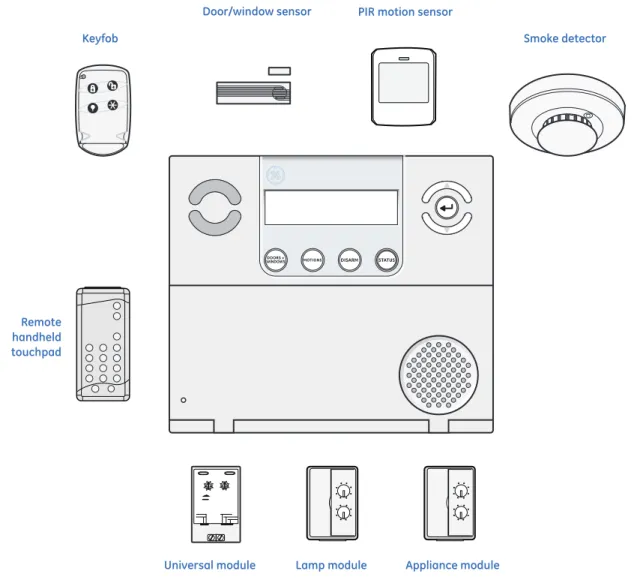
notification system, or any combination of the three. The system (
Figure 1
) has three types of components:
•
Self-contained control panel
•
Devices that report to the panel
•
Devices that respond to commands from the panel
Figure 1. Simon XT systemNote: The universal, lamp, and appliance modules require a special transformer.
The self-contained panel provides the main processing unit for all system functions. It receives and responds to
signals from wireless sensors and wireless touchpads throughout the premises. For monitored systems, the
panel can be connected to the premises phone line for central monitoring station reporting.
You can program the panel onsite from the keypad or remotely using Enterprise Downloader software. See
Programming on page 29 for complete onsite programming instructions.
Universal module
Door/window sensor PIR motion sensor
Smoke detector Appliance module Lamp module Keyfob Remote handheld touchpad
System components
The system can monitor up to 40 sensors and may use any of the devices listed in
Table 1
.
Table 1. Supported devicesDevice Description
Door/window sensor
(60-670) For intrusion protection, install door/window sensors on all ground-floor doors and windows. At a minimum, install them in the following locations: • All easily accessible exterior doors and windows.
• Interior doors leading into the garage.
• Doors to areas containing valuables such as cabinets and closets. Indoor motion sensor
(60-639)
Indoor motion sensors are ideal whenever it is not practical to install door/window sensors on every opening. Identify areas where an intruder is likely to walk through. Large areas in an open floor plan, downstairs family rooms, and hallways are typical locations for indoor motion sensors. For
installations with pets, use the SAW Pet Immune PIR (60-807). Outdoor motion sensor
(60-639)
Use outdoor motion sensors to detect motion in a protected outdoor area. Detected motion in this protected area can sound chimes or turn on outside lights.
X10 module When the panel is powered using the line carrier power transformer, the system can work with any of the following modules:
• X10 lamp module (13-403) • X10 appliance module (13-402)
• X10 power horn/remote siren module (13-398) • X10 universal module (13-399)
Freeze sensor (60-742) Freeze sensors detect low temperature conditions which may indicate a furnace failure. The sensor contains a bimetallic thermal switch connected to the built-in transmitter. The sensor transmits an alarm signal to the panel when the surrounding temperature drops to about 41°F (5°C). When the temperature rises to 50°F (10°C), the sensor transmits a restore signal.
Water sensor (60-744) Water sensors detect a water leak/rising water. The detector is connected to the sensor by an 8-foot (2.4-meter) cable. Water that reaches both detector contact points activates the sensor, causing it to transmit an alarm signal.
Smoke sensor
(60-848-95) Smoke sensors provide fire protection by causing an alarm to sound throughout the house. You can add smoke sensors near sleeping areas and on every floor of the house. Avoid areas that could have some smoke or exhaust such as attics, kitchens, above fireplaces, dusty locations, garages, and areas with temperature extremes. In these areas you may want to install Rate-of-Rise sensors to detect extreme temperature changes. Emergency planning on page 16 and the instructions packaged with the smoke sensor for complete placement information.
Carbon monoxide (CO)
alarm (60-652-95) The Learn Mode™ CO alarm alerts users to hazardous levels of carbon monoxide gas. If dangerous concentrations of gas are present, the red indicator light comes on, the internal siren goes off, and an alarm is transmitted to the panel. The panel sounds its own alarm and reports to the central station.
Keyfob (60-659) The keyfob (keychain touchpad) lets you turn the system on and off from right outside the home or activate a panic alarm if there is an emergency. If you have X10 lamp modules, you can use keyfobs to turn all system controlled lights on and off.
ELM (encrypted learn
mode) keyfob (60-832) The ELM (encrypted learn mode
™) 2-button keyfob is an alkaline battery-powered, wireless touchpad
that allows users to arm and disarm their system, and activate a police or auxiliary panic alarm. Random encrypted signal transmissions provide high security to help prevent signal copying.
Standard panel
Table 2
describes the basic panel (out-of-box) hardware capabilities.
Inspect the package and contents for visible damage. If any components are damaged or missing, do not use the
unit; contact the supplier immediately. If you need to return the unit, you must ship it in the original box.
Remote handheld touchpad (60-671)
The remote handheld touchpad lets you turn the system on and off while in the home, turn system controlled lights on and off (all or individual lights), or activate a panic alarm if there is a nonmedical emergency.
Water-resistant personal help button (60-906-95)
The water-resistant personal help button is a wireless device used for activating police, medical or auxiliary alarms through your system. When the help button is pressed, the light mounted under the cover will blink and an alarm signal is transmitted.
CAUTION: Do not use outdoor motion sensors for intrusion protection.
Table 2. Panel hardware capabilities
Hardware Capability
Power Input for an AC step-down, plug-in style transformer.
Siren output, two zone inputs Terminals for connecting hardware sirens or normally closed (NC) loop switch circuits. Phone line connection Allows panel to communicate with central monitoring station and/or remote phone.
Table 1. Supported devices (continued)
This chapter provides information to help you plan your installation to reduce
time and costs.
In this chapter:
Planning the installation
. . . .6
Control panel location
. . . .6
Planning sensor types and locations. . . .6
System configuration. . . 11
Planning the installation
This section describes system capabilities to help you get familiar with your system. The planning sheets
contain tables that let you record the hardware and programming configuration of your system. Complete all of
the information ahead of time to help prepare for system installation. Refer to Sensor names on page 68 for
sensor name segments listed alphabetically and by index number.
Control panel location
Locate the panel where alarm sounds can be heard and where the panel will be easily accessible for operation.
Do not install the panel near a window or door where it can be reached easily by an intruder.
Planning sensor types and locations
The first step to an easy and successful installation is to decide what areas or items to protect, which lights or
appliances to operate, and the best location for the panel, touchpad, sensors, and sirens.
Metal objects, mirrors, and metallic wallpaper can block signals sent by the wireless sensors. Make sure there
are no metal objects in the way when installing the system.
Use
Table 3,
Recommended sensor groups on page 7 and
Table 4,
Sensor group characteristics on page 7 to
determine the appropriate sensor type for the sensors you will be adding. Use
Table 5,
Sensor assignments/
locations on page 9 to document the planned sensor information. You will need to understand the application
for each sensor. For example, keyfobs are typically programmed as sensor group 01 (portable panic) and used
to send an intrusion alarm to a central monitoring station. This sensor type is instant intrusion, it does not
require restoral or supervisory communication with the panel and it is active in four arming levels:
1. Disarm.
2. Arm doors and windows.
3. Arm motion sensors.
Table 3. Recommended sensor groups
Device Recommended sensor group
Indoor motion sensor 17 (intrusion), 25 (chime) Outdoor motion sensor 25 (chime only)
Entry/exit door 10 Interior door 14 Window sensor 13 Smoke Sensor 26 Keyfob 01, 03, 06, 07 ELM keyfob 01, 03, 06, 07 Remote Handheld Touchpad 01, 03, 06, 07 CO Alarm 34
Freeze Sensor 29 Water Sensor 38 Personal Help Button 01, 03
Table 4. Sensor group characteristics
Ty
pe
Name/application Siren type Delay Rest
or al Su pe rv is or y Active In arming levels
00 Fixed panic: 24-hour audible fixed emergency button. Intrusion I N Y 1234 01 Portable panic: 24-hour audible portable emergency buttons. Intrusion I N N 1234 02 Fixed panic: 24-hour silent fixed emergency buttons. Status light will not blink. Silent I N Y 01234 03 Portable panic: 24-hour silent portable emergency buttons. Status light will not
blink. Silent I N N 01234
04 Fixed auxiliary: 24-hour auxiliary sensor. Emergency I N Y 01234 05 Fixed auxiliary: 24-hour emergency button. Siren shut off confirms CS report. Emergency I N Y 01234 06 Portable auxiliary: 24-hour portable auxiliary alert button. Emergency I N N 01234 07 Portable auxiliary: 24-hour portable auxiliary button. Siren shut off confirms CS
report.
Emergency I N N 01234
08 Special intrusion: such as gun cabinets and wall safes. DTM (tamper only). Intrusion I Y Y 1234 09 Special intrusion: such as gun cabinets and wall safes. Intrusion S Y Y 1234 10 Entry/exit delay: A delay that requires a standard delay time. chime. Intrusion S Y Y 24 13 Instant perimeter: Exterior doors and windows. chime. Intrusion I Y Y 24 14 Instant interior: Interior doors. Intrusion F Y Y 234
15 Instant interior: Interior PIR motion sensors. Intrusion F Y Y 234 16 Instant interior: Interior doors. Intrusion F Y Y 34 17 Instant interior: PIR motion sensors and Sound sensors. Intrusion F N Y 34 18 Instant interior: Cross-zone PIR motion sensors. Intrusion F N Y 34 19 Delayed interior: Interior doors that initiate a delay before going into alarm. Intrusion S Y Y 34 20 Delayed interior: PIR motion sensors that initiate a delay before going into
alarm.
Intrusion S N Y 34
21 Local instant interior: 24-hour local alarm zone protecting anything that opens
and closes. No report. Intrusion I Y Y 1234 22 Local delayed interior: same as group 21, plus activation initiates a delay
before going into alarm. No report.
Intrusion S Y Y 1234
23 Local instant auxiliary: 24-hour local alarm zone protecting anything that
opens and closes. No report. Emergency I Y Y 01234 24 Local instant auxiliary: 24-hour local alarm zone protecting anything that
opens and closes. Sirens shut off at restoral. No report.
Emergency I Y Y 01234
25 Local special chime: notify the user when a door is opened. Sounds emit from a local annunciator. One direct bypass and unbypass when no special motion chime sensors are in the security system. No report.
Three beeps I N Y 01234
26 Fire: 24-hour fire, rate-of-rise heat, and smoke sensors. Fire I Y Y 01234 27 Lamp control or other customer feature. No report. Silent I Y Y 01234 28 PIR motion sensor, sound sensor, or pressure mat.RF thermostat. No report. Silent I N Y 01234 29 Auxiliary: freeze sensors. Trouble beeps I Y Y 01234 32 PIR motion sensor or sound sensor. No report. Silent I N N 01234 34 Carbon monoxide alarm. Emergency I Y Y 01234 35 Entry/exit delay interior PIR motion. Intrusion S N Y 234 36 Special Intrusion: such as gun cabinets and wall safes. Reports as tamper if
tripped. Intrusion I Y Y 1234
37 Light switch control: X10 modules turn either on or off when a door is opened. Silent I N Y 01234 38 Auxiliary: water sensors. Trouble beeps I Y Y 01234 39 Local instant interior: 24-hour local alarm zone protecting anything that opens
and closes. No report.
Intrusion I Y Y 1234
40 Local special chime. Three beeps I Y Y 01234
Table 4. Sensor group characteristics (continued)
Ty
pe
Name/application Siren type Delay Rest
or al Su pe rv is or y Active In arming levels
Table 5. Sensor assignments/locations
Sensor # Device Sensor group Sensor name/location Notes
01 02 03 04 05 06 07 08 09 10 11 12 13 14 15 16 17 18 19 20 21 22 23 24 25 26 27 28 29 30
Cross-zoning
Cross-zoning
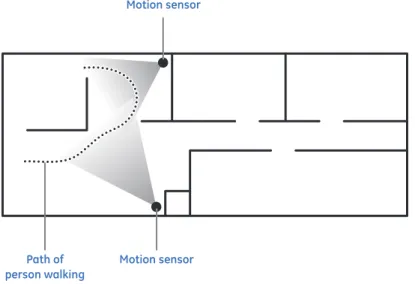
(two-trip) refers to two different group 18 sensors that must be tripped within two minutes of
each other to report an alarm to the central station.
Figure 2
shows the path of a person walking from the
kitchen to the living room. When the person is detected walking through the kitchen, the motion sensor in the
kitchen is tripped, sounding a local alarm. If motion is detected by the living room motion sensor within two
minutes, an alarm report will be sent to the central station.
Figure 2. Cross-zone diagram
Note: We do not recommend cross-zoning for exit/entry zones. Each zone can individually protect the intended area. 31 32 33 34 35 36 37 38 39 40
Table 5. Sensor assignments/locations (continued)
Sensor # Device Sensor group Sensor name/location Notes
Motion sensor
Motion sensor Path of
System configuration
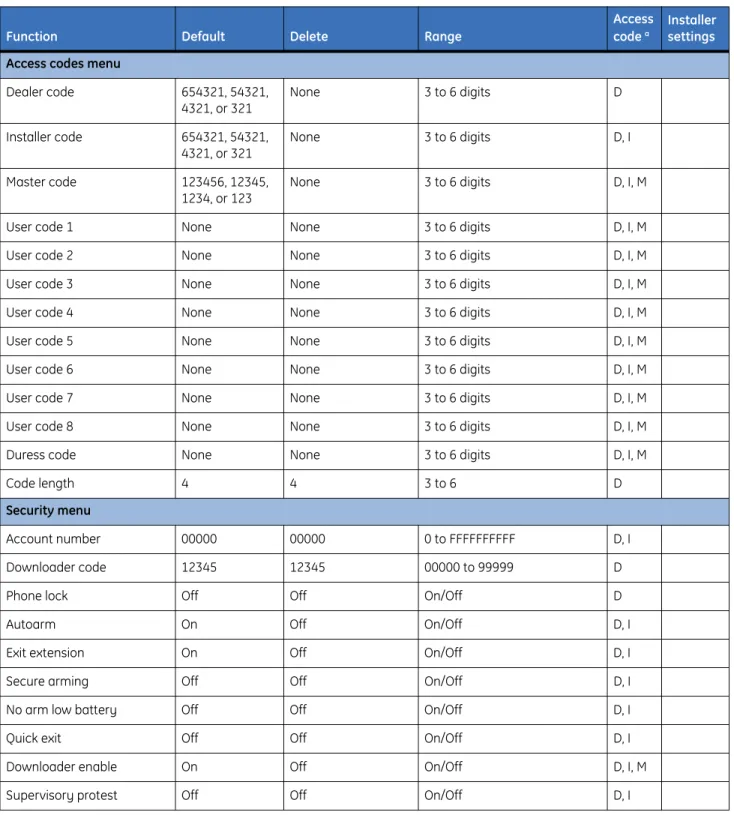
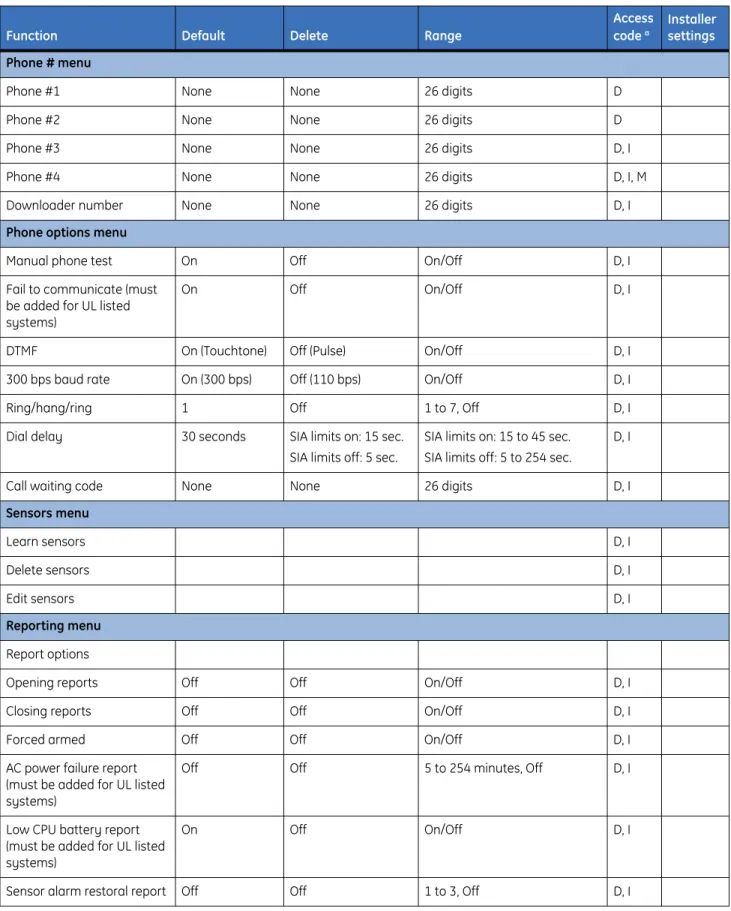
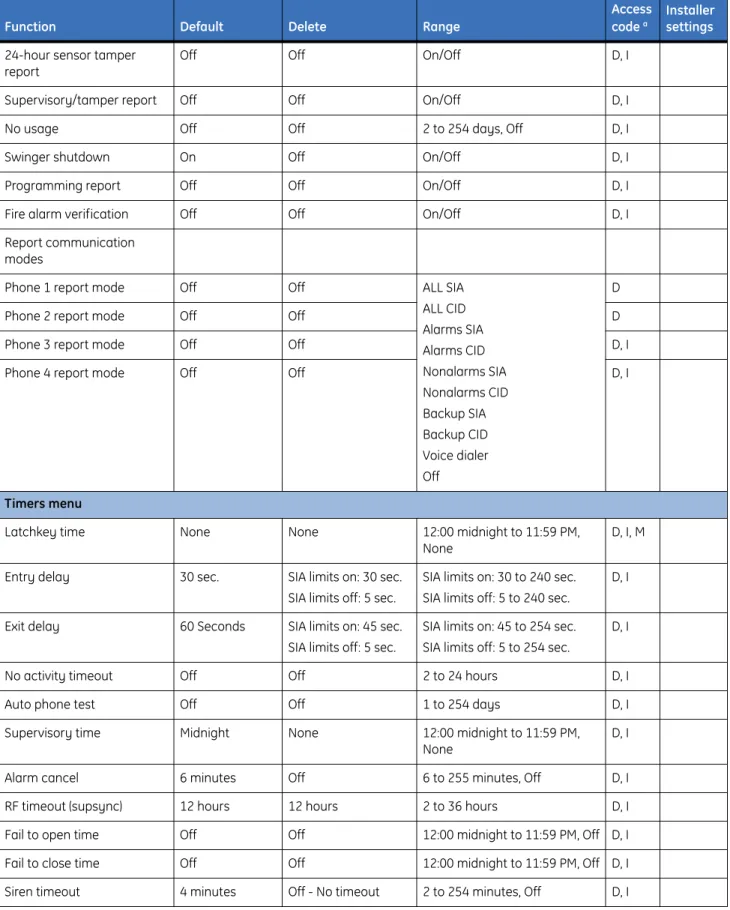
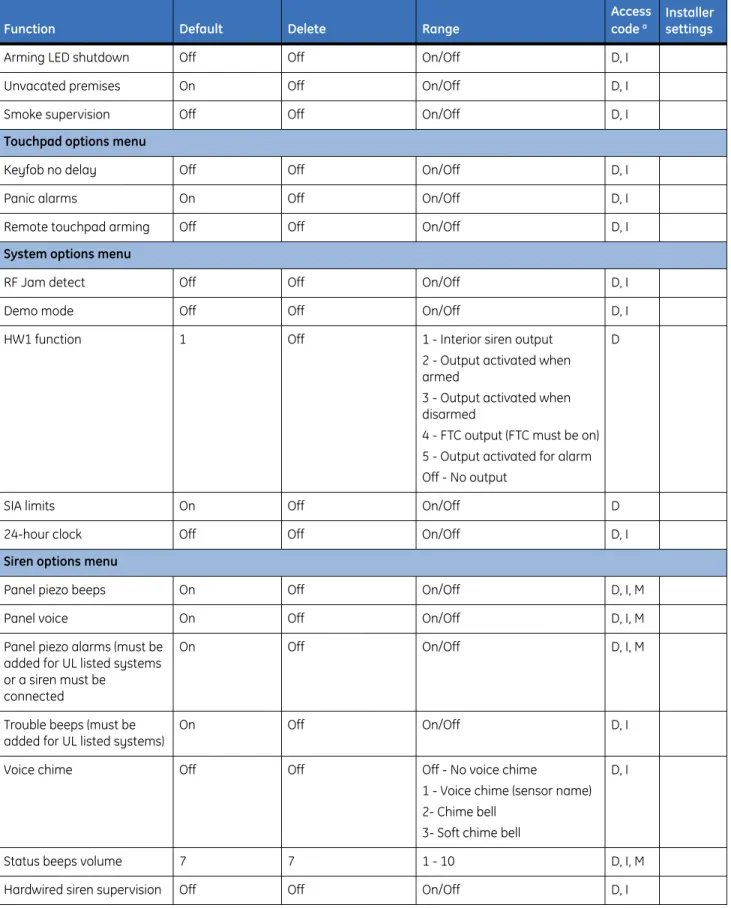
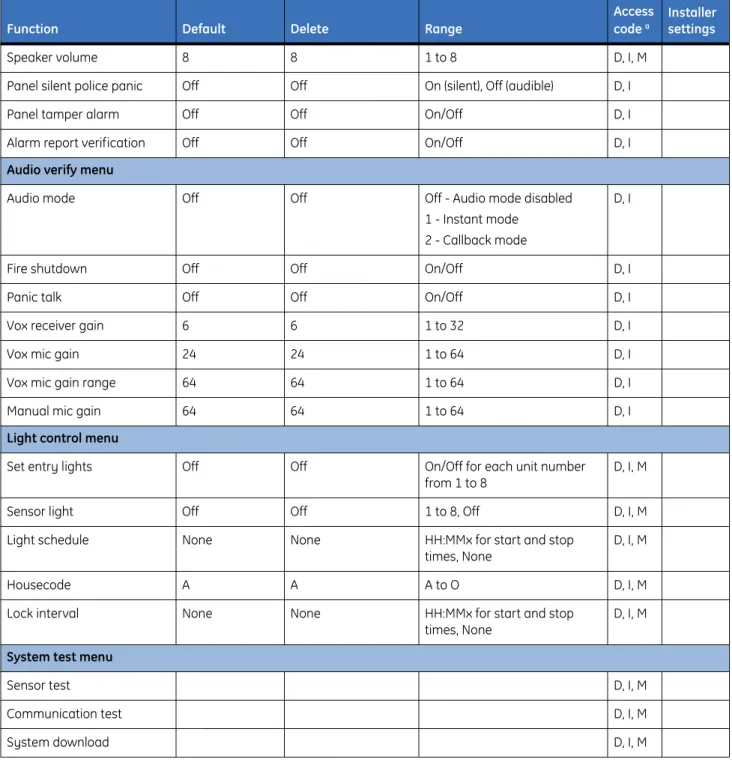
Table 6
is a worksheet for you to record the desired values for each programming option. For each option, the
default value, effect of deletion (pressing
DISARM
while editing), range, and programming privilege are also
listed. Each option is described in more detail in
Chapter 4
Programming on page 29.
Table 6. System programming menu options
Function Default Delete Range
Access
code a Installer settings
Access codes menu
Dealer code 654321, 54321, 4321, or 321 None 3 to 6 digits D Installer code 654321, 54321, 4321, or 321 None 3 to 6 digits D, I Master code 123456, 12345, 1234, or 123 None 3 to 6 digits D, I, M User code 1 None None 3 to 6 digits D, I, M User code 2 None None 3 to 6 digits D, I, M User code 3 None None 3 to 6 digits D, I, M User code 4 None None 3 to 6 digits D, I, M User code 5 None None 3 to 6 digits D, I, M User code 6 None None 3 to 6 digits D, I, M User code 7 None None 3 to 6 digits D, I, M User code 8 None None 3 to 6 digits D, I, M Duress code None None 3 to 6 digits D, I, M
Code length 4 4 3 to 6 D
Security menu
Account number 00000 00000 0 to FFFFFFFFFF D, I Downloader code 12345 12345 00000 to 99999 D
Phone lock Off Off On/Off D
Autoarm On Off On/Off D, I
Exit extension On Off On/Off D, I Secure arming Off Off On/Off D, I No arm low battery Off Off On/Off D, I Quick exit Off Off On/Off D, I Downloader enable On Off On/Off D, I, M Supervisory protest Off Off On/Off D, I
Phone # menu
Phone #1 None None 26 digits D Phone #2 None None 26 digits D Phone #3 None None 26 digits D, I Phone #4 None None 26 digits D, I, M Downloader number None None 26 digits D, I
Phone options menu
Manual phone test On Off On/Off D, I Fail to communicate (must
be added for UL listed systems)
On Off On/Off D, I
DTMF On (Touchtone) Off (Pulse) On/Off D, I 300 bps baud rate On (300 bps) Off (110 bps) On/Off D, I Ring/hang/ring 1 Off 1 to 7, Off D, I Dial delay 30 seconds SIA limits on: 15 sec.
SIA limits off: 5 sec.
SIA limits on: 15 to 45 sec. SIA limits off: 5 to 254 sec.
D, I
Call waiting code None None 26 digits D, I
Sensors menu Learn sensors D, I Delete sensors D, I Edit sensors D, I Reporting menu Report options
Opening reports Off Off On/Off D, I Closing reports Off Off On/Off D, I Forced armed Off Off On/Off D, I AC power failure report
(must be added for UL listed systems)
Off Off 5 to 254 minutes, Off D, I
Low CPU battery report (must be added for UL listed systems)
On Off On/Off D, I
Sensor alarm restoral report Off Off 1 to 3, Off D, I
Table 6. System programming menu options (continued)
Function Default Delete Range
Access code a
Installer settings
24-hour sensor tamper
report Off Off On/Off D, I
Supervisory/tamper report Off Off On/Off D, I No usage Off Off 2 to 254 days, Off D, I Swinger shutdown On Off On/Off D, I Programming report Off Off On/Off D, I Fire alarm verification Off Off On/Off D, I Report communication
modes
Phone 1 report mode Off Off ALL SIA ALL CID Alarms SIA Alarms CID Nonalarms SIA Nonalarms CID Backup SIA Backup CID Voice dialer Off D
Phone 2 report mode Off Off D
Phone 3 report mode Off Off D, I Phone 4 report mode Off Off D, I
Timers menu
Latchkey time None None 12:00 midnight to 11:59 PM, None
D, I, M
Entry delay 30 sec. SIA limits on: 30 sec. SIA limits off: 5 sec.
SIA limits on: 30 to 240 sec. SIA limits off: 5 to 240 sec.
D, I
Exit delay 60 Seconds SIA limits on: 45 sec. SIA limits off: 5 sec.
SIA limits on: 45 to 254 sec. SIA limits off: 5 to 254 sec.
D, I
No activity timeout Off Off 2 to 24 hours D, I Auto phone test Off Off 1 to 254 days D, I Supervisory time Midnight None 12:00 midnight to 11:59 PM,
None
D, I
Alarm cancel 6 minutes Off 6 to 255 minutes, Off D, I RF timeout (supsync) 12 hours 12 hours 2 to 36 hours D, I Fail to open time Off Off 12:00 midnight to 11:59 PM, Off D, I Fail to close time Off Off 12:00 midnight to 11:59 PM, Off D, I Siren timeout 4 minutes Off - No timeout 2 to 254 minutes, Off D, I
Table 6. System programming menu options (continued)
Function Default Delete Range
Access code a
Installer settings
Arming LED shutdown Off Off On/Off D, I Unvacated premises On Off On/Off D, I Smoke supervision Off Off On/Off D, I
Touchpad options menu
Keyfob no delay Off Off On/Off D, I Panic alarms On Off On/Off D, I Remote touchpad arming Off Off On/Off D, I
System options menu
RF Jam detect Off Off On/Off D, I
Demo mode Off Off On/Off D, I
HW1 function 1 Off 1 - Interior siren output 2 - Output activated when armed
3 - Output activated when disarmed
4 - FTC output (FTC must be on) 5 - Output activated for alarm Off - No output
D
SIA limits On Off On/Off D
24-hour clock Off Off On/Off D, I
Siren options menu
Panel piezo beeps On Off On/Off D, I, M Panel voice On Off On/Off D, I, M Panel piezo alarms (must be
added for UL listed systems or a siren must be
connected
On Off On/Off D, I, M
Trouble beeps (must be
added for UL listed systems) On Off On/Off D, I Voice chime Off Off Off - No voice chime
1 - Voice chime (sensor name) 2- Chime bell
3- Soft chime bell
D, I
Status beeps volume 7 7 1 - 10 D, I, M Hardwired siren supervision Off Off On/Off D, I
Table 6. System programming menu options (continued)
Function Default Delete Range
Access code a
Installer settings
Speaker volume 8 8 1 to 8 D, I, M Panel silent police panic Off Off On (silent), Off (audible) D, I Panel tamper alarm Off Off On/Off D, I Alarm report verification Off Off On/Off D, I
Audio verify menu
Audio mode Off Off Off - Audio mode disabled 1 - Instant mode
2 - Callback mode
D, I
Fire shutdown Off Off On/Off D, I Panic talk Off Off On/Off D, I Vox receiver gain 6 6 1 to 32 D, I Vox mic gain 24 24 1 to 64 D, I Vox mic gain range 64 64 1 to 64 D, I Manual mic gain 64 64 1 to 64 D, I
Light control menu
Set entry lights Off Off On/Off for each unit number
from 1 to 8 D, I, M Sensor light Off Off 1 to 8, Off D, I, M Light schedule None None HH:MMx for start and stop
times, None
D, I, M
Housecode A A A to O D, I, M
Lock interval None None HH:MMx for start and stop
times, None D, I, M
System test menu
Sensor test D, I, M
Communication test D, I, M
System download D, I, M
a. This column tells what type of access code is allowed to make changes: D = dealer code, I = installer code, M = master code. Table 6. System programming menu options (continued)
Function Default Delete Range
Access code a
Installer settings
Emergency planning
Use these guidelines when drawing an emergency floor plan for the homeowner:
•
Show all building levels.
•
Show exits from each room. (We recommend two exits per room.)
•
Show the locations of all security system components.
This section describes how to open the panel for mounting, mount the panel,
connect sirens, connect hardwired contacts, and connect the AC power
transformer.
In this chapter:
Opening panel cover and chassis
. . . .18
Mounting the panel
. . . .19
Connecting hardwired devices. . . .20
HW1 I/O, HW2 in, and HW1&2 DC out terminals. . . .20
Interior sirens
. . . .20
LD105 hardwired interior siren
. . . .21
Hardwired contacts
. . . .22
Wiring a phone line to the panel . . . .23
Full line seizure. . . .23
Wiring the power transformer
. . . .26
Powering up the panel
. . . .26
Installing X10 modules
. . . .28
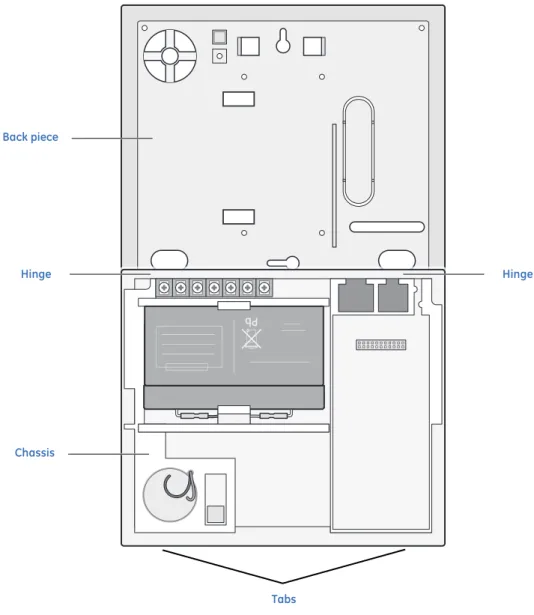
Opening panel cover and chassis
Tabs at the top of the panel secure and release the front cover and the chassis. The plastic hinges on the panel
bottom allow the cover and chassis to swing down and out of the way (
Figure 3
).
Figure 3. Opening the panel cover and chassis
Pb
Tabs
Hinge Hinge
Back piece
Mounting the panel
To mount the panel on a wall, do the following:
1. Choose a panel location.
2. Run all necessary power, phone, siren, and hardwired contact wires to the desired panel location.
Note: When choosing the AC outlet location for the AC power transformer, make sure the outlet is not controlled by aswitch or that it is not part of a ground fault circuit interrupt (GFCI).
3. Hold the panel against the wall and mark the mounting hole locations with a pencil.
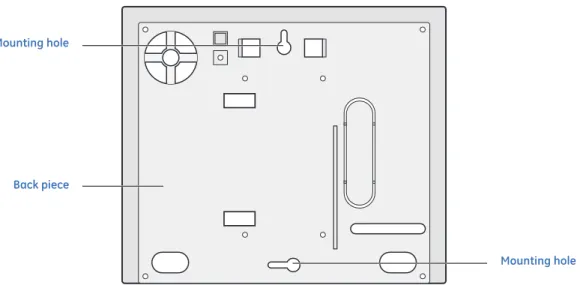
4. Mount the back piece to the wall through the two horizontally centered mounting holes near the top
and bottom using the supplied mounting hardware. Use wall anchors if no studs are present (
Figure 4
).
Figure 4. Panel mounting hole locations5. Connect the chassis assembly to the mounted back piece and let it hang down. This makes the
terminal strip accessible for wiring various hardwired components to the panel.
6. Feed wires through openings in the back piece to be ready to attach them to the screw terminals or the
phone connectors.
7. Install all screws and tighten gently.
Mounting holeMounting hole Back piece
Connecting hardwired devices
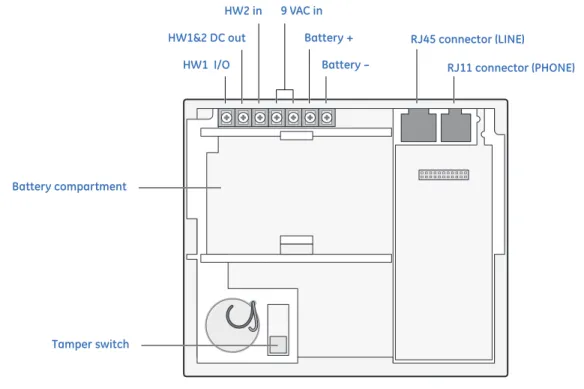
The panel has seven screw terminals and two telephone connections (
Figure 5
). The screw terminals connect
AC power, sirens, and/or hardwired detectors.
Program sensors and devices before you install them. Follow the instructions in
Chapter 4
Programming to
add the sensors to panel memory.
Figure 5. Simon XT terminal connections
HW1 I/O, HW2 in, and HW1&2 DC out terminals
The
HW1 I/O
terminal is dual purpose and can be used for either siren or hardwired contact connections. The
HW2 in
terminal is an input only.
Interior sirens
From the factory, the
HW1 I/O
input is set up for interior siren operation (status and alarm sounds).
HW1&2
DC out
provides the positive (+) voltage.
Note: The total current available from the HW1&2 DC out terminal is 250 mA at up to 122°F (50°C).
With
Hardwired Siren Supervision
turned on, sirens connected to
HW1 I/O
are supervised and require a
4.7 kohm resistor in the circuit. If this terminal is not used, turn
Hardwired Siren Supervision
off.
9 VAC in Battery – Battery compartment Battery + HW1&2 DC out HW2 in
HW1 I/O RJ11 connector (PHONE)
RJ45 connector (LINE)
LD105 hardwired interior siren
Interior sirens must always be wired with a resistor in the circuit. For circuit supervision which allows the
panel to detect if the siren wire is cut (open),
Hardwired Siren Supervision
must be turned on. (See
Chapter 4
Programming on page 29).
Note: Do not install the resistor at the panel terminals. This does not provide supervision of the wire.
Connect the LD105 hardwired interior siren (13-374) to the panel using a 4.7 kohm resistor (included with the
siren) as shown in
Figure 6
. The resistor must be connected across the siren wires as close to the siren as
possible.
Figure 6. Hardwired interior siren with supervision
HW1 I/O
HW1&2
DC out
HW2 in
9 V
AC in
9 V
AC in
Battery +
Battery
-4.7 kohm resistor(located at siren) Black Red
Hardwired contacts
To set up
HW1 I/O
and/or
HW2 in
for hardwired contacts, make the required connections as described under
below, then proceed to the Programming on page 29 to add (learn) them into panel memory.
You can connect hardwired reed switches (normally closed loop only) to
HW1 I/O
(if not being used for a
hardwired siren) and/or
HW2 in
.
Note: Connect only normally closed (NC) reed switches to HW1 I/O and/or HW2 in. Other types of hardwired detectors should not be used.
The total resistance of the wire loop must not exceed 3 ohms. This allows you to use up to 200 ft. (61 m) of
two-conductor, 22-gauge stranded wire.
Connect hardwired reed switches to the panel using a 47 kohm resistor (not a 4.7 kohm resistor) as shown in
Figure 7
. The resistor must be connected at the last switch in the circuit.
Note: Do not install the resistor at the panel terminals. This does not provide supervision of the wire.
Figure 7. Connecting normally closed hardwired reed switches
HW1 I/O
HW1&2
DC out
HW2 in
9 V
AC in
9 V
AC in
Battery +
Battery
-47 kohm resistorsWiring a phone line to the panel
You can connect a phone line to the panel for systems monitored by a central monitoring station or systems that
notify users by a voice event notification.
DSL (digital subscriber line) allows the use of multiple devices on a single phone line simultaneously. For
DSL environments, connect the panel line-in jack to an available phone jack on the premises. You might also
need an inline filter to ensure panel reporting is successful.
Note: Avoid connecting the panel to a standard phone (voice) line in this manner. Other devices in use at the same time the panel is using the line can prevent reports from going through.
Full line seizure
Full line seizure allows the panel to take over (seize) the phone line, even if another device on the line is in use.
This method requires that the panel be wired before all other phones, answering machines, computers, or other
devices on the phone line.
Use the RJ31X (CA-38A) jack (
Figure 8
on page 24) when wiring for full line seizure. This lets the user
quickly and easily disconnect the panel from the phone line in case the panel disables the phone line due to a
malfunction.
Full line seizure wiring with an RJ31X
1. Run a four-conductor cable
Afrom the premises Telco block
Dto the RJ31X
B.
2. Connect the four-conductor cable
Awires to the RJ31X
B.
3. Disconnect the green and red premises phone jack wires from the Telco block
Dand splice them
Cto
the four-conductor cable
Ablack and white (or yellow) wires. Use weatherproof wire connectors for
these splices.
4. Connect the four-conductor cable
Agreen and red wires to the Telco block
DTIP (+) and red to RING
(–) posts.
Figure 8. Full line seizure wiring with RJ31X
Pb
Green
Black
Gr
een
Red
White
(or Y
ellow)
Red
BRN
GRY
(+)
(-)
TIP RING
GRN
RED
Black
White (or Yellow)
Green
Red
E A B C DFull line seizure wiring with one premises phone
If a single phone is all that exists on the premises, full line seizure can be accomplished without an RJ31X
(
Figure 8
on page 25).
1. Disconnect the phone from the premises phone jack and plug it into the panel PHONE jack
A. This
jack is disconnected automatically whenever the panel reports.
2. Connect the included phone cord to the panel LINE jack and the premises phone jack
B.
Note: If customers add phones or other phone devices to another phone jack, full line seizure no longer exists. Inform them to contact you if they want to add a phone or other device so that you can rewire for full line seizure by adding an RJ31X.
Figure 9. Full line seizure wiring with single landline phone
Pb
A
B Line premises phone
Wiring the power transformer
Connect the power transformer to the panel AC terminals as shown in
Figure 10
.
Figure 10. Transformer connectionsNote: Do not plug in the transformer at this time
Powering up the panel
When applying power to the panel connect the battery first, then plug in the AC power transformer. This
sequence prevents a battery fault condition.
Installing the backup battery
To install the backup battery (6 VDC, 1.2 Ah), do the following:
1. Feed the stripped ends (bare stranded wires) of the battery leads underneath the terminal barrier and
connect the black wire to the negative (
Batt-neg
) screw terminal and the red wire to the positive
(
Batt+pos
) screw terminal (
Figure 11
on page 27).
2. Connect the lug end of the red battery lead to the red battery tab.
3. Connect the lug end of the black battery lead to the black battery tab.
4. Align the red (+) battery terminal with the right end of the terminal strip. The logo and specification
information should be readable.
5. Insert the front end of the battery under the forward battery compartment latch.
6. Push forward and rotate the battery downward until it seats beneath the rear battery compartment latch.
CAUTION: Do not connect the battery until you are ready to power up the panel. See Powering up the panel on page 26.-Figure 11. Installing the panel backup battery
Applying AC power
Make sure the outlet is not controlled by a switch or that it is not part of a ground fault circuit interrupt (GFCI).
1. Remove the center screw from the outlet cover plate and hold the cover plate in place.
2. Plug the transformer into the lower receptacle of the outlet so that the hole in the transformer tab lines
up with the outlet cover screw hole.
3. Insert the cover plate screw through the transformer tab and the outlet cover plate. Tighten the screw.
WARNING: Use extreme caution when securing the transformer to a metal outlet cover. You could receive a serious shockif a metal outlet cover drops down onto the prongs of the plug.
Installing X10 modules
To install lamp and appliance modules, do the following:
1. Set the unit code dial to a unit number between 1 and 8.
2. Set the housecode for the installation.
3. Plug the module into a wall outlet.
4. Plug the lamp/appliance into the module.
To install universal modules, do the following:
1. Set the unit code dial to a unit number different from all other X10 modules (between 1 and 8).
2. Set the housecode for the installation.
3. Set the module switches to momentary and relay only.
4. Connect the module terminals to the desired device terminals.
5. Plug the universal module into a wall outlet.
This chapter provides steps on how to program your unit.
In this chapter:
Programming overview
. . . .30
Entering and exiting the system menu
. . . .31
Menu navigation . . . .32
Set clock
. . . .34
Revision. . . .34
Contrast. . . .34
System programming
. . . .35
Access codes . . . .35
Security
. . . .36
Phone numbers . . . .37
Phone options . . . .38
Sensors
. . . .39
Reporting. . . .41
Timers . . . .44
Touchpad options
. . . .45
System options. . . .46
Siren options . . . .47
Piezo beep options
. . . .48
Audio verification options. . . .49
Light control (optional). . . .50
System tests
. . . .52
Resetting memory to the factory defaults
. . . .53
Programming overview
The control panel
Figure 12
provides the main processing unit for all system functions. The programming of
system options and features is menu-driven. All installer options are set in the
System Programming
menu,
except for setting the system time.
Table 7
on page 31 explains the panel keys and features shown in
Figure 12
.
Figure 12. Simon XT self-contained panelBYPASS SILENT Number keypad Speaker Lights on Emergency Police Microphone Fire Door MOTIONS DOORS+WINDOWS DISARM STATUS Lights off Scroll up Enter Scroll down Piezo siren LCD display
Entering and exiting the system menu
To enter the system menu, press either the scroll up/down or
Enter
buttons in the upper right of the panel.
Press the
STATUS
button to exit a menu or option edit mode and navigate up one level. Pressing the
STATUS
button while in the top menu level exits the system menu level. The panel automatically exits the system menu
after a few seconds of inactivity if no access code has been entered yet. After an access code has been entered
to access a code-protected area of the system menu, the timeout is 4 minutes.
Table 7. Simon XT panel keys and features
Control Description
Piezo siren The piezo siren makes alarm beeps and status beeps. Fire and intrusion alarm beeps are always played at high volume, while the volume of status beeps (such as trouble or chime beeps, entry and exit delay beeps, or auxiliary alarm beeps) is programmable.
LCD display The LCD module has a 2 x 16 character array that displays a variety of phrases and icons. DOORS + WINDOWS Press to arm perimeter sensors.
MOTIONS Press to arm interior sensors.
DISARM Press to turn off intrusion/burglary protection for your system. Only intrusion/burglary sensors such as doors, windows, and motion sensors are disarmed. Environmental sensors, such as smoke and carbon monoxide, stay active at all times.
STATUS Press to determine system status. SILENT Press to silence exit beeps when arming. BYPASS Press to bypass a sensor.
Police Press and hold the Police buttonfor two seconds (or press twice quickly) to call the central monitoring station and notify them of a nonmedical call for help.
Emergency Press and hold the Emergency buttonfor two seconds (or press twice quickly) to call the central monitoring station and notify them of a nonmedical call for help.
Fire Press and hold the Fire buttonfor two seconds (or press twice quickly) to call the central monitoring station and notify them of a nonmedical call for help.
Microphone Used to communicate with central monitoring station after an alarm. Scroll up/scroll down Press to scroll through lists of similar items.
Enter Press to select a particular menu item or commit to memory a menu item that has just been programmed.
Numeric keypad Twelve-key telephone-type keypad (0 through 9, *, #) for entering access codes or other numerical data.
Speaker Provides voice output and sounds key beeps. The panel speaks arming level changes, system status, and voice chime sensor trips. The panel voice is also used for voice reporting and remote phone control. Door Covers the lower panel.
* Lights on. # Lights off.
Menu navigation
Each menu contains a list of options and/or submenus. Press the scroll up/down buttons to navigate up and
down the list of options and submenus in that menu. Pressing the
Enter
key after navigating to an option
selects that option for editing and flashes the current value. Pressing the
Enter
key after navigating to a
submenu enters that submenu, making a new list of options accessible. Pressing
STATUS
exits a menu and
goes to the next higher level.
Programming options are arranged in a menu structure as outlined in
Table 8
. The top menu contains several
features, as well as the
System Programming
menu. When accessing the
System Programming
or
System Tests
menu, the panel prompts you to enter an access code. To continue, enter the
Dealer Code
or
Installer Code
,
then press
Enter
.
To program an option, first navigate to that option until it is displayed, then press
Enter
. The option value will
start flashing, indicating that it is ready to be changed. Use the scroll keys or enter a numerical value to change
the option, then press the
Enter
key to save the change.
Table 8. Simon XT menu structure
System time Security
Enable scheduled lights Account number
Enable sensor-activated lights Downloader code
Enable chime Phone lock
Enable special chime Autoarm
System tests Exit extension
Sensor test Secure arming
Communication test No arm on panel low battery Initiate download call Quick exit
System programming Downloader enable
Access codes Supervisory protest Dealer code Phone #s
Installer code Phone #1
Master code Phone #2
User code 1 Phone #3
User code 2 Phone #4
User code 3 Downloader phone number User code 4 Phone options
User code 5 Manual phone test User code 6 Fail to communicate User code 7 DTMF dialing User code 8 300 bps baud rate Duress code Ring/hang/ring Code length Dialer delay
Sensors System options Learn sensor RF jam detect Delete sensor Demo mode
Edit sensor HW1 I/O
Reporting SIA limits
Report options 24-hour clock format Opening report Siren options
Closing report Panel piezo beeps Force armed report Panel voice AC power failure report Panel piezo alarms Panel low battery report Trouble beeps Sensor alarm restoral report Voice chime 24-hour sensor tamper Status beep volume Supervisory/tamper report Hardwired siren supervision No usage report Speaker volume
Swinger shutdown Panel silent police panic Programming report Panel tamper
Fire alarm verification Alarm report verification Communication modes Audio verification
Phone 1 reports Audio mode Phone 2 reports Fire shutdown Phone 3 reports Panic talk Phone 4 reports VOX receiver gain Timers VOX microphone gain
Latchkey time VOX gain range
Entry delay Manual microphone gain Exit delay Light control
No activity timeout Set entry lights Auto phone test Sensor lights Supervisory time Light schedules Alarm cancel window Housecode RF timeout Lock interval Fail to open time System tests Fail to close time Sensor test
Siren timeout Communication test Arming LEDs shutdown Initiate download call Unvacated premises Revision
Smoke sensor supervision Contrast
Touchpad options Keyfob no delay Panel panic alarms Remote touchpad arming
Set clock
If the panel loses both AC and battery power, then upon restoring power the system time will reset to midnight
and blink, indicating it has not been set correctly. You can set the system time to display in either 12-hour or
24-hour format.
Time of day format is HH:MMx, where:
HH = 01 to 12 (12-hour format) or 00-23 (24-hour format)
MM = 00 to 59
x = a or p (12-hour format) or none (24-hour format)
To reset the clock:
1. Scroll up/down until the display shows
Set clock
.
2. Press
Enter
.
3. The display shows
Enter Code
.
4. Enter your code with numeric keys. Press
Enter
.
5. Press
Enter
. The display now flashes the hours.
6. Scroll up/down to set the hours.
7. Press the
Enter
key to accept. The display now flashes the minutes.
8. Scroll up/down to set the minutes.
9. Press the
Enter
key to accept. The display is now flashing the AM/PM.
10. Scroll up/down to set the AM/PM.
11. Press
Enter
to accept. The display now shows the current time, and stops flashing.
12. Press the
STATUS
button twice to exit.
Revision
To display the firmware revision of the system:
1. Scroll up/down to
Revision
.
2. Press the
STATUS
button to exit.
Contrast
To adjust the
Contrast
of the display:
1. Scroll up/down to
Contrast
.
2. Press the
Enter
button.
3. Scroll up/down to increase and decrease the contrast setting.
4. Press the
STATUS
button to save the setting and exit.
System programming
To enter system programming mode, do the following:
1. Press the scroll buttons until the panel displays
System Programming
.
2. Press
Enter
. The system prompts for an access code.
3. Enter the access code from the codes listed in
Table 9
. The system displays each entered access code
digit as an asterisk.
4. Press
Enter
. The panel is now in program mode.
Note: Do not remove panel power while in program mode.Access codes
Table 9. Simon XT programming codes
Code Description
Dealer code You can use the dealer code to program all system options, including high-security options that are not accessible with the installer code if it is different from the dealer code. Depending on how the access code is set, the default dealer access code is 654321, 54321, 4321 (factory default), or 321. This code can be used for all programming.
Installer code Depending on how the access code is set, the default installer code is 654321, 54321, 4321 (factory default), or 321. This code is limited to changing all but the following: Dealer code, Code length, Downloader code, Phone lock, Phone #1, Phone #2, Phone 1 report mode, Phone 2 report mode, HW 1 function, SIA limits.
Table 10. Access codes
Function Default Description
Dealer code 4321 You can use the dealer code to program all system options, including high-security options that are not accessible with the installer code if it is different from the dealer code. Changing the dealer code to differ from the installer code will prevent the installer from viewing certain fields.
1. Change the dealer code.
2. Enter program mode with the installer code.
3. Installer should no longer be able to see the following:
Code length, Downloader code, Phone lock, Phone #1, Phone #2, Phone 1 report mode, Phone 2 report mode, HW1 function, SIA limits.
Installer code 4321 You can use the installer code to program most installer options, except for high-security dealer options.
Master code 1234 Master arm/disarm code.
Master code able to enter user programming and bypass sensors. User codes 1 to 8 Blank Regular arm/disarm code.
Duress code Blank Use in place of master or user code to cause a silent alarm. Code length Four digits Code can be three to six digits long.