Micro Focus Data Express
™
Copyright © 2003-2010 Micro Focus (IP) Ltd. All rights reserved.
Micro Focus (IP) Ltd. has made every effort to ensure that this book is correct and accurate, but reserves the right to make changes without notice at its sole discretion at any time. The software described in this document is supplied under a license and may be used or copied only in accordance with the terms of such license, and in particular any warranty of fitness of Micro Focus software products for any particular purpose is expressly excluded and in no event will Micro Focus be liable for any consequential loss.
Animator®, COBOL Workbench®, EnterpriseLink®, Mainframe Express®, Micro Focus®, Net Express®, REQL®, and Revolve® are registered trademarks, and AAI™, Analyzer™, Application Server™, Application to Application Interface™, AddPack™, AppTrack™,
AssetMiner™, CCI™, DataConnect™, Dialog System™, Enterprise Server™, Enterprise Server with MTO™, EuroSmart™, FixPack™, LEVEL II COBOL™, License Server™, Mainframe Access™, Mainframe Manager™, Micro Focus® COBOL™, Micro Focus® Studio™, Micro Focus® Server™, Object COBOL™, OpenESQL™, Personal COBOL™, Professional COBOL™, Server Express™, SmartFind™, SmartFind Plus™, SmartFix™, SourceConnect™, SupportLine™, Toolbox™, VS COBOL™, WebSync™, and Xilerator™ are trademarks of Micro Focus (IP) Ltd.
IBM® and CICS® are registered trademarks, and IMS™, DB2, DB2/390, DB2 Connect Enterprise Edition, DB2 Connect Personal Edition, COBOL for OS/390, Enterprise Systems Architecture/390, ESA/390, MVS, MVS/ESA, OS/390, S/390, System/390, VSE/ESA, and MFS are trademarks, of International Business Machines Corporation.
Netscape Enterprise Server™ is a trademark of Netscape Communications Corporation. Internet Information Server®, SQL Server®, Visual Studio®, Windows 95®, Windows 98®, Windows NT 4.0®, Windows ME®, Windows 2000®, Windows Server®, Windows XP®, and Windows Vista® are registered trademarks of Microsoft Corporation in the United States and other countries.
Pentium® is a registered trademark of INTEL Corporation.
Borland Database Engine™ and MIDAS™ are trademarks of Borland Software Corporation. Oracle™ is a trademark of Oracle Corporation Inc.
UNIX® is a registered trademark of The Open Group.
Solaris™, Ultra Sparc™, and Java™ are trademarks of Sun Microsystems, Inc.
Linux, GCC compiler, GNU CTAGS, GNU DIFF, Samba, and KDE/GNOME refer to Open Source tools.
This product includes modified versions of software developed by the Apache Software Foundation
(as described on the
The YGrep Search Engine is Copyright (c) 1992-2004 Yves Roumazeilles. All other trademarks are the property of their respective owners.
No part of this publication, with the exception of the software product user documentation contained on a CD-ROM, may be copied, photocopied, reproduced, transmitted, transcribed, or reduced to any electronic medium or machine-readable form without prior written consent of Micro Focus (IP) Ltd. Contact your Micro Focus representative if you require access to the modified Apache Software Foundation source files.
Licensees may duplicate the software product user documentation contained on a CD-ROM, but only to the extent necessary to support the users authorized access to the software under the license agreement. Any reproduction of the documentation, regardless of whether the documentation is reproduced in whole or in part, must be accompanied by this copyright statement in its entirety, without modification.
U.S. GOVERNMENT RESTRICTED RIGHTS. It is acknowledged that the Software and the Documentation were developed at private expense, that no part is in the public domain, and that the Software and Documentation are Commercial Computer Software provided with RESTRICTED
RIGHTS under Federal Acquisition Regulations and agency supplements to them. Use, duplication or disclosure by the U.S. Government is subject to restrictions as set forth in subparagraph (c)(1)(ii) of The Rights in Technical Data and Computer Software clause at DFAR 252.227-7013 et. seq. or subparagraphs (c)(1) and (2) of the Commercial Computer Software Restricted Rights at FAR 52.227-19, as applicable. Contractor is Micro Focus (IP) Ltd, 9420 Key West Avenue, Rockville, Maryland 20850. Rights are reserved under copyright laws of the United States with respect to unpublished portions of the Software.
Table of contents
Table of contents ... 4
1. About this Guide ... 7
2. Who Should Read this Guide ... 8
3. Data Masking Considerations ... 9
4. Getting Started... 10
4.1. General Characteristics of Use ... 10
4.2. Starting Data Masking ... 10
4.3. Menus and Toolbars ... 11
4.3.1. File Menu ... 11 4.3.2. Tools Menu ... 11 4.3.3. View Menu ... 11 4.3.4. Windows Menu ... 12 4.3.5. Help Menu ... 12 4.3.6. Toolbar ... 12 4.3.7. Context Menus ... 12 4.3.7.1. Column Sorting ... 12 4.3.7.2. Grid Functions ... 13
5. Data Masking Main Window ... 15
5.1. Introduction ... 15
5.2. Window Components ... 15
5.2.1. Machine ID./Company Grid ... 15
5.2.2. All Machine ID./Companies ... 16
5.2.3. Multiple Class Selection... 16
5.2.4. Object Distribution ... 16
5.3. Column Headings in the Grid Area ... 16
5.4. Available Grid Operations ... 17
6. Data Changer Data Store Properties ... 18
6.1. Introduction ... 18 6.2. Window Contents ... 18 6.2.1. General Attributes ... 18 6.2.2. System ... 19 6.2.3. Object Attributes ... 19 6.2.4. Dates ... 19 6.2.5. Assigned Copybook ... 20
7. Data Changer Data Element Selection ... 21
7.2. Window Contents ... 21
7.2.1. Data Store Information ... 21
7.2.2. Icon Bar ... 22
7.2.3. List of Data Elements ... 22
8. Data Changer Data Element Properties ... 25
8.1. Introduction ... 25
8.2. General Data Element Properties ... 25
Figure 8-1: Data Element Properties Window ... 25
8.3. Additional Data Element Properties ... 26
9. Data Changer - Work with Classes ... 27
9.1. Introduction ... 27
9.2. Window Contents ... 27
9.3. Available Operations ... 28
10. Data Changer Properties ... 29
10.1. Introduction ... 29 10.2. Window Contents ... 29 10.3 Available operations ... 30 11. Set Application ID ... 31 11.1. Introduction ... 31 11.2. Window Contents ... 31 11.3 Available Operations ... 31
12. Define Unload Output Data Store ... 32
12.1. Introduction ... 32 12.2. Window Contents ... 32 12.3 Available Operations ... 32 13. Options ... 33 13.1. Introduction ... 33 13.2. General Options ... 33 13.3. Connection Options ... 33
14. Work with Data Changer Jobs ... 35
14.1. Introduction ... 35
14.2. Data Store Data Changer Job Creation ... 35
14.3. Create Data Changer Job Creation ... 36
14.4. Available Operations ... 37
15. Distributed Exporter ... 38
15.1. Window Contents ... 38
15.2. Available Operations ... 40
16. Exit Routines ... 41
16.1. Writing Exit Routines ... 41
16.1.1. Writing Routine Parameters ... 41
16.2. Discard Exit Routines ... 42
16.2.2. UDCUSSL Discard Exit Routine Example ... 42
16.3. Modification Exit Routines ... 43
16.3.1. Predefined Modification Exit Routines List ... 43
16.3.2. Modification Exit Routines Parameters ... 45
16.4. Logging Exit Routines... 48
16.4.1. Predefined Masking and Logging Exit Routines List ... 49
16.4.2. Masking Routine UDCMASPG - Prototype ... 49
16.4.3. Masking Routine UDCLOGPG – Prototype ... 49
16.4.4. Logging Table HSLOGTAB ... 49
Appendix A. Data Masking Routines Technical Description ... 51
A.1. Masking Routines Interface ... 51
A.2. Interface Source ... 51
A.2.1. Data Express for z/OS ... 51
A.2.2. Data Express for Distributed Systems ... 52
A.3. Interface Description ... 53
1. About this Guide
This guide outlines the concepts and procedures used by the Data Masking module. Data Masking makes sensitive data anonymous in application test environments while maintaining the same characteristics as the original data.
The Data Masking module comprises a mainframe engine and a client configuration tool. The mainframe engine reads and catalogs the original information, and stores it in the Knowledge Base. Data Masking enables seamless access to supported rDBMSes, by providing the additional
connectivity, infrastructure, and interfaces for this environment. Data Masking processing comprises the following elements:
• Setup processing that automatically indentifies file layouts.
2. Who Should Read this Guide
This guide is for Micro Focus users who are interested in managing the privacy of data contained in databases of applications running on z/OS or distributed platforms that are either developed internally or purchased by external suppliers.
This guide explains the Data Masking configuration procedure, and describes the steps required to migrate the data stores in your application.
Before using this product, we recommend you analyze all the files to be processed and associate them with their copybooks using the Data Express Data module. We also recommend that you carefully read the Process Guide for z/OS and Front End Guide.
3. Data Masking Considerations
Bear in mind the following points about the Data Masking module for Data Express:
• This product is designed to read data from data stores containing the information to be analyzed,
and to rewrite the content of these data stores to output data stores specified by the user.
• To use this product with z/OS, you must have the correct licence. See the Installation Guide for
more details.
• You do not need to analyze the sources of the programs in the application in order to use Data
Masking.
• Data Masking does not perform any operation capable of altering the analyzed data.
The tables defined during the installation phase that are updated by Data Masking are described in
4. Getting Started
This chapter provides an overview of the Data Masking module. You should read it before using the module.
4.1. General Characteristics of Use
Data Express for z/OS can be used in either Standard or Client/Server mode, whereas Data Express for Distributed Systems can only be used in Standard mode:
• Standard – Supports direct access to the data resident on RDBMS from your PC.
• Client/Server – Supports access to the data resident on RDBMS through the kbde-Server: a
product based on a three-tier architecture where the second tier handles data transfer
optimization. Client/Server mode lets you access data over the Internet with the lowest amount of administration necessary and the best utilization of network capacity.
Note: Client/Server mode can use the same functions as Standard mode without you having to install additional software on your PC, such as the DB2 client or the Borland Database Engine (BDE).
For Data Express configuration information and instructions, see: • Appendix A.Standard Mode in the Front End Guide.
• Appendix B.Client/ServerMode in the Front End Guide and in Appendix C. Client/Server Mode
of this guide.
The following guidelines apply to windows and screen items within the Data Masking module:
• The main window: Data Masking- [Active Files] cannot be closed except when exiting the
module.
• Multiple MDI windows may be opened simultaneously.
• Right-click an item or area to view a list of applicable commands.
4.2. Starting Data Masking
To start the Data Masking module:1. Click Start > All Programs > Micro FocusData Express 4.0 > Data Masking.
Note: If you are using Data Express on Windows Vista and User Access Control is enabled, you
must run Data Masking as Administrator.
2. Select the required database with which to launch the connection. By default, the highlighted item
in the list of available databasesis the last database you connected to using the Data Masking
module.
Note: To connect to the database for first time, you need your user ID and password.
Figure 4-1: Data Masking- Main Window
Tip: Once you are connected to a database, you can open and close a database from the Main Window by clicking File > OpenDatabase or File > Close Database.
4.3. Menus and Toolbars
This section describes the menus and common toolbars displayed in the Main Window.
4.3.1. File Menu
The File menu contains the following commands:
• Open Database –Opens a new database connection. • Close Database –Closes database connection. • Exit – Terminates the Data Masking module.
4.3.2. Tools Menu
The Tools menu contains the following commands:
• Enable All Data Stores –Specifies to enable all disabled data stores for the currently selected machine ID and company combination that have data elements assigned to the data masking routine.
• Options –Opens the Option window for setting the help language, security options, and database user ID and password.
• Connection Options –Opens the Connection Option window for changing the type of connection.
4.3.3. View Menu
The View menu contains the following commands:
• Hide ToolBar –Displays or hides the tool bar. • Hide Status Bar –Displays or hides the status bar.
4.3.4. Windows Menu
The set of open windows can be organized according to the standard Windows arrangements. The
Windows menu contains the following commands:
• Tile Horizontally –Arranges all open windows from top to bottom. • Tile Vertically –Arranges all open windows from left to right. • Cascade –Arranges all open windows so that they will not overlap.
• Minimize All – Minimizes all open windows with the exception of the main window. • Arrange – Arranges all minimized windows.
4.3.5. Help Menu
The Help menu contains the following commands:
• Help Topics, Index – Opens online help information for the product in the language selected in the Options window.
• Micro Focus SupportLine –Contains commands for connecting to Micro FocusProduct
Support for information or technical assistance.
• Micro Focus - Data Express Home Page– Connects to the Micro Focus Data Express web site.
• About – Displays production information for the Data Masking module.
4.3.6. Toolbar
The icons listed in default toolbars are described as follows:
– Open database connection.
– Close database connection.
– Refresh information.
– Work with classes.
–Distributed Exporter.
4.3.7. Context Menus
This section describes the commands included in context menus.
4.3.7.1. Column Sorting
A context menu to display a list of sort options can be displayed by right-clicking a column header.
Note: All changes to the grid layout are saved in the Windows system registry. For example, groups, column width attributes, column order attributes, and column font and color information. However, filtering and sorting preferences are not saved.
The column sorting context menu contains the following commands:
• Sort Descending – Sorts the list contents in descending order. The same result can be obtained by simply clicking the column heading.
• Sort Ascending – Sorts the list contents in ascending order. The same result can be obtained by simply clicking the column heading.
• Group by This Column – Groups the list according to the contents of the selected column if the Group Panel has been enabled.
• Remove This Column – Deletes the selected column.
• Column Selector – Displays a Customize window that contains a list of columns that have been removed previously. A column can be restored by performing a drag-and-drop operation to the desired position in the list. A column can be removed from a list by performing a drag-and-drop
operation from the list to the Customize window.
• Alignment – Aligns the content of the columns to the center, right, or left as specified by the user.
• Best Fit – Resizes the selected column to allow the content of each record to be displayed. The same result can be obtained by double-clicking the column’s external margin.
• Pick Color – Allows the color of the selected column to be changed.
• Pick Font – Allows the font, font style, size, color, and script to be changed.
• Best Fit (All Columns) – Resizes all the columns from the list to allow the content of each record to be displayed.
Note: Columns can also be sorted by clicking or performing a drag-and-drop operation on the column heading.
• Information displayed can be reduced by clicking a column heading, and then typing the first
letter of the items you are interested in.
4.3.7.2. Grid Functions
A context menu to display a list of functions for a grid can be displayed by right-clicking any place on the grid.
Note: All changes to the grid layout are saved in the Windows registry. For example, groups, column width attributes, column order attributes, and column font and color information. However, filtering and sorting preferences are not saved.
The grid functions context menu contains the following commands:
• Column Selector – Displays a Customize window that contains a list of columns that have been removed previously. A column can be restored by performing a drag-and-drop operation to the desired position in the list. A column can be removed from a list by performing a drag-and-drop
operation from the list to the Customize window.
• Best Fit (All Columns) –Resizes all the columns from the list to allow the content of each record to be displayed.
• Export to File… – Exports the information to a file using one of the following compatible formats:
comma separated value (.csv)
Hyper Text Markup Language (.htm)
text (.txt) Excel (.xls)
Extensible Markup Language (.xml)
• Show Summary Footer – Displays the summary footer beneath the grid. By selecting a row and right-clicking the summary footer, a context menu displaying arithmetic operations you can perform on the selected row appears.
Note: Arithmetic operations are only possible on numeric contents. Possible arithmetic operations include:
Summary –Displays the sum of all quantities in the column. This option is active only for columns with integer or percentage values; if the value of the cells in a specific column are represented as a percentage, their sum does not always equal 100%.
Minimum – Displays the minimum value of all values in the column. The option is active only for columns with numerical values.
Maximum – Displays the maximum value of all values in the column. The option is active only for columns with numerical values.
Count –Displays the number of elements in a column.
Average – Displays the arithmetic mean of all values in the column. The option is active only for columns with numerical values.
None – Specifies using no arithmetic operation on a column.
• Show Group Panel – Displays the column name by which data is grouped above the grid. By dragging the column headers into this window, a group hierarchy can be defined.
Note: If data is being grouped by column, a footer panel is displayed beneath the grid for each group.
• Filter Active – If enabled, lets you choose data to be displayed on the grid; a downward arrow icon will appear in the column headers.
Click an arrow to choose the data to be displayed on the grid. This function lets you generate a personal filter.
5. Data Masking Main Window
5.1. Introduction
After starting Data Masking, the window: Main Window appears.
From thiswindow, you can enable or disable data stores, and view a report of how the classification or
the partitioning of your data stores is being performed for the specified Machine ID and Company names.
5.2. Window Components
This section describes each component of the Main Window area.
The Main Window comprises four main areas: Machine ID./Company grid, All Machine ID./Companies, Multiple Class Selection, and Object Distribution as shown in below:
Figure 5-1: Data Masking – Main Window
5.2.1. Machine ID./Company Grid
The area containing the grid and the tabs Enabled and Disabled is referred to as the Machine
ID./Company area or the Grid area. The grid lists data stores related to the selected class and to the selected machine ID and company. The names of the forms, their meaning and the included
information are outlined below.
The Enabled tab shows a list of all active data stores (enabling a data stores means that it is visible in the export functionality in order to be prepared for masking), and all data stores, which have one or more specific classes related to their data elements.
Select and right-click a data store from the list to view a list of available commands as listed below: • Open Selected Data Store – Displays a window with information about the data elements of the
data store.
• Data Store Properties – Displays a window with all the information about the data store. • Enable or Disable –Enables or disables the masking function.
• Data Changer properties – Displays a window with information about the Data Changer function for the selected data store.
• Set Application ID –Open a windowto select the application identifier.
Note: The Data Changer (also referred to as the Data Masker) is thefunction within Data Masking that performs the masking.
• The Work with Data Changer Files function is available in Data Builder.
• For more information on working with the Data Changer function, see the Front End Guide.
5.2.2. All Machine ID./Companies
The Machine ID./Companies area contains drop-down lists from which you can choose the machine ID and the company ID for the specified assigned class. The hierarchical structure shows the grouping
associated with each root-level node. Click All Files or select the assigned class you are interested in,
and use the Enabled and Disabled tabs to view a list of active or inactive data stores respectively in
the Grid area (which is part of the Machine ID./Company area).
5.2.3. Multiple Class Selection
The Multiple Class Selection area enables you to drag and drop two or more classes into it for class selection. Click the appropriate (x)icon to remove a class.
Tip: The same function can also be executed from a context menu, which is accessible by right-clicking this area.
5.2.4. Object Distribution
The Object Distribution area displays a pie chart and bar chart representation of the data store types
for the classes selected in the Machine ID./Companies or Multiple Class Section area. The pie chart
shows the percentage distribution of data store types, while the bar chart shows the numerical distribution of data store types. For both charts, both enabled and disabled data stores are included.
Click the minimize button (_) to minimize the Object Distribution area.
5.3. Column Headings in the Grid Area
The following list describes the column headings in the Grid areafor data stores that have been loaded
in the Data Express Knowledge Base: • Machine ID –Identifier of the machine. • Company – Name of the company.
• Data Store Name –Name of the data store.
• Data Store Type – Type of data store. For example, DB2, VSAM, DL/I, GDG, SEQ, ODBC, or ORA.
• Record Format – Name of the record format.
• Number of Records – Number of records contained in the data store. • Record Length – Length (in bytes) of the record.
• Unload Input Data Store Type –Type of the Unload Input data store. • Unload Input Data Store Name –Name of the Unload Input data store. • Unload Input Data Store Version –Version of the Unload Input data store. • Format Selector –Exit routine for data store format recognition.
• Select Program –Selection program of the individual record.
• Unload Output Data Store Type –Type of the Unload Output data store. • Unload Output Data Store Name –Name of the Unload Output data store. • Unload Output Data Store Version –Version of the Unload Output data store.
• AssignedCopy PDS –Name of the PDS, which contains the copybook associated with the data store.
• AssignedCopy Name –Name of the copybook associated with the data store. • Database – Name of the database.
5.4. Available Grid Operations
Right-click a data store name in the grid to view a list of available commands as described below: • Open the Selected Data Store –Displays a window that lists all data elements as well as the
classes assigned to them.
• Data Store Properties –Displays a window listing data store information.
• Data Changer Properties – Displays a window listing information for the associated Data Changer routine.
• Disable or Enable –Enables a data store (if it is actively disabled) or disables a data store (if it is actively enabled).
• Set File Category –Displays a simple form to specify data store category and a brief description of
the category for the selected files in the Machine Id./Companies or Multiple Class Section area.
• Set Application ID –Displays a simple form to specify the application ID and a brief description of the ID.
6. Data Changer Data Store Properties
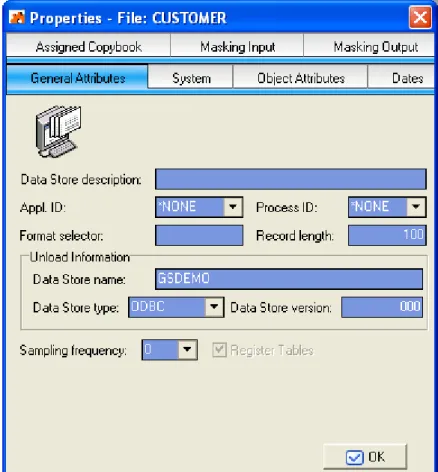
The Properties - File window is a tabbed view that displays all attributes for a selected data store.
6.1. Introduction
To access the Properties - File window, right-click the file in the Grid area of the Data Masking main
window, and then click Data Store Properties.
For more information about the context menu, see the section Machine Id./Company Grid in the
chapter Data Masking Main Window.
6.2. Window Contents
This section describes the fields listed on each tab of the Properties – File window as shown below:
Figure 6-1: Properties – File Window Listing File Attributes
Note: The Masking Input and Masking Output tabs display only when a Data Masking routine is associated with the data store. For more information about Changer Program properties, see the section
Window Contents in the chapter Data Changer Properties.
6.2.1. General Attributes
The fields listed on the General Attributes tab are:
• Data Store Description – Description of the data store.
• Appl. ID – Identifier (if it exists) of the application area that the data store belongs to. • Process ID – Process identifier.
• Format selector – Exit routine for file format recognition. • Record length – Length (in bytes) of the record.
• Data Store name – Name of the data store.
• Data Store type – Type of data store. For example, DB2, VSAM, DL/I, GDG, SEQ, ODBC, or ORA.
• Data Store version – Version of the data store.
• Sampling frequency – Frequency (for example, daily or monthly) of sampling of the data elements for which the distribution of values is desired.
• Register table – Indicator of whether the data store contains demographic data.
6.2.2. System
The fields listed on the System tab are: • Machine ID – Identifier of the machine. • Company name – Name of the company.
6.2.3. Object Attributes
The fields listed on the Object Attributes tab are:
• Data Store type – Type of data store. For example, DB2, VSAM, DL/I, GDG, SEQ, ODBC,
ORA.
• Data Store name – Name of the data store.
• Data Store description – Description of the data store.
• Application ID – Identifier (if it exists) of the application area that the data store belongs to.
• Record length – Length (in bytes) of the record.
• Record format – Name of the record format.
• Format selector – Exit routine for file format recognition.
• Number of records – Number of records contained in the data store. • Analyzed records – Number of analyzed records.
• Database name – Name of the database. • Tablespace name – Name of the tablespace. • Object ID – Object identifier.
6.2.4. Dates
The fields listed on the Dates tab are:
• Date of Analysis – Date of the analysis carried out on the data store.
• Date of Last Calculation – Date of the last recalculation carried out on the data store. • Date of Last Sample – Date of the last calculation of the distribution of values of the data
6.2.5. Assigned Copybook
The fields on the Assigned Copy tab are:
• Copybook PDS – Name of the area (level 01) within the copybook associated with the data store.
• Copybook name – Name of the copybook assigned to the data store.
• I/O Area Name – Name of the area present on the copybook that describes the layout of the file.
• I/O area progressive – Progressive number of the area within the copybook associated with the file.
• Information provider – Supplier of the association information; PGM is information obtained
from batch processing, USR is information supplied by the user.
7. Data Changer Data Element Selection
The Data Store Information tab in the Main Window is similar to the Work with Data Elements
area in Data Builder. Both areas can be used to associate modification routines to a data element in order to enable the routine associated with the data element, and to view the information about the data
element. However, the Data Store Information tab filters information for the selected data store by
the attributes MachineID, CompanyID, Data StoreType, and Data StoreName.
7.1. Introduction
The Data Store Information tab can be used to associate modification routines to a data element in order to enable the routine associated with the data element, and to view the information about the data element. This tab supplies all available information about the selected data store and all the classes associated with it.
To access the Data Store Information tab, right-click the data store in the Grid area of the Data
Masking main window, and click Open Selected Data Store.
For more information about the context menu, see the section Machine Id./Company Grid in the
chapter Data Masking Main Window.
7.2. Window Contents
This section describes the fields and items listed in the Data Store Information area as shown below:
Figure 7-1: Data Masking – Data Store Information Tab
7.2.1. Data Store Information
• Machine ID – Identifier of the machine • Company – Name of the company.
• Data Store type – Type of data store. For example, DB2, DL/I, SEQ, VSAM, GDG, ODBC, or ORA.
• Record format – Name of the record format. • Data Store Name – Name of data store.
• Number of Records – Number of records contained in the data store. • Register Table – Set/Reset table as Register.
7.2.2. Icon Bar
The buttons listed in the button bar are:
• All Data Elements – Shows all data elements with Data Changer enabled and disabled.
• Enabled Data Elements – Shows the data elements with Data Changer enabled.
• Disabled Data Elements – Shows the data elements with Data Changer disabled.
7.2.3. List of Data Elements
The column names listed in the List of Data Elements tab are:
• Name – The name of the data element within the data store. • Data Element Offset – The offset of the data element.
• Type – The data type of the data element. For example, Numeric or Alphanumeric. • Nature – The nature of the data element. For example, Alphabetical.
• Integer – The number of integers within a numeric data element. • Length – The length of the data element in bytes.
• Enabled – An indicator of whether the data element modification routines have been enabled (Yes, No).
• Changer Program – The name of the modification routine associated with the data element. • Assigned By – The changer program assignment (By Class, By Field).
• Assigned Class – Description of the associated class.
Note: A list of available values for the Type column is provided in the following table:
Symbol Type Database(s)
1 Bit MVS file type, ODBC-enabled*
A Alphanumeric MVS file type
B Binary MVS file type
C Combined MVS file type
D RowID Oracle
E Edited Field MVS file type
F Float MVS file type, Oracle, ODBC-enabled*
G Long Oracle
H Char Oracle, ODBC-enabled*
I Integer ODBC-enabled*
K CLOB Oracle
L Date MVS file type
M Money ODBC-enabled*
N Numeric MVS file type, ODBC-enabled*
O BLOB Oracle
P Packed MVS file type
R Raw Oracle
S BigInt ODBC-enabled*
T Time MVS file type
U Number Oracle
V Varchar Oracle, ODBC-enabled*
W Varchar2 Oracle
X Text ODBC-enabled*
Z Timestamp MVS file type, Oracle, ODBC-enabled*
b VarBinary ODBC-enabled* d Decimal ODBC-enabled* e XML ODBC-enabled* f BFile Oracle g Image ODBC-enabled* i TinyInt ODBC-enabled* l DateTime ODBC-enabled* m SmallMoney ODBC-enabled* r Real ODBC-enabled* s SmallInt ODBC-enabled* t SmallDateTime ODBC-enabled* u UniqueIdentifier ODBC-enabled*
w Long Raw Oracle
x Text ODBC-enabled*
*For the ODBC-enabled database, the contents of the Type column reflect the data name reported by
8. Data Changer Data Element Properties
This section describes the general and additional Data Changer properties for a selected data element.
8.1. Introduction
Menu commands that enable you to view these properties can be viewed by right-clicking the appropriate class in the grid from the Data Store Information tab in the Main Window.
For more information about the Data Store Information tab in the Main Window, see the section
Introduction in the chapter Data Changer Data Element Selection.
8.2. General Data Element Properties
General data element properties are displayed in the Data Element Properties window. To display the Data Element Properties window, click Data Element properties from the context menu. An example of the Data Element Properties window is shown below:
Figure 8-1: Data Element Properties Window
The fields and items listed in the Data Element Properties window are: • Name – The name of the data element within the data store. • Description – A description of the data store.
• Type – The type of field. For example, NUMERIC or ALPHANUMERIC. • Nature – The nature of the data element. For example, ALPHABETICAL. • Displacement – The offset of the data element offset.
• Length – The length of the data element in bytes.
• Decimal – The number of digits included to the right of the decimal point.
• Key Field – An indicator of whether the data element is considered a key data element (Yes, No). • Register Table Field – An indicator of whether the data element is unique in the data store (Yes,
No).
• Changer Program – The name of the modification routine associated with the data element. • Activated changer– An indicator of whether or not the Changer Program has been activated. • Field Sign – An indicator ofwhether the data element isconsidered signed or not signed. • Variable Length – An indicator of whether thelength of thedata element is variable or not. • Justified – An indicator ofwhether thedata element is justified or not.
• Nullable Field – An indicator ofwhether thedata element is NULL or not.
8.3. Additional Data Element Properties
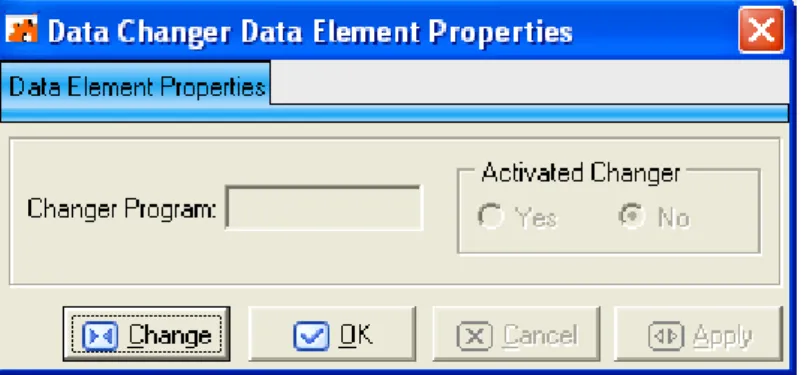
Additional properties are displayed in the Data Changer Data Element Properties window. To display the Data Changer Data Element Properties window, click Data Changer Data Element Properties from the context menu. An example of the Data Changer Data Element Properties window is shown below:
Figure 8-2: Data Changer Data Element Properties Window
Note: If data element properties have not been set previously, the data element properties can be edited; otherwise, the properties can only be viewed.
The fields and buttons listed in the Data Changer Data Element Properties window are:
• Changer Program – The program that will be used when data will be published. • Activated Changer – Indicates whether the Data Changer is active or not (Yes, No). • Change – Enables control and goes into edit mode.
• OK – Saves any changes that have not been applied and closes the window.
• Cancel – Cancels any changes applied to the selected class. Any actions confirmed with the
Apply button cannot be restored with Cancel but must be entered and confirmed again. • Apply – Confirms the changes.
9. Data Changer - Work with Classes
The Work with Classes area enables you to categorize data elements with homogeneous characteristics and to write generalized routines to check data.
9.1. Introduction
A class identifies a user-defined group of data elements with homogeneous characteristics. Typical classes of data can be quantities, prices, client code, totals, or currency flag. Each data element can be cataloged as a member of a class.
Classes are grouped into sets called Super Classes. The set of Super Classes is as follows:
• Numbers (N) • Codes (C) • Date (D) • Complemented Date (9) • Descriptions (X) • Privacy (P) • Other (O) • None
Note: The Super Class Other is used for new user classes that might not fall into any of the previous
Super Classes. Conversely, the Super Class None is used for classes that do not belong to a
SuperClass.
To access the Work with Classes area, click (Work with Classes) from the Data Masking main
window.
9.2. Window Contents
Figure 9-1: Work with Classes Window
The columns and fields listed in the Work with Classes window are:
• Class ID – Identifier of the class.
• Super Class – SuperClass that has been associated with the class. • Name – Name of the class.
• Charcode – Character identifier of the class.
• Description – Brief description of the class. The information in this column matches the
information in the FullDescription field.
• Highlight – Primary class flag. • Edit Mask – Class editing mask
• Full Description– Brief description of the class.The information in this field matches the
information in the Description column.
• Data Masking Routine – Program that will be used when the class is assigned as a changer for a selected data element.
9.3. Available Operations
The buttons at the bottom of the Work with Classes window are:
• Refresh – Refreshes the information listed in the grid. • Delete – Deletes the Changer Program for the selected class.
• OK – Saves any changes that have not been applied and closes the window.
• Cancel – Cancels any changes applied to the selected class. Any actions confirmed with the
Apply button cannot be restored with Cancel but must be entered and confirmed again. • Apply – Confirms the changes made to the Changer Program of the selected class.
10. Data Changer Properties
The Data Changer properties window lets you view Data Changer information for an enabled data store, or lets you define information for a newly enabled data store that has no Data Changer
information.
10.1. Introduction
To access the Data Changer properties window, right-click the data store in the Grid area of the
Data Masking main window, and click Data Changer properties.
For more information about the context menu, see the section Machine ID./Company Grid in the
chapter Data Masking Main Window.
10.2. Window Contents
This section describes the fields listed in the Data Changer properties window as shown below:
Figure 10-1: Data Change properties Window
The fields listed in the Data Change properties window are:
• General Properties
Format selector – Name of the exit routine for the format recognition. Write program – Write program of the Output file.
Process ID – Identifier of the process.
Select program – Selection program of the individual record. • Input Data Store Properties
Unload data store name – Name of the Unload Input data store. This is for the z/OS environment only. It can be different from the original name loaded into the Knowledge Base. In order to do this, the process ID associated with the elaboration should be created with characteristics for an Unload File Access (For example: GENUN).
Unload data store version – Version of the Unload Input data store. • UnloadData Store Properties
Unload data store type – Type of the Unload Output data store. Unload data store name – Name of the Unload Output data store. Unload data store version – Version of the Unload Output data store.
10.3 Available operations
The buttons in the Output Data Store Properties section of the Data Changer properties window
are:
• Change – Enables control and goes into edit mode.
• OK – Saves any changes that have not been applied and closes the window.
• Cancel – Cancels any changes. Any actions confirmed with the Apply button cannot be
restored with Cancel but must be entered and confirmed again.
11. Set Application ID
The Set Application ID window is used to set an application ID to one or more selected data stores.
11.1. Introduction
To access the Set Application ID window, right-click the data store in the Grid area of the Data
Masking main window, and click Set Application ID.
For more information about the context menu, see the section Machine Id./Company Grid in the
chapter Data Masking Main Window.
11.2. Window Contents
This section describes the fields listed in the Set Application ID window as shown below:
Figure 11-1: Set Application ID
The fields listed in the Set Application ID window are:
• Application ID – Available application identifier. If *NONE is selected, all selected data stores will have no associated application ID.
• Description – Brief description of the selected application ID.
11.3 Available Operations
The buttons at the bottom of the Set Application ID window are:
• OK –Sets the selected application to all selected data stores, and closes the window.
• Cancel – Cancels any changes. Any actions confirmed with the Apply button cannot be
12. Define Unload Output Data Store
The Define Unload Output Data Store Name windowis used to enable one or more selected data stores with a specified output data store name.
12.1. Introduction
To access the Define Unload Output Data Store window:
1. From the Data Masking main window, click the Disabled tab.
2. Select one or more data stores you want to enable.
3. Right-click to display the context menu, and then click Enable.
12.2. Window Contents
This section describes the fields listed in the Define Unload Output Data Store Name window as shown below:
Figure 12-1: Define Unload Output Data Store Name Window
The fields listed in the Define Unload Output Data Store Name window are:
• Add Prefix –Activates the Prefix box so that a prefix string can be entered, and then added to the beginning of every data store name that does not have associated Data Changer information. • Add Suffix – Activates the Suffix box so that a suffix string can be entered, and then added to the
end of every data store name that does not have associated Data Changer information.
• String Replacement – Activates the String to Search and Replace with boxes so that all data store names to do not have associated Data Changer information can be changed to the string listed in the Replace with box.
12.3 Available Operations
The buttons at the bottom of the Define Unload Output Data Store Name window are:
• OK –Enables the selected data stores using the selected criteria, and closes the window.
• Cancel – Cancels any changes. Any actions confirmed with the Apply button cannot be
13. Options
Data Masking lets you customize the product in order to meet the requirements of different users.
13.1. Introduction
This section describes the general and mandatory options in the Data Masking module.
13.2. General Options
General options can be edited in the Options window. To display the Options window, click Tools > Options. The Options window is shown below:
Figure 13-1: Options Window
The fields listed in the Output window are:
• Help language – Language used for online help. The Help language listcontains the languages available on your PC.
• Save user and password – Indicator of whether or not you want to save your user ID and password information for the current database connection.
13.3. Connection Options
Connection options to the kbde-Server can be edited in the Choose your connection type and
settings window.Before opening the project with the Data Masking module, you must define the connection information.
To display the Choose your connection type and settings window, click Tools > Connection Options. An example of the Choose your connection type and settings window is shown below:
Figure 13-2: Choose your connection type and settings Window
To define connection settings:
1. Click the tab that corresponds to your connection type, and complete the fields:
• Local connection – Client connection to database located on the local machine.
Note: No additional settings are required for local connections.
• COM/DCOM connection – Client connection to the Data Express Application Server as
specified on the client machine (MIDAS.DLL must be present on the client machine.BDE
5.x and DB2 Client 5.2 or above must be present on the Data Express Application Server machine).
HostName – The IP address of the NT server.
Note: If the NT server and local computer are the same, you can leave this field blank. If the NT server and local computer are not the same, they must belong to the same local network.
• Socket connection – Client connection using TCP/IP protocol to the Borland Socket Server.
Host/IP address – IP address of the Borland socket server. Port – Port number assigned to the Borland socket server.
Note: For this connection type, the client and server machines do not need to be part of the same local network.
• Web connection – Client connection using HTTP protocol to the ISAPI-compatible web
server.
URL – URL for the .dll file installed on the server machine.
Note: For this connection type, the client and server machines do not need to be part of the same local network.
2. If desired, check Allow connection pooling to enable the specified number of MS as the
minimum time interval for the database call to maintain an active connection when the Data Masking module is idle.
Data Masking User Guide
14. Work with Data Changer Jobs
The Work with Jobs area contains information about the function related to the execution of the Data Store Data Changer job (which is a batch job that executes the masking routines), and is part of the
Data Builder module. These jobs are submitted using the Work with Jobs area of Data Builder.
For more information about the Work with Jobs area, see the chapter Work with Jobs in the Front
End Guide.
14.1. Introduction
To access the Work with Jobs area:
1. Start Data Builder.
2. Click (Work with Jobs) in the toolbar of the Data Builder main window.
The Work with Jobs area is displayed as shown below:
Figure 14-1: Work with Jobs Area
14.2. Data Store Data Changer Job Creation
The Data Store Data Changer job executes a process to create a JCL that will execute data changing associated with a business protection (masking) procedure. The migration function modifies and transfers the content of an input sequential file into an output sequential file.
To create a Data Store Data Changer job:
1. From the Work with Jobs window, press the New button. The Work with Jobs window lets you
insert parameters for the new job.
2. In the List of Jobs section, select Data Store Data Changer.
3. In the General section, selectthe appropriate Machine ID and Company name.
4. In the Data Store Qualification section, specify values for the following fields:
• DB2 Owner, DL/I DBD – The ownerof DB2 or DL/I DBD data store where data will be masked.
• Data store type – The type of data store (ADA, DB2, DL/I, GDG, SEQ, ORA, or VSAM). • Data store name – The name of the data store where data will be masked.
• Data store version – The version number if the data store is GDG. • Record format – Name of the record format.
5. Press Apply to submit the job.
14.3. Create Data Changer Job Creation
The Create Data Changer job executes a process that creates a JCL (the JCL is the base language for batch scripts in MVS, OS/390, or z/OS environment) that will execute the data changer process.
To create a CreateData Changer job:
1. From the List of Jobs section in the Work with Jobs window, select Create Data Changer
Jobs.
2. In the General section, selectthe appropriate Machine ID and Company name.
3. In the Data Store Qualification section, specify values for the following fields:
• Application ID – Application ID, if applicable.
• DB2 Owner, DL/I DBD – Ownerof DB2 or DL/I DBD data store where data will be masked.
• Data store type – Type of data store (ADA, DB2, DL/I, GDG, SEQ, ORA, or VSAM). • Data store name – Name of the data store where data will be masked.
• Data store version – Version number if the data store is GDG.
• Record format – Name of the record format.
4. Press the Apply button. The Secondary Options window appears:
Figure 14-2: BDCGENR – Create Data Masking Jobs
5. In the Secondary Options window, specify values for the following fields:
• JCL Output Data Set – Name of the data set containing the JCL.This field is mandatory. • JCL Output Member – Name of the member containing the JCL. This field is mandatory. • Temporary Data Set Prefix – Prefix of the required temporary data sets. This field is
mandatory. The prefix must have a minimum of two qualifiers.
Data Masking Guide
14.4. Available Operations
The buttons in the List of Scheduled Jobs section of the Work with Jobs windowand the Secondary
Options window are:
• Change – Lets you modify File Qualification parameters for the selected job if the job is
scheduled but has not yet been submitted (Flag Status is 0). Changes should be saved using the
Apply button.
• Apply – Saves the information for the new job, but keeps the window open. • New – Initializes fields for insertion when scheduling a new job.
• Delete –Cancels the execution of the selected scheduled job and removes the job from the List of Scheduled Jobs list. If the job is currently being executed (Flag Status is 1), you will be prompted to confirm the deletion.
• Cancel – Cancels any changes. Any confirmations made with the Apply button cannot be
undone with the Cancel button but must be instead entered and confirmed again.
• OK – Applies all changes and closes the window. • Reset All – Clears the values of all fields.
15. Distributed Exporter
The DistributedExporter is a utility that creates and provides necessary information to the Extension
Technology so that actual masking of your distributed data store can occur. This utility generates the following files that are used for masking after you have successfully exported from the Data Masking module:
• method.rc – Coded content of source and target databases information.
• elab.txt – List of data stores and the enabled columns within those data stores that need to be masked.
• CREATETABLE.sql – list of the tables that need to be masked; a generic CREATE TABLE statement is provided for each table.
• CREATEINDEX.sql – list of all the indexes for the tables that need to be masked; a generic CREATE INDEX statement is provided for each index.
• ALTERTABLE_RI.sql – list of all the primary and foreign keys for the tables that need to be masked; a generic ALTER TABLE statement is provided for appropriate primary and foreign keys.
There are two areas of interest when it comes to using the Distributed Exporter with distributed data stores.
• If you use ODBC-enabled data stores, you can mask across all your data stores with one
invocation of the ODBC Extension. This feature is not available with the Oracle Extension.
• You also have the ability to mask within one distributed data store, as long as a distinct target
schema name is provided.
To access the DistributedExporter, click from the main window of the Data Masking module.
15.1. Window Contents
Data Masking Guide
Figure 15-1: Distributed Exporter
To export from the Data Masking module, you need to provide the following input:
• your workspace (machine ID, company)
• your source data store credentials (source database, source schema, source user ID/password)
• For a data store that you will access using the ODBC Extension, the source database is an
ODBC DSN configured to access that data store.
• For a data store that you will access using the Oracle Extension, the source database is a
BDE alias configured to access that data store. For more information, see Appendix
Oracle Alias Creation in your Getting Started with Distributed Data Stores guide.
• your target data store credentials (target database, target scheme, target user ID/password)
• For a data store that you will access using the ODBC Extension, the target database is an
ODBC DSN configured to access that data store.
• For a data store that you will access using the Oracle Extension, the target database is an
Oracle TNS service name configured to access that data store. For more information, see
Appendix Oracle Alias Creation in your Getting Started with Distributed Data Stores
guide.
• directory where you want to place output files for Extension Technology (Output directory)
Note: If the source database and the target database are the same, the schemas cannot be the same. In addition, if you are using ODBC-enabled data stores, you can provide multiple sets of source and target data store credentials.
Note: If you use the Distributed Exporter utility on one machine, and do your masking on another, make sure that the target ODBC DSN matches the ODBC DSN used for the actual masking. Similarly, if you use the Oracle Extension, make sure your Oracle TNS service names match.
15.2. Available Operations
The buttons at the bottom of the Distributed Exporter window are:
• Export – Exports all data store information to the specified output directory. • Close – Closes the window.
Data Masking Guide
16. Exit Routines
Within Data Masking, a series of exit routines are available to manage file migration. The available programs are prototypes that can be customized for the management of your database.
Note: A user-defined exit routine definition must comply with the linkage parameters associated with the routine type.
Tip: If you modify an exit routine, we recommend that you make copies of the programs and edit the
copies rather than the original versions. There are four main types of exit routines:
• Writing
• Discard
• Field modification
• Logging
Regarding each type of routine, a short outline of the predefined routines, their purposes and the ways to create new routines will be provided.
16.1. Writing Exit Routines
A writing exit routine is a program that writes the migrated modified content of a sequential input file to a sequential output file.
The current migration procedure is a program written in C that performs the following tasks:
• Opens the output file.
• Closes the output file.
• Given the modified record layout, writes to the output file.
16.1.1. Writing Routine Parameters
The linkage of the exit routine identified in the product PDSCOPY by the kDCWRTW source
includes the following fields.
These fields are described in the following table:
Field name Input/Output Description
kDCWRT-FLOPER Input Flag describing the action to be
performed.
01 kDCWRT-REC. 05 kDCWRT-FLOPER PIC X(001). 05 kDCWRT-LREC PIC S9(009) COMP. 05 kDCWRT-DSNAME.
10 kDCWRT-DSNAME-52 PIC X(056) VALUE SPACE. 10 PIC X(001) VALUE LOW-VALUE.
05 kDCWRT-RETCODE PIC X(002). 01 kDCWRT-RECORD PIC X(16000).
Possible values:
O – indicates that the call has been performed in the File opening mode
C – indicates that the call has been performed in the File closing mode
W – indicates that the call has been
performed in the File writing mode
kDWRT-LREC Input Length of the record layout that will be
written.
kDCWRT-DSNAME Input Name of the output sequential file.
kDCWRT-RETCODE Output Return code. If the return code is left
BLANK, it means that the routine has been run successfully.
kDCWRT-RECORD Output File new record.
16.2. Discard Exit Routines
A discard exit routine is a program that skips writing records with certain characteristics during the migration phase.
16.2.1. Discard Routine Parameters
The linkage of the exit routine identified in the product PDSCOPY by the UDCUSSLW source
includes the following fields:
These fields are described in the following table:
Field name Input/Output Description
UDCUSSL-RETCODE Output Return code. If the return code is left
blank, it means that the routine has been performed successfully.
UDCUSSL-RECORD Input File record.
16.2.2. UDCUSSL Discard Exit Routine Example
In the following example of the UDCUSSL discard exit routine, a condition is tested. If this condition
is not complied with, the return code is set to “ER”, thus disabling the writing of the record on the output file.
01 UDCUSSL-RECORD PIC X(32760). 01 UDCUSSL-RETCODE PIC X(02).
Data Masking Guide
16.3. Modification Exit Routines
A modification exit routine includes a series of programs aimed at handling the information contained in the individual fields.
16.3.1. Predefined Modification Exit Routines List
Note: Unless otherwise stated, all routines are available for use with all data store types.
A list of predefined modification exit routines are described in the following table:
Routine Name Description
BPMNICC Generic alphanumeric code (can be used for telephone numbers)
(MVS only).
UDCADDC Address masking routine.
IDENTIFICATION DIVISION. PROGRAM-ID. UDCUSSL.
****************************************************************** *
* Source name: UDCUSSL
* Function : DATA CHANGER - USER EXIT FOR RECORD SELECTION * ****************************************************************** ENVIRONMENT DIVISION. INPUT-OUTPUT SECTION. FILE-CONTROL. DATA DIVISION. FILE SECTION. **************************************************************** WORkING-STORAGE SECTION. **************************************************************** * 01 WS-COMODI. 05 FILLER PIC X. * 01 WS-AREA-RECORD. 05 FILLER PIC X(30). 05 WS-FIELD-SELECT PIC X(10). 05 FILLER PIC X(82). **************************************************************** LINkAGE SECTION. **************************************************************** COPY UDCUSSLW. **************************************************************** PROCEDURE DIVISION USING UDCUSSL-RECORD UDCUSSL-RETCODE. **************************************************************** *
START-PGM. *
MOVE SPACE TO UDCUSSL-RETCODE. *
MOVE UDCUSSL-RECORD(1:122) TO WS-AREA-RECORD. *
IF WS-FIELD-SELECT NOT = "CBL " MOVE "ER" TO UDCUSSL-RETCODE END-IF. * END-PGM. * GOBACK. *
UDCBLKC Routine initializing the field with which it is associated. You can use it when you do not want some information to be displayed in the migrated data store.
UDCCDFC Italian taxpayer code number masking routine.
UDCCFP2 Italian VAT number or taxpayer’s code number masking routine,
which is a varation of UDCCFPI. The routine associated with the
mixed field containing both the VAT number and the taxpayer code number recognizes the content of the field and applies either one or the other routine.
UDCCFPI Italian VAT number or taxpayer’s code number masking routine.
The routine associated with the mixed field containing both the VAT number and the taxpayer code number recognizes the content of the field and applies either one or the other routine.
UDCCIFC CIF (Spanish tax codes) masking routine
UDCCOMC Company name masking routine
UDCCO2C Company name or surname (in the same field) routine (MVS
only).
UDCMDY0 Data masking routine.
UDCNAMC People’s names masking routines to be used to mask personal
detail files.
UDCNUMC Account number masking routine (MVS only).
UDCNIFC NIF (Spanish tax codes) masking routine
UDCPIVC Italian VAT number masking routine.
UDCPKEY String masking routine (ODBC Extension and Oracle Extension
only).
UDCSNC Surname and name masking routine (MVS only).
UDCSNR2C Surname and name, or company name (in the same field) masking
routine (MVS only).
UDCSNC2 Surname masking routine that can handle specfic Italian surnames.
UDCSURC Surname masking routine.
UDCTELC Telephone number masking routine.
UDCUCS2 String masking routine that uses some ‘move corresponding’
instructions to mix the string elements and place them differently from the original. Subsequently, it transcodes the string.
UDCUCST String masking routine. It inverts the characters and then tanscodes them according to a transcoding table.
UDCUSFL Generic conversion routine that includes a conversion criterion by
Data Masking Guide
UDCZIP5 Masking routine used by the tutorials in the Getting Started with Distributed Systems guide.
16.3.2. Modification Exit Routines Parameters
The linkage of the exit-routine identified in the product PDS COPY by the UDCUSFLW source