T
he Intelligent Platform Management Interface (IPMI) 1.5 specification enables vendors to build several core server management tasks into the hardware platform— such as hardware monitoring, event logging, remote plat-form control, and error recovery. These monitoring and control capabilities are not dependent on the platform’s processors, BIOS, or operating system (OS). As a result, IPMI can enable problem detection and correction even on hung or powered down systems. A separate service processor, called the baseboard management controller (BMC), and associated firmware are designed to monitor the system hardware and manage IPMI transactions for the platform.IPMI is an open standard and, as such, benefits from the development of freely available systems management software and utilities in the open source community. This software can complement the capabilities of existing server management software, or it can serve as a basis for devel-oping customized management solutions that address prob-lems not covered by standard server management software
packages. Currently, minor changes must be made to the IPMItool open source code to prepare IPMItool for use with eighth-generation IPMI 1.5–compliant Dell PowerEdge servers. This article discusses preparation of IPMItool for eighth-generation PowerEdge systems, which include the PowerEdge 1800, PowerEdge 1850, PowerEdge 2800, and PowerEdge 2850 servers.
Using the interfaces supported by IPMItool
The IPMItool package supports two interface types: a local area network (LAN) interface and a keyboard controller style (KCS) interface.1The LAN interface provides a
session-based, authenticated means of interacting with the BMC over the network; the KCS interface provides an unauthenticated local interface to the BMC:
•
IPMI LAN interface:The IPMI LAN interface is associated with a BMC channel that is designed to be always available—it can be used even when the system is powered down, or when the OS isBY TIM T. MURPHY
Managing Dell PowerEdge Servers
Using
IPMItool
Dell promotes industry-standard server management capabilities through its support for
Intelligent Platform Management Interface (IPMI) 1.5 technology in eighth-generation
Dell
™PowerEdge
™servers. This article provides guidance on the preparation and use
of an open source tool called IPMItool with IPMI 1.5–compliant Dell servers running a
Linux
operating system.
hung or inactive (as long as power is present at the chassis). This interface is sometimes implemented using a separate LAN controller, but it may also share a LAN controller with the system. In shared configurations, the IPMI messages are isolated from the system messages within the controller; that is, the User Datagram Protocol (UDP) packets destined for the BMC’s Remote Management and Control Protocol (RMCP) port are directed to the BMC by the hardware.
•
IPMI KCS interface:The IPMI KCS interface, referred to as the open interface,e is the systems management software (SMS) interface provided by the BMC on the host. It is avail-able to software that is running on the local (active) host system. By default, this interface is a byte-aligned pair of I/O ports at address 0xca2, unless other information is provided in the systems management BIOS (SMBIOS) tables. SMBIOS table entries that describe an IPMI KCS interface have atype 38entry (0x26). Linux provides the dmidecode utility program to display the SMBIOS tables.2
To select the desired interface, use the following command syntax:
ipmitool options -I lan –H host –U user [-a | -E | -P password] subcommand
ipmitool options –I open subcommand
IPMItool provides detailed manual pages that describe each of its supported options and subcommands. Administrators can access these man pages using the man ipmitoolcommand.
Note: IPMItool is designed to prevent password snooping
through the process list by replacing each password character sup-plied on the command line with the letter X.
Message formats.Depending on the IPMItool interface chosen, additional encapsulation may be needed to transport the message to the BMC. For example, the LAN interface includes an RMCP header. f However, in all cases the payload—that is, the message content—of the request is an IPMI message. Because IPMItool handles the for-matting and addition of any headers required, this article focuses on the IPMI message format.
Note: Some of the examples listed in this article use the IPMItool
raw subcommand to specify the individual bytes of IPMI messages in hexadecimal. In such cases, this article provides a reference to the relevant section of the IPMI specification.
Setting up the IPMI LAN interface
To set up an IPMI LAN interface, administrators may use the IPMI server management configuration utility. This utility—which is not a component of IPMItool—is built into eighth-generation Dell PowerEdge systems and can be started during system boot by press-ing Ctrl+E when prompted.
The following settings should be configured:
1.
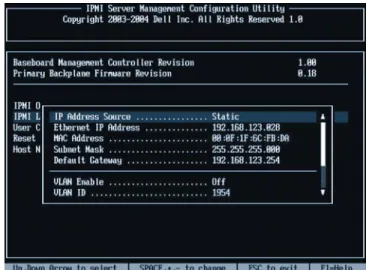
Ensure that “IPMI Over LAN” is set to “On,” as shown in Figure 1.If not using Dynamic Host Configuration Protocol (DHCP), supply an appropriate IP address, subnet, and gate-way, as shown in Figure 2. In the Figure 2 example, the LAN interface is set up for a statically configured local IP network environment.
2.
Ensure that “VLAN Enable” is set to “Off.”2For more information about the dmidecode utility, visit http://www.nongnu.org/dmidecode.
3.
Ensure that “Administrator Account” is set to “Enable,” and specify an administrator account and password, as shown in Figure 3.Upon completing the IPMI LAN configuration, press the Esc key. The utility saves the settings in a nonvolatile memory area, so it is not necessary to repeat this procedure again unless the parameters must be changed.
If administrators already have the IPMItool utility available, they can test the LAN configuration by issuing the following command from another host on the LAN:
# ipmitool –I lan –H host -U user -a channel info
Then, the administrator should respond to the password prompt appropriately. Note:IPMItool does not echo the typed password to the console when the tool interactively requests it.
If the LAN configuration has been properly set up, the output should appear as follows:
Password:
Channel 0x1 info:
Channel Medium Type : 802.3 LAN Channel Protocol Type : IPMB-1.0 Session Support : session-based Active Session Count : 1
Protocol Vendor ID : 7154 Volatile(active) Settings Alerting : disabled Per-message Auth : disabled
User Level Auth : enabled
Access Mode : always available Non-Volatile Settings
Alerting : disabled Per-message Auth : disabled User Level Auth : enabled
Access Mode : always available
At this point, administrators can use the LAN interface to access the server, diagnose problems, and initiate recovery actions. The IPMItool 1.5 specification provides for two levels of authentication: per-message authentication and user-level authentication. To help f optimize performance, administrators can disable either or both of these settings in environments where the LAN link is considered to be secure. When these setting are disabled, authentication is not performed. As a result, fewer processing cycles are required to prepare IPMI messages and the IPMI message length is shorter, both of which can help enhance performance.
Setting up the IPMI KCS interface
To access the BMC locally, administrators should use IPMItool’s open interface. As described in the IPMItool manual page, this interface relies on the MontaVista OpenIPMI device driver,3 which is
pres-ent in stable Linux kernel versions 2.4.21pre1 and later. To test the interface, administrators can issue the following command from the command shell prompt:
# ipmitool –I open channel info
If the KCS interface has been properly set up, the output should appear as follows:
Channel 0xf info:
Channel Medium Type : System Interface Channel Protocol Type : KCS
Session Support : session-less Active Session Count : 0
Protocol Vendor ID : 7154
If, instead of this output, the error message “Could not open ipmi device: No such device” appears, and the Linux kernel is modular, it is possible that the necessary driver modules are not yet loaded. In such cases, administrators can try using themodprobe
command from the command prompt:
# modprobe ipmi_msghandler; modprobe ipmi_devintf; modprobe ipmi_kcs_drv
Figure 3. IPMI server management configuration utility administrator account
any KCS interfaces,” then administrators will probably need to patch the OpenIPMI driver and rebuild the kernel for the system. The OpenIPMI home page (http://sourceforge.net/projects/openipmi) provides the latest kernel driver patches, which can be used to produce a driver that properly initializes the open interface. In particular, if the system has a nonbyte-aligned KCS port interface (as do Dell PowerEdge 1800, PowerEdge 1850, PowerEdge 2800, and PowerEdge 2850 servers), a driver version of OpenIPMI driver version v33 or later is required.
To check for a KCS interface description in a system’s SMBIOS tables, administrators can use the dmidecode utility to search for a type 38entry in the dmidecodecommand output, which may look similar to the following:
Handle 0x2600
DMI type 38, 18 bytes. IPMI Device Information
Interface Type: KCS (Keyboard Control Style) Specification Version: 1.5
I2C Slave Address: 0x10 NV Storage Device: Not Present
Base Address: 0x0000000000000CA8 (I/O) Register Spacing: 32-bit Boundaries
Beginning with OpenIPMI driver version v33, the preceding SMBIOS information is used by the driver when scanning for KCS interfaces. Prior to the v33 version release, the driver assumed a byte-aligned KCS interface at 0xca2. The new interface driver is named ipmi_si_drv.
After applying the patch, rebuilding, and loading the modules, administrators should enter the following commands at the com-mand prompt:
# modprobe ipmi_msghandler # modprobe ipmi_devintf # modprobe ipmi_si_drv
The output should appear as follows:
ipmi_si: Found SMBIOS-specified state machine at I/O address 0xca8
IPMI KCS interface initialized
Once the modules are successfully loaded, administrators should test the interface by issuing the following command at the command prompt:
# ipmitool –I open channel info
Channel 0xf info:
Channel Medium Type : System Interface Channel Protocol Type : KCS
Session Support : session-less Active Session Count : 0
Protocol Vendor ID : 7154
At this point, administrators can use IPMItool’s open interface to interact locally with the server’s BMC.Note:By design, any util-ity that uses a KCS interface will experience slow response times for large sets of transactions, and therefore commands that require several IPMI transactions may take several minutes to complete. The reason for the slow performance is that KCS interfaces use half-duplex, byte-oriented data transfers: Only one byte at a time can be transferred across the interface in either direction. Further, each byte transfer is indicated to the receiver either with an interrupt (which causes a context switch, thus adding processing cycles) or by having the receiver poll the interface (which is costly in terms of CPU cycles and inefficient because some cycles are inevitably spent checking for data when there is none to receive).
Preparing the IPMItool package
The IPMItool packages are available at http://ipmitool.sourceforge. net. In addition to the source package, ready-to-install binary pack-ages are available for the popular Linux distributions such as Red Hat® Package Manager (RPM™) and Debian Linux .deb file instal-lation package formats.4
If the tool is built from the downloaded source package, the—enable-intf-open argument should be included in the
configure command, to enable support for the KCS interface. Virtually all IPMItool subcommands are supported by the Dell BMC, without change, and these subcommands represent a useful set of core remote management functions. However, in IPMItool 1.5.9 and earlier, the IPMItool fru [print] subcommand may fail to work with the Dell BMC, in part because the tool requests field replaceable unit (FRU) information in 32-byte chunks whereas the Dell BMC is designed to use smaller packet sizes. IPMItool 1.6.0 and later dynamically adjusts the requested packet size when larger sizes fail. For administrators using IPMItool 1.5.9 and earlier, a patch is available at http://linux.dell.com/files/ipmi.
Using IPMItool for server management activities
This section discusses sample server management activities that can be performed using IPMItool. By gaining an understanding of these sample activities, administrators can apply the same or similar techniques to perform other platform management tasks supported by IPMI, beyond those specifically covered in these examples.
Displaying the SEL
The following command is used to display the systems event log (SEL):
# ipmitool –I lan –H 192.168.123.20 –U root –a sel info
The output is as follows:
Password: SEL Information Version : 51 Entries : 10 Free Space : 8032
Last Add Time : 07/15/2004 09:08:57 Last Del Time : 12/31/1969 18:14:53 Overflow : false
Delete cmd : unsupported Partial add cmd : unsupported Reserve cmd : supported Get Alloc Info : unsupported
The following command is used to display the contents of the SEL:
# ipmitool –I lan –H 192.168.123.20 –U root –a sel list
The output is as follows:
Password:
1 | Pre-Init Time-stamp | Event Logging Disabled #0x51 | Log area reset/cleared 2 | Pre-Init Time-stamp | Physical Security
#0x52 | General Chassis intrusion
3 | Pre-Init Time-stamp | Physical Security #0x52 | General Chassis intrusion
4 | 07/15/2004 | 07:53:54 | Physical Security #0x52 | General Chassis intrusion
5 | Pre-Init Time-stamp | Physical Security #0x52 | General Chassis intrusion
6 | Pre-Init Time-stamp | Physical Security #0x52 | General Chassis intrusion
7 | 07/15/2004 | 09:04:52 | Physical Security #0x52 | General Chassis intrusion
8 | 07/15/2004 | 09:05:12 | Physical Security #0x52 | General Chassis intrusion
9 | 07/15/2004 | 09:05:52 | Physical Security #0x52 | General Chassis intrusion
Clearing the SEL
The following command is used to clear the contents of the SEL:
# ipmitool –I open sel clear
The output is as follows:
Clearing SEL. Please allow a few seconds to erase.
The following command is used to confirm that the SEL has been cleared:
# ipmitool –I open sel list
The output is as follows:
1 | 07/15/2004 | 13:26:30 | Event Logging Disabled #0x51 | Log area reset/cleared
Obtaining information about server sensors and their attributes
The following command lists all server sensors and their attributes:# ipmitool –vI lan -H192.168.123.28 –U root -a sdr list
This command is useful to determine whether the system hard-ware components are operating within their acceptable operating limits. The example uses the IPMItool’ssdr subcommand with the
–v option to do this, instead of the sensorsubcommand, because the
sdrsubcommand with the –v option lists the entity that the sensor is monitoring; the sensor subcommand does not list entities.
For example, the following sample output illustrates three temperature sensors: the first two are related to processors, and the third is related to the system board.Note:Temperature sensors display not only the current temperature of the associated entity, but also any warning (noncritical) or critical thresholds that have been defined for the entity by the hardware manufacturer. Similarly, fan sensors list the operating current, minimum and maximum rotation speed, and so on.
Password:
Sensor ID : Temp (0x1) Entity ID : 3.2 (Processor) Sensor Type (Analog) : Temperature
Sensor Reading : 45 (+/- -124) degrees C Status : ok
Nominal Reading : 50.000 Normal Minimum : 11.000 Normal Maximum : 69.000
Upper non-recoverable : Unspecified Upper critical : 90.000 Upper non-critical : 85.000 Lower non-recoverable : Unspecified Lower critical : Unspecified Lower non-critical : Unspecified Minimum sensor range : Unspecified Maximum sensor range : Unspecified
Sensor ID : Temp (0x2) Entity ID : 3.3 (Processor) Sensor Type (Analog) : Temperature
Sensor Reading : 50 (+/- -124) degrees C Status : ok
Nominal Reading : 50.000 Normal Minimum : 11.000 Normal Maximum : 69.000 Upper non-recoverable : Unspecified Upper critical : 90.000 Upper non-critical : 85.000 Lower non-recoverable : Unspecified Lower critical : Unspecified Lower non-critical : Unspecified Minimum sensor range : Unspecified Maximum sensor range : Unspecified
Sensor ID : Ambient Temp (0x3) Entity ID : 7.1 (System Board) Sensor Type (Analog) : Temperature
Sensor Reading : 25 (+/- -124) degrees C Status : ok
Nominal Reading : 23.000 Normal Minimum : 11.000 Normal Maximum : 69.000 Upper non-recoverable : Unspecified Upper critical : 47.000 Upper non-critical : 42.000 Lower non-recoverable : Unspecified Lower critical : 3.000 Lower non-critical : 8.000 Minimum sensor range : Unspecified Maximum sensor range : Unspecified
By adding the –voption, as shown in the preceding command, IPMItool is designed to provide a more vertically oriented, labeled output instead of the default columnar listing. When multiple –v
options are included on the command line, additional verbosity is indicated. For the most verbose output, administrators should
include the–vvvv option. When administrators use the –vvvv
option, each message that is exchanged with the BMC is listed, which can be useful in helping determine the cause for a com-mand failure.
The verbosity options can be used with all commands. IPMItool also provides additional output formatting options. Administrators should refer to the IPMItool manual pages for details.
Obtaining a reading from a specific server sensor
The following command is used to obtain a reading from a specific server sensor (in this example, the sensor is namedIntrusion):
# ipmitool -vI open sensor get Intrusion
The output is as follows:
Locating sensor record...
Sensor ID : Intrusion (0x52) Sensor Type (Discrete) : Physical Security Sensor Reading : 0x0000
States Asserted :
One limitation of the method used by IPMItool—that is, using the sensor name to retrieve an individual sensor reading—is that when multiple sensors share the same name, only the first one is listed. However, sensors with unique names are easily retrieved using this method.
Performing a host system soft reset
The following command is particularly useful when the administra-tor does not have physical access to the server’s power button:
# ipmitool -vI lan -H 192.168.123.28 -U root -a chassis power soft
The output is as follows:
Password:
Chassis Power Control: soft
This command initiates a soft shutdown of the operating system via the Advanced Configuration and Power Interface (ACPI) by emulating a fatal over-temperature condition.
Administrators can also perform a hard system reset by using the chassis power resetsubcommand. However, this command should be used with caution because the subcommand makes no attempt to shut down the operating system first, and thus, data corruption could occur.
Disabling the chassis intrusion alert
Sometimes a platform generates event alerts for which administra-tors are not interested in receiving information. This section pro-vides an example of how to disable the chassis intrusion alert using IPMItool.
Disabling the chassis intrusion alert requires the use of theraw
IPMI subcommand feature provided by IPMItool. Theraw subcom-mand requires administrators to specify the individual bytes of an appropriate IPMI command. Administrators can use the get sensor event enablecommand to list the individual bytes of an IPMI command. (See section 29.10 of the IPMI specification for a description of theget sensor event enablecommand.)
The get sensor event enable command requires the sensor number to be included in the request. Administrators can easily obtain this number because IPMItool prints the sensor number in parentheses to the right of the sensor name in the output for the sensor subcommand. (Refer to the section “Obtaining a reading from a specific server sensor” in this article. In the example in that section, IPMItool shows that the sensor number for the Intrusion sensor is 0x52.)
The administrator should first retrieve the Intrusion sensor byte information, using get sensor event enable.
The first two bytes that must follow everyraw subcommand are the network function (NetFn) and the command (Cmd). (Refer to Appendix G, “Command Assignments,” in the IPMI specification for a list of these command assignments.) For example, according to the IPMI specification, theget sensor event enable com-mand requires a network function of 0x04 and the command0x29.
Note:Any data required by a command is also indicated in the IPMI specification.
The get sensor event enable command requires a single byte of data, which supplies the sensor number (0x52), as follows:
#ipmitool -I open raw 0x04 0x29 0x52 c0 01 00 01 00
#
The output for successful raw subcommands is reported by IPMItool as a sequence of hexadecimal bytes. This is the command response, after stripping off the zero return code (all IPMI responses begin with a one-byte return code):
•
c0: All sensor event messages are enabled; sensor scanning is enabled•
01 00: (Discrete) Assertion event message for state bit 1 is enabled•
01 00: (Discrete) De-assertion event message for state bit 1 is enabledIf the command fails, the return code is displayed instead of any response bytes.
The definition of the response format for the get sensor event enablecommand is provided in Section 29.11 of the IPMI specification.
Administrators can use the current sensor attributes to help formulate the get sensor event enable command. The event messages and sensor scanning-enabled bits should be disabled, and the IPMI command should be constructed as follows, by referencing section 29.10 in the IPMI specification:
#ipmitool -I open raw 0x04 0x28 0x52 0x0 0x1 0x0 0x1 0x0
#
If no response is listed, the return code is zero and the com-mand has succeeded. To verify this, remove and replace the system chassis’ cover and then view the SEL contents again (as explained in the “Displaying the SEL” section in this article) to ensure that the event is no longer being logged.
The modified sensor event setting is active only until the BMC resets and reinitializes its sensor attributes from the sensor data records (SDRs) in the platform’s firmware.
Performing a BMC cold reset
Although a BMC resetcommand exists in the IPMI specification, to perform a BMC cold reset, administrators must use the IPMIraw
subcommand feature provided by IPMItool. This is because IPMItool does not provide a specific subcommand to perform a cold reset of the BMC.
The IPMItool raw subcommand allows any IPMI command— including BMC reset—to be run if the administrator knows the correct request bytes to use. (The correct number of bytes can be obtained from the IPMI specification. Refer to the section “Disabling the chassis intrusion alert” in this article for information about how to list the individual bytes in an IPMI command.)
See section 17.2 in the IPMI specification for a description of the
BMC resetcommand. Administrators should pay special attention to the warning about adverse effects on system operation for the BMC reset
command. This command should be used only in emergency situa-tions; the need to use it rarely arises. The command is included in this article because, without it, administrators would have to cause a BMC cold reset by physically removing power from the system chassis.
As section 17.2 of the IPMI specification indicates, the format for the BMC resetcommand is as follows:
#ipmitool -vI lan -H 192.168.123.28 -U root -a raw 0x6 0x2
Note: Performing a BMC reset will nullify the effects of the previ-ously described command to disable the chassis intrusion alert.
Facilitating management through IPMI compliance
The capability for eighth-generation Dell PowerEdge servers to use common standards-based tools from the open source community such as IPMItool demonstrates Dell’s commitment to industry stan-dards. A major advantage for organizations is that standards-based tools are designed to work with IPMI-compliant hardware from all vendors in the same way, which is crucial for facilitating ease of management in heterogeneous environments. Equally important, the open source model supports the rapid, global sharing of software fixes or changes as soon as they are discovered or designed.
Tim T. Murphy is a senior engineering consultant on the RAC Software team in the Dell Enterprise Systems Group (ESG). Tim is currently working on Dell’s next-generation remote access controller (RAC). Tim received his B.S. in Computer Engineering from the University of South Florida. F O R M O R E I N F O R M AT I O N IPMI specification: http://developer.intel.com/design/servers/ipmi/spec.htm OpenIPMI: http://sourceforge.net/projects/openipmi IPMItool packages: http://ipmitool.sourceforge.net IPMItool 1.5.9 patch: http://linux.dell.com/files/ipmi
Benefits of IPMI for clusters:
http://archive.linuxsymposium.org/ols2003/Proceedings/All-Reprints/ Reprint-Libby-OLS2003.pdf