P-660HW-D Series
802.11g Wireless ADSL 2+ 4-port Gateway
User’s Guide
Version 3.40Edition 1 3/2006
Copyright 2
Copyright
Copyright © 2006 by ZyXEL Communications Corporation.The contents of this publication may not be reproduced in any part or as a whole, transcribed, stored in a retrieval system, translated into any language, or transmitted in any form or by any means, electronic, mechanical, magnetic, optical, chemical, photocopying, manual, or
otherwise, without the prior written permission of ZyXEL Communications Corporation. Published by ZyXEL Communications Corporation. All rights reserved.
Disclaimer
ZyXEL does not assume any liability arising out of the application or use of any products, or software described herein. Neither does it convey any license under its patent rights nor the patent rights of others. ZyXEL further reserves the right to make changes in any products described herein without notice. This publication is subject to change without notice.
Trademarks
ZyNOS (ZyXEL Network Operating System) is a registered trademark of ZyXEL Communications, Inc. Other trademarks mentioned in this publication are used for identification purposes only and may be properties of their respective owners.
3 Federal Communications Commission (FCC) Interference Statement
Federal Communications
Commission (FCC) Interference
Statement
This device complies with Part 15 of FCC rules. Operation is subject to the following two conditions:• This device may not cause harmful interference.
• This device must accept any interference received, including interference that may cause undesired operations.
This equipment has been tested and found to comply with the limits for a Class B digital device pursuant to Part 15 of the FCC Rules. These limits are designed to provide reasonable protection against harmful interference in a residential installation. This equipment generates, uses, and can radiate radio frequency energy, and if not installed and used in accordance with the instructions, may cause harmful interference to radio communications. However, there is no guarantee that interference will not occur in a particular installation
If this equipment does cause harmful interference to radio/television reception, which can be determined by turning the equipment off and on, the user is encouraged to try to correct the interference by one or more of the following measures:
• Reorient or relocate the receiving antenna.
• Increase the separation between the equipment and the receiver.
• Connect the equipment into an outlet on a circuit different from that to which the receiver is connected.
• Consult the dealer or an experienced radio/TV technician for help. This Class B digital apparatus complies with Canadian ICES-003.
Cet appareil numérique de la classe B est conforme à la norme NMB-003 du Canada.
FCC Caution
Any changes or modifications not expressly approved by the party responsible for compliance could void the user's authority to operate this equipment.
IMPORTANT NOTE: FCC Radiation Exposure Statement
This equipment complies with FCC radiation exposure limits set forth for an uncontrolled environment. This equipment should be installed and operated with minimum distance 20cm between the radiator & your body.
Federal Communications Commission (FCC) Interference Statement 4
This transmitter must not be co-located or operating in conjunction with any other antenna or transmitter.
ZyXEL Communications Corporation declared that ZyXEL device is limited in CH1~11 from 2400 to 2483.5 MHz by specified firmware controlled in USA.
Certifications
1 Go to www.zyxel.com
2 Select your product from the drop-down list box on the ZyXEL home page to go to that product's page.
5 Safety Warnings
Safety Warnings
For your safety, be sure to read and follow all warning notices and instructions.• To reduce the risk of fire, use only No. 26 AWG (American Wire Gauge) or larger telecommunication line cord.
• Do NOT open the device or unit. Opening or removing covers can expose you to dangerous high voltage points or other risks. ONLY qualified service personnel can service the device. Please contact your vendor for further information.
• Use ONLY the dedicated power supply for your device. Connect the power cord or power adaptor to the right supply voltage (110V AC in North America or 230V AC in Europe).
• Do NOT use the device if the power supply is damaged as it might cause electrocution. • If the power supply is damaged, remove it from the power outlet.
• Do NOT attempt to repair the power supply. Contact your local vendor to order a new power supply.
• Place connecting cables carefully so that no one will step on them or stumble over them. Do NOT allow anything to rest on the power cord and do NOT locate the product where anyone can walk on the power cord.
• If you wall mount your device, make sure that no electrical, gas or water pipes will be damaged.
• Do NOT install nor use your device during a thunderstorm. There may be a remote risk of electric shock from lightning.
• Do NOT expose your device to dampness, dust or corrosive liquids.
• Do NOT use this product near water, for example, in a wet basement or near a swimming pool.
• Make sure to connect the cables to the correct ports.
• Do NOT obstruct the device ventilation slots, as insufficient airflow may harm your device.
• Do NOT store things on the device.
ZyXEL Limited Warranty 6
ZyXEL Limited Warranty
ZyXEL warrants to the original end user (purchaser) that this product is free from any defects in materials or workmanship for a period of up to two years from the date of purchase. During the warranty period, and upon proof of purchase, should the product have indications of failure due to faulty workmanship and/or materials, ZyXEL will, at its discretion, repair or replace the defective products or components without charge for either parts or labor, and to whatever extent it shall deem necessary to restore the product or components to proper operating condition. Any replacement will consist of a new or re-manufactured functionally equivalent product of equal or higher value, and will be solely at the discretion of ZyXEL. This warranty shall not apply if the product has been modified, misused, tampered with, damaged by an act of God, or subjected to abnormal working conditions.Note
Repair or replacement, as provided under this warranty, is the exclusive remedy of the purchaser. This warranty is in lieu of all other warranties, express or implied, including any implied warranty of merchantability or fitness for a particular use or purpose. ZyXEL shall in no event be held liable for indirect or consequential damages of any kind to the purchaser. To obtain the services of this warranty, contact ZyXEL's Service Center for your Return Material Authorization number (RMA). Products must be returned Postage Prepaid. It is recommended that the unit be insured when shipped. Any returned products without proof of purchase or those with an out-dated warranty will be repaired or replaced (at the discretion of ZyXEL) and the customer will be billed for parts and labor. All repaired or replaced products will be shipped by ZyXEL to the corresponding return address, Postage Paid. This warranty gives you specific legal rights, and you may also have other rights that vary from country to country.
7 Customer Support
Customer Support
Please have the following information ready when you contact customer support.• Product model and serial number. • Warranty Information.
• Date that you received your device.
• Brief description of the problem and the steps you took to solve it.
METHOD LOCATION
SUPPORT E-MAIL TELEPHONEA WEB SITE
REGULAR MAIL
SALES E-MAIL FAX FTP SITE
CORPORATE HEADQUARTERS (WORLDWIDE)
[email protected] +886-3-578-3942 www.zyxel.com www.europe.zyxel.com
ZyXEL Communications Corp. 6 Innovation Road II
Science Park Hsinchu 300 Taiwan [email protected] +886-3-578-2439 ftp.zyxel.com
ftp.europe.zyxel.com
CZECH REPUBLIC
[email protected] +420-241-091-350 www.zyxel.cz ZyXEL Communications Czech s.r.o.
Modranská 621
143 01 Praha 4 - Modrany Ceská Republika [email protected] +420-241-091-359
DENMARK
[email protected] +45-39-55-07-00 www.zyxel.dk ZyXEL Communications A/S Columbusvej
2860 Soeborg Denmark [email protected] +45-39-55-07-07
FINLAND
[email protected] +358-9-4780-8411 www.zyxel.fi ZyXEL Communications Oy Malminkaari 10
00700 Helsinki Finland [email protected] +358-9-4780 8448
FRANCE
[email protected] +33-4-72-52-97-97 www.zyxel.fr ZyXEL France 1 rue des Vergers Bat. 1 / C 69760 Limonest France
+33-4-72-52-19-20
GERMANY
[email protected] +49-2405-6909-0 www.zyxel.de ZyXEL Deutschland GmbH. Adenauerstr. 20/A2 D-52146 Wuerselen
Germany [email protected] +49-2405-6909-99
HUNGARY
[email protected] +36-1-3361649 www.zyxel.hu ZyXEL Hungary 48, Zoldlomb Str. H-1025, Budapest Hungary
[email protected] +36-1-3259100
KAZAKHSTAN
http://zyxel.kz/support +7-3272-590-698 www.zyxel.kz ZyXEL Kazakhstan 43, Dostyk ave.,Office 414 Dostyk Business Centre 050010, Almaty Republic of Kazakhstan [email protected] +7-3272-590-689
NORTH AMERICA
[email protected] 1-800-255-4101 +1-714-632-0882
www.us.zyxel.com ZyXEL Communications Inc. 1130 N. Miller St.
Anaheim CA 92806-2001 U.S.A. [email protected] +1-714-632-0858 ftp.us.zyxel.com
NORWAY
[email protected] +47-22-80-61-80 www.zyxel.no ZyXEL Communications A/S Nils Hansens vei 13 0667 Oslo
Norway [email protected] +47-22-80-61-81
Customer Support 8 POLAND
[email protected] +48-22-5286603 www.pl.zyxel.com ZyXEL Communications ul.Emilli Plater 53 00-113 Warszawa Poland
+48-22-5206701
RUSSIA
http://zyxel.ru/support +7-095-542-89-29 www.zyxel.ru ZyXEL Russia Ostrovityanova 37a Str. Moscow, 117279 Russia
[email protected] +7-095-542-89-25
SPAIN
[email protected] +34-902-195-420 www.zyxel.es ZyXEL Communications Alejandro Villegas 33 1º, 28043 Madrid Spain
[email protected] +34-913-005-345
SWEDEN [email protected] +46-31-744-7700 www.zyxel.se ZyXEL Communications A/SSjöporten 4, 41764 Göteborg Sweden
[email protected] +46-31-744-7701
UKRAINE
[email protected] +380-44-247-69-78 www.ua.zyxel.com ZyXEL Ukraine 13, Pimonenko Str. Kiev, 04050 Ukraine [email protected] +380-44-494-49-32
UNITED KINGDOM
[email protected] +44-1344 303044 08707 555779 (UK only)
www.zyxel.co.uk ZyXEL Communications UK Ltd.,11 The Courtyard, Eastern Road, Bracknell, Berkshire, RG12 2XB, United Kingdom (UK) [email protected] +44-1344 303034 ftp.zyxel.co.uk
A. “+” is the (prefix) number you enter to make an international telephone call.
METHOD LOCATION
SUPPORT E-MAIL TELEPHONEA WEB SITE
REGULAR MAIL
Table of Contents 10
Table of Contents
Copyright ... 2
Federal Communications Commission (FCC) Interference Statement ... 3
Safety Warnings ... 5
ZyXEL Limited Warranty... 6
Customer Support... 7
Table of Contents ... 10
List of Figures ... 20
List of Tables ... 26
Preface ... 30
Chapter 1 Getting To Know Your P-660HW-D ... 32
1.1 Introducing the P-660HW-D ...32
1.2 Features ...33
1.2.1 Wireless Features ...35
1.3 Applications for the ZyXEL device ...36
1.3.1 Protected Internet Access ...36
1.3.2 LAN to LAN Application ...36
1.4 Front Panel LEDs ...37
1.5 Hardware Connection ...38
Chapter 2 Introducing the Web Configurator... 40
2.1 Web Configurator Overview ...40
2.2 Accessing the Web Configurator ...40
2.3 Resetting the ZyXEL device ...42
2.3.1 Using the Reset Button ...42
2.4 Navigating the Web Configurator ...42
2.4.1 Navigation Panel ...42
2.4.2 Status Screen ...45
2.4.3 Status: Any IP Table ...48
2.4.4 Status: WLAN Status ...48
11 Table of Contents
2.4.6 Status: Packet Statistics ...50
2.4.7 Changing Login Password ...51
Chapter 3 Wizard Setup for Internet Access ... 54
3.1 Introduction ...54
3.2 Internet Access Wizard Setup ...54
3.2.1 Automatic Detection ...56
3.2.2 Manual Configuration ...56
3.3 Wireless Connection Wizard Setup ...61
3.3.1 Manually assign a WPA-PSK key ...64
3.3.2 Manually assign a WEP key ...65
Chapter 4 Bandwidth Management Wizard ... 68
4.1 Introduction ...68
4.2 Predefined Media Bandwidth Management Services ...68
4.3 Bandwidth Management Wizard Setup ...69
Chapter 5 WAN Setup... 74
5.1 WAN Overview ...74
5.1.1 Encapsulation ...74
5.1.1.1 ENET ENCAP ...74
5.1.1.2 PPP over Ethernet ...74
5.1.1.3 PPPoA ...75
5.1.1.4 RFC 1483 ...75
5.1.2 Multiplexing ...75
5.1.2.1 VC-based Multiplexing ...75
5.1.2.2 LLC-based Multiplexing ...75
5.1.3 Encapsulation and Multiplexing Scenarios ...75
5.1.3.1 Scenario 1: One VC, Multiple Protocols ...76
5.1.3.2 Scenario 2: One VC, One Protocol (IP) ...76
5.1.3.3 Scenario 3: Multiple VCs ...76
5.1.4 VPI and VCI ...76
5.1.5 IP Address Assignment ...76
5.1.5.1 IP Assignment with PPPoA or PPPoE Encapsulation ...76
5.1.5.2 IP Assignment with RFC 1483 Encapsulation ...76
5.1.5.3 IP Assignment with ENET ENCAP Encapsulation ...77
5.1.6 Nailed-Up Connection (PPP) ...77
5.1.7 NAT ...77
5.2 Metric ...77
Table of Contents 12
5.3.1 ATM Traffic Classes ...79
5.3.1.1 Constant Bit Rate (CBR) ...79
5.3.1.2 Variable Bit Rate (VBR) ...79
5.3.1.3 Unspecified Bit Rate (UBR) ...79
5.4 Zero Configuration Internet Access ...79
5.5 Internet Connection ...80
5.5.1 Configuring Advanced Internet Connection Setup ...82
5.6 Configuring More Connections ...83
5.6.1 More Connections Edit ...84
5.6.2 Configuring More Connections Advanced Setup ...87
5.7 Traffic Redirect ...88
5.8 Configuring WAN Backup ...89
Chapter 6 LAN Setup... 92
6.1 LAN Overview ...92
6.1.1 LANs, WANs and the ZyXEL device ...92
6.1.2 DHCP Setup ...93
6.1.2.1 IP Pool Setup ...93
6.1.3 DNS Server Address ...93
6.1.4 DNS Server Address Assignment ...94
6.2 LAN TCP/IP ...94
6.2.1 IP Address and Subnet Mask ...94
6.2.1.1 Private IP Addresses ...95
6.2.2 RIP Setup ...95
6.2.3 Multicast ...96
6.2.4 Any IP ...96
6.2.4.1 How Any IP Works ...97
6.3 Configuring LAN IP ...98
6.3.1 Configuring Advanced LAN Setup ...98
6.4 DHCP Setup ...100
6.5 LAN Client List ...101
6.6 LAN IP Alias ...102
Chapter 7 Wireless LAN ... 106
7.1 Wireless Network Overview ...106
7.2 Wireless Security Overview ...107
7.2.1 SSID ...107
7.2.2 MAC Address Filter ...107
7.2.3 User Authentication ...108
7.2.4 Encryption ...108
13 Table of Contents
7.3 Wireless Performance Overview ...109
7.3.1 Quality of Service (QoS) ...109
7.4 General Wireless LAN Screen ...110
7.4.1 No Security ... 111
7.4.2 WEP Encryption ...112
7.4.3 WPA-PSK/WPA2-PSK ...113
7.4.4 WPA/WPA2 ...114
7.4.5 Wireless LAN Advanced Setup ...116
7.5 OTIST ...118
7.5.1 Enabling OTIST ...118
7.5.1.1 AP ...118
7.5.1.2 Wireless Client ...120
7.5.2 Starting OTIST ...120
7.5.3 Notes on OTIST ...121
7.6 MAC Filter ...122
7.7 WMM QoS ...123
7.7.1 WMM QoS Example ...123
7.7.2 WMM QoS Priorities ...124
7.7.3 Services ...124
7.8 QoS Screen ...126
7.8.1 ToS (Type of Service) and WMM QoS ...126
7.8.2 Application Priority Configuration ...128
Chapter 8 Network Address Translation (NAT) Screens ... 130
8.1 NAT Overview ...130
8.1.1 NAT Definitions ...130
8.1.2 What NAT Does ...131
8.1.3 How NAT Works ...131
8.1.4 NAT Application ...132
8.1.5 NAT Mapping Types ...132
8.2 SUA (Single User Account) Versus NAT ...133
8.3 NAT General Setup ...133
8.4 Port Forwarding ...134
8.4.1 Default Server IP Address ...135
8.4.2 Port Forwarding: Services and Port Numbers ...135
8.4.3 Configuring Servers Behind Port Forwarding (Example) ...135
8.5 Configuring Port Forwarding ...136
8.5.1 Port Forwarding Rule Edit ...137
8.6 Address Mapping ...138
Table of Contents 14 Chapter 9
Firewalls... 142
9.1 Firewall Overview ...142
9.2 Types of Firewalls ...142
9.2.1 Packet Filtering Firewalls ...142
9.2.2 Application-level Firewalls ...143
9.2.3 Stateful Inspection Firewalls ...143
9.3 Introduction to ZyXEL’s Firewall ...143
9.3.1 Denial of Service Attacks ...144
9.4 Denial of Service ...144
9.4.1 Basics ...144
9.4.2 Types of DoS Attacks ...145
9.4.2.1 ICMP Vulnerability ...147
9.4.2.2 Illegal Commands (NetBIOS and SMTP) ...147
9.4.2.3 Traceroute ...148
9.5 Stateful Inspection ...148
9.5.1 Stateful Inspection Process ...149
9.5.2 Stateful Inspection and the ZyXEL device ...149
9.5.3 TCP Security ...150
9.5.4 UDP/ICMP Security ...150
9.5.5 Upper Layer Protocols ...151
9.6 Guidelines for Enhancing Security with Your Firewall ...151
9.6.1 Security In General ...151
9.7 Packet Filtering Vs Firewall ...152
9.7.1 Packet Filtering: ...152
9.7.1.1 When To Use Filtering ...153
9.7.2 Firewall ...153
9.7.2.1 When To Use The Firewall ...153
Chapter 10 Firewall Configuration ... 154
10.1 Access Methods ...154
10.2 Firewall Policies Overview ...154
10.3 Rule Logic Overview ...155
10.3.1 Rule Checklist ...155
10.3.2 Security Ramifications ...155
10.3.3 Key Fields For Configuring Rules ...156
10.3.3.1 Action ...156
10.3.3.2 Service ...156
10.3.3.3 Source Address ...156
10.3.3.4 Destination Address ...156
10.4 Connection Direction ...156
15 Table of Contents
10.4.2 Alerts ...157
10.5 General Firewall Policy ...157
10.6 Firewall Rules Summary ...158
10.6.1 Configuring Firewall Rules ...160
10.6.2 Customized Services ...163
10.6.3 Configuring A Customized Service ...164
10.7 Example Firewall Rule ...164
10.8 Predefined Services ...168
10.9 Anti-Probing ...170
10.10 DoS Thresholds ...171
10.10.1 Threshold Values ...171
10.10.2 Half-Open Sessions ...172
10.10.2.1 TCP Maximum Incomplete and Blocking Time ...172
10.10.3 Configuring Firewall Thresholds ...173
Chapter 11 Content Filtering ... 176
11.1 Content Filtering Overview ...176
11.2 Configuring Keyword Blocking ...176
11.3 Configuring the Schedule ...177
11.4 Configuring Trusted Computers ...178
Chapter 12 Static Route ... 180
12.1 Static Route ...180
12.2 Configuring Static Route ...180
12.2.1 Static Route Edit ...181
Chapter 13 Bandwidth Management ... 184
13.1 Bandwidth Management Overview ...184
13.2 Application-based Bandwidth Management ...184
13.3 Subnet-based Bandwidth Management ...184
13.4 Application and Subnet-based Bandwidth Management ...185
13.5 Scheduler ...185
13.5.1 Priority-based Scheduler ...186
13.5.2 Fairness-based Scheduler ...186
13.6 Maximize Bandwidth Usage ...186
13.6.1 Reserving Bandwidth for Non-Bandwidth Class Traffic ...186
13.6.2 Maximize Bandwidth Usage Example ...187 13.6.2.1 Priority-based Allotment of Unused and Unbudgeted Bandwidth 187 13.6.2.2 Fairness-based Allotment of Unused and Unbudgeted Bandwidth ...
Table of Contents 16
13.6.3 Bandwidth Management Priorities ...188
13.7 Over Allotment of Bandwidth ...189
13.8 Configuring Summary ...189
13.9 Bandwidth Management Rule Setup ...190
13.9.1 Rule Configuration ...192
13.10 Bandwidth Monitor ...194
Chapter 14 Dynamic DNS Setup... 196
14.1 Dynamic DNS Overview ...196
14.1.1 DYNDNS Wildcard ...196
14.2 Configuring Dynamic DNS ...196
Chapter 15 Remote Management Configuration ... 200
15.1 Remote Management Overview ...200
15.1.1 Remote Management Limitations ...200
15.1.2 Remote Management and NAT ...201
15.1.3 System Timeout ...201
15.2 WWW ...201
15.3 Telnet ...202
15.4 Configuring Telnet ...202
15.5 Configuring FTP ...203
15.6 SNMP ...204
15.6.1 Supported MIBs ...205
15.6.2 SNMP Traps ...206
15.6.3 Configuring SNMP ...206
15.7 Configuring DNS ...207
15.8 Configuring ICMP ...208
Chapter 16 Universal Plug-and-Play (UPnP) ... 210
16.1 Introducing Universal Plug and Play ...210
16.1.1 How do I know if I'm using UPnP? ...210
16.1.2 NAT Traversal ...210
16.1.3 Cautions with UPnP ...211
16.2 UPnP and ZyXEL ...211
16.2.1 Configuring UPnP ...211
16.3 Installing UPnP in Windows Example ...212
16.3.1 Installing UPnP in Windows Me ...212
16.3.2 Installing UPnP in Windows XP ...214
16.4 Using UPnP in Windows XP Example ...215
17 Table of Contents
16.4.2 Web Configurator Easy Access ...218
Chapter 17 System ... 222
17.1 General Setup ...222
17.1.1 General Setup and System Name ...222
17.1.2 General Setup ...222
17.2 Time Setting ...224
Chapter 18 Logs ... 228
18.1 Logs Overview ...228
18.1.1 Alerts and Logs ...228
18.2 Viewing the Logs ...228
18.3 Configuring Log Settings ...229
18.3.1 Example E-mail Log ...232
Chapter 19 Tools ... 234
19.1 Firmware Upgrade ...234
19.2 Configuration Screen ...236
19.2.1 Backup Configuration ...236
19.2.2 Restore Configuration ...237
19.2.3 Back to Factory Defaults ...238
19.3 Restart ...238
Chapter 20 Diagnostic ... 240
20.1 General Diagnostic ...240
20.2 DSL Line Diagnostic ...241
Chapter 21 Troubleshooting ... 242
21.1 Problems Starting Up the ZyXEL device ...242
21.2 Problems with the LAN ...242
21.3 Problems with the WAN ...243
21.4 Problems Accessing the ZyXEL device ...244
Appendix A Product Specifications ... 246
Appendix B About ADSL ... 250
Table of Contents 18
Introduction to DSL ... 250
ADSL Overview... 250
Advantages of ADSL... 250
Appendix C Wall-mounting Instructions... 252
Appendix D Setting up Your Computer’s IP Address... 254
Windows 95/98/Me... 254
Windows 2000/NT/XP ... 257
Macintosh OS 8/9... 262
Macintosh OS X ... 264
Linux... 265
21.4.1 Verifying Settings ...269
Appendix E IP Subnetting ... 270
IP Addressing... 270
IP Classes ... 270
Subnet Masks ... 271
Subnetting ... 271
Example: Two Subnets ... 272
Example: Four Subnets... 274
Example Eight Subnets... 275
Subnetting With Class A and Class B Networks. ... 276
Appendix F Command Interpreter... 278
Accessing the CLI ... 278
Command Syntax... 278
Command Usage ... 278
Appendix G Firewall Commands ... 280
Appendix H NetBIOS Filter Commands ... 286
Introduction ... 286
Display NetBIOS Filter Settings ... 286
NetBIOS Filter Configuration... 287 Appendix I
19 Table of Contents
PPPoE ... 288
PPPoE in Action... 288
Benefits of PPPoE... 288
Traditional Dial-up Scenario ... 288
How PPPoE Works ... 289
ZyXEL device as a PPPoE Client ... 289
Appendix J Splitters and Microfilters ... 290
Connecting a POTS Splitter ... 290
Telephone Microfilters ... 290
ZyXEL device With ISDN ... 292
Appendix K Log Descriptions... 294
Log Commands... 308
Log Command Example... 309
Appendix L Wireless LANs ... 310
Wireless LAN Topologies ... 310
Channel... 312
RTS/CTS... 312
Fragmentation Threshold ... 313
Preamble Type ... 314
IEEE 802.11g Wireless LAN ... 314
Wireless Security Overview ... 315
IEEE 802.1x ... 315
RADIUS... 316
Types of Authentication... 317
Dynamic WEP Key Exchange... 318
WPA and WPA2 ... 319
21.4.2 WPA(2)-PSK Application Example ...321
Security Parameters Summary ... 322
Appendix M Pop-up Windows, JavaScripts and Java Permissions ... 324
Internet Explorer Pop-up Blockers ... 324
JavaScripts... 327
List of Figures 20
List of Figures
Figure 1 Protected Internet Access Applications ... 36
Figure 2 LAN-to-LAN Application Example ... 37
Figure 3 Front Panel ... 37
Figure 4 Password Screen ... 41
Figure 5 Change Password at Login ... 41
Figure 6 Select a Mode ... 42
Figure 7 Web Configurator: Main Screen ... 43
Figure 8 Status Screen ... 46
Figure 9 Status: Any IP Table ... 48
Figure 10 Status: WLAN Status ... 49
Figure 11 Status: Bandwidth Status ... 49
Figure 12 Status: Packet Statistics ... 50
Figure 13 System General ... 52
Figure 14 Select a Mode ... 54
Figure 15 Wizard: Welcome ... 55
Figure 16 Auto Detection: No DSL Connection ... 55
Figure 17 Auto Detection: Failed ... 56
Figure 18 Auto-Detection: PPPoE ... 56
Figure 19 Internet Access Wizard Setup: ISP Parameters ... 57
Figure 20 Internet Connection with PPPoE ... 58
Figure 21 Internet Connection with RFC 1483 ... 58
Figure 22 Internet Connection with ENET ENCAP ... 59
Figure 23 Internet Connection with PPPoA ... 60
Figure 24 Connection Test Failed-1 ... 61
Figure 25 Connection Test Failed-2. ... 61
Figure 26 Connection Test Successful ... 62
Figure 27 Wireless LAN Setup Wizard 1 ... 62
Figure 28 Wireless LAN Setup Wizard 2 ... 63
Figure 29 Manually assign a WPA key ... 65
Figure 30 Manually assign a WEP key ... 65
Figure 31 Wireless LAN Setup 3 ... 66
Figure 32 Internet Access and WLAN Wizard Setup Complete ... 67
Figure 33 Select a Mode ... 69
Figure 34 Wizard: Welcome ... 70
Figure 35 Bandwidth Management Wizard: General Information ... 70
Figure 36 Bandwidth Management Wizard: Configuration ... 71
Figure 37 Bandwidth Management Wizard: Complete ... 72
21 List of Figures
Figure 39 Internet Connection (PPPoE) ... 80 Figure 40 Advanced Internet Connection Setup ... 82 Figure 41 More Connections ... 84 Figure 42 More Connections Edit ... 85 Figure 43 More Connections Advanced Setup ... 87 Figure 44 Traffic Redirect Example ... 88 Figure 45 Traffic Redirect LAN Setup ... 89 Figure 46 WAN Backup Setup ... 89 Figure 47 LAN and WAN IP Addresses ... 92 Figure 48 Any IP Example ... 97 Figure 49 LAN IP ... 98 Figure 50 Advanced LAN Setup ... 99 Figure 51 DHCP Setup ... 100 Figure 52 LAN Client List ... 101 Figure 53 Physical Network & Partitioned Logical Networks ... 103 Figure 54 LAN IP Alias ... 103 Figure 55 Example of a Wireless Network ... 106 Figure 56 Wireless LAN: General ... 110 Figure 57 Wireless: No Security ... 111 Figure 58 Wireless: Static WEP Encryption ... 112 Figure 59 Wireless: WPA-PSK/WPA2-PSK ... 113 Figure 60 Wireless: WPA/WPA2 ... 115 Figure 61 Advanced ... 117 Figure 62 OTIST ... 119 Figure 63 Example Wireless Client OTIST Screen ... 120 Figure 64 Security Key ... 120 Figure 65 OTIST in Progress (AP) ... 120 Figure 66 OTIST in Progress (Client) ... 120 Figure 67 No AP with OTIST Found ... 121 Figure 68 Start OTIST? ... 121 Figure 69 MAC Address Filter ... 122 Figure 70 Wireless LAN: QoS ... 127 Figure 71 Application Priority Configuration ... 128 Figure 72 How NAT Works ... 131 Figure 73 NAT Application With IP Alias ... 132 Figure 74 NAT General ... 134 Figure 75 Multiple Servers Behind NAT Example ... 136 Figure 76 NAT Port Forwarding ... 136 Figure 77 Port Forwarding Rule Setup ... 137 Figure 78 Address Mapping Rules ... 139 Figure 79 Edit Address Mapping Rule ... 140 Figure 80 Firewall Application ... 144 Figure 81 Three-Way Handshake ... 145
List of Figures 22
Figure 82 SYN Flood ... 146 Figure 83 Smurf Attack ... 147 Figure 84 Stateful Inspection ... 148 Figure 85 Firewall: General ... 157 Figure 86 Firewall Rules ... 159 Figure 87 Firewall: Edit Rule ... 161 Figure 88 Firewall: Customized Services ... 163 Figure 89 Firewall: Configure Customized Services ... 164 Figure 90 Firewall Example: Rules ... 165 Figure 91 Edit Custom Port Example ... 165 Figure 92 Firewall Example: Edit Rule: Destination Address ... 166 Figure 93 Firewall Example: Edit Rule: Select Customized Services ... 167 Figure 94 Firewall Example: Rules: MyService ... 168 Figure 95 Firewall: Anti Probing ... 170 Figure 96 Firewall: Threshold ... 173 Figure 97 Content Filter: Keyword ... 176 Figure 98 Content Filter: Schedule ... 177 Figure 99 Content Filter: Trusted ... 178 Figure 100 Example of Static Routing Topology ... 180 Figure 101 Static Route ... 181 Figure 102 Static Route Edit ... 182 Figure 103 Subnet-based Bandwidth Management Example ... 185 Figure 104 Bandwidth Management: Summary ... 189 Figure 105 Bandwidth Management: Rule Setup ... 191 Figure 106 Bandwidth Management Rule Configuration ... 192 Figure 107 Bandwidth Management: Monitor ... 195 Figure 108 Dynamic DNS ... 197 Figure 109 Remote Management: WWW ... 201 Figure 110 Telnet Configuration on a TCP/IP Network ... 202 Figure 111 Remote Management: Telnet ... 203 Figure 112 Remote Management: FTP ... 204 Figure 113 SNMP Management Model ... 205 Figure 114 Remote Management: SNMP ... 206 Figure 115 Remote Management: DNS ... 208 Figure 116 Remote Management: ICMP ... 209 Figure 117 Configuring UPnP ... 211 Figure 118 Add/Remove Programs: Windows Setup: Communication ... 213 Figure 119 Add/Remove Programs: Windows Setup: Communication: Components ... 213 Figure 120 Network Connections ... 214 Figure 121 Windows Optional Networking Components Wizard ... 214 Figure 122 Networking Services ... 215 Figure 123 Network Connections ... 216 Figure 124 Internet Connection Properties ... 216
23 List of Figures
Figure 125 Internet Connection Properties: Advanced Settings ... 217 Figure 126 Internet Connection Properties: Advanced Settings: Add ... 217 Figure 127 System Tray Icon ... 217 Figure 128 Internet Connection Status ... 218 Figure 129 Network Connections ... 219 Figure 130 Network Connections: My Network Places ... 220 Figure 131 Network Connections: My Network Places: Properties: Example ... 220 Figure 132 System General Setup ... 223 Figure 133 System Time Setting ... 224 Figure 134 View Log ... 229 Figure 135 Log Settings ... 230 Figure 136 E-mail Log Example ... 232 Figure 137 Firmware Upgrade ... 234 Figure 138 Firmware Upload In Progress ... 235 Figure 139 Network Temporarily Disconnected ... 235 Figure 140 Error Message ... 236 Figure 141 Configuration ... 236 Figure 142 Configuration Restore Successful ... 237 Figure 143 Temporarily Disconnected ... 237 Figure 144 Configuration Restore Error ... 238 Figure 145 Restart Screen ... 238 Figure 146 Diagnostic: General ... 240 Figure 147 Diagnostic: DSL Line ... 241 Figure 148 Wall-mounting Example ... 252 Figure 149 WIndows 95/98/Me: Network: Configuration ... 255 Figure 150 Windows 95/98/Me: TCP/IP Properties: IP Address ... 256 Figure 151 Windows 95/98/Me: TCP/IP Properties: DNS Configuration ... 257 Figure 152 Windows XP: Start Menu ... 258 Figure 153 Windows XP: Control Panel ... 258 Figure 154 Windows XP: Control Panel: Network Connections: Properties ... 259 Figure 155 Windows XP: Local Area Connection Properties ... 259 Figure 156 Windows XP: Internet Protocol (TCP/IP) Properties ... 260 Figure 157 Windows XP: Advanced TCP/IP Properties ... 261 Figure 158 Windows XP: Internet Protocol (TCP/IP) Properties ... 262 Figure 159 Macintosh OS 8/9: Apple Menu ... 263 Figure 160 Macintosh OS 8/9: TCP/IP ... 263 Figure 161 Macintosh OS X: Apple Menu ... 264 Figure 162 Macintosh OS X: Network ... 265 Figure 163 Red Hat 9.0: KDE: Network Configuration: Devices ... 266 Figure 164 Red Hat 9.0: KDE: Ethernet Device: General ... 266 Figure 165 Red Hat 9.0: KDE: Network Configuration: DNS ... 267 Figure 166 Red Hat 9.0: KDE: Network Configuration: Activate ... 267 Figure 167 Red Hat 9.0: Dynamic IP Address Setting in ifconfig-eth0 ... 268
List of Figures 24
Figure 168 Red Hat 9.0: Static IP Address Setting in ifconfig-eth0 ... 268 Figure 169 Red Hat 9.0: DNS Settings in resolv.conf ... 268 Figure 170 Red Hat 9.0: Restart Ethernet Card ... 269 Figure 171 Red Hat 9.0: Checking TCP/IP Properties ... 269 Figure 172 Single-Computer per Router Hardware Configuration ... 289 Figure 173 ZyXEL device as a PPPoE Client ... 289 Figure 174 Connecting a POTS Splitter ... 290 Figure 175 Connecting a Microfilter ... 291 Figure 176 Connecting a Microfilter and Y-Connector ... 291 Figure 177 ZyXEL device with ISDN ... 292 Figure 178 Displaying Log Categories Example ... 308 Figure 179 Displaying Log Parameters Example ... 308 Figure 180 Peer-to-Peer Communication in an Ad-hoc Network ... 310 Figure 181 Basic Service Set ... 311 Figure 182 Infrastructure WLAN ... 312 Figure 183 RTS/CTS ... 313 Figure 184 WPA(2) with RADIUS Application Example ... 321 Figure 185 WPA(2)-PSK Authentication ... 322 Figure 186 Pop-up Blocker ... 324 Figure 187 Internet Options ... 325 Figure 188 Internet Options ... 326 Figure 189 Pop-up Blocker Settings ... 327 Figure 190 Internet Options ... 328 Figure 191 Security Settings - Java Scripting ... 329 Figure 192 Security Settings - Java ... 330 Figure 193 Java (Sun) ... 331
List of Tables 26
List of Tables
Table 1 ADSL Standards ... 32 Table 2 Front Panel LEDs ... 37 Table 3 Web Configurator Screens Summary ... 43 Table 4 Status Screen ... 46 Table 5 Status: Any IP Table ... 48 Table 6 Status: WLAN Status ... 49 Table 7 Status: Packet Statistics ... 50 Table 8 Internet Access Wizard Setup: ISP Parameters ... 57 Table 9 Internet Connection with PPPoE ... 58 Table 10 Internet Connection with RFC 1483 ... 59 Table 11 Internet Connection with ENET ENCAP ... 59 Table 12 Internet Connection with PPPoA ... 60 Table 13 Wireless LAN Setup Wizard 1 ... 63 Table 14 Wireless LAN Setup Wizard 2 ... 64 Table 15 Manually assign a WPA key ... 65 Table 16 Manually assign a WEP key ... 66 Table 17 Media Bandwidth Management Setup: Services ... 68 Table 18 Bandwidth Management Wizard: General Information ... 70 Table 19 Bandwidth Management Wizard: Configuration ... 71 Table 20 Internet Connection ... 80 Table 21 Advanced Internet Connection Setup ... 82 Table 22 More Connections ... 84 Table 23 More Connections Edit ... 85 Table 24 More Connections Advanced Setup ... 87 Table 25 WAN Backup Setup ... 90 Table 26 LAN IP ... 98 Table 27 Advanced LAN Setup ... 99 Table 28 DHCP Setup ... 100 Table 29 LAN Client List ... 102 Table 30 LAN IP Alias ... 103 Table 31 Types of Encryption for Each Type of Authentication ... 108 Table 32 Wireless LAN: General ... 110 Table 33 Wireless No Security ... 111 Table 34 Wireless: Static WEP Encryption ... 112 Table 35 Wireless: WPA-PSK/WPA2-PSK ... 114 Table 36 Wireless: WPA/WPA2 ... 115 Table 37 Wireless LAN: Advanced ... 117 Table 38 OTIST ... 119
27 List of Tables
Table 39 MAC Address Filter ... 123 Table 40 WMM QoS Priorities ... 124 Table 41 Commonly Used Services ... 124 Table 42 Wireless LAN: QoS ... 127 Table 43 Application Priority Configuration ... 128 Table 44 NAT Definitions ... 130 Table 45 NAT Mapping Types ... 133 Table 46 NAT General ... 134 Table 47 Services and Port Numbers ... 135 Table 48 NAT Port Forwarding ... 137 Table 49 Port Forwarding Rule Setup ... 138 Table 50 Address Mapping Rules ... 139 Table 51 Edit Address Mapping Rule ... 140 Table 52 Common IP Ports ... 145 Table 53 ICMP Commands That Trigger Alerts ... 147 Table 54 Legal NetBIOS Commands ... 147 Table 55 Legal SMTP Commands ... 147 Table 56 Firewall: General ... 158 Table 57 Firewall Rules ... 159 Table 58 Firewall: Edit Rule ... 162 Table 59 Customized Services ... 163 Table 60 Firewall: Configure Customized Services ... 164 Table 61 Predefined Services ... 168 Table 62 Firewall: Anti Probing ... 171 Table 63 Firewall: Threshold ... 173 Table 64 Content Filter: Keyword ... 177 Table 65 Content Filter: Schedule ... 178 Table 66 Content Filter: Trusted ... 178 Table 67 Static Route ... 181 Table 68 Static Route Edit ... 182 Table 69 Application and Subnet-based Bandwidth Management Example ... 185 Table 70 Maximize Bandwidth Usage Example ... 187 Table 71 Priority-based Allotment of Unused and Unbudgeted Bandwidth Example ... 187 Table 72 Fairness-based Allotment of Unused and Unbudgeted Bandwidth Example ... 188 Table 73 Bandwidth Management Priorities ... 188 Table 74 Over Allotment of Bandwidth Example ... 189 Table 75 Media Bandwidth Management: Summary ... 190 Table 76 Bandwidth Management: Rule Setup ... 191 Table 77 Bandwidth Management Rule Configuration ... 192 Table 78 Services and Port Numbers ... 194 Table 79 Dynamic DNS ... 197 Table 80 Remote Management: WWW ... 202 Table 81 Remote Management: Telnet ... 203
List of Tables 28
Table 82 Remote Management: FTP ... 204 Table 83 SNMP Traps ... 206 Table 84 Remote Management: SNMP ... 207 Table 85 Remote Management: DNS ... 208 Table 86 Remote Management: ICMP ... 209 Table 87 Configuring UPnP ... 212 Table 88 System General Setup ... 223 Table 89 System Time Setting ... 225 Table 90 View Log ... 229 Table 91 Log Settings ... 230 Table 92 Firmware Upgrade ... 234 Table 93 Maintenance Restore Configuration ... 237 Table 94 Diagnostic: General ... 240 Table 95 Diagnostic: DSL Line ... 241 Table 96 Troubleshooting Starting Up Your ZyXEL device ... 242 Table 97 Troubleshooting the LAN ... 242 Table 98 Troubleshooting the WAN ... 243 Table 99 Troubleshooting Accessing the ZyXEL device ... 244 Table 100 Device ... 246 Table 101 Firmware ... 247 Table 102 Classes of IP Addresses ... 270 Table 103 Allowed IP Address Range By Class ... 271 Table 104 “Natural” Masks ... 271 Table 105 Alternative Subnet Mask Notation ... 272 Table 106 Two Subnets Example ... 272 Table 107 Subnet 1 ... 273 Table 108 Subnet 2 ... 273 Table 109 Subnet 1 ... 274 Table 110 Subnet 2 ... 274 Table 111 Subnet 3 ... 274 Table 112 Subnet 4 ... 275 Table 113 Eight Subnets ... 275 Table 114 Class C Subnet Planning ... 275 Table 115 Class B Subnet Planning ... 276 Table 116 Firewall Commands ... 280 Table 117 NetBIOS Filter Default Settings ... 287 Table 118 System Maintenance Logs ... 294 Table 119 System Error Logs ... 295 Table 120 Access Control Logs ... 295 Table 121 TCP Reset Logs ... 296 Table 122 Packet Filter Logs ... 296 Table 123 ICMP Logs ... 297 Table 124 CDR Logs ... 297
29 List of Tables
Table 125 PPP Logs ... 297 Table 126 UPnP Logs ... 298 Table 127 Content Filtering Logs ... 298 Table 128 Attack Logs ... 299 Table 129 IPSec Logs ... 300 Table 130 IKE Logs ... 300 Table 131 PKI Logs ... 303 Table 132 Certificate Path Verification Failure Reason Codes ... 304 Table 133 802.1X Logs ... 305 Table 134 ACL Setting Notes ... 306 Table 135 ICMP Notes ... 306 Table 136 Syslog Logs ... 307 Table 137 RFC-2408 ISAKMP Payload Types ... 307 Table 138 IEEE 802.11g ... 314 Table 139 Wireless Security Levels ... 315 Table 140 Comparison of EAP Authentication Types ... 318 Table 141 Wireless Security Relational Matrix ... 322
Preface 30
Preface
Congratulations on your purchase of the P-660HW-D series 802.11g Wireless ADSL 2+ 4-port Gateway. P-660HW comes with built-in IEEE 802.11g wireless capability allowing wireless connectivity. P-660HW-D has a 4-port switch that allows you to connect up to 4 computers to the P-660HW-D without purchasing a switch/hub.Note: Register your product online to receive e-mail notices of firmware upgrades and information at www.zyxel.com for global products, or at www.us.zyxel.com for North American products.
About This User's Guide
This manual is designed to guide you through the configuration of your P-660HW-D for its various applications. The web configurator parts of this guide contain background information on features configurable by web configurator.
Note: Use the web configurator or command interpreter interface to configure your P-660HW-D. Not all features can be configured through all interfaces.
Syntax Conventions
• “Enter” means for you to type one or more characters. “Select” or “Choose” means for you to use one predefined choice.
• Mouse action sequences are denoted using a right angle bracket ( > ). For example, “In Windows, click Start > Settings > Control Panel” means first click the Start button, then point your mouse pointer to Settings and then click Control Panel.
• “e.g.,” is a shorthand for “for instance”, and “i.e.,” means “that is” or “in other words”. • The P-660HW-D series may be referred to as the “ZyXEL device” in this User’s Guide.
Related Documentation
• Supporting Disk
Refer to the included CD for support documents. • Quick Start Guide
The Quick Start Guide is designed to help you get up and running right away. It contains connection information and instructions on getting started.
• Web Configurator Online Help
Embedded web help for descriptions of individual screens and supplementary information.
• ZyXEL Glossary and Web Site
Please refer to www.zyxel.com for an online glossary of networking terms and additional support documentation.
31 Preface
User Guide Feedback
Help us help you. E-mail all User Guide-related comments, questions or suggestions for improvement to [email protected] or send regular mail to The Technical Writing Team, ZyXEL Communications Corp., 6 Innovation Road II, Science-Based Industrial Park, Hsinchu, 300, Taiwan. Thank you.
Graphics Icons Key
ZyXEL device Computer Notebook computer
Server DSLAM Firewall
Telephone Switch Router
Chapter 1 Getting To Know Your P-660HW-D 32
C
H A P T E R
1
Getting To Know Your
P-660HW-D
This chapter describes the key features and applications of your ZyXEL device.
1.1 Introducing the P-660HW-D
The ZyXEL device is an ADSL2+ gateway that allows super-fast, secure Internet access over analog (POTS) or digital (ISDN) telephone lines (depending on your model).
In the ZyXEL device product name, “H” denotes an integrated 4-port switch (hub) and “W” denotes an included wireless LAN card that provides wireless connectivity.
Models ending in “1”, for example P-660HW-D1, denote a device that works over the analog telephone system, POTS (Plain Old Telephone Service). Models ending in “3” denote a device that works over ISDN (Integrated Services Digital Network). Models ending in “7” denote a device that works over T-ISDN (UR-2).
Note: Only use firmware for your ZyXEL device’s specific model. Refer to the label on the bottom of your ZyXEL device.
The DSL RJ-11 (ADSL over POTS models) or RJ-45 (ADSL over ISDN models) connects to your ADSL-enabled telephone line. The ZyXEL device is compatible with the ADSL/ADSL2/ ADSL2+ standards. Maximum data rates attainable by the ZyXEL device for each standard are shown in the next table.
Note: The standard your ISP supports determines the maximum upstream and downstream speeds attainable. Actual speeds attained also depend on the distance from your ISP, line quality, etc.
Table 1 ADSL Standards
DATA RATE STANDARD UPSTREAM DOWNSTREAM
ADSL 832 kbps 8Mbps
ADSL2 3.5Mbps 12Mbps ADSL2+ 3.5Mbps 24Mbps
33 Chapter 1 Getting To Know Your P-660HW-D
1.2 Features
High Speed Internet Access
Your ZyXEL device can support downstream transmission rates of up to 24Mbps and
upstream transmission rates of 3.5Mbps. Actual speeds attained depend on the ADSL service you subscribed to, distance from your ISP, line quality, etc.
Zero Configuration Internet Access
Once you connect and turn on the ZyXEL device, it automatically detects the Internet connection settings (such as the VCI/VPI numbers and the encapsulation method) from the ISP and makes the necessary configuration changes. In cases where additional account information (such as an Internet account user name and password) is required or the ZyXEL device cannot connect to the ISP, you will be redirected to web screen(s) for information input or troubleshooting.
Any IP
The Any IP feature allows a computer to access the Internet and the ZyXEL device without changing the network settings (such as IP address and subnet mask) of the computer, when the IP addresses of the computer and the ZyXEL device are not in the same subnet.
Firewall
The ZyXEL device is a stateful inspection firewall with DoS (Denial of Service) protection. By default, when the firewall is activated, all incoming traffic from the WAN to the LAN is blocked unless it is initiated from the LAN. The ZyXEL device firewall supports TCP/UDP inspection, DoS detection and prevention, real time alerts, reports and logs.
Content Filtering
Content filtering allows you to block access to forbidden Internet web sites, schedule when the ZyXEL device should perform the filtering and give trusted LAN IP addresses unfiltered Internet access.
Traffic Redirect
Traffic redirect forwards WAN traffic to a backup gateway when the ZyXEL device cannot connect to the Internet, thus acting as an auxiliary if your regular WAN connection fails.
Media Bandwidth Management
ZyXEL’s Media Bandwidth Management allows you to specify bandwidth classes based on an application and/or subnet. You can allocate specific amounts of bandwidth capacity
Chapter 1 Getting To Know Your P-660HW-D 34
Universal Plug and Play (UPnP)
Using the standard TCP/IP protocol, the ZyXEL device and other UPnP enabled devices can dynamically join a network, obtain an IP address and convey its capabilities to other devices on the network.
PPPoE (RFC2516)
PPPoE (Point-to-Point Protocol over Ethernet) emulates a dial-up connection. It allows your ISP to use their existing network configuration with newer broadband technologies such as ADSL. The PPPoE driver on the ZyXEL device is transparent to the computers on the LAN, which see only Ethernet and are not aware of PPPoE thus saving you from having to manage PPPoE clients on individual computers. The ZyXEL device also includes PPPoE idle time-out (the PPPoE connection terminates after a period of no traffic that you configure) and PPPoE Dial-on-Demand (the PPPoE connection is brought up only when an Internet access request is made).
Network Address Translation (NAT)
Network Address Translation (NAT) allows the translation of an Internet protocol address used within one network (for example a private IP address used in a local network) to a different IP address known within another network (for example a public IP address used on the Internet).
Dynamic DNS Support
With Dynamic DNS support, you can have a static hostname alias for a dynamic IP address, allowing the host to be more easily accessible from various locations on the Internet. You must register for this service with a Dynamic DNS service provider.
DHCP
DHCP (Dynamic Host Configuration Protocol) allows the individual clients (computers) to obtain the TCP/IP configuration at start-up from a centralized DHCP server. The ZyXEL device has built-in DHCP server capability enabled by default. It can assign IP addresses, an IP default gateway and DNS servers to DHCP clients. The ZyXEL device can now also act as a surrogate DHCP server (DHCP Relay) where it relays IP address assignment from the actual real DHCP server to the clients.
IP Alias
IP Alias allows you to partition a physical network into logical networks over the same Ethernet interface. The ZyXEL device supports three logical LAN interfaces via its single physical Ethernet interface with the ZyXEL device itself as the gateway for each LAN network.
35 Chapter 1 Getting To Know Your P-660HW-D
Housing
Your ZyXEL device's compact and ventilated housing minimizes space requirements making it easy to position anywhere in your busy office.
4-port Switch
A combination of switch and router makes your ZyXEL device a cost-effective and viable network solution. You can connect up to four computers to the ZyXEL device without the cost of a hub. Use a hub to add more than four computers to your LAN.
1.2.1 Wireless Features
Wireless LAN
The ZyXEL device supports the IEEE 802.11g standard, which is fully compatible with the IEEE 802.11b standard, meaning that you can have both IEEE 802.11b and IEEE 802.11g wireless clients in the same wireless network.
Note: The ZyXEL device may be prone to RF (Radio Frequency) interference from other 2.4 GHz devices such as microwave ovens, wireless phones, Bluetooth enabled devices, and other wireless LANs.
Wi-Fi Protected Access
Wi-Fi Protected Access (WPA) is a subset of the IEEE 802.11i security specification standard. Key differences between WPA and WEP are user authentication and improved data
encryption.
WPA2
WPA 2 (IEEE 802.11i) is a wireless security standard that defines stronger encryption, authentication and key management than WPA.
Both WPA and WPA2 improve data encryption by using Temporal Key Integrity Protocol (TKIP), Message Integrity Check (MIC) and IEEE 802.1x. In addition to TKIP, WPA2 also uses Advanced Encryption Standard (AES) in the Counter mode with Cipher block chaining Message authentication code Protocol (CCMP) to offer stronger encryption.
Antenna
The ZyXEL device is equipped with one 3dBi fixed antenna to provide clear radio signal between the wireless stations and the access points.
WEP Encryption
WEP (Wired Equivalent Privacy) encrypts data frames before transmitting over the wireless network to help keep network communications private.
Chapter 1 Getting To Know Your P-660HW-D 36
Output Power Management
Output power management is the ability to set the level of output power.
There may be interference or difficulty with channel assignment when there is a high density of APs within a coverage area. In this case you can lower the output power of each access point, thus enabling you to place access points closer together.
Wireless LAN MAC Address Filtering
Your ZyXEL device can check the MAC addresses of wireless stations against a list of allowed or denied MAC addresses.
1.3 Applications for the ZyXEL device
Here are some example uses for which the ZyXEL device is well suited.
1.3.1 Protected Internet Access
The ZyXEL device is the ideal high-speed Internet access solution. It is compatible with all major ADSL DSLAM (Digital Subscriber Line Access Multiplexer) providers and supports the ADSL standards as shown in Table 1 on page 32. In addition, the ZyXEL device allows wireless clients access to your network resources.
The ZyXEL device provides protection from attacks by Internet hackers. By default, the firewall blocks all incoming traffic from the WAN. The firewall supports TCP/UDP inspection and DoS (Denial of Services) detection and prevention, as well as real time alerts, reports and logs.
Figure 1 Protected Internet Access Applications
1.3.2 LAN to LAN Application
You can use the ZyXEL device to connect two geographically dispersed networks over the ADSL line. A typical LAN-to-LAN application example is shown as follows.
37 Chapter 1 Getting To Know Your P-660HW-D Figure 2 LAN-to-LAN Application Example
1.4 Front Panel LEDs
The following figure shows the front panel LEDs. Figure 3 Front Panel
The following table describes the LEDs. Table 2 Front Panel LEDs
LED COLOR STATUS DESCRIPTION
POWER Green On The ZyXEL device is receiving power and functioning properly.
Blinking The ZyXEL device is rebooting or performing diagnostics. Red On Power to the ZyXEL device is too low.
Off The system is not ready or has malfunctioned. ETHERNET Green On The ZyXEL device has a successful 10Mb Ethernet
connection.
Blinking The ZyXEL device is sending/receiving data.
Amber On The ZyXEL device has a successful 100Mb Ethernet connection.
Blinking The ZyXEL device is sending/receiving data. Off The LAN is not connected.
WLAN Green On The ZyXEL device is ready, but is not sending/receiving data through the wireless LAN.
Blinking The ZyXEL device is sending/receiving data through the wireless LAN.
Chapter 1 Getting To Know Your P-660HW-D 38
1.5 Hardware Connection
Refer to the Quick Start Guide for information on hardware connection.
DSL Green On The DSL line is up.
Blinking The ZyXEL device is initializing the DSL line. Off The DSL line is down.
INTERNET Green On The Internet connection is up.
Blinking The ZyXEL device is sending/receiving data. Off The Internet connection is down.
Table 2 Front Panel LEDs (continued)
Chapter 2 Introducing the Web Configurator 40
C
H A P T E R
2
Introducing the Web
Configurator
This chapter describes how to access and navigate the web configurator.2.1 Web Configurator Overview
The web configurator is an HTML-based management interface that allows easy ZyXEL device setup and management via Internet browser. Use Internet Explorer 6.0 and later or Netscape Navigator 7.0 and later versions. The recommended screen resolution is 1024 by 768 pixels.
In order to use the web configurator you need to allow:
• Web browser pop-up windows from your device. Web pop-up blocking is enabled by default in Windows XP SP (Service Pack) 2.
• JavaScripts (enabled by default). • Java permissions (enabled by default).
See the chapter on troubleshooting if you need to make sure these functions are allowed in Internet Explorer.
2.2 Accessing the Web Configurator
Note: Even though you can connect to the ZyXEL device wirelessly, it is recommended that you connect your computer to a LAN port for initial configuration.
1 Make sure your ZyXEL device hardware is properly connected (refer to the Quick Start Guide).
2 Prepare your computer/computer network to connect to the ZyXEL device (refer to the Quick Start Guide).
3 Launch your web browser. 4 Type "192.168.1.1" as the URL.
5 A window displays as shown. Enter the default admin password 1234 to configure the wizards and the advanced features or enter the default user password user to view the
41 Chapter 2 Introducing the Web Configurator status only. Click Login to proceed to a screen asking you to change your password or click Cancel to revert to the default password.
Figure 4 Password Screen
6 If you entered the user password, skip the next two steps and refer to Section 2.4.2 on page 45 for more information about the Status screen.
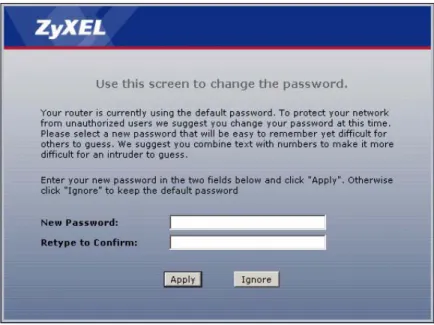
If you entered the admin password, it is highly recommended you change the default admin password! Enter a new password between 1 and 30 characters, retype it to confirm and click Apply; alternatively click Ignore to proceed to the main menu if you do not want to change the password now.
Note: If you do not change the password at least once, the following screen appears every time you log in with the admin password.
Figure 5 Change Password at Login
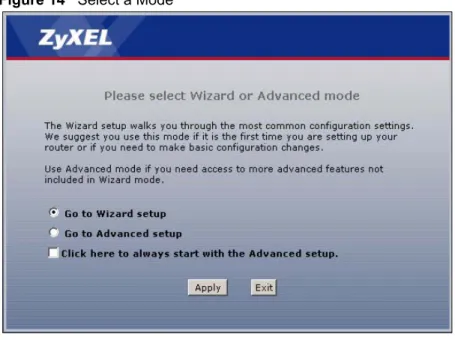
7 Select Go to Wizard setup and click Apply to display the wizard main screen. Otherwise, select Go to Advanced setup and click Apply to display the Status screen.
Chapter 2 Introducing the Web Configurator 42 Figure 6 Select a Mode
Note: The management session automatically times out when the time period set in the Administrator Inactivity Timer field expires (default five minutes). Simply log back into the ZyXEL device if this happens to you.
2.3 Resetting the ZyXEL device
If you forget your password or cannot access the web configurator, you will need to use the
RESET button at the back of the ZyXEL device to reload the factory-default configuration file. This means that you will lose all configurations that you had previously and the password will be reset to “1234”.
2.3.1 Using the Reset Button
1 Make sure the POWER LED is on (not blinking).
2 Press the RESET button for ten seconds or until the POWER LED begins to blink and then release it. When the POWER LED begins to blink, the defaults have been restored and the ZyXEL device restarts.
2.4 Navigating the Web Configurator
We use the P-660HW-D1 web screens in this guide as an example. Screens vary slightly for different ZyXEL device models.
2.4.1 Navigation Panel
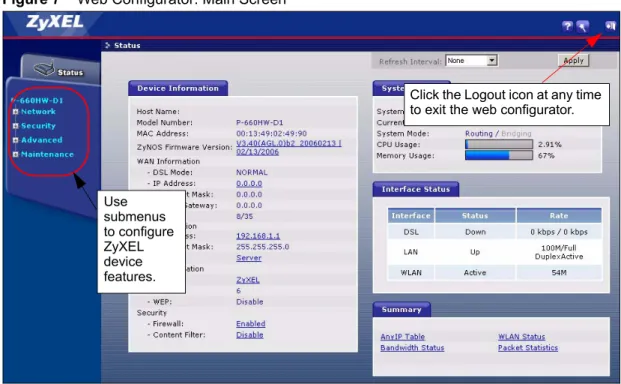
After you enter the admin password, use the sub-menus on the navigation panel to configure ZyXEL device features. The following table describes the sub-menus.
43 Chapter 2 Introducing the Web Configurator Figure 7 Web Configurator: Main Screen
Note: Click the icon (located in the top right corner of most screens) to view embedded help.
Table 3 Web Configurator Screens Summary
LINK/ICON SUB-LINK FUNCTION
Wizard INTERNET/ WIRELESS SETUP
Use these screens for initial configuration including general setup, ISP parameters for Internet Access and WAN IP/DNS Server/MAC address assignment.
BANDWIDTH MANAGEMENT SETUP
Use these screens to limit bandwidth usage by application or packet type.
Logout Click this icon to exit the web configurator.
Status This screen shows the ZyXEL device’s general device, system and interface status information. Use this screen to access the summary statistics tables.
Network
WAN Internet
Connection This screen allows you to configure ISP parameters, WAN IP address assignment, DNS servers and other advanced properties.
More Connections Use this screen to view and configure other connections for placing calls to another remote gateway.
WAN Backup
Setup Use this screen to configure your traffic redirect properties and WAN backup settings. Use
submenus to configure ZyXEL device features.
Click the Logout icon at any time to exit the web configurator.
Chapter 2 Introducing the Web Configurator 44 LAN IP Use this screen to configure LAN TCP/IP settings, enable Any
IP and other advanced properties.
DHCP Setup Use this screen to configure LAN DHCP settings.
Client List Use this screen to view current DHCP client information and to always assign an IP address to a MAC address (and host name).
IP Alias Use this screen to partition your LAN interface into subnets. Wireless LAN General Use this screen to configure the wireless LAN settings and
WLAN authentication/security settings.
OTIST This screen allows you to assign wireless clients the ZyXEL device’s wireless security settings.
MAC Filter Use this screen to configure the ZyXEL device to block access to devices or block the devices from accessing the ZyXEL device.
QoS WMM QoS allows you to prioritize wireless traffic according to the delivery requirements of the individual and applications. NAT General Use this screen to enable NAT.
Port Forwarding Use this screen to configureservers behind the ZyXEL device. Address Mapping Use this screen to configure network address translation
mapping rules. Security
Firewall General Use this screen to activate/deactivate the firewall and the direction of network traffic to which to apply the rule.
Rules This screen shows a summary of the firewall rules, and allows you to edit/add a firewall rule.
Anti Probing Use this screen to change your anti-probing settings. Threshold Use this screen to configure the threshold for DoS attacks. Content Filter Keyword Use this screen to block sites containing certain keywords in the
URL.
Schedule Use this screen to set the days and times for the ZyXEL device to perform content filtering.
Trusted Use this screen to exclude a range of users on the LAN from content filtering on your ZyXEL device.
Advanced
Static Route Use this screen to configure IP static routes. Bandwidth
MGMT Summary Use this screen to enable bandwidth management on an interface. Rule Setup Use this screen to define a bandwidth rule.
Monitor Use this screen to view the ZyXEL device’s bandwidth usage and allotments.
Dynamic DNS Use this screen to set up dynamic DNS. Table 3 Web Configurator Screens Summary (continued)
45 Chapter 2 Introducing the Web Configurator
2.4.2 Status Screen
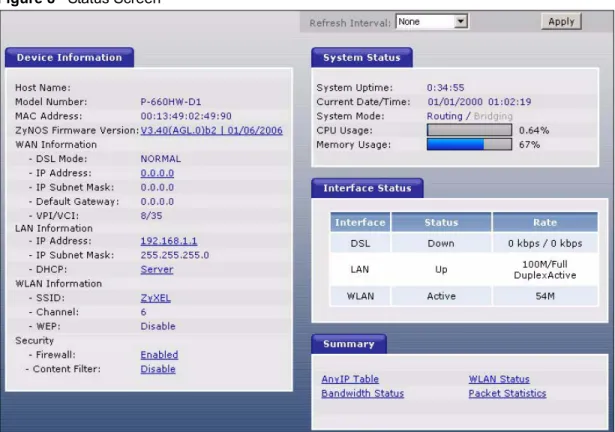
The following summarizes how to navigate the web configurator from the Status screen. Some fields or links are not available if you entered the user password in the login password screen (see Figure 4 on page 41).
Remote MGMT WWW Use this screen to configure through which interface(s) and from which IP address(es) users can use HTTPS or HTTP to manage the ZyXEL device.
Telnet Use this screen to configure through which interface(s) and from which IP address(es) users can use Telnet to manage the ZyXEL device.
FTP Use this screen to configure through which interface(s) and from which IP address(es) users can use FTP to access the ZyXEL device.
SNMP Use this screen to configure your ZyXEL device’s settings for Simple Network Management Protocol management.
DNS Use this screen to configure through which interface(s) and from which IP address(es) users can send DNS queries to the ZyXEL device.
ICMP Use this screen to change your anti-probing settings. UPnP Use this screen to enable UPnP on the ZyXEL device. Maintenance
System General This screen contains administrative and system-related information and also allows you to change your password. Time Setting Use this screen to change your ZyXEL device’s time and date. Logs View Log Use this screen to view the logs for the categories that you
selected.
Log Settings Use this screen to change your ZyXEL device’s log settings. Tools Firmware Use this screen to upload firmware to your ZyXEL device.
Configuration Use this screen to backup and restore the configuration or reset the factory defaults to your ZyXEL device.
Restart This screen allows you to reboot the ZyXEL device without turning the power off.
Diagnostic General These screens display information to help you identify problems with the ZyXEL device general connection.
DSL Line These screens display information to help you identify problems with the DSL line.
Table 3 Web Configurator Screens Summary (continued)
Chapter 2 Introducing the Web Configurator 46 Figure 8 Status Screen
The following table describes the labels shown in the Status screen. Table 4 Status Screen
LABEL DESCRIPTION
Refresh Interval Select a number of seconds or None from the drop-down list box to refresh all screen statistics automatically at the end of every time interval or to not refresh the screen statistics.
Apply Click this button to refresh the status screen statistics. Device Information
Host Name This is the System Name you enter in the Maintenance > System > General
screen. It is for identification purposes. Model Number This is your ZyXEL device’s model name.
MAC Address This is the MAC (Media Access Control) or Ethernet address unique to your ZyXEL device.
ZyNOS Firmware
Version This is the ZyNOS Firmware version and the date created. ZyNOS is ZyXEL's proprietary Network Operating System design. WAN Information
DSL Mode This is the standard that your ZyXEL device is using. IP Address This is the WAN port IP address.
IP Subnet Mask This is the WAN port IP subnet mask.
Default Gateway This is the IP address of the default gateway, if applicable.
VPI/VCI This is the Virtual Path Identifier and Virtual Channel Identifier that you entered in the wizard or WAN screen.
47 Chapter 2 Introducing the Web Configurator LAN Information
IP Address This is the LAN port IP address. IP Subnet Mask This is the LAN port IP subnet mask.
DHCP This is the WAN port DHCP role - Server, Relay or None. WLAN Information
SSID This is the descriptive name used to identify the ZyXEL device in the wireless LAN. Channel This is the channel number used by the ZyXEL device now.
WEP This displays the status of WEP data encryption. Security
Firewall This displays whether or not the ZyXEL device’s firewall is activated. Content Filter This displays whether or not the ZyXEL device’s content filtering is activated. System Status
System Uptime This is the total time the ZyXEL device has been on.
Current Date/Time This field displays your ZyXEL device’s presentdate and time.
System Mode This displays whether the ZyXEL device is functioning as a router or a bridge. CPU Usage This number shows how many kilobytes of the heap memory the ZyXEL device is
using. Heap memory refers to the memory that is not used by ZyNOS (ZyXEL Network Operating System) and is thus available for running processes like NAT, VPN and the firewall.
The bar displays what percent of the ZyXEL device's heap memory is in use. The bar turns from green to red when the maximum is being approached.
Memory Usage This number shows the ZyXEL device's total heap memory (in kilobytes). The bar displays what percent of the ZyXEL device's heap memory is in use. The bar turns from green to red when the maximum is being approached.
Interface Status
Interface This displays the ZyXEL device port types. The port types are: DSL, LAN and
WLAN.
Status This field displays Down (line is down), Up (line is up or connected) if you're using Ethernet encapsulation and Down (line is down), Up (line is up or connected), Idle
(line (ppp) idle), Dial (starting to trigger a call) and Drop (dropping a call) if you're using PPPoE encapsulation.
For the WLAN port, it displays Active when WLAN is enabled or Inactive when WLAN is disabled.
Rate For the LAN ports, this displays the port speed and duplex setting.
For the WAN port, it displays the downstream and upstream transmission rate. For the WLAN port, it displays the transmission rate when WLAN is enabled or N/A
when WLAN is disabled. Summary
Any IP Table Use this screen to view a list of IP addresses and MAC addresses of computers, which are not in the same subnet as the ZyXEL device.
WLAN Status This screen displays the MAC address(es) of the wireless stations that are currently associating with the ZyXEL device.
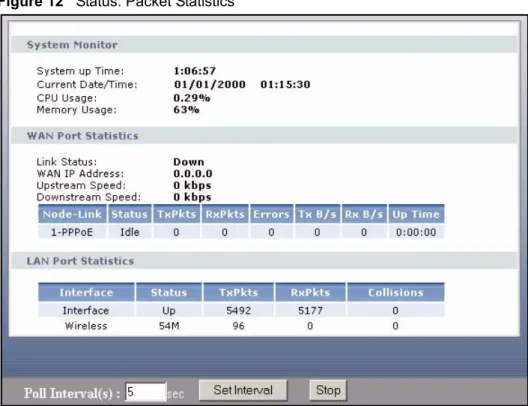
Bandwidth Status Use this screen to view the ZyXEL device’s bandwidth usage and allotments. Packet Statistics Use this screen to view port status and packet specific statistics.
Table 4 Status Screen
Chapter 2 Introducing the Web Configurator 48
2.4.3 Status: Any IP Table
Click the Any IP Table hyperlink in the Status screen. The Any IP table shows current read-only information (including the IP address and the MAC address) of all network devices that use the Any IP feature to communicate with the ZyXEL device.
Figure 9 Status: Any IP Table
The following table describes the labels in this screen.
2.4.4 Status: WLAN Status
Click the WLAN Status hyperlink in the Status screen to view the wireless stations that are currently associated to the ZyXEL device.
Figure 10 Status: WLAN Status Table 5 Status: Any IP Table
LABEL DESCRIPTION
# This is the index number of the host computer.
IP Address This field displays the IP address of the network device.
MAC Address This field displays the MAC (Media Access Control) address of the computer with the displayed IP address.
Every Ethernet device has a unique MAC address. The MAC address is assigned at the factory and consists of six pairs of hexadecimal characters, for example, 00:A0:C5:00:00:02.