Automation Framework for Testing Android Mobiles
Anbunathan R
Test Manager and Research Scholar Bharathiar University
Coimbatore
AnirbanBasu
Professor, Department of CSE
East Point College of Engineering and Technology Bangalore 560068
ABSTRACT
Android mobile testing requires lot of test cases to be executed. Test automation is essential to execute huge volume of test cases. In this paper, a test automation framework is discussed, which helps test engineers to write scripts and then execute these scripts from PC. The scripts are portable and support cross platform, running on Windows and Linux platforms seamlessly with minimal changes.
Keywords
Android mobile test, Test automation framework, Test script, TCL/TK scripting environment.
1.
INTRODUCTION
Android mobiles are playing key role in mobile market. OEMs (original equipment manufacturer) are focusing on Android mobiles as the cost of production is comparatively low comparing to other mobile platforms. In order to keep the time to market very short, the testing cycles need to be reduced. Test automation helps by decreasing the test cycle time and by increasing the productivity.
Automated test system involves the following activities:
Automation tool(AutovalX/Autoval) development
Test case writing
Cross platform compliance checking (Windows/Linux)
Automation script development
Debugging
Performance optimization
The paper discusses an automation framework developed for functional testing of Android mobile phones. It involves use of cross platform scripting environment called TCL/TK. Using this, an automation tool called AutovalX has been developed. AutovalX can run on both Linux and Windows as a cross platform tool. The main features of AutovalX tool are capturing the image, comparing the image, mask the image, logging the result in database. AutovalX along with TCL/TK scripts can function like „Automated test system‟ to automate the complete functional testing of Android mobiles.
2.
RELATED WORK
This section discusses other methods that have been proposed for mobile testing. Ichiro Satoh [9] proposed a framework to test mobiles in varying network environment. This framework introduces a mobile agent based emulator of a mobile computing device for use with target application software. It was inspired by the lack of methodologies available for developing context aware applications in mobile computing settings. It aimed to emulate the physical mobility of portable computing devices through the logical mobility of applications designed to run on them. Basically this
framework is running on a computer, so that debugging will be easy.
In [6], Domenico et al. proposed a GUI crawling-based framework to test Android mobiles. This framework works along with Robotium framework for analyzing the components of a running Android application. Using this info, it generates firable events to crawl through various widgets and detects crashes.
In [7], Hyungkeun et al. proposed an integrated framework which includes several open source frameworks such as NTAF, STAF, wiki, FoneMonkey and ATAF. The idea is same test case can be re-used for both iPhone and Android. In [5], Lulu et al. proposed a framework which involves a model based activity page. It is implemented through open source frameworks such Robotium and Monkey runner. A crawling algorithm navigates through components of activity page. It also generates scripts to run with Robotium for emulator and Monkey runner for device.
In [8], Delamar et al. proposed a framework which can perform structural testing of Android mobile applications. A provision is given to trace data back to desktop. An instrumentation scheme helps to analyze the coverage of test cases, by comparing static analysis results with dynamic results obtained during execution.
3.
GENERAL DESCRIPTION
3.1
Architecture Diagram of Automated
Test System
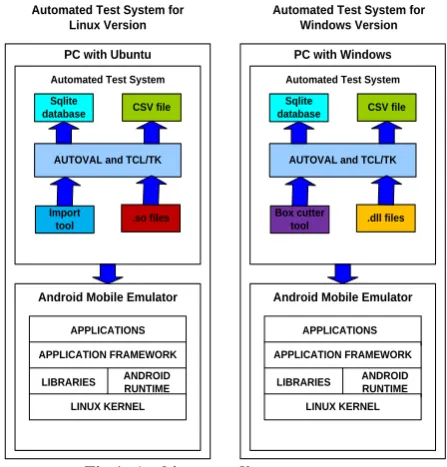
Figure 1 shows the architecture of automated test framework.
Automated Test System for Linux Version
Automated Test System for Windows Version PC with Ubuntu
AUTOVAL and TCL/TK Sqlite
database
Android Mobile Emulator
CSV file Automated Test System
.so files Import
tool
PC with Windows
AUTOVAL and TCL/TK Sqlite
database
Android Mobile Emulator
CSV file Automated Test System
.dll files Box cutter
tool
APPLICATIONS
APPLICATION FRAMEWORK
LIBRARIES
LINUX KERNEL ANDROID RUNTIME
APPLICATIONS
APPLICATION FRAMEWORK
LIBRARIES
[image:1.595.332.556.517.751.2]LINUX KERNEL ANDROID RUNTIME
The architecture shows the interface between Android mobile and automated test system. The difference between Linux based system and Windows based system is also shown in the figure. In Linux based system, Import is used as cropping tool. In windows based system, Box cutter is used as cropping tool. Also in Linux based system, .so file is used to integrate C functions like image compare functions. whereas, in Windows based system, .dll file is used to integrate C functions like image compare functions.
3.2
The System Modules
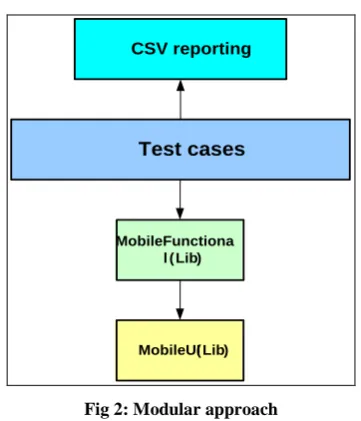
Figure 2 shows the software modules
MobileUI(Lib) MobileFunctiona
l ( Lib)
Test cases
[image:2.595.323.532.138.311.2]CSV reporting
Fig 2: Modular approach
3.2.1
Mobile UI
This layer contains the low level UI related information like screen coordinates.
3.2.2
Mobile Functional
This layer contains functionalities of test cases. Ex: Enter password.
3.2.3
Test cases
This layer contains actual test cases implementation. The UI and functionalities are abstracted from test cases. This ensures the minimal change in the test case, even though UI is changed drastically.
3.2.4
CSV based report
At the end the output result is stored as CSV file format.
3.3
Environment and Tools used
[image:2.595.76.257.194.405.2]In this section, the environment of automated test system is listed. Also the required tools are listed below. The list contains environment and tools for Linux and Windows based systems.
Table 1. Tool chain for Linux and Windows based systems
Linux Version Windows Version PC with Ubuntu PC with windows
AutovalX AutovalX
Active TCL version 8.4.19.2
Active TCL version 8.4.19.2
BLT2.4 BLT2.4
Import tool Boxcutter
libcomparebmp.so CompareBMP.dll Xmacro
Wmctrl
4.
BEHAVIORAL DESCRIPTION OF
AUTOVALX
4.1
System States
The operations of AutovalX tool can be represented by the following state transition diagram:
Idle
(Disable edit) Enable Edit Edit screen
New or Open Edit
Mask
Save mask Start mask
Close Save
Log manager
Press Capture tab Press
log manager tab
View log Open log
Close
Fig 3: State transition diagram
The Figure 3 explains about the Log manager,View log, Mask, Idle, Enable Edit, Edit screen and the flow of operations which take place.
5.
AUTOVALX TOOL DESIGN
5.1
Functionalities of AutovalX
The major functionalities of AutovalX are discussed in this chapter.
5.1.1
Capture
The capture functionality of the AutovalX tool helps user to crop full or part of mobile screen (from mobile emulator). This cropped image can be saved as bmp file as baseline image. When automation scripts are executed this stored bmp files are compared with actual images and then Pass or Fail results are recorded.
5.1.2
Mask
The mask functionality helps user to mask unwanted area while comparing the baseline and actual images. For example, user may want to mask the battery icon or the antenna status while comparing.
5.1.3
Log manager
The log manager is used to view the test case results.
5.2
Data Objects or Data Structures
In this system data structures like tree and list view are used.
5.2.1
Tree design
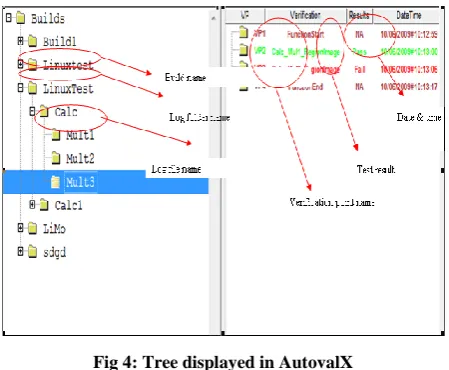
The automated test system uses tree data structure to display log folder name, log file name, build name, date, time and result fields, after executing each test case. This is achieved using open source tool called BLT. BLT gives extensive tree operations like tree creation, adding tree nodes, append tree nodes, search tree path etc.
[image:2.595.65.271.656.770.2]Fig 4: Tree displayed in AutovalX
This tree needs to be created, when the test is running. The tree information has to be stored in database.
5.2.2
List View Design
[image:3.595.318.542.124.261.2]The automated test system contains list view to display mask coordinates. This is achieved through BLT tree option. When user selects particular area of base image, the coordinates of selected area need to be captured and saved in database. Figure 5 shows the list view:
Fig 5: Mask co-ordinates
The masks and the corresponding coordinates are listed. If user wants to delete one mask, user has to click on corresponding list item and then press „Mask delete‟ button.
5.2.3
Files and Database Structures
Automated test system deals with Sqlite database files:
Auto.db
MaskDB.db
Log.db
Auto.db database file consists of records called Image. MaskDB.db database file consists of records called Mask table and Mask counter table.
5.2.3.1
SQLite Database Design
The system consists of Sqlite database for storing and retrieving critical data. The database consists of three important tables called Image table, Log table and Mask table.
The image table contains, base image name, its coordinates (StartX, StartY, EndX, EndY).
Figure 6 shows structure of Image table and the data type of each element in the table:
Fig 6: Structure of Image table and the data type of each element in the table
[image:3.595.319.540.327.478.2]The log table contains log folder name, log file name, build name, date and time and result fields. Figure 7 shows structure of log table and the data type of each element in the table:
Fig 7: Structure of log table and the data type of each element in the table
The Mask table consists of base image name and corresponding mask regions (StartX, StartY, EndX, EndY). Figure 8 shows structure of Mask table and the data type of each element in the table:
[image:3.595.53.277.361.534.2] [image:3.595.326.529.556.729.2]5.3
UI Design
5.3.1
Log Manager UI Design
[image:4.595.55.282.111.306.2]Log manager UI is as shown in Figure 9:
Fig 9: Log manager UI is as shown below
The Log manager consists of tree in left pan and list view in right pan.
The tree contains information about build name, log folder name and log file name.
The list view contains the information about verification points, date & time and results of each verification point (Pass/Fail).
The VP with Pass status is displayed in green. The VP with Fail status is displayed in red.
Each node of the tree can be expanded or collapsed as per user action.
Double clicking on the file name displays the list view in the right pane.
Date and time are retained even though the application is closed.
5.3.2
Mask Window UI design
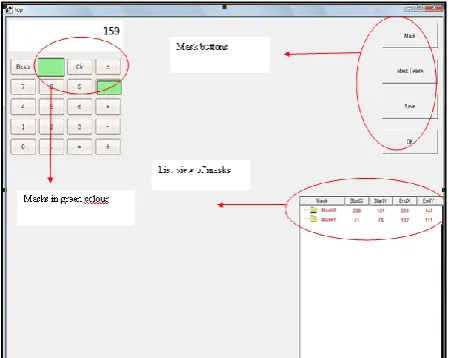
By clicking edit button in the capture window, mask window is opened. Figure 10 shows the appearance of mask window:
Fig 10: Appearance of mask window
The mask buttons are listed below:
Mask button: To start the mask action
Mask delete: To delete one mask at a time
Save: To save the masks in database
OK: To close and return back to capture window
The list view of masks displays the coordinates of each mask. By selecting one item and then clicking on „Mask delete‟ button deletes that mask.
The masks are displayed in green color.
Maximum of 16 masks can be added for a single base image.
Masks can be applied within the border of the image.
Thus the UI design is simple and provides easy access to user. Care has been taken to provide better UI design covering aesthetics and ergonomics.
5.4
Interfaces to external Programs
Run time engine is the one taking care of interface between AutovalX tool and test automation scripts.
5.4.1
Run Time Engine design
Run time engine is set of library functions, which are used in TCL based test cases. This engine also interacts with databases to get information about the base images, their coordinates, mask coordinates etc. This base image is compared with run time image, considering the masks and then results are stored in the log database. This run time engine is the bridge between AutovalX tool and TCL based test cases. Apart from these activities, Run time engine also performs the activities like initializing the databases, opening databases, closing databases etc.
6.
TEST PROVISION
6.1
Test Guidelines
The testing should follow block box testing approach. The defects should be fixed and tracked to closure.
6.2
Module Testing
The following modules are tested:
Sqlite database module
Capture module
Mask module
Log manager
[image:4.595.54.279.564.743.2]Table 2. Test Cases for checking system performance
7.
ARCHITECTURE OF TARGET
BASED AUTOMATON
The automated test system for target is similar to that of Emulator. There is one difference, instead of AutovalX tool, Autoval tool is used. Autoval tool is developed using Autoit scripting environment.
7.1
Architecture Diagram
text text
AutoIt/Autoval
Excel
report Database
Host PC
USB Bus
Executes test cases sequentially Compares captured & base lined screens Determines Pass/Fail
Generates log and Excel reports
Phone
Excel Sanity Inputs
DDMS tool (Screen Capture)
Monkey tool (Generate Touch/Key Events)
Android tools
Fig 11: Architecture diagram for target automation
The architecture of target based automation system is as shown Figure 11. Autoit and Autoval tools are used for writing and executing the scripts. DDMS tool is used for capturing the screen shots. ADB and Monkey tools are used for sending Touch/Key events to handset. The scripts are designed in such a way that the inputs from Excel work book can be taken for execution. Also the test case results are stored in Excel workbook. Sqlite database is used to store information about verification points like screen coordinates and mask coordinates. Also the Pass/Fail results are stored in Sqlite database.
7.2
Screen Capture
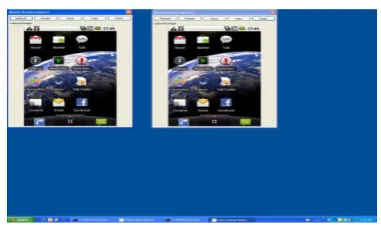
[image:5.595.48.261.91.593.2]The DDMS screens have to be placed in a fixed Window position like 0,0 and 500,0, as shown in Figure 12. This helps the proper functioning of comparison algorithm when the scripts are re-run. The comparison algorithm compares the baseline images with actual images. The baseline images are captured by automation Engineer script development. The actual images are captured by the automation tool, while executing the scripts.
Fig 12: Screen Capture Test
case
ID Details Status
1 Capture image and store Pass
2 Rename image and Save As Pass 3 Open image already stored Pass
4 Mask the Image Pass
5
Load the image and check mask
coordinates Pass
6 Delete mask coordinates Pass
7 Create log information Pass
8
Display of Pass case in Log
manager in green colour Pass
9
Display of Fail case in Log
manager in Red colour Pass
10
Double click pass case in Log
manager to check one image Pass
11
Double click Fail case in Log
manager to check two images Pass 12 Check run time image comparison Pass
13
Check run time actual image
capture Pass
14
Creation of test case in Windows
environment Pass
15
Creation of test case in Linux
environment Pass
16
Execution of test case in windows
environment Pass
17
Execution of test case in Linux
environment Pass
18 Store results in CSV file Pass 19 Change working directory Pass
20
Check cross platform
[image:5.595.330.521.602.717.2]7.3
Key/Touch Event Injection
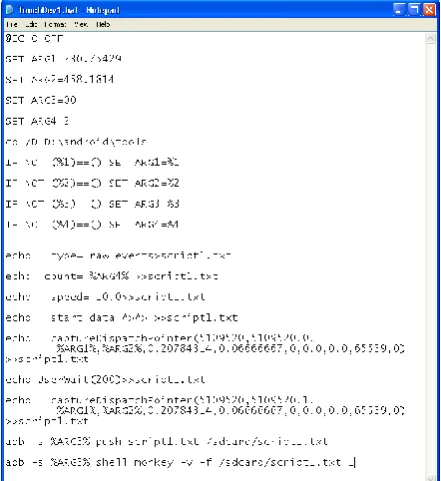
[image:6.595.57.278.206.447.2]Key events are passed to handset through ADB commands. For this Android has provided a tool called Monkey. Monkey tool executes *.txt file, which is already stored in the SD card. So every time, to pass one touch event, the text file has to be updated with proper commands. Once commands are updated, we need to „Push‟ this text file into SD card. This can be achieved using the ADB command, “adb -s %ARG3% push script10.txt /sdcard/script10.txt”. Here “ARG3” is serial number of the device, which is passed as command line argument. The key events are stored in the text file called “script10.txt”.
Fig 13: Batch file for Touch event injection
For example ,the touch event like “capture Dispatch Pointer(5109520,5109520,0,%ARG1%,%ARG2%,0.2078431 4,0.06666667,0,0.0,0.0,65539,0)>>script10.txt” can be stored in “script10.txt” file. This command injects „touch down‟ event into handset to click on any touch coordinate X and Y. Here the touch coordinates X and Y can be passed as argument using “ARG1 and ARG2”. And then this script file can be invoked by using the ADB command, “adb -s %ARG4% shell monkey -v -f /sdcard/script10.txt 1”. This command, in turn invokes „Monkey‟ tool by passing the path of script file as argument. These ADB commands can be grouped in a batch file, for convenient execution, as shown in Figure 13.
8.
EXPERIMENTAL RESULTS
Using this automated test system, test cases are written in TCL/TK environment for testing Android Calculator application, as a proof of concept. Each test case is divided into 4 sections:
1. Initialization section. 2. Logical section. 3. Verification section. 4. Closing section.
These sections are explained briefly.
8.1
Initialization Section
In this section, external packages required to execute this test case, are included. Also test resources such as databases are initialized.
Sample code:
######This will have WorkingDir######### #!/bin/sh
# The next line is executed by /bin/sh, but not tcl \ exec wish "$0" ${1+"$@"}
source AndroidcalcUI.tcl
package require AndroidcalcUI 1.0 #catch {namespace import mclistbox::*} source RunTimeLibrary.tcl
package require RunTimeLibrary 1.0 InitializeTestResources
LogEnable "Enable"
8.2
Logical Section
In this section, logic involved in the test case is given. In the following example, multiplication of 4 and 5 is tested: #Calculator example
set ScriptName "Android" set RegionName "Calc3" ClickKey4
ClickKeyMul ClickKey5 ClickKeyEqu
8.3
Verification Section
In this section, the result after executing test case is checked. In the following example, result is verified using image comparison method:
set Lresult [CaptureAndCompare $ScriptName $RegionName ""]
tk_messageBox -message "Testcase1: $Lresult" -type ok
8.4
Closing Section
In this section, the test resources such as databases are closed. This is given as below:
CloseTestResources exit
9.
CONCLUSIONS
The automated test system for Emulator is working on both Windows and Linux platforms. This can be ported to Mac OS in future. The automated test system for target is working on Windows platform. This automated test system is built for sanity testing. This can be extended to cover full functional testing.
In current approach, image comparison is used as verification method. In future, text comparison has to be used as verification method. This can be achieved by extracting texts from UI, by using objects that are exposed by Android.
10.
REFERENCES
[1] Dustin, Garett, gauf, Implementing Automated Software Testing, Pearson, 2010 .
[2] Google Code. Robotium. Available at:
http://code.google.com/p/robotium/. Last accessed Jun. 29, 2014.
[3] Android Developers. Monkeyrunner. Available at:http://developer.android.com/guide/developing/tools/ monkey%20runner_concepts.html. Last accessed Jun. 29, 2014.
[4] Android Developers. UI automator. Available
at:http://developer.android.com/tools/help/uiautomator/in dex.html.Last accessed Jun. 29, 2014.
[5] Lu Lu, Yulong Hong, Ying Huang, Kai Su and Yuping yan, “Activity Page Based Functional Test Automation for Android Application”, IEEE Third World Congress on Software Engineering (WCSE), 2012.
[6] Domenico Amalfitano, Anna Rita Fasolino and Porfirio Tramontana, “A GUI Crawling-based technique for Android Mobile Application Testing”, IEEE Fourth International Conference on Software Testing, Verification and Validation Workshops, 2011.
[7] Hyungkeun Song, Seokmoon Ryoo and Jin Hyung Kim, “An Integrated Test Automation Framework for Testing on Heterogeneous Mobile Platforms”, IEEE First ACIS International Symposium on Software and Network Engineering, 2011.
[8] M. E. Delamaro, A. M. R. Vincenzi and J. C. Maldonado, A strategy to perform coverage testing of mobile applications, In Proceedings of the 2006 international workshop on Automation of software test (AST '06). ACM, New York, NY, USA, 118-124. [9] I. Satoh, A testing framework for mobile computing
software. IEEE Transactions on Software Engineering, 29(12):1112–1121, Dec. 2003.
[10]Pressman R.S. (2000) Software Engineering: A Practitioner's Approach, European Adaptation [adapted by Ince D.], Fifth Edition.Berkshire, UK: McGraw-Hill Publishing Company. 915p.
[11]Borland Silktest. URL [June 16,
2009]:http://www.borland.com/us/products/silk/silktest/i ndex.html
[12]HP QuickTest Professional Software. URL [June 16, 2009]:https://h10078.www1.hp.com/cda/hpms/display/m
ain/hpms_content.jsp?zn=bto&cp=1-11-127-24^1352_4000_100__
[13]HP WinRunner software. URL [June 16,
2009]:https://h10078.www1.hp.com/cda/hpms/display/m
ain/hpms_content.jsp?zn=bto&cp=1-11-127-24^1074_4000_100__
[14]Horwath T., Green J. & Lawler T. SilkTest and WinRunner Feature Description. URL [June 16, 2009]:http://lakefolsom.com/whitepapers/SilkWrFeature s.pdf
[15]Robinson R. Automation Test Tools Comparison. URL [June 16,2009]: http://www.vcaa.com/tools/Ray Robinson.pdf