© Copyright XBLUE Networks, LLC 2006
XBLUE Networks reserves the right to make changes in specifications at any time without notice. All of the information in this document is believed to be accurate and reliable, but is not warranted to be true in all cases.
Release Date
Version
Supersedes
Description
TOC
Introduction5
Basic Elements of telephone ... 6
Interactive Buttons ... 7
Navigation Keys ... 8
Getting Started9 Idle Telephone Screen ... 9
Making Calls... 10
Ending Calls ... 12
Switching from Handset to Speakerphone ... 12
Feature Codes ... 13
Feature Code Operation16 Accessing Specific CO Lines... 16
Account Code ... 16
Answering Machine Emulation... 16
Attendant ... 17
Attendant Administration (Admin.)... 18
Authority Code (Traveling Class of Service) ... 22
Automatic Hold ... 23
Automatic Selection (CO/Intercom)... 24
Background Music (BGM) ... 25
Barge-In (Intrusion)... 25
Busy Lamp Field (BLF) / Direct Station Select (DSS)... 26
Busy Ring Allow/Deny ... 27
Call Attendant (Operator) ... 28
Call Back – Extension... 28
Call Forward Extension... 29
Call Park / Call Park Answer ... 33
Call Pickup Group ... 34
Caller Identification - Call Log ... 34
Call Waiting ... 35
Conference ... 35
Data Rate ... 36
Day and Night Modes ... 36
Default Flexible Buttons ... 36
Default Settings... 37
Directed Call Pickup... 37
Distinctive Ring... 38
Do Not Disturb... 38
Do Not Disturb - Override... 39
Enhanced Lettering Scheme... 39
TOC
Extension Pick Up Groups ...41
Extension Reminder...42
Flash – Telephone Company Line ...42
Flexible Feature Button Programming ...43
Forced Intercom Tone Ring ...46
Group Call Pickup...47
Headset Jack ...47
Hold, System (Common) & I – Hold Indication...47
“Hold” Remind Time ...48
Holding Call Answer – Select ...48
Hot Key Enable / Disable ...49
Hunt Groups ...49
Intercom Calling - Non Blocking - Intercom Button ...50
Intercom Call Back...51
Last Number Redial...51
Least Cost Routing ...52
Message Waiting...52
Monitor - SLT Extension ...53
Mute...54
Off Hook Voice Announce ...54
On Hook Dialing (Hot Key Pad)...56
One Touch Transfer ...56
Page...56
Page (Allow / Deny) ...57
Page (Meet Me) ...57
Pause / Pause Insertion...58
Phone Lock / Unlock ...58
Pulse to Tone (DTMF) Conversion ...59
Recall...59
Reminder Tones ...60
Ringing Level / Muted Ringing...60
Ringing Line Priority ...61
Relay Control ...61
Save Dialed Number (SDN) ...62
Single Line Telephone - Flash ...62
Speakerphone ...62
Security Control ...63
Speed Dial (ABBR) – Extension /System...64
Status Message ...67
Text Messages...68
Touch Tone On/Off ...69
Transfer ...69
TOC
Volume Control ... 72Warning Tone / CO Line Call Limiter... 73
Voice Processing System74
1 Extension User Guide
Introduction
The XBLUE telephone is a high quality, full featured, speakerphone with programmable feature buttons, which allows you to customize the operation of your desk telephone.
Telephone Basics
AUX Lamp
3x16 Display
Navigation Keys
Programmable Feature Buttons
Ba
sic Elements of telephone
1
Basic Elements of telephone
1. 3-line 48 Character Display
2. 18 Programmable, dual color LED Buttons
3. 4 point navigation and select button 4. High quality speakerphone
5. 3 interactive buttons
6. 6 fixed buttons - Hold, Transfer, Conference, Redial, mute and Speaker
Inter
active B
ut
tons
1
I
nteractive Buttons
Each digital telephone has 3 interactive (soft) buttons. Each button’s operation changes as the telephone is being used. For example, when the telephone is idle, the center interac-tive button is labeled “cid”. If Caller ID is a service that is subscribed for and the associ-ated button is pressed it will display the last inbound Caller ID telephone number received.
When an intercom call is placed, and the remote telephone is ringing, three interactive but-tons update:
• Interactive button 1 - cbck = Call Back
• Interactive button 2 - msg = Send an Alert Message
• Interactive button 3 - vm = Leave a voice mail message
MAY 1 MON 10:00
cid 10
Navigation K
eys
1
Navigation Keys
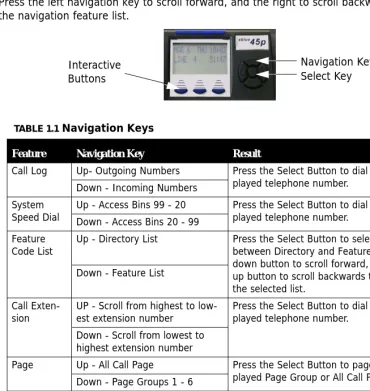
The Navigation Keys, located at the right of the Display, allows quick access to commonly used features. There are 4 navigation keys which circle the select key. For example, to use the Navigation keys, begin by pressing the Right navigation key, to access Call Log, and then press the down navigation key to view incoming and the up navigation key to view outgoing calls. Press the center select key to dial the displayed telephone number.
Press the left navigation key to scroll forward, and the right to scroll backwards through the navigation feature list.
TABLE 1.1 Navigation Keys
Feature Navigation Key Result
Call Log Up- Outgoing Numbers Press the Select Button to dial the dis-played telephone number.
Down - Incoming Numbers System
Speed Dial Up - Access Bins 99 - 20Down - Access Bins 20 - 99 Press the Select Button to dial the dis-played telephone number.
Feature
Code List Up - Directory List Press the Select Button to select between Directory and Feature. Press down button to scroll forward, and the up button to scroll backwards through the selected list.
Down - Feature List
Call Exten-sion
UP - Scroll from highest to low-est extension number
Press the Select Button to dial the dis-played telephone number.
Down - Scroll from lowest to highest extension number
Page Up - All Call Page Press the Select Button to page the dis-played Page Group or All Call Page. Down - Page Groups 1 - 6
Music UP - N/A Press the Select Button to enable or Dis-able Background Music
Down - N/A
Door Phone Up - Answer Door Phone 1 The Door Phone must be connected and active to access
Down - Answer Door Phone 2
Navigation Keys Select Key Interactive
Id
le T
elephone
Scr
een
1
Getting
Started
Idle Telephone Screen
Without the optional Voice Mail system:
Display Definition:
MAY Month
1 Day MON Weekday 10: 00 Time
NO VMAILVoice mail is not installed JOHN Extension Name
cid Caller ID Log 10 Extension Number
MAY 1 MON 10:00 NO VMAIL
Making
Calls
1
With the optional Voice Mail system:
Display Definition
Making Calls
Intercom Calls
All calls can be made from an idle telephone, no need to press the speaker button or lift the handset. Once connected, lift the handset to converse privately. From an idle tele-phone, Press the Preprogrammed button or dial the extension number
Handsfree Operation
MAY Month 1 Day MON Weekday 10: 00 Time
VMAIL New:01 Saved: 02 JOHN Extension Name cid Caller ID Log 10 Extension Number
MAY 1 MON 10:00 VMAIL N:01 S:02 JOHN cid 10
Making Ca
lls
1
Ringing Operation
Press the Preprogrammed button or dial the extension number. The “vm” selection requires the optional voice mail.
Outside calls
All calls can be made from an idle telephone, no need to press the speaker button or lift the handset. For an outside line, dial 9 or press the line button, and dial the desired tele-phone number. Once connected, lift the handset to converse privately.
Speakerphone calling:
1. Dial “9” or Press the Line button:
2. Dial phone Number:
MAY 1 MON 10:00 EXT 11 cbck msg vm
MAY 1 MON 10:00 LINE 3
Ending Cal
ls
1
3. While Talking:
Ending Calls
Handset Calling:
1. Place the handset in the cradle to terminate the call.
Speakerphone:
1. Press the speaker button to terminate the call. When the speaker light is extinguished the call is terminated.
Switching from Handset to Speakerphone
1. While the handset is off hook, press the speaker button.
2. The speaker button will light but there will be no sound. 3. Place the handset into the cradle
4. Speakerphone should be active
Note:
When switching from handset to speaker could cause a short squeal. To eliminate this pos-sibility press the mute button first. Headset must be disabled before the speaker will work.
Fe
at
ur
e C
od
es
1
Feature Codes
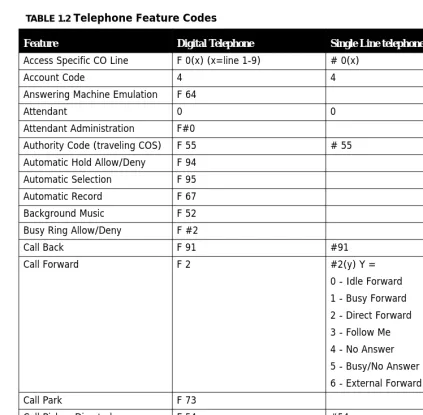
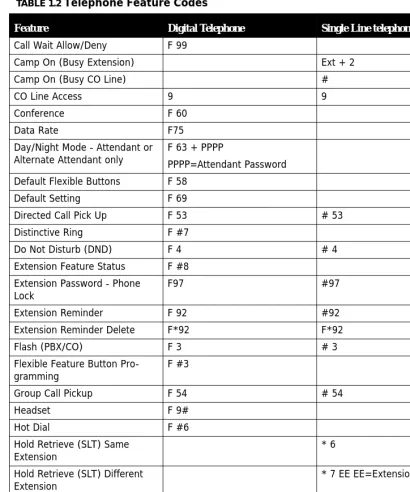
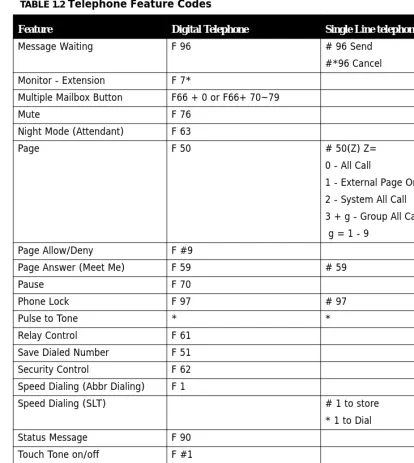
Feature codes may be dialed at the time of operation or they may be stored on a program-mable feature button. Once stored, the feature can be easily accessed by pressing the but-ton. If applicable, the associated LED will light, indicating that the feature is currently operational. For example, Program Do Not Disturb on a feature button, when pressed the associated LED will illuminate, indicating that the extension is in DND mode.
TABLE 1.2 Telephone Feature Codes
Feature Digital Telephone Single Line telephone
Access Specific CO Line F 0(x) (x=line 1-9) # 0(x)
Account Code 4 4
Answering Machine Emulation F 64
Attendant 0 0
Attendant Administration F#0
Authority Code (traveling COS) F 55 # 55
Automatic Hold Allow/Deny F 94 Automatic Selection F 95 Automatic Record F 67
Background Music F 52
Busy Ring Allow/Deny F #2
Call Back F 91 #91
Call Forward F 2 #2(y) Y =
0 - Idle Forward 1 - Busy Forward 2 - Direct Forward 3 - Follow Me 4 - No Answer 5 - Busy/No Answer 6 - External Forward
Call Park F 73
Call Pickup Directed F 54 #54
Call Pickup Group F 53 #53
Call Park F 73 # 73
Fe
atu
re
C
od
es
1
Call Wait Allow/Deny F 99
Camp On (Busy Extension) Ext + 2
Camp On (Busy CO Line) #
CO Line Access 9 9
Conference F 60
Data Rate F75
Day/Night Mode - Attendant or
Alternate Attendant only F 63 + PPPP PPPP=Attendant Password
Default Flexible Buttons F 58
Default Setting F 69
Directed Call Pick Up F 53 # 53
Distinctive Ring F #7
Do Not Disturb (DND) F 4 # 4
Extension Feature Status F #8 Extension Password - Phone
Lock F97 #97
Extension Reminder F 92 #92
Extension Reminder Delete F*92 F*92
Flash (PBX/CO) F 3 # 3
Flexible Feature Button Pro-gramming
F #3
Group Call Pickup F 54 # 54
Headset F 9#
Hot Dial F #6
Hold Retrieve (SLT) Same
Extension * 6
Hold Retrieve (SLT) Different
Extension * 7 EE EE=Extension
Hot Line # #4
Intercom Call Back F 91
Last Number Redial F 8 #8
Least Cost Routing F 68
TABLE 1.2 Telephone Feature Codes
Fe
at
ur
e C
od
es
1
Message Waiting F 96 # 96 Send
#*96 Cancel Monitor - Extension F 7*
Multiple Mailbox Button F66 + 0 or F66+ 70~79
Mute F 76
Night Mode (Attendant) F 63
Page F 50 # 50(Z) Z=
0 - All Call
1 - External Page Only 2 - System All Call 3 + g - Group All Call g = 1 - 9
Page Allow/Deny F #9
Page Answer (Meet Me) F 59 # 59
Pause F 70
Phone Lock F 97 # 97
Pulse to Tone * *
Relay Control F 61
Save Dialed Number F 51 Security Control F 62 Speed Dialing (Abbr Dialing) F 1
Speed Dialing (SLT) # 1 to store
* 1 to Dial
Status Message F 90
Touch Tone on/off F #1
Transfer Beep F 79
Voice Call Allow/Deny F 98
Voice Mail F 64 #64
Voice Recording F 67
TABLE 1.2 Telephone Feature Codes
Accessing Specific CO Lines
1
Feature
Code
Operation
Accessing Specific CO Lines
Feature
0
(x)
To access an available line, dial 9 or to access a specific line press the line button or press
the Feature button followed by 0(x), where (x) = the Line 1 - 9. This allows both Single
Line and Digital Key telephones the ability to access specific outside Lines rather than dial-ing the line group code.
Conditions:
1. The telephone company Line must be connected to the telephone company facility or error tone will be heard.
Account Code
4
Account codes are passwords that are verified in the database, which are used for two dif-ferent reasons. One reason is to grant difdif-ferent dialing privileges, when a valid account code is entered, for example, it may temporarily grant access to long distance dialing. The second reason is to create a record, with the use of Station Message Detail Recording (SMDR). Extensions may be forced to use account codes before dialing out on any tele-phone company line or it can be voluntary. All Account codes are verified.
Answering Machine Emulation
Feature
64
Att
end
an
t
1
You will receive a warning tone that indicates when a caller has been answered by your voice mailbox.
1. Press the voice mail button when it is flashing green
2. Select monitor call to listen to the caller
3. Select answer to retrieve the caller or press exit to allow the caller to leave a voice mail message.
Conditions:
1. To Monitor or Answer a call, action must be taken before the “Monitor Time” expires. 2. Monitor Time starts at the time the caller is connected to the user's voice mailbox.
3. For Answering Machine Emulation to operate, the extension must be forwarded to the Voice Mail System.
4. Predefined Call Forward or Extension Call Forward can be used for this purpose.
Attendant
Any Digital Key Telephone may serve as the Attendant. The Attendant supports several general system functions like Line Recall, Forced Incoming ICM Call Forward and manual evening or alternate service mode operation as well as Voice Mail Shutdown. The attendant will receive all intercom calls directed to the Attendant Directory Number, (“0” at default).
A second (alternate) attendant position may be selected for common sharing of incoming CO line calls or load sharing during peak traffic periods.
At
ten
dan
t Admin
istr
ati
on (Admin.
)
1
Attendant Administration (Admin.)
Feature
#0
Attendant Administration (Admin.) is used to set or modify the features:
• Service Mode (Day/Alt/Eve/Time)
• System (Abbr) Speed Dial Number programming
• CFW Auxi Lamp
• Incoming Filter U - Unrestricted
• Incoming Filter R - Restricted
• Sensor Function (Optional)
• Shutdown Voice Mail (Optional)
To enter Attendant Administration Programming:
1. Press Feature #0
2. Enter the Administrator Password 3. Press show
4. Press next to navigate through the Attendant Administration features
MAY 1 MON 10:00 CHK PSWD : bksp show chg
At
ten
dan
t Ad
ministr
ation
(Admin.
)
1
Attendant Administration can be done at any digital key telephone. The Attendant Adminis-tration password is the same as the user's password of the assigned Attendant Extension. For example if extension 10 is the attendant, then extension 10’s password is used to enter attendant administration programming area.
Service Mode
The system has two modes, day and night, which can be adjusted manually by the atten-dant or automatically, when the system is set to “Timed” mode. Specific features such as ringing destination, call forwarding and extension dialing privileges can be affected by the change of service modes.
When in timed mode, the system will cycle through day and night modes automatically, as defined in the time switching parameter in the database. If the attendant places the sys-tem into either day or night mode manually, it will remain in that mode until it is placed into a new mode or placed back into timed mode.
In addition, the Attendant extension can program a button to cycle through day and night modes, without login into the attendant administration area. Feature 63 Plus the
Atten-dant Extension Password will switch from Day to Night or Night to Day. When programmed on a button, the password can be programmed to allow one button operation.
Programming System Speed Dial
1. To enter a CO Line Flash (“hook-flash”) in a System Speed number, press Feature 3.
The stored “hook-flash” is indicated by a “/” character at telephones with displays. For example to enter “FLASH1389” in a system speed number the entry would be:
“Feature 3
+
1389”. The displayed system speed number would be “/1389”.2. To enter a “Pause” in a System Speed Dial, press Feature 70. A stored pause is
indi-cated by a “P” character. For example to enter
“9P01188635773141” into a system speed number the
entry would be “9 + Feature 70 + 001188635773141.
The displayed system speed number would be “9P01188635773141”.
3. To chain one speed dial number to another, press Feature 1 the speed dial number location to dial. For example; if a very long telephone number will not fit into one speed number location, split the number into two locations. To store the number
“12345678901234567890”, for example, into locations 20 and 21:
•Enter into location 20: “
1234567890Feature 121”.•Enter into 21: “
1234567890”At
ten
dan
t Admin
istr
ati
on (Admin.
)
1
CFW Auxi Lamp:
All digital extensions have an auxiliary lamp or status bar above the LCD display. One fea-ture of the status bar is to indicate when an extension is forwarded to another destination such as voice mail. The attendant can enable or disable the Call forward status for the Aux-iliary lamp.
Incoming filter U (unring or no ringing)
Incoming Filter allows the attendant to filter inbound telephone numbers from ringing into the telephone system. This requires Caller ID.
• No Ring Mode - There are five ringing assignments that can be achieved
with the Incoming filter. They are never, always, day, night and noon. Once selected the telephone number will not ring at that time. Any other time that the system matches the number the system will present the call with one alert tone, but no other ringing will be heard.• Filter index - Enter the database filter index number 01 - 50. 01 is the first
entry in the filter index database, and 50 would be the last entry in the data-base.Incoming filter R (ringing)
Incoming Filter allows the attendant to filter inbound telephone numbers from ringing into the telephone system. This requires Caller ID.
• Ring Mode - There are five ringing assignments that can be achieved with
the Incoming filter. They are never, always, day, night and noon. Once selected the telephone number will only ring at that time. Any other time that the system matches the number the system will present the call with one alert tone, but no other ringing will be heard.• Filter index - Enter the database filter index number 01 - 50. 01 is the first
entry in the filter index database, and 50 would be the last entry in the data-base.Optional Sensor Function
At
ten
dan
t Ad
ministr
ation
(Admin.
)
1
1. SC. AL. DELAY - A sensor will activate every time the contact is opened. This means that the sensor alarm will be activate several times, which may not be desirable. Therefore, the delay, which is measured in minutes, will allow a preset time to pass before the alarm sensor activates.
2. SC. AL. Cancel - Like an alarm system the telephone system can alert internal or exter-nal parties of an open sensor. The Security Alarm Cancel is a timer which allows the sit-uation to be investigated before sending the alert notification. This timer is adjustable from 0 (immediate) to 120 seconds. If the password is not enter in the correct time, the system will begin the alert procedure.
3. SC. AL. Period - This is the period of time that the internal extension will be alerted of an open sensor. Any external numbers will continue until the notification is complete or the Call Out Timer is reached (The Out Call Timer is set in the system administration programming.
4. SC. PSWD: 0000 - Sensor Control Password is used to reset an alarm sensor once is has been activated.
Voice Mail Shutdown Procedure
The attendant is the only one who can shutdown the voice mail system. This procedure must be done every time before powered down the telephone system.
1. Press next (6 times) or until the voice mail shut down procedure screen is displayed or Press back (once)
SHUT DOWN VM
Authori
ty
C
ode (
Tra
ve
ling Class of Service)
1
2. Press show
3. Press yes to shutdown the voice mail.
Authority Code (Traveling Class of Service)
Feature
55
Authority Codes are used to bring a more privileged Class of Service to an extension with a less privileged Class of Service. When using Authority Codes, the extension password must be entered.
1. Enter Feature 55
2. Enter your extension number
3. Press Save
4. Enter your extension password
Are you sure ?
no yes
Au
to
m
at
ic Ho
ld
1
5. Press Save
Conditions:
1. Error tone is heard when an invalid account code is entered, and the telephone will return to an idle state.
2. When a valid account code is dialed, the extension is connected to a CO Line, and the Account Code’s Class of Service is verified before a call is placed.
Automatic Hold
Feature
94
This feature enhances station users’ productivity and helps eliminate accidental “lost calls” by automatically placing the current call on hold, while answering another CO Line call. For example, when a user is on CO Line 1, and presses CO Line 2, CO Line 1 will be placed on “Exclusive Hold” automatically. Similarly, while on an intercom call and talking with another extension, by pressing a CO Line button, the intercom call will be placed on Exclusive Hold. The need to press Hold is eliminated, except if you want to place a call on System Hold.
MAY 1 MON 10:00 CHK PSWD : bksp save chg
Au
tomatic Selection (CO/I
nter
com)
1
Conditions:
1. The Feature Code (Feature94) may be programmed under a flexible button on a
Digital Speakerphone. To enable/disable the feature, press the flexible button.
2. If you access an idle line and skip to another line before dialing, the first line will not be automatically placed on Hold. (Once a digit is dialed, the line is consider in use, so the automatic hold feature is active.)
3. The Automatic Hold feature places a call on Exclusive Hold.
4. If you have the Automatic Hold feature programmed on a feature button, the feature button lamp will light when the feature is enabled.
Automatic Selection (CO/Intercom)
Feature
95
This feature automatically selects a specific outside line or intercom (ICM) when the hand-set or the speakerphone button is pressed.
1. Press Feature 95
2. Press chg to select the action you would like when your telephone goes off hook.
Selections are:
• ICM = Intercom (Default)
• OUTG TR = Any outgoing telephone line
• LINE 1 = A specific telephone line (1 ~ 9 depending on the system
config-uration)• GROUP = Line Group 1 - 6 (Default is Line Group 1)
• NULL = No off hook action
3. Exit programming
Backgr
ound M
usic (BG
M
)
1
Conditions:
1. A line will not be accessed automatically when a telephone is receiving an incoming call (outside or intercom) call or when a line is recalling at the telephone. However, this operation may be override by pre-selecting an outgoing line, or dialing an extension before lifting the handset or pressing the speaker button.
2. The system will not allow invalid directory numbers to be programmed during setup
3. An Extension must have CO Line Access to any CO Line or Line group trying to be accessed.
Background Music (BGM)
Feature
52
The system comes equipped with one external music source input for Music-On-Hold and Background Music. When a Digital telephone is idle and this feature is activated, the user can monitor background music (BGM) through the telephone speaker. This feature can be activated using a feature code or press the programmed feature button (Feature 52). In addition, the Navigation Key can be used to enable and disable the Music-On-Hold feature.
Conditions:
1. The feature button LED will not light when BGM is activated.
2. BGM automatically turns off when an extension user receive or make a call.
3. BGM automatically turns on again when the telephone returns to an idle status. 4. Users with BGM enabled will not hear a system alarm reminder.
Barge‐In (Intrusion)
Bu
sy Lamp Field (BLF) /
Dir
ect Station Selec
t
1
Busy Lamp Field (BLF) / Direct Station Select (DSS)
Depending on user requirements, any Programmable Feature Button can be programmed as a Busy Lamp Field (BLF) button to monitor an extension's status; when an extension is off hook the programmed BLF button LED for that extension lights. When that extension is in Do Not Disturb, the LED will flash. This same button is used as a one-button Direct Sta-tion SelecSta-tion (DSS) call button for quick transfer of calls or intercom calling.
Use the following steps to program a flexible button:
1. Press Feature #3
2. Press the button to be changed
3. A description of the current programming will be displayed for three seconds.
4. To modify the button chg must be pressed within the three seconds.
MAY 1 MON 10:00 PRESS FTR KEY bksp save chg
MAY 1 MON 10:00 <description> show chg
MAY 1 MON 10:00 SELECT FUNCTION
Busy R
in
g Allow/Den
y
1
5. Select between “line”, “ext” or “feat”
• Line - 1 ~ 9 (depending on the configuration)
• Ext - Any Valid Extension in the system
• Feat - Any valid feature, must press the feature button first.
6. Exit programmingConditions:
1. BLF/DSS buttons may be assigned to any of the 18 User Programmable Feature Keys.
2. Extensions in Do Not Disturb mode will cause the LED associated to that extension to flash.
3. Extensions that are busy will cause the LED associated to that extension to light steady.
4. The DSS function can be used to transfer calls to other extensions.
Busy Ring Allow/Deny
Feature
#2
This feature allows the extension user the ability to turn on or off muted ringing of incom-ing or transferred calls when the user is in a busy status. When a telephone Line is rincom-ingincom-ing or transferred to a busy extension and Busy Ring is allowed, the user will hear muted ring-ing. When a telephone Line is ringing or transferred to a busy extension and Busy Ring is denied, the user will hear a single burst of warning tone. All programmed call forwarding and recall conditions apply in either Busy Ring condition.
Conditions:
1. This feature will toggle on/toggle off when it is programmed under a flexible button on the Digital Speakerphone.
Call A
tten
dant
(Op
er
ator)
1
Call Attendant (Operator)
0
The extension that is programmed as the Attendant may receive multiple internal calls via the Operator Code “0”.
Conditions:
1. The Operator Code (0) is in addition to the default assigned two-digit intercom number for the extension.
2. The attendant two-digit extension number can be assigned to any feature button.
Call Back – Extension
Feature
91
or Press “cbck”
This feature allows the user to queue an extension, which is busy, in Do Not Disturb (DND) or idle. When a user sends a Call Back to a busy extension, the Call Back process will begin when the busy extension hangs up. When Call Back is sent to an idle extension, the Call Back process will begin once the user performs an operation at that extension and then hangs up.
When the Call Back process begins the user will hear bursts of tone signaling them to pick up the handset or press the LCD soft key under 'reply'. Then the queued extension begins ringing.
Conditions:
1. If the user presses [del] during the Call Back Alert ringing, the Call Back will be can-celled and the display will read “CBCK DELETE”. The user’s extension returns to an idle status.
2. To invoke a Call Back at an extension that is in the Voice Announce mode, the user must press Force Tone Ringing (*).
3. When a Call Back alert is not answered at the extension that invoked the Call Back, the display message “CBCK TO Ext xx (xx=extension number) be displayed until either they [reply] or [del].
Cal
l F
orw
ar
d Extens
ion
1
Call Forward Extension
Feature
2
There are several call forward options to choice from, so that each extension user can cus-tomize their own call forwarding.
• “Idle” Forward all calls,
• “Busy” Forward calls only when the extension is busy.
• “Follow Me” Use the follow me feature to receive calls at a temporary
loca-tion and activate the feature remotely from another extension.• “No Answer” Forward calls that go unanswered at an extension.
• “External” Forward incoming calls to another location or different telephone
number. (This feature must be enabled for your extension in database administration.)Forward conditions may be set as follows for each call forward type:
• Intercom calls only.
• Intercom and CO Line (including transferred CO Lines) calls.
• CO Line calls only.
1. Press Feature2
2. Select Idle to forward all calls when the phone is idle or select busy to forward calls only when the extension is busy. Select next for more options.
MAY 1 MON 10:00 CALL FORWARD
Call
F
orw
ar
d
Extension
1
3. Select Direct to forward all calls directly to a new destination without ringing the exten-sion first or select No Answer (na) to forward telephone calls only when the extenexten-sion does not answer. Press next for more options
4. Select bsy/na to forward calls when the extension is busy or does not answer a ringing call or ext to forward calls to an external telephone such as a cellular or home telephone number. Select Folow to (follow me) forward all calls to another extension such as a conference room.
5. Once selected, dial the destination that calls should be forwarded to, for example, voice mail or other destinations.
6. Select which type of call, intercom, telephone company line, or both, should be for-warded to the selected destination.
MAY 1 MON 10:00 CALL FORWARD direct na next
MAY 1 MON 10:00 CALL FORWARD bsy/na ext folow
MAY 1 MON 10:00 BUSY/NA CFW. 87
Cal
l F
orw
ar
d Extens
ion
1
7. Enter the No Answer time, if no answer forwarding is being used. Valid entries are 10 - 50 seconds.
8. A confirmation tone is heard and the telephone goes back to idle.
One button Call Forward:
This feature allows each extension user to program a flexible button which will, with one press, complete a call forwarding.
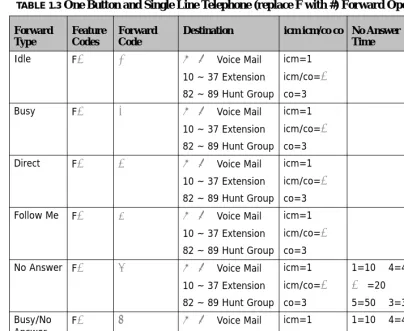
Table 5.3 shows all of the feature codes which can be placed on a “One Touch Forward Button”. To begin:
1. Press Feature #3 and the flexible button to program within three seconds press chg 2. Using the codes on Table 5.3 select the type of forwarding and using the Forward Code
number, the destination, such as voice mail, Select which type of call should be for-warded, and when applicable enter the no answer time.
3. The telephone will return to idle.
MAY 1 MON 10:00 NO ANS TIME: 10
Call F orw ar d Extension
1
Conditions:
1. Intercom calls to a forwarded extension will receive a special tone signifying that the extension called is forwarded.
2. The Auxiliary Lamp will not light in call forward mode if it has been disabled by the attendant in Attendant Administration.
3. If any of the Call Forward features are programmed on a flexible button, the LED asso-ciated with that button will light indicating that call forward is active.
TABLE 1.3 One Button and Single Line Telephone (replace F with #) Forward Operations Forward Type Feature Codes Forward Code
Destination icm icm/co co No Answer Time
Entry Code
Idle F2 0 87 Voice Mail 10 ~ 37 Extension 82 ~ 89 Hunt Group
icm=1 icm/co=2 co=3
F20872
Busy F2 1 87 Voice Mail 10 ~ 37 Extension 82 ~ 89 Hunt Group
icm=1 icm/co=2 co=3
F21872
Direct F2 2 87 Voice Mail
10 ~ 37 Extension 82 ~ 89 Hunt Group
icm=1 icm/co=2 co=3
F22872
Follow Me F2 3 87 Voice Mail
10 ~ 37 Extension 82 ~ 89 Hunt Group
icm=1 icm/co=2 co=3
F238722
No Answer F2 4 87 Voice Mail
10 ~ 37 Extension 82 ~ 89 Hunt Group
icm=1 icm/co=2 co=3
1=10 4=40 2=20 5=50 3=30
F24872
Busy/No
Answer F2 5 87 Voice Mail10 ~ 37 Extension
82 ~ 89 Hunt Group
icm=1 icm/co=2 co=3
1=10 4=40 2=20 5=50 3=30
F258722
External F2 6 Telephone Number*
Ca
ll P
ar
k /
Ca
ll P
ar
k A
ns
w
er
1
Call Park / Call Park Answer
Feature
73
This feature allows calls to be placed in a “Park” location at any extension. It also is used to retrieve a parked call from the extension. Calls are parked and retrieved by dialing the Call Park code (Feature 73) followed by the extension number where the call was parked.
Call Park is similar to transferring a call to a hold location, that is accessible from any extension in the system.
Conditions:
1. Each telephone/extension has one personal extension number used to park one CO Line call.
2. Any extension can park a call at another (installed) extension.
3. The Call Park feature code may be programmed on any programmable feature button.
4. Calls can be retrieved from any extension.
5. Parked CO Lines are on Transfer Hold at the extension that placed the call in parked and on Hold at the extension that parked the call.
6. Any extension can retrieve a “parked” CO line, even if the extension is normally not allowed to access or receive a call on that line.
7. A user invokes “Call Park Answer” and has no CO Line button for the line retrieved from call park may use Hold Call Answer to place the call on hold and retrieve the call from hold.
8. The Call Park Answer feature code may be programmed on any programmable feature button.
Call Pickup Gr
oup
1
Call Pickup Group
Feature
53
/
Feature
54
An extension can answer calls ringing at another extension by using the Call Pick Up Group feature. This feature allows users to easily access calls ringing within a group by dialing the pickup code or pressing the preprogrammed button.
If multiple calls are ringing at an extension, a priority list determines which call will be answered first.
Call Pick Up Priority List:
• Camped - On CO Line Calls
• Recalling CO Line Calls
• Transferred CO Line Calls
• Incoming CO Line Calls
• Tone Ringing Intercom Calls
Conditions:
1. If the call at the dialed extension has stopped ringing, before the call is picked up, the user will hear error tone and the display on a Digital Speakerphone will show “PICKUP FAILURE.”
2. An extension that doesn't have the outside line appearing on a button or doesn't have CO Line Receive programmed may still answer the ringing line by the Call Pick Up pro-cedure.
3. The Call Pick Up feature code may be programmed on any programmable feature but-ton.
4. If several calls of the same priority are ringing at the extension, the calls are answered in the order they are received.
Caller Identification ‐ Call Log
Cal
l W
aiting
1
Conditions:
1. All digital display telephones have a Caller ID Table
2. If no name is delivered from the telephone company, the number only will be displayed.
3. Proper programming of local area code(s) and the long distance prefix are required to assure accurate redial of CID numbers from the call log Table.
Call Waiting
Feature
99
When enabled, the user will hear an alert tone when an internal call is waiting. Toggle the feature on and off when it is programmed on a Flexible Button.
Conditions:
N/A
Conference
Feature
60
or “Conf. Button”The system can accommodate up to eight (8), 4 member (party) conferences, simulta-neously. Conference combinations - all conferences require one extension and can support up to three additional CO Lines or Extensions, to a maximum of 4 conference members.
One inside key telephone extension is considered the controller of the conference, and constitutes one conference member.
Conditions
1. While establishing a conference or privately talking to one party all extensions involved in the conference will be placed on Exclusive Hold.
2. If the initiator exits the conference the most recently invited, internal party, will auto-matically become the new controlling party.
3. If the Conference Tone is enabled, a burst of tone will be heard by all participants each time a new participant joins the conference.
but-D
ata R
ate
1
ton. This creates a three party conference. To add the additional conference member, the initiator presses hold, makes the final call, and presses the conference button.
Data Rate
This parameter should not be changed.
Day and Night Modes
Feature
63
The system can be programmed to follow a seven day, twenty-four hour time schedule that will automatically switch the system from Day to Night modes. These modes will affect the incoming call ringing assignment by sending them to their programmed day or night desti-nations. In addition, the Attendant can change the system manually from Day to NIght mode. Doing so will leave the system in that mode until it is manually changed. The Fea-ture code (FeaFea-ture 63) is used to toggle between these modes.
Conditions:
1. At default, no CO Lines (CO Lines) are programmed to ring an extension.
2. The system operation Mode must be set to “Time Mode” for the system to automatically switch from day to night mode ringing.
3. When programming Time Service Mode switching, the input time represents the time of day that the service mode will change to the associated Service Mode.
Default Flexible Buttons
Feature
58
Def
ault Set
ting
s
1
Default Settings
Feature
69
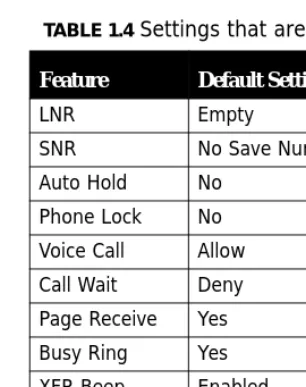
This feature is a quick way to deactivate any features which have been changed from fac-tory default at an extension. For example, it will disable any Call forwarding, DND, etc. with one entry code. No Button programming is defaulted.
Conditions
1. No Flexible Buttons will be changed
2. Any activated or deactivated feature will be set back to default, but no database param-eters such as Class of Service, Predefined Forwarding etc., will be changed.
Directed Call Pickup
See Call Pickup
TABLE 1.4 Settings that are defaulted with Feature 69
Feature Default Settings
LNR Empty
SNR No Save Number
Distinctiv
e Ring
1
Distinctive Ring
Feature
7#
At default, all extensions ring the same way. However, each extension may select between four distinctive ring tones.
Conditions:
1. The Telephone must be idle when the code is entered.
Do Not Disturb
Feature
4
Extension users may, have the ability to place their extension in Do Not Disturb. When invoked, Do-Not-Disturb (DND) prevents all calls, intercom or CO Line, from ringing at an extension in Do Not Disturb. DND may be activated while the telephone is in use or is idle. Some extensions with a more privileged Class of Service (COS) may have the ability to override an extension’s DND setting.
A short stutter tone is audible when DND is active. A digital telephone is capable of having the DND feature assigned to a programmable button, which will light whenever DND is active. Other extensions with a programmed DSS/BLF button of the extension that is in Do Not Disturb, will flash indicating that the extension is in DND.
Conditions:
1. Do Not Disturb cannot be enabled if any form of Station Call Forward is active
2. To redirect a ringing call to the attendant, press the preprogrammed “DND” feature but-ton while the call is ringing.
3. When an extension is in DND, all other extensions with a DSS/BLF of that extension, will flash indicating that the extension is in DND.
4. The DND feature code may be programmed on a programmable feature button. 5. A feature button programmed for the DND code will light steady, on the extension that
D
o Not
Dist
urb - Override
1
Do Not Disturb ‐ Override
DND - Override is used to intercom an extension which has been placed in DND. At default no extension may override another extension that is in DND mode. If available to an exten-sion “override” will be displayed in the LCD when an extension has activated DND. Press the associated interactive button to override DND.
Conditions:
1. An extension in DND that has been overridden will tone ring indicating the override.
2. An extension in DND that has been overridden may invoke Forced Intercom Call For-ward, which will redirect the call to the attendant.
3. The DND feature code may be programmed on a programmable feature button.
4. Only extensions with a more privileged (0 being the highest and 9 being the lowest) Class of Service may override an extension in Do Not Disturb.
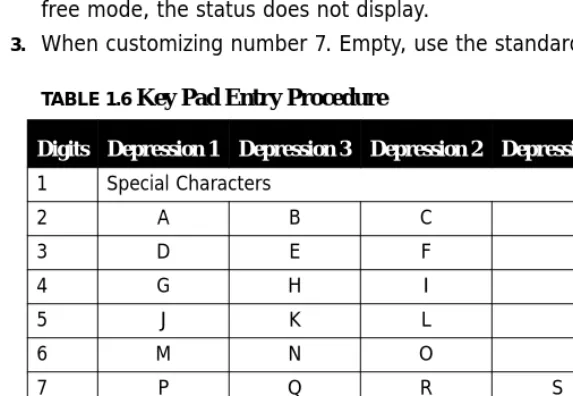
Enhanced Lettering Scheme
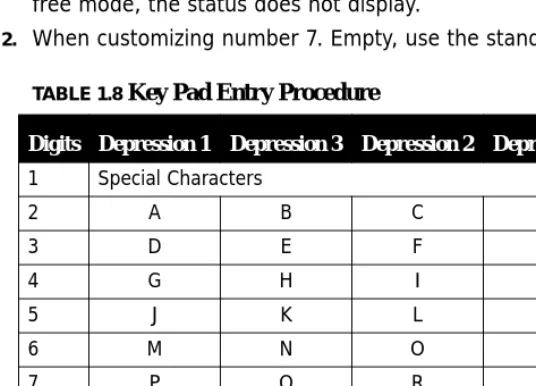
The Enhanced Lettering Scheme is used to accommodate special characters that may be needed when entering an extension user names or when editing any of the prepro-grammed messages. There are five different lettering schemes to choose from, but only one can be selected for an installation. Use the “1"” key to select one of the special char-acters, when entering a name or preprogrammed message.
Conditions
Ext
ension F
eat
ur
e S
tatu
s Check
1
Extension Feature Status Check
Feature
#8
Extension Feature Status Check allows digital telephone users to quickly view the setting and status for all user controlled features. It is also a great troubleshooting tool for techni-cians, allowing them to determine the status of specific features which are programmable by the user. Press the interactive button associated with next to scroll through the follow-ing features.
• LNR = empty or the last number dialed
• SNR = No Saved Number
• Day COS = 0
• Night COS = 0
• Monitor COS = 5
• Auto Hold = Deny
• Phone Unlocked
• Voice Call = Allow
• Call Wait = Deny
• Paged = Allow
• Busy Ring = Allow
• XFR Beep = Enable
• Data Rate = 9600
• Forced LCR = N (No)
• Touch Tone = Off
• ECF = Disable
MAY 1 MON 10:00 LNR EMPTY
Exte
nsion P
asswor
d
/ Phone Lock
1
Conditions:
1. Listed here are the default (factory) values for each of the displayed features. There-fore, the actual values may appear different.
Extension Password / Phone Lock
Feature
97
Each extension has a User Password which is needed to access certain features such as; Follow Me Forward, Authority Code, and Phone Lock features.
Conditions
1. Each extension can customize their password at any time.
2. The password of the extension that is programmed as the attendant, becomes the
“Attendant Password”.
Extension Pick Up Groups
Feature
54
Extension pick up groups allows you to dial a code and pick up an actively ringing call within your group. The digital telephone will give a short double tone burst and update the display to say “Pickup Failure” when attempting to pick up a call that is not within your group
Conditions
1. Extensions may be assigned to only one Extension Pick Up Group.
2. The pick up priority of a ringing call is: CO Lines and then intercom calls. 3. CO Line call priority is Camped-On, Recalling, Transferred, and Incoming.
Ex
ten
sion R
eminder
1
Extension Reminder
Feature
92
Each extension has a private alarm that can be used to remind them of special appoint-ments, events, etc. When the alarm activates the user will hear ring tone for a programma-ble period of time ranging from 10 to 60 seconds. After the programmed period the alarm is automatically canceled. The extension user can program the alarm to be activated once or always (repeated). When programmed for always, the alarm will sound at the same time everyday.
Conditions:
1. The Alarm Clock feature code maybe programmed under any programmable flexible feature button.
2. The alarm clock will be automatically canceled after the programmed Alarm Play Time.
3. The display will be unchanged until [ack] is pressed or when the telephone is used for another call.
Flash – Telephone Company Line
Feature
3
Flash – Telephone Company Line is a programmed setting that will determine what flash timing will be presented to the telephone company central office when the user issues a Hook-Flash command while connected to a Telephone Company Line. This feature is a requirement when the system is installed “behind” Centrex or PBX system. For easy access it is recommended, in these two cases, the Flash feature code should be programmed onto a Flexible Feature Button.
If Call Waiting service is provided, by the telephone company, the Flash feature to answer a second incoming call while connected to another outside party.
Conditions
1. The Flash code may be stored in any speed dial bin.
2. The Flash code may be stored in the Last Number Redial buffer. 3. The Speakerphone will display “/” to indicate the Flash.
Flexible F
eatur
e But
ton
Pr
ogr
am
m
in
g
1
Flexible Feature Button Programming
Feature
#3
Each digital telephone has dual-color Flexible Feature Buttons that can be programmed as a CO Line, extension, or feature. These are called flexible since each telephone is individu-ally programmed, and the programming may be changed at any time.
Flexible Feature Buttons offer convenient, one-button access when activating desirable fea-tures. Some programmed feature buttons will light when activated (Call Forward, DND, DSS/BLF, etc.), while others do not (Background Music, Call Pick-Up, Last Number Redial, etc.).
Use the following steps to program or reprogram a Flexible Feature Button:
1. At an idle telephone, Press the Feature Button
2. Dial #3
3. Press the button to be programmed.
4. The feature currently programmed under the button will be displayed. For example if the voice mail button were pressed the following will be displayed.
MAY 1 MON 10:00 PRESS FTR KEY
MAY 1 MON 10:00 F64____
Flexible F
eatur
e But
ton Pr
ogr
amming
1
5. To identify the feature code displayed, press show within 3 seconds of pressing the flexible feature button.
6. To reprogram the feature key, press chg within 3 seconds of pressing the flexible fea-ture button.
7. Select between “line”, “ext” or “feat”
• Line - 1 ~ 9 (depending on the configuration)
• Ext - Any Valid Extension in the system
• Feat - Any valid feature, must press the feature button first.
8. Example 1 - When programming an additional Telephone Company Line:MAY 1 MON 10:00 VOICE MAIL
MAY 1 MON 10:00 SELECT FUNCTION
line ext feat
MAY 1 MON 10:00 LINE _
Flexible F
eatur
e But
ton
Pr
ogr
am
m
in
g
1
9. Enter the Telephone Company Line to add or press save to clear this button:
10.Example 2 - When programming an Extension:
11.Enter the extension that will appear on that flexible feature button or press save to clear this button:
12.Example 3 - Programming a feature on a flexible feature button:
MAY 1 MON 10:00 LINE 09
bksp save chg
MAY 1 MON 10:00 EXT _
bksp save chg
MAY 1 MON 10:00 EXT 22
bksp save chg
MAY 1 MON 10:00 FTR CODE:”
Fo
rce
d In
te
rc
om
T
on
e Ri
ng
1
13.Enter the feature code as seen in the feature code table at the beginning of this chapter or press save to clear this button:
14.When entering in a new feature be sure to press the “Feature” button first - the “F” must be the first button pressed or the feature will not operate correctly.
15.lift the handset to exit programming
Conditions
1. If an invalid code is dialed a single tone burst (error tone) will be heard and the display will show “CODE UNAVAILABLE.”
2. Valid feature codes must be in the form of either “Fn” or “Fnn” where “F” is the feature button and “n” is either a single-digit or two-digit code, including asterisk * and pound # dialed from the dial pad.
3. Any feature button programmed with a code previously assigned to a different feature button will cause the previously programmed feature button to become unassigned. 4. Flexible Feature Buttons can be cleared of any feature code/directory number by
press-ing “save” before entering a code/number.
Forced Intercom Tone Ring
*
When an extension is in Hands Free - Voice Announce mode, intercom calls will not for-ward, so the system allows callers to dial “*” to activate Forced Intercom Tone Ring which allows callers to ring the extension.
Conditions
1. It is not possible to force an extension from Tone Ring mode to Voice Announce mode if the extension is set to Tone Ring mode.
2. When an extension leaves a Callback, the alert signal will ring.
MAY 1 MON 10:00 FTR CODE:F4
Gr
oup
Call Pickup
1
Group Call Pickup
Feature
54
See Call Pickup
Headset Jack
Feature
9#
The headset jack on all Digital Speakerphones is a standard 2.5 mm jack, which will accept industry-standard headsets. A headset connected to the headset jack operates as an inte-gral component of the digital speakerphone. Once enabled the speaker button will act as the on and off button for the headset operation.
Conditions
1. The Headset Jack can be found next to the Handset Cord jack.
2. External Headsets will require that the handset be removed each time a call is receive
Hold, System (Common) & I – Hold Indication
This feature allows the user to place any call on Hold by pressing the Hold button. If the extension that placed the call on hold has the CO Line is programmed on a Flexible button, the LED will light, and flash slowly. All other extensions with button appearances will be lit solid.
“I – Hold Indication” refers to the color difference of the LED’s. When an extension places a CO Line on Hold, I – Hold identifies that the call is holding for that extension with a flash-ing LED. A CO Line placed on hold by a different extension will change colors and be lit solid.
Conditions
1. When the conference initiator presses Hold, the conference parties will be placed on Exclusive Hold. This feature is used when adding conference participates. The LED will flash green at the conference initiator’s extension.
“Hold” R
emind Time
1
3. Calls placed on Exclusive (private) Hold, which have exceeded the programmed “Exclu-sive Hold time”, will be automatically converted to System Hold.
4. There is a distinctive slow flash rate for a CO Line that is on System Hold. 5. There is a distinctive rapid flash rate for a CO Line that is on Exclusive Hold.
“Hold” Remind Time
When the programmable “Hold Reminder” timer is exceeded, a single ring tone is heard at the extension that placed the call on hold. This reminder, will be repeated each time the timer expires.
Conditions
1. Hold Reminder applies to both intercom and CO Line calls.
2. Hold Reminder applies to CO Line calls that are on System Hold or Exclusive Hold.
Holding Call Answer – Select
H
Holding Call Answer allows a user to place and retrieve calls on and off hold by pressing theH button. When several calls are holding at an extension, Holding Call Answer will access the CO line that has been holding for the longest period of time while placing the current call on hold.
Holding Call Answer works for all CO Lines regardless of the extension’s CO Line button programming. It is possible to retrieve calls that do not appear on a button at an extension via Holding Call Answer.
Single Line Extensions will use *6 to answer a call placed on hold at their extension and
*7 to answer a call placed on hold at a different extension.
Conditions
1. Holding Call Answer will also operate for intercom calls placed on hold.
Hot K
ey Enable /
Disable
1
Hot Key Enable / Disable
Feature
#6
Hot Key is the automatic operation of dial pad keys while the telephone is idle. On an idle extension, once a digit is dialed the digital telephone become active, and begins processing all digits dialed. For example, one extension can dial another just by dialing the extension number.
Conditions
1. It is not recommended to disable the Hot Key Pad when Automatic Line Select (Prime Line Pickup) Feature95 is set to a CO Line or Line Group because, it will make inter-nal calling problematic.
2. If enabled, and the Feature key is the first button pressed, then the dial pad becomes active. Therefore, when activating a feature and the feature button is the first button pressed, there is no need lift the receiver.
Hunt Groups
82
~
89
There are eight (8) Hunt groups that can be assigned up to 24 members. There are three (3) types of hunt groups: All Ring, Linear Hunt, and Voice Mail. Hunt groups 1 through 8 correspond to extensions (dial codes) 82 – 89. At default, Hunt group 6, Dial Code 87, is reserved for Voice Mail and already contains the voice mail extension numbers 56 ~ 63. In addition, at default Hunt groups 88 and 89 have all extensions preprogrammed into them, and Door phones 1 and 2 (SLT Ports on the Option Module 36 and 37) are programmed to ring those hunt groups.
Linear Hunt
com
Cal
ling
- Non Blocking - Inter
com
But-1
All Ring
When the pilot number for an all ring hunt group is dialed, all idle extensions within the group will ring.
Voice Mail Hunt Group
When connected to an integrated voice mail designating a hunt group as voice mail type will allow the system to send or dial digits, known as In-band signaling or digits, required by the voice mail system.
Conditions
1. Hunt group members should be entered in the order that they should ring. If the first entered extension is idle forwarded, it could cause all calls programmed to ring the hunt group, to forward. Calls that ring an idle extension will not following station forwarding. 2. When a call is presented to an all ring hunt group, and all extensions are busy, the caller
will receive a busy signal.
Intercom Calling ‐ Non Blocking ‐ Intercom Button
Intercom Calling allows a user to place an intercom call by dialing the intercom number corresponding to the extension to be called. A DSS/BLF button can be programmed for placing an ICM call by pressing one button. Hands-free intercom calls can be placed with-out using the handset. Background noise may restrict the suitability of hands-free connec-tions.
Each extension is capable of independently selecting how intercom calls are received. Either: Voice Announce Hands-Free or Tone Ringing modeFeature 98. See intercom
Mode Selection.
Conditions
Intercom Cal
l B
ack
1
Intercom Call Back
Feature
91
The Intercom Call Back feature is used to queue for an extension that may be busy or unattended. The next time the telephone becomes idle, the Call Back Feature will automat-ically ring the telephone that initiated the Call Back Feature. When the initiator presses the speaker button or lifts the handset, the extension that received the Call Back will automat-ically begin ringing.
Conditions
1. An extension can only initiate one Call Back
2. No one Extension can have more than 5 Call Back queued at one time
Last Number Redial
Feature
8
or fixed redial buttonLast Number Redial (LNR) allows the user to automatically dial the last number dialed from their telephone. The LNR feature will retain up to twenty 20 digits for each extension. The user can select a specific CO Line to be used with LNR by pressing that CO Line button or you may allow the system to automatically select a line. Another way of using the last number redial is to use the navigation keys, locate “Call Log”, and then press the up arrow, to view a list of the last 50 outgoing telephone numbers dialed.
Conditions
1. Last Number Redial only works with CO Line calls.
2. When LNR is activated the system will first select the previously used CO Line to dial. If that CO Line is busy, any idle CO Line in the same group will be selected. If all CO Lines are busy, a busy tone is heard and “ALL CO Lines BUSY” will be displayed. 3. The LNR feature code may be programmed on a programmable feature button.
4. LNR will repeat a hook-flash in the same sequence as it was first dialed. If a speed dial number was first dialed LNR will dial the speed dial number and any subsequent manu-ally dialed digits.
Least C
ost
Ro
uting
1
Least Cost Routing
Feature
68
Least cost routing allows the system to evaluate each telephone number dialed to ensure that it is using the correct trunk route.
Conditions
1. This must be enabled in Database Programming
Message Waiting
Feature
96
When you call a busy or unattended extension, you will have the option to send a message waiting indication. You may select to use the first interactive button or dial the feature code
Feature96. In addition, you can dial the message waiting code from your idle
tele-phone and send a message without ringing the teletele-phone.
1. Dial an extension number, for example Extension 11:
2. The extension must be ringing. If the extension answers in Hands free mode, then you must press * to activate the ringing. Press msg to send a message.
MAY 1 MON 10:00 EXT 11 cbck msg next
Monitor -
SL
T Ex
ten
sion
1
3. Press call me to send an immediate message to the extension. The called extension (EXT 11) status bar will begin flashing.
Conditions
1. Feature *96 is used to disable a Message Waiting Indication.
2. The vm option will only be visible if an optional voice mail is installed.
Monitor ‐ SLT Extension
Feature
7*
The Monitor feature may be useful for purposes quality assurance, and allows conversa-tions to be monitored at other extensions. The extension which is monitoring the busy extension or CO Line must have a higher priority setting for its Monitor Class of Service than the extension which is being monitored.
Since this feature is very similar to Intrusion, it is possible to “shift” between these two fea-tures when Monitor has been invoked. The monitoring extension may press the “Mute” button to join in on an existing “Monitored” telephone call.
LEGAL NOTICE: This feature may violate privacy laws if used in a manner that is
inconsis-tent with requirements of these laws. Manufacturer assumes no responsibility with regard to the use of this feature. It is provided for the virtue of ethical use only. YOU are responsi-ble for using this feature appropriately considering all applicaresponsi-ble laws.
Conditions
1. The most privileged Class of Service is “0”, therefore, “9” is the least privileged level. At default all extensions have a Monitor Class of Service of “5”.
2. Extensions with the same monitor Class of Service, may not monitor each other. 3. Monitor is only allowed if the called extension’s Monitor Class of Service is less
Mute
1
Mute
Feature
76
The mute feature, which appears on a fixed button, allows the user to temporarily disable their microphone, which allows them to have a private conversation with someone in their office. Additionally, the “Mute” key is used to enable two-way communications when the “Off-Hook Voice Announce” is being used.
If the digital telephone is set to receive intercom calls using voice announce (Hands Free) and you are having a private conversation, simply press the mute key and the calling party can make an announcement, but will not be able to hear your conversation. You must press the mute button to talk to the calling party. When the call is terminated, the mute button must be pressed again.
Conditions
1. When MUTE is active, the display updates and the Auxiliary Lamp is lit solid.
Off Hook Voice Announce
Off-Hook Voice Announce (OHVA) allows the user to receive a voice announcement from another extension while they are using the handset on their telephone. The user’s speaker-phone is used to provide a second conversation path. An OHVA call may be rejected is the user chooses to not be interrupted from their current call.
1. To use Off Hook announce - Dial a busy Extension. For example Extension 11:
O
ff Hook V
oic
e An
nou
nc
e
1
2. Press the interactive button associated with next:
3. Press the interactive button associated with voic
4. The display will update and you are speaking over the extension’s speakerphone:
5. The Called extension (in the example, extension 11) must have the receiver (handset) off hook, or you will get one double ring burst, and the display will update:
Conditions
1. The Called Extension must be off hook, on the handset, for OHVA to work. If a headset is being used and the handset is not off hook, OHVA will not work.
2. If the extension user has the “Mute” function activated, the line will remain muted until the Off-Hook Voice Announce is complete.
MAY 1 MON 10:00 EXT 11 camp voic vm
MAY 1 MON 10:00 VOICE TO EXT 11