CONNEXTM User Guide 333
CONNEX
TM
User Guide
Version 1.0
www.amimon.com
About This Guide
This user guide describes how to setup and use the CONNEXTM wireless video link in order to transmit video from an aircraft. This user guide consists of the following chapters:
• Chapter 1, Introducing CONNEX, page 9, introduces the CONNEX system, its components, its connectors, buttons and cables.
• Chapter 2, Setting Up CONNEX, page 19, describes how to setup and connect the CONNEX Air Unit and Ground Unit.
• Chapter 3, Using CONNEX, page 29, describes how to get started using the Air Unit and the Ground Unit. This chapter also describes the Ground Unit’s On Screen Display (OSD), how to set up multicasting and how to set up control of the aircraft’s camera gimbal from a gimbal remote control.
• Chapter 4, CONNEX Management Application, page 37, describes how to configure and upgrade the CONNEX Air Unit and Ground Unit.
For a quick summary of the essential steps for setting up quickly, you may refer to the CONNEX Quick Start Guide.
Support and Contacting Information
Support: www.AMIMON.com/supportWhen contacting a support representative, make sure to have the Air Unit’s and Ground Unit’s serial number available. This number appears on the label on the bottom of each device.
Important Notice
Copyright © 2015 AMIMON. All rights reserved.
All intellectual property rights are owned by AMIMON and protected by applicable copyright laws and international treaty
provisions. All software/hardware is furnished under a license agreement. All other trademarks are the property of their respective owners.
AMIMON reserves the right to make corrections, modifications, enhancements, improvements, and other changes to its products and services at any time and to discontinue any product or service without notice. Customers should obtain the latest relevant information before placing orders and should verify that such information is current and complete. All products are sold subject to AMIMON’s terms and conditions of sale supplied at the time of order acknowledgment.
AMIMON warrants performance of its hardware products to the specifications applicable at the time of sale in accordance with AMIMON’s standard warranty. Testing and other quality control techniques are used to the extent AMIMON deems necessary to support this warranty. Except where mandated by government requirements, testing of all parameters of each product is not necessarily performed.
AMIMON assumes no liability for applications assistance or customer product design. Customers are responsible for their products and applications using AMIMON components. To minimize the risks associated with customer products and applications,
customers should provide adequate design and operating safeguards.
AMIMON does not warrant or represent that any license, either express or implied, is granted under any AMIMON patent right, copyright, mask work right, or other AMIMON intellectual property right relating to any combination, machine, or process in which AMIMON products or services are used. Information published by AMIMON regarding third-party products or services does not constitute a license from AMIMON to use such products or services or a warranty or endorsement thereof. Use of such information may require a license from a third party under the patents or other intellectual property of the third party, or a license from AMIMON under the patents or other intellectual property of AMIMON.
Reproduction of information in AMIMON data books or data sheets is permissible only if reproduction is without alteration and is accompanied by all associated warranties, conditions, limitations, and notices. Reproduction of this information with alteration is an unfair and deceptive business practice. AMIMON is not responsible or liable for such altered documentation.
Resale of AMIMON products or services with statements different from or beyond the parameters stated by AMIMON for that product or service voids all express and any implied warranties for the associated AMIMON product or service and is an unfair and deceptive business practice. AMIMON is not responsible or liable for any such statements.
All company and brand products and service names are trademarks or registered trademarks of their respective holders.
CE1588 This equipment is in compliance with the essential requirements and other relevant provisions of Directive 1999/5/EC.
Revision History
Version Date Description
Safety Instructions and Maintenance
All the instructions in this user guide must be adhered to when operating this equipment. Keep these instructions in a safe and accessible place for future use.
Safety Symbols
HighVoltage Sign: Warns the user of the presence of uninsulated dangerous voltage within the product enclosure, which may be of sufficient magnitude to constitute a risk.
General Warning Sign: Warns the user of the presence of important operating and maintenance (servicing) instructions in the product manual.
Safety Instructions
• Do not open the Air Unit or Ground Unit enclosures. There are no user-serviceable parts inside. Refer servicing to qualified service personnel only. The use of controls, adjustments or procedures other than those specified in this user guide may result in exposure to shock and/or electrical or mechanical hazards.
• Do not immerse the units in water.
• Do not block the air ventilation openings.
• Always disconnect a unit’s power by pulling the mains plug.
• Only clean with a dry cloth.
• Keep powered on units at least 20 cm from your body.
• Do not expose the units to moisture or excessive heat. Unit operating temperature is 32–104⁰F or 0−40⁰C.
Potential Hazards
The CONNEXTM Air Unit and Ground Unit contain HD wireless video modules devices that should be operated according to the same rules and limitations as expected from normal HD wireless video modules devices. Do not operate the units in an environment that may be susceptible to radio interference resulting in danger, specifically:
• Areas where prohibited by the law: Follow any special rules and regulations and obey all signs and notices. Always ensure that the unit is turned off (the power switch is not lit) when instructed to do so or whenever it may cause interference or danger.
• Where explosive atmospheres may be present: Do not operate the CONNEX units in any area where a potentially explosive atmosphere may exist. Sparks in such areas could cause an explosion or fire, resulting in bodily injury or even death. Be aware and comply with all signs and instructions.
• It is not advisable to operate the CONNEX units while at a refueling point or service station: Users are reminded to observe restrictions on the use of radio equipment in fuel depots (fuel storage and distribution areas), chemical plants or where blasting operations are in progress.
• Areas with a potentially explosive atmosphere are often, but not always, clearly
marked: Potential locations can include gas stations, below deck on boats, chemical transfer or storage facilities, vehicles using liquefied petroleum gas (such as propane or butane), areas where the air contains chemicals or particles, such as grain, dust or metal powders and any other area where it would normally be advisable to turn off a vehicle’s engine.
• Near medical and life support equipment: Do not operate the CONNEX units in any area where medical equipment, life support equipment or near any equipment that may be susceptible to any form of radio interference. In such areas, the host communications device must be turned off. The CONNEX unit may transmit signals that could interfere with this equipment.
Contents
About This Guide ... 2
Support and Contacting Information ... 2
Safety Instructions and Maintenance ... 4
Contents ... 6
Chapter 1, Introducing CONNEX
TM... 9
About CONNEX ... 9
Key Features ... 10
In the Box ... 10
Air Unit (Transmitter) ... 11
Ground Unit (Receiver) ... 15
Chapter 2, Setting Up CONNEX
TM... 19
Setting Up the CONNEX Air Unit ... 19
Connecting the Telemetry Port ... 23
Placement Guidelines – Air Unit Cable Antennas ... 23
Air Unit Antenna Mounting Accessories ... 25
Setting Up the CONNEX Ground Unit ... 26
Placement Guidelines – Ground Unit ... 27
Chapter 3, Using CONNEX
TM... 29
Getting Started – Air Unit ... 29
Getting Started – Ground Unit... 29
Ground Unit – On Screen Display (OSD) ... 30
Default Information Overlaid on Video ... 30
Additional Telemetry Information Overlaid on Video ... 31
Appendix A, Technical Specifications ... 47
Appendix B, Supported Remote Controls, Gimbals and Telemetry
Flight Controllers ... 48
Supported Air Unit Camera Gimbals ... 48
Supported Gimbal Remote Controls ... 48
Supported Flight Controllers for Telemetry ... 48
Appendix C, Supported Resolutions ... 49
Appendix D, Limitation of Liability and Warranty ... 50
Appendix E, FCC Caution ... 51
FCC Radiation Exposure Statement ... 51
Chapter 1, Introducing CONNEX
TM
This chapter introduces the CONNEX system, its components, its connectors, buttons and cables.About CONNEX
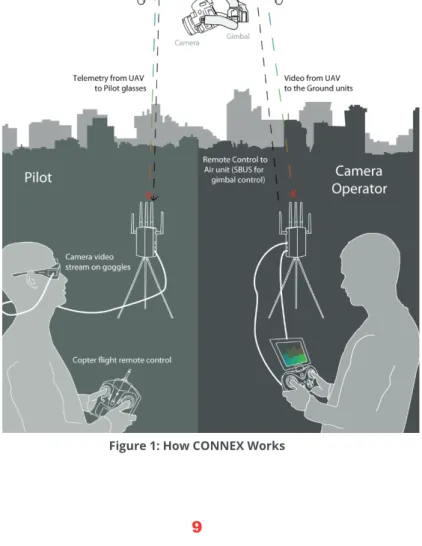
Amimon’s CONNEX provides a high-end, high-performance wireless HD connection that can operate in challenging unmanned air or ground platforms under harsh conditions with zero latency, such as UAV/UGV. The small and lightweight CONNEX system transmits commercial, industrial, inspection and monitoring video in real time to its Ground Unit, which can be located up to 1,000 meters away.
• Air Unit: The Air Unit is connected to an aircraft in order to capture video from the aircraft camera and to transmit it to up to four Ground Units simultaneously (multicast), thus creating a wireless video link.
• Ground Unit: The Ground Unit connects to various types of monitors, video goggles or a portable video monitor via the HDMI port. This enables the pilot and/or camera operator to monitor the video transmitted from the Air Unit.
• Pilot: The pilot can view the video on a monitor or wear video goggles connected to the Ground Unit. Flight control (telemetry) information from the aircraft is overlaid on the video. The pilot uses a remote flight controller to control the aircraft.
• Camera Operator: The camera operator can hold a portable or PC video monitor on which the video can be viewed. The camera operator can use a gimbal remote control to control the aircraft camera’s gimbal through the S.BUS port of the Air Unit.
Key Features
• True full HD 1080P at 60fps
• Up to 1,000 meter range (LOS)
• Zero latency, real-time video
• Extremely resilient 5GHz digital link
• Automatic Frequency Selection (AFS) that fully complies with regulations and automatically selects the best free frequency available
• Encrypted and secure
Air Unit (Transmitter)
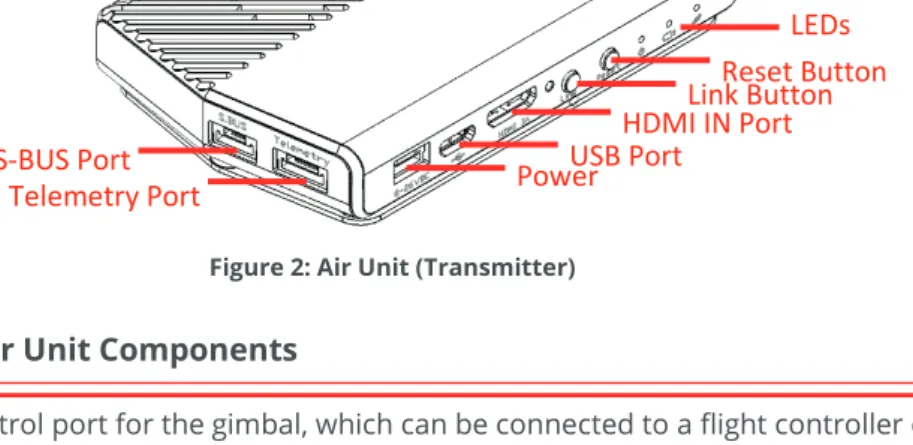
Figure 2: Air Unit (Transmitter)
Table 1: Air Unit Components
S.BUS: Control port for the gimbal, which can be connected to a flight controller compatible with the S.BUS protocol or directly to an Air Unit receiver for the purpose of controlling the camera gimbal. S.BUS properties can be configured using the CONNEX Management application, which runs on the computer connected to the Ground Unit, as described in Chapter 4, CONNEXTMManagement Application on page 37.
Do not try to use the S.BUS signal for controlling the aircraft’s flight. This port should only be connected to the gimbal’s S.BUS of D.BUS port.
Telemetry: Enables the display of flight control data from an aircraft that has a MAVLink-supported flight controller overlaid on an On Screen Display (OSD). Telemetry information includes flight mode, number of connected GPS satellites, speed, height and more. To receive telemetry data on Ground Unit, the Air Unit should be connected to the aircraft’s telemetry port. You may refer to Appendix B on page 48 for more information.
Power Connector: 8-26-VDC voltage (3−6 cells).
Micro USB Port: This port enables configuration and upgrade of the Air Unit software using the CONNEX Management application, as described in Chapter 4, CONNEXTMManagement Application section on page 37.
Mini HDMI IN: For receiving video from the camera.
HDMI Connector Screw: For stabilizing the HDMI cable to the Air Unit.
Link Button: The Air Unit is provided pre-paired (preregistered) with the Ground Unit that comes in the box. The Link button can be used to pair up to three additional Ground Units with the same Air Unit. You may refer to the Multicasting to Multiple Ground Units section on page 34 for a description of how to pair additional Ground Units with an Air Unit.
Reset Button: Resets the Air Unit.
Tx Cable Antenna Ports: Two lightweight 2dbi cable antenna ports.
Reset Button USB Port HDMI IN Port
Two Tx Cable Antenna Ports Power Link Button LEDs S-BUS Port Telemetry Port
For a description of the Air Unit LEDs, you may refer to:
• Table 3: Air Unit – Power LED
• Table 4: Air Unit – Video LED
• Table 5: Air Unit – Network LED
Air Unit Accessories
The box number in which each cable is provided is indicated below.
Tx Cable Antennas
Two flat lightweight 2dbi cable antennas. Box 2.
Figure 3: Flat Tx Cable Antennas
Cable Antenna Mounting Accessories
S-BUS Cable
5-pin JST to S-BUS female – 50cm length. Box 6.
Figure 6: S-BUS Cable
Telemetry Cable
6-pin JST female to 6-pin DF13 – 50cm length. Box 6.
Figure 7: Telemetry Cable
Air Unit Power Cable
4-pin JST to XT-60 Male – 50cm length. Box 1B.
Figure 8: Air Unit Power Cable
Micro USB Cable
Standard Micro USB cable for upgrading the Air Unit software. The same cable can be used for both the Air and Ground Units. Box 6.
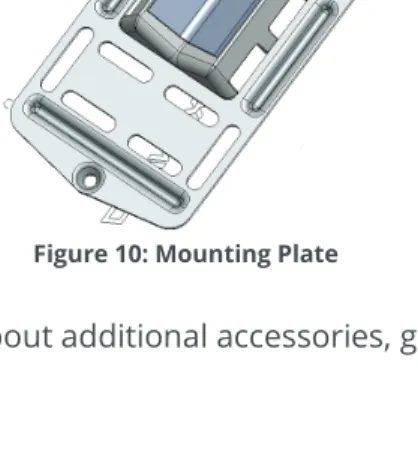
Mounting Plate
For connecting the Air Unit to the aircraft. This item consists of two parts. Box 3.
Figure 10: Mounting Plate
Ground Unit (Receiver)
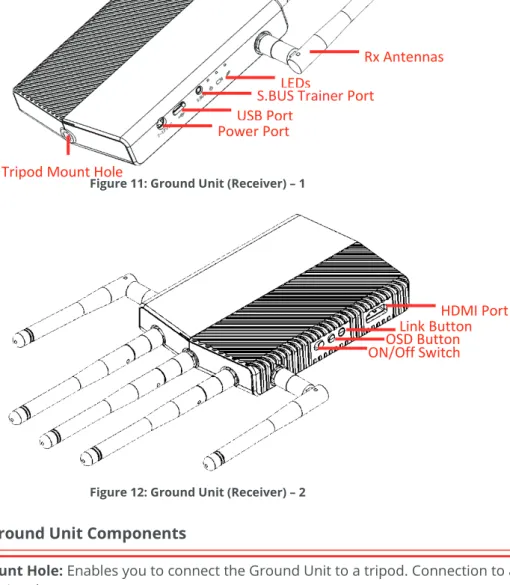
The following shows both sides of the Ground Unit.
Figure 11: Ground Unit (Receiver) – 1
Figure 12: Ground Unit (Receiver) – 2 Table 2: Ground Unit Components
Tripod Mount Hole: Enables you to connect the Ground Unit to a tripod. Connection to a tripod is optional.
Power Port: 7-17VDC voltage.
Micro USB Port: This port enables configuration and upgrade of the Ground Unit software using the CONNEX Management application, as described in Chapter 4, CONNEXTM
Management Application section on page 37.
S.BUS Trainer: This port can be connected to the Futaba Remote Control trainer port. This port enables you to remotely control the gimbal on the aircraft using the link between the Ground
Power Port USB Port
S.BUS Trainer Port
Tripod Mount Hole
LEDs
Rx Antennas
ON/Off Switch OSD Button Link Button HDMI Port
Unit and the Air Unit. The bit rate of this control can be configured in the S.BUS Rate field using the CONNEX Management application, as described in the Configuring the Link section on page 42.
Five Rx Antennas Connectors: The five provided antennas must be screwed onto these connectors.
On/Off Switch: Set this switch to On in order to power on the Ground Unit.
OSD Button: Enables/disables the OSD display. The OSD display presents a screen of telemetry MAVLink-based information collected by the CONNEX system on the monitor connected to the Ground Unit, such as Air Unit flight parameters, height, direction, signal strength and so on. You may refer to the Ground Unit – On Screen Display (OSD) section on page 30 for more information. By default, OSD is enabled (displayed). Pressing this button disables OSD and pressing this button again redisplays it.
Link Button: The CONNEX system supports up to four Ground Units per Air Unit. The Ground Unit is provided out-of-the-box to automatically search for and connect to the Air Unit that is provided in the same box. The Link button enables you to connect additional Ground Units to the same Air Unit. You may refer to the Multicasting to Multiple Ground Units section on page 34 for a description of this procedure.
HDMI Port: Enables the display of the received video. Connect this port to a monitor’s HDMI port using the provided Standard HDMI cable.
Battery Plate Screws: Four screws are provided on the bottom of the Ground Unit for connecting a battery plate. The battery plate is an optional accessory and is not included. It is available to be purchased from the Amimon’s website.
For a description of the Air Unit LEDs, you may refer to:
• Table 6: Ground Unit – Power LED
• Table 7: Ground Unit – Video LED
Ground Unit Cables and Antennas
The box number in which each cable is provided is indicated below.
Standard HDMI Cable
1.2 meters. Box 7.
Figure 13: Standard HDMI Cable
AC Power Adapter and Cable
Four different adapters are provided for indoor use only. Box 5.
Figure 14: AC Power Adapter and Cable
S.BUS Trainer Port Cable
3-pin to Futaba – 1meter cable. Box 6.
Rx Antennas
Five 2dbi screw-on antennas. Box 4.
Figure 16: Rx Antennas
Micro USB Cable
Standard Micro USB cable for upgrading the Ground Unit software. The Micro USB connector connects to the USB port on the Ground Unit.
The Mini USB connector connects to a computer on which the Ground Unit software is installed. Box 6.
Chapter 2, Setting Up CONNEX
TM
This chapter describes how to setup and connect the CONNEX Air Unit and the CONNEX Ground Unit. This chapter contains the following sections:
• Setting Up the CONNEX Air Unit, page 19
• Setting Up the CONNEX Ground Unit, page 26
Setting Up the CONNEX Air Unit
Set up the CONNEX Air Unit (transmitter) and connect it to the aircraft, as described in this section.
We highly recommend that you use the provided Amimon cables. If an alternate cable is used, make sure that it is of the highest quality.
To set up the CONNEX Air Unit:
1 Assemble the Air Unit/aircraft mounting plate:
If attaching the Air Unit to a flat surface on the aircraft, then perform the
following:
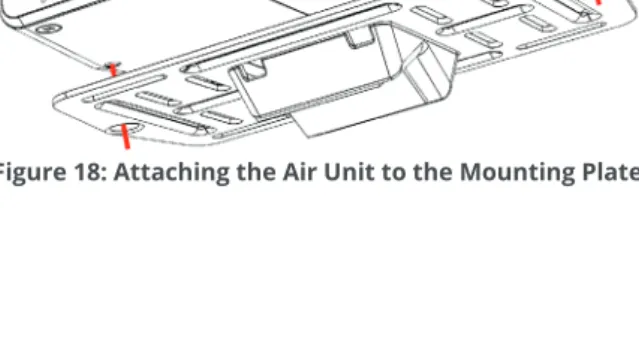
• Place the Air Unit in the center of the provided mounting plate on the side with the mounting plate bumps protruding.
• Use screws or plastic ties to hold the Air Unit to the mounting plate. You can thread the plastic ties through any of the holes on the mounting plate.
If attaching the Air Unit to a bar on the aircraft, then perform the following before attaching the Air Unit to the mounting plate:
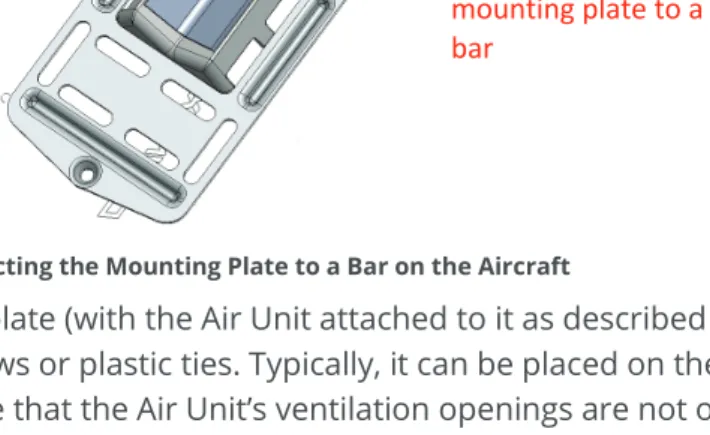
• A clear plastic holder is provided to help attach the mounting plate to a bar or to the landing gear of the aircraft. The square plastic insert can be placed in the opening in the center of the mounting plate either horizontally or vertically according to how you want to position the mounting plate relative to the bar to which you are attaching it.
• Insert the plastic holder into the opening in the square center of the mounting plate, as shown below:
Figure 19: Connecting the Mounting Plate to a Bar on the Aircraft
2 Attach the mounting plate (with the Air Unit attached to it as described above) to the aircraft using screws or plastic ties. Typically, it can be placed on the bottom of the aircraft. Make sure that the Air Unit’s ventilation openings are not obstructed.
3 IMPORTANT!For optimal performance,carefully read and then implement the guidelines provided in the Placement Guidelines – Air Unit Cable Antennas section on
Square plastic insert for attaching the mounting plate to a bar
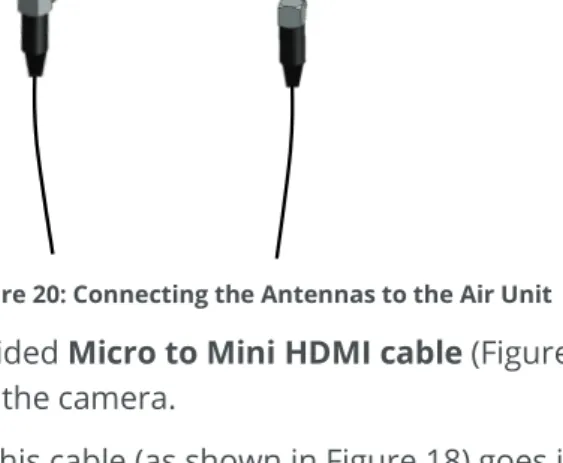
4 Connect the two Air Unit flat cable antennas to the two Air Unitcable antenna ports, as shown below:
Figure 20: Connecting the Antennas to the Air Unit
5 Connect the provided Micro to MiniHDMI cable (Figure 5) from the HDMIIN port on the Air Unit to the camera.
The right side of this cable (as shown in Figure 18) goes into the Air Unit HDMI IN
port (Figure 2).
The left side of this cable (as shown in Figure 18) goes into the aircraft’s camera.
Figure 21: Connecting the Air Unit HDMI Cable – Box 1A Micro to Mini HDMI
Close the HDMI Connector Screw (which is to the right of the HDMI IN port) to stabilize the connected HDMI cable to the Air Unit.
6 Connect the provided Air Unit Power cable (Figure 8) to the power port on the Air Unit.
The right side of this cable (as shown in Figure 22) goes into the Air Unit power port labeled 8-26-VDC (Figure 2).
The left side of this cable (as shown in Figure 22) goes to the battery.
Figure 22: Connecting the Air Unit Power Cable – Box 1B
7 Connect the other end of the provided Air Unit power cable to the power source (battery). Use an 8-26-VDC voltage battery.
Note that the Air Unit Power LED lights up. The following describes the various states of the Air Unit Power LED:
Table 3: Air Unit – Power LED
On (White) The Air Unit is powered on.
Off No power is being supplied to the Air Unit. Blinks
Quickly Indicates a system error.
8 The Air Unit automatically connects with the powered on Ground Units that are paired with this Air Unit.
A connection is established between the Air and Ground Units regardless of whether video is transmitted on the wireless link, as follows:
If video is transmitting, then the Ground Units display the video.
If video is not transmitting, then the Ground Units display the message: Video
signal not detected upon linking to the Air Unit.
The Air Unit’s video and transmission status is indicated by its LEDs, as described below:
Table 4: Air Unit – Video LED
On (White) The video signal from the camera is locked, meaning that it is being correctly received by the Air Unit from the camera. Off The video from the camera is not locked, meaning that the Air Unit is not receiving the video from the camera. Blinks
Quickly The Air Unit is powered down or the camera is transmitting a video resolution that is not supported by the Air Unit. Table 5: Air Unit – Network LED
Connecting the Telemetry Port
The following describes how to connect the Air Unit Telemetry port to the aircraft’s flight controller so that the Ground Unit monitor can display information received from the aircraft’s flight controller overlaid on the video, such as flight mode, number of connected GPS satellites, speed, height, orientation and more.
To connect the Telemetry port:
1 Connect the Air Unit Telemetry port to the aircraft using the provided Air Unit
Telemetry cable (Figure 7).
The right side of this cable goes into the Air Unit Telemetry port (Figure 2).
The left side of this cable goes into the Telemetry port of the flight controller on the aircraft.
Figure 23: Connecting the Air Unit Telemetry Cable – Box 6
Note: Not all flight controllers are supported. You may refer to Appendix Bon page 48 for a list of the supported flight controllers.
Placement Guidelines – Air Unit Cable Antennas
The following describes the mandatory requirements and the best practices for optional placement of the Air Unit vertical cable antennas.
• Antennas Must Face the Ground: Both Air Unit cable antennas must be placed on the aircraft so that the antennas are pointing to the ground (vertical) when the aircraft is in flight. For example, as shown below:
Figure 24: Antennas Must Be Placed so That They Point to the Ground
• Avoid Obstacles between the Antennas and the Ground Unit: Place the Air Unit cable antennas as low as possible on the aircraft in order to avoid line of sight obstacles between the antennas and the Ground Unit while the aircraft is flying.
• Avoid Interference: Place the Air Unit cable antennas as far away as possible from other transceiver devices on the aircraft, especially from a transmitter in the 5 GHz band.
Vertical Antenna Vertical Antenna
• Avoid Proximity to Metal Objects: The antennas must be at least 7 cm away from any metal object, such as the landing gear or a battery. For example do not tie the antenna directly onto the landing gear even if it is made of carbon. The mounting accessories enable you to attach the antennas while leaving the required distance.
• Place the Antennas so That They Are Facing Outwards: Do not place the antennas facing the inside of the aircraft structure.
• Place the Antennas so That They Are Still Facing the Ground When the Aircraft Takes Flight
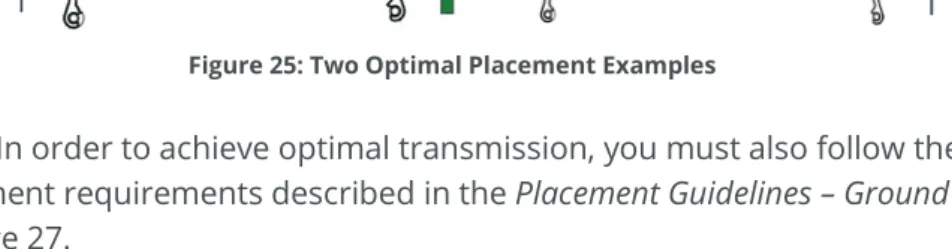
• Place the Antenna so That They Are Vertical (Pointing to the Ground), but Are Perpendicular: The following diagrams show two optimal placement options in which both antennas are facing different directions (perpendicular), achieving a 90° angle between them.
Figure 25: Two Optimal Placement Examples
Note: In order to achieve optimal transmission, you must also follow the Ground Unit placement requirements described in the Placement Guidelines – Ground Unit section on page 27.
Air Unit Antenna Mounting Accessories
The Air Unit antenna mounting accessories provide a variety of options for attaching the two provided flat cable antennas to the aircraft so that they are pointing the towards the ground (vertical).
Figure 26: Air Unit Cable Antenna Mounting Accessory – With Flat Cable Antenna – Box 2
Figure 27: Front and Back of the Antenna Mount Piece
This Antenna Clamp attaches to the rotary on the Antenna Mount Piece (shown above) using the provided screw. The Antenna Clamp has two holes through which you can insert the screw to attach it to the Antenna Mount Piece according to the direction you would like the antenna to point. Once the Antenna Clamp is connected to the Antenna Mount you can rotate it in the direction that you require the antenna to point, as shown below:
Figure 28: Rotating the Antenna Clamp versus the Antenna Mount Piece
Antenna Mounting Piece Antenna Clamp
Antenna Antenna Cable
Antenna Mounting Screw
Setting Up the CONNEX Ground Unit
We highly recommend that you use the provided Amimon cables. If an alternate cable is used, make sure that it is of the highest quality.
To set up the CONNEX Ground Unit:
1 Refer to the Placement Guidelines – Ground Unit section on page 27 for a description of the mandatory requirements and the best practices for optional placement of the Ground Unit and its antennas.
2 Screw on the five provided antennas to the five Ground Unit antenna connectors, as shown below:
Figure 29: Connecting the Ground Unit Antennas – Box 4
3 Enable the display of the received video by connecting the provided Standard HDMI cable (Box 7) from the Ground Unit HDMI port to the monitor’s HDMI port (Figure 11).
4 Connect the provided power AC adapter (Box 5) to the power port on the Ground Unit labeled 7-17-VDC (Figure 11) and connect the other end to a power source. The
Table 8: Ground Unit – Network LED
On (Blue)
A link has been established to the Air Unit, meaning that the Ground Unit is receiving video transmission from the Air Unit. The Network LED displays one of three colors to indicate the strength of the signal received by the Ground Unit, as follows:
• Red: Poor • Green: Fair • Blue: Excellent
Off No paired devices, meaning that the Air Unit is powered down or the Ground Unit is not paired with any Air Units. Blinks Quickly The Ground Unit is pairing with an Air Unit or the Air Unit has gone out of range of the Ground Unit, which is searching for it. Blinks Slowly The Ground Unit is searching for an Air Unit with which to establish a link.
Placement Guidelines – Ground Unit
The following describes the mandatory requirements and the best practices for optional placement of the Ground Unit and its antennas.
• Place the Ground Unit as High as Possible: Place the Ground Unit on a tripod, pole or table so that it is as high as can be. A height of 2 meters is optimal.
• Place the Ground Unit Antennas Facing the Air Unit: Place the Ground Unit so that its antennas are facing upwards in the general direction in which the aircraft will be flying. The five Ground Unit antennas can be placed as if the Ground Unit and its antennas are an open hand with the palm facing the aircraft, as shown below:
Figure 30: Ground Unit Antennas Facing the Aircraft Like an Open Palm
• Avoid Interference: Place the Ground Unit cable antennas as far away as possible from other transceiver devices, especially from a transmitter in the 5 GHz band.
Chapter 3, Using CONNEX
TM
This chapter describes how to get started using the Air Unit and the Ground Unit. This chapter also describes the Ground Unit’s On Screen Display (OSD), how to set up multicasting and how to set up control of the aircraft’s camera gimbal from a gimbal remote control.
Getting Started – Air Unit
The Air and Ground Units provided in the same box are preconfigured to automatically search for and connect to each other.
To get started with the Air Unit:
1 Set up the Air Unit, as described in the Setting Up the CONNEX Air Unit section on page 19.
2 The Air Unit can be configured to transmit video downlink to up to three additional Ground Units, as described in the Multicasting to Multiple Ground Units section on page 34.
Getting Started – Ground Unit
The Air and Ground Units provided in the same box are preconfigured to automatically search for and connect to each other.
To get started with the Ground Unit:
1 Set up the Ground Unit, as described in the Setting Up the CONNEX Ground Unit
sectionon page 26.
The monitor connected to the Ground Unit then automatically displays video and an overlay of information received from the Air Unit, as described in the Ground Unit – On Screen Display (OSD) section on page 30.
Ground Unit – On Screen Display (OSD)
The Ground Unit monitor displays information collected by the CONNEX system overlaid on the video received from the Air Unit. The following types of information can be overlaid on the video:
• Default, below
• Telemetry [Optional], page 31
• Alerts and System Messages, page 33
Default Information Overlaid on Video
By default, the Ground Unit displays the following information overlaid on the bottom of the video in a black strip:
Default information
Additional Telemetry Information Overlaid on Video
Additional telemetry information can be overlaid on the video received from the aircraft’s flight controller. This information appears in a black strip on the top of the video, as shown below:
Figure 32: OSD View – With Additional Telemetry Information
H: Aircraft Height.
VS: Vertical Speed.
GS: Ground Speed.
: Flight Mode. The following standard 4-character Arducopter flight modes may be displayed:
Table 9: Flight Modes Flight Mode Description
STBL Stabilize
ARCO Arco
ALTH Alt Hold
AUTO Auto GUID Guided LOIT Loiter RTL RTL CIRC Circle POS Position LAND Land DRFT Drift Telemetry information overlay on video
SPRT Sport
: Number of Connected GPS Satellites. : Aircraft Battery Charge.
This additional information is displayed when:
• The aircraft has a MAVLink-based flight controller.
• The Air Unit Telemetry port is connected to the aircraft’s flight controller, as described in the Connecting the Telemetry Port section on page 23.
• The OSD button (shown in Table 2) on the Ground Unit is set to enable the display of flight control (Telemetry) information.
When the Air Unit receives valid Telemetry MAVLink messages from the aircraft flight controller, these messages are transmitted to the Ground Unit, which displays the additional Telemetry information on the OSD. This may require a few seconds to take effect.
You may refer to Appendix B on page 48 for a list of the supported flight controllers. To display OSD information:
• While all three LEDs on the Ground Unit are lit, press the OSD button on the Ground Unit (Figure 11). The following is an example of the OSD View:
Alert and System Messages
The following describes the messages that may appear on the monitor connected to the Ground Unit HDMI port.
Alert Messages – Overlaid on Video during Link
These alert messages may be displayed on top of the live video.Table 10: Alert Messages
Out of Range A link still exists, but the video signal has been lost. This message is displayed regardless of the OSD button position.
Approached Range Limit
Is displayed for 30 seconds, from the moment the Air Unit has been detected as out of range until the Out of Range warning is displayed. This message represents a warning that the video signal is about to be lost. We recommend flying the aircraft back within the range of the Ground Unit. When the aircraft is within range, the video signal is automatically
reacquired. This message is only displayed if the OSD button enables OSD display.
Video Signal Not Detected
A link has been established between the Air Unit and the Ground Unit, but no video signal has been detected. This message is displayed regardless of the OSD button position.
System Messages – No Link
These system messages may be displayed when no live video is displayed.
Table 11: System Messages (in Link)
Searching for Air Unit
This message is displayed until a link is established. This may occur when the Air Unit is out of range, unavailable or has removed the Ground Unit from its list of paired devices.
Starting Pairing Process Press OK to continue.
Multicasting to Multiple Ground Units
Overview
A single Air Unit can transmit video downlink to up to four Ground Units. This is called
multicasting. The following procedure describes how to pair an additional Ground Unit with the same Air Unit.
Note: The Air and Ground Units provided in the same box are preconfigured to automatically search for and connect to each other. Therefore, there is no need to perform this procedure on the Air Unit / Ground Unit provided in the same box.
Note: Controlling the Air Unit's camera gimbal is not supported when multicasting to more than two Ground Units.
Pairing Additional Ground Units with an Air Unit
To pair an additional Ground Unit with an Air Unit:1 Set up the additional Ground Unit, as described in the Setting Up the CONNEX Air Unit
sectionon page 26.
The Ground Unit must be placed between one and 10 meters from the Air Unit. Each Ground Unit must be placed at least a few meters away from other Ground Units in order to enable optimal reception.
The following message is then displayed on the monitor connected to the Ground Unit’s HDMI port (Figure 11).
4 Press and hold the Link button on the Ground Unit. The following message is then displayed:
Pairing in progress
After a while, the monitor connected to the Ground Unit should display the video received from the Air Unit, as described in the Ground Unit – On Screen Display (OSD)
section on page 30.
Note: If a black screen is displayed (as shown below), then check that the camera on the aircraft is operating.
To see a list of Ground Units with which an Air Unit is currently paired and
connected:
You may refer to the Checking the Ground Units Registered to an Air Unit section on page 44.
To clear all the Ground Units with which an Air Unit is paired: You may refer to the Unregistering All Ground Units section on page 45.
Controlling the Aircraft Camera Gimbal
The CONNEX Gimbal Control feature enables an operator on the ground to control the aircraft’s camera gimbal using a Futaba remote control over the video uplink channel. Only gimbals that can input S.BUS are supported. Gimbal control is supported for up to 1 Km.
This feature can only be used when an Air Unit is paired with a single Ground Unit. Verify that this is the case , as described in the Checking the Ground Units Registered to an Air Unit section on page 44 before proceeding with the instructions below.
To enable the CONNEX Gimbal Control feature:
1 Connect the Air Unit S.BUSport to the S.BUS or D.BUS port on the camera’s gimbal using the provided S.BUS cable (Figure 6).
The right side of this cable goes into the Air Unit S.BUS port (Figure 2).
The left side of this cable goes into the gimbal controller (GCU) on the aircraft.
Figure 34: Connecting the Air Unit S-BUS Cable – Box 6
2 Ensure that the Futaba remote control is configured to output S.BUS on its Trainer port. Configuration is usually performed by setting the number of output channels to 16.
3 Connect the Futaba gimbal remote control’s Trainer port to the Ground Unit’s S.BUS Trainer (Figure 15) port using the S.BUS Trainer Port cable.
4 The default gimbal command transmission bit rate is FASSTest 12CH Mode (6.3m sec). If this bit rate is not supported by the gimbal controller, then use the CONNEX Management application to configure the S.BUS Bit Rate manually, as described in
Chapter 4, CONNEX
TM
Management Application
This chapter describes how to configure and upgrade the CONNEX Air Unit and Ground Unit.
Overview
The Air Unit and the Ground Unit come preconfigured to communicate with each other. If needed, you can reconfigure the wireless video datalink by connecting the Air Unit to a PC and using the CONNEX Management application, as described in the
Configuring the Link section on page 42.
The Air Unit and the Ground Unit come preinstalled with the latest firmware version. If needed, you can upgrade the firmware of each, as described in the Upgrading the Air Unit or Ground Unit Firmware section on page 40.
To use the CONNEX Management application:
1 Install the CONNEX Management application, as described in the Installing the CONNEX Management Application section on page 38.
2 Connect the Air Unit or Ground Unit to a computer, as described in the Connecting the Air Unit or Ground Unit to a Computer section on page 39.
Note: Only a single CONNEX Air Unit or CONNEX Ground Unit can be connected to the CONNEX Management application at a time.
Installing the CONNEX Management
Application
This application can run on a standard computer running Windows 7 and up. To install the CONNEX Management application:
1 Download the latest version from the Amimon website
www.AMIMON.com/connex/management to a computer connected to a Ground Unit.
2 Run the installation file and follow the displayed instructions to install the CONNEX Management application.
3 Launch the application by double-clicking its desktop icon. The following window displays:
Connecting the Air Unit or Ground Unit to a
Computer
The Air Unit or Ground Unit must be connected to a computer on which the CONNEX Management application is installed in order to configure or upgrade that unit. To connect the Air Unit or Ground Unit to a computer:
• Connect the Micro USB cable (Box 6) to the Air Unit’s or Ground Unit’s USB port (Figure 11).
Figure 36: Connecting the Ground Unit to PC USB Cable – Box 6
If you launch the CONNEX Management application before connecting an Air Unit or Ground Unit to the computer, then the following message is displayed. Connect the unit, as described above.
Upgrading the Air Unit or Ground Unit
Firmware
Upgrading the Air Unit or Ground Unit firmware does not affect the settings of the wireless video downlink.
To upgrade the Air Unit or Ground Unit firmware:
1 Make sure that the computer on which the CONNEX Management application is installed is connected to the Internet and is connected to the Air Unit/Ground Unit via a Micro USB cable.
2 Launch the CONNEX Management application by double-clicking its desktop icon. The following shows the window displayed on the Air Unit (on the left) and on the Ground Unit (on the right). The Software Upgrade tab is selected by default. This is the only tab that appears for the Ground Unit.
3 Click the Upgrade button. The latest software version is automatically downloaded from the Amimon website and installed on the connected unit. The bottom of the window displays the progress of the upgrade and lists the processes as they are performed, as shown below:
Figure 39: Upgrading a Unit
4 If you upgrade an Air Unit, then you must upgrade all the Ground Units registered to it. We highly recommend that you only start the upgrade process after the Air Unit and its Ground Units have been collected and are placed next to the computer.
An Air Unit and a Ground Unit that have different software versions may not communicate with each other.
Configuring the Link
The following describes how to configure the link between an Air Unit and the Ground Units. This procedure is performed on an Air Unit only.
Figure 40: Link Configuration To configure the link:
1 Make sure that the computer on which the CONNEX Management application is installed is connected to the Air Unit via a Micro USB cable and is connected to the
Link Mode S.BUS Rate Spectrum per
5 The SBUS Rate field specifies the data rate of the S.BUS link between the Ground Unit and the Air Unit that controls the Air Unit’s camera gimbal. CONNEX configures the data rate of the S.BUS remote control to be 6.3mSec (FASSTest 12CH) by default. You can select one of the following S.BUS Rate modes:
Auto: 15m sec – FASSTest 18CH or T-FHSS Mode. The S.BUS rate is received and
sampled from the remote control trainer port. The Air Unit then automatically outputs the same S.BUS rate.
6.3m sec – FASSTest 12CH Mode
6 The Spectrum per Region dropdown menu appears for CONNEX units used in Europe and Japan. This dropdown menu provides different options for your selection, as follows:
In Europe, select either 5.8 GHz, 25mW or 5 GHz, 200mW, Ground use.
In Japan, select either Indoor or Outdoor.
Make sure that youselect the frequency setting that complies with the local RF regulations in the region in which you are operating.
7 Click the Update button to apply the configured changes to the Air Unit. This affects how the Air Unit communicates with all the Ground Units with which it is registered, meaning those that are listed in the Registered Receivers list on the bottom right of the window.
Checking the Ground Units Registered to an
Air Unit
To see which Ground Units are registered to an Air Unit:
1 Make sure that the computer on which the CONNEX Management application is installed is connected to the Air Unit via a Micro USB cable.
2 Launch the CONNEX Management application by double-clicking its desktop icon.
3 Click the Link Configuration tab.
4 The bottom right of the window displays a list of the MAC IDs of the Ground Units registered with this Air Unit, as shown below:
Ground Units Registered to the Air Unit
Unregistering All Ground Units
Note: There is no option to unregister one Ground Unit at a time. To unregister all Ground Units from a specific Air Unit:
1 Make sure that the computer on which the CONNEX Management application is installed is connected to the Internet and is connected to the Air Unit via a Micro USB cable.
2 Launch the CONNEX Management application by double-clicking its desktop icon.
3 Click the Link Configuration tab. The bottom right of the window displays a list of Ground Units registered with this Air Unit, as shown below:
Figure 42: Unregistering Ground Units
4 Click the Unregisterall receivers button.
For information about registering, you may refer to the Multicasting to Multiple Ground Units section on page 34.
Appendix A, Technical Specifications
Table 14: CONNEX Technical Specifications Transmission Distance
Outdoor Up to 1,000m/3,000 ft. (LoS)
Transmission Delay Zero [Less than 1 msec.]
Radio Frequency 5.1-5.8 GHz, 17 channels
Channel Selection Automatic frequency selection [AFS]
Video Formats 60/59.94, 1080p/50, 1080i/60, 1080i/50, 30/29.97, 24/23.98, 60/59.94, 720p/50, 480i/60, 576i/50 Multicast Mode Up to 4 receivers with no delay or quality degradation. [Requiring extra Ground Unit(s)]
OSD Support MAVLink Telemetry based
Encryption AES-128 & RSA 1024 for key exchange
Operating Temperature 0-45o Celsius
Regulation CE, FCC, MIC
Air Unit Ground Unit
Video Interface Mini HDMI HDMI (Type A)
Antenna Connectors MMCX (x2) SMA (x5)
Power Connector 4-pins DC round
Power Input 8-26V (3S-6S) 7-19V
Dimensions (mm) 103 x 63.6 x 15.6 129 x 89 x 20
Weight 120 grams 290 grams
Appendix B, Supported Remote
Controls, Gimbals and Telemetry Flight
Controllers
The following lists the Air Unit camera gimbals and the remote controls that are supported by CONNEX.
Supported Air Unit Camera Gimbals
DJI – Zenmuse Z15
• Zenmuse Z15-GH4 (HD) –, support S.BUS 6.3ms mode only
• Zenmuse Z15-GH3 • Zenmuse Z15-BMPCC • Zenmuse Z15-5D • Zenmuse Z15-5D III (HD) • Zenmuse Z15 Features
Tarot Gimbal
• Tarot T-2DAppendix C, Supported Resolutions
This appendix lists the video resolutions supported by CONNEX.
Table 12: CONNEXSupported Resolutions
Video Format Timings Format Name 40MHZ Supported 20MHz Supported
Primary CEA Video
Formats Yes Yes
720(1440) x 480i @ 59.94Hz
480i Yes Yes
720(1440) x 480i @ 60Hz Yes Yes
640 x 480p @ 59.94/60Hz
480p
Yes Yes
720 x 480p @ 59.94Hz Yes Yes
720 x 480p @ 60Hz Yes Yes
720(1440) x 576i @ 50Hz 576i Yes Yes
720 x 576p @ 50Hz 576p Yes Yes
1280 x 720p @ 50Hz
720p Yes Yes
1280 x 720p @ 59.94/60Hz Yes Yes
1920 x 1080i @ 50Hz
1080i Yes Yes
1920 x 1080i @ 59.94/60Hz Yes Yes
Secondary CEA Video
Formats Yes Yes
1920 x 1080p @ 23.98/24Hz 1080p Yes Yes 1920 x 1080p @ 50Hz Yes No 1920 x 1080p @ 60Hz Yes No PsF No No
Appendix D, Limitation of Liability and
Warranty
This CONNEXTM product is provided “as is” without warranty of any kind. The company disclaims all other warranties, either express or implied, including but not limited to implied warranties of merchantability and fitness for a particular purpose and non-infringement.
Under no circumstances shall the company be liable for any damages whatsoever (including, without limitation, consequential, special, or incidental damages or damages for loss of business profits, business interruptions, loss of business information or other pecuniary loss) arising out of the use of or inability to use the CONNEX product, even if the company has been advised of the possibility of such damages.
NOTICE TO CUSTOMERS
Notice Required for the License Granted under Articles 2.1 and 2.6. As a condition of the licenses granted pursuant to Articles 2.1 and 2.6 hereof, Licensee agrees to provide to any party that receives from Licensee an AVC Royalty Product the following notice: THIS PRODUCT IS LICENSED UNDER THE AVC PATENT PORTFOLIO LICENSE FOR THE PERSONAL USE OF A CONSUMER OR OTHER USES IN WHICH IT DOES NOT RECEIVE REMUNERATION TO (i) ENCODE VIDEO IN COMPLIANCE WITH THE AVC STANDARD (“AVC VIDEO”) AND/OR (ii) DECODE AVC VIDEO THAT WAS ENCODED BY A CONSUMER ENGAGED IN A PERSONAL ACTIVITY AND/OR WAS OBTAINED FROM A VIDEO PROVIDER LICENSED TO PROVIDE AVC VIDEO. NO LICENSE IS GRANTED OR SHALL BE IMPLIED FOR ANY OTHER USE. ADDITIONAL INFORMATION MAY BE OBTAINED FROM MPEG LA,
Appendix E, FCC Caution
Any changes or modifications not expressly approved by Amimon may void the user’s authority to operate this equipment.
Note: This equipment has been tested and found to comply with the limitations for a Class B digital device, pursuant to part 15 of the FCC Rules. These limits are designed to provide reasonable protection against harmful interference in a residential
installation. This equipment generates, uses and can radiate radio frequency energy. If this equipment is not installed and used in accordance with the instructions, it may cause harmful interference to radio communications. However, there is no guarantee that interference will not occur in a particular installation.
FCC Radiation Exposure Statement
This equipment complies with FCC RF radiation exposure limits set forth for an uncontrolled environment. This transmitter must not be co-located or operating in conjunction with any other antenna or transmitter. This equipment complies with Part 15 of the FCC Rules. Operation is subject to the following two conditions:
• This device may not cause harmful interference.
• This device must accept any interference received, including interference that may cause undesired operation.
The antenna used for transmission must be installed to provide a separation distance of at least 20cm from all persons and must not be co-located or operating in
by
About Amimon
Established in 2004, AMIMON develops and manufactures HD wireless video systems recognized as the standard solution of realtime wireless video for the
pro-Camera, unmanned, medical, A/V installation and other markets. Its highly disruptive digital and RF semiconductor video modem technology addresses the stringent requirements of realtime HD video connectivity augmented by multicast and control capabilities.