October 9, 2006
Virginia 23233 U.S.A.
Copyright Notice
The software described herein is furnished under a license agreement and may be used only in accordance with the terms of the agreement.
This document may not, in whole or in part, be copied, photocopied, reproduced, translated, or reduced to any electronic medium or machine-readable form without prior written consent from Tridium, Inc.
The confidential information contained in this document is provided solely for use by Tridium employees, licensees, and system owners; and is not to be released to, or reproduced for, anyone else; neither is it to be used for reproduction of this Control System or any of its components.
All rights to revise designs described herein are reserved. While every effort has been made to assure the accuracy of this document, Tridium shall not be held responsible for damages, including consequential damages, arising from the applica-tion of the informaapplica-tion contained herein. Informaapplica-tion and specificaapplica-tions published here are current as of the date of this pub-lication and are subject to change without notice.
The release and technology contained herein may be protected by one or more U.S. patents, foreign patents, or pending applications.
Trademark Notices
BACnet and ASHRAE are registered trademarks of American Society of Heating, Refrigerating and Air-Conditioning Engi-neers. Microsoft and Windows are registered trademarks, and Windows NT, Windows 2000, Windows XP Professional, and Internet Explorer are trademarks of Microsoft Corporation. Java and other Java-based names are trademarks of Sun Microsystems Inc. and refer to Sun's family of Java-branded technologies. Mozilla and Firefox are trademarks of the Mozilla Foundation. Echelon, LON, LonMark, LonTalk, and LonWorks are registered trademarks of Echelon Corporation. Tridium, JACE, Niagara Framework, NiagaraAX and Vykon are registered trademarks, and Workbench, WorkPlaceAX, and AX Super-visor, are trademarks of Tridium Inc. All other product names and services mentioned in this publication that is known to be trademarks, registered trademarks, or service marks are the property of their respective owners.The software described herein is furnished under a license agreement and may be used only in accordance with the terms of the agreement.
C
ONTENTS
Preface contents
Document change log . . . iii About this document . . . iii Related documentation . . . iv
NiagaraAX introduction
NiagaraAX architecture . . . .1–2 Types of NiagaraAX programs . . . .1–2 Types of NiagaraAX protocols . . . .1–3
About the Fox protocol . . . 1–3
Types of NiagaraAX platforms . . . .1–4
Types of JACE controllers . . . 1–5 NiagaraAX Supervisor . . . 1–6 WorkPlaceAX (and the NiagaraAX platform) . . . 1–6 Browser user interface . . . 1–6
NiagaraAX and networking
About IP addressing . . . .2–1 Private IP addresses . . . .2–1 Network address translation (NAT) . . . .2–2 IP routing and default gateway . . . .2–2 Routing example . . . .2–3 Static and dynamic IP addressing in NiagaraAX . . . .2–4 NiagaraAX and DHCP . . . .2–5 About the HOSTS file . . . .2–6 About DNS . . . .2–6 Domain names . . . .2–6 Name Servers . . . .2–6 NiagaraAX and DNS . . . .2–7 About WINS . . . .2–7 About DDNS . . . .2–7 About the NiagaraAX network . . . .2–8 About non-NiagaraAX networks . . . .2–8 Protocols . . . .2–9 Types of NiagaraAX hosts . . . 2–10 QNX-based NiagaraAX hosts . . . 2–10 Win32-based NiagaraAX hosts . . . 2–10 NiagaraAX host networking technologies . . . 2–11 NiagaraAX network examples . . . 2–12
NiagaraAX single-site network application . . . 2–12 NiagaraAX multi-site network application . . . 2–14 Managing NiagaraAX hosts . . . 2–15 AXSupervisor . . . 2–16 NiagaraAX platform . . . 2–16
About the platform connection . . . 2–17 Types of platform administration functions . . . 2–17 About the platform daemon on a PC . . . 2–18
Other host administration tools . . . 2–19 NiagaraAX backups . . . 2–20 NiagaraAX hosts and network communication . . . 2–21
NiagaraAX security
NiagaraAX security model . . . .3–1 NiagaraAX and Niagara R2 security comparison . . . .3–4 NiagaraAX security considerations . . . .3–4 General Security Guidelines . . . .3–5 Guidelines for QNX-based NiagaraAX hosts . . . .3–5 Guidelines for Win32-based NiagaraAX hosts . . . .3–5 Creating a strong password . . . .3–6 Firewalls and proxy servers . . . .3–7 About virtual private networks . . . .3–7 Example NiagaraAX VPN network . . . .3–8 About NiagaraAX ports . . . 3–11
Network traffic considerations
NiagaraAX network communications considerations . . . .4–2 Types of browser communications . . . .4–3 About the wbapplet . . . .4–3 Workbench-to-station communications . . . .4–5 Station-to-station communications . . . .4–7 Fox service . . . .4–9 Network tuning policies . . . 4–10
Tuning Policy properties . . . 4–11
Network polling policies . . . 4–13 Common control properties . . . 4–14 History policies . . . 4–16 History import and export . . . 4–16
History import . . . 4–17 History export . . . 4–18
Schedule import and export . . . 4–18 Types of alarm service communication controls . . . 4–19 Time sync service . . . 4–20 Email service . . . 4–21 Platform connection communications . . . 4–22
P
REFACE
Preface contents
• Document change log
This section provides a list of significant changes to this document, listed in order of document publishing and revision date.
• About this document
This section describes this document in terms of its purpose, content, and target audience.
• Related documentation
This section contains a list of other relevant NiagaraAX documentation.
Document change log
Updates (changes and additions) to this document are listed as follows:
• NiagaraAX Networking and IT Guide: October 9, 2006
Initial Release
About this document
This document is intended to help you understand the parts that comprise the NiagaraAX framework product and help you understand how to integrate NiagaraAX devices into your network environment efficiently and securely. Included are topics that describe the NiagaraAX architecture in general, descrip-tions of many of the standard networking technologies and how they relate to NiagaraAX. This document also includes discussion and examples of networking security strategies that may be appropriate for your network application. This includes standard security practices and technologies, as well as descriptions of how NiagaraAX provides application security.
The following people should use this document: • Systems integrators and installers
• Application programmers
• Corporate IT managers or IT personnel
Although this document includes basic descriptions of some networking principles and technologies, it is assumed that the reader has a basic under-standing of NiagaraAX and networking in general.
It is important to use professional network security personnel to make sure that your network is secure when exposed on the Internet. It is also important to communicate and coordinate with the Information Technology (IT) department of the organization that owns the network resources you are using.
Related documentation
The following documents contain important information that pertains to NiagaraAX:
• NiagaraAX User Guide
• NiagaraAX Developer Guide
1
C
HAPTER
NiagaraAX introduction
The NiagaraAX framework includes integrated network management tools and a comprehensive toolset that enables non-programmers to build rich applications in a drag-and-drop environment. The primary characteristics of the NiagaraAX Framework are listed and described below:
Java-based The NiagaraAX framework uses the Java VM as a common runtime
environment across various operating systems and hardware platforms. The core framework scales from small embedded controllers to high end servers. The framework runtime is targeted for J2ME compliant VMs. The user interface toolkit and graphical programming tools are targeted for J2SE 1.4 VMs.
Heterogeneous system integration NiagaraAX is designed from the ground up
to assume that there will never be any one “standard” network protocol, distributed architecture, or fieldbus. NiagaraAX's design center is to integrate cleanly with all networks and protocols. The Niagara Framework standardizes what's inside the box, not what the box talks to.
Programming for non-programmers Most features in the Niagara Framework
are designed for dual use. These features are designed around a set of Java APIs to be accessed by developers writing Java code. At the same, most features are also designed to be used through high level graphical programming and configuration tools. This vastly increases the scope of users capable of building applications on the NiagaraAX platform.
Embedded systems NiagaraAX is designed to run across the entire range of
processors from small embedded devices to server class machines. Niagara is targeted for embedded systems capable of running a Java VM. This excludes some very low-end devices that lack 32-bit processors or have only several megabytes of RAM, but opens up a wide range of processor platforms. Embedded systems with the power of low end workstations have special needs. They have no integral display monitor and require remote administration. Embedded systems also tend to use solid state storage with limited write cycles and much smaller volume capacities than hard drives.
Distributed systems The framework is designed to provide scalability to highly
distributed systems composed of 10,000s of nodes running the Niagara
Framework software. Systems of this size span a wide range of network topologies and usually communicate over unreliable Internet connections. NiagaraAX is designed to provide an infrastructure for managing systems of this scale.
NiagaraAX architecture
The following topics provide an introduction to NiagaraAX, including descrip-tions of some of the basic terms and concepts that are associated with the NiagaraAX architecture.
• Types of NiagaraAX programs (or processes) • Types of NiagaraAX protocols
• Types of NiagaraAX platforms
Types of NiagaraAX programs
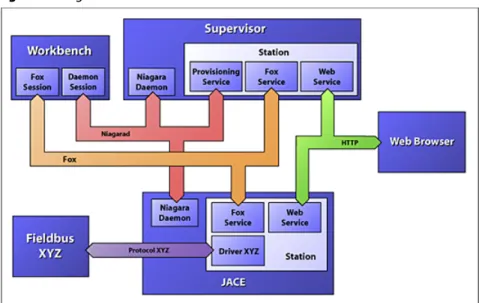
There are typically four different programs (or processes) associated with a NiagaraAX system. These programs and their network communication are illus-trated in the Figure 1
Figure 1 NiagaraAX communications
Station: This is the NiagaraAX runtime – a Java VM which runs a NiagaraAX
component application. Often the term Supervisor or JACE will be used inter-changeably with “station.” Technically, the term station describes the component runtime environment common all to all platforms, and Supervisor and JACE describe the hosting platform.
Workbench: This the NiagaraAX engineering tool – a Java VM which hosts
NiagaraAX plugin components.
Daemon: This is a native daemon process. The daemon is used to boot stations
and to manage platform configuration such as IP settings. On Windows
platforms, the daemon is run in the background as a Window's service. On QNX it is run as a daemon process on startup. The most common way to access daemon functionality is through Workbench. A connection to the daemon is established via the “Open Platform” command which opens a PlatformSession to the remote machine. Workbench provides a means for accomplishing platform tasks, such as the following:
–installing and backing up station databases –launching and monitoring stations
–configuration of TCP/IP settings (QNX, Windows XP, Server 2003) –installation and upgrades of the operating system (QNX only) –installation and upgrades of the Java virtual machine (JVM) –installation and upgrades of the NiagaraAX software –installation of lexicons for localization
–installation of licenses
Web Browser: This is a standard web browser such as IE or FireFox that hosts
one of NiagaraAX's web user interfaces. NiagaraAX provides both server side and client side technologies to build web UIs:
–On the server side, the WebService component provides HTTP and HTTPS support in a station runtime. The NiagaraAX WebService provides a standard servlet engine.
–There are two client side technologies provided by NiagaraAX to support the browser user interface (BUI). The first is Web Workbench, which allows the standard Workbench software to be run inside a web browser using the Java Plugin. Web Workbench uses a small applet (wbapplet) to download modules as needed to the client machine and to host Workbench shell. These modules are cached locally on the browser's hard drive.
–In addition to Web Workbench, a suite of technology called Hx is available. The Hx framework is a set of server side servlets and a client side JavaScript library. Hx allows a real-time user interface to be built without use of the Java Plugin. It requires only web standards: HTML (Hypertext Markup
Language), CSS (Cascading Stylesheets), and JavaScript.
Types of NiagaraAX protocols
There are three primary types of network protocols that NiagaraAX uses to integrate the four programs described above and illustrated in Figure 1:
Fox: is the proprietary TCP/IP protocol used for station-to-station and Workbench-to-station communication.
HTTP: is the standard protocol used by web browsers to access web pages from a
station.
Niagarad: is the proprietary protocol used for Workbench-to-daemon
commu-nication.
In addition to these protocols, other protocols are available as drivers (for example, SNMP).
About the Fox protocol
The Niagara Framework includes a proprietary protocol called Fox which is used for all network communication between stations as well as between Workbench and stations. Fox is a multiplexed peer to peer protocol that sits on top of a TCP connection. The default port for Fox connections is 1911.
• Layered over a single TCP socket connection
• Digest authentication (username/passwords are encrypted) • Peer to peer
• Request / response • Asynchronous eventing • Streaming
• Ability to support multiple applications over a single socket via channel multi-plexing
• Text based framing and messaging for easy debugging • Unified message payload syntax
• High performance
• Java implementation of the protocol stack
Types of NiagaraAX platforms
NiagaraAX is hosted on a wide range of platforms from small embedded
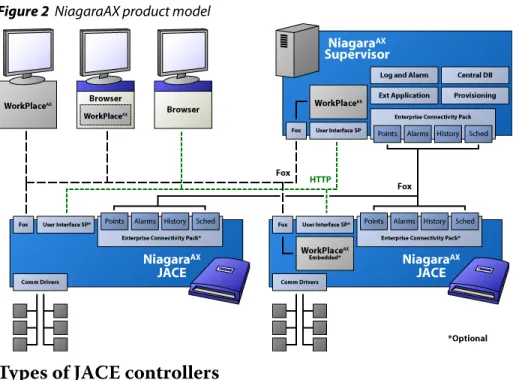
controllers to high end servers. Instances of NiagaraAX software that run on these platforms are referred to as “stations.” Depending on the platform used, a station can offer different features and capabilities and be complemented with different options. In describing the NiagaraAX platforms, the following information also provides a general overview of the NiagaraAX product model (see Figure 2) and the various standard functions and options available.
The NiagaraAX installation may consist of one or more of the following devices that may connect to or communicate on a NiagaraAX installation network:
• JACE Controllers • NiagaraAX Supervisor
• WorkPlaceAX (and platform tools) • Browser User Interface (BUI)
JACE: the term JACE (Java Application Control Engine) is used to describe a
variety of dedicated host platforms. Typically a JACE runs on a Flash file system and provides battery backup. JACEs usually host a station and a daemon process, but not the NiagaraAX Workbench. JACEs typically run QNX or embedded Windows XP as their operating system.
Supervisor: the term Supervisor is applied to a station running on a workstation
or server class machine. Supervisors are typically stations that provide support services to other stations within a system such as graphics, history, or alarm concentration. Supervisors by definition run a station, and may potentially run the daemon or Workbench.
Client: most often clients running a desktop OS such as Windows or Linux access
Figure 2 NiagaraAX product model
Types of JACE controllers
JACE (Java Application Control Engine) controllers are dedicated host platforms that provide integrated control, supervision, and network management services for networks of building monitoring and control devices. When JACEs are connected over an ethernet network using TCP/IP, they can communicate with each other on a peer-to-peer basis as well as communicate with other ethernet-based devices. Using the User Interface Station Pack (UI-SP), the JACE can also serve dynamic displays of the information contained in the connected devices to any standard web browser. JACE controllers run either the QNX operating system or a Win32 operating system. JACEs include the following:
• JACE-2
This device is a compact embedded controller and server platform with battery backup. It runs QNX RTOS, IBM J9 JVM, and NiagaraAX. • JACE-4 and JACE-5
These devices are compact embedded processor platforms with flash memory, running QNX RTOS.
• JACE NX
This device is a compact PC with a conventional hard drive that runs an embedded version of Microsoft Windows XP and the Sun Hotspot VM. • SoftJACE
The AX SoftJACE (Java Application Control Engine) is NiagaraAX
Framework software that runs on a user-supplied PC, providing many of the same benefits as a JACE controller. The PC must meet the minimum require-ments stated in the AX SoftJACE data sheet (Windows XP OS), and be dedicated to the SoftJACE application (single-purpose host).
NiagaraAX Supervisor
This “device” is a network PC acting as a server for multiple connected JACE stations. The AXSupervisor has the following features:
• Provisioning of multi-JACE systems (tools for updating and installation of software modules)
• Support for integration with standard RDBMS (MS SQL, Oracle, DB2, etc.) • Platform for enterprise applications (Vykon Energy Suite) and others in the
future
• Central database storage for attached JACEs
• Archive destination / repository for log and alarm data
• Central server of graphics and aggregated data (single IP address)
WorkPlaceAX (and the NiagaraAX platform)
This is the engineering tool that is used to create applications by defining compo-nents and linking them together to create logic and displays. It allows the user to develop comprehensive applications for control, monitoring, alarming, data logging, reporting, and real-time data visualization using a single graphical tool. WorkplaceAX can run as a standalone application on a PC, can be bundled with an AXSupervisor, or be served up to a browser from an embedded JACE platform. “Platform” is the name for everything that is installed on a NiagaraAX host that is not part of a NiagaraAX station. The platform interface provides a way to address all the support tasks that allow you to setup and support and troubleshoot a NiagaraAX host. The platform daemon is a compact executable written in native code, meaning the daemon does not require the NiagaraAX core runtime, or even a Java VM. The platform daemon is pre-installed on every JACE controller (even as factory-shipped), and runs whenever the JACE is booted up.
Platform tools require a platform connection, which is different from a station connection. When connected to a NiagaraAX platform, Workbench communi-cates (as a client) to that host's platform daemon (also known as “niagarad” for Niagara daemon), a server process. Unlike a station connection, which uses the Fox protocol, a client platform connection requires Workbench, meaning it is unavailable using a standard Web browser.
A NiagaraAX host's platform daemon monitors a different TCP/IP port for client connections than does any running station (if any). By default, this is port 3011. Finally, the platform daemon uses “host-level” authentication for signon access. This means a user account and password separate from any station user account, and should be considered the highest level access to that host.
Browser user interface
The term “browser user interface” or “BUI” simply indicates user access of a NiagaraAX station (JACE controller or AXSupervisor) using a standard web browser. The BUI interface provides remote administration and monitoring of building control systems on an intranet or over the Internet.
2
C
HAPTER
NiagaraAX and networking
About IP addressing
In the most widely installed level of the Internet Protocol (IP) today, an IP address is a 32-bit number that identifies each sender or receiver of information that is sent in packets across the network. IP addresses are actually made up of two parts, the network portion (identifies a particular network) and the host portion (identifies a particular device).
The network portion is used to determine whether other IP addresses are on the local network or a remote network. On the network, between the router that moves packets from one point to another along the route - only the network part of the address is looked at. All hosts on a given network share the same network number and can communicate with one another without being routed through an IP router.
In addition to the network address or number, information is needed about which specific machine (or host) on the network is sending or receiving a message. So the IP address needs both the unique network number and a host number (the host number must be unique within the network). The host number is sometimes called a local or machine address.
All NiagaraAX devices are configured with an IP address. An IP address is assigned to a host by an administrator and is not hardware specific, but rather is configured through a software interface on each host.
Private IP addresses
There are three blocks of IP addresses set aside for use in private networks. This allows organizations to implement IP addressing without having to apply to an ISP for unique global IP addresses for every host. Because these addresses are blocked by the global Internet routing system (the routers will drop packets from these addresses), the address space can simultaneously be used by many different organizations. However, hosts using these private addresses cannot be reached directly from the Internet (nor can they communicate to the Internet). If your NiagaraAX devices are on a VPN or all on the same LAN/WAN, you can assign private IP addresses to them, as required. The following list includes the sanctioned private addresses for each class.
• Class A - 10.0.0.0 to 10.255.255.255
This provides one network of 16,777,216 hosts • Class B - 172.16.0.0 to 172.31.255.255
This range provides 16 networks, each with 65,534 hosts • Class C - 192.168.0.0 to 192.168.255.255
This address range provides 254 networks, each with 254 hosts
To use the security of private IP addressing and the flexibility of public addressing, NiagaraAX devices and networks may be configured to use network address translation with one or more of the following: proxy servers, firewalls, or routers.
Network address translation (NAT)
To overcome IP address limitations, the use of private addresses is commonly teamed with a technique called Network Address Translation (NAT) to provide access to the Internet by hosts that require it. Typically, some device (such as a router, firewall, or proxy server) has a supply of legitimate addresses and translates between a private address and a public one for a host that needs access to or from the Internet.
Note: Some administrators choose to implement IP addressing on their private networks using legitimate addresses (such as 205.254.1.0) that have not been assigned to them. They use NAT to translate between the legitimate external address and the illegitimate internal address. Depending on how the Internet connection works, this may cause problems in the event of a failure in the connection. It is always best to use private address ranges instead.
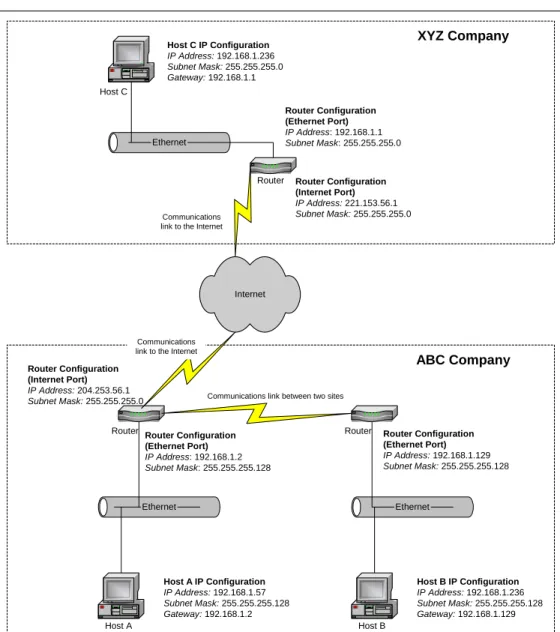
See Figure 3 for examples of private networks and routers using NAT to translate between private and public IP addresses.
IP routing and default gateway
Any NiagaraAX host on a network can communicate with another host on the same network. However, if a host wants to communicate outside its network, the administrator sets a default gateway on the host which is the IP address of a router used for communication with other networks.
The router examines an IP packet from the host and compares the destination address with a table of addresses it holds in memory. If it finds a match, it forwards the packet to the address associated with the table entry. This address could be on another network attached directly to the router, or the router may forward it to another router that knows about the network of the destination address.
Routers build these tables of destinations in a number of different ways. For simple networks, the router may load a table during start-up that was manually created by the administrator. However, more typically, routers use a broadcasting protocol to advertise the networks that they know about. Routers use other protocols to discover the shortest path between networks (the least number of hops from router to router). Routes are updated periodically to reflect changes in the avail-ability of a route.
Routing example
This example illustrates a typical network architecture of routers and default gateways in several networks. The following points are illustrated in Figure 3
• Company XYZ has a single network using the private class C address of 192.168.1.0.
• The router is performing NAT to translate the address of Host C to a legitimate address on the external network when Host C uses the Internet.
• The network is not subnetted.
• Company ABC uses the same private class C network, but has subnetted it to provide two networks, one at each site.
• The router is performing NAT to translate the addresses of hosts from both private networks to addresses on the external network when the hosts access the Internet.
Figure 3 Typical IP configuration
Static and dynamic IP addressing in NiagaraAX
Once the administrator has decided exactly what IP addressing scheme to implement, there are a number of methods to actually get the IP address (and subnet mask and default gateway information) onto the host. The simplest method is to configure this information manually on each machine, using the software provided by the operating system. However, this is quite time consuming in a network of more than a few hosts.
Most larger networks are made up of two types of devices: those that need a static (non-changing) IP address because they are accessed frequently by other devices, and most other hosts, which are rarely accessed by others. Hosts that are accessed
Host B IP Configuration IP Address: 192.168.1.236 Subnet Mask: 255.255.255.128 Gateway: 192.168.1.129 Ethernet Ethernet Ethernet Host A Host B Host C Router Router
Router Router Configuration
(Ethernet Port) IP Address: 192.168.1.129 Subnet Mask: 255.255.255.128 Host A IP Configuration IP Address: 192.168.1.57 Subnet Mask: 255.255.255.128 Gateway: 192.168.1.2 Router Configuration (Ethernet Port) IP Address: 192.168.1.2 Subnet Mask: 255.255.255.128 Router Configuration (Internet Port) IP Address: 204.253.56.1 Subnet Mask: 255.255.255.0 Router Configuration (Ethernet Port) IP Address: 192.168.1.1 Subnet Mask: 255.255.255.0 Router Configuration (Internet Port) IP Address: 221.153.56.1 Subnet Mask: 255.255.255.0 Host C IP Configuration IP Address: 192.168.1.236 Subnet Mask: 255.255.255.0 Gateway: 192.168.1.1 ABC Company XYZ Company Internet
Communications link between two sites Communications
link to the Internet
Communications link to the Internet
frequently (like servers and printers) are typically configured manually with a static IP address. The remaining hosts are configured to receive a dynamic address using a protocol such as Boot Protocol (BOOTP) or Dynamic Host Configuration Protocol (DHCP). Servers are set up with a pool of addresses to randomly distribute to clients (the host). They can also provide subnet mask, default gateway information, and DNS server information. The host is configured to request this information from the server using BOOTP or DHCP. When the host boots, it sends a broadcast message requesting an IP address, and a server responds with one of the numbers from the pool (and the remaining information). However, since the host is not necessarily guaranteed to receive the same IP address every time it boots, if a static IP is required, DHCP servers can be configured to provide a static IP address to a particular host.
You should provide a stable IP address for your NiagaraAX hosts. You can do this by making the address “static” (permanent) or by reserving the address on a DHCP server using the MAC address of the NiagaraAX host.
NiagaraAX and DHCP
DHCP is supported by the operating systems used by all NiagaraAX hosts, though static IP addresses provide the most reliable connectivity. To reliably use DHCP, it is better to reserve an IP address in the DHCP server for the MAC address of each NiagaraAX device. This ensures that the NiagaraAX device receives the same IP address whenever it requests one from the DHCP server.
Consider the following points concerning DHCP and NiagaraAX networking: • Static IP addresses provide the most reliable connectivity between NiagaraAX
hosts. Problems can develop, for example, if one station is assigned a new IP by the DHCP server and it has links to other stations. Those links stop working until those stations are restarted. The DHCP server should be configured to allocate the same IP address to the NiagaraAX host whenever it requests one. Note that this address is not really a static IP address, but rather is a dynamic one reserved by the DHCP server for the particular host.
• For the DHCP administrator to set up the reserved IP address, you will need to provide the MAC address of the NiagaraAX host to the DHCP adminis-trator.
• You can set up DHCP on a JACE-4/5 or a JACE-2 using the TCP/IP Configu-ration view of the Workbench platform but you must use Windows
networking tools to set up DHCP on any NiagaraAX host running the Windows OS.
• Windows 2000 and Windows XP DHCP servers can be configured to update DNS servers on behalf of devices that do not support dynamic update. NiagaraAX does not support Dynamic DNS.
About the HOSTS file
HOSTS files were the original mechanism used to resolve an IP address to a name. The HOSTS file is a text file residing on each local machine. Each line of the text file typically contains an IP address of a host and a name for it.
The primary limitation of this name resolution technique is that the HOSTS file is only usable by the machine on which it resides. For example, you could add an entry to Host A’s HOSTS file mapping Host B’s IP address to a name of “Pluto”. Any application running on Host A could then contact Host B using the name “Pluto”. However, Host B would not be addressable with “Pluto” by other hosts since the mapping only resides in Host A’s local HOSTS file. That means another host wanting to contact “Pluto” would need a similar entry in its local HOSTS file. Therefore, HOSTS files are difficult to maintain when you have more than a few hosts, and other technologies such as DNS, DDNS and WINS are often used instead.
One of the advantages of using a HOSTS file is that it is not dependent on a server for name resolution, as is required in the other resolution protocols. For a higher degree of stability it is good to use a HOSTS file on all NiagaraAX hosts.
The HOSTS file is always the first place a host looks for name resolution, and if it finds an entry it uses it and does not check other name sources.
About DNS
The domain name system (DNS) is the mechanism used by hosts to resolve names on the Internet, and on some private networks as well. Hosts that participate in the DNS system have names like “www.tridium.com”. This is referred to as the fully qualified domain name. These names must be globally unique so the data intended for that domain is accurately routed. To accomplish this, the domain names are controlled by ICANN, and governed like the IP address system with authority granted to accredited name registrars located throughout the world.
Domain names
As with IP addresses, the name is comprised of two parts: the domain name (tridium.com) and the host portion (for example, “www”).
Name Servers
The first level of the domain naming system is organized into classes such as .info, .com, and .org, and countries, such as .uk, and .bm. Top-level domains are then divided into second-level domains such as va.us, co.uk, and tridium.com. A second level domain can then be subdivided into a third level (such as bbc.co.uk) and so forth. Domains can actually be subdivided into 127 levels, but it is rare to see a name with more than 4 levels.
NiagaraAX and DNS
NiagaraAX supports DNS as an alternative to the HOSTS file, although the most reliable connectivity to other NiagaraAX hosts is provided through the use of a HOSTS file on each NiagaraAX station. With HOSTS files, there is no depen-dency on a remote DNS server for name resolution.
Many host operating systems (OSs), support DNS. Administrators configure the host to look up entries in one or more DNS servers. The host can be configured manually, or it can dynamically receive this setting with DHCP.
When a host tries to contact a particular name (for example, trying to browse www.bbc.co.uk), it first looks in the local HOSTS file, and upon finding no entry, checks with its name server. The name server either returns the information if it knows it, or contacts a root name server, which passes it the address of one of the name servers responsible for the .uk domain. Then that server returns the address of a second-level server handling co.uk, which returns the address of the bbc.co.uk server, which finally returns the IP address for the host named “www”. The browser uses the IP address to fetch the data to open the page.
About WINS
WINS is Microsoft’s Windows-only name resolution protocol used by Windows machines prior to Windows 2000. Like DNS, WINS is also implemented with a series of servers that maintain databases of host names to IP addresses. However, setting up WINS is easier than setting up a DNS because WINS actually receives most address records automatically. Administrators name hosts and set one or more WINS server as part of the machine configuration. When a host boots it tells the WINS server its name and current IP address. However, the name that is regis-tered is not in the DNS format of host.domain.xxx, but is in a proprietary format. WINS is typically used within a company to provide host name resolution of company-specific Windows hosts. It is often teamed with DNS to provide external resolution.
A pre-Windows 2000 Microsoft host that needs to do a name lookup first looks it up on a WINS server, and if a match is not returned, then the DNS server is checked.
About DDNS
The dynamic domain name service (DDNS) allows a device with a dynamic IP address to be accessed using a well-known domain name. DNS servers handle mapping a name (such as MyJACE.EasyIP.net) to an IP address. With DDNS, each time a host receives a new IP address, it sends an update to the name-to-IP-address mapping on the DDNS server. The DDNS function can be implemented on hosts connecting to an internal LAN (with company DDNS servers) and the Internet (with third-party DDNS services). When configuring a JACE with captive ISP, many times you cannot obtain a static IP address for the JACE from the ISP. The DDNS may be implemented on Win32-based controllers with an Internet DDNS provider.
About the NiagaraAX network
Currently, by default, every NiagaraAX station has a Niagara Network under its
Drivers container. The Niagara Network is where data is modeled that originates
from other stations. Generally, this is done using the same driver architecture used by other (non-Niagara) drivers. However, a Niagara Network has the following unique differences:
• Data points under a Niagara Station are “read only” points of the types: Boolean Point, Enum Point, Numeric Point, or String Point.
• Connections between stations occur as client and server sessions using the Fox protocol. The requesting station is the client, and target (responding) station is the server. A Workbench connection to a station operates identically, where Workbench is the client, and station is server. Client authentication
(performed by the server) is required in all Fox connections.
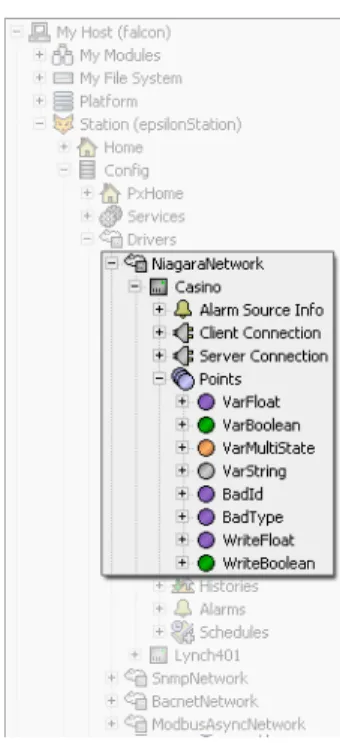
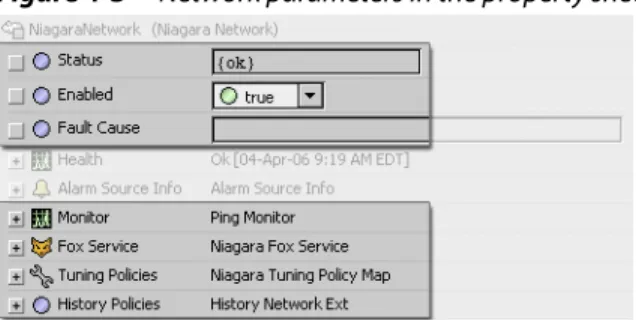
Figure 4 shows how the NiagaraAX network is represented in Workbench.
Figure 4 Niagara Network in Workbench
About non-NiagaraAX networks
In any NiagaraAX station, one or more driver networks are used to fetch and model data values using proxy points, lower-tier components in that particular driver's architecture. To support a driver's proxy points, the station must have that driver's network architecture.
Networks are the top-level component for any NiagaraAX driver. For drivers that use field bus communications, such as Lonworks, BACnet, and Modbus (among many others), this often corresponds directly to a physical network of devices.
Often (except for BACnet), the network component matches one-to-one with a specific comm port on the NiagaraAX host platform, such as a serial (RS-232 or RS-485) port, Lonworks FTT-10 port, or Ethernet port.
Note: A BACnetNetwork component is unique because it supports multiple logical BACnet networks, which sometimes use different comm ports (e.g. if a JACE-4/5 with BACnet MS/TP, one or more RS-485 ports). See the BACnet Guide for more details.
Other “non field bus” drivers also use a network architecture, for example the Ndio (Niagara Direct Input / Output) driver has an NdioNetwork to interface to physical I/O points on the host JACE (Ndio applies only to a JACE model with onboard I/O or with an attached hardware I/O board). Also, “database” drivers also use a network architecture, for example the “rdbSqlServer” driver includes an RdbmsNetwork. (Database drivers apply only to Supervisor or SoftJACE hosts.). Within a driver architecture are a hierarchy of components that have properties that affect network activity. These component properties are used to monitor and control the network status (enabled, disabled, health, and similar items) and communication schedules, including polling updates and refresh rates.
Protocols
There are typically three network protocols that are used to integrate the four programs that are internal to Niagara (see Types of NiagaraAX programs):
Fox is the proprietary TCP/IP protocol used for station-to-station and workbench-to-station communication.
HTTP is the standard protocol used by web browsers to access web pages from a station.
Niagarad is the proprietary protocol used for workbench-to-daemon
communi-cation.
Niagara's design goal is to integrate cleanly with all networks and protocols. The Niagara software suite implements a highly efficient adaptation of the JavaBean component software model and Internet technologies to provide true interopera-bility across a wide range of automation products. The Niagara object model can be used to integrate a wide range of physical devices, controllers, and primitive control applications including lonMark profiles, BACnet objects, and legacy control points. The architecture supports future enhancements by allowing legacy systems to be brought forward, where they can readily adopt new standards, solutions, and applications.
Enterprise-level software standards include Transmission Control
Protocol/Internet Protocol (TCP/IP), eXtensible Markup Language (XML), Hyper Text Transfer Protocol (HTTP), and others. These standards provide the foundation on which to build solutions that allow information to be shared between the control system and the enterprise information system.
Types of NiagaraAX hosts
NiagaraAX hosts may be classified as either QNX-based hosts or Win32-based hosts, depending on the operating system that they use. The following topics describe the characteristics of both host types:
• QNX-based NiagaraAX hosts • Win32-based NiagaraAX hosts
QNX-based NiagaraAX hosts
Sometimes called “embedded” JACE controllers, these include JACE-2, -4, and -5 series controllers shipped with the QNX operating system. These devices use onboard flash memory for file storage. An option for an onboard dialup modem is available, or if needed, an external modem can be used.
The QNX-based controllers are not Windows hosts and therefore do not support WINS for name resolution of Windows hosts. They have the following character-istics:
• used to integrate legacy, LonWorks, and BACnet devices
• optionally provide browser user interface to NiagaraAX installation (JACE-2, JACE-4, and JACE-5 with UI option)
• support host name lookup on a DNS server • can be a DHCP client
• cannot be a Windows DDNS or Active Directory client
• primary communication port is a 10/100mbps ethernet port with an RJ-45 connector. Other connections may include serial ports (RS-232, RS-485) and specialized ports, such as LonWorks FTT-10, depending on host.
All QNX-based JACE models have an integral backup battery. The backup battery allows continuous operation during brief power outages. The “JACE power monitoring” feature allows monitoring AC power and backup battery level, and a configurable delay for orderly shutdown of the JACE upon AC power failures. You can access power monitoring of a QNX-based JACE in the PowerMonitorService in a running station.
Win32-based NiagaraAX hosts
Win32 (Windows 32 bit) platforms include the JACE-NX, and any “Supervisor” PC host. As their operating system, Windows XP (if a Supervisor, possibly Windows 2000) is used, and file storage uses a hard drive. A JACE-NX has an option for an internal dialup modem, or it can use an external modem. If needed, a Supervisor PC's dialup modem can be an either internal or external type. They have the following characteristics:
• operate in a Windows environment just like any other Windows host • used as a server for NiagaraAX integrations
• can be used to engineer and maintain NiagaraAX integrations • can be a Windows DDNS client
• supports host name lookup on a DNS server • can be a DHCP client
• primary communication port is ethernet; one or more RS-232 serial port connections
NiagaraAX host networking technologies
Networking technologies that are associated with NiagaraAX hosts, include the following:
Ethernet: QNX-based and Win32-based hosts Ethernet is required for
NiagaraAX hosts for configuration.
TCP/IP (IPv4): QNX-based and Win32-based hosts TCP/IP is required for
NiagaraAX hosts for configuration. TCP/IP use includes: –IP Address (x.x.x.x)
–Subnet Mask –Default Gateway
Public IP Address: QNX-based and Win32-based hosts Public IP Address is
required for any NiagaraAX host that must be reached from the Internet.
DHCP: QNX-based and Win32-based hosts DHCP is supported on these hosts,
however, in most NiagaraAX architectures, hosts require a static IP address to facilitate data passing.
HOSTS file: QNX-based and Win32-based hosts HOSTS files are local to each
host, so they do not require dependency on a remote server for name resolution. Therefore, they are the recommended method for name resolution for NiagaraAX hosts.
DNS: Win32-based hosts DNS is supported in NiagaraAX, Win32-based hosts.
However, the most reliable connectivity to other NiagaraAX hosts is provided through the use of a HOSTS file on each NiagaraAX station.
WINS: Win32-based hosts WINS is supported in NiagaraAX, Win32-based
hosts. However, the most reliable connectivity to other NiagaraAX hosts is provided through the use of a HOSTS file on each NiagaraAX station.
DDNS: QNX-based and Win32-based hosts DDNS is available for NiagaraAX,
Win32-based hosts (using Windows DDNS) and for QNX JACEs using a third party DDNS such as tzo.com.
Network Address Translation (NAT): QNX-based and Win32-based hosts
Network Address Translation is supported on all NiagaraAX host operating systems.
Proxy Servers: QNX-based and Win32-based hosts Communication via proxy
servers are supported on all NiagaraAX host operating systems.
Firewalls: QNX-based and Win32-based hosts NiagaraAX hosts operate well
NiagaraAX network examples
There are many different ways to design and configure NiagaraAX networks. It is possible for each individual networking environment to combine with the project requirements to present a unique challenge for maximizing network efficiency. In addition to understanding general networking principles, it is important to under-stand NiagaraAX networking.
Please note the following general information points about connecting NiagaraAX devices to a LAN or WAN:
• Connection between NiagaraAX hosts on a LAN/WAN will be faster and more reliable than connection via modem (either direct dial or through an ISP).
• Niagara proxy points are designed to be used across connections that are always available. The design assumes that connections between linked hosts go up or down infrequently. Therefore, proxy points should only be used on a LAN or WAN, and only on a LAN/WAN that provides reliable connection between hosts.
• Access to hosts with private IP addresses can be made from hosts on the same LAN/WAN. Any host (NiagaraAX or other) that needs to be accessed directly from the Internet must have a public IP address. External hosts can only access privately-addressed internal hosts through a virtual private network (VPN). • When connecting to NiagaraAX hosts behind a firewall, certain ports need to
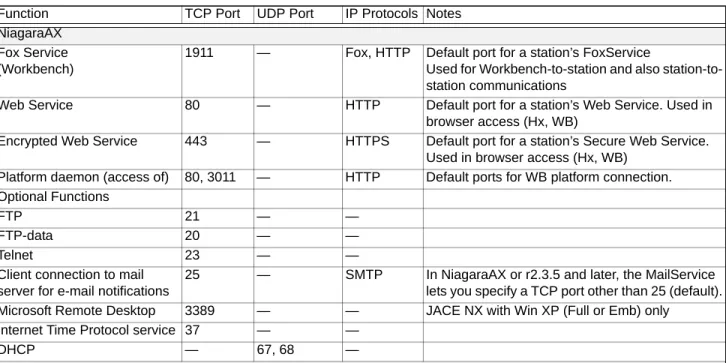
be opened on the firewall for access by a BUI client or by an engineering station running Workbench or the platform tools. For more information on ports in the NiagaraAX environment, see About NiagaraAX ports.
• The key to success in many installations is early involvement by the IT department at the site. If you are going to connect devices to their LAN/WAN you need to check with them before implementing to learn about their policies so you can follow them.
The following examples represent some of the major characteristics of typical NiagaraAX system architectures and provide some common practices for engineering NiagaraAX environments in both single-site and multiple-site appli-cations.
NiagaraAX single-site network application
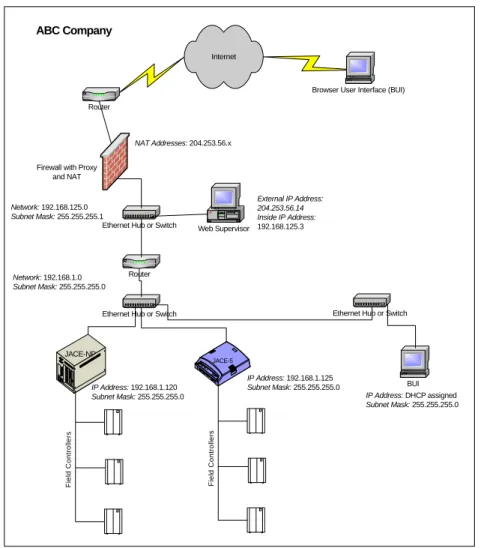
In this example, a customer has a single site with a LAN, connecting to the Internet through a firewall (refer to Figure 5). The firewall provides security, as well as network address translation (NAT), which provides company devices with public IP addresses so that they are accessible from the Internet.
The site has multiple JACE controllers controlling field devices. These JACEs have private IP addresses so they are not accessible by the browser user interface (BUI) user located across the Internet. However, they are available to the BUI user located on the same LAN.
The AXSupervisor has a public IP address assigned to it in the firewall. It can be reached by the BUI user located across the Internet (the external user) and also the internal BUI user. In this example, the AXSupervisor has been engineered to include Px pages that show real-time information originating from the JACEs. To accomplish this, The AXSupervisor proxies data in the different JACE stations. In addition, the AXSupervisor functions as a supervisory station, archiving the other stations’ data logs, alarms, and so on. This data is available to either BUI user. The network site administrator chooses to place the AXSupervisor outside the enterprise LAN but just behind the firewall. This allows faster access by the external BUI user because the network traffic between the external host and the AXSupervisor does not come onto the customer’s enterprise LAN (which may be congested).
Figure 5 Typical single-site (LAN) architecture
NiagaraAX multi-site network application
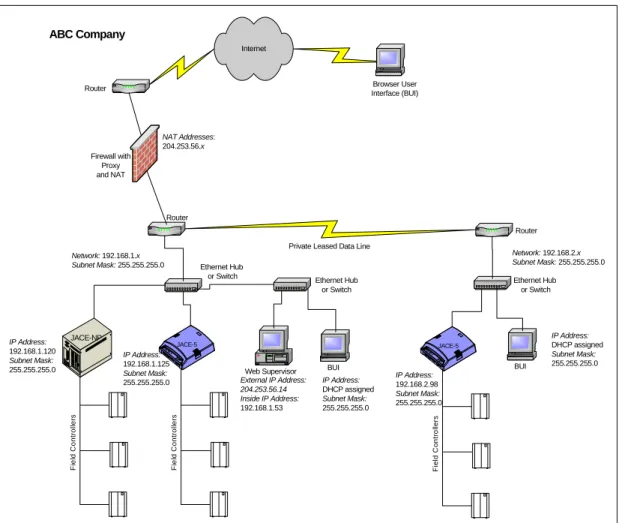
In the example presented in Figure 6, ABC Company has added a JACE to a LAN at another site. The sites connect to each other using a private data line that is leased from a phone company, thereby creating an enterprise-wide WAN. Niagara proxy points are used to update the “live” graphic (Px) page presentations on the AXSupervisor. However, the network site administrator decided to move the AXSupervisor onto the enterprise LAN at the primary site, since there is more data traffic generated internally than the occasional external BUI use. The internal IP address of the AXSupervisor changed to one in the IP range of the new network to which it is attached, but the external address (because of NAT) did not change.
Router JACE-5 RxDTxD DATA 100 ETHERNETL ON RxDTxDRxD TxD RS232/RS485 P O RT 2 RS232PORT 1 HEART BEAT JACE-NP
Ethernet Hub or Switch
BUI F iel d C ont ro ll e rs
Ethernet Hub or Switch Browser User Interface (BUI)
Fi el d Cont ro ll e rs Internet
Firewall with Proxy and NAT Web Supervisor External IP Address: 204.253.56.14 Inside IP Address: 192.168.125.3 NAT Addresses: 204.253.56.x Network: 192.168.125.0 Subnet Mask: 255.255.255.1
Ethernet Hub or Switch
ABC Company Router Network: 192.168.1.0 Subnet Mask: 255.255.255.0 IP Address: 192.168.1.120 Subnet Mask: 255.255.255.0 IP Address: 192.168.1.125 Subnet Mask: 255.255.255.0 IP Address: DHCP assigned Subnet Mask: 255.255.255.0
Figure 6 Typical multi-site (WAN) architecture
Managing NiagaraAX hosts
All of Tridium’s NiagaraAX products can co-exist on a Windows 2000 or
Windows XP infrastructure. Since all of the Win32-based controllers are built on the Windows platform, they appear in the Windows Network Neighborhood and can be browsed. At your discretion, these Win32-based devices can be members of the Windows domain or Active Directory.
The tools and methods that you choose to use for managing a NiagaraAX environment depend not only on the network design, but also on your access to the network and the tools that you have available to take advantage of that access. Moreover, each management task may be more specifically suited to one network management tool than another. Some of the specific NiagaraAX network management tools include the following:
• AXSupervisor • NiagaraAX platform
• Other tools
Router Browser User
Interface (BUI) Internet Firewall with Proxy and NAT External IP Address: 204.253.56.14 Inside IP Address: 192.168.1.53 NAT Addresses: 204.253.56.x ABC Company Network: 192.168.1.x Subnet Mask: 255.255.255.0 IP Address: 192.168.1.120 Subnet Mask: 255.255.255.0 IP Address: 192.168.1.125 Subnet Mask: 255.255.255.0
Private Leased Data Line
Web Supervisor Router Router JACE-5 RxDT xD DATA 100ETHERNET LON RxDT xD RxDTxD RS232/RS485 PORT 2 RS232PORT 1 HEART BEAT JACE-NP Ethernet Hub
or Switch Ethernet Hub
or Switch BUI Ethernet Hub or Switch BUI Fi el d C ont ro ll er s Fi el d C ont ro ll er s JACE-5 RxDT xD DAT A 1 00ETHERNETLON RxDTxDRxDTxD R S232 /RS4 85 PORT 2 RS232PORT 1 HEA RTBEAT F ield C o n tr o ll e rs IP Address: DHCP assigned Subnet Mask: 255.255.255.0 IP Address: 192.168.2.98 Subnet Mask: 255.255.255.0 IP Address: DHCP assigned Subnet Mask: 255.255.255.0 Network: 192.168.2.x Subnet Mask: 255.255.255.0
AXSupervisor
You can design a NiagaraAX system so that it allows you to manage a facility’s control equipment using a single AXSupervisor with a public IP address. Proxies of data in JACEs with private IP addresses to the exposed AXSupervisor can provide integration and aggregation of the information contained in the JACEs. However, if you need to maintain individual JACEs that are using private IP addresses on the network, you need to have access to at least one of the following:
• on-site network connectivity
• telephone line for direct dial into Windows RAS on a AXSupervisor or JACE. Once dialed in, you can reach the additional NiagaraAX devices.
• another non-NiagaraAX dialup solution into the network
• access to the AXSupervisor via remote control software. You can use Workbench on the AXSupervisor to manage the other hosts.
• VPN connectivity
NiagaraAX platform
Platform is the name for everything that is installed on a NiagaraAX host that is not part of a NiagaraAX station. The platform interface provides a way to address all the support tasks that allow you to setup, support and troubleshoot a
NiagaraAX host. The following list includes a summary description of what you can do with the platform, including the functions, views, and typical usage of the platform.
Dialup Configuration This view is used to configure the platform's dialup
modem, including settings for a “captive network.” If a QNX-based JACE, separate “listening” settings apply for receiving dialup connections.
User Manager This view applies to remote Win32 platforms (JACE-NX). To
access host Windows OS user and group accounts, including ability to add or delete users/groups, change passwords and group members.
Distribution File Installer This view is used to compare the remote platform's
NiagaraAX runtime environment (nre) to locally available distribution (.dist) files, and if desired, to update the remote platform. The nre is divided into two separate .dist files: a “config” and a “core,” where the config is customizable after instal-lation.
File Transfer Client This view is used to copy files between your Workbench PC
and the remote NiagaraAX platform (in either direction).
Lexicon Installer This view is used to install NiagaraAX lexicon files from your
Workbench PC to the remote NiagaraAX platform, in order to provide non-English language support.
License Manager This view is used to review, install, save, or delete licenses and certificates on the remote NiagaraAX platform.
Software Manager This view is used to review, install, update, or uninstall “installable software” on the remote NiagaraAX platform. This includes NiagaraAX modules (.jars) as well as separate .dist files for NRE core, Java VM, and (QNX) OS. The Software Manager compares software installed on the connected platform against that available (locally) on your Workbench PC.
Platform Administration This view is used to perform configuration, status,
and troubleshooting of the NiagaraAX platform daemon. Included are commands to change time/date, backup all remote configuration, and reboot the host platform.
Station Copier This view is used to install (copy) a station from your Workbench
PC and the remote NiagaraAX platform, including different file-level options. Also to backup (copy) a station in a remote platform to your Workbench PC, or to delete a remote station. You can easily rename any copied stations.
Station Director This view is used to start, stop, restart, or kill a station on the NiagaraAX platform. Output from the station displays in the view pane, useful for monitoring and troubleshooting. You also configure a station's “Auto-Start” and “Restart on Failure” settings from this view.
TCP/IP Configuration This view is used to review and configure the TCP/IP
settings for the network adapter(s) of the NiagaraAX platform.
Remote File System This view is used to navigate among all files and folders
under the platform's Niagara root (system home) directory, including the ability to make local copies on your PC.
About the platform connection
A platform connection is different than a station connection. When connected to a NiagaraAX platform, Workbench communicates (as a client) to that host's platform daemon (also known as “niagarad” for Niagara daemon), a server process. Unlike a station connection, which uses the Fox protocol, a client platform connection requires the full Workbench application, therefore it is unavailable when you are running Workbench in a standard web browser.
The platform daemon is a compact executable written in native code, meaning the daemon does not require the NiagaraAX core runtime, or even a Java VM. The platform daemon is pre-installed on every JACE controller (even as factory-shipped), and runs whenever the JACE has booted up.
Also, a NiagaraAX host's platform daemon monitors a different TCP/IP port for client connections than does any running station (if any). By default, this is port 3011. Finally, the platform daemon uses “host-level” authentication for signon access. This means a user account and password separate from any station user account, and should be considered the highest level access to that host.
Types of platform administration functions
The following list provides a summary description of platform administration functions that are available using the platform connection in Workbench:
• View Details
Includes all summary information shown in main Platform Administration view, plus installed modules, and so on.
• Update Authentication
For dialog boxes to change platform login access (user name and password). In “QNX-based” platforms this is simple, as there is only one platform adminis-trator. “Win32-based” platforms offer a choice of a single (digest) platform account, or use of Windows OS user accounts (basic authentication). • Change HTTP Port
For a dialog box to change the HTTP port for the host's platform daemon from (default) port 3011 to some other port.
• Change Date/Time
For a dialog box to change the hosts's current date, time, and time zone, as used by that host's OS.
• FTP/Telnet (QNX-based only)
For a dialog box to enable/disable both FTP and Telnet access to the JACE, or change the default port number used by each one.
• Change Output Settings
Provides a dialog box to change the log level of different processes that can appear in the platform daemon output.
• View Daemon Output
Provides a window in which you can observe debug messages from the platform daemon in real time, including the ability to pause the output and stream output to a file.
• Set Module Filter
Provides a dialog box to change the module content level of the host. Used very infrequently.
• Backup
Make a complete backup of all configuration on the connected host platform, including all station files as well as other NiagaraAX configuration.
• Commissioning
One way to launch the Commissioning Wizard, as an alternative to right-clicking on Platform in the Nav tree.
• Reboot
Provides a method to reboot a JACE platform, which restarts all software including the OS and JVM, then the platform daemon, then (if so configured in the Station Director) the installed station. If you click this, a confirmation dialog box appears. If you answer yes, the JACE is rebooted and the platform connection drops.
About the platform daemon on a PC
When you install NiagaraAX on your PC, you have the option to install and start Platform Daemon The default selection is to install.
Important: It is important to understand that you need the platform daemon locally installed and running in order to do any of the following:
• host a NiagaraAX station on your local PC, such as for a Supervisor. This lets you open a Workbench client platform connection to your local (“My Host”) platform.
• use Workbench to open a remote JACE platform (or station) using a dialup connection, that is, using your PC's modem. (The platform daemon is not used to open a LAN-connected platform).
Once installed and started on your PC, you can see the platform daemon listed as a Niagara service from your Windows Control Panel, by selecting Administrative Tools->Services.
Note: Following NiagaraAX installation on your PC, you can alternately install and start the platform daemon at a later time, if needed. Under the Windows Start menu, do this by selecting Start->All Programs->Niagara <3.x.x>->Install Platform Daemon
In summary (except for dial-out support), your PC's local platform daemon is not used in making client connections to other NiagaraAX hosts, only to provide the ability to run a station locally.
Other host administration tools
Following, is a list of some of the other NiagaraAX tools that are available for host administration tasks.
Platform Services This service allows access from a running station–in other
words, from the station's perspective on its host platform. Unlike the various other platform views, a platform connection is not needed to access the platform services. Instead, you need only a standard station (Fox) connection. Platform services do not provide the full set of functions available in Workbench, as when you have a platform connection. For example, you cannot install or upgrade software, or transfer stations and files. However, a number of important configu-ration views for the platform are made available under a station's PlatformSer-vices.
Included under PlatformServices are a TcpIpService and LicenseService,
providing station (Fox) access to dialogs used in platform views, for instance the TCP/IP Configuration dialog box. These services support installations where all configuration must be possible using only a browser connection (and not Workbench connected to the JACE's platform daemon). Also included under PlatformServices, for any QNX-based JACE, is a serial port and power monitoring service.
System shell Any QNX-based JACE (JACE-2, -4, and -5 series) has a “system
shell,” providing low-level access to a few basic platform settings. Using a special JACE power-up mode, you can access this system shell using a serial connection to the JACE's onboard RS-232 port. Typical usage is for troubleshooting.
However, in the case of IP address mis-configuration, you may need to use this shell in order to regain access to the unit.
Tip: Depending on your preference, as an alternative to reconfiguring your PC's IP address in Windows (to initially connect to a new JACE), you may wish to use the serial system shell to set the JACE's IP address. If done as the first step, afterwards you could connect normally (Ethernet/IP) and perform all other NiagaraAX software installation/platform configuration using Workbench and the Commis-sioning Wizard. This method would save you from having to re-configure your PC's IP address settings in Windows: first to connect to the JACE as shipped from the factory, and then back again to its original settings.
Serial tunneling A NiagaraAX station running one or more serial-based drivers
can provide “tunneling” access to its connected devices. This allows you to use a vendor's Windows serial-based application (via the serial tunnel client) to perform device-specific operations. Examples include application downloads or other device configuration.
The tunneling client is separate from NiagaraAX Workbench–meaning that you can install it on various PCs, as needed. The key advantage is that serial tunneling requires only a standard IP connection (to the station), yet provides access as if the client PC was attached to the target serial network via a physical COM port, for example RS-232.
Note: No special licensing is required to use tunneling features in NiagaraAX.
NiagaraAX backups
A NiagaraAX station includes a Backup Service. The BackupService provides for complete configuration backup of a JACE to your local Workbench PC or a to a browser PC (for users with Wb web or default Hx profile). By default, the BackupService is included when you create a new station using the New Station wizard. The remote Niagara host (JACE, Supervisor) must have the backup module installed.
A backup is a dist file (a zipped format) including, minimally, the station's config.bog, current station console output (.txt file), and backup.log file. If other station file types and subfolders are not excluded (in the “BackupService configu-ration”), the backup dist file contains them too–for example, files of type: Px, nav, html, jpg, png, and so forth. Also, the backup dist contains the zipped “nre-config” for that host (including license and certificates files), as well as pointers to the installed “nre-core,” OS, and JVM, each by version. Essentially, a backup dist provides a “configuration snapshot” of the entire JACE platform in zipped “dist” file format. This allows for a complete image restoration.
Note: Not included in a backup is runtime data that is actively managed by the station, such as the alarm and history databases. This data should be “backed up” using standard alarm routing and history archiving to a Supervisor host.
To restore a backup dist from Workbench, you open a platform connection to the JACE, then use the platform Distribution File Installer to install. Restoring from a backup may be necessary if the host hardware was replaced.
NiagaraAX hosts and network communication
In a NiagaraAX installation there is a wide variety of possible communications between NiagaraAX hosts. The following list presents common types of NiagaraAX host network communication and a description of the communi-cation:
Browser User Interface The BUI is used to initiate communication from any
client host to any NiagaraAX host for the purpose of: –viewing real-time control information
–maintaining a station (through the use of servlets)
–viewing station data (logs, alarms, schedules, and other information
Station and host administration These are communications that are typically
initiated by a Systems Integrator (SI) from an AXSupervisor or remote PC using Workbench or platform tools. The receiving host (or server) could be any NiagaraAX host. The communication could be initiated to perform any of the following tasks:
–create a new station
–maintain or administer a live station –change host configuration
–add users to the host –install a station
–install software or licenses –perform database administration
Archiving this is communication that is initiated by any NiagaraAX host that is
set up to archive logs (histories). These logs are either “pushed” (exported) to or “pulled” (imported) by a remote AXSupervisor for long term storage.
Alarming archiving This is communication initiated from any NiagaraAX host
that is set up to remotely archive alarms. These alarms may be sent to any AXSupervisor that is set up to archive the alarms. Usually the recipient host runs the Alarm Console for the purpose of acknowledging the alarms.
Alarm console acknowledgement This is communication initiated from an
AXSupervisor to acknowledge an alarm on the NiagaraAX host that is archiving the alarm.
Global data passing This is communication that may be initiated from any
NiagaraAX host to any other NiagaraAX host for the purpose of exchanging real-time data via the Niagara proxy points.
Station monitor This communication is a timed ping that may be initiated from
any NiagaraAX host to the IP address of any other NiagaraAX host for the purpose verifying network connectivity. If the ping fails over a specified time, the initiating host generates a station alarm.
–Telnet, FTP, or Hyperterminal communications from Win32-based hosts to QNX-based hosts, as “alternative” means to accomplish host or station maintenance.
–Email alarm notification (notifications or acknowledgements) from any NiagaraAX host that is running the email service to any SMTP mail server. –Remote printer alarm notification from any AXSupervisor to a networked
printer.
–Time synchronization from any NiagaraAX host with the TimeSync service to a time server in order to synchronize the host time. The server could be a NiagaraAX host providing this function or any other server running the Internet Time Protocol.
–Station backups using a connection from a NiagaraAX Workbench that has the backup service installed. The target NiagaraAX host (JACE, Supervisor) must have the backup module installed.