SAS
®
9.4 Intelligence
Platform
Installation and Configuration Guide
Second Edition
SAS® 9.4 Intelligence Platform: Installation and Configuration Guide, Second Edition Copyright © 2015, SAS Institute Inc., Cary, NC, USA
All rights reserved. Produced in the United States of America.
For a hard-copy book: No part of this publication may be reproduced, stored in a retrieval system, or transmitted, in any form or by any means, electronic, mechanical, photocopying, or otherwise, without the prior written permission of the publisher, SAS Institute Inc.
For a web download or e-book: Your use of this publication shall be governed by the terms established by the vendor at the time you acquire this publication.
The scanning, uploading, and distribution of this book via the Internet or any other means without the permission of the publisher is illegal and punishable by law. Please purchase only authorized electronic editions and do not participate in or encourage electronic piracy of copyrighted materials. Your support of others' rights is appreciated.
U.S. Government License Rights; Restricted Rights: The Software and its documentation is commercial computer software developed at private expense and is provided with RESTRICTED RIGHTS to the United States Government. Use, duplication or disclosure of the Software by the United States Government is subject to the license terms of this Agreement pursuant to, as applicable, FAR 12.212, DFAR 227.7202-1(a), DFAR 227.7202-3(a) and DFAR 227.7202-4 and, to the extent required under U.S. federal law, the minimum restricted rights as set out in FAR 52.227-19 (DEC 2007). If FAR 52.227-19 is applicable, this provision serves as notice under clause (c) thereof and no other notice is required to be affixed to the Software or documentation. The Government's rights in Software and documentation shall be only those set forth in this Agreement.
SAS Institute Inc., SAS Campus Drive, Cary, North Carolina 27513-2414. December 2015
SAS® and all other SAS Institute Inc. product or service names are registered trademarks or trademarks of SAS Institute Inc. in the USA and other countries. ® indicates USA registration.
Contents
Using This Book . . . v
What's New in Installation and Configuration for the SAS 9.4 Intelligence Platform . . vii
Chapter 1 • Introduction to Installing the SAS Intelligence Platform . . . 1
What Is the SAS Intelligence Platform? . . . 1
What Is Covered in This Document? . . . 2
Deploying the SAS Intelligence Platform . . . 2
Chapter 2 • Setting Up Users, Groups, and Ports . . . 5
Deployment Process Overview: Step Two . . . 5
Defining User Accounts . . . 6
Defining Groups . . . 15
Additional z/OS Pre-Installation Tasks . . . 18
Designating Ports and Multicast Addresses . . . 21
Chapter 3 • Creating a SAS Software Depot . . . 27
Deployment Process Overview: Step Three . . . 27
About SAS Software Depots . . . 28
Benefits of a SAS Software Depot . . . 29
Best Practices for SAS Software Depots . . . 31
Creating SAS Software Depots . . . 32
Subsetting SAS Software Orders . . . 46
Managing SAS Orders . . . 52
Checking Your SAS Software Depot . . . 61
Chapter 4 • Installing Third-Party Products . . . 67
Deployment Process Overview: Step Four . . . 67
About Installing Third-Party Products . . . 67
Obtaining Third-Party Software . . . 68
About the Java Runtime Environment . . . 69
Pre-installation Checklists for Third-Party Products . . . 69
Chapter 5 • Setting Up Certificates for SAS Deployment . . . 73
Deployment Process Overview: Step Five . . . 74
Changes to TLS and HTTPS Security . . . 74
What Are Certificates? . . . 75
How SAS Uses Certificates . . . 77
Obtaining Certificates . . . 82
Adding CA Root and Intermediate Certificates . . . 88
Implementing Certificates . . . 100
Post-Deployment Tasks for Certificates . . . 112
Chapter 6 • Installing and Configuring Your SAS Software . . . 131
Deployment Process Overview: Step Six . . . 132
Preparing to Install and to Configure . . . 132
Install and Configure SAS Interactively . . . 151
Validate the SAS 9.4 Servers . . . 188
About SAS Deployment Tester . . . 191
Chapter 7 • What to Do Next: Administration Tasks . . . 199
Overview of Administration Tasks . . . 199
First-Priority Setup Tasks . . . 200
Standard Setup Tasks . . . 205
Optional Setup Tasks . . . 206
Ongoing System Administration Tasks . . . 207
Best Practices for Ensuring the Integrity of Your System . . . 208
Appendix 1 • Configuration Options by Prompt Level . . . 211
Overview of Configuration Options by Prompt Level . . . 211
Configuration Options by Prompt Level . . . 212
Appendix 2 • Deploying SAS Web Parts for Microsoft SharePoint . . . 221
Overview of Deploying SAS Web Parts for Microsoft SharePoint . . . 221
Automatically Deploy SAS Web Parts for Microsoft SharePoint . . . 224
Configure HTTPS Connections for SAS Web Parts for Microsoft SharePoint . . . 229
Appendix 3 • Troubleshooting Your Initial SAS 9.4 Deployment . . . 231
Overview of Troubleshooting Your Initial SAS 9.4 Deployment . . . 231
Review SAS Deployment Tool Documents, Reports, and Logs . . . 232
Troubleshooting the SAS Server Tier . . . 234
Troubleshooting SAS Web Applications . . . 236
Appendix 4 • Managing Your SAS Deployment . . . 239
Overview of Managing Your SAS Deployment . . . 239
Adding, Updating, and Upgrading SAS Software . . . 240
Adding SAS Products . . . 244
What Is Configuring and Unconfiguring? . . . 260
Configuring SAS Products . . . 261
Removing a SAS Configuration . . . 274
Change Locale for SAS . . . 284
Appendix 5 • Configuring an Alternate Database for SAS Web Infrastructure Platform Services . . . 287
Overview of Configuring an Alternate Database . . . 287
Tested Databases . . . 288
Preparing to Configure an Alternative Database . . . 288
Configure an Alternative Database . . . 292
Appendix 6 • Provisioning SAS on Windows . . . 295
Provisioning Overview . . . 295
Step One: Provision System Requirements . . . 296
Step Two: Provision SAS . . . 302
Updating an Expired SAS License Used with Provisioning Software . . . 306
Appendix 7 • Uninstalling the SAS Intelligence Platform . . . 309
Overview of Uninstalling the SAS Intelligence Platform . . . 309
Stopping SAS Servers That Are Running . . . 310
Uninstalling Your SAS Software . . . 310
Uninstalling Third-Party Software . . . 314
Recommended Reading . . . 315
Glossary . . . 317
Using This Book
Audience
The information in this document can be used by a SAS system administrator to install SAS Intelligence Platform on one or more machines.
Documentation Conventions
SAS Installation Directory
The phrase SAS installation directory refers to a host path. (The SAS installation directory is sometimes referred to as SAS Home.) For example, C:\Program Files \SASHome.
SAS Configuration Directory
The phrase SAS configuration directory refers to a host path that includes a configuration name and level. For example, C:\SAS\Config\Lev1.
For more information, see the topic, “Overview of the Configuration Directory Structure,” in the SAS Intelligence Platform: System Administration Guide.
What's New in Installation and
Configuration for the SAS 9.4
Intelligence Platform
Overview
The SAS Intelligence Platform: Installation and Configuration Guide explains how to install and initially configure the SAS Intelligence Platform. This document contains new material on enhancements and changes to the SAS 9.4 Intelligence Platform deployment tools.
Changes in the third maintenance release for SAS 9.4 regarding deployment include the following:
• password prompt reductions during SAS deployment
• re-entry into the deployment wizard during SAS installation
• support for optimizing SAS Software Depots
• improvements to depot subsetting
Change in the October 2014 release for SAS 9.4 (SAS 9.4, Rev. 940_14w41) regarding deployment includes the following:
• SAS Visual Analytics Administration and Reporting
Changes in the second maintenance release for SAS 9.4 regarding deployment include the following:
• the ability to update your SAS documentation only
• tuning support for SAS web application servers
• metadata server clustering support on z/OS
Changes in SAS 9.4 regarding deployment include the following: • support for SAS Studio
• MSI-based packages for SAS Enterprise Guide and SAS Add-In for Microsoft Office
• SAS Deployment Agent
• depot subset recipes
• Locale Setup Manager task
• Uninstall SAS Software task
Password Prompt Reductions During SAS
Deployment
In the third maintenance release for SAS 9.4, the SAS Deployment Wizard enables you to reduce the number of password prompts. For more information, see “Reducing the Number of Password Prompts” on page 134.
Re-entry into the Deployment Wizard During SAS
Installation and Configuration
In the third maintenance release for SAS 9.4, a re-entry feature has been added to the SAS Deployment Wizard. For more information, see “Re-entry Feature of the Deployment Wizard” on page 135.
Support for Optimizing SAS Software Depots
In the third maintenance release for SAS 9.4, support has been added for optimizing SAS Software Depots. For more information, see Remove duplicate files and save space on page 36.
Improvements to Depot Subsetting
In the third maintenance release for SAS 9.4, improvements have been made to how you can subset SAS Software Depots. For more information, see Subsetting SAS Software Orders on page 46.
SAS Visual Analytics Administration and
Reporting
Starting in October 2014 (SAS 9.4, Rev. 940_14w41) SAS ships SAS Visual Analytics Administration and Reporting with most SAS solution software orders. For more information, see “SAS Visual Analytics Administration and Reporting” on page 135.
The Ability Update Your SAS Documentation Only
In the second maintenance release for SAS 9.4, the SAS Deployment Wizard enables you to install only the newly released documentation. For more information, see “Update Your SAS Documentation Only” on page 136.
Tuning Support for SAS Web Application Servers
In the second maintenance release for SAS 9.4, the SAS Deployment Wizard enables you to specify the size of your web application based on number of users and workload. For more information, see “Estimated System Size” on page 170.
Metadata Server Clustering Supported on z/OS
In the second maintenance release for SAS 9.4, metadata server clustering is also supported on z/OS. For more information, see “Metadata Server Clustering” on page 138.
Support for SAS Studio
In the March 2014 release of SAS 9.4, the SAS Deployment Wizard supports the installation and configuration of SAS Studio. For more information, see “SAS Studio: Context Root” on page 184.
MSI-Based Packages for SAS Enterprise Guide
and SAS Add-In for Microsoft Office
In SAS 9.4, there is another installation option for SAS Enterprise Guide and SAS Add-In for Microsoft Office. This additional option consists of packages based on Microsoft Installer (MSI) that are much smaller in size than the SAS Software Depot. These MSI-based packages enable administrators to install these two SAS products over a
distributed deployment using software provisioning tools such as Microsoft System Center Configuration Manager (SCCM). This new installation option is available only on Windows.
For more information, see the SAS Deployment Wizard and SAS Deployment Manager 9.4: User's Guide, available at http://support.sas.com/deploywizug94.html.
SAS Deployment Agent
The SAS Deployment Agent is required for deployments that run remote processes. SAS uses the agent to copy content and to perform configuration management operations associated with creating new servers and clustering. It is also used for server administration tasks such as deployment backups. For more information, see “SAS Deployment Agents” on page 136.
Subset Recipes
The SAS Deployment Wizard enables you to subset your SAS order using recipes. A subset recipe is an XML file that contains a formula that the wizard uses to assemble pieces of the SAS Software Depot to subset your order for a particular SAS product or group of products (for example, SAS Enterprise Guide or SAS Add-In for Microsoft Office). For more information, see “Subset an Order” on page 46.
Locale Setup Manager Task
On Windows and UNIX machines, you can use the Locale Setup Manager task in the SAS Deployment Manager to configure the language and region for SAS Foundation and certain SAS applications. For more information, see “Change Locale for SAS” on page 284.
Uninstall SAS Software Task
On Windows and UNIX machines, you can use the Uninstall SAS Software task in the SAS Deployment Manager to remove SAS software. There is also a silent uninstall option. For more information, see “Uninstalling Your SAS Software” on page 310.
Chapter 1
Introduction to Installing the SAS
Intelligence Platform
What Is the SAS Intelligence Platform? . . . 1
What Is Covered in This Document? . . . 2
Deploying the SAS Intelligence Platform . . . 2
Deployment Process Overview: Step One . . . 2
Step 1: Review Additional Documentation . . . 2
Step 2: Create Operating System Users and Groups and Designate Ports . . . 3
Step 3: Create a SAS Software Depot . . . 4
Step 4: Install Required Third-Party Software . . . 4
Step 5: (Optional) Set Up Certificates . . . 4
Step 6: Install and Configure SAS . . . 4
What Is the SAS Intelligence Platform?
The SAS Intelligence Platform is a comprehensive, end-to-end infrastructure for creating, managing, and distributing enterprise intelligence. The SAS Intelligence Platform comprises the following software offerings:
• SAS BI Server
• SAS Enterprise BI Server
• SAS Data Management (Standard or Advanced) and other related offerings for data management, data quality, and data governance
The SAS Data Integration Server offering has been revised, and the SAS Enterprise Data Integration Server offering is available only through renewals.
Solutions for enterprise intelligence, customer intelligence, and financial intelligence are built on the SAS Intelligence Platform, as well as turnkey solutions for specialized markets in life sciences, health care, retail, manufacturing, and others. Therefore, if your SAS deployment plan includes a SAS solution, then the SAS Intelligence Platform documentation also pertains to you.
The SAS Intelligence Platform library provides information for the platform offerings, which include products and components such as the SAS Metadata Server, SAS Integration Technologies, and the SAS OLAP Server. See http://support.sas.com/ 94administration for more information about these software offerings and their components.
What Is Covered in This Document?
This document begins where you and your SAS representative have decided what software you need and on what machines you will install the software. At this point, you can begin performing some pre-installation tasks, such as creating operating system user accounts and designating the ports that you will use during installation.
This document covers all of the pre-installation, installation, and configuration tasks that you must perform to deploy the SAS Intelligence Platform on either a single machine or in a distributed, mixed operating system environment. By the time you reach the end of this document, all of your SAS servers, middle-tier servers, and clients will be
functional.
Installing the software will be easier if you read the following documents as well: • SAS Intelligence Platform: Overview to understand the architecture of the system. • configuration documentation for SAS solutions. Many of the solutions leverage the
functionality of the SAS Intelligence Platform. If your SAS deployment plan includes a solution, then you might also be referred to additional solution-specific configuration information.
If you have licensed SAS solutions, consult with your SAS representative for more information.
Deploying the SAS Intelligence Platform
Deployment Process Overview: Step OneThe following list summarizes the steps required to install and configure the SAS Intelligence Platform on a single machine or in a distributed, heterogeneous
environment. The first three steps are pre-installation tasks and can be performed in any order. Perform step 4 after steps 1 through 3 are completed:
1. Review additional documentation.
2. Create operating system users and groups and designate ports. 3. Create a SAS Software Depot.
4. Install required third-party software. 5. (Optional) Set up certificates. 6. Install and configure SAS.
The sections below provide a brief description of each of these tasks. Subsequent chapters in this document provide the step-by-step instructions that you will need to perform them.
Step 1: Review Additional Documentation
It is very important to review all the different documents associated with deploying your SAS software. There can be late-breaking information, or instructions specific to a
particular configuration might be too narrow for inclusion in the SAS Intelligence Platform: Installation and Configuration Guide.
Your review should include these documents: • QuickStart Guide
This document is shipped with your SAS software. Follow its instructions. The QuickStart Guides are also available online:
• Windows: http://support.sas.com/documentation/installcenter/94/win/index.html
• UNIX: http://support.sas.com/documentation/installcenter/94/unx/index.html
• z/OS: http://support.sas.com/documentation/installcenter/94/mvs/index.html
• software order e-mail (SOE)
This e-mail is sent to your site to announce the software and detail the order. It also enumerates the initial installation steps and, for SAS 9.4, contains instructions for using Electronic Software Delivery (ESD), if applicable. The SID file also contains your site's SAS license (SETINIT).
• SAS order information (SOI)
After you download your order to an existing SAS Software Depot, you can use the SAS order information (SOI) file to determine what products were in your order and when the order was placed. The SOI is in your SAS Software Depot in
install_doc/order-number/soi.html. • SAS software summary
In the same depot location as the SOI, the SAS software summary is a more detailed list of the software included in your order. Unlike the SAS order information sheet, which only lists the software that you have specifically ordered, this document also describes the included software that supports your order. The software summary is in your SAS Software Depot in install_doc/order- number/
ordersummary.html.
Note: The SAS Deployment Wizard installs only what is listed in the deployment plan. The order summary might list more products than the deployment plan. For more information, see “About Deployment Plans” on page 133.
• system requirements
Available at: http://support.sas.com/resources/sysreq/index.html
• SAS Notes
Outstanding SAS Notes for alert status installation problems are available at:
http://support.sas.com/notes/index.html
Step 2: Create Operating System Users and Groups and Designate Ports
Create a set of operating system users and groups that will be required during the installation and configuration of your system, and designate a set of ports to use. For more information, see Chapter 2, “Setting Up Users, Groups, and Ports,” on page 5.
Step 3: Create a SAS Software Depot
Create a SAS Software Depot, which enables you to install the SAS software over your site's network, rather than from the installation media.
Note: If you have elected to receive SAS through Electronic Software Delivery, a SAS Software Depot is automatically created for you.
For more information, see Chapter 3, “Creating a SAS Software Depot,” on page 27. Step 4: Install Required Third-Party Software
Install any third-party products, that are necessary for your installation. These products are identified in your deployment plan.
For more information, see Chapter 4, “Installing Third-Party Products,” on page 67. Step 5: (Optional) Set Up Certificates
A decision that you must make when deploying SAS 9.4 is whether to use certificates to authenticate user and machine identities to secure communication between SAS web applications.
For more information, see Chapter 5, “Setting Up Certificates for SAS Deployment,” on page 73.
Step 6: Install and Configure SAS
Having identified the proper deployment plan for your order, Install and configure your SAS software using the SAS Deployment Wizard, an installation and configuration tool that is supplied by SAS.
For more information, see Chapter 6, “Installing and Configuring Your SAS Software,” on page 131.
Chapter 2
Setting Up Users, Groups, and
Ports
Deployment Process Overview: Step Two . . . 5
Defining User Accounts . . . 6
Overview of Defining User Accounts . . . 6
Internal User Accounts . . . 7
Required External User Accounts for SAS . . . 8
Rights Required by External User Accounts for SAS . . . 10
Required External User Accounts for Third-Party Software . . . 11
Rights Required by External User Accounts for Third-Party Software . . . 11
Local or Directory Service Accounts? . . . 12
Password Policies . . . 12
Pre-installation Checklist for External User Accounts for SAS on Windows and UNIX . . . 13
Pre-installation Checklist for External User Accounts for Third-Party Software . . 14
Pre-installation Checklist for External User Accounts for SAS on z/OS . . . 14
Defining Groups . . . 15
Overview of Defining Groups . . . 15
The SAS Server Users Group (Windows) . . . 16
The sas Group (UNIX) . . . 16
The SASGRP Group (z/OS) . . . 17
Pre-installation Checklist for Groups for SAS on Windows and UNIX . . . 17
Pre-installation Checklist for Groups for Third-Party Software . . . 18
Pre-installation Checklist for Groups for SAS on z/OS . . . 18
Additional z/OS Pre-Installation Tasks . . . 18
About Additional z/OS Pre-Installation Tasks . . . 18
Create a Configuration Directory and Define the SAS Library on z/OS . . . 19
Install the SAS 9.4 SVC Routine . . . 19
Install the SASCP Module . . . 20
Designating Ports and Multicast Addresses . . . 21
About Ports and Multicast Addresses . . . 21
Multicast Address Considerations . . . 21
Pre-installation Checklist for Ports for SAS . . . 22
Deployment Process Overview: Step Two
Before you begin installing and configuring your software, you must create a set of required users and groups at the operating system level, and you must designate a set of
TCP/IP ports for the servers to use. This is the second of six tasks required to install and configure the SAS Intelligence Platform.
1. Review additional documentation.
ð 2. Create operating system users and groups and designate ports. 3. Create a SAS Software Depot.
4. Install required third-party software. 5. (Optional) Set up certificates. 6. Install and configure SAS.
Defining User Accounts
Overview of Defining User AccountsThere are two types of user accounts to understand when deploying SAS: • Internal user accounts are accounts known only to SAS and are created and
authenticated internally in SAS metadata rather than externally.
• External user accounts are accounts created outside of SAS metadata. These accounts are local to a machine or are defined in a network directory service of which the machine is a member, such as LDAP.
The following sections describe the user accounts that SAS and third-party software require. They help you answer these questions:
• What are internal and external user accounts?
• What user rights does each account have and to what groups must each account be assigned?
• Should I create local or network directory service accounts? • What password policies should I enforce?
This section contains the following topics: • “Internal User Accounts” on page 7
• “Required External User Accounts for SAS” on page 8
• “Rights Required by External User Accounts for SAS” on page 10
• “Required External User Accounts for Third-Party Software” on page 11
• “Rights Required by External User Accounts for Third-Party Software” on page 11
• “Local or Directory Service Accounts?” on page 12
• “Password Policies” on page 12
• “Pre-installation Checklist for External User Accounts for SAS on Windows and UNIX” on page 13
• “Pre-installation Checklist for External User Accounts for Third-Party Software” on page 14
• “Pre-installation Checklist for External User Accounts for SAS on z/OS” on page 14
Internal User Accounts
SAS identifies internal user accounts by appending a special string to the user ID. This string begins with an at sign (@) and contains saspw (for example, @saspw). For two of the required user accounts, the SAS Administrator and the SAS Trusted User, the SAS Deployment Wizard prompts you by default to create internal user accounts.
The following table shows the default internal user accounts required by SAS. (SAS internal user accounts are authenticated on the SAS Metadata Server.)
Table 2.1 SAS Internal User Accounts
Description User ID
SAS Administrator
The user account that has privileges associated with the SAS Metadata Unrestricted Users role.
sasadm@saspw
SAS Trusted User
The user account that can impersonate other users on connections to the metadata server. Some SAS processes use this account to communicate with the metadata server on a client's behalf.
sastrust@saspw
SAS Environment Manager Service
The user account that the SAS Environment Manager Server and its agent uses to communicate while monitoring the processes in your SAS deployment. This internal user account has unrestricted administrative access rights to the metadata server. For more information, see “SAS Environment Manager and SAS Metadata Users” in SAS Environment Manager: User's Guide.
sasevs@saspw
SAS Anonymous Web User
An optional user account that is used to grant web clients access to applicable SAS Web Infrastructure Platform components. When web clients request access to web services, they are not prompted for credentials. Instead, they are granted access under this user account.
webanon@saspw
In the following table are additional internal user accounts: Table 2.2 Additional SAS Internal User Accounts
Description User ID
dbmsowner
User ID and password for accessing the SAS Web Infrastructure Platform Data Server. This is the owner of all databases.
dbmsowner
SharedServices
User ID and password for accessing the SharedServices database used by the SAS Web Infrastructure Platform.
SharedServices
adminowner
User ID and password for accessing the Administration database used by the SAS Environment Manager.
adminowner
sasevdb
User ID and password for the Environment Manager Enablement Kit Database.
sasevdb
EVManager
User ID and password for accessing the EVManager database used by the SAS Environment Manager.
EVManager
vatadm
User ID and password for accessing the database used with SAS Visual Analytics Services.
vatadm
For more information about SAS internal user accounts and their purposes, see “Understanding the State of Your System” in SAS Intelligence Platform: System
Administration Guide.
Here are some benefits of internal user accounts: • less maintenance
The account is defined only once in SAS. You do not define this account externally using the authentication provider.
• isolation from the host machine security policy
The SAS Administrator and the SAS Trusted User credentials are referenced in many locations within SAS. For example, forcing a recurring password change (a common security policy) might make unnecessary work for the person administering SAS. • independence from IT
You can create additional SAS unrestricted user and administrative user accounts for metadata management without involvement from your IT department.
• reduced “headless” external user accounts
The SAS Trusted User is an account used for SAS inter-process communication. It will not be mistaken for a human user.
• minimal security exposure to your enterprise
The SAS Administrator and the SAS Trusted User are highly privileged accounts and only provide access to SAS—not to operating system resources.
Required External User Accounts for SAS
External user accounts are user accounts defined outside of SAS metadata. These accounts are local to a machine or are defined in a network directory service of which the machine is a member, such as LDAP. SAS requires certain external user accounts for two purposes: installation and running certain SAS server processes.
During installation and configuration, the SAS Deployment Wizard must run under an external account with the necessary privileges on the target machine to write SAS program and log files. To run servers such as the stored process server and the pooled
workspace server, SAS requires an external user account to be the server process owner. For more information about external user accounts and their purposes, see the SAS Intelligence Platform: System Administration Guide.
As you set up external accounts, remember to use different external accounts for the SAS First User and the SAS Spawned Servers user. Otherwise, your configuration will end in errors and the SAS pooled workspace server will not be functional.
As you create these external user accounts, record information about them in “Pre-installation Checklist for External User Accounts for SAS on Windows and UNIX” on page 13 or in “Pre-installation Checklist for External User Accounts for SAS on z/OS” on page 14. You will need this information when you run the SAS Deployment Wizard later.
Note: To validate your SAS deployment, you will need an external user account that is representative of a SAS client user, such as a user of SAS Data Integration Studio, that must be the temporary process owner when its jobs are run on a standard workspace server. If Integrated Windows authentication (IWA) is not being implemented, it can be helpful to have the SAS Deployment Wizard create a SAS First User account (sasdemo) in metadata during deployment for validation purposes. The wizard will also assign the required Log on as a batch job Windows user right for you.
The following table shows external user accounts required by SAS and the machines on which they are authenticated.
Table 2.3 Required External User Accounts for SAS
Description Recommended User ID Machine Where Authenticated SAS Installer—
The account used to install SAS.
sas Every machine
SAS Spawned Servers account—
The process owner for stored process servers and pooled workspace servers.
sassrv Stored process server
Pooled workspace server
Note:
• For information about the user rights that each external account requires, see
“Rights Required by External User Accounts for SAS” on page 10.
• UNIX: the SAS Installer generally overrides the default configuration directory with the site's preferred location (for example, /opt/sas/config). The installer must have Write permission on this path.
• Windows: The SAS Installer user ID must be available in the long term for future SAS maintenance.
• UNIX: Do not use root for the SAS Installer user ID.
• AIX: For both user IDs, make sure that the User can LOGIN? setting is set to
true.
• z/OS: The SAS Installer and the SAS Spawned Servers account must have a TSO segment defined.
• z/OS: By default, the SAS Installer:
• is the started task owner for the servers.
• is the owner of the configuration directory structure.
• must have a writable home directory in the UNIX file system.
• must have an OMVS segment definition with the following minimum settings: • ASSIZEMAX of at least 2 GB
• CPUTIMEMAX of at least 5000 seconds • PROCUSERMAX of at least 50 users
Rights Required by External User Accounts for SAS
Operating systems require that you assign certain rights to the external user accounts used to deploy and to run SAS.
The following table describes the user rights needed by the required external user accounts to deploy and run SAS.
Table 2.4 Rights Required by External User Accounts for SAS
External User Account
Operating
System User Rights Needed
SAS Installer Windows Administrator rights
UNIX The group that you designate as the primary group for the SAS Installer must contain the SAS Spawned Servers account.
z/OS The group that you designate as the primary group for the SAS Installer must contain the SAS Spawned Servers account.
SAS Spawned Servers account
Windows* Log on as a batch job
UNIX Member of a group that is the primary group for the SAS Installer.
(This group does not have to be the primary group for the SAS Spawned Servers account.)
z/OS Member of a group that is the primary group for the SAS Installer.
(This group does not have to be the primary group for the SAS Spawned Servers account.)
* The SAS Deployment Wizard automatically assigns the Windows user right Log on as a batch job to the SAS Spawned Servers account.
On Windows, if you choose how to run your SAS servers using management scripts— instead of running them as Windows services—then the user account that runs the object spawner must meet the following requirements on the object spawner machine:
• be the administrator or a member of the Windows Administrator's group • have the following Windows local user rights:
• Adjust memory quotas for a process
• Replace a process level token
Required External User Accounts for Third-Party Software
The following table describes the external user accounts required by third-party software and the machines on which they are authenticated—either as local accounts or in a network directory service that the machine can access.
Table 2.5 Required External User Accounts for Third-Party Software
Description
Recommended User ID
Machine Where Authenticated
LSF Administrator—
Process owner for Platform LSF services and daemons. Required if you install Platform Suite for SAS to support scheduling or grid computing. Also owns the LSF configuration and log files and has permission to perform cluster-wide operations, edit configuration files, and reconfigure a cluster.
lsfadmin Every Platform
Process Manager and Platform LSF machine
LSF User—
Sometimes referred to as the scheduling user. Required by SAS Web Report Studio to run the Output Generation Tool, which creates scheduled reports in batch mode.
lsfuser Platform Process
Manager
As you create these external user accounts, record information about them in “Pre-installation Checklist for External User Accounts for SAS on Windows and UNIX” on page 13. You will need this information when you run the SAS Deployment Wizard (in Chapter 6).
Note: For information about the user rights that each account requires, see “Rights Required by External User Accounts for Third-Party Software” on page 11.
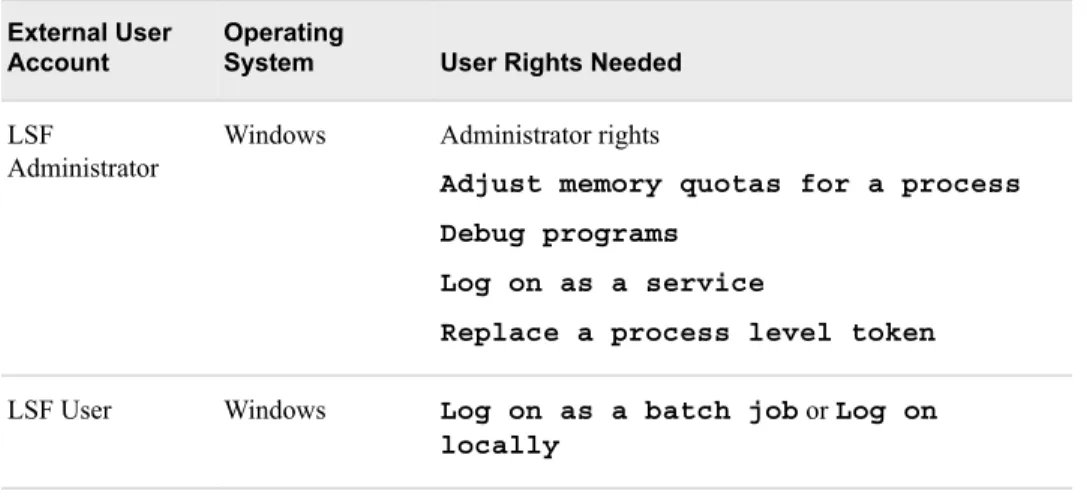
Rights Required by External User Accounts for Third-Party Software
The following table describes the user rights needed by the required external user accounts to deploy and run third-party software:
Table 2.6 Rights Required by External User Accounts for Third-Party Software
External User Account
Operating
System User Rights Needed
LSF Administrator
Windows Administrator rights
Adjust memory quotas for a process Debug programs
Log on as a service
Replace a process level token
LSF User Windows Log on as a batch job or Log on
locally
Local or Directory Service Accounts?
SAS relies on its various server machines to authenticate external user accounts. In turn, the SAS server machine authenticates user accounts using an authentication provider. An authentication provider refers to an authentication service that is one of the following: • local to a machine and used to authenticate local host user accounts
• available to a machine through a computer network and used to authenticate directory service accounts such as LDAP or Active Directory
You can create either local or directory service accounts for external users. The only requirement is that each user shown in Table 2.3 on page 9 can be authenticated by the machine's authentication provider—be that an authentication provider that is local to the machine, or an authentication provider that is available to the machine through a directory service.
The main advantage of local accounts is that if account information were to get into the wrong hands, the credentials could be used only to log on to the machine or machines that can authenticate the credentials. A secondary benefit is that the host could continue to authenticate users even if the directory service authentication provider were
unavailable.
The advantage of directory service accounts is that you do not have to create the same accounts on multiple machines or keep the account information synchronized across machines—the directory service authentication provider does this for you.
For example, setting up the SAS Spawned Server user account is usually
straightforward. The spawned server account must be able to be authenticated by the pooled workspace server and stored process server machine. If these servers are
distributed on more than one machine, then each machine must be a member of the same directory service or in different directory services between which a trust has been established.
Password Policies
Note: This section addresses the passwords for the external user accounts that SAS requires, not the passwords for regular users of the system.
When you set up passwords for your SAS external user accounts, we highly recommend that these passwords do not have to be reset when a user first logs on. If, for some
reason, it is required that you create passwords that have to be reset, you will have to log on using each account and change the password before you install and configure your software. And, of course, you will need to know the changed password for each account. By default, passwords for internal user accounts are set not to expire. When passwords for user accounts change, you must use SAS Deployment Manager to update a set of configuration files and some metadata objects. SAS provides instructions for updating these files and metadata objects.
For more information, see “Update a Managed Password” in SAS Intelligence Platform:
Security Administration Guide.
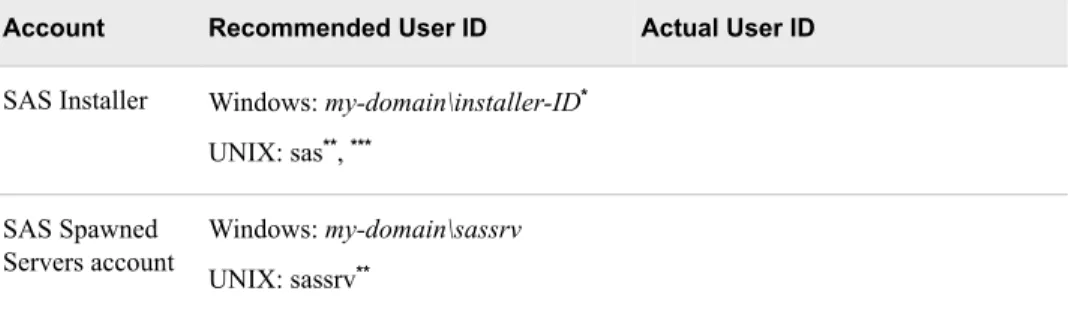
Pre-installation Checklist for External User Accounts for SAS on Windows and UNIX
Use the following pre-installation checklist to create the necessary external user accounts to deploy and run SAS on Windows and UNIX.
Note: These checklists are superseded by more complete and up-to-date checklists that can be found at http://support.sas.com/installcenter/plans. This website also contains a corresponding deployment plan and an architectural diagram.
Table 2.7 Pre-installation Checklist for External User Accounts for SAS on Windows and UNIX
Account Recommended User ID Actual User ID
SAS Installer Windows: my-domain\installer-ID* UNIX: sas**, ***
SAS Spawned Servers account
Windows: my-domain\sassrv UNIX: sassrv**
* On Windows, the user ID should be available in the long term for future SAS maintenance. ** On AIX, make sure that the User can LOGIN? setting is set to true for the user. *** On UNIX, do not use root.
Note: During deployment, the SAS Installer user must have Write permission to /etc/opt/vmware in order to configure VMware license files on all SAS middle tier machines.
Note these important items:
• For information about the user rights that each external account requires, see “Rights Required by External User Accounts for SAS” on page 10.
• The SAS Deployment Wizard prompts you for the Installer account and the SAS Spawned Servers account information, and you cannot complete the installation without supplying it.
• Certain SAS products and features use functionality that requires SAS to check user ID authentication and file access authorizations. This means that certain files within your SAS installation must have setuid permissions and be owned by root. SAS provides a script with which to set these permissions. This script, setuid.sh, must be run as root in order to complete successfully. You have three options for running setuid.sh:
• set up sudo for the SAS Installer prior to running the deployment wizard, and not be prompted for the sudo password. The wizard running under the installer account will have sudo privileges to run setuid.sh.
• provide the sudo password when prompted by the deployment wizard, and allow the wizard to run setuid.sh as sudo.
• when the wizard is paused, run setuid.sh yourself. When the script is complete, you resume running the wizard.
• If your UNIX system uses an authentication method other than /etc/passwd
or /etc/shadow, then you must configure authentication before you begin your SAS software deployment, or SAS 9.4 will not function properly. For more information, see the Configuration Guide for SAS 9.4 Foundation for UNIX Environments available at: http://support.sas.com/documentation/installcenter/en/ ikfdtnunxcg/66380/PDF/default/config.pdf.
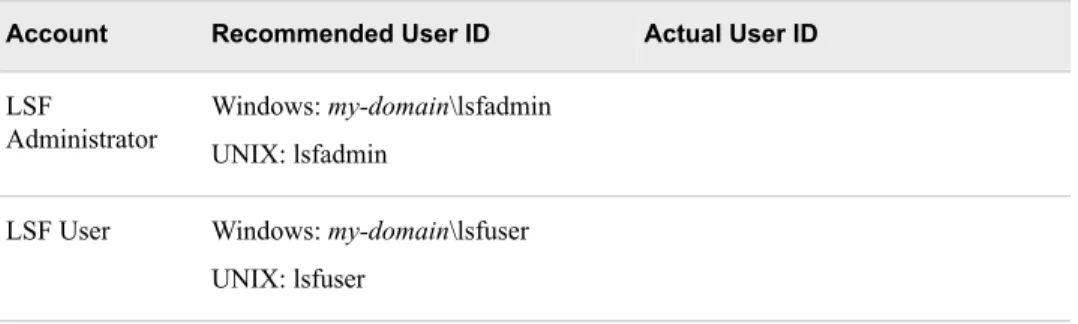
Pre-installation Checklist for External User Accounts for Third-Party Software
Use the following pre-installation checklist to create the necessary external user accounts to deploy and run third-party software.
Note: The SAS Deployment Wizard prompts you for this information, and you cannot complete the installation without it.
Note: These checklists are superseded by more complete and up-to-date checklists that can be found at http://support.sas.com/installcenter/plans. This website also contains a corresponding deployment plan and an architectural diagram.
Table 2.8 Pre-installation Checklist for External User Accounts (Third Party)
Account Recommended User ID Actual User ID
LSF Administrator
Windows: my-domain\lsfadmin UNIX: lsfadmin
LSF User Windows: my-domain\lsfuser UNIX: lsfuser
Note: For information about the user rights that each account requires, see “Rights Required by External User Accounts for Third-Party Software” on page 11.
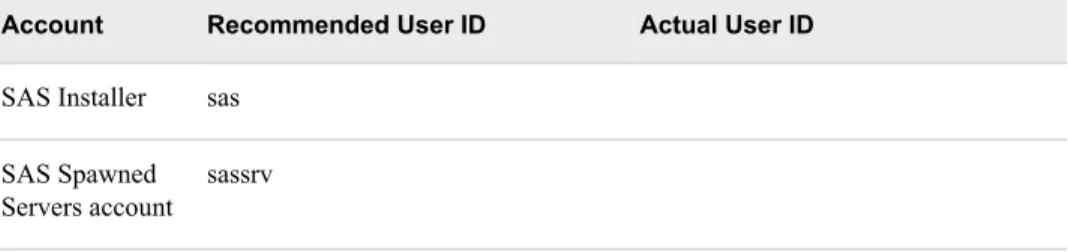
Pre-installation Checklist for External User Accounts for SAS on z/OS
Use the following pre-installation checklist to create the necessary external user accounts to deploy and run SAS on z/OS.
Note: The SAS Deployment Wizard prompts you for this information, and you cannot complete the installation without it.
Note: These checklists are superseded by more complete and up-to-date checklists that can be found at http://support.sas.com/installcenter/plans. This website also contains a corresponding deployment plan and an architectural diagram.
Table 2.9 Pre-installation Checklist for External User Accounts for SAS on z/OS
Account Recommended User ID Actual User ID
SAS Installer sas SAS Spawned Servers account
sassrv
Note:
• For information about the user rights that each external account requires, see
“Rights Required by External User Accounts for SAS” on page 10.
• The SAS Installer and the SAS Spawned Servers account must have a TSO segment defined.
• By default, the SAS Installer:
• is the started task owner for the servers.
• is the owner of the configuration directory structure.
• must have a writable home directory in the UNIX file system.
• must have an OMVS segment definition with the following minimum settings: • ASSIZEMAX of at least 2 GB
• CPUTIMEMAX of at least 5000 seconds • PROCUSERMAX of at least 50 users
Defining Groups
Overview of Defining Groups
On UNIX, adding users to a group is required to assign the necessary operating system privileges to deploy and run SAS. Using a group is one method for granting the corresponding user rights needed on Windows.
This section contains the following topics:
• “The SAS Server Users Group (Windows)” on page 16
• “The sas Group (UNIX) ” on page 16
• “The SASGRP Group (z/OS) ” on page 17
• “Pre-installation Checklist for Groups for SAS on Windows and UNIX” on page 17
• “Pre-installation Checklist for Groups for Third-Party Software” on page 18
• “Pre-installation Checklist for Groups for SAS on z/OS” on page 18
The SAS Server Users Group (Windows)
To deploy SAS on Windows, the user must have certain local user rights on the machine hosting the server. These rights are required before the user can start a process for a stored process server, a pooled workspace server, or a standard workspace server. One suggestion for giving a user these rights is to create a group, add users to the group, and then assign the rights to the group. (The scheduling user, lsfuser—which is required if you are scheduling reports—also must have this same right.)
Note: Not all of these user accounts will exist in every installation. You add only those that you have created. In addition, if you are working in a multi-machine
environment and are using local groups, not all of the users that you have created need to be included in every local group. You need only include the users who will be authenticated by a stored process server, pooled workspace server, or standard workspace server on a given machine. On some machines (for example, a machine hosting middle-tier components) there might be no need for the group at all. To set up a group, complete these steps:
1. Create a SAS server users group. This can be a local group or a group with domain scope.
2. Add the following users to the group: • SAS Spawned Servers account • SAS First User (optional account) • LSF User
• any other external users that need to access a standard workspace server Note: The SAS Deployment Wizard automatically grants the Windows user right
Log on as a batch job to the SAS Spawned Servers account. If you choose to have the wizard create the optional SAS First User account in
metadata, the wizard also automatically grants the Log on as a batch job
Windows user right to this First User account. If Integrated Windows
authentication (IWA) is implemented, this user right is not required for the SAS First User and other regular SAS users who access standard workspace servers, such as SAS Data Integration Studio or SAS Enterprise Guide users.
3. Finally, grant the user right Log on as a batch job to the group. For information about setting local user rights, see your Microsoft Windows
documentation. If the users in the group need that right on more than one Windows machine, the right needs to be assigned specifically on each machine.
The sas Group (UNIX)
To deploy SAS on UNIX, you should create an operating system group and make this the primary group for the UNIX SAS Installer user. The SAS Spawned Servers account should also be made a member of the sas group. (Members of this group will be given access to certain directories and files created by the SAS Deployment Wizard.) For information about creating groups and adding user accounts, see your UNIX documentation.
The SASGRP Group (z/OS)
To deploy SAS on z/OS, you should create a RACF group named SASGRP. This group is used to control access to directories and files in the configuration directory created in the HFS file system. The definition of this RACF group must include an OMVS segment and must be set as the default group for the SAS Installer and the SAS Spawned Servers account.
For information about creating groups and adding user accounts, see your IBM z/OS documentation.
Pre-installation Checklist for Groups for SAS on Windows and UNIX
Use the following pre-installation checklist to make sure that you have created the necessary groups to deploy and run SAS on Windows and UNIX:
Note: These checklists are superseded by more complete and up-to-date checklists that can be found at http://support.sas.com/installcenter/plans. This website also contains a corresponding deployment plan and an architectural diagram.
Table 2.10 Pre-installation Checklist for Groups for SAS on Windows and UNIX
Recommended
Group Name Group Members Operating System and Purpose Actual Group Name
SAS Server Users* SAS Spawned Servers account
Windows—
Suggested method for assigning the Log on as a batch job user right to the SAS Spawned Servers account for the stored process server and pooled workspace server.
SAS First User Any other users
Suggested method for assigning the Log on as a batch job user right to the SAS First User and any other standard workspace server users.
sas** SAS Installer UNIX—
Primary group for the SAS Installer user. Enables the SAS Deployment Wizard to create the necessary log and configuration directories required by SAS.
SAS Spawned Servers account
Through group membership, grants Write permissions to the SAS Spawned Server account for modifying specific SAS log and configuration directories.
* Unless Integrated Windows authentication (IWA) is implemented, add any other any external users accessing standard workspace servers.
** Limit membership because this privileged group has operating system access to certain configuration files.
Pre-installation Checklist for Groups for Third-Party Software
Use the following pre-installation checklist to create the necessary groups to deploy and run third-party software.
Note: These checklists are superseded by more complete and up-to-date checklists that can be found at http://support.sas.com/installcenter/plans. This website also contains a corresponding deployment plan and an architectural diagram.
Table 2.11 Pre-installation Checklist for Groups for Third-Party Software
Recommended
Group Name Group Members Operating System and Purpose Actual Group Name
SAS Server Users Scheduling user (lsfuser)
Windows—
Suggested method for assigning the Log on as a batch job user right to scheduling users.
Pre-installation Checklist for Groups for SAS on z/OS
Use the following pre-installation checklist to create the necessary groups to deploy and run SAS on z/OS:
Note: These checklists are superseded by more complete and up-to-date checklists that can be found at http://support.sas.com/installcenter/plans. This website also contains a corresponding deployment plan and an architectural diagram.
Table 2.12 Pre-installation Checklist for Groups for SAS on z/OS
Recommended
Group Name Group Members Purpose(s) Actual Group Name
SASGRP* SAS Installer Default group for the SAS Installer user.
SAS Spawned Servers account
Through group membership, grants Write permissions to the SAS Spawned Server account for modifying SAS log and configuration directories.
* The definition of this RACF group must include an OMVS segment. Limit membership because this privileged group has operating system access to certain configuration files.
Additional z/OS Pre-Installation Tasks
About Additional z/OS Pre-Installation TasksIn addition to creating the necessary users, groups, and ports, to deploy the SAS Intelligence Platform on z/OS, you must also do the following:
• Create a directory that will serve as the configuration directory for the SAS server tier on the z/OS machine. on page 19
• Define the SAS executable library to be program-controlled. on page 19
• Install the SAS 9.4 SVC routine. on page 19
• Install the SASCP module. on page 20
Create a Configuration Directory and Define the SAS Library on z/OS
In addition to creating the necessary users, groups, and ports, to deploy the SAS Intelligence Platform on z/OS, you must also do the following:
• Create a directory that will serve as the configuration directory for the SAS server tier on the z/OS machine.
• Define the SAS executable library to be program-controlled. Record this information in the following checklist:
Table 2.13 Configuration Directory and SAS Executable Library Checklist on z/OS
Task Actual Directory or Library Name
Create a configuration directory* for the SAS server tier
Define the SAS executable library to be program-controlled
* A typical path is/usr/lpp/SAS/SAS_9.4/configuration-directory.
Install the SAS 9.4 SVC Routine
In addition to creating the necessary users, groups, and ports, to deploy the SAS Intelligence Platform on z/OS, you must also install the SAS 9.4 SVC routine. To install the SAS 9.4 SVC routine, follow these steps:
1. Download the instsvc.xmit file from the SAS FTP website at ftp://ftp.sas.com/ techsup/download/mvs.
2. Using FTP, transfer the instsvc.xmit file (in binary mode) to your z/OS system. You should preallocate the target data set with the following DCB characteristics: LRECL=80
BLKSIZE=3120 RECFM=FB
3. Use the following RECEIVE command to create a PDS that will contain the JCL members that are required to install the SVC routine, where sas94.instsvc.xmit is the name of the file to which you transferred the instsvc.xmit file, using FTP.
receive indataset(sas94.instsvc.xmit)
Respond with the name of a data set that will contain the JCL members (that you will use to complete the installation) by issuing the following command:
da(sas94.instsvc.cntl)
4. Create the library that will contain the load modules by issuing the following command, where SAS94.INSTSVC.CNTL is the data set that you created in the previous step:
receive indataset(sas94.instsvc.cntl(svcmod))
5. Respond with the name of a data set that will contain the load modules by issuing the following command:
da(sas94.instsvc.library)
6. Continue your SVC installation by following the instructions in “Installing the SAS 9.4 SVC Routine” in the Configuration Guide for SAS 9.4 Foundation for z/OS available at: http://support.sas.com/documentation/installcenter/en/ikfdtnmvscg/ 66194/PDF/default/config.pdf, with the following exceptions:
• Anywhere that the documentation references the BAMISC data set, use the CNTL data set that you created in step 3.
• Anywhere that the documentation refers to the SAS.LIBRARY data set, use the data set that you created in step 4.
Install the SASCP Module
In addition to creating the necessary users, groups, and ports, to deploy the SAS Intelligence Platform on z/OS, you must also install the SAS 9.4 SASCP module. To install the SAS 9.4 SASCP module, follow these steps:
1. Download the instsascp.xmit file from the SAS FTP website at ftp://ftp.sas.com/ techsup/download/mvs.
2. Using FTP, transfer the instsascp.xmit file (in binary mode) to your z/OS system. You should preallocate the target data set with the following DCB characteristics: LRECL=80
BLKSIZE=3120 RECFM=FB
3. Use the following RECEIVE command to create a PDS that will contain the SASCP load module, where sas94.insascp.xmit is the name of the file to which you
transferred the instsascp.xmit file, using FTP.
receive indataset(sas94.insascp.xmit)
Respond with the name of the target data set to contain the SASCP load module by issuing the following command:
da(sas94.insascp.load)
4. Copy the SASCP module to a load library that contains TSO commands.
This can be a STEPLIB library defined in a LOGON procedure, a system link list library, or a link pack area library.
For more information about the SASCP module see “Implementing SAS TSO Support” in the Configuration Guide for SAS 9.4 Foundation for z/OS available at:
http://support.sas.com/documentation/installcenter/en/ikfdtnmvscg/66194/PDF/ default/config.pdf.
Designating Ports and Multicast Addresses
About Ports and Multicast AddressesWhile you are creating operating system user accounts and groups, you need to review the set of ports that the SAS servers, third-party servers, and spawners in your system will use by default. If any of these ports is unavailable, select an alternate port, and record the new port on the following ports pre-installation checklists:
• “Multicast Address Considerations” on page 21
• “Pre-installation Checklist for Ports for SAS” on page 22
For third-party software ports, see “Pre-installation Checklists for Third-Party Products” on page 69.
You also need to plan for designating Internet Protocol (IP) multicast addresses for the all the machines in your SAS deployment. Multicasting simplifies the on-going management and deployment of SAS web applications, by providing the flexibility to customize the SAS middle-tier, and to distribute SAS web components to implement load balancing.
Multicast Address Considerations
The SAS Deployment Wizard prompts you to supply a multicast address for inter-machine communication. The wizard provides you with a default multicast address that it generates based on the machine's IP address and the admin-local scope that is recommended in RFC 3171 (IPv4) or RFC 4291 (IPv6).
A multicast group communication protocol is used to communicate among middle-tier SAS applications in a single SAS deployment (the SAS applications connected to the same SAS Metadata Server). The combination of multicast IP address and multicast UDP port should be different for each SAS deployment and different from those used by other multicast applications at your site.
The IP multicast address must be valid for IP multicasting and should be in the range 224.0.0.0 to 239.255.255.255 for IPv4 or have the prefix ff00::/8 for IPv6. Typically, the chosen IP multicast address is in the admin-local scope block, which corresponds to 239/8 for IPv4 and ff14::/8 for IPv6. The sample address provided during configuration by the SAS Deployment Wizard conforms to these standards. The address should be unique to SAS applications for the subnet that they are installed on.
The IP multicast UDP port should be open and usable on any machine on which a middle-tier application is to be installed. This is a UDP port and does not conflict with any previous TCP port definitions such as the SAS Metadata Server. The multicast group communication is intended to be used only within your data center environment. Many sites keep their data center network separated from users via a firewall that will automatically isolate the multicast protocol. Alternatively, the time to live (TTL) parameter can be used to restrict the scope of multicast communication. Your network administrator can suggest a TTL setting to limit the scope of multicast. The TTL option and the authentication token option both have security implications.
The multicast TTL parameter (default = 1, range = 0–255) affects the number of network hops a multicast packet can take before being dropped. This TTL value must be greater than or equal to the highest number of hops between any two servers containing SAS products. In addition, some network router documentation recommends that multicast datagrams with initial TTL=0 are restricted to the same host, multicast datagrams with initial TTL=1 are restricted to the same subnet, and multicast datagrams with initial TTL=32 are restricted to the same site. Consult your network router documentation or your network administrator to determine the correct values for your environment. Note: Make sure that all of the machines in your SAS 9.4 deployment are members of
the same subnet or be sure to set the default TTL value to a number higher than 1. The deployment wizard lets you set the TTL value during SAS 9.4 deployment. For information about how to change this option after deployment, see “Administering Multicast Options” in SAS Intelligence Platform: Middle-Tier Administration Guide. Because the multicast protocol conveys credentials, it is protected via encryption. By default, the multicast group communication is protected only with a fixed encryption key that is built into the software. If your middle tier is running in an environment that is not well-isolated from user access, then you might want better protection against
eavesdroppers and unauthorized group participants. In this case, choose an
authentication token known only to your SAS middle-tier administrative users. The authentication token is a password-like string needed to connect to the multicast group and create a site-specific encryption key.
The deployment wizard default simplifies configuration by using the authentication token that is built into the software. This option is best used in development and other low-security environments. It might also be appropriate in higher-security environments where the multicast group communication is isolated from the user community, either via a firewall or TTL option, and where all data center administrative users and operational users have sufficient security approval.
If your multicast group communication is not within a well-isolated data center environment, or if the security procedures at your site require protection for administrative users and operational users in various roles, you should specify an authentication token that is known only to the administrators of the SAS environment. The same token string must be supplied on each tier in the configuration.
By default, there is a code-level authentication token shared between all SAS middle-tier applications to prevent access to the multicast group from unauthorized listeners. If you choose to use a customized authentication token, use the deployment wizard to enter an authentication token value that meets your organization's security guidelines. The authentication token can be any password-like string. In a multi-tier configuration, a prompt appears on each tier that has an application participating in the SAS multicast group. You must provide the same authentication token string to each tier in the same SAS deployment (that is, each tier associated with the same SAS Metadata Server). Pre-installation Checklist for Ports for SAS
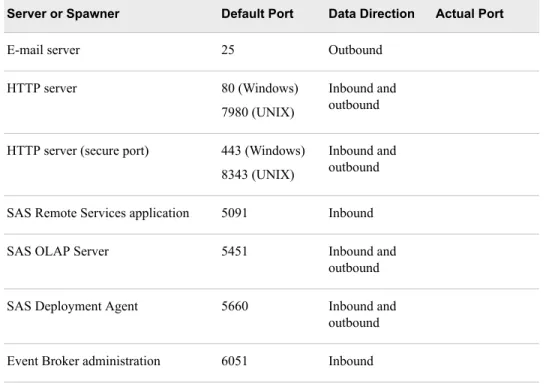
The following checklist indicates what ports are used for SAS by default, and gives you a place to enter the port numbers that you will actually use.
SAS servers and their clients dynamically allocate ports in the ephemeral ports range. These are temporary ports allocated by the operating system’s IP stack. The operating system assigns ephemeral ports from a designated port range. By default, the range is 32768 to 65535 on Linux, Solaris, and AIX. On Windows and HP/UX it is 49152 to 65535. These ranges are generally tunable by a system administrator. Consult your
operating system administration guide for details on tuning your system. An ephemeral port becomes available for reuse when the connection terminates.
Note: The SAS Deployment Wizard prompts you for this information, and you cannot complete the installation without it.
On z/OS, the SAS servers are configured and initially started as TSO processes invoked from the USS shell using /bin/tso. When these servers are started under TSO, the job name is the user ID that is starting the server with a character appended to the end. If your site uses the reserved ports facility in TCP/IP, each port definition should include the started task and this SAS installer ID job name as valid users of this port. You can use an asterisk (such as, sas*) in this definition. You can also use a TCP Service name instead of a hard-coded port. For more information about how to reserve the TCP port for a particular SAS server, please refer to your operating system documentation.
On all operating systems, for the SAS server tier, the last digit of the default port number reflects the configuration level that you select in the SAS Deployment Wizard. For example, when you select Lev1, the default port for the metadata server is 8561. If you choose another level, such as Lev2, the wizard changes the default port to 8562. Note: These checklists are superseded by more complete and up-to-date checklists that
can be found at http://support.sas.com/installcenter/plans. This website also contains corresponding deployment plans and architectural diagrams. If you are a SAS solutions customer, consult the pre-installation checklist provided by your SAS representative for a complete list of ports that you must designate.
Table 2.14 Pre-installation Checklist for Ports (SAS)
Server or Spawner Default Port Data Direction Actual Port
E-mail server 25 Outbound
HTTP server 80 (Windows)
7980 (UNIX)
Inbound and outbound HTTP server (secure port) 443 (Windows)
8343 (UNIX)
Inbound and outbound
SAS Remote Services application 5091 Inbound
SAS OLAP Server 5451 Inbound and
outbound
SAS Deployment Agent 5660 Inbound and
outbound
Event Broker administration 6051 Inbound
Server or Spawner Default Port Data Direction Actual Port
SAS Web Application Server HTTP Port (Server 1)
. . .
SAS Web Application Server HTTP (Server 14) 8080 (Single) 8080-8084 (Vertical Clustering) . . 9380 (Single) 9380-9384 (Vertical Clustering) Inbound and outbound
SAS Web Application Server HTTPS Port (Server 1) .
. .
SAS Web Application Server HTTPS Port (Server 14)
8443 (Single) 8443-8448 (Vertical Clustering) . . 9743 (Single) 9743-9748 (Vertical Clustering) Inbound and outbound
SAS Web Application Server JMX Port (Server 1)
. . .
SAS Web Application Server JMX Port (Server 14)
6969 (Single) 6969-6973 (Vertical Clustering) . . 8269 (Single) 8269-8273 (Vertical Clustering) Inbound
SAS Environment Manager 7080 Inbound and
outbound SAS Environment Manager
(secured)
7443 Inbound and
outbound
SAS/CONNECT spawner 7541 Inbound
SAS/CONNECT server 7551 Inbound and
outbound Web Report Studio In-Process
Scheduling UDP Port 1
7570 Inbound and
Server or Spawner Default Port Data Direction Actual Port
Web Report Studio In-Process Scheduling UDP Port 2
7571 Inbound and
outbound Web Report Studio In-Process
Scheduling UDP Port 3
7572 Inbound and
outbound
Event Broker HTTP 8111 Inbound
Operating System Services scheduler
8451 Inbound
SAS/SHARE server 8551 Inbound
Multicast (UDP port) 8561 Inbound and
outbound
SAS Metadata Server 8561 Inbound and
outbound
SAS object spawner: operator port 8581 Inbound
SAS Workspace Server 8591 Inbound
SAS Stored Process Server: bridge connection
8601 Inbound
SAS Stored Process Server: load balancing connection 1
(MultiBridge)
8611 Inbound
SAS Stored Process Server: load balancing connection 2
(MultiBridge)
8621 Inbound
SAS Stored Process Server: load balancing connection 3
(MultiBridge)
8631 Inbound
SAS Pooled Workspace Server 8701 Inbound
SAS object spawner: pooled workspace server port bank 1
8801 Inbound
SAS object spawner: pooled workspace server port bank 2
8811 Inbound
SAS object spawner: pooled workspace server port bank 3
8821 Inbound
SAS Environment Manager Embedded tcServer JMX Port
9360 Inbound