Parallels Virtuozzo
Containers for
Windows
User's Guide
Version 4.0
Suite 600
Herndon, VA 20171 USA
Tel: +1 (703) 815 5670 Fax: +1 (703) 815 5675
© 1999-2008 Parallels Holdings Ltd. All rights reserved.
Distribution of this work or derivative of this work in any form is prohibited unless prior written permission is obtained from the copyright holder.
Contents
Preface
11
About Parallels Virtuozzo Containers ... 12
About This Guide ... 14
Organization of This Guide ... 15
Documentation Conventions ... 15
Getting Help ... 16
Feedback ... 17
Virtuozzo Containers Philosophy
18
About Virtuozzo Containers Software ... 18What is Virtuozzo Containers ... 18
What is Container ... 19
Virtuozzo Applications ... 19
Virtuozzo Containers 4.0 for 64-bit Processors ... 20
Distinctive Features of Parallels Virtuozzo Containers 4.0 ... 21
OS Virtualization ... 22
Virtuozzo File System (VZFS) ... 22
Templates ... 23
Resource Management ... 23
Main Principles of Virtuozzo Operation ... 24
Basics of Virtuozzo Technology ... 24
Understanding Templates ... 26
Parallels Management Console Overview ... 27
Parallels Infrastructure Management Overview ... 29
Container Administrators' Tools ... 30
Hardware Node Availability Considerations ... 31
Operations on Containers
32
Creating New Container ... 32Before You Begin ... 33
Choosing Container ID ... 33
Creating Container ... 35
Creating Container Running Windows SBS 2003 ... 41
Starting, Stopping, and Querying Status of Container ... 43
Accessing Container ... 44
Configuring Terminal Services Inside Container ... 45
Terminal Services Client ... 47
Remote Desktop Connection ... 47
Windows File Sharing ... 48
Citrix MetaFrame XP ... 48
Listing Containers ... 49
Container Statuses ... 50
Backing Up and Restoring Containers ... 51
Backups Overview ... 52
Setting Default Backup Parameters ... 53
Backing Up Single Container ... 60
Backing Up Group of Containers ... 64
Restoring Single Container ... 69
Restoring Container Files ... 71
Restoring Group of Containers ... 73
Managing Backup Node ... 74
Searching for Container Backups ... 77
Scheduling Container Backups ... 78
Setting Maximal Backup Number for Parallels Power Panel ... 85
Using Third-Party Backup Software ... 87
Searching for Container ... 105
Moving Container Within Hardware Node ... 107
Copying Containers Within Hardware Node ... 109
Copying Single Container ... 109
Copying Group of Containers ... 113
Migrating Container ... 115
Deleting Container ... 117
Changing Administrator Password ... 118
Setting Container Name ... 119
Storing Extended Information on Container ... 120
Forwarding SCSI Disks to Container ... 122
Operations Inside Container ... 123
Managing Users and Groups ... 124
Managing Files ... 126
Managing Windows Updates Inside Container... 131
Overview ... 132
Configuring Updates Inside Container ... 134
Managing Resources
137
Managing Container Disk Space Quota ... 137Setting Up Disk Space Quota ... 138
Checking Disk Quota Status ... 139
Managing Container CPU Resources ... 140
Managing Container CPU Usage ... 140
Configuring Number of CPUs Inside Container ... 144
Managing Container System Resources ... 145
Managing Network Resources ... 147
Enabling QoS Scheduler for Container ... 147
Enabling Network Browsing for Container ... 149
Managing Network Bandwidth ... 149
Configuring Network Classes ... 150
Viewing Network Traffic Statistics ... 152
Turning On and Off Network Bandwidth Management ... 153
Configuring Network Bandwidth Management for Container ... 155
Managing Container Resources Configurations ... 156
Creating Container Configuration Sample ... 157
Copying Container Configuration Sample ... 163
Saving and Uploading Configuration Sample to/from Local Computer ... 165
Scaling Container Configuration Sample ... 167
Applying New Configuration Sample to Container ... 169
Keeping Your Virtuozzo Containers System Up-to-Date
171
Updating Virtuozzo Containers Software ... 172Updating Windows Server 2003 ... 176
Deploying Local WSUS and VUS Servers ... 177
Setting Up Local WSUS Server ... 177
Managing Hardware Nodes
201
Managing Virtuozzo Licenses ... 201
Understanding Licensing ... 202
Installing Virtuozzo License on Hardware Node... 203
Updating Virtuozzo License ... 205
Transferring License to Another Node ... 206
Viewing Virtuozzo License ... 208
Virtuozzo License Expiration ... 210
Managing Files ... 211
Uploading Files to Node ... 212
Downloading Files to Local Computer ... 214
Managing IP Addresses Pool on Node ... 215
Configuring Hardware Node IP Addresses Pool ... 215
Viewing Allocated IP Addresses ... 217
Logs and Monitors
219
Monitoring Resources ... 219Using Charts Representation ... 220
Using Table Representation ... 228
Viewing Network Traffic Summary ... 229
Viewing System and Virtuozzo Logs ... 230
Subscribing to Parallels Management Console Alerts ... 231
Monitoring Top Resources Consumption ... 234
Top CPU Resource Consuming Containers ... 235
Top Physical Memory Consuming Containers ... 237
Top Disk Space Consuming Containers ... 239
Top Incoming Traffic Receiving Containers ... 241
Top Outgoing Traffic Consuming Containers ... 243
Monitoring Virtuozzo Objects Using vzsnmp Plug-In ... 244
Managing Services and Processes
245
What Are Services and Processes ... 246Main Operations on Services and Processes ... 247
Managing Services and Processes ... 247
Managing Processes ... 248
Managing Services ... 251
Managing Virtuozzo Network
252
Managing Network Adapters on Hardware Node ... 252Listing Adapters ... 253
Connecting Adapter to Virtual Network ... 254
Managing Virtual Networks ... 255
Creating Virtual Network ... 256
Listing Virtual Networks ... 257
Deleting Virtual Network ... 258
Managing Container Virtual Network Adapters ... 258
Networking Modes ... 258
Creating and Deleting Container Adapters ... 263
Configuring Container Network Adapter Parameters ... 265
Enabling VPN Inside Container ... 274
Enabling NAT for Container ... 275
Advanced Tasks
277
Migrating Physical Server to Container ... 277Overview ... 278
Migration Requirements ... 278
Migration Restrictions ... 279
Migrating Physical Server to Container in Parallels Management Console ... 280
Configuring Container Resources Parameters After Migration ... 287
Managing Memory Resources in Virtuozzo-Based Systems ... 287
Managing Memory Resources on Node ... 287
Managing Container Memory Resources ... 288
Managing External Drives and Image Files for Container ... 294
Managing Container Virtual Disks ... 294
Managing Hardware Node Drives ... 300
Managing Image Files ... 302
Managing Types of Container Virtual Hard Disks ... 304
Shrinking Container Virtual Disks ... 305
Customizing Container Desktop ... 306
Configuring Container Offline Management ... 308
Reinstalling Container ... 311
Updating Parallels Management Console ... 312
Configuring Parallels Agent ... 314
Managing Virtuozzo Global Parameters ... 315
Troubleshooting
318
General Considerations ... 318Problems With Container Management ... 318
Failure to Start Container ... 319
Failure to Access Container From Network ... 319
Failure to Log In to Container ... 320
Failure to Manage Containers in PAE-disabled System ... 321
Failure to Run Sound Files Inside Container ... 323
Failure to See Mounted Drives Inside Container ... 323
Submitting Problem Report to Technical Support ... 324
Establishing Secure Channel to Parallels Support ... 328
Glossary
330
Index
332
Table of Figures
Figure 1: Virtuozzo Containers OS Virtualization ... 12
Figure 2: Virtuozzo Containers Technology ... 24
Figure 3: Management Console Main Window ... 27
Figure 4: Infrastructure Manager Interface Overview ... 29
Figure 5: Management Console - Viewing Container ... 34
Figure 6: Management Console - Choosing Sample Configuration File ... 35
Figure 7: Management Console - Configuring Container Network Adapters ... 37
Figure 8: Management Console - Specifying OS Template ... 38
Figure 9: Management Console - Viewing Container ... 40
Figure 10: Management Console - Starting Container ... 43
Figure 11: Management Console - Configuring Terminal Services Inside Container ... 46
Figure 12: Management Console - Listing Containers ... 49
Figure 13: Backup Overview ... 52
Figure 14: Management Console - Setting Default Backup Storage ... 54
Figure 15: Management Console - Setting Default Backup Location ... 56
Figure 16: Management Console - Setting Default Backup Compression Level ... 58
Figure 17: Management Console - Setting Default Backup Type... 59
Figure 18: Management Console - Choosing Backup Mode ... 60
Figure 19: Management Console - Choosing Files and Folders to Back Up ... 61
Figure 20: Management Console - Specifying Main Backup Parameters ... 62
Figure 21: Management Console - Choosing Containers to Back Up ... 64
Figure 22: Management Console - Choosing Files to Backup Up ... 65
Figure 23: Management Console - Specifying Main Backup Parameters ... 66
Figure 24: Management Console - Browsing Backup Contents ... 68
Figure 25: Management Console - Restoring Container Wizard ... 69
Figure 26: Management Console - Restoring Container Files Wizard ... 71
Figure 27: Management Console - Choosing Files For Restoring ... 72
Figure 28: Management Console - Restoring Containers Wizard ... 73
Figure 29: Management Console - Listing Backups ... 74
Figure 30: Management Console - Choosing Destination Node... 75
Figure 31: Management Console - Launching Restore Individual Container Files Wizard76 Figure 32: Management Console - Searching for Backups ... 77
Figure 33: Scheduling Container Backups - Choosing Files to Back Up ... 79
Figure 34: Scheduling Container Backups - Setting Main Backup Options ... 81
Figure 35: Management Console - Defining Backup Tasks Parameters ... 83
Figure 36: Management Console - Setting Number of Allowed Backups in Power Panel .. 85
Figure 37: Installing Symantec Backup Exec ... 88
Figure 38: Creating Backup Job - Step 1 ... 89
Figure 39: Creating Backup Job - Step 2 ... 89
Figure 40: Creating Backup Job - Step 3 ... 90
Figure 41: Symantec Backup Exec - Filesystem Backup ... 91
Figure 42: Symantec Backup Exec - Shadow Copy Components Backup ... 92
Figure 43: Configuring TSM Server Software ... 93
Figure 44: Installing TSM Client Software ... 94
Figure 45: Tivoli Storage Manager - Filesystem Backup ... 95
Figure 46: Tivoli Storage Manager - Adding Virtuozzo VSS ... 96
Figure 47: NetWorker User Tool - Filesystem Backup ... 98
Figure 48: EMC NetWorker - Scheduling Backup ... 99
Figure 50: Configuring BrightStor ARCserve ... 101
Figure 51: Using NTBACKUP to Create Container Backups ... 103
Figure 52: Management Console - Finding Container ... 105
Figure 53: Management Console - Specifying New Container ID ... 107
Figure 54: Manangement Console - Setting Root and Private Area Paths ... 108
Figure 55: Management Console - Cloning Container ... 110
Figure 56: Management Console - Specifying Network Parameters ... 111
Figure 57: Management Console - Specifying Container Name and Hostname ... 113
Figure 58: Management Console - Resolving IP Address Conflicts ... 114
Figure 59: Management Console - Migrating Containers ... 116
Figure 60: Management Console - Deleting Container ... 117
Figure 61: Management Console - Setting Administrator Password ... 118
Figure 62: Manangement Console - Setting Container Name ... 119
Figure 63: Manangement Console - Providing Container Description ... 120
Figure 64: Management Console - Forwarding SCSI Device ... 122
Figure 65: Management Console - Managing Users and Groups ... 124
Figure 66: Manangement Console - File Manager ... 126
Figure 67: Management Console - Setting Location For Uploading Files ... 128
Figure 68: Management Console - Uploading Files to Container... 129
Figure 69: Management Console - Downloading Files to Local Computer ... 130
Figure 70: Management Console - Configuring File Properties ... 131
Figure 71: Container Update Manager - Overview ... 132
Figure 72: Container Update Manager - Removing Update From Container ... 134
Figure 73: Container Update Manager - Checking Container Updates ... 135
Figure 74: Management Console - Setting Disk Space Quota ... 138
Figure 75: Management Console - Viewing Container Disk Space Statistics ... 139
Figure 76: Management Console - Managing CPU Usage ... 142
Figure 77: Management Console - Configuring Number of CPUs Inside Container ... 144
Figure 78: Management Console - Managing System Parameters ... 146
Figure 79: Management Console - Enabling QoS Scheduler for Container ... 148
Figure 80: Management Console - Configuring Network Classes ... 151
Figure 81: Management Console - Viewing Current Network Traffic Statistics ... 152
Figure 82: Management Console - Setting Up Traffic Shaping Parameters ... 153
Figure 83: Management Console - Configuring Network Bandwidth ... 154
Figure 84: Management Console - Configuring Network Bandwidth Management for Container ... 155
Figure 85: Management Console - Choosing Container Configuration Sample ... 157
Figure 86: Management Console - Entering Container Sample Name and Description ... 158
Figure 87: Management Console - Defining Resources Parameters ... 160
Figure 88: Management Console - Specifying Network Parameters for Sample ... 161
Figure 89: Management Console - Specifying Traffic Shaping Parameters ... 162
Figure 90: Management Console - Copying Container Sample... 163
Figure 91: Management Console - Uploading Container Sample ... 165
Figure 92: Management Console - Scaling Container Sample ... 167
Figure 93: Management Console - Applying New Resource Configuration ... 169
Figure 94: Running Virtuozzo Update Wizard ... 172
Figure 95: Specifying Proxy Parameters ... 173
Figure 96: Defining Virtuozzo Update Settings ... 174
Figure 97: Installing WSUS - Selecting Update Source ... 178
Figure 98: Installing WSUS - Defining Web Site ... 179
Figure 99: Installing WSUS - Setting Update Server ... 180
Figure 100: Designing VUS Infrastructure ... 182
Figure 102: Installing VUS - Starting Installation ... 184
Figure 103: Synchronizing VUS Server - Viewing Virtual Directory ... 186
Figure 104: VUS Manager - Registering Virtuozzo Products ... 187
Figure 105: VUS Manager - Viewing Registered Product ... 188
Figure 106: VUS Manager - Viewing Detailed Information on Virtuozzo Containers ... 188
Figure 107: VUS Manager - Registering New Product ... 190
Figure 108: VUS Manager - Viewing Updates Information ... 191
Figure 109: VUS Manager - Viewing Update Details ... 192
Figure 110: VUS Manager - Synchronizing Local VUS Server ... 193
Figure 111: VUS Manager - Configuring Updates Approval Policy ... 195
Figure 112: VUS Manager - Approving Virtuozzo Update ... 196
Figure 113: VUS Manager - Running Reports ... 197
Figure 114: Setting Path to Local VUS Server ... 198
Figure 115: Deploying Chain of VUS Servers ... 199
Figure 116: VUS Manager - Setting VUS Upstream Server ... 200
Figure 117: Management Console - Installing License on Hardware Node ... 203
Figure 118: Management Console - Uploading Virtuozo License File ... 204
Figure 119: Management Cosole - Updating Virtuozzo License ... 205
Figure 120: Management Console - Transferring License to Another Node ... 207
Figure 121: Management Console - Viewing License ... 208
Figure 122: Management Console - Virtuozzo License Expiration ... 210
Figure 123: Management Console - Managing Files on Hardware Node ... 211
Figure 124: Management Console - Choosing Hardware Nodes for Uploading Files ... 212
Figure 125: Management Console - Uploading Files to Hardware Node ... 213
Figure 126: Management Console - Configuring Node IP Addresses Pool ... 215
Figure 127: Management Console - Viewing Information on IP Addresses Pool ... 217
Figure 128: Management Console - Adding Monitoring Counters ... 220
Figure 129: Management Console - Adjusting Charts Scale ... 222
Figure 130: Management Console - Adjusting Charts View ... 223
Figure 131: Management Console - Highlighting Counter ... 224
Figure 132: Management Console - Changing Logging Period ... 226
Figure 133: Management Console - Replaying Logs ... 227
Figure 134: Management Cosole - Monitoring Traffic Parameters ... 228
Figure 135: Management Console - Viewing Network Traffic Summary ... 229
Figure 136: Management Cosole - Viewing Logs ... 230
Figure 137: Management Console - Setting E-mail Relay Server ... 231
Figure 138: Management Console - Subscribing to Alert ... 232
Figure 139: Management Console - Top CPU Resource Consuming Containers ... 235
Figure 140: Management Console - Containers With Top CPU Share Usage ... 236
Figure 141: Management Console - Top Physical Memory Consuming Containers ... 237
Figure 142: Management Console - Containers With Top Memory Share Usage ... 238
Figure 143: Management Console - Top Disk Space Consuming Containers ... 239
Figure 144: Management Console - Containers With Top Disk Space Share Consumption240 Figure 145: Management Console - Top Incoming Traffic Receiving Containers ... 241
Figure 146: Management Console - Top Outgoing Traffic Consuming Containers ... 243
Figure 147: Management Conole - Monitoring Active Processes ... 248
Figure 148: Task Manager - Monitoring Active Processes ... 250
Figure 149: Management Console - Viewing Services ... 251
Figure 150: Management Console - Listing Network Adapters ... 253
Figure 151: Management Console - Connecting Adapter to Virtual Network ... 254
Figure 152: Management Console - Creating Virtual Network ... 256
Figure 153: Management Console - Listing Virtual Networks ... 257
Figure 155: Virtuozzo Network - Host-Routed Networking ... 259
Figure 156: Virtuozzo Network - Bridged Networking ... 261
Figure 157: Management Console - Setting Parameters for Container Virtual Adapter . 263 Figure 158: Manangement Console - Changing Container MAC Addresses ... 267
Figure 159: Management Console - Configuring Container Network Adapter Parameters269 Figure 160: Management Console - Enabling DHCP for Container Adapter ... 271
Figure 161: Mannagement Console - Connecting veth Adapter to Bridge ... 273
Figure 162: Virtuozzo Network - Using NAT ... 275
Figure 163: Management Console - Logging In to Physical Server ... 280
Figure 164: Management Console - Reviewing Server Configuration ... 282
Figure 165: Management Console - Specifying Main Parameters for Container ... 283
Figure 166: Management Console - Defining Network Parameters ... 285
Figure 167: Management Console - Specifying Resource Parameters ... 286
Figure 168: Sharing Memory Among Containers ... 289
Figure 169: Copy-On-Write Protection ... 290
Figure 170: Management Console - Setting Container Private Memory ... 291
Figure 171: Process Explorer - Viewing Memory Pools ... 294
Figure 172: Management Console - Adding New Drive to Container ... 296
Figure 173: Management Console - Configuring Container Drive ... 298
Figure 174: Management Console - Removing Drive From Container ... 299
Figure 175: Management Console - Mounting Hardware Node Drive ... 301
Figure 176: Management Console - Removing Hardware Node Drive ... 302
Figure 177: Management Console - Mounting Image File ... 303
Figure 178: Management Console - Viewing Offline Services ... 308
Figure 179: Management Console - Disabling Offline Management ... 310
Figure 180: Management Console Updater ... 312
Figure 181: Management Console - Managing Parallels Agent Configuration ... 315
Figure 182: Management Console - Managing Global Virtuozzo Parameters ... 316
Figure 183: Submitting Problem Report to Technical Supprot ... 324
Figure 184: Submitting Problem Report - Specifying Time Period ... 325
Figure 185: Submitting Problem Report - Specifying Connection Settings ... 326
Figure 186: Specifying Proxy Parameters ... 326
Figure 187: Establishing Secure Channel to Parallels Support ... 329
In This Chapter
About Parallels Virtuozzo Containers ... 12
About This Guide ... 14
Getting Help ... 16
Feedback ... 17
C
H A P T E R1
About Parallels Virtuozzo
Containers
Parallels Virtuozzo Containers is a patented OS virtualization solution. Virtuozzo Containers 4.0 creates isolated partitions or Containers on a single physical server and OS instance to utilize hardware, software, data center and management effort with maximum efficiency. The basic Virtuozzo capabilities are:
Intelligent Partitioning - Division of a server into as many as hundreds of Containers with full server functionality.
Complete Isolation - Containers are secure and have full functional, fault and performance isolation.
Dynamic Resource Allocation - CPU, memory, network, disk and I/O can be changed without rebooting.
Mass Management - Suite of tools and templates for automated, multi-Container and multi-server administration.
The diagram below represents a typical model of the Virtuozzo-based system structure:
The Parallels Virtuozzo OS virtualization model is streamlined for the best performance, management, and efficiency. At the base resides a standard Host operating system which can be either Windows or Linux. Next is the virtualization layer with a proprietary file system and a kernel service abstraction layer that ensure the isolation and security of resources between different Containers. The virtualization layer makes each Container appear as a standalone server. Finally, the Container itself houses the application or workload.
The Parallels Virtuozzo OS virtualization solution has the highest efficiency and manageability making it the best solution for organizations concerned with containing the IT infrastructure and maximizing the resource utilization. The Parallels Virtuozzo complete set of management tools and unique architecture makes it the perfect solution for easily maintaining, monitoring, and managing virtualized server resources for consolidation and business continuity configurations.
About This Guide
The primary audience for this book is anyone responsible for administering one or more systems running Parallels Virtuozzo Containers 4.0 for Windows. To fully understand the major Virtuozzo notions and learn to perform the main administrative operations, no more than basic Windows administration habits is required.
This guide is meant to provide comprehensive information on Parallels Virtuozzo Containers 4.0 for Windows – high-end server virtualization software for Windows-based servers. The issues discussed in this guide cover the necessary theoretical conceptions as well as practical aspects of working with Virtuozzo Containers. The guide will familiarize you with the way to
create and administer Containers (sometimes also called Virtual Private Servers, or VPSs) on
Virtuozzo-based Hardware Nodes and to employ both the graphical and command line interfaces for performing various tasks.
Note: The guide does not familiarize you with the process of installing, configuring, and deploying your Virtuozzo system. Detailed information on all these operations is provided in the
Parallels Virtuozzo Containers for Windows Installation Guide shipped with the Virtuozzo Containers software.
According to the task-oriented approach, most topics of this guide are devoted to a particular task and the ways to perform it. However, the Virtuozzo Containers software is equipped with as many as three different tools to perform various administrative tasks:
1 Parallels Management Console with graphical user interface. Management Console is
considered the primary tool for administering Virtuozzo and performing main administrative tasks on Hardware Nodes and in the Container context. Therefore, when describing the ways to perform this or that task, we have provided the corresponding procedures for Parallels Management Console only.
2 Parallels Infrastructure Manager with web interface. Infrastructure Manager - a web
counterpart of Management Console - is provided with its own guide as well as a comprehensive online help system.
3 Virtuozzo command line utilities. If you are used to working in the command line, you can
turn to the Parallels Virtuozzo Containers for Windows Reference Guide to learn to manage
Hardware Nodes and Containers by means of Virtuozzo command line utilities.
Besides, there is another tool for managing Containers - Parallels Power Panel. However, this tool is mainly regarded as a means for individual Container customers to manage their personal Containers and is therefore not described in this guide.
Organization of This Guide
Chapter 2, Virtuozzo Philosophy, is a must-read chapter that helps you grasp the general principles of Virtuozzo operation. It provides an outline of Virtuozzo architecture and lets you understand the Virtuozzo licensing policy.
Chapter 3, Operations on Containers, covers those operations that you may perform on Containers by means of Parallels Management Console or special Virtuozzo utilities: creating and deleting Containers, starting and stopping them, migrating between Hardware Nodes, etc.
Chapter 4, Managing Resources, zeroes in on configuring the resource control parameters for different Containers. These parameters include disk quotas, CPU time, and a set of memory-related resources.
Chapter 5, Keeping Your Virtuozzo System Up-to-Date, provides information on the ways to keep all the software components of a Hardware Node up-to-date.
Chapter 6, Managing Hardware Nodes, centers on all those operations you as Hardware Nodes administrator can perform on your Nodes.
Chapter 7, Logs and Monitors, explains the ways to keep track of all system events and the consumption of all kinds of resources by the running Containers and the Hardware Node itself.
Chapter 8, Managing Services and Processes, familiarizes you with the operations you can perform on processes and services in Virtuozzo Containers 4.0 by using the Parallels Management Console graphical interface.
Chapter 9, Managing Virtuozzo Network, familiarizes you with the Virtuozzo network structure, enumerates Virtuozzo networking components, and explains how to manage these components in Virtuozzo-based systems.
Chapter 10, Advanced Tasks, enumerates those tasks that are intended for advanced system administrators who would like to obtain deeper knowledge about Virtuozzo capabilities.
Chapter 11, Troubleshooting, suggests ways to resolve common inconveniences should they occur during your work with the Virtuozzo Containers software.
Documentation Conventions
Before you start using this guide, it is important to understand the documentation conventions used in it. For information on specialized terms used in the documentation, see the Glossary at the end of this document.
The table below presents the existing formatting conventions.
Formatting convention Type of Information Example
Triangular Bullet(¾) Step-by-step procedures. You
can follow the instructions below to complete a specific task.
Special Bold
Items you must select, such as menu options, command buttons, or items in a list.
Go to the Resources tab.
Titles of chapters, sections, and subsections.
Read the Basic Administration chapter. Italics Used to emphasize the
importance of a point, to introduce a term or to designate a command line placeholder, which is to be replaced with a real name or value.
These are the so-called EZ templates. To destroy a Container, type vzctl destroy ctid.
Monospace The names of commands, files, and directories.
Use vzctl start to start a Container.
Preformatted
On-screen computer output in your command-line sessions; source code in XML, C++, or other programming languages.
Saved parameters for Container 101
Monospace Bold
What you type, as contrasted with on-screen computer output.
# rpm –V virtuozzo-release
CAPITALS Names of keys on the
keyboard.
SHIFT, CTRL, ALT
KEY+KEY Key combinations for which
the user must press and hold down one key and then press another.
CTRL+P, ALT+F4
Besides the formatting conventions, you should also know about the document organization convention applied to Parallels documents: chapters in all guides are divided into sections,
which, in turn, are subdivided into subsections. For example, About This Guide is a section, and
Documentation Conventions is a subsection.
Getting Help
In addition to this guide, there are a number of other resources shipped with Virtuozzo Containers 4.0 which can help you use the product more effectively. These resources include:
Manuals:
Parallels Virtuozzo Containers Evaluation Guide. This guide is destined to introduce you to the main features of Virtuozzo Containers 4.0 and to its underlying technology, to help you set up an environment for evaluating the Virtuozzo major features, and to suggest the relevant procedures for this evaluation.
Getting Started With Parallels Virtuozzo Containers for Windows. This guide provides basic information on how to install Parallels Virtuozzo Containers 4.0 on your server, create new Containers, and perform main operations on them.
Parallels Virtuozzo Containers for Windows Installation Guide. This guide provides exhaustive information on the process of installing, configuring, and deploying your Virtuozzo system. As distinct from the given guide, it contains a more detailed description of all the operations needed to install and set Virtuozzo Containers 4.0 to work including planning the structure of your Virtuozzo network, performing the Virtuozzo Containers unattended installation, etc. Besides, it does not include the description of any Container-related operations.
Parallels Virtuozzo Containers for Windows Templates Management Guide. This guide is meant to provide complete information on Virtuozzo templates - an exclusive Parallels Virtuozzo technology allowing you to efficiently deploy standard Windows applications inside your Containers and to greatly save the Hardware Node resources (physical memory, disk space, etc.).
Parallels Virtuozzo Containers for Windows Reference Guide. This guide is a complete reference on all Virtuozzo configuration files and Hardware Node command-line utilities.
Help systems:
Parallels Management Console Help. This help system provides detailed information on Parallels Management Console - a graphical user interface tool for managing Virtuozzo Hardware Nodes and their Containers.
Parallels Infrastructure Manager Online Help. This help system shows you how to work with Parallels Infrastructure Manager - a tool providing you with the ability to manage Virtuozzo Hardware Nodes and their Containers with the help of a standard Web browser on any platform.
Parallels Power Panel Online Help. This help system deals with Parallels Power Panel - a means for administering individual Containers thru a common Web browser on any platform.
Feedback
If you spot a typo in this guide, or if you have thought of a way to make this guide better, we would love to hear from you!
The Parallels documentation forum is the ideal place for your comments and suggestions. It is regularly monitored by the members of the Parallels technical documentation department, so it is likely that you will receive a reply to your post before long.
Note that new users will be asked to fill in a short registration form before being able to post. Registering will allow you to participate not only in the documentation forum discussions, but in all the other Parallels forums as well.
In This Chapter
About Virtuozzo Containers Software ... 18
Distinctive Features of Parallels Virtuozzo Containers 4.0 ... 21
Main Principles of Virtuozzo Operation ... 24
Hardware Node Availability Considerations ... 31
About Virtuozzo Containers
Software
What is Virtuozzo Containers
Parallels Virtuozzo Containers 4.0 is a complete server automation and virtualization solution based on a patented technology developed by Parallels. The Virtuozzo Containers software creates multiple isolated Containers on a single physical server to share hardware, licenses, and management effort with maximum efficiency. Each Container performs and executes exactly like a stand-alone server for its users and applications as it can be rebooted independently and has its own Administrator access, Active Directory domain users, IP addresses, memory, processes, files, applications, system libraries, and configuration files. Light overhead and efficient design of Parallels Virtuozzo makes it the right virtualization choice for production servers with live applications and real-life data.
The basic Virtuozzo capabilities are:
Intelligent Partitioning divides a server into as many as hundreds of Containers with full server functionality.
Complete Isolation ensures that the Containers are secure and have full functional, fault and performance isolation.
Dynamic Resource Allocation of key system resources such as CPU, memory, network, disk and I/O enables near real-time changes.
Live Migration and other business continuity capabilities ensure data is available and recoverable.
Management Tools include full suite of tools and templates for automated, multi-Container and multi-server administration.
C
H A P T E R2
What is Container
A Container is a virtual private server, which is functionally identical to an isolated standalone server:
Each Container has its own processes, Active Directory domain users, files and provides
full administrative access.
Each Container has its own IP addresses, port numbers, filtering and routing rules.
Each Container can have its own configuration for the system and application software, as
well as its own versions of Dynamic Link Libraries (DLLs), system libraries, and registry. It is possible to install or customize software packages inside a Container independently from other Containers or the host system. Multiple distributions of a package can be run on one and the same Windows box.
Each Container has its own unique Administrator user with full control over the given
Container and full access to other user accounts inside this Container.
Each Container can be a member of a Windows domain (e.g. access any of the network
shares to which the Container user has rights). Moreover, any Container can act as a domain controller granting other Containers and stand-alone servers users access to a set of network resources (applications, printers, etc.).
Virtuozzo Applications
Virtuozzo Containers 4.0 can be efficiently applied in a wide range of areas: enterprise server consolidation, web and applications hosting, software development and testing, user training, and so on.
If you administer a number of Windows dedicated servers within an enterprise, you can benefit from the Virtuozzo solution in the following ways:
Reduce the number of required physical servers and corresponding support by grouping a
multitude of your enterprise servers onto a single server without losing a bit of valuable information and without compromising performance.
Increase server utilization and maximize server potential.
Provision servers in minutes by using the technology of Virtuozzo templates.
Migrate Containers in the time of network data transfer, nearly eliminating the planned
downtime and enabling fast reaction to unplanned downtime situations.
Monitor OS and application versions and update/upgrade the current software easily across
all of your physical servers running the Virtuozzo Containers software and their Containers.
Guarantee Quality-of-Service in accordance with a corporate service level agreement
(SLA).
Automate routine tasks such as upgrades and updates.
Minimize software license and support requirements, etc.
Due to its unique efficiency and completeness, Parallels Virtuozzo has also a wide variety of profitable uses for Hosting Service Providers allowing them to:
Sell new powerful and popular services such as:
Advanced Shared for shared hosting with customized application sets and resources;
Split Dedicated allowing your customers to split the servers for their better utilization, etc.
Provide complete self-administration panels (Parallels Power Panel) including system
backup/restore and monitoring tools.
Have a multitude of customers with their individual full-featured Containers sharing a
single physical server.
Transparently move customers and their environments between servers, without any manual
reconfiguration.
Increase profitability through the better management and leverage of hardware and software
investments.
Automate service provisioning by using the technology of Virtuozzo templates, etc.
Besides, Parallels Virtuozzo Containers proves invaluable for IT educational institutions that can now provide every student with a personal Windows server, which can be monitored and managed remotely. Software development companies may use Containers for testing purposes and the like.
Virtuozzo Containers 4.0 for 64-bit Processors
Parallels Virtuozzo Containers 4.0 is released in three variants – for common 32-bit processors and for two groups of 64-bit processors:
x86-64 including the following processors:
AMD Opteron;
AMD Athlon 64;
Intel Xeon with EM64T support;
Intel Pentium with EM64T support;
etc.
IA-64 containing the Intel® Itanium® 2 processor only.
Depending on the kind of processors to be used, this or that variant of the Parallels Virtuozzo Containers distribution set should be chosen.
The Virtuozzo Containers 32-bit version has been fully ported to support x86-64 and IA64 64-bit processors, therefore, all its functionality is retained in the 64-64-bit versions. So, you can use any Virtuozzo Tool and utility in exactly the same way as you would use it on the servers with standard 32-bit processors. However, while working with the 64-bit version of Virtuozzo Containers, you should keep in mind the following:
1 The Virtuozzo Containers 64-bit version should be installed on a server running either the
x86-64-bit or IA64-bit version of Windows Server 2003. Please refer to the Parallels
Virtuozzo Containers for Windows Installation Guide to learn what particular 64-bit versions of Windows Server 2003 are supported by the Virtuozzo Containers software.
2 The Containers created under Parallels Virtuozzo Containers for x86-64 should use the
Note: The 64-bit versions of Parallels Virtuozzo Containers allows you to create Containers running German, Spanish, French, Simplified Chinese, or Traditional Chinese versions of Windows Server 2003 x64 Edition with the help of Multilingual User Interface Packs
(MUIs). Detailed information on MUIs is provided in the Parallels Virtuozzo Containers for
Windows Templates Management Guide.
3 The Virtuozzo Containers version for the 64-bit processors allows you to add only 64-bit
application templates to your Containers.
4 You can use any Hardware Node as a Backup Node irrespective of the Virtuozzo Containers
version installed on this Node. So, you can back up a Container from the Node running the Virtuozzo Containers 32-bit version and store it on the Node running the Virtuozzo Containers 64-bit version and vice versa. More information on Container backups is
provided in the Backing Up and Restoring Containers section (on page 51).
Except for these points, installing and using Parallels Virtuozzo Containers 4.0 for 64-bit processors does not differ from working with its 32-bit counterpart.
Distinctive Features of Parallels
Virtuozzo Containers 4.0
The concept of Virtuozzo Containers is distinct from the concept of traditional virtual machines in the respect that Containers always run the same OS kernel as the host system (Linux on Linux, Windows on Windows, etc.). This single-kernel implementation technology allows to run Containers with a near-zero overhead. Thus, Virtuozzo Containers offer an order of magnitude higher efficiency and manageability than traditional virtualization technologies.
OS Virtualization
From the point of view of applications and Container users, each Container is an independent system. This independence is provided by a virtualization layer over the kernel of the Host OS. Note that only a small part of the CPU resources is spent on virtualization (around 1-2%). The main features of the virtualization layer implemented in Parallels Virtuozzo Containers 4.0 are the following:
Container looks like a normal Windows system. Software from vendors can run inside any
Container without Virtuozzo-specific modifications or adjustment.
Container has its own unique Administrator user with full control over the given
Container and can have a number of other local users with different rights and permissions assigned to them in respect of this Container.
Users can install additional application and system software inside Containers.
Container can be a member of an Active Directory domain (e.g. access any of the network
shares to which the Container user has rights). Moreover, any Container can act as an Active Directory domain controller granting other Containers and stand-alone servers users access to a set of network resources (applications, printers, etc.).
Containers are fully isolated from each other in respect of their users, processes, services,
file systems, and installed applications.
Containers share the same executable code, which greatly saves both RAM and disk space.
Processes belonging to a Container are scheduled for execution on all available CPUs.
Consequently, Containers are not bound to only one CPU, and any application inside each Container can use all available CPU power.
Virtuozzo File System (VZFS)
VZFS is a file system that allows to share common files among multiple Containers without sacrificing security. Any Container user can modify, update, replace, and delete any application file inside a Container like s/he does it on an isolated stand-alone server. When a user modifies a shared file, VZFS creates a private copy of the file transparently for the user. Thus, the modifications do not affect the other users of the file. Main benefits of VZFS are the following:
It saves memory required for executables and Dynamic Link Libraries (DLLs). A typical
Container running a simple web site might consume around 30–50 MBytes of RAM just for executable images. Sharing this memory improves scalability and total system performance;
It saves disk space. A typical Windows server installation occupies several hundred MBytes
Templates
A template in Virtuozzo Containers 4.0 is a set of application files and registry settings installed on the Host operating system in such a way as to be usable by any Container by mounting over Virtuozzo File System. Parallels Virtuozzo Containers provides tools for creating templates, installing and removing them on/from the Hardware Node, adding them to a Container, etc. Using templates lets you:
Securely share the RAM among similar applications running in different Containers to save
hundreds of megabytes of memory;
Securely share the files comprising a template among different Containers to save gigabytes
of disk space;
Install applications and patches simultaneously in many Containers.
There are two types of templates in Parallels Virtuozzo. These are OS templates and application templates. An OS template is an operating system and the standard set of applications to be found right after the installation. The Virtuozzo Containers software uses OS templates to create new Containers with a preinstalled operating system. An application template is a set of files and registry settings pertaining to this or that application. The Virtuozzo Containers software uses application templates to add extra software to the existing Containers. For example, you can create a Container on the basis of the Windows Server 2003 OS template and add the Acrobat Reader application to it with the help of the AdobeReader template.
Resource Management
Virtuozzo Resource Management controls the amount of resources available to Containers. The controlled resources include such parameters as CPU power, disk space, a set of memory-related parameters. Resource management allows Virtuozzo Containers 4.0 to:
Effectively share available Hardware Node resources among Containers;
Guarantee Quality-of-Service in accordance with a service level agreement (SLA);
Provide performance and resource isolation and protect from denial-of-service attacks;
Simultaneously assign and control resources for a number of Containers;
Manage a multitude of Hardware Nodes in a unified way by means of Parallels
Management Console and Parallels Infrastructure Manager;
Collect usage information for system health monitoring, etc.
Resource Management is much more important for Virtuozzo Containers 4.0 than for a standalone server since server resource utilization in a Virtuozzo-based system is considerably higher than that in a typical system.
Main Principles of Virtuozzo
Operation
Basics of Virtuozzo Technology
In this section we will try to let you form a more or less precise idea of the way the Virtuozzo Containers software operates on your server. Please see the figure below:
This figure presumes that you have a number of physical servers united into a network. In fact, you may have only one dedicated server to effectively use Virtuozzo Containers 4.0. If you have more than one Virtuozzo-based physical server, each one of the servers will have a similar
architecture. In Virtuozzo terminology, such servers are called Hardware Nodes (or just Nodes),
because they represent hardware units within a network.
Parallels Virtuozzo Containers 4.0 for Windows is installed on a server running the Windows
Server 2003 operating system (shown as Host Operating System in the figure above). After
Parallels Virtuozzo Containers 4.0 is installed, you will be able to run Virtuozzo services
supporting virtualization on your server. This support is presented above as Virtuozzo Layer.
The Virtuozzo layer ensures that Containers, sharing the same Hardware Node and the same OS
kernel, are isolated from each other. A Container is a kind of ‘sandbox’ for processes and users. Before you are able to create a Container, you should install the corresponding OS template in
Parallels Virtuozzo Containers 4.0. This is displayed as Virtuozzo Templates in the scheme
above. After you have installed at least one OS template, you can create any number of Containers with the help of various Virtuozzo management tools (Parallels Management Console, Parallels Infrastructure Manager, or the command line tools), configure their network and/or other settings, and work with these Containers as with fully functional Windows servers.
Understanding Templates
Templates are part and parcel of the Virtuozzo philosophy because they provide a way of sharing resources among lots of Containers, thus enabling huge savings in terms of disk space and memory. All Virtuozzo templates are divided into OS templates and application templates.
OS templates are used to create new Containers. Application templates are added to Containers after the latter have been created; more than one application template may be added to one and
the same Container. Examples of application templates are the msde, openssh, Plesk
templates, or a template with any other application (possibly more than one application in a single template) not included into the OS template for some reason.
Let us take, for example, the Plesk application template, representing the Plesk comprehensive server management software. It is created by Parallels on the basis of the original Plesk application. When you install this application template in Virtuozzo Containers 4.0, the Virtuozzo Containers software creates the C:\vz\Templates\Plesk folder containing all the application files that can be shared among Containers. When the template is added to a Container, it contains only special placeholders of the necessary template files. These placeholders occupy very little space on the hard disk, the size of the placeholder files being 0
bytes. They are situated in the so-called private area of the Container. The corresponding folder
is C:\vz\private\<CT_ID>\root. The private area of a Container contains not only placeholders, but also those files that have been changed by the Container user and all the private Container files.
Note: During the Virtuozzo Containers installation, the Templates subfolder is automatically created in the folder you specify for storing all Container data. By default, the C:\vz folder is used. However, you may define another path for this folder.
Thanks to the fact that the real application files are written to the hard disk only once, gigabytes of disk space are saved that would be lost if the application were installed separately into each and every Container. Moreover, the application is also loaded only once into the Node memory, so memory savings are also tangible.
Thus, in order to add a template application to any number of Containers, you should perform the following steps:
1 Install the Virtuozzo template on the Hardware Node. Upon installation, the corresponding
C:\vz\Templates\<application_name> folder is created on the Hardware Node in order to enable sharing common application files among Containers.
2 Add the installed template to any number of Containers of your choice.
All these steps can be performed by using Parallels Management Console, Parallels Infrastructure Management, or by means of the command line tools.
It goes without saying that in case you want to install an application in only one Container, there is no need in working with templates: you can work inside the corresponding Container as well. Note: For further information on Virtuozzo templates, please consult the Parallels Virtuozzo
Parallels Management Console Overview
Parallels Management Console is a remote management tool for Parallels Virtuozzo Containers 4.0 with graphical user interface. It is intended to be installed on the administrator's server and allows the administrator to control multiple Hardware Nodes, to manage all their Containers, and to monitor the system. The main window of Management Console consists of two parts: the tree pane on the left, and view pane on the right. There is a list of Hardware Nodes in the tree
pane. The Hardware Node subtree represents various aspects of its management, e.g. Logs,
Services, Templates, etc. The content of the view pane depends on the selected item in the tree pane.
Figure 3: Management Console Main Window
Below the view pane on the right, there is also a small Actions/Messages/Operations pane. You may switch between the Actions and Messages modes by clicking buttons to the right of this pane. The Actions pane displays the progress of Parallels Management Console actions. The Messages pane displays the detailed diagnostics of various Management Console errors. The Operations pane shows the result of various asynchronous tasks performed with Hardware Nodes and their Containers.
Parallels Management Console uses a typical client/server architecture. The client Management Console program runs on Microsoft Windows 2000/XP/2003 or Linux. The client application with the graphical user interface connects to the Parallels Agent software, which is running on the Hardware Node. Parallels Agent communicates with the client via the well-documented open Parallels Agent XML API and controls the Hardware Node itself and its Containers. Note: For more information on Parallels Agent and on how to access its services by using XML, please turn to the Parallels Agent documentation shipped with Parallels Virtuozzo Containers 4.0.
The client may control multiple Hardware Nodes simultaneously by connecting to multiple Parallels Virtuozzo Containers 4.0 Agents, one of which performs the master role of the Virtuozzo Group of Hardware Nodes. As the communications between the client and Parallels Virtuozzo Containers 4.0 Agents are secure, the Management Console workstation may be located virtually anywhere on the network.
More detailed information on the Parallels Management Console installation and functioning is
provided in the Setting Virtuozzo Containers 4.0 Tools to Work chapter of the Parallels Virtuozzo
Containers Installation Guide.
Parallels Management Console Restrictions
Though Parallels Management Console is considered the primary tool for administering Parallels Virtuozzo Containers 4.0 and allows you to perform most administrative tasks on your Hardware Nodes and inside Containers, it does not have graphical counterparts of all the Virtuozzo command line utilities.
Among such utilities are the following:
vzcache - used to scan the specified Containers for common files and cache these files in the Hardware Node template area;
vzlscache - used to display a list of cache directories created by the vzcache utility; vzuncache - used to copy the regular files from the specified cache directory on the Hardware Node back to the private area of the specified Container;
vzctl shrink - used to shrink virtual disk drives of the compact type inside Containers;
vzctl reinstall - used to reinstall problem Containers on the Hardware Node.
On the other hand, almost all operations that can be performed in Management Console can also be performed by means of Virtuozzo command line utilities. Detailed information on all
Virtuozzo utilities is provided in the Parallels Virtuozzo Containers for Windows Reference
Parallels Infrastructure Management Overview
Parallels Infrastructure Manager is designed for Hardware Node administrators and provides them with the ability to manage multiple Hardware Nodes and all Containers residing on them with the help of a standard Web browser on any platform. A list of supported browsers is given below:
Internet Explorer 6.0 and above;
Mozilla 1.7 and above;
Firefox 1.0 and above;
Opera 8.0 and above.
Chances are that you will also be able to use other browsers, but Parallels Virtuozzo Containers 4.0 has not been extensively tested with them.
The Parallels Infrastructure Manager interface has been designed to let the Virtuozzo server administrator quickly perform all possible tasks through an intuitive navigation system:
Figure 4: Infrastructure Manager Interface Overview
The main components the Parallels Infrastructure Manager interface consists of are:
The left menu frame listing and allowing to access all your Hardware Nodes and Containers
and the main types of operations to be performed on them with the help of Parallels Infrastructure Manager;
The toolbar on top of the right frame allowing to perform on your Hardware Nodes and
Containers the actions most frequently called for in your routine management work and, when necessary, a few more buttons allowing to perform additional actions on the objects listed in the content part of the right frame (Container backups, packages updates, etc.);
The content part on the right frame displaying the currently accessed Hardware Nodes or Containers, the key information (their statuses, configuration, etc.) and links to advanced actions.
Note: Detailed information on Parallels Infrastructure Manager is given in its comprehensive
online help system and Parallels Infrastructure Manager Administrator's Guide shipped with
Infrastructure Manager.
Container Administrators' Tools
Wherever Parallels Virtuozzo Containers 4.0 is applied, there are people that are supposed to be administrators of particular Containers only, with no access rights to Hardware Nodes as such. This is only but natural as it corresponds directly to the concept of virtualization technology. Such people can be subscribers to a hosting provider, university students, administrators of a particular server within an enterprise, etc. Personal Containers can be managed with the help of Parallels Power Panel. Power Panel is a means for administering personal s thru a common browser - Internet Explorer, Mozilla, and others. It allows Container administrators to:
Start, stop, or restart the Container;
Back up and restore the Container;
Change the Administrator password of the Container;
Start, stop, or restart certain services inside the Container;
View the processes currently running in the Container and send signals to them;
View the current resources consumption and resources overusage alerts;
Connect to the Container by means of RDP;
View the system logs;
etc.
For further information on Power Panel, please turn to the Parallels Power Panel comprehensive online help system.
Access rights to administer particular Containers by means of Parallels Power Panel are
determined by the Hardware Node administrator. The Setting Virtuozzo Tools to Work chapter of
the Parallels Virtuozzo Containers for Windows Installation Guide provides instructions on how to control access rights to particular Containers thru Parallels Power Panel.
Note: Apart from Parallels Power Panel, Container administrators are able to use the standard Windows Remote Desktop Connection (RDP) or MS Terminal Service Client (MS TSC) to connect to their Containers and work inside them.
Hardware Node Availability
Considerations
Hardware Node availability is more critical than the availability of a typical server. Since it runs multiple Containers providing a number of critical services, Hardware Node outage might be very costly. Hardware Node outage can be as disastrous as the simultaneous outage of a number of servers running critical services.
In order to increase Hardware Node availability and security, we suggest you follow the recommendations below:
Use RAID storage for critical Container private areas. Do prefer hardware RAID, but
software mirroring RAID might suit too as a last resort.
Do not run software on the Hardware Node itself. Create special Containers where you can
host necessary services such as FTP, IIS, and so on. Parallels Virtuozzo Containers 4.0 does not need any standard Windows Server 2003 services to be run on the Node. Therefore, we recommend that you disable all the services on the Node except for the Virtuozzo services.
Use firewalls to make the Hardware Node accept connections from a pre-defined set of IP
addresses only.
Do not create users on the Hardware Node itself. You can create as many users as you need
in any Container. Remember: compromising the Hardware Node means compromising all Containers as well.
Do not remove any of the components installed on the Hardware Node. Removing an
installed component (for example, Internet Information Server), even if you do not use it, might cause Parallels Virtuozzo Containers 4.0 to malfunction.
The given chapter describes how to perform day-to-day operations on individual Containers taken in their wholeness.
Note: We assume that you have successfully installed, configured, and deployed your Virtuozzo
system. In case you have not, please turn to the Parallels Virtuozzo Containers Installation Guide
providing detailed information on all these operations.
In This Chapter
Creating New Container ... 32 Starting, Stopping, and Querying Status of Container ... 43 Accessing Container ... 44 Listing Containers ... 49 Backing Up and Restoring Containers ... 51 Searching for Container ... 105 Moving Container Within Hardware Node ... 107 Copying Containers Within Hardware Node ... 109 Migrating Container ... 115 Deleting Container ... 117 Changing Administrator Password ... 118 Setting Container Name ... 119 Storing Extended Information on Container ... 120 Forwarding SCSI Disks to Container ... 122 Operations Inside Container ... 123 Managing Windows Updates Inside Container ... 131
Creating New Container
This section guides you through the process of creating and configuring a Container. We assume that you have successfully installed Parallels Virtuozzo Containers 4.0 and the Windows
Server 2003 OS template on your Hardware Node. If you have not, please turn to the Parallels
Virtuozzo Containers for Windows Installation Guide first.
C
H A P T E R3
Before You Begin
Before you start creating a Container, you should:
Check that the Hardware Node is visible on your network. You should be able to connect
to/from other hosts. Otherwise, your Containers will not be accessible from other servers.
Check that you have at least one IP address per a Container and the addresses belong to the
same network as the Hardware Node or routing to the Containers has been set up via the Hardware Node.
Note: You can use private addresses for the Hardware Node itself.
Choosing Container ID
Every Container has a numeric ID, also known as Container ID, associated with it. The ID is a 32-bit integer number beginning with zero and unique for a given Hardware Node. When choosing an ID for your Container, please follow the simple guidelines below:
ID 0 is used for the Hardware Node itself. You cannot and should not try to create a
Container with ID 0.
This version of Parallels Virtuozzo Containers uses ID 1 for the Service Container.
Note: The Service Container is a special Container running the Parallels Agent software responsible for managing all the Containers of the given Hardware Node via Virtuozzo tools (i.e. Parallels Management Console, Parallels Infrastructure Manager, and Parallels Power Panel). In general, you are allowed to perform the same operations in the Service Container context as you would perform in the context of a regular Container. However, you are not recommended to change the default configuration of the Service Container (e.g. install your own applications/templates into or store your private files inside this Container). Changing the Service Container configuration may affect all the other Containers residing on the Node.
Virtuozzo Containers 4.0 reserves the IDs ranging from 0 to 100. Though Virtuozzo
Containers 4.0 uses only IDs 0 and 1 from them, the next version might use additional
Containers IDs for internal needs. To facilitate upgrading, pleasedo not create Containers
with IDs below 101.
The only strict requirement for a Container ID is to be unique for a particular Hardware Node. However, if you are going to have several servers running Virtuozzo Containers 4.0, we recommend assigning different Container ID ranges to them. For example, on Hardware Node 1 you create Containers within the range of IDs from 101 to 1000; on Hardware Node 2 you use the range from 1001 to 2000, and so on. This approach makes it easier to remember on which Hardware Node a Container has been created, and eliminates the possibility of Container ID conflicts when a Container migrates from one Hardware Node to another.
Another approach to assigning Container IDs is to follow some pattern of Container IP addresses. Thus, for example, if you have a subnet with the 10.0.x.x address range, you may want to assign the 17015 ID to the Container with the 10.0.17.15 IP address, the 39108 ID to the Container with the 10.0.39.108 IP address, and so on. This makes it much easier to run a number of Virtuozzo utilities eliminating the necessity to check up the Container IP address by its ID and similar tasks. You can also think of your own patterns for assigning Container IDs depending on the configuration of your network and your specific needs.
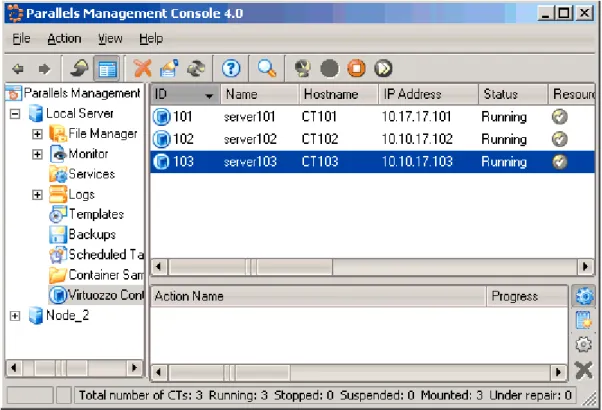
Before you decide on a new Container ID, you may want to make sure that no Container with this ID has yet been created on the Hardware Node. It is enough to click on the name of your
Hardware Node in the left pane, and then on the Virtuozzo Containers item. The Management
Console right pane will display a list of existing Containers on the Node:
Figure 5: Management Console - Viewing Container
You can see that currently three Containers - 101, 102, and 103 - exist on the Hardware Node. WARNING! When deciding on a Container ID, do not use the ID of any Container that was ever present in the system unless you are sure that no data belonging to the old Container remains on the Node. The fact is that the administrator of the newly-created Container might have access to these data in this case, i.e. to the backups of the old Container, its logs, statistics, etc.
Creating Container
Parallels Management Console uses one wizard to create and initially configure a Container.
You can launch the Create New Containers wizard by selecting the Virtuozzo Containers item
under the corresponding Hardware Node name in the Management Console left pane and
choosing the Create Container option on the Action menu:
Figure 6: Management Console - Choosing Sample Configuration File
The main Container parameters, including the templates and resource management parameters, can be retrieved on the basis of the Container configuration sample indicated in the very first
option (detailed information on Container configuration samples is provided in the Managing
Container Resources Configurations section (on page 156)).
After you have decided on the Container configuration sample, you are supposed to define the
number of Containers you wish to create in the Number of Containers to create field. By default,