Document No:
001
1-01-16-03-001
(Issue A)
This document is subject to change without notice.
0011-01-16-03-001
USB Stick Driver Installation Instructions
INTRODUCTION
This document outlines how to install the virtual COM port drivers for the CEL ZM357S-USB and ZM357S-USB-LR USB
Sticks on the Windows/Mac/Linux platforms.
HARDWARE REQUIREMENTS
1. CEL EM357 USB Stick
SOFTWARE REQUIREMENTS
Introduction
... 1Hardware Requirements
... 1Software Requirements
... 1Windows Driver Installation
... 3Mac OS Driver Installation
... 4Linux Driver Installation
... 8References
... 9Revision History
... 9WINDOWS DRIVER INSTALLATION
Note: Make sure that no CEL USB Sticks are attached to the system before proceeding as this may interfere with proper UART enumeration/operation.
Extract the files in the driver installation package to a folder on your local hard drive. Start the driver installation by
double-clicking the appropriate driver installation executable.
Windows 32-bit
CelEM357UsbInstaller_x86.exe
– ZM357S-USB
CelEM357usbLongRangeInstaller_x86.exe
– ZM357S-USB-LR
Windows 64-bit
CelEM357UsbInstaller_x64.exe
– ZM357S-USB
CelEM357usbLongRangeInstaller_x64.exe
– ZM357S-USB-LR
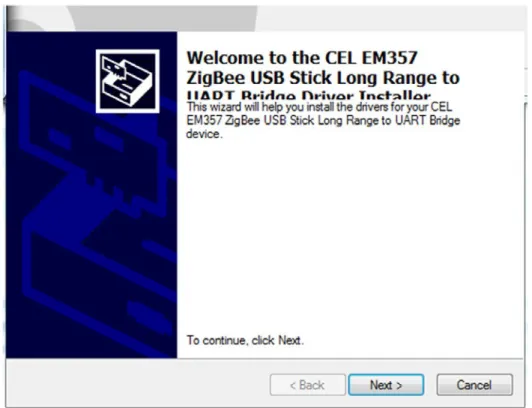
The screen shown in Figure 1 should appear.
Click “Next >”.
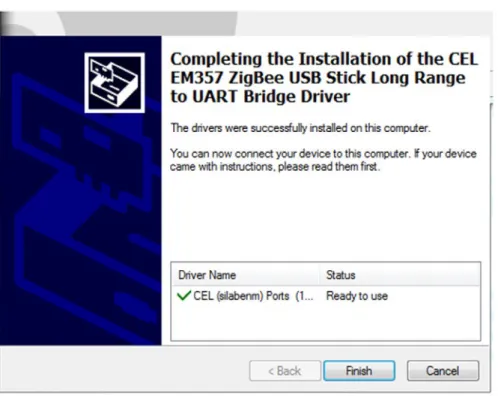
After the install tool finishes, you will see the screen shown in Figure 2.
The driver is now installed. Click “Finish”.
MAC OS DRIVER INSTALLATION
Download the
Mac_OSX_VCP_Driver.zip
. This zip folder contains the custom CEL
SiLabsUSBDriverDisk.dmg
.
Double-click the .dmg file and this will mount the Silicon Labs VCP Driver under Devices (see Figure 3). This is just as if
you inserted a USB flash drive, or attached an external disk.
Double-click Silicon Labs VCP Driver (mounted device) and this will open the contents of the driver. Double click the Silicon
Labs USB Driver Installer to run the driver installation. The following shows the installation process for Snow Leopard (OSX
10.6.8).
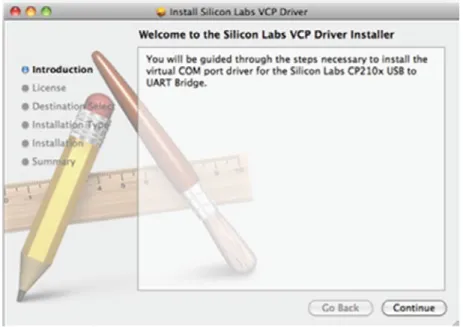
Choose “Continue”.
Figure 4. Silicon Labs VCP Driver Installer
Figure 5. Software Agreement
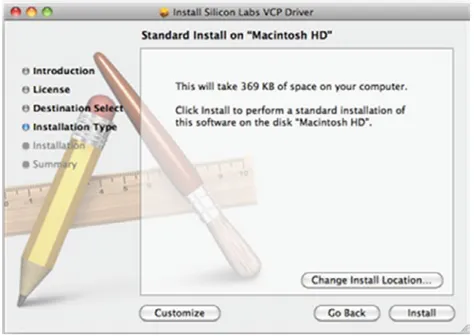
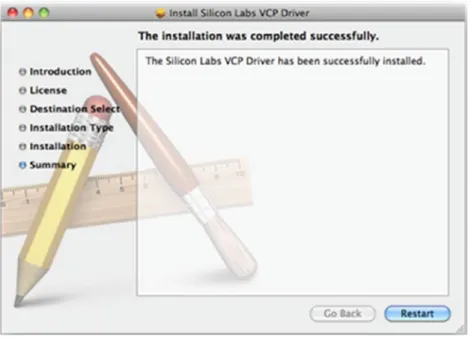
Figure 7. This driver will require 369 kB of space, choose "Install".
Figure 8. Choose "Continue Installation"
To verify correct installation:
1. Choose the Apple Logo at the top left of your desktop
2. Select "About This MAC"
3. Select "More Info"
4. Under "Hardware/USB" you should see "CEL EM357 ZigBee USB Stick"
Table 11. Verifying Correct InstallationLINUX DRIVER INSTALLATION
The following procedure has been validated on Ubuntu 10.04.4 (kernel version 2.6.32-38 generic) and Ubuntu 12.04.2
(kernel version 3.5.0-23-generic).
1. Download the kernel source code;
Get the latest kernel source via:
sudo apt-get install build-essential linux-source
or the
version running on the build system via:
sudo apt-get source linux-image-$(uname -r)
(Optionally, you can obtain a specific version from:
https://www.kernel.org/pub/linux/kernel/v3.x/
)
kernel source should now be in “
/usr/src/
”
2. Modify
/usr/src/(linux kernel source)/drivers/usb/serial/cp210x.c
to include CEL USB Stick ID’s
{ USB_DEVICE(0x10C4, 0x8856) }
,
/* CEL EM357 ZigBee USB Stick, Long Range */
{ USB_DEVICE(0x10C4, 0x8857) }
,
/* CEL EM357 ZigBee USB Stick */
3. Prepare the build environment
cd /usr/src/(linux kernel source)/
cp /usr/src/linux-headers-(kernel version)/Modules.symvers .
make oldconfig
make prepare
make scripts
4. Make the USB serial drivers:
make M=./drivers/usb/serial
Note: If usbserial driver will not compile on current source due to compilation errors in other modules, rebuild with errors ignored.
make -i M=./drivers/usb/serial
Load the updated module into the kernel:
sudo modprobe ./drivers/usb/serial/cp210x.ko
REFERENCES
Reference Documents Download
California Eastern Laboratories
0011-01-07-03-000 CEL EM357 USB Sticks Datasheet Link
CEL – USB Driver – Scroll to Downloads Section Link
CEL – DMG File Mac_OSX_VCP_Driver.zip. This zip folder contains the custom CEL SiLabsUSBDriverDisk.dmg
– Scroll to Downloads Section Link
Silicon Labs
Reference VCP drivers Link
External References
Ubuntu forums Link
REVISION HISTORY
Previous Versions Changes to Current Version Page(s)
0011-01-16-03-001
For More Information
For more information about CEL MeshConnect products and solutions, visit our website at:
www.cel.com/MeshConnect
.
Technical Assistance
For Technical Assistance, visit
www.cel.com/MeshConnectHelp
.
The information in this document is current as of the published date. The information is subject to change without notice. For actual design-in, refer to the latest publications of CEL Data Sheets or Data Books, etc., for the most up-to-date specifications of CEL products. Not all products and/or types are available in every country. Please check with an CEL sales representative for availability and additional information.
No part of this document may be copied or reproduced in any form or by any means without the prior written consent of CEL. CEL assumes no responsibility for any errors that may appear in this document.
CEL does not assume any liability for infringement of patents, copyrights or other intellectual property rights of third parties by or arising from the use of CEL products listed in this document or any other liability arising from the use of such products. No license, express, implied or otherwise, is granted under any patents, copyrights or other intellectual property rights of CEL or others.
Descriptions of circuits, software and other related information in this document are provided for illustrative purposes in semiconductor product operation and application examples. The incorporation of these circuits, software and information in the design of a customer’s equipment shall be done under the full responsibility of the customer. CEL assumes no responsibility for any losses incurred by customers or third parties arising from the use of these circuits, software and information.
While CEL endeavors to enhance the quality, reliability and safety of CEL products, customers agree and acknowledge that the possibility of defects thereof cannot be eliminated entirely. To minimize risks of damage to property or injury (including death) to persons arising from defects in CEL products, customers must incorporate sufficient safety measures in their design, such as redundancy, fire-containment and anti-failure features.