Corporate Headquarters
Cisco Systems, Inc. 170 West Tasman Drive San Jose, CA 95134-1706 USA
http://www.cisco.com Tel: 408 526-4000
800 553-NETS (6387) Fax: 408 526-4100
Cisco VPN Client User Guide for Mac OS X
Release 4.0THE SPECIFICATIONS AND INFORMATION REGARDING THE PRODUCTS IN THIS MANUAL ARE SUBJECT TO CHANGE WITHOUT NOTICE. ALL STATEMENTS, INFORMATION, AND RECOMMENDATIONS IN THIS MANUAL ARE BELIEVED TO BE ACCURATE BUT ARE PRESENTED WITHOUT WARRANTY OF ANY KIND, EXPRESS OR IMPLIED. USERS MUST TAKE FULL RESPONSIBILITY FOR THEIR APPLICATION OF ANY PRODUCTS. THE SOFTWARE LICENSE AND LIMITED WARRANTY FOR THE ACCOMPANYING PRODUCT ARE SET FORTH IN THE INFORMATION PACKET THAT SHIPPED WITH THE PRODUCT AND ARE INCORPORATED HEREIN BY THIS REFERENCE. IF YOU ARE UNABLE TO LOCATE THE SOFTWARE LICENSE OR LIMITED WARRANTY, CONTACT YOUR CISCO REPRESENTATIVE FOR A COPY.
The Cisco implementation of TCP header compression is an adaptation of a program developed by the University of California, Berkeley (UCB) as part of UCB’s public domain version of the UNIX operating system. All rights reserved. Copyright © 1981, Regents of the University of California.
NOTWITHSTANDING ANY OTHER WARRANTY HEREIN, ALL DOCUMENT FILES AND SOFTWARE OF THESE SUPPLIERS ARE PROVIDED “AS IS” WITH ALL FAULTS. CISCO AND THE ABOVE-NAMED SUPPLIERS DISCLAIM ALL WARRANTIES, EXPRESSED OR IMPLIED, INCLUDING, WITHOUT
LIMITATION, THOSE OF MERCHANTABILITY, FITNESS FOR A PARTICULAR PURPOSE AND NONINFRINGEMENT OR ARISING FROM A COURSE OF DEALING, USAGE, OR TRADE PRACTICE.
IN NO EVENT SHALL CISCO OR ITS SUPPLIERS BE LIABLE FOR ANY INDIRECT, SPECIAL, CONSEQUENTIAL, OR INCIDENTAL DAMAGES, INCLUDING, WITHOUT LIMITATION, LOST PROFITS OR LOSS OR DAMAGE TO DATA ARISING OUT OF THE USE OR INABILITY TO USE THIS MANUAL, EVEN IF CISCO OR ITS SUPPLIERS HAVE BEEN ADVISED OF THE POSSIBILITY OF SUCH DAMAGES.
Cisco VPN Client User Guide for Mac OS X
Copyright © 2003, Cisco Systems, Inc. All rights reserved.
CCIP, CCSP, the Cisco Arrow logo, the Cisco Powered Network mark, the Cisco Systems Verified logo, Cisco Unity, Follow Me Browsing, FormShare, iQ Net Readiness Scorecard, Networking Academy, and ScriptShare are trademarks of Cisco Systems, Inc.; Changing the Way We Work, Live, Play, and Learn, The Fastest Way to Increase Your Internet Quotient, and iQuick Study are service marks of Cisco Systems, Inc.; and Aironet, ASIST, BPX, Catalyst, CCDA, CCDP, CCIE, CCNA, CCNP, Cisco, the Cisco Certified Internetwork Expert logo, Cisco IOS, the Cisco IOS logo, Cisco Press, Cisco Systems, Cisco Systems Capital, the Cisco Systems logo, Empowering the Internet Generation, Enterprise/Solver, EtherChannel, EtherSwitch, Fast Step, GigaStack, Internet Quotient, IOS, IP/TV, iQ Expertise, the iQ logo, LightStream, MGX, MICA, the Networkers logo, Network Registrar, Packet, PIX, Post-Routing, Pre-Routing, RateMUX, Registrar, SlideCast, SMARTnet, StrataView Plus, Stratm, SwitchProbe, TeleRouter, TransPath, and VCO are registered trademarks of Cisco Systems, Inc. and/or its affiliates in the U.S. and certain other countries.
All other trademarks mentioned in this document or Web site are the property of their respective owners. The use of the word partner does not imply a partnership relationship between Cisco and any other company. (0303R)
C O N T E N T S
About This Guide
viiAudience
viiContents
viiRelated Documentation
viiiTerminology
viiiDocument Conventions
viiiData Formats
ixObtaining Documentation
ixCisco.com
ixDocumentation CD-ROM
ixOrdering Documentation
xDocumentation Feedback
xObtaining Technical Assistance
xCisco.com
xTechnical Assistance Center
xiCisco TAC Website
xiCisco TAC Escalation Center
xiiObtaining Additional Publications and Information
xiiC H A P T E R 1
Understanding the VPN Client
1-1Connection Technologies
1-1VPN Client Overview
1-1VPN Client Features
1-2Program Features
1-3Authentication Features
1-4IPSec Features
1-5VPN Client IPSec Attributes
1-6C H A P T E R 2
Installing the VPN Client
2-1Verifying System Requirements
2-1Gathering Information You Need
2-1Obtaining the VPN Client Software
2-1Preconfiguring the User Profile
2-3Preconfiguring the Global Profile
2-3Installing the VPN Client
2-4Authentication
2-4VPN Client Installation Process
2-5Introduction
2-6Accepting the License Agreement
2-6Selecting the Application Destination
2-7Choosing the Installation Type
2-8CLI Version Install Script Notes
2-12Uninstalling the VPN Client
2-12C H A P T E R 3
Navigating the User Interface
3-1VPN Client Menu
3-1Choosing a Run Mode
3-2Operating in Simple Mode
3-2VPN Client Window—Simple Mode
3-2Main Menus—Simple Mode
3-3Connection Entries Menu
3-3Status Menu
3-3Operating in Advanced Mode
3-4VPN Client Window—Advanced Mode
3-4Toolbar Action Buttons—Advanced Mode
3-5Main Tabs—Advanced Mode
3-5Main Menus—Advanced Mode
3-6Connection Entries Menu
3-6Status Menu
3-7Certificates Menu
3-7Log Menu
3-8Transport Parameters
4-6Enable Transport Tunneling
4-7Transparent Tunneling Mode
4-7Allow Local LAN Access
4-7Peer Response Timeout
4-8Backup Servers
4-8C H A P T E R 5
Establishing a VPN Connection
5-1Checking Prerequisites
5-1Establishing a Connection
5-1Choosing Authentication Methods
5-3Shared Key Authentication
5-3VPN Group Name and Password Authentication
5-4RADIUS Server Authentication
5-4SecurID Authentication
5-5Using Digital Certificates
5-5C H A P T E R 6
Enrolling and Managing Certificates
6-1Using the Certificate Store
6-1Enrolling Certificates
6-2Managing Enrollment Requests
6-5Viewing the Enrollment Request
6-5Deleting an Enrollment Request
6-5Changing the Password on an Enrollment Request
6-6Retrying an Enrollment Request
6-6Importing a Certificate
6-7Viewing a Certificate
6-7Exporting a Certificate
6-9Deleting a Certificate
6-10Verifying a Certificate
6-11Changing the Password on a Personal Certificate
6-11C H A P T E R 7
Managing the VPN Client
7-1Managing Connection Entries
7-1Importing a Connection Entry
7-1Modifying a Connection Entry
7-2Enable Logging
7-4Clear Logging
7-5Set Logging Options
7-5Opening the Log Window
7-7Viewing Statistics
7-8Tunnel Details
7-9Route Details
7-10Notifications
7-11About This Guide
This VPN Client User Guide describes how to install, use, and manage the Cisco VPN Client for the Macintosh operating system, Version 10.1.5 or later. You can manage the VPN Client for Mac OS X from the graphical user interface or from the command-line interface.
The VPN Client for Mac OS X installer program installs both the graphical user interface and the command-line version of the VPN Client.
Audience
This guide is for remote Clients who want to set up virtual private network (VPN) connections to a central site. Network administrators can also use this guide for information about configuring and managing VPN connections for remote Clients. You should be familiar with the Macintosh platform and know how to use Macintosh applications. Network administrators should be familiar with Macintosh system configuration and management and know how to install, configure, and manage internetworking systems.
Contents
This guide contains the following chapters:
• Chapter 1, “Understanding the VPN Client.” This chapter describes how the VPN Client software works and lists the main features.
• Chapter 2, “Installing the VPN Client.” This chapter describes how to install the VPN Client software application.
• Chapter 3, “Navigating the User Interface.” This chapter describes the main VPN Client window and the tools, tabs, menus and icons for navigating the user interface.
• Chapter 4, “Configuring Connection Entries.” This chapter describes how to configure VPN Client connection entries, including optional parameters.
• Chapter 5, “Establishing a VPN Connection.” This chapter describes how to connect to a private network using the VPN Client, an Internet connection, and the user authentication methods supported by the VPN Client.
• Chapter 6, “Enrolling and Managing Certificates.” This chapter describes how to obtain digital certificates to use for authentication and how to manage these certificates in the VPN Client certificate store.
• Chapter 7, “Managing the VPN Client.” This chapter describes how to manage VPN Client connections, use the event log, and view tunnel details, including packet and routing data.
Related Documentation
The following is a list of user guides and other documentation related to the VPN Client for Mac OS X and the VPN devices that provide the connection to the private network.
• Release Notes for the Cisco VPN Client, Release 4.0
• Cisco VPN Client Administrator Guide, Release 4.0
• Cisco VPN 3000 Series Concentrator Getting Started Guide, Release 4.0
• Cisco VPN 3000 Series Concentrator Reference Volume I: Configuration, Release 4.0
• Cisco VPN 3000 Series Concentrator Reference Volume II: Administration and Monitoring, Release 4.0
Terminology
In this user guide:
• The term Cisco VPN device refers to the following Cisco products: – Cisco IOS devices that support Easy VPN server functionality – VPN 3000 Series Concentrators
– Cisco PIX Firewall Series
• The term “PC” refers generically to any personal computer.
• The term click means click the left button on a normally-configured multi-button mouse. The term right-click means click the right button on a normally-configured multi-button mouse. If your mouse has only one button, use Ctrl-Click to access the right-click menus.
Document Conventions
This guide uses the following typographic conventions:
• Boldface font—Describes user actions and commands.
Caution Means reader be careful. Cautions alert you to actions or conditions that could result in equipment damage or loss of data.
Data Formats
When you configure the VPN Client, enter data in these formats unless the instructions indicate otherwise.
• IP Address—Use standard 4-byte dotted decimal notation (for example, 192.168.12.34). You can omit leading zeros in a byte position.
• Hostnames—Use legitimate network host or end-system name notation (for example, VPN01). Spaces are not allowed. A hostname must uniquely identify a specific system on a network. A hostname can be up to 255 characters in length.
• User names and Passwords—Text strings for user names and passwords use alphanumeric characters in both upper- and lower-case. Most text strings are case sensitive. For example, simon and Simon would represent two different user names. The maximum length of user names and passwords is generally 32 characters, unless specified otherwise.
Obtaining Documentation
Cisco provides several ways to obtain documentation, technical assistance, and other technical resources. These sections explain how to obtain technical information from Cisco Systems.
Cisco.com
You can access the most current Cisco documentation on the World Wide Web at this URL: http://www.cisco.com/univercd/home/home.htm
You can access the Cisco website at this URL: http://www.cisco.com
International Cisco web sites can be accessed from this URL: http://www.cisco.com/public/countries_languages.shtml
Documentation CD-ROM
Cisco documentation and additional literature are available in a Cisco Documentation CD-ROM package, which may have shipped with your product. The Documentation CD-ROM is updated monthly and may be more current than printed documentation. The CD-ROM package is available as a single unit or through an annual subscription.
Registered Cisco.com users can order the Documentation CD-ROM (product number DOC-CONDOCCD=) through the online Subscription Store:
Ordering Documentation
You can find instructions for ordering documentation at this URL: http://www.cisco.com/univercd/cc/td/doc/es_inpck/pdi.htm You can order Cisco documentation in these ways:
• Registered Cisco.com users (Cisco direct customers) can order Cisco product documentation from the Networking Products MarketPlace:
http://www.cisco.com/en/US/partner/ordering/index.shtml
• Registered Cisco.com users can order the Documentation CD-ROM (Customer Order Number DOC-CONDOCCD=) through the online Subscription Store:
http://www.cisco.com/go/subscription
• Nonregistered Cisco.com users can order documentation through a local account representative by calling Cisco Systems Corporate Headquarters (California, U.S.A.) at 408 526-7208 or, elsewhere in North America, by calling 800 553-NETS (6387).
Documentation Feedback
You can submit comments electronically on Cisco.com. On the Cisco Documentation home page, click
Feedback at the top of the page.
You can e-mail your comments to [email protected].
You can submit your comments by mail by using the response card behind the front cover of your document or by writing to the following address:
Cisco Systems
Attn: Customer Document Ordering 170 West Tasman Drive
San Jose, CA 95134-9883 We appreciate your comments.
Obtaining Technical Assistance
Cisco provides Cisco.com, which includes the Cisco Technical Assistance Center (TAC) Website, as a starting point for all technical assistance. Customers and partners can obtain online documentation, troubleshooting tips, and sample configurations from the Cisco TAC website. Cisco.com registered users have complete access to the technical support resources on the Cisco TAC website, including TAC tools
• Download and test software packages
• Order Cisco learning materials and merchandise
• Register for online skill assessment, training, and certification programs
To obtain customized information and service, you can self-register on Cisco.com at this URL: http://www.cisco.com
Technical Assistance Center
The Cisco TAC is available to all customers who need technical assistance with a Cisco product, technology, or solution. Two levels of support are available: the Cisco TAC website and the Cisco TAC Escalation Center. The avenue of support that you choose depends on the priority of the problem and the conditions stated in service contracts, when applicable.
We categorize Cisco TAC inquiries according to urgency:
• Priority level 4 (P4)—You need information or assistance concerning Cisco product capabilities, product installation, or basic product configuration.
• Priority level 3 (P3)—Your network performance is degraded. Network functionality is noticeably impaired, but most business operations continue.
• Priority level 2 (P2)—Your production network is severely degraded, affecting significant aspects of business operations. No workaround is available.
• Priority level 1 (P1)—Your production network is down, and a critical impact to business operations will occur if service is not restored quickly. No workaround is available.
Cisco TAC Website
You can use the Cisco TAC website to resolve P3 and P4 issues yourself, saving both cost and time. The site provides around-the-clock access to online tools, knowledge bases, and software. To access the Cisco TAC website, go to this URL:
http://www.cisco.com/tac
All customers, partners, and resellers who have a valid Cisco service contract have complete access to the technical support resources on the Cisco TAC website. Some services on the Cisco TAC website require a Cisco.com login ID and password. If you have a valid service contract but do not have a login ID or password, go to this URL to register:
http://tools.cisco.com/RPF/register/register.do
If you are a Cisco.com registered user, and you cannot resolve your technical issues by using the Cisco TAC website, you can open a case online at this URL:
http://www.cisco.com/en/US/support/index.html
If you have Internet access, we recommend that you open P3 and P4 cases through the Cisco TAC website so that you can describe the situation in your own words and attach any necessary files.
Cisco TAC Escalation Center
The Cisco TAC Escalation Center addresses priority level 1 or priority level 2 issues. These
classifications are assigned when severe network degradation significantly impacts business operations. When you contact the TAC Escalation Center with a P1 or P2 problem, a Cisco TAC engineer
automatically opens a case.
To obtain a directory of toll-free Cisco TAC telephone numbers for your country, go to this URL: http://www.cisco.com/warp/public/687/Directory/DirTAC.shtml
Before calling, please check with your network operationscenter to determine the level of Cisco support services to which your company is entitled: for example, SMARTnet, SMARTnet Onsite, or Network Supported Accounts (NSA). When you call the center, please have available your service agreement number and your product serial number.
Obtaining Additional Publications and Information
Information about Cisco products, technologies, and network solutions is available from various online and printed sources.
• The Cisco Product Catalog describes the networking products offered by Cisco Systems as well as ordering and customer support services. Access the Cisco Product Catalog at this URL:
http://www.cisco.com/en/US/products/products_catalog_links_launch.html
• Cisco Press publishes a wide range of networking publications. Cisco suggests these titles for new and experienced users: Internetworking Terms and Acronyms Dictionary, Internetworking
Technology Handbook, Internetworking Troubleshooting Guide, and the Internetworking Design Guide. For current Cisco Press titles and other information, go to Cisco Press online at this URL:
http://www.ciscopress.com
• Packet magazine is the Cisco monthly periodical that provides industry professionals with the latest
information about the field of networking. You can access Packet magazine at this URL: http://www.cisco.com/en/US/about/ac123/ac114/about_cisco_packet_magazine.html
• iQ Magazine is the Cisco monthly periodical that provides business leaders and decision makers
with the latest information about the networking industry. You can access iQ Magazine at this URL: http://business.cisco.com/prod/tree.taf%3fasset_id=44699&public_view=true&kbns=1.html
• Internet Protocol Journal is a quarterly journal published by Cisco Systems for engineering
professionals involved in the design, development, and operation of public and private internets and intranets. You can access the Internet Protocol Journal at this URL:
C H A P T E R
1
Understanding the VPN Client
The Cisco VPN Client for Mac OS X is a software application that runs on any Macintosh computer using operating system Version 10.1.5 or later. The VPN Client on a remote PC, communicating with a Cisco VPN device on an enterprise network or with a service provider, creates a secure connection over the Internet. This connection allows you to access a private network as if you were an on-site user, creating a Virtual Private Network (VPN).
The following VPN devices can terminate VPN connections from VPN Clients:
• Cisco IOS devices that support Easy VPN server functionality
• VPN 3000 Series Concentrators
• Cisco PIX Firewall Series, Version 6.2 or later
With the graphical user interface for the VPN Client for Mac OS X, you can establish a VPN connection to a private network; manage connection entries; certificates; events logging; and view tunnel routing data.
You can also manage the VPN Client for Mac OS X using the command-line interface (CLI). If you are running Darwin, or if you prefer to manage the VPN Client from the CLI, refer to the Cisco VPN Client
Administration Guide.
Connection Technologies
The VPN Client lets you use any of the following technologies to connect to the Internet:
• POTS (Plain Old Telephone Service)—Uses a dial-up modem to connect.
• ISDN (Integrated Services Digital Network)—May use a dial-up modem to connect.
• Cable—Uses a cable modem; always connected.
• DSL (Digital Subscriber Line)—Uses a DSL modem; always connected. You can also use the VPN Client on a PC with a direct LAN connection.
VPN Client Overview
The VPN Client works with a Cisco VPN device to create a secure connection, called a tunnel, between your computer and a private network. It uses Internet Key Exchange (IKE) and Internet Protocol Security (IPSec) tunneling protocols to establish and manage the secure connection.
The steps used to establish a VPN connection can include:
• Negotiating tunnel parameters (addresses, algorithms, lifetime)
• Establishing VPN tunnels according to the parameters.
• Authenticating users (from usernames, group names and passwords, and X.509 digital certificates.)
• Establishing user access rights (hours of access, connection time, allowed destinations, allowed protocols)
• Managing security keys for encryption and decryption
• Authenticating, encrypting, and decrypting data through the tunnel.
For example, to use a remote PC to read e-mail at your organization, the connection process might be similar to the following:
Step 1 Connect to the Internet.
Step 2 Start the VPN Client.
Step 3 Establish a secure connection through the Internet to your organization’s private network.
Step 4 When you open your e-mail
• The Cisco VPN device
– Uses IPSec to encrypt the e-mail message
– Transmits the message through the tunnel to your VPN Client
• The VPN Client
– Decrypts the message so you can read it on your remote PC
– Uses IPSec to process and return the message to the private network through the Cisco VPN device.
VPN Client Features
The tables in the following sections describe the VPN Client features. Table 1-1 lists the VPN Client main features.
Table 1-1 VPN Client Main Features
Program Features
The VPN Client supports the Program features listed in Table 1-2.
Tunnel protocol IPSec
User Authentication • RADIUS
• RSA SecurID
• VPN server internal user list
• PKI digital certificates
• NT Domain (Windows NT)
Table 1-1 VPN Client Main Features (continued)
Features Description
Table 1-2 Program Features
Program Feature Description
Servers Supported • Cisco IOS devices that support Easy VPN server functionality
• VPN 3000 Series Concentrators
• Cisco PIX Firewall Series, Version 6.2 or later Interfaces supported • Graphical user interface
• Command line interface
Online Help Complete browser-based context-sensitive Help
Note The online help requires MS Internet Explorer.
Local LAN access The ability to access resources on a local LAN while connected through a secure gateway to a central-site VPN server (if the central site grants permission).
Automatic VPN Client configuration option
The ability to import a configuration file.
Event logging The VPN Client log collects events for viewing and analysis. NAT Transparency (NAT-T) Enables the VPN Client and the VPN device to automatically detect
when to use IPSec over UDP to work properly in Port Address Translation (PAT) environments.
Update of centrally controlled backup server list
The VPN Client learns the backup VPN server list when the connection is established. This feature is configured on the VPN device and pushed to the VPN Client. The backup servers for each connection entry are listed on the Backup Servers tab.
Set MTU size The VPN Client automatically sets a size that is optimal for your environment. However, you can also set the MTU size manually. For information on adjusting the MTU size, see the VPN Client
Authentication Features
Support for Dynamic DNS (DDNS hostname population)
The VPN Client sends its hostname to the VPN device when the connection is established. If this occurs, the VPN device can send the hostname in a DHCP request. This causes the DNS server to update its database to include the new hostname and VPN Client address.
Notifications Software update notifications from the VPN server upon connection.
Launching from notification Ability to launch a location site containing upgrade software from a VPN server notification.
Alerts (Delete with reason) The VPN Client provides you with a reason code or reason text when a disconnect occurs. The VPN Client supports the delete with reason function for client-initiated disconnects,
concentrator-initiated disconnects, and IPSec deletes.
• If you are using a GUI VPN Client, a pop-up message appears stating the reason for the disconnect, the message is appended to the Notifications log, and is logged in the IPSec log (Log Viewer window).
• If you are using a command-line client, the message appears on your terminal and is logged in the IPSec log.
• For IPSec deletes, which do not tear down the connection, an event message appears in the IPSec log file, but no message pops up or appears on the terminal.
Note The VPN concentrator you are connected to must be running software version 4.0 or later.
Single-SA The ability to support a single security association (SA) per VPN connection. Rather than creating a host-to-network SA pair for each split-tunneling network, this feature provides a host-to-ALL approach, creating one tunnel for all appropriate network traffic apart from whether split-tunneling is in use.
Table 1-2 Program Features (continued)
IPSec Features
The VPN Client supports the IPSec features listed in Table 1-4
Table 1-3 Authentication Features
Authentication Feature Description
User authentication through VPN central-site device
• Internal through the VPN device’s database
• RADIUS (Remote Authentication Dial-In User Service)
• NT Domain (Windows NT)
• RSA (formerly SDI) SecurID or SoftID
Certificate Management Allows you to manage the certificates in the certificate stores. Certificate Authorities (CAs) CAs that support PKI SCEP enrollment.
Peer Certificate Distinguished Name Verification
Prevents a VPN Client from connecting to an invalid gateway by using a stolen but valid certificate and a hijacked IP address. If the attempt to verify the domain name of the peer certificate fails, the VPN Client connection also fails.
Table 1-4 IPSec Features
IPSec Feature Description
Tunnel Protocol IPSec
Transparent tunneling • IPSec over UDP for NAT and PAT
• IPSec over TCP for NAT and PAT Key Management protocol Internet Key Exchange (IKE)
IKE Keepalives A tool for monitoring the continued presence of a peer and report the VPN Client’s continued presence to the peer. This lets the VPN Client notify you when the peer is no longer present. Another type of keepalives keeps NAT ports alive.
Split tunneling The ability to simultaneously direct packets over the Internet in clear text and encrypted through an IPSec tunnel. The VPN device supplies a list of networks to the VPN Client for tunneled traffic. You enable split tunneling on the VPN Client and configure the network list on the VPN device.
Support for Split DNS The ability to direct DNS packets in clear text over the Internet to domains served through an external DNS (serving your ISP) or through an IPSec tunnel to domains served by the corporate DNS. The VPN server supplies a list of domains to the VPN Client for tunneling packets to destinations in the private network. For example, a query for a packet destined for corporate.com would go through the tunnel to the DNS that serves the private network, while a query for a packet destined for myfavoritesearch.com would be handled by the ISP's DNS. This feature is configured on the VPN server (VPN concentrator) and enabled on the VPN Client by default. To use Split DNS, you must also have split tunneling configured.
VPN Client IPSec Attributes
The VPN Client supports the IPSec attributes listed in Table 1-5.
Table 1-5 IPSec Attributes
IPSec Attribute Description
Main Mode and Aggressive Mode
Ways to negotiate phase one of establishing ISAKMP Security Associations (SAs)
Authentication algorithms • HMAC (Hashed Message Authentication Coding) with MD5 (Message Digest 5) hash function
• HMAC with SHA-1 (Secure Hash Algorithm) hash function Authentication Modes • Preshared Keys
• X.509 Digital Certificates Diffie-Hellman Groups • 1 (DES)
• 2 (DES and 3DES)
• 5
Note See the Cisco VPN Client Administrator Guide for more information about DH Group 5.
Encryption algorithms • 56-bit DES (Data Encryption Standard)
• 168-bit Triple-DES
• AES 128-bit and 256-bit Extended Authentication
(XAUTH)
The capability of authenticating a user within IKE. This authentication is in addition to the normal IKE phase 1
authentication, where the IPSec devices authenticate each other. The extended authentication exchange within IKE does not replace the existing IKE authentication.
Mode Configuration Also known as ISAKMP Configuration Method Tunnel Encapsulation Modes • IPSec over UDP (NAT/PAT)
• IPSec over TCP (NAT/PAT) IP compression (IPCOMP) using
LZS
C H A P T E R
2
Installing the VPN Client
This chapter describes how to install the VPN Client for Mac OS X.
Verifying System Requirements
The VPN Client for Mac OS X runs on any Power Macintosh or compatible computer with the Macintosh operating system Versions 10.1.5 or later and 30 MB of hard disk space.
Gathering Information You Need
To configure and use the VPN Client, you might be required to have the following information. This information is normally obtained from the system administrator of the private network you want to access. The system administrator might preconfigure much of this data.
• Hostname or IP address of the secure gateway you are connecting to
• Your IPSec Group Name (for preshared keys)
• Your IPSec Group Password (for preshared keys)
• The name of the certificate, if authenticating with a digital certificate
• Your username and password, if authenticating through: – The secure gateway’s internal server
– A RADIUS server – An NT Domain server
• Your username and PIN, if authenticating through a token vendor
• The hostnames or IP addresses of the backup servers, if you should configure backup server connections
Obtaining the VPN Client Software
The VPN Client software is available from the Cisco website and comes as a disk image file (vpnclient-<version>-GUI.k9.dmg). Only system administrators can obtain and distribute the VPN Client software.
To obtain the installer:
Step 1 Copy or download the image file to your Desktop.
Step 2 Double-click to extract the VPN Client installer to your Desktop.
Step 3 The image file remains on the Desktop.
Preconfiguring the VPN Client
This section describes how to distribute preconfigured configuration files (user profiles) and GUI preference files to the VPN Client installer.
• To distribute custom user profiles to the installer program, place the files in the Profiles folder of the VPN Client installer.
• To distribute custom images, place the files in the Resources folder of the VPN Client installer.
• To distribute custom global profiles, place the vpnclient.ini in the VPN Client installer directory.
Note Refer to the Cisco VPN Client Administrator Guide for information on creating user profiles, global profiles, and the complete list of file parameters, keywords, and values.
To access the installer directory
Step 1 Double-click the vpnclient installer icon. (Figure 2-1).
Figure 2-1 Installer Icon
Alternately, you can right-click (control-click) the VPN Client installer icon and choose Open from the menu.
Figure 2-2 shows the vpnclient installer directory. This directory contains the installer package and any preconfigured files in the Profiles and Resources folders.
Figure 2-2 VPN Client Installer Directory
Preconfiguring the User Profile
The VPN Client uses parameters that must be uniquely configured for each remote user of the private network. Together these parameters make up a user profile, which is contained in a profile configuration file (.pcf file).
To distribute preconfigured profiles, copy the configuration files (.pcf files) into the Profiles folder in the vpnclient installer directory.
Any file with a .pcf extension found in this folder is placed in the Profiles directory when the VPN Client is installed.
Preconfiguring the Global Profile
A global profile sets rules for all remote users; it contains parameters for the VPN Client as a whole. The name of the global profile file is vpnclient.ini.
The vpnclient.ini file controls the following features:
• Control of logging services by class
• Certificate enrollment
• Missing group warning message
• VPN Client GUI preferences, such as window locations and sizes
If you do not preconfigure a global profile, the vpnclient.ini file is populated with default settings. Each time you make changes, the vpnclient.ini file is updated and stored.
Installing the VPN Client
The following sections describe how to install the VPN Client software. The VPN Client for Mac OS X installer program installs, by default, both the graphical user interface and the command-line version of the VPN Client. However, you are not required to install the GUI. See the “Choosing the Installation Type” section on page 2-8 for more information.
Note We recommend that you uninstall any previous version of the VPN Client for Mac OS X before you install a new version. For more information, see “Uninstalling the VPN Client” section on page 2-12.
Authentication
Before you can start the installation process, you must show that you have installation privileges.
Step 1 Open the installer package by double-clicking the Cisco VPN Client.mpkg file that resides in the installer directory. (See Figure 2-2).
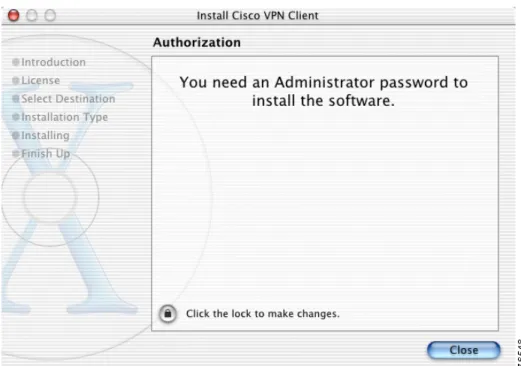
The Authorization window appears (Figure 2-3). You must have an Administrator password to install the VPN Client application.
Step 2 Click the lock to Authenticate your password. The Authenticate dialog box appears (Figure 2-4).
Figure 2-4 Authenticate Dialog Box
Step 3 Enter your administrator username and a password or challenge phrase.
Step 4 Click OK.
If the authentication is successful, continue to the installation process. Contact your network administrator if you cannot authenticate for installation.
VPN Client Installation Process
You must complete all steps in the VPN Client installation process before you can use the VPN Client software.
At any time during the installation process, you can go back to a previous step and adjust your selections. The installation process includes the following steps:
• Introduction, page 2-6
• Accepting the License Agreement, page 2-6
• Selecting the Application Destination, page 2-7
Introduction
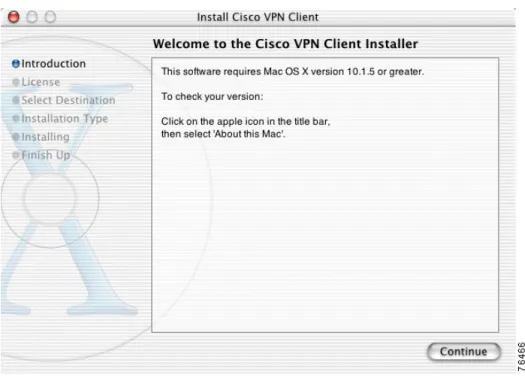
The first window that appears during installation is the introduction. The right pane of the Introduction window (Figure 2-5) lists system requirements. The left pane displays each of the installation steps. As you complete each step, it is highlighted with a blue bullet.
Figure 2-5 Cisco VPN Client—Introduction Window
Click Continue.
Accepting the License Agreement
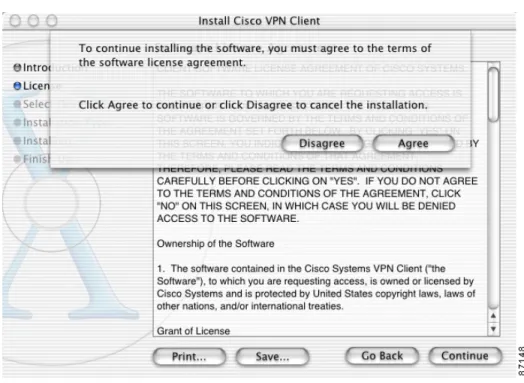
You are required to read and accept the Cisco software license agreement before you can continue with the installation process (See Figure 2-6).
Figure 2-6 Cisco Licence Agreement
Before you accept the license agreement, you can:
• Print the license agreement.
• Save the license agreement to a file.
• Go Back to the Introduction window.
• Continue and agree to the terms in the license agreement.
When you have completely read the Cisco VPN Client software license agreement, click Continue. To continue with the installation, click Agree.
Selecting the Application Destination
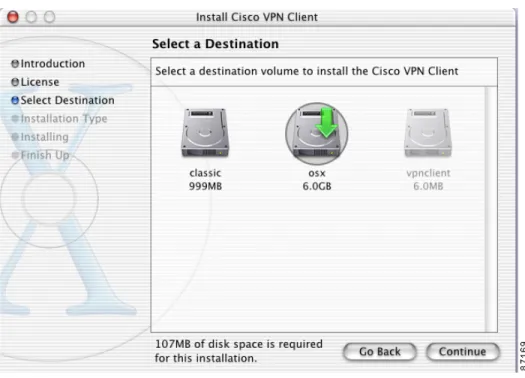
If your workstation has more than one disk drive, you can select the destination volume to install the VPN Client on your workstation. Figure 2-7 shows the Select Destination window.
Figure 2-7 Select Destination Window
Click Continue. The VPN Client is installed in the Applications directory.
Choosing the Installation Type
The default installation process installs the following packages with the VPN Client application:
• VPN Client application binaries (includes everything in the directory /usr/local/bin, including the ipseclog).
• VPN Client graphical user interface.
• VPN Client kernel extension
• VPN Client profiles (includes the global profile, vpnclient.ini, and any user profiles, *.pcf files).
• VPN startup (the system startup script to automatically start the client at boot time). The VPN Client application binaries and the VPN Client kernel extension must be part of your installation. However, installing the other three packages is optional.
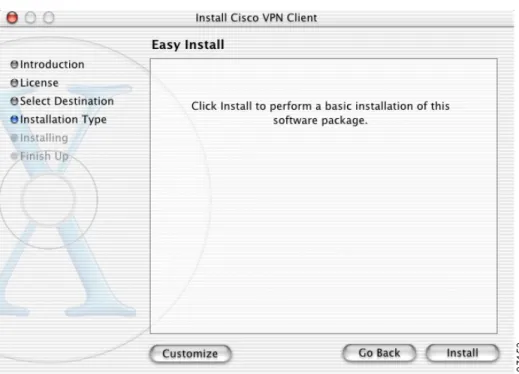
Figure 2-8 Easy Install Window
To choose which packages to install, click Customize to open the Custom Install window (Figure 2-9).
Figure 2-9 Custom Install Window
The packages with the blue check box are optional. To make a package part of your installation, check the blue box. To remove a package from your installation, uncheck the blue box.
Click Easy Install to return to the default installation packages, or Install to continue with a custom installation.
A progress bar lists the installation steps as they occur (Figure 2-10).
Figure 2-10 Install Software Progress Window
When the installation is finished, a window appears to indicate whether the installation was successful (Figure 2-11).
Figure 2-11 Successful Installation Confirmation Window
Click Close.
If you do not receive this confirmation, the installation was not successful. You must start the installation process again from the beginning or contact your network administrator for assistance.
To begin using the Client, double-click the VPN Client application icon located in the Applications directory (Figure 2-12).
Figure 2-12 Location of VPN Client Application
CLI Version Install Script Notes
The VPN Client installer includes both the graphical user interface and the command-line version of the VPN Client for Mac OS X. You can choose to manage the VPN Client using only the command-line. Use the following commands to start, stop, and restart VPN service:
/System/Library/StartupItems/CiscoVPN/CiscoVPN start /System/Library/StartupItems/CiscoVPN/CiscoVPN stop /System/Library/StartupItems/CiscoVPN/CiscoVPN restart
Alternately, you can use these commands to interact with the kernel extension:
sudo SystemStarter start CiscoVPN sudo SystemStarter stop CiscoVPN sudo SystemStarter restart CiscoVPN
Note We recommend that you uninstall any previous version of the VPN Client for Mac OS X before you install a new version.
The VPN Client uninstall script uninstalls any previous command-line or GUI version of the VPN Client from your workstation.
To uninstall the VPN Client for Mac OS X
Step 1 Open a terminal window.
Step 2 Run the following command:
sudo /usr/local/bin/vpn_uninstall
Step 3 Enter your password
Step 4 You are prompted to remove all profiles and certificates.
• If you answer yes, all binaries, startup scripts, certificates, profiles, and any directories that were created during the installation process are removed.
• If you answer no, all binaries and startup scripts are removed, but certificates, profiles, and the vpnclient.ini file remain.
C H A P T E R
3
Navigating the User Interface
This chapter describes the main VPN Client window and the tools, tabs, menus and icons for navigating the user interface.
VPN Client Menu
Use the VPN Client menu (Figure 3-1) to manage the VPN Client application and main window settings.
Figure 3-1 VPN Client Menu
• About VPN Client—Displays the current VPN Client version, the VPN Client type (platform), and the copyright information.
• Preferences—Sets VPN Client window preferences (Figure 3-2).
– Save window settings—Saves changes to the VPN Client window. For example, you can save the window size; the window position; the selected tab; and the view (simple or advanced mode).
– Minimize upon connect—Places the VPN Client window in the dock when the VPN connection is established
– Enable tooltips—Enables tool tips for the toolbar action buttons
• Services—Access standard Mac OS X services.
• Hide VPN Client—Remove the VPN Client window from your screen. This option does not close the application or minimize the screen.
• Hide Others—Remove all windows except the VPN Client from your screen.
• Show All—Displays all windows that were previously hidden.
• Quit VPN Client—Closes the VPN Client application.
Choosing a Run Mode
You can run the VPN Client in simple mode or in advanced mode. The default is advanced mode.
• Use simple mode if you only want to start the VPN Client application and establish a connection to a VPN device using the default connection entry.
• Use Advanced mode to manage the VPN Client, configure connection entries, manage certificates, to view and manage event logging, or to view tunnel routing data.
To toggle between advanced mode and simple mode, press Command-M. Alternately, you can choose your mode from the Options menu.
Operating in Simple Mode
Use simple mode when you only need to establish a connection to a VPN device using the default connection entry.
Note You must operate in advanced mode to manage certificates and event logging or to make configuration changes to a connection entry.
Figure 3-3 VPN Client Window—Simple Mode
The main VPN Client window shows only the version information, the default connection entry, the connect button, and the status bar.
Main Menus—Simple Mode
This section describes the abbreviated menu choices available in simple mode. The Certificates and Log menus are only available in advanced mode.
Connection Entries Menu
Figure 3-4 shows the Connection Entries menu options for simple mode.
Figure 3-4 Simple Mode Connection Entries Menu
• Connect—Establish a VPN connection using the selected connection entry. If the Connections tab is not selected, a submenu, which lists all available connection entries, is displayed.
• Disconnect—Disconnect the current VPN session.
• Import—Import a connection entry configuration file (a file with a .pcf extension, called a profile).
• Set as Default Connection Entry—Use the selected connection entry as the default. The default connection entry is used for this VPN session unless you select an alternate connection entry.
Status Menu
Figure 3-5 shows the Status Menu options for simple mode.
Figure 3-5 Simple Mode Status Menu
• Statistics—Open the Statistics window to view tunnel details and route details.
Operating in Advanced Mode
Use Advanced mode to manage the VPN Client; configure connection entries; manage certificates; view and manage event logging; and view tunnel statistics and routing data.
VPN Client Window—Advanced Mode
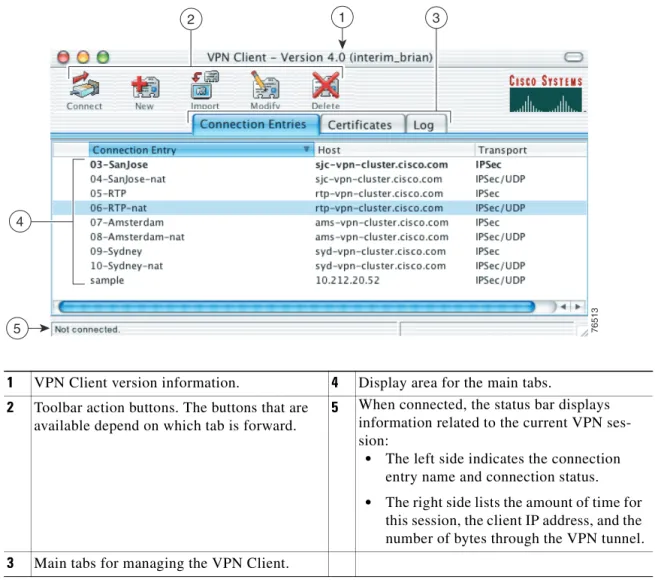
The following sections describe the main VPN Client window in Advanced Mode, the primary buttons and tabs for navigating the user interface, the main menu options, and the right-click menu options. Figure 3-6 shows the VPN Client window and the primary navigation areas.
Figure 3-6 Main VPN Client Window
1 VPN Client version information. 4 Display area for the main tabs.
2 Toolbar action buttons. The buttons that are available depend on which tab is forward.
5 When connected, the status bar displays
information related to the current VPN ses-sion:
• The left side indicates the connection entry name and connection status.
76513
1
4
5
3 2
Toolbar Action Buttons—Advanced Mode
The action buttons at the top of the VPN Client window vary depending on which tab is forward. For example, if the Connections tab is forward, the Connect, New, Import, Modify, and Delete buttons control operations for the selected connection entry (see Figure 3-6). If the Certificates tab is forward, the View, Import, Export, Enroll, Verify, and Delete buttons control operations for the selected certifi-cate (Figure 3-7).
Figure 3-7 Toolbar Buttons—Certificates Tab
Main Tabs—Advanced Mode
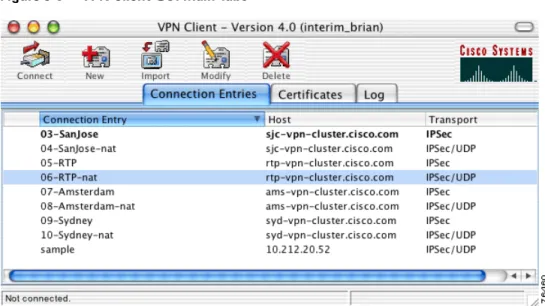
This section describes the three main tabs for managing the VPN Client (Figure 3-8).
Figure 3-8 VPN Client GUI Main Tabs
The three main tabs include:
• Connection Entries tab—Displays the list of current connection entries, the host, which is the VPN device each connection entry uses to gain access to the private network, and the transport properties that are set for each connection entry. Refer to Chapter 4, “Configuring Connection Entries” for more details on the Connection Entries tab.
• Certificates tab— Displays the list of certificates in the VPN Client certificate store. Use this tab to manage certificates. Refer to Chapter 6, “Enrolling and Managing Certificates” for more details on the Certificates tab.
• Log tab—Displays event messages from all processes that contribute to the client-peer connection, including enabling logging, clearing the event log, viewing the event log in an external window, and setting logging levels. Refer to Chapter 7, “Managing the VPN Client” for more information.
Main Menus—Advanced Mode
The following sections describe the main VPN Client menus, located at the top of your screen, when the VPN Client application is running in advanced mode and active on your desktop.
Connection Entries Menu
Use the Connection Entries menu (Figure 3-9) as a shortcut to frequently-used connection entry operations. The menu option applies to the connection entry that is currently selected on the Connection Entries tab.
Note A connection entry must be selected to use Connection Entries menu options.
Figure 3-9 Connection Entries Menu
• Connect to—Establish a VPN connection using the selected connection entry. If the Connections tab is not selected, a submenu, which lists all available connection entries, is displayed.
• Disconnect—Disconnect the current VPN session.
• Modify—Modify the properties of the selected connection entry.
• Delete—Delete the selected connection entry.
• Duplicate—Duplicate the selected connection entry. This menu choice allows you to create a new connection entry using the configuration from a current connection entry as a template.
• Set as Default Connection Entry—Use the selected connection entry as the default. The default connection entry is used for this VPN session unless you select an alternate connection entry.
Status Menu
Use the Status menu (Figure 3-10) to display the tunnel and route statistics or to view notifications from the VPN device.
Figure 3-10 Status Menu
• Statistics—Open the Statistics window to view tunnel details and route details.
• Notifications—Open the Notifications window to view notices from the VPN device.
• Reset Stats—Reset the VPN session statistics on the Tunnel Details tab of the Statistics window.
Certificates Menu
Use the Certificates menu (Figure 3-11) as a shortcut to frequently-used certificate operations. The menu option applies to the certificate that is currently selected on the Certificates tab.
Note A certificate must be selected to use Certificates menu options.
Figure 3-11 Certificates Menu
• View—View the properties of the selected certificate.
• Import—Import a certificate from a file.
• Export—Export the selected certificate to a specified file location
• Enroll—Enroll a digital certificate for user authentication.
• Verify—Verify that the selected certificate is valid.
• Delete—Delete the selected certificate.
• Change Certificate Password—Change the password used to protect the certificate while it is in the VPN Client certificate store.
• Retry Certificate Enrollment—Retry a previously started certificate enrollment.
• Show or Hide CA/RA Certificates—This menu option toggles to Show or Hide root certificates issued by either a Certificate Authority (CA) or a Registration Authority (RA).
Log Menu
Use the Log menu (Figure 3-12) to enable, disable, view or clear the event log, or to adjust the log settings.
Figure 3-12 Log Menu
• Enable/Disable—Enable or disable event logging.
• Clear—Clear the event log.
• Log Settings—Open the Log Settings window to view current settings or make adjustments.
• Log Window—Open the Log Window, which is a separate window that displays events. From this window you can save the display, edit logging levels by event class, and clear both log displays. The Log Window shows more events than the display area of the main advanced mode window.
• Search Log—Open the Search Log dialog box (Figure 3-13).
Figure 3-13 Log Search Dialog Box
Enter the exact string to match in the Find entry field. The search string is not case-sensitive and wildcards are not allowed. Matched instances are highlighted on the Log tab.
Connection Entries Tab Right-Click Menu
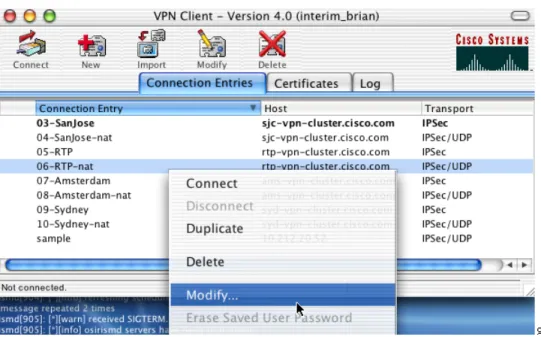
Figure 3-14 shows the right-click menu options available when the Connection Entries tab is selected.
Figure 3-14 Connection Entries Right-Click Menu
• Connect—Establish a VPN connection using the selected connection entry.
• Disconnect—Disconnect the current VPN session.
• Duplicate—Duplicate the selected connection entry. This action allows you to create a new connection entry using the configuration from a current connection entry as a template.
• Delete—Delete the selected connection entry.
• Modify—Display the properties of the selected connection entry. This action opens the VPN Client Properties window.
• Erase Saved User Password—Erases the user password that is saved on the VPN Client workstation, forcing the VPN Client to prompt you for a password each time you establish a connection.
Certificates Tab Right-Click Menu
Figure 3-15 shows the right-click menu options available when the Certificates tab is forward.
Figure 3-15 Certificates Tab Right-Click Menu
• View—View the properties of the selected certificate.
• Export—Export the selected certificate to a specified file location
• Verify—Verify that the selected certificate is valid.
• Delete—Delete the selected certificate
• Change Certificate Password—Change the password used to protect the certificate while it is in the VPN Client certificate store.
C H A P T E R
4
Configuring Connection Entries
A connection entry is a set of parameters that the VPN Client uses to identify and connect to a specific private network.
Connection entry parameters include a name and description for the connection, the name or address of the VPN device (the remote server providing the connection), and authentication information that identifies you as a valid user to the VPN device.
This chapter describes how to configure the parameters for a VPN Client connection entry.
Creating a Connection Entry
To use the VPN Client, you must create at least one connection entry, which identifies the following information:
• The VPN device that is providing access to the network.
• Preshared keys—The IPSec group that you have been assigned to. Your IPSec group determines the set of privileges you have for accessing and using the private network. For example, it specifies access hours, number of simultaneous logins, user authentication method, and the IPSec algorithms your VPN Client uses.
• Certificates—The name of the certificate you are using for authentication.
• Optional parameters that govern VPN Client operation and connection to the remote network. You can create multiple connection entries if you use your VPN Client to connect to multiple networks (though not simultaneously) or if you belong to more than one IPSec group.
To create a connection entry:
Step 1 Open the VPN Client application. The VPN Client window appears (Figure 4-1).
Figure 4-1 VPN Client Window
.
Step 2 Click the Connection Entries tab.
Step 3 Click New at the top of the VPN Client window. The Create New VPN Connection Entry dialog box appears (Figure 4-2).
Figure 4-2 Create New VPN Connection Entry
Step 4 Enter a unique connection entry name. You can use any name to identify this connection. This name can contain spaces, and it is not case-sensitive.
Step 5 Enter a description of this connection. This field is optional, but it helps to further identify this connection. For example, Connection to Engineering remote server.
Step 6 Enter the Host name or IP address of the remote VPN device that is providing access to the private network.
Step 7 Use the Authentication tab to select an authentication method. You can connect as part of a group, which is configured on the VPN device, or by supplying an identity digital certificate. See the “Authentication Methods” section on page 4-4 for more information.
Step 8 Use the Transport tab to set transport parameters. See the “Transport Parameters” section on page 4-6 for more information.
Step 9 Use the Backup Servers tab to view the current list of backup servers or to manually add a backup server. See the “Backup Servers” section on page 4-8 for more information.
Step 10 The Erase User Password button at the bottom of this dialog box erases the user password that is saved on the VPN Client workstation, forcing the VPN Client to prompt you for a password each time you establish a connection.
Authentication Methods
You can configure a connection entry to authenticate as part of a group, which is configured on the VPN device, or by supplying an identity digital certificate. The Authentication tab on the Connection Entry Settings dialog box must be forward to select an authentication method for a connection entry.
Group Authentication
Use this procedure if you plan to use group authentication for this connection entry. To configure group authentication:
Step 1 From the Authentication tab, click the Group Authentication radio button (Figure 4-3).
Figure 4-3 Group Authentication
Step 2 Enter the name of the IPSec group you belong to.
Step 3 Enter the password for your IPSec group. The field displays only asterisks.
Step 4 Confirm the password by entering it again.
Step 5 Click Save. The Connection Entry dialog box closes, and you return to the Connection Entries tab.
Certificate Authentication
Use this procedure if you plan to use digital certificates for authenticating for this connection entry. You can obtain a digital certificate for use with the VPN Client by enrolling with a Public Key Infrastructure (PKI) or by importing a certificate from a file.
Figure 4-4 Certificate Authentication
Step 2 Select a certificate from the Name drop-down menu.
If the Name field displays No Certificates Installed, you must first enroll or import a certificate before you can use this feature. See the “Enrolling Certificates” section on page 6-2 or “Importing a Certificate” section on page 6-7 for more information.
Step 3 To send CA certificate chains, check the Send CA Certificate Chain check box. This parameter is disabled by default.
A CA certificate chain includes all CA certificates in the certificate hierarchy from the root certificate. This must be installed on the VPN Client to identify each certificate. This feature enables a peer VPN Concentrator to trust the VPN Client's identity certificate given the same root certificate, without having the same subordinate CA certificates actually installed.
The following is an example of a certificate chain:
• On the VPN Client, you have this chain in the certificate hierarchy:
a. Root Certificate
b. CA Certificate 1
c. CA Certificate 2
d. Identity Certificate
• On the VPN Concentrator, you have this chain in the certificate hierarchy
a. Root Certificate
b. CA Certificate
c. Identity Certificate
Though the identity certificates are issued by different CA certificates, the VPN device can still trust the VPN Client's identity certificate, because it has received the chain of certificates installed on the VPN Client PC.
This feature provides flexibility because the intermediate CA certificates do not need to be installed on the peer.
Transport Parameters
This section describes transport parameters you can configure for a connection entry. The transport parameters include:
• Enable Transport Tunneling, page 4-7
• Transparent Tunneling Mode, page 4-7
• Allow Local LAN Access, page 4-7
• Peer Response Timeout, page 4-8 To configure transport parameters:
Step 1 Open the VPN Client application.
Step 2 Select a connection entry.
Step 3 Click Modify at the top of the VPN Client window to access the VPN Client Properties dialog box.
Step 4 Click the Transport tab (Figure 4-5) to display the existing transport parameters configured for this connection entry.
Enable Transport Tunneling
Transparent tunneling allows secure transmission between the VPN Client and a secure gateway through a router serving as a firewall. The router might also be configured for Network Address Translation (NAT) or Port Address Translations (PAT).
Transparent tunneling encapsulates Protocol 50 (ESP) traffic within UDP packets. It allows for both IKE (UDP 500) and Protocol 50 to be encapsulated in TCP packets before they are sent through the NAT or PAT devices and/or firewalls. The most common application for transparent tunneling is behind a home router performing PAT.
Not all devices support multiple simultaneous connections behind them. Some cannot map additional sessions to unique source ports. Check with your device's vendor to see if this limitation exists. Some vendors support Protocol 50 (ESP) PAT, which might let you operate without enabling transparent tunneling.
• To use transparent tunneling, the IPSec group in the Cisco VPN device must be configured to support it.
• Transparent Tunneling is enabled by default. To disable this parameter, clear the check box. We recommend that you keep this parameter enabled.
Transparent Tunneling Mode
The transparent tunneling mode you select must match the mode used by the VPN device providing your connection to the private network.
• If you select IPSec over UDP (NAT/PAT), the default mode, the port number is negotiated.
• If you select TCP, you must enter the port number for TCP in the TCP port field. This port number must match the port number configured on the VPN device. The default port number is 10000.
Note Either mode operates properly through a PAT device. Multiple simultaneous connections might work better with TCP, and if you are in an extranet environment, TCP mode is preferable. UDP does not operate with stateful firewalls. Use TCP with this configuration.
Allow Local LAN Access
The Allow Local LAN Access parameter gives you access to resources on your local LAN when you are connected through a secure gateway to a central-site VPN device.
• When this parameter is enabled:
– You can access local resources (printer, fax, shared files, other systems) while connected. – You can access up to 10 networks. A network administrator at the central site configures a list
of networks at the VPN Client side that you can access.
– If you are connected to a central site, all traffic from your system goes through the IPSec tunnel except traffic to the networks excluded from doing so (in the network list).
– If enabled on the VPN Client and permitted on the central-site VPN device, you can see a list of the local LANs that are available by choosing Statistics from the Status menu and clicking the Route Details tab. For more information, see the “Route Details” section on page 7-10.
• When this parameter is disabled, all traffic from your client system goes through the IPSec connection to the secure gateway.
If the local LAN you are using is not secure, you should not enable local LAN access. For example, do not enable this feature when you are using a local LAN in a hotel or airport.
To enable this feature, check the Allow Local LAN Access check box on the VPN Client. You must also enable this feature on the VPN device you are connecting to.
Peer Response Timeout
The VPN Client uses a keepalive mechanism called Dead Peer Detection (DPD) to check the availability of the VPN device on the other side of an IPSec tunnel. If the network is unusually busy or unreliable, you may need to increase the number of seconds to wait before the VPN Client decides that the peer is no longer active. The default number of seconds to wait before terminating a connection is 90 seconds. The minimum number of seconds you can configure is 30 seconds and the maximum is 480 seconds. To adjust the setting, enter the number of seconds in the Peer response timeout field.
The VPN Client continues to send DPD requests every 5 seconds, until it reaches the number of seconds specified by the Peer response timeout value.
Backup Servers
The private network you are connecting to might include one or more backup VPN devices (servers) to use if the primary server is not available. The list of available backup servers is pushed to the VPN Client when the connection is established, or you can add a backup server to the list manually.
The list of existing backup servers is found on the Backup Servers tab for each connection entry. Your network administrator can provide information regarding backup servers.
To use backup servers, you must enable this parameter. To enable backup servers:
Step 1 Open the VPN Client application.
Step 2 Select a connection entry.
Step 3 Click Modify at the top of the VPN Client window. The VPN Client Properties dialog box appears.
Figure 4-6 Backup Servers Tab
Step 5 Check the Enable Backup Servers check box. This parameter is not enabled by default. The list of available backup servers is displayed. Backup servers are used in the order presented in the list.
Step 6 To change the order in which the backup servers are used, select a backup server and use the arrow buttons to move the server up or down in the list.
Step 7 Click Save. The VPN Client Properties dialog box closes and you return to the Connection Entries tab.
If there are no backup servers listed, or if you want to manually add a server to the list, use the following procedure.
Step 1 Click the Add button on the Backup Servers tab. The VPN Client dialog box appears (Figure 4-7).
Figure 4-7 Add Backup Server
Step 3 Click OK. The backup server is added to the list of available backup servers.
To remove a backup server, return to the Backup Server tab, select a server from the list, and click