Fortune C Language Guide
Fortune Systems Corporation 300 Harbor Boulevard
Ordering Fortune C Language
Order Numbers: 1000834-01· for the guide with disks 1000835-01 for the guide without disks
Consult an authorized Fortune Systems dealer for copies of manuals and technical information.
Copyright ~ 1982 Fortune Systems Corporation. All rights reserved.
No part of this document may be copied, photocopied, reproduced, translated, or reduced to any electronic medium or machine readable form without prior consent in writing from Fortune Systems
Corporation. The information in this manual may be used only under the terms and conditions of separate Fortune Systems Corporation license agreements.
Printed in U.S.A
1 2 3 4 5 6 7 8 9 0
Unix is a trademark of Bell Laboratories Ordering Fortune C Language Guide
Order Number: 1000837-01
Please do not order products from the address shown below. Consult an authorized Fortune Systems dealer for copies of manuals and
technical information. Customer Comments
Your ideas about Fortune products and evaluations of Fortune manuals will be appreciated. Submit your comments to the Publications
Department, Fortune Systems Corporation, 300 Harbor Boulevard, Belmont, CA 94002. By submitting any idea, evaluation, or other information to Fortune Systems Corporation, you consent to any use or distribution of such information deemed appropriate by Fortune Systems Corporation. Fortune Systems Corporation shall have no obligation whatsoever with respect to such information.
Disclaimer of Warranty and Liability
No representations or warranties, expressed or implied, of any kind are made by or with respect to anything in this manual. By way of example, but not limitation, no representations or warranties of merchantability or fitness for any particular purpose are made by or with respect to anything in this manual.
In no event shall Fortune Systems Corporation be liable for any incidental, indirect, special or consequential damages whatsoever (including but not limited to lost profits) arising out of or related to this manual or any use thereof even if Fortune Systems Corporation has been advised, knew or should have known of the
possibility of such damages. Fortune Systems Corporation shall not be held to any liability with respect to any claim on account of, or arising from, the manual or any use thereof.
For full details of the terms and conditions for using Fortune software, please refer to the Fortune Systems Corporation Customer Software License Agreement.
How to Use This Guide
The Fortune C Language Guide is designed to help you use the C language on the Fortune 32:16. The information included covers those aspects particular to the Fortune system in addition to helpful utilities and more advanced features for very experienced programmers.
The guide is not intended to teach you to program in C. Use the guide along with the C programming manual of your choice. Below is a list of recommended manuals.
• E. W. Kernighan and D. M. Ritchie, The C Programming Language, Prentice-Hall, 1978
• B. W. Kernighan, Programming in C-A Tutorial • D. M. Ritchie, C Reference Manual
This package includes the following items: • Fortune C Language Guide
• Two Master disks
• Fortune Systems software registration card
If any item is missing, contact your Fortune Systems dealer for a replacement.
Contents
How to Use This Guide iv
Section 1 Fortune C Language Guide
Part 1
Part 2
Part 3
Using C,on the Fortune 32:16
Starting Up Your Fortune 32:16 Installing the C Compiler
Formatting Disks Copying Your Disks
Selecting and Leaving C The C Compiler (cc)
The Fortune Symbolic Debugger
1 2 5 9 11 13 15 20
Descriptions of the Debugger 21
Definitions 24
Organization 26
Command Syntax 27
Command Classification 30
Commands to Set Up Environment/Display Information 31 Commands for Source File Examination 38
Commands for Controlling Execution 41
Special Notes 46
Operating Procedure 47
Support Utilities, Libraries, and Machine Specific Aspects
Part 4
Name nm Ran1ib Size Strip
Tool Usage Libraries
Fortune 32:16 Specific Aspects Optimizer
The Fortran/C/Language Interface Procedure Names
Data Representation Return Values
Argument Lists
Section 2 Library Routines
Part 1 System Routines
Part 2 Library Functions
Part 3 File Formats
61 63 64
65
66 70
73 75
77
77 77
78
79
1
3
1
SECTION I
FORTUNE C LANGUAGE GUIDE
Using C on the Fortune 32:16
C is a general-purpose programming language that runs under the Fortune Operating System on the Fortune 32:16. The Fortune
Operating System is a modified version of UNIX, an operating system developed by Bell Laboratories. The C language is simple,
efficient, and appropriate for a wide variety of programming applications.
In this section you'll learn first to power up your system. You'll also learn:
• How to install C
• How to format and copy disks • How to select and leave C • How to use the C compiler
Starting Up Your Fortune 32:16
The first step is to plug in the system. Do this with the power on/off switch in the off position. For your safety, and the
protection of the system, use a three-pronged electrical outlet that fits the connector.
Now push in the white dot on the switch to set the power switch to on. Test the airflow with your hand to make sure that the fan is operating.
First you will see the cursor blinking on the screen. Then the message "Fortune Systems 32:16 Please Wait," with the "Please wait" blinking appears. When you see the heading "Please enter the
current date and time," the system is ready to receive information. Use the following procedure to log onto your system. It is read from left to right. The system category shows you what will appear on the screen. Type what you see in the user category. The
comments column provides useful information.
System
User
Procedure
Please set the current date and time, then press
(RETURN):
Today's date is: mm/dd/yy (current date) (RETURN)
Comments
Type in six digits to
System User System User System Procedure
Current time is: hh/mm A
P
(Current time) (RETURN)
Date set to (Day Month Date Time Year)
Is this correct (Y/N)
y (RETURN)
File check successful . . .
FORTUNE SYSTEMS 32:16
Press (HELP) For Assistance
Type in your name and
press (RETURN)
Comments
Use the Back Space key to
backup within a line and
the
t
and~
keys tomove up and down between date and time. The Cancel
key bypasses this entry altogether.
Type in four digits
to represent hours and
minutes or press the
Return key to accept the
time displayed. You don't
have to type the colon.
Type y or n to indicate
correct/incorrect date
and time. Typing n returns
you to beginning of date.
The dots blink while the
system checks the files.
If any other message appears get help.
User
System
User
System
Procedure
(account name) (RETURN)
Type in your password and press (RETURN):
(password) (RETURN)
%
of the available space is currently in use.FORTUNE SYSTEMS GLOBAL MENU
Comments
Type your account name. Type newuser to create a new account.
Type your password. This is requested only if you have one assigned.
When your system reaches 90% full, archive some files to free up more work space.
Installing the C Compiler
Before you begin to use C, you need to install the programs and files from the two master flexible disks to a hard disk on the
system you are using. You need a mininum of 384k of memory to load the C compiler.
The C compiler is loaded through the product maintenance menu. When the global menu appears, select Product Maintenance.
Follow the procedures below to load the software. To do this procedure you must be logged in as manager. First shut down the system. Then turn it on again while holding down the Cancel key.
System User System
User System
User
Procedure
FORTUNE SYSTEMS GLOBAL MENU
s2 (RETURN)
System Management
30 (RETURN)
Fortune Systems 32:16 ShutDown (takes about 30 seconds)
Do you want to continue?
yes (RETURN)
Comments
To power down, select s2.
Choose 30 from the system management menu.
Wait for system messages.
System User System User System User Slstem User System Procedure
Software shutdown starting, please wait.
Software shut down complete Hardware shut down starting, please wait
Hardware shut complete Please turn the Fortune Systems 32:16 off
Type any highlighted key.
Set boot file name
hd02/sa/reconf (RETURN) (EXECUTE) Max process size
C)
. /
))'ffitTURN)
256
ern
CID
Today's date is Current time is:
Comments
Press off switch. Now turn on system again, holding down CANCEL. Press the F7 key.
Move cursor to Max process size.
1.
Press the Return key
l(
times.
User System User System User System User System User System Procedure yes (RETURN) (RETURN) (RETURN) Type in your name and press
(RETURN)
(your account name) (RETURN) FORTUNE SYSTEMS GLOBAL MENU
s5 (RETURN)
PRODUCT MAINTENANCE
i (RETURN)
Fortune Systems Corporation Product Maintenance
Please insert flexible disk volume 1. Press (RETURN)
(RETURN) This flexible disk is
labeled: Development Set xxxx
Volume 1 (date)
Comments
Log in again.
Select s5 to load the software.
Type i for the install selection.
Install the development set first.
Put the disk labelled "develoment set" in the drive.
, System
User
System
User
System
Procedure
Proceed with installation?
(yin):
y (RETURN)
Copy phase of Development Set Menu update •••
Development Set installation successfully completed.
Press (RETURN) for menu or select ahead
(RETURN)
FORTUNE SYSTEMS GLOBAL MENU
Comments
The system puts a copy on the hard disk.
Formatting Disks
Before you can use a blank flexible disk to store your application or other files, the disk must be formatted. From the global menu use this procedure to format a flexible disk.
System
User System User
System
User System
Procedure GLOBAL/MENU
Sl System Utilities
sl (RETURN)
SYSTEM UTILITIES MENU
32 (RETURN)
FORMAT FLEXIBLE DISK
Do you want to continue (yes or not)?:
yes (RETURN)
Please wait for completion message
Comments
Select Format Flexible Disk.
Read screen text. Insert a flexible disk.
Do not press any key while this message is on the screen.
User System
User System User System
Procedure
Your request is complete Please Remove Your Flexible Disk
-Press (RETURN) for menu or select ahead
CM1!!RID
FORMAT FLEXIBLE DISK
(RETURN) SYSTEM UTILITIES MENU
(RETURN) FORTUNE SYSTEMS GLOBAL MENU
Comments
Your disk is formatted. Remove the disk.
You can repeat the
formatting procedure at this point by beginning step 3 again.
Copying Your Disks
Make a copy of your software as soon as possible. The procedure below is used to back up your master disks. To do this procedure, you must be logged in as manager.
System User
System User System User System
User
Procedure
FORTUNE SYSTEMS GLOBAL l1ENU
s5 (RETURN)
PRODUCT MAINTENANCE
b (RETURN)
PRODUCT SELECTION MENU cc
Fortune Systems Corporation Product Maintenance
Do you want to backup
'c'
compiler?(yin):
y (RETURN)
Comments
Selects Product Mainte-nance.
Chooses backup.
Options are cc or ds. Select C compiler.
System
User System
User
System
Procedure
Please label a blank flexible disk:
'e'
compiler 1000837-01 Volume 1(date)
Insert the disk into drive 110.
Copy phase ••• Successfully •••
(RETURN)
-Press (RETURN) for menu or select ahead
(RETURN)
FORTUNE SYSTEMS GLOBAL MENU
Comments
Be sure the disk was previously formatted.
Selecting and Leaving C
From the global menu use the following procedure to choose the UNIX command interpreter where you will run C.
Procedure
System FORTUNE SYSTEMS GLOBAL MENU
User !sh (RETURN)
System
$
Comments
Type !sh. Use the shift 1 key for!. You are now in direct communication with the operating system. The $ shows that the system is ready.
Use the ed editor on your Fortune system to develop and edit programs. Refer to your Fortune Operating System Guide for
information about using ed.
When you have finished your work use the following procedure to log out.
Procedure System $
User (CTRL)d
Comments
Press the CTRL key and d at the same time.
System
User
Procedure
-Press RETURN for menu or select ahead
(RETU@)
Comments
The C Compiler (cc)
CC is the command that activates the C compiler. The compiler reads
in source code, and translates that code into machine language which can be understood by the computer. The following are the five steps
involved in compiling a C program.
1 Preprocessor
2 C Compiler
3 Optimizer
4
Assembler5 Load
This processes any U sign statements.
Code in filename.c is translated into
assembly language.
Code is optimized and thereby reduced in size. The optimizer also fncreases the
runtime speed.
The object file (filename.c) is created.
The executable file (a. out) is created.
A set of options, described in the next few pages, provides
variations in compiling results.
To compile a C program enter
cc (options) filename.c ...
The argument, or filename you enter whose name ends with oC is a
C source program. It is compiled and an executable file named a.out
is created. In addition, a .0 file is created if the -c option is
used or more than one c source file is compiled with the same
command. This is the object file, the compiled C program. The.o
file can later be processed by the loader, then executed. For
You Enter Results
cc test.c a.out
Any number of .c files may be compiled into one a.out file. Again, .0 files will also be created for each .c file.
You Enter Results
cc testl.c test2.c a.out
testl.o test2.0
Arguments other than the C options described below are taken to be loader option arguments or C-compatible object programs. These object programs are typically produced by an earlier cc run, or libraries of C-compatible routines. These programs and the results of any specified compilations are loaded (in the named order) to produce a runnable program named a.out. To create only .0 files, use the -c option. No a.out file will result.
You Enter Results
cc -c testl.c testl.o
Object files (.0) may be linked-to create an a.out file.
You Enter Results
cc testl.o test2.0 a.out
Already compiled files (.0) and .c files may be run through the compiler with the following results.
You Enter Results
Using the -0 option you can name an a.out file.
You Enter
cc -0 test testl.o test2.c
Results
test test2.0
The following options are interpreted by cc.
-c Does not link object file with libraries. Leaves only the .0
file.
You Enter Results
cc -c test.c test.o
-0 Calls an object code optimizer. Code size will be reduced
20-25% in size and result in a faster running file.
-v Verbose. Compiler lists passes on the screen as they are
executed.
You Enter
cc -v test.c
Results
/usr/lib/cpp -DMC68000 -Uvax
file.c /tmp/ctm0013H.s
/usr/lib/ccom /tmp/ctm001314.s /tmp/ctmOO/313.s
/usr/lib/ac -0 test.o /tmp/ctm0013l3.s
/usr/bin/ld /usr/lib/crt./o file.o /usr/lib/libc.a
-G The stack growth checking is turned off. This improves the code slightly as long as the stack is not used extensively. It
decreases the text size.
Do not run -G on a program that allocates more than 8K of stack.
For example, the following program will fail under the -G option.
main ( )
[
int x [4000] ,i;
For (i
=
0; i<
4000; i ++) x [i] =0;-E Runs only the macro preprocessor on the named C programs. The result is sent to the screen.
You Enter Results (on the screen)
cc -E test.c
111
"test.c"(text of program)
-C This prevents the macro preprocessor from removing comments.
You Enter
cc -E test.c cc -E -C test.c
cc -E -C test.c ff.c
Results
Comments are removed Comments remain
Comments are put into ff.c
-Dname=def Defines the name to the preprocessor, as with #define. If you give no definition, the name is defined as one.
-Dname
You Enter Results
cc -DFLEXNAMES FLEXNAMES is defined and assigned the value 1.
cc -DFLEXNAMES=12 FLEXNAMES is defined and assigned the value 12.
-Uname -Idir
Removes any initial definition of name in the preprocessor. # include files whose names do not begin with / are always looked for first in the directory of the file argument, then in directories named in -I options, then in
directories on a standard list.
The Fortune Symbolic Debugger
I
Description of the Debugger
Fdb is a symbolic debugger which can be used with the C language. The format of the fdb command is:
fdb [obj fil [directory]]
You use it to examine your files and to provide a controlled environment for file execution. Objfil is an executable program file which has been compiled with the -g (debug) option. The
default for objfil. is a.out. Core file is not utilized. Directory is the working directory.
It is useful to know that at any time there is a current line and current file. The default for the current file is the file debugged. However, the current file may be changed with the source file examination commands. There are two types of current line. One is current print line, and the other is current execute line. The current execute line can only be changed with program execution while the current print line can be changed with file examination commands.
Names of variables are written just as they are in C. Variables local to a procedure may be accessed using the form 'procedure:
variable'. If no procedure name is given, the procedure containing the current line is used by default. It is also possible to refer to structure members as 'variable. member' , pointers to structure members as 'variable~member' and array elements as 'variable
[numbe~'
and array elements. Combinations of these forms may also be used.FILES
The file used by fdb is a.out.
DIAGNOSTICS
Error reports are self-explanatory.
BUGS
Error checking for structured variable elements are not performed. The fdb commands are summarized below.
Command
,
&
RETURN key alias
break comment delete display dump equate
Meaning
Exits the shell (escape)
Displays the content of a variable (same as display command)
Displays the address of a variable
Repeats the previously executed command Defines or cancel alias
Sets up a breakpoint Allows a comment line Deletes breakpoint(s)
Displays the content of a variable (same as , command) Dumps memory contents
Command find go help print quit restart set
show
trace walk
Meaning
Searches a given string from the source file Starts or resumes debugged program execution Shows the summary of fdb commands
Prints source lines
Exits from fdb and return to shell
Restarts the debug session with optional parameter Sets debugger options such as user definable prompt string
Shows status of debug session such as breakpoint,
file, window, alias, last command, equate and procedure Traces program execution
Single step execution
Definitions
The following terms are defined as used in this description of fdb. Breakpoint
A location in a program's execution at which either some debugging command is to be performed or the user wishes to gain control. Command
Debugging command Debug option
A compiler directive to have extra Symbol table entries added which are utilized by fdb. The option is specified by -g, thus, sometimes it is called -g option under UNIX environment.
Debugging command
A directive that controls the behavior of a debugger. Debugging session
A period of time during which a debugger is used. Debugging mode
Execution of a program in conjunction with a debugger. Linker/loader
Object/load module
The input to the linker is called the object module and the output is the load module. There is no clear difference between object and load module in UNIX. Thus the term object and load modules are used interchangeably.
Symbolic debugging
The debugging of programs in terms of their source level names and constructs.
Trace
A display of the dynamic activity of some aspect of a program. Fdb supports the execution trace, the procedure trace and the variable trace.
Organization
The following figure shows how fdb is utilized in program execution.
C
user source program
C compiler -g option
object module
F77 PASCAL
user user
source source program program
F77 PASC AL
compiler c<?mp iler -g option -g 0 ption
object obje ct module modu Ie
linking loader
Debugger (fdb)
PROGRAM EXECUTION (debug session)
COBOL compiled
user
source system program
library
COBOL (obj ect
compiler format) -g option
Command Syntax
The following are the general rules of the fdb command.
CASE RULE
There is no difference between upper and lower case letters. Combinations of upper and lower case letters are allowed. This rule also applies to the fdb keywords. For example, the following commands are equivalent:
equate EQUATE EquAte
Upper and lower case letters may be distinct in variable and procedure names. This is language dependent.
3-CHARACTER RULE
Every command can be abbreviated to three characters if desired. For example, the following strings are all legal commands.
BRE for break DEL for delete
EQU for equite •.. etc.
than the allowed abbreviation (one or three characters), the whole command string should be spelled out. For example, EQ, EQUA and EQUAT are illegal while E and EQU are legal.
LEADING BLANK RULE
All the leading blanks in ·a command are ignored. So, the following commands are equivalent. One or more blanks and tab characters are equivalent to one blank character.
EQUATE
eQU
Equate
MULTIPLE COMMANDS PER LINE
Multiple commands per line are allowed if they are separated by the semicolon (;). Thus, a semicolon before the Return key has its own meaning (please see NEWLINE for details).
Note that each command in a mUltiple command line is
interpreted. So the first command is performed regardless of the error condition in the subsequent commands. For example:
command 1; command 2·
,
command 3 (RETURN) is equivalent tocommand 1 (RETURN) command 2 (RETURN) command 3 (RETURN)
FIND EQUATE COMMENT BREAK 3
II a=O ; b=O; c=O , II
a ",a/wx; ,b/c; ,c; BREAK WHEN count=100," x:=3; was for PASCAL assignment
DO DISPLAY a; DISPLAY b; SHO FILE
DEBUGGER PROMPT
Fdb uses
*
as a prompt character. When*
is prompted on the screen,fdb is ready to accept a command from the user. A user can change
the debugger prompt using SET command.
Command Classification
This section describes all the debugging commands supported by fdb. Commands are classified into three categories:
• Commands to set up environment/display information • Commands for source file examination
• Commands for controlling execution
Commands to Set Up Environment/Display Information
DISPLAY
The following are the commands used to set up display variables. In
BNF notation, display variable is defined as:
<display var> ::= ( , : DISPLAY) <procedure><Variable><format spec>; <procedure>
: : =
<empty> ~ <procedure name> :,
.
< format spec> ::= <empty> I <int spec>: <float spec>: <char spec>; < int spec> : : = <byte size> <int form>;
<byte size> : := <empty> b! h : 1 ; <int form>
<float spec>
<char spec> < string form>
< string size>
: : =
-: -: =
..
-..
-: -: =
x d 0 u
f g
.
,
c ~ <s tring form> ; <string size> s
<empty> I <unsigned> ;
This command displays the values of variable(s) at program
suspension. The values are displayed according to the user format
specification. If format specification is omitted, variables are
formatted according to their data type as declared in the program.
For example, suppose the types and contents of variables i, p, a
and j are defined as follows:
variable type name contents
char i 'x'
char *p "abcxy"
char a[3] "ABC"
int j Ox12345678
The fdb commands and its output values for the example are:
, i x
,i x
, i/x Ox78000000
,p abcxy
,p-
>
Ic a,p/3s abc
,pI s :abcxy
,a ABC
,a/2s AB
,j 305419896
,j/x Ox12345678
,jIb 18
EQUATE
In BNF notation, equate is defined as:
<equate> ::= EQUATE <alpha> ( <empty> I <string> );
The EQUATE command equates a character to a data string. For the equated character to be expanded, an escape charac'ter (%) should precede the equated character. When the equated character appears in a command, it will be expanded in1ine prior to executing the command. Thus, equate could be used to combine the multiple commands into one or alias commands.
An equate command may be cancelled by equating the previously defined character to a null (empty) string.
Fdb will detect and report recursive equate definitions. For example:
Equate to long variable name equ a "employee"
display tar display %e.name equ a
, %ae.ssn
:define a as an equated character to "employee" :display the content of variable employer
:disp1ay the content of variable employee.name :cancel the equate definition
Equate to Multiple commands equ b
%b
II
SHOW ARG; SHOW LAN; SHOW EQU; ! who II
:shows the arguments defined, source language, equated characters and the name logged on the system
Equate to user defined command (in this case ALIAS is better than EQUATE)
equ w
%w
"PRINT .-5 ! 11"
:print 5 lines before and after the current line
HELP
The HELP command lists everY.fdb command with a short description. Help can be invoked by pressing the HELP key, typing help, or
• ?
typl.ng .• A command that can be abbreviated to one character is represented by one lower case character in parentheses. The
following is a list of commands and their descriptions on the help facility.
Command Description
:shell escape
,
:display the content of a variable& :display the address of variable RETURN key :repeat previous command
ALIAS :define/cancel alias
BREAK (b) :set up a breakpoint
Command COMMENT DELETE (d) DISPLAY DUMP
EQUATE(e) . FIND(f) FILE
GO(g)
HELP (h)
PRINT(p) QUIT(q) RESTART(r) SET
SHOW(s) TRACE (x)
WALK(w)
Description :comment line
:delete breakpoint(s)
:display the content of variable (same as ,) :dump memory contents
:define/cancel replacement string
:search a given string from the source file :redirect source/input/output files
:start or resume execution :shows legal fdb commands :print source lines
:exit from fdb and return to shell
:restart the debug session with optional parameter :set debugger options
:show status for breakpt/argument/file/equate procedure :trace program execution
SHOW STATUS
In BNF notation, show status is defined as: (show status) ::= SHOW (BREAKPOINT
I
FILEI
WINDOW (unsigned) :
ALIAS COMMAND: EQU PROCEDURE ) ; This command is used to show information about the current debugger session at the user's terminal. The information that could be
displayed is:
• Breakpoints that are currently set • Input/output/source files
• A few lines around the current line • Alias definitions
• Last command as seen by fdb (expanded in case of alias) • List of all equate symbols and their current definitions • Procedure stack, for example, the procedure names called to
reach the current stop point
These are examples of the SHOW STATUS command.
SHOW PROCEDURE :procedure names in frame stack SHOW BREAKPOINT :show all the breakpoints defined SHOW EQUATE :show all the equate definitions
SHOW WINDOW 4 :print 9 lines around the current line
COMMENT
Fdb prints the comment line as entered on the output device. This command is used to document the debug session when fdb output is not standard output (terminal). For example:
COMMENT next statement is to test error condition EQU a; COM " This line has two commands even if many appeared
ALIAS
In BNF notation, ALIAS is defined as:
<alias> ::= ALIAS «alias define>l <alias cancel» <alias define> : := <def striIfg><replace string> ; <alias cancel> : := <def string> ;
.
,
• I S
,
This command allows a user to define his/her own debugger command. The user can rename existing fdb commands or combine a few commands into one at his/her convenience.
To redefine the already defined alias, a user should cancel it before redefine. A user can use SHOW ALIAS command to see the alias definitions.
If a semicolon is used in the alias replacement string, mUltiple commands alias, it must be enclosed in quotes. Note that Case Rule does not apply to the alias definition string. For example:
ALIAS ALIAS
single step
WALK : redefine single as WALK "WALK; DISPLAY a"
ALIAS ALIAS ALIAS ALIAS
s
S
w
+
VARIABLE ADDRESS
WALK WALK IN
SHOW WINDOW 5 PRINT NEXT
In BNF notation, variable address is defined as: <var address> ::= & <variable> ;
This command is used to display the address of a variable. The address is always displayed in hexadecimal notation. For example:
&a :address of variable a
&b [3]
:address of fourth element of array bSET
In BNF notation, set is defined as:
<set option> ::= SET <debug option> ; <debug option> : : = <user prompt> ;
<user prompt> ::= PROMPT ECEMPTY> I =) '~string>,';
This command is used to set up a debug option. Currently only the user prompt setting is available. For example:
SET PROMPT
=
"+"
:
debugger prompt is+
SET PROMPT "Fortune fdb%"Commands for Source File Examination
Several commands are used in examining source files: file
definition, find string, print source lines, and dump.
FILE DEFINITION
This is the BNF notation for file definition:
{ <file name>}
.
,
<file definition> ::= FILE <file name><file name> ::= «empty> : < I > l > > ) <identifier>;
The file definition command is used to refine the source file or
redirect the standard input and output devices. It is used to
change the file specifications for debugger. Files for the debugged program can be redirected by run time arguments (see RESTART
command).
When < o r > is followed by a space, fdb will redirect input or
output devices to standard devices . . » i s to append to the end of
existing file. For example:
FILE <profile
FILE /user/s~urce/test.c
FILE > .. /trace
FILE >
FIND STRING
:execute fdb commands in profile
:source file is /usr/source/test.c
:save debug output in parent's directory
:print debug output on terminal
<single line> ::= <empty> l<line number>
<line number> ::= ( <unsigned> I NEXT: . ) (+: -) <unsigned> <multiple line> ::= <single line> / <single line> ;
<count> ::= <single line>! <integer>
The FIND command is used to search the source (current) file and print the source line(s) which contain the specified string.
The count is for the maximum number of lines to print, and the default values for the line number is the current line. For example: FIND "Procedure" :search "Procedure" and print the first line that
contains the string from the current line FIND "if" 3 :find the first "if" from line number 3
FIND "count".-3!10 :find 10 occurrences of "count" from current-3 line
FIND "xyz" 10/100 : find "xyz" string from line 1/10 through 100
PRINT SOURCE LINES
In BNF notation, print source is defined as: <print source> ::= PRINT <range>
The PRINT command is used to print the specified number of lines (count) from the given starting lines in the source. The default values for the starting line is the current line. For example: PRINT
PRINT .-10 PRINT . -10/ PRINT
..
,
6PRI 3, . -2/ 11 11
.+3, 10
:print the current line
:print (current -10) and current same as PRINT.-lO, 11
:print (current-lO) through line #11 :print 6 lines from the current line :print line #3, from (current-2) through (current+3) and line #10
DUMP
In BNF notation, dump is defined as:
<dump> ::= DUMP<dump option> <dump spec> <dump option> ::= <empty> I C X
<dump spec> ::= <range> I <var address>
.
,
This command is used to display the contents of memory. A user can
display in character format or in hexadecimal. The default is in
hexadecimal format.
Output format is:
Space designation: I for instruction space
D for data space
Memory address in hex 16 bytes of contents
The memory dump is displayed in a l6-byte unit, and the starting address is always a multiple of 16. If a dump is requested towards
the end of a line, for example, mod(address) is between 13 and 15,
two lines are displayed. For example:
DUMP Ox100 : dump between Ox100 and Ox10f
DUMP 3 : dump between OxO and Oxf
DUMP Ox100/Ox200
DUMP NEXT : dump next 16 bytes
Commands for Controlling Execution
The following commands are used for controlling execution of the
debugger: breakpoint, delete breakpoint, go, shell escape, walk,
quit, trace, and restart.
BREAKPOINT
In BNF notation, breakpoint is defined as:
<breakpt definition> ::= BREAK <break loc> <break command> ,
<break loc> ::= <empty> I <static break>
<static break> ::= <module name> <statement spec>
<module name> ::= <empty> l <procedure name>
1
<procedure name>} <statement spec>::= <line number><line number> ::= <integer>
<procedure name>
<break command>
..
-..
-..
-..
<identifier>
.
,
<empty> DO <fdb command>
This command causes a breakpoint to be set at the indicated line
number in the source program. The program is stopped before the
line is executed. If the specified line is not an executable statement such as a blank or comment line, the breakpoint is set
to the first executable line after that.
The module name and/or line number may be omitted in which case
the defaults are taken from the current procedure name and the
current line number, respectively.
If break command is specified as DO - phrase, fdb executes the
command(s) when the breakpoint is reached. Otherwise, the control
is transferred to the user. For example:
Break :break at current line in the current procedure unconditionally
B SUBl:
4
:break at line #4 in the procedure SUB1BREAK 10 DO ,a; ,b :break at line #10 and print the values of var a and b when the program stops
DELETE BREAKPOINT
In BNF notation, delete breakpoint is defined as:
<delete breakpt>
..
..
-
-
DELETE «empty> ! ALL: <module name> <statement spec> ) ;The DELETE command is used to remove the breakpoints. DEL ALL will delete all the breakpoints set up so far. If no parameter is given,
. .
then the breakpoint is deleted interactively. Each breakpoint
location is printed and a line is read from,the,standard input. If the user response is d, del, y, yes or ok, then the breakpoint is deleted. Other responses are considered as no., For example: Del GETCHAR:
4
DELETE
delete SUBl 37 no delete SUB3 107 ok Delete all
GO
:delete the breakpoint on line 4 of procedure GETCHAR
:no parameter, so interactive deletion
:user does not want to delete line #3 of SUBI :user wants to delete this breakpoint
:delete all the breakpoints
In BNF notation, go is defined as:
<go>
..
..
-
-
GO «empty> : <statement number> <statement number> ::= <unsigned>The command causes the program to either start or resume execution. If a statement number is specified, the program execution is
suspended after executing the specified number of lines from the current position.
The GO command is used to continue the program execution,
ignoring the signal that caused the execution to stop (such as user interrupt).
The program will continue to execute until one of the following events occurs:
• Breakpoint • Program error • User interrupt
• Normal progaram exit SHELL ESCAPE
In BNF notation, shell escape is defined as: <shell escape> : : = <shell command>
This command allows the user to execute shell command in the middle of a debugging session. Shell allows mUltiple commands if separated by the semicolon. However, fdb'uses the same convention.
Therefore, mUltiple shell commands per line are not permitted in fdb. For example:
!date :print date and time on the input device !date; !whC1" :multiple fdb commands
!date; who :illegal, since mUltiple shell commands are not allowed
\lALK
In BNF notation, walk is defined as:
This command is useful for single stepping through a section of code. The number of statements to single step could be specified.
The user can walk single step only within the same procedure (WALK IN) or single step even in the called procedure (WALK 1). The default parameter is one so that the program stops after every line
is executed. For example, suppose a user walks on the source code that looks as follows:
linelllO: linellll: linell12: At linelllO:
At linellll:
At linell12:
QUIT
count = 10; getvalue();
printf(" result= %d \ nil
,
count);WALK, WALK IN and WALK 1 are equivalent. Variable count is set to 10 and execution stopped,at line 1111. WALK IN will execute the getvalue procedure and stop at line #12. WALK will stop at the first line in the getvalue procedure.
WALK has no meaning in the non-systems programming environment. Fdb will not single step the printf routine, and WALK IN and WALK are equivalent.
The QUIT command causes you to exit the fdb.
TRACE
This command is used to display the code-segment labels (code
statement line numbers) encountered during program execution. This will also display the source lines. For example:
TRACE EXECUTION :print every line of code executed
RESTART
In BNF notation, restart is defined as:
<restart>
<option>
: : =
..
-..
-<option char>
RESTART <option><parameter><file name>
<empty>
I
-
<option char> ;: : = <alpha> ; <parameter> - <identifier>
.
,
This command is used to restart the debugged program. The user can set up options and parameters for the debugged program and also
redirect the standard input/output device for the debugged program.
Suppose a user wants to debug a load module called compiler,
whose option is - 0 and its parameter (file name to save the objects)
is compile.o. Type this:
fdb compiler
RESTART -0 compile.o
There are two types of output during a debug
session. One is diagnostic messages from fdb and
the other is output from the debugged program.
Fdb allows you to redirect either output. FILE command is used
to redirect the debug messages and RESTART is used to redirect the
program output.
Special Notes
If a user just presses the RETURN key (Newline Command), it is interpreted as if the previous command was entered.
Because of the newline feature and the mUltiple commands line feature, a command line that ends with a semicolon is different than one that ends without it. For example:
command 1 :this is just one command
command 1; :this is equivalent to command I
,
command 1W :single step execution command
(RETURN) : execute next statement (RETURN) : execute next statement
SPECIAL CHARACTERS IN A STRING
A quote in a string is represented by two quotes. So "abc""d" is a string of abc"d, and 11111111"" is 1111. But 1111" is an illegal string.
A backs lash (\.) is used to indicate that a special character is following. So ~ means single \.. It is advised to use a backslash whenever non-alphanumeric characters are used. This does not apply
in ALIAS replacement string.
If \ precedes I, EQU expansion is suppressed. For example: EQU A "XYZ"
FIND FIND
"ioA"
II \
ioA"
:search for XYZ : search for
ioA
The following example could cause a permanent loop, but will be detected and reported by fdb.
EQU a II \ Ia"
Ia
:define itself
Operating Procedure
The steps of a general operating procedure is described here. First
the syntax of fdb is reviewed.
The syntax for calling fdb is:
fdb
[Object-file[directory~
where:
object-file: an executable program file which has been compiled
with the -g (debug) option. The default for object-file is
a.out.
directory: a directory where the source file exists. The
default for directory is the working directory.
At any time there is a current line and current file. The
current file may be changed by FILE command.
These are the steps in the procedure:
1 Compile source programs with -g option
2 Run loader
3 Run fdb
Suppose a C program is saved in test.c and a PASCAL program is in sample.p, and you try to debug the linked program (UNIX command
syntax may be changed from time to time). These are the steps you follow.
Procedure
cc -g test.c - 0 cobject
pc -g sample.p - 0 pobject
Comments
/*
compile test.c program*/
Procedure Comments ld - 0 junk
fdb junk
cobject pobject
/*
link 2 objects*/
/*
invoke debugger*/
If fdb has a bug and causes a permanent loop, you can't get out from fdb by pushing the Cancel
Support Utilities, Libraries, and Machine Specific Aspects
The Fortune Operating System provides a number of utilities and libraries which make routine programming activities easier and less time consuming. In this section you will learn about the utilities and libraries below.
• Archive -ar • Link Editor -ld • Make
• Name -nm • Ranlib • Size • Strip • Libraries
libc.a libg.a libm.a
Archive ar
Ar is used primarily to create and update library files used by the loader. Groups of files are maintained in one archive file. This version of ar uses an ASCII-format archive which can be ported among various machines running UNIX.
SYNTAX: ar key posname afile names(s) ••• Element
key
posname afile name(s)
Purpose
One character from the set of options (d, r, q, t, p, m, x). It can be catenated and enhanced with one or more of another set of options (v, u, a, i, b, c, 1). The filename you use to indicate position.
The name for the archive file. The files in the archive file. Each of the key options is described below. Option
d
r
Description
Deletes the named files from the archive file.
Option
q
t
p m
x
v
c
Description
It specifies that new files are to be positioned
following a or before ~ or i posname. Otherwise, new files are placed at the end.
Quickly appends the named files to the end of the archive file, disregarding any optional positioning characters and without checking whether the added files are already in the archive. When you are
creating a large archive in pieces, use this to avoid quadratic behavior.
Prints a table of contents of the archive file. If no names are printed, all the files in the archive are tabled. If names are printed, only those files are tabled.
Prints the named files in the archive.
Moves the named files to the end of the archive. If you include a positioning character, then the posname argument must be present and, as with
E,
must specify where the files are to be moved.Extracts the named files. If you give no names, all files in the archive are extracted. x does not, however, alter the archive file.
With the verbose option, you receive a file-by-file description of the construction of a new archive file. If you include! a listing of all information about the files will be included. With
E
each file is preceded by a name.Option
1
Description
The local option places files in the local directory rather than in /tmp, where it normally places
Link Editor ld
The link editor, or loader, combines several object programs into one, resolves external references, and searches libraries. In the simplest form several object files are given and ld combines them. An object module is produced. It can be executed or used with the
-r option as input for a further ld run. Output of ld is left in the a.out file (unless the -0 option is used to specify an output filename) and is executable only if no errors occurred during loading.
SYNTAX: ld option files •••
Argument routines are ca~enated in the order you specify. Unless you use the -e option the entry point of the input of the executable or a.out file is the beginning of the first argument.
If any argument is a library, it is sear-c-hed only once when it is encountered in the argument list. Only routines that define unresolved external references are loaded. The order of programs within libraries may be important. For example, if a routine from a library references another routine in the library, and the library has not been processed by ranlib(l), the referenced routine must appear after the referenc-ing routine in the library. The first member of a library should be a file named __ .SYMDEF. It is understood to be a dictionary for the library as produced by
ranlib(l) and is searched iteratively to satisfy as many references as possible.
The symbols etext, edata and end are reserved, and if
referenced, are set to the first location above the program, the first location above initialized data, and the first location above all data respectively. Don't define these symbols.
Element Option
Files
Purpose
ld understands several options (D, d, e, lx, M, N, n, 0, r, s) and except for -1 (this is the
letter 1), they should appear before the file names.
These files are to be combined into the object module.
The following is a description of the link editor options.
Option Description
-D
-d
Takes the next argument as a hexadecimal number and pads the data segment with zero bytes to the length
you indicate.
Forces definition of common storage even if the -r flag is included.
-e The following argument becomes the entry point of the loaded program. Zero is the default. For example, with a program consisting of main( ) and main2( ):
-Ix
You enter Result
ld -e main2 filenames.o When you type a.out the program begins execution at main2.
Description
Option
You Enter
Description
name must be placed last as it is searched for all undefined references when it is encountered.
Results
ld filenames.o -1m The math (m) library is searched.
Option -M
-N
-n
-0
-r
Description
Produces a primitive load map which lists the names of the files that will be loaded.
The text portion is not made read-only or sharable. Uses "magic number" 0407.
When the output file is executed, the text portion is made read-only. Therefore, it doesn't have to be repeated in memory if more than one copy of the program is being run concurrently. For example, if two or more people are expected to run an editor, loading it with -n can save space.
Gives a name in the place of a.out to the ld output file.
Relocation information is retained. This is useful for running the output through the loader again, if, for example, you don't include all files on the
You Enter
ld -r x.o y.o -0 q.o Id q.o z.o
Results
Puts results in q.o. The
files-x.o and y.o are combined with Z.Q to make a.out. This is
the same as doing ld x.o y.o z.o
Option Description
-S
-s
-T
-t
-u
Strips the output by removing all symbols but locals and globals.
This is useful if you do not plan to reload, but only to execute. All symbol table and relocation
information is removed, thereby saving space.
The text segment origin is set by the next argument, a hexadecimal number.
Traces the name of each file as it is processed and prints it on the screen.
Takes the argument following and undefines it to force loading. This is useful for loading solely from a library.
You Enter
ld -u asin filenames.o library
Results
asin would be included from the library you name.
Option Description
Option
-x
Description
Removes all local symbols and saves space in the output file.
You Enter Results
ld -x test.c test.o file that is smaller.
Option Description
Make
When you are working on a programming project, it is easy to lose track of which files need to be reprocessed or recompiled after a change is made in some of the source code. Make provides a simple means for maintaining up-to-date versions of programs. You can tell make a sequence of commands that creates certain files, and the list of files requiring other files to be current before the operations can be done. Whenever you make a change in any part of the program, use the make command to create the proper files simply, correctly, and with little effort.
Basically, make finds the name of a needed target in the description and ensures that all of the files that the target depends on are current. Aft~r ensuring that the supporting files are current, the target is made according to predefined
instructions. If supporting files are not current, make will
attempt to target each one. The description file defines the graph of dependencies. Make does a depth-first search of this graph and determines what work is really necessary.
In addition, make provides a simple macro substitution facility and the ability to condense commands into a single file for
convenience. The make command takes four kinds of arguments: macro definitions, options, description, file names, and target file names. SYNTAX: make (options) (macro definitions) filenames ..•
Element
Options
Purpose
Element Macro
definitions
Filenames
Purpose
A macro definition is a line including an equal sign not preceded by a colon or a tab. The name on the left of the equal sign (trailing blanks and tabs are stripped) is assigned to the string of characters to the right of the equal sign
(tabs and leading blanks are stripped.) The following are examples:
CFLAGS
=
-I/u/james/mylibThe null string is a valid assignment.
Remaining arguments are the names of the targets to be made. They are processed left to right. If no suc~ arguments exist, the first filename in the list of description files that doesn't begin with a period is made.
Following is a description of the options used with make. Option
-i
-s
-r
-n
Description
Ignores error codes returned by invoked commands if the fake target name "IGNORE" is encountered in the description file.
The silent mode doesn't print command lines before executing them. The same action is taken if the fake target name "SILENT" appears in the description file. Doesn't use the built-in rules.
Commands are printed but not executed. Lines beginning with H@" are also printed.
Option
-t
-q
-p
-d
- f
. DEFAULT
-• PRECIOUS
. SILENT
• IGNORE
Description
Updates (touches) the target files rather than issuing the normal commands.
Questions whether the target file is or isn't up to date. Make returns a zero or non-zero status
indicating up to date or not up to date.
Prints the complete set of macro definitions and target descriptions.
In debug mode make prints detailed information on files and times examined.
The arg~ment following f names a description file. The name
"_II
signifies standard input. If you include no -f arguments the file named makefile or Makefile in the current directory is read. When description files are present the contents override any built-in rules .If a file must be made and no explicit commands or appropriate built-in rules exist, the commands in
.DEFAULT are used-if it exists.
Doesn't remove dependents of this file if quit or interrupt is hit.
This has the same effect as the -s option •
Name nm
~ame prints the symbol table of each object file in the list of arguments. A listing for ,each object file in the archive is produced if an argument is an archive.
Each symbol name is preceded by its value (blanks if undefined) and one of the following letters: U (undefined), A (absolute), T
(text segment symbol), D (data segment symbol), B (bss segment symbol), C (common symbol), f file name, or - for sdb symbol table entries. For local symbols (non-external) the type letter is in lowercase. Output is sorted alphabetically •
.
SYNTAX: nm -option file •••
You may use several options with the name utility.
Element Purpose
Options The set of options is (a, g, n, 0, p, r, u). Files These files are the object of the command. The
symbols in a.out are listed if no file is given. The options control the listings. Each option is described below.
Option Description
-a All symbols are included for printing.
-g Prints only global symbols, not local or fdb.
-n Sorts numerically rather than alphabetically.
Option
-0
-p
-r
-u
Description
The file or archive element name precedes each output line rather than only the first.
Prints in symbol-table order rather than sorting.
Sorts in reverse order.
Ranlib
Ranlib adds a table of contents named __ SYMDEF to the beginning of the archive. This way the· archive can be loaded more rapidly. ~(l) is used to reconstruct the archive, so that enough temporary
file space is available in the file system containing the current directory.
SYNTAX: ranlib archive ...
The ranlib utility uses archive files. Element
Archive
Purpose
This is the name of the archive file containing a collection of . 0 files.
Size
Size prints the decimal number of bytes required by the text, data, and bss portions, and the sum in hex and decimal, of each
object-file argument. SYNTAX: size object
The size utility uses the object file that you are measuring. Element
Object
Purpose
The name of the file you are measuring. If you do not specify a file, a.out is used.
To see the size of a particular program, enter the following: You Enter
size test.c text 60
Results data
'16
bss
o
dec 76
hex 4c
Strip
Strip removes the symbol table and relocation bits which are usually attached to the output of ·the assembler and loader. Use this to save space after you have debugged a program.
Strip has the same effect as the -s option of ld. SYNTAX: strip name •••
The strip utility reduces the size of a file.
Element Purpose
Name The file you want to strip.
Tool Usage
The following procedure allows you to use these "tools: size, nm, strip, ar, ranlib, make, and lint.
1 Create a C language program. You Enter
ed x.c
a-main ( ) {
Results
A program named x.c is created which prints a message.
priotf (HHello, World \ nil);
}
w
q
cc x.c
1s -1 a.out a.out
size a.out nm a.out
strip a.out Is -1 a.out
2 Now create two subroutines. You Enter
ed hello.c
Compiles the program. Lists the output file. Runs the program.
Displays the size.
Prints the symbol table of the a.out object file.
Strips off the symbol table.
Shows that the program is smaller.
(use size to show that the symbol table is gone.)
Results
You Enter Results
hello ( ) {
printf ("Hello, World \n")
}
w
q
ed goodbye.c
a
goodbye ( )
r
Creates a subroutine named
goodbye.c.
printf ("Goodbye, World \ nil) ;
w
q
3 Compile the subroutines. Then create the main program that
calls the subroutines.
You Enter Results
cc -c hello.c goodbye.c Is
*.0
Compiles subroutines. Lists all
. 0 files.
ed main.c
a
main
(* ){
hello ( );
J
w
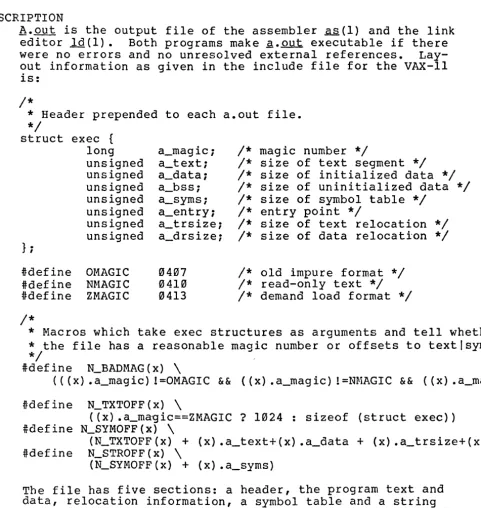
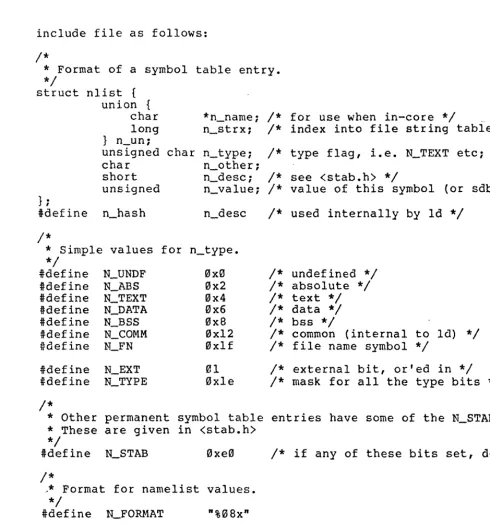
q