AT&T
MERLIN
®
Communications System
Models 1030 and 3070
With Feature Module 4
Table of Contents
Page How to Use This Manual
Administration Overview
Administering Your System for the First Time Making Changes to Your System Later MERLIN System Components
The Model 1030 Control Unit and Expansion U n i t
The Administrator/Attendant Console Using the Console
Optional Equipment
Preparing to Administer Your System The Square vs. Pooled Decision
About Square Systems About Pooled Systems
The Forms and Labels You Need
Choosing a Time to Administer Your System Basic Administration
Setting Your Control Unit Changing Your System Later
Notes on Resetting Control Unit Switches Entering and Leaving Administration Mode Specifying Touch-Tone or Rotary Dialing Setting Up Square Systems
Preparing to Assign Lines to Voice Terminals
Assigning Lines to Buttons Setting Up Pooled Systems
Preparing Assigning Preparing set up Assigning Assigning Access Assigning
to Set Up Line Pools Lines to Line Pools
to Assign Lines to Buttons and Access to Line Pools Individual Lines to Buttons Line Pools to Buttons (Button to Line Pools)
Dial Access to Line Pools Customizing with Additional System Options
Assigning Call Restrictions to Voice Terminals Assigning Outward and Toll Call
Restrictions
Setting Up Allowed Lists
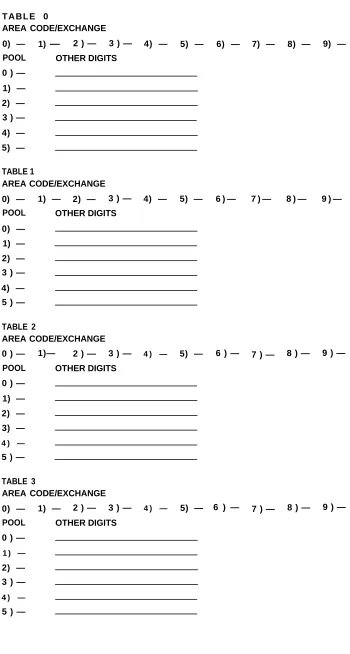
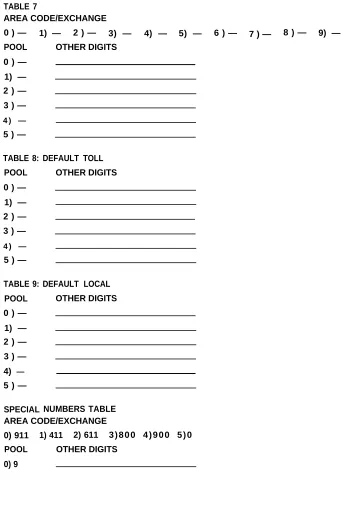
Assigning Allowed-List Call Restrictions Administering Automatic Route Selection
( A D S )
Preparing to Administer ARS Tables Administering Area Code/Exchange Sections
of ARS Tables
Administering Pool Number and Other Digits Sections of ARS Tables
Activating and Deactivating ADS
2 3 3 4 6 6 9 12 12 13 14 14 17 20 20 21 22 24 24 25 26 27 27 29 31 31 32 33 36 37 38 40 4 1 42 44 45 46 46 52 53 54
Assigning Voice Terminals to Groups for Group Page
Establishing Night Service Activating Night Service
Programming System Speed Dial Codes Administering SMDR (Station Message Detail
Recording) Options
Setting Your Printer to Scroll to the Top of the Page
Setting the Return Interval for Transferred Calls
Programming Voice Terminals for Office P r i o r i t i e s
Using Centralized Voice Terminal Programming
Assigning an Automatic Line Selection Sequence
Assigning Programmable Line Ringing for Incoming Calls
Assigning Cover Buttons Assigning Line Pickup Buttons
Page 55 56 56 57 59 60 61 62 66 67 68 69 71 Programming Voice Terminals for Personal
Priorities
Assigning Features to Programmable Buttons Feature Programming Chart
Assigning Personal Speed Dial Codes to 5-and 10-Button Voice Terminals 5-and Basic Telephones
Using Special Characters in Programmed Dialing Sequences
Selecting a Personalized Ring
Programming Voice Announcement Disable Programming Simultaneous Voice and
Data Calls
Special Information about Attendant Consoles Special information about 5-Button Voice
T e r m i n a l s
Special Information about Basic Telephones MERLIN System Features
Appendix: System and Voice Terminal Configuration Forms
Index 116
Quick Reference Guide to Administration
How to Use This Manual
The advanced technology of the MERLIN™ communications system offers a flex-ibility that allows you to customize the system to your business communication needs. As system administrator, you may be responsible for customizing your MERLIN system immediately after installation, and you will undoubtedly be the person to make any necessary changes as your business needs change.
This administration manual takes you step by step through the procedures involved in customizing your system. Here is how to use the manual:
If you are setting up a new system for the first time:
1.
2.
3.
4.
5.
6.
7 .
8.
9.
10.
Read the “Administration Overview,” page 3, to learn about the tasks you’ll be performing as system administrator.
Review the "MERLIN System Components," page 6, to familiarize yourself with the equipment you’ll be working with.
If you haven’t already decided which features you want your MERLIN system to have, look through the “MERLIN System Features” described on pages 91 through 97.
Get ready to administer your system by filling out the System and Voice Terminal Configuration Forms on pages 98 through 115 and by reviewing the information in “Preparing to Administer Your System,” page 13.
Read through "Basic Administration," page 21, and perform those tasks that apply to your particular system.
Similarly, work your way through “Customizing with Additional System Op tions,” page 40, adding features that fit your needs.
Review the features described in “Programming Voice Terminals for Of-fice Priorities,” page 62. Because these features have systemwide effects, you should program the features on selected voice terminals yourself or oversee any programming done by voice terminal users.
If you choose, further customize features on individual voice terminals by performing the procedures described in "Programming Voice Terminals for Personal Priorities," page 72.
To learn how to program your attendant console(s), review “Special Infor-mation about Attendant Consoles,” page 83.
If you have many 5-button voice terminals or basic telephones connected to your system, read “Special Information about 5-Button Voice Terminals,” page 87, and "Special Information about Basic Telephones," page 88.
If you are changing some options or features that are already in place: 1. Review the information in "Preparing to Administer Your System," page 13. 2. Using the Table of Contents, Index, or page references in “MERLIN System Features,” page 91, locate the procedure for the option or feature you want to change and perform the necessary steps in the procedure. 3. If you are making a basic modification to the system-that is, a
modifica-tion that requires changing any of the switch settings on your control unit— read the information in “Changing Your System Later,” page 24.
Administration Overview
Because the effects of system administration are wide-ranging, only you or someone you delegate should perform administration procedures. The term administrator as used in this manual refers to the act of establishing certain options and features that have systemwide impact, such as assigning the outside lines that each voice terminal can access or defining System Speed Dial codes for everyone in the system to use. You use a particular voice terminal, the administrator/attendant console, and the switches on your control unit to administer your system. However, before you can perform ministration, you have to put the system in a special state of operation, called ad-ministration mode. (See “Entering and Leaving Adad-ministration Mode,” page 25, for more information about this operating state.) In contrast, the term program refers to assigning programmable features to an individual voice terminal. Anyone can put a voice terminal in programming mode and assign it features while the system is in the regular call-handling mode.
ADMINISTERING YOUR SYSTEM FOR THE FIRST TIME
System administration involves a series of simple procedures that you perform at the control unit and at the administrator/attendant console (the voice terminal con-nected to the intercom 10 jack on the control unit). The MERLIN system is designed to be up and running with a minimum amount of administration. However, depend-ing on the conditions of your communications environment or the options you choose, certain administration procedures may be required to set up a newly installed system. Before attempting any other procedures, you must review the information in “Basic Administration,” page 21, and complete the procedures that apply to your system and business needs. Most administration procedures are optional, however, depend-ing on which features you want to use in your business; these features are described in “Customizing with Additional System options,” page 40. There are some features
Model 1030 control unit
Voice terminal module jack 10
Administrator/Attendant console
There are some features that you may want to assign to certain voice terminals yourself because they influence call-handling efficiency throughout your entire business. Assigning these features does not involve administrative procedures, but rather, simple programming procedures at individual voice terminals. These pro-cedures are described in “Programming Voice Terminals for Office Priorities,” page 62. Finally, if you want to help people program their voice terminals to meet their in-dividual needs, follow the procedures outlined in “Programming Voice Terminals for Personal Priorities,” page 72. Later, if your needs change, you can always alter any system administration or programming that has been done.
The chart which follows shows the five types of procedures described in this manual. If you are about to perform system administration for the first time, be sure to read “Preparing to Administer Your System,” page 13, before you attempt any procedures.
MAKING CHANGES TO YOUR SYSTEM LATER
Changes to system features that are administered from the administrator/attendant console or programmed at individual voice terminals are easiest to implement. To make these changes after your system has been set up, go to the section of this manual that gives the procedure for assigning the feature or option you want, and carry out just that procedure.
Basic changes to the way your system operates—that is, changes to the switch set-tings on the control unit—may erase important system administration that is now in place. Before you change any switch settings, review the information in “Changing Your System Later,” page 24.
Prepare for System Administration
These procedures help you get ready to administer your system. ● Decide how people will access outside lines.
● Complete and keep handy your System and Voice Terminal Configuration Forms.
● Schedule a time to perform administration procedures.
Perform Basic Administration
Depending on your system requirements, some of these procedures maybe necessary immediately after your system is installed; you can also perform these procedures whenever you need to change your system later. Perform these procedures at the control unit and the administrator/attendant console.
● Set your control unit.
● Learn how to enter and leave administration mode. ● Specify Touch-Tone or rotary dialing.
● Set up a square system, with Iines assigned to buttons.
● Set up a pooled system, with line pools, line-to-button assignments, and either Button Access or Dial Access to Line Pools.
Customize with Additional System Options
These procedures are optional. Perform them at the administrator/attendant console whenever you want to add these features to your system.
● ● ● ● ● ● ●
Assign tail restrictions.
Administer Automatic Route Selection.
Assign voice terminals to groups for Group Page. Establish Night Service.
Program System Speed Dial codes.
Administer Station Message Detail Recording options. Set return interval for transferred calls.
Program Voice Terminals for Office Priorities
These procedures are optional. Use Centralized Voice Terminal Programming or perform them at individual voice terminals whenever you want to give some-one access to these features.
● Assign an Automatic Line Selection sequence.
● Assign Programmable Line Ringing for incoming calls. ● Assign Cover buttons.
● Assign Line Pickup buttons.
Program Voice Terminals for Personal Priorities
MERLIN System Components
When performing your administration tasks, you work with three components of the MERLIN system: the control unit, the administrator/attendant console, and individual voice terminals. You may also have some optional equipment that adds features and capabilities to your system but does not affect system administration. The following descriptions will help you become familiar with the components that make up your system.
For information about system installation, refer to the Installation Guide: Models 1030 and 3070.
THE MODEL 1030 CONTROL UNIT AND EXPANSION UNIT
The Model 1030 control unit provides connections for up to 10 outside lines and 30 voice terminals, or for up to 15 out-side lines and 20 voice terminals, depending on the combination of Line and Voice Terminal Modules you choose. For a 1030 configuration, you have Line Modules in slots 7 and 8 (10 lines) and Voice Terminal Modules in slots 9, 10, and 11 (30 voice terminals). For a 1520 configuration, you replace the Voice Terminal Module in slot 11 with a Line Module. This increases the number of lines to 15 and decreases the number of voice terminals to 20. The addition of an Expan-sion Unit makes the Model 1030 control unit a Model 3070 control unit and increases system capacity to up to 30 outside lines and 70 voice terminals, again depending on the combination of Line and Voice Terminal Modules you choose.
THE MODEL 1030 CONTROL UNIT
1. Power Module: Reduces ac power to a level the ● system can handle.
● Circuit Breakers. Automatically cut the power to
the control unit if an overload occurs. ●
● Ring Generator jack. Optional Ring Generator ●
Unit plugs in here if you have basic Touch-Tone 6 or rotary telephones.
2 .
3.
4.
5.
6.
Processor Module: Works in conjunction with Feature Module 4 to control system operating conditions.
● Switches A, B, C, D, E, F, G, and H. Selects system options provided by Feature Module 4. ● Warning light. Red light warns of problem in
control unit. It also comes on for approximately one minute when you first turn on the system. Feature Module 4: Contains the software that con-trols your MERLIN system. You set eight switches on the Processor Module, according to the labels on the Feature Module, to select the following options from the programs stored in Feature Module 4:
● Attendant/Administer (10) option. Selects at-tendant or administration mode of operation for the administrator/attendant console.
● Normal/Attendant (11, 12, 13, 14) options. Select normal or attendant mode of operation for these four voice terminals.
● Pooled/Square option. Selects mode of opera-tion for the system so that line buttons on voice terminals represent either groups of lines (pooled) or separate lines (square). For detailed information on this option, see "The Square vs. Pooled Decision," page 14.
Dial Access/Button Access option. Sets the ●
system so that line pools can be accessed at a voice terminal by touching a button to which the pool is assigned or by touching a Pool Access button and then dialing the access code for that line pool.
● 1-8 LineS/>8 Lines option. Sets the system size to eight or fewer outside lines (small system) or to more than eight lines (large system). Diagnostics Module (optional): Aids in identifying faulty components if the system malfunctions. SMDR (Station Message Detail Recording) Module: Allows connection of a printer so you can print out call traffic reports automatically as calls are made. You can also issue configuration reports whenever you want them during administration
procedures.
Services Module (optional): Contains the following jacks, switches, and adjusters to connect and control optional equipment:
● PFTT (Power Failure Transfer Telephone) jack. With an adapter, connects up to four standard modular telephones for use as backup during
● ● ● ● ● ● 7. 8.
Page jack. Connects a loudspeaker paging system. With an adapter, you can have up to three paging zones.
Music-In jack. Connects a music source for Music-on-Hold or background music through a paging system.
Bkgd Vol (Background Volume) control. Allows volume adjustment for background music. MOH Vol (Music-on-Hold Volume) control. Allows volume adjustment for Music-on-Hold. Page Sgnl switch. On (up) provides a short tone
before loudspeaker paging announcements. Off (down) eliminates the signal.
Level switch. Sets amplification for music source. Hi (down) is for sources with their own amplifiers; Lo (up) is for those without.
Line Module: Provides jacks for up to five outside lines. Normally, there are two Line Modules in the Model 1030 control unit. You may have a third, however, if you decide to replace the Voice Terminal Module normally found in slot 11 with a Line Module in order to have 15 lines instead of 10 (1520 configura-tion). If you add an Expansion Unit, you will not need this extra line capacity, and you can return your con-trol unit to the 1030 configuration.
The Expansion Unit contains up to four Line Modules. These modules, combined with two Line Modules in the 1030 control unit, provide the system maximum of six Line Modules (30 lines).
● Jacks 0, 1, 2, 3, 4. Connect outside lines to the MERLIN system. Line Modules have letters as well as numbers. For example, the first Line Module in the control unit is lettered A, so the jacks in that Line Module are called A0, A1, A2, A3, and A4.
Voice Terminal Module: Provides jacks for ten voice terminals. You may have up to three Voice Terminal Modules for the Model 1030 control unit and up to four additional Voice Terminal Modules in the Expansion Unit. A Basic Telephone Module with jacks for basic Touch-Tone or rotary telephones is also available.
Addition of the Expansion Unit changes the Model 1030 control unit to a Model 3070 control unit and increases overall system capacity to 30 lines and 70 voice terminals. The unit can accommodate:
● Up to two Power Modules ● Up to four Line Modules
● Up to four Voice Terminal Modules
The second Power Module is required for systems with more than 20 lines or more than 60 voice terminals. The Expan-sion Unit also has two additional module slots for future use.
NOTE: If you add an Expansion Unit to a system configured for 15 outside lines and 20 voice terminals, you must remove the Line Module from slot 11 and replace it with a Voice Terminal Module. This returns your system to the standard con-figuration of 10 outside lines and 30 voice terminals. You can then insert modules into the appropriate slots in the Ex-pansion Unit.
If Expansion Unit slots 17, 18, 21, 22, and 23 are empty, the power switch on the first Power Module (slot 16) must be set to Off (left). If modules are inserted in any of these slots, the power switch must be set to On (right).
If Expansion Unit slots 19,20, and 24 are empty, the power switch on the second Power Module (slot 27) must be set to Off (left). If modules are inserted in any of these slots, the power switch must be set to On (right).
Circuit Breakers Circuit Breakers
5 1 2 3 4
5 1 2 3 4
5 1 2 3 4
5 1 2 3 4
5 5 5 5
5 5 5 5
Power
Off On
EXPANSION UNIT FOR MODEL 1030
THE ADMINISTRATOR/ATTENDANT CONSOLE
The administrator/attendant console is the voice terminal connected to the intercom 10 Voice Terminal Module jack in the control unit. The console operates in either of two ways:
● It functions as your primary attendant console under ordinary day-to-day conditions.
● It functions as the administrator console when it is used to perform many of the procedures explained later in this manual.
To change the administrator/attendant console from one mode of operation to the other, you simply set a switch on the control unit and then set another switch on the console itself. When the console is in administration mode, some of its buttons take on different functions than they do when the console is in the regular call-handling mode. Therefore, when you administer the system, you insert a special set of ad-ministration mode button labels in the console so that you know which buttons to touch. You will find two sets of button labels, one for a small console and another for a large console, in the back of this manual. (See page 25 for procedures for chang-ing modes.)
The type of administrator/attendant console you have depends on the size of your system. In systems with 20 or fewer voice terminals and eight or fewer lines (small systems—switch H on the control unit set to 1-8 Lines), the administrator/attendant console is a 34-button deluxe voice terminal. Only a 34-button deluxe model is suitable for administering small systems because it has lights next to each programmable button. You use the lights to keep track of what is happening on the lines and voice terminals you are working with.
In systems with more than eight lines or more than 20 voice terminals (large systems-switch H on the control unit set to > 8 Lines), the administrator/attendant console consists of a 34-button deluxe voice terminal with an attached Attendant
In-tercom Selector. Only this type of console is suitable for administering a large system
because some aspects of administration require the use of the Attendant Intercom Selector. Lights on the Attendant Intercom Selector also help you keep track of the system’s status. For example, whenever you are administering your system, the light beside Message Status must be off.
Small Administrator/Attendant
Console* in Administration Mode
1.
You set the T/P switch to P to perform system administration.2.
You use Adm Tel when assigning lines to voice ter-minals and assigning voice terter-minals Dial Access to Line Pools.3.
You use Adm Pool when setting up line pools.4.
Line buttons.5.
Auto Intercom buttons (10 through 29).6.
You use Adm Misc when specifying Touch-Tone orrotary dialing, assigning allowed-list call restrictions, and administering other system options.
7.
You use Night Service when assigning lines to ac-tivate extra-alerting devices when the attendant is off duty.8.
You use Copy to give a voice terminal the same assignments as one that has already been set up.9.
You use Call Rstr when setting lines to detect a toll prefix or area code only and when assigning outward and toil call restrictions to voice terminals.Large Administrator/Attendant
Console* in Administration Mode
The large console provides the same features as the small console, but it has more line and Auto Intercom buttons.
1.
2.
3.
4.
5.
6.
9.
You set the T/P switch to P to perform system
administration.
10.
You use Adm Tel when assigning lines to voice
ter-minals and assigning voice terter-minals Dial Access to
11.
Line Pools.You use Adm Pool when setting up line pools.
12.
Line buttons.Auto Intercom buttons (10 through 79).
13.
Buttons in this column represent intercom numbers10-19,40-49, or 70-79, depending on which Shift
You use this Shift button to use Auto Intercom but-tons for intercom numbers 10-39.
You use this Shift button to use Auto Intercom but-tons for intercom numbers 40-69.
You use this Shift button to use Auto Intercom but-tons for intercom numbers 70-79.
You use Night Service when assigning lines to ac-tivate extra-alerting devices when the attendant is off duty.
Using the Console
When you administer your system, you frequently use the Auto Intercom buttons and Shift buttons (large systems only) on the administrator/attendant console. The paragraphs below describe how to use these buttons.
Auto Intercom Buttons
Each person’s voice terminal has a unique 2-digit intercom number similar to an ex-tension number. These intercom numbers (10 through 39 for a Model 1030 system, 10 through 79 for a Model 3070 system) are automatically assigned to Auto Intercom buttons on the console. During system administration, you use the lights next to each Auto Intercom button to determine the status of voice terminals in your system.
Shift Buttons (large systems only)
The large console has three Shift buttons that enable you to administer as many as 70 voice terminals by using only the 30 Auto Intercom buttons on the Attendant ln-tercorn Selector. When you touch one of the Shift buttons, you change the intercom numbers assigned to the Auto Intercom buttons. Use the left Shift button labeled 10-20-30 to select intercom numbers 10 through 39 in the blue band, the center Shift button labeled 40-50-60 to select intercom numbers 40 through 69 in the white band, and the right Shift button labeled 70-80-90 to select intercom numbers 70 through 79 in the gray band. If you want to dial a particular intercom number, you must first touch the Shift button that provides access to the group of intercom numbers that includes the one you want. For example, if you want to assign lines to the voice ter-minal represented by intercom 31, touch the left Shift button. The light next to the Shift button comes on, and the Auto Intercom buttons now represent intercom numbers 10 through 39.
Message Status Button (large systems only)
The Message Status button is used only when your console is in the attendant mode. You use this button to find out which voice terminals have messages waiting for them.
OPTIONAL EQUIPMENT
You may also have optional equipment that adds features and capabilities to your system.
●
●
●
●
●
●
●
Attendant Intercom Selector. Provides an attendant with 70 Auto intercom buttons.
Basic Telephone and Modern Interface. Connects telephones and data com-munication devices such as autodialers, answering machines, cordless telephones, facsimile machines, and auto-answer or originating modems to your MERLIN system. You can also use a transformer to connect a timer to a Basic Telephone and Modem interface.
Basic Telephone Module. Lets you connect basic Touch-Tone and rotary telephones to the MERLIN system.
Hands-Free Unit. Provides you with full speakerphone capability including hands-free telephone conversation, On-Hook Dialing, Monitor-on-Hold, and teleconferencing.
Headset and Headset Adapter. Enables an attendant to answer and listen to calls without lifting the handset.
General Purpose Adapter (only for use with 10-button and 34-button voice ter-minals). Enables you to connect accessories, such as data terminals, cordless telephones, and autodialers, to a MERLIN system voice terminal.
Off-Premises Telephone Interface. Connects off-premises telephones to your MERLIN system.
Preparing to Administer Your
System
Before you start to administer your system, review this section to make sure you have the information and completed forms that you need.
Preparation Procedures
● Decide how people will access outside lines.
● Complete your System and Voice Terminal Configuration Forms. ● Schedule a time to perform administration procedures.
THE SQUARE VS. POOLED DECISION
For systems that have just been installed, you have to make a decision about a basic system characteristic-how people access outside lines with their voice terminals. You have the option of setting your system to be either square or pooled. In a square system, each outside line can appear on a separate button at each voice terminal. In a pooled system, outside lines are grouped together so that one button provides access to several outside lines. On attendant consoles, however each outside line
appears on a separate button, whether your sytem is pooled or square, and you can-not change this arrangement.
Whether your system should be square or pooled depends on your specific business needs. If you want to use the Automatic Route Selection feature, your lines must be
pooled and your system must be set for Dial Access to Line Pools (Dial Access is discussed on page 79). The characteristics of both configurations are discussed in
greater detail in the paragraphs that follow.
About Square Systems
In the MERLIN communications system, Models 1030 and 3070 with Feature Module
4, a square configuration is one in which outside lines are represented by separate buttons on every voice terminal in the system. A square configuration simplifies call-handling because people can join in on calls or pickup calls on hold just by touching the appropriate line button at almost any voice terminal.
You can choose between two kinds of square configurations: standard or custom-ized. in the standard configuration, you give all voice terminals in the system access to the same lines. In the customized arrangement, on the other hand, you assign specific lines or sets of lines to selected groups of voice terminals. You can also assign personal lines to individual voice terminals in a customized square configuration.
Standard Square Configurations
The standard square configuration is ideal for offices in which all staff members use the same lines to make and receive calls. In this arrangement, every line in the system appears at each voice terminal that has enough buttons to accommodate that number of lines. Depending upon the size of your system, you can assign up to 30 lines to as many as 70 voice terminals.
You will assign each of your lines to the same buttons at each voice terminal. To get the most from a standard square configuration, all your voice terminals should have enough buttons to handle all the lines in your system. If you have smaller capacity voice terminals, see “Special Information about 5-Button Voice Terminals,” page 87.
An example of a standard square configuration appears on the following page. All six lines in the system are available for general use and appear on the same but-tons at each voice terminal, as shown.
B D F
A
c
EI I I
●
Lines A, B, G D, E, F
Lines are assigned to the same buttons at each voice terminal.
EXAMPLE OF STANDARD SQUARE CONFIGURATION
Pages 27 through 30 explain how to assign lines to buttons on voice terminals in a standard square configuration.
Customized Square Configurations
In a customized square configuration, you assign individual lines or groups of lines to selected voice terminals with similar requirements for placing and receiving calls. This arrangement lets you tailor your communications system to meet the needs of different departments. It also simplifies recordkeeping on calling patterns within your business.
A customized square configuration is the most appropriate system arrangement for Ultimate Motors’ varied communication requirements. The administrator assigns the three WATS lines and three of the eight local lines to the sales and clerical staff. The service department voice terminals get three different local lines and the Foreign Exchange line. The seventh local line is assigned to the voice terminal at the parts desk, and the eighth is assigned as a personal line at the manager’s voice terminal. The figure below illustrates this type of configuration.
Telephone Lines of Automobile Dealership
B D F H J L
A C E G I K
l I I I I l
●
Service Sales and office
(Lines A, B, C, D) (Lines F, G, H, 1, J, K)
Parts (Line E)
Manager (Line L)
EXAMPLE OF CUSTOMIZED SQUARE CONFIGURATION
As the figure shows, this type of system provides complete flexibility in line assign-ment. You can assign lines to any available buttons on a voice terminal, in any order you wish. A person in a customized square system does not have to have a line assigned to his or her voice terminal in order to answer a ringing, parked, or held call on that line. Say that a customer calls on the in-state WATS line to ask if Ultimate has a particular gasket in stock. The salesperson who receives the call notifies the parts desk of the call. The parts clerk can use the Line Pickup feature described on page 71 to answer the call. If a voice terminal in the service area is ringing and nobody is free at the moment to answer it, someone in the adjacent office area can use the
Call Pickup feature described on page 76 to answer the call.
Pages 27 through 30 explain how to assign lines to buttons on voice terminals in a customized square configuration.
About Pooled Systems
In a pooled configuration, you group several outside lines together into a pool that people can access with a single button on their voice terminals. When they place a call, they either touch the button assigned to a particular line pool (Button Access to Line Pools) or touch a Pool Access button and dial the code of the pool best suited for this type of call (Dial Access to Line Pools). The system then selects a free line from that pool, and the user dials the number he or she is trying to reach. If your system has Automatic Route Selection, users simply touch a Pool Access button and dial the number. The system routes the call automatically to the most appropriate pool available for that type of call, following the order of preference setup by you, the administrator.
Your system can have as many as 11 different line pools. Each type of special-purpose line that your business has, such as WATS or Foreign Exchange (FX) lines, should be assigned to a separate pool. You should not mix types of lines in a pool, because you cannot control which line people get when they access the pool. If your business has local lines, in-state WATS lines, and Band 1 out-of-state WATS lines, for exam-ple, you must set up at least three line pools.
When assigning lines in a pooled system, you can assign all, some, or none of your lines to a single pool (see diagram below), but you cannot assign any line to more than one pool. By the same token, you do not need to assign all your lines to pools; you can also assign individual lines that are not included in any pool to any voice terminal in your system. A diagram of a pooled system with eight lines appears on the following page.
Line B Line D
Line A Line C Line E
I I I
●
Lines A, B, C, D, E pooled
Lines A, B, C, D, E
Line C Line H
Line B Line G
Line A Line F
Intercom
Voice Line E
Attendant console
Intercom
Ring Line D
Main pool= Lines A, B, C
Line pool 2 = Lines E, F Line pool 3 = Lines G, H Line not assigned to pool = Line D
Line pool 3 Line D Line pool 2 Main pool Main pool
Main pool lntercom-
Intercom- lntercom-Voice Voice Voice
Voice terminal 1 Voice terminal 2 Voice terminal 3
POOLED SYSTEM WITH 8 LINES
Line use is very efficient in a pooled system, so you may need fewer outside lines than you would with a square system. Furthermore, more programmable buttons on voice terminals are available for assignment as special-purpose line buttons or feature buttons.
Button Access vs. Dial Access to Line Pools
You can choose one of two access options for line pools: Button Access to Line Pools or Dial Access to Line Pools. Because you set a switch for this option on your control unit, the method you select will be used at all the voice terminals in your system.
If you have only one or two line pools, Button Access is the best option for your system. if your system has several line pools, however, Dial Access is preferable because it provides access to all pools using only two buttons on each voice terminal. If you want to use Automatic Route Selection, you must select Diai Access. Diai Access is also necessary if you want basic telephones to have access to line pools or special lines or if you want 5-button voice terminals to have access to more than one special pool.
Pools
Intercom-Voice Dial code 893 = Line pool 5 Dial code 892 = Line pool 4 Dial code 891 = Line pool 3 Dial code 890 = Line pool 2 Dial code 9 = Main pool
DIAL ACCESS TO POOLS
Assume that you have five line pools. With the Dial Access option (seethe diagram above), you arrange the system so that people can access any line pool by lifting the handset, touching one of the two buttons above Intercom-Voice, and dialing the access code assigned to the pool (9 for the main pool or 890 through 899 for the others). Even if you set your system for Dial Access, you can still assign some pools to particular buttons, if you like.
With the Button Access option (see the diagram below), people access all line pools directly through pool buttons on each voice terminal. in such an arrangement, the first two buttons above Intercom-Voice provide access to the main pool. You may assign additional buttons for access to other pools that may include WATS lines, FX lines, or lines used for special purposes.
THE FORMS AND LABELS YOU NEED
Before you begin performing administration procedures, be sure to complete all the necessary forms:
●
●
A System Configuration Form to keep a record of how the lines in your system are arranged.
Voice Terminal Configuration Forms to record the lines and features assigned to all voice terminals. Fill out one of these for each voice terminal.
-When you ordered your system, you should have filled out these forms when you completed the MERLIN Communications System Planning Guide: Models 7030 and 3070. If you did not, turn to the Appendix, copy the forms included there, and fill them
out before you proceed further. These forms serve as important references’ throughout later system administration procedures.
.
During system administration the buttons on the administrator/attendant console per-form completely different functions than they do when the console is being used to handle calls. Therefore, you need a different set of button labels whenever you use the console for system administration. There are two sets of administration mode button labels in the back of this manual: one set for a small administrator/attendant console (systems with switch H on the control unit set to 1-8 Lines) and another set for a large administrator/attendant console (systems with switch H set to >8 Lines).
Fill in the appropriate set for your system, and keep the labels and completed forms to use whenever you administer your system.
CHOOSING A TIME TO ADMINISTER YOUR SYSTEM
Before you begin administration procedures, choose a time when you do not expect many people to be using their voice terminals. When you perform some administra-tion procedures, the system blocks all calls on the lines or voice terminals with which you are working. Blocked voice terminals generate soft, periodic beeps to alert peo-ple that they cannot be used. If you accidentally try to administer a voice terminal that has an active call, you do not cut off the caller. Rather, you are unable to con-tinue administering that voice terminal until it is idle.
Basic Administration
Once your system planning and paperwork are complete, you can perform basic ad-ministration procedures. The chart below lists the procedures described in this sec-tion. Remember that if you are administering a new system that has just been in-stalled, some of these basic procedures maybe required to set the proper operating conditions for your particular environment, and you must perform them first before you goon to do any other system administration. Carry out the procedures in the order listed in the chart, but keep in mind that you may not need to perform all of them to customize your system to your particular environment. Read each procedure first to see if it applies to you.
IMPORTANT: Administer your system at a time when you do not expect many peo-ple to be using their voice terminals.
Basic Administration Procedures
● Set your control unit.
● Learn how to enter and leave administration mode. ● Specify Touch-Tone or rotary dialing.
● If you have a square system, assign lines to buttons on voice terminals. ● If you have a pooled system, set up line pools, assign individual lines and
SETTING YOUR CONTROL UNIT
The first step in customizing the MERLIN system is to set the control unit to the operating conditions you select.
IMPORTANT If your control unit has been set previously and you just want to change the setting of a particular switch, be sure to read "Changing Your System Later," page 24, before resetting the switch.
Follow these steps to set your control unit: 1.
2.
3.
4.
Turn off the control unit by setting the On/Off switch on the Power Module to Off.
Set switch A which is located in slot 2 (color-coded purple) on the Pro-cessor Module, to Administer (down).
Switch A controls intercom number 10, which is always the main atten-dant position. Set switch A to the Administer position whenever you need to administer your system from the administrator/attendant console. When you finish administering, set switch A to Attendant (up). NOTE: Switch A, which sets the mode of the administrator/attendant console, is the only switch on the control unit that you can reset with the power on. If you reset any other switch with the power on, the
con-trol unit does not record any of the changes you make until you turn the power off, then on again.
Set switches B through E.
Switches B through E control intercom numbers 11 through 14, respec-tively. These consoles normally function as voice terminals, but you can designate any of them as backup attendant consoles. If you designate a voice terminal to function as an attendant console, each outside line appears on a separate button, regardless of whether you select the pooled or square option.
The four voice terminals selected by switches B through E plus the administrator/attendant console (intercom number 10) provide a max-imum of five attendant consoles if you need them.
● For those voice terminals that function as attendant consoles, set the switch to Attendant (down).
● For those voice terminals that function as regular telephones, set the switch to Normal (up).
Set switch F.
If you have chosen to pool your lines, set switch F to Pooled (up) and go to step 5.
lMPORTANT lf you are resetting this switch from Square to Pooled, be aware that you erase all system line administration and voice
terminal programming that is now in place.
If you want every outside line to appear on a separate button, set switch F to Square (down). The eight lines plugged into jacks A0 through B2 appear automatically on all non-attendant voice ter-minals. Go to step 6.
5. Set switch G.
NOTE: The instructions that follow apply if switch F is set to Pooled. If switch F is set to Square, switch G may beset to either position without having any effect on the system.
●
●
If you have decided to arrange your pooled system so that people can access line pools directly by simply touching the associated button on a voice terminal, set switch G to Button Access (down). If you have decided to arrange your pooled system so that people can access any line pool by dialing the pool’s access code, set switch G to Dial Access (up). You must set switch G for Dial Access if you want to use Automatic Route Selection. Even if you set your
system for Dial Access to Pools, you can still program buttons at individual voice terminals to provide one-touch access to particular line pools.
6. Set switch H.
● If you have eight or fewer outside lines and 20 or fewer voice ter-minals, set switch H to 1-8 Lines (up).
NOTE: The switch setting you select does not always have to cor-respond to the number of outside lines you actually have. For ex-ample, if you have eight or fewer lines but plan to grow beyond eight lines within a year or two, you might prefer to set switch H to>8
Lines (down) in order to simplify administering the system later. If
you change the setting of this switch later, you cancel any special
line administration of programmed features on your attendant consoles.
● If you have more than eight outside lines or more than 20 voice ter-minals, or if you expect your system to grow to this size in the next year or so, set switch H to >8 Lines (down).
7. If your system has an SMDR (Station Message Detail Recording) Module and a printer with an RS-232 connector, connect the printer to
the SMDR Module (refer to the instructions that come with the module). 8. Turn on the control unit by setting the On/Off switch on the Power Module to On (right). This causes the system to record the changes you just made. The warning light on the module will go on. Wait for the light to go off before continuing. If you have a printer hooked up, a page header will be printed.
9. If your system has a Services Module, make the following adjustments. Otherwise, go to step 10.
●If you have background music through a loudspeaker paging system, you can adjust its volume by turning the Bkgd Vol control clockwise to raise the volume, or counterclockwise to lower it. If you do not have background music through a loudspeaker pag-ing system, turn the control counterclockwise as far as it goes. ● If you have Music-on-Hold, you can adjust its volume by turning
the MOH Vol control clockwise to raise the volume, or counterclockwise to lower it. If you do not have Music-on-Hold, turn the control counterclockwise as far as it goes.
CHANGING YOUR SYSTEM LATER
Basic changes to the way your system operates—that is, changes to the switch set-tings on the control unit—may erase important system administration that is now in place. To change switch settings, turn to "Setting Your Control Unit," page 22, and follow the instructions for the switch you want to reset. Since you won’t be perform-ing the entire procedure, be especially careful not to skip any steps that are required. Follow the general instructions below to prevent this from happening.
General instructions for resetting control unit switches: 1. Set the On/Off switch on the Power Module to Off. 2. Set switch A to Administer (down).
3. Follow the instructions for the switch you intend to reset. 4. Turn the On/Off switch on the Power Module to On.
5. Perform any required readministration or reprogramming discussed below in “Notes on Resetting Control Unit Switches.”
6. Set switch A back to Attendant (up).
Notes on Resetting Control Unit Switches
Whenever you change the setting of a switch on the control unit, you will probably have to make other changes in your system. Keep the following in mind:
●
●
●
●
If you add or remove attendant consoles (switches B through E), you have to reassign special lines and features to the voice terminals whose function you have just changed.
If you change the setting of the Pooled/Square switch (switch F), you erase all
system line administration and voice terminal programming that was formerly in p/ace. You have to completely readminister all your lines; set up pools and Dial
Access to Line Pools, if these apply; and reprogram all your voice terminals. If you change the setting of the Dial Access/Button Access switch (switch G), you must reprogram individual voice terminaIs accordingly. The system will automatically assign a different function to the two buttons above lntercom-Voice. You must assign line pools to particular buttons (Button Access) or give the voice terminal access to specified line pools (Dial Access). You must also assign individual lines to buttons.
If you change the setting of the 1-8 lines/>8 lines switch (switch H), you cancel any special line administration or programmed features on your attendant con-soles. The setting of this switch determines how the system automatically
assigns lines and intercom numbers to the buttons on attendant consoles. it also determines the function of certain buttons on the attendant/administrator console when the console is in administration mode. (See “Initial Feature Assignments for Attendant Consoles,” pages 85 and 86.) Note that the switch setting you select does not always have to correspond to the number of outside lines you actually have. For example, if you have eight or fewer lines but plan to grow beyond eight lines within a year or two, you might be wise to set switch H to >8 Lines in order to simplify administering the system later.
ENTERING AND LEAVING ADMINISTRATION MODE
Administration mode is an operating state of your control unit and of your administrator/attendant console that is very different from their everyday state of operation. With the system in administration mode, you are able to set up or change systemwide options or features. When you finish using the administrator/attendant console to administer your system, you must leave administration mode to resume normal attendant operations.
You must enter administration mode to set up a new system and again each time you use the attendant console to administer your system. The boxed instructions below tell you how to enter administration mode.
-Entering Administration Mode
1.
2.
3.
4.
Switch A is located on the Processor Module (slot 2, color-coded purple) of the control unit. Set Switch A to Administer (down).
Insert the administration mode button labels provided at the back of this manual in the administrator/attendant console. Different sets are provided for large and small systems.
If the light next to Message Status is on, touch it once to turn it off before beginning to administer your system (large systems only).
Slide the T/P switch on the left side of the console to P.
On small consoles, red and green lights start flashing next to the administra-tion mode buttons labeled Adm Pool, Adm Tel, Adm Mist, Call Rstr, and
Night Service. On large consoles, red and green lights start flashing next
to the buttons labeled Adm Pool, Adm Tel, and Call Rstr. Green lights flash
next to the buttons labeled Adm Mist and Night Service.
When you finish administration procedures at the console, you must leave administra-tion mode to resume normal operaadministra-tion. Do this when you complete your initial system administration and whenever you complete any system changes in the future. The boxed instructions below tell you how to leave administration mode.
Leaving Administration Mode
1. Slide the T/P switch to the center position.
2. Set switch A on the Processor Module of the control unit to Attendant (up). 3. Remove the administration mode button labels from the console and
SPECIFYING TOUCH-TONE OR ROTARY DIALING
When your system is installed, it is set to generate Touch-Tone signals. If some of your lines are rotary, you need to reset your system accordingly. If you have rotary lines or if you are not sure what type of lines you have, follow the procedure below. If all your lines are Touch-Tone, turn to the next page to continue administering your system.
To determine if your lines are Touch-Tone or rotary, go to the administrator/attendant console and make sure that the T/P switch is in the center position. Then touch each line button and dial out. If a line is Touch-Tone, you hear tones and the dial tone stops. If a line is rotary, you hear tones but the dial tone is not interrupted. Follow the pro-cedure below to specify Touch-Tone or rotary dialing.
1. If you have not already done so, enter administration mode by following the boxed instructions on page 25.
2. Touch Adm Misc.
The lights next to the administration mode buttons stop flashing, and the green light next to Adm Mist remains on.
3. Dial the 4-character code #302.
4. One by one, touch the line button for each line in your system until the green light beside it shows the appropriate code. Each successive touch of a but-ton gives you one of the following codes:
Steady green on = Touch-Tone dialing Green off = rotary signaling
5. Touch Adm Misc again.
The lights next to the administration mode buttons flash.
6. Continue to administer your system or leave administration mode by follow-ing the boxed instructions on page 25.
SETTING UP SQUARE SYSTEMS
In square systems, individual lines appear on separate buttons at voice terminals. If you want a standard square system, you will give all your voice terminals access to the same outside lines and assign the lines to the same buttons at every voice terminal. If you prefer a customized square system, you can assign different lines or groups of lines to selected voice terminals, in whatever order you want. If someone routinely carries on private telephone conversations, you may want to assign a sonal line to his or her voice terminal as part of your customized square setup. A per-sonal line will not ring at the attendant’s console and cannot be picked up at any other voice terminal in your system.
The information that follows describes how to assign lines to buttons in square systems. (See page 14, “The Square vs. Pooled Decision,” for more information on square systems.)
Before you assign lines to buttons, please read the following information:
●
●
●
●
●
●
Even though you may not be using the full capacity of a Line Module in the con-trol unit, all five of the lines that would be represented by that module are automatically assigned to buttons on the administrator/attendant console. A port with no line cord plugged into it is called a nonequipped line appearance or “ghost line.” Remove any ghost lines from your administrator/attendant console so that these buttons can be used for custom features. If you have a small con-sole and are not using the full capacity of a Line Module in the control unit, you should also remove ghost lines from your voice terminals.
The Initial Feature Assignments diagrams on pages 85 and 86 illustrate the order in which lines are assigned to buttons on the administrator/attendant console when your system is first set up. The system automatically assigns lines to the buttons in the order in which the lines are plugged into the control unit. This is the “default” arrangement, what your system does unless you specify something different. You can follow the procedure below to assign lines to buttons in a dif-ferent order.
When you assign a line to a voice terminal, the system automatically assigns the line to the first button that doesn’t already have a line assigned to it, in the order shown in the diagram on the next page. You can assign lines to voice ter-minals in a different pattern by touching the line buttons in the order in which you want them to appear.
Note that none of the voice terminals in your system come with preprinted but-ton labels. Be sure to label the voice terminal butbut-tons with the telephone numbers of the lines you assign.
Always assign lines to one voice terminal at a time.
Make sure you have a completed Voice Terminal Configuration Form for each voice terminal.
Remember that voice terminals cannot be administered and used at the same time. You cannot assign lines to a voice terminal unless it is idle, and the user cannot place or receive calls while you are assigning lines. While you are ad-ministering a voice terminal, it beeps softly as a reminder that it cannot be used. Preparing to Assign Lines to Voice Terminals
Order in Which the System Assigns Lines in a Square System
If you are setting up a customized square system for the first time, you should begin by removing all existing lines from each voice terminal in your system. If the primary attendant needs to have access to all general-use lines, remove only those lines that you are reserving for personal use from the administrator/attendant console. Follow the procedure below to assign lines to buttons on the voice terminals in your system. Remember that the lines will be assigned to buttons in the order in which you touch them.
Assigning Lines to Buttons
To assign individual lines to buttons in a standard or customized square system, follow the procedure below.
1.
2.
3.
4.
5.
If you have not already done so, enter administration mode by follow-ing the boxed instructions on page 25.
Touch Adm Tel.
The lights next to the administration mode buttons stop flashing, and the green light next to Adm Tel remains on.
Dial the intercom number (14, for example) or touch the Auto Intercom button for the voice terminal to which you want to assign lines.
If the voice terminals idle, a steady green light comes on next to its Auto Intercom button, and the system gives a 2-beep signal for you to begin.
If the voice terminal is being used, the green lights next to the Auto
Intercom button and Adm Tel flash rapidly. You must wait until the green lights become steady or try again later. If you try to assign a line to a busy voice terminal, you will hear a beep and will not be able to proceed. Refer to the Voice Terminal Configuration Form to see which lines to assign to this voice terminal. (If you plan a standard square configura-tion, you will be assigning all your Iines to every voice terminal.) Steady green lights come on next to any lines already assigned to the voice terminal.
Touch the appropriate line buttons to add or remove lines from this voice terminal. The green light next to each line button tells you the current status of the line. Each successive touch of a line button gives you one of the following codes:
Green light on = line is assigned to this voice terminal Green light ofl = line is not assigned to this voice terminal
6. Repeat steps 3 through 5 for each voice terminal to which you want to assign lines.
NOTE: If you are setting up a customized square system, try to admin-ister groups of voice terminals that share the same line assignments at the same time. If you plan to assign a personal line to a voice terminal, be sure not to assign the line to any voice terminals that should not have access to that line.
You can use the shortcut below to give another voice terminal the same line assignments as one you have already set up. This procedure is especially timesaving if you have a standard square system, since all your voice terminals will have the same line assignments.
NOTE When you copy line assignments, you also copy restrictions and allowed-list permissions.
● Dial the intercom number or touch the Auto intercom button of the new voice terminal.
● Touch Copy.
● Dial the intercom number or touch the Auto intercom button of the original voice terminal.
7. Touch Adm Tel.
The lights next to the administration mode buttons flash again.
8. Continue to administer your system or leave administration mode by following the boxed instructions on page 25.
SETTING UP POOLED SYSTEMS
In pooled systems, you group similar types of outside lines into a pool that people can access with a single button on their voice terminals. For example, you might group five local lines into one pool, three in-state WATS lines into a second pool, and two cross-country WATS lines into a third pool. This would free up several buttons on voice terminals that would otherwise be required for individual lines. If you decide to set up a pooled system, you will probably want to pool ail your lines except single, special-purpose lines and those that are needed as personal lines.
To setup a pooled system, you begin by assigning lines to pools. Next, you assign individual lines to buttons on voice terminals. If your system has Button Access to Line Pools, you also assign selected pools to particular buttons. If your system has Dial Access to Line Pools, you give each voice terminal access to the pools the user needs.
The following sections describe how to setup a pooled system. (See “The Square vs. Pooled Decision,” page 14, for more information about pooled systems.) Preparing to Set Up Line Pools
If you plan to pool the lines in your system, you must first assign individual lines to the appropriate pools. Before you set up your line pools, please read the informa-tion below.
●
●
●
●
Even though you may not be using the full capacity of a Line Module in the con-trol unit, the lines that would be represented by that module are automatically assigned to buttons on the administrator/attendant console. A port with no line cord plugged into it is called a nonequipped line appearance or “ghost line.” Remove any ghost lines from the buttons to which the system assigned them so that these buttons can be used for custom features. If you have eight or fewer lines, you may also have to remove ghost lines from your voice terminals. You cannot set up line pools unless all the voice terminals in your system are idle. Once you touch Adm Pool and see the steady green light that indicates you are free to administer your system, the system cannot receive incoming tails. Any callers will get a busy signal.
Whenever you set switch F on the control unit to Pooled, the system automatically assigns all your lines to the main pool. Local lines should remain in the main pool, but all other lines can be removed. You can assign lines that you do not want in the main pool to other pools or use them as individual lines.
Do not mix different types of lines. For example, do not put regular telephone lines and WATS lines in the same pool. Even within a WATS line pool, you can-not mix different bands of WATS lines or include both inbound and outbound lines. All lines in a pool must be interchangeable, since you cannot control which lines people will get when they use the pool.
●
●
The number of lines available for pooling is affected by the number of lines you must reserve for personal or special-purpose use. For example, if you have ten outside lines and two people need personal lines, there are eight lines left for pooling. if a line is assigned to a pool, it cannot be assigned to a second pool or as an individual line.
Assigning Lines to Line Pools
Follow the procedure below to set up line pools.
1. If you have not already done so, enter administration mode by follow-ing the boxed instructions on page 25.
2. Touch Adm Pool.
If your lines aren’t in use, the lights next to the administration mode but-tons stop flashing, the green light next to Adm Pool remains on, and the console gives a 2-beep signal for you to begin.
If this happens, go to step 4. If not, go to step 3.
3. If the green light next to Adm Pool flashes instead of remaining on and you don’t hear a 2-beep signal, your lines are in use. You cannot set up
line pools unless all the voice terminals in your system are idle. To find out which voice terminals are busy, set the T/P switch to the center position.
Steady green lights show next to the Auto Intercom buttons for terminals that are in use.
If you want to proceed with setting up line pools, return the T/P switch to P touch Adm Pool again, and wait. As soon as the system is idle, the console gives the 2-beep signal for you to begin. Go on to step 4.
NOTE: If someone is on a data call, his or her voice terminal will not show a busy signal. However, you will not be able to proceed with set-ting up line pools until that voice terminal is idle.
4. When you enter administration mode and touch Adm Pool, the system puts you in the main pool, the one that must contain your local lines. The main pool is Pool 9. Refer to your System Configuration Form to review the numbers that you assigned to the rest of your line pools. You must dial these access codes (890 through 899) in order to administer each of your line pools.
NOTE: If a line appears as an individual line at a voice terminal in your system, it will disappear from that terminal if you add it to a line pool. Before adding lines to pools, make sure they are not needed as in-dividual lines.
If you want to administer the main pool, go on to step 5. If you want to administer one of your other pools, dial the access code for that pool, then goon to step 5.
5. Steady red lights appear beside each line that is assigned to this pool. Refer to your completed System Configuration Form to see which lines you want to have in the pool.
6. Touch the button of any line whose pool assignment you want to change. Each touch of the button gives you one of the following codes:
Steady red light on = line is assigned to pool Red light off = line is not assigned to pool
NOTE: If you hear a beep, the line is already in another pool. You must remove the line from its current pool, by dialing that pool’s access code and touching the line button, before you can assign the line to this pool. 7. To administer another pool, dial the appropriate access code (9 or 890
through 899) and repeat steps 5 and 6.
8. To make sure that your line pools are setup as you want them, dial the access code of each line pool in turn and verify that the steady red lights are on next to the correct line buttons.
9. Touch Adm Pool.
The lights next to the administration mode buttons flash again.
10. Continue to administer your system or leave administration mode by following the boxed instructions on page 25.
Preparing to Assign Lines to Buttons and Set Up Access to Line Pools You can assign individual lines and line pools to particular buttons on voice terminals and remove them from buttons whenever necessary. You can also assign individual voice terminals Dial Access to selected line pools. Before you begin assigning lines and line pools to buttons on voice terminals or assigning voice terminals Dial Ac-cess to Line Pools, please read the following information.
NOTE: If you plan to use Automatic Route Selection, you must set your system for
Dial Access to Line Pools. The procedures for setting up Dial Access to Line Pools are presented on page 38.
●
●
●
●
●
●
Always assign lines and line pools to one voice terminal at a time.
Make sure you have a completed Voice Terminal Configuration Form for each voice terminal.
The Initial Feature Assignments diagrams on pages 85 and 86 illustrate the order in which lines are assigned to buttons on attendant consoles when your system is first set up. The system automatically assigns lines to the attendant console in the order in which the lines are plugged into the control unit. This is the “default” arrangement, what your system does unless you specify something different. You