December 1991
AUDIX™ Voice Power
Release 2.1.1
NOTICE
While reasonable effort was made to ensure that the information in this document was complete at the time of printing, AT&T cannot assume responsibility for any errors. Changes and/or corrections to the information contained in this document may be incorporated into future issues.
TRADEMARK NOTICE
UNIX is a registered trademark of UNIX System Laboratories, Inc. DEFINITY is a registered trademark of AT&T
AUDIX is a trademark of AT&T.
FCC WARNING STATEMENT
Federal Communications Commission (FCC) Rules require that you be notified of the following: ■ This equipment generates, uses, and can radiate radio frequency energy and, if not installed and
used in accordance with the instruction manuals, may cause interference to radio communications. ■ It has been tested and found to comply with the limits for a Class A computing device pursuant to
Subpart J of Part 15 of FCC Rules, which are designed to provide reasonable protection against interference when operated in a commercial environment.
■ Operation of this equipment in a residential area is likely to cause interference, in which case the user at his own expense will be required to take whatever measures may be required to correct the interference.
SECURITY
AT&T does not warrant that this product will prevent, and AT&T will not be responsible for, unauthorized use (or charges for such use) of common carrier telecommunication services or facilities accessed through or connected to this product. The customer has the responsibility for administering this product to prevent such unauthorized use. Therefore it is necessary that the person to whom the customer assigns this responsibility read all documents associated with this product and understand the product features that enable the administrator to reduce exposure to unauthorized use.
ORDERING INFORMATION
To order copies of this manual:
Contact: Your AT&T Account Team or AT&T Authorized Dealer or
Call: AT&T at 1-800-432-6600 or
Write: AT&T Customer Information Center P.O. Box 19901
Indianapolis, Indiana 46219
About This Guide
iPurpose and Scope i
Intended Audience i i
Assistance i i
How to Use This Guide i i i Conventions Used in this Guide i i i Information Conventions i v
Related Documents v
1
Overview and Testing
Overview
Integrated Systems Non-integrated Systems Hardware Configuration Software Configuration
Testing Extensions and Connections
Assigning Information Service for Testing Reaching the Configuration Management
Menu
Entering the Channel Assignments for Testing
Placing All Channels In Service for Testing Verifying Extensions
Mapping the Phone Extensions to Channels (Integrated Only) 1-1 1-1 1-1 1-2 1-2 1-3 1-4 1-5 1-5 1-7 1-10 1-13 1-14
2
AUDIX Voice Power Initial Implementation
2-1 Assigning Services to Channels 2-1Integrated Systems 2-1
Verifying System Parameters 2-11 Verifying Message Waiting Lamp Parameters 2-11 Displaying Feature Access Codes 2-12 Entering System Parameters 2-13
3
System 75 and DEFINITY G1 Initial
Implementation
Verifying Software Release
Release R1V1 and R1V2 Software Limitations Music On Hold
Accessing the DCP Extension (R1V1 ) Accessing the DCP Extension (R1V2) Stations Supported (R1V1 )
Upgrade Installation
AUDIX Voice Power Checklist
Assigning Class of Restrictions (Integrated Only) Verifying Analog Channel Administration
Configuring DCP Extensions (Integrated Only) Administering Hunt Groups
Non-integrated Mode Integrated Mode Creating Hunt Groups Administering Call Coverage
Creating Coverage Paths Changing Coverage Paths
Performing Subscriber Administration
Administering Trunk Names (Integrated Only) Handling Ambiguous Extensions
Handling Display Phones
3-1 3-1 3-2 3-2 3-2 3-3 3-3 3-3 3-4 3-5 3-8 3-10 3-12 3-12 3-12 3-13 3-14 3-14 3-15 3-15 3-17 3-20 3-20
2
AUDIX Voice Power Initial Implementation
2-1. System 75/DEFINITY G1 Feature AccessCode Form (Page 2) 2-12
3
System 75 and DEFINITY G1 Initial
Implementation
3-1. System 75/DEFINITY G1 Class of Restriction .
Form COR 1 3-5
3-2. System 75/DEFINITY G1 Class of Restriction
Form COR 8 3-6
3-3. System 75/DEFINITY G1 Class of Restriction
Form COR 16 3-7
3-4. System 75/DEFINITY G1 Display Station Form (Voice Power Channel 1) 3-9 3-5. System 75/DEFINITY G1 Display Station
Command Form for DCP Link 3-11 3-6. Hunt Group Form (Page 1) 3-13 3-7. Hunt Group Form (Page 2) 3-14
3-8. Call Coverage Form 3-15
Purpose and Scope
The information in this guide is intended to help the AUDIX ‘M Voice Power System Manager, the AT&T Account Team personnel, and the System 75 or DEFINITY® G1 Switch Administrator plan and administer the AUDIX Voice Power system and the telephone system to work together.
The AT&T AUDIX™ Voice Power Switch Notes for the System 75 and
DEFINITY® G1 Communications System contains specific instructions for the
initial implementation of AUDIX Voice Power with the telephone system. Initial implementation involves the following tasks:
■ Reviewing the use of switch features as they apply to AUDIX Voice Power ■ Testing the connections between the switch and AUDIX Voice Power
■ Setting the switch interface parameters for AUDIX Voice Power ■ Assigning AUDIX Voice Power services to channels
■ Setting AUDIX Voice Power system parameters
Each of these tasks is described in detail. Special information that will be necessary or helpful for the completion of each task is also provided.
This guide is divided into the following chapters:
Chapter 1: Overview and Testing describes the AUDIX Voice Power
hardware and software, and presents procedures for testing the
communication between AUDIX Voice Power and the telephone system.
Chapter 2: AUDIX Voice Power Initial Implementation describes the
initial implementation procedures for AUDIX Voice Power.
Chapter 3: System 75 and DEFINITY G1 Initial Implementation
discusses the features and administration of the System 75 and
DEFINITY G1 Communications Systems as they relate to AUDIX Voice Power. It includes instructions for programming the telephone system to operate properly with AUDIX Voice Power.
Intended Audience
This guide is for the System Manager, Switch Administrator, and AT&T Account Team personnel. It provides three types of information:
Testing procedures for establishing the hardware linkage between the AUDIX Voice Power system and the telephone system
Planning information about the switch features and the interaction between the switch and AUDIX Voice Power
Instructions for initial administration of both AUDIX Voice Power and the System 75 or DEFINITY G1 Communications System so that they will work together
An emphasis is placed on planning before implementing. Basic information is offered about connections to, and administration of, the switch as it is affected by the AUDIX Voice Power system. The switch requires detailed installation and administrative functions in addition to those described here. This guide is not intended to replace the documents that accompany the switch.
Assistance
How to Use This Guide
The initial implementation of an AUDIX Voice Power system involves setting up both AUDIX Voice Power and the telephone switch. Some of the AUDIX Voice Power parameters depend on how the switch is being used in support of your business. Please read the entire guide before beginning any task. Some of the information about switch-oriented tasks may be useful in planning or
implementing the AUDIX Voice Power-oriented tasks. This guide discusses the AUDIX Voice Power-oriented tasks before it discusses the telephone system-oriented tasks and considerations.
As you use this document, you will see references to AUDIX Voice Power forms. Blank AUDIX Voice Power forms that can be torn out (on perforations) and reproduced are provided in the AT&T AUDIX™ Voice Power Planning Guide
and Forms.
Conventions Used in this Guide
The following conventions are used in this guide:
Commands and text you should type appear in this style of type.
Values, instructions, and prompts that appear on the screen are shown
in this style of type.
Key names that are always located on the keyboard in the same place appear in round-cornered boxes, as in (Enter).
Touch-Tone keys on the telephone set keypad are enclosed in squares, s u c h a s [ 3 ] a n d [ # ] .
A plus sign (+) is used to indicate an operation in which one key is held down while another is pressed. For example, (Ctrl) + (Alt) + (Del)
indicates that the (Ctrl) key should be held down while the (Alt) and (Del) keys are pressed.
AUDIX Voice Power function keys (keys that start with an F, followed by a number), appear in boxes with the current meaning following in parentheses such as [F3] (SAVE).
The current meanings of the function keys are shown by labels at the bottom of the screen. On the actual screen, one of two sets of labels will appear. The first label is the meaning of the function key when the screen first appears. These meanings have been selected to be the most useful for that screen.
The second set of labels appears after [F8] (CHG-KEYS) has been pressed. Pressing [F8] (CHG-KEYS) again restores the first set of labels.
A typical AUDIX Voice Power screen might be:
Configuration Management Reports
Switch Interfaces System Monitor
Information Conventions
The following conventions are used in this guide to describe the different types of data that appear on your screen.
Menus A menu is a list of options, usually numbered in sequential order, which appears on your screen or is spoken. By selecting an option, you can access a submenu or a form.
Forms
Fields
Choice List
Window
Forms which appear on your screen are similar to the paper forms. Forms appear when you enter or edit data for the database. They contain information that you can change and blanks for you to provide new information.
The areas in a form where you change or provide information.
In some forms, in addition to the cursor highlighting a field, a list of logical choices appears on the screen for that field. This list may show previously entered data or the default values for the field.
A box of text that appears on the screen for
informational purposes. A typical information window will instruct you to perform a certain action such as
Press any Key to Continue. NO data is entered
Related Documents
You need to be familiar with the following documents:
■ AT&T AUDIX ™ Voice Power Planning Guide and Forms
(Document No. 585-310-901)
■ AT&T AUDIX ™ Voice Power User’s Guide
(Document No. 585-310-521 )
■ AT&T AUD/X™ Voice Power Installation and Maintenance Guide
(Document No. 585-310-108)
■ AT&T AUDIX™ Voice Power System Manager’s Guide
(Document No. 585-310-520)
You also need to be familiar with the appropriate administration manual for your switch:
■ System 75
— System 75 Implementation Manual, Release 1 Version 1
(Document No. 555-200-650, Issue 1)
— System 75 Implementation Manual, Release 1 Version 2
(Document No. 555-200-651, Issue 3)
— System 75 Implementation Manual, Release 1 Version 3
(Document No. 555-200-652, Issue 3)
■ DEFINITY G1
AT&T DEFINITY ® 75/85 Communications System Generic 1 and System 75 and System 75 XE Administration and Management Reports
(Document No. 555-200-500, Issue 4)
Overview
Before you can implement the initial AUDIX Voice Power system, the necessary hardware and software components must already have been installed.
Your Account Team or Implementation Manager can verify that the necessary hardware and software have been installed. If they have not been installed, contact your Account Team Representative before proceeding.
Your Account Team or Implementation Manager can also tell you whether you have an integrated or non-integrated system. Once you have determined which kind of system you have, look for the terms “integrated only” or “non-integrated only” in the information in this chapter as well as Chapters 2 and 3. Use only the information that applies to both systems plus the information that applies to your system only.
Integrated Systems
Non-Integrated Systems
In the non-integrated mode, the interface between the telephone switch and AUDIX Voice Power does not include identification of the caller or called person. As a result, a caller who reaches the Call Answer Service is requested to reenter the extension number of the person called because this information is not obtained from the switch. Also, it is always necessary to enter an extension number when logging in to AUDIX Voice Power because the extension in use is not obtained from the switch.
Hardware Configuration
The AUDIX Voice Power hardware consists of:
An AT&T 6386 WorkGroup System (WGS) computer with keyboard, monitor, hard disk, and floppy disk drive. The following processors can be used:
— 6386 WGS—16 or 20 MHz processor, desktop configuration
— 6386E WGS—20 MHz processor, floor model
— 6386/SX WGS—16 MHz processor, small footprint desktop configuration
— 6386/25 WGS—25 MHz processor, desktop configuration
— 6386E/33 WGS—33 MHz processor, floor model
The floppy disk drive is used for loading the system software and making backup copies of files.
The hard disk is used for storing data, digitally encoded voice messages, and system prompts. The following capacities are available on hard disk:
Speech
Disk Size Storage Hours
68 MB 4.3
80 MB 6.1
135MB 13.8
300 MB 36.1
Dual 300 MB 72.2
Special circuit boards (Integrated Voice Power [IVP4] boards) containing interface hardware for analog voice channels. Each IVP board provides four analog voice channels. A maximum of three boards (12 channels) can be included in the system.
■ For integrated systems, a special circuit board containing interface
hardware for the telephone system is necessary. This circuit board is the DCP or PC/PBX board. The telephone system must also have an available digital port.
For non-integrated systems, an optional tape drive maybe used.
■ An optional AT&T 470/471 or 570/571 printer for printing reports ■ Remote access is provided by an external modem.
The model (processing speed) of the computer, the number of analog voice channels, the size of subscriber mailboxes, and the size of the hard disk control the maximum practical number of users of the system.
A fully configured system can accommodate a maximum of 300 subscribers with private mailboxes. The maximum size of each subscriber’s mailbox can be specified by the System Manager to hold from 1 minute up to 99 minutes of voice messages.
Software Configuration
The software configuration has several major components:
UNIX® Operating System
The UNIX Operating System provides multitasking, file access, external communication, and interprocess communication facilities to the applica-tion software. it includes the Framed Access Command Environment (FACE). FACE allows system administration to be done by selecting choices from menus and filling in blanks on forms.
Integrated Voice Power System Software
The Integrated Voice Power System Software provides software for communications with the analog voice channels on the IVP4 circuit boards.
AUDIX Voice Power Application Software
The AUDIX Voice Power Application Software is the application package that provides the AUDIX Voice Power services.
Switch Integration Software
Testing Extensions and Connections
The Switch Administrator now needs to assign analog lines and extensions for each AUDIX Voice Power channel. Service Technicians should then run the lines and perform ring-through tests to determine that all lines are working. This procedure verifies that connections can be established over each circuit.
Before proceeding, record the extension numbers that the Switch Administrator has assigned to each channel on FORM A in the Planning Guide. A sample is shown below.
WARNING:
Do not use an ambiguous extension for the DCP board or for any of the channels assigned to AUDIX Voice Power. An ambiguous extension is one that is shorter than the maximum length and also starts with a digit that could be part of a longer extension under the switch dial plan.
FORM A
Channel Assignments
Channel Service Extension
o
1
2
3
4
5
6
7
8 I
9
10
11
Assigning Information Service for Testing
For testing purposes, assign the Information Service to all channels.
Reaching the Configuration Management Menu
To reach the Configuration Management menu, follow these steps:
1. Log into the system as audix.
— The User Login menu appears.
2. At the User Login menu, move the cursor to Voice System
Administration and press (Enter).
3. At the Voice System Administration menu, move the cursor to
Configuration Management and press (Enter).
— The Configuration Management menu appears.
Replication Package Administration >Configuration Management
I
ReportsSwitch Interfaces System Monitor
Highlight an item and press ENTER,
4. Continue with Entering the Channel Assignments for Testing.
Entering the Channel Assignments for Testing
To enter the channel assignments, follow these steps:
1. At the Configuration Management menu, move the cursor to
Voice Equipment and press (Enter).
— The Voice Equipment window appears.
Application Package Administration >Configuration Management
Reports
Switch Interfaces
CHN CD. PT STATE STATE-CHNG-TIME SERVICE-NAME PHONE GROUP OPTS TYPE Ø Ø.Ø Manoos Jul 29 14:55:35 - 2 talk IVP4 1 Ø.1 Manoos Jul 29 14:55:35 - 2 talk IVP4 2 Ø.3 Manoos Jul 29 14:55:35 - 2 talk IVP4 3 Ø.4 Manoos Jul 29 14:55:35 - 2 talk IVP4
2. Press [F8] (CHG-KEYS).
3. Press [F3] (ASSIGN).
— The Assign Service to Voice Channels form appears.
Application Package Administration >Configuration Management
Reports
Switch Interfaces
S
—
CHN CD.PT STATE STATE-CHNG-TIME SERVICE-NAME PHONE GROUP OPTS TYPE Ø Ø.Ø Manoos Mar Ø8 Ø9:Ø3:Ø2 - 2 talk IVP4 1 Ø.1 Manoos Mar Ø8 Ø9:Ø3:Ø2 - 2 talk IVP4 2 Ø.3 Manoos Mar Ø8 Ø9:Ø3:Ø2 - 2 talk IVP4 3 Ø.4 Manoos Mar Ø8 Ø9:Ø3:Ø2 - 2 talk IVP4
4. Move the cursor to the Service: field.
5. Press [F2] (CHOICES).
— The Service Choices window appears.
Application Package Administration >Configuration Management
Reports
Switch Interfaces
s message_drop
CHN CD.PT STATE STATE-CHNG-TITLE SERVICE-NAME PHONE GROUP OPTS TYPE Ø Ø.Ø Manoos Mar Ø8 Ø9:Ø3:Ø2 2 talk IVP4 1 Ø.1 Manoos Mar Ø8 Ø9:Ø3:Ø2 2 talk IVP4 2 Ø.3 Manoos Mar Ø8 Ø9:Ø3:Ø2 2 talk IVP4 3 Ø.4 Manoos Mar Ø8 Ø9:Ø3:Ø2 2 talk IVP4
Highlight an item and press ENTER.
6. Move the cursor to info_service and press (Enter).
— The service is filled in. The Service Choices window closes.
7. Move the cursor to the Channels: field. Type all and press [F3] (SAVE).
— The information is entered, the Assign Service to Voice Channels form closes, and a Command Output window appears.
I
Application Package Administration >Configuration ManagementReports
>Voice Equipment
Assign Voice Equipment Output:
Assigned service info_service to channel Ø Assigned service info_service to channel 1 Assigned service info_servi
Assigned service info_servi Press CANCEL to leave this
ce to channel 2 ce to channel 3 window.
Placing All Channels In Service for Testing
In the Voice Equipment window, all channels should show the INSERV state. If the status of any of the channels does not appear as INSERV, follow these steps:
1. From the Voice Equipment alternate key labels.
2. Press [F2] (CHGSTATE).
window, press [F8] (CHG-KEYS) to display the
— The Change State of Voice Equipment form appears.
3. In the New State: field, enter inserv or i and press (Enter).
4. In the Equipment: field, enter card or ca and press (Enter).
5. In the Equipment Number: field, enter all and press (Enter).
6. In the Change Immediately? field, enter yes or y and press [F3] (SAVE).
A Command Output window appears to inform you that the state has been changed.
7. Press [F6] (CANCEL) to continue.
— The Voice Equipment window reappears.
8. Verify that all channels now show the lNSERV state.
— lf any channel shows the FOOS (Facility Out Of Service) state, verify that each of the analog ports is connected.
9. Press [F6] (CANCEL) twice to return to the Voice System Administration menu.
Verifying Extensions
To verify the extensions assigned to AUDIX Voice Power channels, follow these steps:
1. At the Voice System Administration menu, select System Monitor and press (Enter).
— The Voice Channel Monitor window appears.
2.
3.
4.
5.
Dial an extension connected to one of the AUDIX Voice Power analog channels.
— You hear the default Information Announcement greeting.
— The status of the extension changes from “On Hook” to “Talking.”
Watch the Voice Channel Monitor window to see which channel answers the call.
Verify that the extension you dialed corresponds to the channel that
answered. (If a different channel answered, record the change on FORM A in the Planning Guide. )
Repeat Steps 2 through 4 until all extensions have been verified.
Mapping the Phone Extensions to Channels (Integrated
Only)
For the System 75 or DEFINITY G1 (integrated systems only), the phone extensions must be mapped to the channels. The testing you performed
previously has determined this mapping, and the mapping has been entered on FORM A in the Planning Guide. To enter this mapping into the AUDIX Voice Power system, follow these steps:
1. At the Voice System Administration menu, move the cursor to
Configuration Management and press (Enter).
— The Configuration Management menu appears.
2. At the Configuration Management menu, move the cursor to
Voice Equipment and press (Enter).
— The Voice Equipment window appears.
3. At the Voice Equipment window, press [F8] (CHG-KEYS).
4. Press [F3] (ASSIGN).
5. At the Assign form, move the cursor to Channel to PBX Extension
and press (Enter).
— The Channel to PBX Extension form appears.
6. Enter the extension number and press (Enter).
— The cursor moves to the Channel: field.
7. Enter the channel number and press (Enter).
8. Press [F3] (SAVE).
— The information is entered and an Information window appears.
— Press (Enter) to close the lnformation window and return to the Channel to PBX Extension form.
9. Repeat Steps 6 through 8 until extension numbers have been assigned to all the voice channels.
2
Assigning Services to Channels
Integrated Systems
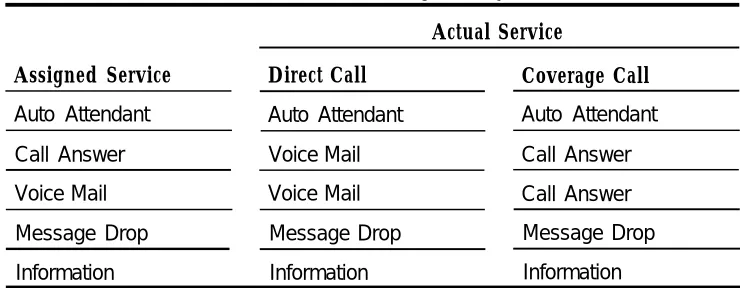
Integrated systems indicate to AUDIX Voice Power whether a call is direct coverage. Channels that are assigned either Call Answer or Voice Mail get Voice Mail for direct calls and Call Answer for coverage calls. To use a channel for both Call Answer and Voice Mail, the channel should be assigned Call Answer.
.
Table 2-1 shows what service a call receives, depending on what service is assigned to the channel, and whether the call is direct or coverage.
Table 2-1. Actual Service Provided on Integrated Systems
Actual Service
Assigned Service Direct Call Coverage Call
Auto Attendant Auto Attendant Auto Attendant
Call Answer Voice Mail Call Answer
Voice Mail Voice Mail Call Answer
Message Drop Message Drop Message Drop
Information Information Information
If there are not enough channels to dedicate some to Voice Mail, the available channels can be divided between Call Answer and Automated Attendant.
Non-Integrated Systems
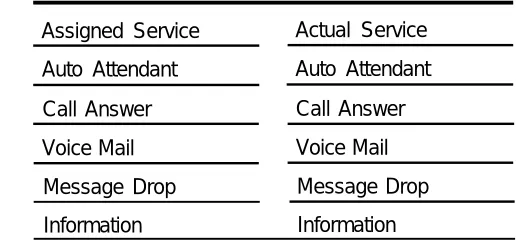
Table 2-2 shows what service a call receives depending on what service is assigned for non-integrated systems.
Table 2-2. Actual Service Provided on Non-Integrated Systems
Assigned Service Actual Service
Auto Attendant Auto Attendant
Call Answer Call Answer
Voice Mail Voice Mail
Message Drop Message Drop
Information Information
Entering Service Assignments
Using the information in Table 2-1 or Table 2-2, make any necessary adjustments
to FORM A in the Planning Guide.
When
NOTE:
For Message Waiting Lamps to work, Channel 0 must be assigned Call Answer, Voice Mail, or Automated Attendant. Call Answer is recommended.
FORM A is complete and has been reviewed, enter the service assignment information into AUDIX Voice Power. To enter this information, follow these-steps:
1. Log into the system as audix. — The User Login menu appears.
2. At the User Login menu, move the cursor to Voice System
Administration and press (Enter).
— The Voice System Administration menu appears.
3. At the Voice System Administration menu, move the cursor to
Configuration Management and press (Enter).
— The Configuration Management menu appears.
4. At the Configuration Management menu, move the cursor to
Voice Equipment and press (Enter).
— The Voice Equipment window appears.
6. Press [F3] (ASSIGN).
— The Assign Service to Voice Channels form appears.
7. At the Service: field, press [F2] (CHOICES).
— The Service Choices window appears.
8. Move the cursor to the desired service and press (Enter).
—The service is filled in and the Service Choices window closes.
9. Move the cursor to the Channels: field. Enter a channel number from 0 to 11, a range of channel numbers with the starting and ending channel numbers separated by a dash, or a list of channel numbers (separated by commas) and/or ranges, or “all”.
10. Press [F3] (SAVE).
— The information is entered, the Assign Service to Voice Channels form closes, and a Command Output window appears.
11. Press [F6] (CANCEL) to close the Command Output window and return to the Voice Equipment window.
12. Reopen the Assign Service to Voice Channels form by pressing
[F8] (CHG-KEYS) and then pressing [F3] (ASSIGN) and repeat Steps 7 . through 11 until services have been assigned to all voice channels.
13. Press [F6] (CANCEL) repeatedly to return to the Voice System Administration menu.
Changing Service Assignments
To change service assignments, use the above procedure. The new assignments
will replace the old assignments. To unassign a channel, press
[F8] (CHG-KEYS) and then press [F4] (UNASSIGN). The Unassign Service From Voice Channel form appears. Enter the channel number(s) to be
Switch Interface Administration Parameters
Some specific parameters are necessary to tell AUDIX Voice Power how to communicate with the telephone switch. For convenience, these parameters are collected on FORM B in the Planning Guide. A sample is explained below.
FORM B
Switch Interface Administration
Switchhook Flash Duration
I
Wink Disconnect Interval
I
Signaling Type
I
The contents of each field should be:
■ Switchhook Flash Duration specifies the on-hook duration in
milliseconds that the switch recognizes as a transfer request. The range is 300 to 1550 milliseconds. The default is . 600 milliseconds,
■ Wink Disconnect Interval specifies the on-hook duration in milliseconds
that the switch recognizes as a disconnect request. The range is 300 to 800 milliseconds. The default is 300 milliseconds.
■ Signaling Type specifies whether Touch-Tone (TT) or dial-pulse (DP)
signaling is used. The default is TT.
Changing Switch Interface Parameters
The switch interface parameters should not be changed from the values specified above. If for some reason they must be changed, enter the default values shown above. The new values will replace the old values,
You should not need to change any of the switch interface parameters. However, if you need to change any of these parameters, follow these steps:
1. Log into the system as audix.
— The User Login menu appears.
2. At the User Login menu, move the cursor to Voice System
Administration and press (Enter).
3. At the Voice System Administration menu, move the cursor to
Switch Interfaces and press (Enter).
— The Switch Interface Administration form appears.
I
4. Move the cursor to the Switch Hook Flash Duration: field, enter the number from FORM B, and press (Enter).
—The cursor moves to the Wink Disconnect Interval: field.
5. Enter the number from FORM B and press (Enter),
—The cursor moves to the Type of signaling: field.
6. Press [F2] (CHOICES) to bring up the Choices -Type of Signaling window.
7. Move the cursor to the type of signaling specified on FORM B and press (Enter).
8. Press [F3] (SAVE).
— The Switch Interface Administration form closes and a message appears asking the user to stop the system for the changes to take effect.
9. Press (Enter) to return to the Voice System Administration menu.
— Follow the procedures in the AT&T AUDIX™ Voice Power System
Verifying System Parameters
After the first two groups of system parameters (Voice Mail and Automated Attendant parameters) have been determined and entered on FORM C, review them. Then add the Message Waiting Lamp parameters to the third section of
FORM C in the Planning Guide and enter the parameters into the AUDIX Voice Power system.
You will need two pieces of information:
■ whether or not the message waiting lamps are to be used
■ the System 75 or DEFINITY G1 message waiting lamp codes if they have
been changed from the default
Verifying Message Waiting Lamp Parameters
Message Waiting Lamp parameters affect only the operation of message waiting lamps. The following parameters are available:
■ Code to Light specifies the internal code that AUDIX Voice Power sends
to the switch to light the message waiting lamp. Enter the value found on the Feature Access Code form or leave the field blank if message waiting lamps will not be used.
■ Code to Extinguish specifies the internal code that AUDIX Voice Power
sends to the switch to extinguish the message waiting lamp. Enter the value found on the Feature Access Code form or leave the field blank if message waiting lamps will not be used.
■ Refresh indicates whether you wish to have message waiting lamps
Displaying Feature Access Codes
The codes used by System 75 or DEFINITY G1 to activate/deactivate the
Message Waiting Lamp should be verified by logging into the switch and entering display feature-access-codes on the command line.
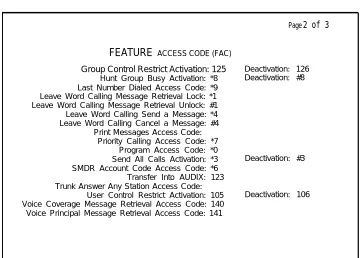
Page 2 of the Feature Access Code form lists the codes needed to
activate/deactivate the Message Waiting Lamp. (See Figure 2-1.) The following fields in the Feature Access Code form should be compared against FORM C. If
necessary, update FORM C in the Planning Guide to reflect the values displayed on the Feature Access Code form.
■ Leave Word Calling Send a Message: —Use this value for the
AUDIX Voice Power System Parameter Code to Light.
■ Leave Word Calling Cancel a Message: — Use this value for the
AUDIX Voice Power System Parameter Code to Extinguish.
Page 2 of 3
FEATURE ACCESS CODE (FAC)
Group Control Restrict Activation: 125 Deactivation: 126 Hunt Group Busy Activation: *8 Deactivation: #8 Last Number Dialed Access Code: *9
Leave Word Calling Message Retrieval Lock: *1 Leave Word Calling Message Retrieval Unlock: #1 Leave Word Calling Send a Message: *4 Leave Word Calling Cancel a Message: #4
Print Messages Access Code: Priority Calling Access Code: *7
Program Access Code: *0
Send All Calls Activation: *3 Deactivation: #3 SMDR Account Code Access Code: *6
Transfer Into AUDIX: 123 Trunk Answer Any Station Access Code:
User Control Restrict Activation: 105 Deactivation: 106 Voice Coverage Message Retrieval Access Code: 140
Voice Principal Message Retrieval Access Code: 141
FORM C
System Parameter Administration
Voice Mail Parameters
System Operator. Extension:
Pause for Touch-Tone Input:
Maximum Extension Length:
Transfer to Subscribers Only?:
System Mode of Addressing:
Maximum Message Length:
General Mailbox Owner Extension:
Enable General Mailbox for Call Answer?:
Allow Voice Mail/Call Answer Transfers?:
Automated Attendant Parameters
Touch-Tone Gate Active?:
Auto Attendant Time-out Action:
Auto Attendant Menu Plays:
Fax Transfer Number:
Present Options before leaving Message?:
s e c
sec
D a y : _ N i g h t : _
D a y : _ N i g h t : _
Message Waiting Lamp Parameters
Code to Light: Code to Extinguish: Refresh?:
Entering System Parameters
To enter the system parameters, follow the instructions in Chapter 3 of the
AT&T AUDIX™ Voice Power System Manager’s Guide.
The information in this section is intended to help you and the System 75 or DEFINITY G1 Switch Administrator work together to administer the switch and meet the specific requirements on the switch for your AUDIX Voice Power system. To complete these tasks, you will need to access information regarding switch administration, and use the accompanying forms for the switch.
AUDIX Voice Power is designed to operate with a System 75 or DEFINITY G1 Private Branch Exchange (PBX) using analog lines. TO integrate the PBX with
AUDIX Voice Power, the PBX also requires a connection from a TN-754 board to the AUDIX Voice Power DCP board.
Verifying Software Release
Before beginning the switch administration, verify the system software release.
■ If the PBX is a System 75 with release R1V3 software, verify that software
vintage 17091 (Issue 1.7) or greater has been installed.
■ If the PBX is a DEFINITY G1, verify that software Issue 4.0 or greater has
been installed.
Release R1V1 and R1V2 Software Limitations
The R1V1 and R1V2 versions of System 75 have several limitations that affect the operation of AUDIX Voice Power. One of these limitations includes possible effects of the Music On Hold feature for all R1V1 and R1V2 systems.
The other limitations apply only to integrated systems. For R1V1, the limitations include the inability of attendants to access AUDIX Voice Power via the DCP line, the inability of all subscribers to access AUDIX Voice Power via the DCP line to retrieve messages, and a less-reliable interface between the switch and the AUDIX Voice Power system. For R1V2 systems, the limitations are related to the inability of the attendant to access AUDIX Voice Power via the DCP line.
Music On Hold
If your switch is configured for Music On Hold, you must upgrade the switch to R1V3, R1V4, or G1. Otherwise, callers will hear and be confused by several seconds of music prior to hearing the greeting from the AUDIX Voice Power system that they were expecting.
Accessing the DCP Extension (R1V1)
Callers cannot access voice mail by calling the DCP extension. The DCP interface is used only for the Call Answer Service. A hunt group of one or more channels configured for the Voice Mail Service must be set up for access to voice mail. This is non-integrated Voice Mail Service. Subscribers must enter their extension as well as their password to retrieve their messages. The Class of Restriction feature of System 75 must be used to prevent subscriber access to the DCP number. However, subscribers must have access to the Voice Mail hunt group.
AUDIX Voice Power software that interfaces to System 75 R1V1 software transfers calls from the DCP line to one of its analog lines. The System 75 software does not allow calls from an attendant console to be transferred. Because of this, an attendant cannot transfer a caller to a subscriber and wait for AUDIX Voice Power to provide Call Answer Service for the caller. The attendant must either drop the call after the transfer is performed, or return to the caller when the ringing stops. In addition, if the attendant wants to leave a message for a subscriber, he or she must call a separate group of one or more channels configured for the special service “attendant_ca” which provides non-integrated Call Answer Service. The attendant must enter the extension of the person receiving the message.
Accessing the DCP Extension (R1V2)
AUDIX Voice Power software that interfaces to System 75 R1V2 software transfers calls from the DCP line to one of its analog lines. The System 75 software does not allow calls from an attendant console to be transferred. Because of this, an attendant cannot transfer a caller to a subscriber and wait for AUDIX Voice Power to provide Call Answer Service for the caller. The attendant must either drop the call after the transfer is performed, or return to the caller when the ringing stops. In addition, if the attendant wants to leave a message for a subscriber, he or she must call a separate group of one or more channels configured for the special service “attendant_ca” which provides non-integrated Call Answer Service. The attendant must enter the extension of the person receiving the message.
Also, attendants cannot access the Voice Mail Service by calling the DCP number. A hunt group of one or more channels configured for “voice_mail” must be set up to allow attendants access to voice mail. This is non-integrated Voice Mail. Attendants must enter their extension as well as their password to retrieve their messages. The Class of Restriction feature of the System 75 must be used to prevent attendant access to the DCP number. However, attendants must have access to the Voice Mail hunt group. .
Attendants may access their messages via the “attendant_ca” service by pressing This would mean that only one additional set of channels is needed by attendants to access messages.
Stations Supported (R1V1)
The R1V1 release of the System 75 software does not support the PC type of digital station that is specified in the documentation. Only two choices are provided: 7405D and 7403D. Neither of these types provides as reliable an interlace as the PC type, This results in a significant number of calls that must be handled by an attendant, since AUDIX Voice Power sometimes receives unusable information from the switch. The rate at which this occurs can be monitored via the “Bad Switch Info” category of the Phone Line Usage Report.
Upgrade Installation
AUDIX Voice Power Checklist
When administering the switch, you will perform the following tasks:
■ Configure Class of Restrictions (CORs) (Integrated only) ■ Verify Analog Channels for connection to AUDIX Voice Power
■ Verify DCP Extension (Integrated only)
■ Administer Hunt Groups for multiple channels of the same service
Services that may require hunt groups are:
— Automated Attendant
— Information Service
— Message Drop Service
— Call Answer on non-integrated configurations
— Voice Mail on non-integrated configurations
■ Administer Call Coverage Paths ■ Perform Subscriber Administration
■ Verify Trunk Name Administration (Integrated only)
Assigning Class of Restrictions
(Integrated Only)
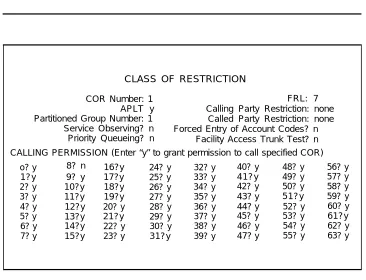
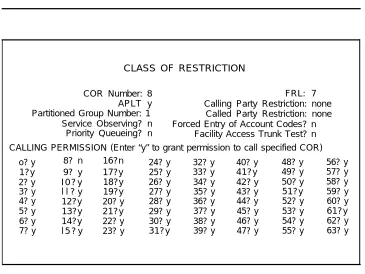
Figures 3-1, 3-2, and 3-3 depict the Class of Restriction (COR) form. To simplify the COR administration, we recommend setting up the three CORs as shown in the following list, but if they have already been assigned, you can use any available COR.
■ COR 1 - Subscribers
CLASS OF RESTRICTION
COR Number: 1 FRL: 7
APLT y Calling Party Restriction: none Partitioned Group Number: 1 Called Party Restriction: none
Service Observing? n Forced Entry of Account Codes? n Priority Queueing? n Facility Access Trunk Test? n CALLING PERMISSION (Enter “y” to grant permission to call specified COR)
o? y 8? n 16?y 24? y 32? y 40? y 48? y 56? y
1?y 9? y 17?y 25? y 33? y 41?y 49? y 57? y
2? y 10?y 18?y 26? y 34? y 42? y 50? y 58? y
3? y 11?y 19?y 27? y 35? y 43? y 51?y 59? y
4? y 12?y 20? y 28? y 36? y 44? y 52? y 60? y 5? y 13?y 21?y 29? y 37? y 45? y 53? y 61?y 6? y 14?y 22? y 30? y 38? y 46? y 54? y 62? y 7? y 15?y 23? y 31?y 39? y 47? y 55? y 63? y
■ COR 8- Voice Mail and Call Answer channels
CLASS OF RESTRICTION
COR Number: 8 FRL: 7
APLT y Calling Party Restriction: none Partitioned Group Number: 1 Called Party Restriction: none
Service Observing? n Forced Entry of Account Codes? n Priority Queueing? n Facility Access Trunk Test? n CALLING PERMISSION (Enter “y” to grant permission to call specified COR)
o? y 8? n 16?n 24? y 32? y 40? y 48? y 56? y
1?y 9? y 17?y 25? y 33? y 41?y 49? y 57? y
2? y I 0 ? y 18?y 26? y 34? y 42? y 50? y 58? y 3? y l l ? y 19?y 27? y 35? y 43? y 51?y 59? y 4? y 12?y 20? y 28? y 36? y 44? y 52? y 60? y 5? y 13?y 21?y 29? y 37? y 45? y 53? y 61?y 6? y 14?y 22? y 30? y 38? y 46? y 54? y 62? y 7? y l 5 ? y 23? y 31?y 39? y 47? y 55? y 63? y
Figure 3-2. System 75/DEFINITY G1 Class of Restriction Form COR 8
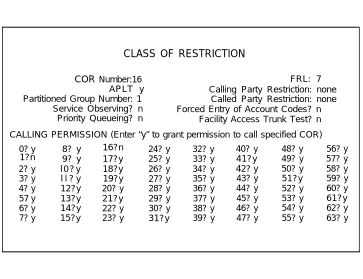
■ COR 16- DCP (PC/PBX) connection extension
CLASS OF RESTRICTION
COR Number:16 FRL: 7
APLT y Calling Party Restriction: none Partitioned Group Number: 1 Called Party Restriction: none
Service Observing? n Forced Entry of Account Codes? n Priority Queueing? n Facility Access Trunk Test? n CALLING PERMISSION (Enter “y” to grant permission to call specified COR)
0? y 8? y 16?n 24? y 32? y 40? y 48? y 56? y
1?n 9? y 17?y 25? y 33? y 41?y 49? y 57? y
2? y l 0 ? y 18?y 26? y 34? y 42? y 50? y 58? y 3? y l l ? y 19?y 27? y 35? y 43? y 51?y 59? y 4? y 12?y 20? y 28? y 36? y 44? y 52? y 60? y 57 y 13?y 21?y 29? y 37? y 45? y 53? y 61?y 6? y 14?y 22? y 30? y 38? y 46? y 54? y 62? y 7? y 15?y 23? y 31?y 39? y 47? y 55? y 63? y
Figure 3-3. System 75/DEFINITY G1 Class of Restriction Form COR 16
CORs are assigned so that the following can be accomplished:
■ Subscribers can call the extension numbers assigned to: — Information Service
— Automated Attendant
— Message Drop
— DCP (PC/PBX connection)
■ The DCP can call:
— Call Answer extension numbers
— Voice Mail extension numbers
The Voice Mail/Call Answer channels should be restricted so that they cannot call themselves. On the System Administrator Terminal (SAT) for System 75, type
change cor 8. (See Figure 3-2. ) Use (Enter) to tab to 8 and change y to
The DCP extension should be restricted so that it cannot call itself or subscriber extensions. On the SAT, type change cor 16. (See Figure 3-3.) Use (Enter) to tab to 1 and 16, changing y to n. Press [F3] (ENTER) to enter the changes.
Finally, the subscriber extensions should be restricted so that they cannot call the Voice Mail/Call Answer ports directly. On the SAT, type change cor 1.
(See Figure 3-1.) Use (Enter) to tab to 8 and change y to n. Press [F3] (ENTER) to enter the changes.
NOTE:
Any other CORs that have been administered on your switch need to be changed so that they cannot call the Voice Mail/Call Answer channels directly (Integrated only).
Verifying Analog Charnel Administration
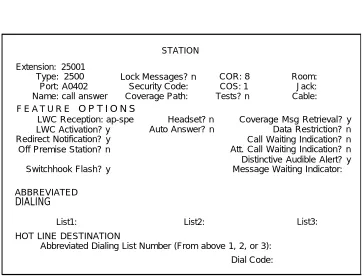
Verify the following fields for each AUDIX Voice Power extension on FORM A using the, display station command on the switch. (See Figure 3-4.)
■ T y p e ■ Name
■ LWC Activation
■ LWC Reception
■ Call Waiting Indication ■ Att. Call Waiting Indication ■ COR (Integrated only)
STATION Extension: 25001
Type: 2500 Lock Messages? n COR: 8 Room: Port: A0402 Security Code: COS: 1 Jack: Name: call answer Coverage Path: Tests? n Cable: F E A T U R E O P T I O N S
LWC Reception: ap-spe Headset? n Coverage Msg Retrieval? y LWC Activation? y Auto Answer? n Data Restriction? n Redirect Notification? y Call Waiting Indication? n Off Premise Station? n Att. Call Waiting Indication? n Distinctive Audible Alert? y Switchhook Flash? y Message Waiting Indicator:
ABBREVIATED
DIALING
List1: List2:
HOT LINE DESTINATION
Abbreviated Dialing List Number (From above 1, 2, or 3): Dial Code:
List3:
Figure 3-4. System 75/DEFINITY G1 Display Station Form (Voice Power Channel 1)
If any discrepancies are found, use the change station command and the following procedure to make the appropriate changes:
1. 2. 3. 4. 5. Enter Enter Enter Enter Enter the extension.
Type: as 2500.
Name: as Get Voice Mail. This is only necessary for Channel 0. COR (Integrated only).
NOTE:
The recommended Voice Mail/Call Answer COR is 8 or whatever COR was assigned in the previous section. For all other services, the recommended COR is 1.
6. Enter LWC Reception: according to the following table: 7. Release Setting R1V1 y R1V2 yes R1V3 ap-spe G1 msa-spe
Enter Call Waiting Indication? as n.
8. Enter Att. Call Waiting Indication? as n.
Leave the remaining fields at default values. Repeat this procedure for each extension assigned to an AUDIX Voice Power analog channel.
Configuring
DCPExtensions
(Integrated Only)
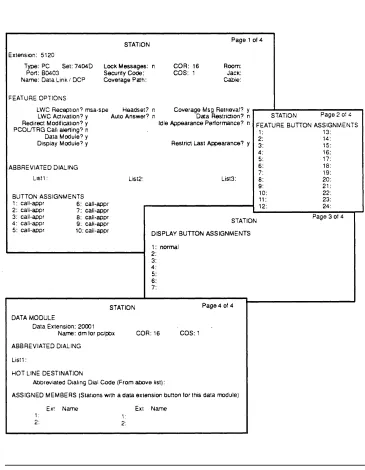
To integrate the switch to AUDIX Voice Power, a digital station must be configured. See Figure 3-5.
Use the following procedure
(add station or change
and the appropriate station command
station) to configure the DCP extension:
1. 2. 3. 4. 5. 6. 7.
Enter Type: as PC.
NOTE:
If your switch is a R1V1 software vintage, the station type should be assigned as a 7405D set.
Enter Set: as 7404D.
Enter COR as 16 or whatever COR was assigned to the DCP connection extension. (See Figure 3-3.)
Set Restrict Last Appearance? to y.
Set all ten button assignments to call-appr.
Enter normal for Button 1 under DISPLAY BUTTON ASSIGNMENTS
(Page 3) or FEATURE BUTTON ASSIGNMENTS (Page 2).
Set Data Module? to y.
This data module is actually a dummy extension that will not be used for AUDIX Voice Power. When assigning this extension, it is recommended that you select an obscure extension that will not be needed in the future, but which is a valid number in the dial plan.
Administering Hunt Groups
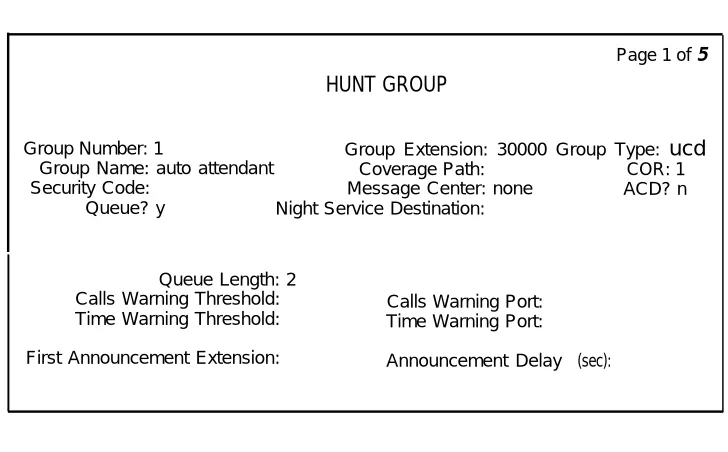
Hunt groups should be created when more than one extension number is
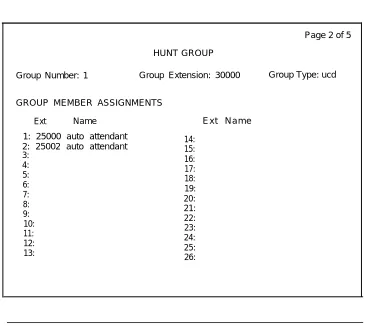
assigned to the same AUDIX Voice Power service. This allows the subscribers to call a single number, and the group extension to access the service. (See Figures 3-6 and 3-7.)
Non-Integrated Mode
In the non-integrated mode, hunt groups should be used for all services. The Call Answer hunt group number will be assigned as a coverage point in the coverage path for AUDIX Voice Power subscribers to provide the AUDIX Voice Power Call Answer Service.
Integrated Mode
In the integrated mode, hunt groups can be used for all services except Voice Mail and Call Answer. Hunt groups are not used for these two services because the integration process automatically transfers calls to the Voice Mail and Call Answer analog channels. The DCP Extension should be assigned as a coverage point in the coverage path for AUDIX Voice Power subscribers to provide the Call Answer Service.
Creating Hunt Groups
To create a hunt group, use the add hunt-group command and: 1. Assign a group number between 1-100.
2. Assign a group extension. This extension must be a valid extension in the switch dial plan.
3. Enter the extensions of the analog channels that you are assigning as members of the hunt group on Page 2 of the hunt group form.
(See Figure 3-7.)
NOTE
When you enter the extension, the name is filled in automatically.
Page 1 of 5
HUNT GROUP
Group Number: 1 Group Extension: 30000 Group Type: ucd
Group Name: auto attendant Coverage Path: Security Code: Message Center: none
Queue? y Night Service Destination:
Queue Length: 2
Calls Warning Threshold: Calls Warning Port: Time Warning Threshold: Time Warning Port:
First Announcement Extension: Announcement Delay
COR: 1 ACD? n
(sec):
Page 2 of 5 HUNT GROUP
Group Number: 1 Group Extension: 30000 Group Type: ucd
GROUP MEMBER ASSIGNMENTS Ext Name
1: 25000 auto attendant 2: 25002 auto attendant 3: 4: 5: 6: 7: 8: 9: 10: 11: 12: 13:
E x t N a m e 14: 15: 16: 17: 18: 19: 20: 21: 22: 23: 24: 25: 26:
Figure 3-7. Hunt Group Form (Page 2)
Administering Call Coverage
Creating
AUDIX Voice Power can be administered as the first, second, or third point of call coverage. (See Figure 3-8.)
In the non-integrated mode, the Call Answer hunt group number should be used as the coverage point. In the integrated mode, the DCP extension number should be used as the coverage point.
Coverage Paths
Use the add coverage path command. Inside and administered identically. Typically, the number of rings between 2 and 4.
outside calls should be assigned should be
Changing Coverage Paths
Use the change coverage path command to make the appropriate changes.
COVERAGE PATH Page 1 of 1
Coverage Path Number: 6
Next Path Number: Linkage:
COVERAGE CRITERIA
Station/Group Status Inside Call Outside Call
Active? n n
Busy? y y
Don’t Answer?
SAC/Go to Cover?
y y Number of Rings: 2
n n
y y
COVERAGE POINTS
Point1: h7 Point3:
Point2:
Figure 3-8. Call Coverage Form
Performing Subscriber Administration
Verify the information for each subscriber on the switch who will be a subscriber on the AUDIX Voice Power using the change station command. Assign each station’s parameters as follows (see Figure 3-9):
1. Verify that the Name: field exactly matches the name recorded on FORM D in the Planning Guide. If not, change FORM D.
2. Enter the coverage path number which contains either the DCP extension (for integrated systems) or the Call Answer Hunt Group extension
(for non-integrated systems).
4. Enter LWC Reception? according to the following table:
Release Setting
R1V1 y
R1V2 yes
R1V3 ap-spe
G1 msa-spe
WARNING:
DO NOT ASSIGN AS audix.
5. Assign LWC Activation? as y.
6. For single-line analog stations, set the Message Waiting Indicator?
to either yes or led.
Page 1 of 1 STATION
Extension: 4488
Type: 2500 Lock Messages: n COR: 1 Room: Port: A0906 Security Code: COS: 1 Jack: Name: A. Subscriber Coverage Path: 6 Tests? y Cable:
F E A T U R E O P T I O N S
LWC Reception? msa-spe Headset? n Coverage Msg Retrieval? y LWC Activation ? y Auto Answer? n Data Restriction? n Redirect Notification ? y Call Waiting Indication? y Off Premise Station? n Att. Call Waiting Indication? y Distinctive Audible Alert? y Switchhook Flash? y Message Waiting Indicator? led
ABBREVIATED DIALING
List1 : List2: List3:
HOT LINE DESTINATION
Abbreviated Dialing List Number (From above 1, 2, or 3): Dial Code:
Figure 3-9. Station Form for AUDIX Voice Power Subscriber
Administering
Trunk Names(Integrated Only)
The purpose of trunk name administration is to enter the names of all the trunk groups that go into the switch so that a trunk call maybe processed properly.
Use the following steps to administer all trunks that call into AUDIX Voice Power:
1. Log into the system. as audix. — The User Login menu appears.
2. At the User Login menu, move the cursor to Voice System Administration and press (Enter).
— The Voice System Administration menu appears.
Configuration Management Reports
3. Move the Cursor to Application Package Administration and
press (Enter).
— The Application Package Administration menu appears.
>Application Package Administration Configuration Management
Reports
Switch Interfaces System Monitor
AUDIX Voice Power
Select an application & press the Enter key.
4. Move the cursor to Trunk Name Administration and press(Enter).
— The Trunk Name Administration window displays the trunk names in the order in which they were entered into AUDIX Voice Power. The most recently added trunk name is always at the bottom of the list.
DID direct dial line WATS WATS inbound line
Press ADD to add a trunk name, REMOVE to remove a trunk name, CANCEL to exit
5. Administer the trunks.
Add a trunk name by using the following steps:
a. Press [F3] (ADD).
— The Add a Trunk Name form appears.
>Trunk Name Description DID direct dial line WATS WATS inbound line
Trunk Name: Description:
Enter trunk name
b. Enter the trunk name and description.
c. Press [F3] (SAVE).
— The Add a Trunk Name form closes and an Information window appears.
Remove a trunk name by using the following steps:
a.
b.
—
Move the cursor to the trunk name to be removed.
Press [F2] (REMOVE).
The Add a Trunk Name form closes and an Information window appears.
>Trunk Name Description DID direct dial line WATS WATS inbound line
Press any key to continue. . .
c. Press any key to continue.
Handling Ambiguous Extensions
An ambiguous extension must not be used for the DCP or for any of the channels assigned to AUDIX Voice Power. An ambiguous extension is one that starts with a digit that could be part of a longer extension under the switch dial plan.
Handling Display Phones
On display phones, the message waiting lamp maybe shown as a call from the extension assigned to channel 0. Attempting to return a call to this extension will be blocked because of the Class of Restriction. If you have display phones, on System 75/DEFINITY G1 assign the name “Get Voice Mail” to the extension assigned to channel 0.
A
E
Accessing, Configuration Management menu, 1-5 Adding trunk names, 3-19
Administration
analog channel, 3-8 call coverage, 3-14 hunt groups, 3-12
message waiting lamp parameters, 2-11 subscribers, 3-15
trunks, 3-17
Ambiguous extensions, 1-4, 3-20 Analog channel administration, 3-8 Assigning, class of restriction, 3-5 Assistance, obtaining, ii, 3-1 Audience, intended, ii
AUDIX Voice Power, checklist, 3-4
C
Call coverage paths, 3-14 Channel
assigning service, 1-5, 2-1 changing service, 2-6 changing state, 1-10 mapping extensions to, 1-14 Checklist, AUDIX Voice Power, 3-4 Class of restriction, assigning, 3-5 Code to Extinguish parameter, 2-11,2-12 Code to Light parameter, 2-11, 2-12 Configuration
hardware, 1-2 software, 1-3
Configuration Management menu, accessing, 1-5 Configuring, DCP extensions, 3-10
Connections, testing, 1-4
D
DCP extensions, 3-10 Display phones, 3-20
Extensions
ambiguous, 1-4, 3-20 DCP, 3-10
mapping to channels, 1-14 verifying, 1-13
F
Feature Access Code form, 2-12 FORM A - Channel Assignments, 1-4
FORM B - Switch Interface Administration, 2-7 FORM C - System Parameter Administration, 2-13 FORM D - Subscriber Administration, 3-15 Forms
Call Coverage, 3-15 Channel Assignments, 1-4 Class of Restriction, 3-6 DCP Link Display, 3-11 Display Station, 3-9 Feature Access Code, 2-12 Hunt Group, 3-13,3-14 Subscriber Administration, 3-15 Subscriber Station, 3-16
Switch Interface Administration, 2-7 System Parameter Administration, 2-13 Function keys, iii
H
Hardware configuration, 1-2 Hunt groups, administering, 3-12
I
Initial implementation, 2-1
K
Keys, iii function, iii Touch-Tone, iii
M
Mapping extensions to channels, 1-14 Message Waiting Lamp, 2-3
display phone, 3-20 parameters, 2-11
N
Non-integrated mode, administering hunt groups, 3-12 Non-integrated system, 2-2
S
Signaling Type parameter, 2-7 Software, versions, 3-1 Software configuration, 1-3 Subscriber administration, 3-15 Subscriber Administration form, 3-15 Switch interface parameters, 2-7
entering, 2-8
Switchhook Flash Duration parameter, 2-7 System Parameter Administration form, 2-13 System parameters, 2-11
entering, 2-13
T
Testing connections, 1-4
Touch-Tone keys, representation, iii Trunk administration, 3-17
Trunk names adding, 3-19 removing, 3-20
0
Obtaining assistance, ii, 3-1
P
Parameters
code to extinguish, 2-11, 2-12 code to light, 2-11, 2-12
message waiting lamp, 2-3, 2-11 refresh, 2-11
signaling type, 2-7 switch interface, 2-7
switchhook flash duration, 2-7 system, 2-11
wink disconnect interval, 2-7
U
Upgrade installation, 3-3
V
Verifying extensions, 1-13
W
Wink Disconnect Interval parameter, 2-7
R
Refresh parameter, 2-11 Removing trunk names, 3-20