585-215-825
Comcode 107876203
Issue 1
December 1996
CentreVu
Call Management System
Printed in U.S.A.
Notice
Every effort was made to ensure that the information in this book was complete and accurate at the time of printing. However, information is subject to change.
Your Responsibility for Your System’s Security
Toll fraud is the unauthorized use of your telecommunications system by an unauthorized party, for example, persons other than your compa-ny’s employees, agents, subcontractors, or persons working on your company’s behalf. Note that there may be a risk of toll fraud associated with your telecommunications system and, if toll fraud occurs, it can re-sult in substantial additional charges for your telecommunications ser-vices.
You and your system manager are responsible for the security of your system, such as programming and configuring your equipment to pre-vent unauthorized use. The system manager is also responsible for read-ing all installation, instruction, and system administration documents provided with this product in order to fully understand the features that can introduce risk of toll fraud and the steps that can be taken to reduce that risk. Lucent Technologies does not warrant that this product is im-mune from or will prevent unauthorized use of common-carrier tele-communication services or facilities accessed through or connected to it. Lucent Technologies will not be responsible for any charges that re-sult from such unauthorized use.
Lucent Technologies Fraud Intervention
If you suspect that you are being victimized by toll fraud and you need technical support or assistance, call Technical Service Center Toll Fraud Intervention Hotline at 1 800 643-2353.
Trademarks
CentreVu is a trademark of Lucent Technologies.
DEFINITY is a registered trademark of Lucent Technologies. INFORMIX is a registered trademark of Informix Software, Inc. SPARC trademarks, including SPARCserver are trademarks or regis-tered trademarks of SPARC International Inc. SPARCserver is licensed exclusively to Sun Microsystems, Inc. Products bearing SPARC trade-marks are based upon an acrhitecture developed by Sun Microsystems, Inc.
Sun, Sun Microsystems, Sun Microsystems Computer Corporation, the Sunlogo, the SMCC logo, SunLink, SunSelect, Solaris, and Solstice DiskSuite are trademarks or registered trademarks of Sun Microsys-tems, Inc.
UNIX is a registered trademark in the United States and other countries, licensed exclusively through X/Open Corporation.
All other product names mentioned herein are the trademarks of their re-spective owners.
Voice 1 800 457-1235 International Voice 317 361-5353 Fax 1 800 457-1764International Fax 317 361-5355 Write: Lucent Technologies Publications Center
P.O. Box 4100
Crawfordsville, IN 47933 Order: Document No. 585-215-820
Comcode 107876203 Issue 1, December 1996
You can be placed on a standing order list for this and other documents you may need. Standing order will enable you to automatically receive updated versions of individual documents or document sets, billed to ac-count information that you provide. For more information on standing orders, or to be put on a list to receive future issues of this document, contact the Lucent Technologies Publications Center.
Lucent Technologies National Customer Care Center
Lucent Technologies provides a telephone number for you to use to re-port problems or to ask questions about your call center. The supre-port telephone number is 1-800-242-2121. For technical support, customers outside the United States should call their Lucent Technologies Repre-sentative or Distributor.
European Union Declaration of Conformity
Lucent Technologies Business Communications Systems declares that the equipment specified in this document conforms to the referenced European Union (EU) Directives and Harmonized Standards listed be-low:
EMC Directive 89/336/EEC Low Voltage Directive 73/23/EEC
The “CE” mark affixed to the equipment means that it conforms to the above Directives.
Heritage Statement
Lucent Technologies—formed as a result of AT&T’s planned restruc-turing—designs, builds, and delivers a wide range of public and private networks, communication systems and software, consumer and busi-ness telephone systems, and microelectronics components. The world-renowned Bell Laboratories is the research and development arm for the company.
Comments
To comment on this document offer, select the Comments button on the main screen.
Acknowledgment
Table of Contents
CentreVu
Call Management System
Release 3 Version 5
Forecast
iii
Preface
General Information . . . . P-1
Conventions Used in This Document . . . . P-2
Related Documents . . . . P-3
CentreVu CMS Publications . . . . P-3
CentreVu Supervisor Publications . . . . P-4 Other Useful Publications . . . . P-4
Introduction . . . . 1-1
What Is Forecasting? . . . . 1-1
Purpose of Forecast Subsystem . . . . 1-2
Types of Forecasting . . . . 1-3
Getting Started with Forecasts. . . . 1-4 Controlling Forecast Results . . . . 1-4 Using Forecast Reports . . . . 1-4 Data Used for Split/Skill Forecasts . . . . 1-5 Data Points . . . . 1-5 Split/Skill Forecast Methods. . . . 1-6
Start-Up Tasks . . . . 1-9
How to Use the Forecast Subsystem. . . . 1-10
Forecast Menus. . . . 1-12
Relationships to Other Subsystems . . . . 1-14 User Permissions . . . . 1-14 Read Permission . . . . 1-14 Read and Write Permissions . . . . 1-14 Dictionary . . . . 1-15 Timetables/ Shortcuts . . . . 1-15 System Setup . . . . 1-15
Forecast Administration . . . . 2-1
General Information . . . . 2-1
iv
Things to Know Before You Start . . . . 2-2 Prerequisite System Administration . . . . 2-3 Data Storage Allocation Window. . . . 2-3 . . . . 2-3 Field/Action List Usage . . . . 2-3 Field Descriptions . . . . 2-4
Call Handling Profiles Administration . . . . 2-6 Purpose . . . . 2-6 Things to Know Before You Start . . . . 2-6 Prerequisite System Administration . . . . 2-8 Call Handling Profiles Window . . . . 2-8 Field/Action List Usage . . . . 2-9 Field Descriptions . . . . 2-9 Copy Window . . . . 2-10 Field Descriptions . . . . 2-10 Get Contents Window . . . . 2-11 Field/Action List Usage . . . . 2-11 Field Descriptions . . . . 2-12
Current Day Configuration Administration . . . . 2-14 Purpose . . . . 2-14 Things to Know Before You Start . . . . 2-15 Prerequisite System Administration . . . . 2-16 Current Day Configuration Window . . . . 2-16 Field/Action List Usage . . . . 2-17 Field Descriptions . . . . 2-17
Costs Profile Administration . . . . 2-20 Purpose . . . . 2-20 Things to Know Before You Start . . . . 2-20 Costs Profile Window . . . . 2-21 Field/Action List Usage . . . . 2-21 Field Descriptions . . . . 2-22 Copy Window . . . . 2-22 Field Descriptions . . . . 2-22 Get Contents Window . . . . 2-23 Field/Action List Usage . . . . 2-23 Field Descriptions . . . . 2-24
Trunk Group Profile Administration . . . . 2-25 Purpose . . . . 2-25 Things to Know Before You Start . . . . 2-25 Prerequisite System Administration . . . . 2-25 Trunk Group Profile Window . . . . 2-26 Field/Action List Usage . . . . 2-26 Field Descriptions . . . . 2-27
v
Field Descriptions . . . . 2-31
Special Days Administration . . . . 2-38 Purpose . . . . 2-38 Things to Know Before You Start . . . . 2-38 Prerequisite System Administration . . . . 2-39 Special Days Window . . . . 2-39 Field/Action List Usage . . . . 2-39 Field Descriptions . . . . 2-40
Call Volume/Agents Forecast Reports . . . . 3-1
General Information . . . . 3-1
Guidelines for Call Volume/Agents Forecast Reports . . . . 3-2
Current Day Report . . . . 3-5 Purpose . . . . 3-5 Prerequisite System Administration . . . . 3-6 Current Day Input Window. . . . 3-6 Field Descriptions . . . . 3-7 Current Day Forecast Report Example . . . . 3-8
Longterm Report . . . . 3-12 Purpose . . . . 3-12 Things to Know About Report Data . . . . 3-12 Prerequisite System Administration . . . . 3-12 Longterm Report Input Window . . . . 3-13 Field Descriptions . . . . 3-13 Longterm Forecast Report Example . . . . 3-17
Financial Report . . . . 3-20 Purpose . . . . 3-20 Prerequisite System Administration . . . . 3-21 Financial Input Window. . . . 3-21 Field Descriptions . . . . 3-21 Financial Forecast Report Example . . . . 3-25
Intraday Report . . . . 3-28 Purpose . . . . 3-28 Things to Know About Report Data . . . . 3-28 Prerequisite System Administration . . . . 3-29 Intraday Input Window . . . . 3-30 Field Descriptions . . . . 3-30 Intraday Forecast Report Example . . . . 3-32
Special Day Report . . . . 3-35 Purpose . . . . 3-35 Things to Know About Report Data . . . . 3-35 Prerequisite System Administration . . . . 3-36 Special Day Input Window . . . . 3-36 Field Descriptions . . . . 3-37 Special Day Forecast Report Description . . . . 3-39
vi
Purpose . . . . 3-41 Copy Historical Data. . . . 3-42 Things to Know Before You Start . . . . 3-42 Prerequisite System Administration . . . . 3-42 Copy Historical Data Window . . . . 3-43 Edit and View Hypothetical Data . . . . 3-44 Things to Know Before You Start . . . . 3-44 Prerequisite System Administration . . . . 3-44 Edit Values Window . . . . 3-45 Change the Interval Length of Hypothetical Data . . . . . 3-46
Hypothetical Report . . . . 3-51 Prerequisite System Administration . . . . 3-52 Hypothetical Report Input Window . . . . 3-52 Field Descriptions . . . . 3-53 Hypothetical Forecast Report Example . . . . 3-55
Hypothetical Financial Report . . . . 3-58 Purpose . . . . 3-58 Prerequisite System Administration . . . . 3-59 Financial Report Input Window . . . . 3-59 Field Descriptions . . . . 3-59 Hypothetical Financial Forecast Report Example . . . . 3-62
Requirement Forecast Reports . . . . 4-1
General Information . . . . 4-1
Guidelines for Requirement Reports . . . . 4-2
Agent Positions Required Report . . . . 4-3 Purpose . . . . 4-3 Things to Know About Report Data . . . . 4-3 Agent Positions Required Input Window . . . . 4-4 Field Descriptions . . . . 4-4 Agent Positions Required Report Example . . . . 4-6
Trunks Required Report . . . . 4-8 Purpose . . . . 4-8 Things to Know About Report Data . . . . 4-8 Prerequisite System Administration . . . . 4-9 Trunks Required Input Window . . . . 4-9 Field Descriptions . . . . 4-9 Trunks Required Report Example . . . . 4-11
Trunk Performance Report . . . . 5-1
General Information . . . . 5-1 Guidelines for the Trunk Performance Report . . . . 5-1 Things to Know About Report Data . . . . 5-2 Prerequisite System Administration . . . . 5-3
vii
Trunk Performance Report Example . . . . 5-6
How the Forecast System Generates Data . . . . 6-1
General Information . . . . 6-1
Call Volume/Agents Forecast Reports . . . . 6-2 Algorithm for Current and Seasonal Data Points . . . . 6-2 Current Data Points . . . . 6-2 Example 1: Current Data Points . . . . 6-4 Seasonal Data Points . . . . 6-5 Example 2: Seasonal Data Points . . . . 6-6 Algorithm for Forecast Calls Carried . . . . 6-7 Forecast Methods . . . . 6-7 Algorithm for FCC Intraday . . . . 6-12 Algorithm for FCC Special Days . . . . 6-13 Algorithm for Number of Agents Required . . . . 6-14 Algorithm for Estimated Margin . . . . 6-15
Requirement Reports . . . . 6-16 Algorithm for Agent Positions Required . . . . 6-16 Algorithm for Trunks Required . . . . 6-17
Trunk Performance Report . . . . 6-19 Algorithm for Trunk Performance . . . . 6-19
Glossary . . . . GL-1
General Information P-1
Preface
General Information
0The CentreVu™ Call Management System Release 3 Version 5 Forecast (585-215-825) document is written for CentreVu Call Management System (CMS) administrators and split/skill supervisors who are responsible for administering and reporting forecast data.
This document is organized as follows:
● “Preface,” describes style conventions and lists CentreVu CMS
documents and other related documents.
● Chapter 1, “Introduction,” describes the Forecast subsystem, purpose
of forecasting, types of forecasting, guidelines, start-up tasks, and the best order for using the Forecasting subsystem and this document.
● Chapter 2, “Forecast Administration,” describes the start-up tasks you
must do before you can get forecast reports.
● Chapter 3, “Call Volume/Agents Forecast Reports,” describes how a
call volume/agent forecast predicts the number of calls a split/skill will receive (Forecast calls carried). Also, it describes how many agents will be required to handle those calls (Number of agents required). Most forecast reports are call volume or agent reports.
● Chapter 4, “Requirement Forecast Reports,” describes the Agent
Positions Required and Trunks Required reports. These two reports can show you, given specific call handling objectives, how many calls your call center can handle.
● Chapter 5, “Trunk Performance Report,” describes how this report
estimates, at the busiest intervals in a specified range of historical dates, what the usage rate and blocking percentages were for the selected trunk group(s). This report also shows how many trunks the trunk group(s) would have needed during the busiest intervals to meet predetermined objectives you have set for your call center.
● Chapter 6, “How the Forecast System Generates Data,” describes the
Conventions Used in This Document P-2
Conventions Used in This Document
0The following conventions are used throughout this document:
a. INFORMIX is a registered trademark of Informix Software, Inc.
Related document callouts
Include the book title, in italics, and the document number (if an Lucent Technologies publication). For example, “See the
CentreVu™ Call Management System R3V5 Custom Reports (585-215-822) document for more information.”
Courier font Designates a word or phrase quoted directly
from the CentreVu system. For example, see
the Report destination: field.
Also designates an INFORMIX a table name. For example, see the csplit table.
Courier bold font Designates something you enter into the system. For example, enter an x next to Printer, Terminal, or File.
“Chapter Names” Are always in quotes. For example, see Chapter 2, “Forecast Administration,” for more information.
italic Highlights references to file names and
directories. For example, see /cms.
Subsystem References Are always initial capitalized. For example, set access permissions for CentreVu users from the User Permissions subsystem.
Related Documents P-3
Related Documents
0There are many documents that can help you use the CentreVu CMS software to its maximum capability. The most important ones are listed below.
CentreVu
CMS
Publications
0The following documents, relevant to CentreVu CMS, have also been published:
● CentreVu™ Call Management System Release 3 Version 5
Administration (585-215-820)
● CentreVu™ Call Management System Release 3 Version 5
Real-Time and Historical Reports (585-215-821)
● CentreVu™ Call Management System Release 3 Version 5 Custom
Reports (585-215-822)
● CentreVu™ Call Management System Release 3 Version 5
Change Description (585-215-823)
● CentreVu™ Call Management System Release 3 Version 5
External Call History Interface (585-215-824)
● CentreVu™ Call Management System Release 3 Version 5
Upgrades and Migration (585-215-826)
● CentreVu™ Call Management System Release 3 Version 5
Sun® SPARCserver™ Computers Installation and Maintenance (585-215-827)
● CentreVu™ Call Management System Release 3 Version 5
Sun® SPARCserver™ Computers Connectivity Diagram (585-215-828)
● CentreVu™ Call Management System Release 3 Version 5
Related Documents P-4
CentreVu
Supervisor
Publications
0The following documents, relevant to CentreVu Supervisor, have also been published:
● Lucent Technologies CentreVu™ Supervisor Version 5 User Guide
(585-215-829)
● Lucent Technologies CentreVu™ Supervisor Version 5 Installation
and Getting Started (585-215-830)
● Lucent Technologies CentreVu™ Supervisor Version 5 Report
Designer (585-215-831)
● Lucent Technologies CentreVu™ Supervisor and Report Designer
Version 5 Change Description (585-215-832).
Other Useful
Publications
0At times you may need to reference other documents. You need to know where the documentation that was sent with the following is kept:
● Switch
● Terminals
● Printers
● UNIX* system of Solaris† system.
*UNIX is a registered trademark in the United States and other countries, licensed exclusively through X/Open Corporation.
What Is Forecasting? 1-1
1 Introduction
What Is Forecasting?
1Forecasting is the method used to estimate, calculate, or predict the staffing and capacity for specified time periods in the future. With forecasting, you can predict the following:
● Number of calls that you could receive during a specified time period
● Number of agents that you will need to handle a specified volume of
calls (for example, you can vary the input parameters for agent
occupancy, average speed of answer, average agent service time, and service level to predict different needs for your call center)
● Number of trunks that you will need
● Trunk performance.
For example, with forecasting you can look at your call volume for the last four Mondays to predict your call volume for the next Monday. Then, using your assigned objectives, you can show the number of agents and trunks that are required during each intrahour interval next Monday.
Note Before you begin using the Forecast subsystem or reading this
Purpose of Forecast Subsystem 1-2
Purpose of Forecast Subsystem
1Use the Forecast subsystem to do the following:
● Provide you with the estimated number of agents and the number of
trunks required for each intrahour interval.
● Set objectives for Automatic Call Distribution (ACD) activities
involving agents, split(s)/skill(s), and trunk/trunk groups for which you want to get forecasting information about upcoming dates or time periods. You do this using the Forecast Administration windows.
● Generate reports using historical data that predict call volume and
agent requirements for:
— Today (Current Day report)
— Any day up to 35 days in the future (Longterm report)
— A given profit margin plus how many calls you can expect for a split/skill, and how many agents you will need to handle those calls for any day up to 35 days in the future (Financial report)
— The remaining part of the current day (Intraday report)
— A special day, for example, a holiday or a special promotion day (Special Days report).
Other reports also provide information about agent positions required, trunks required, and trunk performance. You do this using the Forecast Report windows.
● Predict the staffing requirements of your call center in hypothetical
situations.
● Increase profits by predicting when to reduce surplus labor.
● Generate reports that justify increased staffing based on objectives
and predicted call volume.
● Perform careful scheduling and planning to optimize productivity.
● Estimate how many calls a given number of agents can handle per
Types of Forecasting 1-3
● Estimate how many calls can be carried by a given number of trunks
per intrahour interval.
● Estimate a margin for predicting the difference between call revenue
and call costs for each intrahour interval.
● Gather forecast calls carried information for each intrahour interval
in Special Day reports.
Types of Forecasting
1The Forecast subsystem allows you to set up the desired report prerequisites through Administration windows. After you complete the setup procedures, you can run various forecast reports. You can either generate reports based on historical data, or you can generate reports for hypothetical situations.
Forecast reports fall into three basic categories:
● Call Volume/Agent (see Chapter 3, “Call volume/Agents Forecast
Reports”)
● Requirement (see Chapter 4, “Requirement Forecast Reports”)
● Trunk Performance (see Chapter 5, “Trunk Performance Report”).
Note Forecasting is a separately purchased feature of CentreVu
Getting Started with Forecasts 1-4
Getting Started with Forecasts
1Before you start using the Forecast subsystem, you must do the following:
1. Read this chapter before you start.
2. Determine the type of forecasting you want to use.
3. Complete the start-up tasks for Administration.
4. Select the report from the menu options.
5. Determine which method (algorithm) you want to use.
6. Fill in the required report data entry fields.
7. Run the report.
Controlling
Forecast Results
1You can control the types of prediction results you receive in forecasting depending on how you enter information in the windows or which method of forecasting you select. You can usually expect to do some additional adjustments to your initial forecasts to get the results you desire.
The following variables can control the prediction results:
● Historical data that the system retrieves
● Date(s) that you enter
● Days (or Data Points) that you select
● Trending patterns in the data the system retrieves
● Trending method of forecasting that you use
● Interval time that you select
● Objectives that you can enter or that vary.
Using Forecast
Reports
1To assist you in using forecast reports, the following chapters provide you with information for producing reports:
● “Using Call Volume/Agents Forecast Reports” (see Chapter 3) ● “Using Requirement Reports” (see Chapter 4)
Getting Started with Forecasts 1-5
Data Used for
Split/Skill
Forecasts
1To forecast calls carried to a split/skill, CentreVu CMS uses historical intrahour interval data. Specifically, CentreVu CMS uses the sum of ACD and abandoned calls that the split/skill received in each interval. This sum of ACD and abandoned calls is called the Number of calls
carried.
Data Points
1 The number of calls carried normally comes from the intrahour intervalsfrom 4 specific days in the past. These 4 days that supply input data are called data points. The data points may be either 1 day apart or 1 week apart:
● One-day-apart data points are always the 4 sequential days
immediately preceding the current day. Look at the example in
Figure 1-1. If the current day is Monday, May 5, the data points are May 1, 2, 3, and 4.
.
Figure 1-1: Sample Data Points—One Day Apart
T 11 18 25 W 10 17 24 31 T 9 16 23 30 M 8 15 22 29 S 7 14 21 28 S 6 13 20 27 F 12 19 26 MAY 1997 T 8 15 22 29 W 7 14 21 28 T 6 13 20 27 M 5 12 19 26 S 4 11 18 25 S 3 10 17 24 F 9 16 23 30 JUNE 1997
1 2 3
4 5
1 2
= today = data points = forecast day
Note One-day-apart data points should not be used if they include
Getting Started with Forecasts 1-6
● One-week-apart data points are days in each of the preceding 4
weeks and are the same day of the week as the forecasted day. Look at the example in Figure 1-2. If the forecasted day is Thursday, June 5, and today is Wednesday, May 28, the data points would be the Thursdays on May 1, 18, 15, and 22.
Figure 1-2: Sample Data Points—One Week Apart
For some types of split/skill forecasts, you specify at run time which type of data points CentreVu CMS should use. For the Current Day and Intraday forecasts, CentreVu CMS automatically uses 1-week-apart data points.
Split/Skill Forecast
Methods
1CentreVu CMS uses the data from the data points in different ways, depending on which of the four forecast methods you select. The four available forecast methods are as follows:
T 11 18 25 W 10 17 24 31 T 9 16 23 30 M 8 15 22 29 S 7 14 21 28 S 6 13 20 27 F 12 19 26 MAY 1997 T 8 15 22 29 W 7 14 21 28 T 6 13 20 27 M 5 12 19 26 S 4 11 18 25 S 3 10 17 24 F 9 16 23 30 JUNE 1997
1 2 3
4 5
1 2
= today = data points = forecast day
Note The Special Day Forecast uses data from only the last
occurrence of a special day, not from data points.
No Trending CentreVu CMS finds the average number of calls, per interval, in the data points.
Getting Started with Forecasts 1-7
Expected Calls You enter the number of calls you expect for the forecasted day. CentreVu CMS checks the data points to find the percentage of historical calls that arrived in each intrahour interval. CentreVu CMS then distributes your expected calls among the forecast day’s intervals using those same percentages.
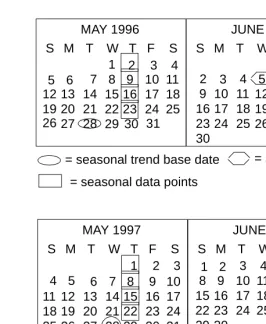
Seasonal Trending CentreVu CMS finds the average number of calls per interval in the current data points. Based on an earlier seasonal trend base date (a seasonal trend base date is a date in the past that you think is similar to the current day), CentreVu CMS also finds the average number of calls per day in a parallel set of data points (these averages use the data weights). CentreVu CMS then scales up or down the average found in the current data points according to the ratio of the seasonal trend base date to the seasonal average. Thus, with seasonal trending, CentreVu CMS uses data for a seasonal set of data points to determine the data in the current set of data points.
Look at the example in Figure 1-3. Since data points for today, May 28, are 1 week apart, when you select a seasonal trend base date of 1 year (52 weeks) ago, CentreVu CMS
Getting Started with Forecasts 1-8
Figure 1-3: Sample Data Points—Seasonal Trending
For most split/skill forecasts, you must select the forecast method(s) at the time you run the report. However, for the Current Day and Intraday forecasts, you assign the forecast method in the Current Day
Configuration window (see Chapter 2, “Forecast Administration— Current Day Configuration Administration”). The Special Day Forecast uses only Expected Calls and a variation of No Trending.
If you want a trend based on historical data, you must define adequate storage. See Chapter 2, “Forecast Administration—Data Storage Allocation Administration.” T 12 19 26 W 11 18 25 T 10 17 24 M 9 16 23 30 S 8 15 22 29 S 7 14 21 28 F 13 20 27 MAY 1996 T 9 16 23 30 W 8 15 22 29 T 7 14 21 28 M 6 13 20 27 S 5 12 19 26 S 4 11 18 25 F 10 17 24 JUNE 1996
2 3 4
5 6 2 3
= seasonal trend base date
= seasonal data points
= season day
1 1 T 11 18 25 W 10 17 24 31 T 9 16 23 30 M 8 15 22 29 S 7 14 21 28 S 6 13 20 27 F 12 19 26 MAY 1997 T 8 15 22 29 W 7 14 21 28 T 6 13 20 27 M 5 12 19 26 S 4 11 18 25 S 3 10 17 24 F 9 16 23 30 JUNE 1997
1 2 3
4 5
1 2
= today = data points = forecast day 31
Note For a detailed explanation of these forecast methods, see “How
Start-Up Tasks 1-9
Start-Up Tasks
1You will need to complete the following forecast administration before you can run a forecast report:
● Define the Data Storage Allocation.
● Define Call Handling Profiles as needed for splits/skills.
● Define a Current Day Configuration for each split/skill.
● Define Costs Profiles as needed for splits/skills.
● Define Trunk Group Profiles for each trunk group.
● Run the Forecast Manager every night.
● Define Special Days as desired for each split/skill.
How to Use the Forecast Subsystem 1-10
How to Use the Forecast Subsystem
1You should set up your forecast conditions in Administration windows prior to accessing reports or creating hypothetical scenarios. This document is organized in the sequence of how you would most typically use the Forecast subsystem.
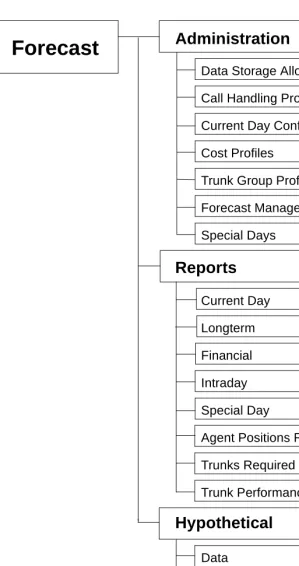
On the CentreVu CMS Forecast menu, the Reports and Hypothetical menu options are listed before Administration so that you can bypass the Administration windows after your initial setup—unless you decide to change your original setup conditions. Refer to Figure 1-4 for a diagram that provides you with an overview of the Forecast document's
organization.
This document explains the Forecast user interface and provides you with the necessary information for completing any action using this interface.
For a detailed explanation of how CentreVu CMS generates forecast data, see Chapter 6, “How the Forecast System Generates Data.”
Note Hypothetical is listed as a separate section because it does not
How to Use the Forecast Subsystem 1-11
Figure 1-4: Forecast System and Document Organization
Forecast
Administration
Reports
Hypothetical
Data Storage Allocation
Call Handling Profile
Current Day Configuration
Cost Profiles
Trunk Group Profiles
Forecast Manager
Special Days
Current Day
Longterm
Financial
Intraday
Special Day
Agent Positions Required
Trunks Required
Trunk Performance
Data
Copy Historical Data
Edit Values
Report
Forecast Menus 1-12
Forecast Menus
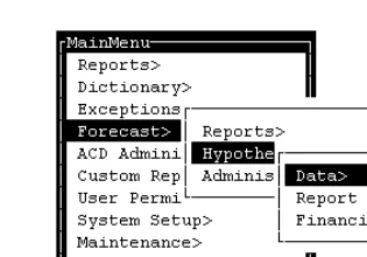
1To run or administer forecasts, you must select the Forecast MainMenu option, and then select the appropriate submenu options. Figure 1-5
through Figure 1-8 illustrate the menu options of the Forecast subsystem.
Figure 1-5: Administration Forecast Submenu
Forecast Menus 1-13
Figure 1-7: Hypothetical Forecast Submenu
Relationships to Other Subsystems 1-14
Relationships to Other Subsystems
1User Permissions
1 Permissions for the Forecasting subsystem are assigned using the UserPermissions: Feature Access window. See Chapter 9, “User Permissions,” in the CentreVu CMS R3V5 Administration (585-215-820) document for more information.
Read Permission
1 You must have read permission for the Forecasting subsystem to runreports. If you have read permission for Forecasting, you can do the following:
● View Administration, Report, and Hypothetical windows
● Request reports for split(s)/skill(s) and trunk groups.
Read and Write
Permissions
1If you have read and write permissions for Forecasting, you can do the following:
● View Administration, Report, and Hypothetical windows
● Set up Administration tasks in Administration windows
● Modify Administration
● Request reports for split(s)/skill(s) and trunk groups
● Modify Hypothetical data.
To perform administrative tasks for a forecast, you must have both read and write permissions.
You must have read and write permissions for a particular split/skill or trunk group to be modified, added, or deleted. Permissions for specific split(s)/skill(s) or trunk groups are assigned in one of the following windows:
● User Permissions—Split/Skill/Access
● User Permissions—Trunk Group Access.
If you have permissions for the Forecast system, but you do not have permissions for a particular split/skill or trunk group, CentreVu CMS notifies you with an error message if you attempt to access that particular split/skill or trunk group.
Relationships to Other Subsystems 1-15
Dictionary
1 You can find all database items, split/skill, and trunk group names in theDictionary Subsystem. Also see Chapter 6, “Dictionary,” in the
CentreVu CMS R3V5 Administration (585-215-820) document for more information and procedures.
Timetables/
Shortcuts
1You can place any forecasting window on a timetable. Use shortcuts for any reports or windows you may view frequently. See Chapter 5,
“Timetables and Shortcuts,” in the CentreVu CMS R3V5 Administration (585-215-820) document for more information and procedures.
System Setup
1 After you modify your Forecast Data Storage Allocation window (seeGeneral Information 2-1
2 Forecast Administration
General Information
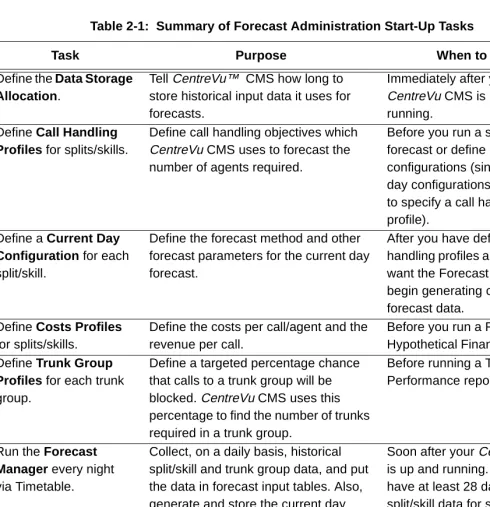
2Table 2-1 lists the start-up administration tasks you must do before you can run forecast reports. In addition to the tasks listed, you must complete the appropriate forecast input window when you actually run a Forecast report.
Table 2-1: Summary of Forecast Administration Start-Up Tasks
Task Purpose When to Do It
Define the Data Storage
Allocation.
Tell CentreVu™ CMS how long to store historical input data it uses for forecasts.
Immediately after your CentreVu CMS is up and running.
Define Call Handling
Profiles for splits/skills.
Define call handling objectives which CentreVu CMS uses to forecast the number of agents required.
Before you run a split/skill forecast or define current day configurations (since current day configurations require you to specify a call handling profile).
Define a Current Day
Configuration for each
split/skill.
Define the forecast method and other forecast parameters for the current day forecast.
After you have defined call handling profiles and before you want the Forecast Manager to begin generating current day forecast data.
Define Costs Profiles for splits/skills.
Define the costs per call/agent and the revenue per call.
Before you run a Financial or Hypothetical Financial Forecast. Define Trunk Group
Profiles for each trunk
group.
Define a targeted percentage chance that calls to a trunk group will be blocked. CentreVu CMS uses this percentage to find the number of trunks required in a trunk group.
Before running a Trunk Performance report.
Run the Forecast
Manager every night
via Timetable.
Collect, on a daily basis, historical split/skill and trunk group data, and put the data in forecast input tables. Also, generate and store the current day forecast data in the Current Day Forecast table.
Soon after your CentreVu CMS is up and running. You should have at least 28 days of split/skill data for split/skill forecasts and 35 days of trunk group data for the Trunk Performance report. Define Special Days
for each split/skill.
Define the days that have unique call traffic or staffing needs (for example, promotional days or holidays).
Data Storage Allocation Administration 2-2
Data Storage Allocation Administration
2Purpose
2 Use the Forecast Data Storage to specify how long CentreVu CMSshould store historical data in the forecast input tables. When you order a forecast, CentreVu CMS uses, as input, the data from these tables to calculate forecast calls carried.
Things to Know
Before You Start
2● CentreVu CMS stores forecast input data separately, because only
a few database items are used in forecast calculations. Thus, forecast input data can be stored for very long periods yet require a relatively small amount of disk space.
● The intrahour interval data you save for split(s)/skill(s) is the primary
input data used for split/skill forecasts. Since current day forecasts always use 1-week-apart data points, the minimum length of time you can store intrahour input data is 28 days (4 data points multiplied by 7 days). You can run forecasts before you have 28 days of intrahour data, but the forecasts may not be accurate.
The daily data you save for split/skill forecasts are used only if you use the seasonal trending forecast method. If you want to run forecasts for December and use trending from the previous
December, you should save daily data for 392 days (52 weeks plus 4 extra weeks for the data points). The minimum length of time you can store daily data is 56 days (4 weeks, plus 4 extra weeks for the data points), since the earliest seasonal trend base date you could logically choose is a month ago.
● The length of time CentreVu CMS should store input data for trunk
groups depends on how far back you want to go to analyze trunk performance. If you want to analyze performance in a month-long period 1 year ago, store data for 397 days (366 days—in case of leap year, plus 31 days for the month you want to analyze).
● The length of time you specify for split/skill data storage applies to
all split(s)/skill(s) in the Automatic Call Distribution (ACD). Likewise, the length of time for trunk group data storage applies to all trunk groups in the ACD.
● After modifying your Forecast Data Storage Allocation window, you
Data Storage Allocation Administration 2-3
Prerequisite
System
Administration
2● You must have write permission for the Forecast subsystem.
● You must run the Forecast Manager to actually retrieve data from
the historical data tables. You can run the Forecast Manager either manually or in a timetable. The recommended method is to run the Forecast Manager on a timetable that executes every night. Run the Forecast Manager manually if the timetable fails or if you need to go back and recollect data.
Data Storage
Allocation
Window
2Use the Forecast: Administration: Data Storage Allocation window (Figure 2-1) to specify the length of time CentreVu CMS stores historical data in the forecast input tables.
Figure 2-1: Data Storage Allocation Window
2
Field/Action List
Usage
2Modify
Data Storage Allocation Administration 2-4
Field Descriptions
2 Intrahour split/skill data:Enter the number of days of intrahour split/skill data that you want to store for use in split/skill forecasts.
● The minimum number of days you can enter is 28. The maximum
number of days is unlimited. However, you should store more than 28 days of data only if you anticipate the need to run current day forecasts for days that have already passed. Also, remember that you will be using additional disk space on your computer for each day of data you choose to store.
● The intrahour split/skill data you store is the number of ACD calls
and abandons.
Daily split/skill data:
Enter the number of days of daily split/skill data that you want to store for use in split/skill forecasts.
● You will need daily split/skill data only if you want to use seasonal
trending in your forecasts.
● The minimum number of days you can enter is 56. The maximum
number of days is 999. However, remember that you will be using additional disk space on your computer for each day of data you choose to store.
● The daily split/skill data you store is the number of ACD calls and
abandoned calls.
Intrahour and daily trunk group data:
Enter the number of days of intrahour and daily data that you want to store for use in trunk performance forecasts.
● The minimum number of days of both intrahour and daily data is 35.
The maximum number of days is unlimited. However, remember that you will be using additional disk space on your computer for each day of data you choose to store.
● The intrahour and daily data you store is as follows:
— The number of trunks in the trunk group
— The number of calls carried
Data Storage Allocation Administration 2-5
Special day data:
Enter, as a number of days, the length of time that you want CMS to store historical data for a special day. This is the data you will use to run a Special Day forecast when the next occurrence of the special day approaches.
● This number applies to all splits/skills in the ACD.
● Normally, you will want to store special day data for 1 year (365
days), since many special days, like holidays, come only once a year.
Call Handling Profiles Administration 2-6
Call Handling Profiles Administration
2Purpose
2 You define a call handling profile to specify the following call handlingobjectives for a split/skill:
● Average speed of answer. The average time you are expecting or
targeting callers to wait in queue before connecting to an agent.
● Average agent service time. The average time you are expecting
or targeting each agent to spend on an ACD call, including talk time and After Call Work (ACW) time.
● Percent within service level. The percentage of calls that you are
expecting or targeting to be answered by an agent within a specific number of seconds.
● Agent occupancy. The average time that you are expecting or
targeting each split/skill agent to spend, while logged in, on ACD calls and in ACW.
For any split/skill forecast, CMS uses a profile’s call handling objectives, along with forecast calls carried, to find the number of agents required to handle the calls. Therefore, you must define a call handling profile which reflects the objectives of the split/skill for use in the split/skill forecast.
Things to Know
Before You Start
2● Since CMS forecasts the number of agents required for each
intrahour interval, you must define objectives for each intrahour interval whose calls you are forecasting.
● Up to 100 call handling profiles may be created per ACD connected
to CMS. As a result, you can define a profile which describes one or more splits/skills. You might do this if, for example, you want a profile for forecasts of normal days and another profile for forecasts when your agents begin handling a new type of call.
● You may define a unique call handling profile for each split/skill for
which you want forecasts. However, you will normally be able to use the same call handling profile, if appropriate, for multiple splits/skills in the ACD.
● In the Call Handling Profiles window itself, you assign only a profile
Call Handling Profiles Administration 2-7
● In defining the agent occupancy objective, remember that the
objective is the percentage of time that you want the agents active on a call or in ACW. CMS uses the Erlang C algorithm, which assumes that each agent is available and waiting for a call if they are not on an ACD call or in ACW.
Therefore, do not include time agents are in Auxiliary (AUX) work in your agent occupancy objective. Instead, if you want to determine the total agents you need when some are in AUX work, you will have to forecast the agents required, and then factor in AUX work.
For example, if CMS forecasts that you need 30 agents to handle calls during a half-hour interval, and you want 8 agents to take a 15-minute break during that interval, you will actually need to schedule 34 agents for the interval to cover the staff time lost to breaks.
● If you have agents in multiple skills and are using bi-level call
distribution, you may want to use the concept of the agent’s top skill to refine your agent occupancy numbers. The agent’s top skill is the agent’s highest-level, first administered skill. If the agent has no other skills at that same level, then the top skill represents that skill for which it is most likely that the agent will take calls.
When you look at historical skill reports to assess the amount of time agents spent in this skill, use all the time spent in ACD and ACW for the skill (by any agents) and only the time agents with this skill as top skill spent available. This method will avoid counting available time for agents for both top and backup skills, giving a more accurate representation of the agent occupancy for this skill.
● CMS forecasts the number of agents that will be required to handle
the volume of calls during a specified time period. This forecast makes the call handling performance equal to or better than your objectives. Therefore, CMS will forecast the number of agents required so that:
— The average speed of answer for calls will be equal to or faster than your objective.
— Agent occupancy is equal to or less than your objective.
— The percentage of calls answered within service level is equal to or greater than your objective.
Note If you are using multiple call handling or forced multiple
Call Handling Profiles Administration 2-8
For example, if your target average speed of answer is 30 seconds, the forecasted number of agents might be able to handle calls with an average speed of answer of 28 seconds.
To account for the differences between objectives and forecasted performance, split/skill forecasts include “Profile results” which show the average speed of answer, agent occupancy, and percent within service level that the agents should actually achieve.
● You can also copy an existing profile's objectives to the new profile
you are defining. You do this via the Copy window which displays when you select the Copy action list option. See Figure 2-3.
● To simplify building your call profiles, your system comes with a
sample call profile. It can be copied to a new profile you are defining. This then allows you to modify your parameters. See the “Get Contents” section in this section for details. You can also modify your parameters across multiple intervals.
Prerequisite
System
Administration
2You must have write permission for the Forecast subsystem if you want to create, change, or add a profile.
Call Handling
Profiles Window
2Use the Call Handling Profiles window to define the call handling objectives of a split or skill. See Figure 2-2.
Call Handling Profiles Administration 2-9
Field/Action List
Usage
2Add
To add a call handling profile, complete the Current profile: field to assign the profile number, and select Add.
Copy
To copy the contents of another profile, select Copy.
Delete
To delete a profile, complete the Current profile: field, and select Delete.
Find one/List all
To display the split/skill name(s) and a description(s) of the split/skill, select Find one or List all.
Get contents
To define the call handling profile from scratch, select Get contents.
To modify a profile, complete the Current profile: field, and select
Get contents.
Field Descriptions
2 Current profile:Enter the number, from 1 to 100, of the call handling profile you want to view, add, modify, or delete.
Description:
Call Handling Profiles Administration 2-10
Copy Window
2 When you select Copy on the Call Handling Profiles window, thefollowing Copy window displays. See Figure 2-3.
Figure 2-3: Copy Window
Field Descriptions
2 Copy from:Call Handling Profiles Administration 2-11
Get Contents
Window
2When you select Get contents on the Call Handling Profiles window, the following Get Contents window displays. See Figure 2-4.
Figure 2-4: Get Contents Window
Field/Action List
Usage
2Add
To add objectives for one intrahour interval, complete all fields, and select Add. Intervals may only be added one at a time.
Delete
To delete objectives for one or more intrahour intervals, complete the
Interval start time: field, and select Delete.
List all
To view the objectives defined for each intrahour interval, enter the appropriate range of intervals (or leave the Interval start time: field blank for all intervals), and select List all.
Modify/Find one
Call Handling Profiles Administration 2-12
Field Descriptions
2 Interval start time:Enter a time of day in hh:mm format, either as military time (for example, 13:30) or with am or pm appended (for example, 10:15am).
● When viewing, modifying, or deleting objectives, you may specify
multiple intervals with:
— A range (for example, 7:00am-12:00pm)
— A series (for example, 7:00am;7:30am;4:30pm;5:00pm)
— A series of ranges (for example, 7:00am-11:30am; 12:30pm- 5:00pm).
● This is the start time of the interval whose call handling objectives
you want to view, add, modify, or delete.
Average speed of answer:
Enter a number of seconds to define the targeted or expected average wait time for calls arriving in the specified intrahour interval(s).
● CMS will forecast just enough agents so that the average time calls
wait will be equal to or below this number of seconds.
● The number of seconds should not exceed the length of your
administered intrahour interval.
Average agent service time:
Enter a number of seconds to define the targeted or expected average time for each agent to spend on an ACD call, including talk time and ACW time.
The number of seconds should not exceed the length of your administered intrahour interval.
Note You can add objectives one interval at a time only. If you enter
multiple intervals and select Add, the action will fail.
Note If you are using multiple call handling or forced multiple
Call Handling Profiles Administration 2-13
Service level:
Enter a number, 1 to 99, to specify the percentage of calls that you are expecting or targeting to be answered by agents within the specified number of seconds.
● Enter the number of seconds that you are targeting as an
acceptable speed of answer for most calls.
● CMS will forecast just enough agents so that, within the specified
number of seconds, they can answer a percentage of calls equal to or greater than your target percentage.
● The number of seconds should not exceed the length of your
administered intrahour interval.
Agent occupancy:
Enter a number, 0 to 100, to specify the percentage of time agents should spend on ACD calls and in ACW.
Current Day Configuration Administration 2-14
Current Day Configuration Administration
2Purpose
2 You must define a current day configuration for a split/skill to define theforecast method and additional forecast parameters CMS uses to generate current day forecast data.
The kinds of parameters you specify in a current day configuration are the same as those you specify at run time for other types of split/skill forecasts. However, you must specify current day forecast parameters before run time. This condition exists so that, when the Forecast Manager runs, it can automatically generate current day forecast data and store it in the Current Day Forecast Table in the CMS database. This arrangement (see Figure 2-5) offers you two benefits:
● CMS can include current day forecast data alongside historical data
in the standard Forecast Summary report.
● You can include current day forecast data in a custom report.
As a result of this arrangement, you must first define a split(s)/skill(s) current day configuration, and then the Forecast Manager must run before you can actually run a current day forecast.
Note Current day forecast data are the only data stored in the
Current Day Configuration Administration 2-15
Figure 2-5: Generating Current Day Forecast Data
Things to Know
Before You Start
2● You must administer a Current Day configuration for each split/skill
for which you want current day forecasts.
● If you change a split(s)/skill(s) current day configuration, but the
Forecast Manager has already generated the forecast data for the day you want, you can rerun the Forecast Manager for the day, and CentreVu CMS will overwrite the old forecast.
● Even though the Forecast Manager automatically generates current
day forecast data for a split/skill (if you have defined a current day configuration for the split/skill), CentreVu CMS does not
automatically generate a Current Day Forecast report. Instead, you Call Handling
Profile
Current Day Configuration
Forecast Input Data Table
CentreVu CMS Database
Current Day Input Window
Current Day Forecast Report
Current Day Forecast Data
Current Day Forecast Data
Forecast Manager
Current Day Configuration Administration 2-16
have to run the report via the Reports: Current Day Input window or schedule it in a Timetable. See Figure 2-6.
● If any historical data point had unusual call traffic, and a current day
forecast will use data from that data point, you may want to de-emphasize that data point in the forecast.
Prerequisite
System
Administration
2● You must have write permission for the Forecast subsystem and for
the particular split/skill that you identify in the forecast configuration.
● The call handling profile you specify for the current day configuration
must already be defined.
Current Day
Configuration
Window
2Use the Current Day Configuration window to set up the current day forecast parameters. See Figure 2-6.
Current Day Configuration Administration 2-17
Field/Action List
Usage
2Add
To add a Current Day Configuration, complete all fields, and select Add.
Delete
To delete a configuration, complete the Split(s)/Skill(s): field, and select Delete.
Find one/List all
To display the split(s)/skill(s) name(s), select Find one or List all.
Modify
To modify a configuration, complete the Split(s)/Skill(s) field and any fields you want to change, and select Modify.
Field Descriptions
2 Split(s)/Skill(s):Enter the number or name of the split/skill for which you want current day forecast data.
First interval start time: [Forecast time]
Enter a time of day in hh:mm format, either as military time (for example, 13:30) or with am or pm appended (for example, 10:15am).
● This time tells CentreVu CMS when each current day forecast
should begin.
● The time must match the beginning of an intrahour interval, typically
the first interval in your call center’s work day. In addition, the selected call handling profile must include this interval and all intervals through the interval you enter in the Last interval
start time field.
Last interval start time:
Enter a time of day in hh:mm format, either as military time (for example, 13:30) or with am or pm appended (for example, 10:15am).
● The time must match the beginning of an intrahour interval, typically
Current Day Configuration Administration 2-18
First interval start time field. CentreVu CMS will
generate forecast data through the end of this intrahour interval.
● This time tells CentreVu CMS which intrahour interval is the last
interval it should include in each current day forecast.
Call handling profile:
Enter the number, 1 to 100, of the call handling profile that CentreVu CMS will use to generate forecast data.
Forecast method: (select one)
Enter an x to select one of the three trending options:
● No trending—CentreVu CMS will use data from data points in the
previous 4 weeks but will not generate a forecast based on the trend of that data.
● Seasonal trending—CentreVu CMS will use data from a
specified base date and data points from the 4 weeks previous to that date. CentreVu CMS will then generate a forecast that projects growth or shrinkage based on the trend of that data.
base date—If you select seasonal trending, enter a date as a negative number (-n) to represent how many days in the past the base date should be, or enter a past date in an mm/dd/yy format. Use -n if you plan to automatically run a current day forecast every day via Timetable.
The base date should be a day when the call center activity was similar to the activity expected for the current day.
● Current trending—CentreVu CMS will use data from data
points in the previous 4 weeks and will generate a forecast that projects growth or shrinkage based on the trend of that data.
Change factor:
Enter a number from 1 to 1000. This number tells CentreVu CMS, as a percentage, how much it should increase or decrease the number of calls carried it finds in its initial forecast.
● 100% means that CentreVu CMS will make no additional changes to
the number of calls initially forecasted.
● If you are using trending, you should leave the change factor at 100
Current Day Configuration Administration 2-19
Number of days of current day forecasts to save:
Enter a number, 1 to 999, to tell CentreVu CMS how many current day forecasts to save for the split/skill.
● If you enter 365 and run a forecast for the split/skill every day,
CentreVu CMS will save each current day forecast for a year. This means that you will be able to redisplay or reprint a current day forecast that is up to 1 year old. This also means that you can run custom reports that include current day forecast data that are 1 year old.
● Current day forecasts use disk space. Therefore, you should save
only the number of forecasts you really need.
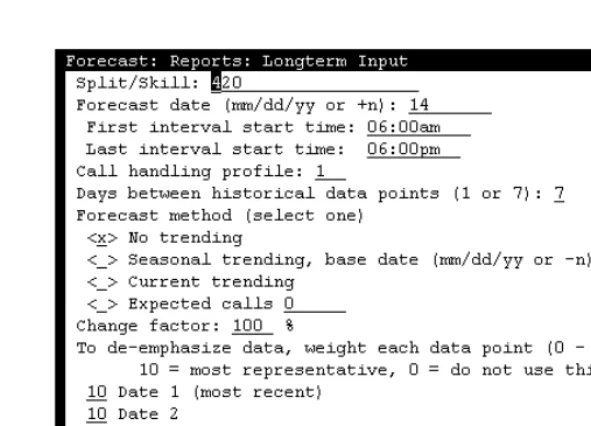
To de-emphasize data, weight each data point (0-10) where 10=most representative, 0=do not use this data
Dates 1 (most recent) to 4 (least recent)
Enter a number, 0 to 10, to change the relative weight of data on any or all data points.
Note You should leave the relative weight of each date at 10 unless you
Costs Profile Administration 2-20
Costs Profile Administration
2Purpose
2 You define costs profiles to specify the following objectives for a split/skill:● Cost per call
● Cost per agent
● Revenue per call.
Things to Know
Before You Start
2● In the Financial and Hypothetical Financial Forecasts,
CentreVu CMS will use the costs profile, along with forecasted calls carried, to forecast “financial information” (both costs and profit and the resulting margin) of a split(s)/skill(s) operation per intrahour interval.
● You must specify cost-per-agent, cost-per-call, and revenue-per-call
for each intrahour interval that you want to forecast.
● Up to 100 costs profiles may be created per ACD connected to
CentreVu CMS. As a result, you can define a profile which describes one or more splits/skills. You might do this if, for example, you want a profile for forecasts of weekdays (when calling rates are high), and another profile for forecasts of weekends (when rates are
discounted).
● You may define a unique costs profile for each split/skill for which
you want forecasts. However, you will normally be able to use the same costs profile, if appropriate, for multiple splits/skills in the ACD.
● In the Costs Profiles window itself, you assign only a profile ID
number. To actually define the costs/revenue objectives of a profile, you must use the Get Contents window, which displays when you select the Get Contents action list option. See Figure 2-4.
● You can also copy an existing profile's objectives to the new profile
Costs Profile Administration 2-21
Costs Profile
Window
2Use the Costs Profile window (Figure 2-7) to define a costs profile.
Figure 2-7: Costs Profile Window
Field/Action List
Usage
2Add
To add a costs profile, complete the Current profile: field to assign the profile number, and select Add.
Copy
To copy the contents of another profile, complete the Current profile: field, and select Copy.
Delete
To delete a profile, complete the Current profile: field, and select Delete.
Get contents
To define the costs profile from scratch, select Get contents.
To modify a profile, complete the Current profile field, and select
Get Contents.
Find one/List all
Costs Profile Administration 2-22
Field Descriptions
2 Current profile:Enter the number, 1 to 100, of the costs profile you want to view, add, modify, or delete.
Description:
Enter a description of the profile.
Copy Window
2 When you select Copy on the Costs Profiles window, the following Copywindow displays.
Figure 2-8: Copy Window
Field Descriptions
2 Copy from:Costs Profile Administration 2-23
Get Contents
Window
2When you select Get contents on the Costs Profiles window, the following Get Contents window displays.
Figure 2-9: Get Contents Window
Field/Action List
Usage
2Add
To add costs/revenues for one interval, complete all fields, and select Add. Intervals may only be added one at a time.
Delete
To delete costs/revenues for one or more intrahour intervals, complete
the Interval start time field, and select Delete.
Find one/Modify
To modify costs/revenues, do a Find one for an interval, change data in the appropriate fields, and select Modify.
List all
To view the costs defined for each intrahour interval, enter the
Costs Profile Administration 2-24
Field Descriptions
2 Interval start time:Enter a time of day in hh:mm format, either as military time (for example, 13:30) or with am or pm appended (for example, 10:15am).
● This time is the start time of the interval whose costs/revenues you
want to view, add, modify, or delete.
● When viewing, modifying, or deleting costs, you may specify
multiple intervals with:
— A range (for example, 7:00am -12:00pm)
— A series (for example, 7:00am;7:30am;4:30pm;5:00pm)
— A series of ranges (for example, 7:00am-11:30am; 12:30pm- 5:00pm).
Cost of a call:
Enter an average cost per call. You may enter a dollar figure from 0 to 1000. You may enter a decimal to specify cents.
In determining an average cost, you may want to consider access line charges, service charges, usage rates, and so on.
Cost of agent for interval:
Enter an average cost per agent for a single intrahour interval. You may enter a dollar figure from 0 to 1000. You may enter a decimal to specify cents.
● Remember that if your intrahour interval is 15 minutes, you must
figure your cost per agent for each of the specified 15-minute period(s), not for an hour.
● In determining an average cost, you may want to include equipment
and facilities costs, management overhead, benefits, and so on.
Average revenue per call:
Enter an average revenue per call. You may enter a dollar figure from 0 to 10000. You may enter a decimal to specify cents.
Do not enter a comma to specify thousands.
Note You can add costs/revenues one interval at a time only. If you
Trunk Group Profile Administration 2-25
Trunk Group Profile Administration
2Purpose
2 You define a trunk group profile to specify a targeted blocking percentagefor the trunks in a trunk group.
Things to Know
Before You Start
2● A blocking percentage is the percentage of time that incoming
calls to an ACD will fail to connect to the ACD because all trunks in a trunk group are busy. When a call is blocked, it typically receives a busy signal from the public network.
● In a Trunk Performance report, CentreVu CMS finds the number of
trunks that, in a specified period in the past, would have been required to handle calls carried at your objective blocking percentage.
● You must define a profile for a trunk group before you can run a
Trunk Performance report on that trunk group.
● You can define a profile for each measured trunk group in the ACD.
● For the Trunk Performance report, CentreVu CMS finds the five
busiest days in the report’s time period, and then finds the busiest intrahour interval in each of those days. CentreVu CMS finally averages the traffic for those five intervals to determine the average busy interval. The blocking objective you set for a trunk group will apply to this average busy interval.
Prerequisite
System
Administration
2● You must have write permission for the Forecast subsystem if you
want to create, change, or add a profile.
● You must have write permission for the trunk group(s) whose