Introduction to MS Visual Studio 6.0
0. Introduction:
Part 1 of this tutorial gives a simple introduction to MS Visual Studio 6.0 with an emphasis on OpenGL graphics application. Part 2 introduces the basics of C/C++. At the end of this tutorial you should be able to write a simple console application using the graphics libraries OpenGL, GLU, and GLUT. The tutorial gives an introduction to the C/C++ programming language but does not attempt to explain the above mentioned graphics libraries (which is done in the 372 lecture). Please note that these notes only introduce a very limited subset of the C/C++ language and you are expected to consult the 372 Resources web page for more information. Finally please remember that ‘learning by doing’ is the best recipe for mastering C/C++. I recommend that you do all examples on a computer. Also it is a good idea to experiment with the code (e.g. change parameters) and to introduce intentionally little syntax errors into the example programs in order to get familiar with the resulting error messages (if any) from the compiler.
1. Getting started with Microsoft Visual C/C++:
1.1.
Creating a Console Application
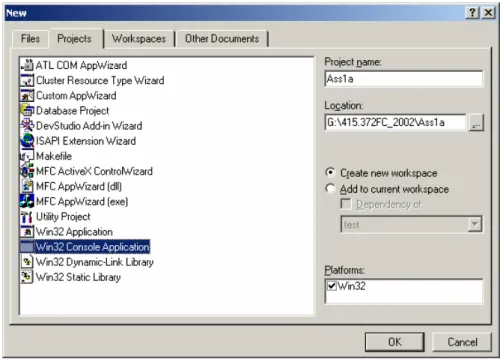
This section explains how to create a simple console application using Microsoft Visual C/C++. A console application is run from a DOS window, which is used to perform standard output and standard input. The behaviour of a console application is similar to a Java application executed from a DOS-window using JDK. If you are running a different IDE at home please consult your documentation about how to use it. In order to create a project for our application we start Visual C++ and choose ‘New’ in the ‘File’ menu. In the resulting pop-up menu select the tab ‘Projects’ and the item ‘Win32 Console Application’. In this example we name the project ‘Ass1a’ as shown in the figure below.
Click ‘OK’ and you get a pop-up window asking what type of project you want. Select ‘An empty project’ and click ‘Finish’. You now have an empty project without any classes or files. Note that Visual Studio creates automatically a workspace (‘Ass1a.dsw’) containing this project. If you want to open your project you can either choose ‘Open Workspace’ in the ‘File’ menu of Visual Studio or you can double click on the workspace file on the disk.
Next we want to create a file containing the main program. In order to do this, select again ‘New’ in the ‘File’ menu. In the resulting pop-up window choose the ‘Files’ tab and select ‘C++ Source File’. In the box titled ‘File name:’ input the name of the file, in this example ‘ass1a.cpp’.
Add the file to the project by selecting the ‘Project’ menu and then ‘Add to Projects’ and ‘Files’ as shown below:
As a result you get a pop-up window with a file browser. Select the file ‘ass1a.cpp’ and click ‘OK’. We now have a project without classes and with one source file. If the source file is not shown in the main window choose the tab ‘File View’ in the left hand frame (see figure below). Expand first the folder ‘Ass1a files’ and then the folder ‘Source files’ by clicking on the box next to it. If the folder is expanded the plus-sign inside the box changes to a minus-plus-sign. Open the file ‘ass1a.cpp’ by double clicking on it. Your workspace should now look as in the figure below.
You can now create your first program by typing into the file ‘ass1a.cpp’ the following code (or use cut and paste):
// My first C-programm #include <stdio.h>
int main(int argc, char* argv[]) {
printf("Hello World!\n"); return 0;
}
The code will be explained in the lecture. Save the file (using ‘Save’ in the ‘File’ menu or by using the keyboard shortcut ‘CTRL+S’), build the project (choose ‘Build Ass1a.exe’ in the ‘Build’ menu or press ’F7’) and run it (choose ‘Execute Ass1a.exe’ in the ‘Build’ menu or press ’CTRL+F5’).
You should get something like this:
Note that the output is written into a DOS-window. The line ‘Press any key to continue’ occurs because you are currently executing the application in debug-mode.
We can also execute the application directly. In order to do this, change into the ‘Debug’ directory of the directory containing your workspace and double click the file ‘ass1a.exe’. Note that the application exits immediately after execution. If you want the DOS-window to stay open you have modify the code accordingly, e.g.
// My second C-programm #include <stdio.h>
int main(int argc, char* argv[]) {
printf("Hello World!\n");
printf("Press 'Enter' to quit\t");
while(getchar()!='\n'); // loop until ‘Enter’ is pressed return 0;
1.2 Using OpenGL
For many programming tasks it is convenient to use a software interface to the hardware or the underlying operating system that offers high-level functionality. Such a software interface is called an application programming interface (API). The arguably most common graphics API in use today is OpenGL. OpenGL was originally introduced by SGI (Silicon Graphics) and is now available for most platforms. Even though the OpenGL commands are standardized different implementations of the OpenGL library may exist for the same platform. The two main versions of the OpenGL library for the Windows operating system are from Microsoft and from SGI. In this lecture we use the Microsoft version, which consists of the files gl.h,
opengl32.lib and opengl32.dll. The SGI version consists of the files gl.h, opengl.lib and
opengl.dll and is not used in this lecture.
The file gl.h contains function prototypes and constants whereas the file opengl32.lib contains the precompiled object code with the implementations of the function. Therefore, when writing an OpenGL program, we have to include gl.h at the beginning of each file, which uses OpenGL commands. In addition we have to link the project with the library opengl32.lib. More explanation on this topic are found in section 1.4.
Nowadays many windows applications (e.g. computer games) use OpenGL. Rather than including the complete OpenGL object code with each application it is more convenient to have the OpenGL library code only once on your machine and to use it for all OpenGL applications. This is achieved by using dynamic link libraries. The Microsoft OpenGL dynamic link library is called opengl32.dll and comes by default with all recent versions of the Windows operating system1. Note that some application might
require the SGI version. In this case you have to download the file opengl.dll from the web and put it into the ‘system32’ folder.
On top of OpenGL we use two utility libraries called GLU and GLUT. The corresponding files are glu.h,
glu32.lib, glu32.dll, and glut.h, glut32.lib, glut32.dll, respectively. They are used analogously to the corresponding OpenGL files. The files glu.lib, glu.dll, glut.lib, and
glut.dll are the SGI versions and are not used in this lecture.
1.3 Downloads:
The Microsoft versions of the above OpenGL and GLU files are available from the 372 Resources page or from: http://www.opengl.org/users/downloads/index.html
GLUT for windows (Microsoft version) is also on the 372 Resources page or at:
http://www.xmission.com/~nate/glut.html
A useful site for installing OpenGL drivers (assuming you have an OpenGL video card) is:
http://www.glsetup.com/
After downloading OpenGL/GLU and GLUT put all .dll files into the ‘system32’ directory (or ‘system’ for Windows95/98) and the .h and .lib files into a convenient directory from which you will add them to your project (more on this in the next section).
1.4 An OpenGL Example:
1 In Windows NT the file is in the folder ‘system32’ which is inside the folder ‘WINNT’. In Windows 98 it
is probably in the ‘system’ folder (haven’t checked, though, since we don’t have any computers running Windows 98).
1.4.1 An Example Program
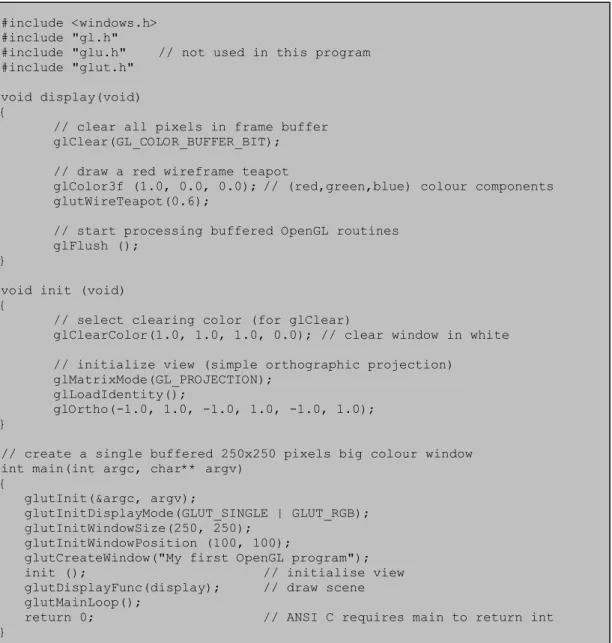
The program below draws a red teapot (as a wireframe) into a 250x250 pixels big window with white background.
#include <windows.h> #include "gl.h"
#include "glu.h" // not used in this program #include "glut.h"
void display(void) {
// clear all pixels in frame buffer glClear(GL_COLOR_BUFFER_BIT);
// draw a red wireframe teapot
glColor3f (1.0, 0.0, 0.0); // (red,green,blue) colour components glutWireTeapot(0.6);
// start processing buffered OpenGL routines
glFlush ();
}
void init (void) {
// select clearing color (for glClear)
glClearColor(1.0, 1.0, 1.0, 0.0); // clear window in white // initialize view (simple orthographic projection)
glMatrixMode(GL_PROJECTION); glLoadIdentity();
glOrtho(-1.0, 1.0, -1.0, 1.0, -1.0, 1.0); }
// create a single buffered 250x250 pixels big colour window int main(int argc, char** argv)
{
glutInit(&argc, argv);
glutInitDisplayMode(GLUT_SINGLE | GLUT_RGB); glutInitWindowSize(250, 250);
glutInitWindowPosition (100, 100);
glutCreateWindow("My first OpenGL program"); init (); // initialise view glutDisplayFunc(display); // draw scene glutMainLoop();
return 0; // ANSI C requires main to return int }
1.4.1 Building a Project
In order to execute this OpenGL program we have to create a console application as shown in the previous section. Create a project named ‘OpenGLExample’, copy the source file ‘drawObjects.cpp’ into the ’OpenGLExample’ folder and then add the file to the project.
Alternative you can download the complete workspace with project from the 372 Resources page: unzip the file ‘OpenGLExample.zip’, double click the workspace ‘OpenGLExample.dsw’ and type ‘CTRL+F5’ to build and run your application.
When building an application the following two steps are performed:
1. Compilation: In this step first all include statements are replaced with the corresponding header files. As a result your program knows all constants and functions defined in the header files. Next your source files are compiled and any syntax errors are reported. If the compilation was succesful object files (suffix ‘.o’) are created for each of your source files.
2. Linking: This step combines (links) your object code with any external libraries (such as opengl32.lib).
1.4.2 Including the OpenGL/GLU/GLUT libraries
Since the program in figure 1.2 makes use of OpenGL and GLUT commands, we have to tell our
application about these functions. This is achieved by first including the corresponding header files (suffix .h), which contain constant definitions and function prototypes. In a subsequent step we have to link our program with the libraries containing the actual implementations of the function prototypes.
The file ‘drawObjects.cpp’ contains four include files (the include commands in the file on the server are slightly different and are explained in the next paragraph):
#include <windows.h> #include "gl.h"
#include "glu.h" // not used in this example program #include "glut.h"
The header file windows.h contains constants and function prototypes of the Graphic Device Interface (GDI), which is at the core of all Windows graphics. Since the include file gl.h makes use of some of the GDI types and functions we have to include windows.h before gl.h. The angle brackets (< and >) around the header’s name indicate the header file is to be looked for on the system disk. When using Microsoft Visual C++ then all predefined header files are stored in the directory “.../Microsoft Visual Studio/VC98/Include”.
If the header file is written in double quotes, e.g. “gl.h” then it is stored in the current working directory. In our example this assumes that gl.h, glu.h and glut.h are stored in the same directory as the file
A better way to include libraries:
Since it is very annoying to copy for each project the header files into the current working directory it is preferable to put all header files of common libraries (such as OpenGL, GLU and GLUT) into a default system directory.
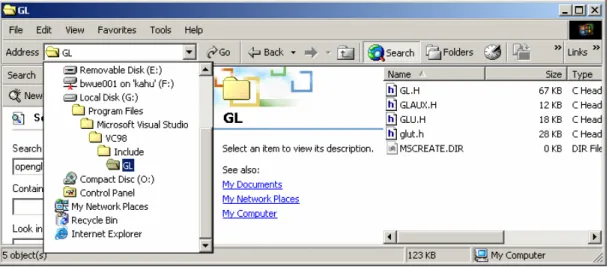
In order to do this create in the directory “.../Microsoft Visual Studio/VC98/Include” a subdirectory ‘GL’ and copy into this directory the files gl.h, glu.h and glut.h as shown in the image below2 (note that
unlike file names in Windows are not case-sensitive).
Figure 1.3: MS Visual Studio folder for OpenGL header files. You also have to change the include statements in the file ‘drawObjects.cpp’ accordingly:
#include <windows.h> #include <gl/gl.h> #include <gl/glu.h> #include <gl/glut.h>
Figure 1.4: Include statements for OpenGL libraries as used in this lecture.
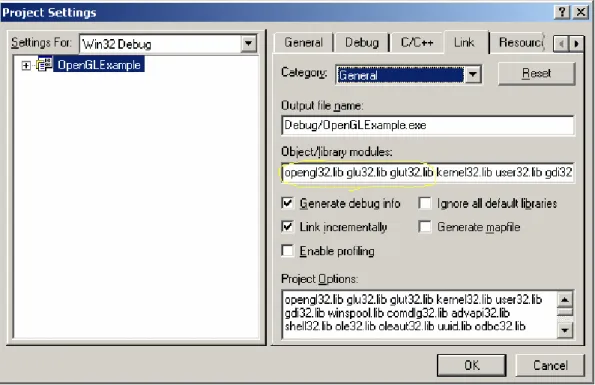
It remains to specify the libraries the project is using. To do this, select the item ‘Settings’ in the ‘Project’ menu. In the resulting pop-up window add the names of the libraries to the text box titled ‘Object/library modules’. Click OK when you are finished. The image below gives an example.
2 If you are using Microsoft Visual Studio in the lab then this has already been done. Most recent versions
Figure 1.5: Using the project settings to add library modules.
If you specify the libraries with their name only, as done above, the linker will search both in the working directory of your project and in certain system directories. Rather than putting all libraries into your working directory it is a good idea to copy them into the folder “.../Microsoft Visual Studio/VC98/Lib” as shown below.
Figure 1.6: MS Visual Studio folder for include-libraries.
Alternatively you can specify the path to the library. For example, if the library glut32.lib is in the root directory of the disk G than you must type in the project settings ‘G:/glut32.lib’. Note, however that this is bad style and won’t be accepted by the markers. The machines in the lab are set up as shown in figure 1.3 and figure 1.6. This means that the OpenGL header files are always included as shown in figure 1.4.
You can now built your project (i.e. compile and link it) by selecting the corresponding menu item or by pressing F7 (see section 1). Execute your application (CTRL+F5) and you will get as output a window displaying a red teapot as shown below.
NOTE: If you include <glut.h> and put the library files into the “VC98/LIB” director as shown above then you don’t have to specify the library modules in the project settings as shown in figure 1.4. The reason for this is that the file glut.h from the 372 Resources page contains the
preprocessor directives shown below, which include the libraries during compilation: /* To enable automatic SGI OpenGL for Windows library usage for GLUT,
define GLUT_USE_SGI_OPENGL in your compile preprocessor options. */ # ifdef GLUT_USE_SGI_OPENGL
# pragma comment (lib, "opengl.lib") /* link with SGI OpenGL for Windows lib */ # pragma comment (lib, "glu.lib") /* link with SGI OpenGL Utility lib */ # pragma comment (lib, "glut.lib") /* link with Win32 GLUT for SGI OpenGL lib */ # else
# pragma comment (lib, "opengl32.lib") /* link with Microsoft OpenGL lib */
# pragma comment (lib, "glu32.lib") /* link with Microsoft OpenGL Utility lib */ # pragma comment (lib, "glut32.lib") /* link with Win32 GLUT lib */
# endif # endif