Database systems (Intermediate 2)
Candidates undertaking Higher without prior attainment of this unit at Intermediate 2 level may find these chapters helpful.
Chapter 1: What is a database?
Data and information
An information system is a combination of computer hardware and software that is designed to create, store, process and present
information. In today’s world, the amounts of data that are held within information systems are vast, and continue to increase as the processing power and storage capacity of computer systems increase year on year.
For example, the information system used by the Driver and Vehicle Licensing Agency (DVLA) stores records on around 40 million drivers and around 30 million vehicles in the UK!
The heart of all information systems is a database. Before looking at databases in more detail, let’s review what we mean by data and information.
Data are raw, unprocessed facts and figures. Data are collected, stored and processed by computers. Here are some examples of data:
• 368 • HR101FE • 010468 • Baker • 25168.
Information is processed data with structure or meaning. Information is useful to humans. Examples are:
• Age: 36 years 8 months • Post Code: HR10 1FE • Date of Birth: 01/04/68
• Occupation: Baker • Total Spent: £251.68.
A database is a collection of related information about a set of persons or objects. Traditionally, databases were manual paper-based systems. For example, the Yellow Pages telephone directory is a database of companies’ names, addresses and telephone numbers, organised in business categories.
A database management system (DBMS) is a software package which is used to create, manipulate and present data from electronic databases. Example of DBMSs include Microsoft Access and Filemaker Pro.
Traditional databases
The first databases were manual paper-based systems. Usually, paper records were stored in filing cabinets. There were several problems associated with such databases:
• the storage of paper records was very bulky, often requiring several large filing cabinets
• it was very easy to miss-file a paper record, or for records to be lost or damaged
• data was often duplicated in several records
• keeping records up-to-date was difficult and time consuming, and often resulted in data inconsistency, where values were updated in one record but not in others
• many people were employed to maintain the records, which was costly
• searching for records was time consuming
• producing reports, such as sorted lists or data collated from several sources, was extremely time consuming, if not impossible.
Computerised databases were developed in order to address these problems.
To help see how a computerised database can improve a manual system, let’s look at an example.
Case study: DVD rentals
Ali’s Mini Market is a local store with a DVD rental section. To rent a DVD, customers must register as members.
Ali records the details of members in a member list, part of which is shown in Figure 1.1.
Figure 1.1: DVD rentals member list
Member number Title Forename Surname Telephone no.
1012 Miss Isobel Ringer 293847
1034 Mr John Silver 142536
1056 Mr Fred Flintstone 817263
1097 Mrs Annette Kirton 384756
Ali has a DVD rentals list that is used to record the details of rentals for each DVD. Part of the list is shown in Figure 1.2.
Figure 1.2: DVD rentals list
DVD Title Cost Date Out Date Due Member Name
code number
002 Finding Nemo £2.50 03/09/04 04/09/04 1034 John Silver 003 American Pie £2.50 27/08/04 28/08/04 1056 Fred Flintstone
01/09/04 02/09/04 Isobel Ringer 008 The Pianist £2.50 04/09/04 06/09/04 1097 Annette Kirton 011 Notting Hill £2.50 27/08/04 28/08/04 1012 I Ringer
04/09/04 06/09/04
014 Prime Suspect £2.00 27/08/04 28/08/04 1086 Annette Kirton 015 Shrek £1.50 10/09/04 11/09/04 1034 Joan Silver
Ali has found a number of problems in using these lists.
• It is time-consuming to record the details of each member every time a DVD is rented.
• As a result, staff often do not write all the information down in the DVD rentals list (perhaps missing out the member number or name, or shortening the name).
• When Ali has to check up on late returns, he must refer back to the members list, to find a member’s contact details, which is very time consuming.
• Mistakes can be made in writing the information down. Can you spot a mistake with Member 1034 in the DVD rentals list? (See page 16 for the answer!)
• Ali has to work out the total amount of money made from DVD rentals each month. This is very time consuming and he often makes mistakes.
• Ali would like to be able to find out which DVDs are the most and least popular in order to update his stock, but he doesn’t have the time to do this.
All of Ali’s problems can be solved by using a computerised database to replace his manual system.
Benefits of using computerised databases
Computerised databases have several advantages over manual databases.
• Searching, sorting and calculating operations can be performed much more quickly.
• Information is more easily available to users, due to these improved methods of data retrieval.
• Data integrity is improved, resulting in more accurate information.
Types of database
The two main types of computerised database are flat file and relational.
Flat file databases
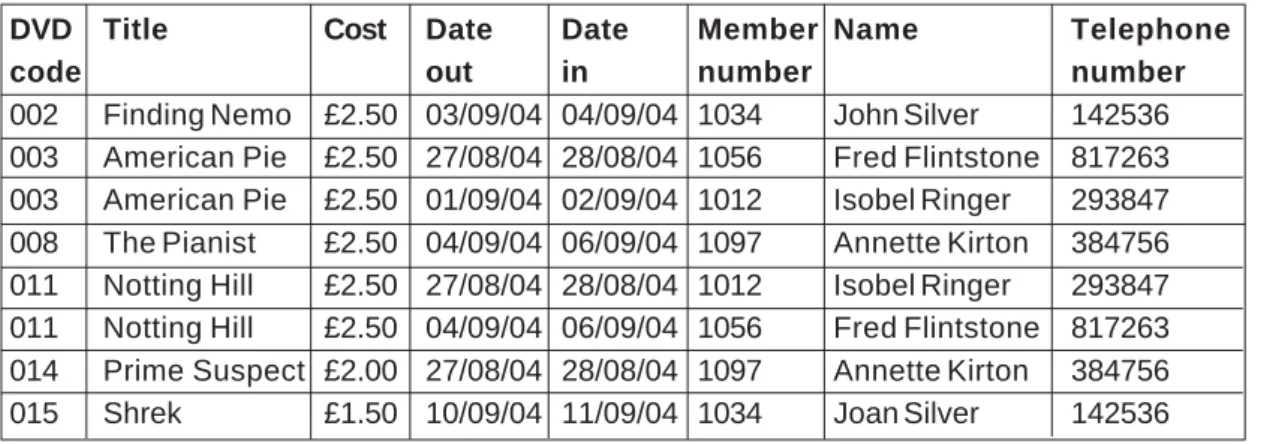
A flat file database is like an electronic card index file. In this type of database, the data is stored in a single table. In the case of the DVD rentals system, the table would store data about both members and DVDs, as shown in Figure 1.3.
DVD Title Cost Date Date Member Name Telephone
code out in number number
002 Finding Nemo £2.50 03/09/04 04/09/04 1034 John Silver 142536 003 American Pie £2.50 27/08/04 28/08/04 1056 Fred Flintstone 817263 003 American Pie £2.50 01/09/04 02/09/04 1012 Isobel Ringer 293847 008 The Pianist £2.50 04/09/04 06/09/04 1097 Annette Kirton 384756 011 Notting Hill £2.50 27/08/04 28/08/04 1012 Isobel Ringer 293847 011 Notting Hill £2.50 04/09/04 06/09/04 1056 Fred Flintstone 817263 014 Prime Suspect £2.00 27/08/04 28/08/04 1097 Annette Kirton 384756 015 Shrek £1.50 10/09/04 11/09/04 1034 Joan Silver 142536
Figure 1.3: A flat file database for the DVD rentals system
The flat file database contains one record for each DVD rental. This is because flat file databases only allow a single value to be stored in each column.
Limitations of flat file databases
There are a number of problems with flat file databases.
• Data is very likely to be duplicated. For example, because a new record would be created for each DVD rented, this means that the member details would have to be copied onto each new record. • The duplication of data leads to the possibility of data inconsistency.
This happens when what should be the same data, stored on two separate records, differs. Usually this is the result of human error in copying the data, e.g. entering the telephone number for John Silver as 142563. It then becomes difficult or impossible to know which record contains the correct version of the data.
• It is not possible to store information about a member without entering details of a DVD. This is called an insertion anomaly. • Removing a DVD from the database may remove the only record that
stores details of a member. This is called a deletion anomaly.
In fact, a flat file database is not much of an improvement on the manual system!
Relational databases
The solution to the problems of flat file databases is to use a relational database. A relational database stores data in more than one table. The idea is to ensure that data is only entered and stored once, so removing
A process called normalisation is used to work out what tables are required and which data items should be stored in each table.
Exercise 1
1. Define the terms data and information. Give examples of your own to illustrate your answer.
2. Write down as many possible items of information that could be represented by the data 110291.
3. Describe three problems that exist with manual paper-based filing systems.
4. Describe three benefits of using computerised databases, compared to manual systems.
5. (a) What is meant by a flat file database?
(b) Describe four problems with the use of flat file databases. 6. (a) What is a relational database?
(b) Explain why a relational database is able to solve the problems associated with flat file databases.
(c) Explain why normalisation is required when using a relational database.
The mistake in the DVD Rentals List was that Member 1034 is listed as both John Silver and Joan Silver.
Chapter 2: Data modelling
Entities and data relationships
In Chapter 1, we introduced Ali’s Mini Market and the DVD rentals system.
Ali recorded information about each DVD rental (its code, title, cost, date out, date due, member number and name) and each member (member number, name and telephone number).
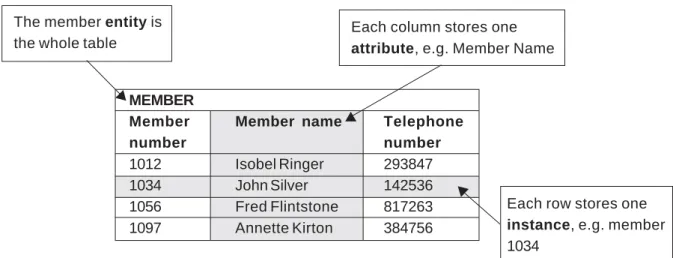
In database systems, ‘Member’ and ‘DVD rental’ are called entities. An entity represents a person or object. Each entity has a set of attributes that describe examples or instances of that entity. The attributes of the DVD rental entity are: Code, Title, Cost, Date Out, Date Due and
Member Number; the attributes of the member entity are: Member Number, Name and Telephone Number.
In a manual system, attributes may contain a list of values. For example, in Ali’s original DVD rentals list (see Figure 1.2), the attributes Date Out, Date Due, Member Number and Name had more than one entry for DVDs 003 and 011. These are called multi-valued attributes.
In a computerised database, single-valued attributes are used. The flat file database illustrated in Figure 1.3 demonstrates how these multiple values are turned into single values.
Figure 2.1: Entities, attributes and instances
MEMBER
Member Member name Telephone
number number
1012 Isobel Ringer 293847 1034 John Silver 142536 1056 Fred Flintstone 817263 1097 Annette Kirton 384756 The member entity is
the whole table
Each column stores one
attribute, e.g. Member Name
Each row stores one
instance, e.g. member
1034
V
V
The entity and its attributes are written as:
MEMBER(Member Number, Name, Telephone Number)
DVD RENTAL(DVD Code, Title, Cost, Date Out, Date Due, Member Number)
Note that the entity name is usually written in CAPITALS and in the singular rather than the plural form, i.e. MEMBER, not MEMBERS. The attributes are listed in the brackets in lower case letters with initial capitals. Sometimes it is easier to write the attributes one underneath the other.
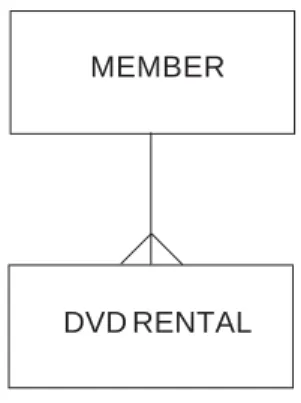
When a DVD is rented, a link is made between DVD RENTAL and MEMBER. This is called a relationship. Each member can rent out many DVDs, but each DVD can only be rented by one member at a time, so we say there is a one-to-many relationship between MEMBER and DVD RENTAL.
This is sometimes written as... MEMBER 1:M DVD RENTAL 1:M stands for one-to-many.
Figure 2.2 shows a diagram of this relationship between MEMBER and DVD RENTAL. This is called an entity-relationship diagram. The line joining the entities is called a crow’s foot, and the ‘toes’ are at the ‘many’ end of the relationship.
Figure 2.2: Entity-relationship diagram showing a one-to-many relationship
MEMBER
There can be other types of relationship between entities. For example, every vehicle has a registration number, and each registration number corresponds to a single vehicle, so there is a one-to-one relationship between VEHICLE and REGISTRATION NUMBER. In a school, each pupil has many teachers, and each teacher teaches many pupils, so there is a many-to-many relationship between PUPIL and TEACHER.
These relationships can be written as
VEHICLE 1:1 REGISTRATION NUMBER PUPIL M:N TEACHER
M:N stands for many-to-many (the number of teachers and pupils may be different, which is why N is used instead of M)
Figure 2.3: Entity-relationship diagrams showing one-to-one and many-to-many relationships
VEHICLE PUPIL
TEACHER
Data modelling is the process of defining the entities, attributes and relationships that are required. The result is called a data model.
REGISTRATION NUMBER
Multiple tables
Figure 2.4 shows the flat file database from Chapter 1, which could have been used to store the data about members and DVD rentals.
Figure 2.4: Flat file database
Using a single table is not the best way of storing the data.
• There is unnecessary duplication of data. For example, Annette Kirton’s name and telephone number have been duplicated for every DVD she has rented.
• There is the possibility of data inconsistency. For example, the member with code 1034 has rented two DVDs. But who is the member? Is it John Silver or Joan Silver?
• There are two other examples of data inconsistency in the table above. Can you spot them? (See page 25 for the answers.)
In the example above, the data inconsistency is a direct result of data duplication. If we can prevent duplicating data unnecessarily, then we can eliminate the possibility of data inconsistency.
The solution to the problem of duplication is to store the details in two separate tables, corresponding to the entities MEMBER and DVD
RENTAL. These tables are shown in Figure 2.5.
DVD Title Cost Date Date Member Name Telephone
code out in number number
002 Finding Nemo £2.50 03/09/04 04/09/04 1034 John Silver 142536 003 American Pie £2.50 27/08/04 28/08/04 1056 Fred Flintstone 817263 003 American Pie £2.50 01/09/04 02/09/04 1012 Isobel Ringer 293847 008 The Pianist £2.50 04/09/04 06/09/04 1097 Annette Kirton 384756 011 Notting Hill £2.50 27/08/04 28/08/04 1012 Isobel Ringer 293847 011 Notting Hill £2.50 04/09/04 06/09/04 1056 Fred Flintstone 817263 014 Prime Suspect £2.00 27/08/04 28/08/04 1097 Annette Kirton 384756 015 Shrek £1.50 10/09/04 11/09/04 1034 Joan Silver 142536
Figure 2.5: Tables for DVD RENTAL and MEMBER
DVD Title Cost Date Date
code out due
002 Finding Nemo £2.50 03/09/04 04/09/04 003 American Pie 3 £2.50 01/09/04 02/09/04 008 The Pianist £2.50 04/09/04 06/09/04 011 Notting Hill £2.50 04/09/04 06/09/04 014 Prime Suspect £2.00 27/08/04 28/08/04 015 Shrek £1.50 10/09/04 11/09/04 003 American Pie 3 £2.50 27/08/04 28/08/04 011 Notting Hill £2.50 27/08/94 28/08/04
Member Member name Telephone
number number
1012 Isobel Ringer 293847 1034 John Silver 142536 1056 Fred Flintstone 817263 1097 Annette Kirton 384756
Notice that the member details for John Silver and Annette Kirton now appear only once, removing the problem of unnecessary duplication and data inconsistency. However, simply splitting the original table in two means the link between DVD rentals and members has now been broken—we can no longer tell who has rented which DVD!
To restore the link, an extra field must be added to one of the tables. There are two possibilities to consider:
1. Add the DVD code to the MEMBER table, as shown:
Member Member name Telephone DVD
number number code
1012 Isobel Ringer 293847 003 1034 John Silver 142536 ? 1056 Fred Flintstone 817263 011 1097 Annette Kirton 384756 ?
This solution has a problem, however. What value should be entered into DVD Code for members 1034 and 1097? Because multi-valued attributes are not permitted, there is only space for
one value. The only way to store information about another rented DVD is to add another row which means duplicating the member details again!
2. Add the member number to the DVD RENTAL table, as shown:
DVD Title Cost Date Date Member
code out due number
002 Finding Nemo £2.50 03/09/04 04/09/04 1034 003 American Pie 3 £2.50 01/09/04 02/09/04 1056 008 The Pianist £2.50 04/09/04 06/09/04 1012 011 Notting Hill £2.50 04/09/04 06/09/04 1097 014 Prime Suspect £2.00 27/08/04 28/08/04 1056 015 Shrek £1.50 10/09/04 11/09/04 1012 003 American Pie 3 £2.50 27/08/04 28/08/04 1097 011 Notting Hill £2.50 27/08/94 28/08/04 1034
This solution is better, as each DVD can have only one member renting it at a time. Notice that Member Number is now
duplicated – it appears in both the MEMBER table and the DVD RENTAL table – but this time the duplication is necessary.
Keys
In order to establish the relationships between the tables in the database, each entry, or record, in a table must be able to be uniquely identified by a key. A key is a field, or set of fields, the values of which uniquely identify a record. A field is equivalent to an attribute of an entity. In any table, there may be more than one field, or set of fields, which can uniquely identify each record – these are called candidate keys. The candidate key that is chosen to be used is called the primary key.
In our DVD rentals example, Member Number is a candidate key for the MEMBER entity, because each member has a unique number. For example, the number 1056 appears in only one member record. The key is identified by underlining it, as shown:
MEMBER(Member Number, Name, Telephone Number)
The extra field (Member Number) which is added to the DVD RENTAL table is called a foreign key. A foreign key is a field that is not a primary key in its own table, but is a primary key in another table.
In this example, Member Number is a foreign key in DVD RENTAL, because it is the primary key in MEMBER.
Here is the data model:
MEMBER(Member Number, Name, Telephone Number)
DVD RENTAL(DVD Code, Title, Cost, Date Out, Date Due, *Member Number)
The asterisk (*) before Member Number in the DVD RENTAL entity indicates that it is a foreign key.
Figure 2.6 shows the entity-relationship (E-R) diagram.
Figure 2.6: Entity-relationship diagram for the video shop data model
MEMBER
DVD RENTAL
You can use the data model to check that the E-R diagram is correct.
• Check for relationships.
Entities are only related if they share an attribute.
In this case, MEMBER and DVD RENTAL are related because they share the Member Number attribute.
• Check the relationship type.
To work out which way the relationship goes, look for the foreign key. The entity that contains the shared attribute as a foreign key is always at the ‘many’ end of the relationship.
In this case, Member Number is a foreign key in the DVD RENTAL entity, so this entity is at the ‘many’ end of a one-to-many
relationship.
• Read the relationship out.
If you read the relationship back to yourself, you can check to see if it’s correct.
In this case, reading from top to bottom, ‘each Member can rent many DVDs’. This is correct.
Reading from bottom to top, ‘each DVD can be rented by only one Member’. This is also true.
It is not always obvious which entities are required in a data model. A process called normalisation is used to determine these.
In fact, the data model above is not fully complete. If the database records each time a DVD is rented, then a DVD may be rented more than once (on different dates). A fully normalised data model to represent this is set as an exercise in Section 4 of this pack.
From data model to database
Once the entities, attributes and relationships in the data model have been defined, a database can be created.
Each entity in the data model becomes a table in the database. Each attribute of an entity becomes a field in a table in the database.
Exercise 2
1. A used car dealer has a database to keep track of car sales. One of the entities in the database is VEHICLE. Suggest eight suitable attributes of this entity.
2. The following table shows some data about books in the children’s section of a library. The details of each book’s title, author,
publisher and International Standard Book Number (ISBN) are recorded. In addition, each book is given a unique library catalogue number.
Title Author Publisher ISBN Catalogue No.
The Cat in the Hat Dr Seuss Collins 0001713035 07285 The Badger’s Bath N Butterworth HarperCollins 0007627351 11092 The Fox’s Hiccups N Butterworth HarperCollins 0007627327 17234 Snow White and L Anholt, Orchard Books 1841214027 26574 the Seven Aliens A Robins
Goldilocks and the Ladybird 0721402690 02386 Three Bears
(a) What is meant by a ‘key’ in a database table?
(b) Explain why the following keys would be unsuitable: (i) Author
(ii) Title.
(c) Identify two suitable candidate keys for this table.
3. Draw an entity-relationship diagram to represent the following relationships:
(a) pupil and teacher
(b) patient and medical record (c) item in a shop and supplier
(d) customer and newspaper (on a delivery round) (e) television and repair details (in a repair shop) (f) person over 16 and National Insurance number (g) CD and track.
The mistakes in the DVD rentals list were:
1. DVD 003 is listed as American Pie and American Pie 3 2. DVD 011 is listed incorrectly as Noting Hill.
Chapter 3: Implementation
Once the data model is completed, the database can be constructed. This involves three stages:
1. set-up the tables 2. populate the tables
3. manipulate and present the data.
Let’s look at each of these stages in turn for the DVD rentals case study.
Setting up the tables
In order to set-up the tables in the database, you must decide:
1. Which tables are required?
The tables correspond directly to the entities in the data model. In this case, there will be two tables, Member and DVD Rental.
2. Which fields are required?
As before, the fields in each table are the attributes in each entity in the data model.
Table: Member Table: DVD Rental
Fields: Member Number Fields: DVD Code
Name Title
Telephone Number Cost Date Out Date Due Member Number
3. What are the properties of each field?
For each field in the database, you must consider the following.
(i) Its name You should take care to choose sensible field names and make sure that your naming is consistent in each table. For example, if you choose to abbreviate Member Number to Member No. (rather than Member Num. or Member #), you should also abbreviate Telephone Number
(ii) The data type This may be one of the following.
Text, E.g. Smith, EH991AB, £14+VAT. alphanumeric,
or string
Numeric Either integer (whole numbers) or real (floating point), e.g. 13, 3.14.
Currency A special type of numeric field for monetary values, e.g. 12.00, 2.50, 0.15.
Date or time Dates may be in dd/mm/yyyy format or ‘long date’ format. Times may be in hh:mm:ss format, or ‘long time’ format. E.g. 01/01/1990, 1 January 1990, 13:30:00, 1:30 p.m.
Boolean Yes or no. Named after George Boole, mathematician and logician, who created binary logic, e.g. AND, OR, NOT.
Link A reference to a file located outside the database.
Object Data such as a picture or sound file. (iii) Validation • Whether the field must have a value, or
can be left blank (called a presence check).
• Whether the value of the field is limited to certain values (called a restricted choice check), e.g. Mr/Mrs/Miss/Ms. • Numeric fields may be subject to a
range check, e.g. the ‘year’ for a secondary school pupil must be between 1 and 6.
It is often useful to record this information about tables and fields in a table called a data dictionary. This allows the database to be
Populating the tables
Entering data into the tables is known as ‘populating’ the tables. The most important aspect of this stage is ensuring the data is entered accurately.
The validation settings in the data dictionary help to ensure that data is valid, or sensible. For example, required fields will all have values (presence check), number values will be in the range specified (range check), while some values may be selected from a list of choices (restricted choice check).
However, there is no guarantee that even valid data is correct! You must make sure that the data entered is checked to see that it is correct. This is called verification.
Most occurrences of incorrect data in databases are due to human error, usually as a result of mistakes in inputting data. Some ways of ensuring that data is correct include:
• machine-readable data entry, such as bar codes and optical character recognition (OCR), which eliminates the scope for human error in entering data
• a spell checker can help to ensure that ‘free text’ entered is valid.
Manipulating the data
The real value of a database lies in what you can do with the data once it has been entered and stored. Organisations store vast amounts of data in databases, and a well-designed database can produce valuable
information that a human operator would find difficult or impossible to produce.
Databases are good at performing four main tasks:
• searching records • sorting records • calculating values • presenting results.
Searching records
Searching is the process of selecting records from a table or
combination of tables. To perform the search, three items must be identified.
1. Which fields will be used to identify the records required? 2. What are the search conditions for identifying the records
required?
3. Which fields will be displayed?
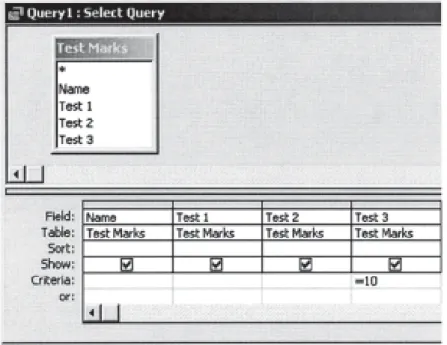
Figure 3.1: A search query in Microsoft Access. The name of the student and the results of all three tests will be displayed. For Test 3, however, only the names of those students with 10 marks will be displayed. This is a condition of the search.
Search conditions (called ‘criteria’ in Access – see Fig 3.1) contain Boolean operators. These are shown in the table below:
Operator Meaning Example Matches
=
equal to Age = 16 People aged 16Surname = 'Smith' People called Smith
< >
not equal to Height < > 1.70 People smaller or tallerthan 1.7m
Certificate < > ‘PG’ Films which are not PG
certificate
>
greater than Age > 17 People older than 17or Surname > 'N' Surnames in the second half
after of the alphabet (starting N-Z)
Date of Birth > 01/05/1952 People born after 1 May 1952
<
less than Height < 1.9 People shorter than 1.9mor Surname < 'N' Surnames in the first half
before of the alphabet (beginning A-M).
Date of Birth < 31/06/1990 People born before 31 June
1990
>=
greater than or Age >= 17 People aged 17 or olderequal to Postcode >= 'EH30' Postcodes beginning EH30
or or greater
after and Date of Birth >= 01/05/1952 People born on or after 1 May
including 1952
<=
less than or equal Height <= 1.95 People 1.9m or less in heightto Postcode <= 'EH20' Postcodes before EH20
or (beginning EH1 to EH19)
before and Date of Birth <= 30/06/1990 People born on or before 30
Some DBMSs allow you to select a phrase such as ‘not equal to’ instead of using the operator symbol. Some DBMSs also have some other search functions, such as ‘between’, e.g. between 1 and 5.
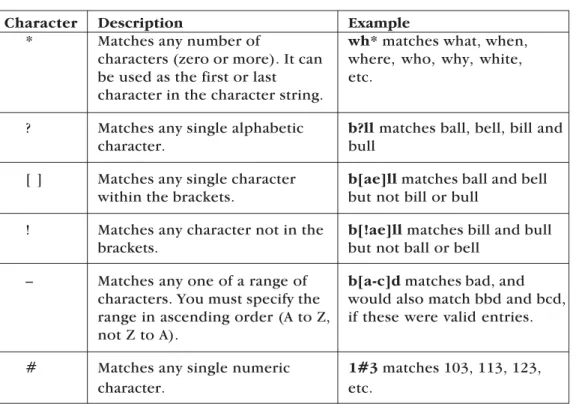
Wildcards
A wildcard is a symbol which is used to stand for one or more characters in a search condition. Commonly, the asterisk (*) symbol is used to stand for any number of characters (including none and one), and the question mark (?) symbol stands for exactly one character.
Figure 3.2 shows the list of Boolean search operators and wildcard characters available in Filemaker Pro. Figure 3.3 is an extract from the Microsoft Access help file, which shows the
wildcard characters available.
Figure 3.3: Wildcard characters in Microsoft Access
Character Description Example
* Matches any number of wh* matches what, when,
characters (zero or more). It can where, who, why, white,
be used as the first or last etc.
character in the character string.
? Matches any single alphabetic b?ll matches ball, bell, bill and
character. bull
[ ] Matches any single character b[ae]ll matches ball and bell
within the brackets. but not bill or bull
! Matches any character not in the b[!ae]ll matches bill and bull
brackets. but not ball or bell
– Matches any one of a range of b[a-c]d matches bad, and
characters. You must specify the would also match bbd and bcd,
range in ascending order (A to Z, if these were valid entries.
not Z to A).
# Matches any single numeric 1#3 matches 103, 113, 123,
Figure 3.2: Boolean operators and wildcards in Filemaker Pro
Figures 3.4 and 3.5 show how a wildcard character is used as part of the search criteria in Microsoft Access. The asterisk is used in the same way in ‘Find’ mode within Filemaker Pro.
Figure 3.4: Using a wildcard to search within a text field in Microsoft Access. The search criteria would match all customers whose Name ends in ‘son’.
Figure 3.5: Using a wildcard to search within a date field in Microsoft Access. The search criteria would match all orders with an order date in August 2004.
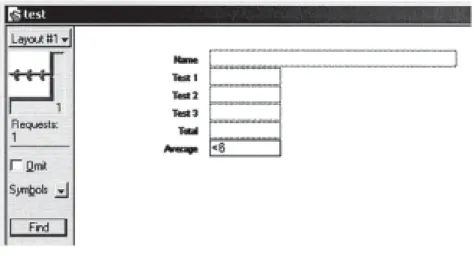
Figures 3.6 and 3.7 show a search for records where the average mark is less than 6, using Microsoft Access and Filemaker Pro. In each case, the search condition is Average < 6.
Figure 3.7: Search query from Fig 3.6, shown in Filemaker Pro.
A complex search involves more than one search condition (and usually more than one field).
Figures 3.8 and 3.9 show a complex search in Microsoft Access and Filemaker Pro. In each case, the search condition is Test 3 = 10 AND Average < 6.
Figure 3.9: A complex search in Filemaker Pro using a table layout.
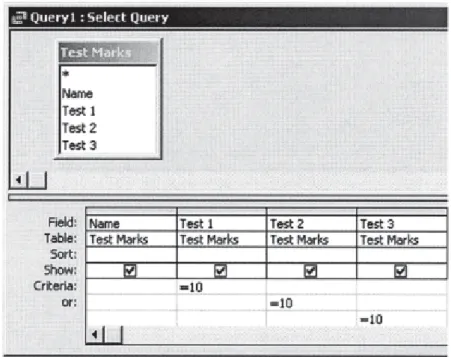
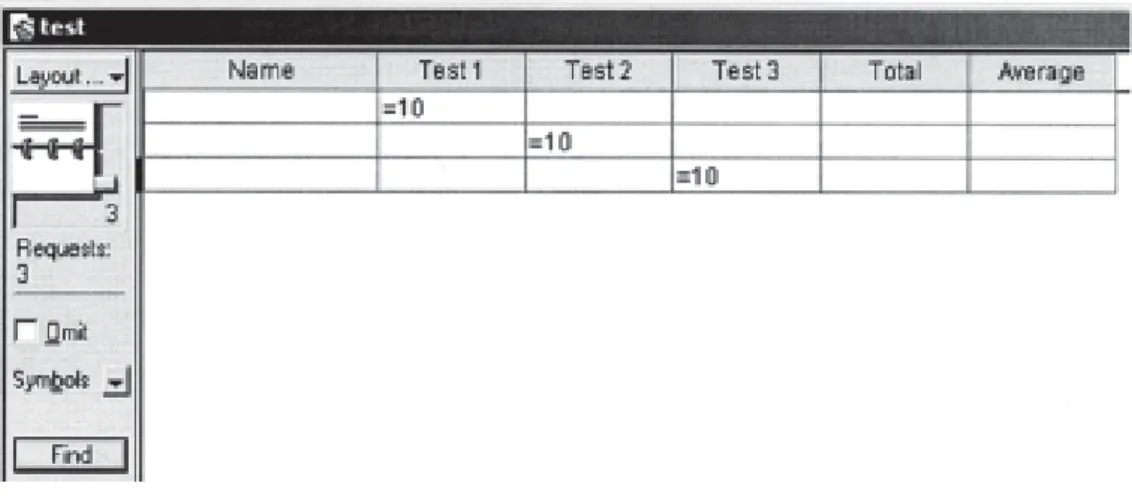
Figure 3.10 and Figure 3.11 show a complex search involving more than one search condition. In each case, the search condition is Test 1 = 10 OR Test 2 = 10 OR Test 3 = 10. In Access, each new search condition is entered into a new row below the Criteria row; in Filemaker Pro, a new request is selected in ‘Find’ mode.
Figure 3.10: A complex search in Microsoft Access involving multiple fields.
Figure 3.11: A complex search in Filemaker Pro involving multiple fields (using a table layout).
Sorting records
It is often useful to arrange the information in the database in some kind of order. A sorting operation is performed to achieve this. To perform a sort, two items must be identified.
1. Which field will be used to decide the order of records? This is called the sort key.
2. For the sort key, will the order of sorting be ascending or descending?
For example:
• to produce a list of people with the tallest first, the records would be sorted in descending order of height.
• to produce a list of people with youngest first, the records would be sorted in ascending order of age.
A very common way of ordering records relating to people is in alphabetical order. To achieve alphabetical ordering requires the records to be sorted in ascending order of surname.
Figure 3.12: Using a query in Microsoft Access to sort in ascending order of name
Figure 3.13: Sorting in ascending order of name in Filemaker Pro
A complex sort involves more than one sort condition involving two or more fields. The main sort key is called the primary sort key, and the second one is called the secondary sort key. Figures 3.14 and 3.15 show a complex sort in Microsoft Access and Filemaker Pro. This sorts results in a descending order of average results, then in an ascending
order of name. This will show the results with the highest first; any students with the same average mark will be listed alphabetically by name. Note how the order of fields must be changed to identify the primary and secondary sort keys.
Figure 3.14: A complex sort in Microsoft Access.
Calculating values
One of the main advantages that computers have over humans is the ability to perform calculations very quickly, as many times as necessary, without errors.
In a database, calculations are performed using expressions or
formulas. Here is an expression to calculate a student’s total mark from three tests:
= [Test 1] + [Test 2] + [Test 3]
Many databases also allow you to use functions in expressions. For example, the following expression would calculate the student’s average mark from the three tests:
= Average([Test 1], [Test 2], [Test 3])
In Microsoft Access, calculations are performed in a query using the Expression Builder, as shown in Figure 3.16.
Figure 3.17: A query containing an expression field created with Expression Builder in Microsoft Access
Figure 3.18: Answer table in Microsoft Access showing the total and average marks
Figure 3.19: Entering an expression for a calculation field in Filemaker Pro
Presenting results
There are two ways in which databases can present information: on-screen and hard copy (print-outs).
In some DBMSs, the same method is used for both of these, e.g. in Filemaker Pro, layouts are used for both screen and printed output and are also used for data entry.
In other DBMSs, there are different methods used for each, e.g. in Microsoft Access, forms are used for screen output, while reports are used for printed output. In Access, forms are also used for data entry.
Working with more than one table
If you recall the DVD Rental system, back in Chapter 2 we saw how we could record information about rentals more efficiently by using two tables – one to store information about Members, and one to store information about DVDs, as shown:
DVD Title Cost Date Date
code out due
002 Finding Nemo £2.50 03/09/04 04/09/04 003 American Pie 3 £2.50 01/09/04 02/09/04 008 The Pianist £2.50 04/09/04 06/09/04 011 Notting Hill £2.50 04/09/04 06/09/04 014 Prime Suspect £2.00 27/08/04 28/08/04 015 Shrek £1.50 10/09/04 11/09/04 003 American Pie 3 £2.50 27/08/04 28/08/04 011 Notting Hill £2.50 27/08/94 28/08/04
DVD Title Cost Date Date Member
code out due number
002 Finding Nemo £2.50 03/09/04 04/09/04 1034 003 American Pie 3 £2.50 01/09/04 02/09/04 1056 008 The Pianist £2.50 04/09/04 06/09/04 1012 011 Notting Hill £2.50 04/09/04 06/09/04 1097 014 Prime Suspect £2.00 27/08/04 28/08/04 1056 015 Shrek £1.50 10/09/04 11/09/04 1012 003 American Pie 3 £2.50 27/08/04 28/08/04 1097 011 Notting Hill £2.50 27/08/94 28/08/04 1034
Microsoft Access
In Microsoft Access, two tables can created within the database. In order to link the data about DVDs with Members, you must ensure that both tables contain the field Member Number, and that this field has the same data type and size settings (e.g. Numeric/Integer).
We can improve the database by ensuring that we can only enter
Member Numbers into the DVD table for Members who are listed in the Members table. To do this, we use the Lookup Wizard, as shown in Figures 3.20 to 3.23.
Figure 3.20: Using the Lookup Wizard with the Member Number field in the DVD table
Figure 3.21: In Step 2 of the Lookup Wizard, select the Member table from which the value for Member Number will be selected
Figure 3.22: In Step 3 of the Lookup Wizard, select the fields from the Member table which are to be displayed in the lookup list
Now when the DVD table is populated with data, the lookup produces a drop-down list of Members from the Member table from which to select a value for Member Number, as shown in Figure 3.23:
Figure 3.23: Using the lookup list to enter data into the DVD table
Filemaker Pro
In Filemaker Pro, the two tables are created as separate files. In order to link the data about DVDs with Members, you must ensure that both files contain the field Member Number, and that this field has the same data type (e.g. Number).
We can improve the database by ensuring that we can only enter
Member Numbers into the DVD table for Members who are listed in the Members table. To do this, we need to use relationships and value lists.
In the DVD file, create a relationship which links the Member Number field in the DVD file to the Member Number field in the Member file, as shown in Figure 3.24.
Figure 3.24: In the DVD file, creating a relationship to link the DVD and Member files
Next, create a Value List so that Member Number in the DVD file takes its value from Member Number in the Member table, as shown in Figures 3.25 and 3.26.
Figure 3.25: In the DVD file, creating a value list for Member Number
The final step is to set the field format for Member Number in the DVD table layout to be a pop-up list, as shown in Figure 3.27.
Figure 3.27: In the DVD file, setting the field format for Member Number to be a pop-up list
Now when a DVD is rented, we can select a Member from the list, as shown in Figure 3.28.
Exercise 3
The Driver and Vehicle Licensing Agency (DVLA) vehicle database stores details of around 40 million registered vehicles. Each time a vehicle is sold, details of the current mileage are recorded. If a vehicle is
scrapped this is also recorded. The following table shows some sample data from the database.
Make Model Registration Mileage First Scrapped
Number Registration
Vauxhall Cavalier B123ABC 112763 12/08/84 √ Ford Mondeo SB51XYZ 37921 01/10/01
Porsche Boxster J3LLY 63852 15/11/91
1. Identify suitable data types for the following fields:
(a) Registration Number (b) Mileage
(c) First Registration (d) Scrapped.
2. Assume that the characters *, ?, L and 0 are wildcards as follows.
* match zero or more characters ? match any single character L match any single letter 9 match any single digit
Identify the registration numbers that would be matched by the following search expressions.
1. B*
2. *B*
3. L9* LLL 4. *L9* LLL
3. Describe how to perform the following data manipulations.
(a) Identify vehicles that have done below 75,000 miles. (b) Identify vehicles first registered after 1990 that have been
scrapped.
(c) Identify all vehicles with 03 or 53 registrations.
(d) Identify the vehicle with the highest recorded mileage. (e) Identify the scrapped vehicle with the lowest recorded
mileage.
(f) Produce a list of vehicles in order of date first registered, most recent first.
(g) Produce a list of vehicles in alphabetical order of make, with the highest mileage first.