SUBJECT
MULTICS
REPORT
WRITER
REFERENCE
M~~UALDescription of the Multics Report Writer
SOFTWARE SUPPORTED
Multics Software Release 11.0
ORDER NUMBER
GB63-00 January 1985
PREFACE
This manual describes the Multics Report Writer which was developed from the LINUS report writer. The Multics Report Writer provides the capabilities to utilize formatted data extracted from sources other than Multics Relational Data Store data bases. The only user-visible change is the default page length which was changed from 66 to 0, resulting in unpaginated reports by default.
This manual presupposes some basic knowledge of the Multics system, and does not attempt to provide information covered in either of the following two manuals: NEW USERS' INTRODUCTION TO MULTICS - PART I and PART II, Order No. CH24 and CH25 respectively.
This manual contains references to the MULTICS PROGRAMMER'S REFERENCE MANUAL (Order No. AG91) -- referred to in this text as "Programmer's Reference Manual", the MULTICS SUBROUTINES and I/O t~ODULES <Order No. AG93) -- referred to as "Subroutines Manual", and the MULTICS LOGICAL INQUIRY and UPDATE SYSTEM REFERENCE MANUAL (Order No. AZ49) -- referred to as "LINUS Manual".
The manual is divided into several sections which are outlined below. Sections 1 and 2
contains overview and tutorial information which should be read by anyone intending to use the Report Writer directly, to produce formatted reports.
Section 3
contains overview and tutorial information on the subroutine interface to the Report Writer. This section should be read by anyone who intends to write a Multics subsystem that includes the Report Writer.
Section 4
contains descriptions of Report Writer requests. This section should be read by anyone intending to use the Report Writer.
Section 5
contains descriptions of Report Writer subroutine entrypoints. Section 6
contains descriptions of Table Manager subroutine entrypoints. Section 7
contains a PL/I example that uses the subroutine interface to the Report Writer. Sections 5 and 6 should be read by anyone who intends to write subsystems that include the Report Writer.
The information and specifications in this document are subject to change without notice. This document contains information about Honeywell products or services that may not be available outside the United States. Consult your Honeywell Marketing Representative.
Section 1
Section 2
Section 3
Report Writer System . . . . System Overview . . . . .
Basic Operation . . . Formatting Options .. Requests . . . . Default Report Elements
Page Layout and Titles
Separators . . . . Folding and Width . .
Alignment . . . .
Optional Report Elements . . . Editing . . . .
Headers/Footers Column Titles . Active Requests . Page Breaks . . . Excluding Columns Ordering of Columns Grouping . . . . Outlining . . . .
Totals and Subtotals . . . . Counts and Subcounts
Separators and Delimiters
Embedded Control Lines and Hyphenation Full Page Formatting . . .
Report Writer Tutorial . . . General Report Options-l Specific Column Options . General Report Options-2
Special Editing of a Report .
Saving a Report and Resetting Options Restoring a Saved Report
General Column Options . . .
Subroutine Overview and Tutorial Creating An Invocation . . Data Table Retrieval
Data Tables . . . .
Defining A Table . . . . . Row Information Structure . . . . Subsystem Table Manager Procedure
The Row Value Buffer
create_table Entrypoint . . . .
Section 4
Section 5
Section 6
Section 7
Index
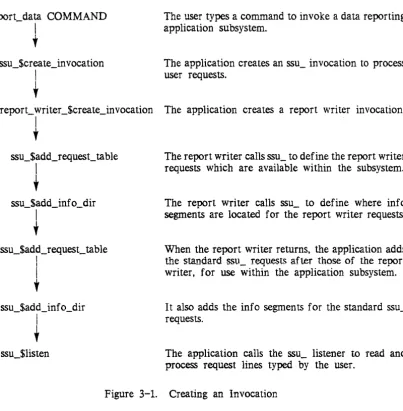
Figure 3-1
get_row Entrypoint .. delete_table Entrypoint get_query Entrypoint Data Conversions
Report Preparation
Report Formatting . . . . Destroying An Invocation
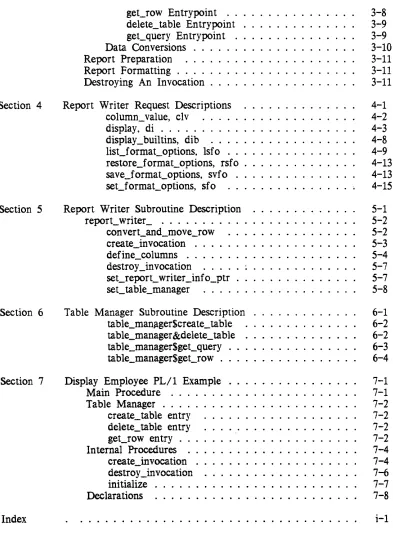
Report Writer Request Descriptions column_value, clv
display, di . . . . display _builtins, dib . . . . list_format_options, lsfo .. restore_f ormat_options, rsf 0 •
save_format_options, svfo set_format_options, sfo
Report Writer Subroutine Description report_writer_ . . . .
convert_and_move_row create_invocation
define_columns . . . . . destroy _invocation . . . set_report_ wri ter _inf 0 _ptr
set_ table_manager
Table Manager Subroutine Description table_manager$crea te_tab Ie table_manager &delete_table table_manager$get_query table_manager$get_row .
Display Employee PL/1 Example Main Procedure . . . . Table Manager . . . . .
create_table entry delete_table entry get_row entry . . . Internal Procedures ..
create_invocation destroy_invocation initialize
Declarations
Creating an Invocation . . . . .
iv •• * 3-8 3-9 3-9 3-10 3-11 3-11 3-11 4-1
4-2
4-3 4-84-9
4-13 4-13 4-15 5-1 5-2 5-2 5-3 5-4 5-7 5-7 5-8 6-1 6-2 6-2 6-3 6-4 7-1 7-1 7-2 7-2 7-2 7-2 7-4 7-4 7-6 7-7 7-8 i-II LLUSTRAT IONS
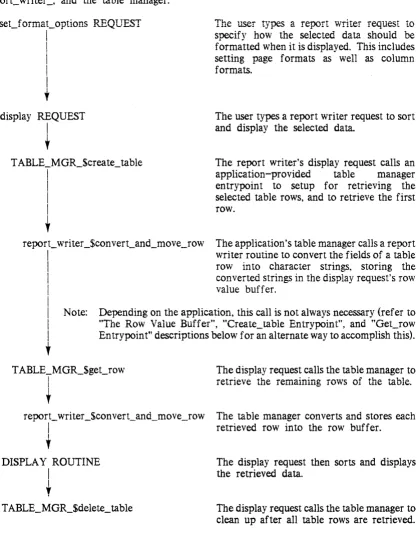
3-2
[image:4.612.55.448.72.621.2]Figure 3-2 Figure 3-3 Figure 3-4
Selecting A Table . . . . . Displaying the Data Destroying an Invocation
v
3-4
3-5
3-12
SECTION
1
REPORT WRITER SYSTEM
The Multics Report Writer (MRW) system is a generalized report writing facility that is included in a number of application subsystems. Utilizing this facility a user can:
1. create formatted reports
2. change and examine report layouts
3. save report layouts
4. restore report layouts
The MRW provides an end-user-oriented subsystem request interface, and a programmer subroutine interface. Facilities are provided for application subsystems to use the terminal-oriented end-user interface to control the report writing process entirely from a program, or to use a combination of the two interfaces.
SYSTEM OVERVIEW
The MRW produces formatted reports from data that is viewed as a table. Through this facility the user can control:
• page width and length
• page breaks
• page, group, and row headers/footers
• counts, subcounts, totals, and subtotals
• hyphenation of overlength values
• reordering and excluding selected columns
• duplicate suppression
• column alignment, editing, folding, separators, titles, and widths
• sorting on one or more columns
• directing the report to the terminal, a file, or an io switch
• horizontal and vertical scrolling through the report
The MR W is designed to serve the needs of the casual and experienced user. A casual user can have a default report layout provided by the system, while an experienced user can precisely define the report layout.
Basic Operation
The MRW retrieves rows of information from a table and produces a formatted output report. The rows retrieved are specified through a mechanism provided by the subsystem which uses the report writer (e.g., in the LINUS subsystem, the input_query and translate_query requests are used to select the table of interest).
Formatting Options
A formatted report is produced under the control of "formatting options." Formatting options consist of a name (for identity) and a set value. An example of a formatting option is:
-page_width
80
where -page_width is the name of this option and "80" is the set value associated with the name. Formatting options which deal with columns require an "option identifier" to uniquely identify the column. For example, to set the width of a column, an identifier is needed to determine which column the width is to be set for. Identifiers can be given as the number of the column in the query, the name of the column, or a star name which is matched against the column names. Examples of formatting options with identifiers are:
-width salary 10 -folding 3 fill -alignment
**
centerThe formatting options are grouped into the following classifications:
general report options
control the overall characteristics of a report. They are assigned default values when the application subsystem is first invoked. but can be changed by the user at any time. These values are retained for the entire session. General report options consist of:
-de 1 imi ter
-format_document_controls -hyphenation
-page_footer_value -page_header_value -page_length
-page_width - tit i e_l i ne -truncation
general column options
control the overail characteristics of the columns, such as examining the value of certain columns to determine if a page break is to be generated. They are assigned default values for every new query. but can be changed by the user at any time. These values are retained only during the current query (i.e., until the next new query is generated). General column optiohS consist of:
-column_order -count
-exclude -group
-group_footer_trigger -group_footer_value -group_header_trigger
=out 1 i ne -page_break
-row_footer_value -row_header_value -subcount
-subtotal -total
specific column options
control the characteristics of one specific column. They are assigned default values for every new query, but can be changed by the user at any time. These values are also retained only during the current query (i.e., until the next new query). These formatting options require an identifier to determine which column the particular option applies to. Specific column options consist of:
-al ignment -editing -folding -separator -title -width
The values of formatting options are listed and set through the list_format_options and set_format_options requests. These requests take control arguments which are the names of the formatting options. For example, to determine the current page width, enter:
1 ist_format_options -page_width
and to change page width, enter:
set_format_options -page_width
71
A concept of "active" options is employed to make the system easier to use and to provide flexibility. For example, if a novice user does not set page headers, then no reference is made to them. If a user defines a page header, it then becomes active and appears in the output of the various reporting requests. If a user decides to eliminate a previously set page header, that is, by invoking the "set_format_options -page_header_value -default", it reverts back to the "inactive" state. This concept reduces the number of options listed when the user invokes the list_format_options request with no control arguments. The page_header_value is not listed if set to its default value as previously described.
Specific column options are active at all times, whereas general column options and general report options are active only when their value is set different from the original default value. For example, if the page_width is assigned its default value by the system, or is reverted to by the user, it is not active. The moment that it is changed to a value different from its default, it is considered active.
Requests
A number of requests are available for use in the creation of reports. Following is a brief summary of the report requests (refer to Section 4 for a detailed discussion of all requests):
column_value
returns the value of the specified column for the current row, previous row, or the next row.
display
retrieves selected data, creates a report, and displays the information or writes it to a file or an io switch.
display _builtins
returns the current values for requested built-ins.
list_f ormat_options
displays the names and values of formatting options.
restore_f ormat_options
restores saved report layouts.
save_format_options
saves current values of formatting options for future use.
set_f ormat_ options
changes/sets report formatting options.
DEFAULT REPORT ELEMENTS
Page Layout and Titles
A page consists of a title line followed by as many rows as fit on the remainder of the page. The default title line is made up of one or more column titles. one column title for each column on the page. The column title is the column name as selected through the application subsystem. The row is made up of one or more columns, all concatenated together to form the row. The page width is 79 character positions and the page length is 66 lines, with 3 of these lines, at the top and bottom, reserved for margins.
Separators
A separator is provided for each column value and each column title. The default separator is two blanks placed between each pair of column titles and column values. The last column title or column value of a row has no separator.
Folding and Width
If when formatting a report, report elements do not fit within the defined width. '!folding" takes place. Folding can occur in two different ways: "truncation" and "filling". Truncation means that the value is truncated to the defined width and the last displayable character is replaced by the truncation character(s) (normally "*"). Filling means that portions of the value are moved down to the next line(s), allowing the newly formatted value to appear within its defined width. The format_document_ subroutine (described in the Subroutines Manual) is used
to provide filling of overlength values, and format document controls can optionally be supplied to provide greater control over the filling action. Filling takes place when a value is wider than its display width; when the value contains vertical tabs characters, horizontal tab characters, backspace characters, or newline characters; or when the alignment mode is set to "both". When column values do not have editing requests associated with them, the value is trimmed first (i.e., before the test for filling is done). Character and bit data types have trailing blanks trimmed, and all other data types have leading and trailing blanks trimmed.
The default width for a column value is derived from the columns selected through the appiication subsystem. The width chosen is the exact number of characters needed to contain the value after it is converted from the subsystems internal data type. to character format. via PL/I conversion rules. \vnen the default width is used. the column value always fits, but this width can be reduced by the user. The reduction of the column width can cause folding to occur. Column folding can be set to "fill" or "truncate" and proceeds as described above. The default for column values is "fill."
The concatenation of all column values and separators (used to determine row value) can cause row folding to occur. This happens when the resulting row is wider than the defined page width. In this case. columns which appear on or to the right of the right page boundary are moved down to the next line(s). The corresponding titles are moved so that they appear directly over the columns. Columns whose widths are greater than the page width are automatically reduced to the page width.
Alignment
The alignment for column values is derived from the data type of the column, as defined by the application subsystem that uses the MRW. Character and bit strings default to "left-alignment." decimal data with a non-zero scale defaults to "decimal-point-alignment," and all other data types default to "right-alignment." The user can set the alignment of individual columns to left, right, center. both, or decimal-point-alignment.
The alignment for a column title is center (i.e .• the title is centered within its defined width). The alignment for a title line or a row is left (i.e., the title line or row is placed against the left page boundary).
OPTIONAL REPORT ELEMENTS
A number of optional features (for greater control over report appearance) are available for more sophisticated report formatting. These optional features are:
• editing
•
headers/footers•
column titles•
active requests•
page breaks•
excluding columns•
ordering of columns•
grouping•
outlining•
totals and subtotals•
counts and subcounts• separators and delimiters
• embedded control lines and hyphenation
Editing
Editing can be specified for any column value, and is provided by subsystem active requests and Multics active functions. The report column_value request is used to pass the value to other active requests, and the returned value is then folded and aligned as described above (see "Folding and Alignment"). The MRW does not strip a level of quotes from the editing request; the first time quote-stripping occurs is when ssu_$evaluate_active_string subsystem utilities procedure is invoked. Editing of column values is not provided by default.
Headers/Footers
A header or footer is a character string provided by the user. The character string can contain active requests, be made up of more than one "portion," and consist of more than one line. A delimiter character is used to separate the different portions of a header or footer. The delimiter character default is "!", but can be changed by the user. The header /footer can consist of a left, right, and center page portion.
Evaluation of a header/footer is a two-part operation that proceeds in the following manner: first, the header /footer is divided into its portions based on the delimiter character; and second, active requests are evaluated. Quote-stripping is not done by the MRW during these two
operations~ the first time quote-stripping occurs is when the ssu_$evaluate_active_string subsystem utilities procedure is invoked. The MRW display_builtins active request can be used to
obtain built-ins like the current page number in a header /footer, and the MRW column_value active request can be used t<? obtain the value of a column.
A header or footer can be made up of a left, right, and center page portion. These portions are determined by the delimiter characters. The portions are aligned to the left, right, and center of the page. Folding on headers/footers proceeds independently for each part. Portions of a header or footer (left, right, or center) with zero length are redistributed to other portions whose lengths are not zero. For example, if the page header contained only a center portion as:
! !Sample Center Portion!!
the text would be centered on the page. but would have the full page width available for the text. Similarly, a left portion or right portion only is aligned to the left or right of the page, but has the full page width available for placement of its text. Two exceptions to this action are when the header or footer has a left, right, and center portion, and the left or right portion has a zero length. For example:
!left part!center part!!
or
"!center part!right part!
In both cases the left or right part of the page is unavailable for placement of text (i.e., the space is not redistributed to the other two portions).
If redistribution of the available page width is not desired, the placement of a single blank into a portion prevents the redistribution from taking place because the portion has a length greater than zero. For example:
reenter Part!
Headers and footers can be defined for a page, group, and a row. The first row that appears on the page is available for the page header, and the last row that appears on the page is available for the page footer. The first row of a group is available for the group header, and the last row of a group is available for the group footer. The current row is available for use in the row header and row footer.
Column Titles
A column title is a character string that is placed above its associated column. The display width available for the title is inherited from its parent column, along with the folding action. If
the title is exactly the same number of characters as the display width. it is placed without any folding or alignment action. If the title is shorter, it is centered within the display width. If the title is wider, it is truncated or fined, depending on its parent column's setting.
Active Requests
Active requests are used in headers/footers to substitute values into the header /footer at the time the report is being formatted. For example, the Multics date active function can be used to provide the current date as part of the header or footer.
Active requests are also used to provide editing for column values which become part of the row value. For example, the subsystem execute request and the Multics picture active function can be used to provide editing features such as dollar signs and commas.
The user specifies subsystem active requests through the construct" [name STR] fI, where name is the name of the desired active request and S,{R is any argument(s) required by the active request. Multics active functions are invoked via the subsystems [execute] active request. They are specified by the user throug..h the construct [execute name STR] , where name is the name of the Multics active function and STR is any argument(s) required by the active function. The active function/request is evaluated and its returned value is substituted into the original string before folding and alignment take place.
Page Breaks
Page breaks can be set to occur when the value of one or more columns change. The occurrence of a new value in the column(s) being examined closes out the current page and a new page is started. The new row which caused the page break is not made available until the start of the next page. This allows the page footer to access the correct row (the last row on that page).
Excluding Columns
Columns selected through the subsystem can be excluded from the row value. Through use of the [column_value] active request, the column value can be obtained for placement elsewhere on the page. For example, a user may exclude the display of a column that is being used to determine when to generate page breaks, and place the value of the column in the page header with the column_value active request.
Ordering of Columns
Columns appear on the page in the order they were selected through the subsystem. This order can be changed by the user without having to go back and select a different order through the subsystem.
Grouping
One or more columns can be used to define a "group" of rows based on the values of these columns. The named columns make up a major to minor hierarchy and can be used in conjunction with the outlining. page break, subtotal, and subcount features.
Outlining
One or more columns can have duplicate values suppressed. If the value of the current column is the same as the previous value, then its display is suppressed unless it is the first line on a new page.
If any named column is a member of the group of columns defined via the grouping feature, it and any columns more major in the hierarchy are outlined. A change in value of anyone column displays all values of columns lower in the hierarchy in addition to the changed column. An exception is the first line on a new page, when duplicate values are never suppressed.
Totals and Subtotals
Totals and subtotals can be specified for columns. The totals and subtotals are placed directly under the associated columns.
A column subtotal is generated when the value of the column(s) the subtotal is associated with changes. The subtotal can be associated with one or more columns. Several subtotals can be specified. each associated with different columns. Subtotals can be "reset" or "running." A column total is generated after the last input row is processed.
The width. alignment, folding, and editing request for a total or subtotal is inherited from its parent column. During the generation of atotal or subtotal, the column_value request returns the value of the total or subtotal, rather than the column value. When the parent column is excluded from the page, the total or subtotal associated with it is also excluded. An exception to this rule is when all of the columns have been excluded. They are provided in this case to produce reports containing some combination of subcounts, subtotals, counts, and totals only.
Counts and Subcounts
Counts and subcounts can be specified for columns, and function as described above under "Totals and Subtotals." A count or subcount counts occurrences of values, whereas a total or subtotal accumulates values.
Separators and Delimiters
The separators used to separate column values and column titles from each other can be set to any string of displayable characters by the user. The delimiter character used to delimit the different portions of a header ffooter can also be set by the user.
Embedded Control Lines and Hyphenation
The MRW uses the format_document_ subroutine (refer to the Subroutines Manual) to "fill" overlength text. A user can embed format document controllines in text to achieve greater control of the fining action. A user can also specify that hyphenation of words should be attempted when filling overlength text.
FULL PAGE FORMATTING
The MRW system formats a full page before any output is provided. It operates in this fashion because it is sometimes necessary to back up on a page and defer report elements to the next page so that associated report elements remain on the same page. A full page with all report elements present is outlined in the following diagram.
Formatted Page PAGE HEADER TITLE BLOCK
DETAIL BLOCK_l ~ expanded in diagram below
DETAIL BLOCK_N PAGE FOOTER
Detail Block
GROUP HEADER ROW HEADER ROW VALUE SUBTOTAL BLOCK
I
SUBCOUNT BLOCKTOTAL BLOCK COUNT BLOCK
ROW FOOTER GROUP FOOTER
All of the defined report elements are optional, but at least one must be present or a zero-length page results. A zero-length page is treated as an error and the report formatting is terminated.
Backing up on a page is accomplished through a detection and prevention method, and proceeds as follows:
1. The page header, if present, is processed first. If the page header does not fit on the page, it is treated as an error and the report formatting is terminated. The formatted page header can fill the complete page if no other report elements are defined.
2. The title line, if present, is processed next. If the title line does not fit on the page, it is treated as an error and the report formatting is terminated. The formatted title block can fill the complete page if no other report elements are defined.
3. The detail block is processed next. A detail block can be made up of a group header. a row header, a row value, a subtotal block, a subcount block, a total block, a count block, a row footer, and a group footer. These different elements are treated as one unit and must all appear on one page or the detail block is deferred to the next page. If any of these elements are defined, then at least one detail block must fit on the page or it is treated as an error and the report formatting is terminated. The formatted detail block can' fill the complete page if no other report elements are defined.
a. The group header, if present, is processed first. If the current row is the first row of the report, or if the column associated with the -group_header_trigger option has just changed with the current row, the header is generated. If the group header does not fit on the page, the detail block is deferred to the next page, provided one detail block is already placed on the page.
b. The row header, if present, is processed next. If the row header does not fit on the page, the detail block is deferred to the next page, provided one detail block is already placed on the page.
c. The row value, if present, is processed next. If the row value does not fit on the page, the detail block is deferred to the next page, provided one detail block is already placed on the page. The editing requests associated with any columns are evaluated before an attempt is made to place the row value on the page. If the row value is deferred to the next page for any reason, the editing requests associated with the columns are evaluated again when the row value is processed on the next page. This is necessary to ensure that obtained values, such as the page_number display built-in are correct. For users who are doing calculations based on accumulations, this could produce incorrect calculations. That is, the value of a row could be accumulated more than once. The previously _processed_row display built-in provides a mechanism to ensure this does not happen. If the value of this built-in is true, a user doing accumulations would not add in the current row value as it was already added in when the editing requests for the row were processed the first time.
d. The row subtotal, if present, is processed next. If subtotal generation is necessary, and the row subtotal does not fit on the page, the detail block is deferred to the next page, provided one detail block is already placed on the page. The editing requests associated with any subtotals are only evaluated when subtotal generation is done, and proceed as described above under "row value" editing requests evaluation. The previously _processed_row display built-in also functions as described above.
e. The row subcount, if present, is processed next It proceeds as described above under row subtotal (item d).
f. The row total. if present. is processed next. If total generation is necessary, and the row total does not fit on the page, the detail block is deferred to the next page, provided one detail block is already placed on the page. The editing requests associated with any totals are only evaluated when total generation is done, and proceed as described above under "row value" editing requests evaluation. The previously _processed_row display built-in also functions as described above.
g. The row count, if present, is processed next. It proceeds as described above under row subtotal (item d).
h. The row footer, if present, is processed next If the row footer does not fit on the page, the detail block is deferred to the next page, provided one detail block is already placed on the page.
i. The group footer, if present, is processed last. If the current row is the last row of the report, or the column associated with the -group_footer_trigger option is about to change with the next row, the footer is generated. If the group footer does not fit on the page, the detail block is deferred to the next page, provided one detail block is already placed on the page.
4. The page footer, if present, is processed last. If the page footer does not fit on the page, the last detail block on the page is removed and the page footer is processed again. Active requests found in the footer are evaluated again to ensure correct processing of display built-ins like current_row_number. If the page footer still does not fit, another detail block is removed from the page and the footer is evaluated again. This process continues until the footer fits, or there are no more detail blocks to remove from the page. The first detail block that appears on the page is never removed, and if its removal is necessary to provide a fit for the page footer, it is treated as an error and report formatting is terminated.
SECTION 2
REPORT WRITER TUTORIAL
This section consists of report writer examples organized into a sample user session. An application subsystem called "display_employee" was constructed for these examples, and a complete listing of it can be found in Section 6. User-typed lines and lines displayed by the system are shown together in the example. To differentiate between these lines, an exclamation mark (0 precedes user-typed text. This is done only to distinquish user text from system-generated text; it is not to be included as part of the input line. Also, a "carriage return" (moving the display mechanism to the first column of the next line, called a newline or NL on Multics) is implied at the end of every user-typed line. Line numbers are also included in the examples for purposes of commentary immediately following the example.
Note: Because of page constraints in this document, certain character strings of data used
in examples may not match exactly the information as seen on a user's terminal. That is, the character strings in examples may be folded or multiple-lined, whereas the actual interactive (live) session may display the same information on a single line or multiple lines with different line breaks than shown here. Additionally, some blank lines have been removed in the examples for space consideration. In most cases this can be recognized by the reader. For example:
55 display_employee: display -page 1
59 (system display)
Only one space is used to separate the lines, but the line numbers to the left of the lines imply there are actually three spaces here.
In other cases, lines have purposely been skipped or eliminateo ecause of changes made while developing the examples.
Following is a list of request and control argument abbreviations used in the tutorial examples. They are included here for the purpose of saving the reader from referring to other sections of the manual if a term is unfamiliar. The list includes only those abbreviations used
within this section.
REQUEST ABBREVIATIONS
clv
dib e ec
1 s lsfo pr
q
rsfo
2-1
d:splay
display_builtins execute
exec corn
list-(Multics command level) list format options
print (Multlcs command level) quit
restore_format_options
This page intentionaliy left blank.
sfo svfo w
set_format_options save_format_options write
CONTROL ARGUMENT ABBREVIATIONS
-al -alignment
-co -column order
-dm -del imi ter
-ed -editing
-ex -exclude
-fdc -format_document_controls
-fold -folding
-gft -group~footer_trigger
-gfv -group_footer_value
-ght -group_header_trigger
-ghv -group_header_value
-gr -group
-hph -hyphenation
-kr -keep_retrieval
-krp -keep_report
-nr -new_retrieval
-of -output_file
-or -old_retrieval
-orp -old_report
-out -outl ine
-pb -page_break
=pfv -page_footer_value
-pg -page
-phv -page_header_value
-p1 -page_length
-pw -page_width
-rfv -row_footer_value
-rhv -row_header_value
-rs -reset
-sep -separator
-stt -subtotal
-tc -truncation
-td -temp_dir
-t1 -title_l ine
-tt -total
- t t l -title
-wid -width
GENERAL REPORT OPTIONS-l
1 display_employee
5 display_employee: lsfo -dm -fdc -hph -pfv -phv -pl -pw -tl -tc -delimiter
-format_document_controls -hyphenation
-page_footer_value -page_header_value -page_length -page_width - t i t 1 e _ 1 i ne -truncation
7 display_employee: sfo -pw
8 display_employee: lsfo -pw -page_ width
9 display_employee: sfo -pw
10 display_employee: lsfo -pw -page_ width
0
II! If
"off" "off"
"0" "79"
"on"
11*"
"0"
-default
"79"
line 1
Invoke display _employee.
Hne 5
List the names and values of specified report formatting options. All of the displayed values in this case are "default" values. These options are the "general report options." They remain in effect across the entire subsystem session. For example, if the page width is changed, it remains at this new value until it is explicitly changed back, or until the subsystem session is terminated.
-dm n!"
-fdc "off"
-hyphenation
-pfv "n
-phv 'ttl
-pI "0"
-pw "79"
-tl
I·
on"-tc "*" lines 7-10
'·off"
character used to delimit portions of header/footer.
used when filling over length character strings. If "off." ignore embedded controls.
used when filling overlength character strings. If "off," do not attempt to hyphenate words.
footer placed at bottom of each page.
header placed at top of each page.
length of each formatted page (number of lines).
width of each formatted page (number of character positions).
prin t the title line.
character that indicates truncation has occurred.
Set page width, list page width, reset page width, and list page width once again.
SPECIFIC COLUMN OPTIONS
The following example looks at "specific column options." These options are always listed and are assigned new default values each time a new set of columns are selected.
1 display_employee:
6 -alignment age -alignment city -alignment fami ly -a 1 ignment job -alignment name -alignment salary -alignment sex -alignment state
14 -editing age -editing city -editing fam i 1 Y -editing job -editing name -editing salary -editing sex -editing state 22 -folding age
-folding city -folding fami ly -folding job -folding name -folding salary -folding sex -folding state
30 -separator age -separator city -separator fami ly -separator job -separator name -separator salary -separator sex -separator state
38 -title age -title city -title fami 1y -title job -title name -title salary -title sex -title state
46 -width age -width city -width fami iy -width job -width name -width salary
lsfo "right" "left" "left" "right" "left" "decimal 8"
"1 eft" "left"
II f ill "
"f i 1 1 " "f i 11 " "f i 11"
"f i 11 "
tlf; 11"
IIf i 11 "
"f ill"
"age" "city" "fami 1y" "job" "name" "salary" "sex" "state" "5" "13"
" 1 " "5" "10" "10"
-width sex " 1"
S3 ~width state 11"'"
"
line 1
List the names and values of the column options.
lines 6-13
System display -- the alignment option specifies how a value is to be aligned within its display width.
• Character and bit strings default. to left-alignment.
• Decimal data with a non-zero scale defaults to decimal-poin t-alignmen t.
• All other data types default to right-alignment.
lines 14-21
System display -- the editing option provides additional editing for column values. (Default is no editing)
lines 22-29
System display -- the folding option specifies the action taken when the column value exceeds the display width for the column. (Default is fill)
lines 30-37
System display -- the separator option specifies the character string that separates the specified column fiom the following column. (Default is two blanks)
lines 38-45
System display -- the title option specifies the character string to be placed at the top of the page above the column. (Default is the column name)
lines 46-53
System display -- the width option specifies the display width of the detail line of the column. (Default is the number of characters needed after conversion to character format)
The following examples look at a report utilizing the available specific column options.
55 display_employee: sfo -pl 66; di -pg 1
59 name job salary age s f st City
e a at x m e
y
66 abel 1 14555.01 36 m s ak juneau
67 abel 1 2 13000.01 55 f m az phoenix
68 abernathy 3 12500.01 61 m d ca fresno 69 abodoura 5 12900.01 61 m m ca sacramento
70 aboe 4 10201.01 41 f s ca los angeles
71 abraham 6 15000.01 25 f d ca san diego 72 abrahms 7 14300.01 35 m s ca san francisco
(45 data 1 i nes)
118 baker 12000.10 71 m s i 1 springfield
---line 55
Set page length to 66 and display page 1. Data is retrieved and formatted by default parameters.
Note: Multiple report writer requests can be included in a single request line by utilizing the request termination character (;) between requests. Any number of requests may be included on a line using this format.
lines 59-118
System display
120 display_employee: lsfo -wid state -width state "2"
123 display_employee: sfo -wid state 5 125 display_employee: di -pg 1
129 name job salary age s f state city
e a x m
y
136 abel 1 14555.01 36 m s ak juneau
137 abel 1 2 13000.01 55 f m az phoenix
138 abernathy 3 12500.01 61 m d ca fresno
139 abodoura 5 12900.01 61 m m ca sacramento
140 aboe 4 10201.01 41 f s ca los angeles
141 abraham 6 15000.01 25 f d ca san diego
142 abrahms 7 14300.01 35 m s ca san francisco
. (45 data lines)
188 baker 12000.10 71 m s i 1 springfield
line 120
List the width value of the "state" column.
lines 123-125
Set the width value for state column to "5" from its default value of "2", and display page 1.
lines 129-188
System display -- note the difference in the state column header on line 129 from
that displayed on lines 59-61. .
190 display_employee: lsfo -wid 8 -width city "13"
193 display_employee: sfo -wid 8 10 195 display_employee: di -pg 1
199 name
206 abel
207 abel 1 208 abernathy
209 abodoura
210 aboe 211
212 abraham 213 abrahms
2~4 job 1 2 3 5 4 6 7
(37 data 1 ines)
252 253 254 255 256 257 258 arnold ashman ashworth aSin auburn
line 190
22 23 24 1 :2 salary 14555.01 13000.01 12500.01 12900.01 10201.01 15000.01 14300.01 18210.01 12400.01
9301 .01 15100.01 13101.01
age s f state
e a x m
y
36 m s ak 55 f m az
61 m d ca 61 m m ca 41 f s ca
25 f d ca 35 m s ca
53 f d pa
52 m s tn
61 f m tx 51 m d tx 70 f s vt
List the width value of column 8 (city)
lines 193-195
city juneau phoenix fresno sacramento los angeles san diego san fra:1cisco philadelph ;a chattanoog a austin dallas rutland
Set the width value of the 8th column to "10" from its default vaiue of ~;i3", and display page 1.
lines 199-258
System display -- note the difference under the city header (lines 210-214) from that displayed on lines 140-142. Also notice the not-so-pleasant breakup of lines 252-255. This is an example of column "filling."
260 display_employee: sfo -wid 8 -default;lsfo -wid name -width name "10"
263 display_employee: sfo -wid name 7 -fold name truncate
265 display_employee: di -pg 1
269 name job salary age s f state city
e a x m
y
277 abell 2 13000.01 55 f m az phoenix
278 aberna* 3 12500.01 61 m d ca fresno
279 abodou* 5 12900.01 61 m m ca sacramento
280 aboe 4 10201.01 41 f s ca los angeles
(47 data lines)
328 baker 12000.10 71 m s i l springfield
line 260
Set the width value of column 8 (city) to its default value (13) and list the width value of the name column.
lines 263-265
Set the width value of the name column to "7", truncate the data listed under the name column. and display page 1.
lines 269-279
System display -- note the difference under name header (lines 278-279) from that displayed on lines 208-209.
330 sfo -sep ** "
I
"332 display_employee: di -pg 1
336 name job salary age s
I
fI
state citye
I
aI
xI
mI
I
I
I
1I
I
yI
343 abel 1
I
14555.01 36I
mI
5I
ak juneau344 abell 2
I
13000.01 55I
fI
mI
az phoenix345 aberna* 3
I
12500.01 61I
mI
dI
ca fresno346 abodou* 5
I
12900.01 61I
mI
mI
ca sacramento347 aboe 4
I
10201 .01 41I
fI
5I
ca los angeles(47 data lines)
395 baker 1 I 12000.10 I 71
I
mI
5 I i 1 I springfield---lines 330-332
Set the column separator value to "<SP>
I
<SP>" from its default value of <SP><SP> (two blanks), and d~splay page 1.lines 336-395
System display -- note that the columns have shifted to the right because the separator was increased to three character positions. Previous example separators were only two character positions.
397 display_employee: sfo -a1 age left -ed salary -prompt
398 Enter -editing salary.
399 [e pic $zz,zz9v.99 [clv salary]] I I A A !
"vv
402 display_employee: di -pg 1
406 name job salary age I s I f I state city
I e I a I
I x I m I
I I I I I 1 I
I I y I
413 abel 1 $14,555.01 36 I m I s I ak juneau abel 1 2 I $13,000.01 55 I f I m I az phoenix
I
aberna'" 3 I $12,500.01 61 I m I d I
ca fresno
I
abodou* 5 I $12,900.01 61 I m I m I ca sacramento (48 data lines)
464 baker 1 I $12,000.10 I 71 I m I s I i 1 I springfield
line 397
Set alignment value for age column to itleft" from its default value of "right," and invoke the editing option with prompt.
lines 399-402
Edit request, termination, and display page 1. lines 406-464
System display -- note that the information under the age column is now aligned to the left of the column and the data under the salary column contains the "$" and "," characters.
466 display_employee: lsfo -ttl ** -title age "age" -title city "city" -title fami ly "fam i 1 y" -title job " job" -title name "name" -title salary "salary" -title sex "sex" -title state "state"
476 display_employee: sfo -al age -default;sfo -ttl (1 2 3 4 5 6 7 8) -prompt 477 Enter -title name.
478 NAME 479
480 Enter -title job. 481 JOB
482
483 Enter -title salary. 484 SALARY
485
486 Enter -title age. 487 AGE
488
489 Enter -title sex. 490 SEX
491
492 Enter -title family. 493 FAMILY
494
495 Enter -title state. 496 STATE
497
498 Enter -title City. 499 CITY
500
502 display_employee: di -pg
506 NAME JOB SALARY
1
abel 1 $14,555.01
abell 2 $13,000.01
aberna* 3 $12,500.01
(49 data 1 i nes)
565 baker 1
I
$12,000.102-14 AGE 36 55 61 71
I
SI
F STATE CITYI
EI
AI
X I MI
I
II
I
LI
I
YI
m sI
ak juneauI
f mI
az phoenixI
m dI
ca fresnom
I
sI
i 1 springfieldline 466
List the title values of all columns.
lines 476=502
Set the title value for all columns to new values (in this case, all have been changed from lowercase to uppercase), and display page 1.
lines 506-565
System display -- note that the column header values on line 506 are different from that displayed on line 406.
GENERAL REPORT OPTIONS-2
The following examples look at the "general report options" and are an extension to the example shown above under "General Report Options-I."
1 display_employee: sfo -pl 26 3 display_employee: di -pg 1
7 NAME JOB SALARY AGE I S I F I STATE CITY
I E I A I
I X I M I
I I I I
I I L I
I
I y Iabel 1 I $14,555.01 36 I m I s I ak juneau abel 1 2 I $13,000.01 55 I f I m I az phoenix aberna* 3 I $12,500.01 61 I m I d I ca fresno
(9 data 1 ; nes)
27 agee 14 I $30,900.01 I 70 I m I s I hi I honolulu
---lines 1-3
Set the page length value to "26" from its previously set value of "66" (see line 55 above), and display page 1.
lines 7-27
System display -- note that the report length has decreased. There are now 20 text lines and three "margin lines" at the top and at the bottom of the page. When the report is sent to a file (for later printing), these six margin lines are put in the report by the line printer software. This produces the same page format. whether viewed at a terminal or on hardcopy.
29 display_employee: sfo -phv -prompt 30 Enter -page_header_value.
31 ![e date]!Sample Report![e time]! 32 ~ : ! :
33
35 display_employee: di -pg 1
39 04/29/83 Sample Report
NAME JOB SALARY AGE I S I F I STATE CITY
abel abell aberna*
1 I $14,555.01 2 I $13,000.01 3 I $12.500.01 (7 da ta 1 i nes )
58 adkins 11 I $20.700.01 I
line 29
I E I A I
I X
I
M II I I
36 I m 55 I f 61 I m
I
I
L I Y I s I ak m I az
dl
ca75 I m I m I fl
Set the page header vaiue when prompted by the system.
line 30
System display -- prompt
lines 31-35
juneau phoenix fresno
I key west
Set page header to contents of lines 31-32 (two header lines), terminate, and display page 1.
lines 39-58
System display -- note that a page header (line 39) is now included as part of the report. This two-line page header reduces the page content of the report (i.e., the report now consists of 18 data lines whereas the previous example contained 20 lines). The page header fills the entire page width, but the column values do not. If
the page width is set to zero, the display request calculates the page width to be an exact fit (Le., contains ali of the column values and separators).
10.26
60 display_employee: sfo -pw 0 62 display_employee: di -pg 1
66 04/29/83 Sample Report
NAME JOB SALARY AGE S
E X
abel 1 I $14,555.01 36 m
abel 1 2 I $13,000.01 55 f aberna* 3 I $12,500.01 61 m
(7 data lines)
I F
I A
I M
I I
I L
I Y
I s
I m
I d
I I I I I I I I I
STATE
ak az ca
CITY
juneau phoenix fresno
10:26
85 adkins 11 I $20,700.01 I 75 I m I m I fl I key west
lines 60-62
Set the page width value to "0" from its default of "79," and display page 1. lines 66,85
System display -- note that the page header is now centered over the columns. Setting the page width to
zero
has one disadvantage: when set to some positive integer and a column width exceeds the page width, that column width is reduced to the page width. For example, if the page width is set to 80 and the width for a column is set. to 1024, the column width is reduced by the display request to 80. The reduction of a column display width does not take place when the page width is set tozero.
87 display_employee: sfo -pfv -prompt 88 Enter -page_footer_value.
89 !!! !
90 ! i - Page [dib page_numberj -! ! 91
93 display_employee: di -pg 1
97 04/29/83 Sample Report 10:26
NAME JOB SALARY AGE S I F I STATE CITY
E I A I X I M I
I I I L I
I y I
abel 1 I $14,555.01 36 I m I s I ak juneau abell 2 I $13,000.01 55 I f I m I az phoenix aberna* 3 I $12,500.01 61 I m
I
dI
ca fresno abodou* 5,
$12,900.01 61 I mI
m I ca sacramento aboe 4 I $10,201 .01 41 I f I s I ca los angeles abraham 6 I $15,000.01 25 I f I d I ca san diego abrahms 7 I $14,300.01 35!
m I s I ca san francisco acee 8 I $12,700.01 34,
f,
m,
co denver114 aeord 9 I $10,500.01 41 I m I d I ct hartford
116 - Page 1
-
---line 87
Set the page footer value when prompted by the system.
line 88
System display -- prompt
lines 89-93
Set the page footer to contents of lines 89-90 (two footer lines). terminate. and display page 1.
lines 97-116
System display -- note that a page footer (line 116) is now included as part of the report. This two-tine page footer reduces the page content of the report by another two lines (now 16 lines of data between header and footer).
118 display_employee: sfo -pl 66;di -pg 1
122 04/29/83 Sample Report 10:26
NAME JOB SALARY AGE 1 S 1 F 1 STATE CITY
I E 1 A I
I X I M I
I 1 I I
I I L I
I I y I
abel 1
I
$14.555.01 36I
m I sI
ak 1 juneau abell 2 I $13.000.01 55 I f I m I az .1 phoenix aberna* 3 I $12.500.01 61 I m 1 d I ca I fresno(45 data lines)
179 azer 5 I $12.600.01 44 I m I 5 I va I norfork
181 Page 1
-line 118
Set the page length to 66 lines from its previous setting of "26" (see line 1 of this example set).
lines 122-181
System display -- note that the page now consists of 66 lines (3 blank margin lines at top and bottom and 60 lines of report).
183 display_employee: sfo -tc <MORE>;di -pg 1
187 04/29/83 Sample Report 10:26
189 NAME JOB SALARY AGE I S I F STATE CITY
I E I A
I X I M
I I !
I
i
L194 I I Y
abel 1 I $14,555.01 36 I m I s ak juneau abell 2
i
$13,000.01 55 I f I m az phoenix 198 a<MORE> 3 I $12,500.01 61 I mI
d ca fresno 199 a<MORE> 5I
$12,900.01 61I
m I m ca sacramentoaboe 4 I $10,201.01 41
I
f I s ca los angeles (43 data lines)244 azer 5 I $12,600.01 44 I m I s I va I norfork
246 Page 1
-line 183
Set the truncation value to "<MORE>" from its previous default value of "*," and display page L Refer to line 263 in the "Specific Colurnn Options" eX~'Ilple (above) where the width value of the name column was set to "7" and the folding option. with truncation (Default
=
*), was turned on for the name column.lines 187-246
System display -- note the different truncation of the name column values (lines 198-199) from that displayed in the earlier example identified above (lines 278-279).
This page intentionally left blank.
248 display~employee: sfo -tl off;di -pg 3
252 04/29/83 Sample Report 10:26
254 c<MORE> 3 I $12,501 .01 76 I m I m I ca san francisco cummins 4 I $10,100.01 78 I f I d I co denver
cutchin 5 I $12,600.01 62 I m I s I ct hartford (52 data lines)
309 goodwyn I 15 I $12,400.01 39 I f I d I ct I hartford
311 - Page 3
-313 display_employee: sfo -tl on
line 248
Set the title line value to "off" from its previous default value of "on," and this time display page 3. Turning the title line off inhibits the column header or title display from that displayed in the previous example (lines 189-194).
line 313
Set the title line value to "on." This restores the display of column header or title
lines.
Special Editing of a Report
The following example shows how to utilize a user-defined exec_com and interact with the editing request.
1 display_employee: sfo -wid sex 6 -ed sex "[ec sex_lookup [clv sexl]" 3 display_employee: .. ted
4 ! a
5 &version 2 6 ! &trace off
7 &if &[e equal m &1] 8 &then &return male 9 &else &return female 10 \f
11 w sex_lookup.display_employee 12 q
14 display_employee: di -pg 1
18 04/29/83 Sample Report 10:26
20 NAME JOB SALARY
27 abel 1 I $14,555.01 28 abel 1 2 I $13,000.01 a<MORE> 3 I $12,500.01
(45 data 1; nes)
75 azer 5 I $12,600.01 77
AGE SEX
36 male 55 female 61 male
44 I male Page 1
-2-24
I F
I A
I M
I I
I L
I y
I s
I m
I d
I s
STATE
ak az ca
va
CITY
juneau phoenix fresno
I norfork
line 1
Set the width of the sex column to "6" from its previous default value of "1," and prepare for special editing of the sex column data.
lines 3-12
Invoke the ted editor, append the following exec_com data (lines 5-9) into the ted buffer, terminate append mode, write the buffer to permanent storage, and quit the ted editor.
line 14
Display page 1. lines 18-77
System display -- note the change in width of the sex column (line 20) from that displayed in the previous example (line 189) and the change of data by the exec_com (m = male and f = female).
This page intentionally left blank.
Saving a Report and Resetting Options
The following example shows how to save a report after it is in the desired format. Additionally, the example shows how to reset all options and revert the report back to its original formal.
1 2
5
64
line 1
line 2
display_employee: svfo EXAMPLE-1.fo.display~employee;sfo -rs display_employee: sfo -pl 66;di -pg 1
name job salary age s f st city
e a at x m e
y
abel 1 14555.01 36 m s ak juneau
abell 2 13000.01 55 f m az phoenix
abernathy 3 12500.01 61 m d ca fresno abodoura 5 12900.01 61 m m ca sacramento
aboe 4 10201.01 41 f s ca los angeles
abraham 6 15000.01 25 f d ca san diego
(46 data 1 i nes)
baker 12000.10 71 m s ; 1 springfield
---Save the current values of format options as a subsystem exec_com (EXAMPLE-lofo.display _employee) which can be restored later with the restore_format_options request. Then reset all options to their default values.
Set page_length (-pI) to 66 lines, and display page 1. lines 5-64
System display -- note that the report has reverted back to its original format (i.e .• it is now the same as the first example in this sample user session).
At this point you may wish to terminate the display_employee session by entering:
65 display_employee: q 66 (Multics ready message)
Restoring a Saved Report
The report saved in the previous example may be recalled at will. Assuming you want to have the report printed, then the following sequence of events must be set up:
3 ! display_employee
4 display_employee: rsfo EXAMPLE-1 5 display_employee: di -nr -pg 1
9 04/29/83 Sample Report 10:26
NAME JOB SALARY AGE SEX I F I STATE CITY
I A I
I M I
I I I
I L I
I Y I
abel 1 I $14,555.01 36 male s I ak juneau
abell 2 I $13,000.01 55 female m
I
az phoenix a<MORE> 3 I $12.500.01 61 male d I ca fresno a<MORE> 5 I $12,900.01 61 male m I ca sacramento aboe 4 i $10,201.01 41 female s i ca ios angeles(43 data 1 i nes)
azer 5 I $12,600.01 44 I male s I va norfork
69 - Page ~
-71 display_employee: di -of example-1
lines 3-4
Ser up for restoring the saved format options.
line 5
Display page 1 of the report as a verification (i.e., is this the desired report?).
lines 9-69
System display -- note that the report is restored to its original condition (Le., restored to the same format as that shown in the example under "Special Editing of a Report" above).
line 71
Write the complete formatted report to permanent storage in the user's working directory with pathname of "example-I".
The full report (example-I), along with the saved format options segment (EXAMPLE-l.fo.display_employee) now resides in the user's working directory and may be dprinted or retained in permanent storage at the user's discretion.
GENERAL COLUMN OPTIONS
The following examples look at the "general column options. n These options remain in effect
only for the duration of the current set of columns. Every time a new set of columns is selected, new default values are assigned. The options are listed (through use of the list_format_options request) when their value is different from the default. or when asked for by name.
1 display_employee: lsfo -co
2 -column_order "name job salary age sex family state city"
4 ! display_employee: sfo -co 8 7 1 2 3 4 5 6;di -pg 1
8 04/29/83
CITY
juneau phoenix fresno
STATE
ak az ca
(45 data lines)
norfork I va 67
line 1
Sample Report
NAME
abel abel 1
a<MORE>
I azer
JOB SALARY
1 I $14,555.01 2 I $13,000.01 3 I $12,500.01
5 I $12,600.01 I - Page 1
-List the current names and order of the report columns.
line 4
Reorder the sequence of report columns, and display page 1. lines 8-67
AGE SEX
10:28
I F
I A
I M
I I
I L
I Y 36 rna 1 e I s 55 female I m 61 male I d
44 I male I s
System display -- note that the column order has been changed from that displayed in the previous example.
This page intentionally left blank.
74 display_employee: lsfo -ex
75 -exclude
77 display_employee: sfo -ex age job;di -pg 1
81 04/29/83 Sample Report
STATE CITY NAME SALARY
ak juneau abel $14,555.01
az phoenix abell $13,000.01
ca fresno a<MORE> $12,500.01
(45 data lines)
10:31
SEX I F I
I A I
M I
I I
I L
I y male I s female I m male I d
va I norfork I azer $12,600.01 I male I s
140 - Page 1
-line 74
List columns currently excluded from the report.
line 75
System display -- the response is "", meaning that no columns are currently excluded.
line 77
Exclude the age and job columns, and display page 1.
lines 81 ~ 140
System display -- note that the age and job columns have been excluded from the report (i.e., the report now consists of six columns of data instead of the eight previously included).
142 display_employee: sfo -ex "";lsfo -ex
143 -exclude
Execution of line 142 restores the age and job columns previously excluded by execution of line 77. Line 143 is the system display indicating that no columns are currently excluded.