Weber/31-6/$17.95 US
THEOS/OASIS
User's
Handbook
A comprehensive guide to the business applications and functions of the THEOS operating system.
by
Walter
c.
Stagner Jr.
The authors have exercised due care in the preparation of this book and the programs contained in it. The authors and the publisher make no warran-ties either express or implied with regard to the information and programs contained in this book. In no event shall the authors or publisher be liable for incidental or consequential damages arising out of the furnishing, perfor-mance, or use of this book and/ or its programs.
THEOS'· and THEOS86 are trademarks of THEOS Software Corp. Z80'· is a trademark of Zilog Corp.
RM Cobol'· is"a trademark of Ryan-McFarland Lotus 1-2-3'· is a trademark of Lotus Development Corp. Apple DOS'· is a trademark of Apple Computer Corp. CPM'· is a trademark of Digital Research Inc. MS-DOS'· is a trademark of Microsoft Corp. Spellbinder'· is a trademark of Lexisoft Inc.
multiWRITE'· and multi CALC· are trademarks of Logic Extension Resources UNIX'· is a trademark of Bell Laboratories
Published by: Weber Systems, Inc. 8437 Mayfield Road Chesterland, Ohio '44026
For information on translations and book distributors outside of the United States, please contact WSI at the above address.
THEOS User's Handbook
Copyright© 1985 by Weber Systems, Inc. All rights reserved under International and Pan-American Copyright Conventions. Printed in United States of America. No part of this publication may be reproduced, stored in a retrieval system, or transmitted in any form or by any means, electronic, mechanical, photocopy, recording, or otherwise without the prior written permission of the publisher.
Library of Congress Cataloging-in-Publication Data
Stagner, Walter
THEOS User's Handbook.
Includes index.
1. Operating Systems And THEOS 12
Introduction 12
What is Software 12
Terminology 12
A Tour of Terminal Keyboard 14
The Operating System 16
Monitor and Utility Programs 17
Operating System Selection 19
History and Development of THEOS 20
Design Philosophy of THEOS 22
The THEOS Components 23
THEOS Hardware Requirements 24
Application Software for THEOS 24
THEOS Statistics and Capabilities 26
Summary 26
2.
An Overview of THEOS 27Security 27
User Accounting 28
File Ownership 28
Logging on to an Account 29
Adding Accounts 29
Privilege Levels _ _ _ _ _ _ _ _ _ _ _ _ ....:....-. _ _ _ _ _ _ 30
Account Synonyms 30
Account Passwords 30
Accounting History 32
Multi-User THEOS 32
The Built-in Help Facility 37
Other Special THEOS Features 38
THEOS Files 40
Data File Formats 40
File and Disk Protection 41
Disk Space Utilization 41
Control and Sort 41
RIM COBOL 42
File and Disk Management Utilities 42
Summary 43
3. THEOS Conventions _ _ _ _ _ _ _ _ _ _ _ 45
Introduction 45
Documentation Conventions 46
System Conventions 46
Standard Search Order 47
Exceptions to Standard Search Order 47
Prompting Characters 47
Filename, Filetype, Filedisk 48
Reserved File Descriptions 49
Wildcards and Special Characters 50
System Control Keys 52
THEOS Command Lines 52
Summary 54
4. THEOS Commands _ _ _ _ _ _ _ _ _ _ _ _ 55
Introduction 55
Session 1: Starting and Stopping a THEOS System 56
Session 4: The ARCHIVE Command 73
Session 5: The RESTORE Command 78
Session 6: The CHANGE Command 83
Session 7: The COPYFILE Command 84
Session 8: The CREATE Command 89
Session 9: The FILELIST Command 92
Session 10: The INITDISK Command 102
Session 11: The INITTAPE Command 107
Session 12: The LIST Command 109
Session 13: The LOGOFF/LOGON Commands 114
Session 14: The MAILBOX/MSG Commands 117
Session 15: The RENAME Command 120
Session 16: The ERASE Command 123
Session 17: The EDIT and SCRIPT Commands 126
Session 18: The SET /ST ART/STOP Commands 140
Session 19: The SHOW Command 144
Session 20: The SPOOLER Command 148
Session 21: The SYSGEN Command 154
Session 22: SEND/RECEIVE/TERMINAL Commands 157
Session 23: How to Install Application Software 168
5.
System Files And Diagnostic Commands 173Introduction 173
SYSTEM.DEVnn Files 174
SYSTEM.CLASSnn Files 174
SYSTEM. ERRMSG 178
SYSTEM.EXECnn Files 182
SYSTEM.SPOOLQUE File 182
System Diagnostics 183
6.
The THEOS EXEC Language 189Introduction 189
System Cancel, IPL. EXEC, and User Logon File 191
System Cancel 191
The EXECn Files _ _ _ _ _ _ _ _ _ _ _ _ _ _ _ _ _ 193 Changing An Existing SYSTEM. EXECn File _ _ _ _ _ _ 194 The SELECTED.EXEC File _ _ _ _ _ _ _ _ _ _ _ _ _ 195
Components of the EXEC Programming Language 197
Constants and Variables _ _ _ _ _ _ _ _ _ _ _ _ _ 197
True Variables 198
Reserved Variables _ _ _ _ _ _ _ _ _ _ _ _ _ _ _ 199 Labels _ _ _ _ _ _ _ _ _ _ _ _ _ _ _ _ _ _ _ 199 Operators _ _ _ _ _ _ _ _ _ _ _ _ _ _ _ _ _ _ 200
Comments 201
Keywords _ _ _ _ _ _ _ _ _ _ _ _ _ _ _ _ _ _ _ _ _ 201
EXEC Instructions 202
&BEGSTACK _____________________ 202
&BEGTYPE 203
&CRT ____________________ ~_______ 204
CSI ______________________________ 205 &END _________________________ 206
&ERROR 206
&GOTO 207
&IF 207
&QUIT 208
&READ 208
&SPACE 209
&TYPE 209
&WAIT 210
Using the EXEC Language 211
Using the I PL.EXEC 215
Summary 219
7. Using Menus Created By the EXEC Language __ 221
System Startup 222
Running Application Software from a Menu 225
Accounting _ _ _ _ _ _ _ _ _ _ _ _ _ _ _ _ _ _ _ 225 Financial Modeling _ _ _ _ _ _ _ _ _ _ _ _ _ _ _ _ 226
Terminal Program 226
Retrieve Messages _ _ _ _ _ _ _ _ _ _ _ _ _ _ _ _
Logoff/Logon _ _ _ _ _ _ _ _ _ _ _ _ _ _ _ _ _
MultiWRITE Word Processing Quit
Menu Error Messages
System Maintenance from a Menu Copy Files
Archive Files _ _ _ _ _ _ _ _ _ _ _ _ _ _ _ _ _ _
Errors Encountered During Archive Procedure _ _ _ _ _
Restore Files _ _ _ _ _ _ _ _ _ _ _ _ _ _ _ _ _ _
Account Maintenance
Report Misallocations _ _ _ _ _ _ _ _ _ _ _ _ _ _ _
Format Floppy Discs and Tapes _ _ _ _ _ _ _ _ _ _ _
Single User Mode _ _ _ _ _ _ _ _ _ _ _ _ _ _ _ _
Multi User Mode _ _ _ _ _ _ _ _ _ _ _ _ _ _ _ _ _
Multi User Mode Without Spooler Erase Files
List Files _ _ _ _ _ _ _ _ _ _ _ _ _ _ _ _ _ _ _
Return to Master Menu _ _ _ _ _ _ _ _ _ _ _ _ _ _
Logoff System System Cancel
Summary _ _ _ _ _ _ _ _ _ _ _ _ _ _ _ _ _ _ _ _ _
228 229 229 229 230 230 231 233 237 237 238 240 242 244 245 246 246 248 249 249 249 250
8. A User's Introduction to THEOS Software _ _ _ 251
Introduction 251
Why You Probably Haven't Heard of THEOS Application Software
Three Types of Software Everyone Can Use _ _ _ _ _ _ _ _ Word Processors
Spellbinder
multiWRITE _ _ _ _ _ _ _ _ _ _ _ _ _ _ _ _ _
Spreadsheets _ _ _ _ _ _ _ _ _ _ _ _ _ _ _ _ _ _
Scratchpad 3.1 and muitiCALC 2.0
Database Managers 261
UserBase 262
Control-8 265
General Accounting Software 268
Open Systems Accoutnign 269
Ashley Accounting System 272
Vertical Market Software 275
Where to Find THEOS Software 276
THEOS Application Software Directory 276
THEOS Times 277
Hardware Distributors 277
Summary 278
9.
THEOS86279
Introduction 279
16 Bit vs. 8 Bit Microprocessors 280
Advantages of 16 Bit Computers 281
An Overview of TH EOS86 281
Number of Users 282
Disk Storage 283
Multiple Print Spoolers 283
More Working Memory 283
Graphics 284
THEOS86 Hardware Vendors 284
Seiko 285
Altos 285
IBM PC/XT 285
Onyx 286
Advanced Digital 286
THEOS 86 Application Software 287
A Comparison of THEOS vs. UNIX. 287
Design Goals 288
Data File Management 289
File and Record Locking 289
Cost vs. Performance 290
Documentation 290
About TH EOS Software Corporation 293
THEOS Version 6.1 293
Version 6.1 Refinements 294
System Cancel 295
Archiving in Multi-User Mode 294
New Help Messages 295
New EXEC Features 295
More Working Memory 295
The THEOS User's Group 296
Appendix A Glossary 297
Appendix B THEOS Command Summary 302
Appendix C Common THEOS Warning and Error Messages 304
Appendix DUsing MCI Mail to Transmit Files 310
Appendix E THEOS EXEC Programs 312
Acknowl edgements
I would like to acknowledge the contributions of the many people and companies who helped me put this book together.
Kathleen Williams, Oasis Technologies Fred Bellomy, Oasis User's Group Jack Adams, Eagle Company Chris Traut, Kimtron Corporation
Bill Berne, Quantum Information Systems Rhett Tindall, Logic Extension Resources Chris Pratt, Business Information Technologies Chuck Blades, Computec Computers
Brian Ashley, Ashley Computer Systems Paul Barnaby Jr., BCS Computers Jeff Fender, Audio Plus
I would especially like to thank my wife Barbara for her proof reading and encouragement and Jeff Weber, for his patience and giving a new author a chance.
t
Introduction
This book is intended to be a non-technical tutorial and reference guide to the THEOSTM operating system. We intend to illustrate a method of creating a "turn-key" THEOS installation, and we wish to provide a supplement to the documentation provided by THEOS Software Corp., the marketers of THEOS. This book can be used by managers who may be considering the purchase of a THEOS based computer system as well as those who are already THEOS users.
The book is divided into two sections, the system manager section and the system user section. The system manager section is designed for the person charged with the responsibility of installing and main-taining the system, while the user section is designed for those who want to learn how to use THEOS in their everyday work.
12 THEOS User's Handbook
OPERATING SYSTEMS AND THEOS
Introduction
People who work with computers have a unique vocabulary. The chapters that follow assume that you are familiar with certain basic terms and concepts. In this chapter we will provide a working vocabu-lary for the later chapters, give a tour of a terminal keyboard which you will need to be familiar with in order to work with a computer, and introduce you to the history and design philosophy of the THEOS operating system. If you are already an experienced computer user familiar with the terminology, you may want to skip the majority of this chapter and start with the section on the history of THEOS.
What Is Software?
Of all the phases of computing software is one of the most impor-tant because all computer systems, regardless of size or cost, need software to operate. Software can be defined as the programs or list of instructions that tell the computer what you want it to do. Computer software is classified as either applications software or (operating) systems software. Applications software packages are designed to undertake a specific (generally business-oriented) task such as word processing, database management, financial modeling, and account-ing. Systems software is generally invisible to the end-user but nonethe-less performs important functions which will be described in this chapter.
Some Important Terminology
In this section, we will define some computer terms that will improve our understanding of what an operating system is.
FILES
right? Similarly, your computer files have labels. Suppose you stored a group of names and addresses as a computerized file with the name, NAMES. The word NAMES is referred to as the filename.
RECORDS
Records are the individual items that make up each file. If your
NAMES file contains a person's name, address, city, state, and zip code (visualize an index card like the one below) these 5 items would constitute a record.
Name
Address _ _ _ _ _ _ _ _ _ _ _ _ _ _ _
City
State _ _ _ _ _ _ _ _ _ _ _ _ _ _ _ _
Zip Code _ _ _ _ _ _
Figure 1.1. Example of a record or "card"
The number of records (or cards) you can fit in each file is generally determined by the size of the file. The size of the file is determined by the storage capability of the hardware and the applica-tions software.
PROGRAMS
Programs are files (or a series of files) containing instructions that tell the computer what to do. Even though these programs are files, they are different from those files which contain your data in that data files contain information entered by the user.
DATA
14 THEOS User's Handbook
A Tour Of Your Terminal Keyboard
In this section, we will describe the functions of the various keys found on a typical keyboard as depicted in figure 1.2.
RETURN KEY
As you begin to type, the characters entered will appear on the
display screen. Although everything you type is temporarily saved in
the computer's memory, the computer does not try to interpret what you type as an instruction or command until you press the return key. The return key tells the computer that you are finished typing. When you press return, the computer examines everything on the line just
entered. If that entry constitutes an instruction that the computer can
understand, it will act accordingly. If the computer does not
under-stand the entry, an error message such as NOT FOUND will be displayed.
SHIFT KEY
This key allows letters on the keyboard to be generated in either upper or lower case. In addition, it allows some keys to produce two different characters. One character is generated by pressing a key with the shift key held down and another by pressing the same key without the shift key. Some keyboards have a shift lock feature which allows you to generate upper case letters without holding the shift key down. Shift lock only affects the keys that type letters.
CTRL KEY
CTRL is a contraction of the word control. The CTRL key is always used in conjunction with another key just like the shift key. You hold the CTRL key down while you press and release another key. Examples of how to use the CTRL key will be provided later.
ESC KEY
ESC stands for escape, which is a term left over from the days .when teletypes were used for computer terminals. The name has stuck even though it is generally not descriptive of the key's function. ESC has a variety of uses which will be described throughout this book.
!
l=IlI
n
0
IJi
L
Figure 1.2. Typical terminal keyboard
::l
-"'"o a. c (")
-o·
::l
-o
-I J:
m
o
en
...
16 THEOS User's Handbook
operation is called an escape sequence. Examples of escape sequences will be provided later.
ARROW KEYS
These keys will allow you to move the cursor up, down, to the right and to the left. If you want to retype an entry, use the left arrow key to backup over the characters to be changed and then type over them.
FUNCTION KEYS
These keys are labelled FI through Fn where n is the number of function keys provided. If your keyboard has 10 function keys, they will be labelled FI through FlO. Function keys are used for specific commands in applications software.
OTHER KEYS
These keys include the letters of the alphabet, the numbers zero through nine, and a set of symbols (which may vary from one keyboard to another).
Many typists do not distinguish between the number zero and the letter 0 or the number I and the lower case letter 1. When using computers, you must get into the habit of typing the exact characters you desire. Guard against substituting zeroes (0) and the letter 0 and I's and the letter 1.
Any other keys you need to know about will be described as they are encountered.
The Operating System
Operating systems are generally classified as software. Since an operating system is software, a portion of the operating system must be stored in RAM. Some operating systems are simple and occupy very little of the computer's memory while others are large and require huge
amounts of memory. The operating system manages the physical
resources of a computer system. Physical resources include inputj out-put devices (such as terminals and printers), storage devices (such as floppy disks and hard disks) and RAM.
Some examples of operating system functions include:
• Oversees the transfer of data from RAM to a storage
device such as a floppy disk. The operating system
ensures that the data is stored exactly as it was entered. • Allows you to store your data in files, each with a
uni-que name for retrieval at a later time.
• Keeps a directory of all files stored on your disks much like a table of contents in a book.
• Allows you to erase unnecessary files and reuse the disk space.
• Allows you to communicate with the computer via a terminal/keyboard.
• Allows you to output information stored in the compu-ter to a princompu-ter.
MONITOR AND UTILITY PROGRAMS
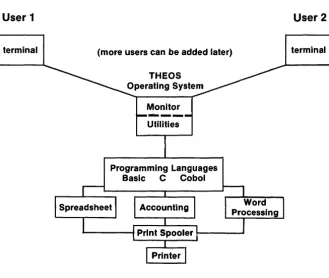
The operating system is generally divided into two components:
monitor
utilities
Manages the flow of information within the com-puter system. Think of it as a supervisor or a police person directing traffic at a busy intersection A complete set of programs which manage compu-ter "housekeeping" functions such as copying files, erasing unneeded files, etc.
The monitor provides the interface (or a means of communica-tion) between the hardware, the user, and application software. When
the computer is initially turned on, a special program called a
boot-strap loader loads the required startup monitor programs into
18 THEOS User's Handbook
Only Memory). Operating System programs are stored on a disk and transferred to RAM as needed. This conserves space in RAM for application software and data.
Utility programs are operating system programs that allow you to erase files, make backup copies, print files, etc. Since all of these programs occupy RAM thereby taking space away from your data and applications software, they are stored on a disk and only called into RAM when needed. The monitor is the component of the operating system which actually accomplishes the task of "calling-up" the utility programs.
User 1 User 2
terminal (more users can be added later) terminal
Monitor
---Utilities
Programming Languages Basic C Cobol
[image:19.418.37.367.229.507.2]Operating System Selection
Choose carefully when selecting an operating system. The more popular the operating system, the more applications software is avail-able. What? You mean you have to take the operating system into account when looking for applications software? The answer is yes!
Selection of the wrong operating system can have a monumental negative effect on the functionality, ease-of-use, and cost of your computer system. In addition, if the operating system cannot accom-modate growth and increased "computing power" dictated by the applications software, you may be in for some unhappy surprises.
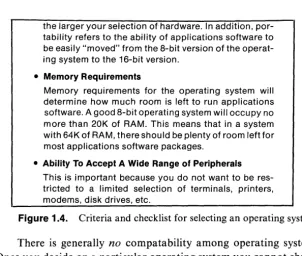
Consider the criteria depicted in figure 1.4.
• Single or Multi-User
In a multi-user arrangement, the computer is able to perform tasks for more than one user simultaneously. A time-sharing multi-user system can save you money by sharing a single microprocessor and requiring only add-on terminals to expand the number of users. The initial cost for the computer is somewhat higher than a single-user computer, but this cost may be justified in the long term.
• Ease of Use
This is important because most computer users are not computer "gurus". The operating system should pro-vide help menus, English (not computerese) based commands, and error handling routines that make it next to impossible to do harm to the system, programs and data files.
• Security
Security is important, particularly in a multi-user ar-rangement, to prevent unauthorized access to data files or parts of the computer system. Provisions for file and record locking should also be investigated to avoid damage caused to data files by two or more users accessing the same information simultaneously.
• Portability
20
THEOS User's Handbookthe larger your selection of hardware. In addition, por-tability refers to the ability of applications software to be easily "moved" from the 8-bit version of the operat-ing system to the 16-bit version.
• Memory Requirements
Memory requirements for the operating system will determine how much room is left to run applications software. A good 8-bit operating system will occupy no more than 20K of RAM. This means that in a system with 64K of RAM, there should be plenty of room left for most applications software packages.
• Ability To Accept A Wide Range of Peripherals
[image:21.422.43.346.65.321.2]This is important because you do not want to be res-tricted to a limited selection of terminals, printers, modems, disk drives, etc.
Figure 1.4. Criteria and checklist for selecting an operating system
There is generally no compatability among operating systems.
Once you decide on a particular operating system you cannot change to a different one unless you completely change your applications software as well.
The History and Development of THEOS
22 THEOS User's Handbook
Although the 16-bit version of THEOS is now commerically available, the majority of THEOS systems in use are 8-bit. Therefore the majority of this book will be devoted to the 8-bit version of THEOS.
The Design Philosophy of THEOS
THEOS was designed to accomplish the following four goals:
1. I mplementation on microcomputers with features found only on mini and mainframe computers.
2. Implementation on a wide variety of popular micro computers.
3. Ease of use.
4. To provide an easy and efficient means of writing, developing, and executing application software.
The first goal was easy to accomplish since the background of the THEOS designers had been almost exclusively in mini and mainframe machines. Those of you who are familiar with mini or mainframe computers may see many operating similarities in THEOS.
Implementing THEOS on a variety of machines was a little more difficult. That goal has been accomplished, however. A list of hardware manufacturers who have implemented THEOS is provided in table 1.1. .New machines are being added to this list regularly.
Table 1.1. List of hardware manufacturers who have implemented THEOS
Aeon Astrocom
Canbrerra Industries Compupro-Godbout Digital Group Digitex Elmicron IBM
Intertechnique Kontron
Altos
California Computer Systems Cannon
Cromemco
Digital Microsystems Dynabyte
IBC (Integrated Business Computers) IBM PC-XT
Kaypro 10
Micro Unverse
National Semiconductor NNC Electronics Onyx
Quay Seconsia Sirius (Vector) Tandy-Radio Shack Toshiba
Morrow Designs
National Semiconductor Northstar
Pentel SD Systems Seiko
Systems Group-Measurement Systems Televideo
Vector Graphic
Making THEOS easy to use was the most difficult task. A partial solution was to provide built-in help messages, using English words for the various operating system commands. However, the master stroke was the design and implementation of the EXEC Language which allows programmers, system developers, and even end-users to effec-tively isolate users from the operating system. As we will see in a later chapter, it is possible to construct menus to perform any day to day computer task.
The fourth task was accomplished by designing the operating system so that it works with application software to maximize speed and efficiency while minimizing memory requirements.
The THEOS Components
THEOS can be divided into the following component parts:
• Nucleus • Device Drivers
• CSI or Command String Interpreter
The nucleus is a special set of instructions which provide the "intelligence" of the system. When a system is started up or "booted" it is the nucleus that is loaded into RAM. In the multi-user version of
THEOS, it is the nucleus that controls the time-sharing of the
micro-processor for each user and determines how much memory each user receives.
24
THEOS User's Handbookthe use of various types of terminals, printers, modems, etc. with THEOS. These provide a means of maximizing performance of peri-pherals on a particular computer system.
The csi or command string interpreter is the center or "brain" of THEOS communications. It is the key that allows you access to system and user programs; it performs all input and output functions.
To summarize, the nucleus, csi, and device drivers together consti-tute the THEOS operating system.
THEOS Hardware Requirements
The following components are required to run an 8-bit THEOS system:
• A Z8D microprocessor
• An interactive terminal/keyboard
• A minimum of 1 million character (1 megabyte) disk storage. The complete operating system itself takes up
112 megabyte of disk space. A hard disk is recom-mended to maxi mize storage and ensure speedy opera-tion.
• Minimum of 64K of random access memory. The max-imum amount of memory supported by the 8-bit ver-sion of THEOS is 784K.
Special Note: floppy disk based systems are not recommended with THEOS because the amount of storage is limited which slows system operation to the point where using such a system in a multi-user environment is impractical.
Application Software For THEOS
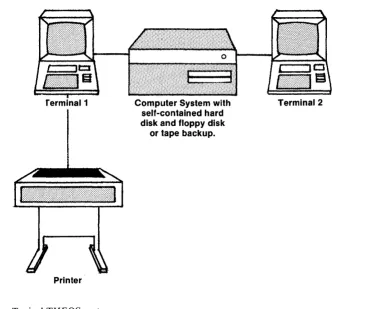
Terminal 1
Printer
Figure 1.5. Typical THEOS system
Computer System with self-contained hard disk and floppy disk
or tape backup.
:::s
-...
o
Q.
c n
-o·
:::s
-
o -IJ:
m
o
(J)
N
[image:26.650.142.529.53.362.2]26
THEOS User's Handbookpackages from more than 200 software houses worldwide. Newappli-cations are added to the directory every quarter.
Some THEOS Statistics and Capabilities
As of this writing over 50,000 copies of THEOS have been installed at end user locations world-wide. The popUlarity of THEOS is due to the following attributes:
• Multi-user THEOS can support up to 16 users simul-taneously (assuming the hardware can support that many). Each user appears to have his own completely independent computer system.
• There is built-in security for important files, complete with the capability of assigning passwords.
• There is a built-in facility called EXEC which allows for the creation of "menus". This permits "housekeeping" functions and applications software to be performed by making choices from menus. This facility eliminates
the need to purchase any extra "help" programs as with other operating systems. A further benefit is that as new software applications are added, the menus can easily be modified to accommodate new programs.
• Print Spooling which allows all system users to share one pri nter.
All of the above features will be discussed In detail in later chapters.
Summary
THEOS was designed to function as a multi-user system and to run only business-oriented software such as accounting, word
process-ing, order entry, etc. If your needs dictate a multi-user business system,
2
An Overview of THEOS
With features such as security (provided by user accounting), accounting history, file and record locking, and an on-line help facility, THEOS is a powerful yet easy to use business operating system. This chapter will introduce these features as well as some useful supplemen-tary programs which can improve the speed and operating efficiency of THEOS.
THEOS UNIQUE FEATURES
Security
THEOS controls access to the computer system and its files and prevents unauthorized persons from accessing data or programs while allowing authorized persons to access these same programs and data.
28 THEOS User's Handbook
This feature is highly desirable in a business environment where it is
necessary to control the use of certain programs and to prevent chang-ing or possible erasure of data files.
USER ACCOUNTING
User accounting is one way THEOS provides data security. The component parts of user accounting are account assignments, file ownership, account log on, new accounts, privilege levels, synonyms, and passwords. These will be discussed here as well as in the tutorial session on the ACCOUNT command.
ASSIGNING ACCOUNTS
Each person who uses the system is assigned an account name which enables him to gain access to the system. This account name is assigned by the system manager and can be changed if necessary. The account can be visualized as a file cabinet; it cQntains all the;data files which must be accessible to the user. Any data files not contained within the account cannot be accessed by that user.
FILE OWNERSHIP
File ownership refers to the fact that each file is "owned" by a specific account. Files or programs that all users have access to are
called public files. Files or programs that are only accessible by certain
individuals are called private files. Files that a specific user has given permission to another user to use are called shared files. The owner of a file is the particular user who has access to a specific file.
Private files may only be accessed, deleted, or changed by the owner of the file. Private files may be shared by another user if permission has been given by the owner of the file. The sharing of the file is controlled by the operating system. A shared file may be changed or updated by the non-owner, but it may not be erased by him.
system account. Examples of such programs would be any THEOS operating system command or any application software programs.
The primary benefit of private files is not so much to limit access to programs but rather to prevent or limit access to data files. Obviously certain data should not be available to all users, and only certain authorized individuals should be able to alter or erase impor-tant data files.
We will show you how to set up user accounts later in this book. To clarify the concept of file ownership, study the following example.
System Account
Order Entry Programs Inventory Prog rams
Files Owned By:
Walter
Order Entry Data
Accounts Receivable Programs Accounts Rcv Data
Brian
I nventory Data
Accounts Payable Programs Accounts Pyble Data Accounts Pyble Data General Ledger Programs General Ledger Data
Based on what we have discussed thus far, the accounts named Walter and Brian can access all of the accounting programs (system account). But only Walter can access the order entry and accounts receivable files. Only Brian can access the inventory and general ledger.
Both Walter and Brian share access to the accounts payable file.
LOGGING ON TO AN ACCOUNT
In order to access any information, one must first log on to an
account. Using our preceding example, if one logs on to the system
account, the accounting programs can be run but none of the data files
can be accessed. An example of how to log on to an account will follow shortly.
ADDING ACCOUNTS
Accounts can be added using a special operating system program called the ACCOUNT command. When a THEOS system is first installed, it has no accounts. A special THEOS command called
30 THEOS User's Handbook
mandatory to use the accounting feature in single-user THEOS, but it is required in multi-user THEOS. For our purposes, we will assume that user accounting is being utilized.
PRIVILEGE LEVELS
I
Privilege levels are another built-in protection provided by THEOS which restrict access to the computer and its programs. In the
process of setting up new accounts, the system will ask what privilege
level you wish for an account. The lowest privilege level is 0 while the
highest level is 5.
The system account is the master controlling account. Its privilege level should never; be changed. If the privilege level of this account is changed to a number less than 5, certain programs owned by the
system account may never again be accessible by anyone! More details
about all user accounting features will be provided in the section on the
ACCOUNT command.
ACCOUNT SYNONYMS
An account synonym is merely another name for the same account. Account synonyms are a useful safeguard because they may provide backup in the event the original account was accidentally deleted. As an example, if you create a synonym account for WALTER called WALTERBA (for WALTER backup) with the same privilege level, you will have two accounts with the same privilege level, which can access the same data files.
ACCOUNT PASSWORDS
Password protection is one additional level of security provided
by THEOS. All accounts have a potential password associated with
Logon please: SYSTEM <RETURN>
Password?******** (Assume the assigned password is LETMEIN) Logon at 10:59:30, on 07/27/84.
TIME DATE
>
32 THEOS User's Handbook
To summarize, user accounting provides data security in an THEOS system. The topics discussed above are part of user account-ing and are the means that user accountaccount-ing uses to provide security. User accounting will be discussed in more detail in the tutorial session on the ACCOUNT command.
Accounting History
Accounting history is a special THEOS feature which allows the system to keep track of the following information:
1. Who logged on? 2. When did they log on?
3. How long were they logged on? 4. When was the system last booted? 5. When was a backup copy last made?
6. General information about the backup disk such as disk name, storage capacity, etc.
This is a useful feature but since this information is cumulative it can occupy large amounts of disk space. For this reason the feature is
disabled as supplied with each copy of the operating system. If you
decide to use the accounting history feature, you must enable it. (See
the tutorial session on the SET command in chapter 4). The system accounting information is contained in a special file called SYSTEM.-HISTOR Y and must be cleared out periodically by using the ACCOUNT command.
Multi-User THEOS
THEOS versions 5.4 and above offer multi-user features. In other words, these versions of THEOS allow more than one terminal to share access to the computer at one time. In this sort of "time sharing" arrangement, it appears to each user that he or she is the only one using the system.
or use operating system commands. Because of this sharing arrange-ment, only one copy of the operating system and application software must be purchased for the computer.
Because any microprocessor can only perform one task at a time, it is important to note that the faster the microprocessor, the faster the system will run. As an example, the 8-bit version ofTHEOS requires a Z8QTM microprocessor. There are different versions of Z80's which run at different clock speeds. The faster the clock speed, the faster the microprocessor.
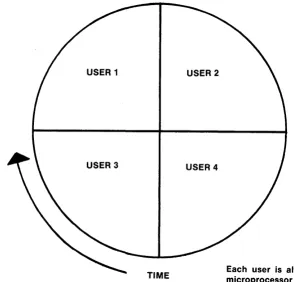
In addition, the microprocessor serves the various users by switch-ing between them at a very high speed. It is the operatswitch-ing system which controls this switching. When each user has exhaused his or her time slice, the next user in line is selected.
In any multi-user arrangement certain problems may arise. First, since there is sharing of a single microprocessor, as more users log on to the system it slows down. Selecting hardware with a fast microproces-sor and using a hard disk is important if this slowing effect is to be kept to a minimum. Second, a situation may arise where two users want to update the same disk file. It is also possible that two users will want to make changes to the same record within that file without knowledge of the other user. Some method of file access must be provided to avoid this contention. The THEOS BASIC programming language provides a means of both file and record lockout.
In THEOS, file or record contention can be avoided if the applica-tion software follows these rules:
1. Whoever gets to the file first automatically locks out anyone else.
2. Whoever gets to the desired record first automatically locks out anyone else until all the necessary changes are made.
Contention can also arise as a result of writing new information to
the file or record. Reading the same file or record is generally not a
pro blem. If no provisions for file or record locking existed, files would
end up in a state of chaos.
Special Note: this locking mechanism is not an automatic feature
34 THEOS User's Handbook
Type Z80A Z808 Z80H
Clock Speed (Measured in Mhz)
4 Mhz 6 Mhz 8 Mhz
USER 3 USER 4
TIME
Figure 2.3. Time slice arrangement
Each user is allocated a "slice" of microprocessor time by THEOS. A fast microprocessor is important to minimize system slowdown as more users are added.
l>
::::I
o
<
CD
~
CD'
=:
o-
-I::J:
m
o
en
w
[image:36.649.154.449.50.332.2]Accounts payable file
Terminal 1
Accounts receivable file
Terminal 2
In a file locking system, two users may access different files. In this example, if both userl" "'ttempted access to accounts payable, the system would likely "hang."
[image:37.650.56.615.31.356.2]File Cabinet
Figure 2.4. Diagram of how file / record locking works
Accounts payable file Terminal 1
Accounts payable file Terminal 2
In a record lock system, two users may access the same file, but cannot access the same record simultaneously.
w
en
-I
:J:
m
o
tn
C
tn
CD
...
tn~
:J: S»
::::s
c.
C"
o o
part of THEOS BASIC. In addition, care must be taken when writing programs to avoid deadlocking. This occurs when any user is locked out of any file or record fo! an excessive amount of time. When looking for THEOS software, be certain you ask for these important features.
The Built In Help Facility
The built-in help feature is unique to THEOS. Whenever you see
the THEOS prompt (» on the screen, if you type the word HELP a
complete list of all the operating system commands along with what they do will appear in front of you. For example if you type:
>HELP[RETURN]
A screen resembling that depicted below will appear:
Command ACCOUNT ARCHIVE ASSIGN ATTACH BACKUP
BASIC
Function
Maintain user accounting feature To make backup copies of hard disks Assign files or devices to I/O channels Make a disk or device available to THEOS Copy the entire contents of a THEOS disk to another disk
Execute or maintain a THEOS BASIC language program
Figure 2.5. General THEOS HELP screen
All THEOS commands along with their functions will be listed in alphabetical order.
Since all of the THEOS commands will not fit on the screen
simultaneously, you will see an up-arrow (t) in the lower left-hand
38 THEOS User's Handbook
reviewed all of the commands, you will be returned to the operating system (CSI).
The CSI prompt,
>,
will then appear.If you would .like help with a specific command you can type:
>HELP XYZ[RETURN] where XYZ is the name of the specific THEOS command
The following information is displayed:
1. The general function of the command 2. The syntax (how to use it)
3. Any special options or functions available for use with that command
OTHER SPECIAL FEATURES OF THEOS
Some of THEOS's other features include:
• The ability to send messages from one user to another. • The ability to share a single printer among the various
users via print spooling.
• The ability to communicate and transfer data or pro-grams via telephone modem or directly from one THEOS based computer to another.
• Built-in diagnostic programs that test memory and verify media.
• The ability to see what another user is doing via your own terminal.
• Serialized programs. Each copy of THEOS has a serial number. Most high quality application software has the serial number of the operating system entered into it. If a user attempts to use the software on a THEOS sys-tem with a different serial number, the error message "Incorrect serial number" appears on the screen. This prevents unauthorized copying of software, but allows the owner/user of the software to make an unlimited number of backup copies for archival purposes.
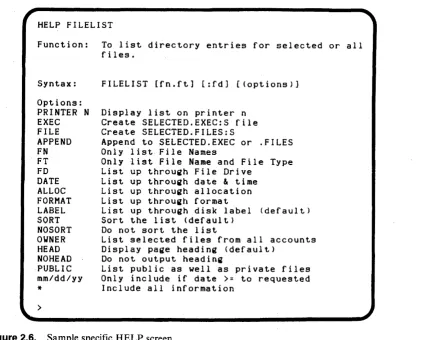
Function:
Syntax: Options: PRINTER N EXEC FILE APPEND FN FT FD DATE ALLOC FORHAT LABEL SORT NOSORT OWNER HEAD NOHEAD PUBLIC mm/dd/yy
*
\.. >
To list directory entries for selected or all files.
FILELIST [fn.ft] [:fd] [(options)]
Display list on printer n Create SELECTED.EXEC:S file Create SELECTED.FILES:S
Append to SELECTED. EXEC or .FILES Only list File Names
Only list File Name and File Type List up through File Drive
List up through date & time List up through allocation List up through format
List up through disk label (default) Sort the list (default)
Do not sort the list
List selected files from all accounts Display page heading (default)
Do not output heading
List public as well as private files Only include if date >= to requested
[image:40.650.113.553.24.364.2]Include all information
Figure 2.6. Sample specific HELP screen
»
~ 0 < CD...
< CD·:e
0 --I ::t mJ 0 tn
W
40 THEOS User's Handbook
THE THEOS FILING SYSTEM
THEOS Files
THEOS files are stored on the disk drives. Each drive may contain a mixture of both program and data files. THEOS has the ability to handle up to eight drives. Each disk is maintained independently which means that a file may not start on one disk and continue on another. Each disk may handle any number of individual files up to the capacity of the disk being used.
Like other operating systems, before any disk can be used it must
first be initialized or FORMATted using the INITDISK command (discussed in chapter 4). Disks, as received from the manufacturer, are
blank and contain no information. It is this formatting process that
creates a "road map" on the disk, including a directory (table of contents), disk label (to identify the various disks), and instructions which tell the computer that the disk is available for storing informa-tion and how much disk space is available. In THEOS the smallest amount of disk space any file can occupy is one data block. Each THEOS data block is equal to lK or 1024 characters. After formatting, the disk can then be used for adding, erasing, or changing files.
Special Note: there is no limit on how many times a disk can be initialized. However if you reinitialize a disk with existing data, that data ,is automatically erased and cannot be recovered.
DATA AND FILE FORMATS IN THEOS
The following data and file formats are available in THEOS:
1. Sequential Files 2. Direct Files 3. Indexed Files 4. Keyed Files 5. Absolute Files 6. Relocatable Fi les
PROTECTING FILES AND DISKS
THEOS's RENAME command can be used to prevent accidental erasure of unauthorized changes in files and disks. The RENAME command will allow you to:
• Prevent any program from erasing a file • Prevent writing information to an existing file • Prevent reading of files
• Prevent any writing on an entire disk
As we will see, since using the RENAME command has serious implications, it must be used cautiously. Details on RENAME are provided in chapter 4.
DISK SPACE UTILIZATION
THEOS is designed so that continuous or contiguous space on a
disk is required to write files. Single files cannot be spread across
multiple disks and file space for most data files is preallocated. This
means that, with the exception of sequential files, empty data files are created before any application software is run.
When a new THEOS system is brought up for the first time, all disk space will be continuous. As the system is used and files are added and deleted, the file space occupied by those deleted files may not be easily reclaimed. The only way this space may be reclaimed is by first making a backup copy of that disk and then reinitializing (which will automatically erase existing data) on the disk. This will reclaim the
space and squeeze everything back together. All of your files will then
have to be recopied onto the newly initialzied disk. There is an easier
way to reclaim unusable disk space (see File Management Utilities at
the end of this chapter).
SOME USEFUL ADDITIONS TO THEOS
Control and Sort
42 THEOS User's Handbook
computer system into a powerful data base manager. Control allows you to create data entry screens that are easy to use. You can use it to create card files, inventory files, or almost any type of data entry system. Once you have created the data entry screens, fill in the data and store it. You can then design any report format you prefer. The sort program allows sorting of the information created with the control program. Sort can also be used with other application software that lacks sorting capability or sorts too slowly.
RIM
CObOpMRj M Cobol is a THEOS module available separately that is
required to run programs written in the COBOL language. If you are
looking at application software in the THEOS software directory, it
will always indicate when Rj M Cobol is required to run the software,
Although COBOL is a language preferred by many programmers, some experienced THEOS users (and programmers) have found that application software written in COBOL runs substantially slower than software written in THEOS BASIC.
File and Disk Management Utilities
The special programs called file and disk management utilities save considerable time and effort. In particular three programs from Quantum Information Systems are quite helpful. These programs are REORG, SQUEEZE, and QCOPY. They are described below.
The purpose of file and disk management utilities is to provide a simple solution to problems that may occur in managing THEOS files, such as maximizing disk space, and ensuring faster disk access .
A similar problem arises with the disk directory. Time required to access the directory will degrade when it becomes seventy to eighty percent full. At this point there is a need to reorganize the directory and remove deleted entries in order to optimize file access time. A further problem may occur as files are added and deleted from the disk; the available space on the disk may become fragmented providing very little usable space in one location (remember, THEOS requires contin-uous space to write files). This creates the need to be able to compress the unused space on the disk into one contiguous area at the end of the disk where it is more useful.
REORG is a program that handles changing file sizes without losing data in the file. SQUEEZE is a program that handles the disk directory and disk space reorganization. Although it is possible to reorganize a disk by reinitializing it, SQUEEZE can perform the same operation and more, in less time, without reinitializing the disk.
QCOPY is a high speed copy program which reduces the time necessary to copy files. The QCOPY program is able to copy files two to four times faster than the COPYFILE program provided by THEOS, and eliminates the problem of copying files to multiple
diskettes. It is not necessary to determine in advance how many files
will fit on a disk. The program will copy files until no more will fit. The user is then prompted to insert another diskette. The procedure is repeated until all files h<;lve been copied. Before this particular program is purchased, it is recommended that the user work with the COPY-FILE command that is part of THEOS. Many users will find that COPY FILE does the job.
The Quantum utilities should be an integral part of every THEOS installation. REORG and SQUEEZE in particular can improve system speed and operating efficiency considerably.
Summary
44 THEOS User's Handbook
THEOS from the same vendor as the hardware. Some hardware manufacturers supply THEOS with some additional software such as the packages described above. However, as long as the screens on your system resemble those we have described, you can be sure that the operating system you are using is THEOS.
3
THEOS Conventions
Introduction
This chapter will provide the background necessary to begin using the THEOS operating system. We will begin by defining what a documentation convention is. Next, THEOS system conventions such as how disks are "searched," how to assign names to files, using wildcards, and system control keys will be discussed. We will conclude by defining the concept of a command line and giving a few examples of how to enter THEOS commands.
In this chapter a number of screen displays will be included in the
discussion. In these displays, items to be entered via the keyboard by
the reader are shown in boldface. <RETURN> will indicate that the
Return key is to be pressed.
46 THEOS User's Handbook
If you have access to a computer with THEOS software, study this chapter while seated at a terminal. Enter the examples and compare the screen displays on your terminal with the illustrations provided.
THEOS Documentation
In order to use THEOS certain rules or instructions must be followed when typing commands for the computer system to interpret. The rules governing the correct way to type a THEOS command are
called documentation conventions. It is important to follow these
documentation conventions because they provide a means of commun-icating with the operating system. Some examples of documentation conventions are:
• Abbreviations
• Delimiters and special characters such as asterisks (*),
commas (,), equal signs (=), parentheses( ), periods (.), spaces ( ), and colons (:).
Abbreviations are the shortest form of a THEOS command. Available THEOS command abbreviations will be indicated in the tutorial section on commands.
Delimiters and special characters in THEOS are used much like punctuation is used in languages to clarify thoughts and expressions. The a&terisk (*) is called a wildcard character and will be discussed in the section of this chapter titled wildcards. The other special characters will be discussed as required.
THEOS System Conventions
STANDARD SEARCH ORDER
Standard search order is the order in which all disk drives on the computer system are searched when a disk operation is performed. Since the access time required to locate files on disk is affected by their location, this makes standard search order an important convention. When searching for data files and programs, disks are searched in
alphabetical order: A,B,C,D,E,F,G,S. If you want to maximize access
time, program files and data files should be located on the disks that will be searched first!
The disk labelled S is a special disk in that it is designated as the system disk. The system disk can be either a floppy disk or a hard disk.
It is used to boot or start the system and contains all of the operating
system commands. It may contain other files as well depending ~pon
its storage capacity.
EXCEPTIONS TO STANDARD SEARCH ORDER
One exception to the standard search order is operating system commands or special programs called execs. The standard search order for commands or execs is disk S followed by disks A through G.
Another exception occurs when a command is executed, a data file is written, and no disk drive is specified. In such an instance the
system disk is examined for blank space. If insufficient room is
avail-able there, the other disks will be searched in alphabetical order until sufficient space is found to write the file.
PROMPTING CHARACTERS
Prompting characters are printed on the screen when the compu-ter is waiting for an entry. This book will only be concerned with the following THEOS prompts:
> The command string interpreter is waiting for a command.
* TEXTEDIT or EDIT is waiting for a command. An EXEC is waiting for an entry.
t
A full screen of data has been displayed and the sys-tem is ready to disply the next data screen. Press48 THEOS User's Handbook
The> is the primary THEOS prompting character and is the one most frequently encountered by users. Examples of entries to be made in response to these other prompting characters will be given later.
FILENAME, FILETYPE, FILEDISK
A filename is a unique name that identifies a program or data file. A filename can consist of from one to eight characters. The first character must be a letter. A filename can only contain letters, digits, or a dollar sign.
Filetype is used to further describe the filename and indicates its function. A filetype of DATA could indicate a data file, while a filetype of COMMAND implies a THEOS command file. A filetype can consist of from one to eight characters. The first character must be a letter and like the filename, only letters, digits, or dollar signs are allowed for the remaining characters.
Filedisk is a letter assigned to a particular drive S, or any letter A through G. Generally, one need not specify a filedisk unless a file is to be written to a specific disk or file access time is to be reduced. If a filedisk is not specified, the system will search all available disks according to the rules of standard search order.
Filename, filetype, filedisk always appear in this order separated by a space ( ) or by a period (.). Filedisk can be omitted. In such instances, the proper order is filename.filetype. The combination of filename, filetype, and filedisk together are referred to as a file descrip-tion. Uppercase letters are always used to indicate file descriptions. Whenever the THEOS prompt is on the screen, any letters typed automatically appear in upper case.
*
It is not necessary to use the shift key.Table 3.1. Examples of THEOS file descriptions
SAMPLE.DATA S ASSIST.EXEC G
TERMINAL.COMMAND S AROIAO.DF C
LETTER1.WPF D LETTER1.BACKUP B ACCTING DATA A ACCTING BACKUP
Note that either a period or a space can be used to separate the filename, filetype, and filedisk.
THEOS Reserved File Descriptions
THEOS has a number of reserved file descriptions. When a file
description is reserved for THEOS, this means that it cannot be used to name a data or program file. Table 3.2 indicates the file descriptions reserved for THEOS.
Table 3.2. THEOS Reserved File Descriptions IPL.EXEC
SYSTEM.NUCLEUS SYSTEM.CSI SYSTEM. EXEC SYSTEM.DEVNAMES SYSTEM.ACCOUNT SYSTEM.HISTORY SYSTEM.ERRMSG SYSTEM.EXEC SYSTEM.SPOOLER SYSTEM.SPOOLQUE SYSTEM.DEVn SYSTEM.CLASSn HELP.COMMAND
"-50 THEOS User's Handbook
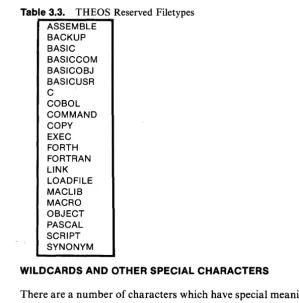
Table 3.3. THEOS Reserved Filetypes ASSEMBLE
BACKUP BASIC BASICCOM BASICOBJ BASICUSR
C
COBOL COMMAND COpy EXEC FORTH FORTRAN LINK LOADFILE MACLIB MACRO OBJECT PASCAL SCRIPT SYNONYM
WILDCARDS AND OTHER SPECIAL CHARACTERS
There are a number of characters which have special meaning to THEOS. These special characters are called wildcards.
They are:
* ? @ # =
Because of their special use you should not use these characters in file descriptions. In fact, avoid the use of any symbols on the keyboard when naming files.
In most of the examples provided we indicate files using a specific file description. You may also use wildcards to specify a file or a group of files to eliminate keystrokes. Consider the following wildcard characters:
* ? @ # =
[image:51.418.35.335.72.375.2]WHAT THE WILDCARD CHARACTERS DO
• The * matches any string of alphanumeric characters in the file description.
• The? indicates that a single character in this position will match.
• The @ indicates that a single alphabetic character in this position will match.
• The # indicates that a single numeric character in this position will match.
• The = is used only in the COPYFILE and RENAME THEOS commands and will be discussed in those sections.
The use of wildcards and special characters is best illustrated with examples.
Type the following entries shown in boldface.
>FILELIST ATTACH.COMMAND <RETURN>
The system will display information about the file ATTACH.-COMMAND on the screen.
>FILELIST A*.COMMAND <RETURN>'
The system will display a list of all filenames that begin with the letter A and have a filetype of COMMAND.
Wildcard characters can be used in combination with each other. Consider the following examples:
>TEST*.F??????# S
This file description indicates that all files whose filename starts with the letters TEST, whose filetype starts with the letter F, has a number in the eighth position, and is on the S drive are to be included.
>@@@@??#*.?? *
52 THEOS User's Handbook
(n), the seventh character is numeric (#) and the eighth character may
be anything including a space (*). The filetype must be two
alphanu-meric characters (n) and may be located on any disk (*).
To summarize, wildcard characters are a useful addition to THEOS because it is not always possible to remember an exact file description. Wildcards can be used in place of an exact file description. They provide users with a method of finding files when a memory lapse occurs, and help eliminate the burden of memorizing numerous file descriptions.
SYSTEM CONTROL KEYS
System control keys are special key sequences which perform specific functions under THEOS. There are a total of 12 key sequences that are a part ofTHEOS but for now we will only deal with the system
cancel key. The key sequence ESC
Q
(this means hit the ESCape keyand then press Q) is called the system cancel key. Its function is to terminate the execution of any system operation in progress, thereby returning the user to the operating system prompt>.
Caution: try not to get into the habit of using ESC Q. It should only be used when an operation can be cancelled without the risk of losing data.
THE THEOS COMMAND LINE
In the next chapter, we will present a series of tutorials designed to teach you to use the operating system. Throughout the tutorials we will consistently use the symbols and procedures outlined below:
• The
">"
indicates the THEOS operating system prompt. THEOS automatically prints this character on an oth-erwise empty line to tell you it is ready to accept your next entry.• A THEOS system command is a program which per-forms some desired function. For example, SHOW DISK is a command that displays information aboutthe disk drives in a THEOS system. THEOS commands are shown in uppercase boldface type.
• A command line consists of one or more distinct ele-ments. Each element is a sequence of alphanumeric characters separated from other elements by either a space ( ) or a period (.).
• The first element immediately after the> prompt is always the name of the command. For simple com-mands (such as HELP) you type the command and then terminate the command line by pressing the return key. • For more complex commands, you type the command name, a space or a period, followed by one or more elements, which specify additional information. • Command operands are keyword and variable symbols
of not more than eight alphanumeric characters. These keywords and variables specify the information on which THEOS operates when it performs the command function. Examples of command operands are file-name, filetype, and filedisk. Some commands require no operands while others require several.
• Command options are keywords used to control execu-tion of the command. The most frequently used com-mand options will be listed with each comcom-mand in the next chapter. The first option must be preceded by a left parenthesis - a closing parenthesis is not required. Each THEOS command may have a number of options associated with it.
• Default options are certain command options that are performed automatically unless otherwise specified. When default options are LJsed, it is not necessary to use a left parenthesis unless you wish to include some non-default options.
• All input to the keyboard, when typing command lines, is automatically "folded" into upper case. It is not necessary to use the shift key.
How To Enter Command Lines
Command lines are always entered in the following format:
command name operands (options ...
Consider the following THEOS command line:
54
THEOS User's HandbookHere,
">"
is the THEOS prompt; "COPYFILE" is the command name; "FILENAME, FILETYPE, and S" are operands; the "=" signsare special characters which indicate that the same filename and
file-type are to be used when the file is copied to disk drive G.
Summary
THEOS Commands
Introduction
The purpose of this chapter is to provide a series of tutorial sessions that will allow you to begin using THEOS. The first session will show you how to start and stop a THEOS system. The remainder of the sessions will concentrate on the other THEOS commands. In order to maximize comprehension and hold your attention, we have divided each THEOS command into a working session. The com-mands and sessions will be described in alphabetical order. You can work with each of the commands in any order you prefer but it would be best if at first you worked with them in the order presented. The chapter will conclude with a tutorial on how to load, install, and run application software.
56
THEOS User's HandbookSession 1: How to Start and Stop a THEOS System
THEOS startup is an easy procedure but may vary with the type of system you have. Please consult your computer system manual and note any special requirements for your system and how to transfer THEOS to the hard disk. The operating system is generally supplied on eight or five and one quarter inch floppy diskettes, or cartridge tape. For our purposes we will assume that you are using a hard disk system and that THEOS has been transferred to the hard disk.
Special Notes:
• Put the THEOS floppy away and store it in a safe place. • Make extra copies of all of your operating system files.
We'll show you how in the COPYFILE session . • Some hardware may have unique startup instructions.
Check your documentation.
The steps for starting a THEOS system are:
1. Turn on your computer, printer, and terminal. If the computer is already on, press the reset button (some computers may require pressing the reset button after power on).
2. Press the ESC key on your terminal.
3. You may see the following on your terminal:
XXXX Loader Prom Version 2
This message comes from the Bootstrap Loader ROM chip where the startup instructions are stored. XXXX will be replaced by the name
of the hardware manufacturer. The
*
(asterisk) is a prompt from thecomputer indicating you are to enter information via the keyboard.
4. Since we are using a hard disk, respond to the * by typing BS (for boot system).
5. In a few seconds, the following message will be dis-played on your screen:
The v will be replaced by the current version number. The r will be replaced by the current release number.
For example if Multi-User THEOS 5.6 appears on your screen, you have version 5 release number 6 of the operating system.
The nn will be replaced by the amount of memory on your
particular machine. If the message is not displayed after a reasonable
period of time after pressing BS (5-10 seconds) press the reset key and return to step 2.
6. The system will then display:
Time (HH:MM:SS)
THEOS keeps track of the time of day, but you must enter it in 24 hour format. For example if you are starting the system at 6:30 PM, you would type 18:30 (24 hour time indicates PM by adding 12 to the number of hours after 12 noon). It is not necessary to enter any leading zeroes or seconds. If keeping track of the correct time of day is not important to you, you may press the Return key in response to the time prompt. Doing so causes the system to use the time of the last system start-up.
Special notes: Not all THEOS systems support the time of day feature. In addition, some newer systems on the market have built-in real time clocks and automatically enter the correct time for you.
7. The screen will then display:
Date (MM/DD/YY)
THEOS keeps track of the date but you must first type it in. Enter the correct date. It is not necessary to enter leading zeroes. The date you enter must be a valid date and must be greater then 01/01/77. The date may be entered in any reasonable format such as July 12th, 1984. As with the time, you may press RETURN and the last date of system start-up will automatically be entered.
If your system has a built-in real time clock,